Zabbix: Enterprise Network Montioring Made Easy


By Rihards Olups, Andrea Dalle Vacche, Patrik Uytterhoeven

Learn how to gather detailed statistics and data with this one-stop, comprehensive course along with hands-on recipes to get your infrastructure up and running with Zabbix.

Start Reading
Features

  • Monitor your network and deploy impressive business solutions with Zabbix
  • Get practical recipes to automate your Zabbix infrastructure and create impressive graphs
  • Integrate, customize, and extend your monitoring solutions with external components and software.

Learning

  • Efficiently collect data from a large variety of monitoring objects
  • Organize your data in graphs, charts, maps, and slide shows
  • Write your own custom probes and monitoring scripts to extend Zabbix
  • Configure Zabbix and its database to be high available and fault-tolerant
  • Automate repetitive procedures using Zabbix's API
  • FInd out how to monitor SNMP devices
  • Manage hosts, users, and permissions while acting upon monitored conditions
  • Set up your Zabbix infrastructure efficiently
  • Customize the Zabbix interface to suit your system needs
  • Monitor your VMware infrastructure in a quick and easy way with Zabbix

About

Nowadays, monitoring systems play a crucial role in any IT environment. They are extensively used to not only measure your system’s performance, but also to forecast capacity issues. This is where Zabbix, one of the most popular monitoring solutions for networks and applications, comes into the picture. With an efficient monitoring system in place, you’ll be able to foresee when your infrastructure runs under capacity and react accordingly. Due to the critical role a monitoring system plays, it is fundamental to implement it in the best way from its initial setup. This avoids misleading, confusing, or, even worse, false alarms that can disrupt an efficient and healthy IT department.

This course is for administrators who are looking for an end-to-end monitoring solution. It will get you accustomed with the powerful monitoring solution, starting with installation and explaining the fundamentals of Zabbix. Moving on, we explore the complex functionalities of Zabbix in the form of enticing recipes. These recipes will help you to gain control of your infrastructure.

You will be able to organize your data in the form of graphs and charts along with building intelligent triggers for monitoring your network proactively. Toward the end, you will gain expertise in monitoring your networks and applications using Zabbix.

This Learning Path combines some of the best that Packt has to offer in one complete, curated package. It includes content from the following Packt products:
Zabbix Network Monitoring-Second Edition
Zabbix Cookbook
Mastering Zabbix-Second Edition

Contents

About the Author


Rihards Olups

Rihards Olups has over 15 years of experience in information technology, most of it with open source solutions. His foray into Zabbix, one of the leading open source enterprise-class monitoring solutions, was with the first public release back in 2001, which has allowed him to gain considerable knowledge on the subject. Previously employed by a government agency, Rihards was mostly involved in open source software deployment, ranging from server to desktop-grade software, with a big emphasis on Zabbix. Later, he joined Zabbix SIA, the company behind the software that this book is about, which allowed him to gain even more experience with the subject.

While at Zabbix, he helped Zabbix users and customers get the most value out of the monitoring tool and was responsible for delivering Zabbix training sessions that have been described by some participants as extremely practical and quite challenging.

He started working on the very first book on Zabbix, Zabbix 1.8 Network Monitoring, before joining Zabbix, and he finalized that book with even more in-depth details while helping advance Zabbix.

Rihards departed from Zabbix SIA and ended up seeing more of the user side again, including deployments of Zabbix in real-world environments.

Andrea Dalle Vacche

Andrea Dalle Vacche is a highly skilled IT professional with over 15 years of industry experience.

He graduated from Univeristà degli Studi di Ferrara with an information technology certification. This laid the technology foundation that Andrea has built on ever since. He has acquired various other industry-respected accreditations from big players in the IT industry, which include Cisco, Oracle, ITIL, and of course, Zabbix. He also has a Red Hat Certified Engineer certification. Throughout his career, he has worked on many large-scale environments, often in roles that have been very complex, on a consultant basis. This has further enhanced his growing skillset, adding to his practical knowledge base and concreting his appetite for theoretical technical studying.

Andrea's love for Zabbix came from the time he spent in the Oracle world as a database administrator/developer. His time was mainly spent on reducing "ownership costs" with specialization in monitoring and automation. This is where he came across Zabbix and the technical and administrative flexibility that it offered. With this as a launch pad, Andrea was inspired to develop Orabbix, the first piece of open source software to monitor Oracle that is completely integrated with Zabbix. He has published a number of articles on Zabbix-related software, such as DBforBIX. His projects are publicly available on his website at http://www.smartmarmot.com.

Currently, Andrea is working as a senior architect for a leading global investment bank in a very diverse and challenging environment. His involvement is very wide ranging, and he deals with many critical aspects of the Unix/Linux platforms and pays due diligence to the many different types of third-party software that are strategically aligned to the bank's technical roadmap.

Andrea also plays a critical role within the extended management team for the security awareness of the bank, dealing with disciplines such as security, secrecy, standardization, auditing, regulator requirements, and security-oriented solutions.

In addition to this book, he has also authored the following books:

  • Mastering Zabbix, Packt Publishing
  • Zabbix Network Monitoring Essentials, Packt Publishing

Patrik Uytterhoeven

Patrik Uytterhoeven has over 16 years of experience in IT. Most of this time was spent on HP Unix and Red Hat Linux. In late 2012, he joined Open-Future, a leading open source integrator and the first Zabbix reseller and training partner in Belgium.

When Patrik joined Open-Future, he gained the opportunity to certify himself as a Zabbix Certified Trainer. Since then, he has provided trainings and public demonstrations not only in Belgium but also around the world, in countries such as the Netherlands, Germany, Canada, and Ireland.

Because Patrik also has a deep interest in configuration management, he wrote some Ansible roles for Red Hat 6.x and 7.x to deploy and update Zabbix. These roles, and some others, can be found in the Ansible Galaxy at https://galaxy.ansible.com/list#/users/1375.

Patrik is also a technical reviewer of Learning Ansible and the upcoming book, Ansible Configuration Management, both published by Packt Publishing.

Chapter 1. Getting Started with Zabbix

It's Friday night, and you are at a party outside the city with old friends. After a few beers, it looks as if this is going to be a great party, when suddenly your phone rings. A customer can't access some critical server that absolutely has to be available as soon as possible. You try to connect to the server using SSH, only to discover that the customer is right—it can't be accessed.

As driving after those few beers would quite likely lead to an inoperable server for quite some time, you get a taxi—expensive because of the distance (while many modern systems have out-of-band management cards installed that might have helped a bit in such a situation, our hypothetical administrator does not have one available). After arriving at the server room, you find out that some log files have been growing more than usual over the past few weeks and have filled up the hard drive.

While the preceding scenario is very simplistic, something similar has probably happened to most IT workers at one or another point in their careers. Most will have implemented a simple system monitoring and reporting solution soon after that.

We will learn how to set up and configure one such monitoring system—Zabbix. In this very first chapter, we will:

  • Decide which Zabbix version to use

  • Set up Zabbix either from packages or from the source

  • Configure the Zabbix frontend

The first steps in monitoring


Situations similar to the one just described are actually more common than desired. A system fault that had no symptoms visible before is relatively rare. A subsection of UNIX Administration Horror Stories (http://www-uxsup.csx.cam.ac.uk/misc/horror.txt) that only contains stories about faults that weren't noticed in time could probably be compiled easily.

As experience shows, problems tend to happen when we are least equipped to solve them. To work with them on our terms, we turn to a class of software commonly referred to as network monitoring software. Such software usually allows us to constantly monitor things happening in a computer network using one or more methods and notify the persons responsible, if a metric passes a defined threshold.

One of the first monitoring solutions most administrators implement is a simple shell script invoked from a crontab that checks some basic parameters such as disk usage or some service state, such as an Apache server. As the server and monitored-parameter count grows, a neat and clean script system starts to grow into a performance-hogging script hairball that costs more time in upkeep than it saves. While the do-it-yourself crowd claims that nobody needs dedicated software for most tasks (monitoring included), most administrators will disagree as soon as they have to add switches, UPSes, routers, IP cameras, and a myriad of other devices to the swarm of monitored objects.

So, what basic functionality can one expect from a monitoring solution? Let's take a look:

  • Data gathering: This is where everything starts. Usually, data is gathered using various methods, including Simple Network Management Protocol (SNMP), agents, and Intelligent Platform Management Interface (IPMI).

  • Alerting: Gathered data can be compared to thresholds and alerts sent out when required using different channels, such as e-mail or SMS.

  • Data storage: Once we have gathered the data, it doesn't make sense to throw it away, so we will often want to store it for later analysis.

  • Visualization: Humans are better at distinguishing visualized data than raw numbers, especially when there's a lot of data. As we have data already gathered and stored, it is easy to generate simple graphs from it.

Sounds simple? That's because it is. But then we start to want more features, such as easy and efficient configuration, escalations, and permission delegation. If we sit down and start listing the things we want to keep an eye out for, it may turn out that that area of interest extends beyond the network, for example, a hard drive that has Self-Monitoring, Analysis, and Reporting Technology (SMART) errors logged, an application that has too many threads, or a UPS that has one phase overloaded. It is much easier to manage the monitoring of all these different problem categories from a single configuration point.

In the quest for a manageable monitoring system, wondrous adventurers stumbled upon collections of scripts much like the way they themselves implemented obscure and not-so-obscure workstation-level software and heavy, expensive monitoring systems from big vendors.

Many went with a different category—free software. We will look at a free software monitoring solution, Zabbix.

Zabbix features and architecture


Zabbix provides many ways of monitoring different aspects of your IT infrastructure and, indeed, almost anything you might want to hook up to it. It can be characterized as a semi-distributed monitoring system with centralized management. While many installations have a single central system, it is possible to use distributed monitoring with proxies, and most installations will use Zabbix agents.

What features does Zabbix provide? Let's have a look:

  • A centralized, easy to use web interface

  • A server that runs on most UNIX-like operating systems, including Linux, AIX, FreeBSD, OpenBSD, and Solaris

  • Native agents for most UNIX-like operating systems and Microsoft Windows versions

  • The ability to directly monitor SNMP (SNMPv1, SNMPv2c, and SNMPv3) and IPMI devices

  • The ability to directly monitor Java applications using Java Management Extensions (JMX)

  • The ability to directly monitor vCenter or vSphere instances using the VMware API

  • Built-in graphing and other visualization capabilities

  • Notifications that allow easy integration with other systems

  • Flexible configuration, including templating

  • A lot of other features that would allow you to implement a sophisticated monitoring solution

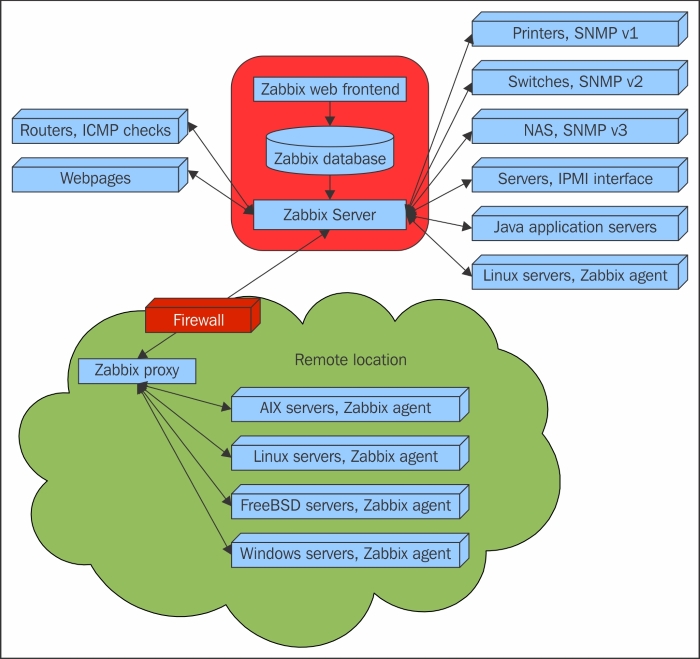
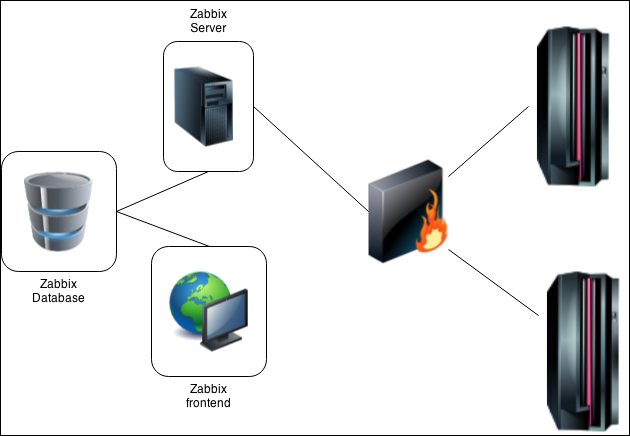
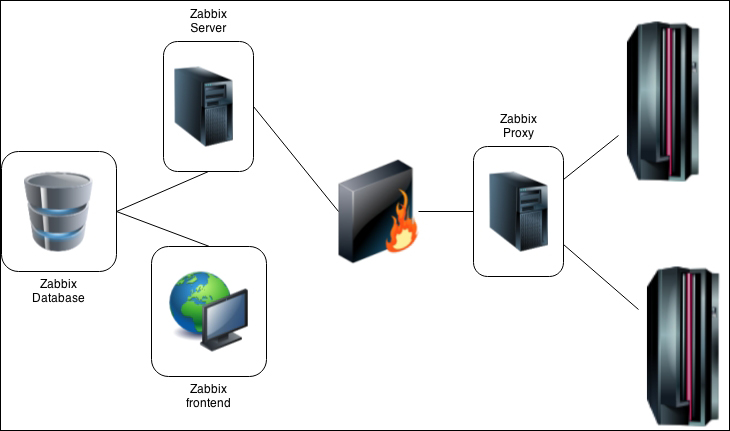
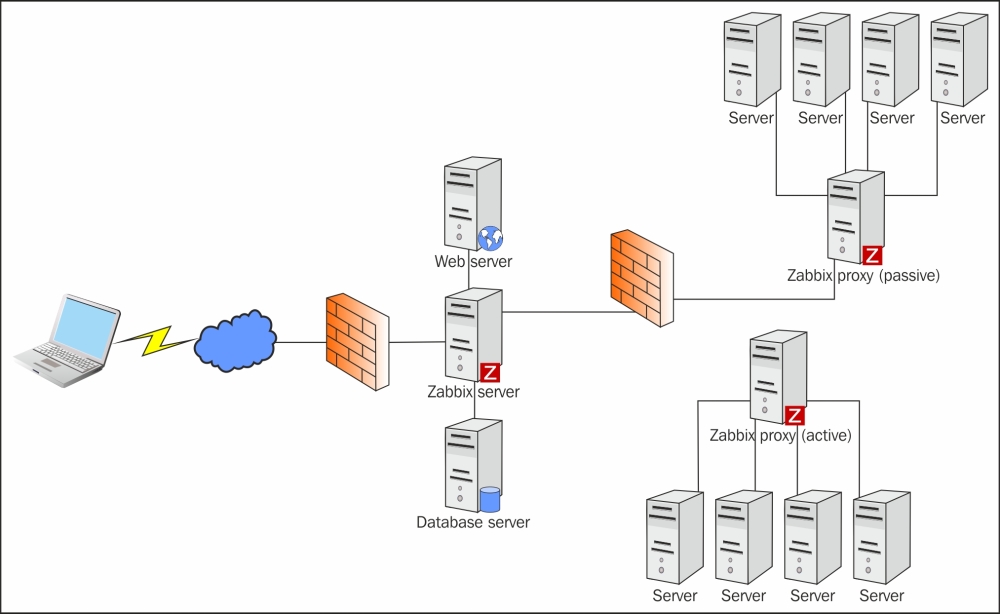
If we look at a simplified network from the Zabbix perspective, placing the Zabbix server at the center, the communication of the various monitoring aspects matters. The following figure depicts a relatively simple Zabbix setup with several of the monitoring capabilities used and different device categories connected:

The Zabbix server directly monitors multiple devices, but a remote location is separated by a firewall, so it is easier to gather data through a Zabbix proxy. The Zabbix proxy and Zabbix agents, just like the server, are written in the C language.

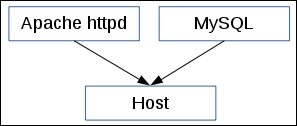
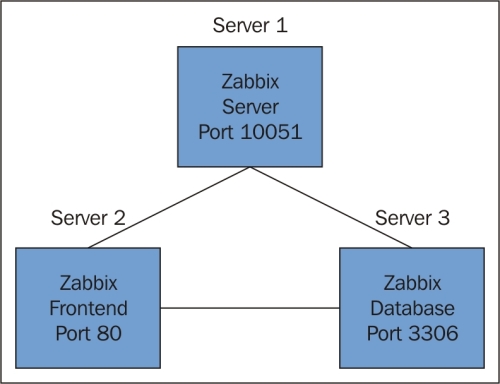
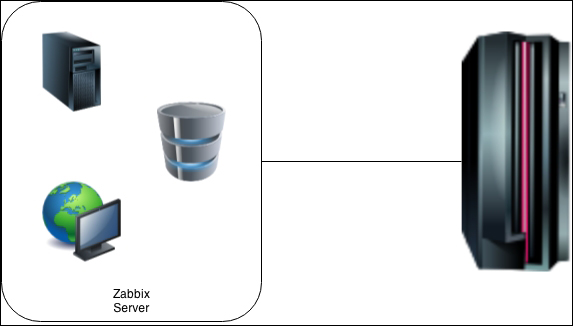
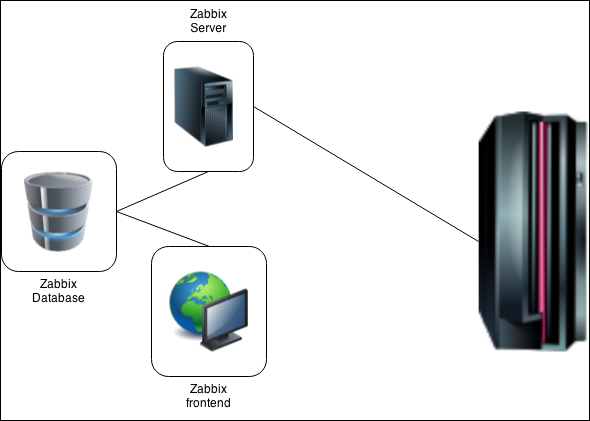
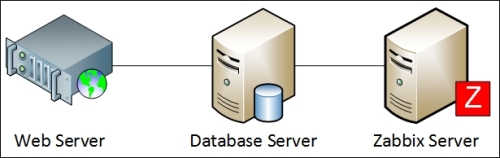
Our central object is the Zabbix database, which supports several backends. The Zabbix server, written in the C language, and the Zabbix web frontend, written in PHP, can both reside on the same machine or on another server. When running each component on a separate machine, both the Zabbix server and the Zabbix web frontend need access to the Zabbix database, and the Zabbix web frontend needs access to the Zabbix server to display the server status and for some additional functionality. The required connection directions are depicted by arrows in the following figure:

While it is perfectly fine to run all three server components on a single machine, there might be good reasons to separate them, such as taking advantage of an existing high-performance database or web server.

In general, monitored devices have little control over what is monitored—most of the configuration is centralized. Such an approach seriously reduces the ability of a single misconfigured system to bring down the whole monitoring setup.

Installation


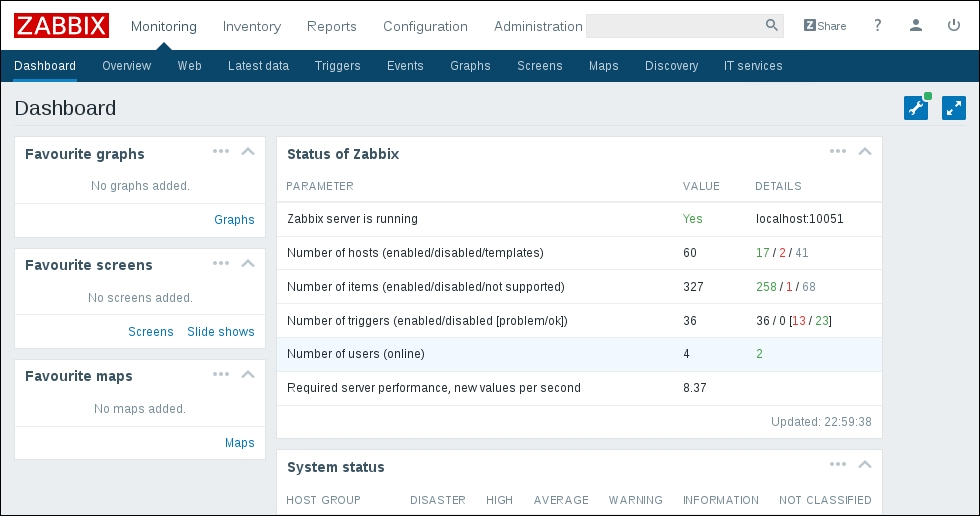
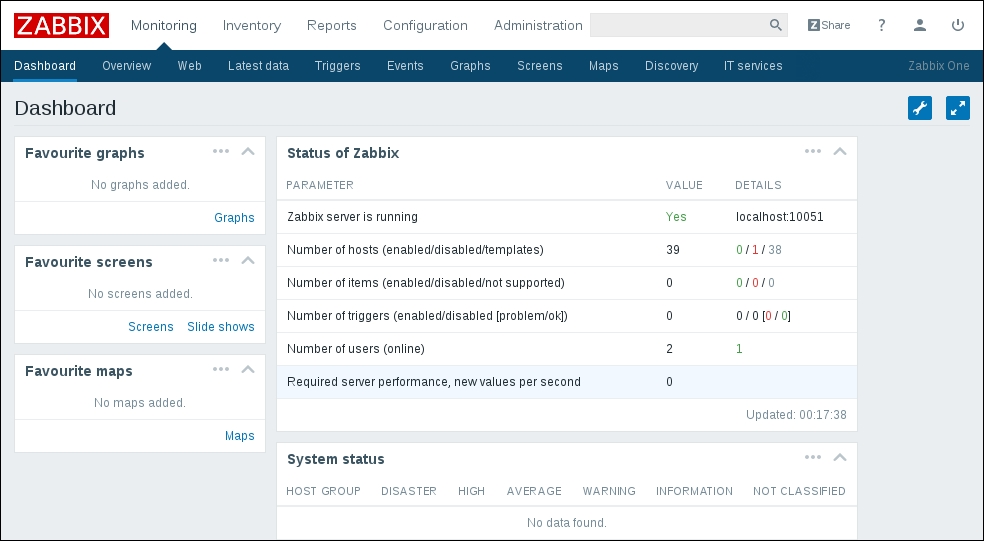
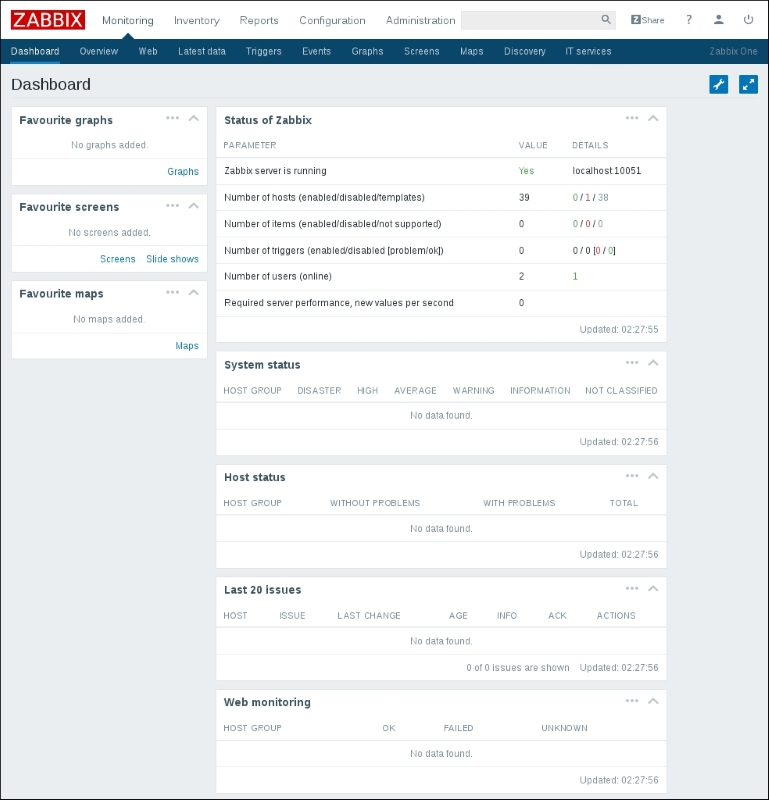
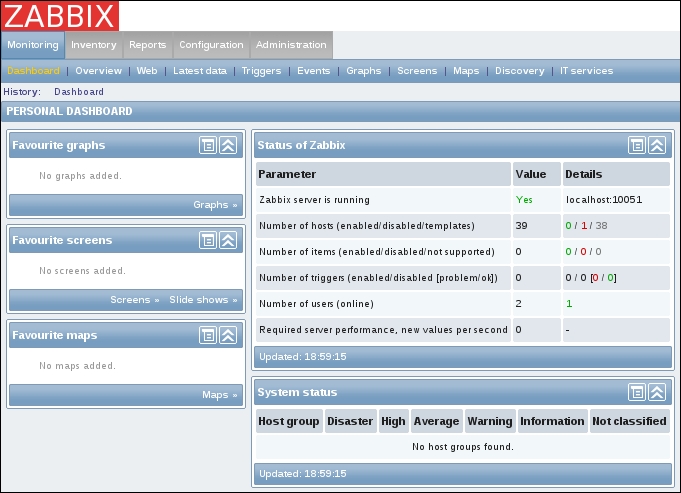
Alright, enough with the dry talk—what use is that? Let's look at the dashboard screen of the Zabbix web frontend, showing only a very basic configuration:

The Zabbix dashboard shows you a high-level overview of the overall status of the monitored system, the status of Zabbix, some of the most recent problems, and a few more things. This particular dashboard shows a very tiny Zabbix setup. Eventually, your Zabbix installation will grow and monitor different devices, including servers of various operating systems, different services and the hardware state on those servers, network devices, UPSes, web pages, other components of IT, and other infrastructure.

The frontend will provide various options for visualizing data, starting from lists of problems and simple graphs and ending with network maps and reports, while the backend will work hard to provide the information that this visualization is based on and send out alerts. All of this will require some configuration that we will learn to perform along the course of this book.

Before we can configure Zabbix, we need to install it. Usually, you'll have two choices—installing from packages or setting it up from the source code. Zabbix packages are available in quite a lot of Linux distribution repositories, and it is usually a safe choice to use those. Additionally, a Zabbix-specific repository is provided by SIA Zabbix (the company developing the product) for some distributions.

Note

It is a good idea to check the latest installation instructions at https://www.zabbix.com/documentation/3.0/manual/installation.

Choosing the version and repository

At first, we will set up the Zabbix server, database, and frontend, all running on the same machine and using a MySQL database.

Should you use the packages or install from source? In most cases, installing from the packages will be easier. Here are a few considerations that might help you select the method:

  • There are certain benefits of using distribution packages. These include the following:

    • Automated installation and updating

    • Dependencies are usually sorted out

  • Compiling from source also has its share of benefits. They are as follows:

    • You get newer versions with more features and improvements

    • You have more fine-grained control over compiled-in functionality

But which version to choose? You might see several versions available in repositories, and those versions might not be equal. Since Zabbix 2.2, the concept of a Long-Term Support (LTS) release has been introduced. This determines how long support in the form of bug fixes will be available for. An LTS release is supported for 5 years, while a normal release is supported until a month after the release date of the next version. Zabbix 2.2 and 3.0 are LTS releases, while 2.4 and 3.2 are normal releases. Choose an LTS release for an installation that you don't plan to upgrade for a while and a normal release for something you intend to keep up to date. In this book, we will use Zabbix version 3.0.

Note

This policy might change. Verify the details on the Zabbix website: http://www.zabbix.com/life_cycle_and_release_policy.php.

The most widely used Zabbix architecture is a server that queries agents. This is what we will learn to set up initially so that we can monitor our test system.

As with most software, there are some prerequisites that we will need in order to run Zabbix components. These include requirements of hardware and other software that the Zabbix server and agent depend on. For the purpose of our installation, we will settle for running Zabbix on Linux, using a MySQL database. The specific Linux distribution does not matter much—it's best to choose the one you are most familiar with.

Hardware requirements

Hardware requirements vary wildly depending on the configuration. It is impossible to provide definite requirements, so any production installation should evaluate them individually. For our test environment, though, even as little RAM as 128 MB should be enough. CPU power in general won't play a huge role; Pentium II-class hardware should be perfectly capable of dealing with it, although generating graphs with many elements or other complex views could require more powerful hardware to operate at an acceptable speed. You can take these as a starting point as well when installing on a virtual machine.

Of course, the more resources you give to Zabbix, the snappier and happier it will be.

Installing from the packages

If you have decided to install Zabbix from the packages, package availability and the procedure will differ based on the distribution. A few distributions will be covered here—read the distribution-specific instructions for others.

RHEL/CentOS

RedHat Enterprise Linux or CentOS users have two repositories to choose from: the well-known Extra Packages for Enterprise Linux (EPEL) and the Zabbix repository. EPEL might be a safer choice, but it might not always have the latest version.

EPEL

If EPEL is not set up already, it must be added. For RHEL/CentOS 7, the command is similar to this:

# rpm -Uvh http://ftp.colocall.net/pub/epel/7/x86_64/e/epel-release-7-5.noarch.rpm

Once the repository has been set up, you may install the packages:

# yum install zabbix22-agent zabbix22-dbfiles-mysql zabbix22-server-mysql zabbix22-web-mysql
The Zabbix repository

First, the package that will define the Zabbix repository should be installed:

# rpm -ivh http://repo.zabbix.com/zabbix/3.0/rhel/7/x86_64/zabbix-release-3.0-1.el7.noarch.rpm

Once the repository has been set up, you may install the packages:

# yum install zabbix-server-mysql zabbix-web-mysql zabbix-agent

OpenSUSE

For OpenSUSE, Zabbix is available in the server:monitoring repository. First, the repository should be added and its package list downloaded (you might have to change the distribution version):

# zypper addrepo http://download.opensuse.org/repositories/server:monitoring/openSUSE_Leap_42.1/server:monitoring.repo
# zypper refresh

Once the repository has been set up, you may install the packages:

# zypper install zabbix-server-mysql zabbix-agent zabbix-phpfrontend

Installing from source

If you have decided to install Zabbix from source, you will need to obtain the source, configure it, and compile it. After the daemons are put in place, the frontend will have to be set up manually as well.

The server and agent

At first, we will only set up the Zabbix server and agent, both running on the same system. We will set up additional components later during the course of this book.

Software requirements

Now, we should get to compiling the various components of Zabbix, so make sure to install the minimum required packages to get Zabbix working with MySQL. Here they are:

Depending on your distribution and the desired functionality, you might also need some or all of the following packages:

  • zlib-devel

  • mysql-devel (for MySQL support)

  • glibc-devel

  • curl-devel (for web monitoring)

  • libidn-devel (curl-devel might depend on it)

  • openssl-devel (curl-devel might depend on it)

  • net-snmp-devel (for SNMP support)

  • popt-devel (net-snmp-devel might depend on it)

  • rpm-devel (net-snmp-devel might depend on it)

  • OpenIPMI-devel (for IPMI support)

  • libssh2-devel (for direct SSH checks)

  • libxm2-devel (for VMware monitoring)

  • unixODBC-devel (for database monitoring)

  • Java SDK (for Java gateway/JMX checks)

Downloading the source

There are several ways of downloading the source code of Zabbix. You can get it from a Subversion (SVN) repository, which will be discussed in Appendix A, Troubleshooting, however, for this installation procedure, I suggest you download version 3.0.0 from the Zabbix homepage, http://www.zabbix.com/. While it should be possible to use the latest stable version, using 3.0.0 will allow you to follow instructions more closely. Go to the Download section and grab the compressed source package. Usually, only the latest stable version is available on the download page, so you might have to browse the source archives, but do not take a development or beta version, which might be available.

To make further references easy, I suggested you choose a directory to work in, for example, ~/zabbix (~ being your home directory). Download the archive into this directory.

Compilation

Once the archive has finished downloading, open a terminal and extract it:

$ cd ~/zabbix; tar -zxvf zabbix-3.0.0.tar.gz

I suggest you install the prerequisites and compile Zabbix with external functionality right away so that you don't have to recompile as we progress.

For the purpose of this book, we will compile Zabbix with server, agent, MySQL, curl, SNMP, SSH, ODBC, XML (VMware), and IPMI support.

To continue, enter the following in the terminal:

$ cd zabbix-3.0.0
$ ./configure --enable-server --with-mysql --with-net-snmp --with-libcurl --with-openipmi --enable-agent --with-libxml2 --with-unixodbc --with-ssh2 --with-openssl

In the end, a summary of the compiled components will be printed. Verify that you have the following enabled:

    Enable server:         yes
  Server details:
    With database:         MySQL
    WEB Monitoring:        cURL
    SNMP:                  yes
    IPMI:                  yes
    SSH:                   yes
    TLS:                   OpenSSL
    ODBC:                  yes
    
Enable agent:          yes

If the configuration completes successfully, it's all good. If it fails, check the error messages printed in the console and verify that all prerequisites have been installed. A file named config.log might provide more detail about the errors. If you can't find out what's wrong, check Appendix A, Troubleshooting, which lists some common compilation problems.

To actually compile Zabbix, issue the following command:

$ make

You can grab a cup of tea, but don't expect to have much time—Zabbix compilation doesn't take too long; even an old 350-MHz Pentium II compiles it in approximately five minutes. On a modern machine, give it less than a minute. After the make process has finished, check the last lines for any error messages. If there are none, congratulations, you have successfully compiled Zabbix!

Now, we should install it. I suggest you create proper packages, but that will require some effort and will be distribution dependent. Another option is to run make install. This will place the files in the filesystem but will not register Zabbix as an installed package—removing and upgrading such software is harder.

If you have experience with creating distribution packages, do so—it is a better approach. If this is just a test installation, run the following:

# make install

Note

Here and later in the book, a $ prompt will mean a normal user, while a # prompt will mean the root user. To run commands as root, su or sudo are commonly used.

But remember that test installations have the tendency of becoming production installations later—it might be a good idea to do things properly from the very beginning.

Dash or underscore?

Depending on the method of installation, you might get Zabbix binaries and configuration files using either a dash (minus) or an underscore, like this:

  • zabbix_server versus zabbix-server

  • zabbix_agentd versus zabbix-agentd

  • zabbix_server.conf versus zabbix-server.conf

While Zabbix itself uses an underscore, many distributions will replace it with a dash to follow their own guidelines. There is no functional difference; you just have to keep in mind the character that your installation uses. In this book, we will reference binaries and files using an underscore.

Initial configuration

After compilation, we have to configure some basic parameters for the server and agent. Default configuration files are provided with Zabbix. The location of these files will depend on the installation method you chose:

  • Source installation: /usr/local/etc

  • RHEL/CentOS/OpenSUSE package installation: /etc

On other distributions, the files might be located in a different directory. In this book, we will reference binaries and configuration files using relative names, except in situations where the absolute path is recommended or required.

To configure the Zabbix agent, we don't have to do anything. The default configuration will do just fine for now. That was easy, right?

For the server, we will need to make some changes. Open the zabbix_server.conf file in your favorite editor (you will need to edit it as the root user) and find the following entries in the file:

  • DBName

  • DBUser

  • DBPassword

DBName should be zabbix by default; we can leave it as is. DBUser is set to root, and we don't like that, so let's change it to zabbix. For DBPassword, choose any password. You won't have to remember it, so be creative.

Note

In UNIX-like solutions, a hash character or # at the beginning of a line usually means that the line is commented out. Make sure not to start lines you want to have an effect with a hash.

Creating and populating the database

For the Zabbix server to store the data, we have to create a database. Start a MySQL client:

$ mysql -u root -p

Enter the root user's password for MySQL (you will have set this during the installation of MySQL, or the password could be something that is the default for your distribution). If you do not know the password, you can try omitting -p. This switch will tell the client to attempt to connect without a password (or with an empty password).

Note

If you are using MySQL Community Edition from the packages and the version is 5.7.6 or higher, it generates a random password that is stored in logfiles. Check out the MySQL documentation at http://dev.mysql.com/doc/refman/5.7/en/linux-installation-rpm.html for more details.

Now, let's create the database. Add the user that Zabbix would connect to the database as, and grant the necessary permissions to this user:

mysql> create database zabbix character set utf8 collate utf8_bin;
Query OK, 1 row affected (0.01 sec)
mysql> grant all privileges on zabbix.* to 'zabbix'@'localhost' identified by 'mycreativepassword';
Query OK, 0 rows affected (0.12 sec)

Use the password you set in the zabbix_server.conf file instead of mycreativepassword.

Quit the MySQL client by entering the following command:

mysql> quit

Let's populate the newly created database with a Zabbix schema and initial data. The following commands refer to the files as they appear in the Zabbix source. When installing from packages, these files could be located in a directory such as /usr/share/doc/zabbix-server-mysql-3.0.0/create/ or /usr/share/zabbix-server-mysql:

$ mysql -u zabbix -p zabbix < database/mysql/schema.sql
$ mysql -u zabbix -p zabbix < database/mysql/images.sql
$ mysql -u zabbix -p zabbix < database/mysql/data.sql

All three importing processes should complete without any messages. If there are any errors, review the messages, fix the issue, and retry the failed operation. If the import is interrupted in the middle of the process, you might have to clear the database—the easiest way to do this is to delete the database by typing this:

mysql> drop database zabbix;
Query OK, 0 rows affected (0.00 sec)

Note

Be careful not to delete a database with important information! After deleting the Zabbix database, recreate it as we did before.

By now, we should have the Zabbix server and agent installed and ready to start.

Starting up

You should never start the Zabbix server or agent as root, which is common sense for most daemon processes. If you installed Zabbix from distribution packages, system users should have been created already—if not, let's create a new user to run these processes. You can use tools provided by your distribution or use the most widely available command—useradd, which we need to execute as root:

# useradd -m -s /bin/bash zabbix

Note

For production systems, consider using different user accounts for the Zabbix server and agent. Otherwise, users with configuration rights will be able to discover Zabbix database credentials by instructing the agent to read the server configuration file. Some distribution packages, such as the EPEL and OpenSUSE ones, already use a separate user account called zabbixsrv or zabbixs by default.

This will create a user named zabbix with a home directory in the default location, /home/zabbix usually, and a shell at /bin/bash.

Note

While using bash on a test system will make it easier to debug issues, consider using /bin/nologin or /bin/false on production systems.

If you installed from source, let's try the direct approach—running the binaries. The location of the binaries will depend on the chosen method of installation. Installing from the source without any extra parameters will place agent and server binaries in /usr/local/sbin; distribution packages are likely to place them in /usr/sbin. Assuming they are in your path, you can determine where the binaries are by running this:

# which zabbix_server

Note

Keep in mind the potential use of a dash or minus instead of an underscore.

This will show something similar to the following:

/usr/sbin/zabbix_server

Alternatively, the whereis command can also list configuration and other related files:

# whereis zabbix_server

This would likely list the binary, the configuration file, and the manpage:

zabbix_server: /usr/sbin/zabbix_server /usr/local/etc/zabbix_server.conf /usr/share/man/man3/zabbix_server

Once you know the exact location of the binaries, execute the following as root user:

# <path>/zabbix_agentd

Note

We are using zabbix_agentd, which runs as a daemon. Older versions also had the zabbix_agent executable, which provided an option to be run within internet service daemon (inetd); it did not support active items and, in most cases, had worse performance than the agent daemon.

This will start the Zabbix agent daemon, which should start up silently and daemonize. If the command produces errors, resolve them before proceeding. If it succeeds, continue by starting the Zabbix server:

# <path>/zabbix_server

Note

Check the Zabbix server logfile, configurable in zabbix_server.conf. If there are database-related errors, fix them and restart the Zabbix server.

If you installed from the packages, execute this:

# service zabbix-agentd start
Starting zabbix agent daemon
done
# service zabbix-server start
Starting zabbix server daemon
done

That should get the agent and server started. On OpenSUSE, you can also use a different, shorter syntax:

# rczabbix-agentd start
# rczabbix-server start

Feel free to experiment with other parameters, such as stop and restart—it should be obvious what these two do.

You can verify whether services are running with the status parameter. For a service that is not running, you would get the following:

# service zabbix-server status
Checking for service Zabbix server daemon
unused

A running service would yield the following:

# service zabbix-agentd status
Checking for service Zabbix agent daemon
running

Note

On some distributions, this might return more verbose output, including all of the running processes.

Some distributions might have another parameter called probe. This will check whether the corresponding service has been restarted since the last configuration file changes.

If it has been restarted, no output will be produced. If the service has not been restarted (thus possibly missing some configuration changes), the reload string will be output.

While it's nice to have Zabbix processes running, it's hardly a process one expects to do manually upon each system boot, so the server and agent should be added to your system's startup sequence. This is fairly distribution specific, so all possible variations can't be discussed here. With RHEL or CentOS, a command like this should help:

# chkconfig --level 345 zabbix-agent on
# chkconfig --level 345 zabbix-server on

This will add both services to be started at runlevels 3, 4, and 5. For OpenSUSE, the following should work:

# chkconfig -s zabbix-server 35
# chkconfig -s zabbix-agentd 35

This will add both services to be started at runlevel 3 and runlevel 5, which are used for multiuser and networked environments. The previous commands might work on other distributions, too, although some distributions might use runlevel 4 instead of runlevel 5 for a graphical environment—consult your distribution's documentation when in doubt. There's usually no need to start Zabbix in single-user or non-networked runlevels (1 and 2), as data gathering requires network connectivity.

Note

If installing from source, consider taking just the init scripts from the distribution packages.

With some init scripts in some distributions, it is even simpler than that:

# chkconfig -a zabbix_server zabbix_agentd

This will add both services as specified in the corresponding init scripts, which in our case should be runlevels 3 and 5, configured by the Default-Start parameter in the init script. If the command succeeds, you'll see the following output:

zabbix_server          0:off  1:off  2:off  3:on   4:off  5:on   6:off
zabbix_agentd          0:off  1:off  2:off  3:on   4:off  5:on   6:off

Using systemd

It is possible that your distribution uses the systemd boot manager to manage services. We won't dig into that much, but here's a quick, convenient lookup for the most common systemd alternatives to service-management commands:

  • Starting a service: systemctl start service_name

  • Stopping a service: systemctl stop service_name

  • Restarting a service: systemctl restart service_name

  • Enabling a service to start upon system startup: systemctl enable service_name

A nice summary can be found at https://fedoraproject.org/wiki/SysVinit_to_Systemd_Cheatsheet.

Verifying the service's state

While the init script method is a nice way to check a service's state for some distributions, it's not available everywhere and isn't always enough. Sometimes, you might want to use these other methods to check whether the Zabbix server or agent is running:

  • Checking running processes: The most common method to check whether a particular process is running is by looking at the running processes. You can verify whether the Zabbix agent daemon processes are actually running using this command:

    $ ps -C zabbix_agentd
    
  • Output from the netstat command: Sometimes, an agent daemon might start up but fail to bind to the port, or the port might be used by some other process. You can verify whether some other process is listening on the Zabbix port or whether the Zabbix agent daemon is listening on the correct port by issuing this command:

    $ netstat -ntpl
    
    • Process names won't be printed for other users' processes unless you are the root user. In the output, look for a line similar to this:

      Proto Recv-Q Send-Q Local Address           Foreign Address         State       PID/Program name
      tcp        0      0 0.0.0.0:10050           0.0.0.0:*               LISTEN      19843/zabbix_agentd
      
    • This indicates that the zabbix_agentd process is running and listening on all addresses on port 10050, just what we need.

  • Telnetting to the port: Even when a service starts up and successfully binds to a port, there might be some connectivity issues, perhaps due to a local firewall. To quickly check connectivity on the desired port, you can try this:

    $ telnet localhost 10050
    

    This command should open a connection to the Zabbix agent daemon, and the daemon should not close the connection immediately. All of this applies to the Zabbix server as well, except that it uses a different port by default: 10051.

The web frontend

Now that we have the Zabbix server and agent either compiled and installed or installed from the distribution packages, and both daemons are running, you probably have a feeling that something's missing. We have only configured some low-level behavior, so where's the meat?

That's what the frontend is for. While, in theory, Zabbix can have multiple frontends, the only one with full functionality so far is the Zabbix web frontend, which is written in PHP. We have to set it up to configure Zabbix and get to those nice graphs everybody likes.

Prerequisites and setting up the environment

Of course, being a Zabbix web frontend, it will require a platform to run on: a web server with a PHP environment. We will need the following installed:

  • A web server that is supported by PHP; Apache is the most common choice

  • PHP version 5.4.0 or higher

Note

The following instructions apply when installing from source. Installing from packages usually sets up the Zabbix frontend as well.

It is easiest to install these from the distribution packages. For PHP, we'll also need the following functionality:

  • gd

  • mysqli

  • bcmath

  • mbstring

  • gettext

Note

Some distributions split out the core PHP modules. These might include ctype, net-socket, libxml, and others.

Once you have all these installed, it's time to set up the frontend. Again, there's a choice of using packages or installing from source. If you decided to go with the packages, you should have the frontend installed already and should be able to proceed with the configuration wizard section explained next. If you went with the source installation, it's just a simple copying of some files.

First, you have to decide where the frontend code has to go. Most distributions that package web servers use /srv/www/htdocs or /var/www. If you compiled the Apache web server from source, it would be /usr/local/apache2/htdocs (unless you manually changed the prefix or installed an older Apache version). We will place the frontend in a simple subdirectory, zabbix.

Assuming you have Apache distribution packages installed with the web root directory at /srv/www/htdocs, placing the frontend where it is needed is as simple as executing the following as the root user:

# cp -r frontends/php /srv/www/htdocs/zabbix

Using the web frontend configuration wizard

The web frontend has a wizard that helps you to configure its basics. Let's go through the simple steps it offers.

Now, it's time to fire up a browser and navigate to Zabbix's address: http://<server_ip_or_name>/zabbix. It should work just fine in the latest versions of most browsers, including Firefox, Chrome, Safari, Opera, Konqueror, and Internet Explorer.

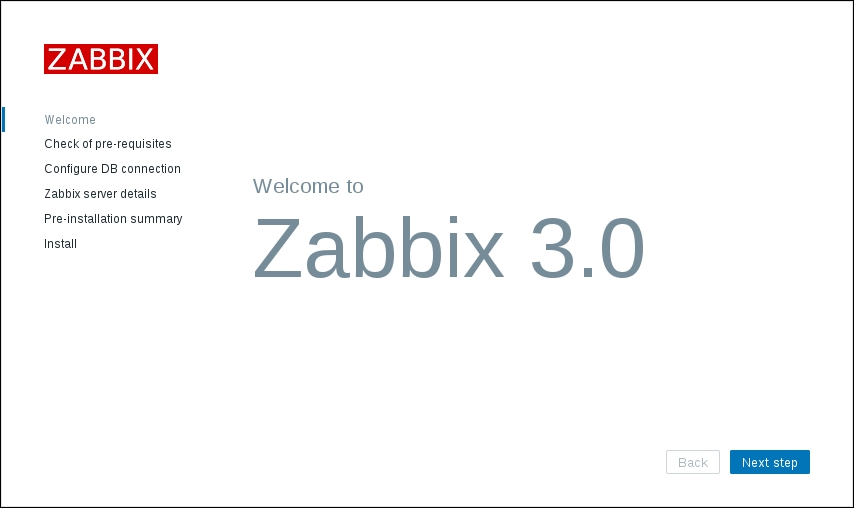
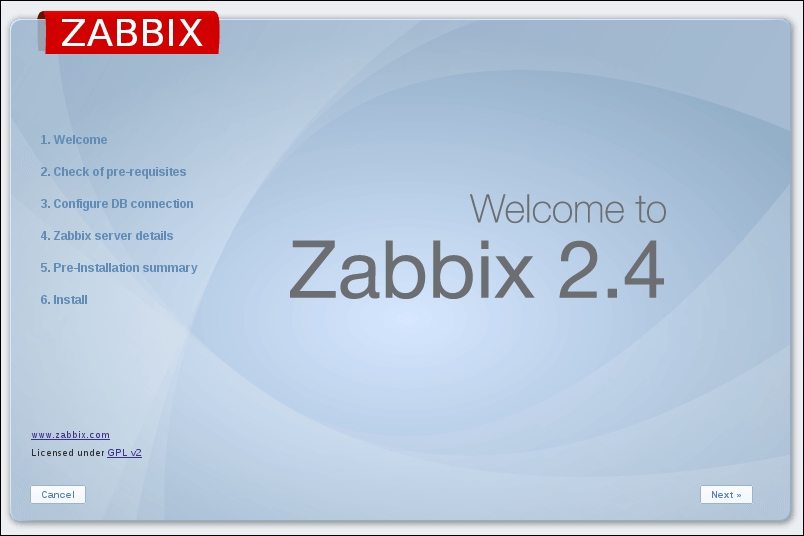
Step 1 – welcome

If everything has been configured properly, you should be greeted by the installation wizard:

If you are not, there are several things that could have gone wrong.

If the connection fails completely, make sure Apache is started up and there is no firewall blocking access. If you see a blank page or some PHP code, make sure that PHP is properly installed and configured to parse files ending with the .php extension through the AddType application/x-httpd-php directive. If you see a file and directory listing instead of the installation wizard, make sure you have added index.php to the DirectoryIndex directive. If these hints do not help, check the PHP documentation at http://www.php.net/manual/en/.

This screen doesn't offer us much to configure, so just click on Next step.

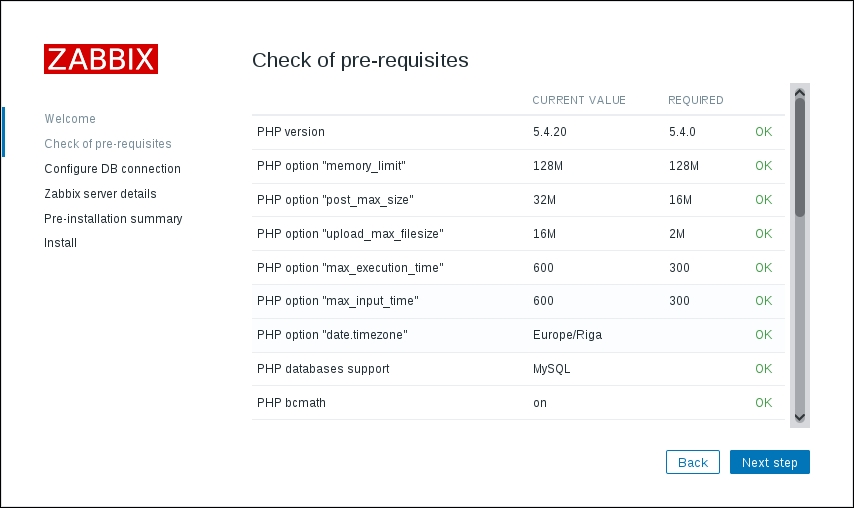
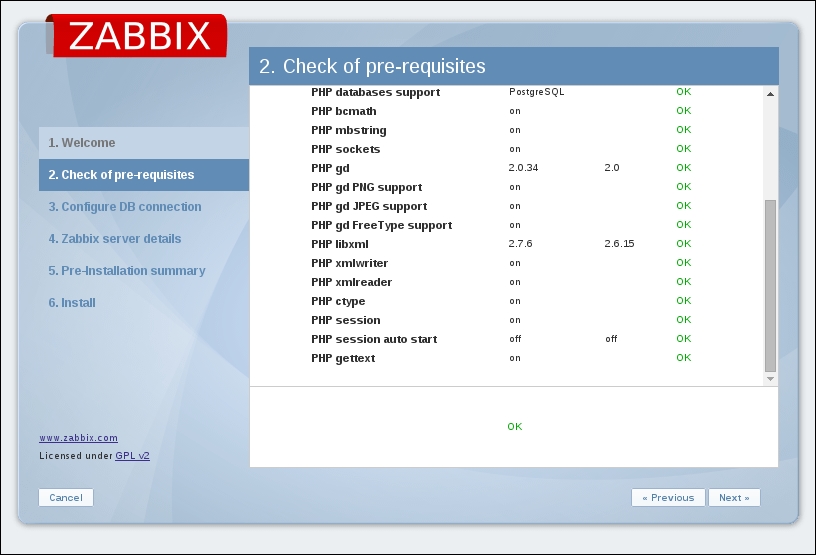
Step 2 – PHP prerequisites

In this step, the installation wizard checks PHP-related prerequisites. If you are lucky, all will have been satisfied, and you will be greeted with all green entries:

If so, just click on the Next step button to continue to Step 3.

However, more often than not, one or more entries will have a red Fail warning listed next to them. This is where things get more interesting. Problems at this point fall into two categories: PHP installation or configuration.

Entries such as PHP version, PHP databases support, PHP bcmath, PHP mbstring, PHP gd, PHP gd PNG/JPEG/FreeType support, and others that are not listed as an option are PHP installation problems. To solve these, either install the appropriate distribution packages (sometimes called php5-bcmath, php5-gd, php5-mysql, and so on), or recompile PHP with the corresponding options.

PHP option "memory_limit", PHP option "post_max_size", PHP option "upload_max_filesize", PHP option "max_execution_time", PHP option "max_input_time", and PHP time zone are configuration issues that are all set in the php.ini configuration file. This file is usually located at /etc/php5 or similar for distribution packages and /usr/local/lib for PHP source installations. Set the following options:

memory_limit = 128M
post_max_size = 16M
max_execution_time = 300
max_input_time = 300
upload_max_filesize = 2M

Note

The code bundle for the book is also hosted on GitHub at https://github.com/PacktPublishing/Zabbix-Network-Monitoring-Second-Edition. We also have other code bundles from our rich catalog of books and videos available at https://github.com/PacktPublishing/. Check them out!

For the time zone, set the date.timezone option to a time zone that best matches your environment. The default for Zabbix is Europe/Riga, and you can see valid options at http://www.php.net/manual/en/timezones.php.

Make sure you restart Apache after changing the PHP configuration file. If you can't find php.ini, or you make changes but the installation wizard does not pick them up, create a file named test.php in the htdocs directory with only this content:

<?php phpinfo() ?>

Navigate to this file using your browser and check the value for a Configuration File (php.ini) Path entry—this is where you should look for php.ini.

Once everything is fixed, click on the Next step button to continue.

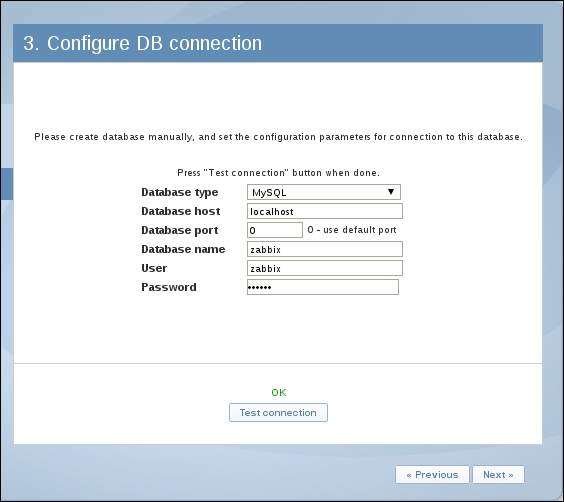
Step 3 – database access

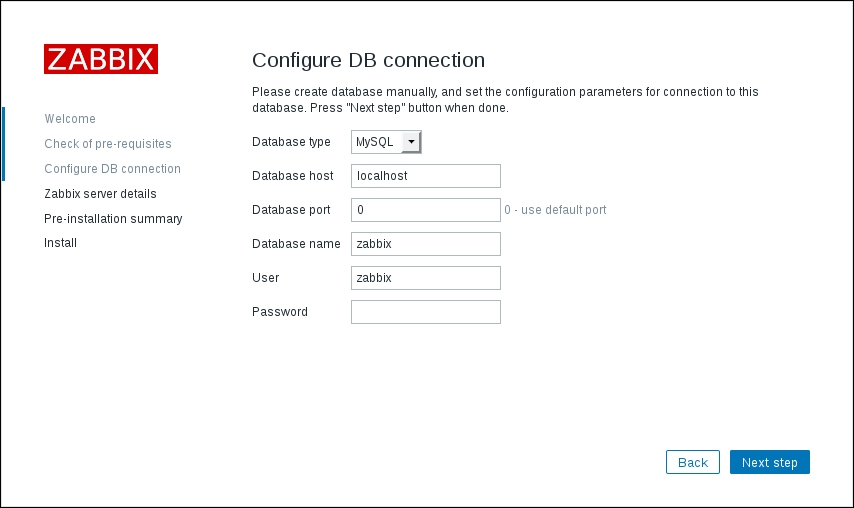
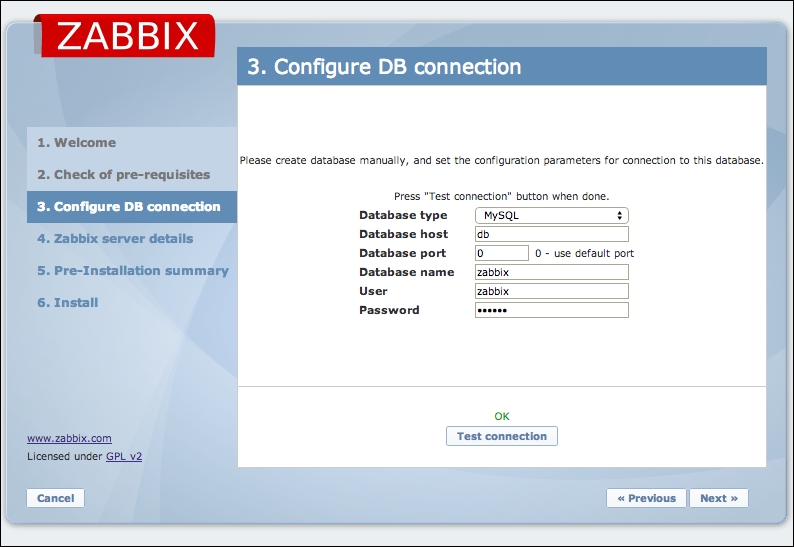
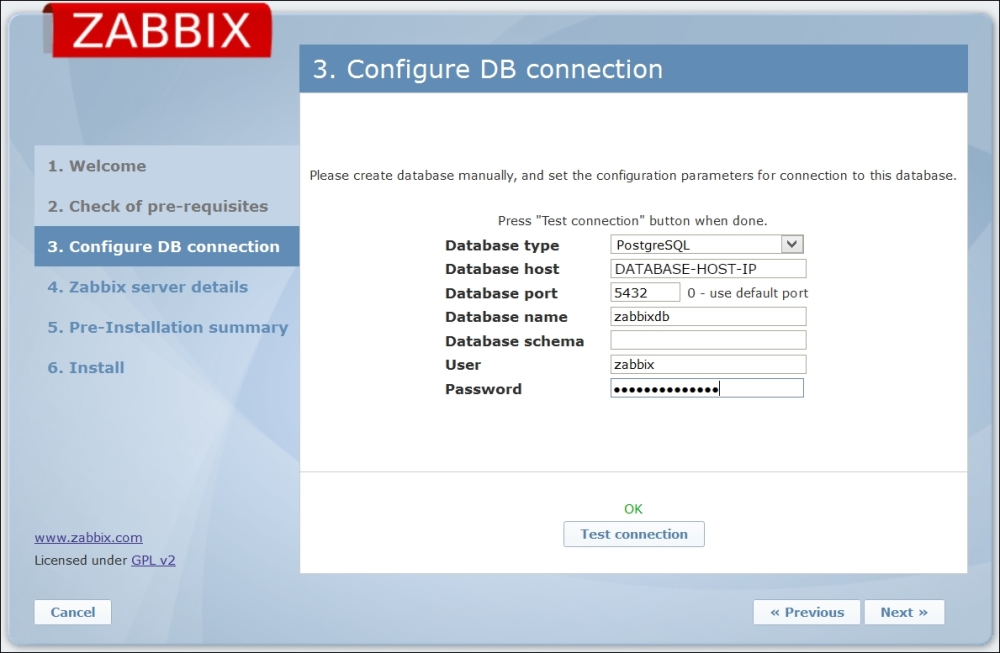
Remember the database we created earlier? That's the information we'll supply here:

We already configured database credentials for the Zabbix server, but the Zabbix frontend uses a different configuration file. The default Database type, Database host, and Database port values should work for us. Set both Database name and User to zabbix. If you have forgotten the Password, just look it up or copy it from zabbix_server.conf. After entering the data, click on the Next step button. If all the information is correct, the wizard should proceed to the next step.

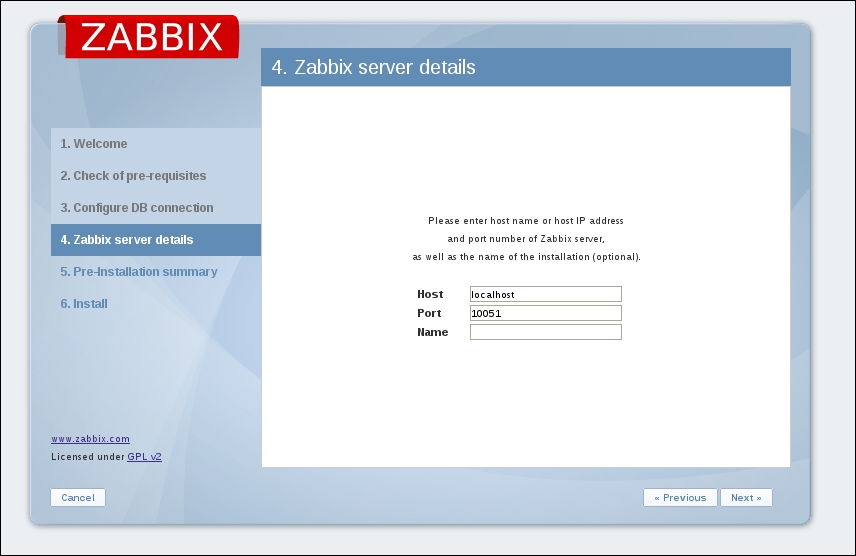
Step 4 – Zabbix server details

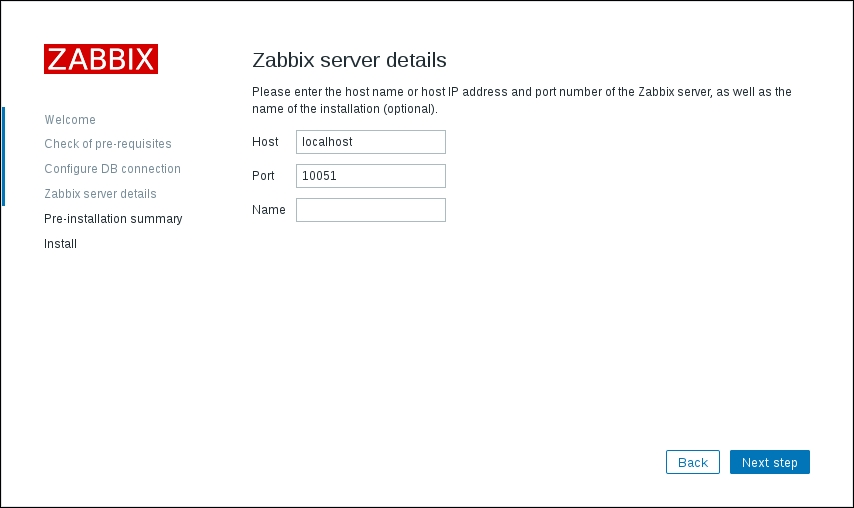
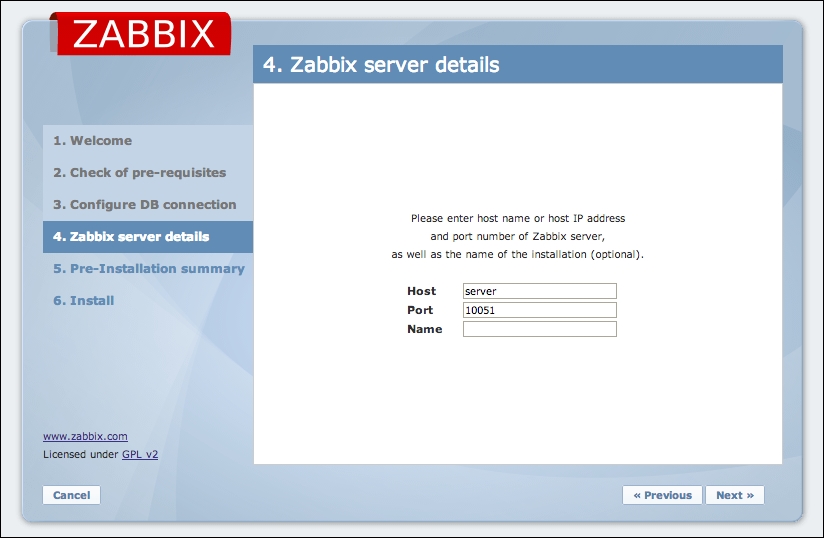
The next screen lets you specify the Zabbix server's location:

The defaults for the host and port are suitable for us, but we could benefit from filling in the Name field. The contents of this field will be used for page titles and a label in the upper-right corner of the Zabbix interface—this could be really handy if we had multiple Zabbix installations. Feel free to enter any name here, but for this book, we'll call the server Zabbix One. When you're done, it's over to the Next step again. The next screen is a summary of the choices made in the previous screens.

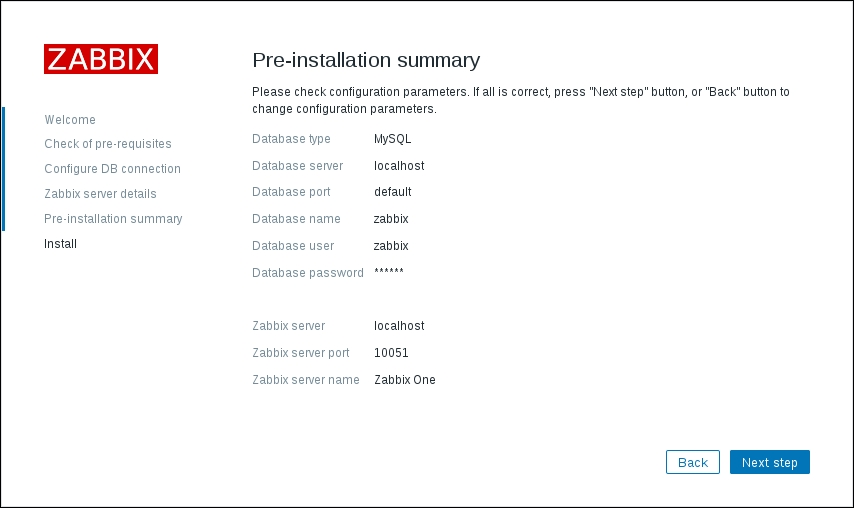
Step 5 – summary

If you left the defaults where appropriate and your database connection test was successful, it should be safe to continue by clicking on Next step:

Step 6 – writing the configuration file

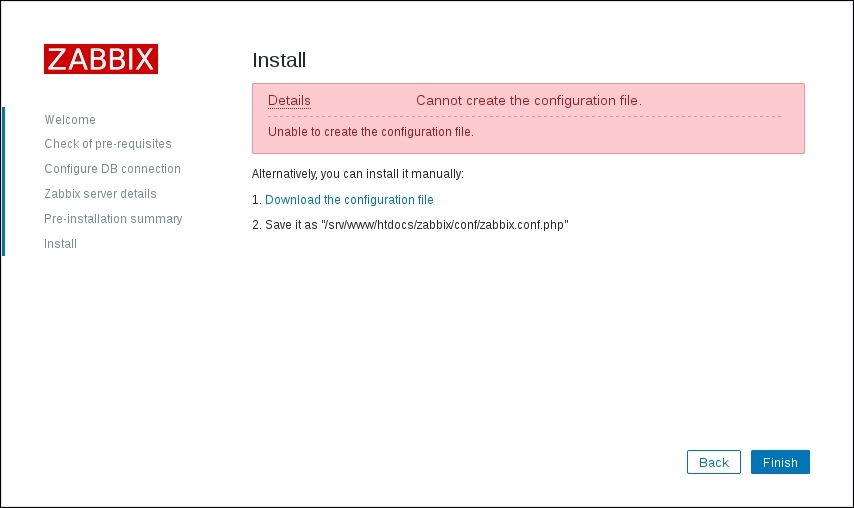
It is quite likely that in the next screen, you will be greeted with failure:

The installation wizard attempted to save the configuration file, but with the access rights that it has, it should not be possible. Previous versions of Zabbix explained two alternatives for proceeding. Unfortunately, Zabbix 3.0 has lost the explanation for one of those. The two possible solutions are as follows:

  1. Click on Download the configuration file and manually place this file in the htdocs/zabbix/conf directory.

  2. Make the htdocs/zabbix/conf directory writable by the web server user (execute as root). Use these commands:

    # chown <username> /path/to/htdocs/zabbix/conf
    # chmod 700 /path/to/htdocs/zabbix/conf
    

Obviously, we need to insert the correct username and directory in these commands. Remember, common locations are /srv/www/htdocs and /usr/local/apache2/htdocs—use the one you copied the Zabbix frontend code to. Common users are wwwrun, www-data, nobody, and daemon—you can find out which one the correct user is for your system by running this:

$ ps aux | grep http

You could also run this:

$ ps aux | grep apache

The username that most httpd processes are running under will be the correct one. Once the permissions have been changed, click on Finish. That should successfully save the configuration file.

Note

You can also skip the configuration wizard by copying zabbix.conf.php.example in the conf directory to zabbix.conf.php and editing it directly. In this case, you should manually verify that the PHP installation and configuration requirements have been met.

It is suggested that you restrict the permissions on this file afterwards to be readable only by the web server user, by issuing these commands as root:

# chmod 440 /path/to/htdocs/zabbix/conf/zabbix.conf.php
# chown root /path/to/htdocs/zabbix/conf/

The file contains the database password, which is best kept secret.

Step 7 – finishing the wizard

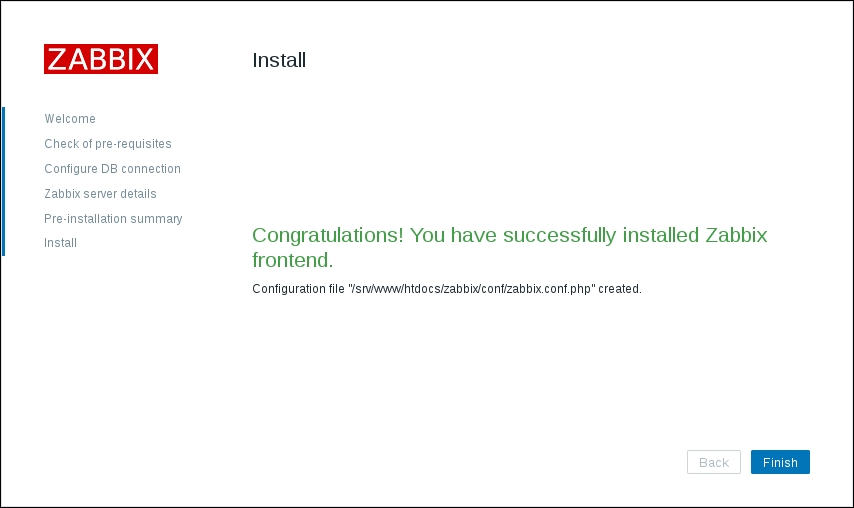
Congratulations, this is the last wizard screen, which only wants you to be friendly to it and press Finish:

Step 8 – logging in

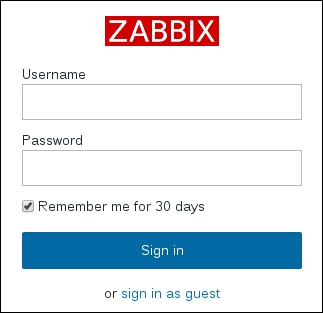
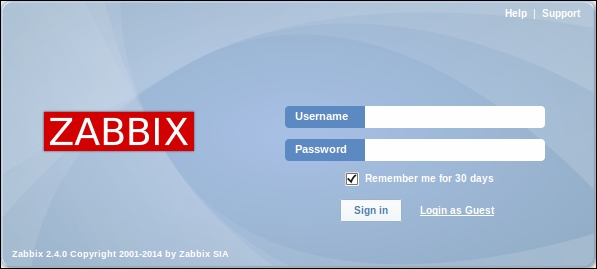
Immediately after clicking on Finish, you should see a login form:

The Zabbix database data that we inserted previously also supplied the default username and password. The default credentials are as follows:

  • Username: Admin

  • Password: zabbix

That should get you to the initial frontend screen, which drops you into a quite empty dashboard:

Congratulations! The web frontend is now set up and we have logged in.

Note

It is possible to easily change the Zabbix frontend configuration later. The zabbix.conf.php configuration file can be edited to change database access details, the Zabbix server host and port, and the server name that we entered in the fourth step as well. Most of the parameters in that file should be self-explanatory; for example, $ZBX_SERVER_NAME will change the server name.

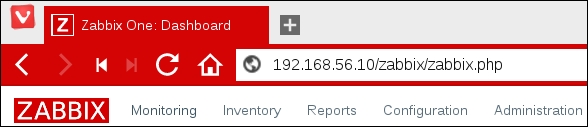
If you take a closer look at the upper-right corner, you'll spot something familiar—it's the server name we entered earlier in the configuration wizard. This makes it easier to distinguish this installation from other Zabbix instances, for example, if you had a testing and a production instance. Additionally, this name is also used in the page title—and thus in the tab title in most modern browsers. When multiple tabs are open, you should be able to see the instance name right there in the tab. There's no need to click on each tab individually and check the URL or upper-right corner of the Zabbix frontend:

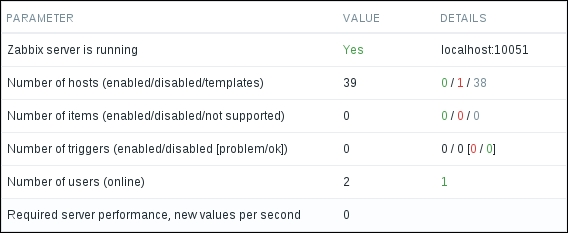
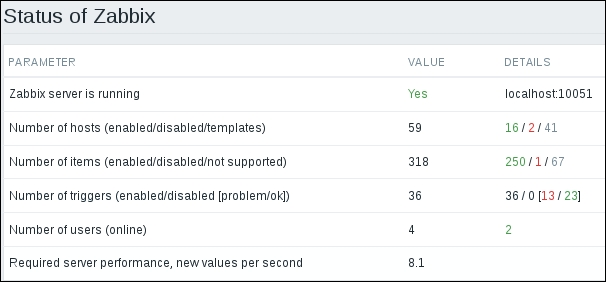
The dashboard isn't too exciting right now, except maybe for that table, labeled Status of Zabbix. The same view is also available somewhere else, though—click on Reports and then click on Status of Zabbix, the very first report:

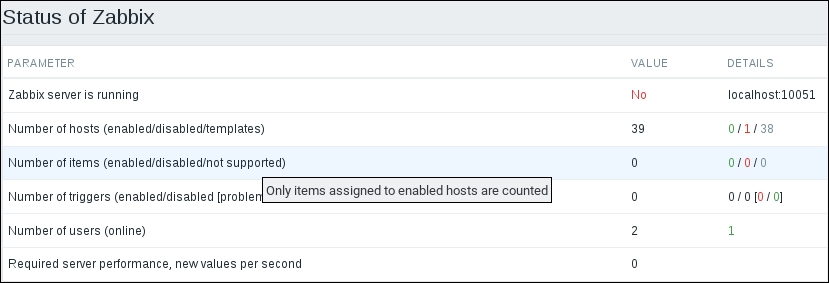
Now we can concentrate on this widget. The frontend successfully sees that the Zabbix server is running and displays the host and port to which it is trying to connect. It also knows some basic things about Zabbix's configuration—there are 39 hosts configured in total. Wait, what's that? We have only set it up and have not configured anything; how can there be 39 hosts already? Let's take a closer look at the DETAILS column. These values correspond to the descriptions in parentheses located in the PARAMETER column. So, there are 0 monitored hosts, 1 that is not monitored, and 38 templates. Now that makes more sense—38 of those 39 are templates, not actual hosts. Still, there's one host that isn't monitored, what's up with that?

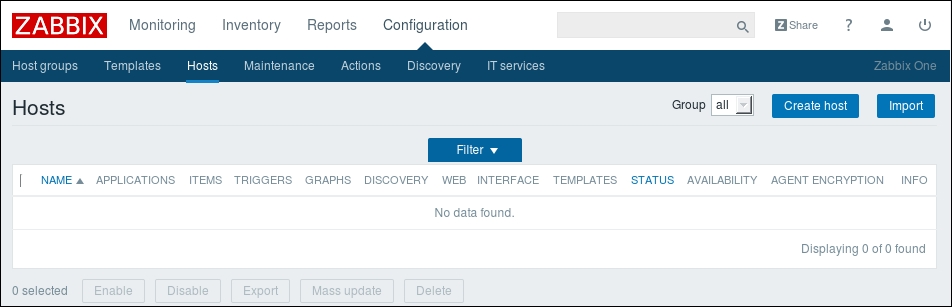
Click on Configuration and choose Hosts. You should see this:

Note

The first thing to do here: click on that large Filter button in the middle of the page. In older versions of Zabbix, it was a very tiny button that was hard to spot. Unfortunately, the Zabbix team overshot with solving that problem—the button is now huge, and all filters are open by default. We will discuss and use filters later. For now, whenever you see a huge filter preceding the information we came for, just close it.

So, there it is. It turns out that the default Zabbix database already has one server configured: the local Zabbix server. It is disabled by default, as indicated in the Status of Zabbix screen and here by the Disabled string in the STATUS column.

Note

There's a lot of technical detail in the Zabbix online manual at https://www.zabbix.com/documentation/3.0/.

Summary


In this chapter, we set up a fresh Zabbix installation consisting of a database, a server, and an agent daemon, all running on the same machine. We also installed and configured the Zabbix web frontend, based on PHP, to access the database.

We will use the results of this work in all of our future chapters. To see how we can get from a monitored metric to an alert e-mail, we'll go through a simple scenario in the next chapter—think of it as sort of a quick start guide.

Chapter 2. Getting Your First Notification

We have now installed Zabbix, but it's not doing much—this is what we'd expect. Software that starts doing something on its own would probably be a bit undesirable, at least for now. The promise of Zabbix is to inform you about problems as soon as possible, preferably before your users and management notice them. But how do we get data, where do we place it, and how do we define what a problem is? We will try to quickly get Zabbix working and alerting us on a single monitored item, which is the most common scenario. Before we can tell Zabbix who to send notifications to, we will have to explore and use some basic Zabbix concepts. They are as follows:

  • Navigating around the frontend

  • Creating a host and item (the Zabbix term for a monitored metric)

  • Looking at the gathered data and finding out how to get it graphed

  • Defining a problem threshold with a trigger

  • Telling Zabbix that it should send an e-mail when this threshold is exceeded

  • Causing a problem in order to actually receive the notification

Exploring the frontend


Although we have already looked at some data provided by the frontend, we should get a bit more familiar with it before attempting some more configuration tasks.

Configuration steps will be followed by verifying results in the Monitoring section. We will then explain some generic item terms used in Zabbix and their uses. Items, being the basis of information gathering, have a fair amount of configuration possibilities.

In your browser, open Zabbix's root URL (http://<server_ip_or_name>/zabbix), and log in again if you have been logged out. You should now see a pretty empty dashboard with little information:

Click on the entries of the top menu bar and observe how the lower menu bar shows subentries of the chosen category. Click on Configuration, and then click on Host groups in the second-level menu—here, all configured host groups are shown. You will be using these menus a lot, so in the future, we'll refer to the action we just performed as Configuration | Host groups. (Whenever you see such a notation, the first is the main category, and the second is the entry under it.)

As you can see in the following screenshot, there are five main categories, and they are as follows :

  • Monitoring: This category contains most of the monitoring-related pages. You will be able to view data, problems, and graphs here.

  • Inventory: Here, inventory data for monitored systems can be viewed.

  • Reports: This section contains some simple reports.

  • Configuration: Setting up everything related to the monitoring of systems, parameters, notification sending, and so on happens here.

  • Administration: This section allows you to set up more of the Zabbix internals, including authentication methods, users, permissions, and global Zabbix configuration.

The user profile

Before we venture deeper into these categories, it might be worth visiting the profile section—see the person-like icon in the upper-right corner:

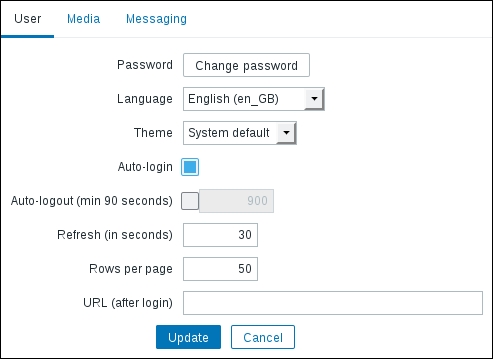
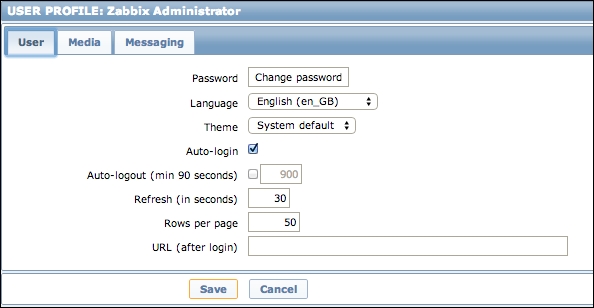
Clicking on it should open your profile:

Here, you can set some options concerning your user account, for example, changing the password, the frontend language, or the frontend theme. As we will be using an English (en_GB) frontend, I suggested you to leave that at the default. Previous Zabbix versions shipped with four different themes, but that has been reduced in Zabbix 3.0; now, there are only the Blue and Dark themes. We'll stick with the default theme, but both of the themes shipped with Zabbix 3.0 seem to be visually pretty.

Notice that you can find out the user account you are currently connected as by moving the mouse cursor over the profile icon in the upper-right corner. A tooltip will show your username, as well as name and surname, as configured in the user profile. When you are not logged in, no profile icon is shown.

There are two options related to logging in: Auto-login, which will automatically log the user in using a cookie saved by their browser, and Auto-logout. By default, Auto-login should be enabled, and we will not change these options.

Note

At the time of writing this, any background operation in the frontend will reset the Auto-logout timer, essentially making it useless. You can follow the issue ZBX-8051 in the Zabbix issue tracker, described in more detail in Appendix B, Being Part of the Community.

We won't change the URL option at present, but we'll discuss the benefits of setting a custom default URL for a particular user later. The Refresh option sets the period in seconds after which some pages in the frontend will refresh automatically to display new data. It might be beneficial to increase this parameter for huge screens, which we do not yet have.

The Rows per page option will limit the amount of entities displayed at a time. In larger installations, it might be useful to increase it, but making it too large can negatively affect performance of the frontend.

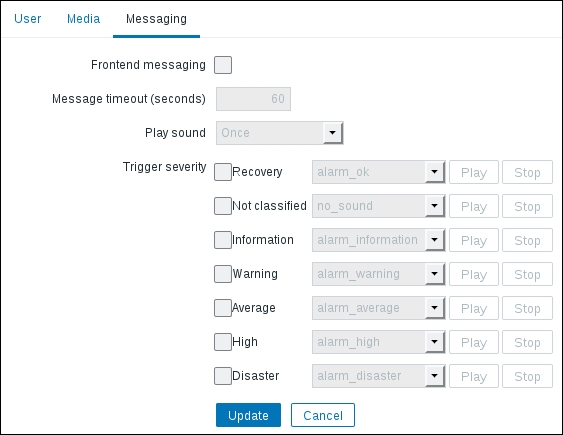
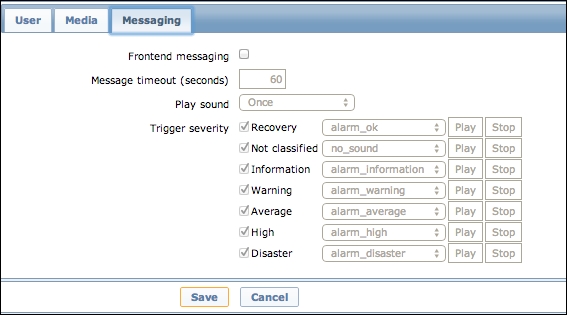
Let's make another change here—switch over to the Messaging tab:

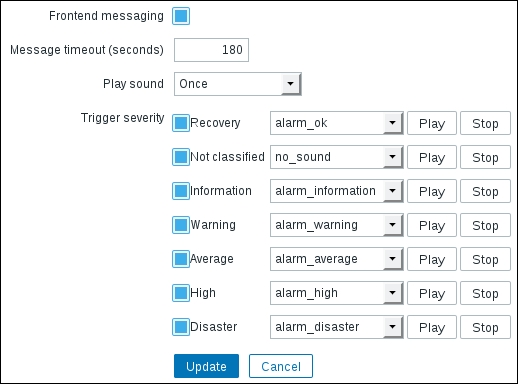
It allows you to configure frontend messages. For now, just mark the Frontend messaging option to enable them and change Message timeout (seconds) to 180. We will discuss what the various options do later in this chapter, when the messages start to appear.

Note

Verify that all the checkboxes in the Trigger severity section are marked: if you saved the user profile before, they might have a different default state.

After you have changed the theme and enabled frontend messages, click on the Update button.

Monitoring quickstart


Now that we have a basic understanding of the frontend navigation, it's time to look at the basis for data gathering in Zabbix—items. In general, anything you want to gather data about will eventually go into an item.

Note

An item in Zabbix is a configuration entity that holds information on gathered metrics. It is the very basis of information flowing into Zabbix, and without items, nothing can be retrieved. An item does not hold any information on thresholds—that functionality is covered by triggers.

If items are so important in Zabbix, we should create some. After all, if no data retrieval is possible without items, we can't monitor anything without them. To get started with item configuration, open Configuration | Hosts. If it's not selected by default, choose Zabbix servers in the Group drop-down menu (in the top-right corner). This is a location we will visit quite a lot, as it provides easy access to other entity configurations, including Items and Triggers. Let's figure out what's what in this area. The most interesting functionality is the host list:

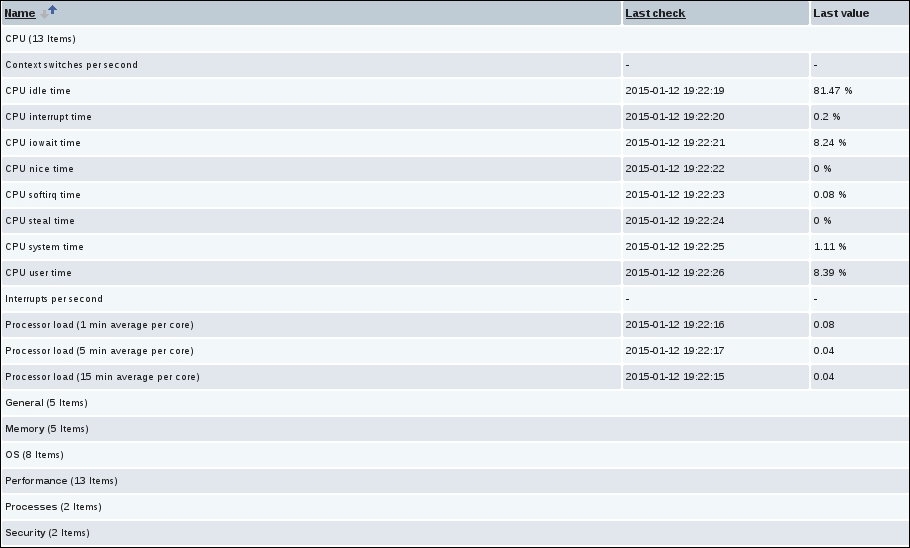
Primarily, it provides access to host details in the very first column, but that's not all. The usefulness of this screen comes from the other columns, which not only provide access to elements that are associated with hosts but also list the count of those elements. Further down the host entry, we can see a quick overview of the most important host configuration parameters as well as status information, which we will explore in more detail later:

We came here looking for items, so click on Items next to the Zabbix server. You should see a list similar to the one in the following screenshot:

Note the method we used to reach the items list for a particular host—we used convenience links for host elements, which is a fairly easy way to get there and the reason why we will use Configuration | Hosts often.

Back to what we were after, we can see a fairly long list of already existing items. But wait, didn't the Zabbix status screen that we saw in the first screenshot claim there's a single host and no items? That's clearly wrong! Return to Reports | Status of Zabbix (or Monitoring | Dashboard, which shows the same data). It indeed shows zero items. Now move the mouse cursor over the text that reads Number of items (enabled/disabled/not supported), and take a look at the tooltip:

Aha! so it counts only those items that are assigned to enabled hosts. As this example host, Zabbix server, is disabled, it's now clear why the Zabbix status report shows zero items. This is handy to remember later, once you try to evaluate a more complex configuration.

Creating a host

Instead of using this predefined host configuration, we want to understand how items work. But items can't exist in an empty space—each item has to be attached to a host.

Note

In Zabbix, a host is a logical entity that groups items. The definition of what a host is can be freely adapted to specific environments and situations. Zabbix in no way limits this choice; thus, a host can be a network switch, a physical server, a virtual machine, or a website.

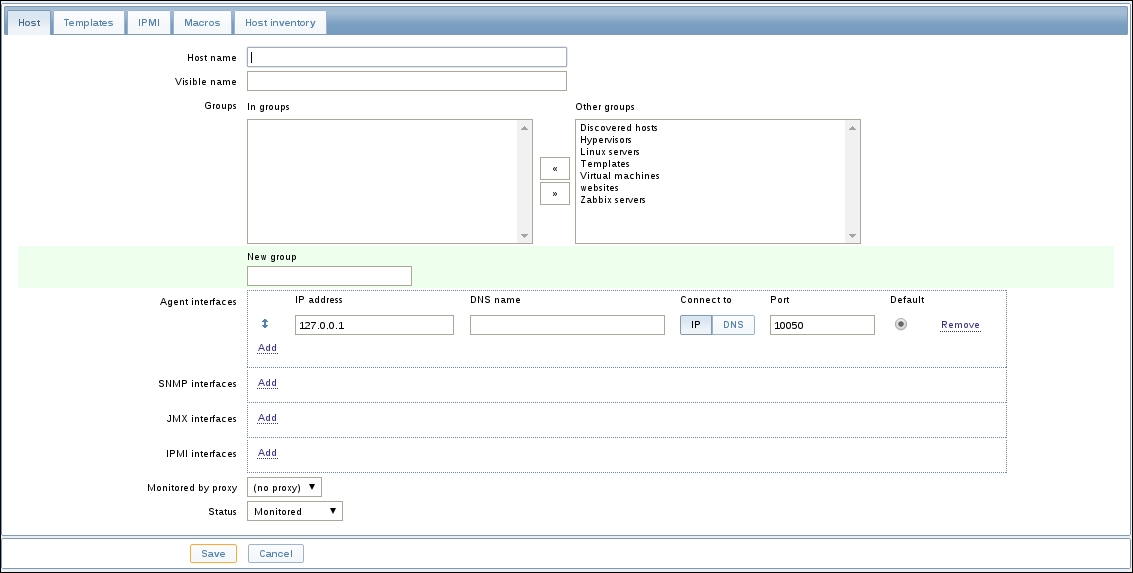
If a host is required to attach items to, then we must create one. Head over to Configuration | Hosts and click on the Create host button, located in the top-right corner. You will be presented with a host creation screen. This time, we won't concern ourselves with the details, so let's input only some relevant information:

  • Name: Enter A test host.

  • Groups: Select Linux servers from the right-hand listbox, named Other groups; press the button to add this group. Then, select Zabbix servers from the In groups listbox and press the button to remove our new host from this predefined group.

Note

Why did we have to select a group for this host? All permissions are assigned to host groups, not individual hosts, and thus, a host must belong to at least one group. We will cover permissions in more detail in Chapter 5, Managing Hosts, Users and Permissions.

The fields that we changed for our host should look as follows:

When you are ready, click on the Add button at the bottom.

Creating an item

So, we have created our very own first host. But given that items are the basis of all the data, it's probably of little use right now. To give it more substance, we should create items, so select Linux servers from the Groups dropdown, and then click on Items next to the host we just created, A test host. This host has no items to list—click on the Create item button in the upper-right corner.

There's a form, vaguely resembling the one for host creation, so let's fill in some values:

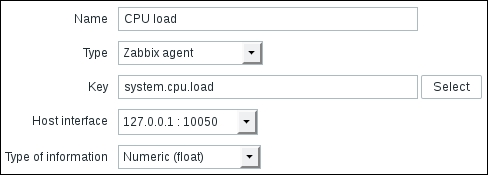
  • Name: Enter CPU load into this field. This is how the item will be named—basically, the name that you will use to refer to the item in most places.

  • Key: The value in this field will be system.cpu.load. This is the "technical name" of the item that identifies what information it gathers.

  • Type of information: Choose Numeric (float). This defines which formatting and type the incoming data will have.

After filling in all the required information, you will be presented with the following screen:

We will look at the other defaults in more detail later, so click on the Add button at the bottom.

Note

More information on item keys is provided in Chapter 3, Monitoring with Zabbix Agents and Basic Protocols.

You should now see your new item in the list. But we are interested in the associated data, so navigate to Monitoring | Latest data. Notice the filter that takes up half the page? This time, we will want to use it right away.

Starting with Zabbix 2.4, the Latest data page does not show any data by default for performance reasons; thus, we have to set the filter first:

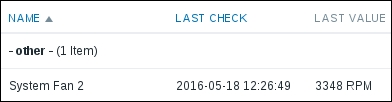
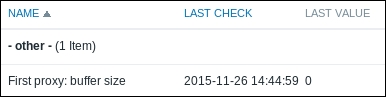
In the Filter, type test in the Hosts field. Our new host should appear. Click on it, then click on the Filter button. Below the filter, expand the - other - section if it's collapsed. You might have to wait for up to a minute to pass after saving the item, and then you should see that this newly created item has already gathered some data:

What should you do if you don't see any entries at all? This usually means that data has not been gathered, which can happen for a variety of reasons. If this is the case, check for these common causes:

  • Did you enter item configuration exactly as in the screenshot? Check the item key and type of information.

  • Are both the agent and the server running? You can check this by executing the following as root:

    # netstat -ntpl | grep zabbix
    
  • The output should list both the server and agent daemons running on the correct ports:

    tcp        0      0 0.0.0.0:10050           0.0.0.0:*LISTEN      23569/zabbix_agentd
    tcp        0      0 0.0.0.0:10051           0.0.0.0:*LISTEN      23539/zabbix_server
    

    If any one of them is missing, make sure to start it.

  • Can the server connect to the agent? You can verify this by executing the following from the Zabbix server:

    $ telnet localhost 10050
    

    If the connection fails, it could mean that either the agent is not running or some restrictive firewall setting is preventing the connection. In some cases, SELinux might prevent that connection, too.

    If the connection succeeds but is immediately closed, then the IP address that the agent receives the connection from does not match the one specified in zabbix_agentd.conf configuration file for the Server directive. On some distributions, this can be caused by IPv6 being used by default, so you should try to add another comma-delimited value to the same line for the IPv6 localhost representation to this directive, ::1.

The Zabbix server reads into cache all the information on items to monitor every minute by default. This means that configuration changes such as adding a new item might show an effect in the data collected after one minute. This interval can be tweaked in zabbix_server.conf by changing the CacheUpdateFrequency parameter.

Once data starts arriving, you might see no value in the Change column. This means you moved to this display quickly, and the item managed to gather a single value only; thus, there's no change yet. If that is the case, waiting a bit should result in the page automatically refreshing (look at the page title—remember the 30-second refresh we left untouched in the user profile?), and the Change column will be populated. So, we are now monitoring a single value: the UNIX system load. Data is automatically retrieved and stored in the database. If you are not familiar with the concept, it might be a good idea to read the overview at https://en.wikipedia.org/wiki/Load_(computing).

Introducing simple graphs

If you went away to read about system load, several minutes should have passed. Now is a good time to look at another feature in Zabbix—Graphs. Graphs are freely available for any monitored numeric item, without any additional configuration.

You should still be on the Latest data screen with the CPU load item visible, so click on the link named Graph. You'll get something like this:

While you will probably get less data, unless reading about system load took you more than an hour, your screen should look very similar overall. Let's explore some basic graph controls.

Note

If you don't see any data even after several minutes have passed, try dragging the scrollbar above the graph to the rightmost position.

The Zoom controls in the upper-left corner allow you to quickly switch the displayed period. Clicking on any of the entries will make the graph show data for the chosen duration. At first, Zabbix is a bit confused about us having so little data; it thus shows all the available time periods here. As more data is gathered, only the relevant periods will be shown, and longer zoom periods will gradually become available.

Below these controls are options that seek through time periods; clicking on them will move the displayed period by the exact time period that was clicked on.

The scrollbar at the top allows you to make small changes to the displayed period: drag it to the left (and notice the period at the top of the graph changing) and then release, and the graph is updated to reflect the period changes. Notice the arrows at both ends of the scrollbar: they allow you to change the duration displayed. Drag these with your mouse just like the scrollbar. You can also click on the buttons at both ends for exact adjustments. Using these buttons moves the period back and forth by the time period that we currently have displayed.

The date entries in the upper-right corner show the start and end times for the currently displayed data, and they also provide calendar widgets that allow a wider range of arbitrary period settings. Clicking on one of these time periods will open a calendar, where you can enter the time and date and have either the start or end time set to this choice:

Try entering a time in the past for the starting (leftmost) calendar. This will move the displayed period without changing its length. This is great if we are interested in a time period of a specific length, but what if we want to look at a graph for the previous day, from 08:30 till 17:00? For this, the control (fixed) in the lower-right corner of the scrollbar will help. Click on it once—it changes to (dynamic). If you now use calendar widgets to enter the start or end time for the displayed period, only this edge of the period will be changed.

For example, if a 1-hour period from 10:00 to 11:00 is displayed, setting the first calendar to 09:00 while in (fixed) mode will display the period from 09:00 till 10:00. If the same is done while in (dynamic) mode, a two-hour period from 09:00 till 11:00 will be displayed. The end edge of the period is not moved in the second case.

Note

Depending on the time at which you are looking at the graphs, some areas of the graph might have a gray background. This is the time outside of working hours, as defined in Zabbix. We will explore this in more detail later.

Clicking and dragging over the graph area will zoom in to the selected period once the mouse button is released. This is handy for a quick drilldown to some problematic or interesting period:

The yellow area denotes the time period we selected by clicking, holding down the mouse button, and dragging over the graph area. When we release the mouse button, the graph is zoomed to the selected period.

Note

The graph period can't be shorter than one minute in Zabbix. Attempting to set it to a smaller value will do nothing. Before version 3.0, the shortest possible time period was one hour.

Creating triggers

Now that we have an item successfully gathering data, we can look at it and verify whether it is reporting as expected (in our case, that the system is not overloaded). Sitting and staring at a single parameter would make for a very boring job. Doing that with thousands of parameters doesn't sound too entertaining, so we are going to create a trigger. In Zabbix, a trigger is an entry containing an expression to automatically recognize problems with monitored items.

Note

An item alone does nothing more than collect the data. To define thresholds and things that are considered a problem, we have to use triggers.

Navigate to Configuration | Hosts, click on Triggers next to A test host, and click on Create trigger.

Here, only two fields need to be filled in:

  • Name: Enter CPU load too high on A test host for last 3 minutes

  • Expression: Enter {A Test Host:system.cpu.load.avg(180)}>1

It is important to get the expression correct down to the last symbol. Once done, click on the Add button at the bottom. Don't worry about understanding the exact trigger syntax yet; we will get to that later.

Notice how our trigger expressions refer to the item key, not the name. Whenever you have to reference an item inside Zabbix, it will be done by the item key.

The trigger list should be now displayed, with a single trigger—the one we just created. Let's take a look at what we just added: open Monitoring | Triggers. You should see our freshly added trigger, hopefully already updated, with a green OK flashing in the STATUS column:

You might see PROBLEM in the STATUS field. This means exactly what the trigger name says—the CPU load too high on A test host for last 3 minutes.

Notice the big filter?

We can filter displayed triggers, but why is our OK trigger displayed even though the default filter says Recent problem? The thing is, by default, Zabbix shows triggers that have recently changed their state with the status indicator flashing. Such triggers show for 30 minutes, and then they obey normal filtering rules. Click on Filter to close the filter. We will explore this filter in more detail later.

You could take a break now and notice how, in 30 minutes, there are no triggers displayed. With the filter set to only show problems, this screen becomes quite useful for a quick overview of all issues concerning monitored hosts. While that sounds much better than staring at plain data, we would still want to get some more to-the-point notifications delivered.

Configuring e-mail parameters

The most common notification method is e-mail. Whenever something interesting happens in Zabbix, some action can be taken, and we will set it up so that an e-mail is sent to us. Before we decide when and what should be sent, we have to tell Zabbix how to send it.

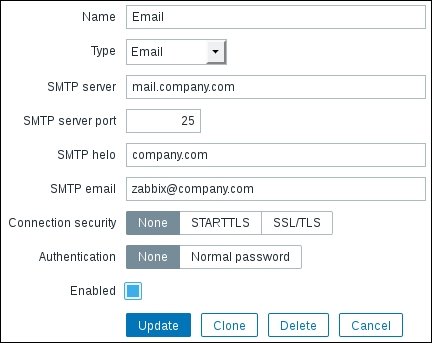
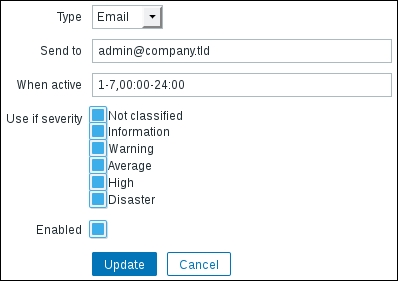
To configure the parameters for e-mail sending, open Administration | Media types and click on Email in the NAME column. You'll get a simple form to fill in with appropriate values for your environment:

Change the SMTP server, SMTP helo, and SMTP email fields to use a valid e-mail server. The SMTP email address will be used as the From address, so make sure it's set to something your server will accept. If needed, configure the SMTP authentication, and then click on the Update button.

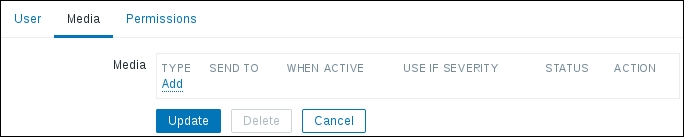
We have configured the server to send e-mail messages and set what the From address should be, but it still doesn't know the e-mail addresses that our defined users have, which is required to send alerts to them. To assign an e-mail address to a user, open Administration | Users. You should see only two users: Admin and Guest. Click on Admin in the ALIAS column and switch to the Media tab:

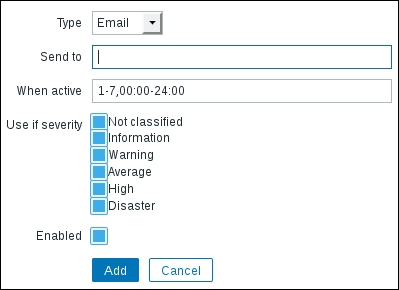
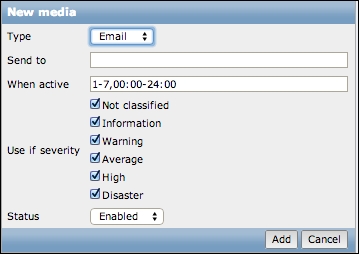
Click on the Add button:

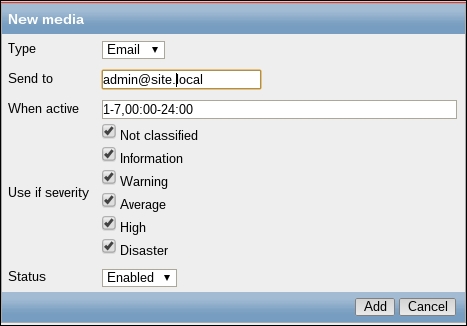
The only thing you have to enter here is a valid e-mail address in the Send to textbox—preferably yours. Once you are done, click on Add and then Update in the user properties screen.

That finishes the very basic configuration required to send out notifications through e-mail for this user.

Creating an action

And now, it's time to tie all this together and tell Zabbix that we want to receive e-mail notifications when our test box is under heavy load.

Things that tell the Zabbix server to do something upon certain conditions are called actions. An action has three main components:

  • Main configuration: This allows us to set up general options, such as the e-mail subject and the message.

  • Action operations: These specify what exactly has to be done, including who to send the message to and what message to send.

  • Action conditions: These allow us to specify when this action is used and when operations are performed. Zabbix allows us to set many detailed conditions, including hosts, host groups, time, specific problems (triggers) and their severity, as well as others.

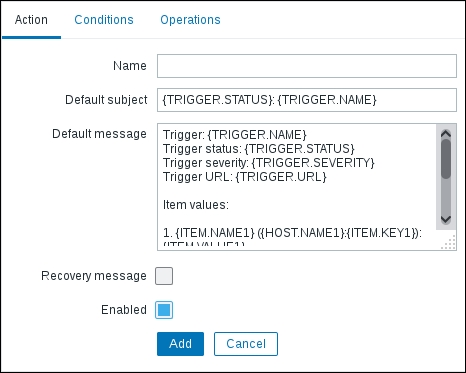
To configure actions, open Configuration | Actions and click on Create action. A form is presented that lets you configure preconditions and the action to take:

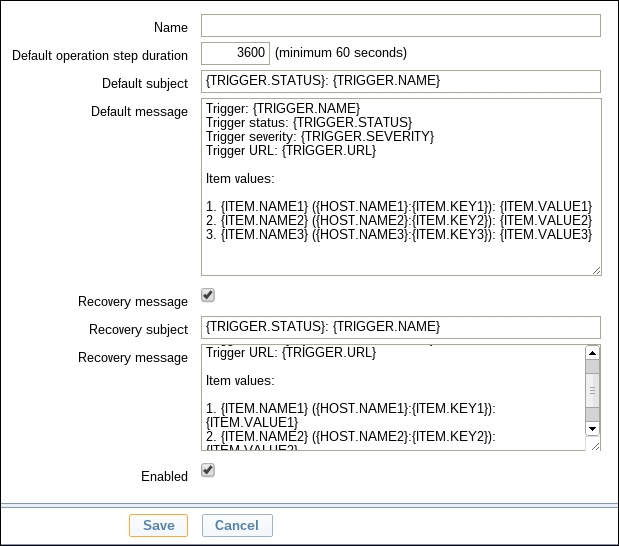
First, enter a NAME for our new action, such as Test action, and check the Recovery message checkbox. Next, we should define the operation to perform, so switch to the Operations tab. In the Operation tab, insert 3600 in Default operation step duration, as shown in the following screenshot:

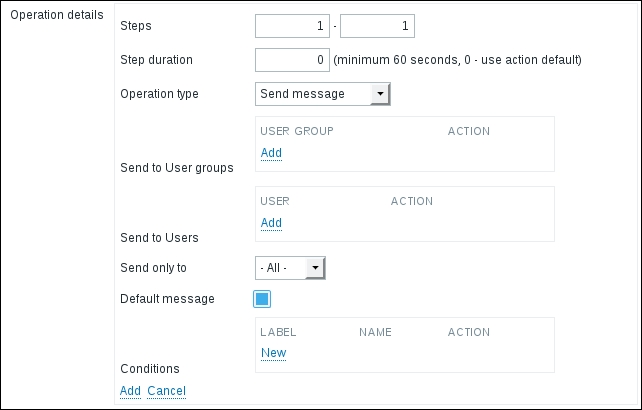
In here, click on New in the Action operations block. This will open the Operation details block:

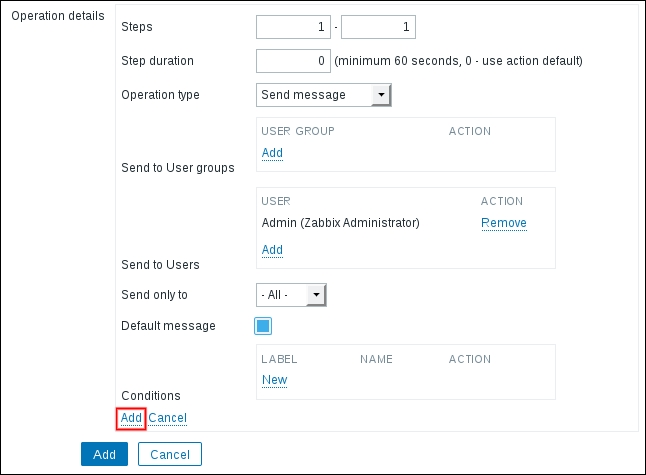
In the Send to Users section, click on the Add control. In the resulting popup, click on the Admin user. Now, locate the Add control for the Operation details block. This can be a bit confusing as the page has four controls or buttons called Add right now. The correct one is highlighted here:

Click on the highlighted Add control. Congratulations! You have just configured the simplest possible action, so click on the Add button in the Action block.

Information flow in Zabbix


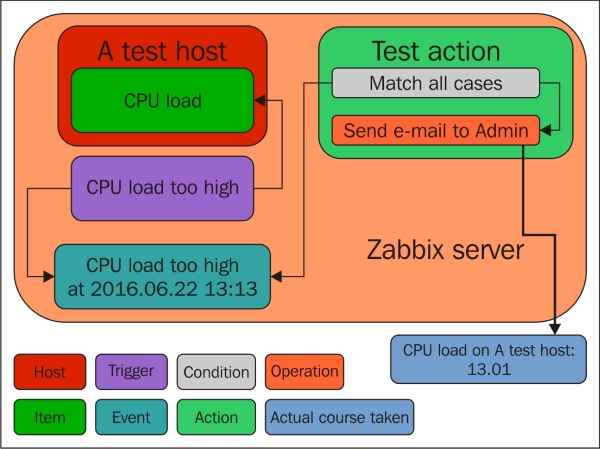
We have now configured various things in the Zabbix frontend, including data gathering (Item), threshold definition (Trigger), and instructions on what to do if a threshold is exceeded (Action). But how does it all work together? The flow of information between Zabbix entities can be non-obvious at first glance. Let's look at a schematic showing how the pieces go together:

In our Zabbix server installation, we created a host (A test host), which contains an item (CPU load). A trigger references this item. Whenever the trigger expression matches the current item value, the trigger switches to the PROBLEM state. When it ceases to match, it switches back to the OK state. Each time the trigger changes its state, an event is generated. The event contains details of the trigger state change: when it happened and what the new state is. When configuring an action, we can add various conditions so that only some events are acted upon. In our case, we did not add any, so all events will be matched. Each action also contains operations, which define what exactly has to be done. In the end, some operation is actually carried out, which usually happens outside of the Zabbix server, such as sending an e-mail.

A trigger can also be in the UNKNOWN state. This happens if there is not enough data to determine the current state. As an example, computing the average value for the past 5 minutes when there's no data for the past 10 minutes will make the trigger go into the UNKNOWN state. Events that cause a change to or from the UNKNOWN state do not match normal action conditions.

Let's create some load


Right, so we configured e-mail sending. But it's not so interesting until we actually receive some notifications. Let's increase the load on our test system. In the console, launch this:

$ cat /dev/urandom | md5sum

This grabs a pseudorandom, never-ending character stream and calculates its MD5 checksum, so system load should increase as a result. You can observe the outcome as a graph—navigate to Monitoring | Latest data and click on Graph for our single item again:

Notice how the system load has climbed. If your test system can cope with such a process really well, it might not be enough—in such a case, you can try running multiple such MD5 checksum calculation processes simultaneously.

Allow 3 minutes to pass and there should be a popup in the upper-right corner, accompanied by a sound alert:

There is one of the frontend messages we enabled earlier in our user profile. Let's look at what is shown in the message window:

  • The small grey rectangle represents trigger severity. For recovery messages, it is green. We will discuss triggers in Chapter 6, Detecting Problems with Triggers.
  • The first link leads to the Monitoring | Triggers page, displaying the current problems for the host that are causing the message.

  • The second link leads to the Monitoring | Events page, displaying the problem history for the trigger in question. In this case, it is wrapped in two lines.

The third link leads to the event details, displaying more information about this particular occurrence.

The window itself can be repositioned vertically, but not horizontally—just drag it by the title bar. At the top of the window, there are three buttons:

These buttons also have tooltips to remind us what they do, which is as follows:

  • The snooze button silences the alarm sound that is currently being played.
  • The mute/unmute button allows to disable/enable all sounds.
  • The clear button clears the currently visible messages. A problem that is cleared this way will not show up later unless it is resolved and then happens again.

The frontend messaging is useful as it provides:

  • Notifications of new and resolved problems when you aren't explicitly looking at a list of current issues

  • Sound alarms

  • Quick access to problem details

Now is a good time to revisit the configuration options of these frontend messages. Open the profile again by clicking on the link in the upper-right corner, and switch to the Messaging tab:

Here is what these parameters mean:

  • Frontend messaging: This enables/disables messaging for the current user.

  • Message timeout (seconds): This is used to specify how long a message should be shown. It affects the message itself, although it may affect the sound alarm as well.

  • Play sound: This dropdown has the options Once, 10 seconds, and Message timeout. The first one will play the whole sound once. The second one will play the sound for 10 seconds, looping if necessary. The third will loop the sound for as long as the message is shown.

  • Trigger severity: This lets you limit messages based on trigger severity (see Chapter 6, Detecting Problems with Triggers, for more information on triggers). Unmarking a checkbox will not notify you about that specific severity at all. If you want to get the message but not the sound alert, choose no_sound from the dropdown.

Note

Adding new sounds is possible by copying .wav files to the audio subdirectory in the frontend directory.

Previously, when configuring frontend messaging, we set the message timeout to 180 seconds. The only reason was to give us enough time to explore the popup when it first appeared; it is not a requirement for using this feature.

Now, let's open Monitoring | Triggers. We should see the CPU load too high on A test host for last 3 minutes trigger visible with a red, flashing PROBLEM text in the STATUS column:

Note

The flashing indicates that a trigger has recently changed state, which we just made it do with that increased system load.

However, if you have a new e-mail notification, you should already be aware of this state change before opening Monitoring | Triggers. If all went as expected, you should have received an e-mail informing you about the problem, so check your e-mail client if you haven't yet. There should be a message with the subject PROBLEM: CPU load too high on A test host for last 3 minutes.

Did the e-mail fail to arrive? This is most often caused by some misconfiguration in the mail delivery chain preventing the message from passing. If possible, check your e-mail server's log files as well as network connectivity and spam filters. Going to Reports | Action log might reveal a helpful error message.

You can stop all MD5 checksum calculation processes now with a simple Ctrl + C. The trigger should then change status to OK, though you should allow at least the configured item interval of 30 seconds to pass.

Again, check your e-mail: there should be another message, this time informing you that it's alright now, having the subject OK: CPU load too high on A test host for last 3 minutes.

Congratulations, you have set up all required configuration to receive alerts whenever something goes wrong as well as when things go back to normal. Let's recall what we did and learned:

  • We created a host. Hosts are monitored device representations in Zabbix that can have items attached.

  • We also created an item, which is a basic way of obtaining information about a Zabbix system. Remember: the unique item identifier is key, which is also the string specifying what data will actually be gathered. A host was required to attach this item to.

  • We explored a simple graph for the item that was immediately available without any configuration. The easy-to-use time-period selection controls allowed us to view any period and quickly zoom in for drilldown analysis.

  • Having data already is an achievement in itself, but defining what a problem is frees us from manually trying to understand a huge number of values. That's where triggers come in. They contain expressions that define thresholds.

  • Having a list of problems instead of raw data is a step forward, but it would still require someone looking at the list. We'd prefer being notified instead—that's what actions are for. We were able to specify who should be notified and when.

Basic item configuration


We rushed through the configuration of our simple item, so you might have gotten curious about the parameters we didn't change or talk about. Let's take a quick look at what can be monitored and what we can configure for each item.

Zabbix can monitor quite a wide range of system characteristics. Functionally, we can split them into categories, while technically, each method used corresponds to an item type.

Monitoring categories

Let's take a look at the generic categories that we can keep an eye on. Of course, this is not an exhaustive list of things to monitor—consider this as an example subset of interesting parameters. You'll soon discover many more areas to add in your Zabbix configuration.

Availability

While the simplified example we started with (the unlucky administrator in a party—remember him?) might not frighten many, there are more nightmare scenarios available than we'd want to think about. Various services can die without a sign until it's too late, and a single memory leak can bring the system down easily.

We'll try to explore the available options for making sure such situations are detected as early as possible in order to, say, help our administrator deal with disk space problems during the working day and find out that an important service has died because of a database hiccup just as he goes through the door.

Performance

Performance is one of several holy grails in computing. Systems are never fast enough to accommodate all needs, so we have to balance desired operations with available resources. Zabbix can help you both with evaluating the performance of a particular action and monitoring the current load.

You can start with simple things, such as network performance, indicated by a ping roundtrip or the time it takes for a website to return content, and move forward with more complex scenarios, such as the average performance of a service in a cluster coupled with the disk array throughput.

Security

Another holy grail in computing is security, a never-ending process where you are expected to use many tools, one of which can be Zabbix.

Zabbix can, independently of other verification systems, check simple things such as open ports, software versions, and file checksums. While these would be laughable as the only security measures, they can turn out to be quite valuable additions to existing processes.

Management

System management involves doing many things, and that means following a certain set of rules in all of those steps. Good system administrators never fail at that, except when they do.

There are many simple and advanced checks you can use to inform you about tasks to perform or problems that arise when configuring systems: cross-platform notifications about available upgrades, checking whether the DNS serial number has been updated correctly, and a myriad of other system-management pitfalls.

Efficiency

While generally considered a subset of availability or performance, some aspects of efficiency do not quite fit in there. Efficiency could be considered the first step to improved availability and performance, which increases the importance of knowing how efficient your systems are.

Efficiency parameters will be more service-specific than others, but some generic examples might include Squid hit ratios and MySQL query cache efficiency. Other applications, including custom in-house ones, might provide other efficiency-measuring methods.

Item types

As explored before, Zabbix gathers all its data within items. But surely, we'll want to get information in more ways than just through the Zabbix agent. What are our options? Let's have a look:

This is the item type configuration dropdown when editing an item. We pretty much skipped this selection when creating our item because the default value suited us. Let's take a quick look at the types available now:

  • Zabbix agent: This is the default type. The server connects to the agent and gathers data.

  • Zabbix agent (active): This can be considered as the opposite of the previous type. The Zabbix agent gathers data and connects to the server as required.

  • Simple check: As the name implies, this type groups simple checks that are performed by server. This includes checking for open TCP ports, ICMP ping, and so on. We will discuss both Zabbix agent types and simple checks in Chapter 3, Monitoring with Zabbix Agents and Basic Protocols.

  • SNMP agents: These three types deal with gathering SNMP data. Versions, obviously, denote the protocol version to use when connecting to the monitored host.

  • SNMP trap: While still relying on Net-SNMP's snmptrapd to obtain traps from the network, Zabbix offers the functionality of receiving SNMP traps easily. This item type allows you to do that, including automatic sorting per host. We will cover SNMP polling and trapping in Chapter 4, Monitoring SNMP Devices.

  • Zabbix internal: This groups items that gather information about the internal state of Zabbix. We will discuss the internal monitoring in Chapter 3, Monitoring with Zabbix Agents and Basic Protocols.

  • Zabbix trapper: This item type accepts incoming data instead of querying for it. It is useful for any data you might want to feed into Zabbix that is obtained using other tools, customs scripts, or any other method.

  • Zabbix aggregate: These items aggregate values across a host group. This is mostly useful for clusters or server farms where the overall state is more important than the state of individual machines.

  • External check: External checks allow the Zabbix server to execute external commands and store the returned values in the item. This allows it to pass along any information that isn't accessible using any of the other item types. We will use Zabbix trapper items, aggregate items, and external checks in Chapter 11, Advanced Item Monitoring.

  • Database monitor: This type includes built-in native checks for querying various database parameters.

  • IPMI agent: The Intelligent Platform Management Interface (IPMI) is a specification for managing and monitoring (which we're mostly after) systems, especially for out-of-band solutions. The IPMI item type allows direct access to this data. We will cover IPMI monitoring in Chapter 16, Monitoring IPMI Devices.

  • SSH agent: It is possible to directly query a host with SSH and retrieve shell-command output. This check supports both password and key-based authentication.

  • TELNET agent: For some systems where SSH is unavailable, direct a Telnet check can be used. While insecure, it might be the only way to access some devices, including older-generation switches or UPSes. We will discuss SSH and Telnet items in items in Chapter 11, Advanced Item Monitoring.

  • JMX agent: Zabbix provides a component called the Zabbix Java gateway. It allows you to monitor JMX-capable applications directly. JMX monitoring will be discussed in Chapter 17, Monitoring Java Applications.

  • Calculated: These are advanced items that allow you to create new values from other, pre-existing Zabbix items without duplicate data retrieval. We will use these items in Chapter 11, Advanced Item Monitoring.

While all these types might look a bit confusing at this point, an important thing to remember is that they are available for your use, but you don't have to use them. You can have a host with a single ICMP ping item, but if you want to monitor more, the advanced functionality will always be there.

As you might have noticed, the item type is set per individual item, not per host. This allows great flexibility when setting up monitored hosts. For example, you can use ICMP to check general availability, a Zabbix agent to check the status of some services and simple TCP checks for others, a trapper to receive custom data, and IPMI to monitor parameters through the management adapter—all on the same host. The choice of item type will depend on network connectivity, the feature set of the monitored host, and the ease of implementation. Zabbix will allow you to choose the best fit for each item.

How items can be monitored

While that covered categories and item types, we skipped some other parameters when creating the item, so it might be helpful to learn about basic values that will have to be set for most item types. Let's take a quick look at the fields in the item creation/editing window:

  • Name: A user-level item name. This is what you will see in most places where data is shown to users.

  • Type: This is the main property, affecting other fields and the way item data is gathered, as discussed previously.

  • Key: This is the property that explicitly specifies what data has to be gathered for this item. It is sort of a technical name for the item. The key value must be unique per host. For certain other item types, the field that is actually identifying collected data might be Simple Network Management Protocol Object Identifiers (SNMP OID) or IPMI sensor, and the key will be only used to reference the item.

  • Type of information: This allows you to choose the data type that will be gathered with the item. You'll have to set it according to the values provided: integers, decimals, and so on.

  • Data type : This property provides a way to query data in hexadecimal or octal format and convert it to decimal values automatically. Some SNMP-capable devices (mostly printers) send information in these formats. There's also the Boolean data type that converts several inputs to 1 or 0.

  • Units: This property allows you to choose the unit to be displayed besides data, and for some units, Zabbix will calculate corresponding conversions as required (called "human-readable" in many tools, so you get 32.5 GB instead of the same value in bytes).

  • Use custom multiplier: This property multiplies incoming data with the value specified here and stores the result. This is useful if data arrives in one unit but you want to store it as another (for example, if the incoming data is in bytes but you want it in bits, you'd use a multiplier of 8).

  • Update interval: This sets the interval between data retrieval attempts.

  • Custom intervals: This setting allows you to modify the update interval during specific times or use cron-like item scheduling—either because you have no need for a particular item during the night or because you know some particular service will be down, for example, during a backup window.

  • History storage period: This sets the time period for which actual retrieved values are stored in the database.

  • Trend storage period: This does the same as the History storage period option, but for trends. Trends are data calculated from history and averaged for every hour to reduce long-term storage requirements.

  • Store value: This property is for numeric data only and allows the Zabbix server to perform some basic calculations on the data before inserting it into the database, such as calculating the difference between two checks for counter items.

  • Show value: In this dropdown, a value map may be selected. It allows you to show human-readable values for numeric codes, for example, as returned by the SNMP interface status. Refer to Chapter 3, Monitoring with Zabbix Agents and Basic Protocols, for more information on value mapping.

  • Applications: This property makes it possible to perform logical grouping of items, for example, on the Monitoring | Latest data screen.

  • Populates host inventory field: Allows you to place collected item values in an inventory field (explored in Chapter 5, Managing Hosts, Users and Permissions).

  • Description: This field, available for several entities in Zabbix 3.0, allows you to describe an item. You may explain the way data is collected, manipulated, or what it means.

  • Enabled: This allows you to enable or disable the item.

Don't worry if these short descriptions didn't answer all of your questions about each option. We'll dig deeper into each of these later, and there are more options available for other item types as well.

Using global search


So far, we have navigated to a host or its items and other entities by going to specific pages in the frontend and then looking up the group and host. This is a convenient enough method in smaller installations, and it's also what we will mostly use in this book. In a larger installation, navigating like this could be very time consuming; thus, a feature called global search becomes very useful. Actually, many users almost completely skip the classic navigation method and use search exclusively.

The global search field is available in the upper-right corner of the Zabbix frontend. In there, type a single letter, a. Anything entered here is matched against the beginnings of hostnames, and results are shown in a dropdown. In our case, A test host matches:

You can choose one of the dropdown entries with your keyboard or mouse or search using your original string. Let's choose the single entry in the dropdown by either clicking on it with the mouse or highlighting it with the keyboard and hitting Enter. In the search results, we can see three blocks that correspond to the three types of entities that can be searched in Zabbix:

  • Hosts

  • Templates

  • Host groups

This is how the entry looks:

For all of them, searching by name is possible. Additionally, for hosts, a search can also be performed by IP address and DNS.

In the search results, clicking on the host name will open the host's properties. There are also additional links for each host, but the column headers can be confusing: TRIGGERS, GRAPHS, and WEB are duplicated. While it's not very intuitive, the difference is the use of a number next to the links: if there's a number, this is a link to the configuration section. If there's no number, it is a link to the monitoring section, or maybe there are no entities of that type configured. In that case, you sort of have to remember that the rightmost column with the same name is for configuration. The number for the configuration links, if present, is the count of the entities.

Summary


This was the chapter where we finally got some real action: monitoring an item, creating a trigger, and getting a notification on this trigger. We also explored the Zabbix frontend a bit and looked at the basic item parameters. Let's review what basic steps were required to get our first alert:

  • We started by creating a host. In Zabbix, everything to be monitored is attached to a logical entity called a host.

  • Next, we created an item. Being the basis of information gathering, items define parameters about monitored metrics, including what data to gather, how often to gather it, how to store the retrieved values, and other things.

  • After the item, we created a trigger. Each trigger contains an expression that is used to define thresholds. For each trigger, a severity can be configured as well. To let Zabbix know how to reach us, we configured our e-mail settings. This included specifying an e-mail server for the media type and adding media to our user profile.

  • As the final configuration step, we created an action. Actions are configuration entities that define actual operations to perform and can have conditions to create flexible rules for what to do about various events.

  • Well, we actually did one more thing to make sure it all works—we created a problem. It is useful to test your configuration, especially when just starting with Zabbix. Our configuration was correct, so we were promptly notified about the problem.

While this knowledge is already enough to configure a very basic monitoring system, we'll have to explore other areas before it can be considered a functional one. In the next chapter, we will figure out what the difference between passive and active items is and what the important things to keep in mind are when setting up each of them. We'll also cover basic ICMP items and other item properties such as positional parameters, value mapping, units, and custom intervals.

Chapter 3. Monitoring with Zabbix Agents and Basic Protocols

Now that we have explored the basics of information gathering and acting upon it in Zabbix, let's take a closer look at two simple and widely used methods for obtaining data: the already mentioned Zabbix agents and so-called simple checks. Simple checks include TCP connectivity and ICMP checks. In this chapter, we will cover the following:

  • Understanding and using Zabbix agents

  • Creating a simple check

  • Binding it all together

Using the Zabbix agent


Previously, we installed the Zabbix agent on the same host and monitored a single item for it. It's now time to expand and look at how inter-host connectivity works.

To continue, install the Zabbix agent on another host. The easiest way might be installing from the distribution packages—or you may choose to compile it from the source. If installing from the packages on RHEL/SUSE-based systems, refer to Chapter 1, Getting Started with Zabbix, for repository instructions. Potential agent package names could be:

  • zabbix30-agent

  • zabbix-agent

Compiling the agent only from the source is done in a similar way to how all components were included for compilation in Chapter 1, Getting Started with Zabbix. Instead of the full configure line, we will use a single flag this time:

$ ./configure --enable-agent

Configuration should complete successfully, and the following summary lines are important:

Enable server:         no
Enable proxy:          no
Enable agent:          yes

If the output you see matches the preceding output, continue by issuing the following command:

$ make install

Compilation should complete without any errors, and it should do so relatively quickly.

If you install distribution packages on a distribution different from where the server is installed, don't worry when the agent daemon has an older version than the server. This is supported and should work well. In fact, the version 1.0 Zabbix agent daemon works quite well with a version 3.0 server. The other way might not work and is not supported. You should avoid using an older server with new agents.

Note

Staying with an older agent can be more convenient as you already have one installed and working well. When setting up new ones, it is suggested you go with the latest one, as it might have bugs fixed, improved performance, more supported items for a particular platform, and other benefits.

With the agent installed, now is the time to start it up. How exactly this is done depends on the installation method—and if you installed from the packages, it depends on the distribution as well. For examples on how to start up the agent, refer to Chapter 1, Getting Started with Zabbix. As a quick reminder, if you installed from packages on an RHEL/SUSE-based system, the agent daemon can likely be started up like this:

# service zabbix-agentd start

If you installed from the source, directly execute the binary:

# <path>/zabbix_agentd

Once the agent has been started, we also have to add this new host to the configuration, so go to Configuration | Hosts. Make sure that the Group dropdown in the upper-right corner says Linux servers. Click on the Create host button and fill in this form:

Here are some tips on filling out the form:

  • Host name: Feel free to choose a descriptive name, or simply enter Another host

  • Agent interfaces: Fill in either IP ADDRESS or DNS NAME depending on which connection method you want to use

  • CONNECT TO: If you decide to go with DNS NAME, switch to DNS

When you're done, click on the Add button at the bottom.

Passive items

The item we created before was a so-called passive item, which means that the Zabbix server initiates a connection to the agent every time a value has to be collected. In most locations, they are simply referred to as being of the Zabbix agent type.

An easy way to remember what's passive or active in Zabbix is to think from the agent's perspective. If the agent connects to the server, it's active. If not, it's passive:

Let's create another passive item to check for the remote host. Go to Configuration | Hosts, click on Items next to the host you just created, click on the Create item button, and fill in these values:

  • Name: Enter Web server status

  • Key: Enter net.tcp.service[http,,80] (that's two subsequent commas preceding 80)

  • Update interval (in sec): Change to 60 from the default (30)—once a minute should be more than enough for our needs

  • History storage period (in days): Change to 7 from the default (90)—that's still a whole week of exact per-minute service status records kept

The end result should be as follows:

But what's up with that ,,80 added to the service name? Click on the Select button next to the Key field. This opens a window with a nice list of keys to choose from, along with a short description of each:

The Type dropdown in the upper-right corner will allow you to switch between several item types—we'll discuss the other types later. For now, find net.tcp.service in the list and look at the description. There are two things to learn here: firstly, we didn't actually have to add that 80—it's a port, and given that the default already is 80, adding it was redundant. However, it is useful if you have a service running on a nonstandard port. Secondly, there's a key list just one click away to give you a quick hint in case you have forgotten a particular key or what its parameters should be like.

This key, net.tcp.service, is a bit special: it tries to verify that the corresponding service actually does respond in a standard manner, which means the service must be explicitly supported. As of writing this, Zabbix supports the following services for the net.tcp.service key:

  • FTP

  • HTTP

  • HTTPS

  • IMAP

  • LDAP

  • NNTP

  • POP

  • SMTP

  • SSH

  • TCP

  • Telnet

The TCP service is a bit special in its own way. While others perform service-specific checks, TCP is not really a service; it just checks the TCP connection. It's closer to a key you can see a couple of rows above in the item list, net.tcp.port. As the description says, this one just tries to open a TCP connection to any arbitrary port without performing any service-specific checks on the returned value. If you try to use an arbitrary service string that is not supported, you would simply get an error message saying that such an item key is not supported.

Note

There's also a net.udp.service key that currently supports only one service—Network Time Protocol (NTP).

Feel free to look at the other available keys—we will use a couple of them later as well—then close this popup and click on the Add button at the bottom.

You have probably already noticed the green strip at the top of the screen when some operation successfully completes. This time, there's also a control called Details available; click on it to expand the details:

You can click on Details again to collapse the contents. Of course, this can be done whenever the Details link is available after some operation.

Now, we could go over to Monitoring | Latest data and wait for the values appearing there, but that would be useless. Instead, after a couple of minutes, you should visit Configuration | Hosts. Depending on your network configuration, you might see a red ZBX marker next to this host. This icon represents errors that have occurred when attempting to gather data from a passive Zabbix agent.

To see the actual error message, move your mouse cursor over the icon, and a tooltip will open. Clicking on the error icon will make the tooltip permanent and allow you to copy the error message.

Note

The three additional entries represent the SNMP, JMX, and IPMI data-gathering statuses. We will monitor SNMP devices in Chapter 4, Monitoring SNMP Devices, IPMI devices in Chapter 16, Monitoring IPMI Devices, and JMX applications in Chapter 17, Monitoring Java Applications.

If you see an error message similar to Get value from agent failed: cannot connect to [[192.168.56.11]:10050]: [111] Connection refused (most likely with a different IP address), it means that the Zabbix server was unable to connect to the agent daemon port. This can happen because of a variety of reasons, the most common being a firewall—either a network one between the Zabbix server and the remote host or a local one on the remote host. Make sure to allow connections from the Zabbix server to the monitored machine on port 10050.

If you did this correctly (or if you did not have a firewall blocking the connection), you could again go to Monitoring | Latest data—only that would be pointless, again. To see why, refresh the host list. Soon, you should see the Zabbix agent status icon turn red again, and moving your mouse cursor over it will reveal another error message, Received empty response from Zabbix Agent at [192.168.56.11], assuming that the agent dropped the connection because of access permissions. Now that's different. What access permissions is it talking about, and why did they work for our first host?

From the Zabbix server, execute this:

$ telnet 192.168.56.11 10050

Note

You should always verify network connectivity and access permissions from the Zabbix server. Doing it from another machine can have wildly differing and useless results.

Replace the IP address with the one of your remote host. You should see the following output, and the connection should immediately be closed:

Trying 192.168.56.11...
Connected to 192.168.56.11.
Escape character is '^]'.
Connection closed by foreign host.

Now, try the same with localhost:

$ telnet localhost 10050
Trying 127.0.0.1...
Connected to localhost.
Escape character is '^]'.

Notice how this time the connection is not closed immediately, so there's a difference in the configuration. The connection will most likely be closed a bit later—3 seconds later, to be more specific. If this does not happen for some reason, press Ctrl+], as instructed, then enter quit—this should close the connection:

^]
telnet> quit
Connection closed.

It turns out that configuring the Zabbix agent daemon on another machine is going to be a tiny bit harder than before.

As opposed to the installation on the Zabbix server, we have to edit the agent daemon configuration file on the remote machine. Open zabbix_agentd.conf as root in your favorite editor and take a look at the Server parameter. It is currently set to 127.0.0.1, which is the reason we didn't have to touch it on the Zabbix server. As the comment states, this parameter should contain the Zabbix server IP address, so replace 127.0.0.1 with the correct server address here.

Note

If you have older Zabbix agent instances in your environment, make sure to use and edit zabbix_agentd.conf, with d in the name. The other file, zabbix_agent.conf, was used by the limited-functionality zabbix_agent module, which has been removed in Zabbix 3.0.

Save the file and restart the agent daemon. How exactly this is done depends on the installation method, again. If you installed from the distribution packages, the following will most likely work:

# service zabbix-agentd restart

If you installed from the source and did not create or adapt some init scripts, you will have to manually stop and start the agent process:

# killall -15 zabbix_agentd; sleep 3; zabbix_agentd

The preceding command will stop all processes called zabbix_agentd on the system. This should not be used if multiple agents are running on the system. Additionally, the delay of 3 seconds should be more than enough in most cases, but if the agent does not start up after this, check its logfile for potential reasons.

Note

Never use kill -9 with Zabbix daemons. Just don't. Even if you think you could, do not do it. Signal 15 is SIGTERM—it tells the daemon to terminate, which means writing any outstanding data to the database, writing out and closing the logfiles, and potentially doing other things to shut down properly. Signal 9 is SIGKILL—the process is brutally killed without allowing it to say goodbye to the loved database and files. Unless you really know what you are doing, you do not want to do that—seriously, don't.

To verify the change, try telnetting to the remote machine again:

$ telnet 192.168.56.11 10050

This time, the outcome should be the same as we had with the localhost: the connection should be opened and then closed approximately 3 seconds later.

Note

While some host interface must be specified for all hosts, even for those only using active items, it is only used for passive Zabbix agent checks. If such items are not configured, this interface is simply ignored.

Finally, it should be worth opening Monitoring | Latest data. We will only see our previously created item, though; the reason is the same filter we changed earlier. We explicitly filtered for one host; thus, the second host we created does not show up at all. In the filter, which should still be expanded, clear the host field and select Linux servers in the Host groups field, and then click on Filter:

Note

In many filter fields in Zabbix, we can either start typing and get a list of matching entries or click on the Select button to see a list of all available entities. Typing in is a very convenient way when we know at least part of the name. Being able to see the list is helpful when working in an environment we are less familiar with.

We should see two monitored hosts now, each having a single item:

Notice how we can click the triangle icon next to each entry or in the header to collapse and expand either an individual entry or all of the entries.

Cloning items

Let's try to monitor another service now, for example, the one running on port 22, SSH. To keep things simple for us, we won't create an item from scratch this time; instead, go back to Configuration | Hosts, click on Items next to Another host, and click on Web server status in the NAME column. This will open the item editing screen, showing all the values we entered before. This time, there are different buttons available at the bottom. Among other changes, instead of the Add button, there's an Update one.

Note

Notice how one of the previously seen buttons is different. What was labeled Add previously is Update now. This change identifies the operation that we are going to perform: either adding a new entity or updating an existing one. One might open a configuration form intending to clone the entity, scan the fields, change some values, but forget to click on the Clone button. In the end, the existing item will be changed. The difference in the labels of the Add and Update buttons might help spot such mistakes before they are made.

There's also Delete, which, obviously, deletes the currently open item. We don't want to do that now. Instead, click on Clone:

Notice how the opened form proposes to create a new item, but this time, all values are set to those that the original item we cloned had. The Update button is changed to Add as well. Click on the Add button—it should fail. Remember, we talked about the key being unique per host; that's what the error message says as well:

The item editing form is still open, so we can correct our mistake. Make the following modifications:

  • Name: Change it to SSH server status

  • Key: Change http,,80 to ssh so that it looks like this—net.tcp.service[ssh]

That's all we have to do for now, so click on the Add button at the bottom again. This time, the item should be added successfully. Now, navigate to Monitoring | Latest data, where Another host should have two items listed: SSH server status and Web server status. Their status will depend on which services are running on the remote host. As it's remote, SSH most likely is running (and thus has a value of 1), but whether or not the web server is running will be specific to your situation.

Note

The monitoring of a port is often done to make sure the service on it is available, but that is not a strict requirement. If some system is not supposed to have SSH available through the Internet, we could use such a check to verify that it has not been accidentally exposed either by the inadvertent starting of the SSH daemon or an unfortunate change in the firewall.

Manually querying items

Adding items to the frontend and waiting for them to update is one way of seeing whether you got the item key right. It is not a very quick method, though—you have to wait for the server to get to checking the item. If you are not sure about the parameters or would like to test different combinations, the easiest way to do this is with a utility called zabbix_get. When installing from source, it is installed together with the Zabbix agent. When installing from the packages, it could be installed together with the Zabbix agent, or it could also be in a separate package. Using it is very simple: if we want to query the agent on the Zabbix server, we will run this:

$ zabbix_get -s 127.0.0.1 -k system.cpu.load

This will obtain the value in the exact same way as the server would do it. If you would like to get values like this from Another host, you could run zabbix_get on the Zabbix server. Attempting to run it from the same host on which the agent runs will fail as we changed the Server parameter to accept connections from the Zabbix server only. If you would like to query the agent from the localhost for debugging purposes, 127.0.0.1 can be added to the Server parameter via a comma—this is sometimes done on all systems when deploying the agent.

This covers the basics of normal, or passive, Zabbix items, where the server queries agents. Let's move on to other item types.

Active items

Passive Zabbix items are fine if you can connect to all the monitored hosts from the Zabbix server, but what if you can't allow incoming connections to the monitored hosts because of security or network topology reasons?

This is where active items come into play. As opposed to passive items, for active items, it's the agent that connects to the server; the server never connects to the agent. When connecting, the agent downloads a list of items to check and then reports the new data to the server periodically. Let's create an active item, but this time, we'll try to use some help when selecting the item key.

Go to Configuration | Hosts, click on Items next to Another host, and click on Create item. For now, use these values:

  • Name: Incoming traffic on interface $1

  • Type: Zabbix agent (active)

  • Update interval (in sec): 60

  • History storage period (in days): 7

We'll do something different with the Key field this time. Click on the Select button, and in the upcoming dialog that we saw before, click on net.if.in[if,<mode>]. This will fill in the chosen string, as follows:

Note

Replace the content in the square brackets with eth0 so that the field contents read net.if.in[eth0]. When you're done, click on the Add button at the bottom. Never leave placeholders such as <mode>—they will be interpreted as literal values and the item will not work as intended.

If your system has a different network interface name, use that here instead of eth0. You can find out the interface names with the ifconfig or ip addr show commands. In many modern distributions, the standard ethX naming scheme has been changed to one that will result in various different interface names. Further, replace any occurrences of eth0 with the correct interface name.

Go to Monitoring | Latest data and check whether new values have arrived:

Well, it doesn't look like they have. You could wait a bit to be completely sure, but most likely, no data will appear for this new active item, which means we're in for another troubleshooting session.

First, we should test basic network connectivity. Remember: active agents connect to the server, so we have to know which port they use (by default, it's port 10051). So, let's start by testing whether the remotely monitored machine can connect to the Zabbix server:

$ telnet <Zabbix server IP or DNS name> 10051

This should produce output similar to the following:

Trying <Zabbix server IP>...
Connected to <Zabbix server IP or DNS name>.
Escape character is '^]'.

Press Ctrl + ] and enter quit in the resulting prompt:

telnet> quit
Connection closed.

Such a sequence indicates that the network connection is working properly. If it isn't, verify possible network configuration issues, including network firewalls and the local firewall on the Zabbix server. Make sure to allow incoming connections on port 10051.

Note

Both agent and server ports for Zabbix are registered with the Internet Assigned Numbers Authority (IANA).

So, there might be something wrong with the agent—let's take a closer look. We could try to look at the agent daemon's logfile, so find the LogFile configuration parameter. If you're using the default configuration files from the source archive, it should be set to log to /tmp/zabbix_agentd.log. If you installed from packages, it is likely to be in /var/log/zabbix or similar. Open this logfile and look for any interesting messages regarding active checks. Each line will be prefixed with a PID and timestamp in the syntax PID:YYYYMMDD:HHMMSS. You'll probably see lines similar to these:

 15794:20141230:153731.992 active check configuration update from [127.0.0.1:10051] started to fail (cannot connect to [[127.0.0.1]:10051]: [111] Connection refused)

The agent is trying to request the active check list, but the connection fails. The attempt seems to be wrong—our Zabbix server should be on a different system than the localhost. Let's see how we can fix this. On the remote machine, open the zabbix_agentd.conf configuration file and check the ServerActive parameter. The default configuration file will have a line like this:

ServerActive=127.0.0.1

This parameter tells the agent where it should connect to for active items. In our case, the localhost will not work as the Zabbix server is on a remote machine, so we should modify this. Replace 127.0.0.1 with the IP address or DNS name of the Zabbix server, and then restart the agent either using an init script or the manual method killall.

While you have the configuration file open, take a look at another parameter there—StartAgents. This parameter controls how many processes are handling incoming connections for passive items. If set to 0, it will prevent the agent from listening on incoming connections from the server. This enables you to customize agents to support either or both of the methods. Disabling passive items can be better from a security perspective, but they are very handy for testing and debugging various problems. Active items can be disabled by not specifying (commenting out) ServerActive. Disabling both active and passive items won't work; the agent daemon will complain and refuse to start up, and it's correct—starting with both disabled would be a pointless thing to do. Take a look:

zabbix-agentd [16208]: ERROR: either active or passive checks must be enabled

We could wait for values to appear on the frontend again, but again, they would not. Let's return to the agent daemon logfile and see whether there is any hint about what's wrong:

15938:20141230:154544.559 no active checks on server [10.1.1.100:10051]: host [Zabbix server] not monitored

If we carefully read the entry, we will notice that the agent is reporting its hostname as Zabbix server, but that is the hostname of the default host, which we decided not to use and left disabled. The log message agrees: it says that the host is not monitored.

If we look at the startup messages, there's even another line mentioning this:

15931:20141230:154544.552 Starting Zabbix Agent [Zabbix server]. Zabbix 3.0.0 (revision 58567).

Note

You might or might not see the SVN revision in this message depending on how the agent was compiled. If it's missing, don't worry about it as it does not affect the ability of the agent to operate.

As that is not the host name we want to use, let's check the agent daemon configuration file again. There's a parameter named Hostname, which currently reads Zabbix server. Given that the comment for this parameter says "Required for active checks and must match hostname as configured on the server.", it has to be what we're after. Change it to Another host, save and close the configuration file, and then restart the Zabbix agent daemon. Check for new entries in the zabbix_agentd.log file—there should be no more errors.

While we're at it, let's update the agent configuration on A test host as well. Modify zabbix_agentd.conf and set Hostname=A test host and restart the agent daemon.

If there still are errors about the host not being found on the server, double-check that the hostname in the Zabbix frontend host properties and agent daemon configuration file (the one we just changed) match.

Note

This hostname is case sensitive.

It's now time to return to the frontend and see whether data has started flowing in at the Monitoring | Latest data section:

Note

Notice how the system in this screenshot actually has an interface named enp0s8, not eth0. We will find out how to allow Zabbix to worry about interface names and discover them automatically in Chapter 12, Automating Configuration.

If you see no data and the item shows up unsupported in the configuration section, check the network interface name.

Great, data is indeed flowing, but the values look really weird. If you wait for a while, you'll see how the number in the LAST VALUE column just keeps on increasing. So what is it? Well, network traffic keys gather data from interface counters, that is, the network interface adds up all traffic, and this total data is fed into the Zabbix database. This has one great advantage: even when data is polled at large intervals, traffic spikes will not go unnoticed as the counter data is present, but it also makes data pretty much unreadable for us, and graphs would also look like an ever-growing line (if you feel like it, click on the Graph link for this item). We could even call them "hill graphs". Luckily, Zabbix provides a built-in capability to deal with data counters like this. Go to Configuration | Hosts, then click on Items next to Another host, and click on Incoming traffic on interface eth0 in the NAME column. Change the Store value dropdown to read Delta (speed per second), and then click on Update.

We will have to wait a bit for the changes to take effect, so now is a good moment to discuss our choice for the Type of information option for this item. We set it to Numeric (unsigned), which accepts integers. The values that this item originally receives are indeed integers—they are counter values denoting how many bytes have been received on this interface. The Store value option we changed to Delta (speed per second), though, will almost always result in some decimal part being there—it is dividing the traffic between two values according to the number of seconds passed between them. In cases where Zabbix has a decimal number and has to store it in an integer field, the behavior will differ depending on how it got that decimal value, as follows:

  • If the decimal value arrived from a Zabbix agent source like a system.cpu.load item, the item will turn up unsupported

  • If Zabbix received an integer but further calculations resulted in a decimal number appearing, like with our network item, the decimal part will be discarded

This behavior is depicted in the following figure:

Why is there a difference like this, and why did we leave this item as an integer if doing so results in a loss of precision? Decimal values in the Zabbix database schema have a smaller number of significant digits available before the decimal point than integer values. On a loaded high-speed interface, we might overflow that limit, and it would result in values being lost completely. It is usually better to lose a tiny bit of precision—the decimal part—than the whole value. Note that precision is lost on the smallest unit: a byte or bit. Even if Zabbix shows 5 Gbps in the frontend, the decimal part will be truncated from this value in bits; thus, this loss of precision should be really, really insignificant. It is suggested to use integers for items that have a risk like this, at least until database schema limits are increased.

Check out Monitoring | Latest data again:

Note

Keep in mind that in the worst case, configuration changes might take up to 3 minutes to propagate to the Zabbix agent: 1 minute to get into the server configuration cache and 2 minutes until the agent refreshes its own item list. On top of this delay, this item is different from the others we created: it needs to gather two values to compute per second, one of which we are interested in; thus, we will also have to wait for whatever the item interval is before the first value appears in the frontend.

That's better; Zabbix now automatically calculates the change between every two checks (that's what the delta is for) and stores it, but the values still don't seem to be too user friendly. Maybe they're better in the graph—let's click on the Graph link to find out:

Ouch. While we can clearly see the effect our change had, it has also left us with very ugly historical data. The Y axis of that graph represents the total counter value (thus showing the total since the monitored system was started up), but the X axis represents the correct (delta) data. You can also take a look at the values numerically—go to the dropdown in the upper-right portion, which currently reads Graph. Choose 500 latest values from there. You'll get the following screen:

In this list, we can nicely see the change in data representation as well as the exact time when the change was performed. But those huge values have come from the counter data, and they pollute our nice, clean graph by being so much out of scale—we have to get rid of them. Go to Configuration | Hosts and click on Items next to Another host, then mark the checkbox next to the Incoming traffic on interface eth0 item, and look at the buttons positioned at the bottom of the item list:

The third button from the left, named Clear history, probably does what we want. Notice the 3 selected text to the left of the activity buttons—it shows the amount of entries selected, so we always know how many elements we are operating on. Click on the Clear history button. You should get a JavaScript popup asking for confirmation to continue. While history cleaning can take a long time with large datasets, in our case, it should be nearly instant, so click on the OK button to continue. This should get rid of all history values for this item, including the huge ones.

Still, looking at the Y axis in that graph, we see the incoming values being represented as a number without any explanation of what it is, and larger values get K, M and other multiplier identifiers applied. It would be so much better if Zabbix knew how to calculate it in bytes or a similar unit. Right, so navigate to Configuration | Hosts and click on Items next to Another host, and then click on the Incoming traffic on the eth0 interface in the NAME column. Edit the Units field and enter Bps, and then click on Update.

Let's check whether there's any improvement in the Monitoring | Latest data:

Wonderful; data is still arriving. Even better, notice how Zabbix now automatically calculates KB, MB, and so on where appropriate. Well, it would in our example host if there were more traffic. Let's look at the network traffic; click on Graph:

Take a look at the Y axis—if you have more traffic, units will be calculated there as well to make the graph readable, and unit calculations are retroactively applied to the previously gathered values.

Note

Units do not affect stored data like the Store value option did, so we do not have to clear the previous values this time.

One parameter that we set, the update interval, could have been smaller, thus resulting in a better-looking graph. But it is important to remember that the smaller the intervals you have on your items, the more data Zabbix has to retrieve, and each second, more data has to be inserted into the database and more calculations have to be performed when displaying this data. While it would have made no notable difference on our test system, you should try to keep intervals as large as possible.

So far, we have created items that gathered numeric data—either integers or decimal values. Let's create another one, a bit different this time. As usual, go to Configuration | Hosts and click on Items next to Another host. Before continuing with item creation, let's look at what helpful things are available in the configuration section, particularly for items. If we look above the item list, we can see the navigation and information bar:

This area provides quick and useful information about the currently selected host: the hostname, whether the host is monitored, and its availability. Even more importantly, on the right-hand side, it provides quick shortcuts back to the host list and other elements associated with the current host: applications, items, triggers, graphs, discovery rules, and web scenarios. This is a handy way to switch between element categories for a single host without going through the host list all the time. But that's not all yet—click on the Filter button to open the filter we got thrown in our face before. The sophisticated filter appears again:

Using this filter, we can make complex rules about what items to display. Looking at the top-left corner of the filter, we can see that we are not limited to viewing items from a single host; we can also choose a Host group. When we need to, we can make filter choices and click on the Filter link underneath. Currently, it has only one condition: the Host field contains Another host, so the Items link from the host list we used was the one that set this filter. Clear out the Host field, choose Linux servers from the Host group field, and click on the Filter button below the filter.

Note

Host information and the quick link bar is only available when items are filtered for a single host.

Now, look right below the main item filter—that is a Subfilter, which, as its header informs, only affects data already filtered by the main filter.

The entries in the subfilter work like toggles—if we switch one on, it works as a filter on the data in addition to all other toggled subfilter controls. Let's click on Zabbix agent (active) now. Notice how the item list now contains only one item—this is what the number 1 represented next to this Subfilter toggle. But the subfilter itself now also looks different:

The option we enabled, Zabbix agent, has been highlighted. Numeric (float), on the other hand, is greyed out and disabled, as activating this toggle in addition to already active ones results in no items being displayed at all. While the Numeric (unsigned) toggle still has 1 listed next to it, which shows that enabling it will result in those many items being displayed, the Zabbix agent toggle instead has +3 next to it. This form represents the fact that activating this toggle will display three more items than are currently being displayed, and it is used for toggles in the same category. Currently, the subfilter has five entries, as it only shows existing values. Once we have additional and different items configured, this subfilter will expand. We have finished exploring these filters, so choose Another host from the Host field, click on the Filter button under the filter, and click on Create item.

When you have many different hosts monitored by Zabbix, it's quite easy to forget which version of the Zabbix agent daemon each host has, and even if you have automated software deploying in place, it is nice to be able to see which version each host is at, all in one place.

Use the following values:

  • Name: Enter Zabbix agent version

  • Type: Select Zabbix agent (active) (we're still creating active items)

  • Key: Click on Select and then choose the third entry from the list—agent.version

  • Type of information: Choose Character

  • Update interval (in sec): Enter 86400

When done! Click on the Add button. There are two notable things we did. Firstly, we set the information type to Character, which reloaded the form, slightly changing available options. Most notably, fields that are relevant for numeric information were hidden, such as units, multiplier, and trends.

Secondly, we entered a very large update interval, 86400, which is equivalent to 24 hours. While this might seem excessive, remember what we will be monitoring here—the Zabbix agent version, so it probably (hopefully) won't be changing several times per day. Depending on your needs, you might set it to even larger values, such as a week.

To check out the results of our work, go to Monitoring | Latest data:

If you don't see the data, wait a while; it should appear eventually. When it does, you should see the version of the Zabbix agent installed on the listed remote machine, and it might be a higher number than displayed here, as newer versions of Zabbix have been released. Notice one minor difference: while all the items we added previously have links named Graph on the right-hand side, the last one has one called History. The reason is simple: for textual items, graphs can't be drawn, so Zabbix does not even attempt to do that.

Now, about that waiting—why did we have to wait for the data to appear? Well, remember how active items work? The agent queries the server for the item list it should report on and then sends in data periodically, but this checking of the item list is also done periodically. To find out how often, open the zabbix_agentd.conf configuration file on the remote machine and look for the RefreshActiveChecks parameter. The default is 2 minutes, which is configured in seconds, thus listing 120 seconds. So, in the worst case, you might have had to wait for nearly 3 minutes to see any data as opposed to normal or passive items, where the server would have queried the agent as soon as the configuration change was available in its cache. In a production environment with many agents using active items, it might be a good idea to increase this value. Usually, item parameters aren't changed that often.

An active agent with multiple servers

The way we configured ServerActive in the agent daemon configuration file, it connects to a single Zabbix server and sends data on items to the server. An agent can also work with multiple servers at the same time; we only have to specify additional addresses here as a comma-separated list. In that case, the agent will internally spawn individual processes to work with each server individually. This means that one server won't know what the other server is monitoring—values will be sent to each of them independently. On the other hand, even if several servers request data on individual items, this data will be collected several times, once for each server.

Note

Always check comments in the configuration files; they can be very useful. In the case of ServerActive, the comment shows that an agent may also connect to non-default ports on each server by using syntax like this: server1:port, server2:port.

Working with multiple servers in active mode can be useful when migrating from one Zabbix instance to another. For a while, an agent could report to both the old and new servers. Yet another case where this is useful is a customer environment where the customer might have a local Zabbix server performing full-fledged monitoring, while an external company might want to monitor some aspects related to an application they are delivering.

For passive items, allowing incoming connections from multiple Zabbix servers is done the same way: by adding multiple IP addresses to the Server parameter.

Supported items

We created some items that use the Zabbix agent in both directions and gather data. But those are hardly the only ones available. You could check out the list while creating an item again (go to Configuration | Hosts, click on Items for any host, and click on the Create item button, followed by the Select button next to the Key field) in order to see which items are built in for Zabbix agents, along with a short description for most of them.

Note

Not all Zabbix agent items are available as both passive and active items. For example, log and event log items (for gathering logfile and Windows event log information, respectively) are only available as active items. Log monitoring is covered in Chapter 11, Advanced Item Monitoring, and Windows-specific items in Chapter 14, Monitoring Windows.

Looking at the list, we can find out which categories of items Zabbix agents support natively: system configuration, network traffic, network services, system load and memory usage, filesystem monitoring, and others. But that does not mean everything you see there will work on any system that the Zabbix agent daemon runs on. As every platform has a different way of exposing this information and some parameters might even be platform-specific, it isn't guaranteed that every key will work on every host.

For example, when the disk drive statistics report changes to the userspace, the Zabbix agent has to specifically implement support for the new method; thus, older agent versions will support fewer parameters on recent Linux systems. If you are curious about whether a specific parameter works on a specific version of a specific operating system, the best way to find out is to check the Zabbix manual and then test it. Some of the most common agent item keys are as follows:

  • agent.ping: This returns 1 when the agent is available and nothing at all when the agent is not available

  • net.if.in/out: This provides incoming/outgoing traffic information

  • net.tcp.service: This tries to make a simplistic connection to a TCP service

  • proc.num: This counts the number of processes and can filter by various parameters

  • vfs.fs.size: This provides filesystem usage information

  • vm.memory.size: This provides memory usage information

  • system.cpu.load: This provides CPU load information in a standard decimal representation

  • system.cpu.util: This provides CPU utilization information, for example, iowait

For most of these, various parameters an be specified to filter the result or choose a particular piece of information. For example, proc.num[,zabbix] will count all processes that the Zabbix user is running.

Choosing between active and passive items

Even though we discussed Zabbix agents being active or passive, an agent really is neither one nor the other: the direction of the connections is determined by the item level. An agent can (and, by default, does) work in both modes at the same time. Nevertheless, we will have to choose which item type—active or passive—to use. The short version: active items are recommended.

To understand why, let's compare how the connections are made. With a passive agent, it is very simple:

Note

The arrow direction denotes how connections are made.

One value means one connection. An active agent is a bit more complicated. Remember: in the active mode, the agent connects to the server; thus, the agent first connects to the Zabbix server and asks for a list of items to be monitored. The server then responds with items, their intervals, and any other relevant information:

At this point, the connection is closed and the agent starts collecting the information. Once it has some values collected, it sends them to the server:

Note that an active agent can send multiple values in one connection. As a result, active agents will usually result in a lower load on the Zabbix server and a smaller amount of network connections.

The availability icon in the host list represents passive items only; active items do not affect it at all. If a host has active items only, this icon will stay grey. In previous Zabbix versions, if you added passive items that failed and then converted them all to active items, this icon would still stay red. Zabbix 3.0.0 is the first version in which the icon is automatically reset back to grey.

Of course, there are some drawbacks to active items and benefits to passive items too. Let's try to summarize what each item type offers and in which situation they might be better.

The benefits of active items are as follows:

  • They have a smaller number of network connections

  • They cause lower load on the Zabbix server

  • They will work if the network topology or firewalls do not allow connecting from the server to the agent (for example, if the monitored hosts are behind a NAT)

  • Items such as log or Windows event log monitoring are supported

Here are the benefits of passive items:

  • They are easier to set up for beginners

  • Custom intervals are supported (they are not supported by active items)

  • Polling a virtual IP address on a cluster allows you to always query the active cluster node

  • The default templates use passive items; thus, no modification or other configuration is required to use them

We will discuss using and modifying templates in Chapter 8, Simplifying Complex Configuration with Templates.

Item scheduling

Earlier, we discussed what introduces delay before a new item is checked: the Zabbix server configuration cache was mentioned. For passive items, there is another factor involved as well, and it is the way Zabbix schedules items to be polled. Each item is scheduled to be polled at a certain time, and the time between two polls is always constant. Even more, a specific item is always scheduled the same way, no matter when the Zabbix server was started. For example, if an item has a 60-second interval, it could be configured to be polled at second 13 of every minute. If the Zabbix server is restarted, this item will still be polled at second 13 of every minute. This scheduling is based on an internal item ID; thus, a specific item will not get this timing changed during its lifetime unless it is deleted and recreated or the item interval is changed.

Note

This logic is similar for all polled item types and will be relevant when we configure SNMP and other item types.

Active items get their polling started upon agent startup; thus, the specific time when values arrive will change based on when the agent was started. Additionally, active items are processed in a serial fashion; thus, one slow item can delay the values for other items from the same agent.

To summarize, after we add a new passive item, it is saved in the database—the Zabbix server does not know about it yet. This item is then loaded into the configuration cache. The configuration cache is refreshed every 60 seconds by default. After the server finds out about the new item, it schedules the item to be polled for the first time at some point between that moment and the item interval.

This means that with the default interval of 30 seconds, it may take from 30 to 90 seconds before the first value arrives for the item. If the item has a very long interval, such as a serial number or agent version configured earlier, it may take a very long time until the first value appears automatically. There is no way to speed up item polling except by adding it with a short interval at first and then increasing the interval when the item has been verified to work as expected.

After a new active item is added, it is saved in the database again and the Zabbix server does not know about it yet. The active Zabbix agent periodically connects to the server to gather information about items it is supposed to monitor, but as it is not in the configuration cache yet, the server does not tell the agent about the item. This item is then loaded into the configuration cache. The configuration cache is refreshed every 60 seconds by default. After the server finds out about the new item, the item is available to the agent, but the agent connects to the server every 2 minutes by default. Once the agent finds out about the new item, it immediately attempts to collect the first value for it.

Note

Refer Chapter 22, Zabbix Maintenance, for details on how to tune these intervals.

In both cases, if an item is set to delta, we have to obtain two values before we can compute the final value that will be stored in the database and displayed in the frontend—we can't compute the difference from just one value.


Simple checks


The previously created items all required the Zabbix agent daemon to be installed, running, and able to make a connection in either direction. But what if you can't or don't want to install the agent on a remote host and only need to monitor simple things? This is where simple checks can help you. These checks do not require any specialized agent running on the remote end and only rely on basic network protocols such as Internet Control Message Protocol (ICMP) and TCP to query monitored hosts.

Note

Host-availability icons only cover the Zabbix agent, SNMP, JMX, and IPMI status, that is, things where we expect the response to arrive. Our expectations for simple checks could go both ways—an open port could be good or bad. There is no status icon for simple checks.

Let's create a very basic check now. Go to Configuration | Hosts, click on Items next to Another host, and click on Create item. Use the following values:

  • Name: Enter SMTP server status

  • Type: Select Simple check

  • Key: Click on the Select button

The Type dropdown at the upper-right corner should already say Simple check. If it doesn't, change it to that. In the Key list, click on the net.tcp.service[service,<ip>,<port>] key and then edit it. Replace service with smtp and remove everything after it in the square brackets so that it becomes net.tcp.service[smtp], like so:

Note

When configuring simple checks in Zabbix, beware of "paranoid" network security configurations that might trigger an alert if you check too many services too often.

When done, click on the Add button at the bottom. To check the result, go to Monitoring | Latest data—our new check should be there and, depending on whether you have the SMTP server running and accessible for the Zabbix server, should list either 1 (if running and accessible) or 0.

Setting up ICMP checks

What if we care only about the basic reachability of a host, such as a router or switch that is out of our control? ICMP ping (echo request and reply) would be an appropriate method for monitoring in that case, and Zabbix supports such simple checks. Usually, these won't work right away; to use them, we'll have to set up a separate utility, fping, which Zabbix uses for ICMP checks. It should be available for most distributions, so just install it using your distribution's package-management tools. If not, you'll have to download and compile fping manually; it's available at http://fping.sourceforge.net/.

Note

At the time of writing this, Zabbix 3.0 still does not fully support fping 3. Most notably, setting the source IP for the server will break ICMP ping items. Such support is currently planned for version 3.0.2. For any later version, check compatibility information in the manual. Installing fping from distribution packages is likely to provide version 3, and it is also available at http://fping.org/.

Once fping is properly installed, Zabbix server must know where to find it and be able to execute it. On the Zabbix server, open zabbix_server.conf and look for the FpingLocation parameter. It is commented out by default, and it defaults to /usr/sbin/fping. You can quickly find the fping binary location with this command:

$ which fping

If one of the results is /usr/sbin/fping, you don't have to change this parameter. If not, modify the parameter to point to the correct fping location and restart the Zabbix server so that it knows about the configuration change. That's not it yet. Zabbix also needs to be able to run fping with administrative privileges, so execute the following as root:

# chgrp zabbix /usr/sbin/fping
# chmod 4710 /usr/sbin/fping

Note

Permissions are usually already correct in Fedora/RHEL-based distributions. If you're using distribution packages, don't execute the previous commands; they might even disallow access for the Zabbix server, as it might be running under a different group.

As the fping binary should have been owned by root before, this should be enough to allow its use by the Zabbix group as required; let's verify that.

As usual, navigate to Configuration | Hosts, click on Items next to Another host, and click on Create item. Set the following details:

  • Name: ICMP ping performance

  • Type: Simple check

  • Key: Click on the Select button; in the list, click on the icmppingsec key, and then remove everything inside the square brackets—and the brackets themselves

  • Type of information: Numeric (float)

  • Units: ms

  • Use custom multiplier: Select the checkbox and enter 1000

When all fields have been correctly set, click on the Add button at the bottom. Perform the usual round trip to Monitoring | Latest data—ICMP ping should be recording data already. If you wait for a few minutes, you can also take a look at a relatively interesting graph to notice any changes in the network performance.

Here, we set up ICMP ping measuring network latency in seconds. If you wanted to simply test host connectivity, you would have chosen the icmpping key, which would only record whether the ping was successful or not. That's a simple way to test connectivity on a large scale, as it puts a small load on the network (unless you use ridiculously small intervals). Of course, there are things to be aware of, such as doing something different to test Internet connectivity—it wouldn't be enough to test the connection to your router, firewall, or even your provider's routers. The best way would be to choose several remote targets to monitor that are known to have a very good connection and availability.

For ICMP ping items, several parameters can be specified. For example, the full icmpping key syntax is as follows:

icmpping[<target>,<packets>,<interval>,<size>,<timeout>]

By default, target is taken from the host this item is assigned to, but that can be overridden. The packets parameter enables you to specify how many packets each invocation should issue—usually, the fping default is 3. The interval parameter enables you to configure the interval between these packets—usually, the fping default is 1 second against the same target, specified in milliseconds. As for size, here, the default of a single packet could differ based on the fping version, architecture, and maybe other parameters. And the last one—timeout—sets individual target timeouts, with a common default being 500 milliseconds.

Note

These defaults are not Zabbix defaults—if not specified, fping defaults are used.

Note that one should not set ICMP ping items with very large timeouts or packet counts; it can lead to weird results. For example, setting the packet count to 60 and using a 60-second interval on an item will likely result in that item missing every second value.

If you set up several ICMP ping items against the same host, Zabbix invokes the fping utility only once. If multiple hosts have ICMP ping items, Zabbix will invoke fping once for all hosts that have to be pinged at the same time with the same parameters (such as packet, size, and timeout).

Tying it all together


So, we found out that a normal or passive agent waits for the server to connect, while an active agent connects to the server, grabs a list of items to check, and then reconnects to the server periodically to send in the data. This means that using one or the other kind of Zabbix agent item can impact performance. In general, active agents reduce the load on the Zabbix server because the server doesn't have to keep a list of what and when to check. Instead, the agent picks up that task and reports back to the server. But you should evaluate each case separately: if you only have a few items per host that you monitor very rarely (the update interval is set to a large value), converting all agents to active ones that retrieve the item list more often than the items were previously checked won't improve Zabbix server performance.

Note

It is important to remember that you can use a mixture of various items against a single host. As we just saw, a single host can have normal or passive Zabbix agent items, active Zabbix agent items, and simple checks assigned. This allows you to choose the best fit for monitoring every characteristic to ensure the best connectivity and performance and the least impact on the network and the monitored host. And that's not all yet—we'll explore several additional item types, which again can be mixed with the ones we already know for a single configured host.

Key parameter quoting

Zabbix key parameters are comma-delimited and enclosed in square brackets. This means that any other character can be used in the parameters as is. If your parameters include commas or square brackets, they will have to be in quote marks. Here are a few examples:

  • key[param1,param2]: This key has two parameters, param1 and param2

  • key["param1,param2"]: This key has one parameter, param1 and param2

  • key[param1[param2]: This is an invalid key

  • key['param1,param2']: This key has two parameters, 'param1 and param2'

What's up with the last one ? Well, Zabbix item keys are not shell-interpreted. Zabbix specifically supports double quotes for key parameter quoting. Single quotes are treated like any other character.

Positional parameters for item names

While we're working with items, let's explore some more tricks. Go to Configuration | Hosts, click on Items next to Another host, and then click on Incoming traffic on interface eth0 in the NAME column. In the item-editing form, click on the Clone button at the bottom. In the new form, modify the Key field so that it reads net.if.in[lo], and then click on the Add button at the bottom.

You might notice it right away, or go to Monitoring | Latest data and look at the list. Despite the fact that we only modified the key, the item name was updated accordingly as well:

That's what the $1 part in the item Name field is doing. It's working like a common positional parameter, taking the first parameter of the item key. If we had more parameters, we could access those for inclusion in the name with $2, $3, and so on. This is mostly useful in cases where you want to create several items that monitor different entities so that when cloning the items, you have to change only a single instance of the identifier. It's easier than it seems to miss some change when there are multiple locations, thus creating items with mismatched configuration.

Now that we have some more items configured, it's worth looking at another monitoring view. While we spent most of our time in Monitoring | Latest data, this time, navigate to Monitoring | Overview. The Type dropdown in the upper-right corner currently lists Triggers, which does not provide a very exciting view for us: we only have a single trigger created. But we did create several items, so switch this dropdown to Data:

This time, the overview page is a bit more interesting: we can see which hosts have which items and item values.

Using mass update

Now this looks quite good—we can see all of the monitored data in a compact form. Those 1 results that denote the status for various servers—what do they mean? Was 1 for a running state, or was it an error, like with exit codes? They surely aren't intuitive enough, so let's try to remedy that. Go to Configuration | Hosts, and click on Items for Another host. Select all three server status items (SMTP, SSH, and Web), and then look at the buttons at the bottom of the item list:

This time, we will want to make a single change for all the selected items, so the second button from the right looks like what we need—it says Mass update. Click on it:

Now that's an interesting screen—it allows us to change some parameters for multiple items at once. While doing that, only changes that are marked and specified are performed, so we can change some common values for otherwise wildly differing items. It allows us to set things such as the Update interval or any other parameter together for the selected items.

Value mapping

This time, we are interested in only one value—the one that decides how the value is displayed to us. Mark the checkbox next to the Show value entry to see the available options.

Looks like somebody has already defined entries here, but let's find out what it actually means before making a decision. Click on the Show value mappings link to the right on the same line:

Looking at the list, we can see various names, each of them having a list of mapped references. Look at the NAME column, where the predefined entries have hints about what they are good for. You can see UPS-related mappings, generic status/state, SNMP, and Windows service-related mappings. The VALUE MAP column shows the exact mappings that are assigned to each entry. But what exactly are they? Looking at the entries, you can see things such as 0 => Down or 1 => Up. Data arriving for an item that has a value mapping assigned will expose the descriptive mappings. You are free to create any mapping you desire. To create a new category of mapped data, you need to use the button in the upper-right corner called Create value map. We won't do that now, because one of the available mappings covers our needs quite well. Look at the entries—remember the items we were curious about? They were monitoring a service and they used 1 to denote a service that is running and 0 to denote a service that is down. Looking at the list, we can see an entry, Service state, which defines 0 as Down and 1 as Up—exactly what we need. Well, that means we don't have to create or modify any entries, so simply close this window.

Note

You can access the value map configuration screen at any time by navigating to Administration | General and choosing show value mappings from the dropdown in the upper-right corner.

Back in the mass-update screen, recall the mapping entries we just saw and remember which entry fit our requirements the best. Choose Service state from the dropdown for the only entry whose checkbox we marked—Show value:

When you are done, click on the Update button. This operation should complete successfully. You can click on the Details control in the upper-left corner to verify that all three items we intended were updated.

Let's see how our change affected information display. Configured and assigned value mappings are used in most Zabbix frontend locations where it makes sense. For example, let's visit that old friend of ours, Monitoring | Latest data. Take a close look at the various server status entries—Zabbix still shows numeric values for the reference, but each has conveniently listed an appropriate "friendly name" mapped value:

We have currently stopped the SMTP server to verify whether both 1 => Up and 0 => Down mappings work—as we can see, they do. Value mapping will be useful for returned data that works like code values—service states, hardware states (such as batteries), and other similar monitored data. We saw some predefined examples in the value-mapping configuration screen before, and you are free to modify or create new mappings according to your needs.

Value mapping can be used for integers, decimal values (floats), and strings. One use case for strings could be the mapping of different backup levels that a backup software might return:

  • I => Incremental

  • D => Differential

  • F => Full

Navigate back to Monitoring | Overview and again, look at the various server status entries for ANOTHER HOST:

While value mapping doesn't seem too useful when you have to remember a single monitored characteristic with only two possible states, it becomes very useful when there are many different possible states and many possible mappings so that in most locations, you will have a quick hint about what each numeric value means and you are always free to invent your own mappings for custom-developed solutions.

Units

We previously configured units for some items, using values such as B or ms. While the effect was visible in the monitoring section quite easily, there are some subtle differences in the handling of different units.

Units is a freeform field. You can type anything in there, but some units will change their behavior when data is displayed:

  • B/Bps: By default, when applying K, M, G, T and other unit prefixes, Zabbix will use a multiplier of 1,000. If the unit is set to B or Bps, the multiplier used will be changed to 1,024

  • s: An incoming value in seconds will be translated to a human-readable format

  • uptime: An incoming value in seconds will be translated to a human-readable format

  • unixtime: An incoming Unix timestamp will be translated to a human-readable format

Interestingly, for our ICMP ping item, we did not use any of these; we used ms instead. The reason is that in certain cases of a very small roundtrip, a value in seconds might be too small to properly store in the Zabbix database schema. By applying the multiplier of 1,000 in the item configuration, we converted the incoming value in seconds to milliseconds, which should never exceed the limits of the database schema. One downside would be that if a ping takes a long time, the value will not be displayed in seconds—we will have to figure it out from the millisecond value.

Note

Units do not affect the stored values, only what gets displayed. We may safely change them back and forth until we get them right.

Custom intervals

Another item property that we just briefly discussed was custom intervals. Most item types have their intervals configurable, which determines how often the item values should be collected. But what if we would like to change this interval based on the day of the week or the time of day? That is exactly what custom intervals enable us to do. There are two modes for custom intervals:

  • Flexible intervals

  • Custom scheduling

Flexible intervals

Flexible intervals override the normal interval for the specified time. For example, an item could collect values every 60 seconds, but that item might not be important during the weekend. In that case, a flexible interval could be added with an interval of 3600 and time specification of 6-7,00:00-24:00. During Saturdays and Sundays, this item would only be checked once an hour:

Note

Up to seven flexible intervals may be added for a single item.

Days are represented with the numbers 1-7 and a 24-hour clock notation of HH:MM-HH:MM is used.

Note

In case you were wondering, the week starts with a Monday here.

It is also possible to set the normal interval to 0 and configure flexible intervals. In this case, the item will only be checked at the times specified in the flexible intervals. This functionality can be used to check some item on a specific weekday only or even to simulate a crude scheduler. If an item is added with a normal interval of 0, a flexible interval of 60 seconds, and a time specification of 1,09:00-09:01, this item will be checked on Monday morning at 9 o'clock.

Note

Overlapping flexible intervals

If two flexible intervals with different values overlap, during the overlap period, the smallest value is used. For example, if flexible intervals with periods 1-5,00-24:00 and 5-6,12:00-24:00 are added to the same item, during Friday, from 12:00 to 24:00, the one that has the smallest interval will be used.

Custom scheduling

The example of having a flexible interval of 1 minute works, but it's not very precise. For more exact timing, the other custom interval type can be used: scheduling. This enables you to obtain item values at an exact time. It also has one major difference from flexible intervals. Flexible intervals change how an item is polled, but custom scheduling does not change the existing polling. Scheduled checks are executed in addition to the normal or flexible intervals.

It may sound a lot like crontab, but Zabbix custom scheduling uses its own syntax. The time prefix is followed by a filter entry. Multiple time prefix and filter values are concatenated, going from the biggest to the smallest. The supported time prefixes are:

  • md: month days

  • wd: weekdays

  • h: hours

  • m: minutes

  • s: seconds

For example, an entry of m13 will schedule this item to be polled every hour at the beginning of minute 13. If it is combined with a weekday specification as wd3m13, it will be polled every hour at the beginning of minute 13 on Wednesdays only. Changing the weekday reference to the month day—or date—reference as md13m13 would make this item be polled every hour at the beginning of minute 13 on the thirteenth day only.

The example of polling the item on Monday morning at 09:00 we looked at before would be wd1h9:

The filter can also be a range. For example, polling an item at 09:00 on Monday, Tuesday, and Wednesday would be done as wd1-3h9.

At the end of the filter, we can also add a step through a slash. For example, wd1-5h6-10/2 would poll the item from Monday to Friday, starting at 06:00 every other hour until 10:00. The item would get polled at 06:00, 08:00 and 10:00. To make an item be polled every other hour all day long on all days, the syntax of h/2 can be used.

Multiple custom intervals may also be specified by separating them with a semicolon—wd1-5/2 and wd1;wd3;wd5 would both poll an item at the beginning of Monday, Wednesday, and Friday.

Copying items

Looking at the same overview screen, the data seems easier to understand with textual hints provided for previously cryptic numeric values, but there's still a bit of not-so-perfect displaying. Notice the dashes displayed for the CPU load item for Another host and all other values for A test host. We didn't create corresponding items on both hosts, and item data is displayed here, which means missing items should be created for each host to gather the data. But recreating all items would be very boring. Luckily, there's a simple and straightforward solution to this problem.

Go to Configuration | Hosts and click on Items next to A test host. We had only a single item configured for this host, so mark the checkbox next to this item. Let's look at the available buttons at the bottom of the list again:

This time, we don't want to update selected items, but copy them to another host, so click on the Copy button. We want to copy these items to a specific host, so choose Hosts in the Target type dropdown and select Linux servers in the Group dropdown, which should leave us with a short list of hosts. We are copying from A test host to Another host; mark the checkbox next to the Another host entry and click on the Copy button:

When the operation has completed, change the Host filter field (expand the filter if it is closed) to Another host, and then click on Filter below the filter itself. Notice how the CPU load item has appeared in the list. This time, mark all the items except CPU load, because that's the only item A test host has. You can use the standard range selection functionality here—mark the checkbox next to the ICMP ping performance item (the first item in the range we want to select), hold down Shift on the keyboard, and click on the checkbox next to the Zabbix agent version (the last item in the range we want to select). This should select all the items between the two checkboxes we clicked on.

Note

Using Shift and clicking works to both select and unselect arbitrary entry ranges, including items, hosts, triggers, and other entries in the Zabbix frontend. It works both upwards and downwards. The result of the action depends on the first checkbox marked—if you select it, the whole range will be selected, and vice versa.

With those items selected, click on Copy below the item list. Choose Hosts in the Target type dropdown, choose Linux servers in the Group dropdown, mark only the checkbox next to A test host, and click on Copy. After that, click on the Details link in the upper-right corner. Notice how all the copied items are listed here. Let's take another look at Monitoring | Overview:

Great, that's much better! We can see all the data for the two hosts, with the numeric status nicely explained. Basically, we just cross-copied items that did not exist on one host from the other one.

But it only gets better—mouseover to the displayed values. Notice how the chosen row is highlighted. Let's click on one of the CPU load values:

As you can see, the overview screen not only shows you data in a tabular form, it also allows quick access to common timescale graphs and the Latest values for the item. Feel free to try that out.

When you have looked at the data, click on one of the Zabbix agent version values:

Notice how this time there are no entries for graphs. Remember: graphs were only available for numeric data, so Monitoring | Latest data and these overview screen pop-up menus offer the value history only.

Summary


This time, we created a new host and added several normal or passive agent items and active agent items.

We learned that it is good practice to disable active items if they are not used by commenting out the ServerActive parameter. If passive items are not used, they can be disabled by setting StartAgents to 0, although leaving them enabled can help with testing and debugging.

We set up simple checks on two different hosts and explored many tricks and mechanisms to ease managing in the frontend, such as item cloning, copying, and value mapping.

It might be worth remembering how connections are made for active and passive Zabbix agent item types—that's important when you have to decide on monitoring mechanisms based on existing network topology and configuration.

Let's look at the following diagram, summarizing those connections. The arrow direction denotes how connections are made:

Discussing benefits and drawbacks, we found that active items are recommended over passive items in most cases.

Listed here are the default ports that can be changed if necessary:

  • Normal or passive items: The Zabbix server connects to a Zabbix agent, which in turn gathers the data

  • Active items: The Zabbix agent connects to a Zabbix server, retrieves a list of things to monitor, gathers the data, and then periodically reports back to the server

  • Simple checks: The Zabbix server directly queries the exposed network interfaces of the monitored host; no agent is required

The simple checks were different: they never used the Zabbix agent and were performed directly from the Zabbix server. Simple checks included TCP port checking.

This covers the two basic, most commonly used check types: a Zabbix agent with bidirectional connection support and simple checks that are performed directly from the server.

In the next chapter, we will look at SNMP monitoring. We'll start with a quick introduction to the Net-SNMP tools and basic Management Information Base (MIB) management and will set up SNMP polling with fixed and dynamic OIDs. We will also receive SNMP traps and map them to hosts and items both using the built-in method and a very custom approach.

Chapter 4. Monitoring SNMP Devices

Now that we are familiar both with monitoring using Zabbix agents and an agentless method, let's explore an additional method that does not require Zabbix agent installation, even though it needs an agent of some kind anyway. Simple Network Management Protocol, commonly called SNMP, is a well-established and popular network-monitoring solution. We'll learn to configure and use SNMP with Zabbix, including SNMP polling and trap receiving.

Being more than two decades old, SNMP has had the time to become widespread across a whole range of networked devices. Although the name implies management functionality, it's mostly used for monitoring. As the first versions had security drawbacks, the ability to modify configuration over SNMP did not become as popular as its read-only counterpart.

SNMP as the primary monitoring solution is especially popular in embedded devices, where running a complete operating system and installing separate monitoring agents would be overkill. Two of the most popular device categories implementing SNMP out of the box are printers and various network devices, such as switches, routers, and firewalls. SNMP allows the easy monitoring of these otherwise quite closed devices. Other devices with SNMP agents provided include UPSes, network-attached storage (NAS) devices, and computer rack temperature/humidity sensors. Of course, SNMP is in no way restricted to devices with limited processing power—it's perfectly fine to run a generic SNMP agent instead of a specialized monitoring agent on standard servers. Reasons to use SNMP agents instead of Zabbix agents might include already installed and set up SNMP agents, no access to monitored hosts to install Zabbix agents, or a desire to keep systems relatively free from dependencies on monitoring software.

Given the prevalence of SNMP, it's no wonder Zabbix supports it out of the box. SNMP support in Zabbix builds upon another quality open source product—Net-SNMP (http://net-snmp.sourceforge.net/).

In this chapter, we will:

  • Look at basic Net-SNMP tools

  • Learn how to add Management Information Base (MIB) files so that Zabbix recognizes them

  • Configure both SNMP polling and trap receiving

Using Net-SNMP


If you installed Zabbix from the distribution packages, SNMP support should be already included. If you compiled Zabbix from source, it should still have SNMP support, as we included that in the configure flags. All that's left to do is set up SNMP monitoring configuration. Before we do that, we'll need a device that has an SNMP agent installed. This is where you can choose between various options—you can use any networked device that you have access to, such as a manageable switch, network printer, or a UPS with an SNMP interface. As SNMP agents usually listen on port 161, you will need the ability to connect to such a device on this port over User Datagram Protocol (UDP). Although TCP is also supported, UDP is much more widely used.

If you don't have access to such a device, you could also start up an SNMP daemon on a computer. For example, you could easily use Another host as a test bed for SNMP querying. Many distributions ship with the SNMP daemon from the Net-SNMP package, and often it is enough to simply start the snmpd service. If that's not the case for your chosen distribution, you'll either have to find one of those networked devices with an SNMP agent already available or configure snmpd manually.

For testing, it may be enough to have a line like the following in /etc/snmp/snmpd.conf:

rocommunity public

This allows full read access to anybody who uses the public community string.

Note

Do not use such a configuration in production.

Whichever way you choose, you will have to find out what data the device actually provides and how to get it. This is where Net-SNMP comes in, providing many useful tools to work with SNMP-enabled devices. We will use several of these tools to discover information that is required to configure SNMP items in Zabbix.

Let's start by verifying whether our SNMP device is reachable and responds to our queries.

While SNMPv3 has been the current version of SNMP since 2004, it is still not as widespread as SNMPv1 and SNMPv2. There are a whole lot of old devices in use that only support older protocol versions, and many vendors do not hurry with SNMPv3 implementations.

To complicate things further, SNMPv2 also isn't widely used. Instead, a variation of it, the community-based SNMPv2, or SNMPv2c, is used. While devices can support both v1 and v2c, some only support one of these. Both use so-called community authentication, where user authentication is performed based on a single community string. Therefore, to query a device, you would have to know which protocol version it supports and the community string to use. It's not as hard as it sounds. By default, many devices use a common string for access, public, as does the Net-SNMP daemon. Unless you explicitly change this string, you can just assume that's what is needed to query any host.

Note

In some distributions, the Net-SNMP daemon and tools can be split out in separate packages. In such cases, install the tool package as well.

If you have installed and started Net-SNMP daemon on Another host, you can perform a simple query to verify SNMP connectivity:

$ snmpstatus -v 2c -c public <IP address>

If the daemon has been started correctly and network connectivity is fine, you should get some output, depending on the system you have:

[UDP: [<IP address>]:161->[0.0.0.0]:51887]=>[Linux another 3.11.10-29-default #1 SMP Thu Mar 5 16:24:00 UTC 2015 (338c513) x86_64] Up: 10:10:46.20 
Interfaces: 3, Recv/Trans packets: 300/281 | IP: 286/245

We can see here that it worked, and by default, communication was done over UDP to port 161. We can see the target system's operating system, hostname, kernel version, when was it compiled and what hardware architecture it was compiled for, and the current uptime. There's also some network statistics information tacked on.

If you are trying to query a network device, it might have restrictions on who is allowed to use the SNMP agent. Some devices allow free access to SNMP data, while some restrict it by default and every connecting host has to be allowed explicitly. If a device does not respond, check its configuration—you might have to add the IP address of the querying machine to the SNMP permission list.

Looking at the snmpstatus command itself, we passed two parameters to it: the SNMP version (2c in this case) and community (which is, as discussed before, public).

If you have other SNMP-enabled hosts, you can try the same command on them. Let's look at various devices:

$ snmpstatus -v 2c -c public <IP address>
[UDP: [<IP address>]:161]=>[IBM Infoprint 1532 version NS.NP.N118 kernel 2.6.6 All-N-1] Up: 5 days, 0:29:53.22
Interfaces: 0, Recv/Trans packets: 63/63 | IP: 1080193/103316

As we can see, this has to be an IBM printer. And hey, it seems to be using a Linux kernel.

While many systems will respond to version 2c queries, sometimes you might see the following:

$ snmpstatus -v 2c -c public <IP address>
Timeout: No Response from <IP address>

This could of course mean network problems, but sometimes SNMP agents ignore requests coming in with a protocol version they do not support or an incorrect community string. If the community string is incorrect, you would have to find out what it has been set to; this is usually easily available in the device or SNMP daemon configuration (for example, Net-SNMP usually has it set in the /etc/snmp/snmp.conf configuration file). If you believe a device might not support a particular protocol version, you can try another command:

$ snmpstatus -v 1 -c public <IP address>
[UDP: [<IP address>]:161]=>[HP ETHERNET MULTI-ENVIRONMENT,SN:CNBW71B06G,FN:JK227AB,SVCID:00000,PID:HP LaserJet P2015 Series] Up: 3:33:44.22
Interfaces: 2, Recv/Trans packets: 135108/70066 | IP: 78239/70054

So this HP LaserJet printer did not support SNMPv2c, only v1. Still, when queried using SNMPv1, it divulged information such as the serial number and series name.

Let's look at another SNMPv1-only device:

$ snmpstatus -v 1 -c public <IP address>
[UDP: [<IP address>]:161]=>[APC Web/SNMP Management Card (MB:v3.6.8 PF:v2.6.4 PN:apc_hw02_aos_264.bin AF1:v2.6.1 AN1:apc_hw02_sumx_261.bin MN:AP9617 HR:A10 SN: ZA0542025896 MD:10/17/2005) (Embedded PowerNet SNMP Agent SW v2.2 compatible)] Up: 157 days, 20:42:55.19
Interfaces: 1, Recv/Trans packets: 2770626/2972781 | IP: 2300062/2388450

This seems to be an APC UPS, and it's providing a lot of information stuffed in this output, including serial number and even firmware versions. It also has considerably longer uptime than the previous systems: over 157 days.

But surely, there must be more information obtainable through SNMP, and also this looks a bit messy. Let's try another command from the Net-SNMP arsenal, snmpwalk. This command tries to return all the values available from a particular SNMP agent, so the output could be very large—we'd better restrict it to a few lines at first:

$ snmpwalk -v 2c -c public 10.1.1.100 | head -n 6
SNMPv2-MIB::sysDescr.0 = STRING: Linux zab 2.6.16.60-0.21-default #1 Tue May 6 12:41:02 UTC 2008 i686
SNMPv2-MIB::sysObjectID.0 = OID: NET-SNMP-MIB::netSnmpAgentOIDs.10
DISMAN-EVENT-MIB::sysUpTimeInstance = Timeticks: (8411956) 23:21:59.56
SNMPv2-MIB::sysContact.0 = STRING: Sysadmin (root@localhost)
SNMPv2-MIB::sysName.0 = STRING: zab
SNMPv2-MIB::sysLocation.0 = STRING: Server Room

Note

This syntax did not specify OID, and snmpwalk defaulted to SNMPv2-SMI::mib-2. Some devices will have useful information in other parts of the tree. To query the full tree, specify a single dot as the OID value, like this:

snmpwalk -v 2c -c public 10.1.1.100

As we can see, this command outputs various values, with a name or identifier displayed on the left and the value itself on the right. Indeed, the identifier is called the object identifier or OID, and it is a unique string, identifying a single value.

Calling everything on the left-hand side an OID is a simplification. It actually consists of an MIB, OID, and UID, as shown here:

Nevertheless, it is commonly referred to as just the OID, and we will use the same shorthand in this book. Exceptions will be cases when we will actually refer to the MIB or UID part.

Looking at the output, we can also identify some of the data we saw in the output of snmpstatus—SNMPv2-MIB::sysDescr.0 and DISMAN-EVENT-MIB::sysUpTimeInstance. Two other values, SNMPv2-MIB::sysContact.0 and SNMPv2-MIB::sysLocation.0, haven't been changed from the defaults, and thus aren't too useful right now. While we are at it, let's compare this output to the one from the APC UPS:

$ snmpwalk -v 1 -c <IP address> | head -n 6
SNMPv2-MIB::sysDescr.0 = STRING: APC Web/SNMP Management Card (MB:v3.6.8 PF:v2.6.4 PN:apc_hw02_aos_264.bin AF1:v2.6.1 AN1:apc_hw02_sumx_261.bin MN:AP9617 HR:A10 SN: ZA0542025896 MD:10/17/2005) (Embedded PowerNet SNMP Agent SW v2.2 compatible)
SNMPv2-MIB::sysObjectID.0 = OID: PowerNet-MIB::smartUPS450
DISMAN-EVENT-MIB::sysUpTimeInstance = Timeticks: (1364829916) 157 days, 23:11:39.16
SNMPv2-MIB::sysContact.0 = STRING: Unknown
SNMPv2-MIB::sysName.0 = STRING: Unknown
SNMPv2-MIB::sysLocation.0 = STRING: Unknown

The output is quite similar, containing the same OIDs, and the system contact and location values aren't set as well. But to monitor some things, we have to retrieve a single value per item, and we can verify that it works with another command, snmpget:

$ snmpget -v 2c -c public 10.1.1.100 DISMAN-EVENT-MIB::sysUpTimeInstance
DISMAN-EVENT-MIB::sysUpTimeInstance = Timeticks: (8913849) 1 day, 0:45:38.49

We can add any valid OID, such as DISMAN-EVENT-MIB::sysUpTimeInstance in the previous example, after the host to get whatever value it holds. The OID itself currently consists of two parts, separated by two colons. As discussed earlier, the first part is the name of a Management Information Base or MIB. MIBs are collections of item descriptions, mapping numeric forms to textual ones. The second part is the OID itself. There is no UID in this case. We can look at the full identifier by adding a -Of flag to modify the output:

$ snmpget -v 2c -c public -Of 10.1.1.100 DISMAN-EVENT-MIB::sysUpTimeInstance
.iso.org.dod.internet.mgmt.mib-2.system.sysUpTime.sysUpTimeInstance = Timeticks: (8972788) 1 day, 0:55:27.88

Note

To translate from the numeric to the textual form, an MIB is needed. In some cases, the standard MIBs are enough, but many devices have useful information in vendor-specific extensions. Some vendors provide quality MIBs for their equipment, some are less helpful. Contact your vendor to obtain any required MIBs. We will discuss basic MIB management later in this chapter.

That's a considerably long name, showing the tree-like structure. It starts with a no-name root object and goes further, with all the values attached at some location to this tree. Well, we mentioned numeric form, and we can make snmpget output numeric names as well with the -On flag:

$ snmpget -v 2c -c public -On 10.1.1.100 DISMAN-EVENT-MIB::sysUpTimeInstance
.1.3.6.1.2.1.1.3.0 = Timeticks: (9048942) 1 day, 1:08:09.42

So, each OID can be referred to in one of three notations: short, long, or numeric. In this case, DISMAN-EVENT-MIB::sysUpTimeInstance, .iso.org.dod.internet.mgmt.mib-2.system.sysUpTime.sysUpTimeInstance, and .1.3.6.1.2.1.1.3.0 all refer to the same value.

Note

Take a look at the snmpcmd man page for other supported output-formatting options.

But how does this fit into Zabbix SNMP items? Well, to create an SNMP item in Zabbix, you have to enter an OID. How do you know what OID to use? Often, you might have the following choices:

  • Just know it

  • Ask somebody

  • Find it out yourself

More often than not, the first two options don't work, so finding it out yourself will be the only way. As we have learned, Net-SNMP tools are fairly good at supporting such a discovery process.

Using SNMPv3 with Net-SNMP

The latest version of SNMP, version 3, is still not that common yet, and it is somewhat more complex than the previous versions. Device implementations can also vary in quality, so it might be useful to test your configuration of Zabbix against a known solution: Net-SNMP daemon. Let's add an SNMPv3 user to it and get a value. Make sure Net-SNMP is installed and that snmpd starts up successfully.

To configure SNMPv3, first stop snmpd, and then, as root, run this:

# net-snmp-create-v3-user -ro zabbix

This utility will prompt for a password. Enter a password of at least eight characters—although shorter passwords will be accepted here, it will fail the default length requirement later. Start snmpd again, and test the retrieval of values using version 3:

$ snmpget -u zabbix -A zabbixzabbix -v 3 -l authNoPriv localhost SNMPv2-MIB::sysDescr.0

This should return data successfully, as follows:

SNMPv2-MIB::sysDescr.0 = STRING: Linux another 3.11.10-29-default #1 SMP Thu Mar 5 16:24:00 UTC 2015 (338c513) x86_64

We don't need to configure versions 1 or 2c separately, so now we have a general SNMP agent, providing all common versions for testing or exploring.

The engine ID

There is a very common misconfiguration done when attempting to use SNMPv3. According to RFC 3414 (https://tools.ietf.org/html/rfc3414), each device must have a unique identifier. Each SNMP engine maintains a value, snmpEngineID, which uniquely identifies the SNMP engine.

Sometimes, users tend to set this ID to the same value for several devices. As a result, Zabbix is unable to successfully monitor those devices. To make things worse, each device responds nicely to commands such as snmpget or snmpwalk. These commands only talk to a single device at a time; thus, they do not care about snmpEngineID much.

In Zabbix, this could manifest as one device working properly but stopping when another one is added to monitoring.

If there are mysterious problems with SNMPv3 device monitoring with Zabbix that do not manifest when using command line tools, snmpEngineID should be checked very carefully.

Authentication, encryption, and context

With SNMPv3, several additional features are available. Most notably, one may choose strong authentication and encryption of communication. For authentication, Zabbix currently supports the following methods:

  • Message-Digest algorithm 5 (MD5)

  • Secure Hash Algorithm (SHA)

For encryption, Zabbix supports these:

  • Data Encryption Standard (DES)

  • Advanced Encryption Standard (AES)

While it seems that one might always want to use the strongest possible encryption, keep in mind that this can be quite resource intensive. Querying a lot of values over SNMP can overload the target device quite easily. To have reasonable security, you may choose the authNoPriv option in the Security level dropdown. This will use encryption for the authentication process but not for data transfer.

Another SNMPv3 feature is context. In some cases, one SNMP endpoint is responsible for providing information about multiple devices— for example, about multiple UPS devices. A single OID will get a different value, depending on the context specified. Zabbix allows you to specify the context for each individual SNMPv3 item.

Adding new MIBs


One way to discover usable OIDs is to redirect the full SNMP tree output to a file, find out what interesting and useful information the device exposes, and determine what the OIDs are from that. It's all good as long as the MIB files shipped with Net-SNMP provide the required descriptors, but SNMP MIBs are extensible—anybody can add new information, and many vendors do. In such a case, your file might be filled with lines like this:

SNMPv2-SMI::enterprises.318.1.1.1.1.2.3.0 = STRING: "QS0547120198"

That's quite cryptic. While the output is in the short, textual form, part of it is numeric. This means that there is no MIB definition for this part of the SNMP tree. Enterprise number 318 is assigned to APC and, luckily, APC offers an MIB for download from their site, so it can be added to Net-SNMP configured MIBs. But how?

Note

Getting SNMP MIBs isn't always easy. A certain large printer manufacturer representative claimed that they do not provide SNMP MIBs, and everybody should use their proprietary printer-management application. Most manufacturers do provide MIBs, though, and in some cases, freely accessible MIB collection sites can help better than official vendor sites.

After downloading a new MIB, you have to place it in a location where Net-SNMP will search for MIB files and configure them as well. Net-SNMP searches for MIBs in two locations: .snmp/mibs in the user's home directory and /usr/share/snmp/mibs; which one you use is your decision. If you want something for the current user only, or don't have access to the /usr directory, you can use .snmp/mibs; otherwise, use /usr/share/snmp/mibs. Whichever you choose, that's not enough—you also have to instruct tools to include this MIB.

Note

While Zabbix server uses the same directory to look for MIBs, specifying MIBs to be used is only required for the Net-SNMP tools—Zabbix server loads all MIBs found.

The first method is to pass MIB names directly to the called command. But hey, we don't know the MIB name yet. To find out what a particular name in some file is, open the file in a text editor and look for MIB DEFINITIONS ::= BEGIN near the beginning of the file. The string before this text will be the MIB name we are looking for. Here's an example:

PowerNet-MIB DEFINITIONS ::= BEGIN

So, APC has chosen to name its MIB PowerNet-MIB. Armed with this knowledge, we can instruct any command to include this file:

$ snmpget -m +PowerNet-MIB -v 1 -c public <IP address> SNMPv2-SMI::enterprises.318.1.1.1.1.2.3.0
PowerNet-MIB::upsAdvIdentSerialNumber.0 = STRING: "QS0547120198"

Excellent; snmpget included the correct MIB and obtained the full textual string, which confirms our suspicion that this might be a serial number. You can now use the same flag for snmpwalk and obtain a file with much better value names. Quite often, you will be able to search such a file for interesting strings such as serial number and find the correct OID.

Note

The + sign instructs us to include the specified MIBs in addition to otherwise configured ones. If you omit the +, the MIB list will be replaced with the one you specified.

Feel free to look at the MIB files in the /usr/share/snmp/mibs directory. As you can see, most files here have their filename the same as their MIB name without the extension, which is not required. Actually, the filename has nothing to do with the MIB name; thus, sometimes, you might have to resort to tools such as grep to find out which file contains which MIB.

While passing individual MIB names on the command line is nice for a quick one-time query, it gets very tedious once you have to perform these actions more often and the MIB list grows. There's another method, somewhat more durable—the MIB's environment variable. In this case, the variable could be set like this:

$ export MIBS=+PowerNet-MIB

In the current shell, individual commands do not need the MIB names passed to them anymore. All the MIBs specified in the variable will be included upon every invocation.

Of course, that's also not that permanent. While you can specify this variable in profile scripts, it can get tedious to manage for all the users on a machine. This is where a third method comes in: configuration files.

Again, you can use per-user configuration files, located in .snmp/snmp.conf in their home directories, or you can use the global /etc/snmp/snmp.conf file.

Note

The location of the global configuration file and MIB directory can be different if you have compiled Net-SNMP from source. They might reside in /usr/local.

The syntax to add MIBs is similar to the one used in the environment variable—you only have to prefix each line with mibs, like so:

mibs +PowerNet-MIB

If you want to specify multiple MIB names in any of these locations, you have to separate them with a colon. Let's say you also need a generic UPS MIB; in that case, the MIB name string would be as follows:

+PowerNet-MIB:UPS-MIB

Note

In some Net-SNMP versions, lines in configuration files might be silently cut at 1024 characters, including newline characters. You can specify multiple mibs lines to get around this limitation.

And if you feel lazy, you can make Net-SNMP include all the MIB files located in those directories by setting mibs to ALL—this works in all three locations. Beware that this might impact performance and also lead to some problems if some parts are declared in multiple locations, including warnings from Net-SNMP tools and incorrect definitions being used.

Note

Zabbix server always loads all available MIBs. When a new MIB is added, Zabbix server must be restarted to pick it up.

Polling SNMP items in Zabbix


Armed with this knowledge about SNMP OIDs, let's get to the real deal—getting SNMP data into Zabbix. To make the following steps easier, you should choose an entry that returns string data. We could use a UPS serial number, such as the one discovered previously to be PowerNet-MIB::upsAdvIdentSerialNumber.0. Do the same for some network printer or manageable switch; if you don't have access to such a device, you can choose a simple entry from the Net-SNMP enabled host, such as the already mentioned system description, SNMPv2-MIB::sysDescr.0.

Now is the time to return to the Zabbix interface. Go to Configuration | Hosts, and click on Create host. Then, fill in the following values:

  • Host name: Enter SNMP device.

  • Groups: If in the In groups listbox there's a group, select it and click on the button.
  • New group: Enter SNMP devices.

  • SNMP interfaces: Click on Add.

  • DNS NAME or IP ADDRESS: Enter the correct DNS name or IP address next to the SNMP interfaces we just added. If you have chosen to use an SNMP-enabled device, input its IP or DNS here. If you don't have access to such a device, use the Another host IP address or DNS name.

  • CONNECT TO: Choose DNS or IP, according to the field you populated.

Note

If no agent items will be created for this host, the agent interface will be ignored. You may keep it or remove it.

When you are done, click on the Add button at the bottom. It's likely that you won't see the newly created host in the host list. The reason is the Group dropdown in the upper-right corner, which probably says Linux servers. You can change the selection to All to see all configured hosts or to SNMP devices to only see our new device. Now is the time to create an item, so click on Items next to SNMP devices and click on the Create item button. Fill in the following values:

  • Name: Enter something sensible, such as Serial number, if you are using an OID from an SNMP agent, or System description if you are using the Net-SNMP daemon.

  • Type: Change to the appropriate version of your SNMP agent. In the displayed example, SNMPv1 agent is chosen because that's the only version our device supports.

  • Key: This is not restricted or too important for SNMP items, but required for references from triggers and other locations. You can choose to enter the last part of the textual OID, such as upsAdvIdentSerialNumber.0 or sysDescr.0.

  • SNMP OID: This is where our knowledge comes in. Paste the SNMP OID you have found out and chosen here. In the example, PowerNet-MIB::upsAdvIdentSerialNumber.0 is entered. If you are using the Net-SNMP daemon, enter SNMPv2-MIB::sysDescr.0

  • SNMP community: Unless you have changed it, keep the default public value.

  • Type of information: Select Character.

  • Update interval (in sec): This information doesn't really change that often, so use some large value, such as 86400.

Note

If you left the agent interface in place, notice how it cannot be chosen for this item—only the SNMP interface can. While some item types can be assigned to any interface type, SNMP items must be assigned to SNMP interfaces.

When you are done, click on the Add button at the bottom.

Now, the outcome will depend on several factors. If you are lucky, you will already see the incoming data in Monitoring | Latest data. If you have chosen some vendor-specific OID, like in our example, it is possible that you will have to go back to Configuration | Hosts, click on Items next to SNMP device, and observe the status of this item:

Now what's that? How could it be? We saw in our tests with Net-SNMP command line tools that there actually is such an OID. Well, one possible situation when this error message appears is when the specified MIB is not available, which could happen if you tried SNMP queries previously from a different host.

Zabbix server works as if ALL is set for MIB contents; thus, you don't have to do anything besides copying the MIB to the correct directory (usually /usr/share/snmp/mibs) on the Zabbix server and restarting the server daemon. If you did not copy the OID, instead deciding to retype it, you might have made a mistake. Verify that the entered OID is correct.

Note

The error message in the Zabbix frontend might be misleading in some cases. Check the server log to be sure.

After fixing any problems, wait until Zabbix server refreshes the item configuration and rechecks the item. With the item configured, let's see what data we can get in Zabbix from it. Navigate to Monitoring | Latest data, expand the filter, clear the Host groups field, and start typing SNMP in the Host field—SNMP device should appear, so choose it and click on Filter. Expand the other category if needed, and look for the serial number. You should see something like this:

The serial number has been successfully retrieved and is visible in the item listing. This allows us to automatically retrieve data that, while not directly tied to actual availability or performance monitoring, is still quite useful. For example, if a remote device dies and has to be replaced, you can easily find the serial number to supply in a servicing request, even if you neglected to write it down beforehand.

Translating SNMP OIDs

In case you can't or don't want to copy vendor-specific MIB files to the Zabbix server, you can always use numeric OIDs, like we did before. While not being as descriptive, they are guaranteed to work even if the copied MIBs are not available for some reason or are removed during a system upgrade.

But how do we derive the corresponding numeric OID from a textual one? While we could use snmpget to retrieve the particular value and output it in numeric form, that requires the availability of the device and network roundtrip. Fortunately, there's an easier way: the snmptranslate command. To find out the numeric form of the OID, we can use PowerNet-MIB::upsAdvIdentSerialNumber.0:

$ snmptranslate -On PowerNet-MIB::upsAdvIdentSerialNumber.0
.1.3.6.1.4.1.318.1.1.1.1.2.3.0

You must have MIBs placed correctly and pass their names to Net-SNMP tools for translation to work.

The default output format for Net-SNMP tools is the short textual one, which only outputs the MIB name and object name. If you would like to find out the corresponding textual name, use the following:

$ snmptranslate .1.3.6.1.2.1.1.1.0
SNMPv2-MIB::sysDescr.0

You can also use the -Of flag to output an OID in full notation:

$ snmptranslate -Of PowerNet-MIB::upsAdvIdentSerialNumber.0
.iso.org.dod.internet.private.enterprises.apc.products.hardware.ups.upsIdent.upsAdvIdent.upsAdvIdentSerialNumber.0

Dynamic indexes

Previously, we monitored incoming traffic on the eth0 device using an active Zabbix agent daemon item. If we have snmpd set up and running, we can also try retrieving outgoing traffic, but this time, let's try to use SNMP for that.

Monitoring network traffic using the Zabbix agent daemon is usually easier, but SNMP monitoring is the only way to obtain this information for many network devices, such as switches and routers. If you have such a device available, you can try monitoring it instead, though the network interface name will most likely differ.

One way to find the item we are interested in would be to redirect the output of snmpwalk to a file and then examine that file. Looking at the output, there are lines such as these:

IF-MIB::ifDescr.1 = STRING: lo
IF-MIB::ifDescr.2 = STRING: eth0

Great, so the desired interface, eth0 in this case, has an index of 2. Nearby, we can find actual information we are interested in—traffic values:

IF-MIB::ifOutOctets.1 = Counter32: 1825596052
IF-MIB::ifOutOctets.2 = Counter32: 1533857263

So, theoretically, we could add an item with the OID IF-MIB::ifOutOctets.2 and name it appropriately. Unfortunately, there are devices that change interface index now and then. Also, the index for a particular interface is likely to differ between devices, thus potentially creating a configuration nightmare. This is where dynamic index support in Zabbix comes into use.

Let's look at what a dynamic index item OID would look like in this case:

IF-MIB::ifOutOctets[

"index",

"ifDescr",

"eth0"]

Database OID

Literal string "index"

Index-based OID

Index string

  • Database OID: This is the base part of the OID that holds the data we are interested in, that is, without the actual index. In this case, it's the OID leading to ifOutOctets, in any notation.

  • Literal string "index": This is the same for all dynamic index items.

  • Index-based OID: This is the base part of the OID that holds the index we are interested in. In this case, it's the OID leading to ifDescr, in any notation.

  • Index string: This is the string that the index part of the tree is searched for. This is an exact, case-sensitive match of all OIDs from the previous base OID. Here, the name of the interface we are interested in, eth0, will be searched for. No substring or other matching is allowed here.

The index that this search will return will be added to the database OID, and the following queries will gather values from the resulting OID.

You can easily view the index to determine the correct string to search for with Net-SNMP tools:

$ snmpwalk -v 2c -c public localhost .iso.org.dod.internet.mgmt.mib-2.interfaces.ifTable.ifEntry.ifDescr
IF-MIB::ifDescr.1 = STRING: lo
IF-MIB::ifDescr.2 = STRING: eth0
IF-MIB::ifDescr.3 = STRING: sit0

As can be seen, this machine has three interfaces: loopback, Ethernet, and a tunnel. The picture will be very different for some other devices. For example, an HP ProCurve switch would return (with the output shortened) the following:

$ snmpwalk -v 2c -c public 10.196.2.233 .iso.org.dod.internet.mgmt.mib-2.interfaces.ifTable.ifEntry.ifDescr
IF-MIB::ifDescr.1 = STRING: 1
IF-MIB::ifDescr.2 = STRING: 2
...
IF-MIB::ifDescr.49 = STRING: 49
IF-MIB::ifDescr.50 = STRING: 50
IF-MIB::ifDescr.63 = STRING: DEFAULT_VLAN
IF-MIB::ifDescr.4158 = STRING: HP ProCurve Switch software loopback interface

Now that we know the OID to use for dynamic index items, let's create one such item in Zabbix. Navigate to Configuration | Hosts, click on Items next to the correct host you want to create the item for, and click on Create item. Fill in the following values:

  • Name: Outgoing traffic on interface $1

  • Type: SNMPv2 agent

  • Key: ifOutOctets[eth0]

  • SNMP OID: IF-MIB::ifOutOctets["index","ifDescr","eth0"]

  • Units: Bps

  • Store value: Delta (speed per second)

Same as before, replace eth0 with an interface name that exists on the target system. When you are done, click on the Add button at the bottom.

Note

Make sure that the compound OID is entered correctly, paying close attention to quotes and spelling. We discussed the reason to use the Numeric (unsigned) type of information in Chapter 3, Monitoring with Zabbix Agents and Basic Protocols.

The newly added item should start gathering data, so let's look at Monitoring | Latest data. If you don't see this item or the data for it, navigate back to Configuration | Hosts and click on Items next to the corresponding host—there should be an error message displayed that should help with fixing the issue. If you have correctly added the item, you'll see the traffic data, as follows:

Note

Remember that the index matches the exact string—a substring match will not work here.

Dynamic index items are quite common. Many network devices have fixed port names but varying indexes. Host-based SNMP agents place things such as disk usage and memory statistics in dynamic indexes; thus, if you have such devices to monitor, Zabbix support for them will be handy.

Using dynamic index items can slightly increase overall load, as two SNMP values are required to obtain the final data. Zabbix caches retrieved index information, so the load increase should not be noticeable.

A dynamic SNMP index enables us to easily monitor a specific interface or other entity by name, but it would not be a very efficient method for monitoring a larger number of interfaces. We will discuss an automated solution, low-level discovery, in Chapter 11, Advanced Item Monitoring.

SNMP bulk requests

You might have spotted the checkbox next to the SNMP interfaces section, Use bulk requests:

When requesting values from SNMP hosts, Zabbix may request one value at a time or multiple values in one go. Getting multiple values in one go is more efficient, so this is what Zabbix will try to do by default—it will ask for more and more values in one connection against a device until all SNMP items can be queried in one go or the device fails to respond. This approach enables us to find the number of values that a device is configured to return, or is technically capable of returning, in one go. No more than 128 values will be requested in one attempt, however.

Only items with identical parameters on the same interface will be queried at the same time—for example, if the community or the port is different, Zabbix will not try to get such values in one attempt.

There are quite a lot of devices that do not work properly when multiple values are requested; thus, it is possible to disable this functionality per interface.

Receiving SNMP traps


While querying SNMP-capable devices is a nice method that requires little or no configuration of each device in itself, in some situations, information flow in the reverse direction is desired. For SNMP, these are called traps. Usually, traps are sent upon some condition change, and the agent connects to the server or management station on port 162 (as opposed to port 161 on the agent side, which is used for queries). You can think of SNMP traps as being similar to Zabbix active items; as with those, all connections are made from monitored machines to the monitoring server.

The direction of the connections isn't the only difference—SNMP traps have some other pros and cons when compared to queries. For example, SNMP traps are usually more capable of detecting short-lived problems that might have been missed by queries. Let's say you are monitoring incoming voltages on a UPS. You have decided on a reasonable item interval that would give you useful data and wouldn't overload the network and Zabbix server—let's say some 120 seconds, or 2 minutes. If the input voltage suddenly peaks or drops for a minute, your checks might easily miss this event, thus making it impossible to correlate it with problems with other devices that are not connected to the UPS. Another benefit that traps provide is reduced network and Zabbix server load as the information is only sent when an event occurs and there is no constant querying by the server. One drawback is partial decentralization of the configuration. SNMP trap-sending conditions and parameters have to be set for each device or device group individually. Another drawback is a lack of the guaranteed sending of the traps. Almost all SNMP implementations will use UDP, and trap information might get lost without any trace.

As such, SNMP traps aren't used to replace SNMP queries. Instead, they supplement them by leaving statistical information-gathering to the queries and providing notifications of various events happening in the devices, usually notifying us of emergencies.

In Zabbix, SNMP traps are received by snmptrapd, a daemon again from the Net-SNMP suite. These traps then have to be passed to the Zabbix daemon with some method. There are several ways of doing it, and we will explore two different approaches:

  • Using the built-in ability of Zabbix to receive traps from the Net-SNMP trap daemon

  • Using a custom script to push SNMP values to Zabbix

The first method, especially when using the embedded Perl code approach, is the most simple one and will offer the best performance. A custom script will provide the most flexibility but will also require more effort.

Using embedded Perl code

Using embedded Perl code in snmptrapd is the easiest method to set up. Unless you need extra functionality, it is suggested to stick with this method.

We'll start by configuring snmptrapd to pass information to Zabbix. There is an example script in the Zabbix sources called misc/snmptrap/zabbix_trap_receiver.pl. Place this file in some reasonable location—perhaps a bin subdirectory in the Zabbix home directory. If the directory does not exist, create it, as follows:

# mkdir -p /home/zabbix/bin; chown zabbix /home/zabbix

Note

If using distribution packages, you might have to use a different username. Check your distribution packages for details.

Place the zabbix_trap_receiver.pl file in this directory:

# cp misc/snmptrap/zabbix_trap_receiver.pl /home/zabbix/bin

Note

On some distributions, Net-SNMP Perl support could be split out into a separate package, such as net-snmp-perl.

Now, on to instructing snmptrapd to use that script. We only need to tell the trap daemon to process all the received traps with this script. To do this, you'll have to find the location where your distribution places the Net-SNMP configuration files—usually, /etc/snmp/. In this directory, look for a file named snmptrapd.conf. If it's there, edit it (create a backup copy before you do anything); if it's missing, create it. Edit it as root and make it look as follows:

authCommunity execute public
perl do "/home/zabbix/bin/zabbix_trap_receiver.pl";

This will accept all traps that have the community set to public and pass them to the Perl receiver script.

Note

If you expect to receive traps with various community strings that are not known in advance, you could disable the authorization or checking of the community string with the disableAuthorization yes option in snmptrapd.conf.

Start or restart the trap daemon. It might be worth taking a quick look at the zabbix_trap_receiver.pl file. Notice the line that specifies the path:

$SNMPTrapperFile = '/tmp/zabbix_traps.tmp';

Behind the scenes, traps are passed to the Zabbix server through a temporary file. We'll discuss this in a bit more detail later in this chapter.

Filtering values by received data

Now on to the items on the Zabbix side. To test the most simple thing first, we will try to send values from the Zabbix server. Navigate to Configuration | Hosts, click on A test host in the NAME column, and click on Add in the SNMP interfaces section. Click on the Update button at the bottom, and then click on Items next to A test host. Click on Create item and enter these values:

  • Name: SNMP trap tests

  • Type: SNMP trap

  • Key: snmptrap[test]

  • Type of information: Character

When you're done, it should look like this:

This item will collect all traps that this host gets, if the traps contain the string test. We have the trap daemon configured to place traps in a file, and we have the item to place these traps in. What's left is telling the Zabbix server where to get the traps. Open zabbix_server.conf and modify the StartSNMPTrapper parameter:

StartSNMPTrapper=1

There is a special process in Zabbix that reads traps from a temporary file. This process is not started by default, so we changed that part of the configuration. Take a look at the parameter just above this one:

SNMPTrapperFile=/tmp/zabbix_traps.tmp

Notice how it matches the file in the Perl script. A change in the script should be matched by a change in this configuration file and vice versa. At this time, we will not change the location of this temporary file.

After these changes have been made, restart the Zabbix server daemon.

Now, we are ready to test this item. Let's send a trap by executing the following from the Zabbix server:

$ snmptrap -Ci -v 2c -c public localhost "" "NET-SNMP-MIB::netSnmpExperimental" NET-SNMP-MIB::netSnmpExperimental s "test"

This slightly non-optimal Net-SNMP syntax will attempt to send an SNMP trap to localhost using the public community and some nonsense OID. It will also wait for a response to verify that snmptrapd has received the trap successfully—this is achieved by the -Ci flag. It uses the default port, 162, so make sure the port is open in your firewall configuration on the Zabbix server to receive traps.

Note

Waiting for confirmation also makes snmptrap retransmit the trap. If the receiving host is slow to respond, the trap might be received multiple times before the sender receives confirmation.

If the command is successful, it will finish without any output. If it fails with the snmpinform: Timeout error message, then several things could have gone wrong. As well as double-checking that UDP port 162 is open for incoming data, verify that the community in the /etc/snmp/snmptrapd.conf file matches the one used in the snmptrap command and that the snmptrapd daemon is actually running.

If everything goes well, we should be able to see this item with a value on the latest data page:

Now, let's send a different trap. Still on the Zabbix server, run this:

$ snmptrap -Ci -v 2c -c public localhost "" "NET-SNMP-MIB::netSnmpExperimental" NET-SNMP-MIB::netSnmpExperimental s "some other trap"

This trap will not appear in the item we created. What happened to it? As the value that we sent did not contain the string test, this value did not match the one in the item. By default, such traps are logged in the server logfile. If we check the logfile, it should have something similar to the following:

9872:20160318:232004.319 unmatched trap received from "127.0.0.1": 23:20:02 2016/03/18 PDU INFO:
 requestid                      253195749
 messageid                      0
 transactionid                  5
 version                        1
 notificationtype               INFORM
 community                      public
 receivedfrom                   UDP: [127.0.0.1]:54031→[127.0.0.1]:162
 errorindex                     0
 errorstatus                    0
VARBINDS:
 DISMAN-EVENT-MIB::sysUpTimeInstance type=67 value=Timeticks: (2725311) 7:34:13.11
 SNMPv2-MIB::snmpTrapOID.0      type=6  value=OID: NET-SNMP-MIB::netSnmpExperimental
 NET-SNMP-MIB::netSnmpExperimental type=4  value=STRING: "some other trap"

This is not so easy to trigger on, or even see in, the frontend at all. We will improve the situation and tell Zabbix to handle such unmatched traps for this host by placing them in a special item. Navigate to Configuration | Hosts, click on Items next to A test host, click on Create item, and then fill in these values:

  • Name: SNMP trap fallback

  • Type: SNMP trap

  • Key: snmptrap.fallback

  • Type of information: Character

When you're done, click on the Add button at the bottom.

The key we used here, snmptrap.fallback, is a special one. Any trap that does not match any of the snmptrap[] items will be placed here. Retry sending our previously unmatched trap:

$ snmptrap -Ci -v 2c -c public localhost "" "NET-SNMP-MIB::netSnmpExperimental" NET-SNMP-MIB::netSnmpExperimental s "some other trap"

Let's check the latest data page again:

The fallback item got the value this time. To see what the value looks like, let's click on the History link next to one of these items:

It contains quite a lot of information, but it also looks a bit strange, almost as if the value was cut. Turns out, with this method, the trap information that is recorded in the database is quite verbose and the character information type does not offer enough space for it—this type is limited to 255 characters. We cannot even see the string we sent in the trap that matched or failed to match the filter. Let's try to fix this with the mass update functionality again. Go to Configuration | Hosts and click on Items next to A test host. Mark the checkboxes next to both SNMP trap items and click on the Mass update button. In the resulting form, mark the checkbox next to Type of information and choose Text:

Click on the Update button. This should have fixed it, but we don't know that for sure yet. Let's verify—send both of these traps again:

$ snmptrap -Ci -v 2c -c public localhost "" "NET-SNMP-MIB::netSnmpExperimental" NET-SNMP-MIB::netSnmpExperimental s "test"
$ snmptrap -Ci -v 2c -c public localhost "" "NET-SNMP-MIB::netSnmpExperimental" NET-SNMP-MIB::netSnmpExperimental s "some other trap"

If we look at the history of one of these items now, we will see that this change has indeed helped, and much more information is displayed—including the custom string we used for distributing these values across items:

Note

If the value is still cut, you might have to wait a bit more for the configuration cache to be updated and resend the trap.

The first item we created, with the snmptrap[test] key, can actually have a regular expression as the item parameter. This allows us to perform more advanced filtering, such as getting a link up and down traps in a single item. If a trap matches expressions from multiple items, it would get copied to all of those items.

Filtering values by originating host

We figured out how to get values in specific items, but how did Zabbix know that it should place these values in A test host? This happens because the address of the host that the trap came from matches the address in the SNMP interface for these items. To test this, let's copy the trap items to Another host. Navigate to Configuration | Hosts and click on Items next to A test host. Mark the checkboxes next to both SNMP trap items and click on the Copy to button. Choose Hosts from the Target type dropdown and mark the checkbox next to Another host. Then, click on Copy.

Note

If you added an SNMP interface to Another host earlier, this operation might succeed.

Looks like that failed, and Zabbix complains that it can not find an interface. Another host did not have an SNMP interface; thus, these items can not be attached to any interface at all. Go to Configuration | Hosts, click on Another host, then add a new SNMP interface with the address that this host has, and click on Update. Try to copy the SNMP trap items from A test host to Another host the same way as done previously, and it should succeed now:

With the items in place, let's test them. Send two test traps from Another host, the same way we sent them from the Zabbix server before:

$ snmptrap -Ci -v 2c -c public <Zabbix server> "" "NET-SNMP-MIB::netSnmpExperimental" NET-SNMP-MIB::netSnmpExperimental s "test"
$ snmptrap -Ci -v 2c -c public <Zabbix server> "" "NET-SNMP-MIB::netSnmpExperimental" NET-SNMP-MIB::netSnmpExperimental s "some other trap"

Replace <Zabbix server> with the IP or DNS name of the Zabbix server. These commands should complete without any error messages.

The traps should be placed properly in the items on Another host.

Debugging

If traps do not arrive at all or do not fall into the correct items, there are a few things to check. If the traps do not appear when sent from a remote host, but work properly when sent from the Zabbix server, check the local firewall on the Zabbix server and make sure incoming UDP packets on port 162 are allowed. Also make sure that the IP address the Zabbix server sees in the incoming traps matches the address in the SNMP interface for that host.

Sometimes, one might see that traps arrive at the SNMP trap daemon but do not seem to be passed on. It might be useful to debug snmptrapd in this case—luckily, it allows a quite detailed debug output. Exact values to use for various file locations will differ, but the following might work to manually start the daemon while enabling all debug output:

# /usr/sbin/snmptrapd -A -Lf /var/log/net-snmpd.log -p /var/run/snmptrapd.pid -DALL

Here, -Lf specifies the file to log to and -DALL tells it to enable full debug.

If the received trap is in a numeric format and not very readable, you might have to add specific MIBs to the /etc/snmp/snmp.conf file so that they are found by snmptrapd.

What happens if Zabbix decides that a trap does not belong to any item on any host? This could happen because there are no trap items at all, the fallback item is missing, or the address in the incoming trap is not matched with any of the SNMP interfaces. By default, the Zabbix server logs such traps in the logfile. An example record from the logfile is as follows:

  2271:20150120:124156.818 unmatched trap received from [192.168.168.192]: 12:41:55 2015/01/20 PDU INFO:
  errorindex                     0
  transactionid                  1
  requestid                      1752369294
  messageid                      0
  receivedfrom                   UDP: [192.168.168.192]:45375->[192.168.1.13]:162
  errorstatus                    0
  version                        1
  notificationtype               INFORM
  community                      public
VARBINDS:
  DISMAN-EVENT-MIB::sysUpTimeInstance type=67 value=Timeticks: (77578087) 8 days, 23:29:40.87
  SNMPv2-MIB::snmpTrapOID.0      type=6  value=OID: NET-SNMP-MIB::netSnmpExperimental
  NET-SNMP-MIB::netSnmpExperimental type=4  value=STRING: "non-matching trap"

The logging of non-matching traps can be controlled. If we go to Administration | General and choose Other from the dropdown in the upper-right corner, the last checkbox there is Log unmatched SNMP traps. Unmarking it will stop logging such traps:

And what if you would like to try out Zabbix's SNMP trap handling without setting up an SNMP trap daemon, perhaps on some development server? That should be very easy as you can simply append trap information to the temporary file. It's a plaintext file, and Zabbix does not know who added content, the trap daemon, user, or somebody else. Just make sure to add all the data for a single trap in one go.

Handling the temporary file

The temporary file to pass traps from the trap daemon to Zabbix is placed in /tmp by default. This is not the best practice for a production setup, so I suggest you change it once you are satisfied with the initial testing.

Note that the temporary file can grow indefinitely—Zabbix only reads data from it, and never rotates or removes the file. Rotation should be set up separately, probably with the logrotate daemon.

SNMP Trap Translator

Zabbix may also receive traps that are parsed by SNMP Trap Translator (SNMPTT, http://www.snmptt.org/). This method uses the same temporary file and internal process approach as the embedded Perl trap receiver solution. SNMPTT can be useful for making received data human-readable.

Remember that it changes passed data, so depending on how things are set up, adding SNMPTT might require changes to item mapping, triggers, or other configuration.

Using a custom script

The method covered earlier, the embedded Perl receiver, is easy to set up and performs well. If it is not possible to use it for some reason or some advanced filtering is required, a custom script could push trap values to items. This subsection will use an example script shipped with Zabbix to demonstrate such a solution.

We'll place the example SNMP trap parsing script in the Zabbix user's home directory:

# cp misc/snmptrap/snmptrap.sh /home/zabbix/bin

Let's take a look at that script now. Open the file we just copied to /home/zabbix/bin/snmptrap.sh. As you can see, this is a very simplistic script, which gets passed trap information and then sends it to the Zabbix server, using both host snmptrap and key snmptrap instances. If you are reading carefully enough, you've probably already noticed one problem: we didn't install any software as ~zabbix/bin/zabbix_sender, so that's probably wrong.

First, let's find out where zabbix_sender is actually located:

$ whereis zabbix_sender
zabbix_sender: /usr/local/bin/zabbix_sender

On this system, it's /usr/local/bin/zabbix_sender. It might be a good idea to look at its syntax by running this:

$ zabbix_sender --help

This allows you to send a value to the Zabbix server, specifying the server with the -z flag, port with -p, and so on. Now let's return to the script. With our new knowledge, let's look at the last line—the one that invokes zabbix_sender. The script seems to pass values retrieved from the SNMP trap as parameters to zabbix_sender; thus, we can't make any decisions and information transformation between snmptrapd and Zabbix. Now, let's fix the problem we noticed:

  • Change ZABBIX_SENDER to read /usr/local/bin/zabbix_sender (or another path if that's different for you)

  • Additionally, change the last line to read $ZABBIX_SENDER -z $ZABBIX_SERVER -p $ZABBIX_PORT -s "$HOST" -k "$KEY" -o "$str"—this way, we are also quoting host and key names, just in case they might include spaces or other characters that might break command execution

Save the file. Let's prepare the Zabbix side now for trap receiving. On the frontend, navigate to Configuration | Hosts and click on Create host. Fill in the following values:

  • Name: snmptraps

  • Groups: Click on SNMP devices in the Other groups box, then click on the button; if there are any other groups in the In groups listbox, remove them

Click on the Add button at the bottom. Notice that the hostname used here, snmptraps, must be the same as the one we configured in the snmptrap.sh script; otherwise, the traps won't be received in Zabbix.

Now, click on Items next to the snmptraps host, and then click on Create item. Enter these values:

  • Name: Received SNMP traps

  • Type: Zabbix trapper

  • Key: snmptraps

  • Type of information: Character

Note

We used the Character type of information here as our script is expected to pass less information to the item. If large amounts of information would have had to be passed, we would have set this parameter to Text again.

When you are done, click on the Add button at the bottom. Again, notice how we used the exact same key spelling as in the snmptrap.sh script.

We're done with configuring Zabbix for SNMP trap receiving, but how will the traps get to the script we edited and, in turn, to Zabbix? The same as before, this is where snmptrapd steps in.

Let's create a simplistic configuration that will pass all the received traps to our script. To do this, we will edit snmptrapd.conf. If you created it earlier, edit it (you may comment out the lines we added previously); if it's missing, create the file. Edit it as root and make it look as follows:

authCommunity execute public
#perl do "/home/zabbix/bin/zabbix_trap_receiver.pl";
traphandle default /bin/bash /home/zabbix/bin/snmptrap.sh

We commented out the Perl receiver line and added a line to call our new script. The default keyword will make sure that all received traps go to this script (that is, unless we have other traphandle statements with OIDs specified, in which case only those received traps will get to this script that don't match any other traphandle statement). Save this file, and then start or restart the snmptrapd daemon as appropriate for your distribution.

Now, we should be able to receive SNMP traps through all the chain links. Let's test that by sending a trap same the way as before from the Zabbix server:

$ snmptrap -Ci -v 2c -c public localhost "" "NET-SNMP-MIB::netSnmpExperimental" NET-SNMP-MIB::netSnmpExperimental s "test"

Once the command completes successfully, check the frontend for the results. Go to Monitoring | Latest data and select SNMP devices in the filter:

Great, data from our test trap has been received here. It's trimmed in the table view, though, so click on History to view all of it:

Excellent, we can see our trap in its entirety. Notice how with this custom script we decided to parse out only the specific string, instead of pushing all the details about the trap to Zabbix. Let's check what it looks like with several traps received one after another. From the console again, execute the following:

$ snmptrap -Ci -v 2c -c public localhost "" "NET-SNMP-MIB::netSnmpExperimental" NET-SNMP-MIB::netSnmpExperimental s "another test"

Refresh the History screen we had open in the browser and check whether the result is satisfactory:

Our latest trap is nicely listed, with entries being ordered in descending order.

Note

If the trap did not arrive, refer to the Debugging subsection earlier in this chapter.

But wait, everything after the first space is missing from the informative text. That's not desirable, so let's try to fix this problem. As root, open the /home/zabbix/bin/snmptrap.sh file and look for the line that strips out addresses from received information:

oid=`echo $oid|cut -f2 -d' '`
address=`echo $address|cut -f2 -d' '`
community=`echo $community|cut -f2 -d' '`
enterprise=`echo $enterprise|cut -f2 -d' '`

As seen here, when using a space as the separator, only the second field is grabbed. We want the full details captured instead, as otherwise, A Very Important Failure would simply show up as A for us. Let's add a dash to the field parameter so that all trailing fields are captured as well:

address=`echo $address|cut -f2- -d' '`

This should solve the problem, so let's test it again:

$ snmptrap -Ci -v 2c -c public localhost "" "NET-SNMP-MIB::netSnmpExperimental" NET-SNMP-MIB::netSnmpExperimental s "A Very Important Failure"

Return to the frontend and refresh the history listing:

Finally! The data from our important traps won't be lost anymore.

Filtering the traps

While that is great for receiving all traps in a single location, it also makes traps harder to correlate to particular hosts, and especially hard to observe if you have lots and lots of trap-sending hosts. In such a case, it becomes very desirable to split incoming traps in some sort of logical structure, similar to the way we did with the Perl receiver solution earlier. At the very least, a split based on existing hosts can be performed. In this case, all received traps would be placed in a single item for that host. If there are particular traps or trap groups that are received very often or are very important, these can be further split into individual items.

For example, if a network switch is sending various traps, including link up and down ones, we'll probably want to place these in a single item so they do not obscure other traps that much. If the switch has many workstations connected that are constantly switched on and off, we might even want to drop these traps before they reach Zabbix. On the other hand, if this switch has very important connections that should never go down, we might even go as far as creating an individual item for notifications coming from each port.

All the methods work by either replacing, improving, or hooking into the handler script, snmptraps.sh.

Custom mapping

One way to approach trap distribution is to create custom mappings that choose an appropriate destination for the trap depending on any parameters, including source host, OID, and trap details. Such mapping, while being relatively cumbersome to set up, is also the most flexible, as you can perform all kinds of specific case handling. It also requires double configuration—most changes have to be made both to the Zabbix configuration and to these mappings.

Custom mapping can use file-based lookup, a separate database, or any other kind of information storage.

Database lookups

Another method is to tap into existing knowledge, through the Zabbix database. As the database already holds information on host/IP address relationships, we can simply look up the corresponding hostname. Let's modify snmptraps.sh so that all traps coming from hosts defined in Zabbix end up in an snmptraps item for that specific host, but other traps are collected in the generic snmptraps host instead.

Start by modifying /home/zabbix/bin/snmptraps.sh and adding two lines:

oid=`echo $oid|cut -f11 -d'.'`
community=`echo $community|cut -f2 -d'"'`
zabbixhost=$(HOME=/root mysql -N -e "select host from zabbix.hosts left join zabbix.interface on zabbix.hosts.hostid=zabbix.interface.hostid where ip='$hostname' order by 'hostid' limit 1;" 2>/dev/null)
[[ $zabbixhost ]] && HOST=$zabbixhost
str="$hostname $address $community $enterprise $oid"
$ZABBIX_SENDER $ZABBIX_SERVER $ZABBIX_PORT -s "$HOST" -k "$KEY" -o "$str"

So what do these do? The first line queries the MySQL database and checks whether a host is defined with the same IP as the trap source. If it is, the Zabbix host variable gets the hostname, as defined in Zabbix, assigned. Returned results are sorted by host ID and only the first match is taken. Thus, if there are multiple hosts with the same IP address (which is perfectly fine in Zabbix), only the oldest entry is selected. Any error output is discarded (redirected to /dev/null), so in case of a database misconfiguration, traps are not lost but end up in the generic trap-handling host.

The second line simply sets the host used for sending data to Zabbix to the entry returned from the database, if it exists.

But what's that HOME variable in the first line? The mysql command used there does not specify user, password, or any other connection information, so for the command to succeed, it would have to get this information from somewhere. For MySQL, this information can be placed in the .my.cnf file located in the user's HOME directory. Given that snmptrapd runs as root, but services often do not get all the environment variables normal logins do, we are directing further commands to look in /root for that file.

This means we're not done yet; we have to create the /root/.my.cnf file and fill it with the required information. As root, create /root/.my.cnf and place the following content in it:

[client]
user=zabbix
password=mycreativepassword

For the password, use the same one you used for the Zabbix server and frontend (if you don't remember this password, you can look it up in zabbix_server.conf).

Now, we should prepare for trap receiving on the Zabbix side. Open Configuration | Hosts, click on Items next to Another host, and then click on the Create item button. Enter these values:

  • Name: snmptraps

  • Type: Zabbix trapper

  • Key: snmptraps

  • Type of information: Character

When you are done, click on the Add button at the bottom.

Before we send a test trap, let's do one more thing: make sure that snmptrapd does not perform reverse lookups on received traps. While that might slightly decrease the prettiness of the data, we want to keep this script simple for now and this will also improve performance a bit. To do this, add the -n flag for snmptrapd to the startup scripts and restart it. This procedure is distribution specific.

Finally, we are ready to test our tricky setup. From Another host, execute this:

$ snmptrap -Ci -v 2c -c public <Zabbix server> "" "NET-SNMP-MIB::netSnmpExperimental" NET-SNMP-MIB::netSnmpExperimental s "test"

Replace <Zabbix server> with the IP or DNS name of the Zabbix server. This command should complete without any error messages.

Note

This won't work with A test host—the oldest host with the IP address of 127.0.0.1 would be the Zabbix server example host .

Back in the frontend, navigate to Monitoring | Latest data:

Great, snmptrap instances are now successfully sorted by host, if present.

In case this trap was not sorted properly and still went into the snmptraps host, it could be caused by different output in some Net-SNMP versions. Instead of passing the IP address or hostname of the incoming connection as the first value, they pass a string like this:

UDP: [192.168.56.11]:56417->[192.168.56.10]:162

In that case, try adding another line before the zabbixhost assignment:

oid=`echo $oid|cut -f11 -d'.'`
community=`echo $community|cut -f2 -d'"'`
hostname=$(echo "$hostname" | awk -F'[][]' '{print $2}')

It will extract the first string enclosed in square brackets from the hostname variable. After making this change to the script, send the trap again.

That took us some time to set up, but now it's very simple. If we want traps from some host to be handled by a specific host, we create that host and an snmptraps item for it. All other traps go to the generic snmptraps host and snmptraps item.

But what about item lookup? The database holds information on item keys as well, so perhaps we could try using that.

We need to retrieve the item key from any database field based on the information received in the trap. As traps include SNMP OIDs, they are the best candidates to map traps against items. Now, the OID can be in numeric or textual form. In the Zabbix configuration, we have two fields that could be used:

  • Name: While pretty much a freeform field, it is a "friendly name," so we'd better keep it human-readable.

  • Key: This field has more strict rules on the characters it accepts, but OIDs should be fine. While not used by humans much, this field is still referred to in the trigger expressions.

That means we will use the Key field. To keep it both short enough and somewhat human-readable, we'll set it to the last part of the received textual-form OID. As the trap will be received by snmptraps.sh, it will try to match the received OID to the item key and based on that decide where to send the data.

Note

Remember that specific MIBs might have to be added to /etc/snmp/snmp.conf so that they are found by snmptrapd.

Again, as root, edit the /home/zabbix/bin/snmptraps.sh script. Replace the two lines we just added, so that it looks like this:

community=`echo $community|cut -f2 -d' '`
enterprise=`echo $enterprise|cut -f2 -d' '`
oid=`echo $oid|cut -f11 -d'.'`
community=`echo $community|cut -f2 -d'"'`
hostname=$(echo "$hostname" | awk -F'[][]' '{print $2}')
zabbixhostid=$(HOME=/root mysql -N -e "select hosts.hostid,host from 
zabbix.hosts left join zabbix.interface on 
zabbix.hosts.hostid=zabbix.interface.hostid where ip='$hostname' order 
by 'hostid' limit 1;" 2>/dev/null)
zabbixhost=$(echo $zabbixhostid | cut -d" " -f2-)
[[ "$zabbixhost" ]] && {
     zabbixid=$(echo $zabbixhostid | cut -d" " -f1)
     trapoid=$(echo $oid | cut -d: -f3)
     if [ "$trapoid" ]; then
         zabbixitem=$(HOME=/root mysql -N -e "select key_ from 
zabbix.items where key_='$trapoid' and hostid='$zabbixid';" 2> /dev/null)
         if [ "$zabbixitem" ]; then
             HOST=$zabbixhost
             KEY=$zabbixitem
         fi
     fi
}
[[ $KEY = snmptraps ]] && {
     if [ "$(HOME=/root mysql -N -e "select key_ from zabbix.items where 
key_='snmptraps' and hostid='$zabbixid';" 2> /dev/null)" ]; then
         HOST=$zabbixhost
     fi
}
str="$hostname $address $community $enterprise $oid"

Save the file. Functionally, for our current configuration, it will work exactly the same as the previous version, with one minor improvement: if you look at the previous version carefully, you'll see it only checks for host availability, so if you created a host but forgot to create an item with the snmptraps key for it, the sent trap would be lost. This version will check whether an item with such a key exists for that host. If not, the generic host, snmptraps, will receive the trap.

Note that this is one benefit of the custom-script solution over the embedded Perl trap receiver we configured earlier. It is easier to have triggers for traps landing in this fallback host than checking for them in the Zabbix server logfile.

Additionally, it will now check whether the host also has an item with a key, matching the last part of the OID received. A simple decision flow representation is shown in the following figure:

To test this, send an SNMP trap from Another host (there is no need to restart snmptrapd):

$ snmptrap -Ci -v 2c -c public <Zabbix server> "" "NET-SNMP-MIB::netSnmpExperimental" NET-SNMP-MIB::netSnmpExperimental s "test"

Replace <Zabbix server> with the Zabbix server's IP or DNS name. If you now check Monitoring | Latest data for Another host, the trap should be correctly placed in the snmptraps item for this host. A trap sent from any other host, including the Zabbix server, should be placed in the snmptraps host and snmptraps item—feel free to try this out. Previously, a trap sent from the Zabbix server would be lost, because the script did not check for the snmptraps item's existence—it would find the host and then try to push the data to this nonexistent item.

Let's try out our item mapping now. Go to the Zabbix interface, Configuration | Hosts, click on Items next to Another host, and click on the Create item button. Fill in these values:

  • Name: Experimental SNMP trap

  • Type: Zabbix trapper

  • Key: netSnmpExperimental

  • Type of information: Character

When you're done, click on the Add button at the bottom. Again, send a trap from Another host:

$ snmptrap -Ci -v 2c -c public <Zabbix server> "" "NET-SNMP-MIB::netSnmpExperimental" NET-SNMP-MIB::netSnmpExperimental s "test"

In the frontend, look at Monitoring | Latest data. If all went right, this time the trap data should have been placed in yet another item—the one we just created:

Now, whenever we have a host that will be sending us traps, we will have to decide where we want its traps to go. Depending on that, we'll decide whether it needs its own host with an snmptraps item, or perhaps even individual items for each trap type.

Summary


Having explored basic monitoring with a Zabbix agent before, we looked at a major agentless monitoring solution in this chapter—SNMP. Given the wide array of devices supporting SNMP, this knowledge should help us with retrieving information from devices such as printers, switches, UPSes, and others, while also listening and managing incoming SNMP traps from those.

Beware of starting to monitor a large number of network devices, especially if they have many interfaces. For example, adding 10 switches with 48 ports, even if you monitor a single item per switch once a minute only, will make Zabbix poll eight new values per second (480 ports once a minute results in 480/60=8 new values per second). Usually, more values per port are monitored, so such an increase can bring a Zabbix server down and severely impact network performance even when SNMP bulk get is used.

While we have created several hosts by now, we only paid attention to the host properties that were immediately useful. In the next chapter, we will look some more into what we can control on hosts, including host and host group maintenance. We'll also discover how we can provide access for other users to what we have been configuring so far, using user and permission management.

Chapter 5. Managing Hosts, Users, and Permissions

We created some hosts and host groups earlier, thus exploring the way items can be grouped and attached to hosts. Now is the time to take a closer look at these concepts and see what benefits they provide. We will:

  • Explore host inventory and ways to automatically populate it

  • Take a look at host and host group maintenance, which enables us to stop collecting data or suppress alerts

  • Find out about the permission system in Zabbix so that you are able to allow partial access to other users as necessary

Hosts and host groups


A host can be considered as a basic grouping unit in Zabbix configuration. As you might remember, hosts are used to group items, which in turn are basic data-acquiring structures. Each host can have any number of items assigned, spanning all item types: Zabbix agents, simple checks, SNMP, IPMI, and so on. An item can't exist on its own, so hosts are mandatory.

Zabbix does not allow a host to be left alone, that is, not belong to any group. Let's look at what host groups we have currently defined—from the frontend, open Configuration | Host groups:

The first thing that catches the eye is that the Templates group seems to have a large number of templates already. These are provided as examples so that you can later quickly reference them for some hints on items. We'll ignore these for now. We can also see an empty Discovered hosts group and the Zabbix servers group, which contains a single example host. The interesting part is in the first half of the table—we can see both groups we used along the way, with all the corresponding members. This table is fairly simple, with just a group name, a count of the number of group members (individually denoting hosts and templates contained in the group), and individual members being listed.

As can be seen, individual members are color coded, in the following convention:

  • Green: Normal, enabled host

  • Red: Normal, disabled host

  • Gray: Template

Let's create Another Host group and assign some hosts to it. Click on the Create host group button. Enter Test group in the Group name field, and then select Linux servers from the Group dropdown above the Other hosts listbox. From the filtered list, select our custom-created hosts: A test host and Another host. You can use the Ctrl and Shift keys to select multiple entries. When you have these hosts selected, click on the button.

Now, select SNMP devices from the Group dropdown and select SNMP device; then, click on the button again:

This form allows the easy selection of any number of hosts to add when a new group is created. You can freely move hosts from one box to another until you are satisfied with the result. When you are done, click on Add.

A new group will now appear in the list. As you can see, it contains the three hosts we just added:

But wait! The Linux servers and SNMP devices groups have two hosts each:

Right, we forgot to add the snmptraps host. Move your mouse cursor over it—notice how this (and every other host on this page) is a link. Clicking on it will take you to host details, so do that now. As we can see on the host editing form, it is already in one group: SNMP devices. Click on Test group in the Other groups listbox, and then click on the button:

When you are done, click on Update.

You have probably guessed by now that a host can belong to any number of groups. This allows you to choose grouping based on any arbitrary decision, such as having a single host in groups called Linux servers, Europe servers, and DB servers.

Now, we are back in the host list, so return to the host group list by navigating to Configuration | Host groups. Test group contains four hosts, as it should. Let's say you want to disable a whole group of hosts, or even several host groups. Perhaps you have a group of hosts that are retired but which you don't want to delete just yet, or maybe you want to disable hosts created for testing when creating an actual production configuration on the Zabbix server. The group listing provides an easy way to do that: mark the checkboxes next to the Linux servers and SNMP devices entries, click on the Disable hosts button at the bottom of the list, and confirm the popup.

After this operation, all green hosts should be gone—they should be red now, indicating that they are in a disabled state.

This time, you could also have only marked the checkbox next to Test group, as Linux servers and SNMP devices are subsets of Test group, and the final effect would be the same. After doing this, we should remember that snmptraps is a generic SNMP trap-receiving host, which probably should be left enabled. Again, click on it to open the host details editing page.

While we have the host details page open, we can take a quick look at the interface section. As you can see, there are four different interface types available. For each of them, a single IP and DNS field is available, along with Connect to controls, which are used for checks initiated from the server side. We've already used Agent and SNMP interfaces. We will also use IPMI and JMX interfaces when configuring monitoring using those protocols.

Mark the Enabled checkbox and click on Update:

You should now see a host list with one disabled host (indicated by red text saying Disabled in the STATUS column) and one enabled host (indicated by green text saying Enabled in the STATUS column). Let's re-enable the SNMP device—click on the Disabled text next to it and confirm the popup. That leaves us with two enabled devices on the list. Select Linux servers from the Group dropdown, mark the checkboxes next to the two still-disabled hosts, click on the Enable button at the bottom of the list, and confirm the popup. Finally, we are back to having all the hosts enabled again. We used four methods to change the host state here:

  • Changing the state for the whole group in the Configuration | Host groups area

  • Changing the state for a single host using the Enabled checkbox in that host's properties page

  • Changing the state for a single host using controls for each host in the STATUS column in the host configuration list

  • Changing the state for a single host or multiple hosts by marking the relevant checkboxes in the host configuration list and using the buttons at the bottom of the list

We created the previous host group by going through the group configuration screen. As you might remember, another way is to use the New group field when creating or editing a host—this creates the group and simultaneously adds the host to that group.

The host list on the configuration screen is also useful in another way. It provides a nice and quick way of seeing which hosts are down. While the monitoring section gives us quite extensive information on the state of specific services and the conditions of each device, sometimes you will want a quick peek at the device status, for example, to determine the availability of all the devices in a particular group, such as printers, routers, or switches. The configuration provides this information in a list that contains almost no other information to distract you. If we were to now select All from the Group dropdown, we would see all the hosts this installation has:

This time, we are interested in two columns: STATUS and AVAILABILITY. From the previous screenshot, we can see that we have one host that is not monitored, and this information is easily noticeable—printed in red, it stands out from the usual green entries. The AVAILABILITY column shows the internal state, as determined by Zabbix, for each host and polled item type. If Zabbix tries to get data from a host but fails, the availability of that host for this specific type of information is determined to be absent, as has happened here with Another host. Both the availability status and error message are preserved for the following four separate types of items polled by the Zabbix server:

  • Zabbix agent (passive)

  • SNMP

  • JMX

  • IPMI

On the other hand, the availability of the snmptraps host is unknown for all polled item types, as Zabbix has never tried to retrieve any data from it (that is, there are no items configured for it that the Zabbix server polls). Again, both unknown and unavailable hosts visually differ from the available ones, providing a quick overview.

Note

Remember that the availability icon in the host list represents passive Zabbix agent items only—active items do not affect it at all. If a host has active items only, this icon will stay gray. If you add passive items that fail and then convert them all to active items, the icon should turn back to gray. This is an improvement in Zabbix 3.0; in previous versions, the icon would stay red throughout.

Availability information is aimed more at Zabbix administrators—it shows problems related to gathering data from a host, not information such as resource usage, process status, or performance metrics.

That just about wraps it up for host and host group management in Zabbix. Host group usefulness extends a bit past frontend management, though—we'll see how exactly later in this chapter, when we talk about permissions.

Host inventory

We looked at managing hosts, but there's one area of host properties that warrants a slightly longer view. Go to Configuration | Hosts, and make sure Linux servers has been selected in the Group dropdown. Then, click on A test host, and switch to the Host inventory tab. By default, the inventory is set to Disabled:

Editing inventory data manually

Click on Manual to enable the inventory fields. Notice how there are a lot of fields, starting with simple things such as type, name, operating system, and hardware, and ending with hardware maintenance dates, location data, and point-of-contact information. In the Type field, enter test, and then click on Update:

Now click on Another host, switch to the Host inventory tab, and click on Manual. Then, enter the same test string in the Type field again. Click on Update. Now, let's switch to SNMP devices in the Group dropdown. Mark the checkboxes next to both hosts and click on Mass update at the bottom of the list. In the Mass update form, switch to the Inventory tab and mark the checkbox next to Inventory mode. Switch to Manual, mark the checkbox next to Type, and enter snmp in that field:

Click on Update. With some inventory data populated, let's go to Inventory | Overview. Choose All from the Group dropdown and Type from the Grouping by dropdown. Notice how we can see all the available values for this field and how many hosts we have for each of them:

Click on the number 2 in the HOST COUNT column next to snmp. Here, we can see individual hosts and some of the inventory fields, including the field that we used, TYPE:

This list was filtered to show only those hosts that have the exact string snmp in the Type field. You can verify that by looking at the filter:

Collapse the filter and click on SNMP device in the HOST column. This will open the host overview page, displaying some basic configuration information. Notably, host interfaces are displayed here. While users without configuration permissions on hosts are not able to open host properties in the configuration section, they may see this host overview page and see the host interfaces this way:

There are also two lines of links at the bottom of this form: Monitoring and Configuration. As one might expect, they provide quick access to various monitoring and configuration sections for this host, similar to the global search we discussed in Chapter 2, Getting Your First Notification. Clicking on Host name will provide access to global scripts. We will explore and configure those in Chapter 7, Acting upon Monitored Conditions.

Let's return to Configuration | Hosts and click on SNMP device. Switch to the Host inventory tab, and in the OS field, enter Linux (http://www.kernel.org) and click on Update. Let's go directly to Inventory | Hosts this time—notice how this was the page we ended at when we clicked on the host count from the inventory overview. Looking at the OS column, we can see that Zabbix recognized the URL and made it clickable:

Note

At this time, the columns displayed on this page cannot be customized.

This allows you to link to websites that provide more information or to web management interfaces for various devices. Note that other than recognizing URLs, fields are not interpreted in any way; for example, Location latitude and Location longitude fields are just text fields.

Populating inventory data automatically

Manually populated inventory data is useful, but doing that on a large scale may not be very feasible. Zabbix can also collect some inventory values automatically for us. This is possible as any item may populate any inventory field. We will use one of our existing items and create a new one to automatically populate two inventory fields.

Let's start by adding the new item. Navigate to Configuration | Hosts, switch to Linux servers from the Group dropdown, and click on Items for A test host. Then, click on Create item. Fill in the following values:

  • Name: The full OS name

  • Key: system.uname

  • Type of information: Text

  • Update interval: 300

When you're done, click on the Add button at the bottom. Let's modify another item to place data in yet another inventory field. Click on the Zabbix agent version, then choose Software application A from the Populates host inventory field dropdown, and click on Update. We now have two items configured to place data in inventory fields, but this alone won't do anything—we have our inventory set to manual mode. From the navigation bar above the item list, click on A test host and switch to the Host inventory tab. Then, choose Automatic. Notice how something changed—a couple of fields here got disabled, and links appeared to the right of them:

These are the fields we chose during the item configuration earlier. The links show which items are supposed to populate these fields and allow convenient access to the configuration of those items. Note that the field we manually populated earlier, Type, did not lose the value. Actually, the automatic mode can be said to be a hybrid one. Fields that are configured to obtain their values automatically do so; other fields may be populated manually. Click on Update.

Values from items are placed in the inventory whenever an item gets a new value. For the full OS version item, we set the interval to a fairly low one: 300 seconds. The agent one, on the other hand, has a large interval. This means that we might have to wait for a long time before the value appears in that inventory field. To make it happen sooner, restart the agent on A test host.

The inventory field we chose, Software application A, is not very representative, but there is no way of customizing inventory fields at this time. If you have data that does not match existing inventory fields well, you'll have to choose the best fit—or just use something not very much related to the actual data.

With two items supposed to have their values placed in the inventory fields, let's return to Inventory | Overview and choose Software application A from the Grouping by dropdown. This should display only one host, for the agent version 3.0.0. Click on 1 in the HOST COUNT column, and you should be able to see that, as expected, it is A test host. The column we chose is not listed in the current view, though. Click on A test host in the HOST column and switch to the Details tab:

Here, we can see system information from the system.uname item and the agent version from the agent.version item.

We used both the overview and host pages of the inventory section. The overview is useful to see the distribution of hosts by inventory field. The host page allows seeing individual hosts while filtering by host group and filtering by a single inventory field. When we ended up on the hosts page, the filter was preset for us to match an exact field value, but we may also search for a substring. For example, if we have systems with OS information containing CentOS 5.5 and CentOS 6.2, we may filter just by CentOS and obtain a list of all the CentOS systems, no matter which exact version they are running.

While being able to access inventory data in the frontend is useful sometimes, faster and easier access might be preferred. It is also possible to include inventory data in notifications. For example, sent e-mail could include system location, whom to contact when there's any problem with the system, and some serial numbers among other things. We will discuss notifications in Chapter 7, Acting upon Monitored Conditions.

Host maintenance

We want to know about problems as soon as possible, always. Well, not always—there are those cases when we test failover or reconfigure storage arrays. There is also maintenance—the time when things are highly likely to break and we do not want to send loads of e-mails, SMS messages, and other things to our accounts or to other people. Zabbix offers host group and host-level maintenance that enables us to avoid excessive messaging during such maintenance periods.

Hosts being under maintenance can result in three main consequences:

  • Data is not collected for these hosts

  • Problems for these hosts are hidden or not shown in the frontend

  • Alerts are not processed for these hosts

These consequences can also be customized in quite some detail per host group, host, and other factors. We will explore most of those customization possibilities in this chapter, except alert processing—we will discuss that in Chapter 7, Acting upon Monitored Conditions.

Creating maintenance periods

We will create a couple of maintenance periods and see how they affect several views in the frontend. We will discuss the available time period options and set up two different maintenance periods:

  • One that will not affect data collection

  • One that stops data collection

Note

Before working with maintenance periods, ensure that the time zones configured for the PHP and Zabbix server hosts match. Otherwise, the time displayed in the frontend will differ from the time the actual maintenance takes place.

Collecting data during maintenance

Navigate to Configuration | Maintenance and click on Create maintenance period. In the resulting form, fill in these values:

  • Name: Enter Normal maintenance

  • Active since: Make sure this is set to the start of your current day or earlier

  • Active till: Make sure this is set to a year or so in the future

  • Description: Enter We keep data during this maintenance

What's that, are we really creating a year-long maintenance period? Not really. Switch to the Periods tab.

Here, Zabbix terminology is a bit confusing. The main tab has since–till fields, which allow us to set what we could call the main period. The Periods tab allows us to add individual periods, and we could call them subperiods. Any maintenance entry in Zabbix must have at least one subperiod defined. Maintenance in Zabbix is active when the main period overlaps with the subperiods. Let's repeat that:

Note

Maintenance in Zabbix is active when the main period overlaps with the subperiods.

We should not add a maintenance entry without any subperiods defined. Zabbix 3.0.0 has a minor regression where this is actually possible—it is hoped that this will be fixed in further releases. No subperiods are defined here yet, so let's click on New. To keep things simple here, let's add a one time period. In the Date field, set the date and time to the current values. We can leave the Maintenance period length at the default, which is 1 hour:

When you're done, click on the small Add link below the Maintenance period section—do not click on the Add button yet. Only after clicking on that small Add link should you click on the Add button—an error should appear:

That didn't seem to work too well—apparently, a maintenance entry without any hosts or groups assigned to it can not be created. Switch to the Hosts & Groups tab. For our first maintenance period, make sure the Group dropdown in the Other hosts section says Linux servers, and choose A test host. Then, click on the button:

Note

You may freely add any number of hosts and host groups, and they may overlap. Zabbix will correctly figure out which hosts should go into maintenance.

With the problem—a missing host or host group—solved, let's click on Add again. The maintenance entry should appear in the list:

Note

The reminder to click on the small Add link was not repeated several times for no reason—it is too easy to forget to click on it and actually miss your changes in some cases. For example, if you were adding the second subperiod and forgot to click on the small link, it would be silently discarded. Watch out for similar traps in other forms.

With the maintenance entry added, let's try to see the effect this has on several sections in the frontend. In the console, run this:

$ cat /dev/urandom | md5sum

Navigate to Monitoring | Triggers and wait for the trigger to fire. When it shows up, look at the HOST column—this time, there's an orange wrench indicator. This shows us that maintenance is currently active for this host. Move the mouse cursor over this indicator:

Note

You may click on the indicator to keep the message open, as with other popup messages in Zabbix.

The message shows the name of the maintenance we used: Normal maintenance. It also tells us that this maintenance is configured to keep collecting data, and below, that the description of the maintenance is shown. This allows us to easily inform other users about why this maintenance is taking place. Still on the trigger page, look at the filter. Notice how the Show hosts in maintenance checkbox is marked by default. Unmark it and click on Filter. All problems for A test host should disappear—well, from this view at least. To avoid being confused later, mark that checkbox and click on Filter again. Remember, most filter options are remembered between visits to a specific page, so we will not see hosts in maintenance in this view later if we leave it marked.

Let's check how another page looks when a host is in maintenance. Navigate to Monitoring | Dashboard and check the Last 20 issues widget:

The host that is under maintenance is denoted here in the same way. Again, moving the mouse cursor over the orange icon will reveal the maintenance name, type, and description. We can also hide hosts in maintenance from the dashboard—click on the wrench icon in the upper-right corner to open the dashboard filter. In the filter, click on Disabled at the top, and then unmark the checkbox labeled Show hosts in maintenance:

When done, click on Update. Notice how the problem is gone from the Last 20 issues widget. Click on the wrench icon again (it has a green dot now to indicate that this filter is active), click on Enabled to disable it, and then click on Update.

The maintenance status can also be seen in other frontend sections. We will review some of them in Chapter 9, Visualizing the Data with Graphs and Maps.

We created and checked one maintenance entry. During this maintenance, data from our host was still collected, and triggers were checking that data. The status was shown in the frontend, and we could choose to hide hosts that were in maintenance. Now, let's try something different—maintenance that also stops data from coming in.

Not collecting data during maintenance

Navigate to Configuration | Maintenance and click on Create maintenance period. In the resulting form, fill in these values:

  • Name: Enter Maintenance with all data dropped

  • Maintenance type: Choose No data collection

  • Active since: Make sure this is set to the start of your current day or earlier

  • Active till: Make sure this is set to a year or so in the future

  • Description: Enter We don't need no data

Switch to the Periods tab and click on New. In the Date field, set the date and time to the current values:

Click on the small Add link—again, that one first, not the Add button. Now, switch to the Hosts & Groups tab. Make sure the Group dropdown in the Other hosts section says Linux servers, and choose Another host. Then, click on the button. Now, click on the large Add button. There should be two maintenance entries in the list now:

Go to Monitoring | Latest data, and make sure Linux servers is selected in the Host groups field in the filter. Notice how data stopped coming in for the items in Another host—the timestamp is not being updated anymore. That's because of the maintenance without data collection that we created. As such, triggers will not fire, and problems for such hosts will not appear in the frontend, no matter what the filter settings are.

Let's take a quick look at Configuration | Hosts. This is another location where the maintenance status can be seen. Hosts that are in maintenance will have In maintenance listed in the STATUS column—this replaces the normal Enabled text:

We discovered the way maintenance can affect data collection and the displaying of problems. Another important reason to use it is skipping or modifying notifications. We will discuss notifications in Chapter 7, Acting upon Monitored Conditions.

Maintenance period options

So far, the only type of maintenance subperiods we've used is one-time maintenance. We decided to call those periods that were configured in a separate tab "subperiods" to distinguish then from the main period, configured in the first tab, Maintenance. We also discovered that maintenance would be active only during the time for which the main period overlaps with the subperiods. But what's the point of defining the same thing twice; couldn't the one-time period be the only thing to specify? The benefit of the main period becomes more apparent when configuring recurring maintenance, so let's explore the options available for subperiods. You may navigate to Configuration | Maintenance, start creating a new maintenance, and play with the available subperiods as we explore them.

One-time only maintenance

This is the maintenance subperiod type we've already used. It starts at the specified date and time, proceeds for the amount of time specified in minutes, hours, and days, and that's it. This type of subperiod must still overlap with the main period.

Daily maintenance

For daily maintenance, we have to specify the starting time and the length of the maintenance period:

During the main period, maintenance will start every day at the specified time. It will start every day with the Every day(s) option set to the default, 1. We can change this and make the maintenance only happen every second day, third day, and so on.

Weekly maintenance

For weekly maintenance, we have to specify the starting time and the length of the maintenance period, the same as for daily maintenance:

We also have to choose on which days of the week the maintenance will take place—we can choose one or more. During the main period, maintenance will start every specified day of the week at the specified time. It will start every week with the Every week(s) option set to the default, 1. We can change this and make the maintenance only happen every second week, third week, and so on.

Monthly maintenance

Monthly maintenance has two modes:

  • By day (or by date)

  • By day of week

For both of these, we have to specify the starting time and the length of the maintenance period, the same as in daily and weekly maintenance modes. Additionally, we have to choose which months the maintenance will happen in—we may choose one month or more. In the day or date mode (option Date set to Day), we have to enter a date in the Day of month field. Maintenance will happen on that date only in each of the months we select:

In the day-of-week mode (option Date set to Day of week) we have to choose which days of the week the maintenance will take place on—we may choose one or more:

As this has to happen monthly, not weekly, we also have to choose whether this will happen on the First, Second, Third, Fourth, or Last such weekday in any of the selected months:

In addition to these, we may also ask Zabbix to run this maintenance on the last such day in the selected months, for example, every April, August, and December, to run the maintenance on the last Wednesday that month.

With all these recurring maintenance modes, it is possible to create nearly any scenario—one thing that might be missing is the ability to run monthly maintenance on the last day of every month.

So, the benefit of having this sort of a double configuration, this overlap between the main period and the subperiods, is that we can have a recurring maintenance that starts at some point in the future and then stops at some point later completely automatically—we don't have to remember to add and remove it at a specific date.

Ad-hoc maintenance

The maintenance functionality in Zabbix is aimed at a well-planned environment where maintenance is always planned in advance. In practice, people often enough want to place a host in maintenance quickly and then simply remove it manually a bit later. With all the periods and other things maintenance entry requires, it's not quick enough. A slightly hackish workaround is to create a new host group and maintenance period that is always active (make sure to set its end date far enough in the future). Include that host group in the maintenance entry, and then, adding a host to the chosen host group will add that host to maintenance. Of course, one will have to remember to remove the host from the host group afterwards.

Users, user groups, and permissions


Hosts manage monitored entity (host) information and are used to group basic information-gathering units—items. User accounts in Zabbix control access to monitored information.

Authentication methods

Before we look at more detailed user configuration, it might be helpful to know that Zabbix supports three authentication methods. Navigate to Administration | Authentication to taka a look at authentication configuration:

As can be seen here, these are the three authentication methods:

  • HTTP: Users are authenticated with web server HTTP authentication mechanisms. Support for HTTP authentication basically allows the use of any of the authentication methods for Zabbix that the web server supports, and in the case of the Apache HTTPD daemon, there are many.

  • LDAP: Users are authenticated using an LDAP server. This can be handy if all enterprise users that need access to Zabbix are already defined in an LDAP structure. Only user passwords are verified; group membership and other properties are not used. A Zabbix user account must also exist for the login to be successful.

  • Internal: With this method, users are authenticated using Zabbix's internal store of users and passwords. We will use this method.

Creating a user

The initial Zabbix installation does not contain many predefined users—let's look at the user list. Navigate to Administration | Users:

That's right; only two user accounts are defined: Admin and guest. We have been logged in as Admin all the time. On the other hand, the guest user is used for unauthenticated users. Before we logged in as Admin, we were guest. The user list shows some basic information about the users, such as which groups they belong to, whether they are logged in, when their last login was, and whether their account is enabled.

Note

By granting access permissions to the guest user, it is possible to allow anonymous access to resources.

Let's create another user for ourselves. Click on the Create user button located in the upper-right corner. We'll look at all available options for a user account, while filling in the appropriate ones:

  • Alias: Enter monitoring_user. This is essentially a username.

  • Name: Enter monitoring. In this field, you would normally enter the user's real name.

  • Surname: Enter user. Obviously, this field normally contains the user's real surname.

  • Groups: Just like hosts, user accounts can be grouped. A user must belong to at least one group, so let's assign our new user to some group at least temporarily. Click on the Add button next to the Groups field, and mark the checkbox next to Zabbix administrators. Then, click on Select:

  • Password: Choose and enter a password, and then retype it in the next field.

  • Language: The frontend has translations in various levels of maturity, and each user can choose their own preference. We'll leave this at English (en_GB):

    Note

    If a language you would like to use is not listed, it might still be there—just incomplete. See Appendix B, Being Part of the Community, for more details on how to enable it and contribute to Zabbix translations.

  • Theme: The Zabbix frontend supports theming. Currently, there are only two themes included, though. We'll leave the theme to be System default (which is Blue):

  • Auto-login: Marking this option will automatically log the user in after they have logged in at least once manually. Automatic login is performed with browser cookies. We won't be using automatic login for this user.

  • Auto-logout: You can make a particular account automatically log out after a specific time of inactivity. The minimum time period that can be set is 90 seconds, and the maximum is about 166 minutes. There is no need to set automatic logout here.

    Note

    What's more, at the time of writing this, this option does not work as expected and should not be relied on.

  • Refresh: This is the time in seconds between page refreshes when in the Monitoring section. While smaller values might be nice to look at when first setting up and having items with short check intervals, they somewhat increase the load on the server, and if the page contains a lot of information, then it might sometimes not even finish loading before the next refresh kicks in. Let's set this to 60 for this user—after all, they can always refresh manually when testing something. Note that some pages do not perform a full page refresh; instead, they just reload some elements on that page. A graph page, for example, only reloads the graph image.

  • Rows per page: Each user can have an individual maximum rows-per-page setting. If the returned data exceeds this parameter, the interface splits the data into multiple pages. We won't change this parameter.

  • URL (after login): A user might wish to always see a specific page after logging in—be it the overview, trigger list, or any other page. This option allows the user to customize that. The URL entered is relative to the Zabbix directory, so let's make this user always see Monitoring | Triggers when they log in, by entering tr_status.php here.

The final result should look as follows:

If it does, click on the Add button at the bottom.

Now, it would be nice to test this new user. It is suggested that you launch another browser for this test so that any changes are easy to observe. Let's call the browser where you have the administrative user logged in "Browser 1" and the other one "Browser 2." In Browser 2, open the Zabbix page and log in as monitoring_user, supplying whatever password you entered before. Instead of the dashboard, the Monitoring | Triggers page is opened.

Also, the page is notably different than before—the main menu entries Configuration and Administration are missing here. Despite the Host and Group dropdowns both being set to All, no issues are visible, and the dropdowns themselves don't contain any host or host group. Go to Monitoring | Overview. The Group dropdown is set to all, but the Details view claims that there's No data found. Why so?

By default, users don't have access to any systems. When our new user logs in, nothing is displayed in the monitoring section, because we did not grant any privileges, including read-only. We did assign this user to the Zabbix administrators group, but that group has no permissions set by default. Back in Browser 1, click on monitoring_user in the ALIAS column. One minor thing to notice: instead of a Password input field this time a button that says Change password is visible. If you ever have to reset a password for some user, clicking on this button will reveal the password input fields again, allowing a password update along with any other changes that might have been made:

But there's a tab we still haven't used: Permissions. Let's switch to it.

Note

There's also a Media tab. There, users can have various media assigned so that Zabbix knows how to alert them. Media types include e-mail addresses or numbers to send SMS messages to. We will discuss notification functionality in Chapter 7, Acting upon Monitored Conditions.

The first thing to notice is the User type dropdown. It offers three user types. We'll leave it at Zabbix User for this user:

For reference, these types have the following meanings:

  • Zabbix User: These are normal users that only have access to the Monitoring, Inventory, and Reports sections in the Main menu

  • Zabbix Admin: These users, in addition to the previous three sections, have access to the Configuration section, so they are able to reconfigure parts of Zabbix

  • Zabbix Super Admin: These users have full access to Zabbix, including the Monitoring, Configuration, and Administration sections

The following is a section that looks very close to what we are looking for. There are Hosts and Host groups, split among READ-WRITE, READ-ONLY, and DENY permissions:

There's just one problem: there is no way to change these permissions.

A helpful message at the bottom of the page explains why. It says Permissions can be assigned for user groups only.

We conveniently skipped adding or configuring any groups and permissions, so now is a good time to fix that.

Creating user groups

Instead of modifying the default user groups, we will add our own. Navigate to Administration | User groups, and take a look at the list of current user groups:

As can be seen, there are already a few predefined groups, giving you some idea of how users could be organized. That organization can be based on system categories, systems, management roles, physical locations, and so on. For example, you might have a group of administrators in headquarters and some in a branch location. Each group might not be interested in the UPS status in the other location, so you could group them as HQ admins and Branch admins. A user can belong to any number of groups, so you can create various schemes as real-world conditions require.

Let's create a new group for our user. Click on Create user group in the upper-right corner. Let's fill in the form and find out what each control does:

  • Group name: Enter Our users.

  • Users: Here, we can add users to the group we are creating. Our current installation has very few users, so finding the correct username with all users displayed is easy. If we had many users, we could use the Other groups dropdown to filter the user list and more easily find what we are looking for. Select monitoring_user and click on the button.
  • Frontend access: This option allows us to choose the authentication method for a specific group. It allows a configuration where most users are authenticated against LDAP, but some users are authenticated against the internal user database. It also allows us to set no GUI access for some groups, which can then be used for users that only need to receive notifications. We'll leave this option at System default.

If your Zabbix installation uses LDAP for user authentication, setting Frontend access to Internal for a user group will make all users in that group authenticate against the internal Zabbix password storage. It is not a failover option—internal authentication will always be used. This is useful if you want to provide access to users that are not in the LDAP directory, or create emergency accounts that you can pull out of a safe when LDAP goes down. Such an approach will not work with HTTP authentication, as it happens before Zabbix gets to decide anything about the authentication backend.

  • Enabled: With a single option, all the users in this group can be disabled or enabled. As the predefined groups might tell you, this is a nice way to easily disable individual user accounts by simply adding them to a group that has this checkbox unmarked. We want our user to be able to log in, so this option will stay marked.

  • Debug mode: This option gives users access to frontend debug information. It is mostly useful for Zabbix developers. We will discuss debug mode in Appendix A, Troubleshooting.

With the main settings covered, let's switch to the Permissions tab:

Now that's more like it! We can finally see controls for various permission levels. There are three sections, labeled READ-WRITE, READ ONLY, and DENY. Each has buttons named Add and Delete selected, which seem to modify the respective permission. Our user had no permissions to see anything, so we will want to add some kind of permissions to the first two boxes. Click on Add below the READ-WRITE box. This opens a new window with some options.

It also provides us with another valuable bit of information. If you look at the window contents carefully, you'll notice something common for all of these entries: they are all h ost groups. We finally have got the essential information together—in Zabbix, permissions can be set for user groups on host groups only.

Mark the checkbox next to SNMP devices, and click on the Select button.

We can now see SNMP devices added to the READ-WRITE box. Next, click on Add below the READ ONLY box. A popup identical to the previous one will open. This time, mark the checkbox next to the Linux servers entry, and then click on Select.

Now, the READ ONLY box has Linux servers listed. The final form should look like this:

Let's look at the Calculated permissions section, just below the controls we used:

This view shows effective user rights. We can see what the exact access permissions will look like: which hosts will be allowed read and write access, which will have read only, and for which there will be no access at all. This looks about right, so click on the Add button at the bottom. The group will be successfully added, and we will be able to see it in the group list:

Let's get back to Browser 2. Navigate to Monitoring | Latest data. Click on Select next to the Host groups field. Great, both of the groups we selected when configuring the permissions are available. Mark the checkboxes next to them and click on Select. Then, click on Filter. Now, our new user can view data from all the hosts. But we also added write permissions to one group for this user, so what's up with the Configuration menu? Let's recall the user-creation process—wasn't there something about user types? Right, we were able to choose between three user types, and we chose Zabbix user, which, as discussed, was not allowed to access configuration.

Note

It is important to keep in mind that, at this time, a Zabbix user that has write access granted will not be able to configure things in the frontend, but they will get write access through the API. This could cause security issues. We will discuss the API in Chapter 21, Working Closely with Data.

To continue exploring user permissions, we'll create another, more powerful user. In Browser 1, go to Administration | Users, and click on the Create user button. Fill in these values:

  • Alias: Enter advanced_user.

  • Name: Enter advanced.

  • Surname: Enter user.

  • Groups: Click on Add, mark the checkbox next to Zabbix administrators, and click on Select.

  • Password: Enter a password in both fields. You can use the same password as for monitoring_user to make it easier to remember.

  • Refresh: Enter 60.

  • URL (after login): Let's have this user view a different page right after logging in. Event history might do—enter events.php here.

Now, switch to the Permissions tab and select Zabbix Admin from the User type dropdown. This is will make quite a large difference, as we will soon see:

When done, click on the Add button.

Let's use Browser 2 now. In the upper-right corner, click the logout icon, and then log in as advanced_user. This user will land in the event history page, and this time, we can see the Configuration section. That's because we set the user type to Zabbix Admin. Let's check out what we have available there—open Configuration | Hosts:

How could there be no hosts available? We set this user as the Zabbix Admin type. We probably should look at the user list back in Browser 1:

Here, we can easily spot our mistake—we added advanced_user to the Zabbix administrators group, but we set permissions for the Our users group. We'll fix that now, but this time, we'll use the user properties form. Click on advanced_user in the ALIAS column, and in the resulting form, click on Add next to the Groups field. Mark the checkbox next to Our users, and then click on Select:

When done, click on Update. In Browser 2, simply refresh the host's Configuration tab—it should reveal two hosts, SNMP device and snmptraps, which advanced_user can configure.

Suddenly, we notice that we have granted configuration access to the snmptraps host this way, which we consider an important host that should not be messed with and that neither of our two users should have access to anyway. How can we easily restrict access to this host while still keeping it in the SNMP devices group?

In Browser 1, navigate to Configuration | Host groups and click on Create host group. Enter the following details:

  • Group name: Enter Important SNMP hosts

  • Hosts: Filter the Other hosts listbox with the Group dropdown to display SNMP devices, select snmptraps, and then click on the button

When done, click on Add.

Open Administration | User groups, click on Our users in the NAME column, and switch to the Permissions tab. In the group details, click on the Add button below the DENY box. In the resulting window, mark the checkbox next to Important SNMP hosts, click on Select, and then click on the Update button.

Now is the time to look at Browser 2. It should still show the host configuration with two hosts. Refresh the list, and the snmptraps host will disappear. After our changes, advanced_user has configuration access only to the SNMP device host, and there will be no access to the monitoring of the snmptraps host at all, because we used deny. For monitoring_user, nothing has changed—there was no access to the SNMP devices group before.

Permissions and maintenance

The maintenance configuration that we looked at in this chapter follows the rules of host group permissions in its own way. Host group permissions impact the way Zabbix admins can configure maintenance entries:

  • Zabbix admins may create new maintenance entries and include host groups and hosts they have write permissions on

  • Zabbix admins may edit existing maintenance entries if they have write permissions on all the hosts and host groups included in those maintenance entries

Summary


We explored another aspect of host properties in Zabbix: host inventory. Host inventory may be manually populated, but the more useful aspect of it is its ability to receive values from any item in any inventory field. This still allows manually editing inventory fields that do not receive values from items.

Host and Host group maintenance allows us to create on-time or recurring maintenance entries on a daily, weekly, and monthly basis. Problems on hosts that are in maintenance are distinguished visually in the frontend, and in many views, we can also choose not to show such problems at all.

It's important to remember the main rules about permissions in Zabbix:

  • Permissions can be assigned to user groups only

  • Permissions can be granted on host groups only

This means that for fancy permission schemes, you might have to do some planning before starting to click around. We can also safely say that to avoid mysterious problems in the future, every host should be in at least one host group, and every user should be in at least one user group. Additionally, there were two factors that combined to determine effective permissions: the permissions set for groups and user type. We can try summarizing the interaction of these two factors:

Looking at this table, we can see that the Zabbix Super Admin user type cannot be denied any permissions. On the other hand, Zabbix User cannot be given write permissions. Still, it is very important to remember that at this time, they would gain write privileges through the Zabbix API.

With this knowledge, you should be able to group hosts and manage host inventories and host maintenance, as well as creating and groups, and users, along with assigning fine-grained permissions.

In the next chapter, we'll look at a way to check whether item values indicate a problem or not. While we have items collecting data, items in Zabbix are not used to configure thresholds or any other information to detect bad values. Items don't care what the values are as long as the values are arriving. To define what a problem is, a separate configuration entity, called a trigger, is used. Trigger logic, written as an expression, can range from very simple thresholds to fairly complex logical expressions.

Chapter 6. Detecting Problems with Triggers

We have gained quite comprehensive knowledge of what kind of information we can gather using items. However, so far, we only have a single thing we are actively monitoring—we only have a single trigger created (we did that in Chapter 2, Getting Your First Notification). Triggers can do way more. Let's recap what a trigger is.

A trigger defines when a condition is considered worthy of attention. It "fires" (that is, becomes active), when item data or lack of it matches a particular condition, such as too high system load or too low free disk space.

Let's explore both of these concepts in more detail now. In this chapter, we will:

  • Get to know more about the trigger-and-item relationship

  • Discover trigger dependencies

  • Construct trigger expressions

  • Learn about basic management capabilities on the Zabbix frontend with global scripts

Triggers


Triggers are things that fire. They look at item data and raise a flag when the data does not fit whatever condition has been defined. As we discussed before, simply gathering data is nice, but awfully inadequate. If you want any past historical data gathering, including notifications, there would have to be a person looking at all the data all the time, so we have to define thresholds at which we want the condition to be considered worth looking into. Triggers provide a way to define what those conditions are.

Earlier, we created a single trigger that was checking the system load on A test host. It checks whether the returned value is larger than a defined threshold. Now, let's check for some other possible problems with a server, for example, when a service is down. The SMTP service going down can be significant, so we will try to look for such a thing happening now. Navigate to Configuration | Hosts, click on any of the Triggers links and click on the Create trigger button. In the form that opens, we will fill in some values, as follows:

  • Name: The contents of this field will be used to identify the trigger in most places, so it should be human readable. This time, enter SMTP service is down. Notice how we are describing what the problem actually is. As opposed to an item, which gathers statuses, a trigger has a specific condition to check; thus, the name reflects it. If we have a host that should never have a running SMTP service, we could create a trigger named SMTP service should not be running.

  • Expression: This is probably the most important property of a trigger. What is being checked, and for what conditions, will be specified here. Trigger expressions can vary from very simple to complex ones. This time, we will create a simple one, and we will also use some help from the frontend for that. Click on the Add button next to the Expression field to open the expression building dialog. It has several fields to fill in as well, so let's look at what those are:

    • Item: Here, we can specify which item data should be checked. To do that, click on the Select button. Another popup will open. Select Linux servers from the Group dropdown, and then select Another host from the Host dropdown. We are interested in the SMTP service, so click on SMTP server status in the NAME column. The popup will close, and the Item field will be populated with the name of the chosen item.

    • Function: Here, we can choose the actual test to be performed. Perhaps we can try remembering what the SMTP server status item values were—right, 1 was for the server running, and 0 was for the server being down. If we want to check when the last value was 0, the default function Last (most recent) seems to fit quite nicely, so we won't change it.

    • Last of (T): This is a function parameter if the function supports a time period. We used 180 in seconds for our first trigger to check the values during the previous 3 minutes, but when taking the last item value, a time period would make no sense.

    • Time shift: We will discuss this functionality later in this chapter, in the Relative thresholds or time-shift section.

    • N: This field allows us to set the constant used in the previous function. We want to find out whenever an SMTP server goes down (or the status is 0), so here, the default of 0 fits as well.

    With the values set as illustrated in the previous screenshot, click on the Insert button. The Expression field will now be populated with the {Another host:net.tcp.service[smtp].last()}=0 trigger expression.

  • Severity: There are five severity levels in Zabbix, and an additional Not classified severity, as shown here:

We will consider this problem to be of average severity, so click on Average:

Before continuing, make sure that the SMTP server is running on Another host, and then click on Add. Let's find out what it looks like in the overview now: go to Monitoring | Overview, and make sure the Type dropdown has Triggers selected. Then, expand the filter, choose Any in the Triggers status dropdown, and click on Filter:

Great, we can see that both hosts now have a trigger defined. Since the triggers differ, we also have two unused cells:

Let's look at the trigger expression in more detail. It starts with an opening curly brace, and the first parameter is the hostname. Separated with a colon is the item key—net.tcp.service[smtp] here. The item key must be replicated exactly as in the item configuration, including any spaces, quotes, and capitalization. After the exact item key comes a dot as a separator, which is followed by the more interesting and trigger-specific thing: the trigger function. Used here is one of the most common functions, last(). It always returns a single value from the item history. There are trigger functions that require at least some parameter to be passed, but for the last() function, this is optional, and if the first parameter is just a number, it is ignored.

Note

Older versions of Zabbix required some parameter to be passed, even if it would have been ignored. It is still common to see syntax such as last(0) being used. Thus, last(300) is the same as last(0) and last()—they all return a single last value for one item.

On the other hand, if the first parameter is a number prefixed with a hash, it is not ignored. In that case, it works like an nth value specifier. For example, last(#9) would retrieve the 9th most recent value. As we can see, last(#1) is equal to last(0) or last(). Another overlapping function is prev. As the name might suggest, it returns the previous value; thus, prev() is the same as last(#2).

Note

Hostname, item key, trigger function, operators—they all are case sensitive.

Continuing with the trigger expression, curly braces are closed to represent a string that retrieves some value, that is, host and item reference, followed by the trigger function. Then we have an operator, which in this case is a simple equals sign. The comparison here is done with a constant number, 0.

Note

If item history is set to 0, no values are stored and no triggers are evaluated, even if those triggers would only check the last value. This is different from the previous versions of Zabbix, where triggers, referencing the last value only, would still work.

The trigger-and-item relationship

You might have noticed how items in Zabbix do not contain any configuration on the quality of the data—if the CPU load values arrive, the item does not care whether they are 0 or 500. Any definition of a problem condition happens in a trigger, whether it's a simple threshold or something more complex.

And when we created this trigger, we could click on any of the Triggers links, but we paid attention to the host selected in the dropdowns when choosing the item. It actually does not matter which of those Triggers links we click on, as long as the proper host is selected in that popup or we manually enter the correct hostname.

Note

A trigger does not belong to a host like an item does. A trigger is associated with any number of hosts it references items from.

If we clicked on Triggers for host A and then chose an item from host B for that trigger, the created trigger would not appear for host A, but would appear for host B.

This decoupling of problem conditions from the value collection has quite a lot of benefits. Not only is it easy to check for various different conditions on a single item, a single trigger may also span multiple items. For example, we could check CPU load on a system in comparison with the user session count. If the CPU load is high and there are a lot of users on the system, we could consider that to be a normal situation. But if the CPU load is high while there are a small number of users on the system, it is a problem. An example trigger could be this:

{host:system.cpu.load.last()}>5 and {host:user.sessions.last()}<100

This would trigger if CPU load is above 5, but only if there are fewer than 100 users on this system.

Note

Remember that we cannot just start referencing items in trigger expressions and expect that to work. Items must exist before they can be used in trigger expressions.

A trigger could also reference items from multiple hosts. We could correlate some database statistic with the performance of an application on a different host, or free disk space on file servers with the number of users in Lightweight Directory Access Protocol (LDAP).

We will discuss and configure some slightly more advanced trigger expressions later in this chapter.

Trigger dependencies

We now have one service being watched. There are some more being monitored, and now we can try to create a trigger for an HTTP server. Let's assume that our host runs software that is a bit weird—the web service is a web e-mail frontend, and it goes down whenever the SMTP server is unavailable. This means the web service depends on the SMTP service.

Go to Configuration | Hosts, click on Triggers next to Another host, and then click on Create trigger. Fill in the following values:

  • Name: Web service is down.

  • Expression: Click on Add, and then again on Select next to the Item field. Make sure Linux servers is selected in the Group dropdown and Another host in the Host dropdown, and then click on Web server status in the NAME column. Both the function and its parameter are fine, so click on Insert:

    This inserts the {Another Host:net.tcp.service[http,,80].last()}=0 expression:

  • Severity: Average

  • Description: Trigger expressions can get very complex. Sometimes, the complexity can make it impossible to understand what a trigger is supposed to do without serious dissection. Comments provide a way to help somebody else, or yourself, understand the thinking behind such complex expressions later. While our trigger is still very simple, we might want to explain the reason for the dependency, so enter something such as Web service goes down if SMTP is inaccessible.

Now, switch to the Dependencies tab. To configure the dependency of the web frontend on the SMTP service, click on the Add link in the Dependencies section. In the resulting window, make sure Linux servers is selected in the Group dropdown and Another host is selected in the Host dropdown, and then click on the only entry in the NAME column: SMTP service is down.

When done, click on the Add button at the bottom. Notice how, in the trigger list, trigger dependencies are listed in the NAME column. This allows a quick overview of any dependent triggers without opening the details of each trigger individually:

Both triggers in the dependency list and items in the EXPRESSION column act as links, allowing easy access to their details.

Note

Item name colors in the EXPRESSION column match their state: green for OK, red for Disabled, and grey for Unsupported.

With the dependency set up, let's find out whether it changes anything in the frontend. Navigate to Monitoring | Overview, make sure Type is set to Triggers, expand the filter, then switch Triggers status to Any, and click on Filter:

The difference is visible immediately. Triggers involved in the dependency have arrows drawn over them. So, an upward arrow means something depends on this trigger—or was it the other way around? Luckily, you don't have to memorize that. Move the mouse cursor over the SMTP service is down trigger for Another host, the upper cell with the arrow:

A popup appears, informing us that there are other triggers dependent on this one. Dependent triggers are listed in the popup. Now, move the mouse cursor one cell below, over the downward-pointing arrow:

Let's see what effect, other than the arrows, this provides. Go to Monitoring | Triggers, and make sure both Host and Group dropdowns say all. Then, bring down the web server on Another host. Wait for the trigger to fire, and look at the entry. Notice how an arrow indicating dependency is displayed here as well. Move the mouse cursor over it again, and the dependency details will be displayed in a popup:

But what's up with the Show link in the DESCRIPTION column? Let's find out; click on it. The description we provided when creating the trigger is displayed. This allows easy access to descriptions from the trigger list, both for finding out more information about the trigger and updating the description. Click on cancel () to return to the trigger list. Now, stop the SMTP service on Another host. Wait for the trigger list to update, and look at it again. The web server trigger has disappeared from the list and is replaced by the SMTP server one. That's because Zabbix does not show dependent triggers if the dependency upstream trigger is in the PROBLEM state. This helps keep the list short and concentrate on the problems that actually cause the downtime.

Trigger dependencies are not limited to a single level. We will now add another trigger to the mix. Before we do that, we'll also create an item that will provide an easy way to manually change the trigger state without affecting system services. In the frontend, navigate to Configuration | Hosts, click on Items next to Another host, and then click on Create item. Fill in the following values:

  • Name: Testfile exists

  • Key: vfs.file.exists[/tmp/testfile]

When you are done, click on the Add button at the bottom. As the key might reveal, this item simply checks whether a particular file exists and returns 1 if it does, and 0 if it does not.

Note

Using a constant filename in /tmp in real-life situations might not be desirable, as any user could create such a file.

In the bar above the Item list, click on Triggers, and then click on the Create trigger button. Enter these values:

  • Name: Testfile is missing.

  • Expression: Click on Add and then on Select next to the Item field. In the item list for Another host, click on Testfile exists in the NAME column, and then click on Insert (again, the default function works for us). The Expression field is filled with the following expression:

    {Another Host:vfs.file.exists[/tmp/testfile].last()}=0
  • Severity: Warning.

When you are done, click on the Add button at the bottom. Let's complicate the trigger chain a bit now. Click on the SMTP service is down trigger in the NAME column, switch to the Dependencies tab, and click on Add in the Dependencies section. In the upcoming dialog, click on the Testfile is missing entry in the NAME column. This creates a new dependency for the SMTP service trigger:

Click on Update. Now, we have created a dependency chain, consisting of three triggers: Web service is down depends on SMTP service is down, which in turn depends on "Testfile is missing". Zabbix calculates chained dependencies, so all upstream dependencies are also taken into account when determining the state of a particular trigger—in this case, "Web service is down" depends on those two other triggers. This means that only a single trigger will be displayed in the Monitoring | Triggers section. If we place the most important trigger at the bottom and the ones depending on it above, we would get a dependency chain like this:

Now, we should get to fixing the problems the monitoring system has identified. Let's start with the one at the top of the dependency chain—the missing file problem. On "Another host", execute this:

$ touch /tmp/testfile

This should deal with the only trigger currently on the trigger list. Wait for the trigger list to update. You will see two triggers, with their statuses flashing. Remember that, by default, Zabbix shows triggers that have recently changed state as flashing, and that also includes triggers in the "OK" state:

Looking at the list, we can see one large difference this time: the SMTP trigger now has two arrows, one pointing up and the other pointing down. Moving your mouse cursor over them, you will discover that they denote the same thing as before: the triggers that this particular trigger depends on or that depend on this trigger. If a trigger is in the middle of a dependency chain, two arrows will appear, as has happened for the SMTP service is down trigger here.

The arrows here are shown in the same direction as in our previous schematic. We could say that the dependent trigger is "supported" by the "more important" trigger, as if we had bricks placed one on top of another. If any of the bricks disappears, the bricks above it will be in trouble.

Our testfile trigger worked as expected for the chained dependencies, so we can remove that dependency now. Go to Configuration | Hosts, click on Triggers next to Another host, and click on the SMTP service is down trigger in the NAME column. Switch to the Dependencies tab, click on Remove in the ACTION column, and click on the Update button. Note that you always have to save your changes in the editing form of any entity. In this case, simply removing the dependency won't be enough. If we navigate to some other section without explicitly updating the trigger, any modifications will be lost. Now, you can also restart any stopped services on "Another host".

Constructing trigger expressions

So far, we have used only very simple trigger expressions, comparing the last value to some constant. Fortunately, that's not all that trigger expressions can do. We will now try to create a slightly more complex trigger.

Let's say we have two servers, A test host and Another host, providing a redundant SSH File Transfer Protocol (SFTP) service. We would be interested in any one of the services going down. Navigate to Configuration | Hosts, and click on Triggers next to either A test host or Another host. Then, click on the Create trigger button. Enter these values:

  • Name: One SSH service is down.

  • Expression: Click on the Add button. In the resulting popup, click on Select next to the Item field. Make sure Another host is selected in the Host dropdown, click on the SSH server status item in the NAME column, and then click on Insert. Now, position the cursor at the end of the inserted expression and enter " or " without quotes (that's a space, or, and a space). Again, click on the Add button. In the resulting popup, click on Select next to the Item field. Select A test host from the Host dropdown, click on the SSH server status item in the NAME column, and click on Insert.

  • Severity: Average (remember, these are redundant services).

The final trigger expression should look like this:

{Another host:net.tcp.service[ssh].last()}=0 or {A test host:net.tcp.service[ssh].last()}=0

When you are done, click on the Add button at the bottom.

Note

In Zabbix versions preceding 2.4, a pipe character, |, was used instead of a lowercase " or ".

The process we followed here allowed us to create a more complex expression than simply comparing the value of a single item. Instead, two values are compared, and the trigger fires if either of them matches the comparison. That's what the or operator does. Another logical operator is and. Using the SSH server as an example trigger, we could create another trigger that would fire whenever both SSH instances go down. Getting the expression is simple, as we just have to modify that single operator, that is, change or to and, so that the expression looks like this:

{Another host:net.tcp.service[ssh].last()}=0 and {A test host:net.tcp.service[ssh].last()}=0

Note

Trigger expression operators are case sensitive, so AND would not be a valid operator—a lowercase and should be used.

Trigger expressions also support other operators. In all the triggers we created, we used the most common one: the equality operator, =. We could also be using the inequality operator, <>. That would allow us to reverse the expression, like this:

{A test host:net.tcp.service[ssh].last()}<>1

Note

Zabbix versions preceding 2.4 used the hash mark # instead of <> for the "not equal" comparison.

While not useful in this case, such a trigger is helpful when the item can have many values and we want the trigger to fire whenever the value isn't the expected one.

Trigger expressions also support the standard mathematical operators +, -, *, and /, and comparison operators <, >, <=, and >=, so complex calculations and comparisons can be used between item data and constants.

Let's create another trigger using a different function. In the frontend section Configuration | Hosts, choose Linux servers from the Group dropdown, click on Triggers next to A test host, and click on the Create trigger button. Then, enter these values:

  • Name: Critical error from SNMP trap

  • Expression: {A test host:snmptrap.fallback.str(Critical Error)}=1

  • Severity: High

When you are done, click on the Add button at the bottom.

This time, we used another trigger function, str(). It searches for the specified string in the item data and returns 1 if it's found. The match is case sensitive.

This trigger will change to the OK state whenever the last value for the item does not contain the string specified as the parameter. If we want to force this trigger to the OK state manually, we can just send a trap that does not contain the string the trigger is looking for. Sending a success value manually can also be useful when some other system is sending SNMP traps. In a case where the problem trap is received successfully but the resolving trap is lost (because of network connectivity issues, or for any other reason), you might want to use such a fake trap to make the trigger in question go back to the OK state. If using the built-in trap-processing functionality, it would be enough to add trap information to the temporary file. If using the scripted solution with Zabbix trapper items, zabbix_sender could be used. SNMP trap management was discussed in Chapter 4, Monitoring SNMP Devices.

Preventing trigger flapping

With the service items and triggers we wrote, the triggers would fire right away as soon as the service is detected to be down. This can be undesirable if we know that some service will be down for a moment during an upgrade because of log rotation or backup requirements. We can use a different function to achieve a delayed reaction in such cases. Replacing the function last() with max() allows us to specify a parameter and thus react only when the item values have indicated a problem for some time. For the trigger to fire only when a service has not responded for 5 minutes, we could use an expression such as this:

{A test host:net.tcp.service[ssh].max(300)}=0

Note

For this example to work properly, the item interval must not exceed 5 minutes. If the item interval exceeds the trigger function's checking time, only a single value will be checked, making the use of a trigger function such as max() useless.

Remember that for functions that accept seconds as a parameter, we can also use the count of returned values by prefixing the number with #, like this:

{A test host:net.tcp.service[ssh].max(#5)}=0

In this case, the trigger would always check the five last-returned values. Such an approach allows the trigger period to scale along in case the item interval is changed, but it should not be used for items that can stop sending in data.

Using trigger functions is the easiest and most-applied solution to potential trigger flapping. The previous service example checked that the maximum value over the last 5 minutes was 0; thus, we were sure that there are no values of 1, which would mean "service is up".

For our CPU load trigger, we used the avg(180) function, checking the average value for the last 3 minutes. We could also have used min(180)—in this case, a single drop below the threshold would reset the 3-minute timer even if the overall average were above the threshold. Which one to use? That is entirely up to you, depending on what the functional requirements are. One way is not always better than the others.

Checking for missing data

Some items are always expected to provide values, such as the CPU load item. The problem condition for this item usually is "value too large". But there are some items that are different, for example, an item with the agent.ping key. This item only tells us whether the agent is available to the server, and it only returns 1 when the agent is up. And yes, that's it—it does not send 0 when the agent is down; there is no value at all. We can't write a trigger with the last()function, as the last value is always 1. The same goes for min(), max(), and avg(). Luckily, there is a function we can use in this case: nodata(). It allows the trigger to fire if an item is missing data for some period of time. For example, if we created an agent.ping item on "A test host", the trigger could look like this:

{A test host:agent.ping.nodata(300)=1}

Here, the nodata() function is checking whether this item is missing data for 300 seconds, or 5 minutes. If so, the trigger will fire. What's the comparison with 1? All trigger functions in Zabbix return some number. The nodata()function returns 1 if the item is missing data and 0 if there's at least one value in the specified time period. Note that it might not be a good idea to try and guess what return values are available for some trigger function—if you are not sure, better check the manual for details at https://www.zabbix.com/documentation/3.0/manual/appendix/triggers/functions.

The nodata()function is said to be time based. "Normal" trigger functions are evaluated when an item receives a new value. This makes a lot of sense for triggers against items such as the CPU load item we created earlier—when a value arrives, we compare it to the threshold. It wouldn't work that well with our agent.ping item, though. If values were coming in, everything would be good—the trigger expression would be evaluated, and this function would return 0. If values stopped coming in, it would not get evaluated and would never fire. Then, if a new value arrived, the function would get evaluated and would see that new value and declare that everything was perfect.

So in this case, the trigger is not evaluated only when a new value comes in. Instead, this function is evaluatede very 30 seconds. This interval is hardcoded. To be more specific, any trigger that includes at least one time-based function in the expression is recalculated every 30 seconds. With the 30-second interval, one should never use a parameter lower than 30 for the nodata() function. To be safe, never use a parameter lower than 60 seconds. In Zabbix version 3.0.0, the following trigger functions are time-based:

  • date()

  • dayofmonth()

  • dayofweek()

  • nodata()

  • now()

  • time()

Refer to the Zabbix manual if using a later version—there might be changes to this list.

Triggers that time out

There are systems that send a trap upon failure, but no recovery trap. In such a case, manually resetting every single case isn't an option. Fortunately, we can construct a trigger expression that times out by using the function we just discussed: nodata(). An expression that would make the PROBLEM state time out after 10 minutes looks like this:

{Another host:snmptrap.fallback.str(Critical Error)}=1 and
{Another host:snmptrap.fallback.nodata(600)}=0

For now, we want to have more precise control over how this trigger fires, so we won't change the trigger expression to the previous example's.

Note that adding the nodata() function to a trigger will make that trigger reevaluate every 30 seconds. Doing this with a large amount of triggers can have a significant impact on the performance of the Zabbix server.

Triggers with adaptable thresholds

There are monitored metrics that have rather different threshold needs depending on the possible range of the value, even when measuring in percentage instead of absolute values. For example, using bytes for a disk-space trigger will not work that well when disks might range from a few dozen megabytes to hundreds of terabytes or even petabytes. Applying our knowledge of trigger expressions, we could vary our threshold depending on the total disk size. For this, we will have to monitor both free and total disk space:

(
    {host:vfs.fs.size[/,total].last()}<=100GB
        and
    {host:vfs.fs.size[/,pfree].last()}<10
) or (
    {host:vfs.fs.size[/,total].last()}>100GB
        and
    {host:vfs.fs.size[/,pfree].last()}<5
)

A trigger that requires item values like this with the last function will only work when all involved items have collected at least one value. In this case, two items are referenced, each twice.

The previous expression has been split for readability. In Zabbix versions before 2.4, it would have to be entered on a single line, but since Zabbix 2.4, newlines and tab characters are supported in trigger expressions.

This expression will make the trigger act differently in two cases of disk configuration:

  • Total disk space being less than or equal to 100 GB

  • Total disk space being more than 100 GB

Depending on the amount of total disk space, a different threshold is applied to the free disk space in percentage—10% for smaller disks and 5% for larger disks.

One might easily expand this to have different thresholds for disks between 100 MB, 10 GB, 100 GB, 10 TB, and higher.

Triggers with a limited period

We discussed hosts and host group maintenance in Chapter 5, Managing Hosts, Users, and Permissions. That allowed us to stop alerting, but when doing so, the smallest entity the maintenance could affect was a host; we could not create a maintenance for a specific trigger. While this is slightly different functionally, we could limit the time for which a trigger is active on the trigger level, too. To do so, we can use several of those time-based trigger functions. Taking our CPU load trigger as an example, we could completely ignore it on Mondays (perhaps there's some heavy reporting done on Mondays?):

{A test host:system.cpu.load.avg(180)}>1 and
{A test host:system.cpu.load.dayofweek()}<>1

The dayofweek() function returns a number with Monday starting at 1, and the previous expression works unless the returned value is 1. We have to append a trigger function to some item even if it does not take item values at all, such as in this case. It is quite counterintuitive seeing the dayofweek() function after the CPU load item, but it's best practice to reuse the same item.

We could also make this trigger ignore weekend mornings instead:

{A test host:system.cpu.load.avg(180)}>1 and
{A test host:system.cpu.load.dayofweek()}>5 and
{A test host:system.cpu.load.time()}<100000

Here, we are checking for the day value to be above 5 (with 6 and 7 being Saturday and Sunday). Additionally, the trigger time()function is being used. This function returns the time in the HH:MM:SS format, so our comparison makes sure it is not 10:00:00 yet.

Note that this method completely prevents the trigger from firing, so we won't get alerts, won't see the trigger on the frontend, and there won't be any events generated.

We will also discuss a way to limit alerts themselves based on time in Chapter 7, Acting upon Monitored Conditions.

Relative thresholds or time shift

Normally, trigger functions look at the latest values—last() gets the last value and min(), max(), and avg()look at the specified time period, counting back from the current moment. For some functions, we may also specify an additional parameter called time shift. This will make the function act as if we had traveled back in time; in other aspects, it will work exactly the same. One feature this allows is creating a trigger with relative thresholds. Instead of a fixed value such as 1, 5, or 10 for a CPU load trigger, we can make it fire if the load has increased compared to a period some time ago:

{A test host:system.cpu.load.avg(3600)} /
{A test host:system.cpu.load.avg(3600,86400)}
>3

In this example, we have modified the time period that we are evaluating—it has been increased to one hour. We have stopped comparing the result with a fixed threshold; instead, we are looking at the average values from some time ago—specifically, 86400 seconds, or one day, ago. Functionally, this expression checks whether the average CPU load for the last hour exceeds the average CPU load for the same hour one day ago more than 3 times.

This way, the CPU load can be 1, 5, or 500—this trigger does not care about the absolute value, just whether it has increased more than thrice.

The second parameter for the avg() function we used was the time shift. To understand how it gets the values, let's assume that we have added a new item and the time shift is set to 1 hour. It is 13:00:00 now, and a new value for the item has come in. We had previous values for 1 hour at 12:10:00, 12:20:00, and so on up to 12:50:00. The time shift of one hour would get no values at all, as it would first step 1 hour back to 12:00:00 and then look for all the values 1 hour ago—but the first value we had was at 12:10:00:

As of Zabbix version 3.0.0, the following functions support the time shift parameter:

  • avg()

  • band()

  • count()

  • delta()

  • last()

  • max()

  • min()

  • percentile()

  • sum()

Note

Triggers always operate on history data, never on trend data. If history is kept for one day, a time shift of one day should not be used, as it is likely to miss some values in the evaluation.

Verifying system time

Zabbix can verify a huge number of things, among which is the current time on monitored systems. Let's create a quick configuration to do just that. We will create an item to collect the current time and then a trigger to compare that time with the current time on the Zabbix server. Of course, for this to work properly, the clock on the Zabbix server must be correct—otherwise, we would complain that it is wrong on all the other systems.

The first thing is the item to collect: the current time. Go to Configuration | Hosts, click on Items next to Another host, and then click on Create item. Fill in the following values:

  • Name: Local time

  • Key: system.localtime

  • Units: unixtime

When you are done, click on the Add button at the bottom. This item returns the current time as a Unix timestamp. While a unit is not required for our trigger, we entered unixtime there. This will translate the timestamp to a human-readable value in the frontend. We discussed item units in more detail in Chapter 3, Monitoring with Zabbix Agents and Basic Protocols.

In the bar above the item list, click on Triggers, then click on the Create trigger button. Enter these values:

  • Name: Incorrect clock on {HOST.NAME}.

  • Expression: Click on Add and then on Select next to the Item field. In the item list for Another host, click on Local time in the NAME column and click on Insert. The Expression field is filled with this expression: {Another host:system.localtime.last()}=0. This isn't actually what we need, but we tried to avoid the function dropdown here, so we will edit the expression manually. Change it to read this: {Another host:system.localtime.fuzzytime(30)}=0.

  • Severity: Select Warning.

When you're done, click on the Add button at the bottom. The fuzzytime() function accepts a time period as a parameter. This makes it compare the timestamp of the item with the current time on the Zabbix server. If the difference is bigger than the time specified in the parameter, it returns 0, which is the problem condition we wanted to catch. Again, if you are not sure about the return value of some trigger function, better check the Zabbix manual.

Note

Don't forget that an incorrect time on the Zabbix server can result in a huge number of alerts about all other systems.

Human-readable constants

Using plain numeric constants is fine while we're dealing with small values. When an item collects data that is larger, such as disk space or network traffic, such an approach becomes very tedious. You have to calculate the desired value, and from looking at it later, it is usually not obvious how large it really is. To help here, Zabbix supports so-called suffix multipliers in expressions—the abbreviations K, M, G, T, and so on are supported. This results in shorter and way more easy-to-read trigger expressions. For example, checking disk space for a host called host looks like this at first:

{host:vfs.fs.size[/,free].last()}<16106127360

With suffix multipliers, it becomes this:

{host:vfs.fs.size[/,free].last()}<15G

This is surely easier to read and modify if such a need arises.

Another type of constant is time based. So far, we've only used time in seconds for all the trigger functions, but that tends to be a bit unreadable. For example, 6 hours would be 21600, and it just gets worse with longer periods. The following time-based suffixes are supported:

  • s: seconds

  • m: minutes

  • h: hours

  • d: days

  • w: weeks

The s suffix would simply be discarded, but all others would work as multipliers. Thus, 21600 would become 6h, which is much more readable. The SSH service trigger example we looked at earlier would also be simpler:

{A test host:net.tcp.service[ssh].max(5m)}=0

We have now covered the basics of triggers in Zabbix. There are many more functions allowing the evaluation of various conditions that you will want to use later on. The frontend function selector does not contain all of them, so sometimes you will have to look them up and construct the expression manually. For a full and up-to-date function list, refer to the official documentation at https://www.zabbix.com/documentation/3.0/manual/appendix/triggers/functions.

Customizing trigger display

With all the details explored regarding trigger configuration, we should be able to create powerful definitions on what to consider a problem. There are also several configuration options available to customize the way triggers are displayed.

Trigger severities

Navigate to Administration | General and choose Trigger severities in the dropdown in the upper-right corner:

In this section, we may customize severity labels and their colors. As the Info box at the bottom of this page says, changing severity labels will require updating translations that anybody might be using in this Zabbix instance.

Trigger display options

Navigate to Administration | General and choose Trigger displaying options in the dropdown in the upper-right corner:

It's not just trigger severity labels that we can modify; we can even change the default red and green colors, used for the PROBLEM/OK states. Even better, the color can be different, depending on whether the problem has been acknowledged or not. We discussed trigger state blinking in Monitoring | Triggers and other frontend sections for 30 minutes. On this page, we can selectively enable or disable blinking based on the trigger state and acknowledgement status, as well as customize the length of time for which a trigger change is considered recent enough to blink—the default can be seen here defined in seconds: 1800.

Event details

After we have configured triggers, they generate events, which in turn are acted upon by actions.

Note

We looked at a high-level schema of information flow inside Zabbix, including item, trigger, and event relationships in Chapter 2, Getting Your First Notification.

But can we see more details about them somewhere? In the frontend, go to Monitoring | Events, and click on date and time in the TIME column for the latest entry with PROBLEM status.

Note

If you see no events listed, expand the filter, click on Reset, and make sure the time period selected is long enough to include some events.

This opens up the Event details page, which allows us to determine the event flow with more confidence. It includes things such as event and trigger details and action history. The Event list in the lower-right corner, which includes the previous 20 events, itself acts as a control, allowing you to click on any of these events and see the previous 20 events from the chosen event backward in time. As this list only shows events for a single trigger, it is very handy if one needs to figure out the timeline of one, isolated problem:

.

Event generation and hysteresis

Trigger events are generated whenever a trigger changes state. A trigger can be in one of the following states:

  • OK: The normal state, when the trigger expression evaluates to false

  • PROBLEM: A problem state, when the trigger expression evaluates to true

  • UNKNOWN: A state when Zabbix cannot evaluate the trigger expression, usually when there is missing data

Note

Refer to Chapter 22, Zabbix Maintenance, for information on how to notify about triggers becoming UNKNOWN.

No matter whether the trigger goes from OK to PROBLEM, UNKNOWN, or any other state, an event is generated.

Note

There is also a way to customize this with the Multiple PROBLEM events generation option in the trigger properties. We will discuss this option in Chapter 11, Advanced Item Monitoring.

We found out before that we can use certain trigger functions to avoid changing the trigger state after every change in data. By accepting a time period as a parameter, these functions allow us to react only if a problem has been going on for a while. But what if we would like to be notified as soon as possible, while still avoiding trigger flapping if values fluctuate near our threshold? Here, a specific Zabbix macro (or variable) helps and allows us to construct trigger expressions that have some sort of hysteresis—the remembering of state.

A common case is measuring temperatures. For example, a very simple trigger expression would read like this:

server:temp.last()>20

It would fire when the temperature was 21 and go to the OK state when it's 20. Sometimes, temperature fluctuates around the set threshold value, so the trigger goes on and off all the time. This is undesirable, so an improved expression would look like this:

({TRIGGER.VALUE}=0 and {server:temp.last()}>20) or
({TRIGGER.VALUE}=1 and {server:temp.last()}>15)

A new macro, TRIGGER.VALUE, is used. If the trigger is in the OK state, this macro returns 0; if the trigger is in the PROBLEM state, it returns 1. Using the logical operator or, we are stating that this trigger should change to (or remain at) the PROBLEM state if the trigger is currently in the OK state and the temperature exceeds 20 or when the trigger is currently in the PROBLEM state and the temperature exceeds 15.

One may also think of this as the trigger having two thresholds—we expect it to switch to the PROBLEM state when the values pass the upper threshold at 20 degrees but resolve only when they fall below the lower threshold at 15 degrees:

How does that change the situation when compared to the simple expression that only checked for temperatures over 20 degrees? Let's have a look:

In this example case, we have avoided two unnecessary PROBLEM states, and that usually means at least two notifications as well. This is another way of preventing trigger flapping.

Summary


This chapter was packed with concepts concerning reacting to events that happen in your monitored environment. We learned to describe conditions that should be reacted to as trigger expressions. Triggers themselves have useful functionality with dependencies, and we can make them depend on each other. We also explored several ways of reducing trigger flapping right in the trigger expression, including using functions such as min(), max(), and avg(), as well as trigger hysteresis.

Among other trigger tricks, we looked at:

  • Using the nodata() function to detect missing data

  • Using the same nodata() function to make a trigger time out

  • Creating triggers that have different used disk space threshold values based on the total disk space

  • Creating triggers that only work during a specific time period

  • Having a relative threshold, where recent data is compared with the situation some time ago

Note

Remember that if item history is set to 0, no triggers will work, even the ones that only check the very last value.

Trigger configuration has a lot of things that can both make life easier and introduce hard-to-spot problems. Hopefully, the coverage of the basics here will help you to leverage the former and avoid the latter.

With the trigger knowledge available to us, we will take the time in the next chapter to see where we can go after a trigger has fired. We will explore actions that will allow us to send emails or even run commands in response to a trigger firing.

Chapter 7. Acting upon Monitored Conditions

Now that we know more about triggers, let's see what we can do when they fire. Just seeing some problem on the frontend is not enough; we probably want to send notifications using e-mail or SMS, or maybe even attempt to remedy the problem automatically.

Actions make sure something is done about a trigger firing. Let's try to send notifications and automatically execute commands.

In this chapter, we will:

  • Learn how to limit conditions when alerts are sent

  • Send notifications

  • Escalate once a threshold is reached

  • Use scripts as media

  • Integrate with issue manager

  • Understand global scripts

Actions


The trigger list would be fine to look at, way better than looking at individual items, but that would still be an awful lot of manual work. That's where actions come in, providing notifications and other methods to react upon condition change.

The most common method is e-mail. If you had an action set up properly when we first configured a fully working chain of item-trigger-action in Chapter 2, Getting Your First Notification, you received an e-mail whenever we started or stopped a service, created the test file, and so on. Let's look at what actions can do in more detail.

Limiting conditions when alerts are sent

Our previous action, created in Chapter 2, Getting Your First Notification, matched any event, as we had not limited its scope in any way. Now we could try matching only a specific condition. Navigate to Configuration | Actions, then click on Create action.

Note

The following activities rely on a correctly configured e-mail setup (done in Chapter 2, Getting Your First Notification), and a user group Our users (added in Chapter 5, Managing Hosts, Users, and Permissions).

In the Name field, enter SNMP action. Now switch to the Conditions tab. By default, there are two conditions already added—why so?

The conditions here are added because they are likely to be useful for a new action for most users:

  • Maintenance status not in maintenance: This condition ensures that during active maintenance, no operations will be performed. It can be safely removed to ignore maintenance. For example, technical experts might want to receive notifications even during active maintenance, but helpdesk members may not.

  • Trigger value = PROBLEM: This condition ensures that the action will only do something when the problem happens. The trigger value would also have been OK when the trigger resolves, but this condition will make the action ignore the recovery events. While it might seem tempting to remove this condition to get notifications when problems are resolved, it is not suggested. We will discuss a better recovery message option later in this chapter.

Would somebody want to remove the trigger value condition? Yes, there could be a case when a script should be run both when a problem happens and when it is resolved. We could remove this condition, but in that case escalations should not be used. Otherwise, both problem and recovery events would get escalated, and it would be very, very confusing:

For our action right now, let's leave the default conditions in place and move to operations. Operations are the actual activities that are performed. Switch to the Operations tab and click on the New link in the Action operations block. To start with, we will configure a very simple action—sending an e-mail to a single USER GROUP. This form can be fairly confusing. Click on Add in the Send to User groups section, and in the upcoming window click on Our users. The result should look like this:

Note

Early Zabbix 3.0 versions had a label misalignment in this form—make sure to use the correct section.

Now click on the main Add link in the Operation details block (just below the Conditions section). Finally, click on the Add button at the bottom. As we want to properly test how e-mails are sent, we should now disable our previously added action. Mark the checkbox next to the Test action, click on the Disable button at the bottom, then confirm disabling in the popup.

Now we need triggers on our SNMP trap items. Navigate to Configuration | Hosts, click on Triggers next to snmptraps, and click on Create trigger. Enter the following:

  • Name: SNMP trap has arrived on {HOST.NAME}

  • Expression: {snmptraps:snmptraps.nodata(30)}=0

  • Severity: Information

Such a trigger will fire whenever a trap arrives, and clear itself approximately 30 seconds later. We discussed the nodata() trigger function in Chapter 6, Detecting Problems with Triggers. When done, click on the Add button at the bottom.

We will also want to have a trigger fire on Another host. Let's copy the one we just created—mark the checkbox next to it and click on Copy. Choose Hosts in the Target type dropdown, Linux servers in the Group dropdown and select Another host:

When done, click on Copy.

Note

To prevent our trap going in the item that has no trigger against it, go to Configuration | Hosts, click on Items next to Another host, and either remove the Experimental SNMP trap item, or change its item key.

There's still one missing link—none of the two users in the Our users group has user media defined. To add media, navigate to Administration | Users and click on monitoring_user in the ALIAS column. Switch to the Media tab and click Add, enter the e-mail address in the Send to field, then close the popup by clicking on Add. We now have to save this change as well, so click on Update.

Now we have to make a trigger fire. Execute the following from Another host:

$ snmptrap -Ci -v 2c -c public <Zabbix server> "" "NET-SNMP-MIB::netSnmpExperimental" NET-SNMP-MIB::netSnmpExperimental s "Critical Error"

Note

See Chapter 4, Monitoring SNMP Devices, for information on receiving SNMP traps.

Replace <Zabbix server> with the IP or DNS name of the Zabbix server. This value should end up in the snmptraps item in Another host and make the associated trigger fire. You can verify that the trigger fires in the Monitoring | Triggers section:

Note

To make our next trap end up in the snmptraps host, go to Configuration | Hosts, click on Items next to Another host and either remove the snmptraps item, or change its item key.

Then send another trap from Another host:

$ snmptrap -Ci -v 2c -c public <Zabbix server> "" "NET-SNMP-MIB::netSnmpExperimental" NET-SNMP-MIB::netSnmpExperimental s "Critical Error"

As Another host has no snmptraps item anymore, this value should go to the snmptraps host instead. By now, we should have received an e-mail from our new action. Let's check out another view—the event view. Open Monitoring | Events and, take a look at the last few entries:

Note

If you don't see the SNMP events, make sure that both Group and Host dropdowns have all selected.

We can see that three events have been successfully registered by now—first, the SNMP trap item reporting an error on Another host, then resolving it, and last, trigger on the snmptraps host has fired. But the last column, titled ACTIONS, is notably different. While the first PROBLEM event has some numbers listed, the most recent one has nothing. So here's why.

Note

In Zabbix, only users that have at least read-only access to at least one of the systems, referenced in the trigger, receive notifications.

The snmptraps host was in the important SNMP host group, and permissions on it for our user group were explicitly set to deny.

That allows us to overlap host group permissions with action conditions to create quite sophisticated notification scenarios.

Additional action conditions

So far, we have only used the two default action conditions. Actually, Zabbix provides quite a lot of different conditions that determine when an action is invoked. Let's look at some examples of what other conditions are available:

  • Application: Allows us to limit actions to specific applications. For example, an action could only react when items belonging to the MySQL application are involved. This is a freeform field, so it must match the actual application name. We may also match or negate a substring.

  • Host: Allows us to single out an important (or unimportant) host for action invocation.

  • Host group: Similar to the Host condition, this one allows us to limit based on the host group membership.

  • Trigger: This condition allows us to match individual, specific triggers.

  • Trigger name: A bit more flexible than the previous one, with this condition we can limit invocation based on trigger name—for example, only acting upon triggers that have the string database in their names.

  • Trigger severity: We can limit the action to only happen for the highest two trigger severities, or maybe only for a couple of the lowest severities.

  • Time period: Operations can be carried out only if a problem has happened in a specified time period, or they can be suppressed for a specified time period instead.

There are more action conditions that are useful in specific use cases—check the list in the action condition configuration to be able to use them later.

Complex conditions

In the action properties, in the Conditions tab, there was also a Type of calculation dropdown at the very top. It appears when the action has two or more conditions, thus for us it was always present—the default action came with two conditions already. Let's find out what functionality it offers:

  • And: All the conditions must be true for the action to match

  • Or: It is enough for one condition to be true for the action to match

  • And/Or: Conditions of the same type are evaluated as Or; conditions of different types are evaluated as And

  • Custom expression: Full freedom option—you write a formula to define how the conditions should be evaluated

The first two options are clear enough. And/Or automatically creates the expression and the logic is based on condition types. For example, if we have the following conditions:

  • A: Application = MySQL

  • B: Application = PostgreSQL

  • C: Trigger severity = High

  • D: Host group = Database servers

Option And/Or would create a formula (A or B) and C and D. This works in a lot of situations, but we might now add another condition for a Host group like this:

  • E: Host group = Production servers.

Note

Actual placeholder letters are likely to be different in the Zabbix frontend as the conditions are ordered. Adding or removing a condition can change the letters of the existing conditions—be careful when using custom expressions and conditions are changed.

The formula would be (A or B) and C and (D or E). The new Host group condition, being the same type, is "or-ed" with the previous Host group condition. It is probably not what the user intended, though. In this case, the desired condition was hosts that are both in the database server and production server groups. The and/or option does not help here anymore, so we can use a Custom expression. In this case, we would simply type the formula in the provided input field:

(A or B) and C and (D and E)

Grouping for D and E here is optional; we added it only for clarity.

Note

The situation is even more complicated when negating some conditions. If one would like to skip an action in case some problem happens for a host either in group A or group B, having two not host group conditions such as (A and B) wouldn't work—it would only match if a host was in both groups at the same time. Making the expression check for (A or B) would match unless a host is in both host groups again. For example, if the problem happens on a host that's in group A, Zabbix would check that the host matched the first condition. It would tell that the action shouldn't be performed—but there's the second part with or. The host wouldn't be part of group B, and thus the action would be performed. Unfortunately, there's no simple solution for such cases. Creating two actions, each only negating a single host group, would work.

Dependencies and actions

Another way to limit the notifications sent is trigger dependencies, which come in really handy here. If a trigger that is dependent on an already active trigger fires, we have seen the effect on the frontend—the dependent trigger did not appear in the list of active triggers. This is even better with actions—no action is performed in such a case. If you know that a website relies on a Network File System (NFS) server, and have set a corresponding dependency, the NFS server going down would not notify you about the website problem. When there's a problem to solve, not being flooded with e-mails is a good thing.

There's a possible race condition if the item for the dependent trigger is checked more often. In such a case, the dependent trigger might fire first, and the other one a short time later, thus still producing two alerts. While this is not a huge problem for the trigger displaying in the frontend, this can be undesirable if it happens with actions involved. If you see such false positives often, change the item intervals so that the dependent one always has a slightly longer interval.

Media limits for users

We looked at what limits an action can impose, but there are also possible limits per media. Navigate to Administration | Users and click on Admin in the ALIAS column. Switch to the Media tab and click on Edit next to the only media we have created here:

Note

Admin level users may change their own media. Normal users cannot change their own media.

When considering limits, we are mostly interested in two sections here—When active and Use if severity.

As the name indicates, the first of these allows us to set a period when media is used. Days are represented by the numbers 1-7 and a 24-hour clock notation of HH:MM-HH:MM is used. Several periods can be combined, separated by semicolons. This way it is possible to send an SMS to a technician during weekends and nights, an e-mail during workdays, and an e-mail to a helpdesk during working hours.

Note

In case you are wondering, the week starts with Monday.

For example, a media active period like this might be useful for an employee who has different working times during a week:

1-3,09:00-13:00;4-5,13:00-17:00

Notifications would be sent out:

  • Monday to Wednesday from 09:00 till 13:00

  • Thursday and Friday from 13:00 till 17:00

Note

This period works together with the time period condition in actions. The action for this user will only be carried out when both periods overlap.

Use if severity is very useful as well, as that poor technician might not want to receive informative SMS messages during the night, only disaster ones.

Click on Cancel to close this window.

Sending out notifications

As both of the users specified in the action operations have explicitly been denied access to the snmptraps host, they were not considered valid for action operations.

Let's give them access to this host now. Go to Administration | User groups and click on Our users in the NAME column. Switch to the Permissions tab, then mark Important SNMP hosts in the DENY box, click on Delete selected below, then click on Update. Both users should have access to the desired host now.

Out triggers have been deactivated by now, so we can send another trap to activate the one on the snmptraps host.

Note

Notice how no messages were sent when the triggers deactivated, because of the Trigger value = PROBLEM condition. We will enable recovery messages later in this chapter.

Run the following commands on Another host:

$ snmptrap -Ci -v 2c -c public <Zabbix server> "" "NET-SNMP-MIB::netSnmpExperimental" NET-SNMP-MIB::netSnmpExperimental s "Critical Error"

Wait for a while so that the trigger fires again. Check your e-mail, and you should have received a notification about the host that we previously were not notified about, snmptraps. Let's see the event list again—open Monitoring | Events and look at the latest entry:

Note

If the ACTIONS column shows a number in an orange color, wait a couple more minutes. We will discuss the reason for such a delay in Chapter 22, Zabbix Maintenance.

Oh, but what's up with the weird entry in the ACTIONS column? Those two differently colored numbers look quite cryptic. Let's try to find out what they could mean—open Reports | Action log and look at the last few entries:

Note

If you don't see any entries, increase the displayed time period.

The STATUS column says that sending the message succeeded for the monitoring_user, but failed for the advanced_user. Thus, green numbers in the event list mean successfully sent notifications, while red numbers mean failures. To see why it failed, move the mouse cursor over the red X in the INFO column:

Note

You can click the red X to make the popup stay when the mouse cursor moves away, which allows us to copy the error text.

Excellent, that clearly explains what the error is—our advanced_user had no media entries defined. We can easily deduce that numbers in the event list represent notification counts—green for successful ones and red for unsuccessful ones. It also shows us that actions should not be configured to send messages for users that do not have media correctly set, as such entries pollute the action log and make it harder to review interesting entries.

While the Action log provides more detail, we could have found out the error in the event list as well. Return to Monitoring | Events, and move the mouse cursor over the red, rightmost number 1 in the ACTIONS column. A popup appears. Click on the number 1 to make the popup stay and move the mouse cursor over the red X in the INFO column—the same informative popup will appear, in this case telling us that there's no media defined for this user.

Using macros

Let's take a careful look at the e-mails we received (if you have already deleted them, just send a couple more SNMP traps). The subject and body both mention the trigger name SNMP trap has arrived on snmptraps. Looks like it was a good idea to include the host name macro in the trigger name. While there's another solution we will explore right now, a general suggestion is to always include the host name in the trigger name. Doing so will avoid cases when you receive an alert, but have no idea which host has the problem. For example, if we had omitted the host name macro from our trigger, the e-mail alerts would have said SNMP trap has arrived.

Another solution is possible for the aforementioned problem—we can use the macro in the action to help in this particular case. To proceed, navigate to Configuration | Actions, click on SNMP action in the NAME column, then change the Default subject field contents to:

{TRIGGER.STATUS}: {TRIGGER.NAME} on {HOST.NAME}

Note

The use of the word macros can be confusing here—Zabbix calls them macros, although they might be more correctly be considered to be variables. In this book, we will follow Zabbix terminology, but feel free to read macro as variable.

The field already contained two macros—{TRIGGER.STATUS} and {TRIGGER.NAME}. The benefit of a macro is evident when we have a single action covering many cases. We don't have to create a myriad of actions to cover every possible situation; instead we use macros to have the desired information, related to the particular event, replaced. Macro names usually provide a good idea of what a macro does. In this case, we improved the existing subject line, which already contained trigger name and status macros, by adding the host name macro, though it is still recommended to include the host name in trigger names.

To confirm your changes, click on Update. Make the trigger change state by sending SNMP traps like before, then check your e-mail. The subject now includes the host name. But wait, now the host name is included twice—what have we done? The subject is now:

PROBLEM: SNMP trap has arrived on snmptraps on snmptraps

We used the same macro in the trigger name and in the action subject. You should decide where you would like to specify the host name and always follow that rule.

There's also something else slightly strange in the e-mails—at the end of the message body, there are some lines with UNKNOWN in them:

Received SNMP traps (snmptraps:snmptraps): 192.168.56.11 "Critical Error"   NET-SNMP-MIB::netSnmpExperimental
*UNKNOWN* (*UNKNOWN*:*UNKNOWN*): *UNKNOWN*

If we now look at the corresponding action configuration:

Item values:
{ITEM.NAME1} ({HOST.NAME1}:{ITEM.KEY1}): {ITEM.VALUE1}
{ITEM.NAME2} ({HOST.NAME2}:{ITEM.KEY2}): {ITEM.VALUE2}
{ITEM.NAME3} ({HOST.NAME3}:{ITEM.KEY3}): {ITEM.VALUE3}

The number that is appended in these macros, such as in {ITEM.NAME1}, is the sequential number of the item in the trigger expression. The trigger that sent the notifications for us referenced a single item only, thus the first reference works, referencing the second and third items fails, and that outputs *UNKNOWN* in the message. The default action is meant to be used as an example—in this case, demonstrating the ability to reference multiple items. If most of your triggers reference only a single item, it might be desirable to remove the second and the third lines. At this time, there is no way to conditionally print the item value, if it exists.

Sometimes, the receiver of the message might benefit from additional information that's, not directly obtainable from event-related macros. Here, an additional class of macros helps—the ones used in trigger expressions also work for macro contents. Imagine a person managing two servers that both rely on an NFS server, which is known to have performance problems. If the system load on one of these two servers increases enough to fire a trigger, the alert receiver would want to know the load on the second server as well, and also whether the NFS service is running correctly. That would allow them to do a quick evaluation of where the problem most likely lies—if the NFS service is down or is having performance problems of its own, then the system load on these two servers most likely has risen because of that, and the NFS server admin will have to take care of that. For this person to receive such information, we can add lines these to the e-mail body:

CPU load on Another host: {Another host:system.cpu.load.last()}
NFS service is: {NFS Server:nfs.service.last()}

Note

Make sure to adjust item intervals and trigger expressions to avoid race condition for these items.

Note, there is no built-in NFS service item—one has to create proper hosts and items to be able to reference them like this.

As can be seen in the example, the same syntax is used as in trigger expressions, including the functions supported. This also allows the receiver to be immediately informed about average load over a period of time by adding a macro such as this:

Average CPU load on Another host for last 10 minutes: {Another host:system.cpu.load.avg(600)}

You can find a full list of supported macros in the official Zabbix documentation at https://www.zabbix.com/documentation/3.0/manual/appendix/macros/supported_by_location.

Sending recovery messages

The setup we used only sent out messages when the problem happened. That was ensured by the Trigger value = PROBLEM condition, which was added by default. One way to also enable the sending of messages when a trigger is resolved would be to remove that condition, but it will not be useful when escalation functionality is used. Thus it is suggested to leave that condition in place and enable recovery messages on the action level instead.

Let's enable recovery messages for our SNMP trap action. Go to Configuration | Actions, click on SNMP action in the NAME column, and mark the Recovery message checkbox. Notice how this gives us two additional fields—we can customize the recovery message. Instead of sending similar messages for problems and recoveries, we can make recoveries stand out a bit more. Hey, that's a good idea—we will be sending out e-mails to management, let's add some "feel good" thing here. Modify the Recovery subject field by adding Resolved: in front of the existing content:

Note

Do not remove the trigger value condition when enabling recovery messages. Doing so can result in recovery messages being escalated, and thus generate a huge amount of useless messages.

Click on the Update button. This will make the outgoing recovery messages have a sort of a double-affirmation that everything is good—the subject will start with Resolved: OK:. To test the new configuration, set the trap to generate a problem and wait for the problem to resolve. This time, two e-mails should be sent, and the second one should come with our custom subject.

In the e-mail that arrives, note the line at the very end that looks similar to this:

Original event ID: 1313

The number at the end of the line is the event ID—a unique identifier of the occurrence of the problem. It is actually the so-called original event ID. This is the ID of the original problem, and it is the same in the problem and recovery notifications. A very useful approach is automatically matching recovery messages with the problem ones when sending this data to an issue management or ticketing system—recovery information can be used to automatically close tickets, or provide additional information for them.

This ID was produced by a macro {EVENT.ID}, and, as with many other macros, you can use it in your actions. If you would want to uniquely identify the recovery event, there's yet another macro for that—{EVENT.RECOVERY.ID}.

There are a lot of macros, so make sure to consult the Zabbix manual for a full list of them.

Escalating things

We know how to perform an action if a threshold is reached, such as the temperature being too high, the available disk space being too low, or a web server not working. We can send a message, open a ticket in a tracker, run a custom script, or execute a command on a remote machine. But all these are simple if-then sequences—if it's this problem, do this. Quite often the severity of the problem depends on how long the problem persists. For example, a couple-of-minutes-long connection loss to a branch office might not be critical, but it's still worth noting down and e-mailing IT staff. The inability to reach a branch office for five minutes is quite important, and at this point we would like to open a ticket in the helpdesk system and send an SMS to IT staff. After 20 minutes of the problem not being fixed, we would e-mail an IT manager. Let's look at what tools Zabbix provides to enable such gradual activities and configure a simple example.

In the frontend, navigate to Configuration | Actions and click on Disabled next to the Test action in the STATUS column to enable this action, then click on Enabled next to the SNMP action. Now click on Test action in the NAME column. Currently, this action sends a single e-mail to user Admin whenever a problem occurs. Let's extend this situation:

  • Our first user, Admin, will be notified for five minutes after the problem happens, with a one-minute interval. After that, they would be notified every five minutes until the problem is resolved.

  • advanced_user is lower-level management who would like to receive a notification if a problem is not resolved within five minutes.

  • monitoring_user is a higher-level manager who should be notified in 20 minutes if the problem still is not resolved, and if it has not yet been acknowledged.

While these times would be longer in real life, here we are interested in seeing escalation in action.

Now we are ready to configure escalations. Switch to the Operations tab.

Note

Do not remove the Trigger value = PROBLEM condition when using escalations. Doing so can result in a huge amount of useless messages, as OK state messages get escalated.

Looking at the operations list, we can see that it currently contains only a single operation—sending an e-mail message to the Admin user immediately and only once—which is indicated by the STEPS DETAILS column having only the first step listed:

The first change we would like to perform is to make sure that Admin receives notifications every minute for the first five minutes after the problem happens. Before we modify that, though, we should change the default operation step duration, which by default is 3600 and cannot be lower than 60 seconds. Looking at our requirements, two factors affect the possible step length:

  • The lowest time between two repeated alerts—1 minute in our case.

  • The biggest common divisor for the starting time of delayed alerts. In our case, the delayed alerts were needed at 5 and 20 minutes, thus the biggest common divisor is 5 minutes.

Normally, one would set the default step duration to the biggest common divisor of both these factors. Here, that would be 60 seconds—but we may also override step duration inside an operation. Let's see how that can help us to have a simpler escalation process.

Enter 300 in the Default operation step duration—that's five minutes in seconds. Now let's make sure Admin receives a notification every minute for the first five minutes—click on Edit in the Action operations block.

Notice how the operation details also have a Step duration field. This allows us to override action-level step duration for each operation. We have an action level step duration of 300 seconds, but these steps should be performed with one minute between them, so enter 60 in the Step duration field. The two Steps fields denote the step this operation should start and end with. Step 1 means immediately, thus the first field satisfies us. On the other hand, it currently sends the message only once, but we want to pester our administrator for five minutes. In the Steps fields, enter 6 in the second field.

Note

Step 6 happens 5 minutes after the problem happened. Step 1 is right away, which is 0 minutes. Step 2 is one minute, and so on. Sending messages for 5 minutes will result in six messages in total, as we send a message both at the beginning and the end of this period.

The final result should look like this:

If it does, click on Update in the Operation details block—not the button at the bottom yet. Now to the next task—Admin must receive notifications every five minutes after that, until the problem is resolved.

We have to figure out what values to put in the Steps fields. We want this operation to kick in after five minutes, but notification at five minutes is already covered by the first operation, so we are probably aiming for 10 minutes. But which step should we use for 10 minutes? Let's try to create a timeline. We have a single operation currently set that overrides the default period. After that, the default period starts working, and even though we currently have no operations assigned, we can calculate when further steps would be taken:

Step

Operation

Interval (seconds)

Time passed

1

Send message to user Admin

Operation, 60

0

2

Send message to user Admin

Operation, 60

1 minute

3

Send message to user Admin

Operation, 60

2 minutes

4

Send message to user Admin

Operation, 60

3 minutes

5

Send message to user Admin

Operation, 60

4 minutes

6

Send message to user Admin

Operation, 60

5 minutes

7

none

Default, 300

6 minutes

8

none

Default, 300

11 minutes

Note

Operation step duration overrides periods for the steps included in it. If an operation spans steps 5-7, it overrides periods 5-6, 6-7, and 7-8. If an operation is at step 3 only, it overrides period 3-4.

We wanted to have 10 minutes, but it looks like with this configuration that is not possible—our first operation puts step 7 at 6 minutes, and falling back to the default intervals puts step 8 at 11 minutes. To override interval 6-7, we would have to define some operation at step 7, but we do not want to do that. Is there a way to configure it in the desired way? There should be. Click on Edit in the ACTION column and change the second Steps field to 5, then click on Update in the Operation details block—do not click on the main Update button at the bottom.

Now click on New in the Action operations block. Let's configure the simple things first. Click on Add in the Send to Users section in the Operation details block, and click on Admin in the resulting popup. With the first operation updated, let's model the last few steps again:

Step

Operation

Interval (seconds)

Time passed

...

...

...

...

5

Send message to user Admin

Operation, 60

4 minutes

6

none

Default, 300

5 minutes

7

none

Default, 300

10 minutes

8

none

Default, 300

15 minutes

With the latest modifications, it looks like we can send a message after 10 minutes have passed—that would be step 7. But we actually removed message sending on step 6, at 5 minutes. The good news—if we now add another operation to start at step 6, that finishes the first five-minute sending cycle and then keeps on sending a message every 5 minutes—just perfect.

Enter 6 in the first Steps field. We want this operation to continue until the problem is resolved, thus 0 goes in the second Steps fields. When done, click on the Add control at the bottom of the Operation details block.

We can see that Zabbix helpfully calculated the time when the second operation should start, which allows us to quickly spot errors in our calculations. There are no errors here; the second operation starts at 5 minutes as desired:

With that covered, our lower-level manager, advanced_user, must be notified after five minutes, but only once. That means another operation—click on New in the Action operations block. Click on Add in the Send to Users section and in the popup, click on advanced_user in the ALIAS column. The single message should be simple—we know that step 6 happens after five minutes have passed, so let's enter 6 in both Steps fields, then click on Add at the bottom of the Operation details block. Again, the START IN column shows that this step will be executed after five minutes, as expected.

Note

If two escalation operations overlap steps, and one of them has a custom interval and the other uses the default, the custom interval will be used for the overlapping steps. If both operations have a custom interval defined, the smallest interval is used for the overlapping steps.

We are now left with the final task—notifying the higher-level manager after 20 minutes, and only if the problem has not been acknowledged. As before, click on New in the Action operations block, then click on Add in the Send to Users section, and in the popup, click on monitoring_user in the ALIAS column. Let's continue with our planned step table:

Step

Operation

Interval (seconds)

Time passed

...

...

...

...

7

none

Default, 300

10 minutes

8

none

Default, 300

15 minutes

9

none

Default, 300

20 minutes

As steps just continue with the default period, this shows us that step 9 is the correct one. As we want only a single notification here, enter 9 in both of the Steps fields.

Note

It is not required to fill all steps with operations. Some steps in between can be skipped if the planned schedule requires it, just like we did here.

An additional requirement was to notify this user only if the problem has not been acknowledged. To add such a restriction, click on New in the Conditions area. The Operation condition block is displayed, and the default setting already has Not Ack chosen, so click on Add in the Operation condition block. The form layout can be a bit confusing here, so make sure not to click on Add in the Operation details block instead. While we're almost done, there's one more bit we can do to make this notification less confusing for upper management. Currently, everybody receives the same message—some trigger information and the last values of items that are being referenced in triggers. Item values might not be that interesting to the manager, thus we can try omitting them from those messages. Untick the Default message checkbox and notice how we can customize subject and message for a specific operation. For the message, remove everything that goes below the Trigger URL line. For the manager, it might also be useful to know who was notified and when. Luckily, there's another helpful macro, {ESC.HISTORY}. Let's modify the message by adding an empty line and then this macro. Here's what the final result for this operation should look like:

It's all fine, so click on Add at the bottom of the Operation details block. We can now review action operations and verify that each operation starts when it should:

Everything seems to match the specification. Let's switch back to the Action tab and, similar to the SNMP action, change the Recovery subject to Resolved: {TRIGGER.NAME}. This time we wanted to avoid Resolved: OK:, opting for a single mention that everything is good now. We can finally click on Update. With this notification setup in place, let's break something. On Another host, execute:

$ rm /tmp/testfile

It will take a short time for Zabbix to notice this problem and fire away the first e-mail to the Admin user. This e-mail won't be that different from the ones we received before. But now let's be patient and wait for 20 minutes more. During this time, the Admin user will receive more messages. What we are really interested in is the message content in the e-mail to the monitoring_user. Once you receive this message, look at what it contains:

Trigger: Testfile is missing
Trigger status: PROBLEM
Trigger severity: Warning
Trigger URL:

Problem started: 2016.04.15 15:05:25 Age: 20m
1. 2016.04.15 15:05:27 message sent        Email admin@company.tld "Zabbix Administrator (Admin)"
2. 2016.04.15 15:06:27 message sent        Email admin@company.tld "Zabbix Administrator (Admin)"
3. 2016.04.15 15:07:27 message sent        Email admin@company.tld "Zabbix Administrator (Admin)"
4. 2016.04.15 15:08:27 message sent        Email admin@company.tld "Zabbix Administrator (Admin)"
5. 2016.04.15 15:09:27 message sent        Email admin@company.tld "Zabbix Administrator (Admin)"
6. 2016.04.15 15:10:27 message failed        "advanced user (advanced_user)" No media defined for user "advanced user (advanced_user)"
6. 2016.04.15 15:10:27 message sent        Email admin@company.tld "Zabbix Administrator (Admin)"
7. 2016.04.15 15:15:28 message sent        Email admin@company.tld "Zabbix Administrator (Admin)"
8. 2016.04.15 15:20:28 message sent        Email admin@company.tld "Zabbix Administrator (Admin)"

Note

As in all other notifications, the time here will use the local time on the Zabbix server.

It now contains a lot more information than just what happened—the manager has also received a detailed list of who was notified of the problem. The user Admin has received many notifications, and then... hey, advanced_user has not received the notification because their e-mail address is not configured. There's some work to do either for this user, or for the Zabbix administrators to fix this issue. And in this case, the issue is escalated to the monitoring_user only if nobody has acknowledged the problem before, which means nobody has even looked into it.

Note

The current setup would cancel escalation to the management user if the problem is acknowledged. We may create a delayed escalation by adding yet another operation that sends a message to the management user at some later step, but does so without an acknowledgement condition. If the problem is acknowledged, the first operation to the management user would be skipped, but the second one would always work. If the problem is not acknowledged at all, the management user would get two notifications.

If we look carefully at the prefixed numbers, they are not sequential numbers of entries in the history, they are actually the escalation step numbers. That gives us a quick overview of which notifications happened at the same time, without comparing timestamps. The Email string is the name of the media type used for this notification.

Let's fix the problem now; on Another host execute:

$ touch /tmp/testfile

In a short while, two e-mail messages should be sent—one to the Admin user and one to monitoring_user. As these are recovery messages, they will both have our custom subject:

Resolved: Testfile is missing

Our test action had escalation thresholds that are too short for most real-life situations. If reducing these meant creating an action from scratch, that would be very inconvenient. Let's see how easily we can adapt the existing one. In the frontend, navigate to Configuration | Actions, then click on Test action in the NAME column and switch to the Operations tab. We might want to make the following changes, assuming that this is not a critical problem and does not warrant a quick response—unless it has been there for half an hour:

  • Increase the interval between the further repeated messages the Admin user gets

  • Increase the delay before the messages to the advanced_user and monitoring_user are sent

  • Start sending messages to the Admin user after the problem has been there for 30 minutes

Note

In the next few steps, be careful not to click on the Update button too early—that will discard the modifications in the operation that we are currently editing.

Let's start by changing the Default operation step duration to 1800 (30 minutes). Then let's click on Edit in the ACTION column next to the first entry (currently spanning steps 1-5). In its properties, set the Steps fields to 2 and 6, then click on the Update control in the Operation details block.

For both operations that start at step 6, change that to step 7. For the operation that has 6 in both of the Steps fields, change both occurrences the same way as before—and again, be careful not to click on the Update button yet.

The final result here should look like this:

If it does, click on that Update button.

The first change for the default operation step spaced all steps out—except the ones that were overridden in the operation properties. That mostly achieved our goals to space out notifications to the Admin user and delay notifications to the two other users. By changing the first step in the first operation from 1 to 2, we achieved two goals. The interval between steps 1 and 2 went back to the default interval for the action (as we excluded step 1 from the operation that did the overriding with 60 seconds), and no message was sent to the Admin user right away. Additionally, we moved the end step a bit further so that the total number of messages the Admin user would get with 1-minute intervals would not change. That resulted in some further operations not being so nicely aligned to the 5-minute boundary, so we moved them to step 7. Let's compare this to the previous configuration:

Before

After

This allows us to easily scale notifications and escalations up from a testing configuration to something more appropriate to the actual situation, as well as adapting quickly to changing requirements. Let's create another problem. On Another host, execute:

$ rm /tmp/testfile

Wait for the trigger to fire and for a couple of e-mails arrive for the Admin user, then "solve" the problem:

$ touch /tmp/testfile

That should send a recovery e-mail to the Admin user soon. Hey, wait—why for that user only? Zabbix only sends recovery notifications to users who have received problem notifications. As the problem did not get escalated for the management user to receive the notification, that user was not informed about resolving the problem either. A similar thing actually happened with advanced_user, who did not have media assigned. As the notification was not sent when the event was escalated (because no e-mail address was configured), Zabbix did not even try to send a recovery message to that user. No matter how many problem messages were sent to a user, only a single recovery message will be sent per action.

So in this case, if the Admin user resolved or acknowledged the issue before monitoring_user received an e-mail about the problem, monitoring_user would receive neither the message about the problem, nor the one about resolving it.

As we can see, escalations are fairly flexible and allow you to combine many operations when responding to an event. We could imagine one fairly long and complex escalation sequence of a web server going down to proceed like this:

  1. E-mail administrator

  2. Send SMS to admin

  3. Open report at helpdesk system

  4. E-mail management

  5. Send SMS to management

  6. Restart Apache

  7. Reboot the server

  8. Power cycle the whole server room

Well, the last one might be a bit over the top, but we can indeed construct a fine-grained stepping up of reactions and notifications about problems.

Runner analogy

Did that escalation thing seem terribly complicated to you? If so, we can try an analogy that was coined near Salt Lake City.

Imagine there's a runner running through a forest, with a straight route. On this route, there are posts. The runner has a preferred speed (we might call it a default speed), which means that it normally takes T seconds for the runner to go from one post to the next one.

On the posts, there may be instructions. The runner starts from the very first post, and checks for instructions there. Instructions can order the runner to do various things:

  • Send SMS to somebody at this post only

  • Send SMS to somebody from this post until post N

  • Change speed from this post until the next post to arrive sooner or later

  • Change speed from this post until post N

The route is taken by the runner no matter what—if there are no instructions at the current post, the runner just continues to the next post.

If this analogy made how the action escalation steps are processed by the "runner" clearer, it might be worth reviewing this section and possibly gaining better understanding of the details, too.

Using scripts as media

While Zabbix supports a decent range of notification mechanisms, there always comes a time when you need something very specific and the default methods just don't cut it. For such situations, Zabbix supports custom scripts to be used as media. Let's try to set one up. Open Administration | Media types and click on Create media type. Enter these values:

  • Name: Test script

  • Type: Script

  • Script name: testscript

  • Script parameters: Click on the Add control and enter {ALERT.MESSAGE} in the new field:

Note

The {ALERT.MESSAGE} macro will be expanded to the message body from the action configuration. Currently, two additional macros are supported in the script parameters—{ALERT.SENDTO} and {ALERT.SUBJECT}. Consult the Zabbix manual to check whether any new macros are added in later versions at https://www.zabbix.com/documentation/3.0/manual/config/notifications/media/script.

When you are done, click on the Add button at the bottom. Now we should make sure this media is used at some point. Go to Administration | Users, click on monitoring_user in the ALIAS column, and switch to the Media tab. Click on Add in the Media section. In the Type dropdown, select Test script and in the Send to field, enter user@domain.tld:

Note

The e-mail address won't be passed to our script, but Zabbix does not allow us to save a media entry with an empty Send to field.

When you are done, click on Add and confirm the changes by clicking on Update in the user editing form. Before we continue with the script itself, navigate to Configuration | Actions and click on Disabled next to SNMP action to enable this action.

We entered the script name, but where should the script be placed? Now is the time to return to where we haven't been for some time—take a look at zabbix_server.conf and check what value the AlertScriptsPath option has. The default location will vary depending on the method of installation. If you installed from source, it will be /usr/local/share/zabbix/alertscripts. Distribution packages are likely to use some other directory. As root, create a file called testscript in that directory:

# touch /path/to/testscript
# chmod 755 /path/to/testscript

Populate it with the following content:

#!/bin/bash
for i in "$@"; do
    echo "$i" >> /tmp/zabbix_script_received.log
done

As you can see, we are simply logging each passed parameter to a file for examination. Now generate SNMP traps so that the snmptraps trigger switches to the PROBLEM state. Wait for the e-mail to arrive, then check the /tmp/zabbix_script_received.log file. It should have content similar to this:

Trigger: SNMP trap has arrived on snmptraps
Trigger status: PROBLEM
Trigger severity: Information
Trigger URL:

Item values:

1. Received SNMP traps (snmptraps:snmptraps): 192.168.56.11 "Critical Error"   NET-SNMP-MIB::netSnmpExperimental
2. *UNKNOWN* (*UNKNOWN*:*UNKNOWN*): *UNKNOWN*
3. *UNKNOWN* (*UNKNOWN*:*UNKNOWN*): *UNKNOWN*

Original event ID: 397

We can see that the whole message body from action properties is passed here with newlines intact. If we wanted to also know the user media Send to value to identify the Zabbix user who received this data, we would also pass the {ALERT.SENDTO} macro to our alertscript. Similarly, to get the subject from the action properties, we would use the {ALERT.SUBJECT} macro.

Note

If you see message content losing newlines, check the quoting in your script—all newlines are preserved by Zabbix.

From here, basically anything can be done with the data: passing it to issue management systems that do not have an e-mail gateway, sending it through some media not supported directly by Zabbix, or displaying it somewhere.

Let's revisit action configuration now—open Configuration | Actions and click on Test action in the NAME column. Now we have a script executed whenever monitoring_user receives a notification. But what if we would like to skip the script for notification, and only use it in a specific action? Thankfully, we don't have to create a separate user just for such a scenario. Switch to the Operations tab and in the Action operations block, click on Edit next to the last operation—sending a message to monitoring_user. Take a look at the dropdown Send only to. It lists all media types, and allows us to restrict a specific operation to a specific media type only. In this dropdown, choose Email. Click on the Update link at the bottom of the Operation details block, then the Update button at the bottom.

By using the Send only to option, it is possible to use different notification methods for different situations without creating multiple fake user accounts. For example, a user might receive e-mail for the first few escalation steps, then an SMS would be sent.

Integration with issue management systems

Sending out messages to technicians or the helpdesk is nice, but there are times and conditions when it is desirable to automatically open an issue in some management system. This is most easily achieved by using two main integration methods:

  • E-mail gateways

  • APIs that decent systems provide

To implement such an integration, the following steps should be taken:

  1. Create a Zabbix user for the ticketing system notifications.

  2. Configure media for this user (the e-mail address that the system receives e-mail at, or the script to run).

  3. Assign read-only access for resources tickets should be automatically created for (remember, no alerts are sent or scripts run if the user does not have access to any of the hosts involved in the event generation).

  4. Create a separate action, or add this user as a recipient to an existing action operation with a custom message (by unmarking the Default message checkbox when editing the operation).

There's also a step 5—either proper message contents should be formatted so that the receiving system knows what to do with the message, or a script created to access the ticketing system API. This is specific to each system, but let's look at a few examples. These examples provide only basic information—for added bonus points you can add other macros such as last or average value ones. Note that the specific syntax might change between ticketing system versions, so check the documentation for the version you are using.

Bugzilla

Bugzilla is famous free bug tracker, sometimes abused as a general issue management system. Still, Zabbix can monitor the status of software tests and open new tickets if, for example, compilation fails. The following would be configured as the message body:

@{TRIGGER.NAME}
@product = <some existing product>
@component = <some existing component>
@version = 1.8
{DATE} - {TIME}
{TRIGGER.NAME}.

The From address is used to determine the user account that is creating the bug report.

Computer Associates Unicenter Service Desk Manager

CA Service Desk Manager (formerly Unicenter Service Desk), from Computer Associates, is a solution that provides a ticketing system, among other features. The following would be configured as the message body:

"start-request"
%CUSTOMER= <some existing user account>
%DESCRIPTION= {DATE} - {TIME}
{TRIGGER.NAME}.
%SUMMARY= {TRIGGER.NAME}.
%PRIORITY= {TRIGGER.NSEVERITY}
%CATEGORY= <some existing category>
"end-request"

Note

Use the {TRIGGER.NSEVERITY} macro here—that's numeric trigger severity, with Not classified being 0 and Disaster being 5.

Atlassian JIRA

Atlassian JIRA is a popular ticketing system or issue tracker. While it also supports an e-mail gateway for creating issues, we could look at a more advanced way to do that—using the API JIRA exposes. Media type and user media would have to be created and configured, similar to what we did in the Using scripts as media section earlier in this chapter, although it is suggested to create a special user for running such scripts.

As for the script itself, something like this would simply create issues with an identical summary, placing the message body from the action configuration in the issue summary:

#!/bin/bash
json='{"fields":{"project":{"key":"PROJ"},"summary":"Issue automatically created by Zabbix","description":"'"$1"'","issuetype":{"name":"Bug"}}}'
curl -u username:password -X POST --data "$json" -H "Content-Type: application/json" https://jira.company.tld/rest/api/2/issue/

For this to work, make sure to replace the project key, username, password, and URL to the JIRA instance—and possibly also the issue type.

Note

For debugging, add the curl flag -D-. That will print out the headers.

This could be extended in various ways. For example, we could pass the subject from the action properties as the first parameter, and encode the trigger severity among other pipe-delimited things. Our script would then parse out the trigger severity and set the JIRA priority accordingly. That would be quite specific for each implementation, though—hopefully this example provided a good starting point.

Remote commands

The script media type is quite powerful, and it could even be used to execute a command in response to an event. For the command to be executed on the monitored host, though, it would require some mechanism to connect, authorize, and such like, which might be somewhat too complicated. Zabbix provides another mechanism to respond to events—remote commands. Remote commands can be used in a variety of cases, some of which might be initiating a configuration backup when a configuration change is detected, or starting a service that has died. We will set up the latter scenario.

Navigate to Configuration | Actions, click on Create action. In the Name field, enter Restart Apache. Switch to the Conditions tab and in the New condition block choose Host in the first dropdown and start typing another. In the dropdown that appears, click on Another host. Click on Add control (but do not click on the Add button yet).

Let's create another condition—in the New condition block, in the first dropdown, choose Trigger name. Leave the second dropdown at the default value. In the input field next to this, enter Web service is down, then click on Add control. The end result should look as follows:

Now switch to the Operations tab. In the Action operations block, click on New. In the Operation details block that just appeared, choose Remote command in the Operation type field. Zabbix offers five different types of remote command:

  • Custom script

  • IPMI

  • SSH

  • Telnet

  • Global script

We will discuss SSH and telnet items in Chapter 10, Advanced Item Monitoring. We will discuss IPMI functionality in Chapter 13, Monitoring IPMI Devices. Global scripts will be covered later in this chapter—and right now let's look at the custom script functionality.

For custom scripts, one may choose to run them either on the Zabbix agent or the Zabbix server. Running on the agent will allow us to gather information, control services, and do other tasks on the system where problem conditions were found. Running on the server will allow us to probe the system from the Zabbix server's perspective, or maybe access the Zabbix API and take further decisions based on that information.

Note

The interface here can be quite confusing and there may be several buttons or links with the same name visible at the same time – for example, there will be three different things called Add. Be very careful which control you click on.

For now, we will create an action that will try to restart the Apache webserver if it is down. Normally, that has to be done on the host that had the problem. In the Target list section, click on the New link. The dropdown there will have Current host selected, which is exactly what we wanted, so click on the Add control just below it.

In the Commands textbox, enter the following:

sudo /etc/init.d/apache2 restart

Note

This step and the steps that come later assume the existence and usability of the /etc/init.d/apache2 init script. If your distribution has a different control script, use the path to it instead. If your distribution uses systemd exclusively, you will probably have to use a command such as /usr/bin/systemctl restart apache2 or /usr/bin/systemctl restart httpd.service. Note that the name of the service can be different, too.

We are restarting Apache just in case it has stopped responding, instead of simply dying. You can also enter many remote actions to be performed, but we won't do that now, so just click on the Add control at the bottom of the Operation details block. To save our new action, click on the Add button at the bottom.

Note

When running remote commands, the Zabbix agent accepts the command and immediately returns 1—there is no way for the server to know how long the command took, or even whether it was run at all. Note that the remote commands on the agent are run without timeout.

Our remote command is almost ready to run, except on the agent side there's still some work to be done, so open zabbix_agentd.conf as root and look for the EnableRemoteCommands parameter. Set it to 1 and uncomment it, save the config file, and restart zabbix_agentd.

That's still not all. As remote commands are passed to the Zabbix agent daemon, which is running as a zabbix user, we also have to allow this user to actually restart Apache. As evidenced by the remote command, we will use sudo for this, so edit /etc/sudoers on Another host as root and add the following line:

zabbix  ALL=NOPASSWD: /etc/init.d/apache2 restart

Note

For additional safety measures, use the visudo command—it should also check your changes for syntax validity.

Note

On some systems, sudo is only configured to be used interactively. You might have to comment the requiretty option in /etc/sudoers.

Again, change the script name if you need a different one. This allows the zabbix user to use sudo and restart the Apache web server—just restart it, don't stop or do any other operations.

Note

Make sure the SMTP server is running on Another host, otherwise the web service trigger will not be triggered as we had a dependency on the SMTP trigger. Alternatively, remove that dependency.

Now we are ready for the show. Stop the web server on Another host. Wait for the trigger to update its state and check the web server's status. It should start again automatically.

Note

By default, all actions get two conditions. One of them limits the action to fire only when the trigger goes into the PROBLEM state, but not when it comes back to the OK state. For this action, it is a very helpful setting; otherwise the webserver would be restarted once when it was found to be down, and then restarted again when it was found to be up. Such a configuration mistake would not be obvious, so it might stay undetected for a while. One should also avoid enabling recovery messages for an action that restarts a service.

Note that remote commands on agents only work with passive agents—they will not work in active mode. This does not mean that you cannot use active items on such a host—you may do this, but remote commands will always be attempted in passive mode by the server connected directly to that agent. There might be a situation where all items are active and thus a change in configuration that prevents server-to-agent connection from working is not noticed—and then the remote command fails to work. If you have all items active and want to use remote commands, it might be worth having a single passive item to check whether that type of item still works.

While the need to restart services like this indicates a problem that would be best fixed for the service itself, sometimes it can work as an emergency solution, or in the case of an unresponsive proprietary software vendor.

Global scripts


Looking at values and graphs on the frontend is nice and useful, but there are cases when extra information might be needed right away, or there might be a need to manually invoke an action, such as starting an upgrade process, rebooting the system, or performing some other administrative task. Zabbix allows us to execute commands directly from the frontend—this feature is called global scripts. Let's see what is available out of the box—navigate to Monitoring | Events and click on the host name in any of the entries:

The second part of this menu has convenience links to various sections in the frontend. The first part, labeled SCRIPTS, is what we are after. Currently, Zabbix ships with three preconfigured scripts—operating system detection, ping, and traceroute. We will discuss them in a bit more detail later, but for now just click on Ping. A pop-up window will open with the output of this script:

Notice the slight delay—the target host was pinged three times, and we had to wait for that to finish to get the output.

Global scripts are available by clicking on the host in several locations in the frontend from such a context menu. These locations are as follows:

  • Monitoring | Dashboard (in the Last 20 issues widget)

  • Monitoring | Overview (when hosts are located on the left-hand side)

  • Monitoring | Latest data (when showing data from more than one host)

  • Monitoring | Triggers

  • Monitoring | Events

  • Monitoring | Maps

  • Inventory | Hosts, where clicking on the Host name will open the inventory overview

  • Reports | Triggers top 100

Calling those three scripts preconfigured hinted at an ability to configure our own. Let's do just that.

Configuring global scripts

We can start by examining the existing scripts. Navigate to Administration | Scripts:

The same three scripts we saw in the menu can be seen here. Let's see what they do:

  • Detect operating system: This script calls nmap and relies on sudo

  • Ping: Uses the ping utility, and pings the host three times

  • Traceroute: Calls the traceroute utility against the host

These three scripts are all are executed on the Zabbix server, so they should work for any host—a server with a Zabbix agent, a switch, a storage device, and so on.

Note

Zabbix versions before 3.0 discarded stderr by default. If you see global scripts redirecting stderr to stdout by appending 2>&1 after the script command, it was a very important thing to configure in those versions, because otherwise, error messages from scripts would be silently lost. It is not required anymore since Zabbix 3.0, but it does not do any harm either.

We will discuss other options in a moment, but for now let's see whether all of these scripts work. Ping should work for most people. Traceroute will require the traceroute utility installed. As for operating system detection, it is unlikely to work for you out of the box. Let's try and make that one work.

Note

If Zabbix administrators are not supposed to gain root shell access to the Zabbix server, do not configure sudo as shown here. There's a feature in nmap that allows the execution of commands. Instead, create a wrapper script that only allows the -O parameter with a single argument.

Start by making sure nmap is installed on the Zabbix server. As the script uses sudo, edit /etc/sudoers (or use visudo) and add a line like this:

zabbix  ALL=NOPASSWD: /usr/bin/nmap

Note

In distribution packages, Zabbix server might run as the zabbixs or zabbixsrv user instead—use that username in the sudoers configuration.

Adapt the nmap path if necessary. Similar to restarting the Apache web server, you might have to uncomment the requiretty option in /etc/sudoers. Again, all of these changes have to be done on the Zabbix server. When finished, run the operating system detection script from the menu—use one of the locations mentioned earlier:

Note

The SELinux security framework may prevent global scripts from working.

Hooray, that worked! The nmap command took some time to run. When running global scripts on the agent, they obey the same timeout as the remote commands discussed earlier in this chapter. This script was run on the server. In this case, there's a 60-second timeout in the frontend.

Now on to examining other script options, and also configuring some scripts of our own. When there's a problem on a system, it might be resource starvation. We might want to find out which processes on a system are stressing the CPU the most. Navigate back to Administration | Scripts and click on Create script. For our first script, fill in the following:

  • Name: Top CPU using processes

  • Commands: top -n 1 -b | grep -A 10 "^[ ]*PID"

Note

Zabbix versions 3.0.0 and 3.0.1 have a bug—there's another Command field below the Commands field. Just ignore the second field. It is hoped that this bug will be fixed in later versions.

When done, click on Add. For the top command, we told it to only print the process list and do so once only. Then we grabbed the header line and the next 10 lines after it—assuming the header line starts with any amount of spaces and a string PID.

Note

We enabled remote commands on Another host earlier—if you skipped that, make sure to enable them before proceeding.

Navigate to Monitoring | Events, click on Another host in the HOST column, and choose Top CPU using processes.

You may use any other location where this context menu is available—we listed these locations earlier:

In this specific case, the systemd process is using most of the CPU. The Zabbix agent, which is running on this system, is not even in the top 10 here. Well, to be fair, on this system nothing much is happening anyway—all of the processes are reported to use no CPU at all.

Other similar diagnostic commands might show some package details, Media Access Control (MAC) addresses, or any other information easily obtained from standard utilities. Note that getting a list of processes that use the most memory is not possible with top on most operating systems or distributions— the ps command will probably have to be used. The following code might provide a useful list of the top 10 memory-using processes:

ps auxw --sort -rss | head -n 11

We are grabbing the top 11 lines here because that also includes the header.

Now let's configure another script—one that would allow us to reboot the target system. Navigate to Administration | Scripts and click on Create script. Fill in the following:

  • Name: Management/Reboot.

  • Commands: reboot.

  • User group: This command is a bit riskier, so we will limit its use to administrative users only—choose Zabbix administrators.

  • Host group: As this would not work on SNMP devices, it would not make sense to make it show up for hosts other than Linux systems here—choose Selected and start typing Linux in the text field. Choose Linux servers in the dropdown.

  • Required host permissions: We wouldn't want users with read-only access to be able to reboot hosts, so choose Write.

  • Enable confirmation: This is a potentially destructive action, so mark this checkbox.

  • Confirmation text: With the previous checkbox marked, we may fill in this field. Type Reboot this system?

Note

Even though the group selection field might look similar to other places where multiple groups can be selected, here only one host group may be selected.

We may also test what this confirmation message would look like—click on Test confirmation:

While the Execute button is disabled right now, we can see that this would look fairly understandable. Click on Cancel in the confirmation dialog. The final result should look like this—if it does, click on the Add button at the bottom:

Now let's see what this script would look like in the menu—navigate to Monitoring | Events and click on Another host in the HOST column. In the pop-up menu, move the mouse cursor over the entry Management:

Notice how the syntax we used created a submenu—the slash is used as a separator. We could group Ping, Traceroute, and Top CPU using processes as Diagnostics, add more entries in the Management section, and create a useful toolset. Note that we can also use zabbix_get on the server here and poll individual items that we might not want to monitor constantly. Entries can be nested this way as many times as needed, but beware of creating too many levels. Such mouseover menus are hard to use beyond the first few levels, as it is too easy to make a wrong move and suddenly all submenus are closed.

Regarding the Reboot entry, if it seemed a bit risky to add, fear not—it does not work anyway. First, we had to use sudo for it in the command. Second, we had to configure sudoers to actually allow the running of that command by the zabbix user.

Reusing global scripts in actions

Some of the global scripts added this way only make sense when used interactively—most of the data gathering or diagnostic ones would probably fall under this category. But our Reboot entry might be reused in action operations, too. Instead of configuring such commands individually in global scripts and each action, we would have a single place to control how the rebooting happens. Maybe we want to change the reboot command to issue a pending reboot in 10 minutes. That way a system administrator who might be working on the system has some time to cancel the reboot and investigate the problem in more detail.

We already have the global script for rebooting created. If we had a trigger that warranted rebooting the whole system, we would create an action with appropriate conditions. In the action properties, global scripts may be reused by choosing Remote command in the Operation type dropdown when editing an operation. Then, in the Type dropdown, Global script must be selected and a specific script chosen:

As these scripts can be used both from the frontend and in actions, they're not called just frontend scripts—they are global scripts.

Summary


We started this chapter by discussing actions. Actions are the things controlling what is performed when a trigger fires, and they have a very wide range of things to configure at various levels, including conditions of various precision, message contents, and actual operations performed—starting with simple e-mail sending and using custom scripts, and ending with the powerful remote command execution. We also learned about other things affecting actions, such as user media configuration and user permissions.

Let's refresh our memory on what alerting-related concepts there are:

  • Trigger is a problem definition including a severity level, with the trigger expression containing information on calculations and thresholds

  • Event is something happening—that is, a trigger changing state from PROBLEM to OK and so on

  • Action is a configuration entity, with specific sets of conditions that determine when it is invoked and the operations to be performed

  • Operation is an action property that defined what to do if this action is invoked, and escalations were configured with the help of operations

  • Alert or notification is the actual thing sent out—e-mail, SMS, or any other message

In addition to simple one-time messages, we also figured out how the built-in escalations work in Zabbix, and escalated a few problems. While escalations allow us to produce fairly complex response scenarios, it is important to pay attention when configuring them. Once enabled, they allow us to perform different operations, based on how much time has passed since the problem occurred, and other factors. We discussed common issues with notifications, including the fact that users must have permission to view a host to receive notifications about it, and recovery messages only being sent to the users that got the original problem message.

By now we have learned of three ways to avoid trigger flapping, resulting in excessive notifications:

  • By using trigger expression functions such as min(), max(), and avg() to fire a trigger only if the values have been within a specific range for a defined period of time

  • By using hysteresis and only returning to the OK state if the current value is some comfort distance below (or above) the threshold

  • By creating escalations that skip the first few steps, thus only sending out messages if a problem has not been resolved for some time

The first two methods are different from the last one. Using different trigger functions and hysteresis changes the way the trigger works, impacting how soon it fires and how soon it turns off again. With escalations, we do not affect the trigger's behavior (thus they will still show up in Monitoring | Triggers and other locations), but we introduce delayed notification whenever a trigger fires.

And finally, we figured out what global scripts are and tried manually pinging a host and obtaining a list of the top CPU-using processes on it. As for action operations, we discussed several ways to react to a problem:

  • Sending an e-mail

  • Running a command (executed either on the Zabbix agent or server)

  • Running an IPMI command

  • Running a command over SSH or telnet

  • Reusing a global script

The last one allowed us to configure a script once and potentially reconfigure it for all systems in a single location.

When configuring triggers and actions, there are several little things that can both make life easier and introduce hard-to-spot problems. Hopefully, the coverage of the basics here will help you to leverage the former and avoid the latter.

In the next chapter, we will see how to avoid configuring some of the things we already know, including items and triggers, on each host individually. We will use templates to manage such configurations on multiple hosts easily.

Chapter 8. Simplifying Complex Configurations with Templates

Our current setup has two hosts with similar enough environments, so we copied items from one over to another. But what do we do when there are a lot of hosts with similar parameters to monitor? Copying items manually is quite tedious. It's even worse when something has to be changed for all the hosts, such as an item interval or a process name. Luckily, Zabbix provides a means to configure these things in a unified fashion with the templating system.

Identifying template candidates


Templates allow a Zabbix administrator to reduce their workload and streamline the configuration. But to deploy the templates properly we have to first identify use cases that require or benefit from them. Or, to put it short—we have to identify what templates in Zabbix actually are.

When we created the second monitored Linux host, we manually copied items from the first host. If we wish, we can also copy over triggers. Such copying around isn't the best job ever, so instead we can create items and triggers for a template, which are then linked to the host in question. As a result of the linkage, the host immediately gets all the items and triggers defined in the template. Later, when we want to change some item parameters for all the hosts, we only have to do it once. Changes made to the template propagate to the linked hosts. So templates make the most sense for items and triggers that you want to have on multiple hosts, such as those Linux machines. Even if you have only a single device of a certain class, it might be worth creating a template for it in case new devices appear that could benefit from the same configuration.

For example, if we had Apache httpd and MySQL running on a host, we could split all items and triggers that are relevant for each of these services in to separate templates:

Modifying an item in the MySQL template would propagate those changes downstream in the Host. Adding more hosts would be simple—we would just link them to the appropriate templates. Making a change in the template would apply that change to all the downstream hosts.

While the snmptraps host we created seems like a good candidate for directly created objects, we could have a situation where SNMP agents send in traps that are properly distributed between configured hosts in Zabbix, but every now and then a device would send in a trap that wouldn't have a host or corresponding SNMP item configured. If we still wanted traps like that to get sorted in corresponding items in our generic trap host, we would again use templates to create such items for corresponding hosts and our generic host.

Templates are a valuable tool in Zabbix configuration. That all sounds a bit dry, though, so let's set up some actual templates.

Creating a template


Open Configuration | Templates. As we can see, there are already 38 predefined templates. We will create our own specialized one though; click on Create template. This opens a simple form that we have to fill in:

  • Template name: C_Template_Linux

  • New group: Custom templates

The C_ at the front of the name stand for "Custom". We are also creating a new group to hold our templates in, and instead of going through the group configuration we use the shortcut for group creation on this form. When you are done, click on Add.

We now have the template, but it has no use—there are no items or triggers in it. Go to Configuration | Hosts, where we will use a lazy and quick solution—we will copy existing items and triggers into the new template. Select Linux servers in the Group dropdown, then click on Items next to Another host. Mark all items by clicking in the checkbox in the header and click on the Copy button at the bottom.

Note

Remember, to select a sequential subset of checkboxes you can use range selection—select the first checkbox for the range, hold down Shift and click on the last checkbox for the range.

In the next screen, choose Templates in the Target type dropdown and Custom templates in the Group dropdown. That leaves us with single entry, so mark the checkbox next to C_Template_Linux in the Target section:

When you are done, click on Copy. All items should be successfully copied.

Note

In this case, the destination template did not have any items configured. As it is not possible to have two items for a single host with the same key, attempting to copy over an already existing item would fail.

In the upper left corner, click on the Details link. That expands the messages, and we can see that all of these items were added to the target template:

Now we have to do the same with triggers, so click on Triggers in the navigation bar above the item list, then click the checkbox in the header. This time uncheck the One SSH service is down, because this trigger spans both hosts. If we copied this trigger to the template, that would create all kinds of weird effects.

Note

The sequence here, copying items first, then triggers, was important. A trigger cannot be created if an item it references is missing, so attempting to copy triggers first would have failed. Copying a trigger will not attempt to copy the items the trigger is referencing.

Again, click on the Copy button at the bottom. In the next screen, choose Templates in the Target type dropdown and Custom templates in the Group dropdown. Mark the checkbox next to C_Template_Linux in the Target section, then click on Copy. All triggers should be successfully copied. Of course, we don't have to create a host first, create entities on it, then copy them to a template—when creating a fresh template, you'll want to create entities on the template directly. If you have been less careful and haven't thought about templating beforehand, copying like this is a nice way to create the template more quickly.

Linking templates to hosts


Now we'd like to link this template to our very first host, "A test host". First, let's compare item lists between the freshly created template and that host. Open Configuration | Hosts in one browser window or tab and Configuration | Templates in another. In the first, choose Linux servers in the Group dropdown, then click on Items next to A test host. In the other one, select Custom templates in the Group dropdown, then click on Items next to C_Template_Linux. Place the windows next to each other and compare the listings:

We can see here that the template has three more items than the host. Looking at the lists, we can see that the items available on the template but not the host, are both SNMP related items that we added later—Experimental SNMP trap and snmptraps, the time item Local time, and also the check for a file, Testfile exists. If the template has four items the host is missing, but in total it only has three items more, that means the host should have one item that the template doesn't—that's right, the Full OS name exists for the host but is missing in the template. Keeping that in mind, and return to Configuration | Hosts.

Make sure the Group dropdown says either all or Linux servers and click on A test host in the NAME column. We finally get to use the Templates tab—switch to it. Start typing C in the Link new templates input field. In the dropdown, our new template, C_Template_Linux, should be the very first one—click on it. Even though it might seem that this template is now added, it actually is not—if we would update the host now, it would not be linked:

Click on the Add control just below the template name. This form can be highly confusing, so try to remember that you have to do that extra click here. With the template added to the list, notice that it's actually a link. Clicking it will open template properties in a new window. When looking at host properties, this offers quick access to template properties. Such convenient links are available in many places in the Zabbix frontend:

In the end, click on the Update button at the bottom. Let's find out what this operation did—click on the Details link in the upper-left corner. In the expanded Details panel, we can see the operations that took place. In this case, some items were created and some were updated:

Note

When a template is linked to a host, identical entities that already exist on the host are linked against the template, but no historical data is lost. Entities that exist on the template only are added to the host and linked to the template.

Scrolling down a bit further, you'll be able to see that, same thing happened with triggers:

Now this all seems like quite a lot of work for nothing, but if we had to add more hosts with the same items and triggers, without templates each host would require tedious manual copying, which is quite error-prone. With templates all we have to do is link the template to the freshly added host and all the entities are there automatically.

Note

Do not confuse templates for host groups. They are completely different things. Groups serve for a logical host grouping (and permission assigning), but templates define what is monitored on a host, what graphs it has, and so on. What's more, a single host group can contain both ordinary hosts and templates. Adding a template to a group will not affect hosts in that group in any way, only linking that template will. Think of groups as a way to organize the templates the same way as hosts are organized.

Now we could check out how linked items appear in the configuration. Open Configuration | Hosts, click on Items next to A test host:

There are two observations we can make right away. First, almost all items are prefixed with a template name (C_Template_Linux in this case), in grey text. Obviously, this indicates items that are linked from the template. Clicking on the template name would open an item listing for that template.

Second, a single item is not prefixed like that—Full OS name. Remember, that was the only item existing for the host, but not for the template? If entities exist on the host only, linking does not do anything to them—they are left intact and attached to the host directly.

Let's see what a linked item looks like—click on SMTP server status in the NAME column:

Hey, what happened? Why are most fields grayed out and can't be edited? Well, that's what a template is about. Most of the entity (in this case, item) parameters are configured in the template. As we can see, some fields are still editable. This means that we still can disable or enable items per individual host even when they are linked in from a template. The same goes for the update interval, history length, and a few other parameters.

We now want to make this particular item for this host slightly different from all other hosts that the template will be linked to, so let's change these things:

  • Update interval: 360

  • History storage period: 60

When you are done, click on Update. Now this host will have two parameters for a single item customized, while all other hosts that will get linked against the template will receive values from the template. Let's link one more host to our template now. Navigate to Configuration | Templates. Here we can see a full list of templates along with the hosts linked to them. The linkage area in this screen shows various entries and listed entities there have different color:

  • Gray: Templates

  • Blue: Enabled hosts

  • Red: Disabled hosts

Click on C_Template_Linux in the TEMPLATES column. That provides us with a form where multiple hosts can be easily linked against the current template or unlinked from it. In this case we want to link a single host. In the Hosts | Templates section, choose Linux servers in the Other | Group dropdown, mark Another host in that box and click on the

button:

Multi-select in the Hosts | Templates section now has two hosts that will be linked against the current template. Click on Update. You can expand the Details section to see what exactly was done. As we already copied all elements from Another host to the template beforehand, linking this host against the template did not create new items or triggers, it only updated them all. Looking at the template list, we can see two hosts linked against our template.

Move your mouse cursor over the hostnames in the template table—notice how they are actually links. Clicking them would open host properties to verify or change something, such as quickly disabling a host or updating its IP address:

Handling default templates

In the list, you can see many predefined templates. Should you use them as-is? Should you modify them? Or just use them as a reference?

It depends. Carefully evaluate the default templates and decide whether you really want to use them as-is—maybe item intervals are too low or the history storage period is too high? If there's anything you would like to change, the suggested approach is to clone those templates and leave the defaults as-is. That will allow you to update the official templates later and always have the latest version for reference.

Regarding keeping them in sync, the easiest way is XML import and we will discuss that in Chapter 21, Working Closely with Data.

And talking about community supplied templates—for many of those you will want to improve them. The user who supplied the template might have had completely different requirements, they might have misunderstood some aspect of Zabbix configuration or handled an older device that does not expose as much data as the one you are monitoring. Always evaluate such templates very carefully and don't hesitate to improve them.

Changing the configuration in a template

Now we could try changing an item that is attached to the template. Open Configuration | Templates, select Custom templates from the Group dropdown and click on Items next to C_Template_Linux, then click on SMTP server status in the NAME column. As we can see, all fields are editable when we edit a directly attached instance of an item. Change the History storage period field to read 14, then click on Update. Expand the Details area at the top of the page to see what got changed:

This reinforces the principle one more time—when an item is updated in a template, the change is propagated to all linked hosts. This means that with a single action both linked hosts have their history keeping period set to 14 days now. But we changed two item properties for one downstream host before, and we just changed one of those for the upstream template. What about down-streaming the host's other item? Let's find out. Go to Configuration | Hosts, choose Linux servers in the Group dropdown and click on Items next to A test host. In the NAME column, click on SMTP server status:

We can see that our downstream change for Update interval has been preserved, but the History storage period value has been overwritten with the one set for the template. That's because only changed properties are set to downstream when editing template attached items. Now click on Cancel.

Macro usage

We previously added triggers from Another host to our template, but we didn't do that for A test host. Let's find out whether it has some triggers we could use in the template. Click on Triggers in the Navigation bar above the Items list. From the directly attached triggers in the list (the ones not prefixed with a template name), one is a trigger that takes into account items from two different hosts and we avoided copying it over before. The other directly attached triggers are the ones that we are interested in. Mark the checkboxes next to the CPU load too high on A test host for last 3 minutes and Critical error from SNMP trap triggers in the NAME column, then click on the Copy button at the bottom. In the next window, choose Templates in the Target type dropdown, Custom templates in the Group dropdown, then mark the checkbox next to the only remaining target (C_Template_Linux) and click on Copy. This time our copying had a bit more interesting effect, so let's expand the Details box again:

Two triggers we copied are added to the template. This causes the following:

  • As A test host is linked to the modified template and it already has such triggers, these two triggers for that host are updated to reflect the linkage

  • Another host does not have such triggers, so the triggers are created and linked to the template

While we are still in the trigger list, select Another host in the Host dropdown. Look carefully at the CPU load trigger that was added to this host in the previous operation:

Wait, that's definitely incorrect. The trigger refers to A test host, while this is Another host. The trigger name was correct when we first added it, but now the same trigger is applied to multiple hosts. In turn, the reference is incorrect for all the hosts except one. Let's try to fix this. Select Custom templates in the Group dropdown, then click on the CPU load too high on A test host for last 3 minutes trigger in the NAME column. Change the Name field to CPU load too high on {HOST.NAME} for last 3 minutes.

Yes, that's right, macros to the rescue again.

Note

The use of the word macros can be confusing here—Zabbix calls them macros, although they might be more correctly considered to be variables. In this book, we will follow Zabbix terminology, but feel free to read macro as variable.

Now click on Update. In the trigger list for the template, the trigger name has now changed to CPU load too high on {HOST.NAME} for last 3 minutes. That's not very descriptive, but you can expect to see such a situation in the configuration section fairly often—Zabbix does not expand most macros in configuration. To verify that it is resolving as expected, navigate to Monitoring | Triggers and expand the filter. Set the Triggers status dropdown to Any and enter CPU in the Filter by name field, then click on the Filter button below the filter:

Notice how the trigger name includes the correct hostname now. In most cases, it is suggested to include a macro such as this in trigger names to easily identify the affected host.

The macro we used here, {HOST.NAME}, resolves to the host's visible name. We had no visible name specified and the hostname was used. If a host had the visible name defined, we could also choose to use the hostname with a macro {HOST.HOST}.

User macros

The macros we used before are built-in. Zabbix also allows users to define macros and use them later. In this case it might be even more important to call them variables instead, so consider using that term in parallel. Let's start with a practical application of a user macro and discuss the details a bit later.

Go to Configuration | Templates and click on C_Template_Linux in the TEMPLATES column. Switch to the Macros tab and add one new macro:

  • MACRO: {$CPU_LOAD_THRESHOLD}

  • VALUE: 1

When done, click on Update. We have defined one macro on the template, but it is not used at this time. Click on Triggers next to C_Template_Linux, then click on CPU load too high on {HOST.NAME} for last 3 minutes in the NAME column. Change the trigger properties:

  • Name: CPU load too high on {HOST.NAME} for last 3 minutes (over {$CPU_LOAD_THRESHOLD})

  • Expression: {C_Template_Linux:system.cpu.load.avg(180)}>{$CPU_LOAD_THRESHOLD}

Notice how we used the same user macro name both in the trigger name and expression as in the template properties. When done, click on Update. The changes we just did had no functional impact—this trigger still works exactly the same as before, except having a bit more of an explanatory name. What we did was to replace the trigger threshold with the macro, parametrizing it instead of having a hardcoded value. Now we can try overriding this value for a single host—navigate to Configuration | Hosts and click on A test host in the NAME column. Switch to the Macros tab and switch to the Inherited and host macros mode:

Notice how in this form we can see the macro we just created on the template. There's also a {$SNMP_COMMUNITY} macro—we will discuss where that one comes from a bit later. We can also see which exact template is providing the macro that we created. Although we remember that in this case, in real-world setups it is an extremely helpful feature when many templates are linked to a host. To customize this value on this host, click on the Change control next to {$CPU_LOAD_THRESHOLD}. The EFFECTIVE VALUE column input field becomes editable—change it to 0.9.

Note

Zabbix 3.0 is the first version that allows resolving macros like this. In previous versions, we would have to know the exact macro name to be able to override it. There was also no reasonable way to identify the template supplying the macro.

When done, click on Update. Now we finally have some use for the macro—by using the same name on the host level we were able to override the macro value for this single host. To double check this change, go to Monitoring | Triggers and expand the filter. Set the Triggers status dropdown to Any and enter CPU in the Filter by name field, then click on Filter:

This list confirms that Another host is getting the macro value 1 from the template, but A test host has it changed to 0.9. We are still using the same template and the same trigger, but we changed the trigger threshold for this single host. Feel free to test trigger firing, too. On A test host, this trigger should now fire at the new threshold, 0.9.

Remember the {$SNMP_COMMUNITY} macro we saw in the Inherited and host macros section? So far we have covered two locations where user macros may be defined—the template and host level. There's actually another location available. Go to Administration | General and select Macros in the dropdown in the upper right corner. This form looks the same as the template and host macro properties, and there's one macro already defined here.

We'll talk more about this macro in a moment, but first let's figure out how these three levels interact. As an example, we can look at a hypothetical use of the macro we just defined:

In addition to our template and host level definitions, we could define this macro on the global level with yet another value, in this example—2. Now all other templates and hosts that would not have this macro defined would use the global value of 2. This change would not affect our template and host, as they have a macro with the same name already defined. In general, the macro definition that's closest to the host "wins". Zabbix first looks for a macro on the host, then the template, then the global level.

Note

The macro's name is up to us as long as we are using the allowed symbols—uppercase letters, numbers, underscores and, a dot.

But what happens if two templates define the same macro and are linked directly to a host? One of the macro values will be used, and the choice will depend on Zabbix's internal IDs—do not rely on such a configuration. One way to explicitly override the macro value would be introducing yet another template that would be linked directly to the host and would pull in the two original templates.

We used a user macro in the trigger name and expression as a threshold. Where else can they be used?

  • Item key parameters and item name: One might run SSH on the default port 22, but override it for some hosts. Note that user macros cannot be used in the key itself, only in the parameters that are enclosed by square brackets.

  • Trigger function parameters: We might change the trigger to {C_Template_Linux:system.cpu.load.avg({$CPU_LOAD_TIME})}>{$CPU_LOAD_THRESHOLD} and then use the {$CPU_LOAD_TIME} to change the averaging time for some hosts.

  • SNMP community: That is where the default macro {$SNMP_COMMUNITY} we saw in the global configuration is used. If that macro had been used in SNMP item properties, we could use the same template on various SNMP devices and change the SNMP community as needed.

Note

If you are designing templates that use user macros, it is suggested to define such macros on the template level in addition to or instead of the global macro. Exporting such a template will not include global macros, only the macros that are defined on the template level.

Entities such as items and triggers are configured once in the template. When the template is applied to many hosts, macros provide a way to create personalized configuration for linked hosts.

Using multiple templates


There are two monitored hosts now, both having some services monitored and linked to the same template. Suddenly the situation changes and one of the hosts gets the responsibility of being an e-mail server removed. Our options from the Zabbix viewpoint include simply disabling e-mail related items for that host or creating a separate template for it and removing e-mail server related entities from the main template, instead leaving them on the other server. There's a better approach, though—splitting e-mail server related entities into a separate template.

Navigate to Configuration | Templates, then click on the Create template button. Enter C_Template_Email in the Template name field, mark Custom templates in the Other groups box, click on the

button, then click on Add:

Now let's populate this template—select Custom templates in the Group dropdown and click on Items next to C_Template_Linux. Mark the checkboxes next to SMTP server status and Testfile in the NAME column, then click on the Copy button at the bottom. In the next screen, select Templates in the Target type dropdown, and Custom templates in the Group dropdown, mark the checkbox next to C_Template_Email, then click on Copy.

That deals with the items, but there's still the triggers left. Click on Triggers in the navigation bar above the Items list, mark the checkboxes next to SMTP service is down and Testfile is missing in the NAME column, then click on the Copy button. In the next screen, again select Templates in the Target type dropdown, Custom templates in the Group dropdown and mark the checkbox next to C_Template_Email, then click on Copy.

Note

We also have to pull in our test file item and trigger, as the SMTP trigger depends on the test file trigger. We could not copy the SMTP trigger as that would leave an unsatisfied dependency.

We now have a simple dedicated e-mail server template that we can link to the hosts. It has the same item and trigger regarding the SMTP service as our custom Linux template. There's a problem though—as they both have an item with the same key, we cannot link these templates to the same host, it would fail. Attempting to do so would probably result in a message like this:

We will perform some steps to change the template linkage:

  • Unlink C_Template_Linux from "A test host" and "Another host"

  • Remove SMTP related items and triggers from C_Template_Linux

  • Link C_Template_Email to them both

  • Link C_Template_Linux back to both hosts

This way SMTP related items and triggers will become templated from the e-mail template, while preserving all collected data. If we deleted those items from the Linux template and then linked in the e-mail template, we would also remove all collected values for those items.

Go to Configuration | Hosts, mark the checkboxes next to A test host and Another host, then click on Mass update. Switch to the Templates tab and mark the Link templates checkbox and the Replace checkbox. This will unlink the linked templates, but keep the previously templated entities as directly attached ones:

Note

We will discuss host mass update in more detail later in this chapter.

Click on Update. Now we will modify the Linux template to remove SMTP related items and triggers. Navigate to Configuration | Templates, click on Items for C_Template_Linux and mark the checkboxes next to SMTP server status and Testfile exists in the NAME column. At the bottom, click on the Delete button and confirm the popup. If you expand the details, you will see that the triggers that were depending on these items got deleted, too—we did not have to delete them manually:

Now we are ready to link in our new e-mail template, and link back the modified Linux template. We can even do that in one step and we will again use the mass update function to do that. Go to Configuration | Hosts, mark the checkboxes next to A test host and Another host, then click on Mass update. Switch to the Templates tab, mark the Link templates checkbox, and type "C_" in the input field. Both of our templates will show up—click on one of them, then type "C_" again and click on the other template:

Click on the Update button. Take a look at the template linkage list in Configuration | Templates after this operation. Each of the custom templates now has two hosts linked:

A single host can be linked against multiple templates. This allows for a modular configuration where each template only provides a subset of entities, thus a server can be configured to have any combination of basic Linux, e-mail server, web server, file server, and any other templates.

Of course, with a single item and trigger this process seems too complex, but usually the e-mail server would have more parameters, such as mail server process counts, SMTP, IMAP, POP3 service status, spam and virus filter status, queue length, and many others. At that point the ability to quickly make a collection of metrics monitored on a machine with a couple of clicks is more than welcome.

Note

The method with unlinking, redesigning and linking back is a common and suggested approach to changing template configuration. Just be careful not to change item keys while templates are unlinked or deleting items while they are linked.

Unlinking templates from hosts

But we talked about one server losing the e-mail server duties, and linking both templates to both hosts was not the correct operation, actually. Let's deal with that now. Open Configuration | Hosts and choose Linux servers in the Group dropdown. Our first test host will not be serving SMTP any more, so click on A test host in the NAME column and switch to the Templates tab:

This section properly lists two linked templates. We now want to unlink C_Template_Email, but there are two possible actions—Unlink and Unlink and clear. What's the difference then? Let's try it out and start with the one that looks safer—click on Unlink next to C_Template_Email, then click on Update. Expand the Details link to see what happened:

Both item and trigger got unlinked, so it seems. Was that what we wanted? Let's see. Click on Items next to A test host:

Well, not quite—SMTP related items are still there. So a simple unlink does unlinking only, and leaves a copy of the items on the previously linked host. That is handy if we want to create a different item or leave an item on the host to keep data for historical reasons, but not this time. To solve the current situation, we can manually delete both triggers and items, but that wouldn't be so easy if the host additionally had a bunch of directly attached entities. In that case, one would have to manually hunt them down and remove, which allows for mistakes to be made. Instead, let's try a different route—relink this template, then remove it without a trace.

Click on A test host in the navigation header and switch to the Templates tab. Start typing "C_" in the Link new templates field, then click on C_Template_Email. Carefully click on the small Add control just below it and then click on Update. Expanding the details will show the SMTP item and trigger getting linked to the template again. We are now back at our starting point with two templates linked—time to unlink again. Click on A test host in the NAME column and switch to the Templates tab. Click on Unlink and clear next to C_Template_Email in the Linked templates block and click on Update, then expand Details:

And now it's done. Both items and triggers are actually deleted. Look at the host list; notice how the TEMPLATES column again offers a quick overview—that comes in handy when you might want to quickly verify a template linkage for all the hosts in a particular group:

Using mass update


Similar to items, mass update can also be used for hosts and we already used it a couple of times. Let's explore in more detail what functionality mass update might offer here—go to Configuration | Hosts. In the host list, mark the checkboxes next to A test host and Another host and click on the Mass update button at the bottom. Then switch to the Templates tab and mark the Link templates checkbox.

Selecting a template is done the same way as in the host properties—we can either type and search by that substring, or click on the Select button to choose from a list. We may specify multiple templates in that field, and there is no extra control to click like in the host properties—we had to click on Add there. In this form, it is enough to have the template listed in the first field. Switching between mass update and updating an individual host can be quite challenging as these forms work differently—be very, very careful.

There are also two checkboxes—before we discuss what they do, let's figure out what happens by default. If we list a template or several and then update the configuration, that template is linked to all selected hosts in addition to the existing templates—the existing ones are not touched in any way. The checkboxes modify this behavior:

  • Replace: Existing templates are unlinked. Same as before, any entities coming from those templates are not touched. Items, triggers, and everything else that was controlled by that template stays on the host. If the templates we had specified in this form would have items with the same keys, such items would be linked to the new templates.

  • Clear when unlinking: Existing templates are unlinked and cleared—that is, anything coming from them is deleted. It's almost like clearing the host, except that directly attached entities would not be touched, only templated entities are affected.

Of course, if there are any conflicts, such as the same item key being present in two templates, such a linkage would fail.

We will not modify the template linkage at this time, so click on the Cancel button here.

Nested templates


The one host still serving e-mails—Another host—now has two templates assigned. But what if we separated out in individual templates all services, applications, and other data that can be logically grouped? That would result in a bunch of templates that we would need to link to a single host. This is not tragic, but what if we had two servers like that? Or three? Or 20? At some point, even a configuration with templates can become hard to manage—each host can easily have a template count of a dozen in large and complicated environments.

This is where the simplicity is coupled with powerful functionality. Behind the scenes, templates aren't that different from hosts. Actually, they are hosts, just somewhat special ones. This means that a template can be linked to another template, thus creating a nested configuration.

How does that apply to our situation? Let's create a simple configuration that would allow the easy addition of more hosts of the same setup. In Configuration | Templates, click on the Create template button. In the Template name field enter C_Template_Email_Server, mark Custom templates in the Other groups box, and click the

button.

Switch to the Linked templates tab. Here, we can link other templates to this one. Click on the Select button and in the pop-up window mark the checkboxes next to C_Template_Email and C_Template_Linux:

Click on Select. Click on the small Add link in the Link new templates section—not on the button yet. Both templates are added to the linkage section:

When you are done, click on the Add button at the bottom. We now have a template that encompasses a basic Linux system configuration with an e-mail server installed and running, so we still have to properly link it to a host that will serve this role.

Open Configuration | Hosts, click on Another host in the NAME column and switch to the Templates tab. In the Linked templates section, click on both Unlink links. In the Link new templates input field, type email and click on C_Template_Email_Server. Click on the small Add control, then click on Update at the bottom of the form. The action successfully completes, so expand the Details link. As we can see here, all elements were unlinked first and updated later. Essentially, the previous templates were unlinked, but the items and triggers were left in place and then they got relinked to the new template. The biggest benefit from such a sequence was keeping all item historical data.

But the biggest thing we did here was create a nested template. Such a template is linked against other templates, thus it inherits all the items, triggers, and other characteristics, while usually making some modifications to the original template conditions. In this case, our nested template contains entities from two other templates like this:

While that seems to be only a little gain from the previous situation, two templates linked to a single host, it is a very valid approach when your monitored environment is slightly larger. If there's a single host requiring a specific combination of multiple templates, it is fine to link those templates directly to the host. As soon as the count increases, it is more convenient to set up template nesting, creating a single template to link for these hosts. When you have done that, adding a new host of the same class requires linking against a single template only, which greatly simplifies configuration and minimizes the chance of mistakes.

Looking at the host list, we can see all templates that affect this host in the TEMPLATES column:

Notice how the new C_Template_Email_Server template is listed first, and the two other templates are listed in parentheses. Templates that are linked directly to the host are listed first, and second level templates that are pulled in by the first level are listed in parentheses. Only the first two levels are shown here—if we had more levels of nesting, we would not see them in the host list.

Let's review a templated item now. From the host list, click on Items next to Another host. Click on SMTP server status in the NAME column. This time we are interested in the very first row here, Parent items:

This is something that shows up in templated items. Higher level items can be seen and accessed here, and for this item there are two levels displayed. Templates that are closer to the host are listed last and the very first template is the one the item originates from. If we had more than two levels, they would be shown as well. This line works as a quick information on where a particular item originates from and what could modify it, as well as a convenience access upstream. If we spot a simple mistake in some templated item, we can go to higher level items with one click, instead of going to Configuration | Templates, finding the correct page and/or template, then repeating that for the item. The same parent entity convenience access line is available for triggers and other entities, too.

When using a nested template setup, the inherited macro resolution helper is even more helpful. If we had a single host and a single template, without the helper, we would first check the macro on the host, if not defined there—on the template, and if not defined there either, on the global level. With nested templates we would have to check all the templates individually. With the helper, we can see the outcome and which exact template is providing the value from that same macro tab in the host properties.

Template nesting is a convenient way to group templates and apply a single template to the target hosts while still having different functionality properly split up and reused in multiple lower level templates. Nevertheless, care should be taken not to create excessive nesting. Two levels of nesting are quite common, but one advanced Zabbix user admitted that designing a templating system with five levels of nesting was a bit excessive and they would restrict themselves to a maximum of four levels next time.

Summary


In Zabbix, templates play a major role in simplifying the configuration and allowing large scale changes. If you are a proficient user of word processors, you probably use styles. The same concept is used in TeX, CSS styles for the Web, and elsewhere—separating content from the presentation helps to reduce the amount of work required when changes have to be made.

While the comparison to styles might seem far-fetched at first, it actually is similar enough. Just like styles, you can separate a host from the services you provide, and you can define these services in a centralized fashion. In the same way as a word processor document having a heading style that allows changing font size for all headings of that level with one action, templates in Zabbix allow changing some parameter for all linked hosts, direct or nested.

We used several locations that allow modifying template linkage in Zabbix:

  • Host properties: This allow to link, unlink, and unlink and clear multiple templates to a single host

  • Host mass update: This allows to link multiple templates to multiple hosts, as well as unlinking or unlinking and clearing all the previously linked templates (but not unlinking or unlinking and clearing a specific template)

  • Template properties: This allows to link and unlink multiple hosts from a single template (but not unlink and clear)

In the preceding list, we could also talk about templates where we talk about hosts. That would be used when managing nested template configuration.

Macros in Zabbix are like variables—they provide a generic placeholder that is later replaced with a host-specific value. We looked at some built-in macros and also user macros that allow us to define our own variables to have customized items, triggers, and other entities on the host level.

As we saw with all the rearrangement of items and triggers in templates, it is easier to plan a sane template policy before getting to the actual configuration. It is strongly suggested that you sit down and draw at least a very basic hierarchy of monitored things before rushing into the configuration—that will make things easier in the long run.

In the next chapter, we will look at the ways data can be visualized in Zabbix. We'll start with graphs and network maps, and see how various runtime information can be displayed. We will discuss graph customization and usage in great detail.

Chapter 9. Visualizing Data with Graphs and Maps

So far we have only briefly looked at some basic available data visualization options, mostly simple graphs that show us how an item has changed over time. That's not all Zabbix provides—there are more options, which we will explore now. The visualization options of Zabbix that we will look at in this chapter include the following:

  • Graphs, including simple, ad hoc, and custom ones

  • Maps that can show information laid out in different ways—for example, geographically

Visualize what?


We have set up actions that send us information when we want to be informed, we have remote commands that can even restart services as needed and do many other things. So why visualize anything?

While for most this question will seem silly because we know quite well what data we would like to visualize, not all functionality will be obvious.

Of course, it can be easier to assess the problem when looking at graphs, as this allows us to easily spot the time when a problem started, correlate various parameters easily, and spot recurring anomalies. Things such as graphs can also be used as a simple representation to answer questions such as so what does that Zabbix system do?" That does come in handy when trying to show results and benefits to non-technical management.

Another useful area is displaying data on a large screen. That usually is a high-level overview of the system state, and is placed in the system operators' or helpdesk location. Imagine a large plasma TV, showing the helpdesk map of the country, listing various company locations and any problems in any of those.

There surely are many more scenarios you can come up with when having a nice graph or otherwise visually laid out information can be very helpful. We'll now look at the options that are already shipped with Zabbix.

Individual elements


We can distinguish between individual and combined visual elements. With individual we will refer to elements showing certain information in one container, such as a graph or a network map. While individual elements can contain information from many items and hosts, in general they cannot include other Zabbix frontend elements.

Graphs

While the previous definition might sound confusing, it's quite simple—an example of an individual visual element is a graph. A graph can contain information on one or more items, but it cannot contain other Zabbix visual elements, such as other graphs. Thus a graph can be considered an individual element.

Graphs are hard to beat for capacity planning when trying to convince the management of a new database server purchase. If you can show an increase in visitors to your website and that with the current growth it will hit current limits in a couple of months, that is so much more convincing.

Simple graphs

We already looked at the first visual element in this list: so-called simple graphs. They are somewhat special: because there is no configuration required, you don't have to create them—simple graphs are available for every item. Right? Not quite. They are only available for numeric items, as it wouldn't make much sense to graph textual items. To refresh our memory, let's look at the items in Monitoring | Latest data:

For anything other than numeric items the links on the right-hand side show History. For numeric items, we have Graph links. This depends only on how the data is stored—things such as units or value mapping do not influence the availability of graphs. If you want to refresh information on basic graph controls such as zooming, please refer to Chapter 2, Getting Your First Notification.

While no configuration is required for simple graphs, they also provide no configuration capabilities. They are easily available, but quite limited. Thus, being useful for single items, there is no way to graph several items or change the visual style. Of course, it would be a huge limitation if there was no other way, but luckily there are two additional graph types—ad hoc graphs and custom graphs.

Ad hoc graphs

Simple graphs are easy to access, but they display a single item only. A very easy way to quickly see multiple items on a single graph exists—in Zabbix, these are called ad hoc graphs. Ad hoc graphs are accessible from the Latest data page, the same as the simple graphs. Let's view an ad hoc graph—navigate to Monitoring | Latest data and take a look at the left-hand side. Similar to many pages in the configuration section, there are checkboxes. Mark the checkboxes next to the CPU load and network traffic items for A test host:

Checkboxes next to non-numeric items are disabled.

At the bottom of the page, click on the Display graph button. A graph with all selected items is displayed:

Now take a look at the top of the graph—there's a new control there, Graph type:

It allows us to quickly switch between normal and stacked graphs. Click on Stacked:

With this graph, stacked mode does not make much sense as CPU load and network traffic have quite different scales and meaning, but at least there's a quick way to switch between the modes. Return to Monitoring | Latest data and this time mark the checkboxes next to the network traffic items only. At the bottom of the list, click on Display stacked graph. An ad hoc graph will be displayed again, this time defaulting to stacked mode. Thus the button at the bottom of the Latest data page controls the initial mode, but switching the mode is easy once the graph is opened.

Note

At the time of writing this in Zabbix version 3.0.2, the time period can be changed in ad hoc graphs, but refreshing the ad hoc graph page will reset the graph period to 1 hour.

Unfortunately, there is no way to save an ad hoc graph as a custom graph or in your dashboard favorites at this time. If you would like to revisit a specific ad hoc graph later, you can copy its URL.

Custom graphs

These have to be created manually, but they allow a great deal of customizability. To create a custom graph, open Configuration | Templates and click on Graphs next to C_Template_Linux, then click on the Create graph button. Let's start with a recreation of a simple graph, so enter CPU load in the Name field, then click on the Add control in the Items section. In the popup, click on CPU load in the NAME column. The item is added to the list in the graph properties. While we can change some other parameters for this item, for now let's change the color only. Color values can be entered manually, but that's not too convenient, so just click on the colored rectangle in the COLOUR column. That opens a color chooser. Pick one of the middle range red colors—notice that holding your mouse cursor over a cell for a few seconds will open a tooltip with a color value:

We might want to see what this will look like—switch over to the Preview tab. Unfortunately, the graph there doesn't help us much currently, as we chose an item from a template, which does not have any data itself.

Note

The Zabbix color chooser provides a table to choose from the available colors, but it still is missing some colors, such as orange, for example. You can enter an RGB color code directly in hex form (for example, orange would be similar to FFAA00). To find other useful values, you can either experiment, or use an online color calculator. Or, if you are using KDE, just launch the KColorChooser application.

Working time and trigger line

We already saw one simple customization option—changing the line color. Switch back to the Graph tab and note the checkboxes Show legend, Show working time, and Show triggers. We will leave those three enabled, so click on the Add button at the bottom.

Our custom graph is now saved, but where do we find it? While simple graphs are available from the Monitoring | Latest data section, custom graphs have their own section. Go to Monitoring | Graphs, select Linux servers in the Group dropdown, A test host in the Host dropdown, and in the Graph dropdown, select CPU load.

Note

There's an interesting thing we did here, that you probably already noticed. While the item was added from a template, the graph is available for the host, with all the data correctly displayed for that host. That means an important concept, templating, works here as well. Graphs can be attached to templates in Zabbix, and afterwards are available for each host that is linked to such a template.

The custom graph we created looks very similar to the simple graph. We saw earlier that we can control the working time display for this graph—let's see what that is about. Click on the 7d control in the upper-left corner, next to the Zoom caption:

Note

If you created the CPU load item recently, longer time periods might not be available here yet. Choose the longest available in that case.

We can see that there are gray and white areas on the graph. The white area is considered working time, the gray one—non-working time.

By the way, that's the same with the simple graphs, except that you have no way to disable the working time display for them. What is considered a working time is not hardcoded—we can change that. Open Administration | General, choose Working time from the dropdown in the upper right corner.

This option uses the same syntax as When active for user media, discussed in Chapter 7, Acting upon Monitored Conditions and Item Flexible Intervals, and Chapter 3, Monitoring with Zabbix Agents and Basic Protocols. Monday-Sunday is represented by 1-7 and a 24-hour clock is used to configure time. Currently, this field reads 1-5,09:00-18:00;, which means Monday-Friday, 9 hours each day. Let's modify this somewhat to read 1-3,09:00-17:00;4-5,09:00-15:00,

Note

This setting is global; there is no way to set it per user at this time.

That would change to 09-17 for Monday-Wednesday, but for Thursday and Friday it's shorter hours of 09-15. Click on Update to accept the changes. Navigate back to Monitoring | Graphs, and make sure CPU load is selected in the Graph dropdown.

The gray and white areas should now show fewer hours to be worked on Thursday and Friday than on the first three weekdays.

Note that these times do not affect data gathering or alerting in any way—the only functionality that is affected by the working time period is graphs.

But what about that trigger option in the graph properties? Taking a second look at our graph, we can see both a dotted line and a legend entry, which explains that it depicts the trigger threshold. The trigger line is displayed for simple expressions only.

Note

If the load on your machine has been low during the displayed period, you won't see the trigger line displayed on a graph. The y axis auto-scaling will exclude the range where the trigger would be displayed.

Same as working time, the trigger line is displayed in simple graphs with no way to disable it.

There was another checkbox that could make this graph different from a simple graph—Show legend. Let's see what a graph would look like with these three options disabled. In the graph configuration, unmark Show legend, Show working time, and Show triggers, then click on Update.

Note

When reconfiguring graphs, it is suggested to use two browser tabs or windows, keeping Monitoring | Graphs open in one, and the graph details in the Configuration section in the other. This way, you will be able to refresh the monitoring section after making configuration changes, saving a few clicks back and forth.

Open this graph in the monitoring section again:

Sometimes, all that extra information can take up too much space, especially the legend if you have lots of items on a graph. For custom graphs, we may hide it. Re-enable these checkboxes in the graph configuration and save the changes by clicking on the same Update button.

Graph item function

What we have now is quite similar to the simple graphs, though there's one notable difference when the displayed period is longer—simple graphs show three different lines, with the area between them filled, while our graph has single line only (the difference is easier to spot when the displayed period approaches 3 days). Can we duplicate that behavior? Go to Configuration | Templates and click on Graphs next to C_Template_Linux, then click on CPU load in the NAME column to open the editing form. Take a closer look at, FUNCTION dropdown in the Items section:

Currently, we have avg selected, which simply draws average values. The other choices are quite obvious, min and max, except the one that looks suspicious, all. Select all, then click on Update. Again, open Monitoring | Graphs, and make sure CPU load is selected in the Graph dropdown:

The graph now has three lines, representing minimum, maximum, and average values for each point in time, although in this example the lower line is always at zero.

The default is average, as showing three lines with the colored area when there are many items on a graph would surely make the graph unreadable. On the other hand, even when average is chosen, the graph legend shows minimum and maximum values from the raw data, used to calculate the average line. That can result in a situation where the line does not go above 1, but the legend says that the maximum is 5. In such a case, almost always the raw values could be seen by zooming in on the area which has them, but such a situation can still be confusing.

Two y axes

We have now faithfully replicated a simple graph (well, the simple graph uses green for average values, while we use red, which is a minor difference). While such an experience should make you appreciate the availability of simple graphs, custom graphs would be quite useless if that was all we could achieve with them. Customizations such as color, function, and working time displaying can be useful, but they are minor ones. Let's see what else can we throw at the graph. Before we improve the graph, let's add one more item. We monitored the incoming traffic, but not the outgoing traffic. Go to Configuration | Templates, click on Items next to C_Template_Linux, and click on Incoming traffic on interface eth0 in the NAME column. Click the Clone button at the bottom and change the following fields:

  • Name: Incoming traffic on interface $1

  • Key: net.if.out[enp0s8]

When done, click on the Add button at the bottom.

Now we are ready to improve our graph.

Open Configuration | Templates, select Custom templates in the Group dropdown and click on Graphs next to C_Template_Linux, then click on CPU load in the NAME column.

Click on Add in the Items section. Notice how the dropdown in the upper right corner is disabled. Moving the mouse cursor over it might display a tooltip:

Note

This tooltip might not be visible in some browsers.

We cannot choose any other host or template now. The reason is that a graph can contain either items from a single template, or from one or more hosts. If a graph has an item from a host added, then no templated items may be added to it anymore. If a graph has one or more items added from some template, additional items may only be added from the same template.

Graphs are also similar to triggers—they do not really belong to a specific host, they reference items and then are associated with hosts they reference items from. Adding an item to a graph will make that graph appear for the host to which the added item belongs. But for now, let's continue with configuring our graph on the template.

Mark the checkboxes next to Incoming traffic on interface eth0 and Outgoing traffic on interface eth0 in the NAME column, then click on Select. The items will be added to the list of graph items:

Notice how the colors were automatically assigned. When multiple items are added to a custom graph in one go, Zabbix chooses colors from a predefined list. In this case the CPU load and the incoming traffic got very similar colors. Click on the colored rectangle in the COLOR column next to the incoming traffic item and choose some shade of green.

As our graph now has more than just the CPU load, change the Name field to CPU load & traffic. While we're still in the graph editing form, select the Filled region in the Draw style dropdown for both network traffic items, then click on Update. Check the graph in the Monitoring | Graphs section:

Hey, that's quite ugly. Network traffic values are much larger than system load ones, thus even the system load trigger line can be barely seen at the very bottom of the graph. The y axis labels are not clear either—they're just some "K". Let's try to fix this back in the graph configuration. For the CPU load item, change the Y AXIS SIDE dropdown to Right, then click on Update:

Note

We could have changed the network traffic items, too. In this case, that would have been two extra clicks, though.

Take a look at Monitoring | Graphs to see what this change did:

That's way better; now each of the different scale values is mapped against an appropriate y axis. Notice how the y axis labels on the left hand side now show network traffic information, while the right-hand side is properly scaled for the CPU load. Placing things like the system load and web server connection count on a single graph would be quite useless without using two y axes, and there are lots of other things we might want to compare that have a different scale.

Notice how the filled area is slightly transparent where it overlaps with another area. This allows us to see values even if they are behind a larger area, but it's suggested to avoid placing many elements with the filled region draw style on the same graph, as the graph can become quite unreadable in that case. We'll make this graph a bit more readable in a moment, too.

In some cases, the automatic y axis scaling on the right-hand axis might seem a bit strange—it could have a slightly bigger range than needed. For example, with values ranging from 0 to 0.25 the y axis might scale to 0.9. This is caused by an attempt to match horizontal leader lines on both axes. The left side y axis is taken as a more important one, and the right-hand side is adjusted to it.

One might notice that there is no indication in the legend about the item placement on the y axis. With our graph, it is trivial to figure out that network traffic items go on the left side and CPU load on the right, but with other values that could be complicated. Unfortunately, there is no nice solution at this time. Item names could be hacked to include "L" or "R", but that would have to be synchronized to the graph configuration manually.

Item sort order

Getting back to our graph, the CPU load line can be seen at times when it's above the network traffic areas, but it can hardly be seen when the traffic area covers the CPU load line. We might want to place the line on top of those two areas in this case.

Back in the graph configuration, take a look at the item list. Items are placed on the Zabbix graph in the order in which they appear in the graph configuration. The first item is placed, then the second one on top of the first one, and so on. Eventually the item that is listed the first in the configuration is in the background. For us that is the CPU load item, the one we want to have on top of everything else. To achieve that, we must make sure it is listed last. Item ordering can be changed by dragging those handles to the left of them. Grab the handle next to the CPU load item and drag it to be the last entry in the list:

Items will be renumbered. Click on Update. Let's check how the graph looks now in Monitoring | Graphs:

That's better. The CPU load line is drawn on top of both network traffic areas.

Note

Quite often, one might want to include a graph in an e-mail or use it in a document. With Zabbix graphs, usually it is not a good idea to create a screenshot—that would require manually cutting off the area that's not needed. But all graphs in Zabbix are PNG images, thus you can easily use graphs right from the frontend by right clicking and saving or copying them. There's one little trick, though—in most browsers, you have to click outside of the area that accepts dragging actions for zooming. Try the legend area, for example. This works for simple, ad hoc, and custom graphs in the same way.

Gradient line and other draw styles

Our graph is getting more and more useful, but the network traffic items cover each other. We could change their sort order, but that will not work that well when traffic patterns change. Let's edit the configuration of this graph again. This time, we'll change the draw style for both network traffic items. Set it to Gradient line:

Click on Update and check the graph in the monitoring section:

Selecting the gradient option made the area much more transparent, and now it's easy to see both traffic lines even when they would have been covering each other previously.

We have already used line, filled region, and gradient line draw styles. There are some more options available:

  • Line

  • Filled region

  • Bold line

  • Dot

  • Dashed line

  • Gradient line

The way the filled region and gradient line options look was visible in our tests. Let's compare the remaining options:

This example uses a line, bold line, dots, and a dashed line on the same graph.

Note that dot mode makes Zabbix plot the values without connecting them with lines. If there are a lot of values to be plotted, the outcome will look like a line because there will be so many dots to plot.

Note

We have left the FUNCTION value for the CPU load item at all. At longer time periods this can make the graph hard to read. When configuring Zabbix graphs, check how well they work for different period lengths.

Custom y axis scale

As you have probably noticed, the y axis scale is automatically adjusted to make all values fit nicely in the chosen range. Sometimes you might want to customize that, though. Let's prepare a quick and simple dataset for that.

Go to Configuration | Templates and click on Items next to C_Template_Linux, then click on the Create item button. Fill in these values:

  • Name: Diskspace on $1 ($2)

  • Key: vfs.fs.size[/,total]

  • Units: B

  • Update interval: 120

When you are done, click on the Add button at the bottom.

Now, click on Diskspace on / (total) in the NAME column and click on the Clone button at the bottom. Make only a single change, replace total in the Key field with used, so that the key now reads vfs.fs.size[/,used], then click on the Add button at the bottom.

Note

Usually it is suggested to use bigger intervals for the total diskspace item—at least 1 hour, maybe more. Unfortunately, there's no way to force item polling in Zabbix, thus we would have to wait for up to an hour before we would have any data. We're just testing things, so an interval of 120 seconds or 2 minutes should allow to see the results sooner.

Click on Graphs in the navigation header above the item list and click on Create graph. In the Name field, enter Used diskspace. Click on the Add control in the Items section, then click on Diskspace on / (used) in the NAME column. In the DRAW STYLE dropdown, choose Filled region. Feel free to change the color, then click on the Add button at the bottom.

Take a look at what the graph looks like in the Monitoring | Graphs section for A test host:

So this particular host has a bit more than two and a half gigabytes used on the root file system. But the graph is quite hard to read—it does not show how full the partition relatively is. The y axis starts a bit below our values and ends a bit above them. Regarding the desired upper range limit on the y axis, we can figure out the total disk space on root file system in Monitoring | Latest data:

So there's a total of almost 60 GB of space, which also is not reflected on the graph. Let's try to make the graph slightly more readable. In the configuration of the Used diskspace graph in the template, take a look at two options—Y axis MIN value and Y axis MAX value. They are both set to Calculated currently, but that doesn't seem to work too well for our current scenario. First, we want to make sure graph starts at zero, so change the Y axis MIN value to Fixed. This allows us to enter any arbitrary value, but a default of zero is what we want.

For the upper limit, we could calculate what 58.93 GB is in bytes and insert that value, but what if the available disk space changes? Often enough filesystems increase either by adding physical hardware, using Logical Volume Management (LVM) or other means.

Does this mean we will have to update the Zabbix configuration each time this could happen? Luckily, no. There's a nice solution for situations just like this. In the Y axis MAX value dropdown, select Item. That adds another field and a button, so click on Select. In the popup, click on Diskspace on / (total) in the NAME column. The final y axis configuration should look like this:

If it does, click on Update. Now is the time to check out the effect on the graph—see the Used diskspace graph in Monitoring | Graphs:

Note

If the y axis maximum is set to the amount of used diskspace, the total diskspace item has not received a value yet. In such a case, you can either wait for the item to get updated or temporarily decrease its interval.

Now the graph allows to easily identify how full the disk is. Notice how we used a graph like this on the template. All hosts would have used and total diskspace items, and the graph would automatically scale to whatever amount of total diskspace that host has. This approach can also be used for used memory or any other item where you want to see the full scale of possible values. A potentially negative side-effect could appear when monitoring large values such as petabyte-size filesystems. With the y axis range spanning several petabytes, we wouldn't really see any normal changes in the data, as a single pixel on the y axis would be many gigabytes.

Note

At this time it is not possible to set y axis minimum and maximum separately for left and right y axes.

Percentile line

A percentile is the threshold below which a given percentage of values fall. For example, if we have network traffic measurements, we could calculate that 95% of values are lower than 103 Mbps, while 5% of values are higher. This allows us to filter out peaks while still having a fairly precise measurement of the bandwidth used. Actually, billing by used bandwidth most often happens by a percentile. As such, it can be useful to plot a percentile on a network traffic graph, and luckily Zabbix offers a way to do that. To see how this works, let's create a new graph. Navigate to Configuration | Templates, click on Graphs next to C_Template_Linux, then click on the Create graph button. In the Name field, enter Incoming traffic on eth0 with percentile. Click on Add in the Items section and in the popup, click on Incoming traffic on interface eth0 in the NAME column. For this item, change the color to red. In the graph properties, mark the checkbox next to Percentile line (left) and enter 95 in that field. When done, click on the Add button at the bottom. Check this graph in the monitoring section:

When the percentile line is configured, it is drawn in the graph in green color (although this is different in the dark theme). Additionally, percentile information is shown in the legend. In this example, the percentile line nicely evens out a few peaks to show average bandwidth usage. With 95% of the values being above the percentile line, only 5% of them are above 2.24 KBps.

Note

We changed the default item color from green so that the percentile line had a different color and it would be easier to distinguish it. Green is always used for the left side y axis percentile line; the right side y axis percentile line would always be red.

We only used a single item on this graph. When there are multiple items on the same axis, Zabbix adds up all the values and computes the percentile based on that result. At this time there is no way to specify the percentile for individual items in the graph.

Note

To alert on the percentile value, the trigger function percentile() can be used. To store this value as an item, see calculated items in Chapter 11, Advanced Item Monitoring.

Stacked graphs

Our previous graph that contained multiple items, network traffic and CPU load, placed the items on the y axis independently. But sometimes we might want to place them one on top of another on the same axis—stack them. Possible uses could be memory usage, where we could stack buffers, cached and other used memory types (and link the y axis maximum value to the total amount of memory), stacked network traffic over several interfaces to see total network load, or any other situation where we would want to see both total and value distribution. Let's try to create a stacked graph. Open Configuration | Templates, click on Graphs next to C_Template_Linux, then click on the Create graph button. In the Name field, enter Stacked network traffic and change the Graph type dropdown to Stacked. Click on Add in the Items section and in the popup, mark the checkboxes next to Incoming traffic on interface eth0 and Outgoing traffic on interface eth0 in the NAME column, then click on Select. When done, click on the Add button at the bottom.

Notice how we did not have a choice of draw style when using a stacked graph—all items will have the Filled region style.

If we had several active interfaces on the test machine, it might be interesting to stack incoming traffic over all the interfaces, but in this case we will see both incoming and outgoing traffic on the same interface.

Check out Monitoring | Graphs to see the new graph, make sure to select Stacked network traffic from the dropdown:

With stacked graphs we can see both the total amount (indicated by the top of the data area) and the individual amounts that items contribute to the total.

Pie graphs

The graphs we have created so far offer a wide range of possible customizations, but sometimes we might be more interested in proportions of the values. For those situations, it is possible to create pie graphs. Go to Configuration | Templates, click on Graphs next to C_Template_Linux and click on the Create graph button. In the Name field, enter Used diskspace (pie). In the Graph type dropdown, choose Pie. Click on Add in the Items section and mark the checkboxes next to Diskspace on / (total) and Diskspace on / (used) items in the NAME column, then click on Select.

Graph item configuration is a bit different for pie graphs. Instead of a draw style, we can choose a type. We can choose between Simple and Graph sum:

The proportion of some values can be displayed on a pie graph, but to know how large that proportion is, an item must be assigned to be the "total" of the pie graph. In our case, that would be the total diskspace. For Diskspace on / (total), set select Graph sum in the TYPE dropdown:

When done, click on the Add button at the bottom:

Note

Luckily, the total diskspace got the green color and the used diskspace got red assigned. For more items we might want to adjust the colors.

Back in Monitoring | Graphs, select Used diskspace (pie):

Great, it looks about right, except for the large, empty area on the right side. How can we get rid of that? Go back to the configuration of this graph. This time, width and height controls will be useful. Change the Width field to 430 and the Height field to 300 and click on Update. Let's check out whether it's any better in Monitoring | Graphs again:

Note

Preview is of a limited use here as we wouldn't see actual values on the template level, including name and value length.

It really is better, we got rid of the huge empty area. Pie graphs could also be useful for displaying memory information—the whole pie could be split into buffers, cached, and actual used memory, laid on top of the total amount of memory. In such a case, total memory would get a type set to Graph sum, but for all other items, TYPE would be set to Simple.

Let's try another change. Edit the Used diskspace (pie) graph again. Select Exploded in the Graph type dropdown and mark the checkbox next to 3D view. Save these changes and refresh the graph view in Monitoring | Graphs:

Remember the "function" we were setting for the normal graph? We changed between avg and all, and there were also min and max options available. Such a parameter is available for pie graphs as well, but it has slightly different values:

For pie graphs, all is replaced by last. While the pie graph itself doesn't have a time series, we can still select the time period for it. The function determines how the values from this period will be picked up. For example, if we are displaying a pie graph with the time period set to 1 hour and during this hour we received free diskspace values of 60, 40 and 20 GB, max, avg and min would return one of those values, respectively. If the function is set to last, no matter what the time period length, the most recent value of 20 GB will be always shown.

Note

When monitoring a value in percentages, it would be desirable to set graph sum to a manual value of 100, similar to the y axis maximum value. Unfortunately, it is not supported at this time, thus a fake item that only receives values of "100" would have to be used. A calculated item with a formula of "100" is one easy way to do that. We will discuss calculated items in Chapter 11, Advanced Item Monitoring.

Maps

We have covered several types of data visualization, which allow quite a wide range of views. While the ability to place different things on a single graph allows us to look at data and events in more context, sometimes you might want to have a broader view of things and how they are connected. Or maybe you need something shiny to show off.

There's a functionality in Zabbix that allows one to create maps. While sometimes referred to as network maps, nothing prevents you from using these to map out anything you like. Before we start, make sure there are no active triggers for both servers—check that under Monitoring | Triggers and fix any problems you see.

Creating a map

Let's try to create a simple map now—navigate to Monitoring | Maps and click on Create map. Enter "First map" in the Name field and mark the Expand single problem checkbox.

Note

Previous Zabbix versions allowed us to configure the maps in the configuration section and view them in the monitoring section. Zabbix 3.0 has moved both operations to the monitoring section.

When done, click on the Add button at the bottom. Hey, was that all? Where can we actually configure the map? In the ACTIONS column, click on Constructor. Yes, now that's more of an editing interface. First we have to add something, so click on Add next to the Icon label at the top of the map. This adds an element at the upper-left corner of the map. The location isn't exactly great, though. To solve this, click and drag the icon elsewhere, somewhere around the cell at 50x50:

Note

Notice how it snaps to the grid. We will discuss this functionality a bit later.

The map still doesn't look too useful, so what to do with it now? Simply click once on the element we just added—this opens up the element properties form. Notice how the element itself is highlighted as well now. By default, an added map element is an image, which does not show anything regarding the monitored systems. For a simple start, we'll use hosts, so choose Host in the Type dropdown—notice how this changes the form slightly. Enter "A test host" in the Label text area, then type "test" in the Host field and click on A test host in the dropdown. The default icon is Server_(96)—let's reduce that a bit. Select Server_(64) in the Default dropdown in the Icons section. The properties should look like this:

For a simple host that should be enough, so click on Apply, then Close to remove the property popup. The map is regenerated to display the changes we made:

A map with a single element isn't that exciting, so click on Add next to the Icon label again, then drag the new element around the cell at 450x50. Click it once and change its properties. Start by choosing Host in the Type dropdown, then enter Another host for the Label and start typing "another" in the Host field. In the dropdown, choose Another host. Change the default icon to Server_(64), then click on Apply. Notice how the elements are not aligned to the grid anymore—we changed the icon size and that resulted in them being a bit off the centers of the grid cells. This is because of the alignment happening by the icon center, but icon positioning—the upper left corner of the icon. As we changed the icon size, its upper left corner was fixed, while the center changed as it was not aligned anymore. We can drag the icons a little distance and the icons will snap to the grid, or we can click on the Align icons control at the top. Click on Align icons now. Also notice other Grid controls above the map—clicking on Shown will hide the grid (and change that label to Hidden). Clicking on On will stop icons from being aligned to the grid when we move them (and change that label to Off).

A map is not saved automatically—to do that, click on the Update button in the upper-right corner. The popup that appears can be quite confusing—it is not asking whether we want to save the map. Actually, as the message says, the map is already saved at that point. Clicking on OK would return to the list of the maps, clicking on Cancel would keep the map editing form open. Usually it does not matter much whether you click on OK or Cancel here.

Note

It is a good idea to save a map every now and then, especially when making a large amount of changes.

Now is a good time to check what the map looks like, so go to Monitoring | Maps and click on First map in the NAME column. It should look quite nice, with the grid guidance lines removed, except for the large white area, like we had with the pie graph. That calls for a fix, so click on All maps above the map itself and click on Properties next to First map. Enter "600" in the Width field and "225" in the Height field, then click on Update. Click on Constructor in the ACTIONS column next to the First map again.

Both displaying and aligning to the grid are controllable separately—we can have grid displayed, but no automatic alignment to it, or no grid displayed, but still used for alignment:

By default, a grid of 50x50 pixels is used, and there are predefined rectangular grids of 20, 40, 50, 75 and 100 available. These sizes are hardcoded and can not be customized:

For our map, change the grid size to 75x75 and with alignment to grid enabled, position the icons so that they are at the opposing ends of the map, one cell away from the borders. Click on the Update button to save the changes.

Note

Always click on Update when making changes to a map.

Go to Monitoring | Maps and click on First map in the NAME column:

Note

Notice the + button in the upper right corner. By clicking on it, the map can be easily added to the dashboard favorites. The same functionality is available when viewing a graph.

That looks much better, and we verified that we can easily change map dimensions in case we need to add more elements to the map.

Note

Zabbix maps do not auto-scale like the width of normal and stacked graphs does—the configured dimensions are fixed.

What else does this display provide besides a nice view? Click on the Another host icon:

Here we have access to some global scripts, including the default ones and a couple we configured in Chapter 7, Acting upon Monitored Conditions. There are also quick links to the host inventory, discussed in Chapter 5, Managing Hosts, Users, and Permissions, and to the latest data, trigger, and graph pages for this host. When we use these links, the corresponding view would be filtered to show information about the host we clicked on initially. The last link in this section, Host screens, is disabled currently. We will discuss host (or templated) screens in Chapter 10, Visualizing Data with Screens and Slideshows.

We talked about using maps to see how things are connected. Before we explore that further, let's create a basic testing infrastructure—we will create a set of three items and three triggers that will denote network availability. To have something easy to control, we will check whether some files exist, and then just create and remove those files as needed. On both "A test host" and "Another host" execute the following:

$ touch /tmp/severity{1,2,3}

In the frontend, navigate to Configuration | Templates and click on Items next to C_Template_Linux, then click on Create item button. Enter "Link $1" in the Name field and vfs.file.exists[/tmp/severity1] in the Key field, then click on the Add button at the bottom. Now clone this item (by clicking on it, then clicking on the Clone button) and create two more, changing the trailing number for the filename to "2" and "3" accordingly.

Note

Do not forget to click on Clone after opening item details, otherwise you will simply edit the existing item.

Verify that you have those three items set up correctly:

And now for the triggers—in the navigation bar click on Triggers and click on the Create trigger button. Enter "Latency too high on {HOST.NAME}" in the Name field and {C_Template_Linux:vfs.file.exists[/tmp/severity1].last()}=0 in the Expression field. Select Warning in the Severity section, then click on the Add button at the bottom. Same as with items, clone this trigger twice and change the severity number in the Expression field. As for the names and severities, let's use these:

  • Second trigger for the severity2 file: Name "Link down for 5 minutes on {HOST.NAME}" and severity Average

  • Third trigger for the severity3 file: Name "Link down for 10 minutes on {HOST.NAME}" and severity High

The final three triggers should look like this:

Note

While cloning items and triggers brings over all their detail, cloning a map only includes map properties—actual map contents with icons, labels, and other information are not cloned. A relatively easy way to duplicate a map would be exporting it to XML, changing the map name in the XML file and then importing it back. We discuss XML export and import functionality in Chapter 21, Working Closely with Data.

Linking map elements

We now have our testing environment in place. Zabbix allows us to connect map elements with lines called links—let's see what functionality we can get from the map links. Go to Monitoring | Maps and click on All maps above the displayed map and then click on Constructor in the ACTIONS column next to First map.

The triplet of items and triggers we created before can be used as network link problem indicators now. You can add links in maps connecting two elements. Additionally, it is possible to change connector properties depending on the trigger state. Let's say you have a network link between two server rooms. You want the displayed link on the network map to change appearance depending on the connection state like this:

  • No problems: Green line

  • High latency: Yellow line

  • Connection problems for 5 minutes: Orange, dashed line

  • Connection problems for 10 minutes: Red, bold line

The good news is, Zabbix supports such a configuration. We will use our three items and triggers to simulate each of these states. Let's try to add a link—click on Add next to the Link label at the top of the map. Now that didn't work. A popup informs us that Two elements should be selected. How can we do that?

Click once on A test host, then hold down Ctrl and click on Another host. This selects both hosts. The property popup changed as well to show properties that can be mass-changed for both elements in one go. Apple system users might have to hold down Command instead.

Note

If the popup covers some element you wanted to select, do not close the popup, just drag the popup so that the covered element can be accessed. While it is not obvious in the default theme, the popup can be dragged by the upper area of it.

Another way to select multiple elements is to drag a rectangle around them in the map configuration area:

Note

Even though multiple elements can be drag-selected like this, currently there is no way to move multiple elements—even when multiple elements are selected, only the element that we would drag would be moved.

Whichever way you used to select both hosts, now click on Add next to the Link label again. The map will now show the new link between both hosts, which by default is green. Notice how at the bottom of the property editor the Links section has appeared:

Note

The way elements are put in the FROM and TO columns doesn't really matter—there is no direction concept for map links in Zabbix.

This is where we can edit the properties of the link itself—click on Edit in the ACTION column.

Let's define conditions and their effect on the link. Click on Add in the Link indicators section. In the resulting popup, select Linux servers in the Group field and A test host in the Host dropdown, then mark the checkboxes next to those three triggers we just created, then click on Select:

Now we have to configure what effect these triggers will have when they will be active. For the high latency trigger, change the color to yellow in the color picker. For the 5 minute connection loss trigger, we might want to configure an orange dashed line. Select Dashed line in the TYPE dropdown for it, then choose orange in the color picker. Or maybe not. The color picker is a bit limited, and there is no orange. But luckily, the hex RGB input field allows us to specify any color. Enter FFAA00 there for the second trigger. For the 10-minute connection loss trigger, select Bold line in the TYPE dropdown and leave the color as red.

The final link configuration should look similar to this:

When you are done, click on Apply in the connector area, then close the map element properties and click on the Update button above the map and click on OK in the popup. Click on First map in the NAME column. Everything looks fine, both hosts show OK, and the link is green. Execute on "A test host":

$ rm /tmp/severity2

We just broke our connection to the remote datacenter for 5 minutes. Check the map again. You might have to wait for up to 30 seconds for the changes to show:

That's great, in a way. The link is shown as being down and one host has the active trigger listed. Notice how the label text is close to the map edge. With a slightly longer trigger or hostname it would be cut off. When creating maps, keep in mind the possibility of trigger names being long. Alternatively, trigger name expanding can be disabled. Let's check what this would look like—click on All maps and click on Properties next to First map. In the properties, clear the Expand single problem checkbox, click on Update, and then click on First map in the NAME column:

Instead of the full trigger name, just 1 Problem is shown. Even though showing the trigger name is more user friendly, it doesn't work well when long trigger names are cut at the map border or overlap with other elements or their labels.

Our network was down for 5 minutes previously. By now, some more time has passed, so let's see what happens when our link has been down for 10 minutes. On "A test host", execute the following:

$ rm /tmp/severity3

Wait for 30 seconds and, check the map again:

Note

In Zabbix version 3.0.0, there is a bug—maps are not automatically refreshed. It is expected to be fixed in version 3.0.3.

To attract more attention from an operator, the line is now red and bold. As opposed to a host having a single problem and the ability to show either the trigger name or the string 1 Problem, when there are multiple triggers active, the problem count is always listed. Now, let's say our latency trigger checks a longer period of time, and it fires only now. On "A test host", execute the following:

$ rm /tmp/severity1

Wait for 30 seconds, then refresh the map. We should now see a yellow line not. Actually, the bold red line is still there, even though it has correctly spotted that there are three problems active now. Why so? The thing is, the order in which triggers fire does not matter—trigger severity determines which style takes precedence. We carefully set three different severities for our triggers, so there's no ambiguity when triggers fire. What happens if you add multiple triggers as status indicators that have the same severity but different styles and they all fire? Well, don't. While you can technically create such a situation, that would make no sense. If you have multiple triggers of the same severity, just use identical styles for them. Let's fix the connection, while still having a high latency:

$ touch /tmp/severity{2,3}

Only one problem should be left, and the link between the elements should be yellow finally—higher severity triggers are not overriding the one that provides the yellow color anymore.

Feel free to experiment with removing and adding test files; the link should always be styled like specified for the attached active trigger with the highest severity.

There's no practical limit on the amount of status indicators, so you can easily add more levels of visual difference.

We used triggers from one of the hosts that are connected with the link, but there is no requirement for the associated trigger to be on a host that's connected to the link—it could even not be on the map at all. If you decided to draw a link between two hosts, the trigger could come from a completely different host. In that case both elements would show status as "OK", but the link would change its properties.

Selecting links

Our map currently has one link only. To access Link properties, we may select one of the elements this link is connecting, and a link section will appear at the bottom of the element properties popup. In a more complicated map, it might be hard to select the correct link if an element has lots of links. Luckily, the Zabbix map editing interface follows a couple of rules that make it easier:

  • If only one element is selected, all links from it are displayed

  • If more than one element is selected, only links between any two of the selected elements are displayed

A few examples to illustrate these rules:

Selecting one or both elements will show one link:

  • Selecting Element 1 will show the link between Element 1 and Element 2

  • Selecting Element 3 will show the link between Element 2 and Element 3

  • Selecting Element 2 will show both links

  • Selecting Element 2 and either Element 1 or Element 3 will show the link between the selected elements

  • Selecting Element 1 and Element 3 will show no links at all

  • Selecting all three elements will show both links

Most importantly, even if we had 20 links going out of Element 2, we could select a specific one by selecting Element 2 and the element at the other end of that link.

Note

For named elements such as hosts, the name is displayed in the list of the links. For images, only the icon name would be shown. If all images use the same icon, the names would be the same in the list.

Routed and invisible links

Links in Zabbix are simply straight lines from the center of one element to the center of another. What if there's another element between two connected elements? Well, the link will just go under the "obstructing" element. There is no built-in way to "route" a link in some other way, but there's a hackish workaround. We may upload a transparent PNG image to be used as a custom icon (we discuss uploading additional images later in this chapter), then use it to route the link:

Note

Notice the informative labels on the hosts and on the link—we will discuss such functionality later in this chapter.

Note that we would have to configure link indicators, if used, on all such links—otherwise, some segments would change their color and style according to the trigger state, some would not.

This approach could be also used to have a link that starts as a single line out of some system, and only splits in to multiple lines later. That could reduce clutter in some maps.

Another issue could be that in some maps there are lots and lots of links. Displaying them could result in a map that is hard to read. Here, a trick could be to have the link default color as the map background color, only making such links show up when there's some problem with the help of link indicators.

Further map customization

Let's find out some other things that can add nice touches to the map configuration.

Macros in labels

Map elements that we have used so far had their name hardcoded in the label, and the status was added to them automatically. We can automatically use the name from the host properties and display some additional information. In Monitoring | Maps, click on All maps if a map is displayed, then click on the First map in the NAME column.

Note

Notice how the grid settings have been kept. Grid settings, including snapping to the grid, displaying the grid, and grid size, are saved for each map separately.

Click on the A test host icon. In the Label field, enter "{HOST.NAME} - {HOST.IP}" and select Top in the Label location dropdown. Click on Apply:

Note

The {HOST.IP} macro always picks up the interface address sequentially, starting with the agent interfaces. If a host has multiple interface types, there is no way to specify how to, for example, prefer the SNMP interface over the agent interface.

Strange... the value we entered is not resolved, the actual macros are shown. By default, macros are not resolved in map configuration for performance reasons. Take a look at the top bar above the map; there's an Expand macros control that by default is set to Off:

Click on it to toggle it to On and observe the label we changed earlier. It should show the hostname and IP address now:

The macros for the hostname and IP address are useful when either could change and we would not want to check every map and then manually update those values. Additionally, when a larger amount of hosts is added to a map, we could do a mass update on them and enter "{HOST.NAME}" instead of setting the name individually for each of them.

Note

It's a good idea to save the map every now and then by clicking on the Update button—for example, now might be a good time to do so. Dismiss the strange popup by clicking on Cancel; the map was saved anyway.

Notice how we could also change the label position. By default, whatever is set in the map properties is used, but that can be overridden for individual elements.

There are more macros that work in element labels, and the Zabbix manual has a full list of those. Of special interest might be the ability to show the actual data from items; let's try that one out. In the label for A test host, add another line that says "{A test host:system.cpu.load.last()}" and observe the label:

Note

There is no helper like in triggers—we always have to enter the macro data manually.

If the label does not show the CPU load value but an *UNKNOWN* string, there might be a typo in the hostname or item key. It could also be displayed if there's no data to show for that item with the chosen function. If it shows the entered macro but not the value, there might be a typo in the syntax or trigger function name. Note that the hostname, item key, and function name all are case sensitive. Attempting to apply a numeric function such as avg() to a string or text item will also show the entered macro.

Real-time monitoring data is now shown for this host. The syntax is pretty much the same as in the triggers, except that map labels support only a subset of trigger functions, and even for the supported functions only a subset of parameters is supported. We may only use the trigger functions last(), min(), max(), and avg(). In the parameters, only a time period may be used, specified either in seconds, or in the user friendly format. For example, both avg(300) and avg(5m) would work in map labels.

It's not very clear to an observer what that value is, though. An improvement would be prefixing that line with "CPU load:", which would make the label much more clear:

This way, as much information as needed (or as much as fits) can be added to a map element—multiple lines are supported. One might notice the hardcoded hostname here. When updating a larger amount of map elements, that can be cumbersome, but luckily we can use a macro here again—change that line to read "CPU load: {{HOST.HOST}:system.cpu.load.last()}". Actual functionality in the map should not change, as this element should now pick up the hostname from the macro. Notice the nested use here.

Note

Macro {HOST.NAME} would not work here. That macro resolves to the visible name of a host, but to identify a host we must reference its hostname or so-called "host technical name". Yes, the macro naming can be a bit confusing.

What could element labels display? CPU load, memory or disk usage, number of connected users to a wireless access point—whatever is useful enough to see right away in a map.

We can also see that this host still has one problem, caused by our simulated latency trigger. Execute on "A test host":

$ touch /tmp/severity1
Link labels

As mentioned before, we can also put labels on links. Back in the constructor of the First map, click on the A test host icon. Click on Edit in the Links section to open the link properties, then enter "Slow link" in the Label area, and click on Apply in the link properties. Observe the change in the map:

On the links, the label is always a rectangular box that has the same color as the link itself. It is centered on the link—there is no way to specify offset.

Having hardcoded text can be useful, but showing monitoring data, like we did for a host, would be even better. Luckily, that is possible, and we could display network traffic data on this link. Change the link label to the following:

Incoming traffic: {A test host:net.if.in[eth0].last()}
Outgoing traffic: {A test host:net.if.out[eth0].last()}

Note

We cannot use automatic references such as {HOST.HOST} here. The link is not associated with any host and such a reference would fail.

We are mixing here both freeform text (you could label some link "Slow link", for example), and macros (in this case, referring to specific traffic items). Click on Apply for the link properties. This might also be a good moment to save the changes by clicking on Update in the upper right corner:

Both macros we used and multiline layout work nicely.

Note

We can reference any item type—agent, SNMP, and others. As long as it's gathering data, values can be shown on a map.

For a full list of supported macros in map element labels, see the Zabbix manual.

Reflecting problems on map elements

Having the problem count listed in the label is useful, but it's not that easy to see from a distance on a wall-mounted display. We also might want to have a slightly nicer looking map that would make problems stand out more for our users. Zabbix offers two methods to achieve this:

  • Custom icons

  • Icon highlighting

In the First map constructor, click on A test host. In the Icons section, choose a different icon in the Problem dropdown—for the testing purposes, we'll go with the Crypto-router_(24) icon, but any could be used. Click on Apply, then Update for the map. Additionally, run on "A test host":

$ rm /tmp/severity1

After some 30 seconds check the map in the monitoring view—status icons are not displayed in the configuration section:

As soon as a problem appeared on a host, the icon was automatically changed. In the configuration, there were two additional states that could have their own icons – when a host is disabled and when it is in maintenance. Of course, a server should not turn into a router or some other unexpected device. The usual approach is to have a normal icon and then an icon that has a red cross over it, or maybe a small colored circle next to it to denote the status.

Note

Notice how the link is not horizontally aligned anymore. As the icons are positioned by their top-left corner, a smaller icon had its center moved. The link is attached to the center of the icon.

Manually specifying different icons is fine, but doing that on a larger scale could be cumbersome. Another feature to identify problematic elements is called icon highlighting. As opposed to selecting icons per state, here a generic highlighting is used. This is a map-level option, there is no way to customize it per map element. Let's test it. In the list of all the maps, click on Properties next to First map and mark the checkbox Icon highlight. This setting determines whether map elements receive additional visualization depending on their status. Click on Update, then open Configuration | Hosts. Click on Enabled next to Another host to toggle its status and acknowledge the popup to disable this host. Check the map in the monitoring view:

Both hosts now have some sort of background. What does this mean?

  • The round background denotes the trigger status. If any trigger is not in the OK state, the trigger with the highest priority determines the color of the circle

  • The square background denotes the host status. Disabled hosts receive gray highlighting. Hosts that are in maintenance receive an orange background

Click on A test host, then click on Triggers. In the trigger list, click on No in the ACK column, enter some message and click on Acknowledge. Check the map in the monitoring view again:

The colored circle now has a thick, green border. This border denotes the acknowledgment status—if it's there, the problem is acknowledged.

Zabbix default icons currently are not well centered. This is most obvious when icon highlighting is used—notice how Another host is misaligned because of that shadow. For this icon, it's even more obvious in the problem highlighting. In the constructor of the First map, click on A test host and choose Default in the Problem dropdown in the Icons section. Click on Apply and then on Update for the map, then check the map in the monitoring section view:

In such a configuration, another icon set might have to be used for a more eye-pleasing look.

Note

The Zabbix source archive has older icons, used before Zabbix 2.0, in the misc/images/png_classic directory.

To return things to normal state, open Configuration | Hosts, click on Disabled next to Another host and confirm the popup, then execute on "A test host":

$ touch /tmp/severity1
Available map elements

Hosts are not the only element type we could add to the map. In the constructor for the First map, click on Another host and expand the Type dropdown in the element properties. We won't use additional types right now, but let's look at what's available:

  • Host: We already covered what a host is. A host displays information on all associated triggers.

  • Map: You can actually insert a link to another map. It will have an icon like all elements, and clicking it would offer a menu to open that map. This allows us to create interesting drilldown configurations. We could have a world map, then linked in continental maps, followed by country-level maps, city-level maps, data center-level maps, rack-level maps, system-level maps, and at the other end we could actually expand to have a map with different planets and galaxies! Well, we got carried away. Of course, each level would have an appropriate map or schematic set as a background image.

  • Trigger: This works very similar to a host, except only information about a single trigger is included. This way you can place a single trigger on the map that is not affected by other triggers on the host. In our nested maps scenario we could use triggers in the last display, placing a core router schematic in the background and adding individual triggers for specific ports.

  • Host group: This works like a host, except information about all hosts in a group is gathered. In the simple mode, a single icon is displayed to represent all hosts in the selected group. This can be handy for a higher-level overview, but it's especially nice in the preceding nested scenario in which we could group all hosts by continent, country, and city, thus placing some icons on an upper-level map. For example, we could have per country host group elements placed on the global map, if we have enough room, that is. A host group element on a map can also display all hosts individually—we will cover that functionality a bit later.

  • Image: This allows us to place an image on the map. The image could be something visual only, such as the location of a conditioner in a server room, but it could also have an URL assigned; thus, you can link to arbitrary objects.

Talking about URLs, take a look at the bottom of the element properties popup:

Here, multiple URLs can be added and each can have a name. When a map is viewed in the monitoring section, clicking on an element will include the URL names in the menu. They could provide quick access to a web management page for a switch or a UPS device, or a page in an internal wiki, describing troubleshooting steps with this specific device. Additionally, the following macros are supported in the URL field:

  • {TRIGGER.ID}

  • {HOST.ID}

  • {HOSTGROUP.ID}

  • {MAP.ID}

This allows us to add links that lead to a Zabbix frontend section, while specifying the ID of the entity we clicked on in the opened URL.

Map filtering

Map elements "host", "host group", and "map" aggregate the information about all the relevant problems. Often that will be exactly what is needed, but Zabbix maps also allow filtering the displayed problems. The available conditions are as follows:

  • Acknowledgment status: This can be set for the whole map

  • Trigger severity: This can be set for the whole map

  • Application: This can be set for individual hosts

In the map properties, the Problem display dropdown controls what and how problems are displayed based on their acknowledgment status. This is a configuration-time only option and cannot be changed in the monitoring section. The available choices are as follows:

  • All

  • Separated

  • Unacknowledged only

The All option is what we have selected currently and the acknowledgment status will not affect the problem displaying there. The Separated option would show two lines—one, displaying the total amount of problems and another displaying the amount of unacknowledged problems:

Notice the total and unacknowledged lines having different colors. The option Unacknowledged only, as one might expect, shows only the problems that are not acknowledged at this time.

Another way to filter the information that is displayed on a map is by trigger severity. In the map properties, the Minimum trigger severity option allows us to choose the severity to filter on:

If we choose High, like in the preceding screenshot, opening the map in the monitoring section would ignore anything but the two highest levels of severity. By default, Not classified is selected and that shows all problems. Even better, when we are looking at a map in the monitoring section, in the upper right corner we may change the severity, no matter which level is selected in the map configuration:

Note

At this time, link indicators ignore the severity filter. That is likely a bug, but at the time of this writing it is not known when it will be fixed.

Yet another way to filter what is shown on a map is by application (which are just groups of items) on the host level. When editing a map element that is showing host data, there is an Application field:

Choosing an application here will only take into account triggers that reference items from this application. This is a freeform field—if entering the application name manually, make sure that it matches the application used in the items exactly. Only one application may be specified here. This is a configuration-time only option and can not be changed in the monitoring section.

Custom icons and background images

Zabbix comes with icons to be used in the maps. Quite often one will want to use icons from another source, and it is possible to do so by uploading them to Zabbix first. To upload an image to be used as an icon, navigate to Administration | General and choose Images in the dropdown. Click on the Create icon button and choose a name for your new icon, then select an image file—preferably not too large:

Note

Even though the button label says create we are just uploading an image.

Click on Add. Somewhere in the following images, the one we just uploaded should appear. In addition to custom icons, we can also upload background images to be used in maps. In the Type dropdown, switch to Background and click on the Create background button. Note that this dropdown, different from all the other pages, is located on the left hand side in 3.0.0. Again, enter a name for the background and choose an image—preferably, one sized 600x225 as that was the size of our map. Smaller images will leave empty space at the edges and larger images will be cut:

Note

For the background images, it is suggested to have simple PNG images as they will provide less distraction from the actual monitoring data and will be smaller to download whenever the map is viewed.

Click on Add. As Zabbix comes with no background images by default, the one we added should be the only one displayed now. With the images uploaded, let's try to use them in our map. Go to Monitoring | Maps and click on All maps if a map is shown. Click on Constructor next to First map and click on Add next to the Icon label, then click on the newly added icon. In the Icons section, change the Default dropdown to display whatever name you chose for the uploaded icon, then click on Apply. Position this new icon wherever it would look best (remember about the ability to disable snapping to the grid). You might want to clear out the Label field, too. Remember to click on Apply to see the changes on the map:

Note

In this screenshot, the border around the Zabbix logo is the selection border in the editing interface. Grid lines have been hidden here.

When you are satisfied with the image placement, click on Update in the upper right corner to save the map. This time we might click on OK in the popup to return to the list of the maps. Let's set up the background now—click on Properties next to First map. In the configuration form, the Background image dropdown has No image selected currently. The background we uploaded should be available there—select it:

Click on Update, then click on Constructor next to First map again. The editing interface should display the background image we chose and it should be possible to position the images to match the background now:

Map image courtesy of MapQuest and OpenStreetMap

Uploading a large amount of images can be little fun. A very easy way to automate that using XML import will be discussed in Chapter 21, Working Closely with Data, and we will also cover the possibility to use the Zabbix API for such tasks.

Here's an example of what a larger geographical map might look like:

Map image courtesy of Wikimedia and OpenStreetMap:

A geographical map is used as a background here, and different elements are interconnected.

Icon mapping

The images we used for the elements so far were either static, or changed depending on the host and trigger status. Zabbix can also automatically choose the correct icon based on host inventory contents. This functionality is called icon mapping. Before we can benefit from it, we must configure an icon map. Navigate to Administration | General and choose Icon mapping in the dropdown, then click on the Create icon map button in the upper right corner. The icon map entries allow us to specify a regular expression, and an inventory field to match this expression against and an icon to be used if a match is found. All the entries are matched in sequential order, and the first one that matches determines which the icon will be used. If no match is found, the fallback icon, specified in the Default dropdown, will be used.

Let's try this out. Enter "Zabbix 3.0" in the Name field. In the Inventory field dropdown, choose Software application A and in the Expression field enter "^3.0".

In Chapter 5, Managing Hosts, Users, and Permissions, we set the agent version item on "A test host" to populate the "Software application A" field. Let's check whether that is still the case. Go to Configuration | Hosts and click on Items next to A test host. In the item list, click on the Zabbix agent version (Zabbix 3.0) in the NAME column. The Populates host inventory field option is set to -None-. How so? In Chapter 8, Simplifying Complex Configuration with Templates, this item was changed to be controlled by the template, but it was copied from "Another host", which did not have the inventory option set. When we linked our new template to "A test host", this option was overwritten. The last collected value was left in the inventory field, thus currently "A test host" has the agent version number in that inventory field, but "Another host" does not. To make this item populate the inventory for both hosts, click on C_Template_Linux next to Parent items and choose Software application A in the Populates host inventory field dropdown. When done, click on Update.

We populated the Software application A field automatically with the Zabbix agent version, and in the icon map we are now checking whether it begins with "3.0". In the ICON dropdown for the first line, choose an icon—in this example, the Zabbix logo that was uploaded earlier is used. For the Default dropdown, select a different icon—here we are using Hub_(48):

Note

Images on the right can be clicked to see them full size.

We have only used one check here. If we wanted to match other inventory fields, we'd click on the Add control in the Mappings section. Individual entries could be reordered by grabbing the handle to the left of them and dragging them to the desired position, same as the custom graph items in the graph configuration. Remember that the first match would determine the icon used.

When done, click on the Add button at the bottom. Now navigate to Monitoring | Maps and if a map is shown, click on All maps. Click on Properties next to First map and in the Automatic icon mapping dropdown, choose the icon mapping we just created—it should be the only choice besides the <manual> entry. Click on the Update button at the bottom. If we check this map in the monitoring view now, we would see no difference, actually. To see why, let's go to the list of maps and click on Constructor next to First map. In the map editing view, click on A test host. The Automatic icon selection is not enabled. If we add a new element to this map, the automatic icon selection would be enabled for it because the map now has an icon map assigned. The existing elements keep their configuration when the icon map is assigned to the map—those elements were added when there was no icon map assigned. Holding down Ctrl, click on Another host. In the mass update form, first mark the checkbox to the left of Automatic icon selection, then—to the right. The first checkbox instructs Zabbix to overwrite this option for all selected elements, the second checkbox specifies that the option should be enabled for those elements:

Note

Marking the Automatic icon selection checkbox disables the manual icon selection dropdowns—these features cannot be used at the same time for the same icon.

Click on Apply and notice how both hosts change their icon to the default one from the icon map properties. This seems incorrect, at least "A test host" had the 3.0 version number in that field the reason is performance related again—in the configuration, icon mapping does not apply and the default icon is always used. Make sure to save our changes by clicking on Update, then open this map in the monitoring view:

Here, A test host got the icon that was supposed to be used for Zabbix agent 3.0 (assuming you have Zabbix agent 3.0 on that host). Another host did not match that check and got the default icon, because the item has not yet updated the inventory field. A bit later, once the agent version item has received the data for "Another host", it should change the icon, too.

Icon mapping could be used to display different icons depending on the operating system the host is running. For network devices, we could show a generic device icon with a vendor logo in one corner, if we base icon mapping on the sysDescr OID. For a UPS device, the icon could change based on the device state—one icon when it's charging, one when it's discharging, and another when it tells to change the battery.

Other global map options

While working with this map we have discussed quite a few global map options already, but some we have not mentioned yet. Let's review the remaining ones. They are global in the sense that they affect the whole map (but not all maps). Go to the list of maps, then click on Properties next to First map:

Skipping the options we already know about, the remaining ones are as follows:

  • Owner: This is the user who created the map and has control over it. We will discuss it in more detail later in this chapter.

  • Mark elements on trigger status change: This will mark elements that have recently changed their state. By default, the elements will be marked for 30 minutes and we discussed the possibility to customize this in Chapter 6, Detecting Problems with Triggers. The elements are marked by adding three small triangles on all the sides of an element, except where the label is located:

  • Icon label type: This sets whatever is used for labels. By default it's set to Label, like we used. Other options are IP address, Element name, Status only, and Nothing, all of which are self-explanatory. If a host has multiple interfaces, we cannot choose which IP address should be displayed—same as with the {HOST.IP} macro, Zabbix automatically picks an IP address, starting with the agent interface. Some of these only make sense for some element types—for example, IP address only makes sense for host elements. Just above this, Advanced labels allow us to set the label type for each element type separately:

  • Icon label location: This allows us to specify the default label location. For all elements that use the default location, this option will control where the label goes.

Note

Zabbix 3.0.0 has a bug—enabling Advanced labels will show an extra text field below each dropdown. At the time of this writing, it is not yet known which version will fix this issue.

Displaying host group elements

When we discussed the available map elements earlier, it was mentioned that we can automatically show all hosts in a Host group. To see how that works, navigate to the map list and click on Create map. Enter "Host group elements" in the Name field, then click on the Add button at the bottom. Now click on Constructor next to Host group elements map and click on Add next to the Icon label. Click on the new element to open its properties and select Host group in the Type dropdown. In the Host group field, start typing "linux" and click on Linux servers in the dropdown. In the Show option, select Host group elements. That results in several additional options appearing, but for now, we won't change them. One last thing—change the Label to "{HOST.NAME}":

Note

Zabbix 3.0.0 has a bug—for a new host group icon, the Show selector does not show which choice is selected at first. At the time of writing this, it is not yet known which version will fix this issue.

When done, click on Apply. Notice how the element was positioned in the middle of the map and the rest of the map area was shaded. This indicates that the host group element will utilize all of the map area. Click on Update in the upper right corner to save this map and then check it out in the monitoring view. All hosts (in our case—two) from the selected Host group are positioned near the top of the map:

Let's try some changes now. Return to the constructor of this map and click on the icon that represents our Host group. In the properties, switch Area type to Custom size and for the Area size fields, change Width to 400 and Height to 550. In the Label field, add CPU load {{HOST.HOST}:system.cpu.load.last()}:

Note

The Placing algorithm option has only one choice—Grid. When this feature was developed, it was expected that additional algorithms would appear later, but that has not happened so far.

When done, click on Apply. The grayed out area shrunk and got a selection border. Drag it to the bottom-right corner by grabbing the icon. That does not seem to work that well—the center of the area snaps to the grid and we are prevented from positioning it nicely. Disable snapping to the grid by clicking on next to the Grid label above the map and try positioning the area again—it should work better now. Click on Update to save the map and check the map in the monitoring view:

The hosts are now positioned in a column that is denoted with a gray border—that's our Host group area. The macros we used in the label are applied to each element and in this case each host has its CPU load displayed below the icon. The nested macro syntax that automatically picked item values from the host it is added to is even of more use now. If hosts are added to the Host group or removed from it, this map would automatically update to reflect that. The placement algorithm might not work perfectly in all cases, though—it might be a good idea to test how well the expected amount of hosts fits in the chosen area.

The ability to use a specific area only allows the placement of other elements to the left in this map—maybe some switches, routers, or firewalls that are relevant for the servers, displayed on the right-hand side.

Numbers as icons

When looking at a map from a large distance, small label text might be hard to read. We can zoom in using the browser functionality, but that would make the icons large—and if the systems that we display on some map are all the same, there would be no need to use a visual icon at all. What we could try, though, is displaying a large number for each system. Zabbix maps do not allow changing font size, but we could work around this limitation by generating images that are just numbers and using them as icons in the map. One way to do so would be using the ImageMagick suite. To generate numbers from 01 to 50, we could run a script such as this on Linux:

for imagenum in {01..50}; do
    convert -font DejaVu-Sans-Mono-Bold -gravity center -size 52x24 -background transparent -pointsize 32 label:"$imagenum"     "$imagenum".png
done

It loops from 01 to 50 and runs the convert utility, generating an image with a number, using DejaVu font. We are prefixing single-digit numbers with a zero—using 01 instead of just 1, for example. If you do not want the leading zero, just replace 01 with 1. Later we would upload these images as icons and use them in our maps, and a smaller version of our map could look like this:

If we have lots of systems and there is no way to fit them all in one map, we could have a map for a subset of systems and then automatically loop through all the maps on some wall-mounted display—we will discuss later in this chapter a way to do that using the built-in slideshow feature in Zabbix.

You should be able to create good-looking and functional maps now. Before you start working on a larger map, it is recommended that you plan it out—doing large-scale changes later in the process can be time consuming.

Creating a large amount of complicated maps manually is not feasible—we will cover several options for generating them in an automated fashion in Chapter 21, Working Closely with Data.

Sharing the maps

When creating the maps, we ignored the very first field—Owner. The map ownership concept is new in Zabbix 3.0. In previous versions, only administrators were able to create maps. Now any user may create a map and even share it with other users. Another change is that maps are by default created in Private mode—they are not visible for other users. The maps we created are not visible to our monitoring and advanced users, covered in Chapter 5, Managing Hosts, Users, and Permissions. Let's share our maps.

In another browser, log in as "monitoring_user" and visit Monitoring | Maps. Notice how no maps are available currently. Back in the first browser, where we are logged in as the "Admin" user, go to the list of maps. Click on Properties next to First map and switch to the Sharing tab. In the Type selection, switch to Public and click on Update:

Refresh the map list as the "monitoring_user"—First map appears in the list. The ACTIONS column is empty, as this user may not perform any changes to the map currently. Setting a map to public makes it visible to all users—this is the same how network maps operated before Zabbix 3.0.

Back in the first browser, let's go to the Sharing tab in the properties of First map again. This time, click on Add in the List of user shares section and click on monitoring_user in the popup. Make sure PERMISSIONS are set to Read-write. When a map is public, adding read-only permission is possible, but it makes no difference, so let's switch the Type back to Private. We had another user—click on Add in the List of user shares section again and this time click on advanced_user. For this user, set PERMISSIONS to Read-only:

Note

Maps may also be shared with all users in a group by using the List of user group shares section.

When done, click on Update. Refresh the map list as "monitoring_user" and notice how the ACTIONS column now contains the Properties and Constructor links. Check out the Sharing tab in Properties—this user now can see the existing sharing configuration and share this map with other users both in Read-only and in Read-write mode. Note that the normal users may only share with user groups they are in themselves, and with users from those groups. Switch back to the Map tab and check the Owner field:

Even though this user has Read-write permissions, they cannot change the ownership—only super admin and admin users may do that.

Let's log in as "advanced_user" in the second browser now and check the map list:

We only shared one map with this user, and only in Read-only mode—how come they can see both maps and also have write permissions on them? Sharing only affects Zabbix users, not admins or super admins. Super admins, as always, have full control over everything. Zabbix admins can see and edit all maps as long as they have write permission on all the objects, included in those maps. And if we share a map in Read-write mode with a Zabbix user that does not have permission to see at least one object, included in that map, the user would not even see the map. It is not possible to use map sharing as a way around the permission model in Zabbix—which is: the user must have permission to see all the included objects to see the map. If we include aggregating objects such as hosts, host groups, or even sub-maps, the user must have permission to see all of the objects down to the last trigger in the last sub-map to even see the top level map.

Probably the biggest benefit from the sharing functionality would be the ability for users to create their own maps and share them with other users—something that was not possible before.

Summary


We have learned to create graphs of different types and how to customize them. This allows us to place multiple items in a single graph, change their visual characteristics, choose different graph types, modify y axis scaling, and several other parameters. We were able to show basic trigger information and a percentile line on a graph.

We discovered simple, ad hoc, and custom graphs, with each category fitting a different need.

Simple graphs show data for a single item. Ad hoc graphs allow us to quickly graph multiple items from the latest data, although there's no way to save them. Custom graphs can have several items, all kinds of customization, and are similar to triggers—they are associated with all the hosts that they reference items from.

The creation of network maps also should not be a problem any more. We will be able to create nice-looking network maps, whether they show a single data center, or lots of locations spread out all over the world. Our maps will be able to show real-time data from items, network link status, and use nice background images.

In the next chapter we will look at additional ways to visualize data. Zabbix screens will allow us to combine graphs, maps, and many other elements on a single page. We will also discover how a single screen could be easily adapted to change the displayed information to a specific host. Combining the screens, slide shows will be able to show one screen for some period of time, then another, and cycle through all the selected screens that way.

Chapter 10. Visualizing Data with Screens and Slideshows

Having become familiar with simple, ad hoc, and custom graphs as well as network maps, we will explore a few more visualization options in this chapter. We will cover the following topics:

  • Screens that can include other entities, including global and templated or host screens

  • Slideshows that change displayed information on a periodic basis automatically

We looked at the individual visualization elements before; now is the time to move forward. Compound elements (which have nothing to do with map elements) allow us to combine individual elements and other sources to provide a more informative or good-looking overview. We might want to see a map of our network together with a graph of main outbound links, and perhaps also a list of current problems.

Screens


The graphs and maps we are familiar with cannot be combined in a single page on their own—for that, we may use an entity called a screen. Let's proceed with creating one together: navigate to Monitoring | Screens, and click on the Create screen button. Enter Local servers in the Name field and 2 in the Columns field. We will be able to add more later, if needed:

Note

The same as with network maps, the way screens are configured has changed in Zabbix 3.0—it's now done in the monitoring section. Screens may also be created and shared by users.

Click on Add, and then click on Constructor next to Local servers. We are presented with a fairly unimpressive view:

So it's up to us to spice it up. Click on the left-hand Change link, and we have an editing form replacing the previous cell contents. The default resource type is graph, and we created some graphs earlier: click on Select next to the Graph field. In the upcoming window, make sure A test host is selected in the Host dropdown, and then click on CPU load & traffic. That's all we want to configure here for now, so click on Add.

Note

It is not required to save a screen explicitly, unlike most other configuration sections. All changes made are immediately saved.

Now, click on the right-hand Change link and then on Select next to the Graph field. In the upcoming window, click on Used diskspace (pie). Remember how we tuned the pie-chart dimensions before? When inserting elements for screens, we override their configured dimensions. This time, our pie chart has to share space with the other graph, so enter 390 in the Width field and 290 in the Height field, and then click on Add. While we can immediately see the result of our work here, let's look at it in all its glory—go to Monitoring | Screens and click on Local servers in the NAME column:

We now have both graphs displayed on a single page. But hey, take a look above the screen: the controls there look very much like the ones we used for graphs. And they are: using these controls, it is possible to do the same things as with graphs, only for all the screen elements. We can make all screen elements display data for a longer period of time or see what the situation was at some point in the past.

Two graphs are nice, but earlier, we talked about having a map and a graph on the same page. Let's see how we can make that happen. Click on All screens above the currently displayed screen, and click on Constructor next to Local servers. We want to add our map at the top of this screen, but we can see here that we created our screen with two columns and single row, so we have to add more. Couldn't we do that in the general screen properties, using the same fields we used when we created the screen? Of course we could, but with one limitation: increasing the column and row count there will only add new columns and rows to the right or at the bottom, respectively. There is no way to insert rows and columns at arbitrary positions using that form. That's why we will use a different approach.

Note

Reducing the column and row count is only possible from the right-hand side and bottom when using the generic screen properties form. Any elements that have been configured in the removed fields will also be removed.

Look at those + and buttons around the screen. They allow you to insert or remove columns and rows at arbitrary positions. While the layout might seem confusing at first, understanding a few basic principles should allow you to use them efficiently:

  • Buttons at the top and bottom operate on columns

  • Buttons on the left and right operate on rows

  • + buttons add a column or row before the column or row they are positioned at

  • - buttons remove the column or the row where they are positioned

In this case, we want to add another row at the top, so click on the upper-left + icon in the first column—the column that has + and controls only, not the one that has a graph already. This adds a row above our graphs with two columns, both having a Change link, just like before. Click on the first Change link. It's not a graph we want to add, so choose Map from the Resource dropdown. Click on Select next to the Map field, and then click on First map. If we leave other parameters as they are, the map will appear on top of the left-hand column. Having it centered above both columns would look better. That's what the Column span option is: enter 2 in that field, and then click on Add. As can be immediately seen, this screen element now spans two columns. This capability is not limited to maps; any element can span multiple columns or rows.

Dynamic screens

We now have a screen containing a network map and two graphs, showing data about A test host. Now, we should create a screen showing data for Another host. We'll probably have to repeat all the steps we performed for this one as well. That would be quite bad, especially for many hosts, wouldn't it? That's why there is a different, much easier approach.

Click on the Change link below the CPU load & traffic graph in the screen configuration, and look at the last parameter in there:

Let's find out what a dynamic item means—mark this option and click on Update. While that seemingly did nothing, edit the other graph, mark the Dynamic item checkbox, and click on Update. It's now time to check out the result—go to Monitoring | Screens, and click on Local servers in the NAME column. Look at the available dropdowns at the top of the screen:

As soon as we marked some elements as dynamic, we got given the choice of other hosts. Let's check out how well this works. Select Linux servers from the Group dropdown and Another host from the Host dropdown:

Wonderful! Elements marked as dynamic now show data from the selected host, while non-dynamic elements show the same data no matter which host is selected. The static elements could be maps like in our screen, but they could also be graphs if the Dynamic item option hasn't been checked for them. That would allow us to switch a screen to show server information in some graphs, but other graphs could keep on showing general network information.

Note

Only graphs from hosts can be added to screens; graphs from templates cannot. For a dynamic screen item, there is a risk that the host from which the graph was initially selected gets deleted, thus breaking the screen. Old versions of Zabbix allowed us to include graphs from templates here, and that functionality might return later.

Additional screen elements

This is a nice, simple screen, but there were many more available screen elements to choose from, so let's create another screen. Go to the list of screens—if a screen is shown in the monitoring view, click on All screens, and then click on the Create screen button. In the resulting form, enter "Experimental screen" in the Name field, enter 2 for both the Columns and Rows fields, and then click on Add. In the screen list, click on Constructor next to Experimental screen. As before, click on the Change link in the upper-left cell. In the Resource dropdown, choose Simple graph, and then click on Select next to the Item field. Select A test host from the Host dropdown.

As we can see, all the simple graphs that are available without any manual configuration can also be added to a screen. Here, click on the CPU load entry. In the Width field, enter 600, and then click on Add. Click on the Change link in the upper-right cell. Choose History of events from the Resource dropdown, and then click on Add.

Well, suddenly our graph doesn't look that great any more—it should be taller to fit this layout. We could place it below the events list, but that would require deleting it and reconfiguring the lower-right cell. Well, not quite. Drag the graph to the lower-right cell and release the mouse button:

Note

Previous Zabbix versions highlighted the target cell to inform the user that the object would be placed there. This functionality has been lost in Zabbix 3.0.0. At the time of writing, it is not known which version will fix this issue.

The element (in this case, a graph) is moved from one cell to another, requiring no reconfiguration of individual cells.

The upper-left cell is now empty, so click on Change there. Select Triggers info from the Resource dropdown, select Vertical in the Style option, and then click on Add. This screen element provides us with high-level information on trigger distribution by severity. Let's populate this screen even more now. Click on the Change link in the lower-left corner. In the screen element configuration, select Triggers overview from the Resource dropdown, and start typing linux in the Group field. Click on Linux servers from the dropdown. We have more triggers than hosts in this group—select Top for the Hosts location option, and click on Add. The elements are misaligned again, right?

We'll try out some alignment work now. Click on the second + button from the top in the first column (next to the overview element we just added). This inserts a row before the second row. Drag the Triggers overview element (the one we added last) up one row, to the first cell in the row we just added. Click on the Change link for the History of events element (upper-right cell), enter 20 in the Show lines field and 2 in the Row span field, and click on Update.

Our screen now looks quite nice, except that the lower-left corner is empty. Click on Change in that cell, select Server info from the Resource dropdown, and then click on Add. The screen looks fairly well laid out now. Let's look at it in the monitoring view by going to Monitoring | Screens and clicking on Experimental screen in the NAME column:

It was mentioned earlier that all graphs show the same time period in a screen. That is true if the graphs are added as normal screen elements. It is possible to add graphs that show a static period of time using the URL screen element, which allows including any page in a screen. In that case, the URL should point back to the Zabbix frontend instance. For example, showing a simple graph could be achieved using a URL such as this: http://zabbix.frontend/zabbix/chart.php?period=3600&itemids[0]=23704&width=600. You can find out the item ID by opening the simple graph of that item and looking at the URL. Note that the width of the graph image should be manually adjusted to match the screen cell width and avoid scrollbars in the screen cell. This way, we could configure a screen that shows hourly, daily, weekly, monthly, and yearly graphs of the same item.

As we discovered, screens in Zabbix allow very flexible visual layouts. You can choose to have a map, followed by more detailed graphs. Or you can have graphs of the most important information for a group of servers, and a trigger summary at the top. Or any other combination—there are many more possible screen elements to be added. It might be a good idea to try out all of the available screen elements and see what information they provide.

Note

As screens can contain lots of information, they can be performance intensive, especially if many users look at them at the same time.

Templated screens

The screens we have configured so far are global screens—they can contain lots of different elements, are available in the Monitoring | Screens section, and, if some elements are set to be dynamic, we can choose any other host in the dropdown to see its data. Zabbix also offers another way to configure and use screens: templated screens, also known as host screens. These are configured on a template and are then available for all the hosts that are linked to that template. Let's create a simple screen: navigate to Configuration | Templates and click on Screens next to C_Template_Linux. Then, click on the Create screen button. In the Name field, enter Templated screen and click on Add. The same as with global screens, click on Constructor in the ACTIONS column. So far, the configuration has been pretty much the same. Now, click on the Change link in the only cell, and expand the Resource dropdown. The list of available resources is much smaller than it was in the global screens. Let's compare those lists:

Global screen resources

Templated screen resources

As can be seen, global screens offer 19 different types of elements, while templated screens offer only seven.

For our screen right now, leave the Resource dropdown at Graph and click on Select next to the Graph field. Notice how the current template is selected and cannot be changed—all elements added to a templated screen must come from the same template. In the popup, click on CPU load & traffic in the NAME column, and then click on Add. Click on the + icon in the upper-right corner to add another column, and click on the Change link in the rightmost cell. In the Resource dropdown, choose Simple graph, click on Select next to the Item field, and then click on CPU load in the NAME column. Click on the Add button. Now, navigate to Configuration | Hosts and take a look at the available columns for each host. There is no column for screens. Templated or host screens are only configured on the template level; they do not get a copy on the host like items, triggers, and other entities do.

Let's go to Monitoring | Screens. If we look at the screen list there, the screen we just configured cannot be found. Templated or host screens can only be accessed from the host pop-up menu in the following locations:

  • Monitoring | Dashboard (in the Last 20 issues widget)

  • Monitoring | Overview (if hosts are located on the left-hand side)

  • Monitoring | Latest data (if filtering by the Host field isn't done)

  • Monitoring | Triggers

  • Monitoring | Events

  • Monitoring | Maps

They are also available from these two pages:

  • Global search results

  • The host inventory page

Let's move on to Monitoring | Maps: click on Host group elements in the NAME column. In the map, click on either A test host or Another host. This time, the Host screens entry in the menu is enabled—click on that one:

The screen we configured earlier opens, showing the data from this specific host:

If we had multiple screens configured in this template, they would be available in the dropdown in the upper-right corner. Remember that these screens will only be available for hosts that are linked to this template.

One thing to notice on this screen is the difference in height for both graphs. When configuring the screen, we did not change the height value, and it was the same for both graphs, 100. Unfortunately, that's not the height of the whole graph, but only of the graph wall area. As a result, if having different item counts, a trigger or a percentile line will result in a different graph height. For a screen, this means a quite tedious configuration to get the dimensions to match. The same also applies to width—there, having one or two Y-axis values will result in a different graph width.

Note

If the legend is disabled for a custom graph, the height will not vary based on item count. There is no way currently to show the legend for a custom graph when it is displayed on its own and hide it when the custom graph is included in a screen.

Should one use a templated or global screen? Several factors will affect that decision:

  • The availability of the elements (global screens have many more)

  • Navigation (Monitoring | Screens versus the popup menus)

  • Which and how many hosts need such a screen

Slide shows


We now have a couple of screens, but to switch between them, a manual interaction is required. While that's mostly acceptable for casual use, it would be hard to do if you wanted to display them on a large display for a helpdesk. Manual switching would soon get annoying even if you simply had Zabbix open on a secondary monitor all the time.

Another functionality comes to the rescue—slide shows. Slide shows in Zabbix are simple to set up, so go to Monitoring | Screens. Why a screen page? Zabbix 3.0 changed the slide show operations to be the same way as maps and screens by moving both viewing and configuration to the monitoring section. Slide shows didn't get their own section, though; to access them, choose Slide shows from the dropdown in the upper-right corner. Click on the Create slide show button. Enter First slide show in the Name field, and click on the Add control in the Slides section. Slides are essentially screens, which is what we can see in the popup. Click on Local servers. We do not change the default value in the Delay field for this slide or screen. Leaving it empty will use the value of 30 from the Default delay field above.

Again, click on Add in the Slides section, and then click on Experimental screen. This time, enter 5 in the DELAY field for this screen:

Notice the handles on the left-hand side—the same as in graphs and icon mapping, we can reorder the slides here. We won't do that now; just click on the Add button at the bottom.

Note

If you want to add a single element to a slide show, such as a map or graph, you will have to create a screen containing this element only.

Now, click on First slide show in the NAME column. It starts plain, showing a single screen, and it then switches to the other screen after 30 seconds, then back after 5 seconds, and so the cycle continues. As we have dynamic screen items included in the slideshow, we can also choose the host in the upper-right corner—that will affect the dynamic screen items only.

We could show more screens, for example, a large high-level overview for 30 seconds, and then cycle through the server group screens, showing each one for 5 seconds.

Take a look at the buttons in the upper-right corner:

The first button allows us to add this slideshow to the dashboard favorites, the same as with graphs and screens. The third button is the full-screen one again. But the middle button allows us to slow down or speed up the slideshow—click on it:

Instead of setting a specific time, we can make the slideshow faster or slower by applying a multiplier, thus maintaining the relative time for which each slide should be displayed.

There's also another reason to choose global screens over templated or host screens: only global screens can be included in slideshows.

Old versions of Zabbix had a memory leak in the slide show functionality. There have also been several cases of memory leaks in browsers. If you see browser memory usage consistently increasing while using Zabbix slide shows, consider upgrading. If that is not possible, one of the slides could reload the page using a URL element and JavaScript, which, in most cases, should reduce memory usage. http://www.phpied.com/files/location-location/location-location.html suggests 535 different ways of doing this.

Both screens and slide shows can also be created by normal users and then shared since Zabbix 3.0, the same way we shared maps in Chapter 9, Visualizing the Data with Graphs and Maps. The same as with maps, other users will need access to all the elements and subelements included in such screens and slide shows to be able to access them.

Showing data on a big display


While visualization on an individual level is important, the real challenge emerges when there's a need to create views for a large display, usually placed for helpdesk or technical operators to quickly identify problems. This poses several challenges.

Challenges

Displaying Zabbix on a large screen for many people requires taking into account the display location, the experience level of the people who will be expected to look at it, and other factors that can shape your decisions on how to configure this aspect of information displaying.

Non-interactive display

In the majority of cases, data displayed on such a screen will be non-interactive—people are expected to view it, but not click around. Such a requirement is posed because drilldown usually happens on individual workstations, leaving the main display accessible for others. Additionally, somebody could easily leave the main display in an unusable state, so no direct access is usually provided. This means that data placed on the display must not rely on the ability to view problem details. It should be enough for the level of technical support to gather the required knowledge.

Information overload

Having to place all information regarding the well-being of the infrastructure of an organization can result in a cluttered display, where too many details in a font that's way too small are crammed on the screen. This is the opposite of the previous challenge—you would have to decide which services are important and how to define each of them. This will require you to be working closely with the people responsible for those services so that correct dependency chains can be built. This is the method used most often to simplify and reduce displayed data while still keeping it useful.

Note

Both of these challenges can be solved with careful usage of screens and slide shows that display properly dependent statuses. Do not rely on slide shows too much—it can become annoying to wait for that slide to come by again because it was up for a few seconds only and there are now 10 more slides to cycle through.

Displaying a specific section automatically

There are some more requirements for a central display. It should open automatically upon boot and display the desired information, for example, a nice geographical map. While this might be achieved with some client-side scripting, there's a much easier solution, which we have already explored.

As a reminder, go to Administration | Users, click on monitoring_user in the ALIAS column, and look at two of the options, Auto-login and URL (after login):

If we marked the Auto-login option for a user that is used by such a display station, it would be enough to log in once, and that user would be logged in automatically upon each page access. This feature relies on browser cookies, so the browser used should support and store cookies. The URL (after login) option allows the user to immediately navigate to a specified page. All that's left is that the display box launch a browser upon bootup and point to the Zabbix frontend URL, which should be simple to set up. When the box starts up, it will, without any manual intervention, open the specified page (which will usually be a screen or slide show). For example, to open a screen with an ID of 21 whenever that user accesses the Zabbix frontend, a URL like this could be used: http://zabbix.frontend/zabbix/screens.php?elementid=21. To open that screen in Zabbix's fullscreen mode, a fullscreen parameter has to be appended: http://zabbix.frontend/zabbix/screens.php?elementid=21&fullscreen=1.

When displaying data on such large screens, explore the available options and functionality carefully—perhaps the latest data display is the most appropriate in some cases. When using trigger overviews, evaluate the host/trigger relationship and choose which should be displayed on which axis.

Summary


In this chapter, we learned to combine graphs, maps, and other data on a single page by using screens. Screens are able to hold a lot of different elements, including the statistics of currently active triggers and even history and any custom page by using the URL element. The URL element also allows us to create a screen that contains graphs, showing different time periods. The screens are available either on the global or template levels.

Especially useful for unattended displays, slide shows allow cycling through screens. We can set the default delay and override it for individual screens. To include a single map or graph in a slide show, we still have to create a screen containing that map or graph.

In the next chapter, we will try to gather data using more advanced methods. We'll look at reusing already collected data with calculated and aggregate items, running custom scripts with external checks, and monitoring log files. We will also try out the two most popular ways to get custom data in Zabbix: user parameters on the agent side and the great zab bix_sender utility.

Chapter 11. Advanced Item Monitoring

Having set up passive and active Zabbix agent items, simple checks such as ICMP ping or TCP service checks, or SNMP and IPMI checks, can we go further? Of course we can. Zabbix provides several more item types that are useful in different situations—let's try them out.

In this chapter, we will explore log file monitoring, computing values on the server from the already collected data, running custom scripts on the Zabbix server or agents, sending in complete custom data using a wonderful utility, zabbix_sender, and running commands over SSH and Telnet. Among these methods, we should be able to implement monitoring of any custom data source that is not supported by Zabbix out of the box.

Log file monitoring


Log files can be a valuable source of information. Zabbix provides a way to monitor log files using the Zabbix agent. For that, two special keys are provided:

  • log: Allows us to monitor a single file

  • logrt: Allows us to monitor multiple, rotated files

Both of the log monitoring item keys only work as active items. To see how this functions, let's try out the Zabbix log file monitoring by actually monitoring some files.

Monitoring a single file

Let's start with the simpler case, monitoring a single file. To do so, we could create a couple of test files. To keep things a bit organized, let's create a directory /tmp/zabbix_logmon/ on A test host and create two files in there, logfile1 and logfile2. For both files, use the same content as this:

2016-08-13 13:01:03 a log entry
2016-08-13 13:02:04 second log entry
2016-08-13 13:03:05 third log entry

Note

Active items must be properly configured for log monitoring to work—we did that in Chapter 3, Monitoring with Zabbix Agents and Basic Protocols.

With the files in place, let's proceed to creating items. Navigate to Configuration | Hosts, click on Items next to A test host, then click on Create item. Fill in the following:

  • Name: First logfile

  • Type: Zabbix agent (active)

  • Key: log[/tmp/zabbix_logmon/logfile1]

  • Type of information: Log

  • Update interval: 1

When done, click on the Add button at the bottom. As mentioned earlier, log monitoring only works as an active item, so we used that item type. For the key, the first parameter is required—it's the full path to the file we want to monitor. We also used a special type of information here, Log. But what about the update interval, why did we use such a small interval of 1 second? For log items, this interval is not about making an actual connection between the agent and the server, it's only about the agent checking whether the file has changed—it does a stat() call, similar to what tail -f does on some platforms/filesystems. Connection to the server is only made when the agent has anything to send in.

Note

With active items, log monitoring is both quick to react, as it is checking the file locally, and also avoids excessive connections. It could be implemented as a somewhat less efficient passive item, but that's not supported yet as of Zabbix 3.0.0.

With the item in place, it should not take longer than 3 minutes for the data to arrive—if everything works as expected, of course. Up to 1 minute could be required for the server to update the configuration cache, and up to 2 minutes could be required for the active agent to update its list of items. Let's verify this—navigate to Monitoring | Latest data and filter by host A test host. Our First logfile item should be there, and it should have some value as well:

Note

Even short values are excessively trimmed here. It is hoped that this will be improved in further releases.

If the item is unsupported and the configuration section complains about permissions, make sure permissions actually allow the Zabbix user to access that file. If the permissions on the file itself look correct, check the execute permission on all the upstream directories, too. Here and later, keep in mind that unsupported items will take up to 10 minutes to update after the issue has been resolved.

As with other non-numeric items, Zabbix knows that it cannot graph logs, thus there's a History link on the right-hand side—let's click on it:

Note

If you see no values in the History mode, it might be caused by a bug in the Zabbix time scroll bar. Try selecting the 500 latest values in the dropdown in the upper-right corner.

All the lines from our log file are here. By default, Zabbix log monitoring parses whole files from the very beginning. That is good in this case, but what if we wanted to start monitoring some huge existing log file? Not only would that parsing be wasteful, we would also likely send lots of useless old information to the Zabbix server. Luckily, there's a way to tell Zabbix to only parse new data since the monitoring of that log file started. We could try that out with our second file, and to keep things simple, we could also clone our first item. Let's return to Configuration | Hosts, click on Items next to A test host, then click on First logfile in the NAME column. At the bottom of the item configuration form, click on Clone and make the following changes:

  • Name: Second logfile

  • Key: log[/tmp/zabbix_logmon/logfile2,,,,skip]

Note

There are four commas in the item key—this way we are skipping some parameters and only specifying the first and fifth parameters.

When done, click on the Add button at the bottom. Same as before, it might take up to 3 minutes for this item to start working. Even when it starts working, there will be nothing to see in the latest data page—we specified the skip parameter and thus only any new lines would be considered.

Note

Allow at least 3 minutes to pass after adding the item before executing the following command below. Otherwise, the agent won't have the new item definition yet.

To test this, we could add some lines to Second logfile. On "A test host", execute:

$ echo "2016-08-13 13:04:05 fourth log entry" >> /tmp/zabbix_logmon/logfile2

Note

This and further fake log entries increase the timestamp in the line itself—this is not required, but looks a bit better. For now, Zabbix would ignore that timestamp anyway.

A moment later, this entry should appear in the latest data page:

If we check the item history, it is the only entry, as Zabbix only cares about new lines now.

Note

The skip parameter only affects behavior when a new log file is monitored. While monitoring a log file with and without that parameter, the Zabbix agent does not re-read the file, it only reads the added data.

Filtering for specific strings

Sending everything is acceptable with smaller files, but what if a file has lots of information and we are only interested in error messages? The Zabbix agent may also locally filter the lines and only send to the server the ones we instruct it to. For example, we could grab only lines that contain the string error in them. Modify the Second logfile item and change its key to:

log[/tmp/zabbix_logmon/logfile2,error,,,skip]

That is, add an error after the path to the log file. Note that now there are three commas between error and skip—we populated the second item key parameter. Click on Update. Same as before, it may take up to 3 minutes for this change to propagate to the Zabbix agent, so it is suggested to let some time pass before continuing. After making a tea, execute the following on "A test host":

$ echo "2016-08-13 13:05:05 fifth log entry" >> /tmp/zabbix_logmon/logfile2

This time, nothing new would appear in the Latest data page—we filtered for the error string, but this line had no such string in it. Let's add another line:

$ echo "2016-08-13 13:06:05 sixth log entry – now with an error" >> /tmp/zabbix_logmon/logfile2

Checking the history for the logfile2 logfile item, we should only see the latest entry.

How about some more complicated conditions? Let's say we would like to filter for all error and warning string occurrences, but for warnings only if they are followed by a numeric code that starts with numbers 60-66. Luckily, the filter parameter is actually a regular expression—let's modify the second log monitoring item and change its key to:

log[/tmp/zabbix_logmon/logfile2,"error|warning 6[0-6]",,,skip]

We changed the second key parameter to "error|warning 6[0-6]", including the double quotes. This regular expression should match all errors and warnings that start with numbers 60-66. We had to double quote it, because the regexp contained square brackets, which are also used to enclose key parameters. To test this out, let's insert in our log file several test lines:

$ echo "2016-08-13 13:07:05 seventh log entry – all good" >> /tmp/zabbix_logmon/logfile2
$ echo "2016-08-13 13:08:05 eighth log entry – just an error" >> /tmp/zabbix_logmon/logfile2
$ echo "2016-08-13 13:09:05 ninth log entry – some warning" >> /tmp/zabbix_logmon/logfile2
$ echo "2016-08-13 13:10:05 tenth log entry – warning 13" >> /tmp/zabbix_logmon/logfile2
$ echo "2016-08-13 13:11:05 eleventh log entry – warning 613" >> /tmp/zabbix_logmon/logfile2

Based on our regular expression, the log monitoring item should:

  • Ignore the seventh entry, as it contains no error or warning at all

  • Catch the eighth entry, as it contains an error

  • Ignore the ninth entry—it has a warning, but no number following it

  • Ignore the tenth entry—it has a warning, but the number following it does not start within range of 60-66

  • Catch the eleventh entry—it has a warning, the number starts with 61, and that is in our required range, 60-66

Eventually, only the eighth and eleventh entries should be collected. Verify that in the latest data page only the entries that matched our regexp should have been collected.

The regexp we used was not very complicated. What if we would like to exclude multiple strings or do some other, more complicated filtering? With the POSIX EXTENDED regular expressions that could be somewhere between very complicated and impossible. There is a feature in Zabbix, called global regular expressions, which allows us to define regexps in an easier way. If we had a global regexp named Filter logs, we could reuse it in our item like this:

log[/tmp/zabbix_logmon/logfile2,@Filter logs,,,skip]

Global regular expressions are covered in more detail in Chapter 12, Automating Configuration.

Monitoring rotated files

Monitoring a single file was not terribly hard, but there's a lot of software that uses multiple log files. For example, the Apache HTTP server is often configured to log to a new file every day, with the date included in the filename. Zabbix supports monitoring such a log rotation scheme with a separate item key, logrt. To try it out, navigate to Configuration | Hosts, click on Items next to A test host, then click on Create item. Fill in the following:

  • Name: Rotated logfiles

  • Type: Zabbix agent (active)

  • Key: logrt["/tmp/zabbix_logmon/access_[0-9]{4}-[0-9]{2}-[0-9]{2}.log"]

  • Type of information: Log

  • Update interval: 2

When done, click on the Add button at the bottom. But the key and its first parameter changed a bit from what we used before. The key now is logrt, and the first parameter is a regular expression, describing the files that should be matched. Note that the regular expression here is supported for the file part only, the path part must describe a specific directory. We also double quoted it because of the square brackets that were used in the regexp. The regexp should match filenames that start with access_, followed by four digits, a dash, two digits, a dash, two more digits, and ending with .log. For example, a filename such as access_2015-12-31.log would be matched. One thing we did slightly differently—the update interval was set to 2 seconds instead of 1. The reason is that the logrt key is periodically re-reading directory contents, and this could be a bit more resource intensive than just checking a single file. That is also the reason why it's a separate item key, otherwise we could have used the regular expression for the file in the log item.

Note

The Zabbix agent does not re-read directory contents every 2 seconds if a monitored file still has lines to parse—it only looks at the directory again when the already known files have been fully parsed.

With the item in place, let's proceed by creating and populating some files that should be matched by our regexp. On "A test host", execute:

$ echo "2016-08-30 03:00:00 rotated first" > /tmp/zabbix_logmon/access_2015-12-30.log

Checking the latest data page, the rotated log files item should get this value. Let's say that's it for this day and we will now log something the next day:

$ echo "2015-12-31 03:00:00 rotated second" > /tmp/zabbix_logmon/access_2015-12-31.log

Checking the history for our item, it should have successfully picked up the new file:

As more files with a different date appear, Zabbix will finish the current file and then start on the next one.

Alerting on log data

With the data coming in, let's talk about alerting on it with triggers. There are a few things somewhat different than the thresholds and similar numeric comparisons that we have used in triggers so far.

If we have a log item which is collecting all lines and we want to alert on the lines containing some specific string, there are several trigger functions of potential use:

  • str(): Checks for a substring; for example, if we are collecting all values, this function could be used to alert on errors: str(error)

  • regexp: Similar to the str() function, allows us to specify a regular expression to match

  • iregexp: Case-insensitive version of regexp()

Note

These functions only work on a single line; it is not possible to match multiline log entries.

For these three functions, a second parameter is supported as well—in that case, it's either the number of seconds or the number of values to check. For example, str(error,600) would fire if there's an error substring in any of the values over last 10 minutes.

That seems fine, but there's an issue if we only send error lines to the server by filtering on the agent side. To see what the problem is, let's consider a "normal" trigger, like the one checking for CPU load exceeding some threshold. Assuming we have a threshold of 5, the trigger currently in the OK state and values such as 0, 1, 2 arriving, nothing happens, no events are generated. When the first value above 5 arrives, a PROBLEM event is generated and the trigger switches to the PROBLEM state. All other values above 5 would not generate any events, nothing would happen.

And the problem would be that it would work this way for log monitoring as well. We would generate a PROBLEM event for the first error line, and then nothing. The trigger would stay in the PROBLEM state and nothing else would happen. The solution is somewhat simple—there's a checkbox in the trigger properties, Multiple PROBLEM events generation:

Marking this checkbox would make the mentioned CPU load trigger generate a new PROBLEM event for every value above the threshold of 5. Well, that would not be very useful in most cases, but it would be useful for the log monitoring trigger. It's all good if we only receive error lines; a new PROBLEM event would be generated for each of them.

Note that even if we send both errors and good lines, errors after good lines would be picked up, but subsequent errors would be ignored, which could be a problem as well.

With this problem solved, we arrive at another one—once a trigger fires against an item that only receives error lines, this trigger never resolves—it always stays in the PROBLEM state. While that's not an issue in some cases, in others it is not desirable. There's an easy way to make such triggers time out by using a trigger function we are already familiar with, nodata(). If the item receives both error and normal lines, and we want it to time out 10 minutes after the last error arrived even if no "normal" lines arrive, the trigger expression could be constructed like this:

{host.item.str(error)}=1 and {host.item.nodata(10m)}=0

Here, we are using the nodata() function the other way around—even if the last entry contains errors, the trigger would switch to the OK state if there were no other values in the last 10 minutes.

Note

We also discussed triggers that time out in Chapter 6, Detecting Problems with Triggers, in the Triggers that time out section.

If the item receives error lines only, we could use an expression like the one above, but we could also simplify it. In this case, just having any value is a problem situation, so we would use the reversed nodata() function again and alert on values being present:

{host.item.nodata(10m)}=0

Here, if we have any values in the last 10 minutes, that's it—it's a PROBLEM. No values, the trigger switches to OK. This is somewhat less resource intensive as Zabbix doesn't have to evaluate the actual item value.

Yet another trigger function that we could use here is count(). It would allow us to fire an alert when there's a certain number of interesting strings—such as errors—during some period of time. For example, the following will alert if there are more than 10 errors in the last 10 minutes:

{host.item.count(10m,error,like)}>10

Extracting part of the line

Sometimes we only want to know that an error was logged. In those cases, grabbing the whole line is good enough. But sometimes the log line might contain an interesting substring, maybe a number of messages in some queue. A log line might look like this:

2015-12-20 18:15:22 Number of messages in the queue: 445

Theoretically, we could write triggers against the whole line. For example, the following regexp should match when there are 10,000 or more messages:

messages in the queue: [1-9][0-9]{4}

But what if we want to have a different trigger when the message count exceeds 15,000? That trigger would have a regexp like this:

messages in the queue: (1[5-9]|[2-9].)[0-9]{3}

And if we want to exclude values above 15,000 from our first regexp, it would become the following:

messages in the queue: 1[0-4][0-9]{3}

That is definitely not easy to maintain. And that's with just two thresholds. But there's an easier way to do this, if all we need is that number. Zabbix log monitoring allows us to extract values by regular expressions. To try this out, let's create a file with some values to extract. Still on "A test host", create the file /tmp/zabbix_logmon/queue_log with the following content:

2016-12-21 18:01:13 Number of messages in the queue: 445
2016-12-21 18:02:14 Number of messages in the queue: 5445
2016-12-21 18:03:15 Number of messages in the queue: 15445

Now on to the item—go to Configuration | Hosts, click on Items next to A test host, then click on Create item. Fill in the following:

  • Name: Extracting log contents

  • Type: Zabbix agent (active)

  • Key: log[/tmp/zabbix_logmon/queue_log,"messages in the queue: ([0-9]+)",,,,\1]

  • Type of information: Log

  • Update interval: 1

We quoted the regexp because it contained square brackets again. The regexp itself extracts the text "messages in the queue", followed by a colon, space, and a number. The number is included in a capture group—this becomes important in the last parameter to the key we added, \1—that references the capture group contents. This parameter, "output", tells Zabbix not to return the whole line, but only whatever is referenced in that parameter. In this case—the number.

Note

We may also add extra text in the output parameter—for example, a key such as log[/tmp/zabbix_logmon/queue_log, messages in the queue: "([0-9]+)",,,,Extra \1 things] would return "Extra 445 things" for the first line in our log file. Multiple capture groups may be used as well, referenced in the output parameter as \2, \3, and so on.

When done, click on the Add button at the bottom. Some 3 minutes later, we could check the history for this item in the latest data page:

Hooray, extracting the values is working as expected. Writing triggers against them should be much, much easier as well. But one thing to note—for this item we were unable to see the graphs. The reason is the Type of information property in our log item—we had it set to Log, but that type is not considered suitable for graphing. Let's change it now. Go to Configuration | Hosts, click on Items next to A test host, and click on Extracting log contents in the NAME column. Change Type of information to Numeric (unsigned), then click on the Update button at the bottom.

Note

If the extracted numbers have the decimal part, use Numeric (float) for such items.

Check this item in the latest data section—it should have a Graph link now. But checking that reveals that it has no data. How so? Internally, Zabbix stores values for each type of information separately. Changing that does not remove the values, but Zabbix only checks the currently configured type. Make sure to set the correct type of information from the start. To verify that this works as expected, run the following on "A test host":

$ echo "2016-12-21 18:16:13 Number of messages in the queue: 113" >> /tmp/zabbix_logmon/queue_log
$ echo "2016-12-21 18:17:14 Number of messages in the queue: 213" >> /tmp/zabbix_logmon/queue_log
$ echo "2016-12-21 18:18:15 Number of messages in the queue: 150" >> /tmp/zabbix_logmon/queue_log

Checking out this item in the Latest data section, the values should be there and the graph should be available, too. Note that the date and time in our log file entries still doesn't matter—the values will get the current timestamp assigned.

Note

Value extracting works the same with the logrt item key.

Parsing timestamps

Talking about the timestamps on the lines we pushed in Zabbix, the date and time in the file did not match the date and time displayed in Zabbix. Zabbix marked the entries with the time it collected them. This is fine in most cases when we are doing constant monitoring—content is checked every second or so, gathered, timestamped and pushed to the server. When parsing some older data, the timestamps can be way off, though. Zabbix does offer a way to parse timestamps out of the log entries. Let's use our very first log file monitoring item for this. Navigate to Configuration | Hosts, click on Items next to A test host, and click on First logfile in the NAME column. Notice the Log time format field—that's what we will use now. It allows us to use special characters to extract the date and time. The supported characters are:

  • y: Year

  • M: Month

  • d: Day

  • h: Hour

  • m: Minute

  • s: Second

In our test log files, we used the time format like this:

2015-12-13 13:01:03

The time format string to parse out date and time would look like this:

yyyy-MM-dd hh:mm:ss

Note that only the supported characters matter—the other ones are just ignored and can be anything. For example, the following would work exactly the same:

yyyyPMMPddPhhPmmPss

You can choose any characters outside of the special ones. Which ones would be best? Well, it's probably best to aim for readability. Enter one of the examples here in the Log time format field:

Note

When specifying the log time format, all date and time components must be present—for example, it is not possible to extract the time if seconds are missing.

When done, click on the Update button at the bottom. Allow for a few minutes to pass, then proceed with adding entries to the monitored file. Choose the date and time during the last hour for your current time, and run on "A test host":

$ echo "2016-05-09 15:30:13 a timestamped log entry" >> /tmp/zabbix_logmon/logfile1

Now check the history for the First logfile item in the latest data page:

There's one difference from the previous cases. The LOCAL TIME column is populated now, and it contains the time we specified in our log line. The TIMESTAMP column still holds the time when Zabbix collected the line.

Note that only numeric data is supported for date and time extraction. The standard syslog format uses short textual month names such as Jan, Feb, and so on—such a date/time format is not supported for extraction at this time.

Viewing log data

With all the log monitoring items collecting data, let's take a quick look at the displaying options. Navigate to Monitoring | Latest data and click on History for Second logfile. Expand the Filter. There are a few very simple log viewing options here:

  • Items list: We may add multiple items and view log entries from them all at the same time. The entries will be sorted by their timestamp, allowing us to determine the sequence of events from different log files or even different systems.

  • Select rows with value like and Selected: Based on a substring, entries can be shown, hidden, or colored.

As a quick test, enter "error" in the Select rows with value like field and click on Filter. Only the entries that contain this string will remain. In the Selected dropdown, choose Hide selected—and now only the entries that do not have this string are shown. Now choose Mark selected in the Selected dropdown and notice how the entries containing the "error" string are highlighted in red. In the additional dropdown that appeared, we may choose red, green, or blue for highlighting:

Let's add another item here—click on Add below the Items list entry. In the popup, choose Linux servers in the Group dropdown and A test host in the Host dropdown, then click on First logfile in the NAME column. Notice how the entries from both files are shown, and the coloring option is applied on top of that.

That's pretty much it regarding log viewing options in the Zabbix frontend. Note that this is a very limited functionality and for a centralized syslog server with full log analysis options on top of that, a specialized solution should be used—there are quite a lot of free software products available.

Reusing data on the server


The items we have used so far were collecting data from some Zabbix agent or SNMP device. It is also possible to reuse this data in some calculation, store the result and treat it as a normal item to be used for graphs, triggers, and other purposes. Zabbix offers two types of such items:

  • Calculated items require writing exact formulas and referencing each individual item. They are more flexible than the aggregate items, but are not feasible over a large number of items and have to be manually adjusted if the items to be included in the calculation change.

  • Aggregate items operate on items that share the same key across a host group. Minimum, maximum, sum, or average can be computed. They cannot be used on multiple items on the same host, but if hosts are added to the group or removed from it, no adjustments are required for the aggregate item.

Calculated items

We will start with calculated items that require typing in a formula. We are already monitoring total and used disk space. If we additionally wanted to monitor free disk space, we could query the agent for this information. This is where calculated items come in—if the agent or device does not expose a specific view of the data, or if we would like to avoid querying monitored hosts, we can do the calculation from the already retrieved values. To create a calculated item that would compute the free disk space, navigate to Configuration | Hosts, click on Items next to A test host, and then click on Create item. Fill in the following information:

  • Name: Diskspace on / (free)

  • Type: Calculated

  • Key: calc.vfs.fs.size[/,free]

  • Formula: last("vfs.fs.size[/,total]")-last("vfs.fs.size[/,used]")

  • Units: B

  • Update interval: 1800

When done, click on the Add button at the bottom.

Note

We chose a key that would not clash with the native key in case somebody decides to use that later, but we are free to use any key for calculated items.

All the referenced items must exist. We cannot enter keys here and have them gather data by extension from the calculated item. Values to compute the calculated item are retrieved from the Zabbix server caches or the database; no connections are made to the monitored devices.

With this item added, let's go to the Latest data page. As the interval was set to 1,800 seconds, we might have to wait a bit longer to see the value, but eventually it should appear:

Note

If the item turns unsupported, check the error message and make sure the formula you typed in is correct.

The interval we used, 1,800 seconds, was not matched to the intervals of both referenced items. Total and used disk space items were collecting data every 3,600 seconds, but calculated items are not connected to the data collection of the referenced items in any way. A calculated item is not evaluated when the referenced items get values—it follows its own scheduling, which is completely independent from the schedules of the referenced items, and is semi-random. If the referenced items stopped collecting data, our calculated item would keep on using the latest value for the calculation, as we used the last() function. If one of them stopped collecting data, we would base our calculation on one recent and one outdated value. And if our calculated item could get very incorrect results if called at the wrong time because one of the referenced items has significantly changed but the other has not received a new value yet, there is no easy solution to that, unfortunately. The custom scheduling, discussed in Chapter 3, Monitoring with Zabbix Agents and Basic Protocols, could help here, but it could also introduce performance issues by polling values in uneven batches—and it would also be more complicated to manage. It is suggested to be used only as an exception.

Note

The free disk space that we calculated might not match the "available" diskspace reported by system tools. Many filesystems and operating systems reserve some space which does not count as used, but counts against the available disk space.

We might also want to compute the total of incoming and outgoing traffic on an interface, and a calculated item would work well here. The formula would be like this:

last(net.if.it[enp0s8])+last(net.if.out[enp0s8])

Note

Did you spot how we quoted item keys in the first example, but not here? The reason is that calculated item formula entries follow a syntax of function(key,function_parameter_1,function_parameter_2...). The item keys we referenced for the disk space item had commas in them like this—vfs.fs.size[/,total]. If we did not quote the keys, Zabbix would interpret them as the key being vfs.fs.size[/ with a function parameter of total]. That would not work.

Quoting in calculated items

The items we referenced had relatively simple keys—one or two parameters, no quoting. When the referenced items get more complicated, it is a common mistake to get quoting wrong. That in turn makes the item not work properly or at all. Let's look at the formula that we used to calculate free disk space:

last("vfs.fs.size[/,total]")-last("vfs.fs.size[/,used]")

The referenced item keys had no quoting. But what if the keys have the filesystem parameter quoted like this:

vfs.fs.size["/",total]

We would have to escape the inner quotes with backslashes:

last("vfs.fs.size[\"/\",total]")-last("vfs.fs.size[\"/\",used]")

The more quoting the referenced items have, the more complicated the calculated item formula gets. If such a calculated item does not seem to work properly for you, check the escaping very, very carefully. Quite often users have even reported some behavior as a bug which turns out to be a misunderstanding about the quoting.

Referencing items from multiple hosts

The calculated items we have created so far referenced items on a single host or template. We just supplied item keys to the functions. We may also reference items from multiple hosts in a calculated item—in that case, the formula syntax changes slightly. The only thing we have to do is prefix the item key with the hostname, separated by a colon— the same as in the trigger expressions:

function(host:item_key)

Let's configure an item that would compute the average CPU load on both of our hosts. Navigate to Configuration | Hosts, click on Items next to A test host, and click on Create item. Fill in the following:

  • Name: Average system load for both servers

  • Type: Calculated

  • Key: calc.system.cpu.load.avg

  • Formula: (last(A test host:system.cpu.load)+last(Another host:system.cpu.load))/2

  • Type of information: Numeric (float)

When done, click on the Add button at the bottom.

For triggers, when we referenced items, those triggers were associated with the hosts which the items came from. Calculated items also reference items, but they are always created on a single, specific host. The item we created will reside on A test host only. This means that such an item could also reside on a host which is not included in the formula—for example, some calculation across a cluster could be done on a meta-host which holds cluster-wide items but is not directly monitored itself.

Let's see whether this item works in Monitoring | Latest data. Make sure both of our hosts are shown and expand all entries. Look for three values—CPU load both for A test host and Another host, as well as Average system load for both servers:

Note

You can filter by "load" in the item names to see only relevant entries.

The value seems to be properly calculated. It could now be used like any normal item, maybe by including it and individual CPU load items from both hosts in a single graph. But if we look at the values, the system loads for individual hosts are 0.94 and 0.01, but the average is calculated as 0.46. If we calculate it manually, it should be 0.475—or 0.48, if rounding to two decimal places. Why such a difference? Data for both items that the calculated item depends on comes in at different intervals, and the calculated value also is computed at a slightly different time, thus, while the value itself is correct, it might not match the exact average of values seen at any given time. Here, both CPU load items had some values, the calculated average was correctly computed. Then, one or both of the CPU load items got new values, but the calculated item has not been updated with them yet.

Note

We discuss a few additional aspects regarding calculated items in Chapter 12, Automating Configuration.

Aggregate items

The calculated items allowed us to write a specific formula, referencing exact individual items. This worked well for small-scale calculations, but the CPU load item we created last would be very hard to create and maintain for dozens of hosts—and impossible for hundreds. If we want to calculate something for the same item key across many hosts, we would probably opt for aggregate items. They would allow us to find out the average load on a cluster, or the total available disk space for a group of file servers, without naming each item individually. Same as the calculated items, the result would be a normal item that could be used in triggers or graphs.

To find out what we can use in such a situation, go to Configuration | Hosts, select Linux servers in the Group dropdown and click on Items next to A test host, then click on Create item. Now we have to figure out what item type to use. Expand the Type dropdown and look for an entry named Zabbix aggregate. That's the one we need, so choose it and click on Select next to the Key field. Currently, the key is listed as grpfunc, but that's just a placeholder—click on it. We have to replace it with the actual group key—one of grpsum, grpmin, grpmax, or grpavg. We'll calculate the average for several hosts, so change it to grpavg. This key, or group function, takes several parameters:

  • group: As the name suggests, the host group name goes here. Enter Linux servers for this parameter.

  • key: The key for the item to be used in calculations. Enter system.cpu.load here.

  • func: A function used to retrieve data from individual items on hosts. While multiple functions are available, in this case, we'll want to find out what the latest load is. Enter last for this field.

  • param: A parameter for the function above, following the same rules as normal function parameters (specifying either seconds or value count, prefixed with #). The function we used, last(), can be used without a parameter, thus simply remove the last comma and the placeholder that follows it.

For individual item data, the following functions are supported:

Function

Details

avg

Average value

count

Number of values

last

Last value

max

Maximum value

min

Minimum value

sum

Sum of values

For aggregate items, two levels of functions are available. They are nested—first, the function specified as the func parameter gathers the required data from all hosts in the group. Then, grpfunc (grpavg in our case) calculates the final result from all the intermediate results retrieved by func.

Note

All the referenced items must exist. We cannot enter keys here and have them gather data by extension from the aggregate item. Values to compute the calculated item are retrieved from the Zabbix server caches or the database; no connections are made to the monitored devices.

The final item key should be grpavg[Linux servers,system.cpu.load,last].

Note

If the referenced item key had parameters, we would have to quote it.

To finish the item configuration, fill in the following:

  • Name: Average system load for Linux servers

  • Type of information: Numeric (float)

The final item configuration should look like this:

When done, click on the Add button at the bottom. Go to Monitoring | Latest data, make sure all hosts are shown and look for the three values again—CPU load both for A test host and Another host, as well as Average system load for Linux servers:

Note

You can filter by "load" in the item names again.

Same as before, the computed average across both hosts does not match our result if we look at the values on individual hosts—and the reason is exactly the same as with the calculated items.

Note

As the key parameters indicate, an aggregate item can be calculated for a host group—there is no way to pick individual hosts. Creating a new group is required if arbitrary hosts must have an aggregate item calculated for them. We discussed other benefits from careful host group planning in Chapter 5, Managing Hosts, Users, and Permissions.

We used the grpavg aggregate function to find out the average load for a group of servers, but there are other functions:

Function

Details

grpmax

Maximum value is reported. One could find out what the maximum SQL queries per second are across a group of database servers.

grpmin

Minimum value is reported. The minimum free space for a group of file servers could be determined.

grpsum

Values for the whole group are summed. Total number of HTTP sessions could be calculated for a group of web servers.

This way, a limited set of functions can be applied across a large number of hosts. While less flexible than calculated items, it is much more practical in case we want to do such a calculation for a group that includes hundreds of hosts. Additionally, a calculated item has to be updated whenever a host or item is to be added or removed from the calculations. An aggregate item will automatically find all the relevant hosts and items. Note that only enabled items on enabled hosts will be considered.

Nothing limits the usage of aggregate items by servers. They can also be used on any other class of devices, such as calculating average CPU load for a group of switches, monitored over SNMP.

Aggregating across multiple groups

The basic syntax allows us to specify one host group. Although we mentioned earlier that aggregating across arbitrary hosts would require creating a new group, there is one more possibility—an aggregate item may reference several host groups. If we modified our aggregate item key to also include hosts in a "Solaris servers" group, it would look like this:

grpavg[[Linux servers,Solaris servers],system.cpu.load,last]

That is, multiple groups can be specified as comma-delimited entries in square brackets. If any host appears in several of those groups, the item from that host would be included only once in the calculation. There is no strict limit on the host group count here, although both readability and overall item key length limit—2,048 characters—should be taken into account.

Note

Both calculated and aggregate items can reuse values from any other item, including calculated and aggregate items. They can also be used in triggers, graphs, network map labels, and anywhere else where other items can be used.

User parameters


The items we have looked at so far allowed us to query the built-in capabilities of a Zabbix agent, query SNMP devices, and reuse data on the Zabbix server. Every now and then, a need arises to monitor something that is not supported by Zabbix out of the box. The easiest and most popular method to extend Zabbix data collection is user parameters. They are commands that are run by the Zabbix agent and the result is returned as an item value. Let's try to set up some user parameters and see what things we should pay extra attention to.

Just getting it to work

First, we'll make sure that we can get the agent to return any value at all. User parameters are configured on the agent side—the agent daemon contains the key specification, which includes references to commands. On "A test host", edit zabbix_agentd.conf and look near the end of the file. An explanation of the syntax is available here:

UserParameter=<key>,<shell command>

This means that we can freely choose the key name and command to be executed. It is suggested that you keep key names to lowercase alphanumeric characters and dots. For starters, add a very simple line like this:

UserParameter=quick.test,echo 1

Just return 1, always. Save the configuration file and restart the Zabbix agent daemon. While it might be tempting to add an item like this in the frontend, it is highly recommended to test all user parameters before configuring them in the frontend. That will provide the results faster and overall make your life simpler. The easiest way to test an item is with zabbix_get—we discussed this small utility in Chapter 3, Monitoring with Zabbix Agents and Basic Protocols. Run on "A test host":

$ zabbix_get -s 127.0.0.1 -k quick.test

Note

If testing user parameters on a different host, run zabbix_get from the Zabbix server or make sure the agent allows connections from the localhost—that is configured with the server parameter in zabbix_agentd.conf.

That should return just "1". If it does, great—your first user parameter is working. If not, well, there's not much that could go wrong. Make sure the correct file was being edited and the agent daemon was really restarted. And that the correct host was queried.

Note

This trivial user parameter actually illustrates a troubleshooting suggestion. Whenever a user parameter fails and you can't figure out why, simplify it and test every iteration with zabbix_get. Eventually, you will get to the part that is responsible for the failure.

We won't actually add this item in the frontend as it won't provide much value. Instead, let's re-implement an item that is already available in the Zabbix agent—counting the number of logged-in users. Edit zabbix_agentd.conf again and add the following near our previous modification:

UserParameter=system.test,who | wc -l

Notice how we can chain multiple commands. In general, anything the underlying shell would accept would be good. Save the file and restart the Zabbix agent daemon. Now to the quick test again:

$ zabbix_get -s 127.0.0.1 -k system.test

That should return a number—as you are probably running zabbix_get from the same system, it should be at least 1. Let's create an item to receive this data in the frontend. Open Configuration | Hosts, make sure Linux servers is selected in the Group dropdown and click on Items next to A test host, then click on Create item. Fill in these values:

  • Name: Users logged in

  • Type: Zabbix agent (active)

  • Key: system.test

We are using the active item type with our user parameter. User parameters are suggested to be used as active items as they can tie up server connections if they do not return very quickly. Notice how we used exactly the same key name as specified in the agent daemon configuration file. When you are done, click on Add.

Now check Monitoring | Latest data. As this is an active item, we might have to wait for the agent to request the item list from the server, then return the data, which can take up to 2 minutes in addition to the server updating its cache in 1 minute. Sooner or later, the data will appear.

The great thing is that it is all completely transparent from the server side—the item looks and works as if it was built in.

We have gotten a basic user parameter to work, but this one replicates the existing Zabbix agent item, thus it still isn't that useful. The biggest benefit provided by user parameters is the ability to monitor virtually anything, even things that are not natively supported by the Zabbix agent, so let's try some slightly more advanced metrics.

Querying data that the Zabbix agent does not support

One thing we might be interested in is the number of open TCP connections. We can get this data using the netstat command. Execute the following on the Zabbix server:

$ netstat -t

The -t switch tells netstat to list TCP connections only. As a result, we get a list of connections (trimmed here):

Active Internet connections (w/o servers)
Proto Recv-Q Send-Q Local Address           Foreign Address         State
tcp        0      0 localhost:zabbix-trapper localhost:52932         TIME_WAIT
tcp        0      0 localhost:zabbix-agent  localhost:59779         TIME_WAIT
tcp        0      0 localhost:zabbix-agent  localhost:59792         TIME_WAIT

Note

On modern distributions, the ss utility might be a better option. It will also perform better, especially when there are many connections. An alternative command for ss, matching the aforementioned netstat command, would be ss -t state connect.

To get the number of connections, we'll use the following command:

netstat -nt | grep -c ^tcp

Here, grep first filters out connection lines and then just counts them. We could have used many other approaches, but this one is simple enough. Additionally, the -n flag is passed to netstat, which instructs it to perform no resolving on hosts, thus giving a performance boost.

Edit zabbix_agentd.conf and add the following line near the other user parameters:

UserParameter=net.tcp.conn,netstat -nt | grep -c ^tcp

In the frontend, go to Configuration | Hosts, click on Items next to A test host, then click on Create item and fill in the following values:

  • Name: Open connections

  • Type: Zabbix agent (active)

  • Key: net.tcp.conn

When you are done, click on the Add button at the bottom. Did you notice that we did not restart the agent daemon after modifying its configuration file? Do that now. Using such an ordering of events will give us values faster, because the agent queries the active items list immediately after startup, and this way the server already has the item configured when the agent is restarted. Feel free to check Monitoring | Latest values:

Flexible user parameters

We are now gathering data on all open connections. But looking at the netstat output, we can see connections in different states, such as TIME_WAIT and ESTABLISHED:

tcp        0      0 127.0.0.1:10050         127.0.0.1:60774         TIME_WAIT
tcp        0      0 192.168.56.10:22        192.168.56.1:51187      ESTABLISHED

If we want to monitor connections in different states, would we have to create a new user parameter for each? Fortunately, no. Zabbix supports the so-called flexible user parameters, which allow us to pass parameters to the command executed.

Again, edit zabbix_agentd.conf and modify the user parameter line we added before to read as follows:

UserParameter=net.tcp.conn[*],netstat -nt | grep ^tcp | grep -c "$1"

Note

The ss utility again might be better in modern distributions. For example, filtering for established connections could be easily done by the established ss -t state.

We have made several changes here. First, the addition of [*] indicates that this user parameter itself accepts parameters. Second, adding the second grep statement allows us to use such passed parameters in the command. We also moved the -c flag to the last grep statement to do the counting.

Note

Was it mentioned that it might be easier with ss?

All parameters we would use now for this key will be passed to the script—$1 substituted for the first parameter, $2 for the second, and so on. Note the use of double quotes around $1. This way, if no parameter is passed, the result would be the same as without using grep at all.

Restart the agent to make it pick up the modified user parameter.

Back in the frontend Configuration | Hosts, click on Items next to A test host, and click on Open connections in the NAME column, then click on the Clone button at the bottom of the editing form. Change the following fields:

  • Name: Open connections in $1 state

  • Key: net.conn[TIME_WAIT]

Click on the Add button at the bottom. Now click on Open connections in the TIME_WAIT state in the NAME column, click on Clone and modify the Key field to read net.conn[ESTABLISHED], then click on the Add button at the bottom.

Note

See man page for netstat for a full list of possible connection states.

Take a look at Monitoring | Latest data:

It is possible that the values don't match—summing open connections in all states might not give the same number as all open connections. First, remember that there are more connection states, so you'd have to add them all to get a complete picture. Second, as we saw before, all of these values are not retrieved simultaneously, thus one item grabs data, and a moment later another comes in, but the data has already changed slightly.

Note

We are also counting all the connections that we create either by remotely connecting to the server, just running the Zabbix server, or by other means.

We are now receiving values for various items, but we only had to add a single user parameter. Flexible user parameters allow us to return data based on many parameters. For example, we could provide additional functionality to our user parameter if we make a simple modification like this:

UserParameter=net.conn[*],netstat -nt | grep ^tcp | grep "$1" | grep -c "$2"

We added another grep command on the second parameter, again using double quotes to make sure the missing parameter won't break anything. Now we can use the IP address as a second parameter to figure out the number of connections in a specific state to a specific host. In this case, the item key might be net.conn[TIME_WAIT,127.0.0.1].

Note that the item parameter ordering (passing state first, IP second) in this case is completely arbitrary. We could swap them and get the same result, as we are just filtering the output by two strings with grep. If we were to swap them, the description would be slightly incorrect, as we are using positional item key parameter references in it.

Level of the details monitored

There are almost unlimited combinations of what details one can monitor on some target. It is possible to monitor every single detailed parameter of a process, such as detailed memory usage, the existence of PID files, and many more things, and it is also possible to simply check whether a process is running.

Sometimes a single service can require multiple processes to be running, and it might be enough to monitor whether a certain category of processes is running as expected, trusting some other component to figure that out. One example could be Postfix, the e-mail server. Postfix runs several different processes, including master, pickup, anvil, smtpd, and others. While checks could be created against every individual process, often it would be enough to check whether the init script thinks that everything is fine.

We would need an init script that has the status command support. As init scripts usually output a textual strings Checking for service Postfix: running, it would be better to return only a numeric value to Zabbix that would indicate the service state. Common exit codes are "0" for success and nonzero if there is a problem. That means we could do something like the following:

/etc/init.d/postfix status > /dev/null 2>&1 || echo 1

That would call the init script, discard all stdin and stderr output (because we only want to return a single number to Zabbix), and return "1" upon a non-successful exit code. That should work, right? There's only one huge problem—parameters should never return an empty string, which is what would happen with such a check if Postfix was running. If the Zabbix server were to check such an item, it would assume the parameter is unsupported and deactivate it as a consequence. We could modify this string so that it becomes the following:

/etc/init.d/postfix status > /dev/null 2>&1 && echo 0 || echo 1

This would work very nicely, as now a Boolean is returned and Zabbix always gets valid data. But there's a possibly better way. As the exit code is 0 for success and nonzero for problems, we could simply return that. While this would mean that we won't get nice Boolean values only, we could still check for nonzero values in a trigger expression like this:

{hostname:item.last()}>0

As an added benefit, we might get a more detailed return message if the init script returns a more detailed status with nonzero exit codes. As defined by the Linux Standard Base, the exit codes for the status commands are the following:

Code

Meaning

0

Program is running or service is OK

1

Program is dead and /var/run pid file exists

2

Program is dead and /var/lock lock file exists

3

Program is not running

4

Program or service status is unknown

There are several reserved ranges that might contain other codes, used by a specific application or distribution—those should be looked up in the corresponding documentation.

For such a case, our user parameter command becomes even simpler, with the full string being the following:

UserParameter=service.status[*],/etc/init.d/"$1" status > /dev/null 2>&1; echo $?

We are simply returning the exit code to Zabbix. To make the output more user friendly, we'd definitely want to use value mapping. That way, each return code would be accompanied on the frontend with an explanatory message like the above. Notice the use of $1. This way, we can create a single user parameter and use it for any service we desire. For an item like that, the appropriate key would be service.status[postfix] or service.status[nfs]. If such a check does not work for the non-root user, sudo would have to be used.

In open source land, multiple processes per single service are less common, but they are quite popular in proprietary software, in which case a trick like this greatly simplifies monitoring such services.

Note

Some distributions have recently moved to systemd. In that case, the user parameter line would be UserParameter=service.status[*],systemctl status "$1" > /dev/null 2>&1; echo $?.

Environment trap

Let's try to find out what other interesting statistics we can gather this way. A common need is to monitor some statistics about databases. We could attempt to gather some MySQL query data; for example, how many queries per second are there? MySQL has a built-in query per second measurement, but that isn't quite what most users would expect. That particular value is calculated for the whole uptime MySQL has, which means it's quite useful, though only for the first few minutes. Longer-running MySQL instances have this number approaching the average value and only slightly fluctuating. When graphed, the queries per second graph gets more and more flat as time passes.

The flexibility of Zabbix allows us to use a different metric. Let's try to create a slightly more meaningful MySQL query items. We can get some data on the SELECT statements with a query like this:

mysql> show global status like 'Com_select';

That is something we should try to get working as a user parameter now. A test command to parse out only the number we are interested in would be as follows:

$ mysql -N -e "show global status like 'Com_select';" | awk '{print $2}'

We are using awk to print the second field. The -N flag for mysql tells it to omit column headers. Now on to the agent daemon configuration—add the following near our other user parameters:

UserParameter=mysql.queries[*],mysql -u zabbix -N -e "show global status like 'Com_$1';" | awk '{print $$2}'

It's basically the user parameter definition with the command appended, but we have made a few changes here. Notice how we used [*] after the key, and replaced "select" in Com_select with $1—this way, we will be able to use query type as an item key parameter. This also required adding the second dollar sign in the awk statement. If a literal dollar sign placeholder has to be used with a flexible user parameter, such dollar signs must be prefixed with another dollar sign. And the last thing we changed was adding -u zabbix to the mysql command. Of course, it is best not to use root or a similar access for database statistics, if possible—but if this command is supposed to be run by the Zabbix agent, why specify the username again? Mostly because of an old and weird bug where MySQL would sometimes attempt to connect with the wrong user. If you'd like to see the current status of that issue, see https://bugs.mysql.com/bug.php?id=64522. With the changes in place, save and close the file, then restart the agent daemon.

Note

You might want to create a completely separate database user that has no actual write permissions for monitoring.

Now, same as before, let's do a quick zabbix_get test:

$ zabbix_get -s 127.0.0.1 -k mysql.queries[select]

Well, you might have seen this one coming:

ERROR 1045 (28000): Access denied for user 'zabbix'@'localhost' (using password: NO)

Our database user did require a password, but we specified none. How could we do that? The mysql utility allows us to specify a password on the command line with the -p flag, but it is best to avoid it. Placing passwords on the command line might allow other users to see this data in the process list, so it's a good idea to develop a habit—no secret information on the command line, ever.

Note

On some platforms, some versions of the MySQL client will mask the passed password. While that is a nice gesture from MySQL's developers, it won't work on all platforms and with all software, so such an approach should be avoided just to make it a habit. The password in such a case is likely to be written to the shell history file, making it available to attackers even after the process is no longer running.

How could we pass the password in a secure manner then? Fortunately, MySQL can read the password from a file which we could secure with permissions. A file .my.cnf is searched in several directories, and in our case the best option might be placing it in the user's home directory. On the Zabbix server, execute the following as the zabbix user:

$ touch ~zabbix/.my.cnf
$ chmod 600 ~zabbix/.my.cnf
$ echo -e "[client]\npassword=<password>" > ~zabbix/.my.cnf

Note

If your password contains the hash mark #, enclose it in double quotes in this file.

You can change to the zabbix user with su – zabbix, or use sudo.

Use the password that the Zabbix database user has. You can remind yourself what it was by taking a look at zabbix_server.conf. If running the above commands as root, also run chown -R zabbix.zabbix ~zabbix after creating the file. Note that we first create and secure the file, and only then place the password in it. Before we proceed with the agent side, let's test whether MySQL utilities pick up the password file. As the zabbix user, run:

$ mysqladmin -u zabbix status

Note

Run the above either in the same su session or as sudo -u zabbix mysqladmin -u zabbix status.

If everything went well with the file we put the password in, it should return some data:

Uptime: 10218  Threads: 23  Questions: 34045  Slow queries: 0  Opens: 114  Flush tables: 2  Open tables: 140  Queries per second avg: 3.331

If that does not work, double-check the password, path, and permissions to the file. We use mysqladmin for this test, but both mysql and mysqladmin should use the same procedure for finding the .my.cnf file and reading the password from it. Now that we know it's working, let's turn to zabbix_get again (no agent restart is needed as we did not modify the agent configuration file this time):

$ zabbix_get -s 127.0.0.1 -k mysql.queries[select]

But the result seems weird:

ERROR 1045 (28000): Access denied for user 'zabbix'@'localhost' (using password: NO)

Note

In some cases, when using systemd, the home directory might be set—if so, skip the next change, but keep in mind this potential pitfall.

It's failing still. And with the same error message. If we carefully read the full error, we'll see that the password is still not used. How could that be?

Note

It does not matter which user account we run zabbix_get as—it connects to the running agent daemon over a TCP port, thus when the user parameter command is run, information about the user running zabbix_get has no impact at all.

The environment is not initialized for user parameter commands. This includes several common variables, and one we are quite interested in—HOME. This variable is used by the MySQL client to determine where to look for the .my.cnf file. If the variable is missing, this file (and in turn, the password) can't be found. Does that mean we're doomed? Of course not, we wouldn't let such a minor problem stop us. We simply have to tell MySQL where to look for this file, and we can use a very simple method to do that. Edit zabbix_agentd.conf again and change our user parameter line to read as follows:

UserParameter=mysql.queries[*],HOME=/home/zabbix mysql -u zabbix -N -e "show global status like 'Com_$1';" | awk '{print $$2}'

Note

If you installed from packages, use the directory which is set as the home directory for the zabbix user.

This sets the HOME variable for the mysql utility and that should allow the MySQL client to find the configuration file which specifies the password. Again, restart the Zabbix agent and then run the following:

$ zabbix_get -s 127.0.0.1 -k mysql.queries[select]
229420

You'll see a different value, and finally we can see the item is working. But what is that number? If you repeatedly run zabbix_get, you will see that the number is increasing. That looks a lot like another counter—and indeed, that is the number of SELECT queries since the database engine startup. We know how to deal with this. Back to the frontend, let's add an item to monitor the SELECT queries per second. Navigate to Configuration | Hosts, click on Items next to A test host, then click on the Create item button. Fill in these values:

  • Name: MySQL $1 queries per second

  • Type: Zabbix agent (active)

  • Key: mysql.queries[select]

  • Type of information: Numeric (float)

  • Units: qps

  • Store value: Delta (speed per second)

  • New application: MySQL

When you are done, click on the Add button at the bottom. Notice how we used Delta (speed per second) together with Numeric (float) here. For the network traffic items, we chose Numeric (unsigned) instead, as there the value could overflow the float. For this query item, that is somewhere between highly unlikely and impossible, and we will actually benefit a lot from increased precision here. The unit qps is just that—a string. It does not impact the displaying of data in any way besides appearing next to it.

Again, we might have to wait for a few minutes for any data to arrive. If you are impatient, feel free to restart the Zabbix agent daemon, then check the Latest data page:

The data is coming in nicely and we can see that our test server isn't too overloaded. Let's benefit from making that user parameter flexible now. Navigate back to Configuration | Hosts, click on Items next to A test host, then click on MySQL select queries per second in the NAME column. At the bottom of the form, click on the Clone button and change select in the key to update, then click on the Add button at the bottom. Clone this item two more times, changing the key parameter to insert and delete. Eventually, there should be four items:

The items should start gathering the data soon; let's try to see how they look all together. Click on Graphs in the navigation header above the item list, then click on Create graph. Enter "MySQL queries" in the Name field and click on Add in the Items section. Mark the checkboxes next to the four MySQL items we created and click on Select at the bottom, then click on the Add button at the bottom. Now let's go to Monitoring | Graphs, select A test host in the Host dropdown and MySQL queries in the Graph dropdown. The graph, after some time, might look like this:

As we can see, the SELECT queries are at the top here, the DELETE ones are almost non-existent. There are other query types, but this should be enough for our user parameter implementation.

Things to remember about user parameters

We saw that the flexibility of user parameters is basically unlimited. Still, there might be cases when additional measures have to be applied.

Wrapper scripts

Commands to be executed can be specified in the Zabbix agent daemon configuration file on a single line only. Pushing whole scripts there can be very messy and sometimes it can be hard to figure out the quotation. In such cases, a wrapper script has to be written. Such a script can be useful if parsing data requires more complex actions or if parsing out multiple different values cannot be easily done with flexible user parameters.

It is important to remember that using user parameters and custom scripts requires these to be distributed on all monitored hosts—that involves the scripts themselves and changes to the Zabbix agent daemon's configuration file.

This can soon become hard to manage. Various systems will require different user parameters, thus you'll either end up with a messy agent configuration file containing all of them, or a myriad of different combinations. There's a quite widespread feature to help with this problem—configuration file inclusion. You can specify the inclusion of individual files by adding to zabbix_agentd.conf entries like these:

Include=/etc/zabbix/userparameters/zabbix_lm_sensors.conf
Include=/etc/zabbix/userparameters/zabbix_md_raid.conf

If such a file is missing, Zabbix will complain, but will still start up. Inclusions can be nested—you can include one file which in turn includes several others, and so on.

It's also possible to include whole directories—in that case, all files placed there will be used. This method allows other packages to place, for example, user parameter configuration in a specific directory, which will then be automatically used by Zabbix:

Include=/etc/zabbix/userparameters/

Or, to be sure that only files ending with "conf" are included:

Include=/etc/zabbix/userparameters/*.conf

Then other packages would only need to place files such as zabbix_lm_sensors.conf or zabbix_md_raid.conf in the directory /etc/zabbix/userparameters and they would be used without any additional changes to the agent daemon configuration file. Installing the Apache web server would add one file, installing Postfix another, and so on.

When not to use user parameters

There are also cases when user parameters are best replaced with a different solution. Usually, that will be when:

  • The script takes a long time

  • The script returns many values

In the first case, the script could simply time out. The default timeout on the agent side is 3 seconds, and it is not suggested to increase it in most cases.

In the second case, we might be interested in 100 values that a script could return in a single invocation, but Zabbix does not allow several values to be obtained from a single key or from a single invocation, thus we would have to run the script 100 times—not very efficient.

Note

If a script supplies values for multiple trapper items, it might be worth adding a nodata() trigger for some of them—that way, any issues with the script and missing data would be discovered quickly.

There are several potential solutions, with some drawbacks and benefits for each case:

  • A special item (usually an external check, discussed below, or another user parameter) that could send the data right away using zabbix_sender if the data collection script is quick. If not, it could write data to temporary files or invoke another script with nohup.

  • crontab: A classic solution that can help both when the script takes a long time and when it returns many values. It does have the drawback of having interval management outside Zabbix. Values are usually sent right away using zabbix_sender (discussed later in this chapter), although they could also be written to temporary files and read by other items using the vfs.file.contents or vfs.file.regexp key.

  • A special item (usually another user parameter) that adds an atd job. This solution is a bit more complicated, but allows us to keep interval management in Zabbix while still allowing the use of long-running scripts for data collection. See http://zabbix.org/wiki/Escaping_timeouts_with_atd for more detail.

Note

There are reports that atd can be crashed in RHEL 5 and 6, and possibly other distributions. If using this method, monitor atd as well.

External checks


All the check categories we explored before cover a very wide range of possible devices, but there's always that one which doesn't play well with standard monitoring protocols, can't have the agent installed, and is buggy in general. A real-life example would be a UPS that provides temperature information on the web interface, but does not provide this data over SNMP. Or maybe we would like to collect some information remotely that Zabbix does not support yet—for example, monitoring how much time an SSL certificate has until it expires.

In Zabbix, such information can be collected with external checks or external scripts. While user parameters are scripts run by the Zabbix agent, external check scripts are run directly by the Zabbix server.

First, we should figure out the command to find out the remaining certificate validity period. We have at least two options here:

  • Return the time when the certificate expires

  • Return 0 or 1 to identify that the certificate expires in some period of time

Let's try out both options.

Finding a certificate expiry time

We could find out the certificate expiry time with an OpenSSL command like this:

$ echo | openssl s_client -connect www.zabbix.com:443 2>/dev/null | openssl x509 -noout -enddate

Note

Feel free to use any other domain for testing here and later.

We are closing the stdin for the openssl command with echo and passing the retrieved certificate information to another openssl command, x509, to return the date and time when the certificate will expire:

notAfter=Jan  2 10:35:38 2019 GMT

The resulting string is not something we could easily parse in Zabbix, though. We could convert it to a UNIX timestamp like this:

$ date -d "$(echo | openssl s_client -connect www.zabbix.com:443 2>/dev/null | openssl x509 -noout -enddate | sed 's/^notAfter=//')" "+%s"

We're stripping the non-date part with sed and then formatting the date and time as a UNIX timestamp with the date utility:

1546425338

Looks like we have the command ready, but where would we place it? For external checks, a special directory is used. Open zabbix_server.conf and look for the option ExternalScripts. You might see either a specific path, or a placeholder:

# ExternalScripts=${datadir}/zabbix/externalscripts

If it's a specific path, that's easy. If it's a placeholder like above, it references the compile-time data directory. Note that it is not a variable. When compiling from the sources, the ${datadir} path defaults to /usr/local/share/. If you installed from packages, it is likely to be /usr/share/. In any case, there should be a zabbix/externalscripts/ subdirectory in there. This is where our external check script will have to go. Create a script zbx_certificate_expiry_time.sh there with the following contents:

#!/bin/bash
date -d "$(echo | openssl s_client -connect "$1":443 2>/dev/null | openssl x509 -noout -enddate | sed 's/^notAfter=//')" "+%s"

Notice how we replaced the actual website address with a $1 placeholder—this allows us to specify the domain to check as a parameter to this script. Make that file executable:

$ chmod 755 zbx_certificate_expiry_time.sh

And now for a quick test:

$ ./zbx_certificate_expiry_time.sh www.zabbix.com
1451727126

Great, we can pass the domain name to the script and get back the time when the certificate for that domain expires. Now, on to placing this information in Zabbix. In the frontend, go to Configuration | Hosts, click on Items next to A test host, and click on Create item. Fill in the following:

  • Name: Certificate expiry time on $1

  • Type: External check

  • Key: zbx_certificate_expiry_time.sh[www.zabbix.com]

  • Units: unixtime

We specified the domain to check as a key parameter, and it will be passed to the script as the first positional parameter, which we then use in the script as $1. If more than one parameter is needed, we would comma-delimit them, the same as for any other item type. The parameters would be properly passed to the script as $1, $2, and so on. If we need no parameters, we would use empty square brackets [], or just leave them off completely. If we wanted to act upon the host information instead of hardcoding the value like we did, we could use some macro—for example, {HOST.HOST}, {HOST.IP}, and {HOST.DNS} are common values. Another useful macro here would be {HOST.CONN}, which would resolve either to the IP or DNS, depending on which one is selected in the interface properties.

When done, click on the Add button at the bottom. Now check this item in the Latest data page:

The expiry time seems to be collected correctly and the unixtime unit converted the value in a human-readable version. What about a trigger on this item? The easiest solution might be with the fuzzytime() function again. Let's say we want to detect a certificate that will expire in 7 days or less. The trigger expression would be as follows:

{A test host:zbx_certificate_expiry_time.sh[www.zabbix.com].fuzzytime(604800)}=0

The huge value in the trigger function parameters, 604800, is 7 days in seconds. Can we make it more readable? Sure we can, this would be exactly the same:

{A test host:zbx_certificate_expiry_time.sh[www.zabbix.com].fuzzytime(7d)}=0

The trigger would alert with 1 week left, and from the item values we could see how much time exactly is left. We discussed triggers in more detail in Chapter 6, Detecting Problems with Triggers.

Note

We are conveniently ignoring the fact that the certificate might not be valid yet. While our trigger would fire if the certificate was not valid for a week or more, it would ignore certificates that would only become valid in less than a week.

Determining certificate validity

A simpler approach might be passing the threshold to the OpenSSL utilities and let them determine whether the certificate will be good after that many seconds. A command to check whether the certificate is good for 7 days would be as follows:

$ echo | openssl s_client -connect www.zabbix.com:443 2>/dev/null | openssl x509 -checkend 604800
Certificate will not expire

That looks simple enough. If the certificate expires in the given time, the message would say "Certificate will expire". The great thing is that the exit code also differs based on the expiry status, thus we could return 1 when the certificate is still good and 0 when it expires.

Note

This approach returns 1 upon success, similar to many built-in items. One could also follow the openssl command with "echo $?" that would return 0 upon success.

$ echo | openssl s_client -connect www.zabbix.com:443 2>/dev/null | openssl x509 -checkend 604800 -noout && echo 1 || echo 0

Note

In this version, values such as 7d are not supported, although they are accepted. Be very careful to use only values in seconds.

In the same directory as before, create a script zbx_certificate_expires_in.sh with the following contents:

#!/bin/bash
echo | openssl s_client -connect "$1":443 2>/dev/null | openssl x509 -checkend "$2" -noout && echo 1 || echo 0

This time, in addition to the domain being replaced with $1, we also replaced the time period to check with a $2 placeholder. Make that file executable:

$ chmod 755 zbx_certificate_expires_in.sh

And now for a quick test:

$ ./zbx_certificate_expires_in.sh www.zabbix.com 604800
1

Looks good. Now, on to creating the item—in the frontend, let's go to Configuration | Hosts, click on Items next to A test host, and click on Create item. Start by clicking on Show value mappings next to the Show value dropdown. In the resulting popup, click on the Create value map. Enter "Certificate expiry status" in the Name field, then click on the Add link in the Mappings section. Fill in the following:

  • 0: Expires soon

  • 1: Does not expire yet

We're not specifying the time period here as that could be customized per item. When done, click on the Add button at the bottom and close the popup. Refresh the item configuration form to get our new value map and fill in the following:

  • Name: Certificate expiry status for $1

  • Type: External check

  • Key: zbx_certificate_expires_in.sh[www.zabbix.com,604800]

  • Show value: Certificate expiry status

When done, click on the Add button at the bottom. And again, check this item in the Latest data page:

Seems to work properly. It does not expire yet, so we're all good. One benefit over the previous approach could be that it is more obvious which certificates are going to expire soon when looking at a list.

It is important to remember that external checks could take quite a long time. With the default timeout being 3 or 4 seconds (we will discuss the details in Chapter 22, Zabbix Maintenance), anything longer than a second or two is already too risky. Also, keep in mind that a server poller process is always busy while running the script; we cannot offload external checks to an agent like we did with the user parameters being active items. It is suggested to use external checks only as a last resort when all other options to gather the information have failed. In general, external checks should be kept lightweight and fast. If a script is too slow, it will time out and the item will become unsupported.

Sending in the data


In some cases, there might be custom data sources where none of the previously discussed methods would work sufficiently well. A script could run for a very long time, or we could have a system without the Zabbix agent but with a capability to push data. Zabbix offers a way to send data to a special item type, Zabbix trapper, using a command line utility, Zabbix sender. The easiest way to explain how it works might be to set up a working item like that—let's navigate to Configuration | Hosts, click on Items next to A test host, and click on Create item, then fill in the following:

  • Name: Amount of persons in the room

  • Type: Zabbix trapper

  • Key: room.persons

When you are done, click on the Add button at the bottom. We now have to determine how data can be passed into this item, and this is where zabbix_sender comes in. On the Zabbix server, execute the following:

$ zabbix_sender --help

We won't reproduce the output here, as it's somewhat lengthy. Instead, let's see which parameters are required for the most simple operation, sending a single value from the command line:

  • -z to specify the Zabbix server

  • -s to specify the hostname, as configured in Zabbix

  • -k for the key name

  • -o for the value to send

Note that the hostname is the hostname in the Zabbix host properties—not the IP, not the DNS, not the visible name. Let's try to send a value then:

$ zabbix_sender -z 127.0.0.1 -s "A test host" -k room.persons -o 1

Note

As usual, the hostname is case sensitive. The same applies to the item key.

This command should succeed and show the following output:

info from server: "processed: 1; failed: 0; total: 1; seconds spent: 0.000046"
sent: 1; skipped: 0; total: 1

Note

If you are very quick with running this command after adding the item, the trapper item might not be in the Zabbix server configuration cache. Make sure to wait at least 1 minute after adding the item.

Let's send another value—again, using zabbix_sender:

$ zabbix_sender -z 127.0.0.1 -s "A test host" -k room.persons -o 2

This one should also succeed, and now we should take a look at Monitoring | Latest data over at the frontend. We can see that the data has successfully arrived and the change is properly recorded:

Now we could try being smart. Let's pass a different data type to Zabbix:

$ zabbix_sender -z 127.0.0.1 -s "A test host" -k room.persons -o nobody

We are now trying to pass a string to the Zabbix item even though in the frontend, its data type is set to an integer:

info from server: "processed: 0; failed: 1; total: 1; seconds spent: 0.000074"
sent: 1; skipped: 0; total: 1

Zabbix didn't like that, though. The data we provided was rejected because of the data type mismatch, thus it is clear that any process that is passing the data is responsible for the data contents and formatting.

Now, security-concerned people would probably ask—who can send data to items of the trapper type? A zabbix_sender can be run on any host by anybody, and it is enough to know the hostname and item key. It is possible to restrict this in a couple of ways—for one of them, see Configuration | Hosts, click on Items next to A test host and click on Amount of persons in the room in the NAME column. Look at one of the last few properties, Allowed hosts. We can specify an IP address or DNS name here, and any data for this item will be allowed from the specified host only:

Several addresses can be supplied by separating them with commas. In this field, user macros are supported as well. We discussed user macros in Chapter 8, Simplifying Complex Configuration with Templates.

Another option to restrict who can send the data to trapper items is by using the authentication feature with PSK or SSL certificates. That is discussed in Chapter 20, Encrypting Zabbix Traffic.

Using an agent daemon configuration file

So far, we specified all the information that zabbix_sender needs on the command line. It is also possible to automatically retrieve some of that information from the agent daemon configuration file. Let's try this (use the correct path to your agent daemon configuration file):

$ zabbix_sender -c /usr/local/etc/zabbix_agentd.conf -k room.persons -o 3

This succeeds, because we specified the configuration file instead of the Zabbix server address and the hostname—these were picked up from the configuration file. If you are running zabbix_sender on many hosts where the Zabbix agent also resides, this should be easier and safer than parsing the configuration file manually. We could also use a special configuration file for zabbix_sender that only contains the parameters it needs.

Note

If the ServerActive parameter contains several entries, values are sent only to the first one. The HostnameItem parameter is not supported by zabbix_sender.

Sending values from a file

The approach we used allows us to send one value every time we run zabbix_sender. If we had a script that returned a large number of values, that would be highly inefficient. We can also send multiple values from a file with zabbix_sender. Create a file like this anywhere—for example, in /tmp/:

"A test host" room.persons 4
"A test host" room.persons 5
"A test host" room.persons 6

Each line contains the hostname, item key, and value. This means that any number of hosts and keys can be supplied from a single file.

Note

Notice how values that contain spaces are double quoted—the input file is whitespace (spaces and tabs) separated.

The flag for supplying the file is -i. Assuming a filename of sender_input.txt, we can run the following:

$ zabbix_sender -z 127.0.0.1 -i /tmp/sender_input.txt

That should send all three values successfully:

info from server: "processed: 3; failed: 0; total: 3; seconds spent: 0.000087"
sent: 3; skipped: 0; total: 3

When sending values from a file, we could still benefit from the agent daemon configuration file:

$ zabbix_sender -c /usr/local/etc/zabbix_agentd.conf -i /tmp/sender_input.txt

In this case, the server address would be taken from the configuration file, while hostnames would still be supplied from the input file. Can we avoid that and get the hostname from the agent daemon configuration file? Yes, that is possible by replacing the hostname in the input file with a dash like this:

- room.persons 4
"A test host" room.persons 5
- room.persons 6

In this case, the hostname would be taken from the configuration file for the first and the third entry, while still overriding that for the second entry.

Note

If the input file contains many entries, zabbix_sender sends them in batches of 250 values per connection.

When there's a need to send lots of values constantly, one might wish to avoid repeatedly running the zabbix_sender binary. Instead, we could have a process write to a file new entries without closing the file, and then have zabbix_sender read from that file. Unfortunately, by default, values would be sent to the server only when the file is closed—or every 250 values received. Fortunately, there's also a command line flag to affect this behavior. Flag -r enables a so-called real-time mode. In this mode, zabbix_sender reads new values from the file and waits for 0.2 seconds. If no new values come in, the obtained values are sent. If more values come in, it waits for 0.2 seconds more, and so on up to 1 second. If there's a host that's constantly streaming values to the Zabbix server, zabbix_sender would connect to the server once per second at most and send all the values received in that second in one connection. Yes, in some weird cases, there could be more connections—for example, if we supplied one value every 0.3 seconds exactly.

If sending a huge number of values and using a file could became a performance issue, we could even consider a named pipe in place of the file—although that would be a quite rare occurrence.

Sending timestamped values

The data that we sent so far was considered to be received at that exact moment—the values had the timestamp assigned by the server when it got them. Every now and then, there's a need to send values in batches for a longer period of time, or import a backlog of older values. This can be easily achieved with zabbix_sender—when sending values from a file, it supports supplying a timestamp. When doing so, the value field in the input file is shifted to the right and the timestamp is inserted as the third field. For a quick test, we could generate timestamps 1, 2, and 3 days ago:

$ for i in 1 2 3; do date -d "-$i day" "+%s"; done

Take the resulting timestamps and use them in a new input file:

- room.persons 1462745422 11
"A test host" room.persons 1462659022 12
- room.persons 1462572622 13

With a file named sender_input_timestamps.txt, we would additionally use the -T flag to tell zabbix sender that it should expect the timestamps in there:

$ zabbix_sender -c /usr/local/etc/zabbix_agentd.conf -T -i /tmp/sender_input_timestamps.txt

All three values should be sent successfully.

Note

When sending in values for a longer period of time, make sure the history and trend retention periods for that item match your needs. Otherwise, the housekeeper process could delete the older values soon after they are sent in.

Looking at the graph or latest values for this item, it is probably slightly messed up. The timestamped values we just sent in are likely to be overlapping in time with the previous values. In most cases, sending in values normally and with timestamps for the same item is not suggested.

Note

If the Zabbix trapper items have triggers configured against them, timestamped values should only be sent with increasing timestamps. If values are sent in a reversed or chaotic older-newer-older order, the generated events will not make sense.

If data is sent in for a host which is in a no-data maintenance, the values are also discarded if the value timestamp is outside the current maintenance window. Maintenance was discussed in Chapter 5, Managing Hosts, Users, and Permissions.

SSH and Telnet items


We have looked at quite a lot of fairly custom and customizable ways to get data into Zabbix. Although external checks should allow us to grab data by any means whatsoever, in some cases we might need to collect data from some system that is reachable over SSH or even Telnet, but there is no way to install an agent on it. In that case, a more efficient way to retrieve the values would be to use the built-in SSH or Telnet support.

SSH items

Let's look at the SSH items first. As a simple test, we could re-implement the same Zabbix agent parameter we did as our first user parameter, determining the number of the currently logged-in users by running who | wc -l. To try this out, we need a user account we could use to run that command, and it is probably best to create a separate account on "A test host". Creating one could be as simple as the following:

# useradd -m -s /bin/bash zabbixtest
# passwd zabbixtest

Note

Do not create unauthorized user accounts in production systems. For remote systems, verify that the user is allowed to log in from the Zabbix server.

With the user account in place, let's create the SSH item. In the frontend, go to Configuration | Hosts, click on Items next to A test host, and click on Create item. Fill in the following:

  • Name: Users logged in (SSH)

  • Type: SSH agent

  • Key: ssh.run[system.users]

  • User name: zabbixtest (or whatever was the username for your test account)

  • Password: fill in the password, used for that account

  • Executed script: who | wc -l

Note

The username and password will be kept in plain text in the Zabbix database.

When done, click on the Add button at the bottom. For the key, we could customize the IP address and port as the second and third parameter respectively. Omitting them uses the default port of 22 and the host interface address. The first parameter for the item key is just a unique identifier. For SSH items, the key itself must be ssh.run, but the first parameter works in a similar fashion to the whole key for user parameters. In the Latest data page, our first SSH item should be working just fine and returning values as expected. This way, we could run any command and grab the return value.

Note

In most cases, it is suggested to use user parameters instead of SSH checks—one should resort to direct SSH checks only when it is not possible to install the Zabbix agent on the monitored system.

The item we just created uses a directly supplied password. We could also use key-based authentication. To do so, in the item properties, choose Public key for the Authentication method dropdown and fill in the name of the file that holds the private key in the Private key file field. Although the underlying library allows skipping the public key when compiled with OpenSSL, Zabbix currently requires specifying the public key filename in the Public key file field. If the key is passphrase-protected, the passphrase should be supplied in the Key passphrase field. But where should that file be located? Check the Zabbix server configuration file and look for the SSHKeyLocation parameter. It is not set by default, so set it to some directory and place the private and public key files there. Make sure the directory and all key files are only accessible for the Zabbix user.

Note

Encrypted or passphrase-protected keys are not supported by default on several distributions, including Debian. Dependency libssh2 might have to be compiled with OpenSSL to allow encrypted keys. See https://www.zabbix.com/documentation/3.0/manual/installation/known_issues#ssh_checks for more detail.

Telnet items

In case of a device that can have neither the Zabbix agent installed, nor supports SSH, Zabbix also has a built-in method to obtain values over Telnet. With Telnet being a really old and insecure protocol, that is probably one of the least suggested methods for data gathering.

Telnet items are similar to SSH items. The simplest item key syntax is the following:

telnet.run[<unique_identifier>]

The key itself is a fixed string, while the first parameter is a unique identifier, the same as for the SSH items. Also the second and third parameter are IP address and port, if they are different from the host interface IP and the default Telnet port, 23. The commands to run will go in the Executed script field, and the username and password should be supplied as well.

Note

The username and password are transmitted in plain text with Telnet. Avoid it if possible.

For the login prompt, Zabbix looks for a string that ends with : (colon). For the command prompt, the following are supported:

  • $

  • #

  • >

  • %

When the command returns, at the beginning of the string, up to one of these symbols is trimmed.

Custom modules


Besides all of the already covered methods, Zabbix also offers a way to write loadable modules. These modules have to be written in C and can be loaded in the Zabbix agent, server, and proxy daemons. When included in the Zabbix agent, from the server perspective, they act the same as the built-in items or user parameters. When included in the Zabbix server or proxy, they appear as simple checks.

Modules have to be explicitly loaded using the LoadModulePath and LoadModule parameters. We won't be looking at the modules in much detail here, but information about the module API and other details are available at https://www.zabbix.com/documentation/3.0/manual/config/items/loadablemodules.

Summary


In this chapter, we looked at more advanced ways to gather data.

We explored log monitoring and either tracking a single file or multiple files, matching a regular expression. We filtered the results and parsed some values out of them.

Calculated items gave us a field to type any custom formula and the results were computed from the data the server already had without querying the monitored devices again. Any trigger function could be used, providing great flexibility.

Aggregate items allowed us to calculate particular values, such as minimum, maximum, and average for items over a host group. This method is mostly useful for cluster or cluster-like systems, where hosts in the group are working to provide a common service.

External checks and user parameters provided a way to retrieve nearly any value—at least any that can be obtained on the command line. While very similar conceptually, they also have some differences that we'll try to summarize now:

External checks

User parameters

Are executed by the Zabbix server process

Are executed by the Zabbix agent daemon

Are executed on the Zabbix server

Are executed on the monitored hosts

Can be attached to any host

Can only be attached to the host where the Zabbix agent daemon runs

Can reduce server performance

Have no notable impact on server performance if set up as active items

As can be seen from this comparison, external checks should be mostly used with remote systems where the Zabbix agent cannot be installed, because they can be attached to any host in the Zabbix configuration. Given the possible negative performance impact, it is suggested to use user parameters in most situations.

Note that it is suggested for user parameters to have an active Zabbix agent type. That way, a server connection is not tied up in case the executed command fails to return in a timely manner. We also learned that we should take note of the environment the agent daemon runs in, as it is not initialized.

For scripts that return a large number of values or for scripts that take a long time to run, it was suggested to use the command line utility zabbix_sender with a corresponding Zabbix trapper item. This not only allowed us to send in anything at our preferred rate, it also allowed us to specify the timestamp for each value.

And for those cases where we have to execute a command on a remote host to get the value, the built-in support of SSH or even Telnet items could come in handy.

Armed with this knowledge, we should be able to gather any value that traditional methods such as Zabbix agents, SNMP, IPMI, and other built-in checks can't retrieve.

In the next chapter, we will cover several ways to automate the configuration in Zabbix. That will include network discovery, low-level discovery, and active agent autoregistration.

Chapter 12. Automating Configuration

So far, we have mostly done manual configuration of Zabbix by adding hosts, items, triggers, and other entities. With the exception of templates, discussed in Chapter 8, Simplifying Complex Configuration with Templates, we haven't looked at ways to accommodate larger and more dynamic environments. In this chapter, we will discover ways to automatically find out about resources such as network interfaces or filesystems on hosts by using low-level discovery, scanning a subnet using network discovery, and allowing hosts to register themselves using active agent autoregistration.

While learning about these methods, we will also explore related features, such as global regular expressions, and find out more details about the features we already know of—including context for user macros.

As Zabbix has several ways to manage automatic entity configuration and they all operate in a different fashion, it is highly suggested to never use the term auto-discovery when talking about Zabbix—nobody would know for sure which functionality is meant. Instead, it is suggested to always specify whether it's low-level discovery, network discovery, or active agent autoregistration.

Low-level discovery


Currently, we are monitoring several parameters on our hosts, including network traffic. We configured those items by finding out the interface name and then manually specifying it for all of the relevant items. Interface names could be different from system to system, and there could be a different number of interfaces on each system. The same could happen with filesystems, CPUs, and other entities. They could also change—a filesystem could get mounted or unmounted. Zabbix offers a way to deal with such different and potentially dynamic configurations with a feature called low-level discovery. In the Zabbix documentation and community, it it usually known as LLD, and that is how we will refer to it in this book, too.

Low-level discovery normally enables us to discover entities on existing hosts (we will discuss more advanced functionality related to discovering hosts with LLD in Chapter 18, Monitoring VMware). LLD is an extremely widely used feature, and there are few Zabbix users who do not benefit from it. There are several LLD methods that are built in, and it is fairly easy to create new ones, too. The available LLD methods are:

  • Network interfaces (Zabbix agent)

  • Filesystems (Zabbix agent)

  • CPUs (Zabbix agent)

  • SNMP tables

  • ODBC queries

  • Custom LLD

We'll discuss Windows service discovery in Chapter 14, Monitoring Windows. ODBC monitoring can be a bit cumbersome in the case of many databases being monitored, so we won't spend much time on it and won't be covering ODBC LLD in this book. See the official documentation on it at https://www.zabbix.com/documentation/3.0/manual/discovery/low_level_discovery#discovery_using_odbc_sql_queries.

Network interface discovery

Network interfaces on servers seem simple to monitor, but they tend to get more complicated as the environment size increases and time goes by. Back in the day, we had eth0 and everybody was happy. Well, not everybody—people needed more interfaces, so it was eth1, eth2, and so on. It would already be a challenge to manually match the existing interfaces to Zabbix items so that all interfaces are properly monitored. Then Linux-based systems changed the interface naming scheme, and now, one could have enp0s25 or something similar, or a totally different interface name. That would not be easy to manage on a large number of different systems. Interface names on Windows are even more fun—they could include the name of the vendor, driver, antivirus software, firewall software, and a bunch of other things. In the past, people have even written VB scripts to sort of create fake eth0 interfaces on Windows systems.

Luckily, LLD should solve all that by providing a built-in way to automatically discover all the interfaces and monitor the desired items on each interface. This is supported on the majority of the platforms that the Zabbix agent runs on, including Linux, Windows, FreeBSD, OpenBSD, NetBSD, Solaris, AIX, and HP-UX. Let's see how we can discover all the interfaces automatically on our monitored systems. Navigate to Configuration | Templates and click on Discovery next to C_Template_Linux. This is the section that lists the LLD rules—currently, we have none. Before we create a rule, it might be helpful to understand what an LLD rule is and what other entities supplement it.

A Discovery rule is a configuration entity that tells Zabbix what it should discover. In the case of network interfaces, an LLD rule would return a list of all interfaces. Assuming our system has interfaces called eth0 and eth1, the LLD rule would just return a list of them:

Then, the LLD rule contains prototypes. In the first place, prototypes for items would be required, although LLD allows us to add trigger and custom graph prototypes as well. What actually are prototypes? We discussed templates in Chapter 8, Simplifying Complex Configuration with Templates. You can think of LLD prototypes as mini-templates. Instead of affecting the whole host, they affect items or triggers, or custom graphs on a host. For example, an item prototype for network interface discovery could tell Zabbix to monitor incoming network traffic on all discovered interfaces the same way.

Getting back to creating an LLD rule, in the empty list of LLD rules, click on Create discovery rule in the upper-right corner. Fill in the following:

  • Name: Interface discovery

  • Key: net.if.discovery

  • Update interval: 120

When done, click on Add. The Discovery rule is added, although it won't do much useful work for now. The key we used, net.if.discovery, is supposed to return all the interfaces on the system. As you probably spotted, the properties of an LLD rule look quite similar to item properties: there's an update interval, and there are flexible intervals. Overall, the built-in agent LLD rules actually are items. We will later look at the details of how they operate.

A discovery rule returns macros. The same as before, it might be safer to think about them as variables, although we will refer to them as macros again. These macros return various properties of the discovered entities. In the case of the network interface discovery by the Zabbix agent, these macros return interface names. LLD macros always use the syntax of {#NAME}, that is, the name wrapped in curly braces and prefixed with a hash mark. The macros can be later used in prototypes to create items for each discovered interface. The built-in LLD rule keys return a fixed set of such macros, and we will discuss each set whenever we look at the specific discovery method, such as network interfaces first, filesystems and others later. We have an LLD rule now, but it just discovers the interfaces. Nothing is done about them without the prototypes. To have any benefit from the previous step, let's create some prototypes. Still in the LLD rule list, click on Item prototypes in the ITEMS column next to Interface discovery. Then, click on the Create item prototype button, and fill in the following:

  • Name: Incoming traffic on $1

  • Key: net.if.in[{#IFNAME}]

  • Units: Bps

  • Store value: Delta (speed per second)

Our prototype here uses a discovery macro in the item key parameters. Actually, this is required. These macros will be replaced with different values when creating the final items, so the resulting item keys will be different. We could create item prototypes without using LLD macros in the key parameters, but the resulting discovery would fail as it would attempt to create one item per LLD macro.

When done with the configuration, click on the Add button at the bottom. Let's see whether this item prototype now works as intended. We set the interval in our LLD rule to a low value—120 seconds. As we cannot force items and discovery rules to run manually, this will allow us to play with various configuration changes and see the results much sooner. Wait for a few minutes, and go to Configuration | Hosts. Then, click on Discovery next to A test host. Something's not right—in the INFO column, there's a red error icon. Move your mouse cursor over it to see what the error message is:

It's complaining that an item that would have to be created based on the LLD item prototype already exists. That is correct; we created an item exactly like that earlier, when we manually added items for interface monitoring.

Note

If an LLD rule attempts to create items that have already been created, the discovery fails and no items will be created.

The same as always, item uniqueness is determined by the item key, including all the parameters. Unfortunately, there is no way to merge manually configured items with LLD-generated ones. There is also no easy way to keep the collected history. We could change the item key either for the existing item or for the item prototype slightly and keep the manually added item for historic purposes and then remove it later when the new, LLD-generated item has collected enough historical data. In this case, we could apply a small hack to the existing item key. Navigate to Configuration | Templates, and click on Items next to C_Template_Linux. Click on Incoming traffic on interface eth0 in the NAME column. In the properties, make these changes:

  • Name: Incoming traffic on interface $1 (manual)

  • Key: net.if.in[enp0s8,]

That is, add (manual) to the name and a trailing comma inside the square brackets. The first change was not strictly required, but it will allow us to identify these items. The second change does not change anything functionally—the item will still collect exactly the same information. We changed the item key, though. Even a small change like this results in the key being different, and the discovery rule should be able to create those items now. When done, click on Update. Now, make the same changes to the outgoing network traffic item and the loopback interface item.

Note

This trick works because the item key accepts parameters. For item keys that accept no parameters, it is not possible to add empty square brackets to indicate no parameters.

With the item keys changed, we could also monitor outgoing traffic automatically. Let's go to Configuration | Templates, click on Discovery next to C_Template_Linux, and then Item prototypes next to Interface discovery. Click on Incoming traffic on {#IFNAME} and then on the Clone button. Change Incoming to Outgoing in the Name field, and change the Key field to read net.if.out[{#IFNAME}]. When done, click on the Add button at the bottom.

Let a few minutes pass, and head back to Configuration | Hosts. Click on Discovery next to A test host. The error icon should be gone—if not, track down any other items mentioned here and make the same changes to them. Once there are no errors listed in this section, navigate to Configuration | Hosts and click on Items next to A test host. There should be several new items, and they should all be prefixed with the LLD rule name—Interface discovery:

Clicking on the discovery rule name will open the list of prototypes in the LLD rule.

Note

The number of items created depends on the number of interfaces on the system—for each interface, two items should be created.

Our first discovery rule seems to be working nicely now; all interfaces on the system have been discovered and network traffic is being monitored on them. If we wanted to monitor other parameters on each interface, we would add more prototypes, using the discovery macro in the item key parameters so that the created items have unique keys.

Automatically creating calculated items

For our manually created network traffic items, we created calculated items to collect the total incoming and outgoing traffic in Chapter 11, Advanced Item Monitoring. While we could go ahead and create such calculated items manually for all LLD-created items, too, that would be a huge amount of manual work.

Let's try to create a calculated item per interface by the LLD rule instead—go to Configuration | Templates, click on Discovery next to C_Template_Linux, and click on Item prototypes next to Interface discovery. Then, click on Create item prototype. Fill in the following values:

  • Name: Total traffic on $1

  • Type: Calculated

  • Key: calc.net.if.total[{#IFNAME}]

  • Formula: last(net.if.in[{#IFNAME}])+last(net.if.out[{#IFNAME}])

  • Units: B

Note

We did not change Type of information as we intentionally left it at Numeric (unsigned) for the network traffic items we referenced here. To remind yourself why, refer to Chapter 3, Monitoring with Zabbix Agents and Basic Protocols.

When done, click on the Add button at the bottom. If you check the latest data page, this item should start gathering data in a couple of minutes.

Note

The item key for calculated items is for our own convenience. The key does not affect the data collection in any way—that is completely determined by the formula.

But let's say we're not that interested in very detailed statistics on the total traffic, but more in a longer-term trend. We could modify the item we just created to collect the sum of average incoming and outgoing traffic over the past 10 minutes and do so every 10 minutes. Let's go back to Configuration | Templates, click on Discovery next to C_Template_Linux, and click on Item prototypes next to Interface discovery. Then, click on Total traffic on {#IFNAME}. Change these four fields:

  • Name: Total traffic on $1 over last 10 minutes

  • Key: calc.net.if.total.10m[{#IFNAME}]

  • Formula: avg(net.if.in[{#IFNAME}],10m)+avg(net.if.out[{#IFNAME}],10m)

  • Update interval: 600

Note

In the formula, we could also have used 600 instead of 10m.

When done, click on the Update button at the bottom. We now have to allow a couple of minutes for the discovery rule to run again and then up to 10 minutes for this item to get the new value.

Let's discuss the changes we made. The most important one was the Formula update. We changed the last() function for both item references to avg(). We can use any trigger function in calculated items. We also supplied a parameter for this function after a comma, and that was the reason we had to double-quote item keys in the disk space item. The referenced keys contained a comma, and that comma would be misunderstood by Zabbix to separate the item key from the function parameters.

Note

Additional parameters can be specified by adding more commas. For example, in avg(net.if.in[{#IFNAME}],10m,1d), 1d would be a time shift as that's the second parameter for the avg() trigger function. See more on trigger functions in Chapter 6, Detecting Problems with Triggers.

If we only want to display the total on a graph, there is no need to create an item—stacked graphs allow us to do that. We discussed stacked graphs in Chapter 9, Visualizing the Data with Graphs and Maps.

The total traffic item (or items) should be updated in the latest data to display the average total traffic over the past 10 minutes. Normally, we would probably use an even longer interval for these averages, such as an hour, but 10 minutes are a bit faster in supplying us with the data. This approach could also be used to configure a floating average for some item. For example, a formula like this would calculate the floating average for 6 hours for the CPU load:

avg(system.cpu.load,6h)

Calculated items do not have to reference multiple items; they can also reference a single item to perform some calculation on it. Such a floating average could be used for better trend prediction or writing relative triggers by comparing current CPU load values to the floating average.

Automatically creating triggers

Creating items for all discovered entities is useful, but even looking through them would be quite a task. Luckily, LLD allows us to create triggers automatically as well. The same as with items, this is done by creating prototypes first; actual triggers will be created by the discovery process later.

To create the prototypes, navigate to Configuration | Templates, click on Discovery next to C_Template_Linux, and then click on Trigger prototypes. In the upper-right corner, click on Create trigger prototype, and configure it like this:

  • Name: Incoming traffic too high for {#IFNAME} on {HOST.NAME}.

  • Expression: Click on Add next to this field. In the popup, click on Select prototype, and then click on Incoming traffic on {#IFNAME} in the NAME column. Click on Insert and modify the generated expression. Change =0 to >5K. This would alert you whenever the incoming traffic exceeded 5,000 bytes per second, as the item is collecting in bytes per second.

  • Severity: Select Warning.

When done, click on the Add button at the bottom. That was for incoming traffic; now, let's create a prototype for outgoing traffic. Click on the name of the prototype we just created, and then click on Clone. In the new form, change Incoming in the NAME field to Outgoing and net.if.in in the Expression field to net.if.out, and then click on the Add button at the bottom. With both prototypes in place, let's go to Configuration | Hosts and click on Triggers next to A test host. It is likely that there are several new triggers here already, for the incoming traffic—we created that prototype first, so discovery might have had a chance to process it already. Nevertheless, it should not take longer than a few minutes for all of the LLD-created triggers to show up. Make sure to refresh the page manually to see any changes—configuration pages do not get automatically refreshed like monitoring ones do:

The same as with items, triggers are prefixed with the LLD rule name. Notice how we got one trigger from each prototype for each interface, the same as with the items. The {#IFNAME} LLD macro was replaced by the interface name as well. Note that we did not have to worry about making the created triggers unique—we must reference an item key in a trigger, and that already includes the appropriate LLD macros in item key parameters.

The threshold we chose here is very low—it is likely to fire even on our small test systems. What if we had various systems and we wanted to have a different threshold on each of them? The concept we discussed earlier, user macros, would help here. Instead of a hardcoded value, we would use a user macro in the trigger expression and override it on specific hosts as needed. We discussed user macros in Chapter 8, Simplifying Complex Configuration with Templates.

Automatically creating graphs

We have items and triggers automatically created for all interfaces, and we could also have a graph created for each interface, combining incoming and outgoing traffic. The same as before, this is done with the help of prototypes. Go to Configuration | Templates, click on Discovery next to C_Template_Linux, and then click on Graph prototypes. Click on Create graph prototype, and enter Traffic on {#IFNAME} in the Name field.

Click on Add prototype in the Items section, and mark the checkboxes next to the incoming and outgoing network traffic items. Then, click on Select. Choose Gradient line for both items in the DRAW STYLE dropdown:

When done, click on the Add button at the bottom. Note that we had to specify the LLD macro in the graph name—otherwise, Zabbix would be unable to create graphs, as they would have had the same name. With the prototype in place, let's go to Configuration | Hosts and click on Graphs next to A test host. If you see no graphs, wait a couple of minutes and refresh the page—the graphs should show up, one for each interface, again prefixed with the LLD rule name:

Navigating to Monitoring | Graphs and selecting A test host in the Host dropdown will show all of these graphs in the Graph dropdown. This way, traffic on a specific interface can be easily reviewed by selecting the appropriate graph—and without configuring those graphs manually first.

Note

There is no way to automatically create a graph with all the discovered items in it at this time.

Filtering discovery results

Looking at the items, triggers, and graphs that were created, besides real interfaces, the loopback interface also got discovered, and all of those entities got created for it. In some cases, it would be useful to monitor that interface as well, but for most systems, such data would not be useful.

If we look at the list of items in the configuration, the LLD-generated items have the checkbox next to them disabled, and we can't click on them to edit properties directly either. The controls in the STATUS column allow us to enable or disable them individually, though. LLD-generated items on a host cannot be edited, except for being disabled or enabled. Note that in the frontend, this can only be done one by one for each item—we cannot use mass update as the checkboxes are disabled.

Disabling an LLD-generated item on many hosts could be a massive manual task. We could think about disabling the prototype, but that would not work for two reasons. Firstly, we only want to disable items for the loopback interface, but the same prototype is used for items on all interfaces. Secondly, state changes in the prototype are not propagated to the generated items. The initial state in which these items are created—enabled or disabled—will be kept for them.

What about other changes to these items, such as changing the item key or some other property? Those would get propagated downstream, but only when the discovery itself was run by the Zabbix server, not when we made the changes to the prototype in the frontend. In practice, this means that we would have to wait for up to the LLD rule interval to see these changes applied downstream.

Luckily, there's a way to easily avoid creating items for some of the discovered entities, such as in our case: not creating items for the loopback interface. This is possible by filtering the entities' LLD returns on the LLD rule level. Let's change our existing rule to ignore interfaces with the name lo.

Note

If we wanted to keep LLD-generated items but disable or enable several of them, in some cases, that might be worth doing via the Zabbix API—we will have a brief introduction to the API in Chapter 21, Working Closely with Data.

Navigate to Configuration | Templates, and click on Discovery next to C_Template_Linux. Then, click on Interface discovery in the NAME column. Notice how there's another tab here: Filters. Switch to that tab, and in the first and only Filters entry, fill in the following:

  • MACRO: {#IFNAME}

  • REGULAR EXPRESSION: ^([^l].*|l[^o]|lo.+)$

When done, click on Update. LLD filters work by only returning matching entries. In this case, we wanted to exclude the entry lo and keep everything else. Unfortunately, Zabbix daemons only support POSIX extended regular expressions—in this flavor, negating a string is fairly complicated. The filter we used will exclude lo but match everything else—including eth0, enp0s8, and loop.

Note

We will explore a way to negate strings in an easier way later in this chapter.

To see whether this worked, navigate to Configuration | Hosts and click on Items next to A test host. In the list, notice how both lo interface items have an orange icon with an exclamation mark in the INFO column. If you move the mouse cursor over it, a message explains that this item is not discovered anymore and will be deleted at some later time:

In this case, the item is not discovered because it got excluded by the filter, but the reason does not matter that much—it could be an interface being removed or having its name changed as well. But why will it be removed after that specific amount of time, a bit more than 29 days? If we look at the properties of our LLD rule again, there's a field called Keep lost resources period:

Here, we may specify how long items will be kept for when they are not discovered again, and the default is 30 days. The tooltip helpfully told us how much time we have left before the item will be deleted and at what time exactly it will be deleted. Other entities, including triggers and custom graphs, are kept as long as the underlying items are kept.

Note

An LLD rule is only evaluated when it gets new data. If the rule stops getting data, items would tell you that they are supposed to be deleted, but they won't be deleted until the rule gets new data and is evaluated.

Now, navigate to Monitoring | Latest data, and click on Graph for Incoming traffic on lo. Let some time pass, and notice that items that are scheduled for deletion still continue collecting data. This might be undesirable, when we had initially been monitoring a lot of things on a device, overloaded it, and then applied filtering, hoping to remedy the situation. There is no way to directly control this, but we may temporarily set the resource-keeping to 0, which would remove the items that are not discovered anymore next time the LLD rule runs. In the LLD rule properties, set the value of this field to 0 and click on Update. After a couple of minutes, check the item list for A test host in the configuration—both of the automatic lo interface items should be gone now.

What if we would like to have a different set of items for different discovered entities, for example, monitoring more things on interfaces with a specific name? That is not easily possible, unfortunately. One way would be by creating two different LLD rules with different item prototypes, then filtering for one set of entities in one LLD rule, and another set in the other LLD rule. Still, that is more complicated than one might expect. LLD rules have the same uniqueness criteria as items: the key. With some items, we can use a little trick and have an item with a key called key and another with key[]. Specifying empty square brackets will denote empty parameters, but functionally, the item will be exactly the same. Unfortunately, the agent LLD keys do not accept parameters, so this trick won't work. One workaround would be specifying an alias on an item key—we will discuss how that can be done in Chapter 22, Zabbix Maintenance.

Filesystem discovery

We have found out that a Zabbix agent has built-in support for discovering network interfaces. It can also discover other things, one of the most popular being filesystems. Before we configure that, let's find out what we can expect from such a feature.

Introducing the LLD JSON format

The discovery does not just look a bit like an item in the frontend; it also operates in the same way underneath. The magic happens based on the contents of a specific item value. All the found things are encoded in a JSON structure. The easiest way to see what's returned is to use zabbix_get and query a Zabbix agent. On A test host, run this command:

$ zabbix_get -s 127.0.0.1 -k net.if.discovery

Here, net.if.discovery is just an item key, not different from other item keys. This will return a small string, similar to the following:

{data:[{{#IFNAME}:enp0s3},{{#IFNAME}:enp0s8},{{#IFNAME}:lo}]}

While it's mostly understandable, it would be even better with some formatting. The easiest way is to use Perl or Python tools. The Python method would be this:

$ zabbix_get -s 127.0.0.1 -k net.if.discovery | python -mjson.tool

The Perl method would be one of these:

$ zabbix_get -s 127.0.0.1 -k net.if.discovery | json_pp
$ zabbix_get -s 127.0.0.1 -k net.if.discovery | json_xs

The latter method should be faster but requires the JSON::XS Perl module. For our purposes, performance should not be a concern, so choose whichever method works for you. The output will be similar to this:

{
    data : [
       {
          {#IFNAME} : enp0s3
       },
       {
          {#IFNAME} : enp0s8
       },
       {
          {#IFNAME} : lo
       }
    ]
}

The number of interfaces and their names might differ, but we can see that for each found interface, we are returning one macro: the interface name. The key for filesystem discovery is similar: vfs.fs.discovery. We can now run this:

$ zabbix_get -s 127.0.0.1 -k vfs.fs.discovery | json_pp

This would most likely return lots and lots of entries. Here's a snippet:

{
    data : [
        {
            {#FSNAME} : /dev/pts,
            {#FSTYPE} : devpts
        },
        {
            {#FSNAME} : /,
            {#FSTYPE} : ext3
        },
        {
            {#FSNAME} : /proc,
            {#FSTYPE} : proc
        },
        {
            {#FSNAME} : /sys,
            {#FSTYPE} : sysfs
...

Two things can be seen here: one, it definitely returns way more than we would want to monitor. Two, it returns two values for each filesystem: name and type. While we could filter by the filesystem name, some monitored systems could have the root filesystem only, some could have separate /home, and so on. The best way would be to filter by filesystem type. In this example, we only want to monitor filesystems of type ext3. With this knowledge in hand, let's navigate to Configuration | Templates, click on Discovery next to C_Template_Linux, and then click on Create discovery rule. Fill in these values:

  • Name: Filesystem discovery

  • Key: vfs.fs.discovery

  • Update interval: 120

The same as with network interface discovery, we set the update interval to 120. The default in the form, 30 seconds, is very low and should not be used. Discovery can be resource intensive, and, if possible, should be run hourly or so. Now, switch to the Filters tab, and fill in these values:

  • Macro: {#FSTYPE}

  • Regular expression: ^ext3$

Note

Replace the filesystem type with the one used on your system. Multiple filesystem types can be accepted, like this: ^ext3|ext4$.

When done, click on the Add button at the bottom. We have the discovery now, but no prototypes. Click on Item prototypes next to Filesystem discovery, and click on Create item prototype. Fill in the following:

  • Name: Free space on {#FSNAME}

  • Key: vfs.fs.size[{#FSNAME},free]

When done, click on the Add button at the bottom. We now expect the discovery to get the list of all filesystems, discard most of those except the ones with the type exactly ext3, and then create a free disk space item for each of them. We filter by one LLD macro, {#FSTYPE}, but use another—{#FSNAME}—in the actual item configuration. After a couple of minutes have passed, navigate to Configuration | Hosts and click on Items next to A test host. For each filesystem of type ext3, there should be a free disk space item:

With more prototypes, we could also monitor total space, inode statistics, and other data. We could have triggers as needed on all of these filesystems.

As this discovery returns multiple macros, it might be desirable to filter by multiple macros at the same time. For example, we might want to exclude the /boot filesystem from monitoring. Similar to the type of calculation in action conditions, discussed in Chapter 7, Acting upon Monitored Conditions, we can choose between the automatic options of And, Or, and And/Or—and there's also the Custom expression option. This should allow us to create discovery logic of varying complexity.

Including discovered graphs in screens

When we configure screens with normal graphs, we just choose the graph that should be included in the screen. With LLD-generated graphs, it becomes more complicated—we never know for sure how many graphs could be there for each host. Luckily, Zabbix allows us to include LLD-generated graphs in a way that automatically figures out the number of the discovered entities. To try this feature out, let's go to Monitoring | Screens, go to the list of screens, and click on Constructor next to Local servers. Click on the + icon in the lower-left corner to add another row here, and then click on Change in the lower-left cell. In the Resource dropdown, select Graph prototype. Click on Select next to the Graph prototype field. In the popup, choose Linux servers in the Group dropdown and A test host in the Host dropdown, and then click on Traffic on {#IFNAME} in the NAME column. In the Width field, enter 400.

Click on Add. Notice how this cell does not seem that useful in the screen configuration—no data is displayed, and the title just says Traffic on {#IFNAME}. Let's check this screen in the monitoring view and see whether it's any better.

Depending on the number of network interfaces your system had, the lower-left corner of the screen will have a different number of graphs. If there's only one interface (excluding lo), the screen will look decent. If there are more, all of them will be displayed, but they will be stuffed in a single cell, making the screen layout less pleasing:

Note

We did not set Dynamic item for this screen element. When the host selection is changed in the monitoring section, these graphs always show data for A test host. We discussed screen configuration in more detail in Chapter 10, Visualizing the Data with Screens and Slideshows.

To improve this, return to the constructor of the Local servers screen and click on the Change link in the lower-left corner. Change Column span to 2. Our screen has two columns, so the network interface graphs will now use full screen width. Additionally, take a look at the Max columns field: by default, it is set to 3. If your system had three or more network interfaces discovered, the graphs would take the width of three columns, not two, breaking the screen layout again. Let's set it to 2. When done, click on Update, and then check the screen in the monitoring view again:

This looks better now; the network traffic graphs take full screen width, and any further traffic graphs will be placed below in two columns. This was a custom graph prototype that we added—let's see how it works for simple graphs now. Open the constructor of the Local servers screen again, and click on the + icon in the lower-left corner. Click on the Change link in the lower-left table cell, and select Simple graph prototype in the Resource dropdown. Then, click on Select next to the Item prototype field. Choose Linux servers in the Group dropdown and A test host in the Host dropdown, and then click on Free space on {#FSNAME} in the NAME column. Set both Max columns and Column span to 2 again, and click on Add. Check this screen in the monitoring view. All of the discovered filesystems should be shown in this screen, below the network traffic graphs.

It works the same way in templated screens (also known as host screens), except that we may only select item and graph prototypes from a single template:

Custom thresholds with user macro context

The triggers we created from the network interface LLD prototypes always used the same threshold. We could use a user macro and customize the threshold for an individual host, but all interfaces would get the same threshold on that host. With filesystem monitoring, it could be desirable to have different thresholds on different filesystems. For example, we could use 80% warning on the root filesystem, 60% on the /boot filesystem, and 95% on the /home filesystem. This is possible using the user macro context.

Note

Refer to Chapter 8, Simplifying Complex Configuration with Templates, for more details on user macros.

The normal syntax for user macros is {$MACRO}. The context is specified inside the curly braces, separated with a colon—{$MACRO:context}. A trigger prototype to check for the filesystem being 80% full in our LLD rule could have an expression like this:

{C_Template_Linux:vfs.fs.size[{#FSNAME},free].last()}<20

Note

It might be a good idea to use trigger functions such as avg() or max() to avoid trigger flapping, as discussed in Chapter 6, Detecting Problems with Triggers.

This would alert on any filesystem having less than 20% free disk space or being above 80% utilization. We could rewrite it to use the user macro as the threshold value:

{C_Template_Linux:vfs.fs.size[{#FSNAME},free].last()}<{$FS_FREE_THRESHOLD}

This would allow us to customize the threshold per host but not per filesystem. Expanding on this, we would instruct the LLD rule to put the discovered filesystem as the macro context, like this:

{C_Template_Linux:vfs.fs.size[{#FSNAME},free].last()}<{$FS_FREE_THRESHOLD:{#FSNAME}}

As the LLD prototypes are processed, the LLD macros are replaced with the discovered values in created items. The trigger for the root filesystem that would be created on the host would look like this:

{A test host:vfs.fs.size[{#FSNAME},free].last()}<{$FS_FREE_THRESHOLD:/}

The trigger for the /home filesystem would look like this:

{A test host:vfs.fs.size[{#FSNAME},free].last()}<{$FS_FREE_THRESHOLD:/home}

When Zabbix evaluates this trigger, it will first look for a macro with this context value on the host. If that is not found, it will look for this macro with this context in the linked templates. If it's not found there, it will look for a global macro with such a context. If it's still not found, it will revert to the macro without the context and evaluate that as a normal user macro. This means that we don't have to define user macros with all possible context values—only the ones where we want to modify the behavior. If there's a filesystem for which a specific user macro is not available, there's always the host, template, or global macro to fall back to.

This feature is really nice, but properly explaining it seems to be complicated, so here's a schematic. Without context, user macros were evaluated as in the right-hand column —that is, the host level was checked first, then template, and then global. With context, it is the same—just that the macro name with context is looked up in all three levels first, then we fall back to the macro name without context on all three levels. The first place where there's a match will determine the value for that macro.

When used in triggers like this, this feature allows us to have different thresholds for different filesystems—and that can also be customized per host. We could have a user macro {$FS_FREE_THRESHOLD:/home} set to 20 on one host, 30 on another, and so on.

Of course, this is not limited to triggers—it is supported in all the locations where user macros are supported, including item-key parameters and trigger-function parameters. A trigger could check the average temperature for 5 minutes on one system and 15 minutes on another.

CPU discovery

Yet another discovery method supported by the Zabbix agent is CPU discovery. It returns all CPUs (or cores) present on a system. Now that we know how to get the LLD JSON, we only need to know which item key is used to return CPU information—that's system.cpu.discovery. Run this on A test host:

$ zabbix_get -s 127.0.0.1 -k system.cpu.discovery | json_pp

For a single-core system, it will return this:

{
   data : [
      {
         {#CPU.NUMBER} : 0,
         {#CPU.STATUS} : online
      }
   ]
}

The CPU discovery returns two macros for each discovered CPU:

  • {#CPU.NUMBER} is a CPU number, as assigned by the system

  • {#CPU.STATUS} tells us the CPU's status—again, according to the host system

This can be used to monitor various states on individual CPUs and cores. If our application is supposed to utilize all cores evenly, it might be useful to know when the utilization is not even. Simple CPU utilization monitoring will return the average result across all CPUs, so a runaway process that consumes 100% of a single CPU on a quad-core system would only register as having 25% utilization. We might also want to know when a CPU is not online for some reason.

SNMP discovery

The discovery methods we examined before were all Zabbix-agent based. Zabbix also supports discovering entities over SNMP. This is different from the dynamic SNMP index support we discussed in Chapter 4, Monitoring SNMP Devices. The dynamic SNMP index allows us to monitor a specific entity by name—for example, a network interface by its name. SNMP support in LLD allows us to discover all entities and monitor them. Let's see how we could use it to discover all network interfaces.

Navigate to Configuration | Hosts, click on Discovery next to the host for which you created SNMP items before, and click on Create discovery rule. Populate these fields:

  • Name: SNMP interface discovery

  • Type: SNMPv2 agent (or choose another, supported SNMP version)

  • Key: snmp.interface.discovery

  • SNMP OID: discovery[{#IFDESCR}, IF-MIB::ifDescr]

  • Update interval: 120

Note

Zabbix versions before 2.4 used a different SNMP OID syntax for LLD rules. While upgrading Zabbix would change the syntax to the current one, importing an older template would use the old syntax, which would fail in Zabbix 2.4 and later. At this time, it is not known which Zabbix version could fix this.

When done, click on the Add button at the bottom. The discovery itself was very similar to what we have created so far, with one exception: the SNMP OID value. For the SNMP LLD, we define the macro name and the OID table to be discovered. In this case, Zabbix would look at all the individual values in the IF-MIB::ifDescr table and assign them to the {#IFDESCR} macro, which is the name we just specified in the SNMP OID field. In addition to the macro we specified, Zabbix will also add one extra macro for each found entity: {#SNMPINDEX}. That, as we will see in a moment, will be useful when creating item prototypes.

To create some prototypes, next to the new discovery rule, click on Item prototypes, and then click on Create item prototype. Fill in the following:

  • Name: Incoming traffic on interface $1 (SNMP LLD)

  • Type: SNMPv2 agent

  • Key: lld.ifInOctets[{#IFDESCR}]

  • SNMP OID: IF-MIB::ifInOctets.{#SNMPINDEX}

  • Units: Bps

  • Store value: Delta (speed per second)

When done, click on the Add button at the bottom.

Notice how we prefixed lld to the item key—that way there is no chance it could clash with the items we created manually earlier. As for the SNMP OID, we used the built-in {#SNMPINDEX} macro, which should uniquely identify values in the SNMP table. If we add such an item manually, we would find out which is the correct index for the desired interface and use that number directly. That's for the incoming traffic—to make this more complete, click on Incoming traffic on interface {#IFDESCR} (SNMP LLD) in the NAME column, then click on the Clone button at the bottom. In the Name field, change Incoming to Outgoing. In both of the Key and SNMP OID fields, change In to Out so that the OID has ifOutOctets. When done, click on the Add button at the bottom. Navigate to Configuration | Hosts and click on Items next to the host we just worked on. After a couple of minutes, there should be new items here, according to those two prototypes. As this is a configuration page, make sure to refresh it every now and then, otherwise the changes will not be visible.

Note

If the items don't show up after a longer period of time, go to the discovery list for that host and check the INFO column—there could be an error listed there.

Most likely, the loopback interface will be in the list as well—we did not apply any filtering for this LLD rule:

Like before, let's create a graph prototype for these items. Click on Discovery rules in the navigation header above the item list, click on Graph prototypes next to SNMP interface discovery, and click on the Create graph prototype button. In the Name field, enter Traffic on {#IFDESCR} (SNMP). Click on Add prototype in the Items section, mark the checkboxes next to both of the prototypes, and click on Select. Click on the Add button at the bottom. If you look at the list of graphs in the configuration section for this host after a few minutes, a new graph should appear for each interface there.

The ifDescr OID usually is the interface name. It is quite common to use the ifAlias OID for a more user-friendly description. We could change our discovery to ifAlias instead of ifDescr, but not all systems will have a useful ifAlias value on all interfaces, and we might want to know the ifDescr value anyway. Zabbix can discover multiple OIDs in one LLD rule as well. Let's go back to the discovery rule configuration for this host and click on SNMP interface discovery in the NAME column. Modify the SNMP OID field to read:

discovery[{#IFDESCR}, IF-MIB::ifDescr, {#IFALIAS}, IF-MIB::ifAlias]

Further OIDs are added as extra parameters, where the macro name is always followed by the OID. We could also add more OIDs, if needed:

key[{#MACRO1}, MIB::OID1, {#MACRO2}, MIB::OID2, {#MACROn}, MIB::OIDn]

In this case, though, ifAlias should be enough. Click on the Update button at the bottom, and then click on Graph prototypes next to the SNMP interface discovery entry. Click on Traffic on {#IFDESCR} (SNMP) in the NAME column, and change the name for this graph prototype:

Traffic on {#IFDESCR} ({#IFALIAS}) (SNMP)

This way, if an interface has ifAlias set, it will be included in the graph name. We still keep the ifDescr value, as that is a unique interface identifier, and some interfaces might have nothing to return for the ifAlias OID. Let's go to the graph configuration for this host. After a few minutes have passed, the graph names should be updated, with ifAlias included in the parentheses.

Note

If you are monitoring a Linux system that's running the Net-SNMP daemon, ifAlias will most likely be empty.

This approach also provides an easy way to monitor selected interfaces only. If you have a large number of network devices and only a few selected ports are to be monitored, the description for those ports could be changed on the device—for example, they could all be prefixed with zbx. This will show up in the ifAlias OID, and we would filter by the {#IFALIAS} macro in the LLD rule properties.

Note

The macro names are user configurable and could be different on a different Zabbix installation. Only the built-in {#SNMPINDEX} macro will always have the same name.

Creating custom LLD rules

The built-in low-level discovery support is great for discovering filesystems, network interfaces, CPUs, and other entities. But what if we have some custom software that we would like to discover components with or perhaps are running an older Zabbix agent on some system that does not support a particular type of discovery yet? The great thing about LLD is that it is very easy to extend with our own discovery rules. Let's take a look at two examples:

  • Re-implementing CPU discovery on Linux

  • Discovering MySQL databases

Note

An LLD rule never returns item values. It discovers entities that allow creating items from prototypes. Items receive values from agents, SNMP devices, using zabbix_sender, or any of the other data-collection methods.

Re-implementing CPU discovery

First, let's try to do something that is already available in recent Zabbix agents—discovering CPUs. We do this both because it could be useful if you have some system running an old agent and because it shows how simple LLD can be sometimes. To do this, let's consider the following script:

for cpu in $(ls -d /sys/devices/system/cpu/cpu[0-9]*/); do
    cpui=${cpu#/sys/devices/system/cpu/cpu}
    [[ $(cat ${cpu}/online 2>/dev/null) ==1 || ! -f ${cpu}/online]] &&status=online || status=offline;cpulist=$cpulist,'{{#CPU.NUMBER}:'${cpui%/}',{#CPU.STATUS}:'$status'}'
done
echo '{data:['${cpulist#,}']}'

It relies on /sys/devices/system/cpu/ holding a directory for each CPU, named cpu, followed by the CPU number. In each of those directories, we look for the online file—if that file is there, we check the contents. If the contents are 1, the CPU is considered to be online; if something else—offline. In some cases, changing the online state for CPU0 will not be allowed—this file would then be missing, and we would interpret that as the CPU being online. We then append {#CPU.NUMBER} and {#CPU.STATUS} macros with proper values and eventually print it all out, wrapped in the LLD data array. Let's use this as a user parameter now.

Note

We explored user parameters in Chapter 11, Advanced Item Monitoring.

We will concatenate it all in a single line, as we don't need a wrapper script for this command. In the Zabbix agent daemon configuration file on A test host, add the following:

UserParameter=reimplementing.cpu.discovery,for cpu in $(ls -d /sys/devices/system/cpu/cpu[0-9]*/); do cpui=${cpu#/sys/devices/system/cpu/cpu}; [[ $(cat ${cpu}/online 2>/dev/null) == 1 || ! -f ${cpu}/online ]] && status=online || status=offline; cpulist=$cpulist,'{{#CPU.NUMBER}:'${cpui%/}',{#CPU.STATUS}:'$status'}'; done; echo '{data:['${cpulist#,}']}'

Note

For more complicated cases or production implementation, consider a proper JSON implementation, such as the JSON::XS Perl module.

Restart the agent daemon, and on the same system, run this:

$ zabbix_get -s 127.0.0.1 -k reimplementing.cpu.discovery

On a quad-core system, it would return something similar to this:

{data:[{{#CPU.NUMBER}:0,{#CPU.STATUS}:online},{{#CPU.NUMBER}:1,{#CPU.STATUS}:online},{{#CPU.NUMBER}:2,{#CPU.STATUS}:offline},{{#CPU.NUMBER}:3,{#CPU.STATUS}:online}]}

Note

You can reformat JSON for better readability using Perl or Python—we did that earlier in this chapter.

We can now use this item key for an LLD rule the same way as with the built-in item. The item prototypes would work exactly the same way, and we wouldn't even need to use different LLD macros.

On most Linux systems, you can test this by bringing some CPUs or cores offline—for example, the following will bring the second CPU offline:

# echo 0 > /sys/devices/system/cpu/cpu1/online

Discovering MySQL databases

With the CPU discovery re-implemented, let's try to discover MySQL databases. Instead of user parameters, let's use a Zabbix trapper item, which we will populate with Zabbix Sender.

Note

We explored Zabbix Sender in Chapter 11, Advanced Item Monitoring.

We will use a different item type now. This is completely normal—the item type used for LLD does not matter as long as we can get the correct JSON into the Zabbix server. Let's start by creating the LLD rule with some item prototypes and proceed with generating JSON after that. With this rule, we could discover all MySQL databases and monitor their sizes using a user parameter. The following assumes that your Zabbix database is on A test host. Navigate to Configuration | Hosts, click on Discovery next to A test host, and click on Create discovery rule. Fill in the following:

  • Name: MySQL database discovery

  • Type: Zabbix trapper

  • Key: mysql.db.discovery

When done, click on Add. Now, click on Item prototypes next to MySQL database discovery, and click on Create item prototype. Here, fill in the following:

  • Name: Database $1 size

  • Type: Zabbix agent (active)

  • Key: mysql.db.size[{#MYSQL.DBNAME}]

  • Units: B

  • Update interval: 300

  • Applications: MySQL

When done, click on the Add button at the bottom. For this item, we used an active agent as this is suggested for user parameters, and we also set the update interval to 5 minutes—usually, the database size won't change that quickly, and we will be interested in more long-term trends. We now have the item, which will be a UserParameter variable, and that item in turn will be created by an LLD rule that is populated by Zabbix sender. Let's set up the UserParameter variable now. In the Zabbix agent daemon configuration file for A test host, add the following:

UserParameter=mysql.db.size[*],HOME=/home/zabbix mysql -Ne select sum(data_length+index_length) from information_schema.tables where table_schema='$1';

This UserParameter variable will query the total database size, including both actual data and all indexes. Notice how we are setting the HOME variable again. Don't forget to save the file and restart the agent daemon afterwards. It's also a good idea to test it right away:

$ zabbix_get -s 127.0.0.1 -k mysql.db.size[zabbix]

This will most likely return some number:

147865600

If it fails, double-check the MySQL parameter configuration we used in Chapter 11, Advanced Item Monitoring.

Note

Notice how it takes some time for this value to be returned. For large databases, it might be a better to idea to use Zabbix Sender for such an item as well.

With the LLD rule and item prototype in place, let's get to sending the JSON for discovery. The following should discover all databases that are accessible to the current user and generate the LLD JSON for Zabbix:

for db in $(mysql -u zabbix -Ne show databases;); do
    dblist=$dblist,'{{#MYSQL.DBNAME}:'$db'}'
done
echo '{data:['${dblist#,}']}'

Note

We are removing the trailing comma in the JSON database list—JSON does not allow a trailing comma, and including it will make the discovery fail. Zabbix will complain that the incoming data is not valid JSON.

The principle here is similar to the CPU discovery reimplementation from earlier: we find all the databases and list them in the JSON after the proper macro name. It should return a line similar to this:

{data:[{{#MYSQL.DBNAME}:information_schema},{{#MYSQL.DBNAME}:zabbix}]}

And now on to actually sending this to our LLD rule—we will use Zabbix Sender for that.

If you tested this and thus modified the dblist variable, run unset dblist before running the following command:

$ zabbix_sender -z 127.0.0.1 -s A test host -k mysql.db.discovery -o $(for db in $(mysql -u zabbix -Ne show databases;); do dblist=$dblist,'{{#MYSQL.DBNAME}:'$db'}'; done; echo '{data:['${dblist#,}']}')

Note

This command should be run as the user the Zabbix agent daemon runs as; otherwise, it might include databases that the Zabbix user has no permission for, and such items would become unsupported.

Visiting the item list for A test host in the configuration should reveal one item created for each database:

It might take up to 3 minutes for the first value to appear in the Latest data page—first, up to a minute for the configuration cache to refresh and then, up to 2 minutes for the active agent to update its configuration from the server.

Note

Also remember that the rule is only evaluated when it gets new data. If a database were removed and scheduled for deletion, it would never get deleted if the trapper item got no more data.

After some time, the values should be visible in the Monitoring | Latest data page:

LLD rules cannot be nested—for example, we cannot discover tables in the databases we discovered. If the tables had to be discovered, it would required a separate, independent LLD rule.

Global regular expressions


Now that we know about some of the automation features, let's take a look at a feature in Zabbix that allows us to define regular expressions in an easier—and sometimes more powerful—way. This feature can be used in low-level discovery, discussed here, and other locations.

There are quite a lot of places in Zabbix where regular expressions can be used—we already looked at icon mapping in Chapter 9, Visualizing the Data with Graphs and Maps, and log filtering in Chapter 11, Advanced Item Monitoring. In all these places, we defined the regular expression directly. But sometimes, we might want to have a single expression that we could reuse, or the expression could be overly complicated when typed in directly. For example, our filtering of loopback interfaces earlier was not the most readable thing. This is where global regular expressions can help. Let's see how we could have used this feature to simplify that filtering. Navigate to Administration | General, choose Regular expressions from the dropdown, and click on New regular expression. To see what we could potentially do here, expand the EXPRESSION TYPE dropdown:

Character string included and Character string not included both seem pretty simple. This expression would match or negate the matching of a single string. Any character string included is a bit more complicated—according to the DELIMITER dropdown (which appears when we choose Any character string), we could enter multiple values and if any of those were found, it would be a match:

For example, leaving the Delimiter dropdown at the default setting, comma, and entering ERROR, WARNING in the Expression field would match either the ERROR or WARNING string.

The two remaining options, Result is TRUE and Result is FALSE, are the powerful ones. Here, we could enter ^[0-9] in the Expression field and match when the string either starts or does not start with a number. Actually, only these last two work with regular expressions; the first three are string-matching options. They do not even offer any extra functionality besides making things a bit simpler—technically, they are not regular expressions, but are supported here for convenience.

Previously, when we wanted to filter out an interface with the name lo, we used the following regular expression for that:

^([^l].*|l[^o]|lo.+)$

It's fairly complicated. Let's create a global regular expression that would do the same. Enter Name as Exclude loopback.

In the Expressions block, fill in:

  • EXPRESSION TYPE: Result is FALSE

  • EXPRESSION: ^lo$

Click on the Add button at the very bottom.

Note

Using lo with Character string not included would exclude anything containing lo, not just the exact string lo.

But once something like that has been configured here, how would we use it in the LLD rule filter? Global regular expressions can be used in place of a normal regular expression by prefixing its name with the at (@) sign. To do so, go to Configuration | Templates, click on Discovery next to C_Template_Linux, and click on Interface discovery in the NAME column. Switch to the Filters tab, and replace the only value in the REGULAR EXPRESSION column with @Exclude loopback.

Note

Here, no quoting should be used—just the at sign and then the global regular expression name, exactly as configured in the administration section.

When done, click on Update. The new configuration should work exactly the same, but it seems to be much easier to understand.

Note

There is no check done when a global regular expression gets its name changed—this way, one could break configuration elsewhere, so it should be done with great care, if at all.

Another place where global regular expressions come in handy is log monitoring. Similar to LLD rule filters, we just use an @-prefixed expression name instead of typing the regexp in directly. For example, we could define a regular expression like this:

(ERROR|WARNING) 13[0-9]{3}

It would catch any errors and warnings with the error code in the 13,000 range—because that might be defined to be of concern to us. Assuming we named our global "regexp errors and warnings 13k", the log monitoring key would look like this:

log[/path/to/the/file,@errors and warnings 13k]

Testing global regexps

Let's return to Administration | General, choose Regular expressions in the dropdown, and click on New regular expression. Add three expressions here as follows:

  • First expression:

    • EXPRESSION TYPE: Character string included

    • EXPRESSION: A

    • CASE SENSITIVE: yes

  • Second expression:

    • Expression type: Result is TRUE

    • Expression: ^[0-9]

  • Third expression:

    • Expression type: Result is FALSE

    • Expression: [0-9]$

This should match a string that contains an uppercase A, starts with a number, and does not end with a number. Now, switch to the Test tab and enter 1A2 in the Test string field; then, click on Test expressions. In the following screenshot of the result area, it shows that a string starting with a number and containing an uppercase A matches, but then, the string ends with a number, which we negated. As a result, the final test fails.

Note

Zabbix frontend uses PCRE but Zabbix daemons use POSIX EXTENDED. Do not use PCRE character classes, lookarounds or any other features supported by PCRE but not by POSIX ERE—they will seem to work in the frontend testing but then fail when interpreted by the Zabbix daemons.

Usage in the default templates

As we created our own global regexp, you probably noticed that there were a few already existing there. Let's navigate to Administration | General and choose Regular expressions in the dropdown again. Besides the one we created for the loopback interface filtering, there are three existing expressions:

One of them, Network interfaces for discovery, actually does almost the same thing as ours did, except that it also excludes interfaces whose names start with Software Loopback Interface—that's for MS Windows monitoring. The File systems for discovery one can be used to limit the types of filesystems to monitor—besides ext3, which we filtered for, it includes a whole bunch of other filesystem types. The Storage devices for SNMP discovery one excludes memory statistics from storage devices when monitoring over SNMP. While the filesystem type regexp could be typed in directly, the others would be nearly impossible—POSIX EXTENDED does not really support negating multiple strings in a reasonable way.

Network discovery


LLD is concerned with discovering entities on an individual host. Zabbix also supports a way to scan a network address range and perform some operation based on what has been discovered there—that's called network discovery.

Configuring a discovery rule

To see how this could work, let's have a simple discovery rule. We can discover our test systems, or we can point the discovery at some other network range that is accessible to the Zabbix server.

To create a network discovery rule, navigate to Configuration | Discovery and click on Create discovery rule. Fill in the name and IP range as desired, and then click on New in the Checks block. Choose ICMP ping in the Check type dropdown, and click on Add in this block. Additionally, change Delay to 120 so that we can more easily see the effects of any changes:

Note

Make sure fping is properly configured—we did that in Chapter 3, Monitoring with Zabbix Agents and Basic Protocols.

When done, click on the Add button at the bottom.

Viewing the results

After a few minutes have passed, check the Monitoring | Discovery section:

All the devices that respond to the ping in the configured range will be listed here. If a device is already monitored as a host in Zabbix, it will be listed in the MONITORED HOST column. We will also see for how long the host is known to be up, and the ICMP PING column will list this specific service in green for all hosts. But why is only one host listed as already monitored here? Hosts are recognized here by their IP addresses, and for A test host, we used 127.0.0.1. The address by which it was discovered differs, so it's not really considered to be the same host or device.

Note

Hosts are not clickable here at this time— probably the easiest way to get to the host properties is copying and pasting the hostname in the global search field.

Now, navigate back to Configuration | Discovery and click on A test discovery in the NAME column. Click on New in the Checks block and choose a service that is accessible and would be easy to control on these hosts—perhaps SMTP again. Click on Add in the Checks section, and then click on New there again. This time, choose a service that is not present on any host in the configured range—FTP might be a good choice. Then, click on Add in this block again:

Finally, click on Update. After a couple of minutes, visit Monitoring | Discovery:

SMTP has appeared, which is great. But why is there no FTP column? Could this view be limited to two services? It's not limited to a specific number of services, but a service that is not discovered on any of the hosts does not show up at all at this time. If a service were initially discovered on some systems but not on others, the column would be shown and the systems where the service was not discovered would get a Grey cell.

If we move the cursor over the green cells, we will be able to see for how long this service has been up (or discovered):

Let's break something now—bring down the SMTP service on one of the hosts, and wait for a couple of minutes. The SMTP cell for that host should turn red, and the popup should start tracking downtime for that service now. If all services on a host went down, the host itself would be considered as down, and that would be reflected in the UPTIME/DOWNTIME column.

Reacting to the discovery results

The discovery monitoring page is interesting at first but not that useful in the long term. Luckily, we can make Zabbix perform operations in response, and the configuration is somewhat similar to how we reacted to triggers firing. To see how this is configured, navigate to Configuration | Actions, and switch to Discovery in the Event source dropdown in the upper-right corner. Then, click on Create action. One thing to notice right away is that this action still has the default subject and message filled in, but the contents are different: the macros used here are specific to network discovery. Fill in the name of Network discovery test, and let's switch to the Conditions tab and expand the first dropdown in the New condition section:

The available conditions are completely different from what was available for trigger actions. Let's review them:

  • Discovery check: A specific check in a specific discovery rule must be chosen here.

  • Discovery object: Either a device or service can be chosen here. In our example, the discovered host would be a device object and SMTP would be a service object.

  • Discovery rule: A specific network discovery rule must be chosen here.

  • Discovery status: This condition has possible values of Up, Down, Discovered, and Lost. For devices, they are considered to be discovered or up if at least one service on them can be reached. Here is what the values mean:

    • Discovered: This device or service is being seen for the first time or after it was detected to be down

    • Lost: This device or service has been seen before, but it has just disappeared

    • Up: The device or service has been discovered—no matter how many times it might have happened already

    • Down: The device or service has been discovered at some point, but right now, it is not reachable—no matter how many times that has happened already

  • Host IP: Individual addresses or ranges may be specified here.

  • Proxy: Action may be limited to a specific Zabbix proxy. We will discuss proxies in Chapter 19, Using Proxies to Monitor Remote Locations.

  • Received value: If we are polling a Zabbix agent item or an SNMP OID, we may react to a specific value—for example, if discovering by the system.uname item key, we could link all hosts that have Linux in the returned string to the Linux template.

  • Service port: Action may be limited to a specific port or port range on which the discovery has happened.

  • Service type: Action may be restricted to a service type. This is similar to the Discovery check condition, except that choosing SMTP here would match all SMTP checks from all network discovery rules, not just a specific one.

  • Uptime/Downtime: Time in seconds may be entered here to limit the action only after the device or service has been up or down for some period of time.

Most of these are pretty self-explanatory, but let's take a closer look at two of them. The Discovery status condition allows us to differentiate between the initial check or being discovered after downtime and periodic checks. As an example, if we matched the Up status and added the host to a Host group, this addition would be checked and performed every time the host can be reached. If somebody removed that host from that host group, it would be re-added during every discovery cycle. If we matched the Discovered status, it would only happen when the host is first discovered and when it goes down and then up again. Automatic re-adding to the group is most likely to happen later in this case.

The Uptime/Downtime condition allows us to react with some delay, not immediately. For example, we might want to have an uptime of a few hours before monitoring some device as it might be a temporary troubleshooting laptop that is attached to the network. Probably even more importantly, we might not want to delete a host with all its history if that host is down for 5 minutes. Checking for a week-long downtime might be reasonable—if nobody bothered with that host for a week, it's safe to delete.

For now, let's leave the conditions empty and switch to the Operations tab. Adding a new operation and expanding the Operation type dropdown will reveal all the available operations. We will discuss them in more detail a bit later, but for now, let's choose Add to host groups. In the input field, start typing linux, and choose Linux servers from the dropdown. Then, click on the small Add control in the Operation details block. Be very careful here, as it is easy to lose some configuration. When done, click on the Add button at the bottom:

After a couple of minutes, go to Configuration | Hosts to observe the results. If discovering our test systems, we should see one new host added.

Note

Even though we did not tell the action to add the host itself, it still happened. If the operation implies that there's a host—for example, adding it to a host group or linking to a template—the host will be automatically added.

Why only one host? The other host already existed as per Monitoring | Discovery earlier. For this host, you will see either its hostname or the IP address used as the hostname in Zabbix. If the Zabbix server was able to perform a reverse lookup on the IP address, the result will be used as the hostname. If not, the IP address will be used as the hostname.

Note

If multiple addresses reverse-resolved to the same name, others would be added as name_2 and so on.

Click on New host in the NAME column. In the Groups section, this host is in the Linux servers group, as expected. But it is also in some other group, Discovered hosts. Where did that come from?

By default, all hosts discovered by network discovery are added to a specific group. Which group? That's a global setting. Navigate to Administration | General, then choose Other in the dropdown. The Group for discovered hosts setting allows us to choose which group that is. What if you don't want the discovered hosts to end up in that group? In the action operations, we could add another operation, Remove from host group, and specify the Discovered hosts group.

Let's review all available discovery operations now:

  • Send message: The same as for trigger actions, we may send a message to users and user groups. This could be used both to supplement an action that adds devices ("Hey, take a look at this new server we just started monitoring") or as a simple notification that a new device has appeared on the network ("This new IP started responding, but I won't automatically monitor it").

  • Remote command: Zabbix can attempt to run a remote command on a passive Zabbix agent or Zabbix server, a command using IPMI, SSH, or Telnet, and even a global script. This would only succeed if remote commands are enabled on the Zabbix agent side. We discussed remote commands in Chapter 7, Acting upon Monitored Conditions.

  • Add host: A host will be added and only included in the Discovered hosts group.

  • Remove host: A host will be removed. This probably makes most sense to perform when a host has not been discovered, and to be safe, only do so when the downtime exceeds some period of time.

  • Add to host group: A host will be added to a host group. If there is no such host, one will be added first.

  • Remove from host group: A host will be removed from a host group.

  • Link to template: A host will be linked to a template. If there is no such host, one will be added first.

  • Unlink from template: A host will be unlinked from a template.

  • Enable host: A host will be enabled. If there is no such host, one will be added first.

  • Disable host: A host will be disabled. This could be used as a safer alternative to removing hosts, or we could disable a host first and remove it later. If there is no such host, one will be added first.

When linking to a template, the host still needs all the proper interfaces as required by the items in that template. During discovery, only successful discovery checks result in the adding of interfaces of a corresponding type. For example, if we only found SNMP on a host, only an SNMP interface would be added. If both SNMP and Zabbix agent discovery checks succeeded on a host, both interfaces would be added. If some checks succeed later, additional interfaces are created.

Uniqueness criteria

But what about multi-homed hosts that have multiple interfaces exposed to Zabbix network discovery? Let's return to Configuration | Discovery and click on A test discovery. Look at the Device uniqueness criteria option—the only setting there is IP address. In the Checks block, click on New and choose Zabbix agent in the Check type dropdown. In the Key field, enter system.uname, and then click on Add in the Checks block. Notice how the Device uniqueness criteria got a new option—Zabbix agent "system.uname":

By default, with the uniqueness criteria set to IP address, Zabbix will create a new host for each discovered IP address. If there's a system with multiple addresses, a new host will be created for each address. If the uniqueness criteria is set to a Zabbix agent item, it will look at all the IP addresses it has seen before and the values it got back for that item key. If the new value matches some previous value, it will add a new interface to the existing host instead of creating a new host. It works the same way with SNMP—adding an SNMP check will add another uniqueness criteria option, and Zabbix will compare values received for that specific OID. It is common to discover SNMP devices by the SNMPv2-MIB::sysDescr.0 OID.

Note

Both a Zabbix agent and SNMP must be preconfigured to accept connections from the Zabbix server.

Now that we have discussed network discovery, I'll give you one short suggestion about it—don't use it. Well, maybe not that harsh, but do not cling to it too much. There are use cases for network discovery, but quite often, there's a decent list of devices that should be monitored coming either from a configuration management database (CMDB) or some other source. In that case, it is better to integrate and automatically update your Zabbix configuration based on that authoritative source. If your answer to "What's your most definitive list of hosts in your environment?" is "Zabbix", then network discovery is for you.

Active agent autoregistration


We just explored network discovery—it scanned a network range. Zabbix also supports a feature that goes the other way around, where Zabbix agents can chime in and Zabbix server can automatically start monitoring them. This is called active agent autoregistration.

Whenever a Zabbix agent connects to the Zabbix server, the server compares the incoming agent hostname with the existing hosts. If a host with the same name exists, it proceeds with the normal active item monitoring sequence. This includes both enabled and disabled hosts. If the host does not exist, the autoregistration sequence kicks in, that is, an event is generated.

The fact that an event is generated every time an unknown agent connects to the Zabbix server is important. If you do not use active items or autoregistration, switch off active checks on the agent side. Otherwise, each such check results in a network connection, log entry on the agent and server side, and an event in the Zabbix database. There have been cases where that increases the database size and results in significantly reduced performance. In some instances, there are millions of such completely useless autoregistration events, up to 90% of the total event count. It is suggested to check the server log for entries such as this:

cannot send list of active checks to [127.0.0.1]: host [Register me] not found

If found, they should all be solved. The first pair of square brackets tells us where the connection came from, and second, what host the agent claimed to be.

Similar to trigger and network-discovery events, we may react to that event with an action. Let's configure an autoregistration action now—head to Configuration | Actions and switch to Auto registration in the Event source dropdown. Then, click on Create action. Enter Testing registration in the Name field, and then switch to the Operations tab. Click on New in the Action operations block. The Operation type dropdown reveals a subset of operations that are available for network discovery. Most notably, we cannot remove hosts, remove hosts from host groups, and unlink hosts from templates. The operations are functionally the same as for network discovery, so we won't look into them much—just choose Add host this time, and click on the small Add control in the Operation details block. Then, click on the Add button at the bottom. With the action in place, probably the easiest way to test this is to fake a new agent. Edit the agent daemon configuration file on A test host and change the Hostname parameter to Register me. Then, restart the agent daemon. Go to Configuration | Hosts—there's a new host again. If you check the host properties, it is included in the Discovered hosts group—the same group is used here as in the network discovery. Let's change the Hostname parameter back to the previous value in the agent daemon configuration file and restart the agent.

We haven't looked at the conditions for autoregistration yet—let's return to Configuration | Actions, click on Testing registration, and switch to the Conditions tab. The dropdown next to the New condition section reveals the available conditions:

As we can see, the list of available conditions is much shorter here. We can filter by hostname—for example, if all our Linux hosts have 'linux' in the name, we could detect them that way. We can also filter by proxy if we use Zabbix proxies for the autoregistration. There's also an entry called Host metadata—what's that?

Auto-registration metadata

When a Zabbix agent connects to the server, it sends its hostname. But it may additionally send some custom string to the server. What exactly it sends is controlled by a configuration parameter called HostMetadata in the agent daemon configuration file. This could be used to define which type the host is: database or application. Or it could list individual services running on a host. As we can match against received metadata in the autoregistration action, we could list all the running services, delimited with pipes. In the action conditions, we could look for |MySQL| and link the new host to the appropriate templates.

Note

Metadata is limited to 255 characters.

Controlling the metadata parameter directly in the configuration file is possible, but it could be cumbersome. There's a way to make an agent dynamically obtain that value. Instead of HostMetadata, we would define HostMetadataItem and specify an item key. We could use one of the built-in item keys or configure a user parameter and run a script. Note that we can also use the system.run item key here and specify any command directly in the HostMetadataItem parameter even if remote commands are not enabled—as it is not arriving from the network, it is not considered to be a remote command. For example, the following is a valid HostMetadataItem line:

HostMetadataItem=system.run[rpm -qa mariadb]

If the package mariadb is present on an RPM-based system, the agent would send that in the metadata; we could match it in the action conditions and link that host to the MariaDB/MySQL template.

There's also another use case for this parameter. You might have noticed that as long as there's an autoregistration action, somebody could maliciously or accidentally create lots and lots of hosts, potentially slowing down Zabbix a lot. There is no secret challenge mechanism to prevent that, but we can use metadata here. Action conditions could check for a specific secret string to be included in the metadata—if it's there, create the host. If not, send an e-mail for somebody to investigate. Note that the key can't be too long, as the 255-character length limit still applies.

Summary


In this chapter, we learned about several features in Zabbix that allow automatically creating and maintaining configuration:

  • Low-level discovery or LLD

  • Network discovery

  • Active agent autoregistration

LLD allows discovering entities using Zabbix agents—it has built-in support for network interfaces, filesystems, and CPUs. We talked about customizing thresholds and other values per discovered entity with user macro context support. Zabbix can also discover SNMP tables like network interfaces, but it is not limited to that—any SNMP table can be discovered. We also looked at creating custom discoveries, including MySQL database discovery.

LLD offers a way to filter results by regular expressions, and we checked out how global regular expressions can make that easier here and also in other places, such as log monitoring.

After that, we explored network discovery, which is all about scanning an address range and automatically adding hosts, potentially linking them to proper templates and adding to host groups.

In the other direction, there's active agent autoregistration, where active agents can chime in and the server starts monitoring them automatically. Metadata support for this feature allows quite fine-grained rules on what templates to link in or what host groups the hosts should belong to. We noted that, if not used, active checks should be disabled on agents; otherwise, unnecessary load would be put on the whole Zabbix infrastructure.

In the next chapter, we will explore the built-in web-monitoring feature. It allows us to define scenarios that consist of steps. Steps check a page and may look for a specific HTTP response code or string in the returned page. We will also try out logging in to applications and extracting data from one page and then passing it to another.

Chapter 13. Monitoring Web Pages

In this chapter we will look at the built-in capability of Zabbix to monitor web pages. We will check different sections of a web page and monitor it for failures as well as monitoring download speed and response time. We'll also find out how Zabbix can extract a value from some page and then reuse that value. Besides the more advanced scenarios and step-based solution, we will also explore web monitoring-related items that are available for the Zabbix agent.

Monitoring a simple web page


The Internet is important in every aspect of modern life: socializing, business, entertainment, and everything else happens over the wire. With all the resources devoted to this network, many are tasked with maintaining websites—no matter whether it's an internally hosted site or one trusted to an external hosting provider, we will want to know at least its basic health status. We could start by monitoring a few simple things on a real-life website.

Creating a web-monitoring scenario

Web monitoring in Zabbix happens through scenarios that in turn have steps. Each step consists of a URL and things to check on it. This allows both checking a single page and verifying that several pages work properly in a succession. The web-monitoring scenarios in Zabbix are still assigned to hosts, and they can also be templated. To see how this works, we could monitor a couple of pages from the open mapping project OpenStreetMap.

While we could attach a web-monitoring scenario to any of the existing hosts, that wouldn't correctly depict what the scenario is monitoring, so we will create a dedicated host. As there's only one OpenStreetMap website, we won't use templates for this. Navigate to Configuration | Hosts, click on Create host, and fill in these values:

  • Name: OpenStreetMap

  • Groups: If there are any groups in the In Groups box, mark them and click on the button
  • New group: Web pages

We don't have to change any other values here, so click on the Add button at the bottom. We're now ready to create the scenario itself—in the list of hosts, click on Web next to OpenStreetMap and click on Create web scenario. In the scenario properties, enter these values:

  • Name: Main page

  • New application: Webpage

  • Update interval: 300

Now on to the individual steps. Steps for web monitoring are the actual queries performed on the web server; each step has a URL. Switch to the Steps tab and click on Add in the Steps section. Fill in these values in the new popup:

  • Name: First page

  • URL: http://www.openstreetmap.org/

  • Required string: Enter OpenStreetMap is a map of the world, created by people like you. This field will search for a particular string in the returned page, and this step will fail if such a string is not found. We can use POSIX regular expressions here, but not global regular expressions, as discussed in Chapter 12, Automating Configuration.

  • Required status codes: Enter 200. Here, acceptable HTTP return codes can be specified, separated with commas. Again, if the return code doesn't match, this step will be considered a failure. A status code of 200 means OK.

Note

The required string is checked only against the page source, not against the HTTP headers. The scenario only downloads the content the step URL points at; other elements of the web page are never downloaded.

This form should look like this:

If it does, click on the Add button. Let's also check whether the GPS traces page can be accessed. Again, click on Add in the Steps section, and enter these values:

In the Required string field, we entered the text that should be present on the traces page. When done, click on Add.

The final step of the configuration should look like this:

If everything looks fine, click on the Add button at the bottom. Let's see what web monitoring visually looks like. Open Monitoring | Web and click on Main page next to OpenStreetMap. It looks as if all the steps were completed successfully, so we can consider the monitored website to be operating correctly as the STATUS column happily says OK—or at least the parts that we are monitoring. As with plain items, we can see when the last check was performed:

We also have an overview of how many steps each scenario contains, but that's all very vague. Click on Main page in the NAME column—maybe there's more information. Indeed, there is! Here, we can see statistics for each step, such as SPEED, RESPONSE TIME, and RESPONSE CODE. And, if that's not enough, there are nice predefined and pretty graphs for SPEED and RESPONSE TIME. Note that these are stacked graphs, so we can identify moments when all steps together take more time. Above the graphs, we can notice those familiar timescale controls—the scrollbar, zoom, and calendar controls—so these graphs provide the same functionality as anywhere else, including clicking and dragging to zoom in:

We can see the relative time each step took and how fast it was compared to the others. In this case, both operations together on average take slightly less than a second, although there has been a spike of almost 5 seconds.

While this view is very nice, it isn't too flexible. Can we have direct access to underlying data, perhaps? Let's visit Monitoring | Latest data to find out. Choose Webpages in the Host groups field, and click on Filter. Items within the Webpage application will show up. Take a look at the data—all of the collected values are accessible as individual items, including download SPEED, RESPONSE TIME, RESPONSE CODE, and even the last error message per scenario. We may reuse these items, thus creating whatever graphs we please—maybe we want a pie chart of response times for each step or a non-stacked graph of download speeds. Of course, as with all items, we get simple graphs without any additional configuration.

There's also a failed step item, which returns 0 if none of the steps failed. As that value is 0 when everything is fine, we can check for this value not being 0 in a trigger, and alert based on that.

Note

While we could use value mapping to show Success when the failed step is 0, we would have to add a value map entry for every step number—value mapping does not support ranges or default values yet.

Other scenarios and step properties

Before we continue with alerting, let's review the other options on the scenario level:

  • Attempts: Web pages are funny beasts. They mostly work, but that single time when the monitoring system checks it, it fails. Or is it just that users reload a page that fails to load once and never complain? No matter what, this field allows us to specify how many times Zabbix tries to download a web page. For pages that experience an occasional hiccup, a value of 2 or 3 could be appropriate.

  • Agent: When a web browser connects to a web server, it usually sends along a string identifying itself. This string includes the browser name, version, operating system, and often other information. This information is used for purposes such as gathering statistics, making a specific portion of a site work better in some browser, denying access, or limiting experience on the site. Zabbix web monitoring checks also send user agent strings to web servers. By default, it identifies as Zabbix, but one may also choose from a list of predefined browser strings or enter a completely custom string by choosing ot her...:

  • HTTP proxy: If needed, an HTTP proxy can be set per scenario. A username, password, and port may be specified as well:

Note

The default HTTP proxy can be set with the http_proxy and https_proxy environment variables for the Zabbix Server process—these variables would be picked up by libcurl, which is used underneath for the web monitoring. If a proxy is specified on the scenario level, it overrides such a default proxy setting. There is no way to set a proxy on the step level.

We'll discuss the remaining fields, Variables and Headers, a bit later.

Note

Web monitoring in Zabbix does not support JavaScript at all.

Alerting on web scenarios

Let's create a trigger that warns us when any one of the steps in the scenario fails. As discovered previously, the failed step item holds 0 when all is good. Anything else is a sequential number of the step that failed. As a web scenario stops at any failure, a failed step number of 3 means that the first two steps were executed successfully, and then the third step failed. If there are any further steps, we don't know about their state—they were not processed.

To create a trigger, we always need an item key. We could try to find it in the item list. Go to Configuration | Hosts and click on Items next to OpenStreetMap host—no items. The reason is that these items are special—they are items that are internal to Zabbix web scenarios (not to be confused with the internal monitoring items, discussed in Chapter 22, Zabbix Maintenance), and thus are not available for manual configuration. We should be able to select them when creating a trigger, though. Click on Triggers in the navigation header, and then click on Create trigger. In the trigger-editing form, enter these values:

  • Name: {HOST.NAME} website problem

  • Expression: Click on Add, and then click on Select next to the Item field in the resulting pop up. Select Web pages in the Group dropdown and OpenStreetMap in the Host dropdown, and then click on Failed step of scenario Main page in the NAME column. We have to find out when this item is not returning zero. In the Function dropdown, choose Last (most recent) T value is NOT N and click on Insert. The final trigger expression should be like this:

    {OpenStreetMap:web.test.fail[Main page].last()}<>0

When you are done, click on the Add button at the bottom. We can see how the item key web.test.fail[Main page] was used; thus, web scenario items are very much like normal items. They have names and keys, even though they can't be seen in the item configuration view. This way, we can create triggers for all web scenario items, such as response time and download speed, to also spot performance issues or for return codes to spot exact steps that fail. The same items are available for custom graphs, too.

The trigger we created would alert upon the first failure in this web scenario. One might want to make this monitoring less sensitive, and there are at least two ways to achieve that:

  • Set Attempts in the scenario properties to some larger value.

  • Check item values over a longer period of time. We discussed such a strategy in Chapter 6, Detecting Problems with Triggers.

If a web-monitoring step fails, Zabbix stops and does not proceed to the next step. If the website you are monitoring has multiple sections that can work independently of one another, you should create a separate scenario for each.

Note

When web monitoring fails, it could be very useful to know what exactly we received from the web server. Unfortunately, Zabbix does not store retrieved content anywhere by default. We'll discuss a way to temporarily view all the retrieved web pages in the Controlling running daemons section of Appendix A, Troubleshooting.

Logging in to the Zabbix interface


Our first steps in website testing were fairly simple. Let's do something more fancy now. We will attempt to log in to the Zabbix frontend, check whether that succeeds, and then log out. We should also verify that the logout operation was successful, by the way.

Note

We will use the default Admin user account for these tests. Note that this will pollute the audit log with login/logout entries for this user.

We will do this with a larger number of individual steps for greater clarity:

  • Step 1: Check the first page

  • Step 2: Log in

  • Step 3: Check login

  • Step 4: Log out

  • Step 5: Check logout

We will set up this scenario on A test host. Go to Configuration | Hosts, click on Web next to A test host, and click on Create web scenario. Fill in these values:

  • Name: Zabbix frontend

  • New application: Zabbix frontend

  • Variables: Enter the following lines here:

    {user}=Admin
    {password}=zabbix

Note

Remember that the host we assign the web scenario to does not matter much—actual checks are still performed from the Zabbix server.

The variables we filled in use a different syntax than other macros/variables in Zabbix. We will be able to use them in the scenario steps, and we'll see how exactly that is done in a moment. And now, on to the steps—switch to the Steps tab. For each of the steps, first click on the Add link in the Steps section. In the end, click on the Add button in the step properties, and proceed to the next step. For all the steps, adapt the URL as needed—the IP address or hostname and the actual location of the Zabbix frontend.

Step 1: check the first page

On the first page, fill in the following details:

  • Name: First page

  • URL: http://127.0.0.1/zabbix/index.php

  • Required string: Zabbix SIA

  • Required status codes: 200

In the URL, we also appended index.php to reduce the amount of redirects required. Required string will be checked against the page contents. That also includes all the HTML tags, so make sure to list them if your desired string has any included. We also chose a text that appears at the bottom of the page to ensure that the page is likely to have loaded completely. And the status code: the HTTP response code of 200 is ok; we require that specific code to be returned.

Step 2: log in

And now, on to logging in:

  • Name: Log in

  • URL: http://127.0.0.1/zabbix/index.php

  • Post: name={user}&password={password}&enter=Sign in

  • Required status codes: 200

Most of the things in this step should be clear, except maybe the new Post string. It follows the standard syntax of specifying multiple values, concatenated with an ampersand. We are finally using the variables we specified earlier, and we pass them according to the input field names in the login form. The last variable, enter, is a hidden input in the Zabbix frontend login page, and we must pass a hardcoded value of Sign in to it. To find out these values for other pages, check the page source, use browser debugging features, or sniff the network traffic.

Step 3: check login

We could assume that the logging in succeeded. But it is always best to check such things. We could have missed some hidden variable, or we could have made a mistake in the password. So, we'll use a separate step to be sure that logging in really succeeded. Note that all further steps in this scenario will act as a logged-in user until we log out. Zabbix keeps all received cookies for latter steps during the whole scenario. When logged in, one distinguishing factor is the profile link, which uses the top-nav-profile class—and that would be the string we would check for:

  • Name: Check login

  • URL: http://127.0.0.1/zabbix/index.php

  • Required string: top-nav-profile

  • Required status codes: 200

Don't add this step yet. Before continuing with the next step—logging out—we should discuss what will we need for it. Logging out is considered an action that modifies something, so we actually have to pass a session ID as an sid variable. We must obtain it somehow now, and that can be done by extracting the ID from the page source here. Values can be extracted from the web page, assigned to variables, and reused in subsequent steps. Let's also fill in the following:

Variables: {sid}=regex:sid=([0-9a-z]{16})

Now, the step can be added. The syntax here deserves to be discussed in more detail. While the first part of the variable assignment is the same as assigning some value manually, the second part, after the equals sign, starts with the keyword regex. Then, separated by a colon, a regular expression follows. It is matched against the page source. In our case, we start by looking for the sid= string, followed by 16 alphanumeric characters. These alphanumeric characters are the session ID, and we have included them in a capture group. Note that this is not Zabbix-specific but a standard regular expression functionality. The contents of the matched capture group will be assigned to the variable. Extracting and reusing the session ID is the most common use of this functionality, but anything one might want to reuse in subsequent steps can be extracted from the page and assigned to a variable if we can come up with a regex for that.

Note

Newline matching is not supported, so the matched content must be on a single line.

Step 4: log out

Now that we have the session ID, we are ready to log out. We have to use a different URL, though. If you look at the page source, the logout control uses JavaScript to redirect to a relative URL, like this:

index.php?reconnect=1&sid=b208d0664fa8df35

The two important variables here are reconnect and sid. The reconnect one has to be simply set to 1. As for sid, we luckily extracted that value in the previous step, so we have all the components to log out:

  • Name: Log out

  • URL: http://127.0.0.1/zabbix/index.php?reconnect=1&sid={sid}

  • Required status codes: 200

Note

Logging out is important. Otherwise, the sessions won't be removed for a year by default, and every frontend check will add one session. A large number of sessions will slow down the Zabbix frontend. We'll discuss session maintenance in Chapter 22, Zabbix Maintenance.

Step 5: check logout

We will check whether there's a string we only expect to see on the login page. Logging out could have invisibly failed otherwise:

  • Name: Check logout

  • URL: http://127.0.0.1/zabbix/index.php

  • Required string: Sign in

  • Required status codes: 200

The final steps should look like this:

If everything looks good, click on the Add button at the bottom of the page to finally save this scenario. We could let the scenario run for a while now and discuss some step parameters we didn't use:

  • Follow redirects: This specifies whether Zabbix should follow redirects. If enabled, it follows up to 10 hardcoded redirects, so there is no way to check whether there's been a specific number of redirects. If disabled, we can check for the HTTP response code to be 301 or some other valid redirect code.

  • Retrieve only headers: If the page is huge, we may opt to retrieve headers only. In this case, the Required string option will be disabled as Zabbix does not support matching strings in the headers yet.

  • Timeout: This specifies the timeout for this specific step. It is applied both to connecting and performing the HTTP request, separately. Note that the default timeout is rather large at 15 seconds, which can lead to Zabbix spending up to 30 seconds on a page.

Note

We could have used a user macro for a part or all of the URL—that way, we would only define it once and then reference it in each step. We discussed user macros in Chapter 8, Simplifying Complex Configuration with Templates.

After the scenario has had some time to run, let's go to Monitoring | Web page. Choose Linux servers in the Group dropdown and click on Zabbix frontend in the NAME column:

The scenario seems to be running correctly: log in and log out seem to work properly. Note that if it fails for you, the failure could actually be in the previous step. For example, if it fails on Step 3: Check login, the actual fault is likely in Step 2: Log in—that is, the login failed.

The approach we took with five steps was not the most simple one. While it allowed us to split out each action in its own step (and provided nice graphs with five values), we could have used a much more simple approach. To check login and logout, the simplest approach and the minimum number of steps would have been these:

  • Log in and check whether that is successful

  • Log out and check whether that is successful

As an extra exercise, consider creating a new scenario and achieving the same goal in two steps.

Authentication options


In the scenario properties, there was also a tab that we didn't use—Authentication:

For HTTP authentication, Zabbix currently supports two options—Basic and NTLM. Digest authentication is not supported at this time.

Choosing one of the HTTP authentication methods will provide input fields for a username and password.

All the other options are SSL/TLS related. The checkboxes allow us to validate the server certificate—the SSL verify peer option checks the certificate validity, and SSL verify host additionally checks that the server hostname matches the Common Name or the Subject Alternate Name in the certificate. The certificate authority is validated against the system default. The location of the CA certificates can also be overridden by the SSLCALocation parameter in the server configuration file.

The last three fields enable us to set up client authentication using a certificate. Zabbix supports all possible combinations of certificate, key, and key password: single unencrypted file, completely separate certificate, key and key password, and so on. The client certificate files must be placed in the directory specified by the SSLCertLocation parameter in the server configuration file. Key files, if any, must be placed in the directory specified by the SSLKeyLocation parameter in the server configuration file.

Using agent items


The web scenario-based monitoring we just set up is quite powerful, but there might be cases when a more simple approach would be enough. On the agent level, there are some interesting item keys that allow retrieving web pages and performing simple verification. An additional benefit is the ability to do that from any agent, so it is very easy to check web page availability from multiple geographically distributed locations. There are three web page-related item keys:

  • web.page.get

  • web.page.perf

  • web.page.regexp

Note

Also keep in mind the more simple item keys such as net.tcp.service, discussed in Chapter 3, Monitoring with Zabbix Agents and Basic Protocols.

Getting the page

The most simple web page-related agent item key, web.page.get, allows us to retrieve page content. The same as scenario-based web monitoring, it does not retrieve any included content, such as images. Let's create a simple item with this key. Navigate to Configuration | Hosts, and select Web pages in the Group dropdown. Click on Items next to OpenStreetMap, and click on Create item. Fill in the following:

  • Name: OpenStreetMap main page

  • Key: web.page.get[www.openstreetmap.org,/]

  • Type of information: Text

  • New application: OSM

Note

We are creating an agent item for our Zabbix server. This means that this web item will be checked by the local agent.

When done, click on the Add button at the bottom. In this item, we specified / as the second parameter, but that is optional—by default, root on the web server is requested. If a custom port has to be used, it can be specified as the third parameter, like this:

web.page.get[www.site.lan,/,8080]

Instead of checking the results of each of the items we are creating individually, let's create all three items first and then verify the results.

Checking page performance

Another web page-related agent item is web.page.perf. It returns the loading time of the page in seconds. While still in the item list, click on Create item, and fill in the following:

  • Name: OpenStreetMap main page load time

  • Key: web.page.perf[www.openstreetmap.org,/]

  • Type of information: Numeric (float)

  • Units: s

  • Applications: OSM

When done, click on the Add button at the bottom. We changed Type of information as this item key returns the time it took to load the page in seconds, and that value usually will have a decimal part.

Extracting content from web pages

When creating the web monitoring scenario earlier, we used the ability to extract content from a page and reuse it later. With the more simple agent monitoring, it is still possible to extract some content from a page. As a test, we could try to extract the text after OpenStreetMap is and up to the first comma. Click on Create item again, and fill in the following:

  • Name: OpenStreetMap is

  • Key: web.page.regexp[www.openstreetmap.org,,,OpenStreetMap is ([a-z ]*),,,\1]

  • Type of information: Character

  • Applications: OSM

Note

The inner square brackets contain a-z —there is a space after z.

When done, click on the Add button at the bottom.

Note

The item key works with OpenStreetMap page contents at the time of writing this. If the web page gets redesigned, consider it an extra challenge to adapt the regular expression.

For this item, we are extracting search results from the page directly. The important parameter here is the fourth one—it is a regular expression that would be matched in the page source. In this case, we are looking for the OpenStreetMap is string and including everything after it up to the first comma in a capture group. We included the regular expression in double quotes because it contains a comma. A comma is the item key parameter separator, so it could be misinterpreted. Then, in the last parameter, we request only the contents of the first capture group to be included. By default, the whole matched string is returned. For more detail on value extraction with this method, refer to Log file monitoring in Chapter 11, Advanced Item Monitoring. We also chose Type of information to be Character—that will limit the values to 255 symbols, just in case it matches a huge string.

Note

For this key, the fifth parameter allows us to limit the length of the returned key. If you want to extract a number and send it over SMS, limiting the length of the extracted string to 50 characters would reduce the possibility of the message being too long.

A practical application of this item would be extracting statistics from an Apache web server when using mod_status or similar functionality with other server software.

Note

None of the three web.page.* items support HTTPS, authentication, or redirects at this time.

With the items configured, let's check their returned values—head to Monitoring | Latest data, clear out the Host groups field, select OpenStreetMap in the Hosts field, and then click on Filter. Look for items in the OSM application:

Note

Each item requests the page separately.

The items should be returning full page contents, the time it took to load the page, and the result of our regular expression. The web.page.get item always includes headers, too. If you see empty values appearing every now and then in the web.page.get and web.page.regexp items, it probably happens because of the request timing out. While web scenarios had their own timeout setting, the agent items obey the agent timeout of 3 seconds by default. The web.page.perf item returns 0 upon a timeout.

Note

The Zabbix web.page.get item currently does not work properly with chunked transfer encoding, which is widely used. Extra data is inserted in the page contents. This was expected to be fixed in Zabbix 3.0 by using libcurl for these agent items as well, but that development was not finished. At the time of writing this, it is not known when this could be fixed.

Using these items, we could trigger when a page takes long to load or does not work at all or when a specific string cannot be found on the page—using str() and similar trigger expressions either on the whole page item or on the content extraction item.

Note

Web scenarios are executed on the Zabbix server, agent items on the agent. We will discuss the ability of running web scenarios on remote systems in Chapter 19, Using Proxies to Monitor Remote Locations.

The items we created all went to the same Zabbix agent. We can also create a host with multiple interfaces and assign items to each interface. This allows us to check a web page from multiple locations but keep the results in a single host. We still have to make the item keys unique—if needed, either use the trick with empty key parameters, extra commas in key parameters, or key aliasing, discussed in Chapter 22, Zabbix Maintenance. Note that templates can't be used in such a setup.

Summary


First, we learned to monitor web pages based on various parameters, including response time, transfer speed, HTTP return code, and text, contained in the page itself. We also found out about how to set up multiple scenarios and steps in them as well as setting up variables to be used in all steps. As a more advanced example, we logged in to the Zabbix frontend and logged out of it. For that to work, we extracted the session ID and reused it in subsequent steps. With this knowledge, it should be possible to monitor most of the functionality web pages have.

For production systems, there usually will be way more applications, scenarios, and steps. Web monitoring can be used for many different purposes, the most popular being site availability and performance, but there are many different cases one could monitor, including things such as watching the Slashdot front page for a company name and replacing the usual first web page with a more simple one to withstand the coming load—slashdotting—easier.

As a simpler alternative, we also explored web page items on the agent side. They have three features:

  • Retrieving full page contents

  • Finding out page load time

  • Extracting a string from the page using regular expressions

Web scenarios are only available on the server side, while the simpler items are only available on the agent side.

Having mostly concentrated on Linux system monitoring so far, we'll depart from that in the next chapter and look at Chapter 14, Monitoring Windows. We'll look at the native agent for Windows, performance counter and Windows Management Instrumentation (WMI) monitoring, and service discovery and Windows Event Log monitoring.

Chapter 14. Monitoring Windows

Up to now, we have explored the monitoring of various services and Linux systems. While monitoring Microsoft Windows is very similar in many aspects, some Windows-specific support is available in Zabbix. Most of the things we learned about the Zabbix agent, using items and even user parameters, are still relevant on Windows. In this chapter we will explore installing the Zabbix agent on Windows, monitoring Windows performance counters, and using the built-in Windows Management Instrumentation (WMI) support. We will also try out Windows service monitoring, including the ability to discover them automatically, and the event log system support in the Zabbix agent. For this section you will need a Windows machine that is accessible from the Zabbix server.

Installing the Zabbix agent for Windows


To install the agent, it first has to be obtained. On Windows, compiling software is less common and most users get binary distributions, which is exactly what we will do now.

The Windows build of the Zabbix agent can be obtained from two official locations—either from the download page at http://www.zabbix.com/download.php, or from the source archive. While the practice of keeping binaries in the sources is not suggested, that's how Zabbix does it and sometimes, we can use it to our advantage. If you installed from source, it might be a good idea to use the Windows agent binary from the same archive so that the versions match. The agent executable is located in the subdirectory bin/win32 or bin/win64—choose the one that is appropriate for your architecture. If you installed from the packages, visit the download page and grab the Windows agent archive—but make sure to use the same or older major version of the Zabbix server. With the agent at hand one way or another, place it in the same directory on the Windows machine. For simplicity, we'll use C:\zabbix this time, but you are free to use any other directory. We will also need the configuration file, so grab the example provided at conf/zabbix_agentd.win.conf if you used the binary from the sources, or from the conf/ directory inside the archive if you downloaded the binaries from the Zabbix website. Place the configuration file in the same directory—there should be two files now. Before we continue with the agent itself, let's figure out whether we need to alter the configuration in any way. Open C:\zabbix\zabbix_agentd.win.conf in your favorite text editor and look for any parameters we might want to change. First, the log file location isn't quite right—it's set to C:\zabbix_agentd.log, so let's change it to read:

LogFile=c:\zabbix\zabbix_agentd.log

Note

You can use both forward and back slashes on the Windows Zabbix agent daemon command line and in the configuration file.

We have already learned that the server line, which currently reads Server=127.0.0.1, will have to be changed. Replace the 127.0.0.1 part with the IP address of your Zabbix server. And to be sure that active items will work as expected, let's check the Hostname directive—it is set to the Windows host by default and we could leave it like that. Another parameter for active checks was ServerActive. Replace 127.0.0.1 here with the Zabbix server IP address as well and save the file.

If we were to start our agent now, it would automatically register on the Zabbix server, based on the configuration we created in Chapter 12, Automating Configuration. While it would be convenient, we want to test things in a stricter fashion this time—go to Configuration | Actions, switch to Auto registration in the Event source dropdown, and click on Enabled next to Testing registration—that should disable the autoregistration we set up earlier.

Now let's try to start the agent up. Start the Windows cmd.exe and execute:

C:\zabbix>zabbix_agentd.exe -c c:/zabbix/zabbix_agentd.win.conf

Note

You might have to prefix the commands with .\ on some versions of Windows.

If you see no output or another window appears very briefly, you should start the command prompt as the admin user. In recent versions of Windows, the menu entry is called Command Prompt (Admin).

The agent daemon refuses to start up:

zabbix_agentd.exe [6348]: use foreground option to run Zabbix agent as console application

Let's find out how we can supply the foreground option, then. The agent daemon executable on Windows has additional options that can be passed to it, so execute it in the command prompt (when located in the directory where zabbix_agentd.exe resides):

C:\zabbix>zabbix_agentd.exe --help

Looking at the Options section, the foreground parameter is listed there:

-f --foreground                Run Zabbix agent in foreground

Let's try to use that option:

C:\zabbix>zabbix_agentd.exe --foreground -c c:/zabbix/zabbix_agentd.win.conf
Starting Zabbix Agent [Windows host]. Zabbix 3.0.0 (revision 58455).
Press Ctrl+C to exit.

Looks like the agent is started up. For a quick test, try running the following from the Zabbix server. On the Zabbix server, execute:

$ zabbix_get -s <Windows host IP> -k system.cpu.load
0.316667

The agent is running and we can query values from it—looks great. There's one issue, though—we are currently running it in our terminal. If we were to close the terminal, the agent wouldn't run anymore. If the system was rebooted, the agent would not be started automatically. Running the agent in the foreground is nice, but we can also run it as a Windows service. How, exactly? First, stop it by pressing Ctrl + C, then look at the --help output again. Among all the parameters, we are interested in the Functions section this time:

Functions:
-i --install    Install Zabbix agent as service
-d --uninstall     Uninstall Zabbix agent from service
-s --start    Start Zabbix agent service
-x --stop    Stop Zabbix agent service

Note

The --multiple-agents in the Options section is intended to run multiple agents on the same system as separate Windows services. If used, the service name will include the Hostname parameter value from the specified configuration file in the service name.

The Zabbix agent daemon for Windows includes the functionality to install it as a standard Windows service, which is controlled by the options in this section. Unless you are simply doing some testing, you'll want to properly install it, so let's do that now:

C:\zabbix>zabbix_agentd.exe -c c:/zabbix/zabbix_agentd.win.conf -i

A confirmation dialog might come up at this time. Click on Yes. If you were running the command prompt as an administrative user, installing the service should succeed:

zabbix_agentd.exe [6248]: service [Zabbix Agent] installed successfully
zabbix_agentd.exe [6248]: event source [Zabbix Agent] installed successfully

If not, this command might fail with the following:

zabbix_agentd.exe [3464]: ERROR: cannot connect to Service Manager: [0x00000005] Access is denied.

In this case, you should either run the command prompt as an administrative user, or allow the program to run as the administrative user. To do the second, right-click on zabbix_agentd.exe, and choose Troubleshoot compatibility. In the resulting window, click on Troubleshoot program and mark The program requires additional permissions:

Click on Next, then Test the program, and Next again. In the final window, choose Yes, save these settings for this program, then click on Close.

Note

If running the agent daemon seems to have no input or shows a window very briefly, use the administrative command prompt as suggested earlier.

If everything was successful, the Zabbix agent daemon will have been installed as a Windows service using the configuration file, specified by the -c flag. You can verify, in the Windows Control Panel, Services section, that the Zabbix service has indeed been installed:

While it has been set to start up automatically, it is stopped now. We can start it by either right-clicking on the Zabbix Agent service entry and choosing Start, or by using the command line switch to zabbix_agentd.exe. Let's try the latter method now:

C:\zabbix>zabbix_agentd.exe --start

You might have to answer another security prompt here, but the service should start up successfully. We can verify in the services list that the Zabbix service has started up:

Note

If you opened the service list earlier, refresh the contents by pressing F5.

It looks like everything is fine on the monitored host, which we will now have to configure in the frontend. Open Configuration | Hosts and click on Create host, then fill in the following values:

  • Host name: Windows host

  • Groups: If there's any group in the In groups box, remove it

  • New group: Windows servers

  • Agent interfaces, IP ADDRESS: Enter the IP address of that host

When done, click on the Add button at the bottom. Now select Windows servers in the Group dropdown, click on Items next to Windows host, then click on Create item. Enter these values:

  • Name: CPU load

  • Key: system.cpu.load

  • Type of information: Numeric (float)

When done, click on the Add button at the bottom. We can now check out incoming data at Monitoring | Latest data—clear out the other filter fields, select Windows host in the Host group field, and then click on Filter:

Note

CPU load on Windows works in a similar manner as on Unix systems, although Windows administrators are less familiar with it. CPU utilization is more often used on Windows.

We have now successfully retrieved data on the CPU load for this Windows machine. Notice how the key syntax is the same as for Linux. This is true for several other keys, and you can check out the Zabbix documentation to determine which keys are supported on which platform.

Querying performance counters


While many keys match between platforms, there's a whole category that is specific to Windows. Zabbix supports Windows' built-in metrics-gathering system, performance counters. People who are familiar with Windows probably know that these can be found at Control Panel | Administrative Tools | Performance in older versions of Windows and Administrative Tools | Performance Monitor in more recent versions, with a lot of counters to add. How exactly it operates depends on the Windows version again—in older versions we can click on the + icon in the child toolbar, or press Ctrl + I to see available counters:

In this dialog, we can gather the information required to construct a performance counter string. First, the string has to start with a backslash, \. The Performance object follows, in this case, Processor. Then we have to include the desired instance in parentheses, which makes our string so far \Processor(_Total) (notice the leading underscore before Total). The counter string is finished by adding an individual counter string from the Select counters from list list box, again separated by a backslash. So the final performance counter string looks like this:

\Processor(_Total)\% Idle Time

In recent Windows versions we expand Data Collector Sets, right-click on User Defined, and choose New | Data Collector Set:

In the resulting window, enter a name for the data collector set, choose Create manually, and click on Next. Choose Performance Counter Alert, and click on Next again, then click on Add. Here we finally get to the performance counters—expand Processor and click on % Idle Time, then click on Add >>. Now click on OK to see the constructed performance counter string:

Now that we have constructed it, what do we do with it? Create an item, of course. Back in the frontend, navigate to Configuration | Hosts, click on Items next to the Windows host, and click on Create item. Fill in these values:

  • Name: CPU idle time, %

  • Key: This is where things get more interesting, although the principle is quite simple—the perf_counter key has to be used with the performance counter string like the one we constructed before as a parameter; thus, enter perf_counter[\Processor(_Total)\% Idle Time] here

  • Type of information: Numeric (float)

  • Units: %

When you are done, click on the Add button at the bottom. This item should show us the total time all CPUs spend idling on the machine, so let's look at Monitoring | Latest data. We can see that the data is directly fetched from the built-in performance counter:

Looking at the list of available performance objects and corresponding counters in Windows, we can see many different metrics. Navigating this window is cumbersome at best, thanks to small widgets, no proper filtering or searching capabilities, and the fact that constructing the required string to be used as a key is a manual typing job, as entries can't be copied. Luckily there's a solution available—the command line utility typeperf.exe. To see how it can help us, execute:

C:\zabbix>typeperf -qx > performance_counters.txt

This will direct all output of this command to be saved in the file performance_counters.txt. Open that file with a text editor and observe the contents. You'll see lots and lots of performance counter strings, covering various software and hardware information. There is no need to struggle with that clumsy dialog anymore; we can easily search for and copy these strings.

Using numeric references to performance counters

If you have a localized Windows installation, you have probably noticed by now that all performance counters are in the localized language, not in English. This becomes especially cumbersome to handle if you have to monitor several Windows machines with different locales configured for them. For example, a counter that on an English Windows installation is \System\Processes would be \Système\Processes in a French one. Would it be possible to use some other, more universal method to refer to the performance counters? Indeed, it would; we can use numeric references, but first we have to find out what they are.

Launch regedit and look for the key HKEY_LOCAL_MACHINE\SOFTWARE\Microsoft\Windows NT\CurrentVersion\Perflib. Under this key, you'll see one or more entries, with one being 009, which is the entry for the English language. Select this entry and pay attention to the Counter key, which has suspiciously similar contents to performance counter names. Expect to see something like this in an older version of Windows:

You would see something like this in a recent version:

Double-click this value to see its contents in a somewhat more manageable form:

Each performance counter string can be translated to a number. But figuring out exact conversions in this tiny window is awfully hard, so let's copy all the contents and save them to a file, which we'll then be able to search—name it numeric.txt. To see how this works, let's translate the performance counter string we used before: \Processor(_Total)\% Idle Time.

First we have to translate the performance object, Processor. While it is possible to search these contents in any text editor, it soon becomes cumbersome, especially if we have to translate lots of values. In that case we can turn to the basic GNU tools, such as grep, which you might have installed on the Windows machine—if not, copy this file over to the Zabbix server:

$ grep -B 1 "^Processor$" numeric.txt

This command will search for a line containing the string Processor exactly and will also output the line immediately before it, which contains the numeric ID of this performance object:

238
Processor

Note

Numeric values might differ between Windows versions, so make sure to use the values found in your file.

If you are using grep on the Zabbix server, the saved file might contain Windows-style newlines and you might get no output. In that case, convert the newlines by executing:

$ sed -i 's/\r//' numeric.txt

Now that we have the numeric value for the first part, do the same for the second part of the performance counter:

$ grep -B 1 "^% Idle Time$" numeric.txt
1482
% Idle Time

We now have numeric values for all parts of the performance counter except the _Total. How can we translate that? We don't have to—this string is used as is on all locales. Our resulting performance counter would then look like this:

\238(_Total)\1482

As we already have an item gathering this information, we won't add another one. Instead, let's test it with the zabbix_get utility. On the Zabbix server, execute:

$ zabbix_get -s <Windows host IP> -k "perf_counter[\238(_Total)\1482]"

This should return the same data as the \Processor(_Total)\% Idle Time key does:

99.577165

Note

Additional software can add additional performance counters, and numeric values for such counters can differ between systems. In some cases, software modifies existing performance counters; for example, adding the firewall software vendor's name to a network interface.

Using aliases for performance counters

Another method to unify item keys that are using Zabbix configurations (so that a single template could be used for all hosts) is to specify performance counter aliases. To do that, add an Alias directive to the Zabbix agent configuration file. For example, if we wanted to refer to the performance counter we used, \Processor(_Total)\% Idle Time, as cpu.idle_time, we would add the following:

Alias = cpu.idle_time:perf_counter[\Processor(_Total)\% Idle Time]

Note

Do not forget to restart the agent after making the changes.

On systems with a different locale the Alias entry would use a different performance counter, but from now on we can use the same item key for all systems: cpu.idle_time.

Averaging performance counters over time

The Zabbix agent has another Windows-specific feature. It can gather performance counter values and return the average. This way, we can smooth out counters that return data for the last second and reduce the chance of missing abnormal data. For example, we could add a line like this in the agent demon configuration file:

PerfCounter = disk.writes,"\PhysicalDisk(_Total)\Disk Writes/sec",300

Based on this, the agent will collect the values from that performance counter every second and compute the average over five minutes. We could then query the agent once every five minutes and get an accurate idea of what the average writes per second were. If we didn't use the averaging, we would only get the data for the last second once every five minutes.

Querying WMI


Besides built-in support for performance counters, the Zabbix agent also supports WMI queries.

Note

Zabbix supports WMI through the Zabbix agent—remote WMI is not supported at this time.

To extract some useful information, we need a WMI query, and we might want to test the queries quickly—that can be done in Windows or by using the Zabbix agent. On the Windows side, the wbemtest.exe utility can be used. When launching it, click on Connect, accept the default namespace of root\cimv2, and click on Connect again. Then, in a dialog like this, click on Query:

You can enter complete queries here. For example, we could ask for the current time zone with a query:

SELECT StandardName FROM Win32_TimeZone

An alternative way to test such queries through the Zabbix agent would be with the zabbix_get utility, discussed in Chapter 3, Monitoring with Zabbix Agents and Basic Protocols.

With the query available, we can proceed with creating an item. Navigate to Configuration | Hosts, click on Items next to Windows host, and click on Create item. Fill in the following:

  • Name: Time zone

  • Key: wmi.get[root\cimv2,SELECT StandardName FROM Win32_TimeZone]

  • Type of information: Character

  • Update interval: 300

The key here was wmi.get, the first parameter was namespace, and the second parameter was the query itself. We don't expect the time zone to change that often, so we increased the update interval a bit—normally one would use an even larger interval, but we will want the first value to come in soon enough. When done, click on the Add button at the bottom. Check Monitoring | Latest data—in some five minutes the value should be there:

This way one can monitor any output from the WMI queries—but note that a single value should be returned; multiple values are not supported. If multiple values are returned, only the first value will be processed.

Monitoring Windows services


There's yet another item category that is Windows-specific: a dedicated key for Windows service state monitoring. Let's try to monitor a service now. First we have to figure out how to refer to this service. For that, open the services list and then open up the details of a service—let's choose DNS Client:

Look at the top of this tab. Service name is the name we will have to use, and we can see that it differs noticeably from the display name—instead of using DNS Client, the name is Dnscache. Let's create the item now. Navigate to Configuration | Hosts, click on Items next to the Windows host, then click on Create item. Enter these values:

  • Name: DNS client service state

  • Key: service.info[Dnscache]

Note

Service names are case insensitive.

The key used here, service.info, is new in Zabbix 3.0. Older versions of Zabbix used service_state key. This key is deprecated but still supported, and you are likely to see it in older Zabbix installations and templates. The service.info key has more parameters—for the complete documentation, consult the Zabbix manual.

When done, click on the Add button at the bottom, open Monitoring | Latest data, and look for our newly added item:

So data is gathered, and the state is "0". That's probably normal, but how can we know what the state number means? Back in Configuration | Hosts, click on Items next to Windows host and click on DNS client service state in the NAME column. Look at our old friend, the Show value property. Click on the Show value mappings link and examine the mapping near the bottom of the list:

It turns out there's already a predefined mapping for Windows service states available. Close this window and choose Windows service state in the Show value dropdown, then click on Update. Back in Monitoring | Latest data, verify that the service state is now displayed in a much more user-friendly way:

Now we will be able to easily identify different service states in the frontend. With the item in place, let's also create a trigger that will alert us when this service has stopped. Go to Configuration | Hosts, click on Triggers next to Windows host, and click on Create trigger. Enter DNS client service down on {HOST.NAME} in the Name field, then click on Add next to the Expression field. Click on Select next to the Item field, choose DNS client service state, and click on Insert. But wait, the value of 0 was for when the service was running; we should actually test for the value not being 0. We just avoided using the dropdown function that changes the insert expression:

{Windows host:service.info[Dnscache].last()}<>0

Change the severity to Warning and click on the Add button at the bottom. Unless this is a production system, it should be pretty safe to stop this service—do so, and observe Monitoring | Triggers; select Windows servers in the Group dropdown. Zabbix should now warn you that this service is down:

Checking automatic services

Sometimes we are not interested in the exact details of every service, and we might have to configure an item and trigger for each of them manually. Instead, we might want to see a high-level overview; for example, whether any of the services that are started automatically have stopped. Zabbix provides an item that allows you to make such a comparison very easily: services. It allows us to retrieve lists of services based on different parameters, including ones that should be started automatically and are stopped. How can we use this?

An item should be added with the following key:

services[automatic,stopped]

Note

For a list of all supported services key parameters, consult the Zabbix manual.

This will take care of getting the required data. Whenever a service that is set to start automatically is stopped, it will be listed in the data from this item.

It is also possible that on some Windows versions there will be services that are supposed to start up automatically and shut down later. In this case, they would appear in the listing and break our monitoring. Luckily, Zabbix has a solution for such a problem, too—we can add third parameter to this key and list services to be excluded from this check. For example, to exclude the RemoteRegistry and sppsvc services, the key would be:

services[automatic,stopped,"RemoteRegistry,sppsvc"]

Notice how the services to be excluded are comma-delimited, and the whole list is included in double quotes.

Note

If the list of such services is different between hosts, consider using a user macro to hold the service list. We discussed user macros in Chapter 8, Simplifying Complex Configuration with Templates.

But how do we check that everything is good in a trigger? If the list is empty, the Zabbix agent returns 0. As a result, by simply checking whether the last value was zero, we can trigger when an automatically started service is stopped. A trigger expression for such a check would be:

{Windows host:services[automatic,stopped].last()}<>0

Of course, you can apply a method—such as using the count() function—to only fire the trigger after it has been non-zero for more than a single check:

{Windows host:services[automatic,stopped].count(#3,0)}=0

Such a trigger expression will only fire if there has been at least one such stopped service in all of the last three checks.

Service discovery

The preceding method just tells you that some service that was supposed to be running has stopped. To see which service that is, we'd have to look at the item values. We can actually monitor all services individually, as Zabbix has supports Windows service discovery since version 3.0. Let's discover all Windows services and monitor some parameter on all of them—we can choose the service description here.

Navigate to Configuration | Hosts, click on Discovery next to Windows host, and click on Create discovery rule. Fill in the following:

  • Name: Windows service discovery

  • Key: service.discovery

  • Update interval: 300

We used a built-in agent key and increased the update interval. In production, it is probably a good idea to increase the interval even more; an average default interval for discovery rules of one hour is likely a good idea. When done, click on the Add button at the bottom. We have the rule itself; now we need some prototypes—click on Item prototypes, then click on Create item prototype. Before we fill in the data, it would be useful to know what this discovery item returns—an example for one service is as follows:

{
    "{#SERVICE.STARTUP}" : 0,
    "{#SERVICE.DISPLAYNAME}" : "Zabbix Agent",
    "{#SERVICE.DESCRIPTION}" : "Provides system monitoring",
    "{#SERVICE.STATENAME}" : "running",
    "{#SERVICE.STARTUPNAME}" : "automatic",
    "{#SERVICE.USER}" : "LocalSystem",
    "{#SERVICE.PATH}" : "\"C:\\zabbix\\zabbix_agentd.exe\" --config \"c:\\zabbix\\zabbix_agentd.win.conf\"",
    "{#SERVICE.STATE}" : 0,
    "{#SERVICE.NAME}" : "Zabbix Agent"
}

Note

The Zabbix agent can be queried for the raw LLD data using zabbix_get. We discussed low-level discovery in more detail in Chapter 12, Automating Configuration.

This snippet also shows what other things we could monitor for each service. For now, we want to extract descriptions for all services, but to add the items we need the actual service names. Although the description is available here, we will query it in the item, so for item prototypes it will actually be the macro {#SERVICE.NAME}. With this knowledge, we are ready to fill in the item prototype form:

  • Name: Service $1 description

  • Key: service.info[{#SERVICE.NAME},description]

  • Type of information: Character

  • Update interval: 300

When done, click on the Add button at the bottom. With our discovery running every five minutes, it might take up to five minutes for this prototype to generate actual items, and then it would take up to six minutes for these items to get their first value—the added time of configuration cache update and item interval. First, go to item configuration for the Windows host. After a while, our discovery rule should add the items:

There will likely be a fairly large number of such items. Visiting Monitoring | Latest data, after a few more minutes we should see descriptions for all services:

A more common approach would be to monitor the current service state or its startup configuration—anything the service.info key supports should be possible.

Note

We can also use any of the LLD macros to filter the discovered services. For example, via filtering for the {#SERVICE.STARTUP}, we could discover only the services that are configured to start up automatically (value 0), or start automatically with a delay (value 1).

Windows event log monitoring


Zabbix supports log file monitoring on Windows as well—the topics we discussed in Chapter 11, Advanced Item Monitoring still apply. But on Windows there is also a specialized logging subsystem, and Zabbix does offer built-in event log system support. Windows has various event log categories, and we could monitor the Security event log. Other common logs are System and Application, and there will be more logs in recent versions of Windows. For now, let's head to Configuration | Hosts, click on Items next to Windows host, and click on Create item. Fill in the following:

  • Name: Windows $1 log

  • Type: Zabbix agent (active)

  • Key: eventlog[Security,,,,,,skip]

  • Type of information: Log

  • Update interval: 1

Note

Event log monitoring on Windows works as an active item, same as normal log file monitoring.

That's six commas in the item key. When done, click on the Add button at the bottom. The last parameter we specified here, skip, will prevent the agent from reading all of the security log—a pretty good idea for systems that have been around for some time. Visit Monitoring | Latest data and click on History for the Windows Security log item:

Note

If no values appear, sign in into the Windows system—that should generate some entries in this log.

A few notable differences, compared to normal log file monitoring, include automatic data population in the LOCAL TIME column, as well as source, severity, and the event ID being stored. Actually, we can filter by some of these already at the agent level; we don't have to send all entries to the server. Let's discuss some of the item key parameters in a bit more detail. The general key syntax is this:

eventlog[name,<regexp>,<severity>,<source>,<eventid>,<maxlines>,<mode>]

The second parameter, regexp, operates the same as in normal log file monitoring—it matches a regular expression against the log entry. The maxlines and mode parameters work the same as they do for log and logrt item keys. The severity, source, and eventid parameters are specific to the eventlog key, and they are all regular expressions to be matched against the corresponding field. This way, we can filter the eventlog quite extensively on the agent side, but people make a somewhat common mistake sometimes—they forget that these are regular expressions, not exact match strings. What does that mean? Well, the following item key would not only match events with the ID of 13, as follows:

eventlog[Security,,,,13]

It would also match events with IDs of 133, 1333, and 913. To match 13, and 13 only, we'd have to anchor the regular expression:

eventlog[Security,,,,^13$]

Note

Remember that it is true for the severity and source parameters as well—while they are less likely to match unintended value, one should always make sure the expression is anchored if an exact match is desired.

Summary


In this chapter, we explored various things that were either different on Windows, or things that Zabbix explicitly supports on Windows.

We installed the Zabbix agent as a Windows service and verified that, in many ways, it works exactly the same as the Linux agent. Then we moved to Windows-specific feature support:

  • Performance counters

  • WMI using the Zabbix agent

  • Windows services, including the ability to automatically discover them

  • Event log system

Not only did we discuss details and potential issues for all of these, we also monitored some data using each of these features. Coupled with the generic monitoring and reporting knowledge we have now, this should allow us to efficiently monitor Windows installations as well.

Having explored quite a lot of lower-level configuration, in the next chapter we will look at a more business-oriented aspect—SLA monitoring. Zabbix allows us to create an IT service tree, assign triggers that depict service availability, and calculate how much of an adherence to the SLA that is.

Chapter 15. High-Level Business Service Monitoring

Monitoring IT systems usually involves poking at lots of small details—CPU, disk, memory statistics, process states, and a myriad other parameters. All of these are very important, and every detail should be available to technical people. But in the end, the goal of these systems is not to have enough disk space—the goal is to serve a specific need. If one only looks at the low-level detail, it can be very hard to figure out what impact the current problem might have on users. Zabbix offers a way to have a higher-level view, called IT services. Relationships between individual systems can be configured to see how they build up to deliver services, and Service Level Agreement (SLA) calculation can be enabled for any part of the resulting tree.

Deciding on the service tree


Before configuring things, it is useful to think through the setup, and doubly so with IT services. A large service tree might look impressive, but it might not represent the actual functionality well, and might even obscure the real system state. Disk space being low is important, but it does not actually bring the system down—it does not affect the SLA. The best approach likely would be to only include specific checks that identify a service being available or operating in an acceptable manner—for example, SLA might require some performance level to be maintained. Unless we want to have a large, complicated IT service tree, we should identify key factors in delivering the service and monitor those.

What are the key factors? If the service is simple enough and can be tested easily, we could have a direct test. Maybe the SLA requires that a website is available—in that case, a simple web.page.get item would suffice. If it is a web page-based system, we might want to check the page itself, log in, and perform some operation as a logged-in user—this is possible with web scenarios.

Note

We discussed web monitoring in more detail in Chapter 13, Monitoring Web Pages.

Sometimes, it might not be possible to use the interface directly—maybe it is not possible to have a special user for monitoring purposes, or we are not allowed to connect to the actual interface. In that case we should use lower-level monitoring, concentrating on the main pieces of the system that must be available. We should still attempt to have the highest-level checks possible. For example, we could check whether web server software is running, whether we can connect to a TCP port, and whether we can connect to the backend database from the frontend system. Memory or disk usage on the database system, and database low-level health, do not matter from the high-level monitoring point of view. It should all be monitored, of course, but having the delete query rate too high usually does not affect the top-level service. On the other hand, if a service goes down, we might be unable to see, in the same tree, that it happened because a disk filled up—but that is an operational failure, and we can expect that the responsible personnel are using such low-level triggers with proper dependencies to resolve the issue.

Setting up IT services


The best way to learn about a feature is to use it. We don't have any business services in our environment, thus we could use a similar approach as with the network map link indicator feature, where we created "fake" items and triggers to simulate network issues. We'll create items and triggers that will act as high-level service monitors.

We will invent two companies, called "Banana" and "Pineapple". Our company would be hosting various services for these two companies:

  • A code repository system for "Banana"

  • A warehouse analytics system for "Pineapple"

  • A ticketing system for "Banana" and "Pineapple"

Our service tree could look like this:

If everything is green at the top level, we know that all our customers are happy. If not, we see which customer is having an issue with a system, and we could see which system is affected. The ticketing system going down would affect both customers. And anything below these services—well, that's operational monitoring.

Unfortunately, IT services functionality is not that easy to evaluate without collecting data for a longer period of time; SLA graphs are more interesting when we have data for a few weeks or more. Maybe if we could send in data and pretend it's past data. Actually, we can do that. The small but great tool zabbix_sender, which we discussed in Chapter 11, Advanced Item Monitoring, allows us to specify a timestamp for each value. This means that we will create Zabbix trapper items and push values in those.

Creating test items and triggers

Proceed to Configuration | Hosts and click on Create host. Normally, items such as these would reside in different hosts, but for our test setup a single host will be best. Enter "IT services" in the Host name and New group fields and make sure no groups are in the In groups selectbox, then click on the Add button at the bottom. Switch to IT services in the Group drop-down, click on Items next to IT services, then click on Create item. This way, we create three different items with these settings:

  • Name: Code repository service

  • Type: Zabbix trapper

  • Key: code_repo

  • New application: IT services

You can use the item cloning feature to create the remaining two items more rapidly. Use the Applications field instead of the New application field for the remaining items:

  • Name: Warehouse analytics service

  • Type: Zabbix trapper

  • Key: warehouse_analytics

  • Application: IT services

And for the last item:

  • Name: Ticketing service

  • Type: Zabbix trapper

  • Key: ticketing

  • Application: IT services

The final list of items should look like this:

Now click on Triggers in the navigation bar above the item list, then click on Create trigger. Create three triggers with settings as follows. For the first trigger:

  • Name: Code repository down

  • Expression: {IT services:code_repo.last()}=0

  • Severity: High

For the second trigger:

  • Name: Warehouse analytics down

  • Expression: {IT services:warehouse_analytics.last()}=0

  • Severity: High

And for the third trigger:

  • Name: Ticketing down

  • Expression: {IT services:ticketing.last()}=0

  • Severity: High

Note

We did not include the host name in the trigger name here to keep them shorter—you will likely want to do that for production systems.

In these triggers, the severity setting was very important. By default, triggers in Zabbix have the lowest severity, "Not classified". SLA calculation in IT services ignores the two lowest severities, "Not classified" and "Information". There does not seem to be a functional benefit from that, and the reasons are most likely historic. It is somewhat common for users to create quick testing triggers only to see that the SLA calculation does not work. When creating the trigger, the severity setting was not changed as a relatively unimportant one for a quick test. Luckily, we knew about it and created triggers that will work in the SLA calculation.

Configuring IT services

We are getting closer to sending in our slightly fake data, but we must configure IT services before the data comes in. In Zabbix, SLA results cannot be calculated retroactively. IT services must be configured at the beginning of the period for which we want to collect the SLA. SLA state is stored separately from trigger and event information and is calculated at runtime by the Zabbix server.

Let's go to Configuration | IT services. The interface for managing IT services is different from most other places in Zabbix. We have root, which is an immutable entry. All other service entries must be added as children to it. Click on Add child next to the root entry.

We will start by grouping all customer services in an entry—we might have internal services later. In the Name field, enter "Customer services" and click on the Add button at the bottom.

We have two customers—click on Add child next to Customer services. Enter "Banana" in the Name field, enable the Calculate SLA checkbox, then click on Add.

Note

The default acceptable SLA level when adding a new service entry is 99.05, and we will leave it at this level for all services. When editing an existing service entry, the default is 99.9 instead. At the time of writing, it is not yet known when this might be fixed.

Click on Add child next to Customer services again. Enter "Pineapple" in the Name field, enable the Calculate SLA checkbox, then click on Add. Notice how the Customer services entry can be expanded now. Expand it and observe the result, which should be like this:

The customers are in place; let's add their services now. Click on Add child next to Banana. Enter "Code repository" in the Name field and enable the Calculate SLA checkbox. This will be our "leaf" or lower-level service, and we will now link it to a trigger. The trigger state will affect the SLA state for this service and for all upper-level services with SLA calculation enabled. Click on Select next to the Trigger field, then click on Code repository down in the NAME column. The final configuration for this service should look like this:

When done, click on Add. Then click on Add child next to Banana again. Enter "Ticketing" in the Name field, enable the Calculate SLA checkbox and click on Select next to the Trigger field, then click on Ticketing down in the NAME column. Click on the Add button to add the second child service for this customer.

Our first customer is configured; now click on Add child next to Pineapple. Enter "Warehouse analytics" in the Name field, enable the Calculate SLA checkbox, and click on Select next to the Trigger field. Click on Warehouse analytics down in the NAME column then click on the Add button.

We can add the ticketing service as another child service for "Pineapple", but services here can also be defined once, then added at multiple places in the service tree. This is done by making parent services depend on additional services. Click on Pineapple and switch to the Dependencies tab. Notice how its only child service, Warehouse analytics, is already listed here. Click on the Add link and click on Ticketing entry. Click on the Update button:

That didn't work well. If one is familiar with filesystem concepts, the error message might be a bit helpful; otherwise, it is probably a very confusing one. IT services in Zabbix have one "hard link"—they are attached to a parent service. To attach them to another service, we add them as a dependency, but we have to add them as a "soft link", as only one "hard link" is allowed per service. Mark the SOFT checkbox next to Ticketing and click on Update again. This time the operation should be successful and the Ticketing entry should now be visible for both companies.

Note

When deleting either a hard- or soft-linked entry, all occurrences of that service will be deleted.

If the entries are collapsed for you, expand them all and observe the final tree:

Note that we enabled SLA calculation starting from the company level. Computing total SLA across all customers is probably not a common need, although it could be done. In the STATUS CALCULATION column, all of our services have Problem, if at least one child has a problem. In the SERVICE properties, we could also choose Problem, if all children have problems. At this time, those are the only options for problem state propagation; setting the percentage or amount of child services is not possible (it could be useful for a cluster solution, for example).

Sending in the data

Now is the time to send in our data, which will be a bit fake. As mentioned, IT services/SLA functionality is more interesting when we have data for a longer period of time, and we could try to send in data for a year. Of course, we won't create it manually—we will generate it. Create a script like this on the Zabbix server:

#!/bin/bash
hostname="IT services"
time_period=$[3600*24*365] # 365 days
interval=3600 # one hour
probability=100
current_time=$(date "+%s")
for item_key in code_repo warehouse_analytics ticketing; do
        [[ -f $item_key.txt ]] && {
                echo "file $item_key.txt already exists"
                exit
        }
        for ((value_timestamp=$current_time-$time_period; value_timestamp<$current_time; value_timestamp=value_timestamp+$interval)); do
                echo "\"$hostname\" $item_key $value_timestamp $([[ $(($RANDOM%$probability)) < 1 ]] && echo 0 || echo 1)" >> $item_key.txt
        done
done

This script will generate values for each of our three item keys every hour, for one year in the past, starting at the current time. For each entry, there is a small chance of getting a value of 0, which is failure. The result will be random, but it should fluctuate around our acceptable SLA level, so hopefully we will get some services that do meet the SLA level and some that do not. As all of the values are sent in with a one-hour interval and it is quite unlikely that two failures would follow one another, no downtime should be longer than one hour. Assuming the script was saved as generate_values.sh, you just have to run it once:

$ ./generate_values.sh

Three files should be generated:

  • code_repo.txt

  • ticketing.txt

  • warehouse_analytics.txt

Note

The following could generate quite a lot of alert e-mails. If you would like to avoid that, disable the actions we added earlier.

Now run zabbix_sender for each of these files:

$ zabbix_sender -z 127.0.0.1 -T -i code_repo.txt
$ zabbix_sender -z 127.0.0.1 -T -i ticketing.txt
$ zabbix_sender -z 127.0.0.1 -T -i warehouse_analytics.txt

The output on each invocation should be similar to this:

info from server: "processed: 250; failed: 0; total: 250; seconds spent: 0.001747"
...
info from server: "processed: 10; failed: 0; total: 10; seconds spent: 0.000063"
sent: 8760; skipped: 0; total: 8760

Note

Zabbix sender processes up to 250 values per connection—refer to Chapter 11, Advanced Item Monitoring, for more details about this small, but great, utility.

If all of the above succeeded, great; we now have a year's worth of data.

Viewing reports


Finally, we are ready to see the results of all the work done previously. Navigate to Monitoring | IT services and you should see a report like this:

It shows the current state of each service, the calculated SLA value, and whether it meets the projected value. In this example, out of three services, only one has met the SLA level: the Warehouse analytics service. You are most likely seeing a different result.

The bar does not actually represent 100%—if you compare the value with how much of the bar is colored red, it does not seem to match. Move the mouse cursor over any of the bars to see why:

This bar only displays the last 20%—for the SLA monitoring, we don't expect anything much below 80% available, and showing a smaller part of a full bar allows us to see the impact more.

What we are looking at right now is the report for Last 7 days, as can be seen in the upper right corner. Expand the dropdown there and check the available options:

Play with the choices there and see how our random data either met or did not meet the expected SLA level. Unfortunately, at this time it is not possible to generate such a report for an arbitrary period of time—if you want to see the SLA values for a specific week two months ago, you are out of luck.

There are several other reports slightly hidden on this page. Clicking on these options will give the following results:

  • Service name will open the availability report for that service

  • Trigger name (if linked to the service) will open the event history for that trigger

  • SLA bar will open a yearly availability graph for that service

Let's click on Banana for now—this will open the availability report.

By default, it shows a weekly report for the current year. Let's switch to Yearly in the Period dropdown:

This shows a report for the last five years, and that will almost always span six calendar years—which is why we get six entries. Here and elsewhere, Zabbix SLA calculation assumes that we will get information about problems—if there is no information about any problem, Zabbix assumes that services were available for that period. In this page, we may also choose Monthly, Weekly, and Daily periods—for all of these, a year can be selected and data for all months, weeks, or days in that year will be displayed. When looking at the year list, one can observe that the years available are the same as in the yearly report—five years that span six calendar years:

Clicking on the trigger name, if a trigger is linked to the service, will show the event history for that trigger. We looked at the event view in Chapter 6, Detecting Problems with Triggers, so we won't spend more time on it here.

Now let's return to Monitoring | IT services and click on one of the bars in the PROBLEM TIME column. A yearly SLA graph is displayed:

Each column represents one week. The time this service was down is displayed at the top, in red. Our service was mostly up, but we can see that there was a bit of downtime on most of the weeks.

Both for the availability reports and the yearly graph, there's nothing to configure, and the time period cannot be set to a custom time—we only have the predefined periods available here, and we cannot customize SLA graph size or other parameters. For the yearly graph, we can only see the current year.

Note

There is no way to restrict access to IT service monitoring and reports—they are available for all users and normal permissions are not taken into account here.

Specifying uptime and downtime


With SLA monitoring configured, we can happily proceed with making sure our systems run smoothly; we do some maintenance during a properly-scheduled maintenance period, only to discover that our SLA level has dropped. Was sure downtime during maintenance periods would not be counted against the SLA monitoring? Wrong. Zabbix host and host group-level maintenance does not affect SLA monitoring. If something is down during such a maintenance, Zabbix still considers that as an unacceptable unavailability of the service.

Note

Host and host group-level maintenance was discussed in Chapter 5, Managing Hosts, Users, and Permissions.

There is a way to avoid calculating SLA data for a specific period, though. Let's go to Configuration | IT services and click on Code repository. In the service properties, switch to the Time tab. Here we may add three types of time periods:

  • Uptime

  • Downtime

  • One-time downtime

Let's start with the simplest one—the One-time downtime. When adding a time period like that, we may enter a short description in the Note field, and we choose From-Till dates and times:

The note is not used for much, though—it is only displayed in the list of configured times, as shown in the preceding screenshot.

The Downtime option allows us to define times that will be excluded from the SLA calculation:

This is done on a weekly basis, where we may choose the weekday and time with minute precision. Unfortunately, here is the only place in Zabbix where a week sort of starts with Sunday. The biggest issue is that these periods cannot cross the week border, thus it is actually impossible to add SLA calculation downtime for the weekend in one go—we would have to add one entry for Saturday and one for Sunday.

But what about the Uptime option? That one works in the reverse way. If an uptime entry is added, SLA calculation only happens during that time period; all other time is considered to be "downtime".

Of course, when adding time periods here, one should obey the clauses from the actual agreement, not use this to hide problems from the SLA calculation, right?

Summary


In this chapter, we departed a bit from the low-level monitoring of CPU, disks, and memory. We discussed a higher level of monitoring, one that looked at business services, called "IT services" in Zabbix. We were able to configure a service tree to represent real life dependencies and structure, link individual entries against triggers to propagate problem states to services, and configure SLA calculation for those services. We did not have a large IT system to test against, so we sent in fake data and observed the resulting reports, including a service availability report and yearly SLA graph.

We noted two important facts about IT service functionality in Zabbix:

  • Triggers with severity of "Not classified" or "Information" are ignored when calculating the SLA

  • SLA information cannot be calculated at a later time—the IT services must be configured in advance

For those cases when a service does not have full-time SLA coverage, we learned about a way to specify when the SLA calculation should take place based on weekly time periods—but we also noted that host and host group-level maintenance does not affect the SLA calculation and the uptime/downtime configuration has to be done for the IT services themselves.

In the next chapter, we'll go back to lower-level monitoring—even lower than before. We will cover monitoring hardware directly using the Intelligent Platform Management Interface (IPMI). Zabbix supports monitoring both "normal" or analog IPMI sensors and discrete IPMI sensors. There is even a special trigger function for discrete sensors. What is it? See the next chapter for details.

Chapter 16. Monitoring IPMI Devices

By now, we are familiar with monitoring using Zabbix agents, SNMP, and several other methods. While SNMP is very popular and available on the majority of network-attached devices, there's another protocol that is aimed at system management and monitoring: Intelligent Platform Management Interface (IPMI). IPMI is usually implemented as a separate management and monitoring module independent of the host operating system that can also provide information when the machine is powered down. IPMI is becoming more and more popular, and Zabbix has direct IPMI support. IPMI is especially popular on so-called lights-out or out-of-band management cards, available for most server hardware today. As such, it might be desirable to monitor hardware status directly from these cards, as that does not depend on the operating system type or even whether it's running at all.

Getting an IPMI device


For this section, you will need an IPMI-enabled device, usually a server with a remote management card. The examples here will use real hardware that could have vendor-specific quirks, but it should be possible to apply the general principles to any product from any vendor.

Preparing for IPMI monitoring


To gather data using IPMI, Zabbix must be configured accordingly, and the device must accept connections from Zabbix. If you installed Zabbix from packages, IPMI support should be available. If you compiled Zabbix Server from source, OpenIPMI library support should be included as well. To be sure, check the startup messages in the server log file. Make sure the line about IPMI says YES:

IPMI monitoring:           YES

That is not enough yet—by default, Zabbix Server is configured to not start any IPMI pollers; thus, any added IPMI items won't work. To change this, open zabbix_server.conf and look for the following line:

# StartIPMIPollers=0

Uncomment it and set the poller count to 3, so that it reads as this:

StartIPMIPollers=3

Save the file and restart zabbix_server.

On the monitored device side, add a user that Zabbix would use. The IPMI standard specifies various privilege levels, and for monitoring, the user level might be the most appropriate. The configuration of IPMI users could be done using the vendor-supplied command line tools, web interface, or some other method. Consult the vendor-specific documentation for the details on this step.

Setting up IPMI items


Before we can add IPMI items to Zabbix, we should test IPMI access. By default, IPMI uses UDP port 623, so make sure it is not blocked by a firewall. Check whether your Zabbix server has the ipmitool package installed—if not, install it, and then execute the following:

$ ipmitool -U zabbix -H <IP address of the IPMI host> -I lanplus -L user sdr
Password:

Provide the password that you have set in the IPMI configuration. We are using user-level access, as specified by the -L user flag, so that administrative privileges should not be required for the Zabbix IPMI user. The -I lanplus flag instructs ipmitool to use the IPMI v2.0 LAN interface, and the sensor command queries the host for the available sensors. If your device has IPMI running on a non-default port, you can specify the port with the -p flag.

Note

Zabbix does not use ipmitool to query IPMI devices; it uses the OpenIPMI library instead. This library historically has had a few bugs, and a working ipmitool instance does not guarantee that IPMI monitoring will work with Zabbix Server. When in doubt, test with the latest version of OpenIPMI.

The output will contain a bunch of sensors, possibly including some such as these:

BB +5.0V         | 4.97 Volts        | ok
Baseboard Temp   | 23 degrees C      | ok
System Fan 2     | 3267 RPM          | ok
Power Unit Stat  | 0x00              | ok

That looks like useful data, so let's try to monitor fan RPM in Zabbix. In the frontend, navigate to Configuration | Hosts. To keep things organized, let's create a new host for our IPMI monitoring—click on Create host. Then, enter the following values:

  • Name: IPMI host

  • Groups: Click on Linux servers in the Other groups box, then click on the button, and make sure no other groups are in the In groups listbox
  • IPMI interfaces: Click on the Add control and enter the IPMI address, and then click on Remove next to Agent interfaces

Note

Some IPMI solutions work on the primary network interface, intercepting IPMI requests. In such a case, simply set the same IP address to be used for IPMI.

Switch to the IPMI tab, and enter the following values:

  • IPMI username: Enter the username used for IPMI access

  • IPMI password: Enter the password you have set for IPMI access

Note

If you have set a long IPMI password and revisit the host editing screen, you'll see it being trimmed. This is normal, as the maximum password length for IPMI v2.0 is 20 characters.

If you have a different configuration for IPMI, such as a different privilege level, port, or other parameters, set them appropriately. When done, click on the Add button at the bottom.

Note

For this host, we reused the Linux servers group—feel free to add it in a separate group.

Creating an IPMI item

Now that we have the host part of IPMI connectivity sorted out, it's time to create actual items. Make sure Linux servers is selected in the Group dropdown, then click on Items next to the IPMI host, and then click on Create item. Enter these values:

  • Name: Enter System Fan 2 (or, if your IPMI-capable device does not provide such a sensor, choose another useful sensor)

  • Type: IPMI agent

  • Key: System_Fan_2

  • IPMI sensor: System Fan 2

  • Units: RPM

When done, click on the Add button at the bottom.

Note

For this item type, the item key is only used as an item identifier, and we could enter any string in there. We opted to use the sensor name with spaces replaced with underscores to make it easier to identify the item in trigger expressions and other places. The IPMI sensor name will determine what data will be collected.

On some devices, the sensor name could have a trailing space. This is not obvious from the default sensor output in ipmitool. If the sensor name seems correct but querying it from Zabbix fails, try to retrieve data for a single sensor from the Zabbix server:

$ ipmitool -U zabbix -H <IP address of the IPMI host> -I lanplus -L user sensor get "System Fan 2"

This will print detailed information for that sensor. If it fails, the sensor name is probably incorrect.

Let's check out the results of our work; open Monitoring | Latest data, and then select IPMI host in the filter:

Note

Notice how the value is displayed fully and is not shortened to 3.3K. The RPM unit is included in a hardcoded unit blacklist, and items that use such units do not get the unit multiplier prefix added. We will discuss the unit blacklist in more detail in Chapter 22, Zabbix Maintenance.

Great, the hardware state information is being gathered correctly. What's even better, this information is retrieved independently of the installed operating system or specific agents and is retrieved even if there is no operating system running or even installed.

Note

There is no built-in low-level discovery support at this time. If you would like to discover available sensors, it might be best done with an external check or Zabbix trapper item type for the low-level discovery rule itself.

Monitoring discrete sensors


The sensor list shows some sensors where the value is quite clear: temperatures, fan RPMs, and so on. Some of these can be a bit more tricky, though. For example, your sensor listing could have a sensor called Power Unit Stat or similar. These are discrete sensors. One might hopefully think that they could return 0 for an OK state and 1 for Failure, but they're usually more complicated. For example, the power unit sensor can actually return information about eight different states in one retrieved value. Let's try to monitor it and see what value we can get in Zabbix for such a system. Navigate to Configuration | Hosts, click on Items next to IPMI host, and click on Create item. Fill in the following:

  • Name: Enter Power Unit Stat (or, if your IPMI-capable device does not provide such a sensor, choose another useful sensor)

  • Type: IPMI agent

  • Key: Power_Unit_Stat

  • IPMI sensor: Power Unit Stat

When done, click on the Add button at the bottom.

Note

If normal sensors work but discrete ones do not, make sure you try with the latest version of the OpenIPMI library—older versions add an extra .0 to discrete sensor names.

Check this item in the Latest data section—it likely returns 0. But what could it return? It is actually a decimal representation of a binary value, where each bit could identify a specific state, most often a failure. For this sensor, the possible states are listed in Intelligent Platform Management Interface Specification Second Generation v2.0.

Note

The latest version of this specification can be reached at http://www.intel.com/content/www/us/en/servers/ipmi/ipmi-home.html.

According to it, the individual hex values have the following meaning:

00h

Power Off/Power Down

01h

Power Cycle

02h

240 VA Power Down

03h

Interlock Power Down

04h

AC lost/Power input lost (the power source for the power unit was lost)

05h

Soft Power Control Failure (the unit did not respond to a request to turn on)

06h

Power Unit Failure detected

07h

Predictive Failure

Looking at the description of the first bit, a binary value of 0 means that the unit is running and reports no problems. A binary value of 1 means that the unit is powered down. We could compare the returned value to 0, and that would indicate that everything is fine with the unit, but what if we would like to check some other bit—for example, the "Predictive failure" one? If only that bit were set, the item would return 128. As mentioned before, discrete items return a decimal representation of the binary value. The original binary value is 10000000 (or 07h in the previous table), where the eighth bit, counting from the least significant, is set. By the way, this is also the reason why we left the Type of information field as Numeric (unsigned) and Data type as Decimal for this item—although the actual meaning is encoded in a binary representation, the value is transmitted as a decimal integer.

Thus, to check for a predictive failure, we could compare the value to 128, couldn't we? No, not really. If the system is down and reports a predictive value, the original binary value would be 10000001, and the decimal value would be 129. It gets even messier when we start to include other bits in there. This is also the reason it is not possible to use value mapping for such items at this time—in some cases, a value could mean all bits are set, and there would have to be a value-mapping entry for every possible bit combination. Oh, and we cannot detect a system being down just by checking for the value to be 1—a value of 129 and a whole bunch of other values would also mean that.

If we can't compare the last value in a simple way, can we reasonably check such discrete sensor values at all? Luckily, yes; Zabbix provides a bitwise trigger function called band(), which was originally implemented specifically for discrete IPMI sensor monitoring.

Using the bitwise trigger function

The special function band() is somewhat similar to the simple function last(), but instead of just returning the last value, it applies a bitmask with bitwise AND to the value and returns the result of this operation. If we wanted to check for the least significant bit, the one that lets us know whether the unit is powered on, we would use a bitmask of 1. Assuming some other bits have been set, we could receive a value of 170 from the monitored system. In binary, that would be 10101010. Bitwise AND would multiply each bit down:


Decimal value

Binary value

Value

170

10101010

Bitwise AND (multiplied down)


Mask

1

00000001

Result

0

00000000

The general syntax for the band()trigger function is as follows:

band(#number|seconds,mask)

Note

It also supports a third parameter, time shift—we discussed time shifts in Chapter 6, Detecting Problems with Triggers.

While thinking about the binary representation, we have to use decimal numbers in Zabbix. In this case, it is simple—the trigger expression would be as follows:

{host:item.band(#1,1)}=1

We are checking the last value received with #1, applying a decimal mask of 1, and verifying whether the last bit is set.

As a more complicated example, let's say we wanted to check for bits (starting from the least significant) 3 and 5, and we received a value of 110 (in decimal):


Decimal value

Binary value

Value

110

01101110

Bitwise AND (multiplied down)


Mask

20

00010100

Result

4

00000100

A simple way to think about the operation of the mask would be that all the bits that match a 0 in the mask are set to 0, and all other bits pass through it as is. In this case, we are interested in whether both bits 3 and 5 are set, so the expression would be this:

{host:item.band(#1,20)}=20

In our value, only bit 3 was set, the resulting value from the function was 4, and that does not match 20—both bits are not set, so the trigger expression evaluates to FALSE. If we wanted to check for bit number 3 being set and bit 5 being not, we would compare the result to 4. And if we wanted to check for bit number 3 not being set and bit 5 being set, we would compare it to 16—because in binary, that is 00010000.

And now, let's get back to checking for the predictive failure bit being set—it was the eighth bit, so, our mask should be 10000000, and we should compare the result to 10000000. But both of these should be in decimal format, so we should set both the mask and comparison values to 128. Let's create a trigger in the frontend with this knowledge. Go to Configuration | Hosts, click on Triggers next to IPMI host, and click on Create trigger. Enter Power unit predictive failure on {HOST.NAME} in the Name field, and then click on Add next to the Expression field. Click on Select next to the Item field, and then choose Power Unit Stat. Set the Function dropdown to Bitwise AND of last (most recent) T value and mask = N, enter 128 in both the Mask and N fields, and then click on Insert. The resulting trigger expression should be this:

{IPMI host:Power_Unit_Stat.band(,128)}=128

Notice how the first function parameter is missing? As with the last() function, omitting this parameter is equal to setting it to #1, like in the earlier examples. This trigger expression will ignore the 7 least significant bits and check whether the result is set to 10000000 in binary, or 128 in decimal.

Bitwise comparison is possible with the count() function, too. Here, the syntax is potentially more confusing: both the pattern and mask are to be specified as the second parameter, separated with a slash. If the pattern and mask are equal, the mask can be omitted. Let's try to look at some examples to clear this up.

For example, to count how many values had the eighth bit set during the previous 10 minutes, the function part of the expression would be as follows:

count(10m,128,band)

Our pattern and mask were the same, so we could omit the mask part. The previous expression is equivalent to this:

count(10m,128/128,band)

If we would like to count how many values had bit 5 set and bit 3 not set during the previous 10 minutes, the function part of the expression would be this:

count(10,16/20,band)

Here, the pattern is 16 or 10000, and the mask is 20 or 10100.

Beware of adding too many IPMI items against a single system—it is very easy to overload the IPMI controller.

Summary


IPMI, while not yet as widespread as SNMP, can provide software-independent hardware monitoring for some devices, usually servers. It is becoming more and more popular as the out-of-band monitoring and management solution that should help us watch over hardware states for compliant devices.

Zabbix supports monitoring normal sensors such as voltage, RPM, or temperature, as well as discrete sensors that can pack a lot of information in to a single integer. To decrypt the information hidden in that integer, Zabbix offers a special trigger function called band(), which enables us to do bitwise masking and matching specific bits.

IPMI, covered in this chapter, is at a fairly low level in the system stack. In the next chapter, we will go notably higher: we will discuss ways to monitor Java applications using the JMX protocol. Zabbix supports JMX via a dedicated process called the Zabbix Java gateway, which we will set up.

Chapter 17. Monitoring Java Applications

Among all the other features that Zabbix can query directly is monitoring Java application servers using the Java Management Extensions (JMX) protocol. Actually, it's not just application servers—other server software written in Java can be monitored as well. Even standalone Java applications can be monitored, as the JMX framework does not have to be implemented by application developers—it is provided with Java. The main Zabbix daemons are written in C, but the JMX protocol is somewhat complicated, especially all the authorization and encryption methods. Thus, a separate component is used for JMX monitoring: the Zabbix Java gateway. This gateway runs as a separate process and queries JMX interfaces on behalf of Zabbix Server. In this chapter, we will set up the Java gateway and monitor a simple property on it.

Setting up the Zabbix Java gateway


Let's start by getting the gateway up and running. If you installed from packages, there likely is a Java gateway package available—just install that one. If you installed from source, the Java gateway can be compiled and installed by running the following from the Zabbix source directory:

$ ./configure --enable-java && make install

Note

If the compilation fails because it is unable to find javac, you might be missing Java development packages. The package name could be similar to java-1_7_0-openjdk-devel. Consult your distribution's documentation for the exact package name.

By default, when compiling from source, the Zabbix Java gateway files are placed in the /usr/local/sbin/zabbix_java directory. From here on, we will use files found in that directory. If you installed from packages, consult the package configuration information to locate those files.

Let's try something simple: just starting up the gateway. Go to the Java gateway directory and run this:

# ./startup.sh

The Zabbix Java gateway comes with a convenient startup script, which we used here. If all went well, you should see no output, and a Java process should appear in the process list. Additionally, the gateway should listen on port 10052. While this port is not an officially registered port for the Zabbix Java gateway, it's just one port above the Zabbix trapper port, and there does not seem to be any other application using that port. With the gateway running, we still have to tell Zabbix Server where the gateway is to be found. Open zabbix_server.conf and look for the JavaGateway parameter. By default, it is not set, and we have to configure the gateway IP or hostname here. As we can point the server at a remote system, we are not required to run the Java gateway on the same system where Zabbix Server is located—in some cases, we might want to place the gateway closer to the Java application server, for example. Set this parameter to the localhost IP address:

JavaGateway=127.0.0.1

Right below is a parameter called JavaGatewayPort. By default, it is set to 10052—the same unregistered port as our running gateway already listens on—so we won't change that. The next parameter is StartJavaPollers. The same as with IPMI pollers, no Java pollers are started by default. We won't hammer our Java gateway much, so enable a single Java poller:

StartJavaPollers=1

With this, Zabbix Server should be sufficiently configured. Restart it to apply the Java gateway configuration changes. Great, we have the gateway running, and Zabbix Server knows where it is. Now, we just need something to monitor. If you have a Java application server that you can use for testing, try monitoring it. If not, or for something more simple to start with, you could monitor the gateway itself. It is a Java application, and thus, the JMX infrastructure is available. There's one thing we should change before enabling JMX for the gateway. Java is quite picky about DNS and name resolution in general. If JMX functionality is enabled and the local system hostname does not resolve, Java applications are likely to fail to start up. For a local Java gateway, check the /etc/hosts file. If there is no entry for the current hostname, add a line like this:

127.0.0.1 testhost

We're ready to enable JMX functionality for the gateway now; it is not enabled by default. To enable JMX on the Zabbix Java gateway, edit the startup.sh script we used earlier, and look for this line:

# uncomment to enable remote monitoring of the standard JMX objects on the Zabbix Java Gateway itself

As the first line says, uncomment the two lines following it.

Note

A single variable is assigned across two lines there.

One parameter in there is worth paying extra attention to:

-Dcom.sun.management.jmxremote.port=12345

This sets the JMX port—the one that the gateway itself will query. Yes, in this case, we will start a process that will connect to itself on that port to query JMX data. The port is definitely not a standard one—as you might guess, it's just a sequence of 1-2-3-4-5. Other Java applications will most likely use a different port, which you will have to find out.

If you installed from packages, a recent package should include the same lines in the init script. If not, consider reporting that to the package maintainers, and use the following parameters in addition to the port parameter, listed in the previous code:

-Dcom.sun.management.jmxremote
-Dcom.sun.management.jmxremote.authenticate=false
-Dcom.sun.management.jmxremote.ssl=false

The first parameter tells Java to enable JMX, and the last two parameters instruct Java not use any authentication or encryption.

Note

At the time of writing this book, JMX functionality in the Zabbix gateway does not work with Java 1.9. The solution is to downgrade to Java 1.8.

With this change done, run the shutdown and startup scripts:

# ./shutdown.sh
# ./startup.sh

We are finally ready for adding actual hosts and JMX items.

Note

Currently, Zabbix only supports a hardcoded Remote Method Invocation (RMI) endpoint for JMX monitoring. Java application servers that use other protocols are not supported—that includes JBoss 6 and later. Do not use RMI parameters to enable JMX on JBoss—they can prevent JBoss from starting.

Monitoring JMX items


Let's create a separate host for JMX monitoring. Navigate to Configuration | Hosts, and click on Create host. Enter Zabbix Java gateway in the Host name field, clear everything in the In groups listbox, and enter Java in the New group field. We will need JMX items on this host: remove the default agent interface and click on Add next to JMX interfaces. In our case, the gateway is running on the local host, so we can leave the IP address at the default, 127.0.0.1. But what about the port? We had the Java gateway listen on 10052, but then there was also that 12345 port in the startup.sh script. If a confusion arises, we should think about which functionality is available on each of these ports. On port 10052, we had the gateway itself, which was the port Zabbix server connects to. We already saw this port set in the server configuration file. Normally, the gateway would then connect to some other Java application to query JMX information.

The 12345 port was in the lines we uncommented in the gateway's startup.sh script, and that was the JMX interface for the gateway. That was also what we wanted to monitor: our Java application. After Zabbix server connects to the Java gateway on port 10052, we expect the gateway to connect to itself, on port 12345:

Thus, in the host interface, we would want to use port 12345—and surprise surprise, that is also the default:

Note

The JMX system can actually return a different IP address and port that the JMX querying client should connect to. Zabbix uses Java functionality that automatically obeys this information, but in some cases, it can be wrong. If you see error messages and the Zabbix Java gateway seems to connect to a different address or port than the one configured in the host properties, check the configuration of the target Java application, specifically the Djava.rmi.server.hostname and Dcom.sun.management.jmxremote.rmi.port parameters.

The rest of the host configuration should be sufficient for our needs—click on the Add button at the bottom. Now, make sure Java is selected in the Group dropdown, click on Items next to Zabbix Java gateway, and click on Create item. Enter the following data:

  • Name: Used heap memory

  • Type: JMX agent

  • Key: jmx[java.lang:type=Memory,HeapMemoryUsage.used]

  • Units: B

When done, click on the Add button at the bottom. Check this item in the latest data section after a few minutes—it should be collecting values successfully.

Querying JMX items manually

Creating items on the server and then waiting for them to be updated through the gateway can be quite cumbersome if we don't know the exact parameters beforehand. We could query the gateway manually using netcat and similar tools, but that's not that easy either. There is an easier method with zabbix_get, courtesy of the Zabbix community member Bunjiboys. The following simple script acts as a wrapper:

#!/bin/bash
ZBXGET="/usr/bin/zabbix_get"
# accepts positional parameters:
# 1 - JAVA_GW_HOST
# 2 - JAVA_GW_PORT
# 3 - JMX_SERVER
# 4 - JMX_PORT
# 5 - ITEM_KEY
# 6 - USERNAME
# 7 - PASSWORD
QUERY="{\"request\": \"java gateway jmx\",\"conn\": \"$3\",\"port\": $4,\"username\": \"$6\",\"password\": \"$7\", \"keys\": [\"$5\"]}"
$ZBXGET -s $1 -p $2 -k "$QUERY"

If you save this as zabbix_get_jmx and make it executable, querying an item key through the gateway can be done like this:

$ ./zabbix_get_jmx localhost 10052 java-application-server.local.net 9999 'jmx[\"java.lang:type=Threading\",\"PeakThreadCount\"]'

In this example, the JMX instance is listening on port 9999. Notice the escaping of double quotes in the item key. The result will be raw JSON from the Zabbix Java gateway protocol:

{"response":"success","data":[{"value":"745"}]}

When Zabbix server queries the gateway, it will parse the numeric value out of that JSON—745 in this case.

Note

This example script doesn't do any error checking—check out https://www.zabbix.org/wiki/Docs/howto/zabbix_get_jmx for any potential future improvements.

What to monitor?

With a Java application server, monitoring is not initiated by the actual Java application developers often enough, and it is quite often that it's not clear what would be a good set of things to monitor first. In general, the same advice applies as with any other system—somebody who knows the monitored application should determine what is monitored. It's even better if the available Java developers are reasonable and actually implement additional JMX items to monitor application-specific logic. If that is not easy to achieve, one can always start with a basic set of memory usage, thread count, garbage collector, and other generic metrics. A few potentially useful parameters are as follows:

  • jmx["java.lang:type=ClassLoading","LoadedClassCount"]: How many classes have been loaded

  • jmx["java.lang:type=Memory",NonHeapMemoryUsage.used]: We already monitored the heap memory usage on the gateway; this will monitor the non-heap memory usage

In general, it's fairly hard to suggest a static list of things to monitor for JMX—there are several garbage collectors, and exact keys for garbage collection monitoring will differ depending on which one is in use. Zabbix also provides a couple of templates out of the box for generic and Tomcat-specific JMX monitoring, which could be a good start.

What if we would like to use multiple Java gateways—maybe one at each datacenter, or even one on each Java application server so that JMX connections do not happen over the network? Zabbix server only supports a single Zabbix gateway. Attaching multiple Java gateways to a single server is actually possible using Zabbix proxies, but we will discuss that in Chapter 19, Using Proxies to Monitor Remote Locations.

Summary


Java is sometimes called the "king of the enterprise." It is so incredibly popular in large systems despite often-cited drawbacks such as memory usage that one might wonder what makes it so attractive. One reason could be that it lowers maintenance costs—at least that is claimed sometimes, and it would make a lot of sense in large, long-living systems. Developing a system is usually cheap compared to maintaining it over a long period of time. Given the widespread usage of Java-based systems, the built-in JMX support is very handy—except maybe the limiting endpoint support. In this chapter, we looked at setting up a separate daemon called the Zabbix Java gateway and performing the initial configuration to make it work with a Zabbix server. We also monitored heap memory usage on the gateway itself, and that should be a good start for JMX monitoring. For easier debugging, we used a simple wrapper around zabbix_get to query JMX through the gateway manually.

Lately, we have been discussing the monitoring of somewhat niche products and protocols. The next chapter will continue that trend—we will discuss the built-in VMware monitoring that enables us to discover and monitor all the virtual machines from a hypervisor or a vCenter.

Chapter 18. Monitoring VMware

There are a lot of virtualization solutions available today. Their target markets and popularity differ, but for enterprise shops that can afford it, VMware solutions are quite widespread. Zabbix offers built-in support for monitoring VMware. This support includes:

  • Monitoring vSphere and/or vCenter

  • Automatically discovering all hypervisors

  • Automatically discovering all virtual machines

Monitoring VMware does not involve any custom layers—Zabbix accesses the VMware API directly, and the monitoring of such an environment is very easy to set up. For this chapter, you will need access to a VMware instance API, including a username and password. It might be a good idea to try this on a smaller or non-production environment first.

Note

If discovering a large environment from a vCenter, the vCenter API endpoint could get overloaded, as Zabbix would connect to it and request data for all the vSphere instances and virtual machines that have been discovered. It might make sense to split the monitoring over individual vSphere instances instead.

Preparing for VMware monitoring


To try out VMware support, we will need:

  • The IP address or hostname on which we have access to the VMware API

  • The username for an account with permissions to retrieve the information

  • The password for that account

First, the server must be compiled with VMware support. If you have installed from packages, the support most likely is included. If you installed from source, check whether the Zabbix server log file lists VMware monitoring as enabled:

VMware monitoring: YES

When compiling from source, the following options are needed for VMware support:

  • --with-libcurl

  • --with-libxml2

As with several other features we have explored so far, the Zabbix server doesn't start any VMware-specific processes by default. Edit zabbix_server.conf and look for the StartVMwareCollectors parameter. Add a new line and tell Zabbix to start two VMware collectors:

StartVMwareCollectors=2

Restart the server. Why two collectors? Zabbix developers recommend the number of the collectors to be based on the number of monitored VMware instances. For the best performance, it is suggested to start more collectors than the monitored instance count, but less than double the monitored instance count. Or, if we put that in an equation, instances < StartVMwareCollectors < ( instances * 2 ). We start small and monitor a single instance for now, so we'll have 1 < StartVMwareCollectors < 2. It is also recommended to always start at least two VMware collectors, so the choice is obvious here. If we had two VMware instances to monitor, it would be three collectors: 2 < StartVMwareCollectors < 4.

Note

A VMware instance is a vSphere or vCenter instance, not an individual virtual machine. That is, the number of collectors depends on the endpoints Zabbix actually connects to for data collection.

We will start by unleashing Zabbix at the VMware API and allowing it to automatically discover everything using the templates that are shipped with Zabbix. Once we see that it works as expected, we will discover how we can customize and expand this monitoring, as well as looking under the hood a bit at the mechanics of VMware monitoring.

Automatic discovery


We will create a separate host, which will be the starting point for the discovery. This host won't do anything else for us besides monitoring generic VMware parameters and discovering all other entities. Go to Configuration | Hosts and click on Create host. Enter VMware in the Host name field, clear out existing groups in the In groups block, and enter VMware in the New group field. Switch to the Macros tab, and fill in values for these three macros:

  • {$URL}: The VMware API/SDK URL in the form https://server/sdk

  • {$USERNAME}: The VMware account username

  • {$PASSWORD}: The VMware account password

Note

The API or SDK is available on vSphere or vCenter systems.

Now, switch to the Templates tab, start typing vmware, choose Template Virt VMware, and click on the Add control in the Link new templates section. When done, click on the Add button at the bottom.

What's next? Well, nothing. If everything has been done right, everything should be monitored automatically. Hypervisors should be discovered and monitored, and virtual machines discovered and placed in groups based on hypervisors and monitored as well. It might not happen immediately, though. Like other LLD rules in default templates, VMware discovery also has a 1-hour interval—wait, LLD rules? Yes, VMware discovery also uses LLD functionality. We discussed it in detail in Chapter 12, Automating Configuration. VMware support takes it a step further, though: besides item, trigger, and graph prototypes, it also uses host prototypes. We will cover host prototypes a bit later. For now, we can either leave the discovery to happen, or we can go to Configuration | Templates, click on Discovery next to Template Virt VMware, and reduce the update interval for all three discovery rules. Just make sure to set it it back later.

After waiting for a while—or after reducing the intervals—check Configuration | Host groups. You should see several new host groups, prefixed with Discover VMware VMs. Depending on how large the monitored VMware instance is, the new group count could be from two up to many. There will be a group called Hypervisors and a group for virtual machines per cluster. If there are clusters, there will also be a group for hypervisors per cluster.

Note

If there are no clusters configured, the group for virtual machines will just be called (vm).

Available metrics


With some groups and hosts automatically created, let's see what data they are collecting. Navigate to Monitoring | Latest data and select Hypervisors in the Host groups field. Then, click on Filter:

There will be more items for each hypervisor. Some of them might not have data yet, but a bit of patience should reveal all the details.

Note

Datastore items might appear later—they are discovered by the datastore discovery LLD rule in Template Virt VMware Hypervisor with a default interval of 1 hour.

Now, filter for a hypervisor virtual machine group in the Host groups field, or by a single discovered virtual machine in the Hosts field:

Again, there should be more items, and some could still be missing values. They all should eventually get populated, though.

Note

Disks, filesystems, and interface items might appear later—they are discovered by the disk device discovery, mounted filesystem discovery, and network device discovery LLD rules in the Template Virt VMware Guest template, with a default interval of 1 hour.

Once all the LLD rules on the host level have run, we'll see quite a lot of items being covered by the default templates. In many cases, these templates might even be enough. Sometimes, you might want to extend them, though. The same as with other default templates, it is strongly suggested you clone the template first and then make the modifications to the new template.

But what other things could be supported besides the already included items? To see the full list of supported VMware item keys, visit the item type section in the Zabbix manual. VMware items are listed below simple checks, and at the time of writing this, the full URL is https://www.zabbix.com/documentation/3.0/manual/config/items/itemtypes/simple_checks/vmware_keys. Why below simple checks? That is the item type for all VMware keys. When adding new items, the type must be set to simple check. The same as other simple checks, these items are processed by the Zabbix server directly.

Note

Currently, discovered VMware hosts cannot have other templates linked in, or other item types added. It is not possible to merge VMware monitoring and other monitoring—such as a Zabbix agent—on the same host. If both virtualization and OS-level statistics are to be monitored, separate hosts must be used for that.

The underlying operation


While automatic discovery and monitoring works great, it is useful to understand how exactly it works, both to be able to extend it and to solve problems as they arise. We'll look at two areas in more detail:

  • LLD configuration in the default templates and host prototypes

  • Server operation and configuration details

VMware LLD configuration

Let's dissect the default templates and how they operate. We only linked a single template, and it ended up discovering all hypervisors and virtual machines—it's time to find out how that happened. The top-level template, Template Virt VMware, also does some direct monitoring, although not much—it has items for VMware Event log, Full name, and Version:

These would be collected on the vCenter or vSphere level. It all grows more interesting and complicated when we look at the LLD rules on this template. It discovers VMware clusters, hypervisors, and individual virtual machines. Admittedly, cluster discovery isn't that complicated—it only has a single item prototype to monitor cluster status. Hypervisor discovery uses an LLD feature we haven't looked at yet—host prototypes.

Host prototypes

If we go to Configuration | Templates and click on Discovery next to Template Virt VMware, we'll see that there is a single host prototype in the Discover VMware hypervisors LLD rule. Click on Host prototypes, and then click on {#HV.NAME} in the NAME column:

Here, LLD macros are used again. We looked at their use in item and trigger prototypes, but here, they are used for the Host name and Visible name in the host prototype. The interesting part is the usage of different macros in these fields. Host name, the one used to identify the host, is not the hypervisor name, but its UUID. The human-friendly name goes in the Visible name field. When a hypervisor is referenced, it must be done by the UUID, and it will also be referenced by that UUID in the server log messages.

The Templates tab does not hold many surprises—it instructs Zabbix to link any discovered hypervisors to Template Virt VMware Hypervisor. Let's switch to the Groups tab now:

This is a bit more interesting. Host prototypes can instruct created hosts to be placed in existing host groups, listed in the Groups field. Additionally, they can instruct new groups to be created based on Group prototypes and created hosts to be included in those groups. Group prototypes are similar to other prototypes—the resulting names must be unique, and that means we should use some LLD macro in the group name.

Note

If there are no clusters configured, there will be no per-cluster groups created.

The Discover VMware VMs LLD rule in this template is similar: it holds a single host prototype to be used for all discovered virtual machines. Just as with hypervisors, the UUID is used for the hostname, and that would also be the one appearing in the server log file:

In the frontend, we may search both by the Host name and Visible name. If searching by the hostname—and this might be common as we will see it in log files—the visible name will be shown as usual, with the hostname displayed below it and made bold to indicate that it matched the search:

In the Templates tab, we can see that the created hosts will be linked to Template Virt VMware Guest. It's worth looking at the Groups tab for this host prototype. Besides adding all discovered virtual machines to an existing group, Virtual machines, two group prototypes are used here:

As seen in the host-group page earlier, a group would be created per hypervisor and per cluster, holding all virtual machines on that hypervisor or in that cluster.

Summarizing default template interaction

We have looked at what the default set of VMware templates does, but it can be a bit confusing to understand how they interact and what configuration entity creates what. Let's try to summarize their interaction and purpose in a schematic. Here, hosts that receive the listed template are represented with a thick border, while various LLD rules with a thin border:

If a template has host prototypes, thus resulting in more hosts being created, it points to another thick-bordered host box, which in turn is linked to another template.

But remember that for this tree to start working, we only had to create a single host and link it to a single template, Template Virt VMware.

Server operation and configuration details

We know how Zabbix deals with information once that information has been received, but there is a whole process to get it. That process is interesting on its own, but there are also parameters to tune in addition to StartVMwareCollectors, which we discussed earlier. First, let's examine how the values end up in items. The following schematic shows data flow starting with VMware and ending with the Zabbix history cache:

Here, the steps happening inside the Zabbix server are grouped, and arrows indicate the data flow direction—connections are actually made from the VMware collectors to the VMware SDK interface. The collectors start by grabbing data and placing it in a special cache—caches are indicated with a dashed border here. Then pollers, the same processes that are responsible for passive Zabbix agents, SNMP, and other item types, grab some values from that cache and place them in the Zabbix history cache. For now, ignore the details in the history cache—we will discuss that more in Chapter 22, Zabbix Maintenance.

Note

Why the intermediate VMware cache?

When VMware items are added, there are quite a lot of them, with various intervals. If Zabbix were to make a connection to VMware for every value, it would be a performance disaster. Instead, VMware collectors grab everything from the VMware SDK interface, place that in the cache, and then the pollers pick the required values from that cache. This way, a lot of items can get their values grabbed from the VMware cache instead of having to bother VMware every single time.

Now is a good time to look at the VMware-related configuration parameters in the server configuration file. We already covered StartVMwareCollectors, the processes that connected to the VMware interface and placed information in a special VMware cache. This cache by default is set to 8 MB, and this size can be controlled with the VMwareCacheSize parameter. How would one know when that should be changed? The best way is to monitor the usage and adjust accordingly. We will discuss the monitoring of internal caches in Chapter 22, Zabbix Maintenance.

Sometimes, connections to the VMware interface could get stuck. It could either be a single slow instance that slows down the monitoring of other instances, or it could be a single request going bad. In any case, connections to VMware instances will time out after 10 seconds by default. This time can be controlled with the VMwareTimeout parameter.

We just have two VMware-specific parameters left: VMwareFrequency and VMwarePerfFrequency. Zabbix queries some of the information using the VMware internal performance counters. At the time of writing this, the following item keys on the hypervisor level are extracted from the performance counters:

  • vmware.hv.network.in

  • vmware.hv.network.out

  • vmware.hv.datastore.read

  • vmware.hv.datastore.write

  • vmware.hv.perfcounter

On the virtual machine level, the following keys are extracted from the performance counters:

  • vmware.vm.cpu.ready

  • vmware.vm.net.if.in

  • vmware.vm.net.if.out

  • vmware.vm.perfcounter

  • vmware.vm.vfs.dev.read

  • vmware.vm.vfs.dev.write

What does this actually mean? The item keys, listed previously, get new information as often as VMwarePerfFrequency is set to. To put it differently, it does not make sense to set the frequency of any items listed here lower than VMwarePerfFrequency. All other items, including low-level discoveries, get their information as often as VMwareFrequency is set to, and it does not make sense to set the frequency of other items and LLD rules lower than VMwareFrequency.

We could also say that both of these parameters should be set to match the lowest frequency for their corresponding items, but we have to be careful—setting these too low could overload VMware instances. By default, both of these parameters are set to 60 seconds. This is fine for small and average environments, but on a large VMware instance, we might want to increase them both, while potentially increasing VMwareTimeout as well.

Summary


To monitor VMware, just a single template is all we need. Well, that's not entirely true; the other two templates for hypervisors and virtual machines must be present, too, but besides that, Zabbix can automatically discover all hypervisors and virtual machines, just like we did in the beginning of this chapter.

We looked in detail at the default templates—how they work and interact and what each provides. The main template discovered everything and then created hosts and linked in hypervisor and virtual machine templates as needed.

In the end, we looked at lower-level details, including how data is passed through the VMware cache, how often that happens, and how we can tune all of that.

In the next chapter, we will discuss a new Zabbix process: Zabbix proxy. Zabbix proxies are remote data collectors that are really great. Similar to agents, they can operate in passive or active mode, and they support almost everything Zabbix server supports, including monitoring Zabbix agents, SNMP devices, VMware, and much more. We'll set up both active and passive proxies and discuss the best way to handle a proxy becoming unavailable.

Chapter 19. Using Proxies to Monitor Remote Locations

The Zabbix server can do monitoring using lots of different methods—it can communicate with Zabbix agents, SNMP devices, and IPMI devices; run commands; and a whole lot of other things. A problem arises when the number of devices to be monitored increases—a single endpoint (our Zabbix server) is supposed to communicate with lots of others, and a large number of connections can cause problems both on the Zabbix server and in the network components between the Zabbix server and monitored devices.

It gets worse if we have to monitor remote environments—be it a branch office, another data center, or a customer site. Zabbix agents? Port 10050 must be open to all servers. SNMP? Port 161 must be open to all devices. It becomes unmanageable real quick.

A solution is to use Zabbix proxies. A Zabbix proxy is a remote data collector process that is capable of collecting data using all the methods the Zabbix server supports. In this chapter, we will set up a Zabbix proxy, use it for data gathering, and discuss the best methods to determine whether the proxy itself is available.

Note

Zabbix proxies are not available for Windows.

Active proxy, passive proxy


The Zabbix proxy first appeared in Zabbix version 1.6, back in 2008. Since then, it has proven to be a very good solution. When the Zabbix proxy first appeared, it supported connecting to the Zabbix server only, similarly to active agent. Zabbix version 1.8.3 introduced a capability of the server to connect to the proxy, and now active proxies and passive proxies are available. While the Zabbix agent can communicate with the server in both ways at the same time by having active and passive items on the same host, the Zabbix proxy communicates with the server only in one way at a time—the whole proxy is designated active or passive.

The proxy mode does not change the direction of connections to or from the monitored devices. If using active items through a proxy, the agent will still be the one making the connections, and if using passive items, the agent will be accepting connections. It's just that instead of the server, the agent will now communicate with the proxy.

In both active and passive mode, server-proxy communication requires a single TCP port, to a single address only, to be open. That is much easier to handle on the firewall level than allowing connections to and from all of the monitored devices. There are more benefits a proxy may provide—but let's discuss those once we have a proxy running.

Setting up an active proxy


We'll start with an active proxy—one that connects to the Zabbix server.

Note

When setting up the proxy for this exercise, it is suggested to use a separate machine. If that is not possible, you can choose to run the proxy on the Zabbix server system.

If installing the proxy from packages, we will have to choose a database—Zabbix proxy uses its own database. If compiling the proxy from the sources, use the parameter --enable-proxy and the corresponding database parameter. Additionally, the proxy must have support compiled in for all features it should monitor, including SNMP, IPMI, web monitoring, and VMware support. See Chapter 1, Getting Started with Zabbix, for compilation options.

Note

If a proxy is compiled from the same source directory the server was compiled from, and the compilation fails, try running make clean first.

Which database to choose for the Zabbix proxy? If the proxy will be monitoring a small environment, SQLite might be a good choice. Using SQLite for the Zabbix server backend is not supported, as it is likely to have locking and performance issues. On a Zabbix proxy it should be much less of a problem. If setting up a large proxy, MySQL or PostgreSQL would be a better choice. During this chapter we will use the proxy with a SQLite database, as that is very easy to set up.

Note

If compiling from the sources, SQLite development headers will be needed. In most distributions, they will be provided in a package named sqlite-devel or similar.

Edit zabbix_proxy.conf. We will change three parameters:

  • DBName

  • Hostname

  • Server

Change them to read:

DBName=/tmp/zabbix_proxy.db
Hostname=First proxy
Server=<Zabbix server IP address>

The first parameter, DBName, is the same as for the Zabbix server, except we do not just specify the database name here. For SQLite, the path to database file is specified here. While a relative path may be used, in most situations it will be much more complicated to start the proxy, thus an absolute path is highly suggested. We used a file in /tmp to make the setup of our first proxy simpler—no need to worry about filesystem permissions. What about the database username and password? As the comments in the configuration file indicate, they are both ignored when SQLite is used.

Note

On a production system, it is suggested to place the database file in a location other than /tmp. In some distributions /tmp might be cleared upon reboot. On the other hand, for performance reasons one might choose to place the database in a tmpfs volume, gaining some performance but losing the proxy database upon every system restart.

The second parameter, Hostname, will be used by the proxy to identify itself to the Zabbix server. The principle is the same as with the active agent—the value, specified here, must match the proxy name as configured on the server side (we will set that up in a moment), and it is case-sensitive.

The third parameter, Server, acts the same way as it did with active agents again. The active proxy connects to the Zabbix server and we specify the server IP address here.

Note

If you are running the proxy on the same machine as the Zabbix server, also change the port the proxy listens on—set ListenPort=11051. The default port would conflict with the Zabbix server.

As with the Zabbix server, you must ensure that the appropriate pollers are configured to start. For example, if you want to monitor IPMI devices through a proxy, make sure to set the StartIPMIPollers parameter in the proxy configuration file to a value other than the default 0.

Start the Zabbix proxy now. Wait, we did not create the database for the proxy. What will it do? Let's look at the proxy log file—check /tmp/zabbix_proxy.log, or the location set in the proxy configuration file. Paying close attention, we can find some interesting log records:

  20988:20151120:064740.867 cannot open database file "/tmp/zabbix_proxy.db": [2] No such file or directory
 20988:20151120:064740.867 creating database ...

It first failed to open an existing database file, then proceeded to create the database. The Zabbix proxy can automatically create the required SQLite database and populate it. Note that this is true for SQLite only—if using any other database, we would have to create the database manually and insert schema. This is also possible for SQLite—using the sqlite3 utility, we would do it like this:

$ sqlite3 /tmp/zabbix_proxy.db < schema.sql

But schema only! Not just for SQLite—for all databases—the proxy needs schema only. No data, and no image SQL files should be used. If the Zabbix proxy detects some extra data in the database, it exits, complaining that it cannot use the server database. Older proxy versions could crash or even corrupt the server database in such a case.

Note

Do not create an empty file. Either allow the proxy to create the database file, or create it yourself and populate it using the sqlite3 utility. An empty file will be perceived as an empty database and the proxy will fail to start up.

If a proxy complains that it cannot work with a server database, it will have found entries in the users table.

We could also verify that the Zabbix proxy is listening on the port it should be by running the following:

$ ss -ntl | grep 10051

The output should confirm that everything is correct:

LISTEN     0      128          *:10051          *:*

Note

If installing on the same machine, check for port 11051, or whichever other port you chose.

There are probably a few log entries that indicate something is not working properly:

cannot send heartbeat message to server at "192.168.56.10": proxy "First proxy" not found
cannot obtain configuration data from server at "192.168.56.10": proxy "First proxy" not found

Note

Zabbix 3.0 introduced the IP address in these messages. If you struggled with figuring out which proxy is the issue in a larger environment before, it should not be a problem anymore.

We only configured and started the proxy daemon, but we did not configure anything about proxies on the server side. Let's monitor a host through our new proxy.

Monitoring a host through a proxy

Now that we have the proxy configured and running, we have to inform Zabbix about it somehow. To do this, open Administration | Proxies in the frontend, then click on the Create proxy button. Enter First proxy in the Proxy name field.

Note

The proxy name we enter here must match the one configured in the zabbix_proxy.conf file—and it's case-sensitive.

In the following section, Hosts allows us to specify which hosts will be monitored by this proxy. To make one host monitored by the proxy, select Another host in the Other hosts list box and click on the button:

When done, click on Add. Next time the proxy connects to the server, the names should match and the proxy should get the information on what it is supposed to monitor. But when will that next time be? By default, the Zabbix proxy connects to the Zabbix server once per hour. The first connection attempt happens upon proxy startup, and at one-hour intervals from then on. If you configured the frontend part soon after the proxy was started, it could take up to an hour for the proxy to get the configuration data and start working. There are two ways to force re-reading of the configuration data from the Zabbix server:

  • Restart the proxy

  • Force reloading of its configuration cache

The first one would be acceptable on our test proxy, but it would not be that nice on a larger production proxy that is actively collecting data already. Let's see how we can force reloading of the configuration cache. First run:

# zabbix_proxy --help

In the output, pay attention to the runtime control section and the first parameter in it:

  -R --runtime-control runtime-option   Perform administrative functions
    Runtime control options:
      config_cache_reload        Reload configuration cache

When an active proxy is told to reload its configuration cache, it connects to the server, gets the new configuration data, and then updates the local cache. Let's issue that command now:

# zabbix_proxy --runtime-control config_cache_reload

Note

Runtime commands depend on the PID file being properly configured. When you run the previous command, it looks for the PidFile option in the default proxy configuration file, looks up the PID from the PID file, and sends the signal to that process. If multiple active proxies are running on the system, a signal can be sent to a specific proxy by specifying its configuration file with the -c option.

The reload command should be processed successfully:

zabbix_proxy [19293]: command sent successfully

Check the proxy logfile now:

forced reloading of the configuration cache
received configuration data from server at "192.168.56.10", datalen 6545

First, the proxy logs that it has received an order to reload the configuration cache. Then it connects to the server and successfully retrieves the configuration data from the server.

Note

We will discuss reloading of the configuration cache in somewhat greater detail in Appendix A, Troubleshooting.

You can verify whether the proxy can successfully connect to the server by opening Administration | Proxies again. Look at the LAST SEEN (AGE) column for the new proxy. Instead of saying never, it should show some time period. If it does not, check that both the Zabbix server and proxy are running, and that you can open a connection from the proxy host to the Zabbix server, port 10051.

But if you look at the HOSTS column, you'll see that it is empty now. What happened here? We clearly added Another host to be monitored by this proxy—why did it disappear? This could be a challenging task to figure out, and a situation like that could easily arise in a production environment, too. The reason for the host disappearing from the proxy configuration is active-agent auto-registration. We configured it in Chapter 12, Automating Configuration, and the agent has been sort of repeatedly auto-registering ever since. But why does that affect the host assignment to proxy? When an active agent connects and auto-registration is active, it matters where it connects to. Instead of creating a new host, the Zabbix server reassigns that host to the Zabbix server or some proxy, whichever received the agent connection. It considers that agent as having migrated from the server to some proxy or vice versa, or from one proxy to another. We assigned a host to our new proxy, the agent kept on connecting to the server, and the server reassigned that host back to be monitored directly by the server. How could we solve it? We have two options:

  • Disable the active agent auto-registration action and reconfigure the host manually

  • Configure the agent to connect to the proxy instead

Let's try the second, fancier approach. On Another host, edit zabbix_agentd.conf and change ServerActive to the proxy IP address, then restart the agent.

Note

If you installed the Zabbix proxy on the same system as the Zabbix server, make sure to specify the proxy port in this parameter, too.

Do not set the proxy address in addition to the server address—in that case the agent will try to work with both the server and proxy in parallel. See Chapter 3, Monitoring with Zabbix Agents and Basic Protocols for more detail on pointing the agent at several servers or proxies.

Check the proxy list again. There should be Another host in the HOSTS column now, and it should not disappear anymore. Let's check data for this host in Monitoring | Latest data. Unfortunately, it looks like most items have stopped working. While we changed the active server parameter in the agent daemon configuration file and active agent items work now, there are more item categories that could have failed:

  • Passive agent items do not work because the agent does not accept connections from the proxy

  • ICMP items likely do not work as fping is either missing or does not have proper permissions

  • While Another host does not have items of SNMP, IPMI, and other types, those could have started to fail because appropriate support was not compiled into the proxy, or respective pollers were not started

  • If you configured the proxy on the Zabbix server system, passive items will work, as the IP address the agent gets the connections from will stay the same

Let's fix at least the passive agent items. Edit zabbix_agentd.conf on Another host and change the Server parameter. Either replace the IP address in there with the proxy address, or add the proxy address to it, then restart the agent. In a few minutes, most of the passive agent items should start receiving data again.

As for the ICMP items, refer to Chapter 3, Monitoring with Zabbix Agents and Basic Protocols for fping configuration. It's the same as on the server side; it's just that the changes have to be performed on the proxy system now.

In general, when a host is monitored by proxy, all connections to and from that host must and will be performed by the proxy. The agent must allow connections from the proxy for passive items and connect to the proxy for active items. Even the Zabbix sender must send data to the proxy for Zabbix trapper items, not the Zabbix server anymore.

With the host monitored by the proxy, let's check whether there is any indication of that in the frontend. Open Configuration | Hosts, make sure Linux servers is selected in the Group dropdown, and take a look at the NAME column. As can be seen, Another host is now prefixed by the proxy name and reads First proxy:Another host:

Note

When having multiple proxies, it is a common practice to name them by location name—for example, proxy-London or Paris-proxy.

But do we always have to go to Administration | Proxies whenever we want to have a host monitored by proxy? Click on Another host in the NAME column, and observe the available properties. There's a dropdown available, Monitored by proxy. Using this dropdown, we can easily assign a host to be monitored by the chosen proxy (remembering to change the server IP address in the agent daemon configuration file):

Note

If you decide to monitor A test host through the proxy, be very careful with its address. If the address is left at 127.0.0.1, the proxy will connect to the local agent for passive items and then report that data to the server, claiming it came from A test host. That would also be not that easy to spot, as the data would come in just fine; only it would be wrong data.

Proxy benefits


With our first proxy configured, let's discuss in more detail its operation and the benefits it provides. Let's start with the main benefits:

  • A proxy collects data when the server is not available

  • A proxy reduces the number of connections to and from remote environments

  • A proxy allows us to use incoming connections for polled items

We talked about the proxy retrieving configuration data from the server, and we talked about it having a local database. The Zabbix proxy always needs a local database, and this database holds information on the hosts the proxy is supposed to monitor. The same database also holds all the data the proxy has collected, and if the server cannot be reached, that data is not lost. For how long? By default, data is kept for one hour. This can be configured in the zabbix_proxy.conf file, the ProxyOfflineBuffer parameter. It can be set up to 30 days, but beware of running out of disk space, as well as of the potential to overload the Zabbix server when connectivity is back—we will discuss that risk in more detail later:

Note

There are more proxy-specific configuration parameters available; they are listed later in this chapter.

Fewer connections to remote environments can be very important, too. Monitoring using passive items means one connection for each value. With active items it's a bit better; multiple values will be sent in a single connection often. But the proxy pools up to 1000 values in a single connection. That is done even when they are of different types, such as agent, SNMP, IPMI, and SSH items. Fewer connections means healthier firewalls and other network devices, and much better performance from smaller total latency and less work for the Zabbix server to handle the incoming connections:

The third main benefit is the ability to receive incoming connections on the server side and still gather data by polling devices. For example, when monitoring a customer environment, the Zabbix server might have no access to the network devices. The Zabbix proxy could connect to them, collect data using SNMP, and then connect to the server to send the data. Also, keep in mind that only a single port for a single address would have to be opened in firewalls, as opposed to a lot of ports for all of the monitored devices when a proxy is not used:

There are a few more benefits Zabbix proxies provide:

  • Single point of control for all proxies on the Zabbix server

  • Ability to use multiple Java gateways

As proxies grab the configuration data from the Zabbix server, configuration of all proxies is done on a single system. This also allows us to ship out small, preconfigured devices that are plugged into a remote environment. As long as they get network connectivity and can connect to the Zabbix server, all configuration regarding what should be monitored can be changed at will from the Zabbix server.

As for Java gateways, we discussed them in Chapter 17, Monitoring Java Applications. Only a single Java gateway could be configured for the Zabbix server, but a gateway may also be configured for each proxy. With proxies being simple to set up, it's fairly easy to have lots of Java gateways working on behalf of a single Zabbix server. Additionally, the Java gateway only supports connections from the server to the gateway. Using an active proxy in front of the gateway allows JMX monitoring using incoming connections to the Zabbix server:

Proxy limitations


While proxies have many benefits, they do have some limitations, too. Well, pretty much one main limitation—they are only data collectors. If the server cannot be reached, the proxy cannot do independent notifications. They can't even generate events; all logic regarding triggers is processed on the server only. Remember, proxies do not process events, send out alerts, or execute remote commands. Remote commands, discussed in Chapter 7, Acting upon Monitored Conditions, are currently scheduled for Zabbix 3.2—but one would have to see that version released to be sure about such a feature being implemented.

Proxy operation

Let's talk about how proxies operate a bit. We'll cover three things here:

  • Synchronization of the configuration

  • Synchronization of the collected data

  • Operation during maintenance

By default, proxies synchronize the configuration once per hour, and this period can be set in the zabbix_proxy.conf configuration file. Look for the parameter named ConfigFrequency, which by default will look like this:

# ConfigFrequency=3600

This means that a Zabbix proxy can lag in configuration up to an hour, which might sound scary, but once a production installation settles, the configuration usually doesn't change that often. While testing, you might wish to decrease this period, but in a stable production setup it is actually suggested to increase this value.

Note

If you must have configuration changes pushed to a proxy immediately, force the configuration to be reloaded.

The collected data is sent to the server every second by default. That can be customized in the zabbix_proxy.conf file with the DataSenderFrequency parameter.

Note

The active proxy won't connect to the server every second if it has no values to send—a 1-second interval will be used only if it has data to send. On the other hand, if it has lots of values to send and cannot push them all in a single connection (which means 1000 values), the next connection will be performed as soon as possible without waiting that one second.

Regarding host and host group maintenance, when a host is in maintenance without data collection, data is still sent by proxy, but the server discards it. This way, changes in the maintenance status do not suffer from the default one-hour delay for configuration sync.

Proxies and availability monitoring


With all the benefits that a proxy brings, one would be tempted to use them a lot—and a good idea that would be, too. Proxies are really great. There's still the issue of monitoring availability for hosts behind proxies. If a proxy goes down or cannot communicate with the Zabbix server, we would be missing data for all the hosts behind that proxy. If we used the nodata() trigger function to detect unavailable hosts (we could call such triggers availability triggers), that could mean thousands of hosts declared unavailable. Not a desirable situation. There is no built-in dependency for hosts behind a proxy, but we can monitor proxy availability and set trigger dependencies for all hosts behind that proxy. But what should we set those dependencies to? Let's discuss the available ways to monitor proxy availability and their potential shortcomings.

Method 1 – Last access item

There was the last access column in Administration | Proxies. Of course, looking at it all the time is not feasible, thus it can also be added as an internal item. To create such an item, let's go to Configuration | Hosts, click on Items next to the host that runs your proxy, and click on Create item. Fill in the following values:

  • Name: $2: last access

  • Type: Zabbix internal

  • Key: zabbix[proxy,First proxy,lastaccess]

  • Units: unixtime

Note

This item can be created on any host, but it is common to create it either on the Zabbix proxy host, or on the Zabbix server host.

In the key here, the second parameter is the proxy name. Thus, if your proxy was named kermit, the key would become zabbix[proxy,kermit,lastaccess].

Note

If items like these are created on hosts that represent the proxy system and have the same name as the proxy, a template could use the {HOST.HOST} macro as the second parameter in this item key. We discussed templates in Chapter 8, Simplifying Complex Configuration with Templates.

When done, click on the Add button at the bottom. Notice how we used a special unit here—unixtime. Now what would it do? To find out, navigate to Monitoring | Latest data, expand the Filter, select the host you created the last item on and enter proxy in the Name field, then click on the Filter button. Look at the way data is presented here—we can see very nicely, in a human-readable form, when the proxy last contacted the Zabbix server:

So this item will be recording the time when the proxy last contacted the Zabbix server. That's great, but hardly enough to notice problems in an everyday routine—we already know quite well that a trigger is absolutely needed. Here, the already familiar fuzzytime() function comes to the rescue. Navigate to Configuration | Hosts, click on Triggers next to the host you created the proxy last access item on, then click on the Create trigger button.

Let's say we have a fairly loaded and critical proxy—we would like to know when three minutes have passed without the proxy reporting back. In such a case, a trigger expression like this could be used:

{host:zabbix[proxy,proxy name,lastaccess].fuzzytime(180)}=0

Note

One could consider using the delta Store value for the last access item, which would return 0 when the proxy was not communicating. The trigger for such an item is more obscure, thus fuzzytime() is the most common trigger function for this purpose.

As we might recall, the proxy connected to the server in two cases—it either synchronized the configuration, or sent the collected data. What if, for some reason, all occurrences of both of these events are further apart than three minutes? Luckily, the Zabbix proxy has a heartbeat process, which reports back to the server at regular intervals. Even better, this timing is configurable. Again, take a look at zabbix_proxy.conf, this time looking for the HeartbeatFrequency variable, which by default looks like this:

# HeartbeatFrequency=60

Specified in seconds, this value means that every minute the proxy will report back to the server, even if there are no new values to send. The lastaccess item is quite a reliable way to figure out when a proxy is most likely down or at least inaccessible, even if it would not be sending data for a longer period of time.

For our trigger, fill in the following values:

  • Name: Proxy "First proxy" not connected for 3 minutes

  • Expression: {Another host:zabbix[proxy,First proxy,lastaccess].fuzzytime(3m)}=0

  • Severity: High

Note

Replace the proxy name with the host name on which the proxy last access item was created. If the last access item used the {HOST.HOST} macro, use the same macro in the trigger name and expression, too.

We could have used 180 in place of 3m, but the time suffix version is a bit easier to read. Time suffixes were discussed in Chapter 6, Detecting Problems with Triggers. When done, click on the Add button at the bottom.

This combination of an item and a trigger will nicely alert us when the proxy will be unavailable. Now we just have to set up trigger dependencies for all availability triggers behind this proxy on this proxy last access trigger.

Unfortunately, there's a common problem situation. When proxy-server communication is interrupted, the proxy last access trigger fires and masks all other triggers because of the dependency. While the proxy is unable to connect to the server for some time, it still collects the values. Once the communication is restored, the proxy sends all the values to the server, older values first. The moment the first value is sent, the last access item is updated and the trigger resolves. Unfortunately, at this point the proxy is still sending values that were collected 5, 30, or 60 minutes ago. Any nodata() triggers that check a shorter period will fire. This makes the proxy trigger dependency work only until the proxy comes back, and results in a huge event storm when it does come back. How can we solve it? We could try to find out how many unsent values the proxy has, and if there are too many, ignore all the triggers behind the proxy—essentially, treating a proxy with a large value buffer the same as an unreachable proxy.

Method 2 – Internal proxy buffer item

We can turn to Zabbix internal items to figure out how large the proxy buffer is—that is, how many values it has to send to the Zabbix server. Let's go to Configuration | Hosts, click on Items next to Another host, and click on Create item. Fill in the following values:

  • Name: First proxy: buffer size

  • Type: Zabbix internal

  • Key: zabbix[proxy_history]

Note

This item must be created on a host, monitored through the proxy for which the buffer size should be monitored. If assigned to a host and monitored by the Zabbix server, this item will become unsupported.

When done, click on the Add button at the bottom. With the default proxy configuration update interval of one hour, it might take quite some time before we can see the result of this item. To speed up configuration update, run the following on the proxy host:

# zabbix_proxy --runtime-control config_cache_reload

The proxy will request item configuration from the server and update its own cache. After a short while, we should be able to see the result in the latest data page:

What is that value, though? It's quite simply the number of values that are still in the proxy buffer and must be sent to the server. This might allow us to create a trigger against this item. Whenever the buffer is bigger than a hundred, two hundred, or a thousand values, we would consider the proxy data not up-to-date and make all host triggers depend on the buffer size. Except that there's still a significant problem. Values for this item are kept in the same proxy buffer it monitors and are subject to the same sequential sending, older values being sent first. With this item, we would still suffer from the same problem as before—while the proxy was unavailable, the proxy buffer item would hold 0 or some other small value. As values start we to flow in, individual host triggers would fire, and only after some time would we see that the buffer was actually really large. It would be useful for some debugging later, but would not help with masking the hosts behind the proxy. Is there a solution then?

Method 3 – Custom proxy buffer item

A solution could be some method that would send us the proxy buffer size, bypassing the buffer itself. Zabbix does not offer such a method, thus we will have to implement it ourselves. Before we do that, let's figure out how we could obtain information on the buffer size. For that, we will delve into the proxy database.

Note

You might have to install the SQLite 3 package to get the sqlite3 utility.

On the proxy host, run:

$ sqlite3 /tmp/zabbix_proxy.db

The proxy keeps all of the collected values in a single table, proxy_history. Let's grab the last three collected values:

sqlite> select * from proxy_history order by id desc limit 3;
1850|24659|1448547689|0||0|0|0|749846420|0|0|0|0
1849|23872|1448547664|0||0|0.000050|0|655990544|0|0|0|0
1848|24659|1448547659|0||0|0|0|744712272|0|0|0|0

We will discuss other fields in a bit more detail in Chapter 21, Working Closely with Data, but for now it is enough to know that the first field is a sequential ID. Still, how does the proxy know which values it has sent to the server already? Let's look at the IDs table:

sqlite> select * from ids where table_name='proxy_history';
proxy_history|history_lastid|1850

The history_lastid value here is the last ID that has been synchronized to the server. On a busy proxy, you might have to run these statements really quickly to see the real situation, as new values will be constantly added and sent to the server. We can get the current buffer (unsent values) size with this:

sqlite> select (select max(proxy_history.id) from proxy_history)-nextid from ids where field_name='history_lastid';

It will calculate the difference between the biggest ID and the history_lastid value. On our proxy, this will likely return 0 all the time.

Note

Try stopping the Zabbix server and see how this value increases. Don't forget to start the Zabbix server again.

Now we should put this in an item. The most important thing is to make sure this item is processed directly by the server, without involving the Zabbix proxy. We have several options:

  • Passive agent item

  • Active agent item

  • Zabbix trapper item that is populated by zabbix_sender

For a passive agent, the server should query it directly. For an active agent, it should point at the Zabbix server. For the trapper item, zabbix_sender should be used to connect to the Zabbix server. In all three cases, the host should be assigned to be monitored by the Zabbix server. If we are using internal monitoring to collect proxy values in a dedicated host, a separate host will be needed to collect the buffer data. This way, we will avoid these values getting stuck in the proxy buffer.

For the agent items, we could use a UserParameter like this:

UserParameter=proxy.buffer,sqlite3 /tmp/zabbix_proxy.db "select (select max(proxy_history.id) from proxy_history)-nextid from ids where field_name='history_lastid';"

Note

You might have to use the full path to the sqlite3 binary.

As for the Zabbix trapper approach, it could be run from crontab or using any other method. The command would be similar to this:

zabbix_sender -z zabbix_server -s target_host -k item_key -o $(sqlite3 /tmp/zabbix_proxy.db "select (select max(proxy_history.id) from proxy_history)-nextid from ids where field_name='history_lastid';")

Here we use the basic zabbix_sender syntax, but the value is obtained from the SQLite query. See Chapter 11, Advanced Item Monitoring for more information on UserParameters and zabbix_sender. The Zabbix trapper item would receive the same data as the internal buffer monitoring—the buffer size. The trigger would check for this buffer exceeding some threshold.

Note that all three methods are likely to result in some missing values for the buffer item—the values would not be available while the connection between server and proxy is down. The active agent item approach would suffer less as it has in-memory buffer, but it there might still be missing values. If it would be valuable to know how the buffer changed during the communication breakdown; this item could be used for the trigger and an internal item, as discussed earlier, for more complete buffer statistics.

Regarding triggers and dependencies, it is suggested to make the buffer trigger depend on the last access trigger. This way, hosts behind the proxy will be silenced if the proxy disappears completely, and when the proxy comes back with a large buffer, the buffer trigger will keep those hosts silent.

Setting up a passive proxy


So far, we configured and discussed only one way a proxy can work, an active proxy. A proxy may also be configured to accept incoming connections from the server, and similar to the agent; it is called a passive proxy in that case:

As opposed to the Zabbix agent, where this mode was set on the item level and a single agent could work in both active and passive mode, a Zabbix proxy can only work in one mode at a time.

Let's switch our active proxy to the passive mode. First, edit zabbix_proxy.conf and set the ProxyMode parameter to 1. That's all that is required to switch the proxy to the passive mode—now restart the proxy process.

Note

As opposed to the passive agent, the Server parameter is currently ignored by the passive proxy.

In the frontend, navigate to Administration | Proxies and click on First proxy in the NAME column. Choose Passive in the Proxy mode dropdown, and notice how an Interface section appears. In there, set the IP address and port of your proxy:

When done, click on Update. Now, when will the server send configuration information to the passive proxy? By default, the interval is one hour. Unfortunately, scheduling of configuration data sending is done the same way as the polling of passive items—it's distributed in time and could happen any time from now until one hour has passed. Well, let's try to force reloading of the configuration cache on the proxy:

# zabbix_proxy --runtime-control config_cache_reload
zabbix_proxy [3587]: command sent successfully

That seemed promising. Let's check the proxy logfile:

forced reloading of the configuration cache cannot be performed for a passive proxy

Well, not that good. The configuration cache reloading command is ignored by passive proxies.

There is no way to force sending of that data from the server side either, currently. Restarting the server won't help—it could make things worse, if the sending was scheduled while the server was not running. What we could do in our small installation is reduce that interval. Edit zabbix_server.conf and look for the ProxyConfigFrequency option. Set it to 180, or some similarly small value, and restart the server. After a few minutes, check the server logfile:

sending configuration data to proxy "First proxy" at "192.168.56.11", datalen 6363

Such a line indicates successful sending of the configuration data to the passive proxy. Note that ProxyConfigFrequency affects communication with all passive proxies; we cannot set this interval to a different value for different proxies.

When would one choose an active or passive proxy? In most cases, an active proxy would be preferred, as it can result in a smaller number of connections and we may force it to reload its configuration from the server. If the proxy cannot or should not connect to the server, a passive proxy could be used. A common situation when a passive proxy is used is when the Zabbix server is located in the internal network, and the proxy is monitoring a DMZ. We wouldn't want to have connections from the DMZ to the internal network, thus the choice of a passive proxy.

Tweaking the proxy configuration


While many configuration parameters for a proxy are the same as for the server (the pollers to start, port to listen on, and so on), and some are the same as for the agent daemon (hostname), there are some proxy-specific parameters. Knowing about these can be helpful when diagnosing a proxy-related problem, or when the proxy must be deployed in a specific environment. For an active proxy, the following parameters affect it:

Option

Description

ProxyLocalBuffer

Proxy will keep data in the local database for this many hours. By default, all data that is synchronized to the Zabbix server is removed. This could be useful if we would like to extract some data that is not stored permanently on the Zabbix server, such as network discovery values.

ProxyOfflineBuffer

Proxy will keep data for this many hours if the Zabbix server is unavailable. By default, data older than one hour is discarded.

HeartbeatFrequency

By default, the Zabbix proxy sends a heartbeat message to the Zabbix server every minute. This parameter allows us to customize that.

ConfigFrequency

By default, the Zabbix proxy retrieves a new configuration from the server once per hour. You might want to increase this for large, fairly static setups, or maybe decrease it for smaller, more dynamic installations. Configuration data retrieval can be forced by reloading the active proxy configuration cache.

DataSenderFrequency

This parameter specifies how often the proxy pushes collected data to the Zabbix server. By default, it's one second. As all the trigger and alert processing is done by the server, it is suggested to keep this value low. If there are no values to send, an active proxy will not connect to the server except for heartbeat connections.

For a passive proxy, ProxyMode allows us to switch to the passive mode. Now the communication is controlled by parameters in the server configuration file:

Option

Description

StartProxyPollers

The number of processes that will be started and will connect to passive proxies to send configuration data and poll collected values. By default, one such process is started, and more might be needed if there are several passive proxies.

ProxyConfigFrequency

By default, Zabbix servers send configuration data to passive proxies once per hour. There is no way to force sending of configuration data to passive proxies. This parameter affects connections to all passive proxies.

ProxyDataFrequency

This parameter specifies how often the proxy pushes collected data to the Zabbix server. By default, it's one second. The Zabbix server will connect to passive proxies even if they have no values to provide. This parameter affects connections to all passive proxies.

Summary


In this chapter, we covered a great and easily maintainable solution for larger-scale data collection—Zabbix proxies. Zabbix proxies are also very desirable for remote environments. Similar to Zabbix agents, Zabbix proxies can operate either in active or in passive mode, reducing the hassle with firewall configuration.

Let's recap the main benefits of Zabbix proxies:

  • Connections between the Zabbix proxy and the Zabbix server are done on a single TCP port, thus allowing us to monitor devices behind a firewall or devices that are inaccessible because of network configuration

  • The Zabbix server is freed up from keeping track of checks and actually performing them, thus increasing performance

  • Local buffering on the proxy allows it to continue gathering data while the Zabbix server is unavailable, transmitting it all when connectivity problems are resolved

Remember that active agents must point to the proxy if a host is monitored through that proxy. Passive agents must allow incoming connections from the proxy by specifying the proxy IP address in the Server parameter. The zabbix_sender utility must also send data to the proper proxy; sending data to the Zabbix server is not supported for hosts that are monitored through a proxy.

It is important to remember that proxies do not process events, do not generate trends, and do not send out alerts—they are remote data-gatherers, and alerting can happen only when the data is delivered to the Zabbix server. Additionally, proxies do not support remote commands. While scheduled for implementation in Zabbix 3.2, we will have to wait for that version to be released to know whether the development was successful.

With proxies taking over the monitoring of hosts, it is important to know that they are available, and it is also important to be silent about hosts behind a proxy if the proxy itself is not available. We discussed several ways that could be done, including proxy buffer monitoring to avoid alerting if the proxy has collected a lot of data during connectivity problems and value sending is behind.

Zabbix proxies are easy to set up, easy to maintain, and offer many benefits, thus they are highly recommended for larger environments.

In the next chapter, we will finally discuss that green NONE you might have noticed next to all hosts and proxies in the configuration section. It refers to encryption configuration—a new feature in Zabbix 3.0. Zabbix supports pre-shared key and certificate- (TLS-) based authentication and encryption. Encryption is supported for all components—server, proxy, agent, zabbix_get, and zabbix_sender. We will set up both pre-shared key and TLS-based encryption.

Chapter 20. Encrypting Zabbix Traffic

Communication between Zabbix components is done in plaintext by default. In many environments, that is not a significant problem, but monitoring over the Internet in plaintext is likely not a good approach—transferred data could be read or manipulated by malicious parties. In previous Zabbix versions, there was no built-in solution, and various VPN, stunnel, and SSH port-forwarding solutions were being used. Such solutions can still be used, but 3.0 is the first Zabbix version to provide built-in encryption. In this chapter, we will set up several of the components to use different types of encryption.

Overview


For Zabbix communication encryption, two types are supported:

  • Pre-shared key

  • Certificate-based encryption

The pre-shared key (PSK) type is very easy to set up but is likely harder to scale. Certificate-based encryption can be more complicated to set up but easier to manage on a larger scale and potentially more secure.

This encryption is supported between all Zabbix components—server, proxy, agent, and even zabbix_sender and zabbix_get.

For outgoing connections (such as server-to-agent or proxy-to-server), only one type may be used (no encryption, and PSK or certificate-based). For incoming connections, multiple types may be accepted. This way, an agent could work with encryption by default for active or passive items from the server and then work without encryption with zabbix_get for debugging.

Backend libraries

Behind the scenes, Zabbix encryption can use one of three different libraries: OpenSSL, GnuTLS, or mbedTLS. Which one to choose? If using packages, the easiest and safest is to start with whichever the packages are compiled with. If compiling from source, choose the one that is easiest to compile with. In both cases, that is likely to be the library that is endorsed by the packagers and maintained well. The Zabbix team has made a significant effort to implement support for all three libraries in as similar a way as possible from the user perspective. There could be differences regarding support for some specific features, but those are likely to be more obscure ones—if such problems do come up later, switching from one library to another should be as easy as recompiling the daemons. While in most cases it would likely not matter much which library you are using, it's a good idea to know that—one good reason for supporting these three different libraries is also the ability to switch to a different library if the currently used one has a security vulnerability.

Note

These libraries are used in a generic manner, and there is no requirement to use the same library for different Zabbix components—it's totally fine to use one library on the Zabbix server, another on the Zabbix proxy, and yet another with zabbix_sender.

In this chapter, we will try out encryption with Zabbix server and zabbix_sender first and then move on to encrypting agent traffic using both PSK and certificate-based encryption. If you have installed from packages, your server most likely already supports encryption. Verify that by looking at the server and agent startup messages:

TLS support:            YES

Note

One way to find out which library the binary has been compiled against would be to run ldd zabbix_server | egrep -i "ssl|tls"—replace the binary name as needed.

If you compiled from source and TLS support is not present, recompile the server and agent by adding one of these parameters: --with-openssl, --with-gnutls, or --with-mbedtls.

Pre-shared key encryption


Let's start with a simple situation—a single new host for which the Zabbix server will accept PSK-encrypted incoming connections only for the ones we will send some values to using zabbix_sender. For that to work, both Zabbix server and zabbix_sender must be compiled with TLS support. The PSK configuration consists of a PSK identity and key. The identity is some string that is not considered to be secret—it is not encrypted during the communication; do not put sensitive information in the identity string. The key is a hex string.

Note

Zabbix requires the key to be at least 32 characters (hexadecimal digits) long. The maximum in Zabbix is 512 characters, but it might depend on the specific version of the backend library you are using.

We could just type the key in manually, but a slightly easier method might be using the openssl command:

$ openssl rand -hex 64

This will generate a 512-bit key, which we will use in a moment. Navigate to Configuration | Hosts, click on Create host, and fill in these values:

  • Hostname: Encrypted host

  • Groups: Have only Linux servers in the In groups block

Switch to the Encryption tab, and in the Connections from host section, leave only PSK marked. In the PSK identity field, enter secret and paste the key we generated earlier in the PSK field:

When done, click on the Add button at the bottom. Take a look at the AGENT ENCRYPTION column for this host:

The first block has only one field and currently says NONE. For connections to the agent, only one type was possible, so this column must be showing the currently selected types for outgoing connections from the server perspective. The second block has three fields. We could choose a combination of the acceptable incoming connection types, so this column must be showing what types of incoming connections from the server perspective are accepted for this host.

Now, click on Items next to Encrypted host, and click on Create item. Fill in these values:

  • Name: Beers in the fridge

  • Type: Zabbix trapper

  • Key: fridge.beers

Click on the Add button at the bottom. Let's try to send a value now, like we did in Chapter 11, Advanced Item Monitoring:

$ zabbix_sender -z 127.0.0.1 -s "Encrypted host" -k fridge.beers -o 1

That should fail:

info from server: "processed: 0; failed: 1; total: 1; seconds spent: 0.000193"

Notice how the processed count is 0 and the failed count is 1. Let's check the Zabbix server log file:

12254:20160122:231030.702 connection of type "unencrypted" is not allowed for host "Encrypted host" item "fridge.beers" (not every rejected item might be reported)

Now that's actually quite a helpful message—we did not specify any encryption for zabbix_sender, but we did require an encrypted connection for our host. Notice the text in parentheses—if multiple items on the same host fail because of this reason, we might only see some of them, and searching the log file only by item key might not reveal the reason.

Now is the time to get the PSK working for zabbix_sender. Run it with the --help parameter, and look at the TLS connection options section. Oh yes, there are quite a lot of those. Luckily, for PSK encryption, we only need three of them: --tls-connect, --tls-psk-identity, and --tls-psk-file. Before running the command, create a file in the current directory called zabbix_encrypted_host_psk.txt, and paste the hex key we generated earlier in it.

Note

It is more secure to create an empty file first, change its permissions to 400 or 600, and paste the key in the file afterwards—that way, another user won't have a chance to snatch the key from the file. If a specific user is supposed to invoke zabbix_sender, make sure to set that user as the owner of the file.

Run zabbix_sender again, but with the three additional encryption parameters:

$ zabbix_sender -z 127.0.0.1 -s "Encrypted host" -k fridge.beers -o 1 --tls-connect psk --tls-psk-identity secret --tls-psk-file zabbix_encrypted_host_psk.txt

We set the connection type to psk with the --tls-connect flag and specified the PSK identity and key file now.

Note

Zabbix does not support specifying the PSK key on the command line for security reasons—it must be passed in from a file.

This time, the value should be sent successfully:

info from server: "processed: 1; failed: 0; total: 1; seconds spent: 0.000070"

To be sure, verify that this item now has data in the frontend.

Certificate-based encryption


With PSK-based encryption protecting our sensitive Zabbix trapper item, let's move to certificates. We will generate certificates for the Zabbix server and agent and require encrypted connections on the Zabbix agent side for passive items. Certificate authorities sign certificates, and Zabbix components can trust one or more authorities. By extension, they trust the certificates signed by those authorities.

You might have a certificate infrastructure in your organization, but for our first test, we will generate all required certificates ourselves. We will need a new certificate authority (CA) that will sign our certificate. Zabbix does not support self-signed certificates.

Note

It is strongly recommended to use intermediate certificate authorities to sign client and server certificates—we will not use them in the following simple example.

Being our own authority

We'll start by creating the certificates in a separate directory. For simplicity's sake, let's do this on A test host—choose any directory where our certificate signing will happen.

The following is not intended to be a good practice. It is actually doing quite a few bad and insecure things to get the certificates faster. Do not follow these steps for any production setup.

$ mkdir zabbix_ca
$ chmod 700 zabbix_ca
$ cd zabbix_ca

Generate the root CA key:

$ openssl genrsa -aes256 -out zabbix_ca.key 4096

When prompted, enter a password twice to protect the key. Generate and self-sign the root certificate:

$ openssl req -x509 -new -key zabbix_ca.key -sha256 -days 3560 -out zabbix_ca.crt

When prompted, enter the password you used for the key before. Fill in the values as prompted—the easiest might be supplying empty values for most except the country code and common name. The common name does not have to be anything too meaningful for our test, so using a simple string like zabbix_ca will suffice.

Now, on to creating a certificate we will use for the Zabbix server—first, let's generate a server key and certificate signing request (CSR):

$ openssl genrsa -out zabbix_server.key 2048
$ openssl req -new -key zabbix_server.key -out zabbix_server.csr

When prompted, enter the country code and common name strings as before. The common name does not have to match the server or agent name or anything else, so using a simple string such as zabbix_server will suffice. Let's sign this request now:

$ openssl x509 -req -in zabbix_server.csr -CA zabbix_ca.crt -CAkey zabbix_ca.key -CAcreateserial -out zabbix_server.crt -days 1460 -sha256

When prompted, enter the CA passphrase. Let's continue with the certificate we will use for the Zabbix agent. Generate an agent key and certificate signing request:

$ openssl genrsa -out zabbix_agent.key 2048
$ openssl req -new -key zabbix_agent.key -out zabbix_agent.csr

When prompted, enter the country code and common name strings as before. The common name does not have to match the server or agent name or anything else, so using a simple string such as zabbix_agent will suffice. Now, let's sign this request:

$ openssl x509 -req -in zabbix_agent.csr -CA zabbix_ca.crt -CAkey zabbix_ca.key -CAcreateserial -out zabbix_agent.crt -days 1460 -sha256

When prompted, enter the CA passphrase.

We're done with creating our test certificates. Both keys were created unencrypted—Zabbix does not support prompting for the key password at this time.

Setting up Zabbix with certificates

Now on to making the passive items on A test host use the certificates we just generated. We must provide the certificates to the Zabbix agent. In the directory where the Zabbix agent configuration file is located, create a new directory called zabbix_agent_certs. Restrict access to it, like this:

# chown zabbix zabbix_agent_certs
# chmod 500 zabbix_agent_certs

From the directory where we generated the certificates, copy the relevant certificate files over to the new directory:

# cp zabbix_ca.crt /path/to/zabbix_agent_certs/
# cp zabbix_agent.crt /path/to/zabbix_agent_certs/
# cp zabbix_agent.key /path/to/zabbix_agent_certs/

Edit zabbix_agentd.conf, and modify these parameters:

TLSAccept=cert
TLSConnect=unencrypted
TLSCAFile=/path/to/zabbix_agent_certs/zabbix_ca.crt
TLSCertFile=/path/to/zabbix_agent_certs/zabbix_agent.crt
TLSKeyFile=/path/to/zabbix_agent_certs/zabbix_agent.key

This will make the agent only accept connections when they are encrypted and use a certificate signed by that CA, either directly or through intermediates. We'll still use an unencrypted connection for active items. A user could supply certificates and expect all communication to be encrypted now, which would not be the case unless either of the TLSAccept or TLSConnect parameters required encryption. To prevent silently ignoring certificate files, Zabbix enforces one of TLSAccept or TLSConnect when certificates are supplied. Restart the Zabbix agent.

Note

If a certificate becomes compromised, the certificate authority can revoke it by listing the certificate in a Certificate Revocation List (CRL). Zabbix supports CRLs with the TLSCRLFile parameter.

Let's take a look at the host configuration list in the Zabbix frontend:

Looks like connections to A test host do not work anymore. Let's check the agent log file:

failed to accept an incoming connection: from 127.0.0.1: unencrypted connections are not allowed

Looks like we broke it. We did set up encryption on the agent but did not get around to configuring the server side. What if we would like to roll out encryption to all the agents and deal with the server later? In that case, it would be best to set TLSAccept=cert,unencrypted—then, agents would still accept unencrypted connections from our server. Once the certificates are deployed and configured on the Zabbix server, we only have to remove unencrypted from that parameter and restart the Zabbix agents. Let's try this out—change zabbix_agentd.conf again:

TLSAccept=cert,unencrypted

Restart the agent daemon and observe monitoring resuming from the Zabbix server. Now, let's make the server uses its certificate. We'll place the certificate in a place where the Zabbix server can use it. In the directory where the Zabbix server configuration file is located, create a new directory called zabbix_server_certs. Restrict access to it, like this:

# chown zabbix zabbix_server_certs
# chmod 500 zabbix_server_certs

Note

If using packages that run Zabbix server with a different username such as zabbixs or zabbixsrv, replace the username with the proper one in the two commands.

From the directory where we generated the certificates, copy the certificates over to the new directory:

# cp zabbix_ca.crt /path/to/zabbix_server_certs/
# cp zabbix_server.crt /path/to/zabbix_server_certs/
# cp zabbix_server.key /path/to/zabbix_server_certs/

Edit zabbix_server.conf, and modify these parameters:

TLSCAFile=/path/to/zabbix_server_certs/zabbix_ca.crt
TLSCertFile=/path/to/zabbix_server_certs/zabbix_server.crt
TLSKeyFile=/path/to/zabbix_server_certs/zabbix_server.key

Now, restart Zabbix server. Although we have specified the certificates on both agents and the server, passive items still work in unencrypted mode. Let's proceed with making them encrypted. In the Zabbix frontend, navigate to Configuration | Hosts, click on A test host, and switch to the Encryption tab. In the Connections to host selection, choose Certificate, and then click on the Update button. After the server configuration cache has been updated, it will switch to using certificate-based encryption for this host.

Note

We are changing the configuration for A test host, not Encrypted host.

Going back to our scenario where we slowly rolled out certificate-based configuration to our agents and added it to the server later, we can now disable unencrypted connections on the agent side. Change zabbix_agentd.conf:

TLSAccept=cert

Restart the agent. If we had followed this process from the very beginning, monitoring would have continued uninterrupted. Let's try to use zabbix_get:

$ zabbix_get -s 127.0.0.1 -k system.cpu.load
zabbix_get [5746]: Check access restrictions in Zabbix agent configuration

That fails because the agent only accepts encrypted connections now. As we did for zabbix_sender, we can specify the certificate—but we must use the Zabbix server certificate now.

Access to the Zabbix server certificate is required for this command:

$ zabbix_get -s 127.0.0.1 -k system.cpu.load 
--tls-connect cert --tls-ca-file /path/to/zabbix_server_certs/zabbix_ca.crt --tls-cert-file /path/to/zabbix_server_certs/zabbix_server.crt --tls-key-file /path/to/zabbix_server_certs/zabbix_server.key
0.030000

Certainly, this results in a more secure environment. It is not enough to spoof the IP address to access this agent. It is not enough to have an account on the Zabbix server to have access to all agents—access to the server certificate is needed, too. On the other hand, it makes debugging a bit more complicated, as we can't query the agent that easily, and sniffing the traffic is much harder, too.

We used PSK and certificate-based encryption with zabbix_sender, zabbix_get, and a passive agent, but the same principles apply for active agents. As an exercise, try to get the active agent items working with encryption, too.

Concerns and further reading


At this time, encryption is a very new feature in Zabbix. While it has been developed and tested extremely carefully and pedantically, it is likely to receive further improvements. Make sure to read through the official documentation on encryption for more details and in case changes are made. Right now, let's touch on basic concerns and features that are missing.

So far in this chapter, we've covered Zabbix server, agents, zabbix_get, and zabbix_sender—what about Zabbix proxies? Zabbix proxies fully support encryption. Configuration on the proxy side is very similar to agent configuration, and configuration in the frontend side is done in a similar way to agent encryption configuration, too. Keep in mind that all involved components must be compiled with TLS support—any proxies you have might have to be recompiled. When considering encryption, think about the areas where it's needed most—maybe you have the Zabbix server and proxy communicating over the Internet while all other connections are in local networks. In that case, it might make sense to set up encryption only for server-proxy communication at first. Note that encryption is not supported when communicating with the Zabbix Java gateway, but one could easily have the gateway communicate with a Zabbix proxy on the localhost, which in turn provides encryption for the channel to the Zabbix server.

We've already figured out how the upgrading and transitioning to encryption can happen seamlessly without interrupting data collection—the ability for all components to accept various connection types allows us to roll the changes out sequentially.

An important reason why one might want to implement encryption only partially is performance. Currently, Zabbix does not reuse connections, implement a TLS session cache, or use any other mechanism that would avoid setting up an encrypted connection from scratch every time. This can be especially devastating if you have lots of passive agent items. Make sure to understand the potential impact before reconfiguring it all.

Encryption isn't currently supported for authentication purposes. That is, we cannot omit active agent hostnames and figure out which host it is based on the certificate alone. Similarly, we cannot use encrypted connections for active agent autoregistration.

For certificate-based encryption, we only specified the certificates and the CA information. If the CA used is large enough, that would not be very secure—any certificate signed by that CA would be accepted. Zabbix also allows verifying both the issuer and subject of the remote certificate. Unless you are using an internal CA that is used for Zabbix only, it is highly recommended to limit the issuer and subject. This can be done on the host or proxy properties in the frontend and by using the TLSServerCertIssuer and TLSServerCertSubject parameters in the agent or proxy configuration file.

Summary


In this chapter, we explored the built-in Zabbix encryption that is supported between all components—server, proxy, agent, zabbix_sender, and zabbix_get. While not supported for the Java gateway, a Zabbix proxy could easily be put in front of the gateway to provide encryption back to the Zabbix server.

Zabbix supports pre-shared key and TLS certificate-based encryption and can use one of three different backend libraries—OpenSSL, GnuTLS, or mbedTLS. In case of security or other issues with one library, users have an option to switch to another library.

The upgrade and encryption deployment can be done in steps. All Zabbix components can accept multiple connection types at the same time. In our example, the agent would be set up to accept both encrypted and unencrypted connections, and when we would be done with configuring all agents for encryption, we would switch to encrypted connections on the server side. Once that would be verified to work as expected, unencrypted connections could be disabled on the agents.

With the encryption being built in and easy to set up, it is worth remembering that encrypted connections will need more resources and that Zabbix does not support connection pooling or other methods that could decrease load. It might be worth securing the most important channels first, leaving endpoints for later. For example, encrypting the communication between the Zabbix server and proxies would likely be a priority over connections to individual agents.

In the next chapter, we will work more closely with Zabbix data. That will include retrieving monitoring data directly from the database and modifying the database in an emergency case, such as losing all administrative passwords. We will also discuss the XML export and import functionality and the Zabbix API.

Chapter 21. Working Closely with Data

Using a web frontend and built-in graphing is nice and easy, but sometimes, you might want to perform some nifty graphing in an external spreadsheet application or maybe feed data into another system. Sometimes, you might want to make some configuration change that is not possible or is cumbersome to perform using the web interface. While that's not the first thing most Zabbix users would need, it is handy to know when the need arises. Thus, in this chapter, we will find out how to:

  • Get raw monitored metric data from the web frontend or database

  • Perform some simple, direct database modifications

  • Use XML export and import to implement more complex configuration

  • Get started with the Zabbix API

Getting raw data


Raw data is data as it's stored in the Zabbix database, with minor, if any, conversion performed. Retrieving such data is mostly useful for analysis in other applications.

Extracting from the frontend

In some situations, it might be a simple need to quickly graph some data together with another data that is not monitored by Zabbix (yet you plan to add it soon, of course), in which case a quick hack job of spreadsheet magic might be the solution. The easiest way to get data to be used outside of the frontend is actually the frontend itself.

Let's find out how we can easily get historical data for some item. Go to Monitoring | Latest data and select A test host from the Hosts filter field, and then click on Filter. Click on Graph next to CPU load. That gives us the standard Zabbix graph. That wasn't what we wanted, now, was it? But this interface allows us to access raw data easily using the dropdown in the top-right corner—choose Values in there.

If the item has stopped collecting data some time ago and you just want to quickly look at the latest values, choose 500 latest values instead. It will get you the data with fewer clicks.

One thing worth paying attention to is the time period controls at the top, which are the same as the ones available for graphs, screens, and elsewhere. Using the scrollbar, zoom, move, and calendar controls, we can display data for any arbitrary period. For this item, the default period of 1 hour is fine. For some items that are polled less frequently, we will often want to use a much longer period:

While we could copy data out of this table with a browser that supports HTML copying, then paste it into some receiving software that can parse HTML, that is not always feasible. A quick and easy solution is in the upper-right corner—just click on the As plain text button.

This gives us the very same dataset, just without all the HTML-ish surroundings, such as the Zabbix frontend parts and the table. We can easily save this representation as a file or copy data from it and reuse it in a spreadsheet software or any other application. An additional benefit this data provides—all entries have the corresponding Unix timestamps listed as well.

Note

Technically, this page is still an HTML page. Zabbix users have asked to provide a proper plaintext version instead.

Querying the database

Grabbing data from the frontend is quick and simple, but this method is unsuitable for large volumes of data and hard to automate—parsing the frontend pages can be done, but isn't the most efficient way of obtaining data. Another way to get to the data would be directly querying the database.

Note

We'll look at the Zabbix API a bit later. It is suggested to use the API unless there are performance issues.

Let's find out how historical data is stored. Launch the MySQL command line client (simply called mysql, usually available in the path variable), and connect to the zabbix database as user zabbix:

$ mysql -u zabbix -p zabbix

When prompted, enter the zabbix user's password (which you can remind yourself of by looking at the contents of zabbix_server.conf) and execute the following command in the MySQL client:

mysql> show tables;

This will list all the tables in the zabbix database—exactly 113 in Zabbix 3.0. That's a lot of tables to figure out, but for our current need (getting some historical data out), we will only need a few. First, the most interesting ones—tables that contain gathered data. All historical data is stored in tables whose names start with history. As you can see, there are many of those with different suffixes—why is that? Zabbix stores retrieved data in different tables depending on the data type. The relationship between types in the Zabbix frontend and database is as follows:

  • history: Numeric (float)

  • history_log: Log

  • history_str: Character

  • history_text: Text

  • history_uint: Numeric (unsigned)

To grab the data, we first have to find out the data type for that particular item. The easiest way to do that is to open item properties and observe the Type of information field. We can try taking a look at the contents of the history table by retrieving all fields for three records:

mysql> select * from history limit 3;

The output will show us that each record in this table contains four fields (your output will have different values):

+--------+------------+--------+-----------+
| itemid | clock      | value  | ns        |
+--------+------------+--------+-----------+
|  23668 | 1430700808 | 0.0000 | 644043321 |
|  23669 | 1430700809 | 0.0000 | 644477514 |
|  23668 | 1430700838 | 0.0000 | 651484815 |
+--------+------------+--------+-----------+

The next-to-last field, value, is quite straightforward—it contains the gathered value. The clock field contains the timestamp in Unix time—the number of seconds since the so-called Unix epoch, 00:00:00 UTC on January 1, 1970. The ns column contains nanoseconds inside that particular second.

Note

An easy way to convert the Unix timestamp to a human-readable form that does not require an Internet connection is using the GNU date command: date -d@<timestamp>. For example, date -d@1234567890 will return Sat Feb 14 01:31:30 EET 2009.

The first field, itemid, is the most mysterious one. How can we determine which ID corresponds to which item? Again, the easiest way is to use the frontend. You should still have the item properties page open in your browser, so take a look at the address bar. Along with other variables, you'll see part of the string that reads like itemid=23668. Great, so we already have the itemid value on hand. Let's try to grab some values for this item from the database:

mysql> select * from history where itemid=23668 limit 3;

Use the itemid value that you obtained from the page URL:

+--------+------------+--------+-----------+
| itemid | clock      | value  | ns        |
+--------+------------+--------+-----------+
|  23668 | 1430700808 | 0.0000 | 644043321 |
|  23668 | 1430700838 | 0.0000 | 651484815 |
|  23668 | 1430700868 | 0.0000 | 657907318 |
+--------+------------+--------+-----------+

The resulting set contains only values from that item, as evidenced by the itemid field in the output.

One usually will want to retrieve values from a specific period. Guessing Unix timestamps isn't entertaining, so we can again use the date command to figure out the opposite—a Unix timestamp from a date in human-readable form:

$ date -d "2016-01-13 13:13:13" "+%s"
1452683593

The -d flag tells the date command to show the specified time instead of the current time, and the %s format sequence instructs it to output in Unix timestamp format. This fancy little command also accepts more freeform input, such as last Sunday or next Monday.

As an exercise, figure out two recent timestamps half an hour apart, then retrieve values for this item from the database. Hint—the SQL query will look similar to this:

mysql> select * from history where itemid=23668 and clock >= 1250158393 and clock < 1250159593;

You should get back some values. To verify the period, convert the returned clock values back to a human-readable format. The obtained information can be now passed to any external applications for analyzing, graphing, or comparing.

With history* tables containing the raw data, we can get a lot of information out of them. But sometimes, we might want to get a bigger picture only, and that's when table trends can help. Let's find out what exactly this table holds. In the MySQL client, execute this:

mysql> select * from trends limit 2;

We are now selecting two records from the trends table:

+--------+------------+-----+-----------+-----------+-----------+
| itemid | clock      | num | value_min | value_avg | value_max |
+--------+------------+-----+-----------+-----------+-----------+
|  23668 | 1422871200 |  63 |    0.0000 |    1.0192 |    1.4300 |
|  23668 | 1422874800 | 120 |    1.0000 |    1.0660 |    1.6300 |
+--------+------------+-----+-----------+-----------+-----------+

Note

Like the history tables had history and history_uint, there are trends and trends_uint tables for Numeric (float) and Numeric (unsigned) type of information. There are no corresponding _log, _str, or _text tables as trend information can be calculated for numeric data only.

Here, we find two familiar friends, itemid and clock, whose purpose and usage we just discussed. The last three values are quite self-explanatory—value_min, value_avg, and value_max contain the minimal, average, and maximal values of the data. But for what period? The trends table contains information on hourly periods. So if we would like to plot the minimal, average, or maximal values per hour for 1 day in some external application, instead of recalculating this information, we can grab data for this precalculated data directly from the database. But there's one field we have missed: num. This field stores the number of values there were in the hour that is covered in this record. It is useful if you have hundreds of records each hour in a day that are all more or less in line but data is missing for 1 hour, except a single extremely high or low value. Instead of giving the same weight to the values for every hour when calculating daily, weekly, monthly, or yearly data, we can more correctly calculate the final value.

If you want to access data from the database to reuse in external applications, beware of the retention periods—data is removed from the history* and trends* tables after the number of days specified in the History storage period and Trend storage period fields for the specific items.

Using data in a remote site

We covered data retrieval on the Zabbix server. But what if we have a remote site, a Zabbix proxy, a powerful proxy machine, and a slow link? In situations like this, we might be tempted to extract proxy data to reuse it. However, the proxy stores data in a different way than the Zabbix server.

Just like in the previous chapter, run the following command:

$ sqlite3 /tmp/zabbix_proxy.db

This opens the specified database. We can look at which tables are present by using the .tables command:

sqlite> .tables

Notice how there still are all the history* tables, although we already know that the proxy does not use them, opting for proxy_history instead. The database schema is the same on the server and proxy, even though the proxy does not use most of those tables at all. Let's look at the fields of the proxy_history table.

Note

To check the table definition in SQLite, you can use the .schema proxy_history command.

The following table illustrates the item fields and their usage:

Field

Usage

id

The record ID, used to determine which records have been synchronized back to the server

itemid

The item ID as it appears on the Zabbix server

clock

The Unix time of the record, using proxy host time

timestamp

Relevant for time, parsed through the log file time format field, or for Windows event log monitoring—the timestamp as it appears on the monitored machine

source

Relevant for Windows event log monitoring only—event log source

severity

Relevant for Windows event log monitoring only—event log severity

value

The actual value of the monitored item

logeventid

Relevant for Windows event log monitoring only—event ID

ns

Nanoseconds for this entry

state

Whether this item is working normally or it is in the unsupported state

lastlogsize

The size of the log file that has been parsed already

mtime

The modification time of rotated log files that have been parsed already

meta

If set to 1, it indicates that this entry contains no actual log data, only lastlogsize and mtime

Note

The proxy doesn't have much information on item configuration; you'll need to snatch that from the Zabbix server if you are doing remote processing. For example, the proxy has item keys and intervals, but item names are not available in the proxy database.

As can be seen, several fields will be used for log file monitoring, and some other only for Windows event log monitoring.

Diving further into the database


With some knowledge on how to extract historical and trend data from tables, we might as well continue looking at other interesting, and relatively simple, things that we can find and perhaps even change directly in the database.

Managing users

We saw how managing users was an easy task using the frontend. But what if you have forgotten the password? What if some remote installation of Zabbix is administered by local staff, and the only Zabbix super admin has left for a month-long trip without a phone and nobody else knows the password? If you have access to the database, you can try to solve such problems. Let's find out what exactly Zabbix stores about users and how. In the MySQL console, execute this:

mysql> select * from users limit 2;

This way, we are listing all data for two users at the most:

Note

The example output is trimmed on the right-hand side and fewer than half of the original columns are shown here. You can also replace the trailing semicolon in the SQL query with \G to obtain vertical output, like this: select * from users limit 2 \G.

That's a lot of fields. We'd better find out what each of them means:

Field

Usage

userid

Quite simple, it's a unique, numeric ID.

alias

More commonly known as a username or login name.

name

User's name, usually their given name.

surname

This surely can't be anything else but the surname.

passwd

The password hash is stored here. Zabbix stores MD5 hashes for authentication.

url

The after-login URL is stored in this field.

autologout

Whether auto-logout for this user is enabled. Non-zero values indicate timeout.

lang

The language for the frontend.

refresh

The page refresh in seconds. If zero, page refresh is disabled.

theme

The frontend theme to use.

attempt_failed

How many consecutive failed login attempts there have been.

attempt_ip

The IP of the last failed login attempt.

attempt_clock

The time of the last failed login attempt.

rows_per_page

How many rows per page are displayed in long lists.

As we can see, many of the fields are options that are accessible from the user profile or properties page, although some of these are not directly available. We mentioned password resetting before; let's look at a simple method to do that. If passwords are stored as MD5 hashes, we must obtain those first. A common method is the command line utility md5sum. Passing some string to it will output the desired result, so we can try executing this:

$ echo "somepassword" | md5sum
531cee37d369e8db7b054040e7a943d3  -

The MD5 hash is printed, along with a minus sign, which denotes standard input. If we had run md5sum on a file, the filename would have been printed there instead.

Note

The command line utility provides a nice way to check various sequences. For example, try to figure out what the default guest password hash, d41d8cd98f00b204e9800998ecf8427e, represents.

Now, the problem is that if we try to use this string as a password hash, it will fail. In this case, the hash is calculated on the passed string, including the newline at the end. For the correct version, we have to pass the -n flag to echo, which suppresses the trailing newline:

$ echo -n "somepassword" | md5sum
9c42a1346e333a770904b2a2b37fa7d3  -

Notice the huge difference in the resulting string. Great, now we only have to reset the password.

The following statement changes the Zabbix administrative user password. Do not perform this on a production system, except in an emergency situation:

mysql> update users set passwd='9c42a1346e333a770904b2a2b37fa7d3' where userid=1;
Query OK, 1 row affected (0.01 sec)
Rows matched: 1  Changed: 1  Warnings: 0

From here on, you should be able to log in to the Zabbix frontend as Admin/somepassword—try it out. Feel free to change the password back after that.

There's actually an easier method available. MySQL has a built-in function for calculating MD5 hashes, so all this trickery could be replaced with a simpler approach:

mysql> update users set passwd=MD5('somepassword') where alias='Admin';

Note

At this time, Zabbix does not use password salting. While making it simpler to reset the password, it also makes it easier to find the actual password in MD5 tables.

We also mentioned making some user a Zabbix super admin. This change is fairly simple—all we have to do is change a single number:

mysql> update users set type=3 where alias='wannabe_admin';

And that's it, the user wannabe_admin will become a Zabbix super admin.

Changing existing data

While once the monitoring data has been gathered you usually won't have a need to change it, there might be some rare cases when that might be required. Back in Chapter 3, Monitoring with Zabbix Agents and Basic Protocols, we created items for network traffic monitoring, and we gathered data in bytes, but in network management, usually bits per second are used instead. While it would often be possible for you to simply reconfigure the items and clear the old data, what if you need to preserve already gathered values? Directly editing the database might be the only solution.

Before doing that, you would have to modify the item in question. If data is coming in bytes but we want bits, what do we do? Right, we configure the multiplier for that item and set the multiplier to be 8. Additionally, change units to b (bits) while performing the change.

When performing the change to the item, take a quick look at a clock.

While this will deal with all future incoming values, it will leave us with inconsistent data before that moment. As we do not want to delete it, we must find some way to fix it. Our problem is twofold:

  • We have incorrect data in the database

  • We have both incorrect and correct data in the database (old and new values)

This means that we can't simply convert all values, as that would break the new, correct ones.

Note

If you have set any triggers based on traffic amount, do not forget to change those as well.

Finding out when

Figuring out the moment when correct information started flowing in can be most easily done by looking at the frontend. Navigate to Monitoring | Latest data, click on History for that item, and then select Values or 500 latest values. Look around the time you changed the item multiplier plus a minute or so, and check for a notable change in the scale. While it might be hard to pinpoint the exact interval between two checks (network traffic can easily fluctuate over eight times in value between two checks), there should be a pretty constant increase in values. Look at the times to the left of the values and choose a moment between the first good value and the last bad value.

The when in computer language

But as we now know, all time-related information in the Zabbix database is stored as Unix timestamps. For that, the GNU date command can help again. Execute on the Zabbix server the following, by replacing the exact time with what you deduced from the latest values:

$ date -d "2016-03-13 13:13:13" "+%s"

That will output the Unix timestamp of that moment, which in the case of this example would be 1457867593.

Beware of the difference in time zones, though—values, displayed in the frontend, usually will have the local time zone applied. Check that the value for the timestamp you obtained matches the value in the database for that same timestamp. There is actually an easier and safer way to obtain the value timestamp. While still looking at the value history for the item in the frontend, click the As plain text button in the upper-right corner:

Notice how the third column is exactly what we wanted: the Unix timestamp. In this case, we don't have to worry about the time zone, either.

Finding out what

Now that we know the exact time that limits the change, we must also know which item we must modify for it. Wait, but we do know that already, don't we? Almost. What we need is the item ID to make changes to the database. The easiest way to find that out is by opening the item properties in the configuration section and copying the ID from the URL, like we did before.

Performing the change

By now, we should have two cryptic-looking values:

  • The time in Unix timestamp format

  • The item ID

What do we have to do now? Multiply by eight all the values for the item ID before that timestamp. With the data we have, it is actually quite simple—in the MySQL console, we would have to execute this:

mysql> update history_uint set value=value*8 where itemid=<our ID>   and clock<'<our timestamp>';

Note

To be safe, you might want to perform the modifications in a transaction and check the results while the transaction is still open. If the results are satisfactory, commit the changes. If not, roll them back.

We are updating history_uint, because even though the data for the network traffic is a decimal number because of the Store as item option, we dropped the decimal part by storing the data as an integer. See Chapter 3, Monitoring with Zabbix Agents and Basic Protocols, to remind yourself why we did so. This single query should be enough to convert all the old data to bits.

Note

If you have lots of historical data in total and for this item, such a query can take quite some time to complete. When running such commands on a remote system, use a tool such as screen.

Note

We are only modifying the history table here. If the item has been collecting data for a longer period of time, we would also have to modify the corresponding trends or trends_uint table.

Using XML import/export for configuration


The web frontend is an acceptable tool for making configuration changes to a Zabbix server, unless you have to make lots of modifications, which are not made easier in the frontend with methods such as mass update. One simple method is exporting configuration to an XML file, making some changes, and importing it back in.

XML import/export is very often used to share templates—you can find a large number of those on https://zabbix.org and http://share.zabbix.com.

Note

We'll look at the Zabbix API a bit later. It is suggested to use the API to modify Zabbix configuration, as it also offers much more complete functionality than XML import/export—although the XML approach might be simpler in some cases.

Let's look at how a simple roundtrip would work.

Exporting the initial configuration

In the frontend, open Configuration | Templates and select Custom Templates in the Group dropdown. Mark the checkbox next to C_Template_Email and click on the Export button at the bottom. Your browser will offer to save a file called zbx_export_templates.xml—save it somewhere on your local machine.

Modifying the configuration

Now, with the file in hand, we can modify the configuration. This method gives us free rein on host and host-attached information, so modifications are limited only by Zabbix's functionality and our imagination. At this time, the following entities are available for XML export and import:

  • Hosts

  • Templates

  • Host groups

  • Network maps

  • Map images (icons and backgrounds)

  • Screens

  • Value maps

Out of these, host groups and images are only exported indirectly. For hosts, all of their properties and sub-entities are exported and imported, except the web scenarios (this functionality might be available in Zabbix 3.2). Host groups are exported together with hosts or templates, and when exporting a map, the images used in it are exported in the same file. It is possible to import both a single type of entity and any number and combination of them in the same XML file.

The XML export format

Open the saved XML export in your favorite editor. In this file, you'll see all the data that this host has, and the file will start like this:

<?xml version="1.0" encoding="UTF-8"?>
<zabbix_export>
    <version>3.0</version>
    <date>2015-11-29T05:08:14Z</date>
    <groups>
        <group>
            <name>Custom templates</name>
        </group>
    </groups>
    <templates>
        <template>
            <template>C_Template_Email</template>

In this case, each template is contained in a <template> block, which in turn has blocks for all the things attached to that template. The format is simple, and most things should be obvious simply from taking a glance at the XML and maybe sometimes by comparing values in XML with values in the frontend configuration section. An exception might be the values available for each field. Those can often be gleaned from the API documentation, which we will cover in a moment.

While we look at the exported template, we can see the same information that an exported host would have, including template linkage—that's what the second nested <templates> block denotes.

Scripting around the export

While manually making a single change to an exported file can be handy, it's the large changes that expose the benefit of this approach best. As the most simple approach to creating an XML file, we can use shell scripts.

For example, if we had to add a lot of similar items, we could script an XML file with them all and import them in one go. The easiest approach would be to create some items in the frontend, export that host, and write a quick script that loops over these item definitions and creates the remaining items. The same can be done for triggers and custom graphs as well. Again, it's best to create all data for a single element, export it, and examine it to find out how it should be put back together.

Note

Unless individual entities are to be modifiable, consider using a custom LLD rule, as covered in Chapter 12, Automating Configuration.

Other larger-scale problems that can be solved by an XML roundtrip are:

  • Adding lots of devices: If you are given a large list of switches with IP addresses, adding them all through the interface is a monstrous task. With XML, it becomes a very easy and quick one instead. To do that, simply create a single host, linked against the previously created template or several ones, and then export it to get some sort of a template. In this export, you'll basically have to change a couple of values only—notably, the connection details in the <interfaces> element. Then, just proceed to create a loop that creates new <host> entries with the corresponding IP and hostname data. Note that it is enough to only specify host information in this file—all items, triggers, graphs, and other entities will be attached based on the information that is contained in the template or templates specified in the <templates> block.

  • Creating many graphs with lots of arbitrary items: Sometimes, it might be required to create not only one graph per port, but also graphs grouping items from several devices and other arbitrary collections. Export an example host and script graph items in a loop—these are located in the <graph_elements> block.

Note

A graph with a huge number of items can soon become unreadable. Don't overdo items on a single graph.

Importing modified configuration

For our first XML export/import, we won't do large-scale scripting. Instead, let's make a simple modification. In the saved zbx_export_templates.xml file, find the item block with the key net.tcp.service[smtp]. An item block starts with an <item> tag and ends with an </item> tag. Copy this item block and insert it below the existing block, and then change the item name to POP3 server status and key to net.tcp.service[pop3].

Save this as a new file. Now on to the actual import process. Back in the frontend, in the Configuration | Templates section, click on Import in the upper right-hand corner. In this form, click on the Choose next to the Import file field and choose the saved file. Feel free to explore the Rules section, although the defaults will do for us. The only type of entities we are interested in are missing items, and the respective checkbox in the CREATE NEW column next to Items is already marked.

Click on Import to proceed. This should complete successfully, so click on Details in the upper-left corner. While all other records will be about updating, there should be two entries about an item being created. These will be the only ones that make any changes, as all the updates do nothing—the data in the XML file is the same as in the database. As we are adding this item for a template, it also gets added to all other hosts and templates that are linked against this one:

Let's verify that this item was added with the key we used in the XML file. Navigate to Configuration | Hosts, make sure Linux servers is selected in the Group dropdown, and click on the Items link next to the Another host entry. Our new item should be visible in the item list, showing that it has been correctly added to the linked host. Remember that we only added it to the upstream template in our import process:

Generating hosts

One of the possible problems to solve using XML importing is creating a larger number of hosts. We could use a hackish script like this to generate a Zabbix host XML out of a CSV file:

#!/bin/bash

split="%"
agent_port=10050
useip=1

[[ -s "$1" ]] || {
        echo "Usage: pass an input CSV file as the first parameter
File should contain data in the following format: hostname,dns,ip,hostgroup,linked_template,agent_port
agent_port is optional
For groups and templates multiple entries are separated with %
First line is ignored (assuming a header)"
        exit 1
}

echo "<?xml version=\"1.0\" encoding=\"UTF-8\"?>
<zabbix_export>
    <version>3.0</version>
    <date>$(date "+%Y-%m-%dT%H:%M:%SZ")</date>
    <hosts>"
while read line; do
        hostname=$(echo $line | cut -d, -f1)
        dns=$(echo $line | cut -d, -f2)
        ip=$(echo $line | cut -d, -f3)
        group=$(echo $line | cut -d, -f4)
        template=$(echo $line | cut -d, -f5)
        port=$(echo $line | cut -d, -f6)

        hostname1=${hostname%\"}
        dns1=${dns%\"}
        ip1=${ip%\"}
        group1=${group%\"}
        template1=${template%\"}
        port1=${port%\"}

        hostgroups=$(echo $group1 | tr "$split" "\n")
        templates=$(echo $template1 | tr "$split" "\n")

        echo "        <host>
            <host>$(echo ${hostname1#\"})</host>
            <name>$(echo ${hostname1#\"})</name>
            <status>0</status>
            <description/>
            <proxy/>
            <ipmi_authtype>-1</ipmi_authtype>
            <ipmi_privilege>2</ipmi_privilege>
            <ipmi_username/>
            <ipmi_password/>
            <tls_connect>1</tls_connect>
            <tls_accept>1</tls_accept>
            <tls_issuer/>
            <tls_subject/>
            <tls_psk_identity/>
            <tls_psk/>
            <interfaces>
                <interface>
                    <default>1</default>
                    <type>1</type>
                    <useip>$useip</useip>
                    <ip>${ip1#\"}</ip>
                    <dns>${dns1#\"}</dns>
                    <port>${port1:-$agent_port}</port>
                    <bulk>1</bulk>
                    <interface_ref>if1</interface_ref>
                </interface>
            </interfaces>"
        echo "            <groups>"
        while read hostgroup; do
                echo "                <group>
                    <name>${hostgroup#\"}</name>
                </group>"
        done < <(echo "$hostgroups")
        echo "            </groups>
            <templates>"
        while read hosttemplate; do
                echo "                <template>
                    <name>${hosttemplate#\"}</name>
                </template>"
        done < <(echo "$templates")
        echo "            </templates>"
        echo "        </host>"
done < <(tail -n +2 $1)

echo "    </hosts>
</zabbix_export>"

Save this script as csv_to_zabbix_xml.sh and make it executable:

$ chmod 755 csv_to_zabbix_xml.sh

Note

Some people say that the shell is not an appropriate tool to handle XML files. The shell is a great tool for anything and perfectly fine for our simple, quick host generation.

This script takes a CSV file as the input, ignores the first line, and uses all other lines as host entries. We must specify the hostname, DNS, IP, and agent port. Additionally, for each host, we may specify multiple host groups and templates the host should be linked to by delimiting multiple entries with a percent sign. The useip parameter defaults to 1; setting it to 0 will use DNS instead. Notice how we are generating all kind of fields we are not interested in at this time—all the IPMI and TLS fields, setting the bulk parameter for the agent interface. Unfortunately, Zabbix XML exports are unnecessarily verbose, and it expects the same verbosity back. For a larger number of hosts, this will significantly increase the size of the XML file.

Note

Quoting in the CSV file allows us to use commas in host group names.

To use this file, let's create a simple CSV file called test.csv:

"Host name","Host DNS","Host IP","Host groups","Templates","port"
"test-xml-import","dns.name","1.2.3.4","Linux servers%Zabbix servers","Template ICMP Ping"

We used a header line here, as the first line is always excluded—a single line in a file would not do anything at all. Now, let's run our script:

$ ./csv_to_zabbix_xml.sh test.csv > zabbix_generated_hosts.xml

In the frontend, navigate to Configuration | Hosts, click on Import in the upper-right corner, choose the zabbix_generated_hosts.xml file in the Import file field, and click on Import. The import should be successful—verify that back in Configuration | Hosts. As this host is not very useful right now, feel free to delete it.

Importing images

When configuring network maps, we had a chance to upload our own icons. It is highly inefficient to upload a lot of images one by one. One could script the process using a utility such as curl, but that requires a new connection to the frontend for every image and could break if the Zabbix interface is changed in future versions. Images are supported in XML import, though, and we may also have a file with just the images. We could write our own script for this, but there is already a script shipped with Zabbix—look for the png_to_xml.sh script in the misc/images directory. This script accepts two parameters: the directory where the images are found and the output filename. For example, if we had images in a directory called map_icons, we would run the script as follows:

./png_to_xml.sh map_icons zabbix_images.xml

To import the images, we would go to any page that has the Import button, such as Configuration | Maps, click the Import button, and mark the checkboxes next to the Images row. Only super admins may import images. Images are exported and imported in base64 format, so there is no binary data in the XML file. An example of an exported image is this:

<encodedImage>iVBORw0KGgoAAAANSUhEUgAAADAAAAAwCAYAAABXAvmHAAAABmJLR0QA/wD/AP+gvaeTAAAM70lEQVR42u2ZeXBV133HP+cub9NDSGIR
...
</encodedImage>

This output is significantly cut—the real base64 value would take a few pages here.

Starting with the Zabbix API


The approaches we looked at earlier—direct database edits and XML import/export—were either risky or limited. Editing the database is risky because there is very little validation, and upgrading to a newer version of Zabbix can change the database schema, making our tools and approaches invalid. XML import/export was nice, but very limited—it did not allow modifying users, network discovery rules, actions lots, and lots of things in the Zabbix configuration.

This is where the Zabbix API could help. It is a JSON-based interface to Zabbix configuration and data. It offers way more functionality than XML import/export does, although there are still bits and pieces of configuration that cannot be controlled using it.

The Zabbix API currently is frontend based: it is implemented in PHP. To use it, we connect to the web server running the frontend and issue our requests. There are a lot of ways to do this, but here, we will try to do things in a manner that is language independent—we will use curl and issue the requests from the shell.

Simple operations

The Zabbix API is request-response based. We send a request and get a response—either the data we requested or a success/failure indicator. Let's look at some simple, practical examples of what one can do with the API. We will use simple curl requests to the API. Let's try this on the Zabbix server:

$ curl -s -X POST -H 'Content-Type: application/json-rpc' -d '' http://127.0.0.1/zabbix/api_jsonrpc.php

In this request, we use the POST method and send the JSON string with the -d parameter—empty for now. We also specify the -s parameter, which enables silent or quiet mode and suppresses progress and error messages. The URL is the Zabbix API endpoint, api_jsonrpc.php. This will be the same for all API requests. Additionally, we specify the content type to be application/json-rpc. This is required. If omitted, the Zabbix API will return an empty response, which does not help much. The request we issued should return a response like this:

{"jsonrpc":"2.0","error":{"code":-32600,"message":"Invalid Request.","data":"JSON-rpc version is not specified."},"id":null}

That did not work, but at least there's an error message. Let's proceed with more valid requests now.

Obtaining the API version

One of the simplest things we can do is query the API for the Zabbix version. This will return the frontend version, which is considered to be the same as the API version. This is the only request that does not require being logged in, besides the login request itself.

To make it easier to edit and issue the requests, let's assign the JSON to a variable, which we will then use in the curl command.

Note

Alternatively, you can put the JSON string in a file and pass the file contents to curl as -d @file_name.

$ json='{"jsonrpc":"2.0","method":"apiinfo.version","id":1}'

We are using a method called apiinfo.version. How to know which methods are available and what their names are? That information can be found in the Zabbix manual, and we will explore it a bit later. Let's send this request to the API now. API responses lack a trailing newline, and that might make them harder to read—let's also add a newline in the curl command:

$ curl -s -w '\n' -X POST -H 'Content-Type: application/json-rpc' -d "$json" http://localhost/zabbix/api_jsonrpc.php

Notice the use of the $json variable in double quotes for the -d parameter and the -w parameter to add the newline. This command should return the API version:

{"jsonrpc":"2.0","result":"3.0.0","id":1}

The version of this instance is 3.0.0. What about the jsonrpc and id values? The jsonrpc value specifies the JSON-RPC version itself. The Zabbix API uses version 2.0, so this will be the same in all requests and all responses. The id value was specified by us in the request, and the response had the same value. It could be useful if we used a framework that allowed asynchronous requests and responses—that way, we could correlate the responses to requests. JSON also supports batching, where multiple requests can be sent in a single connection and responses can be matched by the ID, but this feature is currently broken in Zabbix 3.0.

Logging in

Before one can perform any useful operations via the API, they must log in. Our JSON string would be as follows:

$ json='{"jsonrpc":"2.0","method":"user.login","id":2,"params":{"user":"Admin","password":"zabbix"}}'

Now, run the same curl command we used to get the API version. In all further API requests, we will only change the json variable and then reuse the same curl command. In this case, assuming a correct username and password, it should return the following:

{"jsonrpc":"2.0","result":"df83119ab78bbeb2065049412309f9b4","id":2}

Note

We increased the request ID to 2. That was not really required—we could have used 3, 5, or 1013. We could have used 1 again—the way we use the API, all requests have a very obvious response, so we do not care about the ID at all. The response still did have the same ID as our request, 2.

This response also has an alphanumeric string in the result property, which is very important for all further work with the API. This is an authentication token or session ID that we will have to submit with all subsequent requests. For our tests, just copy that string and use it in the json variable later.

Enabling and disabling hosts

Hosts may be enabled or disabled by setting a single value. Let's disable our IPMI host and re-enable it a moment later. To do this, we will need the host ID. Usually, when using the API, we'd query the API itself for the ID. In this case, let's keep things simple and look up the ID in the host properties— as with the item before, open the host properties and copy the value for the hostid parameter from the URL. With that number available, let's set our JSON variable:

$ json='{"jsonrpc":"2.0","method":"host.update","params":{"hostid":"10132","status":1},"auth":"df83119ab78bbeb2065049412309f9b4","id":1}'

Note

We got back to using an ID of 1. It really does not matter when using curl like this.

Run the curl command:

{"jsonrpc":"2.0","result":{"hostids":["10132"]},"id":1}

This should indicate success, and the host should be disabled—check the host state in the frontend. Enabling it again is easy, too:

$ json='{"jsonrpc":"2.0","method":"host.update","params":{"hostid":"10132","status":0},"auth":"df83119ab78bbeb2065049412309f9b4","id":1}'

Run the curl command again to re-enable this host.

Creating a host

Now on to creating a host using the API. Let's set our JSON variable:

$ json='{"jsonrpc":"2.0","method":"host.create","params":{"host":"API created host","interfaces":[{"type":1,"main":1,"useip":1,"ip":"127.0.0.2","dns":"","port":"10050"}],"groups":[{"groupid":"2"}],"templates":[{"templateid":"10104"}]},"auth": "df83119ab78bbeb2065049412309f9b4","id":1}'

In the default Zabbix database, the group ID of 2 should correspond to the Linux servers group, and the template ID of 10104 should correspond to the Template ICMP Ping template. If the IDs are different on your system, change them in this JSON string. Run the curl command now, and the host should be created successfully:

{"jsonrpc":"2.0","result":{"hostids":["10148"]},"id":1}

As part of the response, we also got the ID of the new host. Feel free to verify in the frontend that this host has been created.

Deleting a host

And the returned ID will be useful now. Let's delete the host we just created:

$ json='{"jsonrpc":"2.0","method":"host.delete","params":["10148"],"auth":"df83119ab78bbeb2065049412309f9b4","id":1}'

Note

Make sure the host ID in this request is the same as was returned in the previous request; otherwise, a different host could be deleted.

Run the curl command again. The host should be successfully deleted.

{"jsonrpc":"2.0","result":{"hostids":["10148"]},"id":1}

Creating a value map

Value maps could not be controlled via the API before Zabbix 3.0. They were needed for many templates, though, and people resorted to SQL scripts or even manually creating value maps with hundreds of entries. That's dedication. In Zabbix 3.0, things are much easier, and now, value maps are supported both in the API and XML import/export. Let's create a small value map:

$ json='{"jsonrpc":"2.0","method":"valuemap.create","params":{"name":"Mapping things","mappings":[{"value":"this","newvalue":"that"},{"value":"foo","newvalue":"bar"}]},"auth":"df83119ab78bbeb2065049412309f9b4","id":1}'

Run the curl command:

{"jsonrpc":"2.0","result":{"valuemapids":["16"]},"id":1}

If you check the new value map in the frontend, it is a bit easier to read than in that JSON:

Note

We covered value maps in Chapter 3, Monitoring with Zabbix Agents and Basic Protocols.

Obtaining history and trends

The methods we have discussed so far mostly dealt with configuration. We may also query some historical data. For example, to grab item history data, we would need to know several things:

  • Item ID

  • The Type of information setting for that item

Both of these can be found out by opening the item properties in the configuration section—the ID will be in the URL, and the type of information will be in that dropdown. Why do we have to specify the type of information? Unfortunately, the Zabbix API does not look it up for us but tries to find the values only in a specific table. By default, the history_uint (integer values) table is queried. To get the values for the CPU load item on A test host, the JSON string would look like this:

$ json='{"jsonrpc":"2.0","method":"history.get","params":{"history":0,"itemids":"23668","limit":3},"auth":"df83119ab78bbeb2065049412309f9b4","id":1}'

Note

Remember to replace both auth and itemid for this query.

Here are a couple extra parameters worth discussing here:

  • The history parameter tells the API which table to query. With 0, the history table is queried. With 1, the history_str table is queried. With 2, the history_log table is queried. With 3, history_int is queried (which was the default). With 4, the history_text table is queried. We must manually match this value to the setting in the item properties.

  • The limit parameter limits the number of entries returned. This is quite useful here, as an item could have lots and lots of values. By the way, limit is supported for all other methods as well—we can limit the number of entries when retrieving hosts, items, and all other entities.

Now, run the curl command:

{"jsonrpc":"2.0","result":[{"itemid":"23668","clock":"1430988898","value":"0.0000","ns":"215287328"},{"itemid":"23668","clock":"1430988928","value":"0.0000","ns":"221534597"},{"itemid":"23668","clock":"1430988958","value":"0.0000","ns":"229668635"}],"id":1}

We got our three values, but the output is a bit hard to read. There are many ways to format JSON strings, but in the shell, the easiest would be using Perl or Python commands. Rerun the curl command and append to it | json_pp:

$ curl … | json_pp

Note

You might also have json_xs, which will have better performance, but performance should be no concern at all for us at this time.

This will invoke the Perl JSON tool, where pp stands for pure Perl, and the output will be a bit more readable:

{
  "jsonrpc" : "2.0",
  "id" : 1,
  "result" : [
    {
        "clock" : "1430988898",
        "itemid" : "23668",
        "value" : "0.0000",
        "ns" : "215287328"
    },
    {
        "ns" : "221534597",
        "value" : "0.0000",
        "itemid" : "23668",
        "clock" : "1430988928"
    },
    {
        "value" : "0.0000",
        "ns" : "229668635",
        "clock" : "1430988958",
        "itemid" : "23668"
    }
  ]
}

Note

Notice how the output isn't really sorted. Ordering does not mean anything with JSON data, so tools do not normally sort the output.

Alternatively, use python -mjsontool, which will invoke Python's JSON tool module. That's a bit more typing, though.

In the output from the history.get method, each value is accompanied with an item ID, UNIX timestamp, and nanosecond information, the same as the history tables we looked at earlier. That's not very surprising, as the API output comes from those tables. If we convert these values to human-readable format as discussed before by running date -d@<UNIX timestamp>, we will see that they are not recent—actually, they are the oldest values. We can get the most recent values by adding the sortfield and sortorder parameters:

$ json='{"jsonrpc":"2.0","method":"history.get","params":{"history":0,"itemids":"23668","limit":3,"sortfield":"clock","sortorder":"DESC"},"auth":"df83119ab78bbeb2065049412309f9b4","id":1}'

These will sort the output by the clock value in descending order and then grab the three most recent values—check the returned Unix timestamps to make sure of that. If there are multiple values with the same clock value, other fields will not be used for secondary sorting.

We can also retrieve trend data—a new feature in Zabbix 3.0:

$ json='{"jsonrpc":"2.0","method":"trend.get","params":{"itemids":"23668","limit":3},"auth":"df83119ab78bbeb2065049412309f9b4","id":1}'

Note

The Zabbix API does not allow submitting historical data—all item values have to go through the Zabbix server using the zabbix_sender utility, which we discussed in Chapter 11, Advanced Item Monitoring. There are rumors that the API might be moved to the server side, which might allow merging data-submitting in the main API.

Issues with the Zabbix API

The Zabbix API is really great, but there are a few issues with it worth knowing about:

  • Audit: Many Zabbix API operations are not registered in the Zabbix audit log, which can be accessed by going to Administration | Audit. That can make it really complicated to find out who made a particular change and when.

  • Validation: Unfortunately, the API validation leaves a lot to be desired. For example, using the API, one could change a host to a proxy or vice versa, or even set the host status value to a completely bogus value, making that host disappear from the frontend, although no new host with that name could be created. Be very, very careful with the possibility of sending incorrect data to the Zabbix API. It might complain about that data, or it might just silently accept it and make some silly changes.

  • Error messages: Similarly, even when validating input data, the error messages are not always that helpful. Sometimes, they will tell you exactly what is wrong, but you may also get incorrect parameters for a long JSON input string.

  • Performance: The Zabbix API's performance can be extremely bad for some operations. For example, modifying items for a template that is linked to a large number of hosts or linking many hosts to a template might be impossible to perform. While some of these operations could be split up, for example, linking the template to a few hundred hosts at a time, in some cases, one would have to fall back to doing direct SQL queries.

  • Missing functionality: Although the Zabbix API allows us to control most of the Zabbix configuration, there are still some missing areas. By now, that mostly concerns things found in the Administration | General section. Once such functionality is implemented, it will be finally possible for the Zabbix frontend to stop performing direct database queries, and the API will allow writing custom frontends without ever resorting to direct database access.

Using API libraries

While we looked at a low-level API example, you are not likely to use shell scripts to work with the Zabbix API. The shell is not that well suited for working with JSON data even with extra tools, so another programming or scripting language might be a better choice. For many of those languages, one would not have to implement full raw JSON handling, as there are libraries available. At the time of writing this, a list of available libraries is maintained at http://zabbix.org/wiki/Docs/api/libraries. Alternatively, just go to http://zabbix.org and look for the Zabbix API libraries link.

All of these libraries are community supplied. There are no quality guarantees, and any bugs should be reported to the library maintainers, not to Zabbix.

For example, a Perl library called Zabbix::Tiny aims to be a very simple abstraction layer for the Zabbix API, solving the authentication and request ID issues and other repetitive tasks when working with the API. It can be easily installed from the Comprehensive Perl Archive Network (CPAN):

# cpan Zabbix::Tiny

To create a new user, we would save the following in a file:

use strict;
use warnings;
use Zabbix::Tiny;
my $zabbix = Zabbix::Tiny->new(
    server => http://localhost/zabbix/api_jsonrpc.php,
    password => 'zabbix',
    user => 'Admin',
);
$zabbix->do(
    'user.create',
    alias    => 'new_user',
    passwd => 'secure_password',
    usrgrps => [ '13' ],
    name => 'New',
    surname => 'User',
    type => 3,
);

This would create a new user. While most parameters are self-explanatory, the type parameter tells the API whether this is a user, admin, or super admin. A value of 3 denotes the super admin user type. The group ID is hardcoded to 13—that is something to customize. If the file we saved this in were called zabbix_tiny-add_user.pl, we would call it like this:

$ perl  zabbix_tiny-add_user.pl

While this might seem longer than our raw JSON string, it also deals with logging in, and it is easier to write than raw JSON. For more information on this particular Zabbix API library, refer to http://zabbix.org/wiki/Docs/howto/Perl_Zabbix::Tiny_API.

There are a lot of different Zabbix API libraries for various languages—Python alone has seven different libraries at the time of writing this. It can be a bit of a challenge to choose the best one.

If programming around a library is not your thing, there is also a Python-based project to create command line tools for API operations, called Zabbix Gnomes. It can be found at https://github.com/q1x/zabbix-gnomes.

Further reading

We only covered a small portion of the Zabbix API in this chapter; there's lots and lots more. If you plan to use it, consult the official Zabbix manual for information on all the methods, their parameters, and object properties. At the time of this writing, the Zabbix API manual can be found at https://www.zabbix.com/documentation/3.0/manual/api—but even if that changes, just visit https://www.zabbix.com, and look for the documentation.

Summary


In this chapter, we dived deeper into the internal data structures Zabbix uses. While that's still just a small part of a large amount of database, XML import/export, API, and other information, it should help with some of the common problems users encounter at first.

We figured out how to get raw data from the frontend, which is the easiest method for small datasets. For bigger amounts of data, we learned to grab data from different history tables depending on data type. We also found out how Zabbix proxies keep data in their local databases. For situations where less precision is needed, we learned about the trends table and the calculation of the hourly minimal, maximal, and average values that are stored there. We also covered resetting user passwords directly in the database and fixing item history values if the item configuration was incorrect initially.

We explored the Zabbix XML import/export functionality, which allowed us to add and partially update hosts, templates, network maps, screens, host groups, images, and value maps. We looked at the XML format in brief and created a simple script to generate hosts from a CSV file.

And in the end, we looked at the Zabbix API, which allows us to control almost all of the Zabbix configuration. We logged in, controlled the host status, added and deleted a host, created a value map and retrieved some historical item values, and formatted the output a bit with the json_pp tool. Although the API was really great, we also discussed various issues with it, including the lack of auditing, proper validation, and error messages. While we could only cover a small part of the Zabbix API here, we figured out how to find out further information in the Zabbix manual and step up the API usage by using a Perl library. We also discovered the list of API libraries for various languages at http://zabbix.org/wiki/Docs/api/libraries.

We will continue diving into Zabbix in the next chapter. Various maintenance-related topics will be covered, including internal monitoring to find out cache usage and process busy rates, backing up our Zabbix configuration, and upgrading Zabbix when new versions come out. We will also explore all the parameters in the daemon configuration files.

Chapter 22. Zabbix Maintenance

It's great when Zabbix runs smoothly—we get all the data, nice graphs, and alerts. To keep it running like that, we should follow the health of Zabbix itself, be ready to recover from disastrous events, and upgrade to the latest version every now and then. In this chapter, we will cover the following topics:

  • Monitoring the internals of Zabbix: Caches, busy rates, performance items, and other data that reveals how well Zabbix is feeling

  • Making backups: Suggestions on how to perform backups and potential restore strategies

  • Upgrading Zabbix: How to know what changes to expect from new versions, which components are compatible with others in different versions, and how to perform the upgrade itself

We will also review generic suggestions regarding Zabbix setup to reduce performance issues and take a look at the audit log—a way to see who made changes to the Zabbix configuration and when, although this feature has some problems that we will make sure to find out. We'll finish this chapter with a look at all the configuration parameters in the server, proxy, and agent configuration files, concentrating on the ones we haven't discussed so far.

Internal monitoring


Zabbix can monitor a lot of things about other systems, but what do we know about Zabbix itself? We can see a few basic indicators in the Zabbix frontend right away. In the frontend, go to Reports | Status of Zabbix. Here, we can observe high-level information, such as whether the Zabbix server is running, and values, such as the number of hosts, items, triggers, and users online.

This information is also visible as a widget in the dashboard. Both the widget and the report are available to super admin users only.

Let's look at the value next to Required server performance, new values per second. It is the main value when determining how large a Zabbix installation is:

New values per second

Why is the new values per second setting so important? While knowing how many hosts or even items a system has is important, the underlying load could vary a lot. For example, we could have a system with 1,000 hosts, 100 items each, but the items would be polled once every 15 minutes. In this case, the approximate expected New Values Per Second (NVPS) would be 111. Or we could have only 10 hosts with 100 items per host, but if the interval were 10 seconds (that is a very low interval; if possible, never use such a low interval), the total expected NVPS would be 100. As we can see, host and item count have an impact, but so does the average interval. NVPS is a generic value that can be compared to other systems more easily. In our installation, the expected NVPS, based on our current host and item configuration, is likely to be somewhere between 7 and 9. This means that every second, the Zabbix server is expected to receive and process that many historical values—this also includes calculating any trigger expressions, calculating trend information for numeric items, and storing any resulting events and these historical values in the database. It's quite a lot of seemingly invisible work for each value.

We can see the value for the current configuration in the Zabbix status report, but how can we calculate the expected NVPS for a larger system we are building, without adding all the hosts and items? If we had 60 items on a single host each polled once per minute, the NVPS could be calculated like this:

<item count> / <item interval>

So, 60 items per minute would result in 1 NVPS. By the way, one item per minute would be 1/60 or 0.01557. To get the total NVPS in the projected environment, we would simply multiply it all by the amount of hosts:

<average item count per host> / <average item interval> * <total host count>

Plug in various values and see how the expected NVPS changes as one of these values is changed. The more hosts you have, the more impact the average interval and average item count per host will have.

The value that the frontend gives us is a nice way to determine the expected NVPS right now, but it is not that easy to see how it has changed over time and how configuration changes have impacted it. We can add an internal item that will store this value so that we can see long-term changes and graph them. Navigate to Configuration | Hosts, click on Items for A test host, and then click on the Create item button. In this form, start by clicking on Select next to the Key field, and change the Type dropdown to Zabbix internal in the item helper. This presents us with a nice list of the available internal items. We will set up a few of these, but won't discuss every single item in there. If you are curious about some after we are done with this topic, consult the Zabbix manual for detailed information on each internal item. Remember how we created an item to monitor the time when the proxy last contacted the server? That also was an internal item.

In this list, click on zabbix[requiredperformance]. Fill in the following:

  • Name: Expected NVPS

  • Type: Zabbix internal

  • Type of information: Numeric (float)

  • Units: NVPS

  • New application: Zabbix performance

When done, click on the Add button at the bottom. Check this item in the Latest data page. After a short while, it should have the value, somewhat similar to what we saw in the Zabbix status report:

This value is likely to be different than the one we saw in the report. We just added an item to monitor the expected NVPS, which provides values of its own, so this action has affected the NVPS already.

With this item configured, let's talk about what it actually is. You might have noticed how it was stressed many times before that this is the expected NVPS. It is based on our host and item configuration and does not actually reflect how many values we are receiving. If we had all the items of the active agent type and all agents were stopped, the expected NVPS would not change, even though we would receive no information at all. Barring such technical issues, this number could differ from the values we normally process because of other reasons. Log-monitoring items are always counted according to their interval. If we have a log item with an interval of 1 second, it is included as 1 NVPS even if the log file itself gets no values—or if it gets 10 values every second. Flexible intervals and item scheduling are ignored, and trapper items are not included in the expected NVPS estimate at all. If we send a lot of values to trapper items, our real, processed NVPS will be higher than the expected NVPS, sometimes several times higher.

As the expected or estimated NVPS can be inaccurate, we also have a way to figure out the real NVPS value—there is another internal item for that purpose. Let's go back to Configuration | Hosts and then Items for A test host again and click on Create item. Fill in the following values:

  • Name: Real NVPS

  • Type: Zabbix internal

  • Key: zabbix[wcache,values]

  • Type of information: Numeric (float)

  • Units: NVPS

  • Store value: Delta (speed per second)

  • Applications: Zabbix performance

When done, click on the Add button at the bottom. In the key, we used the keywords wcache and values. The first one is supposed to stand for write cache, or we can think of it as a cache of the values to be written to the database. The values parameter tells it to report the number of values passing through that cache. We will look at other possible parameters a bit later.

Note

We could also obtain the number of processed values per type by specifying the third parameter as float, uint, str, log, or text. The third parameter defaults to all, reporting all value types.

Another thing worth noting is the Store value—this internal item reports a counter of all values, and this way, we are getting the number of values per second. We both obtain a value, easily comparable with the expected NVPS, and avoid a hill graph. How would one know which internal items return a final value and which ones are counter items? Consult the Zabbix manual, as usual.

With the item in place, let's compare the expected and real values in the latest data page:

Notice how the expected NVPS value increased again after adding another item.

On this system, parts of the monitoring infrastructure are down, so the real NVPS value is significantly lower than the expected one. You might want to mark the checkboxes next to both of these items and display an ad-hoc graph to visually compare the values and see how they change over time. The expected NVPS is likely to be pretty stable, only changing when the configuration is changed. The real NVPS is likely to go up and down as the value retrieval and processing changes over time.

Zabbix server uptime

Let's try to monitor another Zabbix internal item. Go to Configuration | Hosts, click on Items next to A test host, and then click on Create item. Let's monitor the uptime of the Zabbix server—not the whole system, but the Zabbix server daemon. Fill in these values:

  • Name: Zabbix server uptime

  • Type: Zabbix internal

  • Key: zabbix[uptime]

  • Units: uptime

When done, click on Add at the bottom, and then check this item in the Latest data page. Notice how our use of the uptime unit resulted in the raw uptime value in seconds being converted to a human-readable format that shows how long the Zabbix server process has been running for:

We could display this item in a screen and have a trigger on it to let us know when the Zabbix server was restarted.

Cache usage

We have already discussed several caches in Zabbix and what they are used for. As these caches fill up, it can have different effects on Zabbix. Let's take a look at how we can monitor how much of some of those caches is free or used. We could monitor the free space in the first cache we found out about: the configuration cache. Let's go to Configuration | Hosts, then click on Items next to A test host, and click on Create item. Fill in the following values:

  • Name: Zabbix configuration cache, % free

  • Type: Zabbix internal

  • Key: zabbix[rcache,buffer,pfree]

  • Type of information: Numeric (float)

  • Units: %

When done, click on the Add button at the bottom. For this item key, we used the rcache keyword, which stands for read cache. Coupled with buffer, it refers to the configuration cache. With pfree, we are requesting free space in this cache as a percentage. Notice how we're setting Type of information to Numeric (float)—we could have left it at Numeric (unsigned), in which case Zabbix would cut off the decimal part, which is not suggested in this case. Check this item in the Latest data page:

On our system, it is highly unlikely to see the free configuration cache size drop below 90% with the default settings.

There are other internal caches on the server we can monitor. We will discuss what they hold in more detail and the suggested sizes when we look at the daemon configuration parameters a bit later, but let's have a quick list for now:

  • Configuration cache: We are monitoring it already. It holds host, item, trigger, and other configuration information

  • Value cache: This holds historical values to speed up triggers, calculated items, aggregate items, and other things

  • VMware cache: This holds fairly raw VMware data

  • History cache and history cache index: These two hold historical values before they are processed for triggers and written to the database

  • Trend cache: This holds trend information for the current hour for all items that are receiving values

Note

It is a very, very good idea to monitor all of these parameters.

Note that most of the caches can be monitored for Zabbix proxies, too. This can be done by assigning the host with those items to be monitored by a specific Zabbix proxy. At that point, these internal items will return information about that proxy. Only relevant items will work—for example, monitoring the trend cache on a proxy is not possible simply because there is no trend cache on a proxy. The same approach with having such a host assigned to a proxy works also for the items under the internal process busy rate, which we will discuss next.

Internal process busy rate

Zabbix has a bunch of processes internally, and we have already covered a few—we enabled IPMI and VMware pollers as well as SNMP trappers. For several of these, we were also able to configure how many processes to start. How can we know whether one process is enough or maybe we should have a hundred of them? We will discuss general guidelines per type a bit later, but a very important thing to know is how busy the currently running processes are. There are internal items for this purpose as well. For these items, the general syntax is as follows:

zabbix[process,<type>,<mode>,<state>]

Here, process is a fixed keyword. The second parameter, type, is the process type, as in poller, trapper, and so on. The third parameter, mode, could be one of these:

  • avg: The average rate across all processes of the specified type.

  • count: The number of processes of the specified type.

  • max: The maximum rate across the processes of the specified type.

  • min: The minimum rate across the processes of the specified type.

  • A number: The rate for an individual process of the specified type. For example, there are five pollers running by default. With a process number specified here, we could monitor poller 1 or poller 3. Note that this is the internal process number, not the system PID.

We talked about rate here—this is the amount of time a target process or processes spent in a state, specified by the fourth parameter. It could either be busy or idle.

Should we monitor the busy rate or the idle one? In most cases, the average busy time for all processes of a specific type is monitored. Why busy? Just by convention, when this monitoring got implemented, the first templates monitored the busy rate. Additionally, when debugging a specific issue, it could be helpful to monitor the busy rate for individual processes. Unfortunately, there is no way to query such values directly from the server—we would have to add an item in the frontend and then wait for it to start working. There is no built-in LLD for process types or the number of them—we would have to create such items manually or automate them using XML importing or the Zabbix API.

To see how this works, let's monitor the average busy rate for all poller processes. Go to Configuration | Hosts, click on Items next to A test host, and then on Create item. Fill in these values:

  • Name: Zabbix $4 process $2 rate

  • Type: Zabbix internal

  • Key: zabbix[process,poller,avg,busy]

  • Type of information: Numeric (float)

  • Units: %

  • New application: Zabbix process busy rates

Note

Creating such an item on a host that is monitored through a Zabbix proxy will report data about that proxy, not the Zabbix server.

We used positional variables in the item name again—if we wanted to monitor another process, it would be easy to clone this item and change the process name in the item key only.

When done, click on the Add button at the bottom. Check this item in the Latest data page:

Most likely, our small Zabbix instance is not very busy polling values. By default, there are 5 pollers started, and they are dealing with the current load without any issues.

As an exercise, monitor a few more process types—maybe trapper and unreachable pollers. Check the Zabbix manual section on internal items for the exact process names to be used in this item.

After adding a few more items, you will probably observe that there are a lot of internal processes. We discussed creating such items automatically using XML importing or the API, but then there were also all the caches we could and should monitor. Zabbix tries to help here a bit and ships with default internal monitoring templates. In the search box in the upper-right corner, enter app zabbix and hit the Enter key. Look at the Templates block:

While the agent template is quite simple and not of much interest at this time, the server and proxy templates cover quite a lot, with 31 and 21 items respectively. These templates will allow out-of-the-box monitoring of internal process busy rates, cache usage, queue, values processed, and a few other things. It is highly recommended to use these templates in all Zabbix installations.

These templates might still be missing a few interesting items, such as the expected NVPS item we created earlier. It is suggested to create a separate template with such missing things instead of modifying the default template. Such an approach will allow easier upgrades, as new versions could add more processes, caches, and have other improvements to the default templates. If we leave the default templates intact, we can import a new XML file, tell Zabbix to add all missing things, update existing things, and remove whatever is not in the XML, and we will have an up-to-date default template. If we had it modified...it could be a lot of manual work to update it.

Unsupported items and more problems

We now know quite a bit about the internal monitoring of Zabbix, but there are still more possibilities. Unsupported items are no good, so let's discuss the ways we could monitor the situation with them.

Counting unsupported items

Similar to cache usage and process busy rates, we may also monitor the count of unsupported items with an internal item. To create such an item, let's go to Configuration | Hosts, click on Items next to A test host, and then click on Create item. Fill in these values:

  • Name: Amount of unsupported items

  • Type: Zabbix internal

  • Key: zabbix[items_unsupported]

When done, click on the Add button at the bottom. After a short while, check this item on the Latest data page:

58? That is an extremely high value for such a small installation, although in this case it is caused by the VMware monitoring being down. At this time, a VMware timeout results in all VMware items becoming unsupported. In a perfect environment, there would be no unsupported items, so we could create a trigger to alert us whenever this item receives a value larger than 0. That wouldn't be too useful anywhere but in really small environments, though—usually, a thing becomes broken here or there, and the unsupported item count is never 0. A more useful trigger would thus be one that alerts about a larger increase in the number of unsupported items. The change() trigger function could help here:

{A test host:zabbix[items_unsupported].change()}>5

Whenever the unsupported item count increases by more than 5 in 30 seconds, which is the default item interval, this trigger will fire. The threshold should be tuned to work best for a particular environment.

Such a global alert will be useful, but in larger environments with more distributed responsibilities, we might want to alert the responsible parties only. One way to do that would be monitoring the unsupported item count per host. With this item, it probably makes most sense to create it in some base template so that it is applied to all the hosts it is needed on. Let's create such an item: navigate to Configuration | Templates, click on Items next to C_Template_Linux, and then click on Create item. Fill in these values:

  • Name: Unsupported item count

  • Type: Zabbix internal

  • Key: zabbix[host,,items_unsupported]

When done, click on the Add button at the bottom. Check this item on the Latest data page:

Apparently, the test host has two unsupported items in this installation. We would now create a trigger on the same template, alerting whenever a host has a non-zero count of unsupported items. Such a combination would work fairly well, although in larger installations, it could result in a large number of triggers firing if an item got misconfigured in the template or if a broken userparameter script were distributed. Unfortunately, there is no built-in item to determine the unsupported item count per host group. One workaround would be to use aggregate items, as discussed in Chapter 11, Advanced Item Monitoring. For example, to obtain the unsupported item count for a group called Linux servers, the aggregate item key could look like this:

grpsum[Linux servers,"zabbix[host,,items_unsupported]",last]

We should probably avoid creating a trigger for the unsupported item count on individual hosts, creating one on the aggregate item instead. While the individual items would keep collecting data, which is a bit of a load on the Zabbix server and increases database size, at least the alert count would be reasonable.

Note

If an item turns unsupported, all triggers that reference it stop working, even if they are looking for missing data using the nodata() function. That makes it very hard to alert somebody of such issues unless an internal item such as this is used—it is highly unlikely to become unsupported itself.

There are still more internal items. It is a good idea to look at the full list of available items for the latest version of Zabbix in the online manual.

Reviewing unsupported items

The items that tell us about the number of unsupported items either for the whole Zabbix installation or for a specific host are useful and tell us when things are not good. But what exactly is not good? There is a very easy way to review the unsupported item list in the frontend. Navigate to Configuration | Hosts, click on any of the Items links, and expand the item filter. Clear out any host, host group, or other filter option that is there, and look at the right-hand side of the filter. In the State dropdown, choose Not supported, and click on Filter. This will display all the unsupported items in this Zabbix instance. Note that we may not display all items in all states like this—the filter will require at least one condition to be set, and the state condition counts.

It is highly recommended to visit this view every now and then and try to fix as many unsupported items as possible. Unsupported items are bad. Note that by default, up to 1,000 entries will be shown. If you have more than 1,000 unsupported items, that's a pretty bad situation and should be fixed.

Note

In you see unsupported items in templates, it is most likely a Zabbix instance that has been upgraded from an older version. The broken item state was a bug in older versions of Zabbix. To fix this issue, the state for these items should be manually changed in the database. Look up the item ID and set the State value for it to 0. As usual, be very careful with direct database updates.

Internal events and unknown triggers

Alerting on unsupported items, which we covered a moment ago, is likely the best approach, as it allows us to have a small number of triggers and a relatively easy way to split up alerting about them. There's another built-in approach that allows us to alert about unsupported items and triggers in an unknown state—Zabbix has the concept of internal events. To configure an alert based on those internal events, go to Configuration | Actions, choose Internal in the Event source dropdown, and click on Create action. In the Action tab, mark the Recovery message checkbox, and enter these values:

  • Name: A trigger changed state to unknown

  • Default subject: {TRIGGER.STATE}: {TRIGGER.NAME}

  • Recovery subject: {TRIGGER.STATE}: {TRIGGER.NAME}

Switch to the Conditions tab; in the New condition block, select Event type in the first dropdown, and choose Trigger in "unknown" state in the last dropdown:

Click on the small Add link in the New condition block and switch to the Operations tab. Click on New in the Action operations block, and then click on New in the Send to Users section.

Note

We set up e-mail for monitoring_user in Chapter 2, Getting Your First Notification—if another user has e-mail properly set up in your Zabbix instance, choose that user instead.

Click on monitoring_user in the popup, and then click on the small Add link in the Operation details block—the last one, just above the buttons at the very bottom. Be careful; this form is very confusing. When done, click on the Add button at the bottom.

We discussed actions in more detail in Chapter 7, Acting upon Monitored Conditions.

Now, whenever a trigger becomes unknown, an alert will be sent.

While we can limit these actions by application, host, template, or host group, we cannot react to internal events in the same actions we use for trigger events. If we already have a lot of actions carefully splitting up notification per host groups, applications, and other conditions, we would have to replicate all of them for internal events to get the same granularity. That is highly impractical, so at this time, it might be best to have a few generic actions, such as ones that inform key responsible persons, who would investigate and pass the issue to the team assigned to that host group, application, or other unit.

Backing things up


It is a good feeling to have a backup when things go wrong. When setting up a monitoring system, it is a good idea to spend some time to figure out how backups could be made so that the good feeling is not replaced by a bad feeling. With Zabbix, there are components and data to be considered:

  • Zabbix binaries: Such as the server and proxy agent: They're probably not worth backing up. Hopefully, they're easily available from packages or by recompiling.

  • Zabbix frontend files: Hopefully, they're easily available as well. If any changes have been made, they're presumably stored as a patch in a version control system.

  • Zabbix configuration files: Hopefully, these are stored in a version control system or a system configuration tool.

  • Zabbix server database: This contains all the monitoring-related configuration data, such as hosts and items, and it also holds all the collected values. Now that is worth backing up!

Backing up the database

Several different databases could be used for the Zabbix backend. We won't spend much time on database-specific information, besides a brief look at a simple possible way to create backups with the most widely used backend—MySQL—or one of its forks. A very simple way to back up a database with MySQL, compressing it on the way, would be this:

$ mysqldump zabbix --add-drop-table --add-locks --extended-insert --single-transaction --quick -u zabbix -p | bzip2 > zabbix_database_backup.db.bz2

Here, we are allowing the backup to drop existing tables in the target database and telling it to lock each table when restoring, which is supposed to offer better restore performance. We're also using extended insert, which uses one insert for many values instead of one per value—a much smaller backup and much faster restore. Performing the backup in a single transaction should ensure a consistent state across all the tables being backed up. And finally, the --quick option should instruct MySQL to dump large tables partially instead of buffering all of their contents in memory.

We also used bzip2 to compress the data before writing it to the disk. You can choose other compression software such as gzip or xz or change the compression level, depending on what you need more—disk space savings or a less-taxed CPU during the backup and restore. Memory usage can also be quite high with some compression utilities. The great thing is you can run this backup process without stopping the MySQL server (actually, it has to run) and even the Zabbix server.

Now, you can let your usual backup software grab this created file and store it on a disk array, tape, or some other, more exotic media.

Restoring from a backup

Restoring such a backup is simple as well. We pass the saved statements to the MySQL client, uncompressing them first, if necessary:

$ bzcat zabbix_database_backup.db.bz2 | mysql zabbix -u zabbix -p

Note

Use zcat or xzcat as appropriate if you have chosen a different compression utility.

Note

The Zabbix server must be stopped during the restore process.

Of course, backups are useful only if it is possible to restore them. As required by any backup policy, the ability to restore from backups should be tested. This includes restoring the database dump, but it is also suggested to compare the schema of the restored database and the default schema as well as running a copy of Zabbix Server on a test system. Make sure to disallow any outgoing network connections by the test server, though; otherwise, it might overload the network or send false alerts.

Separating configuration and data backups

While we can dump a whole database in a single file, it is not always the best solution. There might be cases when restoring only the configuration data would be useful:

  • When testing a Zabbix upgrade on a less powerful system than the Zabbix server.

  • When attempting to recover from a disastrous event, it would be useful to restore configuration only and resume monitoring as quickly as possible. If needed, history and trend data can be restored later in small portions to avoid overloading the database.

Usually, data tables, such as the ones holding history, trend, and event information, will be much bigger than the configuration tables. Restoring the data tables would take much longer or even be impossible on a test system. We could split all the tables into configuration and data ones, but it is likely even more simple to back each table up separately and deal with the desired tables when restoring. An example command to do so is as follows:

$ for table in $(mysql -N -e "show tables;" zabbix); do mysqldump --add-locks --extended-insert --single-transaction --quick zabbix $table | bzip2 > zabbix_database_backup_$table.bz2; done

Note that in this case, we are not performing the backup for the whole database in a single transaction, and changes to the configuration could lead to inconsistencies across the tables. It is a good idea to schedule such a backup at a time when configuration changes would be unlikely.

If the consistency of the configuration tables is a likely problem, we could instead back up the configuration tables in a single transaction, and the tables that hold collected and recorded information separately:

$ mysqldump --add-locks --extended-insert --single-transaction zabbix --ignore-table=zabbix.history --ignore-table=zabbix.history_uint --ignore-table=zabbix.history_text --ignore-table=zabbix.history_str --ignore-table=zabbix.history_log --ignore-table=zabbix.trends --ignore-table=zabbix.trends_uint --ignore-table=zabbix.events --ignore-table=zabbix.alerts --ignore-table=zabbix.auditlog --ignore-table=zabbix.auditlog_details --ignore-table=zabbix.acknowledges | bzip2 > zabbix_database_backup_config_tables.bz2
$ mysqldump --add-locks --extended-insert --single-transaction zabbix history history_uint history_text history_str history_log trends trends_uint events alerts auditlog auditlog_details acknowledges | bzip2 > zabbix_database_backup_data_tables.bz2

Note that the configuration and data table distinction is a bit fuzzy in Zabbix, and several configuration tables still hold runtime information.

Upgrading Zabbix


Even though Zabbix is a mature product with more than 15 years behind it, it is still very actively developed. Bugs are fixed and new features are added. At some point, accumulated improvements make it worth upgrading. In this section, we will look at the following:

  • General version policy: Which versions are stable and which ones are supported for longer periods of time

  • The upgrade process: What can be upgraded to what and how it should be done

  • Compatibility between Zabbix components: Which versions of the server can be used with which versions of the agent and so on

General version policy

The Zabbix versioning scheme has changed a few times over the years. In general, the first two numbers have denoted a major version, such as 2.4 and 3.0, while the third number has denoted a minor version number. Previously, an even second number denoted a stable branch, while an odd second number denoted a development branch. Thus, 2.3 was a development branch for 2.4, while 2.4 was the resulting stable branch. This has slightly changed with 3.0. The development releases have moved away from the odd numbering, that is, the 2.5 number. They are now called 3.0.0alpha1, 3.0.0beta2, and so on. This is deemed to be more user friendly, although the internal numbering is still based on 2.5 in several places—the database version, for example, which we will explore in more detail a bit later.

The new version numbering since Zabbix 3.0 could be summed up as follows:

  • A version number with just digits (and dots) in it denotes a stable release

  • A version number with the alpha, beta, or rc (release candidate) keywords added is not a stable release

Long-term support and short-term support

For stable branches, there are even more differences. The release and support policy has changed as well, and the current policy states that there are two types of stable branches:

  • Long-term support or LTS branches: These branches are supported for 3 years for general bug fixes and 2 more years for only critical and security fixes

  • Short-term support branches: These are supported for roughly 1 month after the first release in the next stable branch, LTS or non-LTS

Historically, the 2.2 branch was designated as an LTS branch, with plans to release 2.4 and 2.6 as short-term support branches. Plans tend to change, and the 2.6 branch was canceled. 3.0 is the current LTS branch, with 3.2 and 3.4 planned as short term support branches, 4.0 following as the next LTS branch, and all further LTS branches aligning to N.0 versioning. Will this hold? That is very hard to predict, so you might want to check the current policy at http://www.zabbix.com/life_cycle_and_release_policy.php.

Note

This support mostly references commercial services, although it strongly affects all users. We will discuss support options in Appendix B, Being Part of the Community.

How to decide which branch to use? Consider the available features and how quickly you would be able to upgrade. Does the latest LTS version satisfy you and you don't plan to upgrade for years? Stick with it. Really desire a feature in a non-LTS branch and plan to upgrade when the next stable branch comes out? Go with the non-LTS branch. Anything in-between, and you'll have to make a decision based on the support policy that's in effect at that time. Here's a quick lookup table to help you decide:

Use a non-LTS branch when…

Use an LTS branch when...

You need a new feature in the non-LTS branch

The LTS-branch features satisfy you

You plan to upgrade to every new version quickly

You prefer to stay with one version as long as possible

You can tolerate slight instability

You prefer a more stable version

Note that the slight instability mentioned in the table does not mean that there are serious issues with the non-LTS versions. In some cases, more stable might mean this bug is pretty stable, but has not been fixed for a long time.

The upgrade process

Read the upgrade notes.

What was that? Yes, before performing any upgrades, take a little time, go to the Zabbix manual, and read the upgrade notes. If you are jumping over a few major versions, do read all the upgrade notes in between. Even if you have followed Zabbix development a bit, you might have missed some change that could cause problems—removed or added configuration parameters, memory requirement changes, API changes...upgrade notes should list all significant changes.

It is also highly suggested to read the pages on new features and improvements, called What's new. While it's much less risky to miss some of those changes, knowing about them could help you use Zabbix in a more efficient way.

Let's talk about the upgrade process itself now. This process and compatibility will differ depending on the version change you are performing:

  • A minor version upgrade inside the same major version is simple and easy to undo

  • A major version upgrade is more complicated and hard or impossible to undo

Minor version upgrade

This is the simplest case. For example, upgrading from 3.0.0 to 3.0.1 or from 3.0.1 to 3.0.5 would be considered a minor version upgrade.

Note

Zabbix uses the third number to denote a minor version.

When performing a minor version upgrade, we may upgrade any combination of components—server, agents, proxies, Java gateway, and so on. While it is suggested to keep the main components of the same version to reduce confusion, a 3.0.0 server will happily work with a 3.0.1 frontend, 3.0.2 proxies, and 3.0.3 agents. Inside one major version, all components are compatible with each other.

It is also perfectly fine to skip minor versions when upgrading—as mentioned, going from 3.0.1 directly to 3.0.5 is perfectly fine.

While minor versions won't have upgrade notes often, do make sure to check for them. And read those What's new pages.

Upgrading binaries

Zabbix Server, agents, and potentially proxy binaries have to be updated. The exact process will depend on how you installed them in the first place. Compiled from the source? Perform the same steps as during the installation. Installed from packages? Use the distribution package-management tools to perform the upgrade. This process should be fairly simple, and we discussed the details back in Chapter 1, Getting Started with Zabbix.

After starting the upgraded Zabbix server, in some rare cases, you might see a log entry like this:

10852:20151231:094918.820 starting automatic database upgrade

For a minor version upgrade, that could be a change to the database indexes to improve performance, but we will discuss that in more detail when we get to the major version upgrades.

Upgrading the frontend

Upgrading the Zabbix frontend from one minor to another minor version should be simple as well. If installed from the sources, copy over the new frontend files. Instead of overwriting the frontend, it might be a good idea to copy the frontend to a separate directory first, verify that it works as intended, and then move over your users.

For example, if your original installation had the Zabbix frontend in the relative path zabbix/, place the new frontend files in zabbix-<new_version>/, rename the zabbix/ directory to zabbix-<old_version>/, and create a symlink called zabbix that points at the new version so that you don't have to use a different URL whenever you upgrade. To skip the configuration wizard, copy over the configuration file:

# cp zabbix-<old_version>/conf/zabbix.conf.php zabbix/conf/

That should be enough. Now, you can refresh the Zabbix frontend in the browser and check the page footer—the new version number should be visible there.

This approach with keeping the old frontend versions is useful if a new version turns out to have a problem and you would like to test whether the old version also had the same problem—just load up a URL in your browser that points to the old frontend directory. If the problem indeed turns out to be a regression, simply change the symlink to point to the old directory, and revert to the old version.

Note

If you modified the defines.inc.php file, make sure to perform the same modifications in the new version of the file.

You may keep and use multiple versions of the Zabbix frontend in parallel, as long as they all are of the same major version. While normally not needed, it can be very helpful when some debugging or comparison has to be performed.

Major-level upgrades

A major-level upgrade is slightly different from a minor version upgrade. As a quick reminder, definitely go and read the upgrade notes—major versions will always have some. Remember about the What's new pages, too.

Back to the major version upgrade itself, the most significant differences from a minor version upgrade are as follows:

  • Database schema changes

  • Compatibility

  • Reading the upgrade notes

Note

When performing major-level upgrades from source, it is suggested to avoid copying the new frontend files over the old files. Leftover files from the old version might cause problems.

Let' talk about database schema changes right now, let's discuss compatibility in detail a bit later, and let's always remember to read our upgrade notes.

While the Zabbix team works hard to keep minor version upgrades without database changes, for major releases, it's open season. Changes to the database schema and its contents are made to accommodate new features, improve performance, and increase flexibility. Users wouldn't appreciate it if they couldn't keep gathered data and created configuration in the name of new greatness, so with each new version, a database upgrade patch is provided. This may include adding new tables and columns, removing tables and columns, and changing the data layout.

Given that a major version upgrade changes the database, make sure you have a recent backup. While upgrades are extensively tested, it is not possible for the developers to test all scenarios. What has worked for a thousand people might break in some obscure way for you. Additionally, interrupting the upgrade process because of a hardware or electricity failure is likely to leave your database in a broken state. You have been warned, so get that backup ready.

You are strongly encouraged to test the upgrade on a test installation, preferably using a production dataset (maybe with trimmed history and trend data, if the available hardware does not permit testing with a full copy).

With a fresh backup created, we are ready to engage the major version upgrade. The database upgrade process significantly changed for Zabbix version 2.2. In older versions, we had to apply the database patch manually. If you happen to have an old Zabbix installation—old being pre-2.0—you will have to patch it up to the 2.0 database schema manually. For your reference, the database patches are located in the upgrades/dbpatches directory in the source tree, but if you really want to follow that path, make sure to consult with the Zabbix community via the channels discussed in Appendix B, Being Part of the Community.

For upgrading to Zabbix 2.0 or more recent versions, no manual patching is required. Starting up the new server will automatically upgrade the database schema. Note that this database upgrading happens without a confirmation. Be careful not to start a more recent server binary against an older database version if you do not intend to change the database.
One last note regarding the upgrade notes: promise. While the latest Zabbix upgrades are really quick even in large installations, older versions sometimes upgraded historical data tables, and that took a long time—like, really, a long time. In some reported cases, it was days. If such a change is required in any of the future versions, it will be mentioned in the upgrade notes, and you'll be glad you read them.

Database versioning

With all this talk about the database version and schema changes, let's take a closer look at how version information is stored and how we can check the upgrade status. Examine the dbversion table in your Zabbix database:

mysql> select * from dbversion;
+-----------+----------+
| mandatory | optional |
+-----------+----------+
|   3000000 |  3000000 |
+-----------+----------+
1 row in set (0.00 sec)

This table is the way Zabbix components determine which version of the database schema they are dealing with. There are two numbers in there: the mandatory and optional version. The following rules are important regarding version numbers:

  • Inside one major version, the mandatory version number is always the same

  • If a more recent server is started, it upgrades the database to the latest mandatory and optional version

  • The server and frontend can work with a database as long as its mandatory version matches their mandatory version exactly—the optional version does not affect compatibility

The mandatory version encodes things such as table changes, column changes, and otherwise significant changes that break compatibility. The optional version would usually denote an index change—something that is helpful but does not prohibit older versions from working with a more recent database.

Note

Zabbix server can upgrade to the latest database schema version on all versions from 2.0 onwards. To upgrade the database from version 2.0 to 3.2, it is not required to use server versions in succession—it is enough to start server version 3.2.

When a new major version of Zabbix Server is started, it is possible to observe the current status and database upgrade progress in the server log file:

 10852:20151209:094918.686 Starting Zabbix Server. Zabbix 3.0.0 (revision {ZABBIX_REVISION}).
 10852:20151209:094918.729 ****** Enabled features ******
...
 10852:20151209:094918.730 TLS support:                NO
 10852:20151209:094918.730 ******************************
 10852:20151209:094918.730 using configuration file: /usr/local/etc/zabbix_server.conf
 10852:20151209:094918.820 current database version (mandatory/optional): 3000000/ 3000000
 10852:20151209:094918.820 required mandatory version:  3000000
 10852:20151209:094918.820 starting automatic database upgrade
...
 10852:20151209:094918.866 completed 20% of database upgrade
...
 10852:20151209:094918.937 completed 100% of database upgrade
 10852:20151209:094918.937 database upgrade fully completed

Notice how it prints out the current mandatory and optional database versions we just examined in the database and the required mandatory version. If the mandatory or optional database version numbers are lower than the required version, the server will upgrade the database. If the database mandatory version is higher than the server version, the server will refuse to start up. During the database schema upgrade, no monitoring happens. Monitoring restarts once the database upgrade is complete.

What happens if you upgrade the fronted before upgrading and starting the server to take care of the database upgrade? You are likely to see a message like this in the frontend:

If you see such a message when upgrading, start the new server and ensure the database upgrade is successful. If that doesn't help, make sure you are not starting some older Zabbix server binary or pointing Zabbix server at a different database. If you see a message like that when not upgrading Zabbix, you likely have a quite significant misconfiguration. Such a situation should never happen during the normal operation of Zabbix or minor version upgrades. Note that the Zabbix frontend stores the major version it is compatible with in the defines.inc.php file in the ZABBIX_DB_VERSION constant.

Gathering data during the upgrade

The database upgrade process can be very quick, but in some cases, it can also take quite some time. It might be required to keep gathering data even during the Zabbix upgrade, but how can we achieve that if the monitoring does not resume until the upgrade is finished?

Remember the additional Zabbix process, the proxy? It was able to gather data and buffer it for sending to the Zabbix server, so no data was lost even if the server was down for some time, which sounds pretty much like our situation. If all your actual monitoring is already done by Zabbix proxies, you are already on the right track.

If you have items that are polled directly by server, you might want to set up a temporary proxy installation, maybe even on the same server, that would be running during the Zabbix server upgrade and removed later. To do this easily, use the mass update functionality in the Configuration | Hosts section in the frontend and set the Monitored by proxy option. Make sure the proxy can actually gather data by testing it first with a single host.

Note

Setting up a temporary proxy installation will be notably harder if you are using active items. It would be required to reconfigure all Zabbix agents as they connect to the address, specified in the ServerActive parameter. On the other hand, active agents do buffer data for a short while themselves, so a quick server upgrade might not miss that data anyway.

The proxy method sounds great, but it is a bit more complicated than just upgrading the server. Officially, only the same major version is supported for server-proxy compatibility. This means that we should not use proxies of the previous version with our upgraded server. Proxies, if used with a MySQL or PostgreSQL backend, can upgrade their database as well. The suggested path for using proxies to continue data collection through the major version upgrade would be like this:

  1. Block all proxy-server communication (possibly using a local firewall such as iptables).

  2. Stop the old Zabbix server, upgrade it, and start the new server.

  3. Stop one of the old Zabbix proxies, upgrade it, and start the new version to upgrade the local database.

  4. Restore the communication between the proxy and the new server.

  5. Proceed the same way with all the remaining proxies.

This should ensure minimum data loss through the upgrade, especially if the steps for an individual proxy upgrade are scripted and happen with no delays.

Note

Proxy database upgrade is not supported if using SQLite. In that case, the previous method would not work, and the proxy database file should simply be removed when upgrading.

The frontend configuration file

While the database upgrade is the most important step when moving from one major version to another, it's worth paying a moment of attention to the Zabbix frontend configuration file. It is suggested to compare the old configuration file with the new one and see whether there are any new parameters or significant changes to the existing parameters. The easiest way might be comparing with the zabbix.conf.php.example file in the conf/ subdirectory. This configuration file is pretty small, so spotting the differences should be easy.

Note

When installing from packages, the frontend configuration file could also be placed in /etc/zabbix/, /etc/zabbix/web/ or /etc/zabbix/frontend/.

Compatibility

We have discussed upgrading the Zabbix server. But there are quite a lot of components, and the compatibility between each of them differs slightly. Actually, the official compatibility rule list is very short:

  • All older versions of Zabbix agents are supported

  • Zabbix server, proxies, and Java gateways must be of the same major version

Regarding the agents, it really is as great as it sounds. All the old agent versions will work with the latest version of the Zabbix server or proxy, even down to 1.0 from 2001. If you upgrade Zabbix server, you can keep your agents as-is—although you would not benefit from new features, performance, or even security improvements.

Technically, combinations outside of the support rules might work. For example, a more recent agent might work with an older server in some cases, and the Zabbix Java gateway protocol has not changed much, so it is likely to work with different major versions of Zabbix server, too. Such combinations are not tested by Zabbix developers, are not supported, and should be avoided in general.

Performance considerations


Zabbix tends to perform nicely for small installations, but as the monitored environment grows, one might run into performance problems. A full Zabbix performance discussion is out of scope here, but let's discuss the starting points to having a healthy configuration and the directions for further research:

  • Monitor only what you really need, as rarely as possible, and keep the data only for as long as really needed. It is common to new users of Zabbix to use default templates as-is, add a lot of new items with low intervals...and never look at the data. It is suggested to clone the default templates, eliminate all that is not needed, and increase the intervals as much as possible. This involves trimming item lists, increasing intervals, and reducing history and trend-retention periods. There are also events, alerts, and other data—we will discuss their storage settings a bit later.

  • When using Zabbix agents, use active items. Active items will result in a smaller number of network connections and reduce the load on the Zabbix server. There are some features not supported with active items, so sometimes, you will have to use passive items. We discussed what can and cannot be done with active items in Chapter 3, Monitoring with Zabbix Agents and Basic Protocols.

  • Use Zabbix proxies. They will provide bulk data to Zabbix Server, reducing the work the server has to do even further. We discussed proxies in Chapter 19, Using Proxies to Monitor Remote Locations.

We already know about the history and trend-retention periods for items—but for how long does Zabbix store events, alerts, acknowledgment messages, and other data? This is configurable by going to Administration | General and choosing Housekeeping in the dropdown in the upper-right corner:

Note

This page is excessively long, so the preceding screenshot only shows a small section from the top.

Here, we may configure for how long to keep the following data:

  • Events: We may choose separate storage periods for trigger, internal, network discovery, and active agent autoregistration events. Note that removing an event will also remove all associated alerts and acknowledgment messages.

  • IT service data: The IT service up and down state is recorded separately from trigger events, and its retention period can be configured separately as well.

  • Audit data: This specifies how long to store the audit data for. We will discuss what that actually is in a moment.

  • User sessions: User sessions that have been closed will be removed more frequently, but active user sessions will be removed after 1 year by default. This means that one may not be logged in longer than a year

These values should be kept reasonably low. Keeping data for a long period of time will increase the database size, and that can impact the performance a lot.

What about the history and trend settings in here? While they're configurable per item normally, we may override those here. Also, for each of the entries, internal housekeeping may be disabled. These options are aimed at users who have to manage large Zabbix installations. When the database grows really large, its performance significantly degrades, and can be improved by partitioning the biggest tables—splitting them up by some criteria. With Zabbix, it is common to partition the history and trends tables, sometimes adding events and alerts tables. If partitioning is used, parts of tables (partitions) are removed, and the internal housekeeping for those tables should be disabled. A lot of people in the Zabbix community will eagerly suggest partitioning at the first opportunity. Unless you plan to have a really large installation or know database partitioning really well, it might be better to hold off. There is no officially supported or built-in partitioning scheme yet, and one might appear in the future. If it does and your partition scheme is different, it will be up to you to synchronize it with the official one.

Who did that?


"Now who did that?"—a question occasionally heard in many places, IT workplaces included. Weird configuration changes, unsolicited reboots—accountability and a trace of actions help a lot to determine whether the questioner was the one who made the change and then forgot about it. For Zabbix configuration changes, an internal audit log is available. Just like most functionality, it is conveniently accessible from the web frontend. During our configuration quest, we made quite a lot of changes—let's see what footprints we left. Navigate to Reports | Audit, and set the filter time bar to a period that approximately matches the initial installation of this Zabbix instance. We are presented with a list of the things we did, although you can also only see logging in and out in the first page of the audit records:

And what if you set up Zabbix frontend monitoring, like we did in Chapter 13, Monitoring Web Pages? You are likely to see only such records, as our web scenario logs in and out every minute. But notice the filter—we may also filter by user, action, and resource:

Expand the Action and Resource dropdowns—notice that they are quite fine grained, especially the Resource dropdown.

In the Zabbix 1.8 version of this book, it said:

In the first Zabbix 1.8 releases some actions are not registered in the audit log. Such issues are expected to be fixed in near future.

Oh well. Unfortunately, it did not get fixed in further 1.8 releases, 2.0, 2.2, or 2.4. Nor in 3.0. The Zabbix audit log is still missing lots of operations performed, especially when the API is used. While the audit log can be extremely useful, it can easily miss the specific operation you are interested in. Perform a test with the version you are interested in to be sure—the list of operations that are not logged can easily change in a minor version.

Moving forward from the sad fact of the broken audit log, as an exercise, try to find out at what time you added the Restart Apache action.

While looking at this section, let's remind ourselves of another logging area—the action log that we briefly looked at before. Go to Reports | Action log. Here, all actions performed by the Zabbix server are recorded. This includes sending e-mails, executing remote commands, sending SMS messages, and executing custom scripts. This view provides information on what content was sent to whom, whether it was successful, and error messages, if any. It is useful for verifying whether Zabbix has or has not sent a particular message as well as figuring out whether the configured actions are working as expected.

Together, the action and log audit sections provide a good overview of internal Zabbix configuration changes as well as debugging help to determine what action operations have been performed.

Exploring configuration file parameters


Let's conclude this chapter by digging into the configuration files of the Zabbix agent and server and examining each parameter in them. We'll start with the agent configuration file and discuss the ways in which common parameters apply to other daemons. We will skip the proxy configuration file, as the common parameters will be discussed by then, and the proxy-specific parameters were discussed in Chapter 19, Using Proxies to Monitor Remote Locations. We will also skip all the parameters that start with TLS, as those are related to Zabbix daemon traffic encryption, and we discussed that in Chapter 20, Encrypting Daemon Traffic.

We will look at the parameters in the order they appear in in the default example configuration files—no other meaning should be derived from the ordering here.

While reading the following descriptions, it is suggested to have the corresponding configuration file open. It will allow you to verify that the parameters are the same in your version of Zabbix. Make sure to read the comments next to each parameter—they might show that some parameters have changed since the time of writing this. In general, when in doubt, read the comments in the configuration files. The Zabbix team tries really hard to make them both short and maximally relevant and helpful.

Zabbix agent daemon and common parameters

Let's start with the agent daemon parameters. For the parameters that are also available for other daemons, we'll discuss their relevance to all the daemons here:

  • PidFile: This is common to all daemons. They write the PID of the main process in this file. The default configuration files use /tmp for simplicity's sake. In production systems, this should be set to the distribution recommended location.

  • LogType: This is common to all daemons and can be one of file, syslog, or console. The default is file, and in that case, the LogFile parameter determines where the logs are written. The syslog value directs the daemon to log to syslog, and the console parameter tells it to log the messages to stdout.

  • LogFile: This is common to all daemons. Log data is written to this file when LogType is set to file. The default configuration files use /tmp for simplicity's sake. In production systems, this should be set to the distribution-recommended location.

  • LogFileSize: This is common to all daemons. When logging to a file, if the file size exceeds this number of megabytes, move it to file.0 (for example, zabbix_agentd.log.0) and log to a new file. Only one such move is performed (that is, there is never zabbix_agentd.log.1).

  • DebugLevel: This is common to all daemons and specifies how much logging information to provide, starting with 0 (nearly nothing) and ending with 5 (a lot). It is probably best to run at DebugLevel 3 normally, and use something higher for debugging. For example, starting with DebugLevel 4, all server and proxy database queries are logged. At DebugLevel 5, two extra things are currently logged:

    • Received pages for web monitoring

    • Received raw data for VMware monitoring

      Note

      We will look at changing the log level for a running daemon in Appendix A, Troubleshooting.

  • SourceIP: This is common to all daemons. If the system has multiple interfaces, outgoing connections will use the specified address. Note that not all connections will obey this parameter—for example, the backend database connections on the server or proxy won't.

  • EnableRemoteCommands: This determines whether the system.run item should allow running commands. Disabled by default.

  • LogRemoteCommands: If EnableRemoteCommands is enabled, this parameter allows us to log all the received commands. Unless system.run is used to retrieve data, it's probably a good idea to enable logging of the remote commands.

  • Server: This is also available for the Zabbix proxy, but not for the Zabbix server. It's a comma-delimited list of IP addresses or host names the agent should accept connections from. It's only relevant for passive items, zabbix_get, and other incoming connections.

  • ListenPort: This is common to all daemons and specifies the port to listen on.

  • ListenIP: This is common to all daemons and specifies the IP address to listen on—could also be a comma-delimited list of addresses.

  • StartAgents: This is the number of processes to start that are responsible for incoming connection handling. If it's a very resource-starved system, it might be a good idea to reduce this. If this agent is expected to get lots of queries for passive items, increase this number. Note that it has nothing to do with the collector or active check processes; their numbers cannot be directly changed. If set to 0, the agent will stop listening to incoming connections. This could be better security-wise, but could also make debugging much harder.

  • ServerActive: This is the list of servers and ports to connect to for active checks. It follows the syntax of server:port, with multiple entries delimited by commas. If not set, no active checks are processed. We discussed this functionality in Chapter 3, Monitoring with Zabbix Agents and Basic Protocols.

  • Hostname: This is also available for the Zabbix proxy, but not for the Zabbix server. If specified, the exact string will be sent to the Zabbix server as the host name for this system.

  • HostnameItem: If Hostname is not specified but HostnameItem is, the value in this parameter will be interpreted as an item key and the result of the evaluation will be sent to the server as the host name for this system.

  • HostMetadata: This is an exact string to be sent to the server—used in active agent autoregistration.

  • HostMetadataItem: If HostMetadata is not specified but HostMetadataItem is, the value in this parameter will be interpreted as an item key and the result of the evaluation will be sent to the server as the host metadata to be used in active agent autoregistration.

  • RefreshActiveChecks: This specifies how often the agent should connect to the server and ask for active items. It's set to 2 minutes by default. If active checks are not used at all, it means a useless connection every 2 minutes from each agent—it's best not to set ServerActive at all in such a case.

  • BufferSend: Active agents will send values every BufferSend seconds—by default, every 5 seconds. This allows us to reduce the number of network connections if multiple values are collected within a 5-second window.

  • BufferSize: This is a buffer to hold the values for active items. By default, it's set to 100 values. This is an in-memory buffer—do not set it too large if memory usage is a concern. The buffer is actually split in half if there is at least one log-monitoring item—one half is used for "normal" values, the other for log entries. If the buffer is full, new "normal" values will result in the dropping of older "normal" values, but it won't affect log entries. If the log entry half of the buffer is full, log file processing stops, but no entries are dropped there. If there are log items only and no "normal" items, half of the buffer is still reserved for "normal" entries. If there are only "normal" items, the whole buffer is used for them until at least one log item is added.

  • MaxLinesPerSecond: This is the default maximum number of lines of log items that should be sent to the server. We discussed this in Chapter 11, Advanced Item Monitoring.

  • Alias: This is a way to set an alias for an item key. While usable on all platforms, we discussed it in Chapter 14, Monitoring Windows. This parameter can also be used to create two LLD rules with the same key, even if the key itself does not accept parameters. One rule could use the original key, another the key that is aliased.

  • Timeout: This is common to all daemons. It specifies the timeout for running commands, making connections, and so on. Since Zabbix 3.0, it has a default of 3 on agents and 4 on the server and proxy. This could affect userparameters, for example—a script that takes more than a few seconds would time out. It is highly suggested not to increase the timeout on the server side—if we have to handle many values every second, it's not good to have a server process wait on a single script that long. If you have such a script that takes a long time to return the value, consider using zabbix_sender instead, as discussed in Chapter 11, Advanced Item Monitoring.

  • AllowRoot: By default, Zabbix daemons, if started as root, try to drop the privileges to a user specified in the User parameter (refer to the next point). If the User parameter is not specified, the outcome depends on this parameter. If it's set to 0, startup fails. If it's set to 1, the daemon starts as the root user.

  • User: This is common to all daemons. If daemons are started as the root user and AllowRoot is set to 0, try to change to the user specified in this parameter. This is set to zabbix by default.

  • Include: This is common to all daemons. It allows you to include individual or multiple configuration files. We discussed this feature in Chapter 11, Advanced Item Monitoring. Note that files are included sequentially as if literally "included" in the location where the Include directive appeared. Also keep in mind that if specified more than once, most parameters will override all previous occurrences—that is, the last option with the same name wins.

  • UnsafeUserParameters: By default, a subset of characters is disallowed to be passed as parameters to userparameter keys. If enabled, this option will allow anything to be passed and is essentially equivalent to EnableRemoteCommands—the originally prohibited symbols make it simple to gain shell access. See the default configuration file for a full list of symbols this parameter would allow.

  • UserParameter: This allows us to extend agents by adding custom item keys to it. We discussed this in quite a lot of detail and configured some userparameters in Chapter 11, Advanced Item Monitoring. This parameter may be specified multiple times as long the item key is unique—that is a way to add multiple userparameters.

  • LoadModulePath: This is common to all daemons. It specifies a path to load modules, written in the C language. This is an advanced way to extend Zabbix daemons that's a bit out of scope for this book. Refer to the Zabbix manual for more details.

  • LoadModule: This is common to all daemons. Multiple entries of this parameter may be specified for individual .so files to load inside the LoadModulePath directory.

Zabbix server daemon parameters

We will now skip the common parameters we already discussed when looking at the agent daemon configuration file. The remaining ones are as follows:

  • DBHost: This is useful if the backend database is on a different system. Using an IP address is highly recommended here.

  • DBName: This is the database name; we set it in Chapter 1, Getting Started with Zabbix. As the comment explains, it should be set to the database file path when the SQLite backend is used for a proxy.

  • DBSchema: This is the database schema, only useful with PostgreSQL and IBM DB2.

  • DBUser and DBPassword: These are database access credentials. As the comment explains, they're ignored when the SQLite backend is used for a proxy.

  • DBSocket: This is the path to the database socket, if needed. Unless the Zabbix server or proxy is compiled against a different database library than the one available at runtime, you'll likely never need this parameter.

  • DBPort: If connecting to a local or remote database on a nonstandard port, specify it here.

  • StartPollers: Pollers are internal processes that collect data in various ways. By default, five pollers are started, and this is plenty for tiny installations such as our test setup. In larger installations, it is common to have hundreds of pollers. Notice that there are no separate SNMP pollers—the same processes are responsible for passive agent and SNMP device polling. How to know whether you have enough? Using the internal monitoring, find out the average busy rate. If it's above some 70%, just add more pollers. Pollers are responsible for:

    • Connecting to passive agents

    • Connecting to SNMP devices

    • Performing simple checks, such as service/port checks

    • Retrieving internal monitoring data

    • Retrieving VMware data from the VMware cache

    • Running external check scripts

  • StartIPMIPollers: This specifies how many processes should be started that poll IPMI devices. We configured this parameter in Chapter 16, Monitoring IPMI devices.

  • StartPollersUnreachable: If a host is not reachable, it is not polled by normal pollers anymore—special types called unreachable pollers now deal with that host, including IPMI items. This is done to avoid a situation where a few hosts that time out take up most of the poller time. If there aren't enough unreachable pollers, the worst thing that happens is that hosts, declared unreachable, are not noticed as being back up as quickly. By default, only one unreachable poller is started. To know whether that is enough, observe their busy rate, especially when there are systems down in the monitored environment.

  • StartTrappers: By default, there are five trappers. As with pollers, monitor their busy rate and add more as needed. Trappers are responsible for receiving incoming connections from:

    • Active agents

    • Active proxies

    • zabbix_sender

    • The Zabbix frontend, including server availability check, global scripts, and queue data

  • StartPingers: These processes create temporary files and then call fping against those files to perform ICMP ping checks. If there are lots of ICMP ping items; make sure to check the busy rate of these processes and add more as needed.

  • StartDiscoverers: Discoverers perform network discovery. Discovery happens sequentially for each rule. Even if there are lots of available discoverers, only one at a time works on a single discovery rule. Note that discoverers split up the rules they will serve—for example, if there are two discovery rules and two discoverers, one discoverer will always work with a particular rule. We discussed network discovery in Chapter 12, Automating Configuration.

  • StartHTTPPollers: These processes are responsible for processing web scenarios. Like discoverers, HTTP pollers split up the web scenarios they will serve. We discussed web monitoring in Chapter 13, Monitoring Web Pages.

  • StartTimers: Timer processes can be quite resource intensive, especially if lots of triggers use time-based functions such as now(). We discussed time-based trigger functions in Chapter 6, Detecting Problems with Triggers. These processes are responsible for:

    • Placing hosts in and out of maintenance at second 0 of every minute—this is only done by the first timer process if more than one is started

    • Evaluating all triggers that include at least one time-based trigger function at second 0 and second 30 every minute

  • StartEscalators: These processes move escalations forward in steps, as discussed in Chapter 7, Acting upon Monitored Conditions. They also run remote commands, if instructed so by action operations.

  • JavaGateway, JavaGatewayPort, and StartJavaPollers: These parameters point at the Java gateway and its port and tell the server or proxy how many processes should connect to that gateway. Note that they all connect to the same gateway, so the gateway should be able to handle the load if the number of Java pollers is increased. We discussed Java monitoring in Chapter 17, Monitoring Java Applications.

  • StartVMwareCollectors, VMwareFrequency, VMwarePerfFrequency, VMwareCacheSize, and VMwareTimeout: These control the way VMware monitoring works. We discussed these parameters in detail in Chapter 18, Monitoring VMware.

  • SNMPTrapperFile and StartSNMPTrapper: When receiving SNMP traps, we must specify the temporary trap file and whether the SNMP trapper should be started. Note that only one SNMP trapper process may be started. We configured these parameters in Chapter 4, Monitoring SNMP Devices.

  • HousekeepingFrequency: This specifies how often the internal housekeeper process runs—or, to be more specific, how long after the previous run finished the next run should start. It is not suggested to change the default interval of one hour—the housekeeper may be disabled as needed for specific data in Administration | General, as discussed earlier in this chapter. The first run of the housekeeper happens 30 minutes after the server or proxy starts. The housekeeper may be manually invoked using the runtime control option.

  • MaxHousekeeperDelete: For deleted items, this specifies how many values per item should be deleted in a single run, with the default being 5,000. For example, if we had deleted 10 items with 10,000 values each, it would take two housekeeper runs to get rid of all of the values for all items. If an item had a huge number of values, deleting them all in one go could cause database performance issues. Note that this parameter does not affect value cleanup for existing items.

  • SenderFrequency: This specifies how often unsent alerts are sent out. Note that changing this value will affect both the time from the trigger to the first message and retries. With the default of 30 seconds, it may take up to 30 seconds to send out a message after a trigger fires. It also means that there will be 30 seconds between attempts—Zabbix tries to send a message 3 times before declaring it as failed. If this parameter is reduced to result in the faster sending of the first message, it will also decrease the time between repeated attempts. With the default value of 30 seconds, an e-mail server being down for a bit more than one minute would still result in the message being sent on the third attempt. If this parameter is reduced to 10 seconds, a 30-second email-server downtime would be enough to potentially miss a message.

  • CacheSize: This is the size of the main configuration cache that holds hosts, items, triggers, and lots of other information. Usage of this cache depends on the size of the configuration data—which is influenced by the number of hosts, items, and other entities. Be very proactive with this parameter—if cache usage significantly increases or you plan to add monitoring for lots of new hosts, increase the configuration cache. If the configuration cache is full, the Zabbix server stops.

  • CacheUpdateFrequency: This specifies how often the configuration cache is updated. The default of 1 minute is quite fine for most installations, although in large environments, it might be a good idea to increase this parameter, as a configuration cache update itself can increase database load.

  • StartDBSyncers: This specifies how many database or history syncers should be started (both names are used interchangeably in various places in Zabbix). These processes are responsible for calculating triggers that reference items, receiving new values, and storing the resulting events and those history values in the database—probably the most database-taxing processes in Zabbix. The default of four database or history syncers should be enough for most environments, although it could be useful to increase for big installations. Be careful with increasing this number—having too many of these can have a negative effect on performance; although you might see that if their average busy rate decreases, the number of values processed could decrease.

  • HistoryCacheSize: When values are collected, they are first stored in a history cache. History or database syncers take values from this cache, process triggers, and store the values in the database. The history cache getting full usually indicates performance issues—increasing the cache size is unlikely to help. If this cache is full, no new values are inserted in it, but the Zabbix server keeps running.

  • HistoryIndexSize: This cache holds information about the most recent and oldest value for all items in the history cache. It is used to avoid scanning the history cache, which could get rather large. Usage of this cache depends on the number of items that collect data. As with the main configuration and trend cache, make sure to have enough room in this cache—if it's full, the Zabbix server will shut down.

  • TrendCacheSize: This cache holds trend information for the current hour for each item—not the current hour per the clock, but the current hour based on the incoming values. That is, the last value that came in for an item determines the current hour value. For example, if values are sent in using zabbix_sender for the hour 09:00–10:00 yesterday, that is the current hour, and its trend data is in the trend cache. As soon as the first value for hour 10:00–11:00 arrives, the trend cache information for that item is written to the database and 10:00–11:00 becomes the new current hour. Usage of this cache depends on the amount of items that collect data. As with the main configuration cache, make sure to have enough room in this cache—if it's full, the Zabbix server will shut down.

  • ValueCacheSize: This parameter controls the size of the cache that holds historical values—but as opposed to the history cache, it holds values that are expected to be useful in the future. The values in here are not meant to be written out to the database, but quite the opposite—values are often read into this cache from the database. The value cache is used when item values are needed for trigger calculation (for example, computing the average value for last 10 minutes), for calculated or aggregate items, for including in notifications, and other purposes. Value cache population can take a while when the server first starts up. If the value cache is full, the Zabbix server will keep running, but its performance will likely degrade. Monitor this cache and increase the size as needed.

  • TrapperTimeout: This parameter controls how long trappers spend on communicating with active agents and proxies as well as zabbix_sender. Being set to the maximum value of 5 minutes by default, this timeout is highly unlikely to be reached.

  • UnreachablePeriod, UnavailableDelay, and UnreachableDelay: These parameters work together to determine how value retrieval failures should be handled. If value retrieval fails with a network error, the host is considered to be unreachable and is checked every UnreachableDelay seconds (by default, 15). This goes on for UnreachablePeriod seconds (45 by default), and if all checks fail (with the default settings we end up with 4 checks), the host is marked unavailable and is checked every UnavailableDelay seconds. Note that since Zabbix 3.0, if an item fails twice in a row but another item of the same type on the same host succeeds, the failing item is marked unsupported instead. It is probably best to leave these values at the defaults, as changing them could lead to fairly confusing results.

  • AlertScriptsPath: Custom scripts to be be called from actions must be placed in the directory specified by this parameter. We configured such a script in Chapter 7, Acting upon Monitored Conditions.

  • ExternalScripts: Scripts that are to be used in external check items must be placed in the directory specified by this parameter. We configured such an item in Chapter 11, Advanced Item Monitoring.

  • FpingLocation and Fping6Location: These parameters should point at the fping binaries for IPv4 and IPv6, if different. The fping utility is required for ICMP checks, which we configured in Chapter 3, Monitoring with Zabbix Agents and Basic Protocols.

  • SSHKeyLocation: If using SSH items with keys, the keys must be placed in the directory specified by this parameter. We configured SSH items in Chapter 11, Advanced Item Monitoring.

  • LogSlowQueries: Normally, SQL queries are not logged up to DebugLevel 4. This parameter allows us to log all queries that take longer than the number of milliseconds, specified here, at DebugLevel 3. By default, since Zabbix 3.0, any query that takes longer than 3 seconds is logged. They appear in the log file like this:

    13890:20151223:152504.421 slow query: 3.005859 sec, "commit;"
  • TmpDir: This is a temporary directory for any files the Zabbix server or proxy need to store. Currently, only used for files that are passed to fping.

  • SSLCertLocation, SSLKeyLocation, and SSLCALocation: These parameters specify where certificates, keys, and certificate authority files will be looked up when the SSL functionality is used with web monitoring.

Again, all the parameters starting with TLS are relevant for daemon traffic encryption and won't be discussed here.

The available parameters might be slightly different if you have a more recent version of Zabbix. To list the supported parameters in the configuration file you have, the following command could help:

$ grep "### Option" zabbix_agentd.conf

Now, if you get confused about some parameter, what's the first place you should check? If you said or thought "comments in the configuration files themselves, of course," great. If not, go take a look at those comments and remember that the Zabbix team really, really tries hard to make those comments useful and wants you to read them. You will save your own time that way.

Summary


After Zabbix is installed and configured, a moment comes when maintenance tasks become important. In this last chapter, we looked at three important tasks:

  • Monitoring Zabbix itself: We covered internal items that allow figuring out how much data the Zabbix server or proxy is receiving, monitoring cache usage, verifying how busy the internal processes are, how many unsupported items we have, and a few other things.

  • Making backups: We discussed the suggested and popular approaches to making backups (and restoring from them, too) of the most important thing in Zabbix—its database.

  • Upgrading Zabbix: We found out the differences between minor and major version upgrades and how the database is automatically patched by the Zabbix server. We also learned about LTS versions, which are supported for 3 years, and for 2 extra years for critical and security fixes, while the other versions are supported for about 1 month from when the next version is released.

While talking about upgrades, we also figured out how the compatibility between different Zabbix components works. With minor-level upgrades, it was very easy—all components, including the server, proxy, and agent, are compatible with each other. Let's try to visualize the major upgrade level compatibility matrix:

As a reminder, from the support perspective, the server and proxy should be of the same major version, and they support all older agent versions. Regarding the Zabbix Java gateway, it should to be from the same major version as the server or proxy—although the protocol has not changed, there are no official tests done and no support provided for different major versions.

Note

Before performing a major Zabbix version upgrade, make sure to have a database backup.

After dealing with these three major topics, we discussed general suggestions to keep Zabbix performance acceptable, paying extra attention to housekeeper configuration.

We also found out a way to see the changes made to the Zabbix configuration—the audit log. It allows us to see who made what changes to hosts, items, and other entities. We were a bit disappointed to find out this log does not actually record all operations, especially those performed through the API.

We concluded with quite a detailed look at the parameters in the server, proxy, and agent configuration files. Is it maybe worth reminding you to pay close attention to the comments in the configuration files themselves?

We will conclude the book with two appendices, where we'll discuss the steps and methods for Zabbix troubleshooting as well as ways to interact with and join the Zabbix community.

Chapter 1. Zabbix Configuration

In this chapter we will cover the following topics:

  • Server installation and configuration

  • Agent installation and configuration

  • Frontend installation and configuration

  • Installing Zabbix from source

  • Installing the server in a distributed setup

Introduction


We will begin with the installation and configuration of a Zabbix server, Zabbix agent, and web interface. We will make use of our package manager for the installation. Not only will we show you how to install and configure Zabbix, we will also show you how to compile everything from source. We will also cover the installation of the Zabbix server in a distributed way.

Server installation and configuration


Here we will explain how to install and configure the Zabbix server, along with the prerequisites.

Getting ready

To get started with this chapter, we need a properly configured server, with a Red Hat 6.x or 7.x 64-bit OS installed or a derivate such as CentOS. The book was written with version 6 but the commands have been updated for version 7, where needed.

It is possible to get the installation working on other distributions such as SUSE, Debian, Ubuntu, or another Linux distribution, but in this book I will be focusing on Red Hat based systems. I feel that it's the best choice for this book as the OS is not only available for big companies willing to pay Red Hat for support, but also for those smaller companies that cannot afford to pay for it, or for those just willing to test it or run it with community support. Other distros like Debian, Ubuntu, SUSE, OpenBSD will work fine too but the book would end up all cluttered with different kinds of setups for each distro. It is possible to run Zabbix on 32-bit systems, but I will only focus on 64-bit installations as 64-bit is probably what you will run in a production setup. However if you want to try it on 32-bit system, it is perfectly possible with the use of the Zabbix 32-bit binaries.

How to do it...

The following steps will guide you through the server installation process:

  1. The first thing we need to do is add the Zabbix repository to our package manager on our server so that we are able to download the Zabbix packages to set up our server. To find the latest repository, go to the Zabbix webpage www.zabbix.com and click on Product | Documentation then select the latest version. At the time of this writing, it is version 2.4.

  2. From the manual, select option 3 Installation, then go to option 3 Installation from packages and follow instructions to install the Zabbix repository. For Zabbix 2.4.x, it will appear like this:

Now that our Zabbix repository is installed, we can continue with our installation. For our Zabbix server to work, we will also need a database for example: MySQL, PostgreSQL, Oracle and a web server for the frontend such as Apache, Nginx, and so on. In our setup, we will install Apache and MySQL as they are better known and easiest to set up. We will later see some alternatives in our book and how to install our server in a distributed way, but for now let's just keep things simple.

Tip

There is a bit of a controversy around MySQL that was acquired by Oracle some time ago. Since then, most of the original developers left and forked the project. Those forks have also made major improvements over MySQL. It could be a good alternative to make use of MariaDB or Percona. In Red Hat Enterprise Linux (RHEL) 7.x, MySQL has been replace already by MariaDB.

http://www.percona.com/.

https://mariadb.com/.

http://www.zdnet.com/article/stallman-admits-gpl-flawed-proprietary-licensing-needed-to-pay-for-mysql-development/.

The following steps will show you how to install the MySQL server and the Zabbix server with a MySQL connection:

# yum install mysql-server zabbix-server-mysql
# yum install mariadb-server zabbix-server-mysql (for RHEL 7)
# service mysqld start
# systemctl start mariadb.service (for RHEL 7)
# /usr/bin/mysql_secure_installation

Tip

In this book, we make use of MySQL because it is what most people know best and use most of the time. It is also easier to set up than PostgreSQL for most people. However, a MySQL DB will not shrink in size. It's probably wise to use PostgreSQL instead, as PostgreSQL has a housekeeper process that cleans up the database. However, in very large setups this housekeeper process of PostgreSQL can at times also be the problem of slowness. When this happens, a deeper understanding of how housekeeper works is needed.

MySQL will come and ask us some questions here so make sure you read the next lines before you continue:

  1. For the MySQL secure installation, we are being asked to give the current root password or press Enter if you don't have one. This is the root password for MySQL and we don't have one yet as we did a clean installation of MySQL. So you can just press Enter here.

  2. Next question will be to set a root password; best thing is of course, to set a MySQL root password. Make it a complex one and store it safe in a program such as KeePass or Password Safe.

  3. After the root password is set, MySQL will prompt you to remove anonymous users. You can select Yes and let MySQL remove them.

  4. We also don't need any remote login of root users, so best is to disallow remote login for the root user as well.

  5. For our production environment, we don't need any test databases left on our server. So those can also be removed from our machine and finally we do a reload of the privileges.

You can now continue with the rest of the configuration by configuring our database and starting all the services. This way we make sure they will come up again when we restart our server:

# mysql -u root -p

mysql> create database zabbix character set utf8 collate utf8_bin;
mysql> grant all privileges on zabbix.* to zabbix@localhost identified by '<some-safe-password>';
mysql> exit;

# cd /usr/share/doc/zabbix-server-mysql-2.4.x/create
# mysql -u zabbix -p zabbix < schema.sql
# mysql -u zabbix -p zabbix < images.sql
# mysql -u zabbix -p zabbix < data.sql

Tip

Depending on the speed of your machine, importing the schema could take some time (a few minutes). It's important to not mix the order of the import of the SQL files!

  1. Now let's edit the Zabbix server configuration file and add our database settings in it:

    # vi /etc/zabbix/zabbix_server.conf
    DBHost=localhost
    DBName=zabbix
    DBUser=zabbix
    DBPassword=<some-safe-password>
  2. Let's start our Zabbix server and make sure it will come online together with the MySQL database after reboot:

    # service zabbix-server start
    # chkconfig zabbix-server on
    # chkconfig mysqld on
    

    On RHEL 7 this will be:

    # systemctl start zabbix-server
    # systemctl enable zabbix-server
    # systemctl enable mariadb
    
  3. Check now if our server was started correctly:

    # tail /var/log/zabbix/zabbix_server.log
    

    The output would look something like this:

    # 1788:20140620:231430.274 server #7 started [poller #5]
    # 1804:20140620:231430.276 server #19 started [discoverer #1]

    If no errors where displayed in the log, your zabbix-server is online. In case you have errors, they will probably look like this:

      1589:20150106:211530.180 [Z3001] connection to database 'zabbix' failed: [1045] Access denied for user 'zabbix'@'localhost' (using password: YES)
      1589:20150106:211530.180 database is down: reconnecting in 10 seconds

    In this case, go back to the zabbix_server.conf file and check the DBHost, DBName, DBUser, and DBPassword parameters again to see if they are correct.

    The only thing that needs to be done is editing the firewalld. Add the following line in the /etc/sysconfig/iptables file under the line with dport 22. This can be done with vi or Emacs or another editor such as: the vi /etc/sysconfig/iptables file. If you would like to know more about iptables have a look at the CentOS wiki (link provided in See also section).

    # -A INPUT -m state --state NEW -m tcp -p tcp --dport 10051 -j ACCEPT
    

    People making use of RHEL 7 have firewall and need to run following commands instead.

    # firewall-cmd --permanent --add-port=10051/tcp
    
  4. Now that this is done, you can reload the firewall. The Zabbix server is installed and we are ready to continue to the installation of the agent and the frontend.

    # service iptables restart
    # firewall-cmd --reload (For users of RHEL 7)
    

    Always check if the ports 10051 and 10050 are also in your /etc/services file both server and agent are IANA registered.

How it works...

The installation we have done here is just for the Zabbix server and the database. We still need to add an agent and a frontend with a web server.

The Zabbix server will communicate through the local socket with the MySQL database. Later, we will see how we can change this if we want to install MySQL on another server than our Zabbix server.

The Zabbix server needs a database to store its configuration and the received data, for which we have installed a MySQL database. Remember we did a create database and named it zabbix? Then we did a grant on the zabbix database and we gave all privileges on this database to a user with the name zabbix with some free to choose password <some-safe-password>. After the creation of the database we had to upload three files namely schema.sql, images.sql, and data.sql. Those files contain the database structure and data for the Zabbix server to work. It is very important that you keep the correct order when you upload them to your database. The next thing we did was adjusting the zabbix_server.conf file; this is needed to let our Zabbix server know what database we have used with what credentials and where the location is.

The next thing we did was starting the Zabbix server and making sure that with a reboot, both MySQL and the Zabbix server would start up again.

Our final step was to check the log file to see if the Zabbix server was started without any errors and the opening of TCP port 10051 in the firewall. Port 10051 is the port being used by Zabbix active agents to communicate with the server. In Chapter 4, we will go deeper and understand the difference of active and passive agents. For now just remember, an agent can be either active or passive in Zabbix.

There's more...

We have changed some settings for the communication with our database in the /etc/zabbix/zabbix_server.conf file but there are many more options in this file to set. So let's have a look at which are the other options that we can change. Some of them will probably sound like a foreign language to you but don't worry, it will all become more clear later in this book.

The following URL gives us an overview of all supported parameters in the zabbix_server.conf file:

https://www.zabbix.com/documentation/2.4/manual/appendix/config/zabbix_server.

You can start the server with another configuration file so you can experiment with multiple configuration settings. This can be useful if you like to experiment with certain options. To do this, run the following command where the <config file> file is another zabbix_server.conf file than the original file:

zabbix_server -c <config file>

Agent installation and configuration


In this section, we will explain you the installation and configuration of the Zabbix agent. The Zabbix agent is a small piece of software about 700 KB in size. You will need to install this agent on all your servers to be able to monitor the local resources with Zabbix.

Getting ready

In this recipe, to get our Zabbix agent installed, we need to have our server with the Zabbix server up and running as explained in Server installation and configuration. In this setup, we will install our agent first on the Zabbix server. We just make use of the Zabbix server in this setup to install a server that can monitor itself. If you monitor another server then there is no need to install a Zabbix server, only the agent is enough.

How to do it...

Installing the Zabbix agent is quite easy once our server has been set up. The first thing we need to do is install the agent package.

Installing the agent packages can be done by running yum as we have already added the repository to our package manager in the previous recipe Server installation and configuration. In case you have skipped it, then go back and add the Zabbix repository to your package manager.

  1. Install the Zabbix agent from the package manager:

    # yum install zabbix-agent
    
  2. Open the correct port in your firewall. The Zabbix server communicates to the agent if the agent is passive. So, if your agent is on a server other than Zabbix, then we need to open the firewall on port 10050. (We shall further explain active and passive agents in Chapter 4).

  3. Edit the firewall, open the file /etc/sysconfig/iptables and add the following after the line with dport 22 in the next line:

    # -A INPUT -m state --state NEW -m tcp -p tcp --dport 10050 -j ACCEPT
    
  4. Users of RHEL 7 can run:

    # firewall-cmd --permanent --add-port=10050/tcp
    
  5. Now that the firewall is adjusted, you can restart the same:

    # service iptables restart
    # firewall-cmd --reload (if you use RHEL 7)
    

    The only thing left to do is edit the zabbix_agentd.conf file, start the agent, and make sure it starts after a reboot.

  6. Edit the Zabbix agent configuration file and add or change the following settings. We will see later in Chapter 4 the difference between active and passive; for now just fill in both variables.

    # vi /etc/zabbix/zabbix_agentd.conf
    Server=<ip of the zabbix server>
    ServerActive=<ip of the zabbix server>
    

    That's all for now in order to edit in the zabbix_agentd.conf file.

  7. Now, let's start the Zabbix agent:

    # service zabbix-agent start
    # systemctl start zabbix-agent (if you use RHEL 7)
    
  8. And finally make sure that our agent will come online after a reboot:

    # chkconfig zabbix-agent on
    # systemctl enable zabbix-agent (for RHEL 7 users)
    
  9. Check again that there are no errors in the log file from the agent:

    # tail /var/log/zabbix/zabbix_agentd.log
    

How it works...

The agent we have installed is installed from the Zabbix repository on the Zabbix server, and communicates to the server on port 10051 if we make use of an active agent. If we make use of a passive agent, then our Zabbix server will talk to the Zabbix agent on port 10050. Remember that our agent is installed locally on our host; so all communication stays on our server. This is not the case if our agent is installed on another server instead of our Zabbix server. We have edited the configuration file from the agent and changed the Server and ServerActive options. Our Zabbix agent is now ready to communicate with our Zabbix server. Based on the two parameters we have changed, the agent knows what the IP is from the Zabbix server.

The difference between passive and active modes is that the client in passive mode will wait for the Zabbix server to ask for data from the Zabbix agent.

The agent in active mode will ask the server first what it needs to monitor and pull this data from the Zabbix server. From that moment on, the Zabbix agent will send the values by itself to the server at regular intervals.

So when we use a passive agent the Zabbix server pulls the data from the agent where a active agent pushes the data to the server.

We did not change the hostname item in the zabbix_agentd.conf file, a parameter we normally need to change and give the host a unique name. In our case the name in the agent will already be in the Zabbix server that we have installed, so there is no need to change it this time.

There's more...

Just like our server, the agent has a plenty more options to set in its configuration file. So open the file again and have a look at what else we can adjust. In the following URLs you will find all options that can be changed in the Zabbix agent configuration file for Unix and Windows:

https://www.zabbix.com/documentation/2.4/manual/appendix/config/zabbix_agentd.

https://www.zabbix.com/documentation/2.4/manual/appendix/config/zabbix_agentd_win.

Frontend installation and configuration


In this recipe, we will finalize our setup with the installation and configuration of the Zabbix web interface. Our Zabbix configuration is different from other monitoring tools such as Nagios in the way that the complete configuration is stored in a database. This means, that we need a web interface to be able to configure and work with the Zabbix server. It is not possible to work without the web interface and just make use of some text files to do the configuration. It is however possible to work with the API, but that is something we will see later in Chapter 10.

Getting ready

To be successful with this installation, you need to have installed the Zabbix server, as explained previously. It's not necessary to have the Zabbix client installed but it is recommended. This way, we can monitor our Zabbix server because we have a Zabbix agent running on our Zabbix server. This can be useful in monitoring your own Zabbix servers health status, as we will see later.

How to do it...

  1. The first thing we need to do is go back to our prompt and install the Zabbix web frontend packages.

    # yum install zabbix-web zabbix-web-mysql
    
  2. With the installation of our Zabbix-web package, Apache was installed too, so we need to start Apache first and make sure it will come online after a reboot:

    # chkconfig httpd on; service start httpd
    # systemctl start httpd; systemctl enable httpd (for RHEL 7)
    
  3. Remember we have a firewall, so the same rule applies here. We need to open the port for the web server to be able to see our Zabbix frontend. Edit the /etc/sysconfig/iptables firewall file and add after the line with dport 22 in the next line:

    # -A INPUT -m state –state NEW -m tcp -p tcp –dport 80 -j ACCEPT
    

    Tip

    If iptables is too intimidating for you, then an alternative could to make use of Shorewall. http://www.cyberciti.biz/faq/centos-rhel-shorewall-firewall-configuration-setup-howto-tutorial/.

    Users of RHEL 7 can run the following lines:

    # firewall-cmd --permanent --add-service=http
    

    The following screenshot shows the firewall configuration:

  4. Now that the firewall is adjusted, you can save and restart the firewall:

    # iptables-save
    # service iptables restart
    # firewall-cmd --reload (If you run RHEL 7)
    
  5. Now edit the Zabbix configuration file with the PHP setting. Uncomment the option for the timezone and fill in the correct timezone:

    # vi /etc/httpd/conf.d/zabbix.conf
    php_value date.timezone Europe/Brussels
    
  6. It is now time to reboot our server and see if everything comes back online with our Zabbix server configured like we intended it to. The reboot here is not necessary but it's a good test to see if we did a correct configuration of our server:

    # reboot
    
  7. Now let's see if we get to see our Zabbix server. Go to the URL of our Zabbix server that we just have installed:

    # http://<ip of the Zabbix server>/zabbix
    
  8. On the first page, we see our welcome screen. Here, we can just click Next:

    Tip

    The standard Zabbix installation will run on port 80, although It isn't really a safe solution. It would be better to make use of HTTPS. However, this is a bit out of the scope of this book but could be done with not too much extra work and would make Zabbix more safe. http://wiki.centos.org/HowTos/Https.

  9. Next screen, Zabbix will do a check of the PHP settings. Normally they should be fine as Zabbix provides a file with all correct settings. We only had to change the timezone parameter, remember? In case something goes wrong, go back to the zabbix.conf file and check the parameters:

  10. Next, we can fill in our connection details to connect to the database. If you remember, we did this already when we installed the server. Don't panic, it's completely normal. Zabbix, as we will see later, can be setup in a modular way so the frontend and the server both need to know where the database is and what the login credentials are. Press Test connection and when you get an OK just press Next again:

  11. Next screen, we have to fill in some Zabbix server details. Host and port should already be filled in; if not, put the correct IP and port in the fields. The field Name is not really important for the working of our Zabbix server but it's probably better to fill in a meaningful name here for your Zabbix installation:

  12. Now our setup is finished, and we can just click Next till we get our login screen. The Username and Password are standard the first time we set up the Zabbix server and are Admin for Username and zabbix for the Password:

How it works...

For the frontend, we had to install the web interface package from our Zabbix repository. For the web interface to work, we had to install a web server; one of the dependencies of Zabbix is the Apache web server. It is possible that in other repositories, this is not the case, so always make sure that Apache or some other web server is installed. The installed frontend is written in PHP.

To be able to connect to the web interface from another system, we had to open the firewall port on our Zabbix server, this was port 80.

Because the Zabbix setup can be modular, the frontend needs to know the location, the username and password of the database, and also the location of the Zabbix server and the correct port the Zabbix server communicates through. Normally, the standard port of the Zabbix server is 10051 and in our case everything is installed locally so localhost can be used.

If you make use of SELinux, you need to alter some of its settings or else, Zabbix will not work. Either you disable SELinux completely in the /etc/selinux/config file by replacing the SELINUX=enforcing parameter to SELINUX=permissive parameter. Once this is done, you run from the command line setenforce 0. Another option is to configure SELinux and this is the safest way. This can be done by running the following commands from the prompt:

setsebool -P zabbix_can_network on   (for the agent)
setsebool -P httpd_can_network_connect  on  (for the server)
setsebool -P httpd_can_network_connect_db  on (for the server)

There's more...

Of course there is more to the frontend that can be tweaked. In case we want to edit the frontend configuration, it can be done under the /usr/share/zabbix/include/defines.inc.php file.

Here is a list of the most important things that can be altered. A complete list can be found in the Zabbix online documentation.

https://www.zabbix.com/documentation/2.4/manual/web_interface/definitions.

Parameter

Option

ZBX_LOGIN_ATTEMPTS

Number of login attempts before ZBX_LOGIN_BLOCK is activated

ZBX_LOGIN_BLOCK

Number of seconds to wait after too many login attempts

ZBX_MIN_PERIOD

Min zoom period for graphs

ZBX_MAX_PERIOD

Max zoom period for graphs

ZBX_PERIOD_DEFAULT

Default graph period in seconds

GRAPH_YAXIS_SIDE_DEFAULT

Default side for the Y axis; can be changed from left to right

ZBX_WIDGET_ROWS

Popup row limit

ZBX_UNITS_ROUNDOFF_THRESHOLD

Threshold value for roundoff constants

ZBX_UNITS_ROUNDOFF_UPPER_LIMIT

Number of digits after comma, when value is greater than roundoff threshold

ZBX_UNITS_ROUNDOFF_LOWER_LIMIT

Number of digits after comma, when value is less than roundoff threshold

ZBX_HISTORY_DATA_UPKEEP

Number of days, which will reflect on frontend choice when deciding which history or trends table to process

Installing Zabbix from source


We will now show you how to install Zabbix from source. Remember that for production, it's always better to install from the Zabbix repository or another repository such as Extra Packages for Enterprise Linux (EPEL). First of all, it will make your life easier when you want to upgrade but also when you want to remove some software. Maintainers of Zabbix packages in repositories such as EPEL are always in contact with Zabbix developers and improving the packages. If you compile it by yourself, chances are that you will miss something and will have to do it over later when your setup is already in production.

So why compile, you would think. Well if you can't wait for the latest and greatest new features then it can be a good thing to compile Zabbix in a test environment and try it out. Also, if you or some customer is in high need of one of the new features, it can be an option but then you really have to know what you are doing. Performance can also be a consideration.

Tip

If you consider compiling from source, take a checklist with you that lists all options that you need.

Getting ready

To get started with our compilation, we need of course, an operating system and the Zabbix source code. In this case, I will show you how to compile on Red Hat or CentOS 6.x.

For our setup we will need a local working MySQL server with a working Zabbix database and a web server properly configured.

Note

You can also look in the Zabbix online manual under Installation | Installation from sources. https://www.zabbix.com/documentation/2.4/manual/installation/install.

How to do it...

  1. First we download the Zabbix source code which can be obtained from the Zabbix website. When going to download, click on download again; Zabbix stable source is the first on top. Save the file in the /usr/src folder.

  2. Next thing of course, is the extraction of the tar.gz file we have downloaded. This can be done with tar. For example:

    # tar -zxvf zabbix-2.4.x.tar.gz
    
  3. We now have a folder that contains the Zabbix source code. For example: the /usr/src/zabbix-2.4.x folder.

  4. We need to install Apache, MySQL, PHP, and some other libraries for our server. This can be done with:

    # yum install httpd php php-mysql php-bcmath php-mbstring php- gd php-xml mysql mysql-server -y
    

    Tip

    Zabbix supports the following versions: MySQL 5.03 or higher, PostgreSQL 8.1 or higher, Apache 1.3.12 or higher, PHP 5.3 or higher. A full list can be found here:

    https://www.zabbix.com/documentation/2.4/manual/installation/requirements.

  5. We also need a user and a group for the Zabbix server to run as since we don't want to run our server as root. So we will create a group and a user Zabbix first:

    # groupadd zabbix
    # useradd -g zabbix zabbix
    
  6. To be able to start the compilation process, we need to install some extra packages on our system before we can begin, of course:

    # yum install gcc mysql-devel libxml2-devel net-snmp-devel curl-devel unixODBC-devel OpenIPMI-devel libssh2-devel iksemel-devel openldap-devel
    
  7. For some packages you probably have to add the EPEL repository to your setup. https://fedoraproject.org/wiki/EPEL.

  8. To get a list of all options supported when compiling we have to run next command in the extracted folder:

    # ./configure --help
    
  9. To compile the sources for a Zabbix server, you could run something like the following line. Options depend on your installation:

    # ./configure --enable-server --enable-agent --with-mysql -- enable-ipv6 --with-net-snmp --with-libcurl --with-libxml2 -- with-openipmi --with-unixodbc --with-ssh2 --with-ldap --with- jabber
    
  10. If finished correctly, you will get a message telling you to run 'make install' now. If you get an error, you probably have to install a missing development library. The last line will tell you what is missing:

    # make install
    
  11. The compiler will be running for sometime depending on the speed of your system; just let it run till it stops. It will stop after sometime and when there are no errors at the end, your Zabbix server will be compiled.

  12. You need to configure database connection settings, and so on. just like we did with the installation from the Zabbix server from package. The standard location of the configuration files and the Zabbix server can be found under:

    # /usr/local/etc/ → Zabbix configuration files
    # /usr/local/sbin/ → Zabbix server
    

    Tip

    If you want to change the location of the Zabbix server installation you could make use of the –prefix=/PATH option when compiling.

    If you have issues don't forget to disable SELinux or better still, put proper SELinux permissions.

    The -j option can be used to speed up compiling when running make on a multicore computer such as make -j 4.

    http://stackoverflow.com/questions/414714/compiling-with-g-using-multiple-cores.

  13. As you probably have noticed, there are no init scripts when you compile from source. This is something you will have to create by yourself. Or you could use the ones provided by Zabbix. Those can be found under the /usr/src/zabbix-2,4,x/misc/init.d file.

  14. Now we also need to install the Zabbix frontend. The most easiest way is to copy the files into a sub directory of the HTML root:

    # mkdir /var/www/html/zabbix
    # cd /usr/src/zabbix-2.4.x/frontends/php
    # cp -a . /var/www/html/zabbix
    # chown -R –no-dereference apache:apache /var/www/html/zabbix
  15. Best is to create a zabbix.conf file for Apache in the /etc/httpd/conf.d/ folder:

    <Directory "/var/www/html/zabbix">
        Options FollowSymLinks
        AllowOverride None
        Order allow,deny
        Allow from all
    
        php_value max_execution_time 300
        php_value memory_limit 128M
        php_value post_max_size 16M
        php_value upload_max_filesize 2M
        php_value max_input_time 300
        php_value date.timezone Europe/Brussels
    </Directory>

How it works...

The downloaded source code from Zabbix will be extracted first in a folder. To be able to run the Zabbix server as a standard user and not as root, we need to create a group and a user. In this case, we added a group zabbix and created a user zabbix and linked the user to the same group.

We then downloaded the development libraries and our gcc compiler so that we were able to compile the Zabbix server from the source code.

The same thing can be done for the Zabbix agent and the Zabbix proxy, except that only other compiling options are needed.

There's more...

Since Zabbix 2.2, there is the possibility to monitor virtual machines in VMware. For this to work, it is necessary to give the --with-libxml2 option when compiling, else this functionality will not work.

When compiling an agent, we can make use of the same source code we have downloaded for the compilation of the Zabbix server. The only thing we need to do now, is launch.

# ./configure --enable-agent

When compiling fails, chances that you are missing some development libraries for one of the new options you have added are great. If you are not sure what option has caused this, then it can make sense to remove some options and start over. Later if compiling works, you can then add the new options again, one by one, to see where it fails. Zabbix also provides a URL with information on how to install from source:

https://www.zabbix.com/documentation/2.4/manual/installation/install.

Installing the server in a distributed setup


Next, we will see how to install the Zabbix server in a distributed way. This means that we will install all three components on different servers. In big setups, this can be a win as the frontend, Zabbix server, and database will have their own hardware.

Getting ready

For this setup to work, we need three machines, all with the latest version from Red Hat 6.x or CentOS 6.x with proper host name resolution, either by Domain Name System (DNS) or by host file. In this setup, I will talk about the setup of the server, db, and frontend. This time, we will disable SELinux on all machines as it is slightly more complicated and out of the scope of this book.

How to do it...

  1. First thing to do is add on every host the Zabbix repository from Zabbix like we have done with our server installation. Remember the repository can be found in the Zabbix installation manual under installation from package.

  2. On the DB server we install, of course, the MySQLserver:

    # yum install  mysql-server
    # service mysqld start
    # /usr/sbin/mysql_secure_installation (same options as before)
    # chkconfig mysqld on
    
  3. Open the firewall on the database server and disable SELinux on all servers:

    # iptables -I INPUT 5 -m state --state NEW -m tcp -p tcp -- dport 3306 -j ACCEPT
    # iptables save
    # service iptables restart
    # vi /etc/selinux/config
    
  4. Change the next value to permissive:

    # SELINUX=permissive
    
  5. Reboot the database server so that SELinux is disabled or type from the prompt:

    # setenforce 0
    
  6. Next thing we do is create our database and grant rights to it. When granting rights, don't forget to give rights to the Zabbix user from the Zabbix server as our connection is not alone from localhost but also from the server:

    # mysql -u root -p
    mysql> create database zabbix character set utf8 collate utf8_bin;
    mysql> grant all privileges on zabbix.* to zabbix@localhost identified by 'some_password';
    mysql> grant all privileges on zabbix.* to zabbix@server-ip identified by 'some_password';
    mysql> grant all privileges on zabbix.* to zabbix@frontend-ip identified by 'some_password';
    mysql> exit
    
  7. Next thing we have to do is upload the correct schemas for the Zabbix installation. For this, we have to copy the schemas from the Zabbix server or install the zabbix-mysql-server package:

    # cd /usr/share/doc/zabbix-server-mysql-2.4.x/create
    # mysql -uroot zabbix < schema.sql
    # mysql -uroot zabbix < images.sql
    # mysql -uroot zabbix < data.sql
    
  8. Now on the server, install the Zabbix server:

    # yum install zabbix-server zabbix-server-mysql
    # chkconfig zabbix-server on
    
  9. Edit the Zabbix server configuration file:

    # vi /etc/zabbix/zabbix_server.conf
    DBHost=<ip of the db>
    DBName=zabbix
    DBUser=zabbix
    DBPassword=<some password>
    #DBSocket=/var/lib/mysql/mysql.sock (put this in comment) DBPort=3306
    
  10. Start the Zabbix server and check the log file if there are no errors logged:

    # service zabbix-server start
    # tail /var/log/zabbix/zabbix_server.log
    
  11. Open port 10051 on the firewall:

    # iptables -I INPUT 5 -m state --state NEW -m tcp -p tcp -- dport 10051 -j ACCEPT
    # iptables save
    # service iptables restart
    
  12. Install the frontend on the server:

    # yum install zabbix-web-mysql
    # chkconfig httpd on
    
  13. Uncomment the timezone value and replace Riga with your location:

    # vi /etc/httpd/conf.d/zabbix.conf
    php_value date.timezone Europe/Riga
    
  14. Open port 80 on the firewall:

    # iptables -I INPUT 5 -m state --state NEW -m tcp -p tcp -- dport 80 -j ACCEPT
    # iptables save
    # service iptables restart
    # service httpd start
    
  15. Now let's open our browser and go to the frontend server:

    # http://frontend/zabbix
    

    After the first screens with the PHP option check if we get our screen with the connection settings for the database. Fill in the name or IP of our DB server with the DB name, username, and password:

    Test the connection to the database, in case of problems, you could try to connect from the shell:

    # mysql -h <db ip> -u<username> -p<password> <db name>
    

    Or try to telnet

    # telnet <db ip> <port>  EX: telnet 192.168.1.5 3306
    

    When the connection tests are fine you can just click Next. This will bring us to the connection screen of the server as you can see in next screenshot.

  16. In the location of hostname, we have to fill in the hostname of our Zabbix server. The port is the port the server uses for the communication. Remember we have opened it in our firewall before? The port 10051 is the standard port but can be changed in the zabbix_server.conf file in case you want to change this:

    For the name, we can give anything that makes sense for our setup. Now when we click Next, our Zabbix server is up and running and we can log in with the standard login and password: Admin / zabbix.

How it works...

Our Zabbix server, database and frontend are all installed on different servers. Because the database needs to be able to communicate with our server we had to open port 3306 in our firewall and grant the permissions, so that the server and frontend had rights to connect to our database.

The Zabbix server communicates on port 10051, so for the server, we had to open this port in the firewall on the Zabbix server.

Our frontend needs a web server so Apache was installed automatically when we installed the Zabbix package. To be able to see the Zabbix frontend, we had to open port 80 in the firewall.

As the frontend is not aware that we have installed a distributed setup we had to tell the frontend that our database was installed on another location and the same was done for the Zabbix server:

There's more...

For the port of the database we did not put in 3306 port but 0. This way Zabbix knows that we have used the standard port. In case you changed it in your setup, you have to add the correct port instead of 0.

In case you edit the /etc/httpd/conf.d/zabbix.conf configuration file instead of making changes from the web interface, make sure that you don't remove the 0. If the port is empty, the configuration will not work.

Another issue occurs if Zabbix itself is down. Some companies make use of a small extra Zabbix server that monitors the Zabbix server. This is an easy, not too expensive option.

The setup of Zabbix as a virtual machine is also an option. Just make sure that the database in that case is on dedicated storage as a virtualized database on shared storage is not a good idea.

Yet another solution could be to build a cluster. The Zabbix server itself does not support a cluster setup but it can be done manually. There are several guides on how to do this available on the www.zabbix.org webpage.

Chapter 2. Getting Around in Zabbix

In this chapter we will cover the following topics:

  • Exploring the frontend

  • Zabbix definitions

  • Acknowledging triggers

  • Zabbix architecture

  • Getting an overview of the latest data

Introduction


In this chapter, we will talk about how the Zabbix frontend works and where to find the most important things in the interface and all the things that set Zabbix apart from the others. We will explain how to acknowledge problems from triggers that were activated when problems were detected. We will see how we can customize the frontend to our needs and explain the definitions being used in Zabbix. Next, we will show you how the Zabbix architecture is set up, so that you have a better understanding of where to look when things go wrong. Towards the end of the chapter, we will show you how to get an easy overview of the latest data in Zabbix.

Exploring the frontend


It's now time to start exploring the web interface. The web interface is not very straightforward, and you may find it difficult to get around. In this recipe, we will guide you through the Zabbix frontend, so that you can easily find your way in the Zabbix web interface.

Getting ready

In this recipe, we start with the standard Zabbix configuration. So you need a basic CentOS or RHEL setup or another Linux OS with Zabbix properly set up. If you haven't set up Zabbix yet, you have to do this first. Select your Zabbix version currently still version 2.4. For installation instructions go to Zabbix Manual | 3 Installation.

How to do it...

As you can see in the following image, the first page that we get when we log in is the main page, with an overview of the information received from Zabbix. This is your personal dashboard that can be customized to your own needs and preferences. All boxes on this screen that you see, such as Status of Zabbix, System status, and so on. are drag-and-drop based. On top, you will see two menu bars. First menu bar starts with Monitoring and the bar below starts with Dashboard. Move your mouse to Configuration without clicking, then select hosts from the menu bar below Configuration. As you may have noticed, we can move around in the Zabbix menu without clicking on the menu bar. We only have to click on hosts if we want to go to hosts in the menu.

The first menu bar is the main bar where we split up things in Zabbix such as Configuration, Inventory, Reports, and so on. As we will see later, depending on what permissions you have, you will see more or less from this menu bar. The second bar will show you the options for each item you have selected in the first menu section.

Just below the bar that starts with Dashboard, you will see History. History will show you the history of places you have been in the Zabbix frontend. This makes it easier to go back to a page you have been before.

At the bottom of the web page, you will see the version of the Zabbix frontend. In this case you will see Zabbix 2.4.x on the bottom of the screenshot:

The first menu that we will discuss is the upper right menu. This menu has some handy features for the system and some user-only settings:

  1. The first option Help brings us to the Zabbix documentation page. This is an easy shortcut if you need some help with the configuration of Zabbix.

  2. The Get support link will redirect you to the Zabbix page where all different options of technical support are explained. Remember that Zabbix is a 100 percent free product. So one of the ways Zabbix can make money and develop our nice free monitoring solution is by selling support.

  3. Print will make your life easier when you want to print the Zabbix page on paper. It will take away the menu from the top, so that only relevant information on the web page is left to print.

  4. The next option Profile is unique for each user.

    • In the first tab User, we can alter our password, interface language, and the preferred theme that we want to use. If some language is missing, it is possible that you need to install the locales on your server. There is also an option to Auto-login without username or password. An Auto-logout function that will make sure no one enters the system when you forget to logout or lock your computer. The Refresh option let's you set the number of seconds after which the information on the page is refreshed. The Rows per page option will let you decide how many rows are shown but remember less rows means faster loading. URL (after login) is the web page you will see after the login.

      Tip

      URL (after login) can be handy for a service center to see a page with screens or sideshows after they have logged in. Be careful; this will not work for guest users as they do not have to login.

    • The Media tab is the place where the user can add the media that he or she wants to use to get notifications. Zabbix allows at this time, the use of Email, Jabber, and/or SMS. The user can decide here which media is active for hours and days. Also, the severity level for getting notifications can be chosen here:

    • Next and last tab is the Messaging tab. Here each individual user can set his or her own notifications for the desktop. This means that each user can be notified by a popup on the desktop with a sound. Select Frontend messaging to get notified. Select the timeout period (how long the message stays on the screen) and select if you would like to get notified once every 10 seconds or if you would like to keep sound repeated while the message is on screen. Next thing to do is select for each Trigger severity if we want to be notified and what sound we want to hear.

    Note

    This setting is for each user to be set individually and cannot be overruled by admin. This can be annoying in a big room like a service desk where everybody has his or her own notification sounds.

  5. Back to our previous menu, we have the logout option left. This one explains itself; we use it to log out after a hard day at work. More information can be found in the Zabbix documentation under Web interface | User profile or for Zabbix 2.4 follow next URL: https://www.zabbix.com/documentation/2.4/manual/web_interface/user_profile. Back to our front page, we have our next important menu in Zabbix. This menu is probably the menu you will use the most be it as normal user or as admin user. We will explain you what each button in the menu bar does, so that you get a good understanding of the items in the Zabbix menu:

  6. The first row shows us the option Monitoring. When we put our mouse over Monitoring, the bar below will adapt and show everything that we need to get our data that was gathered by Zabbix visualized. This can be raw data that we see or a graph, map, slideshow, and so on.

  7. The next button named Inventory will bring us to the inventory system of Zabbix. Zabbix can make an inventory of a park that we monitor and when we go to inventory, we will get an overview of each host inventory data by parameter or the complete host inventory details.

  8. When going to Reports we will get an overview of some standard predefined and user customizable reports. Reports will show us the the Status of Zabbix, Availability report, Triggers top 100, and Bar report.

  9. The next item is Configuration. The Configuration menu contains a list of options to choose from, all with focus on configuring Zabbix. It contains configuration settings such as hosts, host groups, templates, actions, maps, and so on. This menu option is the most important when configuring Zabbix. Only administrators and super administrators will be able to see this option.

  10. And the last menu Administration is for the administrative functions of Zabbix such as the creation of users, media types, authentication, and so on. In Zabbix, we logged in as the admin user. This user is a super administrator and only super administrators will be able to see this option.

  11. On the top right of our web page, we have a global Search box in Zabbix. This box allows us to do a search for host, host groups and templates in Zabbix and the entities that belong to them.

  12. Just below the Search box we have another button that looks like a working tool. This acts as a configurable filter. Click on it and you will see that you have the possibility to enable the dashboard filter and adjust some settings like only show certain host groups or only certain levels of severity and even only unacknowledged problems.

  13. The next button that looks like a square with 4 arrows in it is to put our Zabbix page in full screen mode. This can be handy for people working in a service center or just to avoid getting distracted with all menu options:

    Tip

    Zabbix will give users access to parts of the menu based on the user role. Besides super administrators there are also administrators in Zabbix. Administrators will see everything except the Administration menu. Normal users will see everything except Configuration and Administration in the menu.

  14. Next on our front page, are some columns with all kind of statuses from Zabbix such as the Status of Zabbix, System status, and also some columns with favorites. Let me go a little deeper into what their use is and why you should care about them.

  15. Probably one of the more important tables is the Status of Zabbix table. The first line will show us if the Zabbix server is running. Remember that the frontend is a different package, so the fact that we can login to the web interface does not mean that our Zabbix server is running. Here we can see with a Yes or a No if the server is running and if the Zabbix server runs local or on another server. Next line will show us the Number of hosts that are configured and behind it the number of hosts being monitored, not monitored and the number of templates.

  16. Next line will show us the Number of items that are linked to hosts that are enabled in Zabbix. Behind this column we see the number of items that are active being monitored, those that are disabled and at last, the ones that are not supported. Be careful with unsupported items, as Zabbix will check them from time to time to see if data can be gathered from them so they will eat up your resources.

  17. Next, we see Number of triggers. First number will show us the total number of triggers linked to enabled hosts. In the next column, we see the number of enabled and disabled triggers and then two numbers between square brackets. First number will show us the number of triggers in problem state and then those in ok state.

  18. The next line tells us the Number of users configured in Zabbix. Beware, only the last column will show us the value of users online in Zabbix. Zabbix comes standard with guest user activated so this is the second user.

  19. The last line will show us the Required server performance. This number will tell us how many new values per second Zabbix expects. This number is an indication of how many values per second will go into our database and can be a good indication to see what kind of hardware we need. You could compare it with others on the internet.

    Tip

    This status can also be found in the menu bar under Reports | Status of zabbix.

  20. Our next dashboard widget is the System status widget. In this place we get an overview of all host groups and the status of the servers in the group. If one of the servers in one of the groups gets a problem, the color will change from green to something else. When we hover with the mouse over the box with a new color, a message is shown and tells us which server has a problem:

  21. Just below system status, we have the Host status widget. Here we get an overview of our hosts with a quick indication of how many problems there are on our host. When we hover over without the mouse, we will see how many of our problems are critical, average, and so on:

  22. The Last 20 issues widget is an overview of the last 20 issues that have been detected by Zabbix. It will show you the time the last status change happened and also how many minutes ago this was, so you have the opportunity to acknowledge the problem. When you acknowledge a problem, you get a box where you can write what you have done to solve the issue or some other information:

  23. The last box at the bottom of our page is the Web monitoring widget. It is possible to monitor web pages with Zabbix. This widget will show us an overview of the websites we monitor per group and how many are in status Ok or Failed.

  24. On our left side of the web page are some small boxes with favorites for graphs, screens and maps. As the name suggests, here each user can add his favorite links to graphs, screens, and maps in Zabbix:

  25. As you may already have noticed, there are two buttons on every widget in the top right corner. The first context menu will allow us to change the refresh list in case of the monitoring applets in the middle of our screen. On the left side with the favorite widgets, it will allow us to quickly add some favorites.

    The second context button will make it possible to close our widget in case we are not interested in the information from it.

    Note

    It is possible to drag and drop all widgets on the screen to another location on the screen; this way you can change the place they show up to maximize the full potential of the size from the screen or monitor you are working on.

How it works...

We have seen that the Zabbix dashboard can be built dynamically. We can move widgets around so that we do not have to scroll around in our screen to find the information we need. The first menu bar on top where we can choose from monitoring, inventory, reports, configuration, and administration is the most important menu. For each category we hover over, it will show the options available in the menu bar below it. Also depending on what rights the user has, this menu bar will show more or less.

See also

  • In the Creating users recipe in Chapter 3, we will explain how to create users with the correct rights.

Zabbix definitions


In the previous topic where we explained the frontend, we already talked a bit about hosts, triggers, items, and so on. So I am sure you have a lot of questions about what they are. Before we move on with our Zabbix book, I will first explain you a bit about the Zabbix definitions so that you have an idea what everything is.

Getting ready

By now you should have an up and running Zabbix configuration and you should know your way around the frontend. If you have no clue how the frontend works, then go back to previous topic and have a look at Exploring the frontend.

How to do it...

In Zabbix we call hosts, devices that we want to monitor. Of course, those devices need a network connection so that our Zabbix server can talk to them.

Hosts can be added in Zabbix under Configuration | Hosts.

  1. When we have hosts, it makes sense to group them together based on certain common unique aspects they have, for instance, all Linux or all Windows servers. Groups in Zabbix can contain hosts and templates and are being used to assign access rights to hosts for different user groups. Host groups can be found under Configuration | Host groups.

  2. Now that we have hosts and host groups, we want to monitor certain things such as memory, CPU load, network interfaces, and so on. This, we call in Zabbix Items. Items can be added on host level or on template level. Preferred way is of course, on template level as we can make use of templates as many times as we want. Items can be found under Configuration | Hosts | Items or Configuration | Templates | Items.

  3. If we want to monitor hosts, we could create checks for each host or make use of Zabbix templates. Templates are a set of entities such as items, triggers, screens, and so on, put together ready to be applied to one or more hosts. Advantage is that we save time when configuring or making mass changes. Templates can be found under Configuration | Templates.

  4. Now that we have our items in Zabbix, it makes sense to put certain thresholds that we don't want to pass, for example, CPU load higher than 5 or memory lower than 256 MB. In Zabbix, we make use of triggers to define our thresholds. Triggers are logical expressions that evaluate the data of our items and put an item in a state of ok or problem. Triggers can be found just like items on host level or on template level under Configuration | Hosts | Triggers or Configuration | Templates | Triggers.

  5. When a trigger changes its state, an event will be generated in Zabbix. Other things in Zabbix that generate events are auto-registration of agents and autodiscovery of network devices. Events can be found under Monitoring | Events.

  6. Sometimes in Zabbix, we want certain actions to happen based on our events. An action consists of an operation (example: send an email) and a condition (example: when a trigger is in problem state). Actions can be found in the menu under Configuration | Actions.

  7. Sometimes, sending an email to one person is not enough. It so happens that we want to notify more than one person in a certain sequence. For this, we have escalations. Back to Configuration | Actions under the tab Operations we can add all steps of different escalations we want to follow. Escalations are custom scenarios in an action. For instance, in one action we can send an email and then after 10 minutes send a text message to someone else. There is no limit in the number of escalations steps.

  8. Media in Zabbix is used to define the way in which we will get our notifications delivered. Remember that media is user dependent and can be found under Profile | Media but also under Administration | Media types. Here we list all media types allowed with their proper configuration.

  9. Notifications is what we use in Zabbix to notify someone about some event that happened by making use of the selected media channel from the user. Under Administration | Notifications, we can see who was notified at what time by what media.

  10. Sometimes the options that Zabbix gives us are not enough. For cases like this, Zabbix allows us to extend Zabbix with remote commands. Remote commands are predefined commands that execute automatically on a monitored host under certain conditions. Those can be found under Administration | Scripts.

  11. When we monitor several network items in Zabbix, it makes sense to put them in a group. This way, it will be easier later to check all data about those items. For this, Zabbix uses applications. When we create items, we can select applications for our items. Applications can be found under Configuration | Hosts | Applications or Configuration | Templates | Applications.

  12. In Zabbix it is possible to monitor web services. We can build advanced scenarios to check our websites. This we call Web scenarios and can be found under Configuration | Host | Web or Configuration | Template | Web.

  13. The frontend as we have seen earlier is the web interface from Zabbix.

  14. When we want to extend our Zabbix monitoring solution, we can do this by making use of the Zabbix API. The API makes use of the JSON Remote Procedure Call (RPC) protocol and can create/update/fetch objects such as hosts, templates, groups, and so on.

  15. Our environment makes use of a Zabbix server. The Zabbix server is a software process that performs monitoring. It interacts with our agents and proxies, makes calculations, sends notifications and stores all data in a central database.

  16. The Zabbix agent is the piece of software that we install on our hosts to monitor local resources and applications.

  17. Nodes are like proxies but with a full server configuration, set up in a hierarchical way. Nodes are deprecated and are removed in Zabbix 2.4, so we can forget about them. Before Zabbix 2.4, we had DM under Administration which is now renamed as Proxies.

How it works...

The definitions in Zabbix are things you should learn before you really start working with Zabbix as we will be using them throughout the book. It is crucial to know, that when we talk about a host, it can be just any device connected to a network which we want to monitor (example: switches, temperature sensors, gateways, door sensors, printers, and so on). Just as it is important to know what hosts are, it is important to know when we want to monitor something like CPU iowait or the state of a network device. For this, we need to create Items on the host. And that it is best done by creating items on templates and then link a template with one or more hosts. Another thing we have seen is that we have to put certain thresholds on the items that we monitor to get notified about certain problems. This we call Triggers and just like items, we should place them in a template, so that we don't have to create the same trigger over and over.

As always, it's a good idea to check the Zabbix documentation for the latest update about the definitions:

https://www.zabbix.com/documentation/2.4/manual/concepts/definitions.

Acknowledging triggers


In this recipe we will see how to acknowledge triggers when they happen. Why do you need to know? To save others the frustration of looking into a problem that has already been resolved by you.

Getting ready

To be able to acknowledge some triggers, you need a complete functional Zabbix installation. To acknowledge some trigger, you need a failure on one of the triggers. If no trigger is in alarm then you could try for example, to increase the CPU load or stop the service from the Zabbix client.

How to do it...

When we go in Zabbix to our web interface, we have a list with the last 20 issues. As you can see, we have multiple columns with one being the Last change.

  1. This column is the date and time when the item had its last status change. The next column Age will tell us how long the problem is already there.

  2. The Ack column will allow us to acknowledge the problem. This way we can work in an organized way with multiple people in Zabbix:

  3. When we click on the Ack button, we are able to type some information in the message box. This can be a small text explaining what has been done to fix the problem:

    Tip

    Acknowledgment status can also be used when defining an action operation. For example, we can send a text message to the direct manager if a technician hasn't acknowledged the problem for a certain amount of time.

How it works...

So how does it work? Based on our items that we have created and the triggers that were set on those items, an event will be generated in Zabbix. Those events are used to create actions but those events can also be acknowledged to notify other users that we have fixed the problem or that we are busy with the problem. This we can write down in our message box.

Acknowledgments can be done from the front page from the 20 Last item box or we can go in the Zabbix menu to Monitoring | Events and acknowledge the status of our item.

Zabbix architecture


The Zabbix architecture is as we have seen before dynamic. We can create a setup where everything is in one server or we can split up the server in three different servers. One for the database, another one for the frontend and another server for the Zabbix server.

When our infrastructure grows, we would probably want to add some proxies to offload the Zabbix server or maybe, we need to pass a firewall. We will now see some solutions that are possible with Zabbix.

Getting ready

If you would like to test this setup, you will need some servers to install the database, frontend, and Zabbix server like we have seen before but also an extra server to install a Zabbix proxy.

How to do it...

The most basic setup in Zabbix is the setup we did in chapter one, with all the Zabbix components installed on one server:

From the server we monitor the hosts in our company. The advantage is that this setup is easy to set up as we don't have to configure multiple servers and just connect to the hosts in our network. This setup is perfect for smaller companies where one hardware box can run the complete Zabbix server and where we don't have to worry about firewalls.

The problem with this setup is that once our Zabbix server gets bigger and when more and more users connect to the Zabbix web interface, it can get too slow. Splitting up the Zabbix server, database, and frontend on different hardware can solve our problem as the database will have its own dedicated hardware, and the web server has its own server to run on. This setup can be seen in the following figure:

The problem with this setup is that in real life, we probably have some of our severs behind a firewall or on other locations or sometimes, we have so many servers that we have to invest in more powerful hardware for our Zabbix server. Also, sometimes we want to keep some servers in Demilitarized Zone (DMZ) and then we have to create holes in our firewall to let the Zabbix agents talk to the Zabbix server. This is not something we want to do for each host we want to monitor. In the following figure, we will show you the problem with a firewall and multiple hosts that we like to monitor.

To solve this problem with our firewall, we can add a proxy to our setup. By adding a proxy, all clients can communicate with the proxy and the proxy can send all the data to the Zabbix server. This way, we only need to be sure that the Zabbix proxy can communicate to our Zabbix server through the firewall.

As an extra bonus, the Zabbix proxy will offload our Zabbix server as the proxy will do all the work (example: SMTP, SSH, IPMI checks). The proxy will also send all data at once to the Zabbix server, but the Zabbix server will still have to process all the data. Also when the communication goes down between proxy and Zabbix server, the Zabbix proxy can cache our data for one hour up to 30 days. This can be configured in the zabbix_proxy.conf file with the ProxyLocalBuffer parameter. This setup can be seen in the following figure:

How it works...

All our clients will be configured to communicate through the Zabbix proxy. This way we don't have to open many ports in our firewall to let all agents pass their data to the Zabbix server. The Zabbix proxy runs with its own database. This can be the same or another database as the Zabbix server. Because we keep all data in a database on our Zabbix proxy, the data stays in the proxy for some time making it also perfect for installations where we have to send data over unstable networks.

We will configure the proxy to send all data through the firewall to our Zabbix server. The Zabbix server itself can be similar to what we have seen in a server with all components installed on it or it can be split up in three parts with the frontend, database, and Zabbix server installed on different hardware.

Tip

Local sockets are faster then sending data over TCP/IP; so be sure when you split up your database on different hardware, that it will actually be faster.

Getting an overview of the latest data


This page is the Zabbix page where we can get an overview of all the data that we have been monitoring with our Zabbix server. After all, we want to know if we have received any values, isn't it ?

Getting ready

To be able to check anything on this page we need to have a running Zabbix setup with a host that has some active items on it already. It would be great if the item is also configured properly so that we can see the values that we have received.

How to do it...

In our Zabbix frontpage, go to Monitoring | Latest Data, this page will give you an overview of all the latest data that was gathered by Zabbix.

  1. First thing we have to do is select the group and or the server where we want to see the latest data from. This can be done by typing the names in the correct fields or by clicking the Select button for each field. When you type in a field, Zabbix will try to guess the correct name. When you are ready, press Filter:

  2. Once we have selected the correct server or group where we want to get our latest data from, we get to see depending on how many items we have created a lot of data on our screen:

  3. The first column will show us a list with names. Those are the names from the application that we linked to our items. So when we click on it, we will get a list of all items related to that application.

  4. In the next column Last check, we will see when was the last time our item was checked by Zabbix.

  5. The next column Last value tells us what was the latest value Zabbix has received from our item.

  6. The column Change will show us how much the value was changed since the previous check. This value can be either positive or negative. If you see no value at all and only a -, it means that the data was not changed since the last check.

  7. If you are missing an item in the list, it probably means that Zabbix has no data yet. You can check this by clicking on the filter on top and selecting the Show items without data option in the filter. Then click on the Filter button and normally your item will pop up in the list with the column with Last value, being without value for this item.

  8. Our last column will show us a graph or the history from our item. This way we can easily see how our item has behaved over a specific period in time.

How it works...

The latest data page will show you the latest data that Zabbix has received for each item that we have created. It will also show us what the difference was with the previous value from that item and we also have a link to watch a graph from the data of that item.

There is more ...

Since version 2.2.4, this page only shows the latest data of the last 24 hours. This limitation was introduced to keep load times lower of this page. The value can be changed if you like in the /usr/share/zabbix/include/defines.inc.php file. Here you can change the value of the ZBX_HISTORY_PERIOD parameter to something else in seconds.

If you are running one of the first 2.2 releases, it is possible that the latest data page only refreshes the values instead of the whole page. This feature was introduced with 2.2 to reduce load but had in some cases, the opposite effect. So best is that you upgrade to the latest version of Zabbix.

Chapter 3. Groups, Users, and Permissions

In this chapter we will cover the following topics:

  1. Creating hosts

  2. Creating host groups

  3. Creating users

  4. Creating user groups

  5. General administration

  6. Authenticating users

Introduction


Now that we have seen how to install Zabbix and how to find our way around Zabbix, we will have a look at how to create hosts, add them to existing groups and create new groups. We will also have a look at the user permissions in Zabbix, as some changes have been introduced since Zabbix 2.2, and of course, all the different authentication methods available in Zabbix.

Creating hosts


The first thing that we will do is create some new hosts in Zabbix. To brush up your memory, hosts are devices that are connected to our network which need regular monitoring.

Getting ready...

To get started and add some hosts to our system, we need our Zabbix server up and running with a standard admin account; we will login with this admin account in order to create hosts. It's also useful if you understand the definitions in Zabbix, if you need to go over them again, return to the Zabbix definitions section of Chapter 2, for a quick revision of the same.

How to do it...

  1. Let's start by logging into our frontend with the admin, super administrator or a different admin account in Zabbix.

  2. In the menu, go to Configuration | Hosts and click in the upper right corner on Create host or click on the hostname of an existing host to edit one:

    The Host tab contains the basic settings that we need to configure our host. The first box is Host name here we need to use a unique name. We need to use this hostname in our zabbix_agentd.conf agent configuration file for our active checks to work.

  3. Visible name is a name that we can but do not have to give to our host. We can use it in case the real hostname is not really easy to remember. When we set the Visible name, this name will be the only visible name in screens, maps, filters, and so on.

  4. From Groups, we select from the column Other groups the group to which our host belongs. A host must belong to at least one group. In the field New group, we can add a new group if the group that we want to use is not available yet. The host will then be added immediately to this new group.

  5. Next we have a list of all kinds of interfaces such as agent interface, Java Management Extensions (JMX), Intelligent Platform Management Interface (IPMI), and Simple Network Management Protocol (SNMP). Here we need to give for each interface that we want to use the correct IP address or DNS name. Next we fill in the correct port that we want to use for the interface.

  6. With the Add button, we are able to add extra interfaces to our host. We will need it in case we have multiple network cards to choose from. With the Remove button, we can remove an interface again. If the Remove button in grayed out, it means that the interface is still active in an item.

  7. Our host can be monitored by one of the Zabbix proxies or by the Zabbix server itself. When we want it to be monitored by a proxy, we select the correct proxy from the list Monitored by proxy.

  8. From the Status button, we are able to choose Monitored and Not Monitored. When Not Monitored is chosen, our host will be disabled and won't be monitored.

    Tip

    It is also possible to make use of the Clone and Full clone buttons at the bottom of the host page to create a new host. When we click on clone all templates linked to our host will be kept on our cloned host. Full clone on the other hand will also clone directly attached entities applications, triggers, items, and so on.

  9. From the Templates tab we are able to choose a template and link it to our host. To add a template, we just type in the name in the Link new templates box. We then press Add. We can now add another template the same way or click Save to save our settings:

  10. When we link our host with a template, the host will inherit all items, triggers, graphs and so on, from the template.

  11. The IPMI tab will bring us to the window with the settings for our IPMI connection:

  12. In the box Authentication algorithm, we select the correct authentication algorithm for our IPMI interface. Next, we select the correct Privilege level for our user and finally we put the Username and Password for our user to log in to the IPMI interface.

  13. The next tab Macros, allows us to set some host-level user macros. In the first column Macro we put our macro {$SOME-NAME} and in the Value field we put the value we want to give to our macro. Example: Macro {$COMMUNITY} with Value: public to define the community string for our switch:

  14. Our next and last tab Host inventory can be used to check the inventory of our host. The host inventory can be in the Disabled state if you don't like to use it; else we can put it in the Manual or Automatic state. Manual means that we fill in all the fields by hand. If we want to have an automated inventory system, we have to set the host inventory on Automatic. Based on the item that we create, we can select the inventory field in each item. Data will then be populated automatically.

Note

Some items that are especially useful when making use of the automated inventory solution are:

system.hw.chassis[full|type|vendor|model|serial]: Root permissions needed

system.hw.cpu[all|cpunum,full|maxfreq|vendor|model|curfr eq]

system.hw.devices[pci|usb]

system.hw.macaddr[interface,short|full]

system.sw.arch

system.sw.os[name|short|full]

system.sw.packages[package,manager,short|full].

How it works...

When we want to monitor our infrastructure, Zabbix needs to be aware of course, of what is available in our infrastructure and more importantly, what devices do we need to monitor. That's why the first step is to add devices to the Zabbix hosts list.

For each device that we monitor we also have to tell Zabbix what interfaces there are available on our host, what IP they use and on what port the communication passes.

This way our monitoring solution is aware of what we want to monitor and what the IP address, port, and so on is.

We will see later that when we add items, we can define in our item what interface to use from our host.

Creating host groups


So let's go a bit deeper into groups and see how to create them and link them with existing hosts. This duplicates the previous sentence. A host needs to be added to at least one group. Similar kind of hosts are grouped together even when the infrastructure is small.

Getting ready...

You should have a running Zabbix installation and you should have the knowledge of the definitions. To be able to add groups, you also need frontend access through an admin or super admin account.

How to do it...

  1. From the Zabbix menu Configuration go to Host groups.

  2. To add a new group, press the Create host group button and fill in a new name for the group in the Group name box.

  3. When you want to move existing servers to the new group then select from Other hosts | Group, an existing host or group and move them to the column on the left with the arrow buttons. Those are the servers you want to add to your new host group.

  4. Click the Save button at the bottom to save your changes.

How it works...

When we first create a group, we have an overview of the groups already available on our system. When you start with a clean installation, there are already some groups available; most importantly, the group Templates where all templates are grouped together and Zabbix servers where your Zabbix server is added and where you can put other Zabbix servers. Host groups in Zabbix are a logical way of putting servers in a group that have the same specifications, for example, all Linux servers, Windows servers, and so on.

Zabbix will never overwrite the standard templates when you upgrade but it can be good practice to create a template group just for your own or modified templ

Creating users


Sooner or later, you probably want to add extra users to Zabbix. You probably don't want them to have access to all servers and you probably don't want them to have all rights either. So it is now time to show you how to create new users in Zabbix.

Getting ready...

Just as with groups, we need a working Zabbix installation and a user with super admin permissions, A normal admin account will not do this time. The standard admin account automatically created when installing Zabbix is a super admin account. It can also be handy if you have some hosts already added to you setup.

How to do it...

  1. To create a new user we go to the menu Administration | Users where we will get an overview of all existing user groups already available on the system.

  2. Next we choose Users from the dropdown menu on the top right corner of the screen and click the Create user button.

  3. In the Alias field, you will put the name that you want to use later when logging into Zabbix.

  4. In the fields Name, Surname and Password, you obviously fill in the requested information.

  5. In the Groups box, you add the groups where you want the user to belong to. Groups in Zabbix play an important role in the way that permissions will be placed on groups and not on users. So it's the rights on the group that will decide if the user will have access to certain servers or server groups or not.

  6. The Language and Theme box speak for themselves and should not need more explanation.

  7. The Auto-login box can be marked if you would like to log in automatically the next time you go to the Zabbix front page. Zabbix will make use of cookies and log you in automatically for the next 30 days.

  8. Auto-logout is the opposite of auto-login, it will log you out of Zabbix automatically after x number of seconds of inactivity. The minimum is 90 seconds.

  9. The Refresh (in seconds) option can be adjusted to your needs and will auto-refresh the data for graphs, screens, data, and so on. The refresh can be disabled by 0.

  10. The Rows per page option can be altered to the number of rows that will be displayed in Zabbix in lists.

  11. URL (after login) explains itself too. After logging in you will be transferred to the specified URL.

    Tip

    The URL (after login) option is very useful for a user account that is being used in a helpdesk to automatically transfer the user to, for example, a screen or map.

  12. The Media tab next to the User tab on top is where the user defines all the media that can be used for sending notifications. It is needed that the user or admin defines this or else the user will not be able to receive any messages.

  13. When we click on Add, a popup window will appear where we can choose the Type of media we want to use and configure. This can be Email, Jabber, or SMS.

  14. Next we select where we want our message to be sent to in the Send to box. Depending on the media type this will be an e-mail address, jabber account, or telephone number.

  15. In the box When active we will feed in the time and the days of the week that this type of media will be active. This can be only during certain hours or certain days in the week.

  16. Use if severity can be used to only get notifications from problems with a certain severity level. For example, we may choose that we only should get warnings from triggers with severity level Disaster by selecting only Disaster.

  17. The Status box speaks for itself. This is just to disable or enable our chosen media.

  18. This brings us to the last and probably the most important tab, Permissions. Zabbix will allow users access to certain parts of the menu based on the User type. Users will only be allowed to access certain servers depending on the rights their user group has on the host(s) or the host group that contains the host(s).

  19. From the User type dropdown box, we can select three options. Depending on the user type we select, our user will have more or less access to the menus in Zabbix:

    • Zabbix User: This user only has permissions to the Monitoring menu. The user has no access to any host groups by default. Permission to any host group must be explicitly assigned.

    • Zabbix Admin: This user will have access to the Monitoring and Configuration menus. The user has no access to any host groups by default. Permissions to any host group must be explicitly assigned.

    • Zabbix Super Admin: This user has the right to access everything in the Configuration, Monitoring and Administration menus. The user also has read/write access to all the hosts and host groups. Permissions cannot be revoked by denying access to host groups.

Since Zabbix 2.2, write permissions will override read-only permissions. Before 2.2 this was not the case; so if you migrate from a previous version to 2.2 or higher, be careful to check the rights!

How it works...

As we have seen, depending on what kind of user we create, we will have more or less permissions to configure or administer Zabbix. Normal users and admins will start without any access permissions. Only the super admin user will start with all rights on all host groups and they can't be revoked. This means that permissions in Zabbix are set at the group-level and not at the user-level. However, alarms can only be set at the user-level.

See also...

  • Have a look at the section in Module 1, Chapter 1, Getting Started with Zabbix, where we have showed you how to configure alarms.

Creating user groups


As we have seen when creating users in Zabbix, we have to add users to groups. So let's have a look at how to create them and see why we need them.

Getting ready...

To be able to add user groups, we need a running Zabbix installation with an account that has super administration rights.

How to do it...

  1. Go to Administration | Users and select from the dropdown on the right user groups. This will give you an overview of all user groups available in Zabbix.

  2. Next click Create user group to create a new user group.

  3. First field we can fill in is Group name this is obviously the name we want to give to our group.

  4. The field Users In group is where we can add some users to our group. From the dropdown menu Other groups, we are able to show all users or some that already belong to another group.

  5. The Frontend access selection box is how the users from that group will authenticate:

    • System default: Use default authentication as set in the authentication menu.

    • Internal: Use Zabbix authentication (ignored when using HTTP authentication)

    • Disabled: GUI access is forbidden. The Enabled option is obviously to enable or disable our group. Debug mode will enable the debug mode for the users in our group.

  6. When we switch from the User group tab to the Permissions tab, we are able to tell what access we will give to the users in our group.

  7. Click on the Add button under Read-write, Read only, or Deny to add hosts or host groups to our user group to give the correct permissions:

    • Read only: Members can read the values measured for those hosts and receive messages.

    • Read-write: Members of this group can also configure those hosts.

    • Deny: The user will not have access to these hosts. Even when permissions are granted in another group, they will still be refused.

Tip

When giving read-write or write permissions to users, the user must also be admin to be able to view the Configuration tab. Else the user will not be able to edit the hosts. Also the admin user will not be able to link or unlink templates if he or she has no read access to the templates group.

How it works...

Users may belong to any number of user groups. Based on the group they belong to, the user will get access to certain servers. It is also possible that those groups have different access permissions to hosts. This means that a user can belong to a group with read-only permissions and write permissions to the same servers. In this case, the user will get read/write permissions. Since Zabbix 2.2, write permissions will take precedence over read-only permissions.

General administration


Now that we have seen how to add users, groups, permissions, and more, there is still some administration possible in Zabbix that is more general. As super administrator, you have the right to configure the GUI, housekeeper, regular expressions, and more. We will show you in this topic what more there is to configure and how to do it.

Getting ready...

You probably know it already by now that you need a working Zabbix installation with a user that has super administration rights.

How to do it...

To be able to change the general configuration options, log in as super admin and go to the menu. Click on Administration | General, on your right side you will see a dropdown menu. The first parameter that you can configure is GUI.

GUI

In the following steps, we will show you how to change the GUI settings of your Zabbix configuration:

Let's have a look at the options:

  1. The first option to change our GUI menu is Default theme. We have the option here to select the default theme for our Zabbix installation from the list of themes.

  2. The Dropdown first entry option will let us choose when we select an element in a dropdown box, if it should display None or All. Remember selected box will remember our item selected and show this the next time we use the selection box.

  3. The Search/Filter elements limit option is standard on 1000. This when changed, will limit the maximum number of rows that will be displayed in a web interface list, for example Configuration | Hosts.

  4. The option Max counts of elements to show inside a table cell, on the other hand, will limit the entries that are displayed in a single table cell.

  5. Enable event acknowledges option will let us chose if events can be acknowledged or not in the Zabbix interface.

  6. While the option Show events not older than (in days) will limit the number of days for events displayed in the Status of Triggers screen. Default is 7.

  7. The option Max count of events per trigger to show will limit the number of events shown for each trigger in the Status of Triggers screen. Standard is 100.

  8. The last option Show warning if Zabbix server is down, will give us a warning on top of the browser if the Zabbix server is down or cannot be reached.

Housekeeping

In the next steps of our recipe, we will explain you how to fine-tune the housekeeper settings in Zabbix:

  1. The first thing we see in housekeeping is Events and alerts option. Here we can enable or disable housekeeper for events and alerts. We can also change how long data is kept for triggers, internal data, network discovery, and auto-registration. Housekeeper will do it's cleanup using the days specified here. Even we have set different values for our triggers in Zabbix, we can override them globally here.

  2. Same goes for IT services, Audit, User sessions, History, and Trends. Here, we can choose to make use of housekeeper or not and choose how long we want to keep our data.

  3. For History and Trends, there is an extra option available: Override item history period and Override item trend period. When we select this box, values will be globally set. Remember that we can set them for every item individually; when this box is marked those values will be overridden.

  4. The button Reset defaults speaks for itself, when we push this button all variables will be reset. This means that any changes made will be undone.

Images

In this part of our recipe, we will show you where we can add images such as backgrounds and icons in Zabbix:

  1. On top right, we have a dropdown box with Icon and Background. The icon box holds all icons that can be used in Zabbix maps.

  2. The Background type will show all backgrounds that can be used in Zabbix maps.

  3. Just above the dropdown box we have a button Create Image. This button allows us to add new icons and backgrounds to Zabbix.

Icon mapping

Icon mapping is what we use in Zabbix in maps to automatically map certain servers with certain types of icons. We will explain you how icons can be mapped in our Zabbix setup:

  1. First box is Name; here we can put a name that we want to give to our mappings.

  2. Next we have our Mappings box where we see Inventory field, Expression and Icon. Here we can map an Inventory field with some icon in Zabbix based on a certain expression. For example, we could select OS in inventory field and for expression give Linux and use a server icon with a penguin. This way all Linux servers would get an icon with a penguin, so we would know easily in our Zabbix map that our servers were running on Linux.

Regular expressions

Regular expressions can be used in Zabbix on certain places. Example: In low-level discovery we can make use of a regular expression on our filter for our filesystem.

  1. The first box is as usual, the Name for our regular expression. Later we use this name to refer to our regular expression. When making use of regular expressions we put the @ symbol in front of our expression name.

  2. The Expressions box is where we create our regular expressions. By pressing the Add button we get a box where we can write our regexp.

  3. When we have created our regular expression we can test it by going to the Test tab on top, next to Expressions. Here we can put a word in the Test string box and click Test expressions to see if our output is True or False.

Macros

Here we will define the system-wide macros. System-wide macros can be used in Zabbix by anyone and we call them with the macro name. Example:{$SNMP_COMMUNITY}.

  1. In our first box Macro, we will add the macro that we want to use. This has to be a keyword between { } and with a $ sign in front.

  2. In the Value box, we will give the value that we want to assign to our macro.

Value mapping

In Zabbix we can create value maps. Value maps are a way in Zabbix to create a more human-readable format for the data that we have collected. Example: when our Uninterruptible Power Supplies (UPS) returns the value 1, we can map this in Zabbix with Battery OK. This way we know when our UPS returns the value of 1 that our battery is OK.

  1. When we click Create value map, first thing to do of course, is give a name to our value mapping.

  2. In the field Value, we put the value that we want to map. Based on our example with the UPS this would be 1.

  3. In the next field Mapped to, we will put the value that we want to see. In our case this will be Battery OK.

Note

Since Zabbix 2.2, it is possible to map floats and characters. Before 2.2, it was only possible to map numeric (unsigned) data to text.

Working time

When you see this box, you probably think that this option is to determine when Zabbix will be available to people and not. Nothing could be further from the truth. In this box, we put our working hours, but the time and days from this box will be used in our graphs. In our graphs, the working time will have a white background while the non-working hours will have a grey background.

  1. In the box Working time we put the working time based on the following format:

    • d-d,hh:mm-hh:mm : where d is the day of the week, h stands for hours and m for minutes.

  2. It is possible to put multiple periods together. This can be done by separating them with a semicolon ;. For example: In the week from 9 till 17 h and in the weekend from 9 till 12:

    • 1-5,09:00-17:00;6-7,09:00-12:00

Trigger severities

Remember when we build triggers in Zabbix, we need to add a severity level to the trigger we have build to let us know how bad our issue is. The names can be changed in Zabbix but the amount of severity levels cannot be changed:

  1. In the box Custom severity, we can give a new name to each severity. However, custom severity names affect all locales and require manual translation!

  2. In the box Colour, we can click on the color and choose a new color or we can put the HTML color code in the box, if you know this from your head.

  3. The Reset defaults button will reset all changes made and revert back to the original settings.

Trigger displaying options

The colors for acknowledged and/or unacknowledged events can be customized and blinking can be enabled or disabled. Also, the time period for displaying OK triggers and for blinking upon trigger status change can be customized.

Other parameters

The Other parameters is a collection of other parameters in Zabbix that can be altered. Those settings don't really belong into a specific group, so they were brought together under the name Other parameters:

  1. Our first box Refresh unsupported items (in sec) will try to refresh our unsupported items in Zabbix every x number of seconds. When we put 0, automatic activation will be disabled.

  2. The option Group for discovered hosts will place hosts discovered by network discovery and agent auto-registration automatically in the group selected here.

  3. The option User group for database down message will inform the group selected here in case of a disaster when the database is down. When the database goes down Zabbix will start sending alarms until the issue is resolved.

  4. The option Log unmatched SNMP traps when enabled, will log all SNMP traps if no corresponding interface was found.

How it works...

Under Administration | General we have a lot of settings in Zabbix that we need to check. Some of the settings are for the frontend but others are there to make sure Zabbix keeps working (housekeeper), while other settings are needed to make our life more easy and filter certain unwanted data (macro's and regexp). All these settings can only be set as a super admin user in Zabbix. It's important that you spend some time on these settings as you probably will have to work a lot with regexp, macros, maps, triggers, and so on once you set up Zabbix in production.

See also

Authenticating users


Now that we have seen most of the configuration options of Zabbix, it probably makes sense to talk about what options we have to authenticate users. Zabbix supports three authentication methods. In this topic, we will show you what methods can be used and how to configure them.

Getting ready...

As usual, you need a working Zabbix configuration. To be able to configure the authentication methods, we need an account with super admin privileges.

How to do it...

When we want to set up the way users authenticate with Zabbix, we have some choices to make. When we go to Administration | Authentication, the user authentication method can be changed:

  1. The easiest way of authenticating people and also the standard way, is authentication done by Zabbix. For this to work, we select Internal as default authentication method. Nothing else has to be done here. All users will authenticate with the user and password that we created in the user administration panel. If you can't recollect how to do this, then go back to the section in the beginning of Chapter 3, Creating users.

  2. Another more advanced way of authenticating people is by making use of Lightweight Directory Access Protocol (LDAP). When making use of this external authentication method, the users must exist in Zabbix as well but the password will be read from the LDAP instead from Zabbix.

  3. Another possibility is to make use of the HTTP authentication method. For this to work, we select HTTP and that's it. This means, all users will be authenticated against a web server authentication mechanism.

In the case you would like to talk to an LDAP/Active Directory (AD) backend, we select the tab LDAP. In this part of the recipe, I will show you how to configure Zabbix to authenticate to an LDAP/AD backend:

  1. First thing to do when selecting LDAP authentication is of course, telling Zabbix the IP address of the LDAP server. This information we put in the field LDAP host. For secure LDAP, make use of the LDAPS protocol. Example: ldaps://.

  2. The Port number should normally be port 389 or 636 for secure LDAP. When connecting to AD on Windows 2008 R2 or later, try 3268 if a connection to 389 is not working.

  3. Base DN is where you fill in the place where your users are in the LDAP or AD. ou=Users, ou=system for OpenLDAP.

  4. The Search attribute, here you must use the sAMAccountName for AD or the UID for OpenLDAP.

  5. In Bind DN, you will have to fill in an existing user. The users must have a non-expiring password and no special rights on the AD/LDAP. This account is for binding and searching in the LDAP server.

  6. Bind password speaks for itself here. You have to add the password for the LDAP user.

  7. Test authentication is just a header for the testing section.

  8. Login is where you have to put a name for test users. The users must exist in the LDAP and must also exist in Zabbix. Zabbix will not activate LDAP authentication if it cannot authenticate this user.

  9. User password is of course, the password for our test user.

Tip

When you authenticate users from AD or LDAP it is always a good idea to create a new group, for example, internal users, and set its GUI access to Internal instead of system default. This way if you add the admin user to this group, you will always have access to the Zabbix server even when the AD or LDAP is unreachable.

How it works...

When selecting Internal, all information comes from Zabbix. Users and passwords will come from Zabbix. When selecting HTTP, we need to have an external authentication system in place on our web server. There are a plenty of authentication mechanisms on Apache and all of them should work.

When using LDAP, we need to have an LDAP or AD authentication system in place with all our users in it already. Users should also exist in Zabbix but their passwords will be read from the LDAP. Same rules apply for HTTP.

Chapter 4. Monitoring with Zabbix

In this chapter, we will cover the following topics:

  • Active agents

  • Passive agents

  • Extending agents

  • Simple checks

  • SNMP checks

  • Internal checks

  • Zabbix trapper

  • IPMI checks

  • JMX checks

  • Aggregate checks

  • External checks

  • Database monitoring

  • Checks with SSH

  • Checks with Telnet

  • Calculated checks

  • Building web scenarios

  • Monitoring web scenarios

  • Some advanced monitoring tricks

  • Autoinventory

Introduction


Now that we know how to set up a Zabbix server and configure it, we will see what is the difference between active and a passive agent configuration. After we know the difference between the agent setups, we will see all the different kinds of ways to do checks which helps monitoring other servers with Zabbix. Those checks will help you in setting up different ways to monitor your devices.

Active agents


We talked about active and passive agent configurations. In this topic, we will explain a bit more in depth the active agent setup in Zabbix. Remember when we create items in Zabbix, we can create Zabbix items as passive and active.

Getting ready

You will need a Zabbix server and you must have the software for the agent installed on the machine that you would like to monitor. This can be the Zabbix server or another machine. The agent needs no configuration. We will explain you how to go about the same in this recipe.

How to do it ...

  1. The first thing we do is make sure that our agent has the proper configuration setup to work as an active agent. Make sure that in the zabbix_agentd.conf file the ServerActive option is set and points to the Zabbix server.

  2. Make sure that our server can be reached on port 10051. Verify that the port is open in the firewall!

  3. Next in the agent configuration file we need to set the hostname; this name must be unique and must be set exactly the same as in host configuration on the server. This can be found under Configuration | Hosts.

  4. Restart the zabbix_agent option (service zabbix-agent restart for Red Hat 7 users this is systemctl restart zabbix-agent.service).

  5. Check the agent log in tail -f /var/log/zabbix/zabbix_agentd.log for errors.

  6. You are now ready to add an active item on your host. Go to Configuration | Hosts | Items | Create item.

How it works

The active agent will initiate the communication with the Zabbix server and pull out a list of items it has to check from the server.

The agent knows from the ServerActive parameter in the zabbix_agentd.conf file, what servers it has to contact. The option RefreshActiveChecks is the parameter that will control how many times the agent has to ask for this list. The standard value is 120 seconds. This means, that if we change something in our Zabbix configuration in an active item, it can take up to 2 minutes before our active agent will be aware of the change and 1 minute extra for the Zabbix server to refresh its cache. (CacheUpdateFrequency)

The active agent also has the advantage of having a buffer. The standard value that data is kept is 5 seconds but can be increased up to 1 hour with the BufferSend parameter.

There's more

When we make use of the active agent, it is possible to send our checks to more than only one server or proxy. We can do this by adding a list of comma-separated IP addresses to the option ServerActive in our agent config file.

If you configure the agent as an active agent, then it's best to not fill in the Server option in the agent configuration file as this is for the passive agent. (Be careful with this, as Server and ServerActive are two different options in the configuration file).

See also

Passive agents


In this topic, we will show you how to setup your agent as a passive agent only. We will see how to create a passive item for our agent and have a look at how the communication works with our Zabbix server.

Getting ready

For this recipe to work, you need your Zabbix server and the standard login account admin or another super administration account. We also need a host with the agent installed. This can be on another host or on our Zabbix server. There is no need to configure the host configuration file yet.

How to do it …

  1. The first thing we do is make sure that our agent has the proper configuration setup to work as a passive agent. Make sure that in the zabbix_agentd.conf file the ServerActive option is not set and that the option Server is set and points to the Zabbix server.

  2. Remember that the hostname is only for the active agent, so we don't need to define this parameter.

  3. Restart the Zabbix agent (service zabbix-agent restart or RHEL 7 users run systemctl restart zabbix-agent.service).

  4. You are now ready to add a passive item on your host, go to Configuration | Hosts | Items | Create item.

    Tip

    See how Type is just Zabbix agent and not Zabbix agent (passive) like we had for the active checks.

How it works

Passive checks are really simple in the way that the server or proxy will ask the agent for some data such as CPU load, disk space, and so on. The Zabbix agent will then give the requested data back to the Zabbix server or proxy:

There's more...

Same as with the active agent, we can add more than one IP address as server or proxy in our passive agent's configuration file. To do this we also add a list of comma-separated IP addresses or hostnames.

Note

As you can see, there is more communication between the passive agent and the server than with the active agent and the server. This means that more sockets will be opened on the server side. So in a large setup, you could possibly run out of sockets if you have a lot of passive agents running without a proxy. Also, the passive agent has no buffer such as the active agent.

Extending agents


Now that you know how to install and configure a Zabbix agent, let's go a bit deeper into the monitoring aspect of the agent. A monitoring system would quickly reach its limits if we don't expand it with our own checks. Many companies require specific checks that are not available as item on our agent. There are a few ways to extend Zabbix, one solution is to work with user parameters. We will see how to extend our agent to monitor beyond the limits of Zabbix.

Getting ready

We need a Zabbix server and a Zabbix agent properly configured. The easiest way is probably by making use of the Zabbix agent that is installed on your Zabbix server.

How to do it …

  1. First thing we can do is extend our agent with user parameters. This must be done in the zabbix_agentd.conf file.

  2. Extend the agent with the UserParameter option such as in this example:

    UserParameter=mysql.threads,mysqladmin -u root -p<password> status|cut -f3 -d":"|cut -f1 -d"Q"
  3. This will return the number of MySQL threads to item mysql.threads (-p is only needed if you have configured a MySQL root password).

  4. Restart the Zabbix agent after you have saved the configuration file.

  5. In our Zabbix server create a new item on the host where we have added the UserParameter option.

  6. Add a new Name, example Mysql threads .

  7. Select Type; this can be Zabbix agent or Zabbix agent (active).

  8. Create a new item Key named mysql.threads.

  9. Select as Type of information Numeric (unsigned).

  10. For Data type we select Decimal.

  11. All other settings can be left as is.

  12. Go to latest data page Monitoring | Latest data and after some time, your item Mysql Threads will be populated with a number.

How it works

The UserParameter option that we put in the agent config file has the following syntax:

UserParameter=<key>,<command>

As you can see is the first option, a key; the key is necessary when configuring an item. You can enter a key here of your own choice, but the key must be unique for each host.

Later when we configure our item in Zabbix, we make use of the same key for our item Key. We can make use of points and or underscores but no spaces or other special characters.

Behind our key we put a , followed with a command. This command is the command that's going to be executed by the Zabbix agent. In this example, we used a MySQL command. Of course, Zabbix is not limited to MySQL alone. We could check for example, some parameters from our OS.

There's more...

You can also pass options to the UserParameter via the Zabbix server.

UserParameter = some.key[*],somescript.sh $1 $2

The [*] in our key will make it possible for us to determine an unlimited number of items starting with some.key parameter when we create our item in the Zabbix server:

some.key[1] , some.key[2]

The value in our Key will then be passed in our script as $1, $2, and so on.

To make things more understandable, let's have a look at how we can improve our example mysql.threads.

UserParameter=mysql.threads[*],mysqladmin -u$1 -p$2 status|cut -f3 -d":"|cut -f1 -d"Q"

If we now add in Zabbix a item with key mysql.threads[root,password] then $1 will be root and $2 will be our password.

Remember that the Zabbix agent will run all UserParameter as the user you configured Zabbix to run as. Normally this will be the user zabbix. Sometimes the command you want to execute needs root privileges. To ensure that the Zabbix agent is allowed to execute such programs you can make use of the sudo command. Add the appropriate program in the /etc/sudoers file with visudo.

Zabbix ALL = (ALL) NOPASSWD: /usr/bin/someprogram

Also, make sure that you comment the rule Defaults requiretty. Else you will get error messages in the log file telling you that you are required to have a tty.

Simple checks

In this topic, we will explain you the use of simple checks in Zabbix. Simple checks are checks that can be run from the Zabbix server without the need of a Zabbix agent on the host.

Getting ready

For simple checks, we need a Zabbix server properly configured with super administrator rights. We don't need a Zabbix agent for this setup. What we do need is a host where we can test our simple check. This can be any device as long as it is reachable on the network by our Zabbix server.

How to do it …

  1. On the Zabbix host that we want to check we create a new item. Go to Configuration | Hosts | Item | Create item (Remember normally in production we create items in templates but for our test a local item if just fine).

  2. First thing to do in our item is put a visible Name for our item.

  3. The we select the item Type. In our case this will be Simple check.

  4. Next thing we do is replace the options in our Key in my case I removed the first option target so the Host Interface selected will be used. If you don't want to use the options then you can just put the , and not fill in the option such as <target>, <packet> and so on.

  5. <target> : Host IP address or DNS name.

  6. <packets> : Number of packets (default is 3, min is 1).

  7. <interval> : Time between successive packets in milliseconds (default is 1000 ms, min is 20 ms).

  8. <size> : packet size in bytes (default is 56 bytes on x86, 68 bytes on x86_64, min is 24 bytes).

  9. <timeout> : timeout in ms (default is 500 ms, min is 50 ms).

  10. Then with the Select button we select a Key for our item from the list of standard available keys. In this example I will make use of the icmpping item.

  11. User name and Password are only used in simple checks for VMware monitoring.

  12. Next we select the Type of information. This will be Numeric (unsigned) as we have selected icmpping as key we will only get a value back of 0 or 1.

  13. Data type in our case will be Decimal.

  14. All other values should be fine as they are:

How it works

Zabbix simple checks, checks by ICMP ping or by port scan if a host is online and whether the service accepts connections. There is no need for a Zabbix agent to use this method of checking. The Zabbix server is 100 percent responsible for the complete process. The return values of the simple checks are either 1 or 0 (numerically unsigned) when we check the availability of a host or port. When we do performance checks the value returned will be measured in seconds (numeric (float)). When this check fails, a value of 0 will be returned.

There's more...

Zabbix relies on fping and fping6 for the icmppingsec, icmpping and icmppingloss checks. Make sure that fping6 is available and the proper SUID permissions are set.

# which fping (this command will there us where the location of fping is)
/sbin/fping
# ll /sbin/fping
-rwsr-xr-x. 1 root root 32960 Oct 26 11:40 /sbin/fping

(Make sure that permissions for user are set to rws as in this example).

As fping is a third party tool Zabbix relies on, there can be some issue. Depending on your distribution, another version of fping with different options can be installed. With fping3, this issue should be resolved. Users of RHEL 6.x and 7.x or derivatives can be sure that the correct version comes with their distribution.

Tip

It's possible to use Zabbix with ping instead of fping, however fping is more efficient and can ping several hosts simultaneously. So it's better to stay with fping. If fping always returns 0 as value to Zabbix, please check SELinux. (https://www.zabbix.com/forum/showthread.php?t=40523).

See also

Zabbix supports more than just the icmpping item. For a full list with all options in detail, take a look at the Zabbix documentation.

If you make use of IPv6 then you need to have fping6 installed on your system.

https://www.zabbix.com/documentation/2.4/manual/config/items/itemtypes/simple_checks.

SNMP checks


What would monitoring be like if there was no support for the SNMP? SNMP is a well-known and widely used standard in lots of devices. Therefore, we will see in this topic, how to configure our Zabbix server to be able to retrieve data provided by SNMP.

Getting ready

Make sure that you have setup your Zabbix server properly. For this recipe we also need a host configured in our Zabbix server that supports SNMP (don't forget to add the snmp interface). If you have compiled your server from source (this you should only do for non-production systems), then don't forget to compile it with the option –with-net-snmp. To be able to make use of the SNMP tools, we need to make sure the net-snmp-utils package is installed.

How to do it …

  1. First thing to do is add a new Host in our Zabbix server and fill in all settings for the SNMP interfaces.

  2. Install the net-snmp-utils package.

    # yum install net-snmp-utils
    
  3. Then create a new Item on our host or better still, add a new Item to a template.

  4. Next we find out the Object Identifier (OID) of the item that we want to monitor from our device. This can be done with a tool such as: snmpwalk.

    snmpwalk -v 2c -c public 192.168.10.1 | more
  5. Where 2c is the supported version and public is the community string. Zabbix supports SNMP v1, 2c and 3.

  6. Now if all goes well when we used the correct version and community string, we should get a lot of information back from snmpwalk. If we wanted to monitor the number of inOctets on port 1 we would filter out this line:

    IF-MIB::ifInOctets.1 = Counter32: 1362407
    
  7. Now that we have found the correct OID for our item, we can also look for the numeric OID if we want. This can be done with a tool called : snmpget.

    snmpget -v 2c -c public 192.168.10.1 -On IF-MIB::ifInOctets.1
    
  8. We would get back from our device some output like the following line:

    .1.3.6.1.2.1.2.2.1.10.1 = Counter32: 1494804
    
  9. If we want to make use of the full OID, then we can look this up with the following command:

    snmpget -v 2c -c public 192.168.10.1 -Of IF-MIB::ifInOctets.1
    
  10. Our output would then look like this:

    .iso.org.dod.internet.mgmt.mib-2.interfaces.ifTable.ifEntry.ifInOctets.1 = Counter32: 1566936
    
  11. Now finally we have enough data to create our Item, so fill in the item details where you select for Type the correct SNMP version. Both short, long or numeric OID's can be used in Zabbix.

  12. Key can be anything you like that makes sense.

  13. Host Interface has to be the correct SNMP interface from our host.

  14. In SNMP OID we put the correct OID that we got back from snmpget.

  15. Next we fill in the SNMP community. This is our community string.

  16. Port is the port on our host to communicate with. This should standardly be 161.

  17. Type of information in our case is Numeric (float).

  18. Units is where we fill in Bytes as Zabbix monitors in bytes.

  19. Store value should be Delta(speed per seconds) this will calculate the delta speed per second and is what we need for our network data.

  20. The other parameters such as custom multiplier, store value and so on depends on the kind of data you want to monitor.

Another way to do some SNMP monitoring is to make use of dynamic indexes in Zabbix. Sometimes this makes sense as the OID number won't stay the same. Index numbers may be dynamic, they may change over time after an update and then our monitoring solution will stop working.

  1. Let's go back to our network card and do a snmpwalk to find out the OID that we need to use for the network card on our Network Attached Storage (NAS):

    # snmpwalk -v 2c -c public 192.168.10.1 | grep ifDesc
    IF-MIB::ifDescr.1 = STRING: eth0
    IF-MIB::ifDescr.2 = STRING: lo
  2. From the ifDescr.1 parameter, we know that our index is 1. So we know that the ifOutOctets for eth0 is this line:

    # snmpwalk -v 2c -c public 192.168.10.1 | grep ifOutOctets.1
    IF-MIB::ifOutOctets.1 = Counter32: 23843596
  3. Dynamic indexing will take into consideration the possibility of an index number changing. For this, we make use of a special syntax in our SNMP OID. Let's see how to build our dynamic index with Zabbix from the data we have gathered:

  4. When you look now at Monitoring | Latest data, you should get some new data for the item you have created.

How it works

First of all your device needs to support SNMP. An easy way is to check for connectivity with:

# snmpstatus -v 2c -c public <host IP>

This gives us back some basic information from the device we want to monitor:

# snmpstatus -v 2c -c public 192.168.10.1
[UDP: [192.168.10.1]:161->[0.0.0.0]]=>[Linux NAS 2.6.15 #1636 Sun Oct 23 04:20:59 CST 2011 armv5tejl] Up: 0:05:16.95
Interfaces: 2, Recv/Trans packets: 2908/3112 | IP: 2947/3074

If all goes well, we get some data back that tells us that we made a connection on port 161 and that we made use of the User Datagram Protocol (UDP) protocol and that our device is a NAS. If this is not working, check with the -v 1 command to make sure the device supports version 2c and also verify on your device if the community string is set to public.

Zabbix supports protocols v1, v2c, and v3. When you read out the information from your device with snmpwalk, you need to specify:

# snmpwalk -v <version> -c <community string> <host IP>

This will generate a lot of data so best is to put a more at the end to make it easier to scroll.

From this data you need to find out the numeric OID. This can be done with a tool called snmpget.

# snmpget -v <version> -c <community string> -On <Host IP> <Data Base OID>

The OID that we get here can be used in Zabbix in our item as SNMP OID.

How to know what OID to use? Not so easy to answer. You either know it or you have to ask the manufacturer or find it out with Google. There is no other easy way to get it.

When we want to make use of dynamic indexes in Zabbix, it gets a bit more complicated. Here we have to retrieve two SNMP values. This means that it can create a bit more overload on our server.

First, we will retrieve with snmpwalk the description (ifDescr.1) to find out what the index is; for our item in our example with eth0 the index was 1. Then we can go and look for the actual desired information; in our case this was the ifOutOctets.1.

Now when we want to combine those two SNMP values into one, we have to do it like this:

Database OID

index,

ifDescr,

eth0

Let's have a look at these in further detail:

  • The database OID: This is the base part of the OID that is keeping the data that we want to retrieve without the actual index

  • String index: This cannot be changed and will always be index as currently only 1 method is supported

  • Index base OID: The part of the OID that will be looked up so that we get the index value that corresponds to the string'

  • Index string: This is our exact string that will be searched for

There's more...

If you don't have a SNMP device to do some testing it is possible to setup SNMP on your computer by:

  1. Installing the net-snmp package.

  2. Starting the snmpd service (service snmpd start).

  3. The command snmpwalk -v 2c -c public 127.0.0.1 should give you some output to work with.

Since Zabbix 2.2.3, Zabbix server and proxy query SNMP devices for multiple values in a single request (128 max). This makes monitoring SNMP devices more performant.

In Zabbix 2.4, there is an option in the snmp interface of the host to add bulk requests.

When monitoring devices with SNMP v3, it's important to check that the snmpEngineID parameter is never shared by two or more devices. Each device must have a unique ID else you would see a lot of errors in your zabbix_server.log file about the device being unreachable.

With some switches it is possible to force that the OID never changes, this can resolve the more complex setup of dynamic indexes.

To make use of SNMP v3 on your computer you can run the following commands:

# service snmpd stop
# net-snmp-create-v3-user -ro zabbix
Enter authentication pass-phrase: 
adminadmin
Enter encryption pass-phrase: 
  [press return to reuse the authentication pass-phrase]

adding the following line to /var/lib/net-snmp/snmpd.conf: 
   createUser zabbix MD5 "adminadmin" DES
adding the following line to /etc/snmp/snmpd.conf: 
   rouser zabbix
# service snmpd start
# vi ~/.snmp/snmp.conf
defVersion 3
defSecurityLevel authPriv
defSecurityName zabbix
defPassphrase adminadmin
# snmpwalk -v3 localhost system

Sometimes OIDs have only a numeric description and then it's quite difficult to find what the exact purpose of the OID is. Some vendors have Management Information Base (MIB) available for download that can be used to make the information more readable. Another place to find MIB's for your devices can be on some websites where the community collects them.

After you have downloaded your MIB file you have to copy the file to the correct location. This can be in ~.snmp/mibs per user or global in the /usr/share/snmp/mibs file.

Next, open the MIB file and look for the first line with, in my case, the name:

SYNOLOGY-SYSTEM-MIB DEFINITIONS ::= BEGIN

We need the name before the word DEFINITIONS.

Next time we run snmp, we will hopefully get a more descriptive output:

snmpwalk -m +SYNOLOGY-SYSTEM-MIB -v 2c -c public 192.168.10.1

A more definitive solution is to add the MIB file to your snmpd.conf file. This can be done by editing /etc/snmp/snmpd.conf and adding to the file:

mibs +SYNOLOGY-SYSTEM-MIB

Tip

In case you are looking to configure SNMP traps, then I suggest you look at the zabbxi.org web page as SNMP Traps in Zabbix have to be configured mostly on OS level.

http://zabbix.org/wiki/Start_with_SNMP_traps_in_Zabbix. https://www.zabbix.com/documentation/2.4/manual/config/items/itemtypes/snmptrap?s[]=snmp&s[]=traps. The rest of the configuration is done as Zabbix trapper item. You might want to read the recipe about Zabbix trapper in this chapter to understand how to use it. If you look for a MIB browser under Linux then you can make use of tkmib- a GUI that is provided by the net-snmp-gui package.

Internal checks


We have already seen that Zabbix is great at monitoring hosts but Zabbix is not limited to just collecting information from other hosts. The Zabbix internal items are items Zabbix can monitor to give us some insights on what's going on under the hood. Monitoring the internals is probably not your first task when you start your setup. Zabbix is configured from the start to work well but when your installation grows you will see the need to tweak/optimize some settings.

Getting ready

What do we need for this topic? You need to have your Zabbix server up and running. Internal items are internal checks, so we don't need an agent. Zabbix is perfectly capable to monitor its internals without the help of an agent. You only need to make sure that you have super administration rights.

How to do it …

  1. On your host or in a template, go to items and click Create item to add a new item.

  2. In the Name field add a name for the item.

  3. For Type, we select Zabbix internal.

  4. For the Key, we select zabbix[process,<type>,<num>,<state>]. Here we change the parameters as follows: zabbix[process,poller,avg,busy].

  5. The Type of information that Zabbix will send us back is Numeric (float).

  6. For Units we can add the %.

  7. All other parameters can remain standard.

How it works

Our Zabbix internal key consists of some options that we can and cannot change. In the case of our item process options cannot be changed. Process means we will time a process; in our case the poller process, so we replaced type with poller. We will monitor the average for all the poller processes that are in a busy state. To accomplish, this we had to replace <num> with <avg> to calculate the average data and <state> with <busy> to tell Zabbix to do this for all processes in a busy state.

Tip

Zabbix has provided templates for the Zabbix server and proxy to monitor internal items. These templates are called App Zabbix Server and App Zabbix Proxy. It's best to link these templates and monitor their data in the Latest data page from Zabbix.

Since Zabbix 2.4, internal checks are always processed by server or proxy regardless of the host maintenance status.

Internal checks are always calculated by Zabbix server or by Zabbix proxy if the host is monitored by a proxy.

There's more

Zabbix runs as a list of processes in the background. Each process that runs is responsible for some task. If you run the ps command as shown here, you will see multiple zabbix_server processes running. When you look closer, you will see that some of them are for pollers or trappers. Even with the identical process names, they all process different internal items:

When we want to monitor our Zabbix internal processes, it's good to know that they are split up and have different responsibilities.

  • Alerter: This is the process responsible for sending messages.

  • Configuration syncer: This is responsible for loading configuration data from the database into the cache.

  • DB watchdog: This will check if our database is available and log this when it is not the case.

  • Discoverer: This process will scan the network (autodiscovery).

  • Escalator: This is process the escalations.

  • History syncer: This process writes data collected into the database.

  • HTTP poller: This is the process needed for Website Monitoring (scenarios).

  • Housekeeper: This process that deletes old data from the database.

  • ICMP pinger: This process is responsible for the ping of hosts.

  • IPMI poller: This process will collect data via IPMI.

  • Node watcher: The process is responsible for data exchange in a distributed monitoring (deprecated since 2.4).

  • Self-monitoring: The process is responsible for the collection of internal data.

  • Poller: The process responsible for the collection of data from Zabbix Agent (passive) and SNMP.

  • Proxy poller: The process is responsible for collecting data from passive proxies.

  • Timer: This process will execute the time-dependent triggers ( nodata () ).

  • Trapper: This process will accept all incoming data of active agents, Zabbix sender and active proxies.

  • Unreachable: This service will contact unreachable hosts to see if they might be available again.

Tip

We can increase these values in the zabbix_server.conf file. After we change them keep in mind that you have to restart the server. Also, more processes mean that the Zabbix server will require more resources; so don't go to crazy on them but also don't be too sparse, for example, a shortage in pollers can result in items becoming unavailable for some time.

See also

Zabbix trapper


Zabbix supports many ways to monitor our devices but sometimes we just want that little extra that is not possible out of the box with all the tools provided such as agents, IPMI, SNMP, and so on. But even when it seems impossible to monitor, Zabbix has a solution ready. Zabbix provides zabbix_sender, a tool to send data that we have gathered by, for example, our own scripts. This data will then be sent to the Zabbix server. The data sent to the server will be gathered by the Zabbix trapper.

Getting ready

To be able to finish this task successfully, we need a Zabbix server and a host with the zabbix_sender tool installed on our host.

How to do it…

  • Make sure you have the zabbix_sender tool installed on a host in your network. This can be done from the Zabbix repositories by running the following command:

    yum install zabbix-sender -y
    
  • Next step is to create an item on our host. Configuration | Hosts | Items | Create item.

  • Fill in the Name of your item.

  • Select Zabbix trapper as Type.

  • Insert some unique Key that you want to use (example: trapper.key).

  • Select the correct Type of information and Data type of the value that you will return to the Zabbix server (in our case that is a numeric decimal).

  • Now run zabbix_sender -z <ip-zabbixserver> -s <hostname agent> -k <item_key> -o <value>.

  • In our case, this will look like: the zabbix_sender -z 192.168.10.102 -s "some host" -k trapper.key -o 20 command.

  • Now when you go to Monitoring | Latest data, you will see the value you have sent to the Zabbix server. In our case 20.

How it works

On the server side, we create a trapper item. A trapper item works as an active item the data has to be send to the server. For this we make use of the zabbix_sender tool.

To be able to get information from this zabbix_sender tool, we need to send with the -z option the IP of the Zabbix server together with hostname as registered in the Zabbix frontend (-s). We also need to tell our server what key we want to update (-k) and the value that we will give to this key (-o). There are plenty more options that we can specify like the port or a configuration file. Have a look at the zabbix_sender with the option -h or the Zabbix documentation for more information about them.

There's more...

If you have looked carefully, then you would have noticed that in our item there is an option Allowed hosts. As the trapper just accepts data from anywhere, it can be abused by someone if they know what key to use. This is not so hard to find out as the Zabbix protocol is not encrypted. So in production, it's probably a good idea to fill in this field with the IP from the hosts that is allowed to send information.

Another possibility is to send a text file to the Zabbix server with a list of hosts and the items with the values. If we create a file like this, then we have to put the name of the host first followed by the item key and the value, all separated by a space.

Ex: datafile.txt
server1 value1.key 10
server1 value2.key 20
server2 value2.key 10
server2 value2.key 20

We would then send this data with the zabbix_sender to our server. The command for this would look like this:

zabbix_sender -z <ip zabbix server> -i datafile.txt

More options can be found by running the zabbix_sender -h command.

Tip

In case of issues, you could make use of the option -vv.

If you make use of a proxy then the zabbix_sender needs to send its data to the proxy responsible for that host.

See also

IPMI checks


We have already seen a few ways to monitor our infrastructure with Zabbix. One of the other supported methods of Zabbix is IPMI monitoring. If you still have no clue what we are talking about then maybe ILO or DRAC will tell you more. DRAC is from Dell and stands for Dell Remote Access Controller and ILO is from HP and stands for Integrated Lights-out. Most of these interfaces come in servers as extra cards, and make it possible for us to monitor our hardware directly without the need of an operating system. The server doesn't even need to be turned on to monitor the hardware.

Getting ready

For this topic, you need as usual a properly configured Zabbix server. Make sure you have compiled the server with support included for OpenIPMI. We also need some IPMI capable device, probably a server with a remote management card.

How to do it …

  1. First thing we need to do is go to our server and create a user for Zabbix in our IPMI device. It's wise to create on all servers, an extra user just for Zabbix instead of making use of the administrator account as Zabbix only needs read access.

  2. Make sure IPMI tool is installed and OpenIPMI. This can be done by running:

    yum install impitool OpenIPMI OpenIPMI-libs
    
  3. We can test our access to the IPMP interface with the next command:

    ipmitool -U <ipmi user> -H <IP of ipmi host> -I lanplus -L User sensor
    
  4. When we run this command, we need to enter our password and the IPMI interface will return us some similar output (this is the output from a HP ML350 G5 server).

  5. Next we need to configure our Zabbix server. For this, we have to go to the host interface. Remember this can be found under Configuration | Host.

  6. Under IPMI Interfaces, add the correct IP address of the IPMP interface with the correct Port.

  7. When this is done, go to the tab IPMI on the same page and fill in all the fields:

    1. Authentication algorithm in our case can stay Default.

    2. Privilege level in our case can stay User.

    3. For Username and Password, we need to fill in the username and password created in the IPMI interface for Zabbix. As you can see, the password is visible to everybody with administration rights.

    4. Don't forget to click the Update button when you are finished.

  8. The next step is to create a Zabbix item. As usual, we first fill in the name of our item.

  9. As Type we select IPMIagent.

  10. Make sure that the Host interface is the correct one that points to our IPMI.

  11. For the IPMI Sensor, we can select one of the sensors that the IPMI returned when we checked it with our IPMI tool. The name must be exactly the same as returned by the IPMI tool.

  12. The rest of the information depends on the item that you want to monitor; in this case, the returned Type of information is a float and since we measure the temperature, it makes sense to tell Zabbix that the Units are in degree celsius.

  13. Our first item is ready so you can click the Add button at the bottom.

    Last thing that we have to change is in the zabbix_server.conf file. Here we have to uncomment StartIPMIPollers=0 and change the 0 in a value high enough to the number of IPMI devices that we want to monitor.

  14. When this is done, restart the Zabbix server which can be done with:

    service zabbix-server restart.
    

    Tip

    Passwords and pass phrases should not be shown in the frontend so please remind Zabbix about this by voting on this issue!

    https://support.zabbix.com/browse/ZBXNEXT-2461.

    It is best to open the IPMI with the latest firmware available if possible. Your IPMI device should at least support IPMI v2.0.

How it works

Getting IPMI to work is not too difficult but we need to make sure that our server is compiled with OpenIPMI support and that all packages are installed with a version of at least 2.0.14.

By default Zabbix is not configured to start any IPMI pollers, so in our server configuration file, we need to make sure that the IPMI pollers option is active and that enough pollers are set to monitor our IPMI devices. Don't forget to restart the server afterwards.

The IPMI device itself needs to have support for IPMI v2.0. Zabbix needs a user with read access on the IPMI so that it can read the data from the IPMI interface.

In Zabbix we need to make sure that on the host we add an extra interface for IPMI.

In the host tab of our server we need to add an IPMI interface here we need to configure the correct IP address and port.

There's more...

Zabbix has reported that the OpenIPMI version 2.0.7 is broken and that at least version 2.0.14 is needed to get a working version.

It is possible that your network card also supports IPMI. In this case there is no extra network card and you just have to fill in the same IP address for the IPMI interface.

More sensors can be found by placing Zabbix in debug level 4 and looking for the reading_type parameter. More information about sensors can be found in the IPMI specifications.

http://www.intel.com/content/www/us/en/servers/ipmi/ipmi-specifications.html.

See also

JMX checks


Since Zabbix 2.0, there is native support for monitoring Java applications in Zabbix. For this, Zabbix makes use of a so-called Java gateway. Once the gateway is in place, Zabbix can monitor all JMX counters from our Java application.

Getting ready

For this setup to work, you need as usual, your Zabbix server setup and access with full administration rights. We also need a host configured in Zabbix that we can use to install our JMX and Java application. If you have compiled your server from source, then make sure you have compiled it with the --enable-java option.

How to do it…

  1. First thing to do on our Zabbix server is to install the Java gateway. This can be done with the following command:

    yum install zabbix-java-gateway
    
  2. Make the Java gateway start up automatic next reboot:

    chkconfig zabbix-java-gateway on
    

    For RHEL 7:

    systemctl enable zabbix-java-gateway
    
  3. Start the Java gateway:

    service start zabbix-java-gateway
    

    For RHEL 7:

    systemctl start zabbix-java-gateway 
    
  4. In the zabbix_server.conf file, change the following options:

    Java gateway = 127.0.0.1
    Java Gateway Port = 10052
    Start Java pollers = 2
  5. Don't forget to restart your zabbix-server:

    service zabbix-server restart
    

    For RHEL 7:

    systemctl restart zabbix-server
    
  6. There is a zabbix-java-gateway.conf file as well, where you can specify the same parameters to update this file.

  7. Now you need to enable the JMX interface on the application on your host. This you have to do per application as the JMX interface usually comes disabled. Example:

    java -Dcom.sun.management.jmxremote \
    -Dcom.sun.management.jmxremote.port = 12345 \
    -Dcom.sun.management.jmxremote.authenticate = True \
    -Dcom.sun.management.jmxremote.ssl = True \
    -jar some-java-app.jar
  8. Another solution could be to add this to the configuration file of your application.

  9. The next step is to create the JMX interface on our host in Zabbix.

  10. As the last step, create your item on the host and give it a proper Name.

  11. The Type this time will be JMX agent.

  12. Add the JMX item you would like to be monitored in the Key field.

  13. Select the proper Host interfaces.

  14. Don't forget to open the proper ports in your firewall.

  15. Go check the latest data page for your data.

There's more...

As you will see, JMX monitoring is not a straightforward thing. Sometimes your application won't connect to the correct IP or a type will refuse the Java to start.

On top of that, installing the JMX console will be a security risk. Luckily enough, we can add a login and a password to this console and Zabbix has support for this. In our item, there is a box where we can add a login and a password.

If you run into issues and you probably will, the best thing to do is to go and check the jmx log files under:

/var/log/zabbix_java_gateway.log

Tip

Only one Java gateway can be installed on the Zabbix server or alternatively you could install one per proxy.

When you compile it may be a good idea to add some prefix for the location, as the gateway comes with a whole tree of files and directories. Example:

--prefix=/opt/zabbix_java_gateway

Aggregate checks


Running individual checks has been great so far, but they are just checks on one system. What if you would like to know the total CPU load of a group of servers? For example, when you are running a cluster of servers? For this we can make use of the aggregated checks in Zabbix.

Getting ready

To be able to finish this recipe successfully we need our Zabbix server with a few Linux hosts installed and properly configured.

How to do it …

  1. First, we create a new host called linuxgroup, for the agent IP address we can just put 0.0.0.0 and add it in a fictive hostgroup or for example, Discovered hosts.

  2. Next, we create a new group (Configuration | Host groups) "aggregated" and we add two or more Linux hosts in this group.

  3. Now we create an active item "system.cpu.load[percpu,avg1]" in a new template that we can link to all our hosts available in our "aggregated" group.

  4. The next step is to create a new template for example aggregated-linux and link this template to our fake host linuxgroup that we made in step 1.

  5. In this template, create an item with the Key:

    grpavg["aggregated","system.cpu.load[percpu,avg1]","last"," 0"]

When you go now to Monitoring | Latest data, you will see on our fake host the average CPU load from all our hosts in the group "aggregated".

How it works

Aggregated items summarize the readings of an item of all hosts in a group together. The structure used to create an aggregated item is as follows:

groupfunc["Host group","Item key",itemfunc,timeperiod]

The groupfunc is just a placeholder and needs to be replaced with grpavg, grpmax, grpmin, or grpsum. The Host group is the group of servers that we want to use for our calculation. The item key is the item that is available on all servers in the group. The item function can be avg, count, last, max, min, or sum.

There's more...

Aggregated checks don't rely on any Zabbix agent or server check. Instead the Zabbix server will look at existing data in the database and reuse it to calculate a new item.

When you create an aggregated check in a template and link this template to all servers in for example, the group webservers; then Zabbix will recalculate this check on every server in this group. The result is that Zabbix server will calculate and store the same data for every server. One solution is to add the item local on a host or a better solution could be to create a fake host like we did in the example with the name related to the purpose of our cluster.

Tip

Only active items on enabled hosts are included in the calculations.

The amount of values (prefixed with #) is not supported.

The time period parameter is ignored by the server if the third parameter (item function) is last.

External checks


Just when you thought things couldn't get any better, you notice that Zabbix has support for external checks. This means that Zabbix will run a script or a binary from a specific location, without the need of any agent running on the host that we want to monitor.

Getting ready

For this setup, we need our Zabbix server with a host that can be reached by the Zabbix server. There is no need to install a Zabbix agent on the host as we will make use of our own scripts to run some checks.

How to do it …

  1. Creating external checks is very easy in Zabbix. First thing we need to verify is where to put them on our Zabbix server. This can be done by looking in the configuration file of the Zabbix server in the zabbix_server.conf file. Here we see the option ExternalScripts where we can specify the location or use the standard one:

    ExternalScripts=/usr/lib/zabbix/externalscripts
  2. In this location, we will place our script. For example we could check the number of cores available on our host. So let's create a script cores.sh with the following content:

    #!/bin/bash
    nproc
  3. Next step is to make our script executable; this can be done by the command:

    chmod +x
  4. Next we need to make it accessible by our Zabbix server. Remember Zabbix runs as user zabbix and group zabbix so we need to change the user and the group.

    chown zabbix:zabbix cores.sh
  5. Next step is to create our item for the host that we want to check.

  6. For the Name, we put something that links us with the item we want to monitor such as Number of CPU Cores.

  7. Then we select for Type, External check.

  8. The Key is the name of our script; in our case cores.sh[].

  9. The values that we get back is numeric and decimal so Type of information and Data type can be left as is, together with all other options.

How it works

This example was pretty easy, but it should give you an idea of the possibilities of external checks. It's important that our scripts are placed in the correct directory as defined in our zabbix_server.conf file and that the script has the correct rights, so that Zabbix can read and execute the script.

Next step is to create an item in Zabbix and select the Type, External check and add a key with the exact same name as our script.

There's more...

It is important to remember that external checks cannot take too much time to run. If a script takes more than 5 seconds, Zabbix will then mark the item as unsupported.

If your scripts needs input such as a variable then you can pass this variable in your item key between the []. For example, myscript.sh["var1","var2",...].

It is also possible to make use of macros. For example, running a script that sends the IP address with some variable could be done easily like this:

myscript.sh["{HOST.IP}","var1"]

Tip

If you monitor your host from a proxy, then you need to make sure that the script is on the proxy that the host monitors. In that case, it will be the proxy running the script.

Database monitoring


In Zabbix when we want to monitor some database, it is possible to do this by making use of the Open Database Connectivity (ODBC) software. ODBC is kind of a software sitting between the DBMS and the application (in our case Zabbix). Zabbix can query any database, which is supported by unixODBC or Independent Open DataBase Connectivity (iODBC).

Getting ready

We need of course, our Zabbix server setup. If you have compiled the server then you need to make sure that it was compiled with the option --with-unixODBC.

How to do it…

  1. Make sure you have the packages installed for ODBC on our CentOS / Red Hat; it can be done by installing the unixODBC packages.

    # yum install unixODBC  -y
    # yum install unixODBC-devel -y (if you need sources to compile)
    
  2. Next, we need a proper connector for our database. In our case the database is MySQL. If you have another database, look for the specific connector for your database:

    # yum install mysql-connector-odbc
    
  3. Next we need to configure the odbcinst.ini file. Here we have to add the location of our ODBC database driver. To find the location you can run the next command:

    # odbcinst -j
    unixODBC 2.2.14
    DRIVERS............: /etc/odbcinst.ini
    SYSTEM DATA SOURCES: /etc/odbc.ini
    
  4. So we can now to edit the line odbcinst.ini and list our database driver:

    # vi /etc/odbcinst.ini
    
    # Driver from the mysql-connector-odbc package
    # Setup from the unixODBC package
    [MySQL]
    Description     = ODBC for MySQL
    Driver          = /usr/lib/libmyodbc5.so
    Setup           = /usr/lib/libodbcmyS.so
    Driver64        = /usr/lib64/libmyodbc5.so
    Setup64         = /usr/lib64/libodbcmyS.so
    FileUsage       = 1
    

This file should already be OK, just make sure that the library for the Driver64 option is really on the system in that location.

  1. Edit the odbc.ini file to create our dsn (data source) and add our database config.:

    # vi /etc/odbc.ini
    [mysql-test] => name of the dsn we will use
    Description = Mysql test DB
    Driver = mysql 
    Server = 127.0.0.1
    User = root
    Password = <root db password>
    Port = 3306
    Database = <zabbix database>
    
  2. Now let's see if we can make a connection with our database:

    # isql mysql-test
    
  3. The output should look like this, if you have an error, check all of the above again for typos. Another solution could be to run isql command with the -v option for verbose.

  4. Now it's time to go to Zabbix and create a new item on our host. Configuration | Hosts | Items | Create item.

  5. For the Name, we just add a name easy for us to remember what item it is.

  6. Type is where we select Database monitor.

  7. Key is already filled in. We just need to replace the <unique short description> with our own unique key naming and <dsn> with our DSN name from the one in the odbc.ini file.

  8. We don't need to fill in username and password as we added it in the odbc.ini file already.

  9. SQL query is the field where we can put our SQL query that we want to run on our database. In our case, we added select count(*) from items.

  10. Type of information is in our case Numeric.

  11. Data type for us is Decimal.

  12. Now go to Latest data page and see as data comes in after some time if all went well.

How it works

To be able to get Zabbix to read data from our database, we need to keep a few simple steps in mind. We need to compile Zabbix with UnixODBC support for which we need the package unixODBC-devel. Zabbix does not connect directly to the database but makes use of ODBC for this so we need to install the unixODBC package as well. Depending on what database we want to use, we also need the proper ODBC driver for our database. So in our case we had to make use of the mysql-connector-odbc package.

Next, we had to configure unixODBC which was done by editing two files odbcinst.ini and odbc.ini. The odbcinst.ini file is used to configure the installed drivers. It seems Red Hat / Centos comes already with a basic configuration, so we didn't have to make any changes.

Next, we had to add a data source in the odbc.ini file which is what we call a DSN. The DSN name is always between [] and we need this name for our Zabbix item. We also had to add the driver, in our case, mysql- the server where our database was running and connection settings such as username, password, port, and database name.

There's more...

In our case, it was easy to install the MySQL driver because it was already provided in a package from our OS. Sometimes it's not so easy to find the correct driver for instance when using Oracle. The website from unixODBC has a list of supported databases and drivers: http://www.unixodbc.org/drivers.html.

Some limitations to keep in mind:

  • The SQL command must begin with the select command.

  • The SQL command may not include line breaks.

  • The query can return only a single value.

  • If the query returns more than one column, only the first column of Zabbix is considered.

  • If the query returns more than one row only the first line is read.

  • Queries can but must not be terminated with a semicolon.

  • Macros are not replaced.

  • The SQL command must start with sql= in lowercase.

  • If the database is loaded, the response can come with a delay.

  • Proxies if compiled also need the option – with -unixODBC.

  • Every time a query runs, it executes a login.

Checks with SSH


Another way to extend our Zabbix server to do some checks is by making use of Secure Shell (SSH). SSH checks will be launched from the server with the need of a Zabbix Agent.

Getting ready

For this example, we just need a Zabbix server properly configured and a host that we can use to connect to by making use of SSH.

How to do it…

When you log in with SSH, you have to provide a username and a password in Zabbix to log in to the host that we want to monitor. This must be done in the GUI in plain text. An alternative to this is the use of SSH keys.

  1. The first thing we have to do in the Zabbix_server.conf file is to look for the option SSHKeyLocation and enable it and add a path for the location of our SSH key files. Add the following line to the config file.

    SSHKeyLocation=/home/zabbix/.ssh
  2. First edit the /etc/passwd file and give a home folder to the user zabbix:

    zabbix:x:500:500::/home/zabbix:/sbin/nologin
  3. Next, create the directory on the server. This can be done by running the following command:

    # mkdir -p /home/zabbix/.ssh
    
  4. Next, give the correct rights to the folders and sub-folders:

    # chown -R zabbix:zabbix /home/zabbix/
    
  5. Now restart the Zabbix server so that the new configuration is loaded:

    # service zabbix-server restart
    

    For RHEL 7:

    # systemctl restart zabbix-server
    
  6. Now we can create a new pair of SSH keys for Zabbix:

    # sudo -u zabbix ssh-keygen -t rsa -b 2048
    
  7. When the keygen option asks you for a pass-phrase, you can just press enter for none.

  8. Now copy our key to the host that we want to monitor (this has to be done for every host we want to monitor if making use of SSH).

    # sudo -u zabbix ssh-copy-id root@<host ip>
    The authenticity of host '192.168.10.102 (192.168.10.102)' can't be established.
    RSA key fingerprint is 2f:83:7f:0e:4b:bd:1b:6c:b7:b7:c4:69:f6:99:10:71.
    Are you sure you want to continue connecting (yes/no)? yes
    Warning: Permanently added '192.168.10.102' (RSA) to the list of known hosts.
    root@192.168.10.102's password:
    Now try logging into the machine, with "ssh 'root@192.168.10.102'", and check in:
    
      .ssh/authorized_keys
    
    to make sure we haven't added extra keys that you weren't expecting.
    
  9. Now it should be possible to log in with our SSH key to the host without making use of a password:

    # sudo -u zabbix ssh root@<ip host>
    
  10. If this works, we are ready to create our item. On our host, add an item and give it a Name.

  11. Next for Type select SSH agent.

  12. Replace the Key with ssh.run[test] where test is just a unique name for our key.

  13. As Authentication method we select Public key as we want to make use of our SSH key that we have created.

  14. Since we copied our key to the host as user root, we will add root in the User name field.

  15. In the box where we have to put Public key file, we add the name of our public key: id_rsa.pub.

  16. In the field for the Private key file, we put our private key : id_rsa.

  17. Next, we have a box Executed script; this box is the place where we can put the command that we want to launch on our host. For this example, we will put the next command to read the OS name from our host:

    # head -n1 /etc/issue
    
  18. The Type of information field can be Text as we will get a string back from the host:

  19. Now save the item and go to Monitoring | Latest data to check your result:

    Tip

    Sometimes logging in with SSH may not work. In that case, check SELinux as SELinux is sometimes blocking SSH logins with keys because of incorrect labels on the SSH keys.

How it works

Zabbix will be configured as a normal user, we will give Zabbix a home directory under /home/zabbix. Here we will install our SSH keys for the Zabbix user. In the zabbix_server.conf file we have to specify this location, so our server knows where to look.

Next, we have to create an item for SSH and this item has to know the name of our private and public SSH keys.

It's important that we log in the first time manually ourselves on all the hosts so that the key is accepted on all the machines. This way we are also sure that SSH passwordless login works.

Now when Zabbix wants to launch the command that we added in the script box, it will be launched as the user that we told Zabbix to use to log in on the remote host.

There's more

Make sure that port 22 is not blocked in your firewall. Normally RHEL and derivatives have port 22 standard open in the firewall. If you use SSH on another port than the standard port 22, you need to specify this in your key parameters. Example. ssh.run[<unique short description>,<ip>,<port>,<encoding>].

If you see messages in the log file like this:

<hostname> became not supported: Cannot obtain authentication methods: Would block requesting userauth list

Then you have to check your DNS. This is probably a problem of SSH doing a hostname look-up without success. It can be fixed easily by adding the correct entry in the DNS or host file of the Zabbix server.

It takes more time and resources to check SSH items than to check them by making use of the agent. So don't be too aggressive with the check interval of the item.

Checks with Telnet


In this setup, we will see how to set up a check with Telnet and Zabbix. I personally don't see any reason for using Telnet anymore these days as there are plenty of other secure alternatives (Example, SSH). But just for the sys admin who likes to live on the edge or for the sys admin that has no other choice because of a company policy, this is it. (Remember that Telnet is not encrypted, so everybody can read your data!)

Getting ready

To make this setup work, all we need is a properly setup Zabbix server and a host with or without Zabbix agent as the check is initiated by the Zabbix server.

How to do it…

  1. First on the host we need to be sure that we can connect with Telnet so we have to install a Telnet server. This can be done by running the next command:

    # yum -y install telnet-server
    
  2. On the Zabbix server, we have to install Telnet, of course. This can be done by running the install telnet command:

    # yum -y install telnet
    
  3. Back on our client we have to edit the xinet.d file. For Telnet, this file can be found under the /etc/xinit.d/ file. Here we have to change disabled = yes to no:

    # vi /etc/xinetd.d/telnet
    {
            flags           = REUSE
            socket_type     = stream
            wait            = no
            user            = root
            server          = /usr/sbin/in.telnetd
            log_on_failure  += USERID
            disable         = no
    }
  4. Now we have to activate the xinetd service.

    # service xinetd start
    
  5. And we need to make sure that the service starts automatically the next time we reboot:

    # chkconfig telnet on
    # chkconfig xinetd on
    
  6. Next step that we have to take care of is the firewall. We need to make sure that port 23 is open so that we can connect with Telnet to our server.

    # vi /etc/sysconfig/iptables
    # Firewall configuration written by system-config-firewall
    # Manual customization of this file is not recommended.
    *filter
    :INPUT ACCEPT [0:0]
    :FORWARD ACCEPT [0:0]
    :OUTPUT ACCEPT [0:0]
    -A INPUT -m state --state ESTABLISHED,RELATED -j ACCEPT
    -A INPUT -p icmp -j ACCEPT
    -A INPUT -i lo -j ACCEPT
    -A INPUT -p udp -m state --state NEW --dport 23 -j ACCEPT
    -A INPUT -p tcp -m state --state NEW --dport 23 -j ACCEPT
    -A INPUT -m state --state NEW -m tcp -p tcp --dport 22 -j ACCEPT
    -A INPUT -j REJECT --reject-with icmp-host-prohibited
    -A FORWARD -j REJECT --reject-with icmp-host-prohibited
    COMMIT
    
    If you run RHEL 7.X then the firewall ports can be added this way:
    firewall-cmd --permanent --add-port=23/tcp
    firewall-cmd --permanent --add-port=23/udp
    firewall-cme --reload
    
  7. After we have added the two lines in the firewall, we need to reload the firewall so that our adjustments become active:

    # service iptables restart
    
  8. If we want to have access as root to our server, then we need to add an extra line in the file /etc/securetty at the end of the file:

    # vi /etc/securetty
    tty10
    tty11
    pts/0
    
  9. In case you don't need to run your command as root you can create another user by running the command useradd:

    # useradd zabbix
    # passwd zabbix
    
  10. Now we are ready to create our item in Zabbix. As always create the item in a template linked to our host or directly on the host.

  11. First step is to give the item a Name.

  12. Select TELNET agent as type from the list.

  13. Modify the Key telnet.run[<unique short description>,<ip>,<port>,<encoding>] in telnet.run[telnet.item] where telnet.item is just a unique key name

  14. Select the correct Host interface.

  15. Fill in the Username.

  16. Add the correct Password.

  17. In the Executed script box, add your own script or like in our case something simple to test it, Head -n1 /etc/issue.

  18. The Type of information box in this case will be Text.

  19. Save your item and have a look at the latest data to see if your item works.

How it works

Just as with SSH, Zabbix server will initiate the connection to the host that we want to monitor. But because we work with Telnet, there is no secure way to log in and we have to add the login and password into the Zabbix item in plain text.

We have to install on the client, the Telnet server and we need to make sure that it is running and that it comes back up after a reboot.

It's also important that if you have a firewall running that we open the firewall on port 23 for TCP and UDP.

Keep in mind that standard our root user will not be allowed to initiate a connection. For this, we have to alter the file /etc/securetty first on the host.

Finally, if we make use of Telnet, we have to make sure that Telnet is installed on our Zabbix server so that we can initiate the connection.

Tip

Telnet is a protocol that is not encrypted, just like the Zabbix protocol. So when you use the root user to log into the host, remember that anyone will be able to sniff the root password from your network!

There's more...

If a Telnet check returns a value with non-ASCII characters and in non-UTF8 encoding, then the <encoding> parameter of the key should be properly specified.

Also remember, that if the script is resource intensive, it will cause delays in reporting to the server. Also Telnet checks are always more resource intensive than real agent checks.

Calculated checks


Calculated items are items calculated based on data of one or more already existing items in the Zabbix database. All calculations are handled by the Zabbix server and will never be calculated on the agent or the proxy.

Getting ready

If you want to do this exercise, then you need a Zabbix server that is properly setup and linked to the standard Linux template. Of course, you can alter the items that we have used and use your own if you like.

How to do it…

  1. The first step is to go to the Zabbix server and create a new item on the host or in a template.

  2. Give the item a name, something such as % free on root.

  3. Select the Type, Calculated.

  4. Fill in the Key with a unique name, example free.root.

  5. In the field Formula, we add:

    100*last("vfs.fs.size[/,free]",0)/last("vfs.fs.size[/,total ]",0)
  6. Select Numeric (float) as Type of information.

  7. And in the Units field, place %.

  8. Those are the options we need to build our calculated item, so you can save it or give it an application first.

  9. Next we can go to Monitoring | Latest data to have a look at our new item.

How it works

A calculated item will calculate a new value from one or more items that already exist in the database. This means that the Zabbix server will calculate a new value of already existing data and create a new item for it.

In our case, we calculated the percentage of the free space on / by dividing the free space from our root filesystem with the total size from our root filesystem and then we multiplied the data hundred times. The last option in our example makes sure that we use only the latest data from our two items.

When we create calculated items, we always need a function, key and optionally some parameters:

func(<key>|<hostname:key>,<parameter1>,...)

There's more...

We can make use of many different functions and are not limited to just the latest data. For instance, we can make use of avg, count, max, min, sum, and so on.

For a complete overview, have a look at this page in the Zabbix documentation.

https://www.zabbix.com/documentation/2.4/manual/appendix/triggers/functions.

Tip

We can only use calculated items on numeric values. Here is no support for strings as yet.

Building web scenarios


Now that we have seen plenty of ways to monitor all kinds of network devices, it's time to have a look at how we can monitor websites with Zabbix. With Zabbix, it's possible to monitor all kinds of information from web pages. In this recipe, we will explain you how to do it in a few easy steps.

Getting ready

Once again, we need our Zabbix server properly configured with a Zabbix super admin account. Make sure that the agent is installed on the Zabbix server and is working fine.

How to do it…

  1. Go to Configuration | Hosts and click on the link web after your Zabbix host.

  2. Click on the Create scenario button on the upper left side of the web page.

  3. Give as Name for example, Zabbix availability check.

  4. Create a new Application example, Zabbix web check.

  5. Keep Update interval, Retries as is and select an agent example, Firefox.

  6. In the field Variables, put the following data:

    {user}=Admin
    {password}="your zabbix Admin password"

Step 1: In this recipe, we will add the first step in our scenario to verify the existence of our front page.

  1. Next click the tab Steps and click the Add button.

  2. Give the first step a Name example, Front page.

  3. Fill in the URL of the Zabbix front page (http://localhost/zabbix/index.php).

  4. In the box Required string write Zabbix SIA.

  5. And in the box Required status codes, we put the number 200.

  6. Now you can click the Add button to add our rule to the list:

Step 2: Now we add a second step to login in our Zabbix web page.

  1. Now we add a new step to our web scenario to monitor if we can login.

  2. Give our step a Name example: Login step.

  3. Add the URL of the Zabbix login page again: http://localhost/zabbix/index.php in the URL field.

  4. In the box Post add the following line:

    name={user}&password={password}&enter=Sign in
  5. In the box Variables we write add the next line:

    {sid}=regex:sid=([0-9a-z]{16})
  6. And we look again for the Required status codes 200.

  7. Press Add to add the step to our scenario:

Step 3: In our third,step we will verify if the login step that we just made actually works:

  1. Next, we create yet another step to see if our login actually worked.

  2. Give the step a Name, example, Login check.

  3. Once again, fill in the correct URL in the URL field:

    http://localhost/zabbix/index.php
  4. In the field Required string, we put the word Profile.

  5. And in the Required status code field, we place 200 again:

  6. Press Add to add our third step.

Step 4: In our fourth and last step we will log out of the web page to make sure all sessions are closed.

  1. For this, we create a new step to see if we can log out.

  2. Give our final step a Name, example, Logout.

  3. Add the following URL in the URL field:

    http://localhost/zabbix/index.php?reconnect=1&sid={sid}
  4. And fill in the Required status codes of 200.

  5. Press Add button to add our final step to the scenario.

  6. Make sure now that you save all steps and also the complete scenario in the first tab!

  7. Go to Monitoring | Web and click on Zabbix Availability Check.

  8. You will see if everything is fine; a table with Speed, Response time, and Response code for each step and below it, some graphs.

How it works

When we want to monitor websites, we have to create a scenario. This scenario is based on a certain level of steps. Each step will be executed in the exact the same order.

In our scenario, we have added some variables for user and password between {} so that we don't have to type our login and password every time in the other steps.

We then added a first step just to monitor the front page; here we filled in the code 200 in the required status codes field. A web server will always return a certain code when we open a web page 200 is the code for OK. More codes can be found here: http://en.wikipedia.org/wiki/List_of_HTTP_status_codes.

We also looked for a required string. This is a unique text on the web page that we see only when we are at the login page of our website.

In the next step, we tried to log in. For this we made use of the post and the variables boxes.

In the post box, we added the string that we need to post with our username and password. Remember we made macros for this. Be careful we have to enter everything in one line and have to glue it together with &. Also, in this example we make use of name and password for name and password but this can change. You have to look in the code of the web page what the exact post variables are. Same goes for the enter=Sign option in, this is the post variable used to enter the username and password.

The variables box is a regular expression that we need because the web page makes use of a session ID. We put our regexp option in a macro {sid} that we can use later.

In our third step, we are already logged in so the only thing to verify if login really worked is add a required string that can only be seen once you are logged in. In our case, that is the word Profile.

Now in our final step, we will try to log out, else all sessions will stay recorded in the database. In some cases it is possible that you can't log in for a certain amount of time because your session is still active.

For this, we have to add the URL that we need to log out and we also have to pass our session ID. Here we can make use of the {sid} macro that we made earlier in step 2.

There's more...

A few extra tips to keep in mind when you monitor websites:

  • If you need to monitor a website that is not running on one of your Zabbix hosts, then the best way to do it is to create a dummy host and use this host to monitor the website.

  • It is not possible to skip some steps; if one step fails the scenario will stop.

  • There is no support at the moment for JavaScript in Zabbix web monitoring.

  • Web monitoring has a hard-coded history of 30 days and a 90 days trend period.

  • Since Zabbix 2.4, there is support in steps to follow web page redirects and to retrieve only the headers from web pages.

  • Since Zabbix 2.4, it is possible to increase the log level only for a certain process. To debug issues with web monitoring, it can be handy to do this for the HTTP poller.

    # zabbix_server -R log_level_increase="http poller"
    

Monitoring web scenarios


Now that we have our website monitored, we have nice graphs about download speed, access times and so on. But sometimes there are certain things that we would like to know like when a step fails in our scenario. This recipe will show you how to monitor the same.

Getting ready

Make sure you have your Zabbix server properly configured, that you have super admin rights and that you have finished the previous recipe Building web scenarios.

How to do it…

  1. Our first step is to go to Configuration | Hosts and click on the group Triggers on that host.

  2. Add a new trigger to our host by clicking on the Create trigger button in the upper right corner.

  3. Give a name to our new trigger in the Name field.

  4. In the Expression box add the following line :

    {host:web.test.fail[Scenario].last(0)}>0
  5. Don't forget to replace host with your host name or template name and Scenario with the name of your scenario.

  6. Select the preferred severity level.

  7. To save our trigger, click the Add button at the bottom.

  8. In our web scenario replace for example, the password with a wrong password.

  9. Go to the page Monitoring | Triggers and see your trigger going in alarm.

How it works...

Even if we did not create an item, it is still possible to monitor certain aspects of our web scenario. When we create our scenario Zabbix adds certain items by itself to our host. This way we can monitor certain aspects like for example, the number of failed steps.

Here we have an overview of the steps that can be monitored with Zabbix:

  • web.test.in [Scenario,,bps]: Will monitor the download speed

  • web.test.fail[Scenario]: Will monitor the failed steps

  • web.test.error[Scenario]: Will monitor the error messages

  • web.test.time[Scenario,Step]: Will monitor the response time

  • web.test.rspcode[Scenario,Step]: Will monitor the response code

Some advanced monitoring tricks


There are some more tricks that can be used when creating items and we have already made use of them in the book. So, maybe you have noticed it already and found out how it works. If not, we will show you now and explain you how it works.

Getting ready

For this recipe, we just need our Zabbix server up and running and access rights as super administrator. We also need to have our agent installed on our Zabbix server and properly configured.

How to do it …

  1. Let's take next recipe as example and change the Name in Mac Address on $1.

  2. Now let's modify the Key and specify that we want the MAC address from eth0 only system.hw.macaddr[eth0,].

  3. Now click the Update button.

  4. Now go to the list with all items and take a look at your item. You will see that the name now is Mac Address on eth0.

How it works...

When we make use of the $ symbol in our item name, $1 will be linked with the first value from our key. When our key has more than one value, let's say three values then we can make use of $1, $2, and $3 to read those values.

This makes life more easy when we work with templates. For more information about templates go to Chapter 6, Working with Templates in Zabbix.

Autoinventory


Besides monitoring values to see if something goes wrong, Zabbix has another nice feature. It is possible to gather certain information of your hardware and use this to create some inventory in Zabbix. Knowing we have an API in Zabbix, it can be used to populate our Configuration Management Database (CMDB) later.

Getting ready

Make sure you have your Zabbix server up and running with super administrator rights. We can do this recipe with only the Zabbix server added as host; having said that, it won't hurt if you add a extra host to monitor the inventory from this machine.

How to do it ...

  1. The first thing we do is go to Configuration | Host then click on the host that we want to configure.

  2. Now click the Host Inventory button and select Automatic from the menu and press Update.

  3. Now go to the menu to add a new item on the host or create a new template and create a new item in the template.

  4. Give our item Name the name Mac Address as we are going to get the MAC address from our host.

  5. As Type, we select Zabbix agent.

  6. For the Key we select system.hw.macaddr[] from the list with keys.

  7. Select the correct Host interface.

  8. And select Text as Type of information.

  9. Create a New application for example Inventory.

  10. Now select the Populates host inventory field and select here MAC address A from the list.

  11. Save the item and wait a bit so that our items gets updated.

  12. Now go to the menu Inventory | Hosts and select from the right dropdown, the correct host.

  13. If all went well, you will see the MAC address from your host in Zabbix.

  14. Now when you go back to Configuration | Hosts and you click on your host, you will see that in the tab Host inventory, the field MAC address A is populated.

How it works...

To get our inventory fields populated, we need to create items on our hosts. Those items have to be linked to fields from our inventory. Once the items are detected the data will be put in the inventory fields from our host. It's good practice to create a specific template to detect certain information that you need and apply the template to all your hosts.

There's more...

Be careful, not all items work on all operating systems. For instance, it is at times possible that one item works on Fedora and not on Ubuntu, example, OS short name. It is also possible to make use of macros in the reporting. A full list of macros can be found here:

https://www.zabbix.com/documentation/2.4/manual/appendix/macros/supported_by_location.

We could make use of the macros {INVENTORY.LOCATION<1-9>} and {INVENTORY.CONTACT<1-9>} to get notified in case of issues with the location and the contact person for this server.

Chapter 5. Testing with Triggers in Zabbix

In this chapter, we will cover the following topics:

  • Creating triggers

  • Monitoring log files

  • Triggering constructor

  • More advanced triggers

  • Testing our trigger expressions

Introduction


So far we have seen how to install Zabbix, set it up and configure it. In Chapter 4, Monitoring with Zabbix we have shown you the different ways to gather data with Zabbix. The next logical step for us is now to check our data for certain values or thresholds that we are interested it. In this chapter, we will see how we can build our own triggers to get notified about certain thresholds and how to work with the trigger constructor in Zabbix. We will also see a more advanced way to build triggers and a way to test our expression before we go in production.

Creating triggers


Let us see first how to create our own triggers. Triggers in Zabbix are ways to check the data that we have gathered for certain thresholds. Later we can use this in Zabbix to send us notifications about certain thresholds that have been exceeded.

Getting ready

To be able to do this recipe, you need a Zabbix server with super administrator access such as the standard admin account that came with the installation. We also need a network device that we can monitor in Zabbix.

How to do it...

  1. Our first step is to create a simple check. Our simple check will launch a ping command to our host. As host, you can choose any network device that is pingable. If you don't know how to do this, I suggest you go back to Chapter 4, Monitoring with Zabbix and run over the recipe Simple checks. Just a simple check will do. There is no need to add special options.

  2. Go to your host. This can be done from the menu Configuration | Hosts and click there on Triggers.

  3. Fill in the Name field, example .Zabbix agent on {HOST.NAME} is unreachable for 5 minutes. You see in the name {HOST.NAME}; this is a macro that will tell us the hostname when the trigger launches. This will make our life much easier when we get notified later about potential issues:

  4. Now it's time to write our expression {host:agent.ping.nodata(5m)}=1.

  5. Host is the name of our host or the template that we use; then we place a : and after the : we place key with the function and optionally a parameter, agent.ping.nodata(5m), and we end it with our operator or constant.

    {<server>:<key>.<function>(<parameter>)}<operator><constant>
  6. Now when we look at the Zabbix dashboard Monitoring | Dashboard, we will see in the list with last 20 issues the warning that our Zabbix agent on host2 is down for more than 5 minutes.

How it works

In Zabbix when we create an item, we gather certain data from our network. For this we make use of different methods. In our case, we used the simple check to do a ping to an agent. When we want to get notified, we need to tell Zabbix when one of those values is an issue. In other words, we need to tell Zabbix what the threshold is. In our case, it was the value 0. So triggers are some kind of logical expression evaluating the data that we have gathered by our item.

The option Multiple PROBLEM events generation will generate an event in Zabbix every time the trigger evaluates a problem. Else only 1 event will be generated. The description field is helpful to add a description so that the person receiving the alarm will have a clue of what is going on. So it's best to put some meaningful description here. The URL field can be used to send, for example, a URL to a solution webpage. Severity is where we can select the severity level of our trigger. Enabled box speaks for itself; we can enable or disable our trigger here. The tab Dependencies on top can be used to link our trigger to other triggers. This way our trigger will not warn us in case the other trigger is not in a problem state.

There's more...

As extra, we added the option nodata(5m). This option tells Zabbix to look for our date and warn us if there is no data for 5 minutes. We could replace the 5m with 300. This would be the same as Zabbix would calculate the time in seconds.

If you have issues with ping always returning the value 0. Check SELinux as SELinux is probably blocking Zabbix from using fping option.

One solution for this problem can be:

#grep fping /var/log/audit/audit.log | audit2allow -M zabbix_fping
#semodule -i zabbix_fping.pp

See also

Testing log files


One of the many other things Zabbix can do is monitor log files. In this recipe, we will show you how to test your log files with Zabbix for certain patterns.

Getting ready

For this recipe, we need a Zabbix server without agent installed on the server and configured. We also need Zabbix super administrator access.

How to do it ...

Let's say we want to monitor the /var/log/messages file on our OS.

  1. First thing we need to do is make sure Zabbix has access to the file:

    # ll /var/log/messages
    -rw-------. 1 root root 324715 Jan 20 18:54 /var/log/messages
    
  2. As we can see, only the user root has read and write access to this file.

  3. Our next step is to add Zabbix to a new group example, adm; then later we can give this group access to our log file:

    # usermod -a -G adm zabbix
    
  4. Next step is to make the file readable for the group:

    # chmod g+r /var/log/messages
    
  5. Now we only have to add the file messages to the group adm:

    # chgrp adm /var/log/messages
    
  6. Now when we check, our permissions should look like this on the /var/log/messages file:

    # ll /var/log/messages
    -rw-r-----. 1 root adm 327617 Jan 20 19:11 /var/log/messages
    
  7. Our next step is to add an item in our Zabbix server to monitor this file. Go to Configuration | Hosts | and select Item for our Zabbix server. (Or better still, add it to a template that is linked to our Zabbix server).

  8. Click Create item to create a new item.

  9. Give a new Name to our item, example, Errors in /var/log/messages.

  10. Select Zabbix agent (active) as Type.

  11. Add the following Key: log[/var/log/messages,error].

  12. Type of information should be Log.

  13. Update interval can be set to 1.

  14. Now save your item.

  15. On the Zabbix server console, type:

    # logger error
    
  16. This will generate an error in our log file, so we can go now to Configuration | Latest data and look how the log file was monitored by our Zabbix server.

  17. Create a Trigger so that we would be alarmed. We go to Configuration | Hosts | Triggers and click on Create trigger.

  18. Give a descriptive name.

  19. Add the following expression : {<template or server>:log[/var/log/messages,error].logsource(error)}=0 so that you get notifications when we get errors in the /var/log/messages file.

There's more...

SELinux could be messing with you; so make sure to temporarily disable SELinux to make sure that this is not the problem. In case it is, a rule should be created for this.

The problem with logfile monitoring is that entries in log files do not have a status. If an entry in the log file indicates an error, there is usually no entry indicating that the error has been corrected. So in this case, the trigger will always retain the status error. We have to force Zabbix to update the status and this can be done with the nodata() function. In this case, we have to rewrite our previous trigger like this:

{<template or host>:log[/var/log/messages,error].nodata(300)}=0

In this case, we get an alarm when there is an error in the log file and Zabbix will reset it's status after 120 seconds:

In case you want to work with logrotate option, it is very much possible with Zabbix, except that we would have to use logrt option instead of log option.

How it works

Zabbix can look in files for certain keywords; for this, Zabbix needs to have read permissions on those files. In this example, we added Zabbix to the adm group. Then we added our log file to this group and gave the group read permissions. Now by creating the proper item, Zabbix was able to look into the file for out keyword error. With the command logger, we were able to send the command error to our log file and Zabbix picked it up.

Later we saw how it was possible to create the correct trigger for this, and what the possible problem could be with the entry not having a status. To solve this problem, we made use of the nodata function. This function makes it possible for Zabbix to monitor our log file and reset it's status back to normal if no new errors were received for 300 seconds. Of course, in this case you need to be sure that Zabbix is configured to send email, SMS, and so on, else there is a chance that you will not get any notification about the error.

See also

Trigger constructor


Of course, building triggers is nice but it would not be helpful if we had to memorize all possible functions. For this, we can make use of the trigger constructor in Zabbix. The constructor will show us a list where we can choose from and easily modify it to our needs.

Getting ready

To be able to do this recipe, you need a Zabbix server with super administrator access such as the standard admin account that came with the installation. We also need a network device that we can monitor in Zabbix.

How to do it...

  1. Our first step is to create a simple check. Our simple check will launch a ping command to our host. As host, you can choose any network device that is pingable. If you don't know how to do this, I suggest you go back to Chapter 4, Monitoring with Zabbix and check out the recipe, Simple checks. Just a basic ping check will do. There is no need to add special options to the item.

  2. Go to your host. This can be done from the menu Configuration | Hosts and click there on Triggers.

  3. Fill in the Name field. example. Zabbix agent on {HOST.NAME} is unreachable for 5 minutes. You see in the name {HOST.NAME}, this is a macro that will tell us the hostname when the trigger launches. This will make our life very easy when we get notified later about potential issues.

  4. Now instead of typing in the expression, we click on the Add button on the right side of the Expression box.

  5. We press the Select button and another window will pop up where we can select the correct item from our host or template that we will use to build our trigger on.

  6. Once you have select the correct trigger, fill in the Function. You will also see a drop down list to choose from.

  7. For the Last of (T) option, we fill in 5m, because we only want to be notified once the machine is unreachable for 5 minutes.

  8. And for N we place 1, because our ping will return 1 if all is fine and 0 when there is a problem.

  9. Now our trigger is ready to use.

How it works

Just like in the previous recipe, we have built the same trigger but we made use of the expression builder that is integrated in Zabbix. This will make building complex triggers easier.

There's more

When you click on the Expression constructor, some new boxes will pop up under the Expression box. You will see the box And, Or, and Replace. It is possible now to combine two or more expressions with And and Or to help you out in more complex situations.

More advanced triggers


Sometimes triggers in Zabbix are too sensitive and you get notifications all the time because of quick repeated status changes; this is what we call flapping. This could be for example a swap file that is growing and shrinking all the time, making Zabbix send notifications that there is not enough free space left and a few seconds later going back in an OK state because there is enough space again to come back in alarm once again, a few seconds later. Another example of flapping could be the CPU load going over and under the threshold every x number of seconds. Let's see how we can solve this.

Getting ready

For this recipe, we only need a Zabbix server with an agent installed on the Zabbix server or some host and of course access with a super administrator account, like the one that comes standard with the installation.

How to do it ...

  1. Let's monitor the free space left for our our MySQL database. Create an item that checks the value of the free space of a MySQL volume in percent or if you prefer another volume on your hard drive.

  2. If you don't know how to create items, have a look at Chapter 4, Monitoring Zabbix.

  3. Next go to Configuration | Hosts | Triggers and press the Create a trigger button for this item.

  4. Add this code in the expression box and adjust the volume for MySQLto your needs:

    ({TRIGGER.VALUE}=0 & {MySQL:vfs.fs.size[/var/lib/mysql,pfree].last(0)}<10)
    |
    ({TRIGGER.VALUE}=1 & {MySQL:vfs.fs.size[/var/lib/mysql,pfree].last(0)}<30)
  5. Fill in the Name of your trigger and select a Severity.

  6. Save your trigger and try to add some extra data to your volume to see if it works.

How it works

We made use of a new macro, {trigger.value}. We know that once a trigger is in the problem state, it is 1 and once a trigger is in the OK state it is 0. By making use of the operator OR operator (|) we can tell our trigger to change to a problem state if our volume is less than 10 GB, or to remain into a problem state if the state was already in error and the volume has still less than 30 GB free space left.

Our trigger will come back in the OK state once the free space in our volume is more than 30 GB. This is possible because the macro {TRIGGER.VALUE} always returns the current trigger value. The first line defines when the problem starts. In our case, when there is less than 10 percent free space for the MySQL volume.

The second line defines the condition that keeps our trigger in problem state. In our case, this will be less than 30 percent free space.

There's more...

There are more ways to do smart monitoring, for example, we can make use of the fuzzytime() function to see if there is still contact with our proxy. Example: {Zabbix server:zabbix[proxy,<proxy name>,last access].fuzzytime(300)}=0. This will alarm us if there is no contact for 300 seconds.

We can also do a time shift in Zabbix. This means that we can compare a value from an item with the value from example:

yesterday. server:system.cpu.load.avg(1h)}/{server:system.cpu.load.avg(1h,1d) }>2

This expression for example will check the load for 1h today and verify it with our server with the load from yesterday and give a warning if the load is more than 2 times.

Testing our trigger expressions


We have seen so far that we can build triggers by hand and by selecting triggers from a list. What we have not seen yet is a way to test our triggers before throwing everything in production. In this recipe, we will show you how to test the triggers you have just created.

Getting ready

For this recipe, we will need as always our Zabbix server properly set up with a super administrator account. You should also be familiar with creating items and triggers. In this recipe we will make use again of the ping item that we have created in our recipe, Creating triggers.

How to do it ...

  1. Go back to the trigger that we have created for our item that was checking the availability of our host by making use of ping.

  2. Edit the trigger that we have created in our recipe, Creating triggers:

  3. Click on Expression constructor; you will now see a new box with our expression.

  4. At the left bottom of the box there is a small button named Test. Click on it and a new window will popup:

  5. As you can see we have our trigger expression and behind it a value of 1 or 0 that we can select. In our case, if ping is successful it will return a value of 1 and 0 if our ping fails.

  6. So select a value of 1 and 0 and press the Test button to check the outcome. If everything was created fine then 1 should return us the status True and 0 False.

How it works

With the expression constructor, it is easy to build more complex constructions but also to test our expressions. By faking a positive or a negative outcome of the input we can see what the outcome will be for our trigger. Zabbix will show us True or False to let us know what the output will be. This way, it is possible to test the triggers that we have build before putting them in production without knowing if they will work or not.

There's more...

We have seen in this chapter that the severity can be chosen for each trigger that we build. However, it is possible to rename them and to change the colors per severity. The GUI elements can be configured in Administration | General | Trigger severities. Users can also set audio alerts. Remember this was explained in Chapter 2, Exploring the frontend.

Chapter 6. Working with Templates

In this chapter, we will cover the following topics:

  • Creating templates

  • Importing and exporting templates

  • Linking templates

  • Nesting templates

  • Macros in templates

Introduction


So far in previous chapters, we have seen how to add hosts, create items, and add triggers to those items. Now imagine you have 10 servers with PostgreSQL and you want to monitor them. What will you do? You possibly will create items for each host to gather data and add triggers for each item. We then could copy all items and triggers 10 times to all other hosts. But what if you need to make changes? You will change it again on all hosts individually? What if we have to do this on 100 hosts, program something with the API? To make our life easier, we have templates in Zabbix. With templates we only have to create 1 item and 1 trigger. We can then link this template to all our hosts and reuse all our work over and over.

Creating templates


In this recipe, we will show you how you can create templates in Zabbix. It's always advised to use templates as much as possible.

Getting ready

For this recipe, we need a Zabbix server and access to the server with a Zabbix administrator or super administrator account.

How to do it ...

  1. From the menu, go to Configuration | Templates.

  2. Click on the Template button on the upper right corner.

  3. In the field Template name, you can write the name of your template, example. PostgreSQL template.

  4. In the box Visible name, you can add a name that will be visible in Zabbix in case that the name of your template is too long or too cryptic for some reason.

  5. In Groups, we will choose the group to which our template belongs. Here we select Templates as group.

  6. In the Description box we can write a note. This can be handy for later if the name of your template is not informative enough to know what you monitor.

  7. Next we click Add to save our templates.

  8. From the Configuration | Templates page, we can now see our template in the list of templates.

  9. As you can see each template has the option to add applications, items, triggers, graphs, screens, and so on, just like we had on our hosts.

How it works

Templates are just a collection of items, triggers, applications, and so on, that we can reuse. Instead of creating each item or trigger and so on on every host, we just create a template. Then we make everything in our template and link it to a bunch of hosts so that we can reuse our work.

There's more...

Templates are often used to link servers with the same service or application such as PostgreSQL, Apache, Zabbix agent, Red Hat, Ubuntu, proxies, and so.

Since Zabbix 2.2, web scenarios were added to the template. When you edit a already saved template, you will see some extra buttons at the end of the page. The Update button will, of course, update any changes made. The Clone button will duplicate your template into a new template and copy all entities like triggers, items, and so on inherited from linked templates. The Full clone will do the same as the Clone button but also copy directly attached items, triggers, and so on, from the template to the new template. Delete will obviously delete your template but all items will remain with the host while Delete and clear will remove all items from the linked hosts.

Tip

You cannot link a template to a host, if the template has items that are already on the host as each item on a host has to be unique.

Importing and exporting templates


When we have templates made in Zabbix, it makes sense to back them up in case we want to use them later or to share them with, for instance, the community. In this recipe, we will show you how to import and export templates in Zabbix.

Getting ready

What do we need for this recipe? We need our Zabbix server properly set up. For this setup to work we also need an administrator or super administrator account.

How to do it...

  1. To export our template, we have to go in our menu to Configuration | Templates.

  2. Next, we select the template that we would like to export and select Export selected from the dropdown box.

  3. Click on Go, now Zabbix will export the template in XML format to our disk.

When we want to import templates we have to follow more or less the same steps:

  1. Our first step is to go to Configuration | Templates.

  2. On the upper right corner, click Import.

  3. We now see a box where we can select the file that we want to import.

  4. Make a selection of the possible options. There is a column to update missing data in case our template was already installed on our system and we wanted to update it with new features. We also have a column for new templates in case we don't want to install everything from our template. When importing hosts / templates using the Delete missing option, host / template macros not present in the imported XML file will be deleted too.

How it works

Importing and exporting templates is very straightforward. When we want to export a template, we only have to select what template we want to export and click on the Export button. Zabbix will export the template in a file that we can download. The format of this file is XML.

When we want to import templates we have some more options. When importing templates we have the options to update existing templates or to import them and make a choice of what we would like to import.

There's more...

Besides templates, we can export and import also hosts, host groups, network maps, images, and screens. Images are exported in a Base64 format.

Import and exporting templates can be useful in case you want to back up your templates. It can also be useful if you have a development and a production environment. This way you could develop and test everything first on the development machine, export templates and import them on the production environment.

Another way is to share them with the community (I highly recommend you to do this).

Linking templates


Having templates is great, but you probably want to link it to a host as well, else we would not have much use of our templates. In this recipe, we will show you how to link those templates to your hosts.

Getting ready

For this recipe, we need a Zabbix server and access to the server with a Zabbix administrator or super administrator account. We also need a fresh host.

How to do it ...

  1. Go back to the menu Configuration | Templates.

  2. Select a template from the list, example. Template App Zabbix Agent. This can be done by clicking on its template name.

  3. From the box Other | group, select the fresh host that you would like to link with this template and press the << button to move it to the box Hosts / Templates.

  4. Press the Update button at the bottom of the page.

    Note

    There are probably already a few names in the box Hosts / Templates. Don't worry, those are already hosts or other templates that are linked to this template.

How it works

We need to link our templates to hosts after we have created them. This way it is possible to link our template to multiple hosts.

It is also possible to link templates from the host itself. This can be done by clicking on the host from the menu Configuration | Hosts. You then select the Templates tab and select a new template from the list or type the name in the Link new templates box. Don't forget to click Add afterwards to add your template to the host.

Nesting templates


It is also possible in Zabbix to link templates with each other. This may sound weird and unnecessary at first but it's definitely a great feature. Imagine you have a web server with Apache, MySQL, and PHP. You could create 1 big template to monitor all items or you could create 3 templates. One for Apache, one for MySQL, and another one for PHP. But what if you have another web server that you would like to monitor? Do you add those three templates again to that host? What you could do in this case is create a new template Webserver and link it with the three templates we mentioned earlier. In this case, we only have to link 1 template Webserver to our webserver and we can still use the template Apache or MySQL in case we only want to monitor Apache or MySQL on another server.

Getting ready

To be able to do this recipe, you need a Zabbix server properly set up with an admin account or super administrator account setup.

How to do it...

  1. From the menu go, to Configuration | Templates.

  2. Click Create New Template.

  3. Fill in the Template name, example. Webserver Template.

  4. Add it in the group templates.

  5. Select Linked templates from the tab on top.

  6. In the box Link new templates, click the Select button.

  7. From the popup window select Template App HTTP Service and Template App Mysql.

  8. Click the Select button at the bottom.

  9. Back in the menu Linked templates, you now see the two templates we have selected, we still have to click Add.

  10. And finally click Update.

How it works

In the template menu we just create a new template. This template we link to two or more templates so that our new template will inherit all of the items of the linked templates. Our new template will then be linked to our host. This way we don't have to link two templates to our host but only one. Later it is possible to link more templates to the new template we have made.

Tip

In the Link new templates box, it is possible to type the name of the template if you know the name or part of the name, and then select it from a popup window.

There's more...

When we go back to the menu Configuration | Templates, we will see our template web server and in the column Linked templates we will see the names of the templates linked to our new template.

Macros in templates


If you have a lot of servers then you probably want to have your templates a bit more dynamic. There are probably also some cases where a certain value in your template is not fit for just one server in your park. For this, we can make use of macros in our templates.

Getting ready

For this recipe to work, we need a Zabbix server and a Zabbix host. We also need to make sure that we have a SSH session active on port 22 on our host as we will monitor the SSH service on our host. For this, we will make use of macros. We also need to make use of the super administrator account in Zabbix.

How to do it ...

  1. First thing that we need to do is to go to Administration | general | Macros in our Zabbix menu. (Macros can be selected from the dropdown menu on the right).

  2. In the Macros menu, add a new macro {$SSH_PORT} and give it the value 422 or something other than 22. It must be a port that is not in use by SSH.

  3. Now go to Configuration | Template and create a new template with the name Template SSH port.

  4. Link the template to your client and save it.

  5. Next go to the Items in your template and create a new item.

  6. Add a Name Check SSH port $3.

  7. Select Type as Simple check.

  8. Add the following Key: net.tcp.service[ssh,,{$SSH_PORT}]

  9. The Type of information should be Numeric.

  10. Data type should be Decimal.

  11. Give in New application, an application name example. ssh check.

  12. Save your item.

  13. Next we go to our host again from the menu Configuration | Hosts.

  14. We then go to the tab Macros in our host.

  15. Here we add the macro {$SSH_PORT} with value 22.

  16. We now save our work.

  17. Next when we go to Monitoring | Latest data, we will see that on our host for the SSH port the status is 1. This means that our service is up.

How it works

In the Administration panel under General | Macros, we can define global macros. Those global macros can be used in our templates. So by defining {$SSH_PORT} macro in our item to monitor the SSH port, we were telling our template to look to the global macro. This means that our template would always check, in this case, port 422. Because we defined a new macro on our host with the value 22, that specific macro was over written for only this particular host. So in our case the template would always look for a service on port 422, but only for our host it would look for a service on port 22.

Chapter 7. Data Visualization and Reporting in Zabbix

In this chapter, we will cover the following topics:

  • Creating graphs

  • Creating screens

  • Creating slideshows

  • Building maps in Zabbix

  • Creating reports

  • Generating SLA reports

Introduction


In the previous chapters, we have seen how to create items and build thresholds for those items. Our next step is to visualize this data. So in this chapter, we will show you how to visualize your data in Zabbix by building graphs, screens, maps, and put it all together in a slideshow. When all this is finished, we will generate some reports from our data and build some graphs based on SLA's that we set in Zabbix.

Creating graphs


In this recipe, we will show you how to build some nice looking graphs from the data that we have gathered from our items.

Getting ready

For this recipe, we need a Zabbix installation and an agent installed on the Zabbix server or another host that we can use. We also need admin rights in Zabbix to be able to create our graph.

How to do it…

  1. First we need an item. For this we will monitor our CPU load as it always gives a nice graph. Add an item system.cpu.load[percpu,avg1]. If you don't know how to do this, have look at Chapter 4, Passive agents or Active agents.

  2. Next go to Configuration | Hosts, then go to Configuration | Template if you would like to create it in a template.

  3. Click on the Graphs link after your host and click Create graph in the upper right corner.

  4. In the Name box we add a name for our graph, example: CPU load.

  5. We can set the Width and the Height of our graph.

  6. Next we select the Graph type. This can be Normal, Stacked, Pie, or Exploded. Normal is with lines, Stacked is layers above each other and Pie / Exploded is a representation in a pie form. Exploded is almost exactly the same except that it shows the individual segments of the pie in an exploded view.

  7. The Show legend will display the graphs legend if marked.

  8. The Show working time box will show the working hours in our graph. (Remember those can be set under Administration | General | Working time).

  9. Percentile line (left | right) will set the percent for the graph left or right. This only works for normal graphs.

  10. Y axis (Min | Max) value will be the maximum or minimum value for our Y axis. This can be changed in Calculated, Fixed, or Item. When choosing Calculated those will be calculated by Zabbix. Fixed will set a fixed min or max value. This can't be done for pie and exploded pie. When we choose X, it will be the last value of the selected item.

  11. When we select pie or exploded pie, we also have the option 3D view which will create a 3D view of our pie.

  12. Next we click on Add in the Items box and we add our item. This we can select from the list of items that will pop up.

  13. Next select the Function here; we can choose avg, max, and min. This will show us the average minimum or maximum values.

  14. Y axis side can be switched from Left to Right.

  15. And in the Colour box, we can choose another color by adding the correct RGB color in hex notation or by clicking on the color box and choosing a new color from the list of colors.

  16. When this is all done we can save our graph.

How it works

For every item in Zabbix, we can create a graph. For this, we should select the item that the graph should check. We can select more then one item from the item box. Another great feature is that we can mix different items in one graph, example. CPU load, Memory usage, Disk I/O, and so on. This way we could, for instance, see the impact of memory usage on other parts of our system.

There's more...

We can make use of macros in map names but have to do it a bit differently. We have to add it with this syntax: {host:key.function(param)}. In our case, it would look like this, CPU load {{HOST.HOST}:system.cpu.load[percpu,avg1].last(0)}. This example would return a header such as: CPU load 0.5.

Also Zabbix supports some graphs out of the box. That means if you add a Zabbix template to your host, it will probably already contain some graphs.

Since Zabbix 2.4, there is support for ad hoc graphs on several items. When you go to monitor latest data you will have the option Graph behind most of the items. By clicking on this link, you will see a graph built by Zabbix for this item.

See also

Creating screens


Sometimes we want to see different kinds of data from our servers at the same time. Problem is that this always doesn't make sense. Sometimes we want to see CPU load, memory, network traffic, even from different servers, but we don't want to see it in one graph all together. For this, we have screens in Zabbix. Screens in Zabbix are a quick way to display different kinds of information in something that looks like a table on your screen. In screens, we can display graphs, maps, other screens, and much more. Screens can be useful for service centers as we put all data for them in one or more screens so that there is an easy overview; for example, data from all webservers or load balancers in one screen.

Getting ready

For this recipe, we obviously need our Zabbix server and a Zabbix account with administrator rights. We also need an agent installed on our Zabbix server and the template Template App Zabbix Server linked to our host.

How to do it...

  1. From the menu, go to Configuration | Screens.

  2. Click on the Create screen button in the upper right corner. We will ignore the screen that is already there. Later you can edit the standard screen or remove it if you like.

  3. First thing to do is add a Name for our Screen, example. Zabbix server.

  4. Next we add the number of Columns that we want to have in our screen.

  5. The last thing we have to change is the number of Rows in our screen that we want to have.

  6. Click Add to create our screen.

  7. You will see now under Configuration | Screens that we have created a screen with our name. Click on the Name of the screen you have created, Zabbix server.

  8. You will now see a table with exactly the same amount of columns and rows as you have entered before. In each field, you will also see the name Change. Click on Change in a field to change the content of this field.

  9. Select the kind of Resource that you want to see visualized. For this recipe, we will select a Graph.

  10. Add a Graph name; we can select an item from the list that is available for our server by pressing the Select button, example. Zabbix server performance.

  11. Adjust the Width and Height for the graph if you like.

  12. Let Zabbix know if we have to align it horizontally or vertically to the Left, Right, Top, Bottom, Middle, or Center.

  13. Next we have Column span and Row span. This works exactly like in HTML. We can tell how many columns or rows our item has to use.

  14. Next we have an interesting option, Dynamic item. If we select it, we will see when we go to our screen that our screen item is available for all hosts.

  15. Lets add some other items to our screen, for example, a clock or something else that you would like to see.

  16. Now lets have a look at it by going to the menu Monitoring | Screens.

  17. If you have selected Dynamic item, you will see in the top right corner a box as shown the picture below, where you can select another server or group for this item.

How it works

Screens are a just a collection of all kinds of information brought together in a table-like view. First thing we have to do when creating screens is think how many columns and rows we would like to have. This is not fixed, we can still change it later. When we want to add certain items to our fields, we can choose from the following list:

  • Action log: A history of recent actions

  • Clock: Digital or analog clock displaying current server or local time

  • Data overview: Shows latest data for a group of hosts

  • Graph: A single custom graph that you created before on a host or a template

  • Graph prototype: A custom graph from low-level discovery rule (new since Zabbix 2.4

  • History of events: Shows the latest events

  • Host group issues: Status of triggers filtered by the hostgroup (includes triggers without events, since Zabbix 2.2)

  • Host issues: Status of triggers filtered by the host (includes triggers without events, since Zabbix 2.2)

  • Hosts info: High-level host related information

  • Map: Displays a previously created single map

  • Plain text: Plain text data measured from an item

  • Screen: Screen (You can display a screen in another screen)

  • Server info: Displays server information like number of monitored hosts and item.

  • Simple graph: Single simple graph

  • Simple graph prototype: Simple graph based on item generated by low-level discovery (available since Zabbix 2.4)

  • System status: Displays system status (similar to the dashboard)

  • Triggers info: High-level trigger related information

  • Triggers overview: Displays a table with the status of all triggers of a host group- includes content from an external resource

There's more...

Triggers will not be displayed in the legend if the height from a graph is set less then 120 pixels. In the screen, you have probably noticed + and - symbols on the sides of each table. When you click on the + symbol above the table, a new column will be added. Clicking on the symbol will remove a column. Similarly, when we click on the left side of the table on the + symbol, a new row will be added. Clicking on the symbol will remove a row.

Creating slideshows


Besides the possibility to integrate multiple small screens in a big screen, it is also possible to combine multiple screens into a so-called slideshow. In a slideshow, the screens are shown one after another.

Getting ready

For this recipe, we need a Zabbix server properly configured and access to a Zabbix admin account. We also need to have 2 or more screens configured. If you don't know how to configure screens, then have a look at Chapter 7, Creating screens.

How to do it...

  1. From the menu go to Configuration | Slideshows.

  2. In the upper right corner, click on Create slideshow.

  3. In the Name field we add a name for our slideshow.

  4. Default delay (in seconds), here we add the delay between each screen.

  5. In the Slides field, we press the Add button and select from the popup box the screens that we want to add to our slides.

  6. You will see a Delay box after each Screen. Here we can choose a delay different than the default delay we have chosen for each slide.

  7. When you are ready, click the Add button to save our slideshow.

  8. To watch our slideshow, go to Monitoring | Screens and select Slide shows from the dropdown box on the upper right corner.

  9. On the right side of slideshow we see three icons. The first one is a plus icon; this is to add our slideshow to our favorites. The second icons will show us a list of multipliers that we can use to manipulate the time between the slides. The third icon will show the slideshow in fullscreen mode.

How it works

Slideshows in Zabbix are built from screens. So the first thing we have to do is create screens in Zabbix that we like. We can then create a slideshow from it by adding screens to the slideshow. It is possible to create multiple slideshows.

There's more...

In slideshows the minimum time between 2 screens is 5 seconds. Even if you put 2 or 4 seconds the minimum delay will be 5. If you try to fool Zabbix by creating a delay of 5 and using the multiplier of 0.5, then the delay between 2 screens will still be 5 seconds.

Building maps in Zabbix


Maps in Zabbix are a visual representation of your infrastructure. In maps, it is possible to see where the problems are in a visual way. Maps are a kind of interactive network diagrams where we connect individual elements with lines that can show us when a host is unreachable.

Getting ready

For this Zabbix recipe to work, we need a Zabbix server and a host with on server and host a Zabbix client installed. We also need to have the Zabbix server templates attached to the server and the Linux OS templates attached to both hosts. We obviously also need a Zabbix account with super administration rights.

How to do it...

  1. Go in the Zabbix menu to Configuration | Maps.

  2. We will see that there is already a map available. We can edit this one but in this case we will just start with a new map; so click the Create map button.

  3. When we create a new map, we get a window where we have to give a name to our map. We can fill in the Name here of our network.

  4. The Width and Height probably explain themselves. Those are the dimensions of our map later on the screen of our computer (or TV on the wall).

  5. The option Background image will allow us to select an image as background for our map. It's probably empty and the only way to add a background image in the list is by adding one in the menu under Administration | General | Images.

  6. One of the options available to automate things is the Automatic icon mapping. This can be configured under Administration | General | Icon mapping. We can automatically link an icon to a server based on the inventory that we have populated and a regexp.

  7. The option Icon highlight will highlight the icons on our map when triggers go into alarm. Items with an active trigger will receive a round background, in the same color as the highest severity trigger. A thick green line will be displayed around the circle once all problems are acknowledged. Items that are disabled or in maintenance status will get a square background in gray and orange respectively.

  8. The option Mark elements on trigger status change will help us show recent changes of a trigger status. Recent problems will be highlighted with markers (red triangles) on the three sides of the element icon that are free of the label. Those markers are displayed for 30 minutes.

  9. The Expand single problem will show the name of the problem on the map if an element (host, host group, or another map) has a single problem. This option controls whether the problem name (trigger) is displayed or the problem count.

  10. When selecting Advanced labels, new dropdown boxes will show up and you will be able to define separate label types for separate element types.

  11. The Icon label type will only be visible; if not, select the Advanced labels box which will help us set the label for all types.

  12. The Icon label location will define the location of our label. This can be at the Bottom, Left, Right, or Top of our icon.

  13. The option Problem display will give us the option to select All, Separated, and Unacknowledged only. All will show a complete problem count. Separated will display unacknowledged problems separated. Unacknowledged only will only show the unacknowledged problem count.

  14. Minimum trigger severity is new since Zabbix 2.2 and will only show triggers on the map that fit the minimum selected trigger severity.

  15. URLs can be used for each kind of element with a label. They will be displayed as a link when a user clicks on the element in the monitoring section. We can make use of macros in the URL section, for example, {MAP.ID}, {HOSTGROUP.ID}, {HOST.ID}, {TRIGGER.ID}.

  16. Press the Add button when you have selected the options you like.

  17. Now click on the name of your map from the list of maps.

  18. Make sure that Expand macros is on, else we cannot make use of macros in our map.

  19. Press the + button next to Icon and select for Type Host.

  20. Add a Label; this can be just a name or a macro such as {HOST.HOST} to generate the hostname automatic. (Check the list of macros to see what other macros you can use).

  21. Add our Zabbix server on the map just like we did with our agent.

    • Next press the Ctrl button on your keyboard and select both the agent and Zabbix server, and then press the + button next to Link to create a link between agent and server.

  22. At the bottom, we see Links between the selected elements; here we click on Edit. We will see a new box where we can fill in a new label, and so on.

  23. In the Label box we add Out: {Zabbix server:net.if.out[eth0].last(0)}, where Zabbix server should be replaced with the hostname of your Zabbix server.

  24. The Type(OK) box can be used to change the type of line we want to see in an OK status.

  25. The Colour(OK) box lets us select the color of the line in OK status.

  26. In the box Link indicators, we can add a trigger, for example. the trigger that checks with a ping if our host is available. If the trigger goes into alarm, we could change the line in a broken red line to show that we have issues with our connection.

  27. Click Apply and close the box and then click Update in the map menu. This is important! Else you will lose all modifications made to the map.

  28. Now go from the Zabbix menu to Monitoring | Maps and select from the dropdown box Maps on the right the correct map.

How it works

In Zabbix we can build maps to visualize our environment. We can add backgrounds like the building layout or a world map to visualize the location of our infrastructure. To make our maps more dynamic we can make use of macros. With those macros we can show information that we have gathered from our servers with items. To make things even more dynamic, we can also make use of triggers in our maps to mark on our map when a status is changed, example. when a line goes down or CPU load is too high.

In the link Label, we had to specify our hostname instead of using the macro {HOST.HOST}. This is because we are linked to two servers and Zabbix will be confused if both servers have the item net.if.out[eth0]. So in this case, we have to tell Zabbix from which server we want the data.

There's more...

To align icons on the map, it is possible to work with a grid. Normally, there is a grid visible that we can deactivate in the map menu by selecting Grid show on/off. The size of the grid can be changed and we can press the Align icons button to align our icons on the grid. When you have a lot of servers in many places, it can make sense to create a map for each location.

It is possible to link maps with maps. Zabbix will show you on the main map when there is an issue in one of the buildings. From the main map, you can then click and go to the map where the issue is.

Tip

If you have a lot of servers on your map all connected with each other by lines, it can make sense to use invisible lines and only show lines in red to mark them as problematic.

Creating reports


In this recipe, we will show you how to create reports in Zabbix. Zabbix provides us with some predefined reports, but we can also create our own reports.

Getting ready

For this, we need a Zabbix setup properly configured with the Zabbix super administration account.

How to do it...

  1. The first step is quite easy; go to the Zabbix menu and Select Reports | Status of Zabbix. You will see the status overview of the system.

  2. Another report is our availability report; this can be found under Reports | Availability report. We can filter in the top right corner by Host or by Trigger template from the box Mode. Press the Show filter button on top to fine tune the selection by host, host group, and period.

  3. At the end of the page, there is a column Graph where we can click on the link Show after each host. This will show us a graph in green and red with the status of our item.

  4. Yet another report is the Triggers top 100. This can be found under Reports | Triggers top 100. This report will show us a list of triggers whose status is changed the most during a certain period and we can choose the same from the upper right box.

  5. Our last report is the Bar reports. This can be found under Reports | Bar reports.

  6. In the upper right corner, we have a dropdown box where we can select three different options. The first bar report Distribution of values for multiple periods offers a possibility to simply compare item values side by side.

  7. The second bar report Distribution of values for multiple items offers a possibility to compare the values of one or several items in custom periods.

  8. The Compare values for multiple periods bar report offers a possibility to compare the values of one item for different hosts / predefined intervals (Hourly / Daily / Weekly / Monthly / Yearly).

  9. In this report, we can select an item and then select groups and hosts.

  10. We can filter that data by a certain Period of time.

  11. The Scale option does the same as the above but in a more fine-tuned way such as on a Weekly, Hourly, or Daily basis.

  12. The Average by option will show in the bars the average value on a Weekly, Monthly, Yearly, and so on basis.

  13. Palette will give you the ability to change the colors and the intensity.

Tip

One of the limitations in Zabbix is that when we create reports, they will be created on the fly but there is no option to save them. In big setups creating reports on the fly can be database-intensive. The STATUS OF ZABBIX is exactly the same as the status on the front page of Zabbix that is only available for the super administrator accounts.

How it works

In the reports menu, we have a few options in Zabbix. First, we have the STATUS OF ZABBIX that shows us exactly what the super administrator sees on the front page of Zabbix. Next we have the Availability report and the Triggers top 100 report where we make use of host or hostgroup and time to see some information from our items.

The option Bar reports gives us a more flexible way to visualize our data and gives us also the possibility to scale our data based on certain periods.

Generating SLA reports


Most of the times, managers are not interested in how much disk capacity we have or how many CPUs we have in our servers. They are more interested in whether or not we are able to deliver our services. So in Zabbix SLA reporting is called IT services.

Getting ready

For IT services to work, we only need a properly configured Zabbix server with administration rights. It is also good to have the agent installed on your server to have it linked with the agent template.

How to do it...

  1. From the Zabbix menu, go to Configuration | IT services.

  2. You will see the root service; click on it and select Add a child.

  3. In the Name field we add Zabbix Server SLA or another name that makes sense.

  4. In the Status calculation algorithm we have three options to choose from:

    • Do not calculate: This option will not calculate the service status.

    • Problem, if at least one child has a problem: This option will change to problem status, if at least one child service has a problem.

    • Problem, if all children have problems: This will change the status to problem status, if all child services are having problems.

  5. In the Dependencies tab, we can select what other services this service depends on.

  6. In the Time tab, we can add time-specific options to select when we have to calculate our IT services.

  7. Next, we save our service and we arrive back on the page with the root service and under the root our Zabbix Server SLA service that we just made.

  8. Click on Zabbix Server SLA and add a new service just like we did with root in step 2.

  9. Add a Name, example. Disk I/O overload.

  10. In Calculate SLA, acceptable SLA (in %), we add a number for our SLA, example. 95.0000.

  11. All other options can stay and we can click Add to save.

  12. Now when you go to Monitoring | IT services, you will see the SLA service calculated for our disk I/O.

  13. When you click on the Problem time bar, you will get a bar overview from the whole year.

How it works

IT services are calculated based on our items that we have created. Under the root, we had created a service, Zabbix Server SLA. Normally you would create there a service per server or per service such as Apache, DNS, and so on.

Then you would, like we did, add all items related to that kind of service. Zabbix will then calculate the SLA per item and show you the total SLA per service.

There's more...

It's good to keep in mind that IT services are calculated from the moment we create them.

Chapter 8. Monitoring VMware and Proxies

In this chapter, we will cover the following topics:

  • Configuring Zabbix for VMware

  • Monitoring VMware

  • Installing a proxy

  • Setting up an active proxy

  • Setting up a passive proxy

  • Monitoring hosts through a proxy

  • Monitoring the proxy

Introduction


In bigger companies, monitoring will involve virtual machines, machines in DMZ and machines in other locations including other parts of the world.

To help you out with these problems, this chapter will teach you to set up VMware monitoring in Zabbix and also explain you how to set up proxies and use them.

Configuring Zabbix for VMware


When we talk about virtualization, there are many solutions in the market these days. The biggest player is still VMware, and Zabbix made it much easier for us to monitor our VMware infrastructure. In this recipe, we will show you how to set up VMware monitoring in Zabbix.

Getting ready

For this recipe to work, we need of course, a Zabbix server with the necessary admin rights and of course a VMware server that we can monitor. VMware monitoring is available since Zabbix 2.2. The minimum required version of VMware vCenter or vSphere is 4.1.

How to do it…

If you compile Zabbix, then make sure that you compile it with the --with-libxml2 and --with-libcurl options, else VMware monitoring will not work.

  1. Since we make use of the packages, the only thing we have to do first is to enable the following options in the zabbix_server.conf file:

    • StartVMwareCollectors = 1

    • VMwareCacheSize = 8M

    • VMwareFrequency = 60

  2. Make sure you restart the Zabbix server after changes have been made to the zabbix_server.conf file.

  3. Next, we create a new host for our vCenter in Zabbix under Configuration | Hosts, just like we would with any other server.

  4. When our host is added, we have to link it to the correct template. Zabbix provides for this with a pre-made template named Template Virt VMware:

  5. Next we have to add some credentials. Zabbix needs a VMware account that has access to the API. Under Configuration | Hosts, there is a tab Macros where we have to create 3 macros. First is {$PASSWORD}, we also need to add {$USERNAME} and {$URL}.

The username and password are obvious. For the {$URL} field, we need to add the URL to the vCenter API; this should be https://MyVcenter/sdk where MyVcenter is the DNS name or even better the IP to your vCenter.

How it works…

Zabbix comes with some ready-made templates to monitor our VMware server. The only thing we need to do is provide Zabbix with the needed credentials such as the username, password, and the proper link to the SDK from our VMware server. It would be best if the account that we use here is an account that is only available for Zabbix as the credentials are easy to read by anyone with Zabbix administration rights.

There's more…

If the user is in a Windows domain, you need to define the macro {$USERNAME} such as this: MYDomain\SomeUser.

Monitoring VMware


After you have configured VMware in Zabbix, you would obviously like to know how to monitor your infrastructure. Zabbix made this quite easy by providing standard templates and low-level discovery. If you would like to know more about low-level discovery, then have a look at Chapter 9, Autodiscovery.

Getting ready

To be able to successfully perform the steps in this recipe, you need to have a Zabbix server and a VMware server installed with some hosts already configured on the VMware server. You also need to have finished the previous recipe, Configuring Zabbix for VMware.

How to do it…

After we have configured Zabbix for VMware monitoring, the only thing we need to have is some patience. Next we go to Monitoring | Latest data and we select our VMware server from the list. After some time, Zabbix will start to fill in the data.

After waiting for the VMware discovery of our vCenter, Zabbix will start to populate the information of hypervisor and our virtual machines. Latest data grouped by hypervisor or cluster is as shown in the following screenshot:

Some details provided by Zabbix about a single virtual machine are seen in the following screenshot:

How it works…

Once Zabbix is properly configured for VMware; it will access the VMware vCenter and read all information it needs from the SDK. Zabbix has some built-in templates that will be used to link automatically to the hypervisors and VMware guests.

There's more…

Note that the Template Virt VMware template should be used for VMware vCenter and Elastic Sky X (ESX) hypervisor monitoring. The Template Virt VMware Hypervisor and Template Virt VMware Guest templates are used by discovery and normally should not be manually linked to a host.

Note

One of the drawbacks is that Zabbix will create automatically a new guest for each VMware guest and link it to a VMware guest template. This means that if you have a Windows server or a Linux server as guest, then you still need to create a new guest and link it with the correct Linux or Windows templates. This means that each guest will be available twice in Zabbix which is not a proper solution.

There is also another option named vPoller; this is a community solution and is not supported by Zabbix SIA. It was developed as a solution when there was no support yet in Zabbix for VMware monitoring. Because it was developed by the community, it does certain things differently and it might be a better solution for you in certain cases.

Feature

Zabbix with vPoller

Stock Zabbix

Discovery of vSphere objects

Yes

Yes

VMware support built in Zabbix

No

Yes

VMware data center support

Yes

No

VMware clusters support

Yes

Yes

VMware Hypervisors support

Yes

Yes

VMware virtual Machine support

Yes

Yes

VMware datastore support

Yes

Basic

Is easy to extend

Yes

No

Is scalable

Yes

Yes

VMware monitoring with older Zabbix releases

Yes

No

Note

vPoller can be found at http://unix-heaven.org/node/114.

Tip

If you would like to monitor Kernel-based Virtual Machine (KVM) with Zabbix then you could make use of the implementation that was made by another community member. This implementation will auto-discover your KVM machines and add them into Zabbix: https://github.com/bushvin/zabbix-kvm-res.

Installing a proxy


In this recipe, we will show you how to install a proxy in your network. The installation of a proxy is very straightforward as you will see. However, monitoring and configuring the proxy can be more complicated. For this reason, we have split up installation and the different types of configuring a proxy in this chapter.

Getting ready

What we need for this recipe is of course, our Zabbix server with super administrator rights. We need an extra machine to install our proxy.

How to do it…

As the proxy is a lightweight version of the Zabbix server, the installation procedure is almost exactly the same.

  1. First we add the Zabbix repository to our server:

    rpm -ivh
    http://repo.zabbix.com/zabbix/2.4/rhel/6/x86_64/zabbix- release-2.4-1.el6.noarch.rpm
    
  2. Next step is to install our proxy. We will make use of a SQLite database:

    yum install zabbix-proxy-sqlite3
    
  3. Make sure the proxy will start at our next reboot:

    chkconfig zabbix-proxy on
    
  4. Open the correct port in the firewall. Standardly, this is port 10051, the same port that we use for the Zabbix trapper. Edit the /etc/sysconfig/iptables file and add the following line under the line with the –dport 22 option:

    -A INPUT -m state --state NEW -m tcp -p tcp --dport 10051 -j ACCEPT
    
  5. Restart the firewall:

    service iptables restart
    
  6. Edit the proxy configuration by editing the zabbix_proxy.conf file.

    vi /etc/zabbix/zabbix_proxy.conf
    Change the following parameters
    Server=<ip of your zabbix server>
    Hostname=<name of your proxy>
    DBName=/home/zabbix/zabbix.db
  7. Next step is to create the Zabbix home directory for our database:

    mkdir /home/zabbix
    chmod 750 /home/zabbix
    chown zabbix:zabbix /home/zabbix
    
  8. Now we can start our Zabbix proxy:

    service zabbix-proxy start
    
  9. Make sure the Zabbix proxy is running by looking at the log file:

    tail /var/log/zabbix/zabbix_proxy.log
    
  10. In our Zabbix server, we now have to add our proxy. Go to Administration | Proxies and click on Create on the right of the screen. Fill in your Proxy name and click on Add button. There is no need to change anything else as yet:

  11. Now go back to Administration | Proxies and after some time, you will see that the Zabbix server has some communication with the proxy.

How it works…

The Zabbix proxy is basically a Zabbix server without a graphical interface with the difference that the proxy will only collect the data and send it to the Zabbix server for processing. So when we install a proxy, we need a database just like we have on the server. In this setup, we made use of a SQLite database and as you have noticed we did not have to install anything. When you make use of a SQLite database, the proxy will create the database and do all configuration work for you.

It is possible to use any database that can be used for the Zabbix server. However, we then need to change the zabbix_proxy.conf file and fill in the correct username and password and tell the proxy to use a MySQLdb, PostgreSQL, or Oracle database.

Another thing that is important when using a real database is to only upload the schema.sql file and never the images.sql, and data.sql files!

There's more…

To monitor large or distributed networks, you can make use of Zabbix proxies. A proxy will then be responsible for a certain number of hosts. The proxy will be the only one talking to the hosts and will forward all the data to the Zabbix server.

The use of proxies is always useful when the Zabbix server cannot reach the hosts due to routing and or firewalls or for hosts in DMZ. The use of a proxy can also be used to monitor resources from outside your network.

The proxy will also reduce database load on the server when you have many hosts to monitor. Since the proxy transmits the data collected in a large block, the database needs only a few large inserts and updates processed. This produces less load than many small operations.

The combination with so-called reverse tunneling (SSH, OpenVPN) allows you to monitor with proxies on networks that can be accessed only through a connection with dynamic IP address.

A proxy can collect data on behalf of the Zabbix server. For this reason, a proxy must be compiled with the same options as the server. When you monitor, for instance, host via SNMP, then the proxy must be built with SNMP support. When you run external scripts, those scripts must be installed on the proxy instead of Zabbix server.

If you use a proxy, remember the following:

  • In the configuration of the agent, you must use the proxy address as server.

  • If you make use of the zabbix_sender option, then you must send it to the proxy.

  • When you monitor a host by proxy, all checks are performed by the proxy. It is not possible to run individual checks from the server.

  • If you are using external scripts on the server, all scripts must also be stored on the proxy.

  • Configurations that you make on the server through the web GUI reach the proxies with delay.

  • Zabbix server and proxy should be the same version. Expect problems if the proxy has a different version than the server.

  • Zabbix server and proxy can use different databases. The data exchange is not at the database level. You can use, for example, PostgreSQL for the Zabbix server and SQLite for proxies.

  • A SQLite database should be able to handle about + / - 50 hosts; it depends on how many items you monitor and the interval at which you check them and on the hardware. It should even be possible to archive about 500 VPS.

  • The requirements for a proxy are very low and could even run on embedded hardware. (Have a look on the Zabbix forum for some projects):

Setting up an active proxy


Just as with agents in Zabbix, we have proxies that can be active or passive. In this recipe, we will explain you how to configure the proxy as an active proxy and we will show you what parameters are important.

Getting ready

What we need for this recipe is of course, our Zabbix server with super administrator rights. We need an extra machine to install our proxy. You also have to set up your proxy as we showed you in the previous recipe, Installing a proxy.

How to do it…

  1. Set up your proxy as in the previous recipe, Installing a proxy.

  2. Make sure that in the zabbix_proxy.conf file, the option ProxyMode=0 is set.

  3. Be sure to fill in the IP address of your Zabbix server under the option Server in the zabbix_proxy.conf file.

  4. Also fill in the Hostname in the same conf file.

  5. Have a look at the options ConfigFrequency and DataSenderFrequency as these two options will determine how many times the proxy will go look for a new configuration on the Zabbix server and how many times the proxy sends the collected data from the hosts to the Zabbix server:

How it works…

When making use of an active proxy, it is the proxy that logs in to the server. The proxy must connect to the server on port 10051. The server does not have access to the proxy. An active proxy can be used when the proxy uses a dynamic IP address.

There's more…

The settings relating to the accessibility are not handled from the server but from the proxy. Don't forget to check the following settings in the zabbix_proxy.conf file, and possibly align it with your settings from Zabbix server:

UnreachablePeriod, UnavailableDelay, and UnreachableDelay.

Setting up a passive proxy


In this recipe, we will show you how to set up your passive proxy. We will also show you the most important parameters that you need to configure when setting up a passive proxy.

Getting ready

What we need for this recipe is of course, our Zabbix server with super administrator rights. We need an extra machine to install our proxy. You also have to set up your proxy as we showed you in the previous recipe, Installing a proxy.

How to do it…

  1. Install the Zabbix proxy just as we have seen in the recipe, Installing a proxy.

  2. In the zabbix_proxy.conf file, we need to change the option Proxy Mode:

    Proxy Mode = 1
  3. Change the ProxyConfigFrequency = 3600 option in the zabbix_server.conf file to a value that suits this option. This will influence how many times the Zabbix server will send the configuration to the proxy.

  4. Change the ProxyDataFrequency = 1 option in the zabbix_server.conf file to a value that suits you. This will tell the Zabbix server how many times it needs to fetch history data from the proxy.

  5. In the zabbix_server.conf file, alter the option StartProxyPollers=1 to at least the number of proxies in your network.

  6. Restart both Zabbix server and proxy to update the configuration.

  7. service zabbix-server restart and for the proxy service zabbix-proxy restart.

  8. Go to the Zabbix web frontend to Administration | Proxies and create a proxy.

  9. Add the Proxy name.

  10. Select Passive for Proxy mode.

  11. Add the correct Interface (IP or DNS preferable IP).

  12. Save the configuration.

How it works…

When we work with a passive proxy, the proxy will just work like a passive client. The proxy will wait for the server to initiate a connection to fetch all the data from the proxy.

A passive proxy is perfect to use in a DMZ zone where you don't just want your severs to communicate with your LAN. This way the Zabbix server will initiate the connection and fetch all data from the proxy over port 10051.

Monitoring hosts through a proxy


After setting up a proxy, we want to add some hosts to our proxy. In this recipe, we will show you how to link your hosts to the installed proxies.

Getting ready

For this recipe, we need our Zabbix server with an active or passive proxy configured like we have done in one of the previous recipes. We also need a host that we can use to connect to our proxy.

How to do it…

Adding a host to a proxy is a very straightforward method and doesn't take much time:

  1. First we have to change the Server and/or ActiveServer values in the configuration of our Zabbix client. This can be done in the zabbix_agentd.conf configuration file. Instead of the Zabbix server's IP we add the IP of our proxy.

  2. Restart the agent:

    service zabbix-proxy restart
    
  3. In the Zabbix server, go to the agent in the menu Configuration | Hosts. Select the correct host and at the bottom of the host page, select from Monitored by proxy the correct proxy from the list.

  4. Now, go to Administration | Proxies. You will see that the Host count and Item count has increased.

The proxy will also show the number of items and the required Virtual Private Server (VPS).

How it works…

As we have seen in our schemas, once a proxy is in place, the host(s) will only communicate with the proxy once the host is configured correctly. From that moment, the proxy will act as Zabbix server so everything that was done from the Zabbix server will be done from the proxy from now on. So if we want to monitor for example, IPMI, we will have to install the correct libraries on our proxy. If we want to run external scripts, then we need to install them on the proxy instead of the Zabbix server.

There's more…

Triggers are always evaluated by Zabbix server. The proxy will only collect the data and give it to the Zabbix server. It is very important once you set up proxies that you make use of the NTP server so that the time between Zabbix server, proxies, and hosts is always OK!

Don't forget that the ProxyConfigFrequency=3600 option is standard. That means, that if you change something on the proxy, the proxy will only be notified of those changes after 3600 seconds. The next command example will reload the configuration cache so that the active proxy will ask the server for the latest configuration:

zabbix_proxy -c /etc/zabbix/zabbix_proxy.conf -R config_cache_reload

Monitoring the proxy


Having a proxy is nice, but how do you know that your proxy is still running fine? Are the buffers big enough? Do we need to optimize certain settings? And probably most importantly, how do you know when your proxy is not reporting any data? In this recipe, I will show you the answers to those questions.

Getting ready

What do we need ? As usual, we need our Zabbix server with super administration rights and of course, a Zabbix proxy properly configured as we have seen in the recipes setting up an active or a passive proxy.

How to do it…

  1. The first thing we have to do is set up an item on our Zabbix server. Go to Configuration | Hosts and create an item on your proxy.

  2. Use the following parameters to create your item:

    • Type: Zabbix internal

    • Key: zabbix [proxy, <proxy name>, lastaccess]

    • Type of information: Numeric (unsigned)

    • Data type: Decimal

    • Units: unixtime

  3. When you now look at the latest data, you will see the last access time from your proxy on the Zabbix server.

  4. The next thing we have to do is set up up a trigger for our item. Go to Configuration | Hosts and click on Triggers on the Zabbix server.

  5. Create a new trigger with an expression like this:

    {Zabbix server:zabbix[proxy,Proxy1,lastaccess].fuzzytime(180)}=0
  6. Now after 180 seconds of no response, we will get a warning that there is an issue with our proxy.

How it works…

In case of active proxy, it will be the proxy sending an heartbeat to the Zabbix server to report that he is still online. In case of passive proxy, it will be the Zabbix server checking for the proxy. Our trigger will look into both cases for the latest time the proxy was reached or had reported that it was still available and check how long it has been. In our case, the alarm will be sent after 180 seconds.

There's more…

The proxy reports to the Zabbix server with some kind of heartbeat. Make sure you check the configuration from the proxy, so that it reports in regular times to the Zabbix server. For the active proxy, this is the option HeartbeatFrequency and for the passive proxy, you can look in the Zabbix server configuration for the option ProxyDataFrequency.

Tip

Zabbix has provided us with a special template for the proxy, Template App Zabbix Proxy. Linking this template will show you the inner health of the proxy. Here you will be able to see if buffers are too small or if we need more pollers and so on. Another option to monitor your proxy can be the installation of a full Zabbix client.

Chapter 9. Autodiscovery

In this chapter, we will cover the following topics:

  • Configuring network discovery

  • Automation after discovery

  • Active agent auto-registration

  • Low-level discovery

Introduction


Zabbix, as we have seen so far, is a nice tool for monitoring and is very flexible. However, configuring Zabbix can be a real daunting task. Zabbix has created some tools that we can use to make our life much easier by automating things. In this chapter, we will see how to automate certain aspects in Zabbix.

Configuring network discovery


When we want to do some automation in our network, the first thing that we have to do is the configuration of the network discovery tool in Zabbix. This way we can detect devices in our network based on some pre-defined settings such as devices with certain services active, pingable, and so on. In this recipe, we will show you how to configure the network discovery tool. Later we will show you how to automate things based on the discovery tool.

Getting ready

For this recipe to work, we need a Zabbix server with an administrator account or a super admin account.

Tip

Before Zabbix 2.4.4 IP range matching was possible by specifying a range like 192.168.1.1-255. That however, was not sufficient for easily specifying multiple subnets.

Since Zabbix 2.4.4 the range option has now been extended to also allow specifying a range like 192.168.1-10.1-255.

How to do it...

  1. Go in the Zabbix menu to Configuration | Discovery.

  2. Click Create discovery rule or edit the existing one.

  3. Give a Name, for example, the name of your network (LAN, DMZ, MGMT).

  4. In the Discovered by proxy box, you can select if you would like the discovery to be done by a proxy.

  5. In the box IP range, we have to put the range of the network that we would like to scan. We can make use of a CIDR notation here such as 192.168.0.1/24, or just as in the example define the range such as 192.168.0.1–254 or we can just add a single IP.

  6. The delay is defined in seconds in the box Delay (in sec) and is the number of seconds Zabbix will initiate a new scan after the first scan is finished.

  7. In the box Checks, we can define certain checks that Zabbix will use for the discovery of the devices on the network.

  8. The Device uniqueness criteria box is where we can select how to make sure we will not have one device multiple times in our discovery list.

  9. Enabled will activate our discovery rule or keep it disabled.

  10. Once you update the details, click on Update to update the rule. Also, in case you have similar rule, then you can use the Clone option to clone and change IP range or other details accordingly.

How it works

When creating a discovery rule, Zabbix will scan the network range given in our configuration for hosts that can be reached based on our checks that we have defined. For this to work, you need to make sure that the subnet is reachable by Zabbix as the Zabbix server obviously cannot route to networks by itself.

Once a device is discovered, Zabbix will create an event. You can go to Monitoring | Events and select Discovery from the dropdown box under Source on the top right.

There is more…

Since Zabbix 2.2.0, the hosts discovered by different proxies are always treated as different hosts. Discovery will not do much by itself and you would probably want to create some actions later based on the discovery rules you made. It's probably best to keep your discovery rules disabled until your action is created, as actions will be launched once events are generated.

Zabbix will periodically scan the IP ranges that were defined in network discovery rules. The frequency at which Zabbix does this is configurable for each rule individually. However every rule will only use one process.

Remember that the delay in seconds is the amount of time Zabbix will wait to start the next scan once the first scan is finished. This way, you will not initiate too much unneeded traffic on your network.

Automation after discovery


After we have done some discovery of our devices on the network, it's time to do something with our discovered items. In this recipe, we will show you how to create some devices in Zabbix after we have discovered them.

Getting ready

For this recipe to work, we need our Zabbix server with already configured network discovery such as in the previous recipe, Configuring network discovery. And of course, we also need a device that can be discovered on our network. For this recipe, it's ok if we can ping our device.

How to do it...

  1. Go to Configuration | Actions and select Discovery from the Event source dropdown on the top right.

  2. Create a new action by pressing the Create action button on the top right corner.

  3. Now we have to configure our Action. First, we just give our action a Name in the Action tab.

  4. Then we have to add a condition for our action in the Conditions tab. Here we will add a simple condition that says Discovery status = Discovered.

  5. In our Operations tab, we have to add the operation we expect Zabbix to perform once the discovery has finished and our conditions were met. Here we keep it simple and tell Zabbix to Add host and click on Update button.

  6. After some time when you see in the event page that devices are discovered, go to the Hosts tab and you will see some new devices in your host list.

How it works

In our Actions tab, we have defined a new action for the event source Discovery. Zabbix presented us 3 different tabs. In the first tab, we only filled the name of our action but we can do more. We can tell Zabbix to inform us by mail when an action was launched and for this, we can make use of the Default message box and Default subject box to inform us with the details we want to know. Look in the See also section for a URL that points to the list of macros that can be used.

The next tab that we had to fill in was the Conditions tab, where we have defined the condition Zabbix had to check before doing our operation. Our condition here was to look if the device was discovered. More complex things can be done here. We can look, for example, for devices in certain IP ranges or for certain kernel versions or only for devices that have FTP or SNMP ports enabled. It's a good practice in general to look for a certain uptime or downtime before adding to or removing a device from Zabbix.

In the Operations tab, we have told Zabbix what to do once the device was discovered and in the example we have told Zabbix to add the host. Once again more complex things can be done here, such as sending a message, linking it to a template, removing a host or even launching a custom script, and so on.

There is more…

Make sure that the network discovery is properly configured and still on DISABLED. This is very important because our registration will only work once an event is created. It's better to configure all the actions and then enable network discovery, else you will have to wait till new events are created.

Active agent autoregistration


Another way to do some automation in Zabbix is to automate the registration of active clients. It is possible to register an active Zabbix client automatically in the Zabbix server once it is detected.

Getting ready

For this recipe to work, we need our Zabbix server with administrator rights and of course a Zabbix agent that is configured to be an active agent. Make sure that the agent is set up and not added to the Zabbix server yet, as this is what we will automate in this recipe. In production, this will be an added value as we can automate in Zabbix the discovery and configuration of new hosts in our environment. For instance, when an administrator installs new servers with a golden image or with some configuration management tools, the server will automatically be detected by the Zabbix server and / or added to a group and linked with a template.

How to do it ...

  1. In the Zabbix menu, go to Configuration | Actions and select Auto registration as the Event source from the dropdown on the upper right.

  2. Press the Create action button just preceding the Event source box.

  3. In the Action box just fill in the Name.

  4. In the Condition tab, we can specify the condition. This is optional and we will skip it in this recipe. You can make use of this if you want to specify the HostMetadata or HostMetadataItem from the agents configuration file but this is optional.

  5. In the Operations tab, we will add the relevant operation in our case it will be Add host.

  6. Press the Add button to add the new rule to the Actions page.

  7. Once you update all the details, click the Update button.

How it works

The automatic agent registration works only with active agents, so we need to make sure that in the zabbix_agentd.conf file the option ServerActive= is filled in with the address of our Zabbix server (or proxy).

We have to create an action just as we do with the network discovery; however it is not needed to do any network discovery in this case.

In the Action we have defined a new name for our action and we could add a subject and a message to inform us, for example by email, once an agent has been registered.

In the Conditions tab, we have not added anything but it would be possible to filter for only certain hostnames, host metadata, or proxies.

In the Operations tab we told Zabbix to add the host to Zabbix once conditions were met. Here we have many more options. We could also send a message, add the host to a group, link it with a template, launch a remote command, and so on.

There is more…

To get information for the host metadata we have to configure this data in the zabbix_agentd.conf file. There are two lines in the agent configuration file HostMetadata and HostMetadataItem that can be used for this. This can be useful if you would like to define certain servers as, for example, web servers, database servers, and so on.

Tip

It's in general a good practice not to add and remove clients when discovered or when not discovered anymore, as a host may be unreachable or an agent can be installed on a temporary machine. It's probably wise to use a certain delay before an action is taken.

Zabbix states that an auto-registration attempt happens every time an active agent sends a request to refresh the active checks to the server. The delay between requests is specified in the RefreshActiveChecks parameter of the Zabbix agent. The first request will be sent immediately after the agent is restarted.

Low-level discovery


In Zabbix, another way to automate is to make use of low-level discovery. This way Zabbix can automatically create items, triggers, and graphs. At the moment, there are four types in Zabbix that can be discovered out of the box. Zabbix is able to discover filesystems, network interfaces, CPUs, cores, and SNMP OIDs.

Getting ready

For this recipe, we will need our Zabbix server and a Zabbix linux host. The Zabbix host just needs to be properly installed and added to the Zabbix server, but without any templates linked to the hst. On the Zabbix server we need administrator rights.

How to do it ...

  1. The first thing to do is to go to Configuration | Hosts or Templates | Discovery rules.

  2. Click on the Create discovery rule button on the upper right.

  3. Add a Name for our rule: Mounted File System Discovery.

  4. Select the Type Zabbix agent (active).

  5. Add the Key; in this case, the key is vfs.fs.discovery.

  6. Select an Update interval 60 (in production, this could be once a day or an hour).

  7. In the Filters tab, add the Macro {#FSTYPE} with Regular expression @File systems for discovery. (We explain this later in How it works):

  8. Add a nice Description and press the Add button in the Discovery rule tab.

  9. Once you update all the details, click on the Update button which saves your changes. Now we can create an item by clicking on Item prototypes:

  10. Click on the Create item prototype button.

  11. Add a Name for the Item prototype.

  12. Select a Type: Zabbix agent (active).

  13. Add a Key, in our case, this is vfs.fs.size[{#FSNAME},pfree].

  14. Add the Type of information: Numeric (float).

  15. Add the Unit: in %.

  16. Add a Description and press the Add button.

  17. Now, if we wait a bit and go to Monitoring | Latest data, we will see that Zabbix has detected the filesystems on our host and the percentage free space on those filesystems.

How it works

The first thing we did was create a discovery rule to tell Zabbix what to discover. This could be a filesystem, network interface, CPU, CPU cores, or an SNMP device. In our case, it was a filesystem.

We added a filter. This filter was already defined in Zabbix so we just had to point to this filter. Filters can be made by making use of regular expressions. You can check out the filter we have used under Administration | General | Regular expressions.

There are already some filters defined for filesystems, network interfaces, and SNMP storage devices. Once our discovery rule was defined and our filter was added we made an item prototype. An item prototype will tell Zabbix what items it has to discover. In our item prototype, we made use of the macro {#FSNAME} in our key instead of the name of our filesystem. For example: /, /usr, /var, and so on.

There's more…

Once an item is not discovered anymore, it will receive an orange indication with an exclamation mark in the items list. When you hover your mouse over, it will show you how much time is left before the item will be removed from the items list. This time can be set in the option Keep lost resources period (in days) in the general Discovery rule.

Since Zabbix 2.4, it is possible to add more than one filter. Earlier, one could add just one filter in a low-level discovery rule.

A user can also define his or her own types of discovery. For this to work, you have to follow a particular JSON protocol. More information with examples on how to do this can be found in the Zabbix documentation.

Chapter 10. Zabbix Maintenance and API

In this chapter, we will cover the following recipes:

  • Maintenance periods

  • Monitoring Zabbix

  • Backups

  • Avoiding performance issues

  • Zabbix API

  • API by example

Introduction


So far we have seen how to set up Zabbix to get information from our hosts and to get notified when things go wrong. In this chapter, I will try to show you how to do some maintenance tasks in Zabbix and explain you how to improve the performance. We will also have a quick look at the API.

Maintenance periods


In Zabbix, it is possible to create a maintenance period for the times we need to do some maintenance on our servers. It would be awkward to get a bunch of notifications when we know that our servers are down for a certain period of time. In Zabbix we can split maintenance periods in two major types, maintenance with and without data collection.

Getting ready

For this recipe, we need our Zabbix server with administrator rights. We also need at least one host set up and added in our Zabbix configuration. We will make use of this host to show you how to add a host or a group in maintenance period.

How to do it...

  1. Go to the Zabbix menu to Configuration | Maintenance.

  2. Click on Create maintenance period to see the window as shown in the following screenshot:

  3. Fill in a Name for our maintenance period.

  4. Select the Maintenance type: No data collection.

  5. Select the Active since date.

  6. Select the Active till date.

  7. Add a Description so that people know why there is a maintenance foreseen.

  8. Click on the Periods tab to view the window seen in the following screenshot:

  9. Select from the Period type box if the maintenance has to happen one time, Daily, Weekly, or Monthly. In this example, I have chosen Weekly.

  10. In Every week(s), we fill in if it has to happen every week or every 2 weeks. Similarly, if you have chosen days, it will be every day or every 2 days and so on.

  11. Select the Day of the week or the months if you have selected months.

  12. In the At (hour:minute) box, you can give the time at which the maintenance period has to start.

  13. In Maintenance period length, you add how long the maintenance window has to last.

  14. Next go to the tab Hosts & Groups.

  15. Select what host or what group you want to maintain and click on Add.

  16. When we go to Configuration | Hosts, we will see that our host is In maintenance mode:

How it works…

From the Maintenance tab, we have selected the start and the end day of our maintenance period. We also told Zabbix to collect or not collect data.

We then went to the Periods tab. In this tab, we were able to do some more fine-tuning in our maintenance schedule, for example, recurring periods on a weekly basis.

From our Periods tab, we went to the Hosts & Groups tab where we selected all hosts and / or host groups that we wanted to place in maintenance.

There's more…

During a maintenance period With data collection, Zabbix will process triggers and create events as usual. So when we reboot servers or shutdown services, we will get notified about those events. If you would like to skip notifications during the maintenance period, then we have to put the Maintenance status = not in maintenance in the trigger action by navigating to Configuration | Actions | Triggers.

If a trigger generates an event during the maintenance period, then once the maintenance period has ended, an additional event will be created. This is to make sure that if a problem happened during the maintenance period, you will get notified about the problem if it is not resolved even after the maintenance period is over.

Tip

Remember that there are two types of maintenance periods:

With data collection: Data will be collected by the server during maintenance, triggers will be processed, and event will be created.

No data collection: Data will not be collected by the server during maintenance period. Last check in latest data will stay at the same time.

Monitoring Zabbix


When you run Zabbix, it's not always easy to know how many pollers you need, for example for SNMP, IPMI, and so on. To find out more about this, Zabbix has some built-in health checks. In this topic, we will show you how to read them.

Getting ready

For this recipe, make sure that you are a Zabbix administrator and that you have your agent configured on the Zabbix server. Also make sure that the template Template App Zabbix Server is linked with your Zabbix host.

How to do it

From the menu, go to Monitoring | Latest data and select the Zabbix server as host to see. Select Zabbix server from the item list to get an overview of the data of all items:

Here we have an easy overview of how much our pollers are busy or idle. Remember that in our Zabbix 2.4, we have graphs automatically generated in Latest data, so we can click on those graphs and see easy if, for example, at a certain time pollers were not enough available.

The data that we see here is based on the internal items, more specifically this one: zabbix[process,<type>,<mode>,<state>].

With this item, we first have to choose a process type that we want to monitor. We select a type from a long list.. Here we specify what we want to monitor, be it a trapper, ICMP pinger, housekeeper, or anything else.

Next we specify the mode. The mode will tell us what data we want to see from our process, for example .avg, max, min, and so on.

And as last option, we specify the state from our process. Here we will specify if we want to monitor the busy or idle state from our process.

For a full list of types that can be used, check the Zabbix documentation and look for zabbix[process,<type>,<mode>,<state>].

https://www.zabbix.com/documentation/2.4/manual/config/items/itemtypes/internal.

Backups


Once you have your Zabbix server up and running, it's important to back up your Zabbix configuration in case you should run into problems. In this topic, we will cover what we need to backup and how to do it. While it's not really a recipe on how to backup as each Zabbix set up is different and not everybody uses MySQL or PostgreSQL, we will show you how to run your backups.

Getting ready

For this recipe to work, all we need is a working Zabbix server with a MySQL database.

How to do it...

In the crontab of your server, add the following line:

1 0 * * *  mysqldump -u <user> -p<password> <zabbixdb> > /backup/zabbix_db_backup

How it works…

This recipe showed a basic backup of the MySQL database of our Zabbix server. When we backup Zabbix, it depends on what database we have used to do our backup. To avoid locking, it is possible to make use of tools such as Percona XtraBackup. When you work with PostgreSQL, you could make use of the pg_dump utility.

The database is the most important backup in Zabbix, as all information is stored in the database. In this example, we have a backup running every night 1 minute after midnight to the volume / backup. This volume can be a volume mounted on a different server or NAS.

There's more…

This backup solution is not perfect but works in small Zabbix setups. It's actually far from perfect as it will create some heavy loads in bigger setups. For those setups, there are other solutions, such as database replication or a dump excluding the history and the trends table as it's the tables that take up a lot of space and time to dump.

Another solution could be to write a small script that does the database dump and checks if the dump was OK and monitor this output with Zabbix to get notified in case of issues.

Also important to remember is to backup your frontend files in case you have tweaked your frontend. Another important thing to backup is your zabbix_server.conf file as it will probably change during time. Same goes for the agents and the proxy servers in your network.

The backup of those files is not a Zabbix job. For this, you have your trustworthy backup softwares such as Zmanda, Bacula, and so on. However, it could be useful to create your script so that it collects all files in one .tar.gz file.

If you make use of mysqldump program, make sure you add some options such as --single-transaction to avoid database locking. Having a backup of your externalscripts directory can come in handy.

Making a backup of your templates by exporting them in Zabbix can also be easy later when you want to install a new Zabbix server or a Zabbix server for testing.

See also

Avoiding performance issues


Once you have mastered Zabbix and your installation is up and running, there are probably some performance issues that will pop up over time. In this recipe, we will try to show you how to tweak your Zabbix for the best possible performance. Once again this is not really a recipe as not every Zabbix server is the same, but useful to check and remember when you install Zabbix.

Getting ready

For this all we need is a running Zabbix installation. We don't need to have performance issues but if you have them, I hope we can solve them with our guidelines and tips.

How to do it...

When you install Zabbix, make sure you always have the latest version of Zabbix. Each version released over the years has had major improvements; so it's very useful to update for performance considerations if not for the new features.

Upgrade your database! It doesn't matter if you run on PostgreSQL or MySQL or anything else. Databases improve and especially for MySQL, major improvements were made in the latest versions and for PostgreSQL since 8.x version. Don't stay with the version that comes with your distribution. Also MariaDB an or PerconaDB could be good alternatives. Of course always check if the version is supported by Zabbix.

If possible, buy Solid-state Drive (SSD) drives for the database. This will increase the NVPS dramatically that Zabbix can write into the database. If SSD is still too slow for your set up, try PCIe SSD disk if you can afford the price tag that comes with it.

Check your items interval and make sure you don't check every 30 seconds where you don't need to check. Remember Zabbix will put everything in a database. Checking too aggressively can not only bring down your Zabbix server but also your hosts. For example, checking all ports on a switch every 30 seconds for all parameters won't do much good to your Zabbix server and especially to your switch.

The number of items you monitor can also be an issue if you monitor too many things. It will take up resources that you can use for other items.

Remember points 4 and 5 and then look at the templates and delete or disable all items you don't need and change the intervals. Standard templates in Zabbix are mostly ok for small setups but too aggressive to be useful in larger environments.

Make use of proxies where it's possible to take away some load of the database. Remember the proxy will collect all data and then send it in one batch to the Zabbix server or the Zabbix server will collect it every x number of seconds. Proxies will also do other tasks such as SNMP and IPMI monitoring. (https://www.zabbix.com/documentation/2.4/manual/distributed_monitoring/proxies).

Make use of active items as much as possible. Remember the Zabbix server will contact agents to ask for the data in case of passive agents. Making use of an active agent will take this load away as the active agent collects all data and sends it to the Zabbix server. The active agent also has a buffer, so data will be sent in big blocks reducing the write jobs to the database.

Making use of a dedicated database server can also be a huge advantage as the disks will be dedicated to the database only.

Avoid Redundant Array of Independent Disks (RAID) 3,4,5, and 6 for your databases! RAID 1+ 0 is probably a good choice but expensive. Also stay away from software raid and make use of battery-backed RAID controllers.

Do some database tweaking. The standard configuration of your database is not made for optimal performance and is different for each setup. There are some handy tools that can tweak your database such as MySQLTuner-perl or PgTune. Check the See also section of this recipe for links to those tools.

Tune Apache just as you tuned your database. Don't know where to start? Take a look in the See also section where I have added a few URLs to get you started.

Add lots of RAM; the more RAM you have the better. It would be perfect if the database fits in your RAM).

Another solution used in bigger setups is making use of database partitioning. This way historical data can be split up, for example, per month instead of keeping everything in one big table. This makes looking up data more quick, also backing up will be faster as we only have to back up the latest data. For information on how to do this, look at www.zabbix.org. Here you will find some guides on how to partition your PostgreSQL or MySQL database.

Check housekeeper; make sure it's not busy all the time or removing too much data for a long period.

Tune your templates, don't gather data every 10 seconds on every item and don't keep data longer then needed in the history and trends database.

Triggers with min, max, and avg are slower than last() and nodata() functions as Zabbix needs to calculate this data. Avoid them if not needed.

Polling data by SNMP, agent less or passive agents is slower compared to traps and active agents.

Text and string data types are slower to process than numeric data types.

Zabbix API


Once you have your Zabbix server up and running, you would probably like to integrate it in the rest of your infrastructure. This is where the Zabbix API comes into picture. By using the API, we can extend Zabbix and integrate it with our other solutions. In this chapter, we will show you how to connect to the API and explain you the basics to interact with it.

Getting ready

In this recipe, we only need our Zabbix server with the super administration account.

How to do it...

  1. Make sure you have curl on your system. It should be there when you installed your system. If not run:

    yum install curl
    
  2. Run the following command on your Zabbix server's prompt or from another machine but then replace the IP:

    curl -s -i -X POST -H 'Content-Type: application/json-rpc' -d '{ "params": { "user": "<user>", "password": "<password>" }, "jsonrpc": "2.0", "method": "user.login", "id": 0 }' 'http://127.0.0.1/zabbix/api_jsonrpc.php'
    

    The output should look more or less like the following lines:

    HTTP/1.1 200 OK
    Date: Sat, 27 Dec 2014 12:43:31 GMT
    Server: Apache/2.2.15 (CentOS)
    X-Powered-By: PHP/5.3.3
    Access-Control-Allow-Origin: *
    Access-Control-Allow-Headers: Content-Type
    Access-Control-Allow-Methods: POST
    Access-Control-Max-Age: 1000
    Content-Length: 68
    Connection: close
    Content-Type: application/json
    
    {"jsonrpc":"2.0","result":"b58610b7bc18ea8579e8d03e38dee665"," id":0}
    

How it works…

We made use of curl to send a simplified JSON request to the Zabbix API. To be successful in our request, we had to specify some parameters. First, we specified the protocol: "jsonrpc": "2.0". We also had to specify the "method" parameter. This parameter will tell Zabbix what we want to do, for example, create a host or an item or add a template; we made use of the user.login option. With the params option we were able to specify our login and password to log into the API. The id parameter is a field that is being used to tie a JSON request to its response so that each response will have the same ID.

From Zabbix, we then received the authentication information back in a JSON format. "result": the authentication token that we can use to identify us in our next tasks. And the "id" parameter that belongs to this response. The id is an arbitrary identifier of the request that was made by us.

There's more…

The Zabbix API was added to Zabbix since version 1.8 and has evolved since then in every version. Since Zabbix 2.0, we can say that the API has been stable. So it's very important that if you write some code, you know what version of Zabbix you are using. Make sure you check what has been changed in the API before you upgrade Zabbix as things may be broken after the upgrade.

If you make use of a Zabbix server where frontend, database, and backend are split, then remember that the Zabbix API runs on the frontend.

A reference of all methods that can be used when programming can be found here: https://www.zabbix.com/documentation/2.4/manual/api/reference.

Tip

It's probably wise to create a special user for the Zabbix API and to remember that it's better to use HTTPS than HTTP, else passwords and logins will be send unencrypted.

To make life more easy when programming the API, Zabbix provides us a list of third-party libraries that can work with the API. Those libraries can be used in Python, PHP, Ruby, and so on. Check See also for a URL with a full list of libraries.

Zabbix adds for every method, examples to show you how to use the API. Those are based on the PHP language.

For example, here we see how to add a host to Zabbix by making use of the host.create method.

https://www.zabbix.com/documentation/2.4/manual/api/reference/host/create.

API by example


As it's always easier to understand things when you see a working example, I have added a simple example that you can use to create hosts, link them to a template and add them to the correct group.

Getting ready

For this recipe, we only need our Zabbix server with the super administrators account that was created at the installation. We need to install the Zabbix agent on the Zabbix server. There is no need to change any of the parameters just make sure that the Zabbix server is monitored by Zabbix. Once it is working, remove the Zabbix server host from the list of hosts in Zabbix as we will add it again by making use of the API.

How to do it...

  1. Log into your Zabbix server.

  2. Install the EPEL repository as we need pip on our machine installed:

    yum install http://fedora.cu.be/epel/6/i386/epel-release-6-8.noarch.rpm
    
  3. Install python and python-pip on your Zabbix server as follows:

    yum install python python-pip
    
  4. Install the third-party tool PyZabbix as follows:

    pip install pyzabbix
    
  5. Now create a file called zabbix_host_add.py with vi or another editor and copy the following code into this file and save it.

  6. Alter host parameters where needed:

    #!/usr/bin/python
    from pyzabbix import ZabbixAPI
    
    # IP of the Zabbix server
    ZABBIX_SERVER = 'http://127.0.0.1/zabbix'
    
    # Host Parameters
    host_name='Zabbix server'
    ip='127.0.0.1'
    group='Zabbix servers'
    template='Template App Zabbix Server'
    port=10050
    login='Admin'
    password='zabbix'
    
    zapi = ZabbixAPI(ZABBIX_SERVER)
    
    # Login to the Zabbix API
    zapi.login(login, password)
    
    group_id = zapi.hostgroup.getobjects(name=group)[0]['groupid']
    template_id = zapi.template.getobjects(name=template)[0]['templateid']
    
    print(group_id)
    print(template_id)
    
    zapi.host.create (
        {
            "host": host_name,
            "interfaces":[{
                "type":1,
                    "dns":"",
                    "main":1,
                    "ip": ip,
                    "port": port,
                    "useip": 1,
            }],
            "groups": [{ "groupid": group_id }],
            "templates": [{ "templateid": template_id }],
        })
    
    print('Host Added')
  7. Now let's run our script with the following command:

    python zabbix_host_add.py
    

When the script has run, you should see some output with the groupid and the templateid parameters and at the last line you will get a message that says: 'Host Added'.

Now let's go to Zabbix to Configuration | Hosts and you should see your Zabbix server back in the list linked with the correct Zabbix template added to the correct group Zabbix servers.

How it works…

By making use of PyZabbix, we added a host to our Zabbix server in an easy way. First we defined some parameters such as username, password, hostname, hostgroup, and template. Then we told PyZabbix to authenticate us on the Zabbix server through the API. PyZabbix then gathered the correct ID information for the template and the group we had specified. Next we launched zapi.host.create file with all the parameters specified that are necessary to create a new host.

Tip

The API documentation can be really difficult to understand; you probably have to do some trial and error before you understand how it works.

Chapter 1. Deploying Zabbix

If you are reading this book, you have, most probably, already used and installed Zabbix. Most likely, you did so on a small/medium environment, but now things have changed, and your environment today is a large one with new challenges coming in regularly. Nowadays, environments are rapidly growing or changing, and it is a difficult task to be ready to support and provide a reliable monitoring solution.

Normally, an initial deployment of a system, a monitoring system, is done by following a tutorial or how-to, and this is a common error. This kind of approach is valid for smaller environments, where the downtime is not critical, where there are no disaster recovery sites to handle, or, in short, where things are easy.

Most likely, these setups are not done by looking forward to the possible new quantity of new items, triggers, and events that the server should elaborate. If you have already installed Zabbix and you need to plan and expand your monitoring solution, or, instead, you need to plan and design the new monitoring infrastructure, this chapter will help you.

This chapter will also help you to perform the difficult task of setting up/upgrading Zabbix in large and very large environments. This chapter will cover every aspect of this task, starting with the definition of a large environment until using Zabbix as a capacity planning resource. The chapter will introduce all the possible Zabbix solutions, including a practical example with an installation ready to handle a large environment, and go ahead with possible improvements.

At the end of this chapter, you will understand how Zabbix works, which tables should be kept under special surveillance, and how to improve the housekeeping on a large environment, which, with a few years of trends to handle, is a really heavy task.

This chapter will cover the following topics:

  • Knowing when you are in front of a large environment and defining when an environment can be considered a large environment

  • Setting up/upgrading Zabbix on a large environment and a very large environment

  • Installing Zabbix on a three-tier system and having a readymade solution to handle a large environment

  • Database sizing and finally knowing the total amount of space consumed by the data acquired by us

  • Knowing the database's heavy tables and tasks

  • Improving the housekeeping to reduce the RDBMS load and improving the efficiency of the whole system

  • Learning fundamental concepts about capacity planning bearing in mind that Zabbix is a capacity-planning tool

Defining the environment size


Since this book is focused on a large environment, we need to define or at least provide basic fixed points to identify a large environment. There are various things to consider in this definition; basically, we can identify an environment as large when:

  • There are more than one different physical locations

  • The number of monitored devices is high (hundreds or thousands)

  • The number of checks and items retrieved per second is high (more than 500)

  • There are lots of items, triggers, and data to handle (the database is larger than 100 GB)

  • The availability and performance are both critical

All of the preceding points define a large environment; in this kind of environment, the installation and maintenance of Zabbix infrastructure play a critical role.

The installation, of course, is a task that is defined well on a timely basis and, probably, is one of the most critical tasks; it is really important to go live with a strong and reliable monitoring infrastructure. Also, once we go live with the monitoring in place, it will not be so easy to move/migrate pieces without any loss of data. There are certain other things to consider: we will have a lot of tasks related to our monitoring system, most of which are daily tasks, but in a large environment, they require particular attention.

In a small environment with a small database, a backup will keep you busy for a few minutes, but if the database is large, this task will consume a considerable amount of time to be completed.

The restore and relative-restore plans should be considered and tested periodically to be aware of the time needed to complete this task in the event of a disaster or critical hardware failure.

Between maintenance tasks, we need to consider testing and putting into production upgrades with minimal impact, along with the daily tasks and daily checks.

Zabbix architectures


Zabbix can be defined as a distributed monitoring system with a centralized web interface (on which we can manage almost everything). Among its main features, we will highlight the following ones:

  • Zabbix has a centralized web interface

  • The server can be run on most Unix-like operating systems

  • This monitoring system has native agents for most Unix, Unix-like, and Microsoft Windows operation systems

  • The system is easy to integrate with other systems, thanks to the API available in many different programming languages and the option that Zabbix itself provides

  • Zabbix can monitor via SNMP (v1, v2, and v3), IPMI, JMX, ODBC, SSH, HTTP(s), TCP/UDP, and Telnet

  • This monitoring system gives us the possibility of creating custom items and graphs and interpolating data

  • The system is easy to customize

The following diagram shows the three-tier system of a Zabbix architecture:

The Zabbix architecture for a large environment is composed of three different servers/components (that should be configured on HA as well). These three components are as follows:

  • A web server

  • A database server

  • A Zabbix server

The whole Zabbix infrastructure in large environments allows us to have two other actors that play a fundamental role. These actors are the Zabbix agents and the Zabbix proxies. An example is represented in the following figure:

On this infrastructure, we have a centralized Zabbix server that is connected to different proxies, usually one for each server farm or a subnetwork.

The Zabbix server will acquire data from Zabbix proxies, the proxies will acquire data from all the Zabbix agents connected to it, all the data will be stored on a dedicated RDBMS, and the frontend will be exposed with a web interface to the users. Looking at the technologies used, we see that the web interface is written in PHP and that the server, proxies, and agents are written in C.

Note

The server, proxies, and agents are written in C to give the best performance and least resource usage possible. All the components are deeply optimized to achieve the best performance.

We can implement different kinds of architecture using proxies. There are several types of architectures and, in the order of complexity, we find the following ones:

  • The single-server installation

  • One server and many proxies

  • Distributed installation (available only until 2.3.0)

The single-server installation is not suggested in a large environment. It is the basic installation, where single servers do the monitoring, and it can be considered a good starting point.

Most likely, in our infrastructure, we might already have a Zabbix installation. Zabbix is quite flexible, and this permits us to upgrade this installation to the next step: proxy-based monitoring.

Proxy-based monitoring is implemented with one Zabbix server and several proxies, that is, one proxy per branch or data center. This configuration is easy to maintain and offers the advantage to have a centralized monitoring solution. This kind of configuration is the right balance between large environment monitoring and complexity. From this point, we can (with a lot of effort) expand our installation to a complete and distributed monitoring architecture. The installation consisting of one server and many proxies is the one shown in the previous diagram.

Starting from the 2.4.0 version of Zabbix, the distributed scenarios that include nodes are no longer a possible setup. Indeed, if you download the source code of the Zabbix distribution discussed in this book, and then Zabbix 2.4.3, you'll see that the branch of code that was managing the nodes has been removed.

All the possible Zabbix architectures will be discussed in detail in Chapter 2, Distributed Monitoring.

Installing Zabbix

The installation that will be covered in this chapter is the one consisting of a server for each of the following base components:

  • A web frontend

  • A Zabbix server

  • A Zabbix database

We will start describing this installation because:

  • It is a basic installation that is ready to be expanded with proxies and nodes

  • Each component is on a dedicated server

  • This kind of configuration is the starting point to monitor large environments

  • It is widely used

  • Most probably, it will be the starting point of your upgrade and expansion of the monitoring infrastructure.

Actually, this first setup for a large environment, as explained here, can be useful if you are looking to improve an existing monitoring infrastructure. If your current monitoring solution is not implemented in this way, the first thing to do is plan the migration on three different dedicated servers.

Once the environment is set up on three tiers but is still giving poor performance, you can plan and think which kind of large environment setup will be a perfect fit for your infrastructure.

When you monitor your large environment, there are some points to consider:

  • Use a dedicated server to keep things easy to extend

  • Keep things easy to extend and implement a high-availability setup

  • Keep things easy to extend and implement a fault-tolerant architecture

On this three-layer installation, the CPU usage of the server component will not be really critical at least for the Zabbix server. The CPU consumption is directly related to the number of items to store and the refresh rate (number of samples per minute) rather than the memory.

Indeed, the Zabbix server will not consume excessive CPU but is a bit greedier for memory. We can consider that four CPU cores with 8 GB of RAM can be used for more than 1,000 quad hosts without any issues.

Basically, there are two ways to install Zabbix:

  • Downloading the latest source code and compiling it

  • Installing it from packages

There is also another way to have a Zabbix server up and running, that is, by downloading the virtual appliance, but we don't consider this case as it is better to have full control of our installation and be aware of all the steps. Also, the major concern about the virtual appliance is that Zabbix itself defines the virtual appliance that is not production ready directly on the download page http://www.zabbix.com/download.php.

The installation from packages gives us the following benefits:

  • It makes the process of upgrading and updating easier

  • Dependencies are automatically sorted

The source code compilation also gives us benefits:

  • We can compile only the required features

  • We can statically build the agent and deploy it on different Linux flavors

  • We can have complete control over the update

It is quite usual to have different versions of Linux, Unix, and Microsoft Windows in a large environment. These kinds of scenarios are quite diffused on a heterogeneous infrastructure, and if we use the agent distribution package of Zabbix on each Linux server, we will, for sure, have different versions of the agent and different locations for the configuration files.

The more standardized we are across the server, the easier it will be to maintain and upgrade the infrastructure. --enable-static gives us a way to standardize the agent across different Linux versions and releases, and this is a strong benefit. The agent, if statically compiled, can be easily deployed everywhere, and, for sure, we will have the same location (and we can use the same configuration file apart from the node name) for the agent and their configuration file. The deployment will be standardized; however, the only thing that may vary is the start/stop script and how to register it on the right init runlevel.

The same kind of concept can be applied to commercial Unix bearing in mind its compilation by vendors, so the same agent can be deployed on different versions of Unix released by the same vendor.

Prerequisites

Before compiling Zabbix, we need to take a look at the prerequisites. The web frontend will need at least the following versions:

  • Apache (1.3.12 or later)

  • PHP (5.3.0 or later)

Instead, the Zabbix server will need:

  • An RDBMS: The open source alternatives are PostgreSQL and MySQL

  • zlib-devel

  • mysql-devel: This is used to support MySQL (not needed on our setup)

  • postgresql-devel: This is used to support PostgreSQL

  • glibc-devel

  • curl-devel: This is used in web monitoring

  • libidn-devel: The curl-devel depends on it

  • openssl-devel: The curl-devel depends on it

  • net-snmp-devel: This is used on SNMP support

  • popt-devel: net-snmp-devel might depend on it

  • rpm-devel: net-snmp-devel might depend on it

  • OpenIPMI-devel: This is used to support IPMI

  • iksemel-devel: This is used for the Jabber protocol

  • Libssh2-devel

  • sqlite3: This is required if SQLite is used as the Zabbix backend database (usually on proxies)

To install all the dependencies on a Red Hat Enterprise Linux distribution, we can use yum (from root), but first of all, we need to include the EPEL repository with the following command:

# yum install epel-release

Using yum install, install the following package:

# yum install zlib-devel postgresql-devel glibc-devel curl-devel gcc automake postgresql libidn-devel openssl-devel net-snmp-devel rpm-devel OpenIPMI-devel iksemel-devel libssh2-devel openldap-devel

Note

The iksemel-devel package is used to send a Jabber message. This is a really useful feature as it enables Zabbix to send chat messages, Furthermore, Jabber is managed as a media type on Zabbix, and you can also set your working time, which is a really useful feature to avoid the sending of messages when you are not in the office.

Setting up the server

Zabbix needs a user and an unprivileged account to run. Anyway, if the daemon is started from root, it will automatically switch to the Zabbix account if this one is present:

# groupadd zabbix
# useradd –m –s /bin/bash -g zabbix zabbix
# useradd –m –s /bin/bash -g zabbix zabbixsvr

Note

The server should never run as root because this will expose the server to a security risk.

The preceding lines permit you to enforce the security of your installation. The server and agent should run with two different accounts; otherwise, the agent can access the Zabbix server's configuration. Now, using the Zabbix user account, we can download and extract the sources from the tar.gz file:

# wget  http://sourceforge.net/projects/zabbix/files/ZABBIX%20Latest%20Stable/2.4.4/zabbix-2.4.4.tar.gz/download -O zabbix-2.4.4.tar.gz 
# tar -zxvf zabbix-2.4.4.tar.gz

Now, we will configure the sources where help is available:

# cd zabbix-2.4.3
# ./configure -–help

To configure the source for our server, we can use the following options:

# ./configure --enable-server --enable-agent --with-postgresql --with-libcurl --with-jabber --with-net-snmp --enable-ipv6 --with-openipmi --with-ssh2 --with-ldap

Note

The zabbix_get and zabbix_send commands are generated only if --enable-agent is specified during server compilation.

If the configuration is complete without errors, we should see something similar to this:

config.status: executing depfiles commands


Configuration:

  Detected OS:           linux-gnu
  Install path:          /usr/local
  Compilation arch:      linux

  Compiler:              gcc
  Compiler flags:        -g -O2    -I/usr/include      -I/usr/include/rpm -I/usr/local/include -I/usr/lib64/perl5/CORE -I. -I/usr/include -I/usr/include -I/usr/include -I/usr/include

  Enable server:         yes
  Server details:
    With database:         PostgreSQL
    WEB Monitoring:        cURL
    Native Jabber:         yes
    SNMP:                  yes
    IPMI:                  yes
    SSH:                   yes
    ODBC:                  no
    Linker flags:          -rdynamic       -L/usr/lib64      -L/usr/lib64 -L/usr/lib -L/usr/lib -L/usr/lib
    Libraries:             -lm -ldl -lrt  -lresolv      -lpq  -liksemel    -lnetsnmp -lssh2 -lOpenIPMI -lOpenIPMIposix -lldap -llber   -lcurl

  Enable proxy:          no

  Enable agent:          yes
  Agent details:
    Linker flags:          -rdynamic    -L/usr/lib
    Libraries:             -lm -ldl -lrt  -lresolv   -lldap -llber   -lcurl

  Enable Java gateway:   no

  LDAP support:          yes
  IPv6 support:          yes

***********************************************************
*            Now run 'make install'                       *
*                                                         *
*            Thank you for using Zabbix!                  *
*              <http://www.zabbix.com>                    *
***********************************************************

We will not run make install but only the compilation with # make. To specify a different location for the Zabbix server, we need to use a -- prefix on the configure options, for example, --prefix=/opt/zabbix. Now, follow the instructions as explained in the Installing and creating the package section.

Setting up the agent

To configure the sources to create the agent, we need to run the following command:

# ./configure --enable-agent
# make

Note

With the make command followed by the --enable-static option, you can statically link the libraries, and the compiled binary will not require any external library; this is very useful to distribute the agent across different dialects of Linux.

Installing and creating the package

In both the previous sections, the command line ends right before the installation; indeed, we didn't run the following command:

# make install

I advise you not to run the make install command but use the checkinstall software instead. This software will create the package and install the Zabbix software.

You can download the software from ftp://ftp.pbone.net/mirror/ftp5.gwdg.de/pub/opensuse/repositories/home:/ikoinoba/CentOS_CentOS-6/x86_64/checkinstall-1.6.2-3.el6.1.x86_64.rpm.

Note that checkinstall is only one of the possible alternatives that you have to create a distributable system package.

Note

We can also use a prebuild checkinstall. The current release is checkinstall-1.6.2-20.4.i686.rpm (on Red Hat/CentOS); the package will also need rpm-build; then, from root, we need to execute the following command:

# yum install rpm-build rpmdevtools

We also need to create the necessary directories:

# mkdir -p ~/rpmbuild/{BUILD,RPMS,SOURCES,SPECS,SRPMS}

The package made things easy; it is easy to distribute and upgrade the software, plus we can create a package for different versions of a package manager: RPM, deb, and tgz.

Note

checkinstall can produce a package for Debian (option –D), Slackware (option –S), and Red Hat (option –R). This is particularly useful to produce the Zabbix's agent package (statically linked) and to distribute it around our server.

Now, we need to convert to root or use the sudo checkinstall command followed by its options:

# checkinstall --nodoc -R --install=no -y 

If you don't face any issue, you should get the following message:

******************************************************************
 Done. The new package has been saved to
 /root/rpmbuild/RPMS/x86_64/zabbix-2.4.4-1.x86_64.rpm
 You can install it in your system anytime using:
      rpm -i zabbix-2.4.4-1.x86_64.rpm
******************************************************************

Now, to install the package from root, you need to run the following command:

# rpm -i zabbix-2.4.4-1.x86_64.rpm

Finally, Zabbix is installed. The server binaries will be installed in <prefix>/sbin, utilities will be in <prefix>/bin, and the man pages will be under the <prefix>/share location.

Installing from packages

To provide a complete picture of all the possible install methods, you need to be aware of the steps required to install Zabbix using the prebuilt rpm packages.

The first thing to do is install the repository:

# rpm -ivh http://repo.zabbix.com/zabbix/2.4/rhel/6/x86_64/zabbix-2.4.4-1.el6.x86_64.rpm

This will create the yum repo file, /etc/yum.repos.d/zabbix.repo, and will enable the repository.

Note

If you take a look at the Zabbix repository, you can see that inside the "non-supported" tree: http://repo.zabbix.com/non-supported/rhel/6/x86_64/, you have available these packages: iksemel, fping, libssh2, and snmptt.

Now, it is easy to install our Zabbix server and web interface; you can simply run this command on the server:

# yum install zabbix-server-pgsql

And in the web server, bear in mind to first add the yum repository:

# yum install zabbix-web-pgsql

To install the agent, you only need to run the following command:

# yum install zabbix-agent

Note

If you have decided to use the RPM packages, please bear in mind that the configuration files are located under /etc/zabbix/. The book anyway will continue to refer to the standard configuration: /usr/local/etc/.

Also, if you have a local firewall active where you're deploying your Zabbix agent, you need to properly configure iptables to allow the traffic against Zabbix's agent port with the following command that you need to run as root:

# iptables -I INPUT 1 -p tcp --dport 10050 -j ACCEPT
# iptables-save

Configuring the server

For the server configuration, we only have one file to check and edit:

/usr/local/etc/zabbix_server.conf

The configuration files are located inside the following directory:

/usr/local/etc

We need to change the /usr/local/etc/zabbix_server.conf file and write the username, relative password, and the database name there; note that the database configuration will be done later on in this chapter and that, by now, you can write the planned username/password/database name. Then, in the zabbix account, you need to edit:

# vi /usr/local/etc/zabbix_server.conf

Change the following parameters:

DBHost=localhost
DBName=zabbix
DBUser=zabbix
DBPassword=<write-here-your-password>

Note

Now, our Zabbix server is configured and almost ready to go. zabbix_server.conflocation depends on the sysconfdir compile-time installation variable. Don't forget to take appropriate measures to protect access to the configuration file with the following command:

chmod 600/usr/local/etc/zabbix_server.conf

The location of the default external scripts will be as follows:

/usr/local/share/zabbix/externalscripts 

This depends on the datadir compile-time installation variable. The alertscripts directory will be in the following location:

/usr/local/share/zabbix/alertscripts 

Note

This can be changed during compilation, and it depends on the datadir installation variable.

Now, we need to configure the agent. The configuration file is where we need to write the IP address of our Zabbix server. Once done, it is important to add two new services to the right runlevel to be sure that they will start when the server enters on the right runlevel.

To complete this task, we need to install the start/stop scripts on the following:

  • /etc/init.d/zabbix-agent

  • /etc/init.d/zabbix-proxy

  • etc/init.d/zabbix-server

There are several scripts prebuilt inside the misc folder located at the following location:

zabbix-2.4.4/misc/init.d

This folder contains different startup scripts for different Linux variants, but this tree is not actively maintained and tested, and may not be up to date with the most recent versions of Linux distributions, so it is better to take care and test it before going live.

Once the start/stop script is added inside the /etc/init.d folder, we need to add them to the service list:

# chkconfig --add zabbix-server
# chkconfig --add zabbix-agentd

Now, all that is left is to tell the system which runlevel it should start them on; we are going to use runlevels 3 and 5:

# chkconfig --level 35 zabbix-server on
# chkconfig --level 35 zabbix-agentd on

Also, in case you have a local firewall active in your Zabbix server, you need to properly configure iptables to allow traffic against Zabbix's server port with the following command that you need to run as root:

# iptables -I INPUT 1 -p tcp --dport 10051 -j ACCEPT
# iptables-save

Currently, we can't start the server; before starting up our server, we need to configure the database.

Installing the database

Once we complete the previous step, we can walk through the database server installation. All those steps will be done on the dedicated database server. The first thing to do is install the PostgreSQL server. This can be easily done with the package offered from the distribution, but it is recommended that you use the latest 9.x stable version.

Red Hat is still distributing the 8.x on RHEL6.4. Also, its clones, such as CentOS and ScientificLinux, are doing the same. PosgreSQL 9.x has many useful features; at the moment, the latest stable, ready-for-production environment is Version 9.2.

To install PostgreSQL 9.4, there are some easy steps to follow:

  1. Locate the .repo files:

    • Red Hat: This is present at /etc/yum/pluginconf.d/rhnplugin.conf [main]

    • CentOS: This is present at /etc/yum.repos.d/CentOS-Base.repo, [base] and [updates]

  2. Append the following line on the section(s) identified in the preceding step:

    exclude=postgresql* 
  3. Browse to http://yum.postgresql.org and find your correct RPM. For example, to install PostgreSQL 9.4 on RHEL 6, go to http://yum.postgresql.org/9.4/redhat/rhel-6-x86_64/pgdg-redhat94-9.4-1.noarch.rpm.

  4. Install the repo with yum localinstall http://yum.postgresql.org/9.4/redhat/rhel-6-x86_64/pgdg-centos94-9.4-1.noarch.rpm.

  5. Now, to list the entire postgresql package, use the following command:

    # yum list postgres*
    
  6. Once you find our package in the list, install it using the following command:

    # yum install postgresql94 postgresql94-server postgresql94-contrib
    
  7. Once the packages are installed, we need to initialize the database:

    # service postgresql-9.4 initdb
    

    Alternatively, we can also initialize this database:

    # /etc/init.d/postgresql-9.4 initdb
    
  8. Now, we need to change a few things in the configuration file /var/lib/pgsql/9.4/data/postgresql.conf. We need to change the listen address and the relative port:

    listen_addresses = '*'
    port = 5432

    We also need to add a couple of entries for zabbix_db right after the following lines:

    # TYPE  DATABASE        USER            ADDRESS                 METHOD
    # "local" is for Unix domain socket connections only
    local   all             all                                     trust 
    in /var/lib/pgsql/9.4/data/pg_hba.conf
    # configuration for Zabbix
    local   zabbix_db   zabbix                        md5
    host    zabbix_db   zabbix      <CIDR-address>    md5
    

    The local keyword matches all the connections made in the Unix-domain sockets. This line is followed by the database name (zabbix_db), the username (zabbix), and the authentication method (in our case, md5).

    The host keyword matches all the connections that are coming from TCP/IP (this includes SSL and non-SSL connections) followed by the database name (zabbix_db), username (zabbix), network, and mask of all the hosts that are allowed and the authentication method (in our case md5).

  9. The network mask of the allowed hosts in our case should be a network mask because we need to allow the web interface (hosted on our web server) and the Zabbix server that is on a different dedicated server, for example, 10.6.0.0/24 (a small subnet) or even a large network. Most likely, the web interface as well as the Zabbix server will be in a different network, so make sure that you express all the network and relative masks here.

  10. Finally, we can start our PosgreSQL server using the following command:

    # service postgresql-9.4  start
    

    Alternatively, we can use this command:

    # /etc/init.d/postgresql-9.4  start
    

To create a database, we need to be a postgres user (or the user that in your distribution is running PostgreSQL). Create a user for the database (our Zabbix user) and log in as that user to import the schema with the relative data.

The code to import the schema is as follows:

# su - postgres

Once we become postgres users, we can create the database (in our example, it is zabbix_db):

-bash-4.1$ psql 
postgres=#  CREATE USER zabbix WITH PASSWORD '<YOUR-ZABBIX-PASSWORD-HERE>';
CREATE ROLE
postgres=# CREATE DATABASE zabbix_db WITH OWNER zabbix ENCODING='UTF8';
CREATE DATABASE
postgres=# \q

The database creation scripts are located in the /database/postgresql folder of the extracted source files. They need to be installed exactly in this order:

# cat schema.sql |  psql –h <DB-HOST-IP-ADDRESS> -W -U zabbix zabbix_db
# cat images.sql |  psql –h <DB-HOST-IP-ADDRESS> -W -U zabbix zabbix_db
# cat data.sql |  psql –h <DB-HOST-IP-ADDRESS> -W -U zabbix zabbix_db 

Note

The –h <DB-HOST-IP-ADDRESS> option used on the psql command will avoid the use of the local entry contained in the standard configuration file /var/lib/pgsql/9.4/data/pg_hba.conf.

Now, finally, it is the time to start our Zabbix server and test the whole setup for our Zabbix server/database:

# /etc/init.d/zabbix-server start
Starting Zabbix server:                                   [  OK  ]

A quick check of the log file can give us more information about what is currently happening in our server. We should be able to get the following lines from the log file (the default location is /tmp/zabbix_server.log):

  26284:20150114:034537.722 Starting Zabbix Server. Zabbix 2.4.4 (revision 51175).
 26284:20150114:034537.722 ****** Enabled features ******
 26284:20150114:034537.722 SNMP monitoring:           YES
 26284:20150114:034537.722 IPMI monitoring:           YES
 26284:20150114:034537.722 WEB monitoring:            YES
 26284:20150114:034537.722 VMware monitoring:         YES
 26284:20150114:034537.722 Jabber notifications:      YES
 26284:20150114:034537.722 Ez Texting notifications:  YES
 26284:20150114:034537.722 ODBC:                      YES
 26284:20150114:034537.722 SSH2 support:              YES
 26284:20150114:034537.722 IPv6 support:              YES
 26284:20150114:034537.725 ******************************
 26284:20150114:034537.725 using configuration file: /usr/local/etc/zabbix/zabbix_server.conf
 26284:20150114:034537.745 current database version (mandatory/optional): 02040000/02040000
 26284:20150114:034537.745 required mandatory version: 02040000
 26284:20150114:034537.763 server #0 started [main process]
 26289:20150114:034537.763 server #1 started [configuration syncer #1]
 26290:20150114:034537.764 server #2 started [db watchdog #1]
 26291:20150114:034537.764 server #3 started [poller #1]
 26293:20150114:034537.765 server #4 started [poller #2]
 26294:20150114:034537.766 server #5 started [poller #3]
 26296:20150114:034537.770 server #7 started [poller #5]
 26295:20150114:034537.773 server #6 started [poller #4]
 26297:20150114:034537.773 server #8 started [unreachable poller #1]
 26298:20150114:034537.779 server #9 started [trapper #1]
 26300:20150114:034537.782 server #11 started [trapper #3]
 26302:20150114:034537.784 server #13 started [trapper #5]
 26301:20150114:034537.786 server #12 started [trapper #4]
 26299:20150114:034537.786 server #10 started [trapper #2]
 26303:20150114:034537.794 server #14 started [icmp pinger #1]
 26305:20150114:034537.790 server #15 started [alerter #1]
 26312:20150114:034537.822 server #18 started [http poller #1]
 26311:20150114:034537.811 server #17 started [timer #1]
 26310:20150114:034537.812 server #16 started [housekeeper #1]
 26315:20150114:034537.829 server #20 started [history syncer #1]
 26316:20150114:034537.844 server #21 started [history syncer #2]
 26319:20150114:034537.847 server #22 started [history syncer #3]
 26321:20150114:034537.852 server #24 started [escalator #1]
 26320:20150114:034537.849 server #23 started [history syncer #4]
 26326:20150114:034537.868 server #26 started [self-monitoring #1]
 26325:20150114:034537.866 server #25 started [proxy poller #1]
 26314:20150114:034537.997 server #19 started [discoverer #1]

Actually, the default log location is not the best ever as /tmp will be cleaned up in the event of reboot and, for sure, the logs are not rotated and managed properly.

We can change the default location by simply changing an entry in /etc/zabbix_server.conf. You can change the file as follows:

### Option: LogFile
LogFile=/var/log/zabbix/zabbix_server.log

Create the directory structure with the following command from root:

# mkdir –p /var/log/zabbix
# chown zabbixsvr:zabbixsvr /var/log/zabbix

Another important thing to change is logrotate as it is better to have an automated rotation of our log file. This can be quickly implemented by adding the relative configuration in the logrotate directory /etc/logrotate.d/.

To do that, create the following file by running the command from the root account:

# vim  /etc/logrotate.d/zabbix-server

Use the following content:

/var/log/zabbix/zabbix_server.log {
        missingok
        monthly
        notifempty
        compress
        create 0664 zabbix zabbix
}

Once those changes have been done, you need to restart your Zabbix server with the following command (run it using root):

# /etc/init.d/zabbix-server restart
Shutting down Zabbix server:                              [  OK  ]
Starting Zabbix server:                                   [  OK  ]

Another thing to check is whether our server is running with our user:

# ps aux | grep "[z]abbix_server"
502 28742 1  0 13:39 ?    00:00:00 /usr/local/sbin/zabbix_server
502 28744 28742 0 13:39 ? 00:00:00 /usr/local/sbin/zabbix_server
502 28745 28742 0 13:39 ? 00:00:00 /usr/local/sbin/zabbix_server
...

The preceding lines show that zabbix_server is running with the user 502. We will go ahead and verify that 502 is the user we previously created:

# getent passwd 502
zabbixsvr:x:502:501::/home/zabbixsvr:/bin/bash

The preceding lines show that all is fine. The most common issue normally is the following error:

28487:20130609:133341.529 Database is down. Reconnecting in 10 seconds.

There are different actors that cause this issue:

  • Firewall (local on our servers or an infrastructure firewall)

  • The postgres configuration

  • Wrong data in zabbix_server.conf

Note

We can try to isolate the problem by running the following command on the database server:

serverpsql -h <DB-HOST-IP> -U zabbix zabbix_dbPassword for user zabbix:psql (9.4)Type "help" for help

If we have a connection, we can try the same command from the Zabbix server; if it fails, it is better to check the firewall configuration. If we get the fatal identification-authentication failed error, it is better to check the pg_hba.conf file.

Now, the second thing to check is the local firewall and then iptables. You need to verify that the PostgreSQL port is open on the database server. If the port is not open, you need to add a firewall rule using the root account:

# iptables -I INPUT 1 -p tcp --dport 5432 -j ACCEPT
# iptables-save

Now, it is time to check how to start and stop your Zabbix installation. The scripts that follow are a bit customized to manage the different users for the server and the agent.

Note

The following startup script works fine with the standard compilation without using a -- prefix or the zabbixsvr user. If you are running on a different setup, make sure that you customize the executable location and the user:

exec=/usr/local/sbin/zabbix_server
zabbixsrv=zabbixsvr

For zabbix-server, create the zabbix-server file at /etc/init.d with the following content:

#!/bin/sh
#
# chkconfig: - 85 15
# description: Zabbix server daemon
# config: /usr/local/etc/zabbix_server.conf
#

### BEGIN INIT INFO
# Provides: zabbix
# Required-Start: $local_fs $network
# Required-Stop: $local_fs $network
# Default-Start:
# Default-Stop: 0 1 2 3 4 5 6
# Short-Description: Start and stop Zabbix server
# Description: Zabbix server
### END INIT INFO

# Source function library.
. /etc/rc.d/init.d/functions

exec=/usr/local/sbin/zabbix_server
prog=${exec##*/}
lockfile=/var/lock/subsys/zabbix
syscf=zabbix-server

The next parameter, zabbixsvr, is specified inside the start() function, and it determines which user will be used to run our Zabbix server:

zabbixsrv=zabbixsvr
[ -e /etc/sysconfig/$syscf ] && . /etc/sysconfig/$syscf

start()
{
    echo -n $"Starting Zabbix server: "

In the preceding code, the user (who will own our Zabbix's server process) is specified inside the start function:

    daemon --user $zabbixsrv $exec

Remember to change the ownership of the server log file and configuration file of Zabbix. This is to prevent a normal user from accessing sensitive data that can be acquired with Zabbix. Logfile is specified as follows:

/usr/local/etc/zabbix_server.conf
On 'LogFile''LogFile' properties    rv=$?
    echo
    [ $rv -eq 0 ] && touch $lockfile
    return $rv
}

stop()
{
    echo -n $"Shutting down Zabbix server: "

Here, inside the stop function, we don't need to specify the user as the start/stop script runs from root, so we can simply use killproc $prog as follows:

    killproc $prog
    rv=$?
    echo
    [ $rv -eq 0 ] && rm -f $lockfile
    return $rv
}

restart()
{
    stop
    start
}

case "$1" in
    start|stop|restart)
        $1
        ;;
    force-reload)
        restart
        ;;
    status)
        status $prog
        ;;
    try-restart|condrestart)
        if status $prog >/dev/null ; then
            restart
        fi
        ;;
    reload)
        action $"Service ${0##*/} does not support the reload action: " /bin/false
        exit 3
        ;;
    *)
        echo $"Usage: $0 {start|stop|status|restart|try-restart|force-reload}"
        exit 2
        ;;
esac

Note

The following startup script works fine with the standard compilation without using a -- prefix or the zabbix_usr user. If you are running on a different setup, make sure that you customize the executable location and the user:

exec=/usr/local/sbin/zabbix_agentd
zabbix_usr=zabbix

For zabbix_agent, create the following zabbix-agent file at /etc/init.d/zabbix-agent:

#!/bin/sh
#
# chkconfig: - 86 14
# description: Zabbix agent daemon
# processname: zabbix_agentd
# config: /usr/local/etc/zabbix_agentd.conf
#

### BEGIN INIT INFO
# Provides: zabbix-agent
# Required-Start: $local_fs $network
# Required-Stop: $local_fs $network
# Should-Start: zabbix zabbix-proxy
# Should-Stop: zabbix zabbix-proxy
# Default-Start:
# Default-Stop: 0 1 2 3 4 5 6
# Short-Description: Start and stop Zabbix agent
# Description: Zabbix agent
### END INIT INFO

# Source function library.
. /etc/rc.d/init.d/functions

exec=/usr/local/sbin/zabbix_agentd
prog=${exec##*/}
syscf=zabbix-agent
lockfile=/var/lock/subsys/zabbix-agent

The following zabbix_usr parameter specifies the account that will be used to run Zabbix's agent:

zabbix_usr=zabbix
[ -e /etc/sysconfig/$syscf ] && . /etc/sysconfig/$syscf

start()
{
    echo -n $"Starting Zabbix agent: "

The next command uses the value of the zabbix_usr variable and permits us to have two different users, one for the server and one for the agent, preventing the Zabbix agent from accessing the zabbix_server.conf file that contains our database password:

    daemon --user $zabbix_usr $exec
    rv=$?
    echo
    [ $rv -eq 0 ] && touch $lockfile
    return $rv
}

stop()
{
    echo -n $"Shutting down Zabbix agent: "
    killproc $prog
    rv=$?
    echo
    [ $rv -eq 0 ] && rm -f $lockfile
    return $rv
}

restart()
{
    stop
    start
}

case "$1" in
    start|stop|restart)
        $1
        ;;
    force-reload)
        restart
        ;;
    status)
        status $prog
        ;;
    try-restart|condrestart)
        if status $prog >/dev/null ; then
            restart
        fi
        ;;
    reload)
        action $"Service ${0##*/} does not support the reload action: " /bin/false
        exit 3
        ;;
    *)
        echo $"Usage: $0 {start|stop|status|restart|try-restart|force-reload}"
        exit 2
        ;;
esac

With that setup, we have the agent that is running with zabbix_usr and the server with Unix accounts of zabbixsvr:

zabbix_usr_ 4653 1 0 15:42 ?        00:00:00 /usr/local/sbin/zabbix_agentd
zabbix_usr 4655 4653  0 15:42 ?    00:00:00 /usr/local/sbin/zabbix_agentd 
zabbixsvr 4443 1  0 15:32 ?    00:00:00 /usr/local/sbin/zabbix_server
zabbixsvr 4445 4443  0 15:32 ? 00:00:00 /usr/local/sbin/zabbix_server

Some considerations about the database

Zabbix uses an interesting way to keep the database the same size at all times. The database size indeed depends upon:

  • The number of processed values per second

  • The housekeeper settings

Zabbix uses two ways to store the collected data:

  • History

  • Trends

While on history, we will find all the collected data (it doesn't matter what type of data will be stored in history); trends will collect only numerical data. Its minimum, maximum, and average calculations are consolidated by hour (to keep the trend a lightweight process).

Note

All the strings items, such as character, log, and text, do not correspond to trends since trends store only values.

There is a process called the housekeeper that is responsible for handling the retention against our database. It is strongly advised that you keep the data in history as small as possible so that you do not overload the database with a huge amount of data, and store the trends for as long as you want.

Now, since Zabbix will also be used for capacity planning purposes, we need to consider using a baseline and keeping at least a whole business period. Normally, the minimum period is one year, but it is strongly advised that you keep the trend history on for at least 2 years. These historical trends will be used during the business opening and closure to have a baseline and quantify the overhead for a specified period.

Note

If we indicate 0 as the value for trends, the server will not calculate or store trends at all. If history is set to 0, Zabbix will be able to calculate only triggers based on the last value of the item itself as it does not store historical values at all.

The most common issue that we face when aggregating data is the presence of values influenced by positive spikes or fast drops in our hourly trends, which means that huge spikes can produce a mean value per hour that is not right.

Trends in Zabbix are implemented in a smart way. The script creation for the trend table is as follows:

CREATE TABLE trends(
itemid bigin NOT NULL, clock integer DEFAULT '0'
NOT NULL, num integer DEFAULT '0'
NOT NULL, value_min numeric(16, 4) DEFAULT '0.0000'
NOT NULL, value_avg numeric(16, 4) DEFAULT '0.0000'
NOT NULL, value_max numeric(16, 4) DEFAULT '0.0000'
NOT NULL, PRIMARY KEY(itemid, clock));

CREATE TABLE trends_uint(
Itemid bigint NOT NULL, Clock integer DEFAULT '0'
NOT NULL, Num integer DEFAULT '0'
NOT NULL, value_min numeric(20) DEFAULT '0'
NOT NULL, value_avg numeric(20) DEFAULT '0'
NOT NULL, value_max numeric(20) DEFAULT '0'
NOT NULL, PRIMARY KEY(itemid, clock));

As you can see, there are two tables showing trends inside the Zabbix database:

  • Trends

  • Trends_uint

The first table, Trends, is used to store the float value. The second table, trends_uint, is used to store the unsigned integer. Both tables own the concept of keeping the following for each hour:

  • Minimum value (value_min)

  • Maximum value (value_max)

  • Average value (value_avg)

This feature permits us to find out and display the trends graphically by using the influence of spikes and fast drops against the average value and understanding how and how much this value has been influenced. The other tables used for historical purposes are as follows:

  • history: This is used to store numeric data (float)

  • history_log: This is used to store logs (for example, the text field on the PostgreSQL variable has unlimited length)

  • history_str: This is used to store strings (up to 255 characters)

  • history_text: This is used to store the text value (again, this is a text field, so it has unlimited length)

  • history_uint: This is used to store numeric values (unsigned integers)

Sizing the database

Calculating the definitive database size is not an easy task because it is hard to predict how many items and the relative rate per second we will have on our infrastructure and how many events will be generated. To simplify this, we will consider the worst-case scenario, where we have an event generated every second.

In summary, the database size is influenced by:

  • Items: The number of items in particular

  • Refresh rate: The average refresh rate of our items

  • Space to store values: This value depends on RDBMS

The space used to store the data may vary from database to database, but we can simplify our work by considering mean values that quantify the maximum space consumed by the database. We can also consider the space used to store values on history to be around 50 bytes per value, the space used by a value on the trend table to be around 128 bytes, and the space used for a single event to be normally around 130 bytes.

The total amount of used space can be calculated with the following formula:

Configuration + History + Trends + Events

Now, let's look into each of the components:

  • Configuration: This refers to Zabbix's configuration for the server, the web interface, and all the configuration parameters that are stored in the database; this is normally around 10 MB

  • History: The history component is calculated using the following formula:

    History retention days* (items/refresh rate)*24*3600* 50 bytes (History bytes usage average) 
  • Trends: The trends component is calculated using the following formula:

    days*(items/3600)*24*3600*128 bytes (Trend bytes usage average)
  • Events: The event component is calculated using the following formula:

    days*events*24*3600*130 bytes (Event bytes usage average)

Now, coming back to our practical example, we can consider 5,000 items to be refreshed every minute, and we want to have 7 days of retention; the used space will be calculated as follows:

History: retention (in days) * (items/refresh rate)*24*3600* 50 bytes

Note

50 bytes is the mean value of the space consumed by a value stored on history.

Considering a history of 30 days, the result is the following:

  • History will be calculated as:

    30 * 5000/60 * 24*3600 *50 = 10.8GB
    
  • As we said earlier, to simplify, we will consider the worst-case scenario (one event per second) and will also consider keeping 5 years of events

  • Events will be calculated using the following formula:

    retention days*events*24*3600* Event bytes usage (average)

    When we calculate an event, we have:

    5*365*24*3600* 130 = 15.7GB
    

    Note

    130 bytes is the mean value for the space consumed by a value stored on events.

  • Trends will be calculated using the following formula:

    retention in days*(items/3600)*24*3600*Trend bytes usage (average)

    When we calculate trends, we have:

    5000*24*365* 128 = 5.3GB per year or 26.7GB for 5 years.

    Note

    128 bytes is the mean value of the space consumed by a value stored on trends.

The following table shows the retention in days and the space required for the measure:

Type of measure

Retention in days

Space required

History

30

10.8 GB

Events

1825 (5 years)

15.7 GB

Trends

1825 (5 years)

26.7 GB

Total

N.A.

53.2 GB

The calculated size is not the initial size of our database, but we need to keep in mind that this one will be our target size after 5 years. We are also considering a history of 30 days, so keep in mind that this retention can be reduced if there are issues since the trends will keep and store our baseline and hourly trends.

The history and trend retention policy can be changed easily for every item. This means that we can create a template with items that have a different history retention by default. Normally, the history is set to 7 days, but for some kind of measure, such as in a web scenario or an other measures, we may need to keep all the values for more than a week. This permits us to change the value for each item.

In our example, we considered a worst-case scenario with 30 days of retention, but it is a piece of good advice to keep the history only for 7 days or even less in large environments. If we perform a basic calculation of an item that is updated every 60 seconds and has its history preserved for 7 days, it will generate (update interval) * (hours in a day) * (number of days in history) =60*24*7=10,080.

This mean that, for each item, we will have 10,080 lines in a week, and that gives us an idea of the number of lines that we will produce on our database.

The following screenshot represents the details of a single item:

Some considerations about housekeeping

Housekeeping can be quite a heavy process. As the database grows, housekeeping will require more and more time to complete his/her work. This issue can be sorted using the delete_history() database function.

There is a way to deeply improve the housekeeping performance and fix this performance drop. The heaviest tables are: history, history_uint, trends, and trends_uint.

A solution is PostgreSQL table partitioning and the partitioning of the entire table on a monthly basis. The following figure displays the standard and nonpartitioned history table on the database:

The following figure shows how a partitioned history table will be stored in the database:

Partitioning is basically the splitting of a large logical table into smaller physical pieces. This feature can provide several benefits:

  • The performance of queries can be improved dramatically in situations where there is heavy access of the table's rows in a single partition.

  • The partitioning will reduce the index size, making it more likely to fit in the memory of the parts that are being used heavily.

  • Massive deletes can be accomplished by removing partitions, instantly reducing the space allocated for the database without introducing fragmentation and a heavy load on index rebuilding. The delete partition command also entirely avoids the vacuum overhead caused by a bulk delete.

  • When a query updates or requires access to a large percentage of the partition, using a sequential scan is often more efficient than using the index with random access or scattered reads against that index.

All these benefits are only worthwhile when a table is very large. The strongpoint of this kind of architecture is that the RDBMS will directly access the needed partition, and the delete will simply be a delete of a partition. Partition deletion is a fast process and requires few resources.

Unfortunately, Zabbix is not able to manage the partitions, so we need to disable the housekeeping and use an external process to accomplish the housekeeping.

The partitioning approach described here has certain benefits compared to the other partitioning solutions:

  • This does not require you to prepare the database to partition it with Zabbix

  • This does not require you to create/schedule a cron job to create the tables in advance

  • This is simpler to implement than other solutions

This method will prepare partitions under the desired partitioning schema with the following convention:

  • Daily partitions are in the form of partitions.tablename_pYYYYMMDD

  • Monthly partitions are in the form of partitions.tablename_pYYYYMM

All the scripts here described are available at https://github.com/smartmarmot/Mastering_Zabbix.

To set up this feature, we need to create a schema where we can place all the partitioned tables; then, within a psql section, we need to run the following command:

CREATE SCHEMA partitions AUTHORIZATION zabbix;

Now, we need a function that will create the partition. So, to connect to Zabbix, you need to run the following code:

CREATE OR REPLACE FUNCTION trg_partition()
RETURNS TRIGGER AS
$BODY$
DECLARE
    prefix text:= 'partitions.';
    timeformat text;
    selector text;
    _interval INTERVAL;
    tablename text;
    startdate text;
    enddate text;
    create_table_part text;
    create_index_part text;
BEGIN
selector = TG_ARGV[0];
IF selector = 'day'
    THEN
    timeformat:= 'YYYY_MM_DD';
ELSIF selector = 'month'
    THEN
    timeformat:= 'YYYY_MM';
END IF;

_interval:= '1 ' || selector;
tablename:= TG_TABLE_NAME || '_p' || TO_CHAR(TO_TIMESTAMP(NEW.clock), timeformat);

EXECUTE 'INSERT INTO ' || prefix || quote_ident(tablename) || ' SELECT ($1).*'
USING NEW;
RETURN NULL;

EXCEPTION
    WHEN undefined_table THEN

startdate:= EXTRACT(epoch FROM date_trunc(selector, TO_TIMESTAMP(NEW.clock)));
enddate:= EXTRACT(epoch FROM date_trunc(selector, TO_TIMESTAMP(NEW.clock) + _interval));

create_table_part:= 'CREATE TABLE IF NOT EXISTS ' || prefix || quote_ident(tablename) || ' (CHECK ((clock >= ' || quote_literal(startdate) || ' AND clock < ' || quote_literal(enddate) || '))) INHERITS (' || TG_TABLE_NAME || ')';
create_index_part:= 'CREATE INDEX ' || quote_ident(tablename) || '_1 on ' || prefix || quote_ident(tablename) || '(itemid,clock)';

EXECUTE create_table_part;
EXECUTE create_index_part;

--insert it again
EXECUTE 'INSERT INTO ' || prefix || quote_ident(tablename) || ' SELECT ($1).*'
USING NEW;
RETURN NULL;

END;
$BODY$
LANGUAGE plpgsql VOLATILE
COST 100;
ALTER FUNCTION trg_partition()
OWNER TO zabbix;

Note

Please ensure that your database has been set up with the user Zabbix. If you're using a different role/account, please change the last line of the script accordingly:

ALTER FUNCTION trg_partition()
OWNER TO <replace with your database owner here>;

Now, we need a trigger connected to each table that we want to separate. This trigger will run an INSERT statement, and if the partition is not ready or created yet, the function will create the partition right before the INSERT statement:

CREATE TRIGGER partition_trg BEFORE INSERT ON historyFOR EACH ROW EXECUTE PROCEDURE trg_partition('day');
CREATE TRIGGER partition_trg BEFORE INSERT ON history_syncFOR EACH ROW EXECUTE PROCEDURE trg_partition('day');
CREATE TRIGGER partition_trg BEFORE INSERT ON history_uintFOR EACH ROW EXECUTE PROCEDURE trg_partition('day');
CREATE TRIGGER partition_trg BEFORE INSERT ON history_str_syncFOR EACH ROW EXECUTE PROCEDURE trg_partition('day');
CREATE TRIGGER partition_trg BEFORE INSERT ON history_logFOR EACH ROW EXECUTE PROCEDURE trg_partition('day');
CREATE TRIGGER partition_trg BEFORE INSERT ON trendsFOR EACH ROW EXECUTE PROCEDURE trg_partition('month');
CREATE TRIGGER partition_trg BEFORE INSERT ON trends_uintFOR EACH ROW EXECUTE PROCEDURE trg_partition('month');

At this point, we miss only the housekeeping function that will replace the one built in Zabbix and disable Zabbix's native one. The function that will handle housekeeping for us is as follows:

CREATE OR REPLACE FUNCTION delete_partitions(intervaltodelete INTERVAL, tabletype text)
  RETURNS text AS
$BODY$
DECLARE
result RECORD ;
prefix text := 'partitions.';
table_timestamp TIMESTAMP;
delete_before_date DATE;
tablename text;
BEGIN
    FOR result IN SELECT * FROM pg_tables WHERE schemaname = 'partitions' LOOP
        table_timestamp := TO_TIMESTAMP(substring(result.tablename FROM '[0-9_]*$'), 'YYYY_MM_DD');
        delete_before_date := date_trunc('day', NOW() - intervalToDelete);
        tablename := result.tablename;
        IF tabletype != 'month' AND tabletype != 'day' THEN
      RAISE EXCEPTION 'Please specify "month" or "day" instead of %', tabletype;
        END IF;
     --Check whether the table name has a day (YYYY_MM_DD) or month (YYYY_MM) format
        IF LENGTH(substring(result.tablename FROM '[0-9_]*$')) = 10 AND tabletype = 'month' THEN
            --This is a daily partition YYYY_MM_DD
            -- RAISE NOTICE 'Skipping table % when trying to delete "%" partitions (%)', result.tablename, tabletype, length(substring(result.tablename from '[0-9_]*$'));
            CONTINUE;
        ELSIF LENGTH(substring(result.tablename FROM '[0-9_]*$')) = 7 AND tabletype = 'day' THEN
            --this is a monthly partition
            --RAISE NOTICE 'Skipping table % when trying to delete "%" partitions (%)', result.tablename, tabletype, length(substring(result.tablename from '[0-9_]*$'));
            CONTINUE;
        ELSE
            --This is the correct table type. Go ahead and check if it needs to be deleted
      --RAISE NOTICE 'Checking table %', result.tablename;
        END IF;
  IF table_timestamp <= delete_before_date THEN
         RAISE NOTICE 'Deleting table %', quote_ident(tablename);
         EXECUTE 'DROP TABLE ' || prefix || quote_ident(tablename) || ';';
  END IF;
    END LOOP;
RETURN 'OK';
 END;
 $BODY$
  LANGUAGE plpgsql VOLATILE
  COST 100;
ALTER FUNCTION delete_partitions(INTERVAL, text)
  OWNER TO zabbix;

Now you have the housekeeping ready to run. To enable housekeeping, we can use crontab by adding the following entries:

@daily psql –h<your database host here> -d zabbix_db -q -U zabbix -c "SELECT delete_partitions('7 days', 'day')"@daily psql  –h<your database host here> -d zabbix_db -q -U zabbix -c "SELECT delete_partitions('24 months', 'month')"

Those two tasks should be scheduled on the database server's crontab. In this example, we will keep the history of 7 days and trends of 24 months.

Now, we can finally disable the Zabbix housekeeping. To disable the housekeeping on Zabbix 2.4, the best way is use the web interface by selecting Administration | General | Housekeeper, and there, you can disable the housekeeping for the Trends and History tables, as shown in the following screenshot:

Now the built-in housekeeping is disabled, and you should see a lot of improvement in the performance. To keep your database as lightweight as possible, you can clean up the following tables:

  • acknowledges

  • alerts

  • auditlog

  • events

  • service_alarms

Once you have chosen your own retention, you need to add a retention policy; for example, in our case, it will be 2 years of retention. With the following crontab entries, you can delete all the records older than 63072000 (2 years expressed in seconds):

@daily psql -q -U zabbix -c "delete from acknowledges where clock < (SELECT (EXTRACT( epoch FROM now() ) - 63072000))"
@daily psql -q -U zabbix -c "delete from alerts where clock < (SELECT (EXTRACT( epoch FROM now() ) - 63072000))"
@daily psql -q -U zabbix -c "delete from auditlog where clock < (SELECT (EXTRACT( epoch FROM now() ) - 62208000))"
@daily psql -q -U zabbix -c "delete from events where clock < (SELECT (EXTRACT( epoch FROM now() ) - 62208000))"
@daily psql -q -U zabbix -c "delete from service_alarms where clock < (SELECT (EXTRACT( epoch FROM now() ) - 62208000))"

To disable housekeeping, we need to drop the triggers created:

DROP TRIGGER partition_trg ON history;
DROP TRIGGER partition_trg ON history_sync;
DROP TRIGGER partition_trg ON history_uint;
DROP TRIGGER partition_trg ON history_str_sync;
DROP TRIGGER partition_trg ON history_log;
DROP TRIGGER partition_trg ON trends;
DROP TRIGGER partition_trg ON trends_uint;

All those changes need to be tested and changed/modified as they fit your setup. Also, be careful and back up your database.

The web interface

The web interface installation is quite easy; there are certain basic steps to execute. The web interface is completely written in PHP, so we need a web server that supports PHP; in our case, we will use Apache with the PHP support enabled.

The entire web interface is contained inside the php folder at frontends/php/ that we need to copy on our htdocs folder:

/var/www/html

Use the following commands to copy the folders:

# mkdir <htdocs>/zabbix
# cd frontends/php
# cp -a . <htdocs>/zabbix

Note

Be careful—you might need proper rights and permissions as all those files are owned by Apache and they also depend on your httpd configuration.

The web wizard – frontend configuration

Now, from your web browser, you need to open the following URL:

http://<server_ip_or_name>/zabbix

The first screen that you will meet is a welcome page; there is nothing to do there other than to click on Next. When on the first page, you may get a warning on your browser that informs you that the date / time zone is not set. This is a parameter inside the php.ini file. All the possible time zones are described on the official PHP website at http://www.php.net/manual/en/timezones.php.

The parameter to change is the date/time zone inside the php.ini file. If you don't know the current PHP configuration or where it is located in your php.ini file, and you need detailed information about which modules are running or the current settings, then you can write a file, for example, php-info.php, inside the Zabbix directory with the following content:

<?phpphpinfo();phpinfo(INFO_MODULES);
?>

Now point your browser to http://your-zabbix-web-frontend/zabbix/php-info.php.

You will have your full configuration printed out on a web page. The following screenshot is more important; it displays a prerequisite check, and, as you can see, there is at least one prerequisite that is not met:

On standard Red-Hat/CentOS 6.6, you only need to set the time zone; otherwise, if you're using an older version, you might have to change the following prerequisites that most likely are not fulfilled:

PHP option post_max_size           8M    16M    Fail
PHP option max_execution_time      30    300    Fail
PHP option max_input_time          60    300    Fail
PHP bcmath                         no           Fail
PHP mbstring                       no           Fail
PHP gd  unknown                          2.0    Fail
PHP gd PNG support                 no           Fail
PHP gd JPEG support                no           Fail
PHP gd FreeType support            no           Fail
PHP xmlwriter                      no           Fail
PHP xmlreader                      no           Fail

Most of these parameters are contained inside the php.ini file. To fix them, simply change the following options inside the /etc/php.ini file:

[Date]
; Defines the default timezone used by the date functions
; http://www.php.net/manual/en/datetime.configuration.php#ini.date.timezone
date.timezone = Europe/Rome

; Maximum size of POST data that PHP will accept.
; http://www.php.net/manual/en/ini.core.php#ini.post-max-size
post_max_size = 16M

; Maximum execution time of each script, in seconds
; http://www.php.net/manual/en/info.configuration.php#ini.max-execution-time
max_execution_time = 300

; Maximum amount of time each script may spend parsing request data. It's a good
; idea to limit this time on productions servers in order to eliminate unexpectedly
; long running scripts.
; Default Value: -1 (Unlimited)
; Development Value: 60 (60 seconds)
; Production Value: 60 (60 seconds)
; http://www.php.net/manual/en/info.configuration.php#ini.max-input-time
max_input_time = 300

; Maximum amount of time each script may spend parsing request data. It's a good
; idea to limit this time on productions servers in order to eliminate unexpectedly
; long running scripts.
; Default Value: -1 (Unlimited)
; Development Value: 60 (60 seconds)
; Production Value: 60 (60 seconds)
; http://www.php.net/manual/en/info.configuration.php#ini.max-input-time
max_input_time = 300

To solve the issue of the missing library, we need to install the following packages:

  • php-xml

  • php-bcmath

  • php-mbstring

  • php-gd

We will use the following command to install these packages:

# yum install php-xml php-bcmath php-mbstring php-gd

The whole list or the prerequisite list is given in the following table:

Prerequisite

Min value

Solution

PHP Version

5.3.0


PHP memory_limit

128M

In php.ini, change memory_limit=128M.

PHP post_max_size

16M

In php.ini, change post_max_size=16M.

PHP upload_max_filesize

2M

In php.ini, change upload_max_filesize=2M.

PHP max_execution_time option

300 Seconds

In php.ini, change max_execution_time=300.

PHP max_input_time option

300 seconds

In php.ini, change max_input_time=300.

PHP session.auto_start

Disabled

In php.ini, change session.auto_start=0.

bcmath


Use php-bcmath extension

mbstring


Use php-mbstring extension

PHP mbstring.func_overload

Must be disabled

In php.ini change

mbstring.func_overload = 0.

PHP always_populate_raw_post_data

Must be set to -1

In php.ini change

always_populate_raw_post_data = -1.

sockets


This extension is required for user script support:

php-net-socket module

gd


The PHP GD extension must support PNG images (--with-png-dir), JPEG (--with-jpeg-dir) images, and FreeType 2 (--with-freetype-dir)

libxml

2.6.15

Use php-xml or php5-dom

xmlwriter


Use php-xmlwriter

xmlreader


Use php-xmlreader

ctype


Use php-ctype

session


Use php-session

gettext


Use php-gettext. Since 2.2.1 is not a mandatory requirement, anyway, you can have issues with the GUI translations

Every time you change a php.ini file or install a PHP extension, the httpd service needs a restart to get the change. Once all the prerequisites are met, we can click on Next and go ahead. On the next screen, we need to configure the database connection. We simply need to fill out the form with the username, password, IP address, or hostname and specify the kind of database server we are using, as shown in the following screenshot:

If the connection is fine (this can be checked with a test connection), we can proceed to the next step. Here, you only need to set the proper database parameters to enable the web GUI to create a valid connection, as shown in the following screenshot:

There is no check for the connection available on this page, so it is better to verify that it is possible to reach the Zabbix server from the network. In this form, it is necessary to fill Host (or IP address) of our Zabbix server. Since we are installing the infrastructure on three different servers, we need to specify all the parameters and verify that the Zabbix server port is available on the outside of the server.

Once we fill this form, we can click on Next. After this, the installation wizard prompts us to view Pre-Installation summary, which is a complete summary of all the configuration parameters. If all is fine, just click on Next; otherwise, we can go back and change our parameters. When we go ahead, we see that the configuration file has been generated (for example, in this installation the file has been generated in /usr/share/zabbix/conf/zabbix.conf.php).

It can happen that you may get an error instead of a success notification, and most probably, it is about the directory permission on our conf directory at /usr/share/zabbix/conf. Remember to make the directory writable to the httpd user (normally, Apache is writable) at least for the time needed to create this file. Once this step is completed, the frontend is ready and we can perform our first login.

Capacity planning with Zabbix

Quite often, people mix up the difference between capacity planning and performance tuning. Well, the scope of performance tuning is to optimize the system you already have in place for better performance. Using your current performance acquired as a baseline, capacity planning determines what your system needs and when it is needed. Here, we will see how to organize our monitoring infrastructure to achieve this goal and provide us a with useful baseline. Unfortunately, this chapter cannot cover all the aspects of this argument; we should have one whole book about capacity planning, but after this section, we will look at Zabbix with a different vision and will be aware of what to do with it.

The observer effect

Zabbix is a good monitoring system because it is really lightweight. Unfortunately, every observed system will spend a bit of its resources to run the agent that acquires and measures data and metrics against the operating system, so it is normal if the agent introduces a small (normally very small) overhead on the guest system. This is known as the observer effect. We can only accept this burden on our server and be aware that this will introduce a slight distortion in data collection, bearing in mind that we should keep it lightweight to a feasible extent while monitoring the process and our custom checks.

Deciding what to monitor

The Zabbix agent's job is to collect data periodically from the monitored machine and send metrics to the Zabbix server (that will be our aggregation and elaboration server). Now, in this scenario, there are certain important things to consider:

  • What are we going to acquire?

  • How are we going to acquire these metrics (the way or method used)?

  • What is the frequency with which this measurement is performed?

Considering the first point, it is important to think what should be monitored on our host and the kind of work that our host will do; or, in other words, what function it will serve.

There are some basic metrics of operating systems that are, nowadays, more or less standardized, and those are: the CPU workload, percentage of free memory, memory usage details, usage of swap, the CPU time for a process, and all this family of measure, all of them are built-in on the Zabbix agent.

Having a set of items with built-in measurement means that they are optimized to produce as little workload as possible on the monitored host; the whole of Zabbix's agent code is written in this way.

All the other metrics can be divided by the service that our server should provide.

Note

Here, templates are really useful! (Also, it is an efficient way to aggregate our metrics by type.)

Doing a practical example and considering monitoring the RDBMS, it will be fundamental to acquire:

  • All the operating system metrics

  • Different custom RDBMS metrics

Our different custom RDBMS metrics can be: the number of users connected, the use of cache systems, the number of full table scans, and so on.

All those kinds of metrics will be really useful and can be easily interpolated and compared against the same time period in a graph. Graphs have some strongpoints:

  • They are useful to understand (also from the business side)

  • It is often nice to present and integrate on slides to enforce our speech

Coming back to our practical example, well, currently we are acquiring data from our RDBMS and our operating system. We can compare the workload of our RDBMS and see how this reflects the workload against our OS. Now?

Most probably, our core business is the revenue of a website, merchant site, or a web application. We assume that we need to keep a website in a three-tier environment under control because it is quite a common case. Our infrastructure will be composed of the following actors:

  • A web server

  • An application server

  • The RDBMS

In real life, most probably, this is the kind of environment that Zabbix will be configured in. We need to be aware that every piece and every component that can influence our service should be measured and stored inside our Zabbix monitoring system. Generally, we can consider it to be quite normal to see people with a strong system administration background to be more focused on operating system-related items as well. We also saw people writing Java code that needs to be concentrated on some other obscure measure, such as the number of threads. The same kind of reasoning can be done if the capacity planner talks with a database administrator or a specific guy from every sector.

This is a quite important point because the Zabbix implementer should have a global vision and should remember that, when buying new hardware, the interface will most likely be a business unit.

This business unit very often doesn't know anything about the number of threads that our system can support but will only understand customer satisfaction, customer-related issues, and how many concurrent users we can successfully serve.

Having said that, it is really important to be ready to talk in their language, and we can do that only if we have certain efficient items to graph.

Defining a baseline

Now, if we look at the whole infrastructure from a client's point of view, we can think that if all our pages are served in a reasonable time, the browsing experience will be pleasant.

Our goal in this case is to make our clients happy and the whole infrastructure reliable. Now, we need to have two kinds of measures:

  • The one felt from the user's side (the response time of our web pages)

  • Infrastructure items related to it

We need to quantify the response time related to the user's navigation, and we need to know how much a user can wait in front of a web page to get a response, keeping in mind that the whole browsing experience needs to be pleasant. We can measure and categorize our metrics with these three levels of response time:

  • 0.2 seconds: It gives the feel of an instantaneous response. The user feels the browser reaction was caused by him/her and not from a server with a business logic.

  • 1-2 seconds: The user feels that the browsing is continuous, without any interruption. The user can move freely rather than waiting for the pages to load.

  • 10 seconds: The likes for our website will drop. The user will want better performance and can definitely be distracted by other things.

Now, we have our thresholds and we can measure the response of a web page during normal browsing, and in the meantime, we can set a trigger level to warn us when the response time is more than two seconds for a page.

Now we need to relate that to all our other measures: the number of users connected, the number of sessions in our application server, and the number of connections to our database. We also need to relate all our measures to the response time and the number of users connected. Now, we need to measure how our system is serving pages to users during normal browsing.

This can be defined as a baseline. It is where we currently are and is a measure of how our system is performing under a normal load.

Load testing

Now that we know how we are, and we have defined the threshold for our goal, along with the pleasant browsing experience, let's move forward.

We need to know which one is our limit and, more importantly, how the system should reply to our requests. Since we can't hire a room full of people that can click on our website like crazy, we need to use software to simulate this kind of behavior. There is interesting open source software that does exactly this. There are different alternatives to choose from—one of them is Siege (https://www.joedog.org/2013/07/siege-3-0-3-url-encoding/).

Seige permits us to simulate a stored browser history and load it on our server. We need to keep in mind that users, real users, will never be synchronized between them. So, it is important to introduce a delay between all the requests. Remember that if we have a login, then we need to use a database of users because application servers cache their object, and we don't want to measure how good the process is in caching them. The basic rule is to create a real browsing scenario against our website, so users who login can log out with just a click and without any random delay.

The stored scenarios should be repeated x times with a growing number of users, meaning Zabbix will store our metrics, and, at a certain point, we will pass our first threshold (1-2 seconds per web page). We can go ahead until the response time reaches the value of our second threshold. There is no way to see how much load our server can take, but it is well known that appetite comes with eating, so I will not be surprised if you go ahead and load your server until it crashes one of the components of your infrastructure.

Drawing graphs that relate the response time to the number of users on a server will help us to see whether our three-tier web architecture is linear or not. Most probably, it will grow in a linear pattern until a certain point. This segment is the one on which our system is performing fine. We can also see the components inside Zabbix, and from this point, we can introduce a kind of delay and draw some conclusions.

Now, we know exactly what to expect from our system and how the system can serve our users. We can see which component is the first that suffers the load and where we need to plan a tuning.

Capacity planning can be done without digging and going deep into what to optimize. As we said earlier, there are two different tasks—performance tuning and capacity planning—that are related, of course, but different. We can simply review our performance and plan our infrastructure expansion.

Note

A planned hardware expansion is always cheaper than an unexpected, emergency hardware improvement.

We can also perform performance tuning, but be aware that there is a relation between the time spent and the performance obtained, so we need to understand when it is time to stop our performance tuning, as shown in the following graph:

Forecasting the trends

One of the most important features of Zabbix is the capacity to store historical data. This feature is of vital importance during the task of predicting trends. Predicting our trends is not an easy task and is important considering the business that we are serving, and when looking at historical data, we should see whether there are repetitive periods or whether there is a sort of formula that can express our trend.

For instance, it is possible that the online web store we are monitoring needs more and more resources during a particular period of the year, for example, close to public holidays if we sell travels. While doing a practical example, you can consider the used space on a specific server disk. Zabbix gives us the export functionality to get our historical data, so it is quite easy to import them in a spreadsheet. Excel has a curve fitting option that will help us a lot. It is quite easy to find a trend line using Excel that will tell us when we are going to exhaust all our disk space. To add a trend line into Excel, we need to create, at first, a "scatter graph" with our data; here, it is also important to graph the disk size. After this, we can try to find a mathematical equation that is more close to our trend. There are different kinds of formulae that we can choose; in this example, I used a linear equation because the graphs are growing with a linear relation.

Note

The trend line process is also known as the curve fitting process.

The graph that comes out from this process permits us to know, with a considerable degree of precision, when we will run out of space.

Now, it is clear how important it is to have a considerable amount of historical data, bearing in mind the business period and how it influences data.

Note

It is important to keep track of the trend/regression line used and the relative formula with the R-squared value so that it is possible to calculate it with precision and, if there aren't any changes in trends, when the space will be exhausted.

The graph obtained is shown in the following screenshot, and from this graph, it is simple to see that if the trends don't change, we are going to run out of space on June 25, 2015:

Summary


In this chapter, we completed a Zabbix setup in a three-tier environment. This environment is a good starting point to handle all the events generated from a large or very large environment.

In the next chapter, you will go deep into nodes, proxies, and all possible infrastructure evolution, and, as you will see, all of them are an improvement on the initial setup. This does not mean that the extensions described in the next chapter are easy to implement, but all the infrastructural improvements use this three-tier setup as a starting point. Basically, in the next chapter, you will learn how to expand and evolve this setup and also see how the distributed scenarios can be integrated into our installation. The next chapter will also include an important discussion about security in a distributed environment, making you aware of the possible security risks that may arise in distributed environments.

Chapter 2. Distributed Monitoring

Zabbix is a fairly lightweight monitoring application that is able to manage thousands of items with a single-server installation. However, the presence of thousands of monitored hosts, a complex network topology, or the necessity to manage different geographical locations with intermittent, slow, or faulty communications can all show the limits of a single-server configuration. Likewise, the necessity to move beyond a monolithic scenario towards a distributed one is not necessarily a matter of raw performance, and, therefore, it's not just a simple matter of deciding between buying many smaller machines or just one big, powerful one. Many DMZs and network segments with a strict security policy don't allow two-way communication between any hosts on either side, so it is impossible for a Zabbix server to communicate with all the agents on the other side of a firewall. Different branches in the same company or different companies in the same group may need some sort of independence in managing their respective networks, while also needing some coordination and higher-level aggregation of monitored data. Different labs of a research facility may find themselves without a reliable network connection, so they may need to retain monitored data for a while and then send it asynchronously for further processing.

Thanks to its distributed monitoring features, Zabbix can thrive in all these scenarios and provide adequate solutions, whether the problem is about performance, network segregation, administrative independence, or data retention in the presence of faulty links.

While the judicious use of Zabbix agents could be considered from a point of view to be a simple form of distributed monitoring, in this chapter, we will concentrate on Zabbix's supported distributed monitoring mode with proxies. In this chapter, you will learn how to set up, size, and properly configure a Zabbix proxy.

There will also be considerations about security between proxies and the Zabbix server communication so that, by the end of this chapter, you will have all the information you need to apply Zabbix's distributed features to your environment.

Zabbix proxies


A Zabbix proxy is another member of the Zabbix suite of programs that sits between a full-blown Zabbix server and a host-oriented Zabbix agent. Just as with a server, it's used to collect data from any number of items on any number of hosts, and it can retain that data for an arbitrary period of time, relying on a dedicated database to do so. Just as with an agent, it doesn't have a frontend and is managed directly from the central server. It also limits itself to data collection without triggering evaluations or actions.

All these characteristics make the Zabbix proxy a simple, lightweight tool to deploy if you need to offload some checks from the central server or if your objective is to control and streamline the flow of monitored data across networks (possibly segregated by one or more firewalls) or both.

A basic distributed architecture involving Zabbix proxies would look as follows:

By its very nature, a Zabbix proxy should run on a dedicated machine, which is different than the main server. A proxy is all about gathering data; it doesn't feature a frontend, and it doesn't perform any complex queries or calculations; therefore, it's not necessary to assign a powerful machine with a lot of CPU power or disk throughput. In fact, a small, lean hardware configuration is often a better choice; proxy machines should be lightweight enough—not only to mirror the simplicity of the software component, but also because they should be an easy and affordable way to expand and distribute your monitoring architecture without creating too much impact on deployment and management costs.

A possible exception to the small, lean, and simple guideline for proxies can arise if you end up assigning hundreds of hosts with thousands of monitored items to a single proxy. In that case, instead of upgrading the hardware to a more powerful machine, it's often cheaper to just split up the hosts into different groups and assign them to different smaller proxies. In most cases, this would be the preferred option as you are not just distributing and evening out the load, but you are also considering the possibility of huge data loss if a single machine charged with the monitoring of a large portion of your network were to go down for any reason. Consider using small, lightweight embedded machines as Zabbix proxies. They tend to be cheap, easy to deploy, reliable, and quite frugal when it comes to power requirements. These are ideal characteristics for any monitoring solution that aims to leave as little a footprint as possible on the monitored system. There is one other consideration: if you have a very segregated network, that is perhaps even distributed in many different geographical locations, it is better to consider a very good persistent database on the back of it. This reason is driven by the fact that a network outage, which can endure for a considerable period of time, will force the proxy to preserve a considerable amount of data for an important period of time, and here, if the proxy goes down, it can be a serious problem.

That said, quantifying the period of time that the proxy needs to survive without any connectivity with the server can be quite complex as it depends on two particular factors: the number of the hosts that are monitored by a particular proxy, and, moreover, the number of items or acquired metrics that the proxy needs to store in its local database. Here, it is easy to understand that this kind of thinking will drive the database choice. Whether the proxy is on your local network or not, the decision will go in favor of a lightweight and performing database, such as SQLite3; otherwise, we will be obliged to choose a different kind of database that can maintain data for a long period of time and can be more crash tolerant than MySQL or PostgreSQL.

Deploying a Zabbix proxy

A Zabbix proxy is compiled together with the main server if you add --enable-proxy to the compilation options. The proxy can use any kind of database backend, just as the server does, but if you don't specify an existing DB, it will automatically create a local SQLite database to store its data. If you intend to rely on SQLite, just remember to add --with-sqlite3 to the options as well.

When it comes to proxies, it's usually advisable to keep things light and simple as much as we can; of course, this is valid only if the network design permits us to take this decision. A proxy DB will just contain configuration and measurement data that, under normal circumstances, is almost immediately synchronized with the main server. Dedicating a full-blown database to it is usually overkill, so unless you have very specific requirements, the SQLite option will provide the best balance between performance and ease of management.

If you didn't compile the proxy executable the first time you deployed Zabbix, just run configure again with the options you need for the proxies:

$ ./configure --enable-proxy --enable-static --with-sqlite3 --with-net-snmp --with-libcurl --with-ssh2 --with-openipmi

Note

In order to build the proxy statically, you must have a static version of every external library needed. The configure script doesn't do this kind of check.

Compile everything again using the following command:

$ make

Note

Be aware that this will compile the main server as well; just remember not to run make install, nor copy the new Zabbix server executable over the old one in the destination directory.

The only files you need to take and copy over to the proxy machine are the proxy executable and its configuration file. The $PREFIX variable should resolve to the same path you used in the configuration command (/usr/local by default):

# cp src/zabbix_proxy/zabbix_proxy $PREFIX/sbin/zabbix_proxy
# cp conf/zabbix_proxy.conf $PREFIX/etc/zabbix_proxy.conf

Next, you need to fill out relevant information in the proxy's configuration file. The default values should be fine in most cases, but you definitely need to make sure that the following options reflect your requirements and network status:

ProxyMode=0 

This means that the proxy machine is in an active mode. Remember that you need at least as many Zabbix trappers on the main server as the number of proxies you deploy. Set the value to 1 if you need or prefer a proxy in the passive mode. See the Understanding the Zabbix monitoring data flow section for a more detailed discussion on proxy modes. The following code captures this discussion:

Server=n.n.n.n 

This should be the IP number of the main Zabbix server or of the Zabbix node that this proxy should report to:

Hostname=Zabbix proxy

This must be a unique, case-sensitive name that will be used in the main Zabbix server's configuration to refer to the proxy:

LogFile=/tmp/zabbix_proxy.log 
LogFileSize=1 
DebugLevel=2

If you are using a small, embedded machine, you may not have much disk space to spare. In that case, you may want to comment all the options regarding the log file and let syslog send the proxy's log to another server on the Internet:

# DBHost=
# DBSchema= 
# DBUser=
# DBPassword= 
# DBSocket=
# DBPort=

We need now create the SQLite database; this can be done with the following commands:

$ mkdir –p /var/lib/sqlite/
$ sqlite3 /var/lib/sqlite/zabbix.db < /usr/share/doc/zabbix-proxy-sqlite3-2.4.4/create/schema.sql

Now, in the DBName parameter, we need to specify the full path to our SQLite database:

DBName=/var/lib/sqlite/zabbix.db

The proxy will automatically populate and use a local SQLite database. Fill out the relevant information if you are using a dedicated, external database:

ProxyOfflineBuffer=1

This is the number of hours that a proxy will keep monitored measurements if communications with the Zabbix server go down. Once the limit has been reached, the proxy will housekeep away the old data. You may want to double or triple it if you know that you have a faulty, unreliable link between the proxy and server.

CacheSize=8M

This is the size of the configuration cache. Make it bigger if you have a large number of hosts and items to monitor.

Zabbix's runtime proxy commands

There is a set of commands that you can run against the proxy to change runtime parameters. This set of commands is really useful if your proxy is struggling with items, in the sense that it is taking longer to deliver the items and maintain our Zabbix proxy up and running.

You can force the configuration cache to get refreshed from the Zabbix server with the following:

$ zabbix_proxy -c /usr/local/etc/zabbix_proxy.conf -R config_cache_reload 

This command will invalidate the configuration cache on the proxy side and will force the proxy to ask for the current configuration to our Zabbix server.

We can also increase or decrease the log level quite easily at runtime with log_level_increase and log_level_decrease:

$ zabbix_proxy -c /usr/local/etc/zabbix_proxy.conf –R log_level_increase

This command will increase the log level for the proxy process; the same command also supports a target that can be PID, process type or process type, number here. What follow are a few examples.

Increase the log level of the three poller process:

$ zabbix_proxy -c /usr/local/etc/zabbix_proxy.conf -R log_level_increase=poller,3

Increase the log level of the PID to 27425:

 $ zabbix_proxy -c /usr/local/etc/zabbix_proxy.conf -R log_level_increase=27425

Increase or decrease the log level of icmp pinger or any other proxy processes with:

$ zabbix_proxy -c /usr/local/etc/zabbix_proxy.conf -R log_level_increase="icmp pinger"
zabbix_proxy [28064]: command sent successfully
$ zabbix_proxy -c /usr/local/etc/zabbix_proxy.conf -R log_level_decrease="icmp pinger"
zabbix_proxy [28070]: command sent successfully

We can quickly see the changes reflected in the log file here:

28049:20150412:021435.841 log level has been increased to 4 (debug)
28049:20150412:021443.129 Got signal [signal:10(SIGUSR1),sender_pid:28034,sender_uid:501,value_int:770(0x00000302)].
 28049:20150412:021443.129 log level has been decreased to 3 (warning)

Deploying a Zabbix proxy using RPMs

Deploying a Zabbix proxy using the RPM is a very simple task. Here, there are fewer steps required as Zabbix itself distributes a prepackaged Zabbix proxy that is ready to use.

What you need to do is simply add the official Zabbix repository with the following command that must be run from root:

$ rpm –ivh http://repo.zabbix.com/zabbix/2.4/rhel/6/x86_64/zabbix-2.4.4-1.el6.x86_64.rpm

Now, you can quickly list all the available zabbix-proxy packages with the following command, again from root:

$ yum search zabbix-proxy
============== N/S Matched: zabbix-proxy ================
zabbix-proxy.x86_64 : Zabbix Proxy common files
zabbix-proxy-mysql.x86_64 : Zabbix proxy compiled to use MySQL
zabbix-proxy-pgsql.x86_64 : Zabbix proxy compiled to use PostgreSQL
zabbix-proxy-sqlite3.x86_64 : Zabbix proxy compiled to use SQLite3

In this example, the command is followed by the relative output that lists all the available zabbix-proxy packages; here, all you have to do is choose between them and install your desired package:

$ yum install zabbix-proxy-sqlite3

Now, you've already installed the Zabbix proxy, which can be started up with the following command:

$ service zabbix-proxy start
Starting Zabbix proxy:                               [  OK  ] 

Note

Please also ensure that you enable your Zabbix proxy when the server boots with the $ chkconfig zabbix-proxy on command.

That done, if you're using iptables, it is important to add a rule to enable incoming traffic on the 10051 port (that is the standard Zabbix proxy port) or, in any case, against the port that is specified in the configuration file:

ListenPort=10051

To do that, you simply need to edit the iptables configuration file /etc/sysconfig/iptables and add the following line right on the head of the file:

-A INPUT -m state --state NEW -m tcp -p tcp --dport 10051 -j ACCEPT

Then, you need to restart your local firewall from root using the following command:

$ service iptables restart

The log file is generated at /var/log/zabbix/zabbix_proxy.log:

$ tail -n 40 /var/log/zabbix/zabbix_proxy.log
 62521:20150411:003816.801 **** Enabled features ****
 62521:20150411:003816.801 SNMP monitoring:       YES
 62521:20150411:003816.801 IPMI monitoring:       YES
 62521:20150411:003816.801 WEB monitoring:        YES
 62521:20150411:003816.801 VMware monitoring:     YES
 62521:20150411:003816.801 ODBC:                  YES
 62521:20150411:003816.801 SSH2 support:          YES
 62521:20150411:003816.801 IPv6 support:          YES
 62521:20150411:003816.801 **************************
 62521:20150411:003816.801 using configuration file: /etc/zabbix/zabbix_proxy.conf
As you can quickly spot, the default configuration file is located at /etc/zabbix/zabbix_proxy.conf.

The only thing that you need to do is make the proxy known to the server and add monitoring objects to it. All these tasks are performed through the Zabbix frontend by just clicking on Admin | Proxies and then Create. This is shown in the following screenshot:

Please take care to use the same Proxy name that you've used in the configuration file, which, in this case, is ZabbixProxy; you can quickly check with:

$ grep Hostname= /etc/zabbix/zabbix_proxy.conf
# Hostname=
Hostname=ZabbixProxy

Note how, in the case of an Active proxy, you just need to specify the proxy's name as already set in zabbix_proxy.conf. It will be the proxy's job to contact the main server. On the other hand, a Passive proxy will need an IP address or a hostname for the main server to connect to, as shown in the following screenshot:

See the Understanding the monitoring data flow with proxies section for more details. You don't have to assign hosts to proxies at creation time or only in the proxy's edit screen. You can also do that from a host configuration screen, as follows:

One of the advantages of proxies is that they don't need much configuration or maintenance; once they are deployed and you have assigned some hosts to one of them, the rest of the monitoring activities are fairly transparent. Just remember to check the number of values per second that every proxy has to guarantee, as expressed by the Required performance column in the proxies' list page:

Values per second (VPS) is the number of measurements per second that a single Zabbix server or proxy has to collect. It's an average value that depends on the number of items and the polling frequency for every item. The higher the value, the more powerful the Zabbix machine must be.

Depending on your hardware configuration, you may need to redistribute the hosts among proxies or add new ones if you notice degraded performances coupled with high VPS.

Considering a different Zabbix proxy database

Nowadays, from Zabbix 2.4 the support for nodes has been discontinued, and the only distributed scenario available is limited to the Zabbix proxy; those proxies now play a truly critical role. Also, with proxies deployed in many different geographic locations, the infrastructure is more subject to network outages. That said, there is a case to consider which database we want to use for those critical remote proxies.

Now, SQLite3 is a good product as a standalone and lightweight setup, but if, in our scenario, the proxy we've deployed needs to retain a considerable amount of metrics, we need to consider the fact that SQLite3 has certain weak spots:

  • The atomic-locking mechanism on SQLite3 is not the most robust ever

  • SQLite3 suffers during high-volume writes

  • SQLite3 does not implement any kind of user authentication mechanism

Apart from the point that SQLite3 does not implement any kind of authentication mechanism, the database files are created with the standard unmask, due to which, they are readable by everyone. In the event of a crash during high load it is not the best database to use.

Here is an example of the sqlite3 database and how to access it using a third-party account:

$ ls -la /tmp/zabbix_proxy.db
-rw-r--r--. 1 zabbix zabbix 867328 Apr 12 09:52 /tmp/zabbix_proxy.db
]# su - adv
[adv@localhost ~]$ sqlite3 /tmp/zabbix_proxy.db
SQLite version 3.6.20
Enter ".help" for instructions
Enter SQL statements terminated with a ";"
sqlite>

Then, for all the critical proxies, it is advisable to use a different database. Here, we will use MySQL, which is a well-known database.

To install the Zabbix proxy with MySQL, if you're compiling it from source, you need to use the following command line:

$ ./configure --enable-proxy --enable-static --with-mysql --with-net-snmp --with-libcurl --with-ssh2 --with-openipmi

This should be followed by the usual:

$ make

Instead, if you're using the precompiled rpm, you can simply run from root:

$ yum install zabbix-proxy-mysql

Now, you need to start up your MySQL database and create the required database for your proxy:

$ mysql -uroot -p<password>
$ create database zabbix_proxy character set utf8 collate utf8_bin;
$ grant all privileges on zabbix_proxy.* to zabbix@localhost identified by '<password>';
$ quit;
$ mysql -uzabbix -p<password> zabbix_proxy < database/mysql/schema.sql

If you've installed using rpm, the previous command will be:

$ mysql -uzabbix -p<password> zabbix_proxy < /usr/share/doc/zabbix-proxy-mysql-2.4.4/create/schema.sql/schema.sql

Now, we need to configure zabbix_proxy.conf and add the proper value to those parameters:

DBName=zabbix_proxy
DBUser=zabbix
DBPassword=<password>

Please note that there is no need to specify DBHost as the socket used for MySQL.

Finally, we can start up our Zabbix proxy with the following command from root:

$ service zabbix-proxy start
Starting Zabbix proxy:                                     [  OK  ]

Understanding the Zabbix monitoring data flow

Before explaining the monitoring data flow of our Zabbix proxies, it is important to have at least an idea of the standard Zabbix monitoring data flow.

We can have at least four different kinds of data sources that can deliver items to the Zabbix server:

  • The Zabbix agent

  • The Zabbix sender zabbix_send command

  • Custom-made third-party agents

  • Zabbix proxy

The following diagram represents the simplified data flow followed by a Zabbix item:

Be aware that this picture is a simplified, readable version of the full data flow, and that it includes many other small components that are summarized on the picture by the block called various. Then, basically on the left-hand side, we have all our possible data sources, and on the right-hand side, we have the GUI that represents the Zabbix web interface and, of course, the database that stores all the items. Now, in the next section, we will see how the dataflow on the Zabbix proxy detail is implemented.

Understanding the monitoring data flow with proxies

Zabbix proxies can operate in two different modes, active and passive. An active proxy, which is the default setup, initiates all connections to the Zabbix server, both to retrieve configuration information on monitored objects and to send measurements back to be further processed. You can tweak the frequency of these two activities by setting the following variables in the proxy configuration file:

ConfigFrequency=3600 

DataSenderFrequency=1

Both the preceding values are in seconds. On the server side, in the zabbix_server.conf file, you also need to set the value of StartTrappers= to be higher than the number of all active proxies you have deployed. The trapper processes will have to manage all incoming information from proxies, nodes, and any item configured as an active check. The server will fork extra processes as needed, but it's advisable to pre-fork as many processes as you already know the server will use.

Back on the proxy side, you can also set HeartbeatFrequency so that after a predetermined number of seconds, it will contact the server even if it doesn't have any data to send. You can then check on the proxy availability with the following item, where proxy name, of course, is the unique identifier that you assigned to the proxy during deployment:

zabbix[proxy, "proxy name", lastaccess]

The item, as expressed, will give you the number of seconds since the last contact with the proxy, a value that you can then use with the appropriate triggering functions. A good starting point to fine-tune the optimal heartbeat frequency is to evaluate how long you can afford to lose contact with the proxy before being alerted, and consider that the interval is just over two heartbeats. For example, if you need to know whether a proxy is possibly down in less than 5 minutes, set the heartbeat frequency to 120 seconds and check whether the last access time was over 300 seconds. The following diagram depicts this discussion aptly:

An active proxy is more efficient at offloading computing duties from the server as the latter will just sit idle, waiting to be asked about changes in configuration or to receive new monitoring data. The downside is that proxies will often be deployed to monitor secure networks, such as DMZs, and other segments with strict outgoing traffic policies. In these scenarios, it would be very difficult to obtain permission for the proxy to initiate contact with the server. And it's not just a matter of policies; DMZs are isolated as much as possible from internal networks for extremely good and valid reasons. On the other hand, it's often easier and more acceptable from a security point of view to initiate a connection from the internal network to a DMZ. In these cases, a passive proxy will be the preferred solution.

Connection- and configuration-wise, a passive proxy is almost the mirror image of the active version. This time, it's the server that needs to connect periodically to the proxy to send over configuration changes and to request any measurements the proxy may have taken. On the proxy configuration file, once you've set ProxyMode=1 to signify that this is a passive proxy, you don't need to do anything else. On the server side, there are three variables you need to check:

  • StartProxyPollers=:

    This represents the number of processes dedicated to manage passive proxies and should match the number of passive proxies you have deployed.

  • ProxyConfigFrequency=:

    The server will update a passive proxy with configuration changes for the number of seconds you have set in the preceding variable.

  • ProxyDataFrequency=:

    This is the interval, also in seconds, between two consecutive requests by the server for the passive proxy's monitoring measurements.

There are no further differences between the two modes of operation for proxies. You can still use the zabbix[proxy, "proxy name", lastaccess] item to check a passive proxy's availability, just as you did for the active one:

At the price of a slightly increased workload for the server, when compared to active proxies, a passive one will enable you to gather monitoring data from otherwise closed and locked-down networks. At any rate, you can mix and match active and passive proxies in your environment depending upon the flow requirements of specific networks. This way, you will significantly expand your monitoring solution both in its ability to reach every part of the network and in its ability to handle a large number of monitored objects, while at the same time keeping the architecture simple and easy to manage with a strong central core and many simple, lightweight yet effective satellites.

Monitoring Zabbix proxies

Since the proxy is the only component that allows us to split our Zabbix server workload and is also the only way that we have to split our network topology top-down, we need to keep the Zabbix proxy under our watchful eyes.

We've already seen how to produce an item to monitor them and their respective heartbeat; an this is not enough.

There are certain useful items that will help us, and all are contained in Template App Zabbix Proxy. It is important to have a look at it and definitely use it.

Unfortunately, there isn't an item that allows us to check how many items are still on the proxy queue to be sent.

This is the most obvious and critical check that you should have in place. This can be solved with the following query against the proxy database:

SELECT ((SELECT MAX(proxy_history.id) FROM proxy_history)-nextid) FROM ids WHERE field_name='history_lastid'

This query will return the number of items that the proxy still needs to send to the Zabbix server. Then, the simple way to run this query against a SQLite3 database is to add the following UserParameter on the proxy side:

UserParameter=zabbix.proxy.items.sync.remaining,/usr/bin/sqlite3 /path/to/the/sqlite/database "SELECT ((SELECT MAX(proxy_history.id) FROM proxy_history)-nextid) FROM ids WHERE field_name='history_lastid'" 2>&1

If you have to choose to use a more robust database behind your proxy, for instance MySQL, UserParameter will then be the following in the proxy agent configuration file:

UserParameter=zabbix.proxy.items.sync.remaining, mysql -u <your username here> -p'<your password here>' <dbname> -e 'SELECT ((SELECT MAX(proxy_history.id) FROM proxy_history)-nextid) FROM ids WHERE field_name=history_lastid' 2>&1

Now, all you need to do is set an item on the Zabbix server side, with a relative trigger associated with it, that will track how your proxy is freeing its queue. This item is shown in the next screenshot:

An example of the trigger that could be associated with this item can be:

{Hostname:zabbix.proxy.items.sync.remaining.min(10m)}>10000

This trigger will go on fire when the number in queue reaches the length of 10,000 items to send, which is a reasonable number; anyway, here you need to adjust this particular item to the number of hosts monitored that you have behind your proxy and the number of items that your proxy is acquiring.

Security considerations


One of the few drawbacks of the whole Zabbix architecture is the lack of built-in security at the Zabbix protocol level. While it's possible to protect both the web frontend and the Zabbix API by means of a standard SSL layer to encrypt communications by relying on different authorities for identification, there's simply no standard way to protect communication between the agents and the server, between proxies and the server, or among nodes. There's no standard way even when it comes to message authentication (the other party is indeed who it says it is), when it comes to message integrity (the data has not been tampered with), or when it comes to message confidentiality (no one else can read or understand the data).

If you've been paying attention to the configuration details of agents, proxies, and nodes, you may have noticed that all that a Zabbix component needs to know in order to communicate with another component is its IP address. No authentication is performed as relying on only the IP address to identify a remote source is inherently insecure. Moreover, any data sent is clear text as you can easily verify by running tcpdump (or any other packet sniffer):

$  zabbix_sender -v -z 10.10.2.9 -s alpha -k sniff.me -o "clear text data"

$ tcpdump  -s0 -nn -q -A port 10051
00:58:39.263666 IP 10.10.2.11.43654 > 10.10.2.9.10051: tcp 113 
E....l@.@.P...........'C..."^......V....... 
.Gp|.Gp|{ 
      "request":"sender data", 
      "data":[ 
            { 
              "host":"alpha", 
              "key":"sniff.me", 
              " value":"clear text data"}]}

Certainly, simple monitoring or configuration data may not seem much, but at the very least, if tampered with, it could lead to false and unreliable monitoring.

While there are no standard counter measures to this problem, there are a few possible solutions to it that increase in complexity and effectiveness from elementary, but not really secure, to complex and reasonably secure. Keep in mind that this is not a book on network security, so you won't find any deep, step-by-step instructions on how to choose and implement your own VPN solution. What you will find is a brief overview of methods to secure the communication between the Zabbix components, which will give you a practical understanding of the problem, so you can make informed decisions on how to secure your own environment.

No network configuration

If, for any reason, you can do absolutely nothing else, you should, at the very least, specify a source IP for every Zabbix trapper item so that it wouldn't be too easy and straightforward to spoof monitoring data using the zabbix_sender utility. Use macro {HOST.CONN} in a template item so that every host will use its own IP address automatically:

More importantly, make sure that remote commands are not allowed on agents. That is, EnableRemoteCommands in the zabbix_agentd.conf file must be set to 0. You may lose a convenient feature, but if you can't protect and authenticate the server-agent communication, the security risk is far too great to even consider taking it.

Network isolation

Many environments have a management network that is separated and isolated from your production network via nonrouted network addresses and VLANs. Network switches, routers, and firewalls typically handle traffic on the production network but are reachable and can be managed only through their management network address. While this makes it a bit less convenient to access them from any workstation, it also makes sure that any security flaw in your components (consider, for example, a network appliance that has a faulty SSL implementation that you can't use, doesn't support SNMP v3, or has Telnet inadvertently left open) is contained in a separated and difficult-to-reach network. You may want to put all of the server-proxy and master-child communication on such an isolated network. You are just making it harder to intercept monitoring data and you may be leaving out the server-agent communication, but isolating traffic is still a sensible solution even if you are going to further encrypt it with one of the solutions outlined in the following sections.

On the other hand, you certainly don't want to use this setup for a node or proxy that is situated in a DMZ or another segregated network. It's far more risky to bypass a firewall through a management network than to have your monitoring data pass through the said firewall. Of course, this doesn't apply if your management network is also routed and controlled by the firewall, but it's strongly advised that you verify that this is indeed the case before looking into using it for your monitoring data.

Simple tunnels

So far, we haven't really taken any measures to secure and encrypt the actual data that Zabbix sends or receives. The simplest and most immediate way to do that is to create an ad hoc encrypted tunnel through which you can channel your traffic.

Secure Shell

Fortunately, Secure Shell (SSH) has built-in tunneling abilities, so if you have to encrypt your traffic in a pinch, you already have all the tools you need.

To encrypt the traffic from an active proxy to the server, just log on to the proxy's console and issue a command similar to the following one:

$ ssh -N -f user@zabbix.server -L 10053:localhost:10051

In the preceding command, -N means that you don't want the SSH client to execute any commands other than just routing the traffic; the -f option makes the SSH client go into the background (so you don't have to keep a terminal open or keep a start script executing forever); user@zabbix.server is a valid user (and the real hostname or IP address) on the Zabbix server, and -L port:remote-server:port sets up the tunnel. The first port number is what your local applications will connect to, while the following host:port combination specifies what host and TCP port the SSH server should connect to at the other end of the tunnel.

Now set your Server and ServerPort options in your zabbix_proxy.conf to localhost and 10053 respectively.

What will happen is that, from now on, the proxy will send data to port 10053 by itself, where there's an SSH tunnel session waiting to forward all traffic via the SSH protocol to the Zabbix server. From there, the SSH server will, in turn, forward it to a local port 10051 and, finally, to the Zabbix daemon. While all of the Zabbix components don't natively support data encryption for the Zabbix protocol, you'll still be able to make them communicate while keeping message integrity and confidentiality; all you will see on the network with such a setup will be standard, encrypted SSH traffic data on the TCP port 22.

To make a Zabbix server contact a passive proxy via a tunnel, just set up a listening SSH server on the proxy (you should already have it in order to remotely administrate the machine) and issue a similar command as the one given earlier on the Zabbix server, making sure to specify the IP address and a valid user for the Zabbix proxy. Change the proxy's IP address and connection-port specifications on the web frontend, and you are done.

To connect to Zabbix nodes, you need to set up two such tunnels, one from the master to the child and one from the child to the master.

On the master, run the following command:

$ ssh -N -f user@zabbix.child -L 10053:localhost:10051

On the child, run the following command:

$ ssh -N -f user@zabbix.master -L 10053:localhost:10051

Note

Due the critical role covered by the SSH tunnel, it is a good practice to instruct the SSH client to send keep-alive packets to the server; an example of this usage is shown right after this tip.

ssh -o ServerAliveInterval=60 -N -f user@zabbix.[child|master] -L 10053:localhost:10051

In the above example, we've seen how to set keep-alive packets; the value of ServerAliveInterval is expressed in seconds and represents the frequency used to send packets to maintain alive the session. Also, it would be a good practice to monitor this channel, and if there are issues, to kill the broken SSH process and restart it.

Note

One of the ways to monitor whether an SSH tunnel is alive or not can be implemented adding the option:

ExitOnForwatdFailure=yes

This is specified in the command line. Doing that, we only need to monitor whether the process is alive as the SSH will exit if there are failures.

Stunnel

Similar functionalities can be obtained using the stunnel program. The main advantage of using stunnel over SSH is that, with stunnel, you have a convenient configuration file where you can set up and store all your tunneling configurations, while with SSH, you'll have to script the preceding commands somehow if you want the tunnels to be persistent across your machine's reboots.

Once installed, and once you have created the copies of the obtained SSL certificates that the program needs, you can simply set up all your port forwarding in the /etc/stunnel/stunnel.conf file. Considering, for example, a simple scenario with a Zabbix server that receives data from an active proxy and exchanges data with another node after having installed stunnel and SSL certificates on all three machines, you could have the following setup.

On the Zabbix server's stunnel.conf file, add the following lines:

[proxy]
accept = 10055
connect = 10051

[node - send]
accept = localhost:10057
connect = node.server:10057

[node – receive]
accept = 10059
connect = 10051

On the Zabbix proxy's stunnel.conf, add the following lines:

[server]
accept = localhost:10055
connect = zabbix.server:10055

On the other node's stunnel.conf, add the following lines:

[node - send]
accept = localhost:10059
connect = node.server:10059

[node – receive]
accept = 10057
connect = 10051

Just remember to update the host and port information for proxies and servers in their respective configuration files and web frontend forms.

As you can see, the problem with port-forwarding tunnels is that the more tunnels you set up, the more different ports you have to specify. If you have a large number of proxies and nodes or if you want to encrypt the agent data as well, all the port forwarding will quickly become cumbersome to set up and keep track of. This is a good solution if you just want to encrypt your data on an insecure channel among a handful of hosts, but if you want to make sure that all your monitoring traffic is kept confidential, you'll need to resort to a more complete VPN implementation.

A full-blown VPN

This is not the place to discuss the relative merits of different VPN implementations, but if you do use a VPN solution in your network, consider switching all Zabbix monitoring to your encrypted channel. Of course, unless you want the whole world to look at your monitoring data, this is practically mandatory when you link two nodes or a server and a proxy from distant geographical locations that are connected only through the Internet. In that case, you hopefully already have a VPN, whether a simple SSL one or a full-blown IPsec solution. If you don't have it, protecting your Zabbix traffic is an excellent reason to set up one.

These workarounds will protect your traffic and, in the best-case scenario, will provide basic host authentication, but keep in mind that until Zabbix supports some sort of security protocol on the application level, tunneling and encryption will only be able to protect the integrity of your monitoring data. Any user who gains access to a Zabbix component (whether it's a server, proxy, or agent) will be able to send bogus data over the encrypted channel, and you'll have no way to suspect foul play. So, in addition to securing all communication channels, you also need to make sure that you have good security at the host level. Starting from Zabbix 3.0, the dialogue will support encryption done with TLS, and the support will be given between the server, agent, and proxy. Anyway, this will be available only from Zabbix 3.0. Until then, we will need to continue to use the alternatives explained in this chapter.

Summary


In this chapter, we saw how to expand a simple, standalone Zabbix installation into a vast and complex distributed monitoring solution. By now, you should be able to understand how Zabbix proxies work, how they pass monitoring information around, what their respective strong points and possible drawbacks are, and what their impact in terms of hardware requirements and maintenance is.

You also learned about when and how to choose between an active proxy and a passive one, when there is the case to use a more robust database, such as MySQL, and more importantly, how to mix and match the two features into a tailor-made solution for your own environment.

Finally, you now have a clear understanding of how to evaluate possible security concerns regarding monitored data and what possible measures you can take to mitigate security risks related to a Zabbix installation.

In the next chapter, we will conclude with an overview on how to deploy Zabbix in a large environment by talking about high availability at the three levels: database, monitoring server, and web frontend.

Chapter 3. High Availability and Failover

Now that you have a good knowledge of all the components of a Zabbix infrastructure, it is time to implement a highly available Zabbix installation. In a large environment, especially if you need to guarantee that all your servers are up and running, it is of vital importance to have a reliable Zabbix infrastructure. The monitoring system and Zabbix infrastructure should survive any possible disaster and guarantee business continuity.

High availability is one of the solutions that guarantee business continuity and provides a disaster recovery implementation; this kind of setup cannot be missed in this book.

This chapter begins with the definition of high availability, and it further describes how to implement an HA solution.

In particular, this chapter considers the three-tier setup that we described earlier:

  • The Zabbix GUI

  • The Zabbix server

  • Databases

We have described how to set up and configure each one of the components on high availability. All the procedures presented in this chapter have been implemented and tested in a real environment.

In this chapter, we will cover the following topics:

  • Understanding what high availability, failover, and service level are

  • Conducting an in-depth analysis of all the components (the Zabbix server, the web server, and the RDBMS server) of our infrastructure and how they will fit into a highly available installation

  • Implementing a highly available setup of our monitoring infrastructure

Understanding high availability


High availability is an architectural design approach and associated service implementation that is used to guarantee the reliability of a service. Availability is directly associated with the uptime and usability of a service. This means that the downtime should be reduced to achieve an agreement on that service.

We can distinguish between two kinds of downtimes:

  • Scheduled or planned downtimes

  • Unscheduled or unexpected downtimes

To distinguish between scheduled downtimes, we can include:

  • System patching

  • Hardware expansion or hardware replacement

  • Software maintenance

  • All that is normally a planned maintenance task

Unfortunately, all these downtimes will interrupt your service, but you have to agree that they can be planned into a maintenance window that is agreed upon.

The unexpected downtime normally arises from a failure, and it can be caused by one of the following reasons:

  • Human error

  • Hardware failure

  • Software failure

  • Physical events

Unscheduled downtimes also include power outages and high-temperature shutdown, and all these are not planned; however, they cause an outage. Hardware and software failure are quite easy to understand, whereas a physical event is an external event that produces an outage on our infrastructure. A practical example can be an outage that can be caused by lightning or a flood that leads to the breakdown of the electrical line with consequences on our infrastructure. The availability of a service is considered from the service user's point of view; for example, if we are monitoring a web application, we need to consider this application from the web user's point of view. This means that if all your servers are up and running, but a firewall is cutting connections and the service is not accessible, this service cannot be considered available.

Understanding the levels of IT service


Availability is directly tied with service level and is normally defined as a percentage. It is the percentage of uptime over a defined period. The availability that you can guarantee is your service level. The following table shows what exactly this means by considering the maximum admitted downtime for a few of the frequently used availability percentages:

Availability percentage

Max downtime per year

Max downtime per month

Max downtime per week

90% called one nine

36.5 days

72 hours

16.8 hours

95%

18.25 days

36 hours

8.4 hours

99% called two nines

3.65 days

7.20 hours

1.68 hours

99.5%

1.83 days

3.60 hours

50.4 minutes

99.9% called three nines

8.76 hours

43.8 minutes

10.1 minutes

99.95%

4.38 hours

21.56 minutes

5.04 minutes

99.99% called four nines

52.56 minutes

4.32 minutes

1.01 minutes

99.999% called five nines

5.26 minutes

25.9 seconds

6.05 seconds

99.9999% called six nines

31.5 seconds

2.59 seconds

0.605 seconds

99.99999% called seven nines

3.15 seconds

0.259 seconds

0.0605 seconds

Note

Uptime is not a synonym of availability. A system can be up and running but not available; for instance, if you have a network fault, the service will not be available, but all the systems will be up and running.

The availability must be calculated end to end, and all the components required to run the service must be available. The next sentence may seem a paradox; the more hardware you add and the more failure points you need to consider, the greater the difficulty in implementing an efficient solution. Also, an important point to consider is how easy the patching of your HA system and its maintenance will be. A truly highly available system implies that human intervention is not needed; for example, if you need to agree to a five nines service level, the human (your system administrator) will have only one second of downtime per day, so here the system must respond to the issue automatically. Instead, if you agree to a two nines service level agreement (SLA), the downtime per day can be of 15 minutes; here, the human intervention is realistic, but unfortunately this SLA is not a common case. Now, while agreeing to an SLA, the mean time to recovery is an important factor to consider.

Note

Mean Time To Recovery (MTTR) is the mean time that a device will take to recover from a failure.

The first thing to do is to keep the architecture as simple as possible and reduce the number of actors in play to a minimum. The simpler the architecture, the less the effort required to maintain, administer, and monitor it. All that the HA architecture needs is to avoid a single point of failure, and it needs to be as simple as possible. For this reason, the solution presented here is easy to understand, tested in production environments, and quite easy to implement and maintain.

Note

Complexity is the first enemy of high availability.

Unfortunately, a highly available infrastructure is not designed to achieve the highest performance possible. This is because it is normal for an overhead to be introduced to keep two servers updated, and a highly available infrastructure is not designed for maximum throughput. Also, there are implementations that consider using the standby server as a read-only server to reduce the load on a primary node, using then an unused/inactive server.

Note

A highly available infrastructure is not designed to achieve maximum performance or throughput.

Some considerations about high availability


Every HA architecture has common problems to solve or common questions to respond to:

  • How the connection can be handled

  • How the failover can be managed

  • How the storage is shared or replicated to other sites

There are some production-stable and widely used solutions for each one of those questions. Let's study these questions in detail:

  • How the connection can be handled

    One of the possible answers to this question is just one word—VIP (Virtual IP). Basically, every software component needs to communicate or is interconnected with different logical layers, and those components are often deployed on different servers to divide and equalize the workload. Much of the communication is TCP/IP-based, and here the network protocol gives us a hand.

    It is possible to define a VIP that is assigned to the active servers and all the software required to be configured to use that address. So if there is a failover, the IP address will follow the service and all the clients will continue to work. Of course, this solution can't guarantee that there isn't downtime at all, but it will be limited by time and will be for a short period of time. From an administration point of view, apart from checking the failover, the administrator doesn't need to reconfigure anything.

  • How the failover can be managed

    The answer to this question is: use a resource manager. You need to think of a smart way to move a faulty service to the standby node that is independent of SLA as soon as possible. To achieve the minimum downtime possible, you need to automate the service failover on the standby node and give the business continuity. The fault needs to be found as soon as possible when it happens.

  • How the storage is shared or replicated to the other site

This last question can be implemented with different actors, technologies, and methodologies. You can use a shared disk, a replicated Logical Unit Number (LUN) between two storages, or a replicated device with software. Unfortunately, using a replicated LUN between two storages is quite expensive. This software should be closer to the kernel and should be working on the lowest layer possible to be transparent from the operating system's perspective, thereby keeping things easy to manage.

Automating switchover/failover with a resource manager

The architecture that you are going to implement needs a component to automate switchover or failover; basically, as said earlier, it requires a resource manager.

One of the resource managers that is widely used and is production mature is Pacemaker. Pacemaker is an open source, high-availability resource manager designed for small and large clusters. Pacemaker is available for download at http://clusterlabs.org/.

Pacemaker provides interesting features that are really useful for your cluster, such as:

  • Detecting and recovering server issues at the application level

  • Supporting redundant configurations

  • Supporting multiple node applications

  • Supporting startup/shutdown ordering applications

Practically, Pacemaker replaces you and is automated and fast. Pacemaker does the work that a Unix administrator normally does in the event of a node failure. It checks whether the service is no more available and switches all the configured services on the spare node; plus, it does all this work as quickly as possible. This switchover gives us the time required to do all the forensic analysis while all the services are still available. In another context, the service would be simply unavailable.

There are different solutions that provide cluster management. Red Hat Cluster Suite is a popular alternative. It is not proposed here as it is not really completely tied to Red Hat; however, it is definitely developed with this distribution in mind.

Replicating the filesystem with DRBD

Distributed Replicated Block Device (DRBD) has some features that are the defining points of this solution:

  • This is a kernel module

  • This is completely transparent from the point of view of RDBMS

  • This provides realtime synchronization

  • This synchronizes writes on both nodes

  • This automatically performs resynchronization

  • This practically acts like a networked RAID 1

The core functionality of DRBD is implemented on the kernel layer; in particular, DRBD is a driver for a virtual block device, so DRBD works at the bottom of the system I/O stack.

DRBD can be considered equivalent to a networked RAID 1 below the OS's filesystem, at the block level.

This means that DRBD synchronization is synced to the filesystem. The worst-case scenario and more complex to handle is a filesystem replication for a database. In this case, every commit needs to be acknowledged on both nodes before it happens, and all the committed transactions are written on both nodes; DRBD completely supports this case.

Now, what happens when a node is no longer available? It's simple; DRBD will operate exactly as a degraded RAID 1 would. This is a strong point because, if your Disaster Recovery site goes down, you don't need to do anything. Once the node reappears, DRBD will do all the synchronization work for us, that is, rebuilding and resynchronizing the offline node.

Implementing high availability on a web server


Now that you know all the software components in play, it's time to go deep into a web server HA configuration. This proposed design foresees Apache, bonded to a virtual IP address, on top of two nodes. In this design, the HTTPD or, better, Apache is on top of an active/passive cluster that is managed by Corosync/Pacemaker.

It is quite an easy task to provide a highly available configuration for the Zabbix GUI because the web application is well defined and does not produce or generate data or any kind of file on the web server. This allows you to have two nodes deployed on two different servers—if possible, on two distant locations—implementing a highly available fault-tolerant disaster-recovery setup. In this configuration, since the web content will be static, in the sense that it will not change (apart from the case of system upgrade), you don't need a filesystem replication between the two nodes. The only other component that is needed is a resource manager that will detect the failure of the primary node and coordinate the failover on the secondary node. The resource manager that will be used is Pacemaker/Corosync.

The installation will follow this order:

  1. Installing the HTTPD server on both nodes.

  2. Installing Pacemaker.

  3. Deploying the Zabbix web interface on both nodes.

  4. Configuring Apache to bind it on VIP.

  5. Configuring Corosync/Pacemaker.

  6. Configuring the Zabbix GUI to access RDBMS (on VIP of PostgreSQL).

The following diagram explains the proposed infrastructure:

Configuring HTTPD HA

Pacemaker is a sophisticated cluster resource manager that is widely used with a lot of features. To set up Pacemaker, you need to:

  • Install Corosync

  • Install Pacemaker

  • Configure and start Corosync

It is time to spend a couple of lines on this part of the architecture. Corosync is a software layer that provides the messaging service between servers within the same cluster.

Corosync allows any number of servers to be a part of the cluster using different fault tolerant configurations, such as Active-Active, Active-Passive, and N+1. Corosync, in the middle of its tasks, checks whether Pacemaker is running and practically bootstraps all the process that is needed.

To install this package, you can run the following command:

$ yum install pacemaker corosync

Yum will resolve all dependencies for you; once everything is installed, you can configure Corosync. The first thing to do is copy the sample configuration file available at the following location:

$ cp /etc/corosync/corosync.conf.example /etc/corosync/corosync.conf

To configure Corosync, you need to choose an unused multicast address and a port:

$ export MULTICAST_PORT=4000
$ export MULTICAST_ADDRESS=226.94.1.1
$ export BIND_NET_ADDRESS=`ip addr | grep "inet " |grep brd |tail -n1 | awk '{print $4}' | sed s/255/0/`

$ sed -i.bak "s/.*mcastaddr:.*/mcastaddr:\ $MULTICAST_ADDRESS/g" /etc/corosync/corosync.conf
$ sed -i.bak "s/.*mcastport:.*/mcastport:\ $MULTICAST_PORT/g" /etc/corosync/corosync.conf
$ sed -i.bak "s/.*bindnetaddr:.*/bindnetaddr:\ $BIND_NET_ADDRSS/g" /etc/corosync/corosync.conf

Note

Please take care to allow the multicast traffic through the 4000 port running this command from root:

iptables -I INPUT -p udp -m state --state NEW -m multiport --dports 4000 -j ACCEPT

Follow up the preceding steps with:

service iptables save

Now you need to tell Corosync to add the Pacemaker service and create the /etc/corosync/service.d/pcmk file with the following content:

service {
# Load the Pacemaker Cluster Resource Manager
name: pacemaker
ver: 1
}

At this point, you need to propagate the files you just configured on node2:

/etc/corosync/corosync.conf
/etc/corosync/service.d/pcmk

After that, you can start Corosync and Pacemaker on both nodes:

$ /etc/init.d/corosync start
$ /etc/init.d/pacemaker start

Check the cluster status using the following command:

$ crm_mon

Examine the configuration using the following command:

$ crm configure show

Understanding Pacemaker and STONITH

Shoot The Other Node In The Head (STONITH) can introduce a weak point in this configuration; it can cause a split-brain scenario, especially if servers are in two distant locations where numerous causes that can prevent communication between them. The split-brain scenarios happen when each node believes that the other is broken and that it is the first node. Then, when the second reboot occurs, it shoots the first and so on. This is also known as the STONITH death match.

There are basically three issues that can cause one node to STONITH the other:

  • The nodes are alive but unable to communicate with each other

  • A node is dead

  • An HA resource failed to stop

The first cause can be avoided by ensuring redundant communication paths and by handling the multicast properly. This involves the whole network infrastructure, and if you buy a network service from a vendor, you cannot expect safety or trust, and multicasts will not be well managed. The second cause is obvious, and it is unlikely that the node causes the STONITH death match.

The third cause is not easy to understand. This can be clarified with an example. Basically, an HA resource is started on a node. If it is started, the resource will be monitored indefinitely; if the start fails, the resource will be started and stopped and then restarted in either the current node or the second node. If the resource needs to be stopped and the stop happens, the resource is restarted on the other node. Now, if the stop fails, the node will be fenced STONITH because it is considered the safe thing to do.

Note

If the HA resource can't be stopped and the node is fenced, the worse action is killing the whole node. This can cause data corruption on your node, especially if there is an ongoing transactional activity, and this needs to be avoided. It's less dangerous if the HA service is a resource, such as an HTTP server that provides web pages (without transactional activity involved); however, this is not safe.

There are different ways to avoid the STONITH death match, but we want the proposed design to be as easy as possible to implement, maintain, and manage, so the proposed architecture can live without the STONITH actor that can introduce issues if not managed well and configured.

Note

Pacemaker is distributed with STONITH enabled. STONITH is not really necessary on a two-node cluster setup.

To disable STONITH, use the following command:

$ crm configure property stonith-enabled="false"

Pacemaker – is Quorum really needed?

Quorum refers to the concept of voting; it means each node can vote with regard to what can happen. This is similar to democracy, where the majority wins and implements decisions. For example, if you have a three-node (or more) cluster and one of the nodes in the pool fails, the majority can decide to fence the failed node.

With the Quorum configuration, you can also decide on a no-Quorum policy; this policy can be used for the following purposes:

  • Ignore: No action is taken if a Quorum is lost

  • Stop (default option): This stops all resources on the affected cluster node

  • Freeze: This continues running all the existing resources but doesn't start the stopped ones

  • Suicide: This can fence all nodes on the affected partition

All these considerations are valid if you have a three-node or more (nodes) configuration. Quorum is enabled by default on most configurations, but this can't be applied to two-node clusters because there is no majority to elect the winner and get a decision.

The following command needs to be disabled to apply the ignore rule:

$ crm configure property no-quorum-policy=ignore

Pacemaker – the stickiness concept

It is obviously highly desirable to prevent healthy resources from being moved around the cluster. Moving a resource always requires a period of downtime that can't be accepted for a critical service (such as the RDBMS), especially if the resource is healthy. To address this, Pacemaker introduces a parameter that expresses how much a service prefers to stay running where it is actually located. This concept is called stickiness. Every downtime has its cost, which is not necessarily represented by an expense that is tied to the little downtime period needed to switch the resource to the other node.

Pacemaker doesn't calculate this cost associated with moving resources and will do so to achieve the optimal resource placement.

Note

On a two-node cluster, it is important to specify the stickiness; this will simplify all the maintenance tasks. Pacemaker can't decide on switching the resource to a maintenance node without disrupting the service.

Note that Pacemaker's optimal resource placement does not always agree with what you would want to choose. To avoid this movement of resources, you can specify a different stickiness for every resource:

$ crm configure property default-resource-stickiness="100"

Note

It is possible to use INFINITY instead of a number on the stickiness properties. This will force the cluster to stay on that node until it's dead, and once the INFINITY node comes up, all will migrate back to the primary node:

$ crm configure property default-resource-stickiness="INFINITY"

Pacemaker – configuring Apache/HTTPD

The Pacemaker resource manager needs to access the Apache server's status to know the status of HTTPD. To enable access to the server's status, you need to change the /etc/httpd/conf.d/httpd.conf file as follows:

<Location /server-status>
   SetHandler server-status
   Order deny,allow
   Deny from all
   Allow from 
127.0.0.1 <YOUR-NETWOR-HERE>/24
</Location>

Note

For security reasons, it makes sense to deny access to this virtual location and permit only your network and the localhost (127.0.0.1).

Once this is done, we need to restart Apache by running the following command from root:

$ service httpd restart

This kind of configuration foresees two web servers that will be called www01 and www02 to simplify the proposed example. Again, to keep the example as simple as possible, you can consider the following addresses:

  • www01 (eth0 192.168.1.50 eth1 10.0.0.50)

  • www02 (eth0 192.168.1.51 eth1 10.0.0.51)

Now the first step to perform is to configure the virtual address using the following commands:

$ crm configure
crm(live)configure#
primitive vip ocf:heartbeat:IPaddr2 \
> params ip="10.0.0.100"
# please note that 10.0.0.100 is the pacemaker ip address
> nic="eth1" \
> cidr_netmask="24" \
> op start interval="0s" timeout="50s" \
> op monitor interval="5s" timeout="20s" \
> op stop interval="0s" timeout="50s"
crm(live)configure#
show
# make sure
node www01.domain.example.com
node www02.domain.example.com
primitive vip ocf:heartbeat:IPaddr2 \
        params ip="10.0.0.100" nic="eth1" cidr_netmask="24" \
        op start interval="0s" timeout="50s" \
        op monitor interval="5s" timeout="20s" \
        op stop interval="0s" timeout="50s"
property $id="cib-bootstrap-options" \
        dc-version="1.1.2-f059ec7cedada865805490b67ebf4a0b963bccfe" \
        cluster-infrastructure="openais" \
        expected-quorum-votes="2" \
        no-quorum-policy="ignore" \
        stonith-enabled="false"
rsc_defaults $id="rsc-options" \
        resource-stickiness="INFINITY" \
        migration-threshold="1"

crm(live)configure# commit
crm(live)configure# exit

Using commit, you can enable the configuration. Now, to be sure that everything went fine, you can check the configuration using the following command:

$ crm_mon

You should get an output similar to the following one:

============
Last updated: Fri Jul 10 10:59:16 2015
Stack: openais
Current DC: www01.domain.example.com  - partition WITHOUT quorum
Version: 1.1.2-f059ec7cedada865805490b67ebf4a0b963bccfe
2 Nodes configured, , unknown expected votes 
1 Resources configured.
============

Online: [ www01.domain.example.com  www02.domain.example.com  ]

vip     (ocf::heartbeat:IPaddr2):       Started www01.domain.example.com  
To be sure that the VIP is up and running you can simply ping it
$ ping 10.0.0.100

PING 10.0.0.100 (10.0.0.100) 56(84) bytes of data.
64 bytes from 10.0.0.100: icmp_seq=1 ttl=64 time=0.012 ms
64 bytes from 10.0.0.100: icmp_seq=2 ttl=64 time=0.011 ms
64 bytes from 10.0.0.100: icmp_seq=3 ttl=64 time=0.008 ms
64 bytes from 10.0.0.100: icmp_seq=4 ttl=64 time=0.021 ms

Now you have the VIP up and running. To configure Apache in the cluster, you need to go back to the CRM configuration and tell Corosync that you will have a new service, your HTTPD daemon, and that it will have to group it with the VIP. This group will be called "web server".

This configuration will tie the VIP and the HTTPD, and both will be up and running on the same node. We will configure the VIP using the following commands:

$ crm configure crm(live)configure# primitive httpd ocf:heartbeat:apache \> params configfile="/etc/httpd/conf/httpd.conf" \> port="80" \> op start interval="0s" timeout="50s" \> op monitor interval="5s" timeout="20s" \> op stop interval="0s" timeout="50s" 
crm(live)configure# group webserver vip httpd 
crm(live)configure# commit 
crm(live)configure# exit 

Now you can check your configuration using the following command:

$ crm_mon
============
Last updated: Fri Jul 10 10:59:16 2015
Stack: openais
Current DC: www01.domain.example.com - partition WITHOUT quorum
Version: 1.1.2-f059ec7cedada865805490b67ebf4a0b963bccfe
2 Nodes configured, unknown expected votes
1 Resources configured.
============

Online: [ www01.domain.example.com www02.domain.example.com ]

Resource Group: webserver
     vip        (ocf::heartbeat:IPaddr2):       Started www01.domain.example.com
     httpd      (ocf::heartbeat:apache):        Started www01.domain.example.com

Note

Note that since you are not using Quorum, you need to make sure that the crm_mon display: partition WITHOUT Quorum and unknown expected votes are normal.

Configuring the Zabbix server for high availability


A high-availability cluster for a Zabbix server is easier to configure compared to Apache or a database server. Whether it's a standalone server or a node that is a part of a distributed setup, the procedure is exactly the same, as shown in the following diagram:

Once you have installed Corosync and Pacemaker on the two nodes (see the previous sections for details), you will also install Zabbix on the nodes that will make the cluster. You will then need to configure Zabbix to listen to the virtual IP address that you have identified for the cluster. To do so, change both SourceIP and ListenIP to the appropriate value in the zabbix_server.conf configuration file:

SourceIP=10.10.1.9
ListenIP=10.10.1.9

Note

Needless to say, change the IP value to the one that you have reserved as a virtual IP for the Zabbix cluster and that is appropriate for your environment.

You can now proceed to disable STONITH using the following command:

$ crm configure property stonith-enabled="false"

If you have just two nodes, you also need to disable Quorum; otherwise, the cluster won't know how to obtain a majority:

$ crm configure property no-quorum-policy=ignore

And finally, set the service stickiness high enough so that you don't have a service going back and forth between the nodes and it stays where it is unless you manually move it or the active node goes down:

$ crm configure property default-resource-stickiness="100"

Much like the Apache/HTTPD cluster configuration, you now need to define a primitive for the virtual IP:

$ crm configure primitive Zbxvip ocf:heartbeat:IPaddr2 \
params ip="10.10.1.9" iflabel="httpvip" \
op monitor interval="5"

For the Zabbix server, define the primitive using the following command:

$ crm configure primitive Zabbix lsb::zabbix_server \
op monitor interval="5"

Just as in the previous section, all that is now left to do is group the primitives together, set up colocation, and service StartOrder—and you are done:

$ crm configure group Zbx_server Zbxvip Zabbix meta target-role="Started"
$ crm configure colocation Ip_Zabbix inf: Zbxvip Zabbix
$ crm configure order StartOrder inf: Zbxvip Zabbix

As you can see, the simpler the components, the easier it is to set them up in a cluster configuration using Pacemaker. While it is still fairly easy and simple, things start to change when you turn to configure the most critical part of any high-availability setup: the database and data storage.

Implementing high availability for a database


Implementing high availability for a database is not an easy task. There are a lot of ways to implement a high-availability configuration using different software and complexity.

The architecture proposed here is fully redundant; it is one of the possible solutions that are widely used in large environments. You need two database servers and two installations of the same software and operating system to implement this solution. Obviously, since servers are twins and tied together, they need to have the same software, have the same release patch, and basically, be identical.

Since we are going to have two different servers, it is clear that the data needs to be replicated between them; this implies that your server needs to be interconnected with a dedicated network connection that is capable of providing the needed throughput.

In this design, your server can be placed in the same location or in two different data centers that provide a reliable disaster-recovery solution. In this case, we are going to provide a highly available design.

There are different ways to provide data replication between two servers. They are as follows:

  • Filesystem replication

  • Shared disk failover

  • Hot/warm standby using PITR

  • Trigger-based master-standby replication

  • Statement-based replication middleware

  • Asynchronous multimaster replication

  • Synchronous master replication

There are positive and negative sides to each one of them. Among all these options, we can exclude all the solutions that are trigger-based because all of them introduce an overhead on the master node. Also, adding a user-lever layer can be imprecise/inexact.

Between these options, there are a few solutions that permit a low or really low mean time to recovery and are safe from data loss. The following solutions guarantee that, if there is a master failure, there will no data loss:

  • Shared disk failover

  • Filesystem replication

  • Statement-based replication middleware

A solution that adopts a shared disk failover cluster implies the use of a shared SAN. This means that if you want to place your server on a separate server farm in a different location, this system will be really expensive.

If the solution adopts a warm and hot standby using Point-In-Time Recovery (PITR) and your node goes down, you need enough free space to handle and store all the transaction log files generated. This configuration, by design, needs a secondary database (identical to the master node) that is a warm standby and waits for the log transaction. Once the transaction has arrived, the RDBMS needs to apply the transaction on your secondary node.

In this case, if the secondary node goes down, we need to be warned because the primary database will produce the archived log files that are not shipped, and this can bring your infrastructure to a halt. In a large environment, the transactional activity is normally heavy, and if the fault happens to be out of the normal working hours, this HA configuration needs to be handled.

Another way is the PostgreSQL synchronous replication. If the secondary node goes down, this configuration would need a reload to prevent the hanging of the transaction from hanging.

Trigger-based configurations are heavy and dangerous because they imply that a trigger can go on firing every insert and replicate the same insert on the secondary node by introducing a feasible overhead. Partitioning with inheritance is not supported well by this method. Also, this method does not give us a warranty against data loss when the master fails.

Infrastructures that include a second standby database introduce a second actor, that is, if the database is down or unreachable, it shouldn't cause a master to hang. Nowadays, with PostgreSQL 9.1, synchronous replication is a viable solution. These configurations unfortunately add certain constraints: the transmission must be acknowledged before the commit happens, and the transmission doesn't guarantee that you will get a reply.

This practically means that if the secondary node goes down, the primary database will hang until the slave receives the transaction and notifies back to the master that this one has been acquired. The result is that a primary node can hang for an indefinite period of time, and this practically doubles the risk of downtime.

An issue on the slave's node shouldn't impact the primary node. This practically doubles the risk of downtime and is not acceptable in the context of high availability.

Clustering of PostgreSQL

The cluster presented here is simple and designed to have as few actors in play as possible but with the high-availability design in mind.

The architecture shown in the following diagram is efficient. It has a minimum number of actors in play and is easy to monitor, maintain, and upgrade:

Mirrored logical volume with LVM and DRDB

LVM2 is the Linux implementation of Logical Volume Manager (LVM) on the Linux logical device mapper framework. LVM2, apart from the name, doesn't have anything in common with the previous one.

The basic concepts of LVM2 are as follows:

  • Physical Volume (PV): This is the actual physical partition or storage system on which the LVM system is built.

  • Volume Group (VG): This is the basic administrative unit. It may include one or more PVs. Every VG has a unique name and can be extended at runtime by adding additional PVs or enlarging the existing PV.

  • Logical Volume (LV): This is available as a regular block device to the Linux kernel, and its components can be created at runtime within the available volume groups. Logical volumes can be resized when online and also moved from one PV to another PV if they are on the same VG.

  • Snapshot Logical Volume (SLV): This is a temporary point-in-time copy of an LV. The strong point is that if the size is really big (several hundred gigabytes), the space required is significantly less than the original volume.

Note

The partition-type Linux LVM that owns the signature 0x8E is used exclusively for LVM partitions. This, however, is not required. LVM indeed recognizes the PV group by a signature written on the PV initialization.

Since a logical volume, once created, is simply seen as a block device, you can use DRBD on it.

Prerequisite tasks to start with DRBD on LVM

While setting up DRBD on LVM, there are certain basic steps to bear in mind:

  • LVM needs to know about your DRBD devices

  • LVM caching needs to be disabled

  • Remember to update initramfs with the new kernel device map

LVM, by default, scans all block devices founded on /dev while looking for PV signatures; hence, we need to set an appropriate filter on /etc/lvm/lvm.conf:

filter = ["a|sd.*|", "a|drbd.*|", "r|.*|"] 

This filter accepts all the SCSI and DRBD disks. Now, we need to rescan all your volume groups with the following command:

# vgscan

It is important that you remember to disable LVM caching because DRBD disks will disappear in the event of a failure. This is normal when we face a fault, and if caching is not disabled, it is possible that you will see the disk as available when in reality it is not.

This is done by adding the following line in /etc/lvm/lvm.conf:

write_cache_state = 0

Now that the cache has been disabled, it is possible that we still have a portion or piece of cache on your disks that was generated previously. We need to clean up the following location:

/etc/lvm/cache/.cache

Now it's better to regenerate the kernel device map files with the following command:

# update-initramfs –u

Now it is possible for us to go ahead with the configuration.

Creating a DRBD device on top of the LVM partition

Now that your caching is disabled and the LVM is properly configured, we need to create your PV. To initialize your SCSI partitions as physical volumes, we run the following commands from the root account:

$ pvcreate /dev/sda1
  Physical volume "/dev/sda1" successfully created
$pvcreate /dev/sdb1
  Physical volume "/dev/sdb1" successfully created

The given output tells us that the volume has been initialized. Now you can create a low-level VG, vgpgdata:

$ vgcreate vgpgdata /dev/sda1 /dev/sda2
  Volume group "vgpgdata" successfully created

Finally, you can create your volume or a better logical volume that will be used as DRBD's block device:

$ lvcreate --name rpgdata0 --size 10G local
  Logical volume "rpgdata0" created

All these steps need to be repeated in the same order on both your nodes. Now you need to install DRBD on both nodes using the following command:

$ yum install drbd kmod-drbd

Note

To install DRBD, it is important to have the EXTRAS repositories enabled.

Now edit the drbd.conf file located in /etc/drbd.conf and create the rpgdata0 resource as follows:

resource rpgdata0 {
  device /dev/drbd0;
  disk /dev/local/rpgdata0;
  meta-disk internal;
  on <host1> { address <address_host1>:<port>; }
  on <host2> { address <address_host2>:<port>; }
}

Note

Replace host1, host2, address_host1, and address_host2 with the two hostnames and their respective network addresses.

Make sure that you have copied the drbd.conf file on both nodes before proceeding with the next section. Disable automatic start for DRBD because it will be managed by Pacemaker:

$ chkconfig drbd off

Enabling resources in DRBD

Now, before we initialize our DRBD service, it is important to do a bit of server-side configuration. Here, SELinux can cause quite a few issues, so the best approach with RedHat 6.X is to disable SELinux.

To disable or set SELinux to permissive, you need to edit the configuration file /etc/sysconfig/selinux by setting the SELinux option as follows:

SELINUX=permissive 

This needs to be done on both nodes; once done, you need to reboot and can check whether the status has been properly retrieved with this command from root:

# sestatus
SELinux status:                 enabled
SELinuxfs mount:                /selinux
Current mode:                   permissive
Mode from config file:          permissive
Policy version:                 24
Policy from config file:        targeted 

Here, we see that Current mode is set to permissive.

Now it is time to add an iptables rule to allow connectivity across port 7788 by adding the following rule to our iptable. We can directly edit the /etc/sysconfig/iptables file by adding the following line:

-A INPUT –m stat –state NEW –m tcp –p tcp –-dport 7788 –j ACCEPT

Then, we need to restart iptables with:

# service iptables restart
iptables: Setting chains to policy ACCEPT: nat mangle filte[  OK  ]
iptables: Flushing firewall rules:                         [  OK  ]
iptables: Unloading modules:                               [  OK  ]
iptables: Applying firewall rules:                         [  OK  ]

Now that the configuration file has been copied on all your nodes and we've finished with SELinux and iptables, it is time to initialize the device and create the required metadata.

This initialization process needs to be executed on both nodes and can be run from root using the following command:

$ drbdadm create-md rpgdata0 
v08 Magic number not found
Writing meta data...
initialising activity log
NOT initializing bitmap
New drbd meta data block successfully created.

Note

This is the initialization process and needs to be executed only on a new device.

Now you can enable the rpgdata0 resource:

$ drbdadm up rpgdata0

The process can be observed by looking at the /proc virtual filesystem:

$ tail /proc/drbd 
version: 8.4.1 (api:1/proto:86-100)
GIT-hash: 91b4c048c1a0e06837625f65d312b38d47abara80 build by buildsystem@linbit, 2013-02-20 12:58:48
 0: cs:Connected ro:Secondary/Secondary ds:Inconsistent/Inconsistent C r-----
    ns:0 nr:0 dw:0 dr:0 al:0 bm:0 lo:0 pe:0 ua:0 ap:0 ep:1 wo:b oos:524236

Note

The Inconsistent/Inconsistent state here, at this point, is normal. You need to specify which node is the master and which will be the source of this synchronization.

At this point, DRBD has allocated the disk and network and is ready to begin the synchronization.

Defining a primary device in DRDB

The primary promotion is quite easy; you need go to the primary node and run the following command:

$ drbdadm primary rpgdata0

Now the server on which you run this command becomes the master of the replication server, and you can create the PV on that new device. So, on the master node, you need to run the following command:

$ pvcreate /dev/drbd0
Physical volume "/dev/drbd0" successfully created

Create your VG, which, in this example, will be secured_vg_pg:

$ vgcreate secured_vg_pg /dev/drbd0
Volume group "secured_vg_pg" successfully creatced

Finally, it is possible to create an LV on that PV using the following command:

$ lvcreate -L 6G -n secured_lv_pg secured_vg_pg

In this example, we reserved a space for snapshots; so, if you ever want one, you have enough space for that. Finally, it is possible to set up the filesystem.

Creating a filesystem on a DRBD device

Now it is important to check whether the DRBD service is disabled from the startup and shutdown lists because this service will be managed directly from Pacemaker. Once you disable the service, it is possible to create the filesystem on the new device but before that, it is important to do the following:

  • Create a mountpoint

  • Create a filesystem

  • Mount the filesystem and make it available

You can create your own mountpoint, but this step-by-step installation will use /db/pgdata:

$ mkdir -p -m 0700 /db/pgdata

Now, there are different filesystems supported by most of the distributions; RedHat 6.0 completely supports XFS. XFS has an important feature that permits parallel access to the filesystem. It supports parallel read/write. XFS allows us to write the same files from multiple threads concurrently; this, obviously, is a big improvement for a large database table, and it also reduces the contention on filesystems.

To install XFS and the relative utils, use the following command:

$ yum install xfsprogs

Note

XFS allows write access to the same file for multiple thread concurrency; this is interesting, especially in DRBD use, where contention on filesystems becomes an important factor.

Once installed and available, you can format the logical volume using the following command:

$ mkfs.xfs /dev/secured_vg_pg/secured_lv_pg

Note

Once created, the filesystem can't be reduced but only enlarged using the xfs_growfs command.

Now you can mount the filesystem using the following command:

$ mount -t xfs -o noatime,nodiratime,attr2 /dev/secured_vg_pg/secured_lv_pg /db/pgdata

Note

Do not forget to add this partition on automount (fstab); otherwise, you will lose your partition after a reboot.

Everything can be changed to your PostgreSQL process owner, usually postgres:

$ chown postgres:postgres /db/pgdata
$ chmod 0700 /db/pgdata

Note

The filesystem creation steps need to be done only on the primary node.

Now the filesystem is mounted, formatted, and ready for PostgreSQL.

Pacemaker clusters – integrating DRBD

Pacemaker makes DRBD extremely powerful in a really wide variety of scenarios. There are some attention points that have already been discussed when we presented Pacemaker/Corosync. These points are as follows:

  • Disable STONITH

  • Disable Quorum

  • Enable stickiness

As discussed earlier in this chapter, it is really important to avoid split-brain scenarios and STONITH death matches. Just as a reminder, to disable STONITH, you can run the following command:

$ crm configure property stonith-enabled="false"

Since this again is a two-node cluster, it is strongly recommended that you disable Quorum. The command that permits us to do this is as follows:

$ crm configure property no-quorum-policy=ignore

Now, it is preferred that stickiness be enabled. This argument has been discussed earlier in the chapter. Anyway, as a quick reminder, we can say that, by enabling stickiness, we have a guarantee of a preferred node over another. This will help you to keep your cluster on one side and have a preferred site where everything should run. The command for this is as follows:

$ crm configure property default-resource-stickiness="100"

Enabling the DRBD configuration

This section explains how to enable the DRBD-backend service in your Pacemaker cluster. There are a few steps to be followed:

  • Add DRDB to Pacemaker

  • Add and define the master/slave resource

You need to have a master/slave resource that controls which node is primary and which one is secondary. This can be done with the following command:

$ crm configure primitive drbd_pg ocf:linbit:drbd \
params drbd_resource="rpgdata0" \
op monitor interval="15" \
op start interval="0" timeout="240" \
op stop interval="0" timeout="120"

Once done, you need to set up a resource that can promote or demote the DRBD service on each node. Keep in mind that the service needs to run on both the nodes at all times with a different state, thus defining a master/slave resource as follows:

$ crm configure ms ms_drbd_pg drbd_pg \
meta master-max="1" master-node-max="1" clone-max="2" \
clone-node-max="1" notify="true"

Pacemaker – the LVM configuration

Now you need to configure Pacemaker to:

  • Manage the LVM

  • Manage the filesystem

Because of the design and working of DRBD, the actual active volume will be invisible on the secondary node. On the secondary node, you can't mount or handle this volume. Having said that, you need to help DRBD to find devices:

$ crm configure primitive pg_lvm ocf:heartbeat:LVM \
params volgrpname="secured_vg_pg" \
op start interval="0" timeout="30" \
op stop interval="0" timeout="30"

With the preceding configuration, Pacemaker will search for a usable volume on DRBD devices and will be available using the DRBD resource promotion. Since the filesystem adopted on DRBD devices is XFS, you need to define how to mount and handle this device:

$ crm configure primitive pg_fs ocf:heartbeat:Filesystem \
params device="/dev/secured_vg_pg/secured_lv_pg" directory="/db/pgdata" \
options="noatime,nodiratime" fstype="xfs" \
op start interval="0" timeout="60" \
op stop interval="0" timeout="120"

Since LVM is the last layer on this configuration, you can take advantage of snapshot capabilities and a good level of isolation.

Pacemaker – configuring PostgreSQL

Now you can add the PostgreSQL configuration to the cluster.

Note

PostgreSQL installation is not covered here because it is already discussed in Chapter 1, Deploying Zabbix.

The following lines add a primitive to Pacemaker that will set a PostgreSQL health check every 30 seconds and define a timeout of 60 seconds to retrieve the response:

$ crm configure primitive pg_lsb lsb:postgresql \
op monitor interval="30" timeout="60" \
op start interval="0" timeout="60" \
op stop interval="0" timeout="60"

Note

This command extends the start and stop timeout because it will handle big databases. It can also happen that Pacemaker may be required to give time to complete a checkpoint on shutdown and a recovery on startup.

Pacemaker uses those parameters in a primary manner to determine whether PostgreSQL is available or not.

Pacemaker – the network configuration

Up until now, you haven't configured a predefined IP address for PostgreSQL. Since it doesn't make sense to have different addresses in the event of a switchover or failover, you need to set up a virtual IP that will follow your service. This prevents any change of configuration for all your clients. You can use a cluster name or an IP address. For that, you need to issue the following lines:

$ crm configure primitive pg_vip ocf:heartbeat:IPaddr2 \
params ip="192.168.124.3" iflabel="pgvip" \
op monitor interval="5"
NOTE: change the address 192.168.124.3 with your own.

Here, it is not specified that the ARP address, IPaddr2, will automatically send five ARP packets, and this value can be increased if necessary.

Pacemaker – the final configuration

Now you have all the required components ready to be tied together in a group that will contain all your resources. The group is PGServer:

$ crm configure group PGServer pg_lvm pg_fs pg_lsb pg_vip
$ crm configure colocation col_pg_drbd inf: PGServer ms_drbd_pg:Master

The Master server specifies that your PGServer group depends on the master/slave setup reporting a master status that happens exclusively on an active node. It is also true that the PGServer group depends on the DRBD master.

Now it is important to specify the right order to start and shutdown all the services. We will use the following command to do so:

$ crm configure order ord_pg inf: ms_drbd_pg:promote PGServer:start

Note

The :promote and :start options are fundamental; they mean that once ms_drdb_pg is promoted, PGServer will start. With this precise order of events, if you omit :start, Pacemaker can choose the start/stop order, and it might end up in a broken state.

Cluster configuration – the final test

Finally, the cluster is ready! What do we do next? It is simple! You can break your own cluster, play with the configuration, and verify that all is fine before we go live with this new infrastructure.

The faults that need to be tested are as follows:

  • The node goes offline

  • Manual failover of the cluster

  • Primary crash

  • Secondary crash

  • Forceful synchronization of all the data

Run the following command:

$ crm node standby HA-node2

If all is fine, crm_mon will respond with the following:

Node HA-node2: standby
Online: [ HA-node1 ]

You can easily fix this state by firing the following command:

$ crm node online HA-node2

Until now, it has been quite easy. Now you can try a failover of the whole cluster using the following command:

$ crm resource migrate PGServer HA-node2

Note

You can migrate PGServer to the second node. If that becomes unavailable, Pacemaker will move to the primary node until the secondary return. This is because the migrate command will give a higher score to the named node, and this will win against your specified stickiness.

The server can be migrated back with the following:

$ crm resource unmigrate PGServer

Now you can switch off the secondary node and Pacemaker will respond with the following:

Online: [ HA-node1 ]
OFFLINE: [ HA-node2 ]
Master/Slave Set: ms_drbd_pg [drbd_pg]
Masters: [ HA-node1 ]
Stopped: [ drbd_pg:1 ]

After that, you can start up the secondary node again. Now switch off the secondary node and Pacemaker will respond with the following:

Online: [ HA-node1 HA-node2 ]
Master/Slave Set: ms_drbd_pg [drbd_pg]
Masters: [ HA-node1 ]
Slaves: [ HA-node2 ]

Now, as a final test, you can invalidate all the data on the secondary node with the following command:

$ drbdadm invalidate-remote all

Alternatively, from the secondary node, you can run the following command:

$ drbdadm invalidate all

This will force DRBD to consider all the data on the secondary node out of sync. Therefore, DRBD will resync all the data on the secondary node before getting it from the primary node.

DRBD performance and optimization

There are certain aspects that can be improved and that should be considered when you implement a DRBD cluster. There are some optimizations that can be applied. You need to consider that if your database, or more specifically, the second node of the DRBD cluster, is in a different location that is far away from your data center, the network bandwidth can have efficient synchronization, which plays a fundamental role. Another thing that needs to be considered on a disaster recovery site is the bandwidth and its cost. It is also important to calculate and understand how much data is required and the transfer rate that we can reach or need.

DRBD efficient synchronization

Synchronization is a distinct process and can't be considered on the same lines as device replication. While replication happens only the first time you start up the device, synchronization and resynchronization as well are decoupled from incoming writes. On the proposed architecture, synchronization is necessary when:

  • The link has been interrupted

  • The server has a fault on the primary node

  • The server has a fault on the secondary node

DRBD doesn't synchronize blocks sequentially and not in the order they were originally written.

Note

While synchronization is ongoing, during the process you will have partly obsolete data and partly updated data on the disk.

The service will continue to run on the primary node while the background synchronization is in progress. Since this configuration has an LVM layer on top of DRBD, it is possible to use snapshots during the synchronization; this is a strong point of this architecture. While synchronization is ongoing, you are in a delicate phase because there is a single point of failure; only the primary node is working fine, and if something happens here, you might completely lose all the data and the secondary node might contain bad data. This critical situation can be mitigated with the LVM snapshot.

Note

The use of snapshots before beginning synchronization can give you hands-on experience in that situation because data on the secondary node is consistent and valid but not recently updated. Enabling snapshots before beginning synchronization will reduce the Estimated Time to Repair (ETR), which is also known as Recovery Time Objective (RTO).

To automate the snapshot, you can add the following lines to your DRBD configuration:

resource RESOURCE_NAME {
  handlers {
    before-resync-target "/usr/lib/drbd/snapshot-resync-target-lvm.sh";
    after-resync-target "/usr/lib/drbd/unsnapshot-resync-target-lvm.sh";
  }
}

The snapshot-resync-target-lvm.sh script is called before we begin the synchronization, and the unsnapshot-resync-target-lvm.sh script will remove the snapshot once the synchronization is complete.

Note

If the script fails, the synchronization will not commence.

To optimize the synchronization support for DRBD, a checksum-based synchronization is required. A checksum-based synchronization is more efficient in the sense that brute force overwrites and blocks synchronization, which is not enabled by default. With these features enabled, DRBD reads blocks before synchronizing them and calculating a hash of the contents. It compares the hash calculated with the same data obtained from the same sector on the out-of-sync secondary node, and if the hash matches, DRBD omits rewriting these blocks.

To enable this feature, you need to add the following lines on the DRBD configuration:

resource <resource>
  net {
    csums-alg <algorithm>;
  }
  ...
}

The <algorithm> tag is any message digest supported from the kernel cryptographic API, usually one among sha1, md5, and crc32c.

Note

If this change is done on an existing resource, you need to copy the changed drbd.conf file on the secondary client and thereafter run:

drbdadm adjust <resource>

Enabling DRBD online verification

Online verification enables a block-by-block data integrity check in a very efficient way. This is particularly interesting for efficiency in bandwidth usage; additionally, it doesn't interrupt or break redundancy in any way.

Note

Online verification is a CPU-intensive process; it will impact the CPU load.

DRDB, with this functionality, will calculate a cryptographic digest of every block on the first node, and then this hash is sent to the peer node that will do the same check. If the digest differs, the block will be marked out of sync and DRBD will retransmit only the marked blocks. This feature is not enabled by default and can be enabled by adding the following lines in drbd.conf:

resource <resource>
  net {
    verify-alg <algorithm>;
  }
  ...
}

Also, here <algotithm> can be any digest supported by the cryptographic API, usually by sha1, md5, or crc32c. Once configured, it is possible to run online verification with the following command:

$ drbdadm verify <resource>

Note

Since the check introduced will ensure that both nodes are perfectly in sync, it is advised that you schedule a weekly or a monthly check within crontab.

If you have an out-of-sync block, it is possible to resync it simply with the following command:

$ drbdadm disconnect <resource>
$ drbdadm connect <resource>

DRBD – some networking considerations

When you use a block-based filesystem over DRBD, it is possible to improve the transfer rate, enlarging Maximum Transmission Unit (MTU) to higher values.

A block-based filesystem will have a noticeable improvement. Block-based filesystems include EXT3, ReiserFS, and GFS. The filesystem proposed here on this architecture is extent-based and is not expected to see high improvement by enabling the jumbo frame.

DRBD permits us to set up the synchronization rate. Normally, DRBD will try to synchronize the data on the secondary node as quickly as possible to reduce the inconsistent data time. Anyway, you need to prevent the degrading of a performance that is caused by the bandwidth consumed for the synchronization.

Note

Make sure that you set up this parameter in relation to the bandwidth available; for instance, it doesn't make any sense to set up a rate that is higher than the maximum throughput.

The maximum bandwidth used from the background process of resynchronization is limited by a parameter rate expressed in bytes; so, 8192 means 8 MiB. To fix the rate, you can change the DRBD configuration file by adding in the following code:

resource <resource>
  disk {
    resync-rate 50M;
    ...
  }
...
}

Note

The rule to calculate the right rate and the resync rate is MAX_ALLOWED_BANDWIDTH * 0.3. It means that we are going to use 30 percent of the maximum bandwidth available.

The sync rate follows exactly the same rule and can be specified as well on the drbd.conf file:

resource <resource>
  syncer {
    rate 50M;
    ...
  }
...
}

Note

The syncer rate can be temporarily modified with the following command:

drbdsetup /dev/drbdnum syncer -r 120M 

The resync rate can be temporarily changed with the following command:

drbdadm disk-options --resync-rate=110M <resource>

Both these rates can be reverted with the following command:

drbdadm adjust resource

DRBD gives us other interesting parameters to fine-tune the system and optimize performance; of course, those that follow are not solutions to all the throughput issues. They can vary from system to system, but it is useful to know that they exist, and you can get some benefit from them.

In particular, there are two parameters. They are as follows:

  • max-buffers

  • max-epoch-time

The first property (max-buffers) represents the maximum number of buffer DRBDs. The second property (max-epoch-time) represents the maximum number of write requests permitted between two write barriers. Both can be changed inside the drbd.conf file:

resource <resource> {
  net {
    max-buffers 8000;
    max-epoch-size 8000;
    ...
  }
  ...
}

Note

The default value for both is 2,048, but both can be changed to 8,000. This is a reasonable value for most of the modern RAID-SCSI controllers.

There is another network optimization that can be done. Change the send buffer of the TCP/IP. By default, this value is set to 128 K, but if you are in a high-throughput network, such as a gigabit network, it make sense to increase this value to 512 K.

resource <resource> {
  net {
    sndbuf-size 512K;
    ...
  }
  ...
}

Note

If you set these properties to 0, the DRBD will use the auto-tuning feature, thus adapting the TCP to send the buffer to the network.

To close this optimization section, it is important to say that DRBD manages certain other parameters:

  • no-disk-barrier

  • no-disk-flushes

  • no-disk-drain

My personal advice is that you stay away from them if you don't really know what kind of hardware you have. Set them to represent a big iron on the system RAID. These parameters disable the write barriers, disk flush, and drain. Usually, all these features are managed directly from the controller. It doesn't make any sense to enable DRBD to manage them.

Summary


In this chapter, you learned some fundamental concepts about high availability and service clustering. You also learned how to apply them to the Zabbix server architecture using the open source Pacemaker service manager suite and filesystem replication with DRBD. We also taught you the value of keeping things light and simple by choosing as few nodes as possible while maintaining a robust, redundant architecture. This completes the first part of the book that was focused on choosing the optimal Zabbix solution for an environment of any size. By choosing the right hardware, supporting software (refer to the Distributed monitoring section in Chapter 1, Deploying Zabbix), and high availability for the most sensitive components, you should now have Zabbix installed that is perfectly tailored to your needs and environment.

In the rest of the book, we will focus on using this setup to actually monitor your network and servers and make use of the data collected beyond simple alerts. The next chapter will focus on data collection and use many of Zabbix's built-in item types to obtain monitoring data from a number of simple, complex, or aggregated sources.

Chapter 4. Collecting Data

Now that you have a Zabbix installation that is properly sized for your environment, you will want to actually start monitoring it. While it's quite easy to identify which hosts and appliances, physical or otherwise, you may want to monitor, it may not be immediately clear what actual measurements you should take on them. The metrics that you can define on a host are called items, and this chapter will discuss their key features and characteristics. The first part will be more theoretical and will focus on the following:

  • Items as metrics, not for status checks

  • Data flow and directionality for items

  • Trapper items as a means to control the data flow

We will then move to a more practical and specific approach and will discuss how to configure items to gather data from the following data sources:

  • Databases and ODBC sources

  • Java applications, the JMX console, and SNMP agents

  • SSH monitoring

  • IMPI items

  • Web page monitoring

  • Aggregated and calculated items

Gathering items as raw data


One of the most important features that sets Zabbix apart from most other monitoring solutions is that its main mode of interaction with the monitored objects is focused on gathering raw data as opposed to alerts or status updates. In other words, many monitoring applications have the workflow (or variation) as shown in the following diagram:

That is, an agent or any other monitoring probe is asked to not only take a measurement, but also incorporate a kind of status decision about the said measurement before sending it to the main server's component for further processing.

On the other hand, the basic Zabbix workflow is subtly, but crucially, different, as shown in the following diagram:

Here, an agent or monitoring probe is tasked with just the measurement part, and then it sends the said measurement to the server component for storage and eventually for further processing.

The data is not associated with a specific trigger decision (pass/fail, ok/warning/error, or any other variation) but is kept on the server as a single data point or measurement. Where applicable, that is, for numeric types, it's also kept in an aggregate and trending format as minimum, maximum, and average, over different periods of time. Keeping data separated from the decision logic, but all in a single place, gives Zabbix two distinct advantages.

The first one is that you can use Zabbix to gather data on things that are not directly related to the possible alerts and actions that you have to take, but related to the overall performance and behavior of a system. A classic example is that of a switch with many ports. You may not be interested in being alerted about anomalous traffic on every single port (as it may also be difficult to exactly define anomalous traffic on a single port with no contextual information), but you may be interested in gathering both port-level and switch-level traffic measurement in order to establish a baseline, evaluate possible bottlenecks, or plan for an expansion of your network infrastructure. Similar cases can be made about the CPU and core usage, storage capacity, number of concurrent users on a given application, and much more. At its simplest, Zabbix could even be used to gather the usage data and visualize it in different graphs and plots, without even touching its powerful trigger and correlation features, and still prove to be an excellent investment of your time and resources.

Speaking of triggering, the second big advantage of having a full, central database of raw data as opposed to a single measurement (or at best, just a handful of measurements of the same item) is that, for every trigger and decision logic need that you may have, you can leverage the whole measurement database to exactly define the kind of event that you want to monitor and be alerted about. You don't need to rely on a single measurement; you don't even need to rely on the latest measurement, plus a few of the previous ones of the same item or limit yourself to items from the same host. In fact, you can correlate anything with anything else in your item history database. This is a feature that is so powerful that we have dedicated an entire chapter to it, and you can go directly to the next one if that's what you want to read about. It would suffice to say that all this power is based on the fact that Zabbix completely separates its data-gathering functions from its trigger logic and action functions. All of this is based on the fact that measurements are just measurements and nothing else.

So, in Zabbix, an item represents a single metric—a single source of data and measurements. There are many kinds of native Zabbix items even without considering the custom ones that you can define using external scripts. In this chapter, you will learn about some of the less obvious but very interesting ones. You will see how to deal with databases, how to integrate something as alien as SNMP traps to the Zabbix mindset, how to aggregate the existing items together to represent and monitor clusters, and more. As you lay a solid foundation, with sensible and strategic item definition and data gathering, you will be able to confidently rely on it to develop your event management and data visualization functions, as you will see in the following chapters.

Understanding the data flow for Zabbix items


A Zabbix item can be understood by its bare essentials—an identifier, data type, and associated host. These are the elements that are generally more useful for the rest of Zabbix's components. The identifier (that's usually the name and the associated item key) and the associated host are used to distinguish a single item among the thousands that can be defined in a monitoring environment. The data type is important so that Zabbix knows how to store the data, how to visualize it (text data won't be graphed, for example), and most importantly, what kind of functions can be applied to it in order to model triggers and the process further.

Note

The item's name is a descriptive label that is meant to be easily read, while the item's key follows a specific syntax and defines exactly the metric that we want to measure.

Two other very important elements that are common to all the items are the history (and trends) retention period and item type. We already saw in Chapter 1, Deploying Zabbix, how history retention directly affects the size of the monitoring database, how to estimate it, and how to strike a balance between the performance and data availability. On the other hand, the item type is essential as it tells Zabbix how the item data is actually going to be made available to the server, which, in other words, means how Zabbix is going to collect the data: through an agent, an SNMP query, an external script, and so on.

As you probably already know, there's a fair number of different item types. While it's fairly easy to understand the difference between an SSH item and an ODBC one, it's also important to understand how the data is passed around between the server and its probes and whether they are a Zabbix agent, a server-side probe, or an external check of some kind. To this end, we'll first concentrate on the Zabbix agent and the difference between a passive item and an active item.

First of all, the active and passive concepts have to be understood from the agent's point of view and not the server's. Furthermore, they serve to illustrate the component that initiates a connection in order to send or receive configuration information and monitor data, as shown in the following diagram:

So, a standard Zabbix item is considered passive from the agent's point of view. This means that it's the server's job to ask the agent, at the time intervals defined for the item, to get the desired measurement and report it back immediately. In terms of network operations, a single connection is initiated and brought down by the server while the agent is in the listening mode.

At the other end, in the case of a Zabbix active item, it's the agent's job to ask the server what monitoring data it should gather and at what intervals. It then proceeds to schedule its own measurements and connects back to the server to send them over for further processing. In terms of network operations, the following are the two separate sessions involved in the process:

  • The agent asks the server about items and monitoring intervals

  • The agent sends the monitoring data it collected to the server

Unlike standard passive items, you'll need to configure an agent so that it knows which server it should connect to for the purpose of configuration and data exchange. This is, of course, defined in the zabbix_agentd.conf file for every agent; just set ServerActive as the hostname or the IP address of your Zabbix server, and set RefreshActiveChecks to the number of seconds the agent should wait before checking whether there are any new or updated active item definitions. The following diagram shows this:

Apart from the network connection initiation, the main difference between a passive item and an active item is that, in the latter, it's impossible to define flexible monitoring intervals. With a passive item, you can define different monitoring intervals based on the time of the day and the day of the week. For example, you could check the availability of an identity management server every minute during office hours and every 10 minutes during the night. On the other hand, if you use an active item, you are stuck with just one option to monitor the intervals.

You may also have noticed a more-than-passive resemblance between the Zabbix active and passive items, and the resemblance between the functionality and features of the Zabbix active and passive proxies.

In fact, you can choose between the active and passive items in much the same way, and for the same reasons you choose between an active or passive proxy in Chapter 2, Distributed Monitoring, to offload some of the server's scheduling jobs and to work around the restrictions and limitations of your network and the routing or firewall configuration.

There is, of course, one main difference between proxies and agents. It's not the fact that a proxy can gather monitoring data from many different hosts, while an agent is theoretically (but not practically, it's certainly possible to stretch its functionality using custom items that rely on scripts or external applications) limited to monitoring just the host it's installed on.

The main difference when it comes to the data flow is that the mode of operation of a proxy is applied to all the hosts and items that the proxy manages. In fact, it doesn't care about the nature of the items a proxy has to monitor. However, when an active proxy gathers its data (whether with active or passive agent items, external scripts, SNMP, SSH, and so on), it will always initiate all connections to the server. The same goes for a passive proxy; it doesn't matter whether all the items it has to monitor are active agent items. It will always wait for the main server for updates on configuration and measurement requests.

On the other hand, an active or passive item is just an item of many. A host can be defined by a mix of active and passive items; so, you can't assume that an agent will always initiate all its connections to the server. To do that, all of the items that rely on the agent have to be defined as active, including the future ones.

Understanding Zabbix trapper items

An extreme version of an active item that still relies on the Zabbix agent protocol is the Zabbix trapper item. Unique among all other item types, a trapper item does not have a monitoring interval defined at the server level. In other words, a server will know whether a Zabbix trapper item is defined, its data type, the host it's associated with, and the retention period for both history and trends. But it will never schedule a check for the item nor pass the scheduling and monitoring interval information to any proxy or agent. So, it's up to the specific probe to be scheduled in some way and then send the information about the gathered data to the server.

Trapper items are, in some respects, the opposite of Zabbix's external checks from a data flow's point of view. As you probably already know, you define an external check item type when you want the server to execute an external script to gather measurements instead of asking an agent (Zabbix, SNMP, or others). This can exact an unexpected toll on the server's performance as it has to fork a new process for every external script it has to execute and then wait for the response. As the number of external scripts grows, it can significantly slow down the server operations to the point of accumulating a great number of overdue checks while it's busy executing scripts. An extremely simple and primitive, yet effective, way to work around this problem (after reducing the number of external scripts as much as possible, of course) is to convert all external check items to trapper items, schedule the execution of the same scripts used in the external checks through the crontab or any other scheduling facility, and modify the scripts themselves so that they use zabbix_sender to communicate the measured data to the server. When we talk about the Zabbix protocol in Chapter 8, Handling External Scripts, you'll see quite a few examples of this setup.

The data flow overview

This is a rundown of item types, classified with the connection type, with a proposed alternative if you want, for any reason, to turn it around. As you can see, Zabbix Trapper is often the only possible, albeit clunky or clumsy, alternative if you absolutely need to reverse a connection type. Note that, in the following table, the term Passive means that the connection is initiated by the server, and Active means that the connection is initiated by whatever probe is used. While this may seem counterintuitive, it's in fact incoherent with the same terms as applied to proxies and agents, as shown in the following table:

Item Type

Direction

Alternative

Zabbix agent

Passive

Zabbix agent(active)

Zabbix agent (active)

Active

Zabbix agent

Simple check

Passive

Zabbix trapper

SNMP agent

Passive

Zabbix trapper (SNMP traps are completely different in nature)

SNMP trap

Active

N/A

Zabbix internal

N/A (data about the server monitoring itself)

N/A

Zabbix trapper

Active

Depends on the nature of the monitored data

Zabbix aggregate

N/A (uses data already available in the database)

N/A

External check

Passive

Zabbix trapper

Database monitor

Passive

Zabbix trapper

IPMI agent

Passive

Zabbix trapper

SSH agent

Passive

Zabbix trapper

TELNET agent

Passive

Zabbix trapper

JMX agent

Passive

Zabbix trapper

Calculated

N/A (uses data already in the database)

N/A

In the next few paragraphs, we'll dive deeper into some of the more complex and interesting item types.

Database monitoring with Zabbix


Zabbix offers a way to query any database using SQL queries. The result retrieved from the database is saved as the item value and can have, as usual, triggers associated with it. This functionality is useful in many applications. This gives you a way to monitor the user currently connected to a database, the number of users connected to your web portal, or simply retrieve metrics from the DBMS engine.

Delving into ODBC

ODBC is a layer—a translation layer between Database Management Systems (DBMS) and the application. The application uses the ODBC function through the linked ODBC driver manager. The ODBC driver has been implemented and developed in concert with most of the DBMS vendors to enable their database to interoperate with this layer. The configuration file specifies the driver to load all the connection parameters for each Data Source Name (DSN), and all the DSNs are enumerated and defined inside this file. DSN also gives the functionality to present the entire database in a human-readable format. The DSN file needs to be protected. In the proposed setup, it is advisable to use a different Unix account for your Zabbix server, which will make things easy. As there is only one Zabbix server, the only user that needs to access this file is the Zabbix server user. This file should be owned by this user and made unreadable to others. DSNs are contained in the odbc.ini file in the ect folder. This file will contain all the DSNs for all the different databases to which we want to connect. Take care to protect this file, and prevent other people from accessing this file because it can contain passwords.

There are two open source versions of ODBC available—unixODBC and iODBC. Zabbix can use both of them, but before you can use them, the first thing to do is enable Zabbix to use ODBC and install the unixODBC layer. There are two ways to do that: one is with the package manager, and the other one is to go through the old way of downloading and compiling it from the source (currently, the latest stable version is 2.3.2):

$ wget ftp://ftp.unixodbc.org/pub/unixODBC/unixODBC-2.3.2.tar.gz
$ tar zxvf unixODBC-2.3.2.tar.gz
$ cd unixODBC-2.3.2
$ ./configure --prefix=/usr --sysconfdir=/etc
$ make
$ make install

Note

If you are on a 64-bit system, you have to specify the 64-bit version of libraries with --libdir, as follows:

./configure --prefix=/usr --sysconfdir=/etc --libdir=/usr/lib64

The default locations are /usr/bin for binary and /usr/lib or /usr/lib64 for libraries depending on the version you have installed.

If you're looking to install unixODBC via the package manager, you need to run the following command from root:

$ yum -y install unixODBC unixODBC-devel

Installing database drivers

unixODBC supports a wide and almost complete list of databases. Most of the following widely diffused databases are supported:

  • MySQL

  • PostgreSQL

  • Oracle

  • DB2

  • Sybase

  • Microsoft SQL Server (via FreeTDS)

Note

The complete list of databases supported by unixODBC is available at http://www.unixodbc.org/drivers.html.

MySQL ODBC drivers

Now, if you have previously installed unixODBC via the package manager, you can follow the same procedure, for example, on Red Hat with the following command:

$ yum install mysql-connector-odbc

Otherwise, they are also available as a packet; you only need to download the package, for example, mysql-connector-odbc-5.1.13-linux-glibc2.5-x86-64bit.tar.gz.

Then, decompress the package and copy the contents in the /usr/lib/odbc and /usr/lib64/odbc/ directories as follows:

$ tar xzf mysql-connector-odbc-5.1.13-linux-glibc2.5-x86-64bit.tar.gz
$ mkdir /usr/lib64/odbc/
$ cp /usr/src/ mysql-connector-odbc-5.1.13-linux-glibc2.5-x86-64bit/lib/* /usr/lib64/odbc/

Now you can check whether all the needed libraries are present on your system using the ldd command.

This can be done on a 32-bit system with the following command:

$ ldd /usr/lib /libmyodbc5.so

This can be done on a 64-bit system using the following command:

$ ldd /usr/lib64 /libmyodbc5.so

If nothing is marked as Not Found, this means that all the needed libraries are found and you can go ahead; otherwise, you need to check what is missing and fix it.

All the installed ODBC database drivers are listed in /etc/obcinst.ini; this file, for MySQL 5, should contain the following:

[mysql]
Description = ODBC for MySQL
Driver      = /usr/lib /libmyodbc5.so 
Setup       = /usr/lib/libodbcmyS.so

A 64-bit system should contain the following:

[mysql]
Description = ODBC for MySQL
Driver64        = /usr/lib64/libmyodbc5.so
Setup64         = /usr/lib64/libodbcmyS.so 

Note

For all the available ODBC options, refer to the official documentation available at http://dev.mysql.com/doc/refman/5.1/en/connector-odbc-info.html.

Data sources are defined in the odnc.ini file. You need to create a file with the following content:

[mysql-test]
# This is the driver name as specified on odbcinst.ini
Driver = MySQL5 
Description = Connector ODBC MySQL5
Database = <db-name-here>
USER= <user-name-here>
Password = <database-password-here>
SERVER = <ip-address-here>
PORT = 3306

Note

It is possible to configure ODBC to use a secure SSL connection, but you need to generate a certificate and configure both the sides (ODBC and server) to enable that. Refer to the official documentation for this.

PostgreSQL ODBC drivers

In order to access a PostgreSQL database via ODBC, you need to install the appropriate drivers. They will be used by the Zabbix server to send the queries to any PostgreSQL database via the ODBC protocol.

The official ODBC drivers for PostgreSQL are available at http://www.postgresql.org/ftp/odbc/versions/src/.

Perform the following steps to work with the PostgreSQL database:

  1. You can download, compile, and install the psqlODBC driver with the following commands:

    $ tar -zxvf psqlodbc-xx.xx.xxxx.tar.gz
    $ cd psqlodbc-xx.xx.xxxx
    $ ./configure
    $ make
    $ make install
    
  2. The configuring script accepts different options; some of the most important ones are as follows:

    --with-libpq=DIR postgresql path
    --with-unixodbc=DIR path or direct odbc_config file (default:yes)
    --enable-pthreads= thread-safe driver when available (not on all platforms)
    
  3. Alternatively, you can even choose the rpm packages here and then run the following command:

    $ yum install postgresql-odbc 
    
  4. Having compiled and installed the ODBC driver, you can create the /etc/obcinst.ini file, or if you have installed the rpm, just check that the file exists with the following content:

    [PostgreSQL]
    Description     = PostgreSQL driver for Linux
    Driver          = /usr/local/lib/libodbcpsql.so
    Setup           = /usr/local/lib/libodbcpsqlS.so
    Driver64        = /usr/lib64/psqlodbc.so
    Setup64         = /usr/lib64/libodbcpsqlS.so
    
  5. Now, odbcinst can be invoked by passing your template to that command.

    $ odbcinst -i -d -f template_filepsql 
    

    Note

    ODBC supports encrypted logins with md5 but not with crypt. Bear in mind that only the login is encrypted after login. ODBC sends all the queries in plain text. As of Version 08.01.002, psqlODBC supports SSL encrypted connections, which will protect your data.

  6. As the psqlODBC driver supports threads, you can alter the thread serialization level for each driver entry. So, for instance, the content of odbcinst.ini will be as follows:

    [PostgreSQL]
    Description     = PostgreSQL driver for Linux
    Driver          = /usr/local/lib/libodbcpsql.so
    Setup           = /usr/local/lib/libodbcpsqlS.so
    Threading       = 2
  7. Now you need to configure the odbc.ini file. You can also use odbcinst here, providing a template or simply a text editor, as follows:

    $ odbcinst -i -s -f template_file
    
  8. You should have inside your odbc.ini file something similar to the following:

    [PostgreSQL]
    Description         = Postgres to test
    Driver              = /usr/local/lib/libodbcpsql.so
    Trace               = Yes
    TraceFile           = sql.log
    Database            = <database-name-here>
    Servername          = <server-name-or-ip-here>
    UserName            = <username>
    Password            = <password>
    Port                = 5432
    Protocol            = 6.4
    ReadOnly            = No
    RowVersioning       = No
    ShowSystemTables    = No
    ShowOidColumn       = No
    FakeOidIndex        = No
    ConnSettings        =

Oracle ODBC drivers

Oracle is another widely used database and provides an ODBC driver as well. The following is a description of how to install Oracle's ODBC because at http://www.unixodbc.org, there isn't much information about it.

  1. The first thing to do is get the instant client from the Oracle website. Oracle provides some of the instant client packets as rpm and tar.gz, as shown in the following commands:

    $ rpm –I oracle-instantclient11.2-basic-11.2.0.1.0-1.i386.rpm oracle-instantclient11.2-odbc-11.2.0.1.0-1.i386.rpm oracle-instantclient11.2-sqlplus-11.2.0.1.0-1.i386.rpm
    
  2. Then, you need to configure some environment variables as follows:

    $ export ORACLE_HOME=/usr/lib/oracle/11.2/client
    $ export ORACLE_HOME_LISTNER=/usr/lib/oracle/11.2/client/bin
    $ export LD_LIBRARY_PATH=$LD_LIBRARY_PATH :/usr/lib/oracle/11.2/client/lib
    $ export SQLPATH=/usr/lib/oracle/11.2/client/lib
    $ export TNS_ADMIN=/usr/lib/oracle/11.2/client/bin
    
  3. Now, you need to configure the /etc/odbcinst.ini file. This file should have the following content:

    [Oracle11g]
    Description = Oracle ODBC driver for Oracle 11g
    Driver      = /usr/lib/oracle/11.2/client/lib/libsqora.so.11.1
  4. In the odbc.ini file, the relative DSN entry needs to be configured as follows:

     [ORCLTEST]
    Driver     = Oracle 11g ODBC driver
    ServerName = <enter-ip-address-here>
    Database   = <enter-sid-here>
    DSN        = ORCLTEST
    Port       = 1521
  5. You can test the connection as usual with the following command:

    $ isql -v ORCLTEST
    +---------------------------------------+
    | Connected!                            |
    |                                       |
    | sql-statement                         |
    | help [tablename]                      |
    | quit                                  |
    +---------------------------------------+
    
  6. Now your ODBC connection is fine.

unixODBC configuration files

Now, you are enabled to connect to most of the common databases. To check the connection, you can test it using isql, as follows:

  1. If you didn't specify the username and password inside the odbc.ini file, it can be passed to the DSN with the following syntax:

    $ isql <DSN> <user> <password>
    
  2. Otherwise, if everything is specified, you can simply check the connection with the following command:

    $ isql mysql-test
    
  3. If all goes well, you should see the following output:

    +---------------------------------------+
    | Connected!                            |
    |                                       |
    | sql-statement                         |
    | help [tablename]                      |
    | quit                                  |
    |                                       |
    +---------------------------------------+
    SQL>
    

    Note

    If you get an error from unixODBC, such as Data source name not found and no default driver specified, make sure that the ODBCINI and ODBCSYSINI environment variables are pointing to the right odbc.ini file. For example, if your odbc.ini file is in /usr/local/etc, the environments should be set as follows:

    export ODBCINI=/usr/local/etc/odbc.ini
    export ODBCSYSINI=/usr/local/etc
  4. If a DSN is presenting issues, the following command can be useful:

    $ isql -v <DSN>
    

This enables the verbose mode, which is very useful to debug a connection.

A good thing to know is that /etc/obcinst.ini is a common file, hence you'll have all your unixODBC entries there.

Compiling Zabbix with ODBC

Now if you connect to the target database that is to be monitored, it is time to compile the Zabbix server with ODBC support by performing the following steps:

Note

If your Zabbix is already up and running, don't run the make install command during a normal installation as it will copy too many files, and it's possible that some of them will be overwritten. In this case, it is better to just copy the Zabbix server's executable file.

  1. Now you can get the configure command line with all the options used as specified in Chapter 1, Deploying Zabbix, by adding the --with-unixodbc parameter as follows:

    $ ./configure --enable-server -–with-postgresql --with-net-snmp   --with-libcurl --enable-ipv6 --with-openipmi --enable-agent --with-unixodbc
    
  2. You should see the following between the output lines:

    checking for odbc_config... /usr/local/bin/odbc_config
    checking for main in -lodbc... yes
    checking whether unixodbc is usable... yes
    
  3. This will confirm that all the needed ODBC binaries are found and are usable. Once the configuring phase is completed, you can run the following command:

    $ make
    
  4. Once this is completed, just take a backup of the previous zabbix_server file that was installed, and copy the new version.

  5. On starting zabbix_server, take a look into the log file, and you should see the following output:

    ****** Enabled features ******
    SNMP monitoring: YES
    IPMI monitoring: YES
    WEB monitoring: YES
    Jabber notifications: YES
    Ez Texting notifications: YES
    ODBC: YES
    SSH2 support: YES
    IPv6 support: YES
    ****************************** 
    

This means that all went fine.

Database monitor items

Now it is time to use the Zabbix ODBC functionality. In order to do so, you need to create an item of the Database monitor type, as shown in the following screenshot:

The item where the retrieved value will be stored is identified by the item key as follows:

db.odbc.select[<unique short description>]

<unique short description> is a string that must be unique and can be whatever you want. An example is as follows:

db.odbc.select[web_user_connected_on_myapp]

Inside the Additional parameters field, you need to specify the following:

DSN=<database source name>
user=<user name>
password=<password>
sql=<query>

Where the DSN should exist in /etc/odbc.ini and whether the username and password are stored in the DSN definition or not can be specified here. In the last line, you need to specify the SQL query.

Some considerations about the ODBC SQL query

The following are some restrictions to the use of, and things to consider about, a SQL query:

  • The SQL must begin with a select clause

  • The SQL can't contain any line breaks

  • The query must return only one value

  • If the query returns multiple columns, only the first one is read

  • If the query returns multiple rows, only the first column of the first row is read

  • Macros are not to be replaced (for example, {HOSTNAME})

  • The SQL command must begin with lowercase, that is, sql=

  • The query needs to terminate before the timeout

  • The query must return exactly the value type specified; otherwise, the item will be unsupported

As you can see, there are only some limitations that you can accept. In particular, you can't call a function if that function returns only one value. You can't execute a stored procedure; you can only select the data. Also, the query can't contain any line breaks, so long and complex queries will not be easily readable.
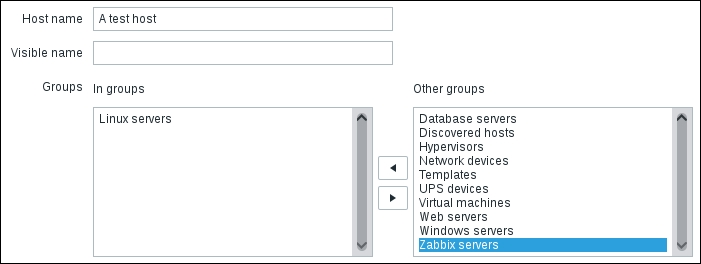
The following are some other points to consider:

  • If the database is particularly loaded, it can respond with a delay (the login can also suffer a delay caused by the workload)

  • Every query executes a login

  • If the database is listening on 127.0.0.1, the connection can have issues

  • If you use proxies, they too need to be compiled with the unixODBC support

If you consider a database that will be under heavy stress, don't have a pool introduced for an overhead that is not necessary. Also, in this case, it is possible that just to have a connection, you need to wait for more than 5 seconds.

The 5 seconds mentioned previously is not a random value; indeed, the timeout of a connection is defined when you open a connection. During the initialization of that, you need to define your expected timeout before considering the connection impossible.

Zabbix defines this timeout in the following command:

src/libs/zbxdbhigh/odbc.c

On line 130 of the file, we have the definition of the connection timeout for Zabbix as follows:

SQLSetConnectAttr(pdbh->hdbc, (SQLINTEGER)SQL_LOGIN_TIMEOUT,
  (SQLPOINTER)5, (SQLINTEGER)0);

This (SQLPOINTER)5 sets SQL_LOGIN_TIMEOUT to 5 seconds. If your database doesn't respond in 5 seconds, you will get the following error inside the log file:

[ODBC 3.51 Driver]Can't connect to MySQL server on 'XXX.XXX.XXX.XXX' (4)] (2003).

Note

In the case of SQL_LOGIN_TIMEOUT, you can consider increasing it to 15 seconds and recompile the server and proxy as follows:

SQLSetConnectAttr(pdbh->hdbc,(SQLINTEGER)SQL_LOGIN_TIMEOUT, (SQLPOINTER)15,(SQLINTEGER)0);

Zabbix JMX monitoring


Version 2.0 of Zabbix has a native support to monitor applications using JMX. The actor that monitors the JMX application is a Java daemon called the Zabbix Java gateway. Basically, it works like a gateway. When Zabbix wishes to know the value of a JMX counter, it simply asks the Java gateway, and the gateway will do all the work for Zabbix. All the queries are done using the JMX management API from Oracle.

The Zabbix Java gateway is in the early stages of development, thus providing great functionality but still experiencing some challenges.

The distinguishing characteristic of this method is that the application only needs to be started with the JMX remote console enabled and doesn't need to implement or extend the class or write new code to handle the Zabbix request because the entire request is a standard JMX.

The default way to enable the JMX console is to start the Java application with the following parameters:

-Dcom.sun.management.jmxremote 
-Dcom.sun.management.jmxremote.port=<put-your-port-number-here>
-Dcom.sun.management.jmxremote.authenticate=false
-Dcom.sun.management.jmxremote.ssl=false

With these parameters, you are going to configure the JMX interface on the application's side. As usual, you need to define a port, the authentication method, and the encryption.

This basic setup is the simplest and easiest way, but unfortunately, it is not the safest and most secure configuration.

Considering JMX security aspects

Now, as you are going to open a door in your application, you are basically exposing your application to a security attack. The JMX console, on most of the widely diffused application servers, is not only an entry point to get values from the counter, but also something that is a lot more sophisticated. Basically, with a JMX console open in an application server, you can deploy an application. Start it, stop it, and so on, as you can figure out what a hacker can deploy, and start an application, or cause an issue on the running one. The JMX console can be called from the application server looping itself, using the post and get methods. Adding malicious content in the HEAD section of a web page results in the server that has a JMX console that is not secured and is easily hackable, which is the weakest point of your infrastructure. Once an application server is compromised, your entire network is potentially exposed, and you need to prevent all this. This can be done through the following steps:

  1. The first thing to do is enable the authentication as follows:

    -Dcom.sun.management.jmxremote.authenticate=true
  2. Now you need to specify a file that will contain your password, as follows:

    -Dcom.sun.management.jmxremote.password.file=/etc/java-6-penjdk/management/jmxremote.password 

    Note

    There are potential security issues with password authentication for JMX remote connectors. Once the client obtains the remote connector from an insecure RMI registry (the default), such as for all the man-in-the-middle attacks, an attacker can start a bogus RMI registry on the target server right before the valid original one is started and can then steal the client's passwords.

  3. Another good thing to do is to profile the users, specifying the following parameter:

    -Dcom.sun.management.jmxremote.access.file=/etc/java-6-penjdk/management/jmxremote.access
  4. The access file, for instance, should contain something similar to the following:

    monitorRole readonly
    controlRole readwrite
  5. The password file should be as follows:

    monitorRole <monitor-password-here>
    controlRole <control-password-here>
  6. Now, to avoid password stealing, you should enable the SSL as follows:

    -Dcom.sun.management.jmxremote.ssl=true
  7. This parameter is consequently tied with the following ones:

    -Djavax.net.ssl.keyStore=<Keystore-location-here>
    -Djavax.net.ssl.keyStorePassword=<Default-keystore-password> 
    -Djavax.net.ssl.trustStore=<Trustore-location-here> 
    -Djavax.net.ssl.trustStorePassword=<Trustore-password-here>
    -Dcom.sun.management.jmxremote.ssl.need.client.auth=true 

Note

The -D parameter will be written in the startup file of your application or application server as, after this configuration, your startup file will contain sensitive data (your keyStore and trustStore passwords) that needs to be protected and not be readable from other accounts in the same group or by other users.

Installing a Zabbix Java gateway

To compile the Java gateway, perform the following steps:

  1. First of all, you need to install the required packages:

    $ yum install java-devel
    
  2. Then, you need to run the following command:

    $ ./configure --enable-java
    
  3. You should get an output as follows:

      Enable Java gateway:   yes
      Java gateway details:
        Java compiler:         javac
        Java archiver:         jar
    
  4. This shows that the Java gateway is going to be enabled and compiled after the following command is used:

    $ make && make install
    
  5. The Zabbix Java gateway will be installed at the following location:

    $PREFIX/sbin/zabbix_java
    
  6. Basically, the directory structure will contain the following file—the Java gateway:

    bin/zabbix-java-gateway-2.0.5.jar
    
  7. The libraries needed by the gateway are as follows:

    lib/logback-classic-0.9.27.jar 
    lib/logback-core-0.9.27.jar
    lib/android-json-4.3_r3.1.jar
    lib/slf4j-api-1.6.1.jar
    
  8. Here are two configuration files:

    lib/logback-console.xml
    lib/logback.xml
    
  9. The scripts to start and stop the gateway are as follows:

    shutdown.sh
    startup.sh
    
  10. This is a common script sourced from the start and stop scripts that contain the following configuration:

    settings.sh
    
  11. Now, if you have enabled the SSL communication, you need to enable the same security level on the Zabbix Java gateway. To do this, you need to add the following parameter in the startup script:

    -Djavax.net.ssl.*
  12. Once all this is set, you need to specify the following inside the Zabbix server configuration:

    JavaGateway=<ip-address-here>
    JavaGatewayPort=10052

    Note

    If you would like to use the Java gateway from your proxy, you need to configure both JavaGateway and JavaGatewayProperties in the proxy configuration file.

  13. Since, by default, Zabbix doesn't start any Java poller, you need to specify that too, as follows:

    StartJavaPollers=5
  14. Restart the Zabbix server or proxy once that is done.

  15. Now you can finally start the Zabbix Java gateway by running the startup.sh command.

The logs will be available at /tmp/zabbix_java.log with the verbosity "info".

Note

As the Zabbix Java gateway uses the logback library, you can change the log level or the log file location by simply changing the lib/logback.xml file. In particular, the following XML tags need to be changed:

<fileNamePattern>/tmp/zabbix_java.log.%i</fileNamePattern><root level="info">

Here, you can change all the logrotation parameters as well.

If you need to debug a Zabbix Java Gateway issue, another useful thing to know is that you can start the Java gateway in console mode. To do that, you simply need to comment out the PID_FILE variable contained in settings.sh. If the startup.sh script doesn't find the PID_FILE parameter, it starts the Java gateway as a console application, and Logback uses the lib/logback-console.xml file instead. This configuration file, other than enabling the log on console, changes even the log level to debug. Anyway, if you're looking for more details about logging on the Zabbix Java gateway, you can refer directly to the SLF4J user manual available at http://www.slf4j.org/manual.html.

Configuring Zabbix JMX

Now it is time to create a JMX monitored host with its relatively monitored JMX items. To do that, inside the host configuration, you need to add a JMX interface and address, as shown in the following screenshot:

Once you have done that for each of the JMX counters you want to acquire, you need to define an item of the JMX agent type. Inside the definition of the JMX agent, you need to specify the username, password, and the JMX query string. The JMX key is composed of the following:

  • Object name of MBean

  • Attribute name, that is, the attribute name of MBean

The following screenshot shows the Item configuration window:

Data type in this configuration window permits us to store the unsigned integer values (such as 0 and 1) as numbers or as Boolean values (such as true or false).

JMX keys in detail

MBean is quite a simple string defined in your Java application. The other component is a bit more complex indeed; the attribute can return primitive data types or composite data.

The primitive data types are simple types, such as integers and strings. For instance, you can have a query such as the following:

jmx[com.example:Type=Test,weight]

This will return the weight expressed as a numerical floating point value.

If the attribute returns composite data, it is a bit more complicated but is handled since dots are supported. For instance, you can have a pen that can have two values that represent color and the remaining ink, usually dot separated, as shown in the following code:

jmx[com.example:Type=Test,pen.remainink]
jmx[com.example:Type=Test,pen.color]

Now, if you have an attribute name that includes a dot in its name, such as all.pen, you need to escape the dot, as shown in the following code:

jmx[com.example:Type=Test,all\.pen.color]

If your attribute name also contains a backslash (\), this needs to be escaped twice, as shown in the following code:

jmx[com.example:Type=Test,c:\\utility]

If the object name or attribute name contains spaces or commas, it needs to be double-quoted:

jmx[com.example:type=Hello,""c:\\documents and settings""]

Issues and considerations about JMX

Unfortunately, JMX support is not as flexible and customizable as it should be; at least at the time of writing this book, JMX still had some problems.

For instance, from my personal experience, I know that JBoss, which is one of the most widely used application servers, can't be successfully enquired. The JMX endpoint is currently hardcoded into JMXItemChecker.java as follows:

service:jmx:rmi:///jndi/rmi://" + conn + ":" + port + "/jmxrmi"

Some applications use different endpoints for their JMX management console. JBoss is one of them. The endpoint is not configurable as per the host or frontend, and you can't add a parameter to specify this endpoint on the host's configuration window.

Anyway, the development is really active and things are getting better and are improving every day. At the moment, the status is that the Zabbix Java gateway needs some improvement. Also, the current implementation of the Zabbix Java gateway suffers because of the workload; if you have more than 100 JMX items per host, the gateway needs to be restarted periodically. It is possible that you face some errors of the following kind:

 failed: another network error, wait for 15 seconds

This is followed by:

connection restored

Also, there is another aspect to consider: in a real-word scenario, it might happen that you have multiple JVMs running on the same hosts. In this case, you need to configure each JMX port creating multiple items and host aliases, one for each network interface; well, this scenario can't be resolved with low-level discovery and requires a lot of manually redundant configuration work. It is fundamental that the implementer of the Zabbix monitoring infrastructure knows not only all the strong points of the product but also the cons and limitations. The implementer can then choose whether they want to develop something in-house, use an open source alternative, try to fix the possible issues, or ask the Zabbix team for a new functionality or fix.

Zabbix SNMP monitoring


Simple Network Monitoring Protocol (SNMP) may not be as simple as the name suggests; it's a de facto standard for many appliances and applications. It's not just ubiquitous—it's often the only sensible way in which one can extract the monitoring information from a network switch, disk array enclosure, UPS battery, and so on.

The basic architecture layout for SNMP monitoring is actually straightforward. Every monitored host or appliance runs an SNMP agent. This agent can be queried by any probe (whether it's just a command-line program to do manual queries or a monitoring server such as Zabbix) and will send back information on any metric it has made available or even change certain predefined settings on the host itself as a response to a set command from the probe. Furthermore, the agent is not just a passive entity that responds to the get and set commands but can also send warnings and alarms as SNMP traps to a predefined host when some specific conditions arise.

Things get a little more complicated when it comes to metric definitions. Unlike a regular Zabbix item, or any other monitoring system, an SNMP metric is part of a huge hierarchy, a tree of metrics that spans hardware vendors and software implementers across all of the IT landscape. This means that every metric has to be uniquely identified with some kind of code. This unique metric identifier is called OID and identifies both the object and its position in the SNMP hierarchy tree.

OIDs and their values are the actual content that is passed in the SNMP messages. While this is most efficient from a network traffic point of view, OIDs need to be translated into something usable and understandable by humans as well. This is done using a distributed database called Management Information Base (MIB). MIBs are essentially text files that describe a specific branch of the OID tree, with a textual description of its OIDs, their data types, and a human-readable string identificator.

MIBs let us know, for example, that OID 1.3.6.1.2.1.1.3 refers to the system uptime of whatever machine the agent is running on. Its value is expressed as an integer, in hundredths of a second and can generally be referred to as sysUpTime. The following diagram shows this:

As you can see, this is quite different from the way Zabbix agent items work, both in terms of the connection protocol, item definition, and organization. Nevertheless, Zabbix provides facilities to translate from SNMP OIDs to Zabbix items—if you compiled the support for the server in SNMP, it will be able to create the SNMP queries natively, and with the help of a couple of supporting tools, it will also be able to process SNMP traps.

This is, of course, an essential feature if you need to monitor appliances that only support SNMP and have no way of installing a native agent on network appliances in general (switcher, routers, and so forth), disk array enclosures, and so on. But the following may be reasons for you to actually choose SNMP as the main monitoring protocol in your network and completely dispense with Zabbix agents:

  • You may not need many complex or custom metrics apart from what is already provided by an operating system's SNMP OID branch. You, most probably, have already set up SNMP monitoring for your network equipment, and if you just need simple metrics, such as uptime, CPU load, free memory, and so on, from your average host, it might be simpler to rely on SNMP for it as well instead of the native Zabbix agent. This way, you will never have to worry about agent deployment and updates—you just let the Zabbix server contact the remote SNMP agents and get the information you need.

  • The SNMP protocol and port numbers are well known by virtually all the products. If you need to send monitoring information across networks, it might be easier to rely on the SNMP protocol instead of the Zabbix one. This could be because traffic on the UDP ports 161 and 162 is already permitted or because it might be easier to ask a security administrator to allow access to a well-known protocol instead of a relatively more obscure one.

  • SNMP Version 3 features built-in authentication and security. This means that, contrary to the Zabbix protocol, as you have already seen in Chapter 2, Distributed Monitoring, SNMPv3 messages will have integrity, confidentiality, and authentication. While Zabbix does support all three versions of SNMP, it's strongly advised that you use Version 3 wherever possible because it's the only one with real security features. In contrast, Version 1 and 2 only have a simple string sent inside a message as a very thin layer of security.

  • While there may be good reasons to use SNMP monitoring as much as possible in your Zabbix installation, there are still a couple of strong reasons to stick with the Zabbix agent. The Zabbix agent has a few, very useful built-in metrics that would need custom extensions if implemented through an SNMP agent. For example, if you want to monitor a log file, with automatic log rotation support, and skip old data, you just need to specify the logrt[] key for a Zabbix active item. The same thing applies if you want to monitor the checksum, the size of a specific file, or the Performance Monitor facility of the Windows operating system, and so on. In all these cases, the Zabbix agent is the most immediate and simple choice.

  • The Zabbix agent has the ability to discover many kinds of resources that are available on the host and report them back to the server, which will, in turn, automatically create items and triggers and destroy them when the said resources are not available anymore. This means that with the Zabbix agent, you will be able to let the server create the appropriate items for every host's CPU, mounted filesystem, number of network interfaces, and so on. While it's possible to define low-level discovery rules based on SNMP, it's often easier to rely on the Zabbix agent for this kind of functionality.

So, once again, you have to balance the different features of each solution in order to find the best match for your environment. But generally speaking, you could make the following broad assessments: if you have simple metrics but need strong security, go with SNMP v3; if you have complex monitoring or automated discovery needs and can dispense with strong security (or are willing to work harder to get it, as explained in Chapter 2, Distributed Monitoring), go with the Zabbix agent and protocol.

That said, there are a couple of aspects worth exploring when it comes to Zabbix SNMP monitoring. We'll first talk about simple SNMP queries and then about SNMP traps.

SNMP queries

An SNMP monitoring item is quite simple to configure. The main point of interest is that while the server will use the SNMP OID that you provided to get the measurement, you'll still need to define a unique name for the item and, most importantly, a unique item key. Keep in mind that an item key is used in all of Zabbix's expressions that define triggers, calculated items, actions, and so on. So, try to keep it short and simple, while easily recognizable. As an example, let's suppose that you want to define a metric for the incoming traffic on network port number 3 of an appliance, the OID would be 1.3.6.1.2.1.2.2.1.10.3, while you could call the key something similar to port3.ifInOctects, as shown in the following screenshot:

If you don't already have your SNMP items defined in a template, an easy way to get them is using the snmpwalk tool to directly query the host that you need to monitor and get information about the available OIDs and their data types.

For example, the following command is used to get the whole object tree from the appliance at 10.10.15.19:

$ snmpwalk -v 3 -l AuthPriv -u user -a MD5 -A auth -x DES -X priv -m ALL 10.10.15.19

Note

You need to substitute the user string with the username for the SNMP agent, auth with the authentication password for the user, priv with the privacy password, MD5 with the appropriate authentication protocol, and DES with the privacy protocol that you defined for the agent. Please remember that the authentication password and the privacy password must be longer than eight characters.

The SNMP agent on the host will respond with a list of all its OIDs. The following is a fragment of what you could get:

HOST-RESOURCES-MIB::hrSystemUptime.0 = Timeticks: (8609925) 23:54:59.25HOST-RESOURCES-MIB::hrSystemDate.0 = STRING: 2013-7-28,9:38:51.0,+2:0
HOST-RESOURCES-MIB::hrSystemInitialLoadDevice.0 = INTEGER: 393216
HOST-RESOURCES-MIB::hrSystemInitialLoadParameters.0 = STRING: "root=/dev/sda8 ro"
HOST-RESOURCES-MIB::hrSystemNumUsers.0 = Gauge32: 2
HOST-RESOURCES-MIB::hrSystemProcesses.0 = Gauge32: 172
HOST-RESOURCES-MIB::hrSystemMaxProcesses.0 = INTEGER: 0
HOST-RESOURCES-MIB::hrMemorySize.0 = INTEGER: 8058172 KBytes
HOST-RESOURCES-MIB::hrStorageDescr.1 = STRING: Physical memory
HOST-RESOURCES-MIB::hrStorageDescr.3 = STRING: Virtual memory
HOST-RESOURCES-MIB::hrStorageDescr.6 = STRING: Memory buffers
HOST-RESOURCES-MIB::hrStorageDescr.7 = STRING: Cached memory
HOST-RESOURCES-MIB::hrStorageDescr.8 = STRING: Shared memory
HOST-RESOURCES-MIB::hrStorageDescr.10 = STRING: Swap space
HOST-RESOURCES-MIB::hrStorageDescr.35 = STRING: /run
HOST-RESOURCES-MIB::hrStorageDescr.37 = STRING: /dev/shm
HOST-RESOURCES-MIB::hrStorageDescr.39 = STRING: /sys/fs/cgroup
HOST-RESOURCES-MIB::hrStorageDescr.53 = STRING: /tmp
HOST-RESOURCES-MIB::hrStorageDescr.56 = STRING: /boot

Let's say that we are interested in the system's memory size. To get the full OID for it, we will reissue the snmpwalk command using the fn option for the -O switch. These will tell snmpwalk to display the full OIDs in a numeric format. We will also limit the query to the OID we need, as taken from the previous output:

$ snmpwalk -v 3 -l AuthPriv -u user -a MD5 -A auth -x DES -X priv -m ALL -O fn 10.10.15.19 HOST-RESOURCES-MIB::hrMemorySize.0
.1.3.6.1.2.1.25.2.2.0 = INTEGER: 8058172 KBytes

And there we have it. The OID we need to put in our item definition is 1.3.6.1.2.1.25.2.2.0.

SNMP traps

SNMP traps are a bit of an oddball if compared to all the other Zabbix item types. Unlike other items, SNMP traps do not report a simple measurement but an event of some type. In other words, they are the result of a kind of check or computation made by the SNMP agent and sent over to the monitoring server as a status report. An SNMP trap can be issued every time a host is rebooted, an interface is down, a disk is damaged, or a UPS has lost power and is keeping the servers up using its battery.

This kind of information contrasts with Zabbix's basic assumption, that is, an item is a simple metric not directly related to a specific event. On the other hand, there may be no other way to be aware of certain situations if not through an SNMP trap either because there are no related metrics (consider, for example, the event the server is being shut down) or because the appliance's only way to convey its status is through a bunch of SNMP objects and traps.

So, traps are of relatively limited use to Zabbix as you can't do much more than build a simple trigger out of every trap and then notify about the event (not much point in graphing a trap or building calculated items on it). Nevertheless, they may prove essential for a complete monitoring solution.

To manage SNMP traps effectively, Zabbix needs a couple of helper tools: the snmptrapd daemon, to actually handle connections from the SNMP agents, and a kind of script to correctly format every trap and pass it to the Zabbix server for further processing.

The snmptrapd process

If you have compiled an SNMP support into the Zabbix server, you should already have the complete SNMP suite installed, which contains the SNMP daemon, the SNMP trap daemon, and a bunch of utilities, such as snmpwalk and snmptrap.

If it turns out that you don't actually have the SNMP suite installed, the following command should take care of the matter:

# yum install net-snmp net-snmp-utils

Just as the Zabbix server has a bunch of daemon processes that listen on the TCP port 10051 for incoming connections (from agents, proxies, and nodes), snmptrapd is the daemon process that listens on the UDP port 162 for incoming traps coming from remote SNMP agents.

Once installed, snmptrapd reads its configuration options from an snmptrapd.conf file, which can be usually found in the /etc/snmp/ directory. The bare minimum configuration for snmptrapd requires only the definition of a community string in the case of versions 1 and 2 of SNMP, which is as follows:

authCommunity log public

Alternatively, the definition of a user and a privacy level in the case of SNMP Version 3 is as follows:

createUser -e ENGINEID user MD5 auth DES priv

Note

You need to create a separate createUser line for every remote Version 3 agent that will send traps. You also need to substitute all the user, auth, priv, MD5, and DES strings with what you have already configured on the agent, as explained in the previous note. Most importantly, you need to set the correct ENGINEID for every agent. You can get it from the agent's configuration itself.

With this minimal configuration, snmptrapd will limit itself to log the trap to syslog. While it could be possible to extract this information and send it to Zabbix, it's easier to tell snmptrapd how it should handle the traps. While the daemon has no processing capabilities of its own, it can execute any command or application by either using the trapHandle directive or leveraging its embedded perl functionality. The latter is more efficient as the daemon won't have to fork a new process and wait for its execution to finish, so it's the recommended one if you plan to receive a significant number of traps. Just add the following line to snmptrapd.conf:

perl do "/usr/local/bin/zabbix_trap_receiver.pl";

Note

You can get the zabbix_trap_receiver script from the Zabbix sources. It's located in misc/snmptrap/zabbix_trap_receiver.pl.

Once it is restarted, the snmptrapd daemon will execute the perl script of your choice to process every trap received. As you can probably imagine, your job doesn't end here—you still need to define how to handle the traps in your script and find a way to send the resulting work over to your Zabbix server. We'll discuss both of these aspects in the following section.

The perl trap handler

The perl script included in the Zabbix distribution works as a translator from an SNMP trap format to a Zabbix item measurement. For every trap received, it will format it according to the rules defined in the script and will output the result in a log file. The Zabbix server will, in turn, monitor the said log file and process every new line as an SNMP trap item, basically matching the content of the line to any trap item defined for the relevant host. Let's see how it all works by looking at the perl script itself and illustrating its logic:

#!/usr/bin/perl

#
# Zabbix
# Copyright (C) 2001-2013 Zabbix SIA
#
#########################################
#### ABOUT ZABBIX SNMP TRAP RECEIVER ####
#########################################


# This is an embedded perl SNMP trapper receiver designed for
# sending data to the server.
# The receiver will pass the received SNMP traps to Zabbix server
# or proxy running on the
# same machine. Please configure the server/proxy accordingly.
#
# Read more about using embedded perl with Net-SNMP:
#       http://net-snmp.sourceforge.net/wiki/index.php/Tut:Extending_snmpd_using_perl

This first section contains just the licensing information and a brief description of the script. Nothing that's worth mentioning, except a simple reminder—check that your perl executable is correctly referenced in the first line, or change it accordingly. The following section is more interesting, and if you are happy with the script's default formatting of SNMP traps, it may also be the only section that you will ever need to customize:

#################################################
#### ZABBIX SNMP TRAP RECEIVER CONFIGURATION ####
#################################################

$SNMPTrapperFile = '/tmp/zabbix_traps.tmp';
$DateTimeFormat = '%H:%M:%S %Y/%m/%d';

Just set $SNMPTrapperFile to the path of the file that you wish the script to log its trap to, and set the SNMPTrapperFile option in your zabbix_server.conf file to the same value. While you are at it, also set StartSNMPTrapper to 1 in zabbix_server.conf so that the server will start monitoring the said file.

$DateTimeFormat, on the other hand, should match the format of the actual SNMP traps you receive from the remote agents. Most of the time, the default value is correct, but take the time to check it and change it as needed.

The following section contains the actual logic of the script. Notice how the bulk of the logic is contained in a subroutine called zabbix_receiver. This subroutine will be called and executed towards the end of the script but is worth examining in detail:

###################################
#### ZABBIX SNMP TRAP RECEIVER ####
###################################
use Fcntl qw(O_WRONLY O_APPEND O_CREAT);
use POSIX qw(strftime);
sub zabbix_receiver
{
        my (%pdu_info) = %{$_[0]};
        my (@varbinds) = @{$_[1]};

The snmptrapd daemon will execute the script and pass the trap that it just received. The script will, in turn, call its subroutine, which will immediately distribute the trap information into two lists—the first argument is assigned to the %pdu_info hash and the second one to the @varbinds array:

# open the output file
unless (sysopen(OUTPUT_FILE, $SNMPTrapperFile,O_WRONLY|O_APPEND|O_CREAT, 0666))
  {
    print STDERR "Cannot open [$SNMPTrapperFile]:$!\n";
    return NETSNMPTRAPD_HANDLER_FAIL;
  }

Here, the script will open the output file or fail graciously if it somehow cannot. The next step consists of extracting the hostname (or IP address) of the agent that sent the trap. This information is stored in the %pdu_info hash we defined previously:

# get the host name
my $hostname = $pdu_info{'receivedfrom'} || 'unknown';
if ($hostname ne 'unknown') {
  $hostname =~ /\[(.*?)\].*/;
  $hostname = $1 || 'unknown';
}

Now, we are ready to build the actual SNMP trap notification message. The first part of the output will be used by Zabbix to recognize the presence of a new trap (by looking for the ZBXTRAP string and knowing which of the monitored hosts the trap refers to). Keep in mind that the IP address or hostname set here must match the SNMP address value in the host configuration as set using the Zabbix frontend. This value must be set even if it's identical to the main IP/hostname for a given host. Once the Zabbix server has identified the correct host, it will discard this part of the trap notification:

# print trap header
#       timestamp must be placed at the beginning of the first line (can be omitted)
#       the first line must include the header "ZBXTRAP [IP/DNS address] "
#       * IP/DNS address is the used to find the corresponding SNMP trap items
#       * this header will be cut during processing (will not appear in the item value)
printf OUTPUT_FILE "%s ZBXTRAP %s\n",
strftime($DateTimeFormat, localtime), $hostname;

After the notification header, the script will output the rest of the trap as received by the SNMP agent:

# print the PDU info
print OUTPUT_FILE "PDU INFO:\n";
foreach my $key(keys(%pdu_info))
{
  printf OUTPUT_FILE "  %-30s %s\n", $key,
  $pdu_info{$key};
}

The printf statement in the previous code will circle over the %pdu_info hash and output every key-value pair:

# print the variable bindings:
print OUTPUT_FILE "VARBINDS:\n";
foreach my $x (@varbinds)
{

  printf OUTPUT_FILE "  %-30s type=%-2d value=%s\n", $x->[0], $x->[2], $x->[1];
}
close (OUTPUT_FILE);
return NETSNMPTRAPD_HANDLER_OK;
}

The second printf statement, printf OUTPUT_FILE " %-30s type=%-2d value=%s\n", $x->[0], $x->[2], $x->[1];, will output the contents of the @varbinds array one by one. This array is the one that contains the actual values reported by the trap. Once done, the log file is closed and the execution of the subroutine ends with an exit message:

NetSNMP::TrapReceiver::register("all", \&zabbix_receiver) or
        die "failed to register Zabbix SNMP trap receiver\n";
print STDOUT "Loaded Zabbix SNMP trap receiver\n";

The last few lines of the script set the zabbix_receiver subroutine as the actual trap handler and give feedback about its correct setup. Once the trap handler starts populating the zabbix_traps.log log file, you need to define the corresponding Zabbix items.

As you've already seen, the first part of the log line is used by the Zabbix trap receiver to match a trap with its corresponding host. The second part is matched to the aforesaid host's SNMP trap item's RegExp definitions, and its contents are added to every matching item's history of values. This means that if you wish to have a startup trap item for a given host, you'll need to configure an SNMP trap item with an snmptrap["coldStart"] key, as shown in the following screenshot:

From now on, you'll be able to see the contents of the trap in the item's data history.

Monitoring Zabbix SSH


The SSH monitoring functionality provided by Zabbix, since it's server-triggered and even agentless, is quite useful. This specific functionality is precious as it allows us to run remote commands on a device that doesn't support the Zabbix agent. This functionality is tailor-made for all the cases where, for support reasons, we can't install a Zabbix agent. Some practical cases are given as follows:

  • A third-party, vendor-specific appliance where you can't install software

  • A device that has a custom-made operating system or a closed operating system

Note

To be able to run SSH checks, Zabbix needs to be configured with SSH2 support; here, the minimum supported libssh2 is Version 1.0.0.

SSH checks support for two different kinds of authentication:

  • SSH with username and password

  • Key file based authentication

To use the username/password pair authentication, we don't need to do any special configuration; it is enough to have compiled Zabbix with the SSH2 support.

Configuring the SSH key authentication

To use the key authentication, the first thing to do is configure zabbix_server.conf; in particular, we need to change the following entry:

# SSHKeyLocation=

Uncomment this line and specify the directory that contains the public and private keys for instance:

# SSHKeyLocation=/home/zabbixsvr/.ssh

Once this is done, you need to restart the Zabbix server from root with the following command:

$ service zabbix-server restart

Now, we can finally create a new pair of SSH keys running the following command from root:

$ sudo -u zabbix ssh-keygen -t rsa -b 2048
Generating public/private rsa key pair.
Enter file in which to save the key (/home/zabbix/.ssh/id_rsa):
Created directory '/home/zabbix/.ssh'.
Enter passphrase (empty for no passphrase):
Enter same passphrase again:
Your identification has been saved in /home/zabbix/.ssh/id_rsa.
Your public key has been saved in /home/zabbix/.ssh/id_rsa.pub.
The key fingerprint is:
a9:30:a9:ce:c6:22:82:1d:df:33:41:aa:df:f3:e4:de zabbix@localhost.localdomain
The key's randomart image is:
+--[ RSA 2048]----+
|                 |
|                 |
|                 |
|     ..  .       |
|    +o  S        |
|  ...o..         |
|.o.+ ....        |
|=o= ..=o .       |
|ooo.. .*+ E      |
+-----------------+

Now, on the remote host, we need to create a dedicated restricted account as we don't want to expose the system but only monitor it, and then we can finally copy our keys. In the following example, we are supposed to have created the account zabbix_mon on the remote host:

$ sudo -u zabbix ssh-copy-id zabbix_mon@<remote-host-ip>

Now you can check whether everything went fine by simply triggering a remote connection with:

$ sudo -u zabbix ssh zabbix_mon@<remote-host-ip>

Now, if all has been properly configured, we will have a session on the remote host.

Finally, we can define a custom item to retrieve the output of uname –a and then have the kernel version retrieved as an item. This is shown in the following screenshot:

This requires some consideration; first of all, it is possible that libssh2 truncates the output to 32 K, in which case it is better to be aware. Also, it is better to always use the fully qualified path for all the command specified. Here too, it is worth considering that the SSH can introduce a delay and can slow down the whole process. All those considerations are valid even for the Telnet agent checks. The negative side is that, of course, Telnet is not encrypted and is not a secure protocol. Also, as you know, it supports only username and password authentication. Especially if you're going to use Telnet, it is fundamental, if not critical, to have a read-only account made for Telnet checks.

Monitoring Zabbix IPMI


Nowadays, you can quickly monitor the health and availability of you devices using IPMI. Definitely, the main requirement here is that your device supports Intelligent Platform Management Interface (IPMI). IPMI is a hardware level specification that is software neutral, meaning it is not tied in any way with BIOS and operating systems. One interesting feature is that the IPMI interface can be available even when the system is in the powered-down state. This is possible because inside each IPMI-enabled device, there is a separate device that consumes less power, independent of any other board or software. Nowadays, IPMI is fully supported by most server vendors, and talking about servers, it is usually exposed by the management cards: HP ILO, IBM RSA, Sun SSP, DELL RDAC, and so on.

If you would like to know in detail how IMPI works, since is a standard designed by Intel, you can find the documentation at http://www.intel.com/content/www/us/en/servers/ipmi/ipmi-specifications.html.

Obviously, to perform an IPMI check, you need to have compiled Zabbix with IPMI --with-openipmi support, please refer to Chapter 1, Deploying Zabbix.

IPMI uses a request-response protocol over a message-based interface to dialogue with all the device components, but more interesting is that other than retrieving components metrics or accessing the non-volatile system event log, you even can retrieve data from all the sensors installed in your hardware.

The first steps with IPMI

First of all, you need to make sure that you've installed all the required packages; otherwise, you can install them with this command executed from root:

$ yum install ipmitool OpenIPMI OpenIPMI-libs

Now, we can already retrieve temperature metrics using IPMI, for instance, using the following command:

$ ipmitool sdr list | grep Temp
Ambient Temp | 23 degrees C  | ok
CPU 1 Temp   | 45 degrees C  | ok
CPU 2 Temp   | disabled    | ns
CPU 3 Temp   | disabled    | ns
CPU 4 Temp   | disabled    | ns 

Note that in the previous example, we've got three disabled lines as those CPU sockets are empty. As you can see, we can quickly retrieve all the internal parameters via the IPMI interface. Now, it is interesting to see all the possible states that can apply to our IPMI ID, which is CPU 1 Temp, please note that since the IPMI ID contains spaces, we need to use the double quote notation:

$ ipmitool event "CPU 1 Temp" list 
Finding sensor CPU 1 Temp... ok 
Sensor States: 
  lnr : Lower Non-Recoverable 
  lcr : Lower Critical 
  lnc : Lower Non-Critical 
  unc : Upper Non-Critical 
  ucr : Upper Critical 
  unr : Upper Non-Recoverable

Those are all the possible CPU 1 Temp states. Now, IPMI is a simple, read-only protocol, but you can even simulate errors or configure parameters. We are now going to simulate a low-temperature threshold, just to see how this works. Running the following command, you can simulate a -128 degrees Celsius reading:

$ ipmitool event "CPU 1 Temp" "lnc : Lower Non-Critical" 
Finding sensor CPU 1 Temp... ok 
0 | Pre-Init Time-stamp | Temperature CPU 1 Temp | Lower Non-critica l | 
going low | Reading -128 < Threshold -128 degrees C

Now, we can quickly verify that this has been logged in the system event log with:

$ ipmitool sel list | tail -1 
1c0 | 11/19/2008 | 21:38:22 | Temperature #0x98 | Lower Non-critical going low

Note

This is one is the best nondisruptive tests that we can do to make you aware that it's required to profile read-only IPMI accounts. Using the admin IPMI account, you can reset your management controller, trigger a shutdown, trigger a power-reset, change the boot list, and so on.

Configuring IPMI accounts

To configure an IPMI account, you have essentially two ways:

  • Use the management interface itself (RDAC, ILO, RS, and so on)

  • Using OS tools and then OpenIPMI

First of all, it is better to change the default root password; you can do it with:

$ ipmitool user set password 2 <new_password>

Here, we are resetting the default password for the root account that has the user ID 2.

Now, it is important to create a Zabbix user account that can query the signor's data and has no rights to restart a server or change any configuration.

In the next line, we are creating the Zabbix user with the user ID 3; please check whether you already have the user ID 3 in your system. First of all, define the user login with this command from root:

$ ipmitool user set name 3 zabbix

Then, set the relative password:

$ ipmitool user set password 3
Password for user 3: 

Now, we need to grant our Zabbix the required privileges:

$ ipmitool channel setaccess 1 3 link=on ipmi=on callin=on privilege=2

Activate the account:

$ ipmitool user enable 3

Verify that all is fine:

$ ipmitool channel getaccess 1 3
Maximum User IDs     : 15
Enabled User IDs     : 2

User ID              : 3
User Name            : zabbix
Fixed Name           : No
Access Available     : call-in / callback
Link Authentication  : enabled
IPMI Messaging       : enabled
Privilege Level      : USER

The use we've just created is named zabbix, and it has the USER privilege level. Anyway, the account is not enabled to access from the network; to enable this account, we need to activate the MD5 authentication for LAN access for this user group:

$ ipmitool lan set 1 auth USER MD5 

We can verify this with:

$ ipmitool lan print 1 
Set in Progress         : Set Complete
Auth Type Support       : NONE MD5 PASSWORD 
Auth Type Enable        : Callback : 
                        : User     : MD5 
                        : Operator : 
                        : Admin    : MD5 
                        : OEM      : 

Now we can finally run the queries remotely from our Zabbix server directly with this command:

$ ipmitool –U Zabbix –H <ip-of-IPMI-host-here> -I lanplus sdr list | grep Temp
Ambient Temp | 23 degrees C  | ok
CPU 1 Temp   | 45 degrees C  | ok
CPU 2 Temp   | disabled    | ns
CPU 3 Temp   | disabled    | ns
CPU 4 Temp   | disabled    | ns 

Now we are ready to use our Zabbix server to retrieve IPMI items.

Configuring Zabbix IPMI items

When you're looking for IPMI metrics, the most difficult part is the setup that we've just done. In Zabbix, the setup is quite easy. First of all, we need to uncomment the following line in zabbix_server.conf:

# StartIPMIPollers=0

Change the value to something reasonable for the amount of IPMI interface you're going to monitor. Anyway, this is not critical; the most important part is to enable the IPMI Zabbix poller that is disabled by default. In this example, we will use:

StartIPMIPollers=5

Now, we need to restart Zabbix from root by running:

$ service zabbix-server restart

Now, we can finally switch on the web interface and start adding IPMI items.

The first step is configure the IPMI parameters at the host level and then go to Configuration | Host. There, we need to add IPMI interface, the relative port, as shown in the following screenshot:

Then, we need to switch on the IPMI tab, which is where the other configuration parameters are.

In the IPMI tab for Authentication algorithm, select MD5, and as per our example configuration done previously, for the Privilege level, select User. In the Username field, you can write Zabbix, and in Password, you can write the password you've specified during the configuration, as shown in the following screenshot:

Now, we can add our item of the type IPMI agent. As per the previous example, the item we're acquiring here is CPU 1 Temp, and the the Type is Numeric (float). The following screenshot shows this:

Configuring the Zabbix side of IPMI is a straightforward process; anyway, if you're using a different OpenIPMI version, please be aware that there are known issues with OpenIPMI Version 2.0.7, and that Zabbix is not working fine with this version. Then, the version 2.0.14 or later is required to make it work. In some devices, such as network temperature sensors that have only one interface card, logically, the same card will expose even the IPMI interface. If this is your case, please bear in mind to configure it on the same IP address as that of your device. Another important thing to know about IPMI is that the names of discrete sensors have been changed between OpenIPMI 2.0.16, 2.0.17, 2.0.18, and 2.0.19. Thus, it is better to check the correct name using the OpenIPMI version that you have deployed in the Zabbix server.

Monitoring the web page


In this day and age, web applications are virtually ubiquitous. Some kinds of websites or a collection of web pages is typically the final product or the service of a complex structure that comprises different databases, application servers, web servers, proxies, network balancers and appliances, and more. When it comes to monitoring duties, it makes sense to go just a step further and monitor a resulting site or web page in addition to all the backend assets that enable the said page. The advantages as far as warnings and notifications go, are fairly limited, as failure to reach a web page is certainly a critical event. But it hardly gives any insight into what may be the actual problem if you haven't set up the correct metrics and triggers on the backend side. On the other hand, it may be crucial to have a collection of data about a website's performance. In order to anticipate possible problems, substantiate SLA reporting, and plan for hardware or software upgrades.

One big advantage of Zabbix's web-monitoring facilities is the scenario concept. You can define a single web scenario that is composed of many simple steps, each one building on the previous and sharing a common set of data. Furthermore, every such definition includes the automatic creation of meaningful items and graphs, both at the scenario level (overall performance) and at the single-step level (local performance). This makes it possible to not only monitor a single web page but also simulate entire web sessions so that every component of a web application will contribute to the final results. A single scenario can be very complex and requires a great number of items that would end up being difficult to track and group together. This is the reason why web monitoring in Zabbix has its own web configuration tab and interface, separate from regular items, where you can configure monitoring on a higher level.

Note

To perform web monitoring, the Zabbix server must be initially configured with cURL (libcurl) support. Please refer to Chapter 1, Deploying Zabbix.

Web scenarios support plain HTTP/HTTPS, BASIC, NTLM, form-based authentication, cookies, submission of form fields, and checking of page content in addition to the HTTP code responses.

For all their power, web scenarios also suffer from a few limitations when it comes to monitoring the modern Web.

First of all, JavaScript is not supported, so you can't simulate a complete AJAX session exactly as a human user would experience it. This also means that any kind of automated page reloads won't be executed in the scenario.

Furthermore, while you can submit forms, you have to know in advance both the name of the fields and their content. If either of them is generated dynamically from page to page (as many ASP.NET pages are to keep the session information), you won't be able to use it in subsequent steps.

These may seem to be negligible limitations, but they may prove to be quite important if you need to monitor any site that relies heavily on client-side elaborations (JavaScript and friends) or on dynamic tokens and form fields. The reality is that an increasing number of web applications or frameworks use one or both of these features.

Nevertheless, even with these limitations, Zabbix's web monitoring facilities prove to be a very useful and powerful tool that you may want to take full advantage of, especially if you produce a lot of web pages as the final result of an IT pipeline.

Authenticating web pages

To create a web scenario, you need to go through Configuration | Host and then click on Create scenario. You'll see a window, as shown in the following screenshot:

Within this form, you can define parameters other than the usual ones, such as Name, Application, and Update interval, which represents the frequency with which our scenario is executed. Even the user Agent and the number of Retries can be defined. Once you've defined the user Agent that you would like to use, Zabbix will act as the selected browser by presenting itself as the browser defined. Regarding Retries, it is important to know that Zabbix will not repeat a step due to a wrong response or a mismatch of the required string.

Another important and new section is Headers. Here, you can specify the HTTP headers that will be sent when Zabbix executes a request.

Note

The custom headers are supported starting from Zabbix 2.4. In this field, you can use the HOST.* macros and user macros.

There are three methods of authentication supported for web monitoring; you can see them in the relative Authentication tab, as shown in the following screenshot:

Those method are Basic, NTLM, and form-based. The first two are fairly straightforward and just need to be defined at the scenario level. The NTLM authentication will provide two additional fields to enter the username and password. Starting with Zabbix 2.2, we have now fully supported the use of user macros in the username and password fields. Again, on this tab, we can even enable the SSL verification. The SSL verify peer checkbox enables the web server certificate checking, and the SSL verify host checkbox is used to verify the Common Name field or the Subject Alternate Name field of the web server certificate. The SSL certificate file checkbox is used for client-side authentication; here, you need to specify a PEM certificate file. If the PEM certificate contains even the private key, you can avoid specifying the relative key on SSL key file and SSL key password.

Note

The certificate location can be configured in the main configuration file, zabbix_server.conf. There are indeed three SSL configuration parameters: SSLCertLocation, SSLKeyLocation, and SSLCALocation.

Both fields, SSL certificate files and SSL key file, support HOST.* macros.

Coming back to authentication, we need to highlight form-based authentication, which relies on the ability of the client (a Zabbix server in this instance) to keep the session cookies, and which is triggered when the said client submits a form with the authentication data. While defining a scenario, you'll need to dedicate a step just for the authentication. To know which form fields you'll need to submit, look at the HTML source of the page containing the authentication form. In the following example, we'll look at the Zabbix authentication page. Every form will be slightly different, but the general structure will largely be the same (here, only the login form is shown in an abbreviated manner):

<form action="index.php" method="post">
  <input type="hidden" name="request" class="input hidden" value="" />
  <!-- Login Form -->
  <div>Username</div>
  <input type="text" id="name" name="name" />
  <div>Password</div>
  <input type="password" id="password" name="password" />
  <input type="checkbox" id="autologin" name="autologin" value="1" checked="checked" />
  <input type="submit" class="input" name="enter" id="enter" value="Sign in" />
</form>

You need to take note of the input tags and their name options because these are the form fields you are going to send to the server to authenticate. In this case, the username field is called name, the password field is called password, and finally, the submit field is called enter and has the value Sign in.

We are now ready to create a scenario; we will then define our scenario as shown in the following screenshot:

As you can see, in the Variables field, we have defined two variables that we're going to use in the next steps and then in the authentication step. This is a useful feature as it allows us to the variable defined across the scenario.

The next thing to do is the authentication, and then we need to add one step to our scenario, as shown in the following screenshot:

Please note the usage of the predefined variables {user} and {password}. As per the required string, we can use Connected, which appears right in the footer once you're connected, and, of course, Required status codes will be 200. In this example, we are defining a new variable that represents the authentication token. This variable will be used during the logout process and will be populated by the data received. From now on, every URL that you'll check or every form that you'll submit, will be in the context of an authenticated session, assuming the login process was successful, of course.

Note

Starting with Zabbix 2.4, each step defined supports web redirects. If the checkbox is flagged Zabbix, set the cURL option CURLOPT_FOLLOWLOCATION (http://curl.haxx.se/libcurl/c/CURLOPT_FOLLOWLOCATION.html). Also, it is possible to retrieve only the header for each page instead of setting the cURL option CURLOPT_NOBODY. More information is available at http://curl.haxx.se/libcurl/c/CURLOPT_NOBODY.html.

Logging out

One common mistake when it comes to web monitoring is that the authentication part is taken care of at the start of a scenario but rarely at the end during logout. If you don't log out of a website, depending on the system used to keep track of the logged-in users and active sessions, a number of problems may arise.

Active sessions usually range from a few minutes to a few days. If you are monitoring the number of logged-in users, and your session's timeouts are on the longer side of the spectrum, every login scenario would add to the number of active users reported by the monitoring items. If you don't immediately log out at the end of the scenario, you may, at the very least, end up with monitoring measurements that are not really reliable, and they would show a lot of active sessions that are really just monitoring checks.

In the worst-case scenario, your identity manager and authentication backend may not be equipped to handle a great number of non-expiring sessions and may suddenly stop working, bringing your whole infrastructure to a grinding halt. We can assure you that these are not hypothetical situations but real-life episodes that occurred in the authors' own experience.

At any rate, you certainly can't go wrong by adding a logout step to every web scenario that involves a log in. You'll make sure that your monitoring actions won't cause any unforeseen problem, and at the very least, you will also test the correct functioning of your session's tear-down procedures. Logout steps are also usually quite easy as they normally involve just a GET request to the correct URL. In the case of the Zabbix frontend, you would create the following final step (as shown in the following screenshot) before ending the scenario:

Once you have defined this logout step, your scenario will look similar to the following screenshot:

Please note the use of the {sid} variable in the logout string. Also, in this example, we have used zabbix-web-gui. This obviously needs to be replaced with your own web server.

Furthermore, please consider that every new session uses up a small amount of computing resources whether it's disk space or memory. If you create a large number of sessions in a short time, due to frequent checks, you could end up significantly degrading the website's performances. So, take care to:

  • Include all the required steps within your scenario

  • Avoid duplicating scenarios for simple checks

  • Always define a logout step

  • Bear in mind that the frequency needs to be a reasonable value and doesn't affect the monitored system

Also, it is important to know that you can't skip steps included in web scenarios. They are all executed in the defined order. Also, if you need a more verbose log, you can increase it at the real-time HTTP poller using the following command:

$ zabbix_server –R log_level_increase="http poller"

As a last tip, bear in mind that the history for which we are monitoring items is of 30 days and for 90 trends.

Aggregated and calculated items


Until now, every item type described in this chapter could be considered a way to get raw measurements as single data points. In fact, the focus of the chapter has been more on setting up Zabbix to retrieve different kinds of data than on what is actually collected. This is because on the one hand, a correct setup is crucial for effective data gathering and monitoring, while on the other hand, the usefulness of a given metric varies wildly across environments and installations, depending on the specific needs that you may have.

When it comes to aggregated and calculated items though, things start to become really interesting. Both types don't rely on probes and measurements at all; instead, they build on existing item values to provide a whole new level of insight and elaboration on the data collected in your environment.

This is one of the points where Zabbix's philosophy of decoupling measurements and triggering logic really pays off, because it would be quite cumbersome, otherwise, to come up with similar features, and it would certainly involve a significant amount of overhead.

The two types have the following features in common:

  • Both of them don't make any kind of checks (agent-based, external, SNMP, JMX, or otherwise) but directly query the Zabbix database to process the existing information.

  • While they have to be tied to a specific host because of how the Zabbix data is organized, this is a loose connection compared to a regular item. In fact, you could assign an aggregated item to any host regardless of the item's specifics, although it's usually clearer and easier if you define one or more simple dedicated hosts that will contain aggregated and calculated items so that they'll be easier to find and reference.

  • Aggregated and calculated items only work with numeric data types—there's no point in asking for the sum or the average of a bunch of text snippets.

Aggregated items

The simpler of the two types discussed here, aggregated items can perform different kinds of calculations on a specific item that is defined for every host in a group. For every host in a given group, an aggregated item will get the specified item's data (based on a specified function) and then apply the group function on all of the values collected. The result will be the value of the aggregated item measurement at the time that it was calculated.

To build an aggregated item, you first need to identify the host group that you are interested in and then identify the item, shared by all the group's hosts, which will form the basis of your calculations. For example, let's say that you are focusing on your web application servers, and you want to know something about the active sessions of your Tomcat installations. In this case, the group would be something similar to Tomcat Servers, and the item key would be jmx["Catalina:type=Manager,path=/,host=localhost",activeSessions].

Next, you need to decide how you want to retrieve every host's item data. This is because you are not limited to just the last value but can perform different kinds of preliminary calculations. Except for the last function, which indeed just retrieves the last value from the item's history, all the other functions take a period of time as a further argument.

Function

Description

avg

This is the average value in a specified time period

sum

This is the sum of all values in a specified time period

min

This is the minimum value recorded in a specified time period

max

This is the maximum value recorded in a specified time period

last

This is the latest value recorded

count

This is the number of values recorded in a specified time period

What you now have is a bunch of values that still need to be brought together. The following table explains the job of the group function:

Function

Description

grpavg

This is the average of all the values collected

grpsum

This is the sum of all values collected

grpmin

This is the minimum value in a collection

grpmax

This is the maximum value in a collection

Now that you know all the components of an aggregated item, you can build the key; the appropriate syntax is as follows:

groupfunc["Host group","Item key",itemfunc,timeperiod]

Note

The Host group part can be defined locally to the aggregated item definition. If you want to bring together data from different hosts that is not part of the same group and you don't want to create a host group just for this, you can substitute the host group name with a list of the hosts—["HostA, HostB, HostC"].

Continuing with our example, let's say that you are interested in collecting the average number of active sessions on your Tomcat application server every hour. In this case, the item key would look as follows:

grpavg["Tomcat servers","jmx["Catalina:type=Manager,path=/,host=localhost",activeSessions]", avg, 3600]

Note

You could also use 1h or 60m as a time period if you don't want to stick to the default of using seconds.

Using the same group and a similar item, you would also want to know the peak number of concurrent sessions across all servers, this time every 5 minutes, which can be done as follows:

grpsum["Tomcat servers","jmx["Catalina:type=Manager,path=/,host=localhost",maxActive]",last, 0]

Simple as they are, aggregated items already provide useful functionality, which would be harder to match without a collection of measurements as simple data that is easily accessible through a database.

Calculated items

This item type builds on the concept of item functions expressed in the previous paragraphs and takes it to a new level. Unlike aggregated items, with calculated ones, you are not restricted to a specific host group, and more importantly, you are not restricted to a single item key. With calculated items, you can apply any of the functions available for the trigger definitions to any item in your database and combine different item calculations using arithmetic operations. As with other item types that deal with specialized pieces of data, the item key of a calculated item is not used to actually define the data source but still needs to be unique so that you can refer to the item in triggers, graphs, and actions. The actual item definition is contained in the formula field, and as you can imagine, it can be as simple or as complex as you need.

In keeping with our Tomcat server's example, you could have a calculated item that gives you a total application throughput for a given server as follows:

last(jmx["Catalina:type=GlobalRequestProcessor,name=http-8080",bytesReceived]) +last(jmx["Catalina:type=GlobalRequestProcessor,name=http-8080",bytesSent]) +last(jmx["Catalina:type=GlobalRequestProcessor,name=http-8443",bytesReceived]) +last(jmx["Catalina:type=GlobalRequestProcessor,name=http-8443",bytesSent]) +last(jmx["Catalina:type=GlobalRequestProcessor,name=jk-8009",bytesReceived]) +last(jmx["Catalina:type=GlobalRequestProcessor,name=jk-8009",bytesSent])

Alternatively, you could be interested in the ratio between the active sessions and the maximum number of allowed sessions so that, later, you could define a trigger based on a percentage value instead of an absolute one, as follows:

100*last(jmx["Catalina:type=Manager,path=/,host=localhost",activeSessions]) /last(jmx["Catalina:type=Manager,path=/,host=localhost",maxActiveSessions])

As previously stated, you don't need to stick to a single host either in your calculations.

The following is how you could estimate the average number of queries on the database per single session, on an application server, every 3 minutes:

avg(DBServer:mysql.status[Questions], 180) /avg(Tomcatserver:Catalina:type=Manager,path=/,host=localhost",activeSessions], 180)

The only limitation with calculated items is that there are no easy group functions such as those available to aggregated items. So, while calculated items are essentially a more powerful and flexible version of aggregated items, you still can't dispense with aggregated items, as you'll need them for all group-related functions.

Despite this limitation, as you can easily imagine, the sky is the limit when it comes to calculated items. Together with aggregated items, these are ideal tools to monitor the host's group performances, such as clusters and grids, or to correlate different metrics on different hosts that contribute to the performance of a single service.

Whether you use them for performance analysis and capacity planning or as the basis of complex and intelligent triggers, or both, the judicious use of aggregated and calculated items will help you to make the most out of your Zabbix installation.

Summary


In this chapter, we delved into various aspects of item definitions in Zabbix. At this point, you should know the main difference between a Zabbix item and a monitoring object of other products and why Zabbix's approach of collecting simple, raw data instead of monitoring events is a very powerful one. You should also know the ins and outs of monitoring the data flow traffic and how to affect it based on your needs and environment. You should be comfortable to move beyond the standard Zabbix agent when it comes to gathering data and be able to configure your server to collect data from different sources—database queries, SNMP agents, IPMI agents, web pages, JMX consoles, and so on.

Finally, you have, most probably, grasped the vast possibilities implied by the two powerful item types—aggregated and calculated.

In the next chapter, you'll learn how to present and visualize all the wealth of data you are collecting using graphs, maps, and screens.

Chapter 5. Visualizing Data

Zabbix is a flexible monitoring system. Once implemented on an installation, it is ready to support a heavy workload and will help you acquire a huge amount of every kind of data. The next step is to graph your data, interpolate, and correlate the metrics between them. The strong point is that you can relate different type of metrics on the same axis of time, analyzing patterns of heavy and light utilization, identifying services and equipment that fail most frequently in your infrastructure, and capturing relationships between the metrics of connected services.

Beyond the standard graphs facility, Zabbix offers you a way to create your custom graphs and to add them on your own template, thus creating an easy method to propagate your graphs across all the servers. Those custom graphs (and also the standard and simple graphs) can be collected into screens. Inside Zabbix, a screen can contain different kinds of information—simple graphs, custom graphs, other screens, plain text information, trigger overviews, and so on.

In this chapter, we will cover the following topics:

  • Generating custom graphs

  • Creating and using maps with shortcuts and nested maps

  • Creating a dynamic screen

  • Creating and setting up slides for a large monitor display

  • Generating an SLA report

As a practical example, you can think of a big data center, where there are different layers or levels of support; usually, the first level of support needs to have a general overview of what is happening on your data center, the second level can be the first level of support divided for typology of service, for example, DBA, application servers, and so on. Now, your DBA (second level of support) will need the entire database-related metrics, whereas an application server specialist most probably will need all the Java metrics, plus some other standard metrics, such as CPU memory usage. Zabbix's responses to this requirement are maps, screens, and slides.

Once you create all your graphs and have retrieved all the metrics and messages you need, you can easily create screens that collect, for instance, all the DBA-related graphs plus some other standard metrics; it will be easy to create a rotation of those screens. The screen will be collected on slides, and each level of support will see its groups of screens in a slide show, which has an immediate qualitative and quantitative vision of what is going on.

Data center support is most probably the most complex slide show to implement, but in this chapter, you will see how easy it is to create it. Once you have all the pieces (simple graphs, custom graphs, triggers, and so on), you can use them and also reuse them on different visualization types. On most of the slides, for instance, all the vital parameters, such as CPU, memory, swap usage, and network I/O, need to be graphed. Once done, your custom graphs can be reused in a wide number of dynamic elements. Zabbix provides another great functionality, that is, the ability to create dynamics maps. A map is a graphical representation of a network infrastructure. All those features will be discussed in this chapter.

When you are finally ready to implement your own custom visualization screen, it is fundamental to bear in mind the audience, their skills or background, and their needs. Basically, be aware of what message you will deliver with your graphs.

Graphs are powerful tools to transmit your message; they are a flexible instrument that can be used to give more strength to your speech as well as give a qualitative overview of your service or infrastructure. This chapter is pleasant and will enable you to communicate using all the Zabbix graphical elements.

Graphs


Inside Zabbix, you can divide the graphs into two categories—simple graphs and custom graphs. Both of these are analyzed in the next section.

Analyzing simple graphs

Simple graphs in Zabbix are something really immediate since you don't need to put in a lot of effort to configure this feature. You only need to go to Monitoring | Latest data, eventually filter by the item name, and click on the graph. Zabbix will show you the historical graph, as shown in the following screenshot:

Clearly, you can graph only numeric items, and all the other kinds of data, such as text, can't be shown on a graph. On the latest data item, you will see the graph link instead—a link that will show the history.

Note

No configuration is needed, but you can't customize this graph.

At the top of the graphs, there is the time period selector. If you enlarge this period, you will see the aggregated data. As long as the period is little and you would like to see very recent data, you will see a single line. If the period is going to enquire the database for old data, you will see three lines. This fact is tied to history and trends; since the values are contained in the history table, the graph will only show one line. Once you're going to retrieve data from the trends, there will be three lines, as shown in the following screenshot:

In the previous screenshot, we can see three lines that define a yellow area. This area is designed by the minimum and maximum values, and the green line represents the mean value. For a quite complete discussion about trends/history tables, see Chapter 1, Deploying Zabbix. Here, it is important to have all those three values graphed.
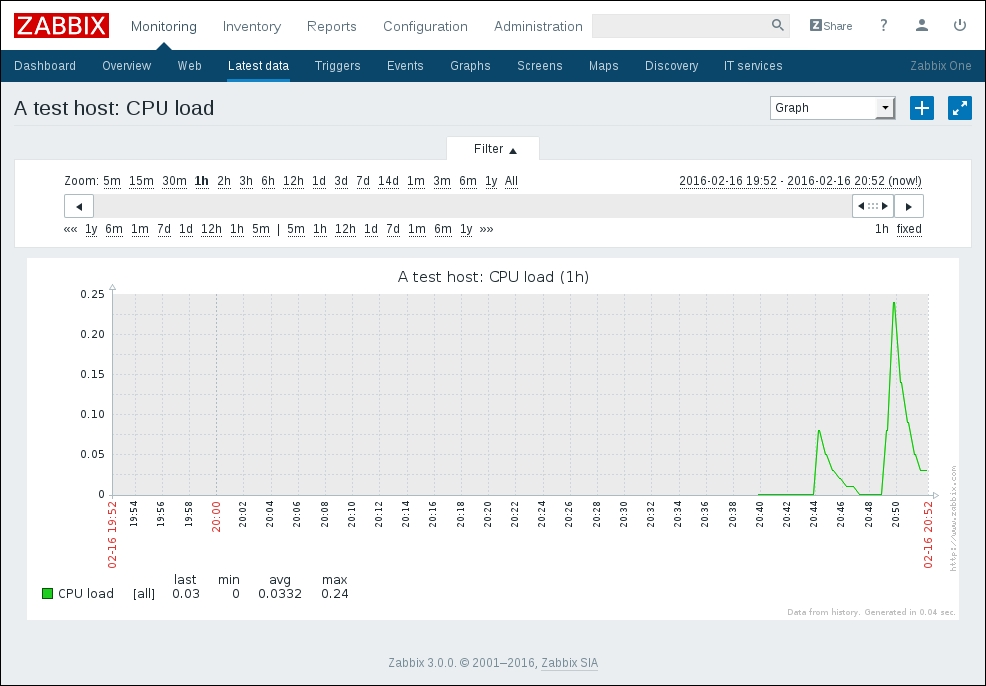
Note

The longevity of an item in history is defined in the item itself in the field Keep history (in days) and persistence on the trends table is defined in the Keep trends (in days) field.

In the following screenshot, you can see how the mean values may vary with respect to the minimum and maximum values. In particular, it is interesting to see how the mean value remains almost the same at 12:00 too. You can see quite an important drop in the CPU idle time (the light-green line) that didn't influence the mean value (green line) too much since, most likely, it was only a small and quick drop, so it is basically lost on the mean value but not on our graph since Zabbix preserves the minimum and maximum values.

Graphs show the working hours with a white background, and the non-working hours in gray (using the original template); the working time is not displayed if the graph needs to show more than 3 months. This is shown in the following screenshot:

Simple graphs are intended just to graph some on-the-spot metrics and check a particular item. Of course, it is important to interpolate the data; for instance, on the CPU, you have different metrics and it is important to have all of them.

Analyzing ad hoc graphs

This is a brand-new feature available, starting with Zabbix 2.4. It's actually a very nice feature as it enable you to create on the fly an ad hoc graph.

Now Zabbix can graph and represent, on the same graph, multiple metrics related to the same timescale.

Note

Thanks to this new functionality, everyone without administrative privileges can produce graphs on the fly with a few clicks.

To have an ad hoc graph generated for your metrics, you simply need to go to Monitoring | Latest data and, from there, mark the checkbox relative to the item you would like to graph, as shown in the following screenshot:

At the bottom of the same page, you need to choose in the drop-down menu the kind of graph you prefer—the default graph is stacked, but it can be switched to the standard graph—and then, click on Go.

The result of our example is shown in the following screenshot:

Note that on this screen, you can quickly switch between Stacked and Normal.

Note

This feature doesn't keep you tied with a host-specific graph. This means that everyone is now enabled to generate a graph with data coming from many different hosts; for example, you can relate the CPU of your DB server with the one coming from the application server.

Now we can dig a little into those ad hoc graphs and see some nice features.

Hacking ad hoc graphs

Now let's see something that can be quickly reused later on your screens.

Zabbix generates URLs for custom ad hoc graphs, such as http://<YOUR-ZABBIX-GUI>/zabbix/history.php?sid=<SID >&form_refresh=2&action=batchgraph&itemids[23701]=23701&itemids[23709]=23709&itemids[23705]=23705&itemids[23707]=23707&itemids[23704]=23704&itemids[23702]=23702&graphtype=1&period=3600.

This URL is composed of many components:

  • sid: This represents your session ID and is not strictly required

  • form_refresh: This is a kind of refresh option—not strictly required

  • itemids[id]=value: This is the actual item that Zabbix will show you on the graph

  • action=[batchgraph|showgraph]: This specifies the kind of graph we want

It is quite interesting to see how we can quickly switch from the default batchgraph action in the URL by just replacing it with showgraph. The main difference here is that batchgraph will show you only average values in the graph. Instead, it can be a lot more useful to use showgraph, which includes the triggers—the maximum and minimum values for each item.

An example of the same graph seen before with showgraph is as follows:

Here, you can clearly see that you now have the trigger included. Since you can find it very useful to use this kind of approach, especially when you're an application-specific engineer and you're looking for standard graphs that are not strictly required on your standard template, let's see another hidden functionality.

Now if you want to retrieve the graph directly to reuse it somewhere else, the only thing you need to do is call with the same parameter, but instead of using the history.php page, you need to use chart.php. The output will be the following screenshot:

The web page will display only the pure graph. Then, you can quickly save the most used graphs among your favorites and retrieve them with a single click!

Analyzing custom graphs

We have only discussed the graph components here rather than the full interaction functionality and their importance in seeing historical trends or delving into a specific time period on a particular date. Zabbix offers the custom graphs functionality—these graphs need to be created and customized by hand. For instance, there are certain predefined graphs on the standard Template OS Linux. To create a custom graph, you need to go to Configuration | Hosts (or Templates), click on Graphs, and then on Create graph.

Note

General graphs should be created in templates so that they can be easily applied to a group of servers. An example is the graph of CPU utilization on Template OS Linux. This one is quite general; it is composed of several metrics aggregated and is nice to have across all your Linux servers.

Graphs on Zabbix are really a strong point of the monitoring infrastructure. Inside this custom graph, you can choose whether you want to show the working time and the legend using different kinds of graphs. The details of the CPU Utilization graph are shown in the following screenshot:

As you can see, the following graph is stacked and shows the legend of the x axis defined with a fixed y axis scale. In this particular case, it doesn't make any sense to use a variable for the minimum or maximum values of the y axis since the sum of all the components represents the whole CPU and each component is a percentage. Since a stacked graph represents the sum of all the stacked components, this one will always be 100 percent, as shown in the following screenshot:

There are a few considerations when it comes to triggers and working hours. These are only two checks, but they change the flavor of the graph. In the previous graph, the working hours are displayed on the graph but not the triggers, which is mostly because there aren't triggers defined for those metrics. The working hours, as mentioned earlier, are displayed in white. Displaying working hours is really useful in all the cases where your server has two different life cycles or serves two different tasks. As a practical example, you can think about a server placed in New York that monitors and acquires all the market transactions of the U.S. market. If the working hours—as in this case—coincide with the market's opening hours, the server will, most probably, acquire data most of the time. Think about what will happen if the same trading company works in the Asian market; most probably, they will enquire the server in New York to see what happened while the market was open. Now, in this example, the server will provide a service in two different scenarios and have the working hours displayed in a graph, which can be really useful.

Note

Displaying the working time in graphs is useful. See whether your trigger goes on fire in this period.

Now, if you want to display the triggers in your graph, you only need to mark the Show triggers checkbox, and all the triggers defined will be displayed on the graph. Now, it can happen that you don't see any lines about the triggers in your graph; for instance, look at the following screenshot:

Now where is your expected trigger line? Well, it is simple. Since the trigger is defined for a processor load greater than five, to display this line you need to make a few changes in this graph, in particular the Y axis MIN value and Y axis MAX value fields. In the default, predefined CPU load graph, the minimum value is defined as zero and the maximum value is calculated. Both need to be changed as follows:

Now refresh your graph. Finally, you will see the trigger line, which wasn't visible in the previous chart because the CPU was almost idle, and the trigger threshold was too high and not displayed due to the auto-scaling on the y axis. This is shown in the following screenshot:

Note

As you probably already noticed, Zabbix doesn't display periods shorter than an hour. The minimum graph period is about 1 hour.

Zabbix supports the following kinds of custom graph:

  • Normal

  • Stacked

  • Pie

  • Exploded

Zabbix also supports different kinds of drawing styles. Graphs that display the network I/O, for instance, can be made using gradient lines; this will draw an area with a marked line for the border, so you can see the incoming and outgoing network traffic on the same scale. An example of this kind is shown in the following screenshot, which is easy to read. Since you don't have the total throughput to have graphed the total amount from the incoming packet, the outgoing packet is the better one to be chosen for a stacked graph. In stacked graphs, the two areas are summarized and stacked, so the graph will display the total bandwidth consumed.

To highlight the difference between a normal graph and a stacked one, the following screenshot displays the same graph during the same time period, so it will be easier to compare them:

As you can see, the peaks and the top line are made by aggregating the network input and output of your network card. The preceding graph represents the whole network traffic handled by your network card.

Reviewing all the combinations of graph properties

Zabbix is quite a flexible system and the graphs are really customizable to better explore all the possible combinations of attributes and parameters that can be customized. All the possible combinations of graph attributes are reviewed in the following table:

Parameter

Description

Name

This is the graph name (note that this needs to be unique)

Width

This is the graph width in pixels

Height

This is the graph height in pixels

Graph type

Normal (values displayed as lines, filled region, bold lines, dots, dashed lines, and gradient lines)

  • Stacked values are displayed as stacked areas

  • Pie values are displayed as a pie

  • Exploded values are displayed as a pie but exploded

Show legend

If checked, the graph will display the legend.

Show working time

If checked, the non-working hours will be in gray and working hours in a white background.

Show triggers

If checked, a single trigger line is displayed (note that this is not available for pie and exploded).

Percentile line (left/right)

Note that this is only available on normal graphs. If checked, it displays a line where the value falls under the percentage (for example, for 90, it will display a line where 90 percent of the values fall under).

Y axis MIN/MAX value

This sets the minimum and maximum value for the y axis, which can be any of the following:

  • Calculated: The minimum and maximum values will be calculated on the basis of the displayed area

  • Fixed: The fixed value will be used as per maximum or minimum

  • Item: The last value of the selected item will be used as minimum/maximum

3D View

This displays the graphs in 3D (note that this is only available for pie and exploded pie graphs).

This second table describes the item configuration:

Parameter

Description

Sort order

This represents the priority for a particular item over an other and is useful to give priority to the region displayed, for example, in front of or behind the other items. Here, you can drag and drop items in the right order. Note that zero is the first processed item; Zabbix supports up to 100 items.

Name

The name of the item is displayed here. The metric name is composed in the form of <source> : <metric_name>. This means that if you are inside the host configuration, you will see <hostname>:<metric_name>. If you are creating the graphs inside a template, you will see <template_name>:<metric_name>.

Type

Note that this is available only for the pie and exploded pie graphs:

  • Simple

  • Graph sum

Function

This determines the value to display if more than one is present; it can be one of the following:

  • All: This shows minimum, average, and maximum values

  • Min: This only shows minimum values

  • Avg: This only shows average values

  • Max: This only shows maximum values

Draw style

This is only available for normal graphs:

  • Line

  • Filled region

  • Bold line

  • Dot

  • Dashed line

Y axis side

Note: This is available only on stacked and normal graphs and defines the y axis side for each element.

Colour

Other than the standard displayed on the palette, you can set all the colors that you want in the RGB hex format.

Note

You can easily play with all those functionalities and attributes. In version 2.0 of Zabbix, you have a Preview tab that is really useful when you're configuring a graph inside a host. If you're defining your graph at a template level, this tab is useless because it doesn't display the data. When you are working with templates, it is better to use two windows to see in real time by refreshing (the F5 key) the changes directly against the host that inherits the graphs from the template.

All the options previously described are really useful to customize your graphs as you have understood that graphs are really customizable and flexible elements.

Note

You can display only three trigger lines, and if the graph is less than 120 pixels, triggers are not displayed; so, take care to properly set up your graphs and check all the changes.

Visualizing the data through maps


Zabbix provides a powerful element to visualize data and a topological view in Zabbix, which will help you to create maps. Maps are a graphical representation of your physical infrastructure, where you can display your server, network components, and the interconnection between them.

The great thing is that maps on Zabbix are completely dynamic, which means that you will see your active warnings, issues, and triggers represented on the map, with different icons, colors, and labels. This is a powerful representation of your data center or of the service that you're representing. The elements that you can put in a map are as follows:

  • Host

  • Host groups

  • Triggers

  • Images

  • Maps

All those elements are dynamically updated by triggers or using macros, thus providing a complete status of the maps and their elements.

Note

To enable a user to create, configure, or customize maps, the user needs to be of the Zabbix administrator type. This means that there isn't a role dedicated to map creation. Also, the user needs to have a read/write permission on all the hosts that he needs to put into a map. This means that there isn't a way to restrict the privileges to map creation only, but you can limit the administration to a certain number of hosts included in a group.

An example of a map that you can easily produce with Zabbix is shown in the following screenshot:

In the preceding screenshot, you can see that there are a lot of graphical combinations of icons, round backgrounds, and information. To better understand what this map represents, it is important to see how Zabbix treats hosts and triggers in a map. In the following screenshot, you can see all the possible combinations of trigger severity and status change:

The preceding screenshot illustrates, from left to right, the following:

  • A host that doesn't have a trigger on fire

  • A host with the trigger severity that is shown as Not classified in the alarm

  • A host with the trigger severity Information in the alarm

  • A host with the trigger severity Warning in the alarm

  • A host with the trigger severity Average in the alarm

  • A host with the trigger severity High in the alarm

  • A host with the trigger severity Disaster in the alarm

The trigger line follows the same classification.

Note

The trigger severity is expressed with the background color and not with the name that you see under the HOST label. The label in red color is the name of the trigger. In the preceding screenshot, triggers are callers, just as their classification says, to simply make the picture more verbose. Please notice that in the case of TRIGGER representation, right after the TRIGGER label is displayed, the trigger status is displayed and not the trigger name that is on fire, as in the case of HOST.

Now if a trigger changed recently, its status will be displayed as shown in the following diagram:

Now if a host has issues and a trigger is on fire, this will be represented with the following icons:

Please note that, in this case, the icon is shown with arrows because it just changed the status. The following screenshot shows that there are six problems:

As you can see, there are different triggers with problems. The one that has the most critical severity is the one that gives the color to the circle around the icon. Once all the triggers are acknowledged, the icon will show a green circle around it, as shown in the following screenshot:

The second icon displays details of all the problems that your host is facing and the number of unacknowledged ones, so you have an immediate status of how many issues are under control and how many are new.

The third icon with the square background is a host that has been disabled, represented in gray; it will be in red once it becomes unreachable.

Creating your first Zabbix map

Map configuration can be easily reached by navigating to Configuration | Maps | Create map. The resulting window that you will see is shown in the following screenshot:

Most of the properties are quite intuitive; the Name field needs to be a unique name, and Width and Height are expressed in pixels.

Note

If you define a large size, and the second time, you want to reduce it, it is possible that some of your hosts will fall outside the map and are no more visible. Don't be scared; nothing is lost. They are still inside the map, only not displayed. You can restore them to their original size, and they will appear again.

Now we will take a look at all the other parameters:

  • Background image: In the background image field, you can define your map's background, choosing between loaded backgrounds.

    Note

    Zabbix, by default, doesn't have any backgrounds defined. To add your own background, you need to go to go to Administration | General, and select Images from the listbox. Please check to add your image as Background and not Icon. A good source for royalty-free maps is www.openstreetmap.org.

  • Automatic icon mapping: This flag enables user-defined icon mapping for a certain host inventory field. This can be defined by navigating to Administration | General | Icon mapping.

  • Icon highlight: This is the flag responsible for generating the round background around the icon with the same color as that of the most critical severity trigger.

  • Mark elements on trigger status change: This flag is responsible for highlighting a trigger status change (with the red triangle shown earlier in the screenshot displaying the status change).

    Note

    Markers are displayed only for 30 minutes, after which they will be removed, and the changed trigger status will become the new normal status.

  • Advanced labels: This check enables you to customize the label's type for all the elements that you can put in a map. So, for each one of those items—host, host group, trigger, map, and image—you can customize the label type. The possible label types are as follows:

    • Label: This is the icon label

    • IP Address: This is the IP address (available only on the host)

    • Element name: This is the element name, such as hostname

    • Status only: This is only for the status, so it will be OK/PROBLEM

    • Nothing: This means that there is no label at all

    • Custom label: A free test area (macros are allowed)

  • Icon label location: This field defines where you will see all the labels by default. This can be selected among the following values: Bottom, Left, Right, and Top.

  • Problem display: This listbox permits you to choose between the following:

    • All: A complete problem count will be displayed

    • Separated: This displays the unacknowledged problem count separated as a number of the total problem count

    • Unacknowledged only: With this selected, only the unacknowledged problem count will be displayed

  • URLs: Here, a URL for each kind of element can be used with a label. This label is a link, and here you can use macros, for example, {MAP.ID}, {HOSTGROUP.ID}, {HOST.ID}, and {TRIGGER.ID}.

Starting with Zabbix 2.2, a new feature has been introduced. The map configuration feature provides you with the option of defining the lowest trigger severity.

With this configuration, only the triggers at the defined level or more will still be displayed in the map; this will reduce the number of triggers displayed, and all the triggers with a severity below the defined one will not be displayed. This section is highlighted in the previous screenshot within a green rectangle.

The level that you have selected within the map configuration can be overwritten when viewing maps in Monitoring | Maps by selecting the desired Minimum severity, as shown in the following screenshot:

Important considerations about macros and URLs

The URL section is powerful, but here an example is needed because the usage is not intuitive and simple.

Now, if you see a trigger on fire or an alarm that is escalating, most probably the next action that you will take is to check the latest data of your host or jump to a screen that will group the graphs, triggers, and data that you need to check to have an idea of what is happening and do a first-level analysis. In a practical case of first-level support, once a server is highlighted and shows triggers with problems, it can be useful to have a link that will go straight ahead to the latest data of that host and also the screen. To automate this and reduce the number of clicks, you can simply copy the link of the desired page; for instance, the link to the latest data would be something similar to http://<YOUR-ZABBIX-SERVER>/zabbix/latest.php?sid=eec82e6bdf51145f&form_refresh=1&groupid=2&hostid=10095.

Now, looking into the URL to automate the jump to the latest data, you need to replace the variant part of the URL with the macros wherever available.

The sid value in the URL represents the session ID; it is passed to avoid the one-click attack, also known as session riding. This field can be removed. The groupid value in the specific latest data example can be omitted, so the URL can be reduced to http://<YOUR-ZABBIX-SERVER>/zabbix/latest.php?form_refresh=1&hostid=10095.

Now, the link is easy to generate. You can simply replace the hostid value with the macro {HOST.ID} as http://<YOUR-ZABBIX-SERVER>/zabbix/latest.php?form_refresh=1&hostid={HOST.ID}.

And configure the URL as shown in the following screenshot:

In the preceding screenshot, you can see that there is a link configured to General Screen that collects the most important graphs. The http://<ZABBIX-SERVER>/zabbix/screens.php?sid=eec82e6bdf51145f&form_refresh=1&fullscreen=0&elementid=17&groupid=2&hostid=10094&period=3600&stime=20140807161304 URL is generated from the screen page of a particular host.

This time again, you can omit the sid value in the preceding URL since it specifies a period. If this parameter is absent, you will be taken to a screen that displays the last hour of data. You can also remove the stime, groupid, and elementid values. The reduced URL will be http://<ZABBIX-SERVER>/zabbix/screens.php?form_refresh=1&fullscreen=0&hostid=10094& groupid=2.

Now, to make it dynamic, you need to replace the values of hostid and groupid with the macros, such as http://<ZABBIX-SERVER>/zabbix/screens.php?form_refresh=1&fullscreen=0&hostid={HOST.ID}&groupid={HOSTGROUP.ID}.

The result of this customization is shown in the following screenshot:

As you can see, by clicking on the host that has issues you have two new shortcuts other than Latest Data and General Screen, with a link that is dynamically created for each host.

This kind of behavior allows you to create a master-detail view. In this case, the master is your map, and the detail can be, for instance, the screen or the latest data window. You can create custom menus that can run a script or bring you directly to the trigger status or the Host screens.

Note

Here, you can add more scripts to run against the host. To add another script (and see it in the Scripts section), you need to go to Administration | Scripts. This will take you to the script's administration panel.

Finally, inside the map

Once you have completed this setup, you can begin the nice part of the configuration. Once inside the map, the options that you will find is quite simple and user friendly, as shown in the following screenshot:

In the map, you can add an element by clicking on the + sign and remove it by clicking on the - sign. The element will appear in the upper-left corner of the map. By clicking on that icon, a configuration panel will appear, as shown in the following screenshot:

The element type, by default, is Icon. In the preceding screenshot, it is marked as Host, but it can be any one of the following:

  • Host: This icon will represent the status of all the triggers of the selected host

  • Map: This icon will represent the status of all the elements of the map

  • Trigger: This icon will represent the status of the single trigger selected

  • Host group: This icon will represent the status of all the triggers of all the hosts that belong to the selected group

  • Image: This icon will just be an image not linked to any source (trigger host and so on)

The Label section is another strong point of the element. Here, you can freely write normal text or use macros.

The next field may vary depending on what you choose as the element type and can be one of the following:

  • Host: This selects the host

  • Map: This selects the map

  • Trigger: This selects the trigger

  • Host group: This selects the host group

  • Icon (default): This selects the icon to be used

Note

With Host group, you can group all your hosts as per the location, for example, city, nations, or continents. This will group all the trigger statuses per location in a nice representation. You can also add a custom URL.

Hosts and triggers have already been covered and are quite intuitive to understand. Probably, it is not immediately understood why we should insert a map inside a map. An efficient use of this scenario is that you can produce a nice drilldown with a general map view that gathers together all the submaps detailed per location or nation. This helps you to produce a drilldown until the final destination; for instance, try to think about a drilldown that comes from nations, down to the city, and deep into the data center, ending on the rack where your server is contained.

The Icon element inside a map is an image that can have a URL associated with. Their function is to add a graphic element to your map that contains the URL, and have the shortcuts directly on your own map.

Right after that, there is the Icons section. Here, if you checked the Automatic icon selection checkbox, icon mapping (defined in the map configuration) would be used to choose the icons to be used.

Note

Defining an icon mapping in the map configuration will save you a lot of clicks. Also, it is a repetitive task. So, for instance, you can define your standard icons for the hosts, and they will then be used here.

If you haven't defined an icon mapping or if you want to use an item different from the previous choice, you can specify the icons that will be used in those cases, which can be one of the following:

  • Default

  • Problem

  • Maintenance

  • Disable

The Coordinates section expresses the exact location of the element in pixels and, as the previous item, you can configure a dedicated URL for this kind of host too.

Imagine that you have produced different kinds of screens (the screens will be discussed later in this chapter): one that collects all the metric graphs and triggers used to monitor an application server and another one with all the metrics needed to monitor the status of your database. Well, here, if your host is a DBMS, you can create a URL to jump directly to the RDBMS screen. If it is an application server, you can create a custom URL that will take you directly to the application server screens, and so on.

As you can see, this is an interesting feature and will make your map useful to your support team.

Selecting elements

In the map configuration, you can select multiple elements by selecting the first one, and then, keeping the Ctrl (or Shift) key pressed, selecting the other elements. For a multiple selection, you can drag a rectangle area, which will then select all the elements in the drawn rectangle.

Once you have selected more than one element, the element form switches to the Mass update elements window, as shown in the following screenshot:

Here, you can update the icons, labels, and label locations for all the selected hosts in bulk.

To have an efficient update of all the labels, it is strongly advised that you use macros.

Now, it's time to inter link your servers in exactly the way that they are physically connected. To create a link between two hosts, you only need to select the hosts that need to be linked together and click on the + symbol in the Link section of the map.

The links section will appear right below the Mass update elements form, as shown in the following screenshot:

You can customize your link with labels and also change the representation type and color. You can choose between Line, Bold line, Dot, and Dashed line.

An option to keep in mind here is the possibility of connecting the link indicator to a trigger, so basically, the link will change its color once a trigger is on fire.

Note

Here, you can connect the link to multiple triggers and associate a different color to each one of them so that you can understand which trigger is changing your link.

Playing with macros inside maps

Previously, we discussed the Label section where you can customize the label in your graphs. Here, I think an example can clarify a lot the power of this section and how this can improve and introduce benefits in your maps. As an example, you can play with macros inside the map. Now, you have certain requirements for this, such as you need to show the hostname, IP address, the status of triggers events (the number of acknowledged events and the number of unacknowledged ones), and the network traffic of your network interfaces, directly in the map.

This seems challenging work and, in fact it, is, but if you have a bit of knowledge about macros, this becomes an easy task. The request can be satisfied with the following code:

{HOSTNAME}
{HOST.CONN}
trigger events ack: {TRIGGER.EVENTS.ACK} 
trigger events unack: {TRIGGER.EVENTS.UNACK} 
Incoming traffic: {{HOSTNAME}:net.if.in[eth0].last(0)}
Outgoing traffic: {{HOSTNAME}:net.if.out[eth0].last(0)}

The first macro, {HOSTNAME}, will display the hostname of your selected host. The second macro, {HOST.CONN}, will display the IP address. The information about the triggers events, whether acknowledged or unacknowledged, is expressed in the next two lines using the macros {TRIGGERS.EVENTS.ACK} and {TRIGGER.EVENTS.UNACK}. The last two lines are more interesting because they are a composition of two nested macros.

In particular, to display the incoming traffic of your first network interface, you can ask Zabbix to retrieve the last value of the net.if.in[eth0] item. This kind of expression needs the hostname to be evaluated, so you need to write your hostname, that is, HOST-A (in this example) or use macros.

The last piece of information that Zabbix needs to produce as the requested output is the hostname. As mentioned earlier, this can be replaced with the {HOSTNAME} macro. So, the complete expression will be as follows:

Incoming traffic: {{HOSTNAME}:net.if.in[eth0].last(0)}

Obviously, for outgoing traffic, the expression is more or less the same, except that you need to retrieve the net.if.out[eth0] item of the network card. The result is shown in the following image:

Note

Use {HOSTNAME} or {HOST.NAME} in all the labels and all the places where it is possible, so it will make things easy in the event of a mass update.

This is a comprehensive and charming output, wherein, without any clicks, you have your needed information directly in your map. In this example, you used the last() value of your item, but the other functions are also supported here such as last(), min(), max(), and avg().

Macros can be used in the same manner on links; an example is shown in the following screenshot:

In the preceding screenshot, the traffic data on the link is generated using the same method that was previously explained. All those macro usages make your maps a lot more dynamic and appealing.

Visualizing through screens


In the previous section, we discussed adding custom URLs and introduced shortcuts to a screen section. Now it's time to go deep into screens. Screens are easy to generate and very intuitive to handle. Basically, a screen is a page that can display multiple Zabbix elements, such as graphs, maps, and text. One of the main differences between screens and maps is that in maps, you can place a lot of elements, but you can't, for instance, add a graph or the trigger status. They have two different targets. The screen can group all the elements that are common into a particular kind of server to have a complete picture of the situation.

Creating a screen

To create a screen, you need to navigate to Configuration | Screen | Create. A form will appear, asking for the screen name and the initial size in terms of columns and rows. After this step, you need to come back inside the screen that you just created.

In this part of the configuration, you will probably notice that there isn't a Save button. This is because screens are saved automatically every time that you complete an action, such as adding a graph. The screen appears similar to a table (basically, it is a table), as shown in the following screenshot:

Now, if you need more rows or columns, you only need to click on the + sign where you want to add fields as rows or as columns.

On a screen, you can add the following kinds of elements:

  • Action log: This displays the history of recent actions

  • Clock: This displays a digital or analog clock with the current server time or local time

  • Data overview: This displays the latest data for a group of hosts

  • Graph: This displays whether the graphs are single or custom

  • History of events: This displays n lines (you can specify how many) of the latest events

  • Host group issues: This displays the status of triggers filtered by hostgroup

  • Host issues: This displays the status of triggers filtered by the host

  • Hosts info: This displays high-level, host-related information

  • Map: This displays a single map

  • Plain text: This shows plain text data

  • Screen: This displays another screen (one screen may contain other screens inside it)

  • Server info: This displays the high-level server information

  • Simple graph: This displays a single, simple graph

  • Simple graph prototype: This displays a simple graph based on the item generated by low-level discovery

  • System status: This displays the system status (it is close to Dashboard)

  • Triggers info: This displays the high-level trigger-related information

  • Triggers overview: This displays the status of triggers for a selected host group

  • URL: Here, you can include content from an external source

All those sources have two common configuration parameters—the column span and the row span. With the column span, you can extend a cell to a certain number of columns. With the row span, you can extend a cell for a certain number of rows. For instance, in a table of two columns, if you indicate a column span of two, the cell will be centered in the table and will be widened with exactly two fields. This is useful to add a header to your screen.

Once you have inserted and configured your elements on the screen, you can move them using drag and drop, and all your settings will be preserved.

Note

You can freely drag and drop your configured elements; they will not lose their settings.

Most of the elements are not dynamic, which means that they will not be dynamically applied to all your hosts in a group.

Dynamic elements

Zabbix provides dynamic elements that are really useful:

  • Graphs

  • Graph prototype

  • Simple graphs

  • Simple graph prototype

  • URL

  • Plain text

The dynamic item Graph prototypes are based on custom graph prototypes created in low-level discovery (LLD) rules. Practically the Simple graph prototype is based on item prototypes in low-level discovery. While monitoring, the screen cell will display a graph created from an LLD-generated item. Please note that if the item is not generated, nothing will be displayed.

Also, starting with Zabbix 2.4, the URLs are now dynamic items. To properly support this new functionality, now we can use several macros in the URL field: {HOST.CONN}, {HOST.DNS}, {HOST.ID}, {HOST.IP}, {HOST.HOST}, {HOST.NAME}, and {$MACRO} user macro. These macros are quite useful, and we can do a lot with them, generating dynamic URLs to retrieve data from an external source.

Note

To properly see the dynamic URL elements displayed in Monitoring | Screens, you need to select a host. Without a selected host, you can only see the message No host selected.

Dynamic items can be identified by checking the following option:

Now, for instance, you can add a map in your screen and some dynamic elements, such as graphs. When you add a dynamic element at the top of the screen, you will have a bar with some listboxes that will help you to change the target of your dynamic elements, as shown in the following screenshot:

An example of a screen that mixes dynamic elements and standard elements is shown in the following screenshot:

Obviously, when you choose and host this, it will affect only the dynamic graphs. You can switch between your two hosts and change the x axis. This will update all the dynamic elements on the same time base, making it easy to relate elements between them.

Note

Pie graphs and exploded pie graphs will display only the average value for your chosen period. To relate different groups of metrics between them, it is better to use a custom graph.

Visualizing the date through a slide show


Once you have created all your screens, you can provide a slide show to your helpdesk that implements a screen rotation.

Creating a slide show is easy; go to Configuration | Slide shows | Create slide show. A window, as shown in the following screenshot, will appear:

You can see the slide show configuration in the preceding screenshot. This configuration screen is really intuitive; Name identifies the name of your slide show, and in Default delay (in seconds), you need to specify the default delay that will be applied to all the screens in the slide show.

In the Slides section—enumerated in the preceding screenshot to have a visualization order—you can specify a different delay for each one of them. Basically, you can customize how long each screen will be displayed. Once saved, your slide show will be available to be displayed upon navigating to Monitoring | Screens, and then you can choose in the Slide shows drop-down menu on the right-hand side after your slide show name.

Note

In the slide show, you can only create a screen rotation. So, to add a single element, such as a graph or a map, on your rotation, you need to create a screen that contains your elements to be displayed. Using this method, you can basically add all that can be represented on a screen on the slide show.

If you want to speed up or slow down your slide show, you can change the refresh multiplier that will appear by clicking on the Menu icon (on the right-hand side of the listbox), which will return a window, as shown in the following screenshot:

Controlling center slides and the big display challenge


Displaying data on a big display is something challenging; first of all, you need to know who your target will be, their skills, and which role they exactly cover. After that, it is important to see where the screen is physically and its resolution.

You will most probably need to create an ad hoc screen for a big display to fit better on a widescreen. Screens for widescreen need to be developed horizontally. Most of the screens are usually developed with a web page in mind, so most probably they need to be scrolled down and up to read all the graphs. Such kinds of screens will not fit on your widescreen.

You need to bear in mind that the slide show doesn't scroll up and down automatically. You can add JavaScript to make it possible, but it is really complex to implement a screen that will rightly handle this scrolling up and down, and all this effort can be hardly justified. It is better and more productive to produce screens such that slide shows fit in the screen dimensions and resolution.

Considerations about slides on a big display

Once you have understood who your target is, their knowledge, and the typology of the work they do, you are already in a stable position. Now you can apply best practices that are generally useful when you need to show data on a big display. Basically, they need to be one of the following:

  • Easy to read (comprehensible)

  • Fit the big screen display

  • Non-interactive

  • Delay between the screens should be chosen as appropriate

First of all, keep things easy. This is a general rule: the easier the representations, the less the effort required by the helpdesk to read them. An easy and comprehensive screen will improve the helpdesk's reaction, which is our goal. You need to provide information in the best way. Never overload your screen with information; you need to choose the right amount of information to be displayed, and the fonts need to be comprehensive. Essentially, you need to choose which cut will have every screen, and the challenge is to choose how to display your monitored services.

If you need to monitor a large number of services, you need to choose the time to change the slide; don't spend too much time on the same screen. Keeping a screen for too much time on the monitor can become annoying, especially when the helpdesk is waiting to see the next slide. Unfortunately, there isn't a rule; you need to spend time with the first-level support and check with them as to what is the perfect timing.

One thing that simplifies the work is that you don't need to think about complex screens. A widescreen display doesn't need the drill-down feature implemented. People will just look at the screen, and the analysis will be done from their workstation.

Triggers are always welcome as they are easy to read, comprehensive, and immediate. But take care not to fill a page with them as it will then be unreadable.

Automated slide show

Once your slides are created and you are ready to run them, it is time to think about the user. Your widescreen and the relative workstation dedicated to this task need to have an account for sure.

In a real-world scenario, we do not want to see the login page on a big display. To avoid this, it is better to create a dedicated account with some customization.

The requirements are as follows:

  • Avoid automatic disconnection

  • Avoid the clicks needed to display the slide show

Both these features will be appreciated by your helpdesk.

To avoid automatic disconnection, there is a flag on the user configuration form that is designed just for that—the Auto-login flag. Once selected, you need to log in only the first time.

Note

The Auto-login flag will work only if your browser supports cookies; please ensure that plugins, antiviruses, and so on are not blocked.

Now since you have created a dedicated account, you need to customize the URL (after logging in) section; here, you need to link the URL to your screen.

To retrieve the appropriate URL, browse to your slide show and copy your link. For this example, the link would be http://<your-zabbix-server> /zabbix/slides.php?sid=4258s278fa96eb&form_refresh=1&fullscreen=0&elementid=3.

Basically, you need to know the elementid value of your slide show. In the following URL, you can remove the sid parameter. The definitive URL in our case will be http://<your-zabbix-server> /zabbix/slides.php? form_refresh=1&fullscreen=0&elementid=3.

Note

To jump directly to the full-screen mode, change the fullscreen=0 parameter to fullscreen=1. This will further reduce human interaction.

Now this account has a first page. After login, the slide show starts in the fullscreen mode with really little human interaction.

Note

To properly present an automated slide show, it is very useful to run the browser in the fullscreen mode by pressing F11.

IT services


The last graphical element that will be discussed in this chapter is a high-level view of our monitored infrastructure. In a business-level view, there is no provision for low-level details, such as CPU usage, memory consumption, and free space. What the business would like to see is the availability of your services provided and the service-level agreements of your IT services.

Zabbix covers this point with IT services. A service is a hierarchical view of your service. Now imagine that you need to monitor your website (we discussed SLAs in Chapter 1, Deploying Zabbix). You need to identify your service components, for example, web server, application server, and DB server. For each one of them, you need to identify triggers that tell you whether the service is available or not. The hierarchical view is the one represented in the following screenshot:

In this hierarchy, each node has a status; this status is calculated on the basis of triggers and propagated to the higher level with the selected algorithm. So, the lowest level of IT services is managed via triggers.

Note

Triggers are the core of IT service calculations; so, as you can imagine, they are of particular importance and really critical. You need to find out which your effective items are, to check for this trigger generation.

Triggers with the severities Information and Not classified are not considered and don't affect the SLA calculation.

Configuring an IT service

The way to configure an IT service is by navigating to Configuration | IT services; you can create your service here. The following screenshot displays a service previously configured:

By clicking on a service, you can add a service, edit the current service, or delete it. The service configuration is composed of three forms: the first one describes the service, the second tab is dedicated to the dependencies, and the third is dedicated to the time.

On the service tab, you need to define your own service name. In this particular example, the website SLA is calculated; of course, a website is composed of different components, such as the web server, application server, and a DBMS. In a three-level environment, they are usually on a dedicated server. Now, since all the three components are vital for our merchant website, we need to calculate the SLA propagating the problems. This means that if the child of our website has a problem, the whole website has a problem, and this will reflect in the SLA calculation.

Zabbix provides the following three options in the status calculation algorithm:

  • Do not calculate: This option ignores the status calculation completely.

  • Problem, if at least one child has a problem: This means that if each one of our three components has an issue, the service will be considered unavailable. This is the case when each one of the servers doesn't have a failover node.

  • Problem, if all the children has a problem: To propagate the problem, all the children need to be affected by the problem. This case is typical for a clustered or load-balanced service, where there are many nodes to provide a service, and all the nodes need to be down to propagate the issue to the parent node.

Once you define the algorithm, you need to define the SLA percentage of your service. This is used to display the SLA issue with different colors in the report.

The next step is the trigger definition that will enable Zabbix to know when your service has an issue. Since Zabbix provides a hierarchical view, you can have a service composed of many components, so the intermediate level can avoid a trigger definition that is needed on the lowest level.

The last option is Sort order (0->999). This, of course, doesn't affect the SLA calculation but is only for cosmetic purposes. To visualize a report, for instance, your three levels are sorted in a logical order as the web server, application server, and database server. All that is previously discussed is shown in the following screenshot:

The following screenshot shows the dependencies; here, you don't need to define each one of them because they are defined automatically once you design your hierarchical view. Now, it is possible that one of your services is already defined for a reason in another layer of the service. If this is the case, you only need to mark the service as soft linked by checking the Soft checkbox:

Note

If a service has only soft-linked dependencies, it can be deleted. In this case, you don't need to delete all the child services first; this can be used to quickly delete the whole service.

The last tab is used to set the service time. By default, Zabbix considers that a service needs to be available 24 hours a day, for 7 days of the week, and the whole year (24x7x365). Fortunately, for system administrators, not all the services have this requirement. If this is true of you, you can define your Uptime and Downtime periods, as shown in the following screenshot:

Note

The periods defined here are basically Uptime and Downtime windows. A problem that occurs during a Downtime window will not affect the SLA calculation. Here, it is possible to also add a one-time downtime, which is useful to define an agreed maintenance without an impact on the SLA.

Once you have completed the hierarchical definition of your service, the result is available by navigating to Monitoring | IT services.

Summary


In this chapter, we covered all the graphical elements that Zabbix provides and showed you how to use them in an efficient way. This chapter also enabled you to deliver efficient slide shows to your helpdesk, making you aware of the best practices in this difficult task. Now, you probably understood that this part of the Zabbix setup will require time to be well implemented. Also, it is easier to understand for a non-technical audience, and the information provided with the graphical elements has a big impact on your audience. This forces you to be precise and take a lot of care in this task, but this will be paid back to you by providing a lot of powerful elements to use and adding more strength to your argument. All those graphical elements are fundamentals if you need to argue with the business or the purchase manager to expand the business or buy hardware.

In the next chapter, you will see how to manage complex triggers and trigger conditions. The next chapter will also make you aware of the right amount of triggers and alarms that you should implement so as not to be overloaded by alarms, with the consequence of losing the critical ones.

Chapter 6. Managing Alerts

Checking conditions and alarms is the most characteristic function of any monitoring system, and Zabbix is no exception. What really sets Zabbix apart is that every alarm condition or trigger (as it is known in this system) can be tied not only to a single measurement, but also to an arbitrary complex calculation based on all of the data available to the Zabbix server. Furthermore, just as triggers are independent from items, the actions that the server can take based on the trigger status are independent from the individual trigger, as you will see in the subsequent sections.

In this chapter, you will learn the following things about triggers and actions:

  • Creating complex, intelligent triggers

  • Minimizing the possibility of false positives

  • Setting up Zabbix to take automatic actions based on the trigger status

  • Relying on escalating actions

An efficient, correct, and comprehensive alerting configuration is a key to the success of a monitoring system. It's based on extensive data collection, as discussed in Chapter 4, Collecting Data, and eventually leads to managing messages, recipients, and delivery media, as we'll see later in the chapter. But all this revolves around the conditions defined for the checks, and this is the main business of triggers.

Understanding trigger expressions


Triggers are quite simple to create and configure—choose a name and a severity, define a simple expression using the expression form, and you are done. The expression form, accessible through the Add button, lets you choose an item, a function to perform on the item's data, and some additional parameters and gives an output as shown in the following screenshot:

You can see how there's a complete item key specification, not just the name, to which a function is applied. The result is then compared to a constant using a greater than operator. The syntax for referencing item keys is very similar to that for a calculated item. In addition to this basic way of referring to item values, triggers also add a comparison operator that wraps all the calculations up to a Boolean expression. This is the one great unifier of all triggers; no matter how complex the expression, it must always return either a True value or a False value. This value is, of course, directly related to the state of a trigger, which can only be OK if the expression evaluates to False, or PROBLEM if the expression evaluates to True. There are no intermediate or soft states for triggers.

Note

A trigger can also be in an UNKNOWN state if it's impossible to evaluate the trigger expression (because one of the items has no data, for example).

A trigger expression has two main components:

  • Functions applied to the item data

  • Arithmetical and logical operations performed on the functions' results

From a syntactical point of view, the item and function component has to be enclosed in curly brackets, as illustrated in the preceding screenshot, while the arithmetical and logical operators stay outside the brackets:

Selecting items and functions

You can reference as many items as you want in a trigger expression as long as you apply a single function to every single item. This means that, if you want to use the same item twice, you'll need to specify it twice completely, as shown in the following code:

{Alpha:log[/tmp/operations.log,,,10,skip].nodata(600)}=1 or
{Alpha:log[/tmp/operations.log,,,10,skip].str(error)}=1

The previously discussed trigger will evaluate to PROBLEM if there are no new lines in the operations.log file for more than 10 minutes or if an error string is found in the lines appended to that same file.

Note

Zabbix doesn't apply short-circuit evaluation of the and and or (previously, until Zabbix 2.4, they were expressed with & and |) operators; every comparison will be evaluated regardless of the outcome of the preceding ones.

Of course, you don't have to reference items from the same host; you can reference different items from different hosts and on different proxies too (if you can access them), as shown in the following code:

{Proxy1:Alpha:agent.ping.last(0)}=0 and
{Proxy2:Beta:agent.ping.last(0)}=0

Here, the trigger will evaluate to PROBLEM if both the hosts Alpha and Beta are unreachable. It doesn't matter that the two hosts are monitored by two different proxies. Everything will work as expected as long as the proxy where the trigger is defined has access to the two monitored hosts' historical data. You can apply all the same functions available for calculated items to your items' data. The complete list and specification are available on the official Zabbix wiki (https://www.zabbix.com/documentation/2.4/manual/appendix/triggers/functions), so it would be redundant to repeat them here, but a few common aspects among them deserve a closer look.

Choosing between seconds and a number of measurements

Many trigger functions take a sec or #num argument. This means that you can either specify a time period in seconds or a number of measurements, and the trigger will take all of the item's data in the said period and apply the function to it. So, the following code will take the minimum value of Alpha's CPU idle time in the last 10 minutes:

{Alpha:system.cpu.util[,idle].min(600)}

The following code, unlike the previous one, will perform the same operation on the last ten measurements:

{Alpha:system.cpu.util[,idle].min(#10)}

Note

Instead of a value in seconds, you can also specify shortcuts such as 10m for 10 minutes, 2d for 2 days, and 6h for 6 hours.

Which one should you use in your triggers? While it obviously depends on your specific needs and objectives, each one has its strengths that make it useful in the right context. For all kinds of passive checks initiated by the server, you'll often want to stick to a time period expressed as an absolute value. A #5 parameter will vary quite dramatically as a time period if you vary the check interval of the relative item. It's not usually obvious that such a change will also affect related triggers. Moreover, a time period expressed in seconds may be closer to what you really mean to check and thus may be easier to understand when you'll visit the trigger definition at a later date. On the other hand, you'll often want to opt for the #num version of the parameter for many active checks, where there's no guarantee that you will have a constant, reliable interval between measurements. This is especially true for trapper items of any kind and for log files. With these kinds of items, referencing the number of measurements is often the best option.
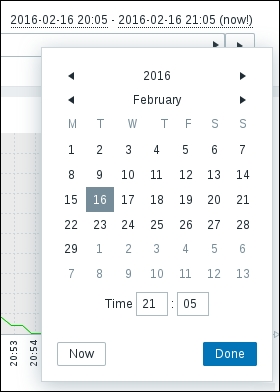
The date and time functions

All the functions that return a time value, whether it's the current date, the current time, the day of the month, or the day of the week, still need a valid item as part of the expression. These can be useful to create triggers that may change their status only during certain times of the day or during certain specific days or, better yet, to define well-known exceptions to common triggers when we know that some otherwise unusual behavior is to be expected, for example, a case where there's a bug in one of your company's applications that causes a rogue process to quickly fill up a filesystem with huge log files. While the development team is working on it, they ask you to keep an eye on the said filesystem and kill the process if it's filling the disk up too quickly. As with many things in Zabbix, there's more than one way to approach this problem, but you decide to keep it simple and find that, after watching the trending data on the host's disk usage, a good indicator that the process is going rogue is that the filesystem has grown by more than 3 percent in 10 minutes:

{Alpha:vfs.fs.size[/var,pused].delta(600)}>3

The only problem with this expression is that there's a completely unrelated process that makes a couple of big file transfers to this same filesystem every night at 2 a.m. While this is a perfectly normal operation, it could still make the trigger switch to a PROBLEM state and send an alert. Adding a couple of time functions will take care of that, as shown in the following code:

{Alpha:vfs.fs.size[/var,pused].delta(600)}>3 and
({Alpha:vfs.fs.size[/var,pused].time(0)}<020000 or 
  {Alpha:vfs.fs.size[/var,pused].time(0)}>030000 )

Just keep in mind that all the trigger functions return a numerical value, including the date and time ones, so it's not really practical to express fancy dates, such as the first Tuesday of the month or last month (instead of the last 30 days).

Trigger severity

Severity is little more than a simple label that you attach to a trigger. The web frontend will display different severity values with different colors, and you will be able to create different actions based on them, but they have no further meaning or function in the system. This means that the severity of a trigger will not change over time based on how long that trigger has been in a PROBLEM state, nor can you assign a different severity to different thresholds in the same trigger. If you really need a warning alert when a disk is over 90 percent full and a critical alert when it's 100 percent full, you will need to create two different triggers with two different thresholds and severities. This may not be the best course of action though, as it could lead to warnings that are ignored and not acted upon, critical warnings that will fire up when it's already too late and you have already lost service availability, just a redundant configuration with redundant messages and more possibilities of mistakes, or an increased signal-to-noise ratio.

A better approach would be to clearly assess the actual severity of the potential for the disk to fill up and create just one trigger with a sensible threshold and, possibly, an escalating action if you fear that the warning could get lost among the others.

Choosing between absolute values and percentages

If you look at many native agent items, you'll see that a lot of them can express measurements either as absolute values or as percentages. It often makes sense to do this while creating one's own custom items as both representations can be quite useful in and of themselves. When it comes to creating triggers on them, though, the two can differ quite a lot, especially if you have the task of keeping track of available disk space.

Filesystem sizes and disk usage patterns vary quite a lot between different servers, installations, application implementations, and user engagements. While a free space of 5 percent of a hypothetical disk A could be small enough that it would make sense to trigger a warning and act upon it, the same 5 percent could mean a lot more space for a large disk array, enough for you to not really need to act immediately but plan a possible expansion without any urgency. This may lead you to think that percentages are not really useful in these cases and even that you can't really put disk-space-related triggers in templates as it would be better to evaluate every single case and build triggers that are tailor-made for every particular disk with its particular usage pattern. While this can certainly be a sensible course of action for particularly sensible and critical filesystems, it can quickly become too much work in a large environment where you may need to monitor hundreds of different filesystems.

This is where the delta function can help you create triggers that are general enough that you can apply them to a wide variety of filesystems so that you can still get a sensible warning about each one of them. You will still need to create more specialized triggers for those special, critical disks, but you'd have to anyway.

While it's true that the same percentages may mean quite a different thing for disks with a great difference in size, a similar percentage variation of available space on a different disk could mean quite the same thing: the disk is filling up at a rate that can soon become a problem:

{Template_fs:vfs.fs.size[/,pfree].last(0)}<5 and
({Template_fs:vfs.fs.size[/,pfree].delta(1d)} or
{Template_fs:vfs.fs.size[/,pfree].last(0,1d) } > 0.5)

The previously discussed trigger would report a PROBLEM state not just if the available space is less than 5 percent on a particular disk, but also if the available space has been reduced by more than half in the last 24 hours (don't miss the time-shift parameter in the last function). This means that no matter how big the disk is, based on its usage pattern it could quickly fill up. Note also how the trigger would need progressively smaller and smaller percentages for it to assume a PROBLEM state, so you'd automatically get more frequent and urgent notifications as the disk is filling up.

For these kinds of checks, percentage values should prove more flexible and easy to understand than absolute ones, so that's what you probably want to use as a baseline for templates. On the other hand, absolute values may be your best option if you want to create a very specific trigger for a very specific filesystem.

Understanding operations as correlations

As you may have already realized, practically every interesting trigger expression is built as a logical operation between two or more simpler expressions. Naturally, it is not that this is the only way to create useful triggers. Many simple checks on the status of an agent.ping item can literally save the day when quickly acted upon, but Zabbix also makes it possible, and relatively easy, to define powerful checks that would require a lot of custom coding to implement in other systems. Let's see a few more examples of relatively complex triggers.

Going back to the date and time functions, let's say that you have a trigger that monitors the number of active sessions in an application and fires up an alert if that number drops too low during certain hours because you know that there should always be a few automated processes creating and using sessions in that window of time (from 10:30 to 12:30 in this example). During the rest of the day, the number of sessions is neither predictable, nor that significant, so you keep sampling it but don't want to receive any alert. A first, simple version of your trigger could look like the following code:

{Appserver:sessions.active[myapp].min(300)}<5 and
{Appserver:sessions.active[myapp].time(0)} > 103000 and
{Appserver:sessions.active[myapp].time(0) } < 123000

Note

The session.active item could be a custom script, calculated item, or anything else. It's used here as a label to make the example easier to read and not as an instance of an actual ready-to-use native item.

The only problem with this trigger is that if the number of sessions drops below five in that window of time but it doesn't come up again until after 12:30, the trigger will stay in the PROBLEM state until the next day. This may be a great nuisance if you have set up multiple actions and escalations on that trigger as they would go on for a whole day no matter what you do to address the actual session's problems. But even if you don't have escalating actions, you may have to give accurate reports on these event durations, and an event that looks as if it's going on for almost 24 hours would be both incorrect in itself and for any SLA reporting. Even if you don't have reporting concerns, displaying a PROBLEM state when it's not there anymore is a kind of false positive that will not let your monitoring team focus on the real problems and, over time, may reduce their attention on that particular trigger.

A possible solution is to make the trigger return to the OK state outside the target hours if it was in a PROBLEM state, as shown in the following code:

 ({Appserver:sessions.active[myapp].min(300)}<5 and
{Appserver:sessions.active[myapp].time(0)} > 103000 and
{Appserver:sessions.active[myapp].time(0) } < 123000)) or
({TRIGGER.VALUE}=1 and 
{Appserver:sessions.active[myapp].min(300)}<0 and
({Appserver:sessions.active[myapp].time(0)} < 103000 or
{Appserver:sessions.active[myapp].time(0) } > 123000))

The first three lines are identical to the trigger defined before. This time, there is one more complex condition, as follows:

  • The trigger is in a PROBLEM state (see the note about the TRIGGER.VALUE macro)

  • The number of sessions is less than zero (this can never be true)

  • We are outside the target hours (the last two lines are the opposite of those defining the time frame preceding it)

    Note

    The TRIGGER.VALUE macro represents the current value of the trigger expressed as a number. A value of 0 means OK, 1 means PROBLEM, and 2 means UNKNOWN. The macro can be used anywhere you can use an item.function pair, so you'll typically enclose it in curly brackets. As you've seen in the preceding example, it can be quite useful when you need to define different thresholds and conditions depending on the trigger's status itself.

The condition about the number of sessions being less than zero makes sure that outside the target hours, if the trigger was in a PROBLEM state, the whole expression will evaluate to false anyway. False means that the trigger is switching to the OK state.

Here, you have not only made a correlation between an item value and a window of time to generate an event, but you have also made sure that the event will always spin down gracefully instead of potentially going out of control.

Another interesting way to build a trigger is to combine different items from the same hosts or even different items from different hosts. This is often used to spot incongruities in your system state that would otherwise be very difficult to identify.

An obvious case could be that of a server that serves content over the network. Its overall performance parameters may vary a lot depending on a great number of factors, so it would be very difficult to identify sensible trigger thresholds that wouldn't generate a lot of false positives or, even worse, missed events. What may be certain though is that if you see a high CPU load while network traffic is low, then you may have a problem, as shown in the following code:

{Alpha:system.cpu.load[all,avg5].last(0)} > 5 and
{Alpha:net.if.total[eth0].avg(300)} < 1000000

An even better example would be about the necessity to check for hanging or frozen sessions in an application. The actual way to do this would depend a lot on the specific implementation of the said application, but for illustrative purposes, let's say that a frontend component keeps a number of temporary session files in a specific directory, while the database component populates a table with the session data. Even if you have created items on two different hosts to keep track of these two sources of data, each number taken alone will certainly be useful for trending analysis and capacity planning, but they need to be compared to check whether something's wrong in the application's workflow. Assuming that we have previously defined a local command on the frontend's Zabbix agent that will return the number of files in a specific directory, and that we have defined an odbc item on the database host that will query the DB for the number of active sessions, we could then build a trigger that compares the two values and reports a PROBLEM state if they don't match:

{Frontend:dir.count[/var/sessions].last(0)} <>
{Database:sessions.count.last(0)}

Note

The <> term in the expression is the not equal operator that was previously expressed as # is now expressed with <> starting with Zabbix 2.4.

Aggregated and calculated items can also be very useful in building effective triggers. The following one will make sure that the ratio between active workers and the available servers doesn't drop too low in a grid or cluster:

{ZbxMain:grpsum["grid", "proc.num[listener]", last, 0].last(0)} /
{ZbxMain:grpsum["grid", "agent.ping", last, 0].last(0)} < 0.5

All these examples should help drive home the fact that once you move beyond checking for simple thresholds with single-item values and start correlating different data sources together in order to have more sophisticated and meaningful triggers, there is virtually no end to all the possible variations of trigger expressions that you can come up with.

By identifying the right metrics, as explained in Chapter 4, Collecting Data, and combining them in various ways, you can pinpoint very specific aspects of your system behavior; you can check log files together with the login events and network activity to track down possible security breaches, compare a single server's performance with the average server performance in the same group to identify possible problems in service delivery, and do much more.

This is, in fact, one of Zabbix's best-kept secrets that really deserve more publicity; its triggering system is actually a sophisticated correlation engine that draws its power from a clear and concise method to construct expressions as well as from the availability of a vast collection of both current and historical data. Spending a bit of your time studying it in detail and coming up with interesting and useful triggers that are tailor-made for your needs will certainly pay you back tenfold as you will end up not only with a perfectly efficient and intelligent monitoring system, but also with a much deeper understanding of your environment.

Managing trigger dependencies


It's quite common that the availability of a service or a host doesn't depend only on the said host by itself, but also on the availability of any other machine that may provide connectivity to it. For example, if a router goes down, whereby an entire subnet is isolated, you would still get alerts about all the hosts in the said network that will suddenly be seen as unavailable from Zabbix's point of view even if it's really the router's fault. A dependency relationship between the router and the hosts behind it would help alleviate the problem because it would make the server skip any trigger check for the hosts in the subnet in case the router becomes unavailable. While Zabbix doesn't support the kind of host-to-host dependencies that other systems do, it does have a trigger-to-trigger dependency feature that can largely perform the same function. For every trigger definition, you can specify a different trigger upon which your new trigger is dependent. If the parent trigger is in a PROBLEM state, the trigger you are defining won't be checked until the parent returns to the OK state. This approach is certainly quite flexible and powerful, but it also has a couple of downsides. The first one is that one single host can have a significant number of triggers, so if you want to define a host-to-host dependency, you'll need to update every single trigger, which may prove to be quite a cumbersome task. In this kind of situation, probably you can simplify the problem by adding your triggers within a custom template. Anyway, if you have only specific cases, this will not help as it would end up creating a template for each host, which is not ideal and will move the problem to the template. You can, of course, rely on the mass update feature of the web frontend as a partial workaround. A second problem is that you won't be able to look at a host definition and see that there is a dependency relationship with another host. Short of looking at a host's trigger configuration, there's simply no easy way to display or visualize this kind of relationship in Zabbix.

A distinct advantage of having a trigger-level dependency feature is that you can define dependencies between single services on different hosts. As an example, you could have a database that serves a bunch of web applications on different web servers. If the database is unavailable, none of the related websites will work, so you may want to set up a dependency between the web monitoring triggers and the availability of the database. On the same servers, you may also have some other service that relies on a separate license server or an identity and authentication server. You could then set up the appropriate dependencies so that you could end up having some triggers depend on the availability of one server and other triggers depend on the availability of another one, all in the same host. While this kind of configuration can easily become quite complex and difficult to maintain efficiently, a select few, well-placed dependencies can help cut down the amount of redundant alerts in a large environment. This, in turn, would help you to focus immediately on the real problems where they arise instead of having to hunt them down in a long list of trigger alerts.

Taking an action


Just as items only provide raw data and triggers are independent from them as they can access virtually any item's historical data, triggers, in turn, only provide a status change. This change is recorded as an event just as measurements are recorded as item data. This means that triggers don't provide any reporting functionality; they just check their conditions and change the status accordingly. Once again, what may seem to be a limitation and lack of power turns out to be the exact opposite as the Zabbix component in charge of actually sending out alerts or trying to automatically resolve some problems is completely independent from triggers. This means that just as triggers can access any item's data, actions can access any trigger's name, severity, or status so that, once again, you can create the perfect mix of very general and very specific actions without being stuck in a one-action-per-trigger scheme.

Unlike triggers, actions are also completely independent from hosts and templates. Every action is always globally defined and its conditions checked against every single Zabbix event. As you'll see in the following paragraphs, this may force you to create certain explicit conditions instead of implicit conditions, but that's balanced out by the fact that you won't have to create similar but different actions for similar events just because they are related to different hosts.

An action is composed of the following three different parts that work together to provide all the functionality needed:

  • Action definition

  • Action conditions

  • Action operations

The fact that every action has a global scope is reflected in every one of its components, but it assumes critical importance when it comes to action conditions as it's the place where you decide which action should be executed based on which events. But let's not get ahead of ourselves, and let's see a couple of interesting things about each component.

Defining an action

This is where you decide a name for the action and can define a default message that can be sent as a part of the action itself. In the message, you can reference specific data about the event, such as the host, item, and trigger names, item and trigger values, and URLs. Here, you can leverage the fact that actions are global by using macros so that a single action definition could be used for every single event in Zabbix and yet provide useful information in its message.

You can see a few interesting macros already present in the default message when you create a new action, as shown in the following screenshot:

Most of them are pretty self-explanatory, but it's interesting to see how you can, of course, reference a single trigger—the one that generated the event. On the other hand, as a trigger can check multiple items from multiple hosts, you can reference all the hosts and items involved (up to nine different hosts and/or items) so that you can get a picture of what's happening by just reading the message.

Other interesting macros can make the message even more useful and expressive. Just remember that the default message can be sent not only via e-mail, but also via chat or SMS; you'll probably want to create different default actions with different messages for different media types so that you can calibrate the amount of information provided based on the media available.

You can see the complete list of supported macros in the official documentation wiki at https://www.zabbix.com/documentation/2.4/manual/appendix/macros/supported_by_location, so we'll look at just a couple of the most interesting ones.

The {EVENT.DATE} and {EVENT.TIME} macros

These two macros can help you to differentiate between the time a message is sent and the time of the event itself. It's particularly useful not only for repeated or escalated actions, but also for all media where a timestamp is not immediately apparent.

The {INVENTORY.SERIALNO.A} and friends macros

When it comes to hardware failure, information about a machine's location, admin contact, serial number, and so on, can prove quite useful to track it down quickly or to pass it on to external support groups.

Defining the action conditions

This part lets you define conditions based on the event's hosts, trigger, and trigger values. Just as with trigger expressions, you can combine different simple conditions with a series of AND/OR logical operators, as shown in the next screenshot. You can either have all AND, all OR, or a combination of the two, where conditions of different types are combined with AND, while conditions of the same type are combined with OR:

Observe how one of the conditions is Trigger value = PROBLEM. Since actions are evaluated for every event and since a trigger switching from PROBLEM to OK is an event in itself, if you don't specify this condition the action will be executed both when the trigger switches to PROBLEM and when the trigger switches back to OK. Depending on how you have constructed your default message and what operations you intend to do with your actions, this may very well be what you intended, and Zabbix will behave exactly as expected.

Anyway, if you created a different recovery message in the Action definition form and you forget the condition, you'll get two messages when a trigger switches back to OK—one will be the standard message, and one will be the recovery message. This can certainly be a nuisance as any recovery message would be effectively duplicated, but things can get ugly if you rely on external commands as part of the action's operations. If you forget to specify the condition Trigger value = PROBLEM, the external, remote command would also be executed twice—once when the trigger switches to PROBLEM (this is what you intended) and once when it switches back to OK (this is quite probably not what you intended). Just to be on the safe side, and if you don't have very specific needs for the action you are configuring, it's probably better if you get into the habit of putting Trigger value = PROBLEM for every new action you create or at least checking whether it's present in the actions you modify.

The most typical application to create different actions with different conditions is to send alert and recovery messages to different recipients. This is the part where you should remember that actions are global.

Let's say that you want all the database problems sent over to the database administrators group and not the default Zabbix administrators group. If you just create a new action with the condition that the host group must be DB Instances and, as message recipients, choose your DB admins, they will certainly receive a message for any DB-related event, but so will your Zabbix admins if the default action has no conditions configured. The reason is that since actions are global, they are always executed whenever their conditions evaluate to True. In this case, both the specific action and the default one would evaluate to True, so both groups would receive a message. What you could do is add an opposite condition in the default action so that it would be valid for every event, except for those related to the DB Instances host group. The problem is that this approach can quickly get out of control, and you may find yourself with a default action full of the not in group conditions. Truth is, once you start creating actions specific to message recipients, you either disable the default action or take advantage of it to populate a message archive for administration and reporting purposes.

Starting with Zabbix 2.4, there is another supported way of calculating action conditions. As you can easily imagine, the And/Or type of calculation clearly suffers from many limitations. Taking a practical example with two groups of the same condition type, you can't use the AND condition within a group and the OR condition within the other group. Starting with Zabbix 2.4, this limitation has been bypassed. If you take a look at the possible options to calculating the action condition, you can see that now we can choose even the Custom expression option, as shown in the following screenshot:

This new way allows us to use calculated formulas, such as:

  • (A and B) and (C or D)

  • (A and B) or (C and D)

But you can even mix the logical operators, as with this example:

  • ((A or B) and C) or D

This opens quite a few interesting scenarios of usage, bypassing the previous limitations.

Choosing the action operations

If the first two parts were just preparation, this is where you tell the action what it should actually do. The following are the two main aspects to this:

  • Operation steps

  • The actual operations available for each step

As with almost everything in Zabbix, the simplest cases that are very straightforward are most often self-explanatory; you just have a single step, and this step consists of sending the default message to a group of defined recipients. Also, this simple scenario can become increasingly complex and sophisticated but still manageable, depending on your specific needs. Let's see a few interesting details about each part.

Steps and escalations

Even if an action is tied to a single event, it does not mean that it can perform a single operation. In fact, it can perform an arbitrary number of operations called steps, which can even go on for an indefinite amount of time or until the conditions for performing the action are not valid anymore.

You can use multiple steps to both send messages as well as perform automated operations. Alternatively, you can use the steps to send alert messages to different groups or even multiple times to the same group with the time intervals that you want as long as the event is unacknowledged or even not yet resolved. The following screenshot shows a combination of different steps:

As you can see, step 1 starts immediately, is set to send a message to a user group, and then delays the subsequent step by just 1 minute. After 1 minute, step 2 starts and is configured to perform a remote command on the host. As step 2 has a default duration (which is defined in the main Action definition tab), step 3 will start after about an hour. Steps 3, 4, and 5 are all identical and have been configured together—they will send a message to a different user group every 10 minutes. You can't see it in the preceding screenshot, but step 6 will only be executed if the event is not yet acknowledged, just as step 7, which is still being configured. The other interesting bit of step 7 is that it's actually set to configure steps 7 to 0. It may seem counterintuitive, but in this case, step 0 simply means forever. You can't really have further steps if you create a step N to 0, because the latter will repeat itself with the time interval set in the step's Duration(sec) field. Be very careful in using step 0 because it will really go on until the trigger's status changes. Even then, if you didn't add a Trigger status="PROBLEM" condition to your action, step 0 can be executed even if the trigger switched back to OK. In fact, it's probably best never to use step 0 at all unless you really know what you are doing.

Messages and media

For every message step, you can choose to send the default message that you configured in the first tab of the Action creation form or send a custom message that you can craft in exactly the same way as the default one. You might want to add more details about the event if you are sending the message via e-mail to a technical group. On the other hand, you might want to reduce the amount of details or the words in the message if you are sending it to a manager or supervisor or if you are limiting the message to an SMS.

Remember that in the Action operation form, you can only choose recipients as Zabbix users and groups, while you still have to specify any media address for every user they are reachable to. This is done in the Administration tab of the Zabbix frontend by adding media instances for every single user. You also need to keep in mind that every media channel can be enabled or disabled for a user; it may be active only during certain hours of the day or just for one or more specific trigger severity, as shown in the following screenshot:

This means that even if you configure an action to send a message, some recipients may still not receive it based on their own media configuration.

While Email, Jabber, and SMS are the default options to send messages, you still need to specify how Zabbix is supposed to send them. Again, this is done in the Media types section of the Administration tab of the frontend. You can also create new media types there that will be made available both in the media section of user configuration and as targets to send messages to in the Action operations form.

If you have more than one server and you need to use them for different purposes or with different sender identifications, a new media type can be a different e-mail, jabber, or SMS server. It can also be a script, and this is where things can become interesting if not potentially misleading.

A custom media script has to reside on the Zabbix server in the directory that is indicated by the AlertScriptPath variable of zabbix_server.conf. When called upon, it will be executed with the following three parameters passed by the server:

  • $1: The recipient of the message

  • $2: The subject of the message

  • $3: The body of the main message

The recipient will be taken from the appropriate user-media property that you defined for your users while creating the new media type. The subject and the message body will be the default ones configured for the action or some step-specific ones, as explained before. Then, from Zabbix's point of view, whether it's an old UUCP link, a modern mail server that requires strong authentication, or a post to an internal microblogging server, the script should send the message to the recipient by whatever custom methods you intend to use. The fact is that you can actually do what you want with the message; you can simply log it to a directory, send it to a remote file server, morph it to a syslog entry and send it over to a log server, run a speech synthesis program on it and read it aloud on some speakers, or record a message on an answering machine (as with every custom solution); the sky's the limit with custom media types. This is why you should not confuse custom media with the execution of a remote command—while you could potentially obtain roughly the same results with one or the other, custom media scripts and remote commands are really two different things.

Remote commands

These are normally used to try to perform corrective actions in order to resolve a problem without human intervention. After you've chosen the target host that should execute the command, the Zabbix server will connect to it and ask it to perform it. If you are using the Zabbix agent as a communication channel, you'll need to set EnableRemoteCommands to 1, or the agent will refuse to execute any command. Other possibilities include SSH, Telnet, and IPMI (if you have compiled the relative options during server installation).

Remote commands can be used to do almost anything—kill or restart a process, make space on a filesystem by zipping or deleting old files, reboot a machine, and so on. They tend to seem powerful and exciting to new implementers, but in the authors' experience, they tend to be fragile solutions that tend to break things almost as often as they fix them. It's harder than it looks to make them run safely without accidentally deleting files or rebooting servers when there's no need to. The real problem with remote commands is that they tend to hide problems instead of revealing them, which should really be the job of a monitoring system. Yes, they can prove useful as a quick patch to ensure the smooth operation of your services, but use them too liberally and you'll quickly forget that there actually are recurring problems that need to be addressed because some fragile command somewhere is trying to fix things in the background for you. It's usually better to really try to solve a problem than to just hide it behind an automated temporary fix. This is not just from a philosophical point of view as, when these patches fail, they tend to fail spectacularly and with disastrous consequences.

So, our advice is that you use remote commands very sparingly and only if you know what you are doing.

Summary


This chapter focused on what is usually considered the core business of a monitoring system—its triggering and alerting features. By concentrating separately and alternately on the two parts that contribute to this function—triggers and actions—it should be clear to you how, once again, Zabbix's philosophy of separating all the different functions can give great rewards to the astute user. You learned how to create complex and sophisticated trigger conditions that will help you have a better understanding of your environment and have more control over what alerts you should receive. The various triggering functions and options as well as some of the finer aspects of item selection, along with the many aspects of action creation, are not a secret to you now.

In the next chapter, you will explore the final part of Zabbix's core monitoring components: templates and discovery functions.

Chapter 7. Managing Templates

For all the monitoring power of Zabbix's items, graphs, maps, and triggers, it would be incredibly cumbersome to manually create every single one of these objects for every monitored host. In the case of a large environment, with hundreds or thousands of monitored objects, it would be practically impossible to manually configure all the items, graphs, and triggers needed for each host.

Using the templates facility, you'll define different collections of items, triggers, and, graphs in order to apply common configurations to any number of hosts, while still being able to manage any single aspect you may need to tweak for any single host.

The perfect complement to the template facility is Zabbix's discovery feature. Using it, you'll define a set of rules to let Zabbix know of new hosts without having to manually create them. You can also take advantage of the low-level discovery powers of the Zabbix agent so that you can automatically assign the correct items even for those highly variable parts of a system, such as the number and nature of disks, filesystems, and network interfaces.

In this chapter, you will learn the following things:

  • Creating and leveraging the power of nested templates

  • Combining different templates for the same hosts

  • Using host discovery and actions to add templates to new hosts

  • Configuring a low-level discovery to make templates even more general

Let's start from the beginning and see how a template is different from a regular host even if they look almost the same.

Creating templates


A host template is very similar to a regular host. Both are collections of items, triggers, graphs, screens, and low-level discovery rules. Both need a unique name just as any other entity in Zabbix. Both can belong to one or more groups. The crucial difference is that a host has one or more means to be contacted so that the Zabbix server can actually take item measurements on it, as illustrated in Chapter 4, Collecting Data. These can be one or more IP addresses, or host names, that represent agent interfaces, or SNMP, JMX, and IPMI ones. So, a host is an object that the Zabbix server will ask for information to or wait for data from. A template, on the other hand, doesn't have any access interface, so the Zabbix server will never try to check whether a template is alive or ask it for the latest item measurements.

The creation of a template is very straightforward, and there is not much to say about it. You navigate to the Configuration | Templates tab and click on the Create template button. The template creation form that will appear is composed of three different tabs. We'll look at the Linked templates tab and the Macros tab later in the chapter as these are not essential to create a basic template. In fact, the only essential element for a basic template is its name, but it can be useful to assign it to one or more groups in order to find it more easily in the other section of the web interface. If you have configured hosts already, you can also assign the template to the hosts you're interested in directly from the template creation tab. Otherwise, you'll need to go to the Hosts configuration tab and assign templates there. Once you're done, the template is created and available in the template list, but it's still an empty object. Your next job is to create the template's items, trigger, graphs, screens, and discovery rules, if any.

Adding entities to a template


Adding an item or any other entity to a template is virtually identical to the same operation performed on a regular host. This is especially true for items. As you already know, item keys are the basic building blocks of the Zabbix monitoring pipeline, and you don't have to specify any kind of address or interface when you create them as Zabbix will take this kind of information from the host the item is assigned to. This means that when you create items for a template, you are effectively creating items for an ideal host that will be later applied to real ones once you have linked the template to the hosts you want to monitor.

Note

Templates, just like hosts, are essentially collections of items, triggers, and graphs. Since many of the concepts that we will explore apply equally to items, triggers, and graphs, for the rest of the chapter we'll use the term entity to refer to any of the three types of objects. In other words, you can understand an item, trigger, or graph every time you read entity, and items, triggers, and graphs when you read entities as a collective term.

This applies to other types of entities as well, but as they always reference one or more existing items, you need to make sure that you select the items belonging to the right template and not to a regular host:

This may seem obvious, but it is far too easy to select the Items, Graphs, or Screens contained in the template using the links at the top of the window.

The main difference between template entities and host entities, especially when it comes to triggers, is that with template entities, macros are quite useful to make trigger and graph names or parameters more expressive and adaptable.

We can summarize the entities that can be grouped in a template as:

  • Items

  • Triggers

  • Graphs

  • Applications

  • Screens

  • Low-level discovery rules

  • Web scenarios (since Zabbix 2.2)

It's important to also bear in mind that to be able to link a template to a host, the host itself needs to have items with unique names. Then, if the host already contains the template's items or a subset of them, we need to sort out the duplicates issue.

Using macros

As you've already seen in Chapter 6, Managing Alerts, macros are very useful to make a message general enough for it to be applied to a wide range of events. It will be the Zabbix server's job to substitute all the macros in a message with the actual content based on the specific event it's handling. Since an action message is effectively a template that has to be applied to a particular event, it's easy to see how the same concept is essential for the effectiveness of host templates. What changes is the context; while an event has a context that is quite rich since it can reference a trigger and one or more different items and hosts, the context of a simple, regular host is admittedly more limited. This is reflected in the number of macros available, as they are just a handful:

Macro name

Macro translates to

Notes

{HOST.CONN}

Hostname or IP address of the host

This will be identical to either {HOST.IP} or {HOST.DNS} depending on the Connect to option in the host's configuration form.

{HOST.DNS}

The host's hostname

This must correspond to the host's fully qualified domain name as defined in the domain's DNS server.

{HOST.HOST}

The host's name as defined in Zabbix

This is the main host identifier. It must be unique for the specific Zabbix server. If using an agent, the same name must be present in the agent's configuration on the host.

{HOST.IP}

The host's IP address

A host can have more than one IP address. You can reference them using {HOST.IP1}, {HOST.IP2}, and so on, up to {HOST.IP9}.

{HOST.NAME}

The host's visible name as defined in Zabbix

This will be the name visible in lists, maps, screens, and so on.

To better clarify the differences between the various {HOST.*} macros, let's see an example host configuration:

In this case, {HOST.HOST} will resolve to ZBX Main, {HOST.NAME} to Main Zabbix Server, {HOST.IP} to 127.0.0.1, and {HOST.DNS} to zabbix.example.com. Finally, since the Connect to option is set to IP, {HOST.CONN} will resolve to 127.0.0.1 as well.

The most obvious use of these macros is to make trigger and graph names more dynamic and adaptable to the actual hosts they will be used into. Since a graph's name is displayed as a header when viewing the graph, it's vital to distinguish between different graphs of the same type belonging to different hosts, especially when they are displayed together in a screen, as explained in Chapter 5, Visualizing Data.

A less obvious use of these macros is inside an item's key definition. We touched briefly on external scripts in Chapter 4, Collecting Data, and you'll meet them again in the next chapter, so we won't get into too much detail about them here. It would suffice to say that from an item creation point of view, all you need to know about an external script is its name and any parameters you may need to pass in order to execute it correctly.

Since external scripts, as is their nature, don't share any information with the rest of Zabbix other than the arguments they are passed and their return value, it's often essential to include the host's IP address or hostname as one of the arguments. This ensures that the script will connect to the right host and collect the right data. A single, well-configured script can perform the same operation on many different hosts thanks to the template systems and macros, such as {HOST.CONN}, {HOST.IP}, and so on.

Take, for example, a script that checks whether a particular application is alive using a custom protocol. You could have an external script, say app_check.sh, which takes a host name or IP address as an argument, connects to it using the application's protocol, and returns 1 if it's alive and well and 0 if the check fails. Your template item's key would look similar to the following screenshot:

In these cases, using a macro as the argument to the item's key is the only way to make an external check for a part of a template and is useful for any regular host.

Another example would be that of a bunch of Zabbix hosts that don't represent regular operating system machines, physical or virtual, but single applications or single database instances. In a scenario like this, all the application hosts would share the same connections and interfaces—those of the actual server hosting the applications—and they would be linked to a template holding only items relevant to application-level (or database-level) measurements. To keep things simple, let's say that you have an application server (Alpha) hosting three different applications:

  • A document archival facility (doku)

  • A customer survey form manager (polls)

  • A custom, internal microblogging site (ublog)

For each of these applications you are interested in, by and large, take the same measurements:

  • The number of active sessions

  • The amount of memory consumed

  • The number of threads

  • The network I/O

  • The number of connections to the database

Again, for simplicity's sake, let's say that you have a bunch of external scripts that, given an IP address and an application name, can measure exactly the preceding metrics. External script keys tend to be easy to read and self-explanatory, but all of this can be equally applied to JMX console values, Windows performance counters, database queries, and any other kind of items.

One way to monitor this setup is to create only one host, Alpha and, in addition to all the regular OS- and hardware-monitoring items, a number of items dedicated to application measurements, which are repeated for each one of them. This can certainly work, but if you have to add a new application, you'll need to create all the items, triggers, and graphs related to it even if they differ from the rest by just the application's name.

As that is the only difference in an otherwise identical collection of entities, a more flexible solution would be to split the monitoring of every application to a different host and apply a common template.

Note

A host, from Zabbix's point of view, is just a collection of entities with one or more connection interfaces. It doesn't have to be an actual, physical (or virtual!) machine with a regular operating system. Any abstract but coherent collection of metrics and a means to retrieve them can be configured as a host in Zabbix. Typical examples are applications, database instances, and so on.

Instead of creating many similar items, triggers, and so on for the host, Alpha, you would create a custom application template and fill it with items that would look similar to the following screenshot:

You can then create one host for each application, with Alpha's IP address as the connection interface, and with the application's name as the hostname. Linking the template you just created to the hosts would give you the same basic results as before but with much more flexibility; adding an application to be monitored now is a simple matter of creating a host and linking it to the correct template. If you move an application from one server to another, you just need to update its IP address. If you put all these application hosts in a separate group, you can even grant access to their monitoring data to a specific group of users without necessarily giving them access to the application server's monitoring data. And, it goes without saying that adding, deleting, or modifying an entity in the template apply immediately to all the monitored applications.

User-defined macros

A special class of macros is user-defined, template- and host-level macros. You can configure them in the Macros tab of every host or template creation and administration form. They are quite simple as they only provide a translation facility from a custom label to a predefined, fixed value. The following screenshot shows this:
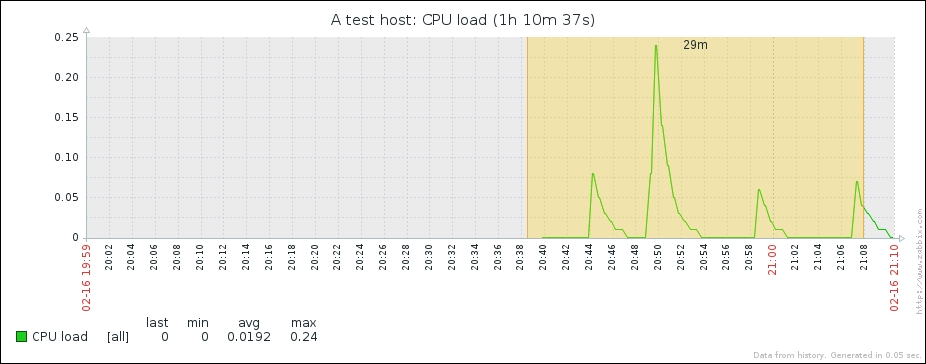
When used in a template, they prove quite useful in defining common thresholds for triggers, so if you need to modify a bunch of time-out triggers, you can just modify the {$NODATA} macro instead of changing every single trigger that uses it. User-defined macros can be used everywhere built-in macros can be used.

Note

If a user macro is used in items or triggers in a template, it is better to add that macro to the template in any case even if is defined on a global level. Doing so once you've exported your template to XML, you can freely import it into another system without taking the care to have all the user macros properly configured.

The usefulness is even greater when used in connection with nested templates, as we'll see in a short while.

The most common use cases of global and host macros are:

  • Using all the advantages of a template with host-specific attributes: port numbers, filenames, accounts, and so on

  • Using global macros for one-click configuration changes and fine-tuning

A practical example of macro usage can be the use of host-level macros in the item keys, such as Status of SSH daemon:

net.tcp.service[ssh,,{$SSH_PORT}]

This item can be assigned to multiple hosts once you've defined at the host level the value of {$SSH_PORT}. By doing so, you're generalizing a custom item where $SSH_PORT may change across servers; this can be done for HTTP services too, among others.

Importing and exporting templates


Zabbix provides a good and useful import/export functionality. The objects that can be exported and imported are the following:

  • Templates: This includes all directly attached items, triggers, graphs, screens, discovery rules, and template linkage

  • Hosts: This includes all directly attached items, triggers, graphs, discovery rules, and template linkage

  • Network maps: This includes all related images; map export/import is supported since Zabbix 1.8.2

  • Images

  • Screens

Note

Using the Zabbix API, it is possible to export and import even the host groups.

The export functionality is quite easy to understand; anyway, the import function has been extended. The following screenshot captures this discussion:

The import section is divided into three columns; the first one, Update existing, will force the update if an element is already defined. This function is fundamental if you want to update an element or simply add the missing objects. The second column, Create new, is quite simple to understand as it will enable the new element. The third and last column has been added with Zabbix 2.4. Delete missing, if selected, will delete all the elements that have not been exported if they are present in our setup.

As you can see, the Template objects are well defined as we can decide to export only Template screens, Template linkage and/or Templates.

Linking templates to hosts


To link a template to a host, you can either select the hosts you want to link from the template's configuration form, as we saw in the Creating templates section, or you can choose the template you need for a host in that host's configuration form by going into the Template tab.

Once linked, a host will inherit all of the template's entities. Previously existing entities with the same name will be overwritten, but entities not included in the template will remain as they are and will not be touched in any way by the linking operation.

All entities will maintain their original template's name when displayed in the configuration section of the web interface even when viewed from a host configuration page. However, this doesn't mean that modifying them from a template's configuration tab is the same as modifying them from a linked host's configuration tab.

If you modify an entity (item, trigger, graph, and so on) from a template's configuration tab, the modifications will apply immediately to all linked hosts. On the other hand, if you modify a template entity from a particular host's configuration tab, the changes will only apply to that host and not on a template level. While this can be useful to address any special circumstances for an otherwise regular host, it can also generate some confusion if you make many local changes that can become hard to keep track of. Moreover, not every aspect of a template entity can be modified at the host level. You can change the frequency of an item, for example, but not its key.

Unlinking a template from a host doesn't eliminate its entities unless you unlink and clear it. Be careful with this operation as all the items' historical data and trends would become unavailable. If you have collected any actual data, it's probably better to just unlink a template from a host and then disable any unused items and triggers, while retaining all of their historical data.

Nesting templates


Just as you can link a template to a host, you can also link a template to another template. The operation is identical to linking a template to a host; you navigate to the Linked templates tab in a template's configuration form and choose the templates you want to link.

While this may seem an awkward operation, it can prove quite useful in two cases.

The first application of nested templates is to make user macros even more general. Since a template inherits all of its linked templates' entities and properties, any custom macro will also be inherited and, thus, made available to the actual monitored hosts.

To take a concrete example, let's say you have a Template Macros template containing a {$PFREE} user macro with the value 5, among many others. You could use this macro to represent the amount of free disk space in percentages to check against, free available memory, or any other such threshold. This template could be linked to both the Template OS Linux and Template OS Windows templates, and the {$PFREE} macro used in these templates' triggers. From now on, if you ever need to modify the default value of the free disk space percentage to check against, you'll just need to change the original Template Macros template, and the updated value will propagate through the linked templates down to the monitoring hosts.

A second, somewhat more limited but still useful, way to use nested templates is to extend the inheritance beyond macros to all the other entities. This may become an advantage when you have a common set of features on a given technological layer but different uses on other layers. Let's take, for instance, the case where you have a large number of virtually identical physical servers that host just a couple of versions of operating systems (Linux and Windows, for simplicity's sake) but that in turn perform many different specialized functions: database, file server, web server, and so on.

You can certainly create a few monolithic templates with all the items you need for any given server, including hardware checks, OS checks, and application-specific ones. Alternatively, you can create a sort of hierarchy of templates. A common, hardware-level template that enables IPMI checks will be inherited by a couple of OS-specific templates. These, in turn, will be inherited by application-specific templates that will have names such as Linux Apache Template or Win Exchange Template. These templates will have all the items, triggers, and graphs specific to the applications that they are meant to monitor in addition to all the OS-specific checks they have inherited from the OS-level templates and the hardware-specific ones they have inherited from the HW-level templates. This means that, when creating a host, you will still just need to link it to a single template, but you'll also have a lot of flexibility in creating new templates and nesting them or modifying existing ones in only one place and watching the changes propagate along the template-linking chain. This also means maximum generality, while still maintaining the ability to make host-specific customizations if you need to.

Combining templates

Another way to make templates modular is to create specific templates for any given technological layer and product but not link them in a hierarchy at the template level.

You can instead link them—as many as you want—directly to the host you need to monitor as long as they don't have any conflicting or overlapping item names or keys. As in the preceding scenario, Host A could have an IPMI checks template, an OS Linux one, and an Apache server one linked, while Host B could have an IPMI checks template and an OS Linux one but then also have a PostgreSQL database template.

The end result is practically the same as the nested templates solution described previously, so which one should you choose? This is largely a matter of preference, but a possible criterion could be that if you have a relatively low number of low-level templates and good consistency in your hardware, OS, and technological configuration, the nested solution might be easier to manage. You'll only have to connect the templates once and then use them on a large number of hosts. This approach also works well with the host discovery facility as it keeps things simple when linking templates to hosts. If, on the other hand, you have a great number of low-level templates and great variability in your technological configuration and landscape, you may just as well pick and choose the templates you need when you create your hosts. Any pre-configuration, in fact, would only prove too rigid to be really useful. This approach works well if you want to always ponder how you are creating and configuring your hosts and also need a great deal of local customization that would make any aggressive inheritance feature a moot point.

Discovering hosts


A third way to link templates to hosts is to let the server do it automatically by combining Zabbix's host-discovery facility with discovery actions.

Zabbix's discovery facilities consist of a set of rules that periodically scan the network to look for new hosts or disappearing ones according to predetermined conditions.

The three methods that Zabbix can use to check for new or disappeared hosts, given an IP range, are:

  • The availability of a Zabbix agent

  • The availability of an SNMP agent

  • Response to simple external checks (FTP, SSH, and so on)

  • These checks can also be combined, as illustrated in the following example:

As you can see, when enabled, this rule will check every hour in the IP range 192.168.1.1-255 for any server that:

  • Responds to an ICMP ping probe

  • Has a correctly configured Zabbix agent that will return a value when asked for the system.uname item

  • Has an SMTP listening port, which is usually associated with a mail server

As usual, with all things Zabbix, a discovery rule will not do anything by itself, except generate a discovery event. It will then be the job of Zabbix's actions facility to detect the said event and decide whether and how to act on it. Discovery event actions are virtually identical to trigger event actions. As you saw trigger event actions in Chapter 6, Managing Alerts, the following are the only differences when it comes to discovery events.

First, action conditions are a bit different, as can be expected, as shown in this following screenshot:

Instead of hostnames and trigger specifications, you can set conditions based on things such as Discovery status, Service type, and Uptime/Downtime. The Received value condition is of particular interest as it allows things such as differentiating between operating systems, application versions, and any other information you can get from a Zabbix or SNMP agent query.

This kind of information will be critical when it comes to configuring the action's operations. The following screenshot shows this:

Sending a message and executing a remote command are the exact equivalents of the same operations available to trigger event actions. On the other hand, if adding (or removing) a host is quite a self-explanatory action when it comes to adding to a host group or linking to a template, it becomes clear that a good set of actions with specific received value conditions and template-linking operations can give a high level of automation to your Zabbix installation.

This high level of automation is probably more useful in rapidly changing environments that still display a good level of predictability depending on the kind of hosts you can find, such as fast-growing grids or clusters. In these kinds of environments, you can have new hosts appearing on a daily basis and perhaps old hosts disappearing at almost the same rate, but the kind of host is more or less always the same. This is the ideal premise for a small set of well-configured discovery rules and actions, so you don't have to constantly and manually add or remove the same types of hosts. On the other hand, if your environment is quite stable or you have very high host-type variability, you may want to look more closely at what and how many hosts you are monitoring as any error can be much more critical in such environments.

On the other hand, limiting discovery actions to sending messages about discovered hosts can prove quite useful in such chaotic environments or where you don't directly control your systems' inventory and deployment. In such a case, getting simple alerts about new hosts, or disappearing ones, can help the monitoring team keep Zabbix updated despite any communication failure between IT departments—accidental or otherwise.

The active agent auto-registration


Starting with Zabbix 2.0, it is possible to instruct the active Zabbix agent for auto-registration. This way, new hosts can be added for monitoring without configuring them manually on the server. The auto-registration of an unknown host can be triggered when an active agent asks for checks. This feature can be precious to implement an automatic monitoring of new cloud nodes. When a new node in the cloud comes up, Zabbix will automatically start collecting performance metrics and checking the availability of the host.

The active agent auto-registration can also monitor hosts that have passive checks. When the active agent asks for checks, provide them to the Zabbix server's ListenIP and ListenPort configuration parameters defined in the agent configuration file.

Note

Please note that if you have multiple IP addresses specified, only the first one will be sent to the server.

On the server side, Zabbix uses the IP and port that has been received by the agent.

Note

Here, in the event that the IP address has been delivered, Zabbix will use the IP address seen during the incoming connection. Also, if the port value is not delivered, Zabbix uses port 10050.

Configuring the auto-registration

Let's see how we can configure this feature; we will look first at the agent side. On the agent side, you need to have the Server parameter specified within the agent configuration file. Then, if you've specified even the Hostname parameter in zabbix_agentd.conf, the server will use it to register the new monitored host; otherwise, Zabbix will use the physical hostname.

On the server side, we need to configure an action, select Configuration | Actions, select Auto registration as the event source, and then click on Create action. In the screenshot that follows, we've created an action named Active auto-registration:

The real-case scenario

Here, you can play as much as you want with automation. If the hosts that will be auto-registering are supposed to be only supported for active monitoring (for instance, hosts that are behind a firewall), then it is worth creating a specific template and linking it to the new hosts. Let's see how we can play with auto-registration.

Here, to customize properly and automate the host configuration, we can define HostMetadata and HostMetadataItem on the agent side. A good example to understand this automation can be the following scenario—we would like to link Template OS Linux to all the auto-registered Linux hosts.

To do this, we need to add the following value to the /etc/zabbix/zabbix_agentd.conf agent configuration file:

HostMetadataItem=system.uname

Then, in our real-world scenario, HostMetadataItem will contain:

Linux servername.example.com 2.6.32-504.16.2.el6.x86_64 #1 SMP Wed Apr 22 06:48:29 UTC 2015 x86_64 x86_64 x86_64 GNU/Linux

Then, on the frontend, our action will be configured as follows:

With Conditions such as Host metadata like Linux, the Operations tab will contain the elements shown in the following screenshot:

As you can see, once all the Conditions of the relative tab are satisfied, the Operation tab will link the host to Template OS Linux.

Now, as you can see, if we package the agent with the configuration file premade, we can heavily reduce the startup time of new hosts.

Low-level discovery


An even more useful and important feature of Zabbix templates is their ability to support special kinds of items, which are called low-level discovery rules. Once applied to actual hosts, these rules will query the host for whatever kind of resources they are configured to look for: filesystems, network interfaces, SNMP OIDs, and more. For every resource found, the server will then dynamically create items, triggers, and graphs according to special entity prototypes connected to the discovery rules.

The great advantage of low-level discovery rules is that they take care of the more variable parts of a monitored host, such as the type and number of network interfaces, in a dynamic and general way. This means that, instead of manually creating specific items and triggers of every host's network interfaces or filesystems or creating huge templates with any possible kind of item for a particular operating system and keeping most of these items disabled, you can have a reasonable number of general templates that will adapt themselves to the specifics of any given host by creating on the fly any entity needed based on discovered resources and previously configured prototypes.

Out of the box, Zabbix supports four discovery rules:

  • Network interfaces

  • Filesystem types

  • SNMP OIDs

  • CPUs and CPU cores

As discovery rules are effectively a special kind of item, you can create your own rules, provided you understand their peculiarity compared to regular items.

If we don't consider the fact that you need to create and manage low-level discovery rules in the Discovery rules section of the template configuration and not in the usual Items section, the main difference between the two kinds of items is that while a regular item usually returns a single value, as explained in Chapter 4, Collecting Data, a discovery item always returns a list of macro/value pairs expressed in JSON. This list represents all the resources found by the discovery items together with the means to reference them.

The following table shows Zabbix's supported discovery items and their return values together with a generalization that should give you an idea on how to create your own rules:

Discovery item key

Item type

Return values

vfs.fs.discovery

Zabbix agent

{"data": [
{"{#FSNAME}":<path>",  "{#FSTYPE}":"<fstype>"},
…
] }
net.if.discovery

Zabbix agent

{"data":[
{"{#IFNAME}":"<name>"},
…
]}
system.cpu.discovery

Zabbix agent

{"data": [
{"{#CPU.NUMBER}":"<idx>",  "{#CPU.STATUS}":"<value>"},
…
] }
snmp.discovery

SNMP (v1, v2, or v3) agent

{"data":[
{"{#SNMPINDEX}":"<idx>", "{#SNMPVALUE}":"<value>},
…
]}
custom.discovery

Any

{"data":[
{"{#CUSTOM1}":"<value>","{#CUSTOM2}":"<value>"},
…
]}

Note

As with all SNMP items, an item key is not really important as long as it is unique. It's the SNMP OID value that you ask an agent for that makes the difference; you can create different SNMP discovery rules that look for different kinds of resources by changing the item key and looking for different OID values. The custom discovery example is even more abstract as it will depend on the actual item type.
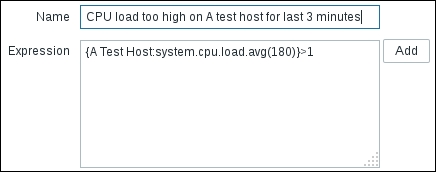

As you can see, a discovery item always returns a list of values, but the actual contents of the list change depending on what resources you are looking for. In the case of a filesystem, the returned list will contain values such as {#FSNAME}:/usr, {#FSTYPE}:btrfs, and so on, for every discovered filesystem. On the other hand, a network discovery rule will return a list of the names of the discovered network interfaces.
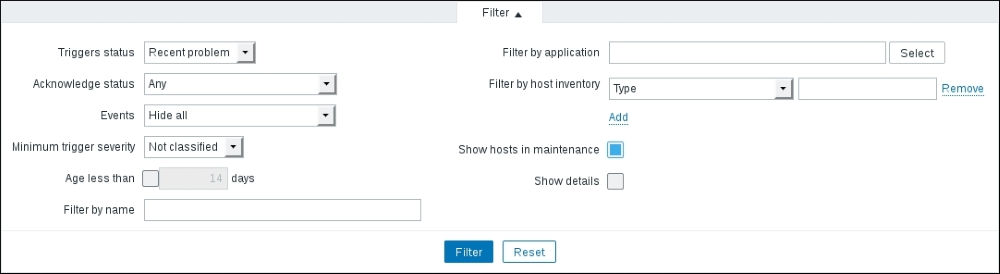
When configuring a template's discovery rules, you don't need to care about the actual values returned in such lists, nor the lists' length. The only thing you have to know is the name of the macros that you can reference in your prototypes. These are the second half of the mechanisms of low-level discovery. You create them as regular template entities, thus making sure that you use the discovery item macros where needed, as exemplified in the following screenshot:

When you apply the template to a host, it will create items, triggers, and graphs based on the resources discovered by the discovery items and configured according to the discovery prototypes.

Custom discovery rules, from this point of view, work exactly in the same way as custom items whether you decide to use agent-side scripts (thereby using a custom zabbix.agent item key), external scripts, database queries, or anything else. The only things you have to make sure of is that your custom items' return values must respect the JSON syntax as shown in the preceding table and that you reference your custom macros in the entities' prototypes that you will create.

Now, let's see how you can create a custom script to implement simple, low-level discovery.

In this example, we're going to use low-level discovery to find all the hard disks connected to a physical server. First of all, here we require a script, and this script needs to be deployed to the agent side and, of course, needs to produce JSON-formatted output.

The shell script used in this example is the following:

#!/bin/bash
disks=`ls -l /dev/sd* | awk '{print $NF}' | sed 's/[0-9]//g' | uniq`
elementn=`echo $disks| wc -w`
echo "{"
echo "\"data\":["
i=1
for disk in $disks
do
if [ $i == $elementn ]
then
    echo "    {\"{#DISKNAME}\":\"$disk\",\"{#SHORTDISKNAME}\":\"${disk:5}\"}"
else
    echo "    {\"{#DISKNAME}\":\"$disk\",\"{#SHORTDISKNAME}\":\"${disk:5}\"},"
fi
i=$((i+1))
done
echo "]"
echo "}"

This script will produce the following JSON-formatted output:

{
"data":[
    {"{#DISKNAME}":"/dev/sda","{#SHORTDISKNAME}":"sda"},
    {"{#DISKNAME}":"/dev/sdb","{#SHORTDISKNAME}":"sdb"},
    {"{#DISKNAME}":"/dev/sdc","{#SHORTDISKNAME}":"sdc"},
   ...
]
}

Practically, the script lists all the sd<X> devices after taking care to remove the duplicates, if present, and even the partition.

To enable the script on the agent side, we need to change the zabbix_agentd.conf configuration file and add the following lines:

EnableRemoteCommands=1
UnsafeUserParameters=1
UserParameter=discovery.hard_disk,/<location-of-our-script>/discover_hdd.sh 

Of course, once done, we need to restart the Zabbix agent on the remote machine. Now it's time to define the discovery rule, as shown in the next screenshot:

Then, we need to define the item and trigger prototype based on #DISKNAME or #SHORTDISKNAME we've just found. A good example of an item prototype is the I/O currently in progress on our discovered hard disk. To acquire this metric, we can simply check /proc/diskstats:

$ grep sda /proc/diskstats |head -1 | awk '{print $12}'
19

And, as you can see, we get back the number of I/Os done at the moment.

Note

For greater detail about /proc/diskstats, refer to the official kernel documentation available at https://www.kernel.org/doc/Documentation/ABI/testing/procfs-diskstats.

You can see that there are quite a few interesting metrics that we can acquire and historicize for capacity planning and management. Then, we can register UserParameter in our Zabbix agent to retrieve those metrics. A good set of them can be:

UserParameter=custom.vfs.dev.read.ops[*],grep $1 /proc/diskstats | head -1 | awk '{print $$4}'
UserParameter=custom.vfs.dev.read.ms[*],grep $1 /proc/diskstats | head -1 | awk '{print $$7}'
UserParameter=custom.vfs.dev.write.ops[*],grep $1 /proc/diskstats |  head -1 | awk '{print $$8}'
UserParameter=custom.vfs.dev.write.ms[*],grep $1 /proc/diskstats |  head -1 | awk '{print $$11}'
UserParameter=custom.vfs.dev.io.active[*],grep $1 /proc/diskstats |  head -1 | awk '{print $$12}'
UserParameter=custom.vfs.dev.io.ms[*],grep $1 /proc/diskstats |  head -1 | awk '{print $$13}'
UserParameter=custom.vfs.dev.read.sectors[*],grep $1 /proc/diskstats |  head -1 | awk '{print $$6}'
UserParameter=custom.vfs.dev.write.sectors[*],grep $1 /proc/diskstats |  head -1 | awk '{print $$10}'

Once done, we need to restart the agent. We can now test the metric on the agent side itself with:

[root@ localhost ~]# zabbix_get -s 127.0.0.1 -k custom.vfs.dev.io.active[sda]
27

Now, let's define Item prototype using #SHORTDISKNAME, as shown in the next screenshot:

The {#SHORTDISKNAME} macro is used in the item's key, and, in the item's name, we're going to use {#DISKNAME}. Note that the $1 macro from the script references the first argument of the item's key. With the same process, we can create the prototype for all the other registered items. When you configure a template's discovery rules, there is no need to care about the actual values returned in their lists or about the list's length. The only thing that you have to know is the name of the macro that you can reference in your prototypes.

You can create them as regular template entities, such as Item prototype, Trigger prototype, Graph prototype, and Host prototype, making sure you use the discovery item macros where needed, and Zabbix will take care of the rest for you, by creating as many items as there are elements in the list returned by the discovery rule for each item prototype, as many triggers as there are elements in the list returned for each trigger prototype, and so on. The following screenshot shows this:

Host prototypes can be created with the low-level discovery rule, and then, when a server is discovered, the prototypes become real hosts. It is important to know that prototypes, before becoming discovered, cannot have their own items and triggers other than those from the linked templates. When a host is discovered, the hosts will belong to an existing host and will take the same IP of the existing host.

Summary


This chapter concludes the central part of the book, which is dedicated to developing a deeper understanding of the Zabbix monitoring system's core functions. The effective configuration and use of templates build on all the knowledge gained from using and analyzing items, graphs and screens, triggers, and actions. To this knowledge, this chapter has added a few template-specific aspects that should help to tie all of the previous chapters together. From choosing what to monitor and how to configure different item types, to putting together information-rich visualization items, at this point in the book, you can perform all the tasks associated with implementing and managing a monitoring system. You should also be able to select the triggers and actions that are most significant in order to maximize the expressiveness of your alerts, while avoiding false positives. Finally, you should not have any problems bringing it all together through the use of macros and nested and combined templates in order to apply a consistent and meaningful configuration to a wide range of hosts and to further automate these operations through host-level discovery actions and the low-level discovery facilities of Zabbix's templates.

The final part of the book will be about further customization options for Zabbix, how to extend its functionality, and how to really integrate it with the rest of your IT management systems in order to bring out its full power.

The next chapter will focus on writing extension scripts for Zabbix and its monitoring protocol.

Chapter 8. Handling External Scripts

Until now, you have learned how most of a server's components work and how to leverage Zabbix to acquire data from various external sources. Considering that, set up your monitoring system in a large, heterogeneous, and complex infrastructure. Most probably, you will find a different custom device, server appliance, and proprietary hardware. Usually, all those devices have an interface to be enquired, but, unfortunately, it often happens that most of the metrics are not exposed via Simple Network Management Protocol (SNMP) or any other standard query method.

Let's consider a practical example. Nowadays, all the UPSes own a temperature sensor, and if you are in a complex infrastructure, it is possible that those UPS's are custom made and out of standard, and, most probably, this sensor can be enquired only with a tool provided from the UPS vendor. Now, the temperature of a UPS is a critical parameter, especially if the UPS is a big, custom-made UPS. It is really important to monitor these metrics.

Imagine that your cooling system is not working properly; receiving an alarm right when the temperature reaches over the warning level is fundamental. On the other hand, predicting the failure will save a lot of money. Also, even if the physical damage is not really expensive, the downtime can cost a lot of money and have a terrible impact on your business. A good example is the case of a trading company. In this scenario, everything should be in perfect working order. In this environment, there is terrible competition to achieve better performance against competitors—buying a stock option some milliseconds before the others is a big advantage. Here, it is easy to understand that, if servers are not performing well, it is already an issue; if they are down, it is a complete disaster for the company. This example explains how critical it is to predict a failure. Moreover, it is important to understand how critical it is to retrieve all functioning parameters of your infrastructure. This is where Zabbix comes to the rescue, providing interesting methods to retrieve data that interacts with the operating system, eventually enabling you to use a command-line tool. Zabbix's responses to this kind of requirement are as follows:

  • External checks (server side)

  • UserParameter (agent side)

  • Zabbix_sender: This binary can be used on both the agent side and the server side

  • A simple, efficient, and easy-to-implement communication protocol

This chapter will entirely explore those alternatives to interact with the operating system and receive data from external sources. In this chapter, you will learn that there isn't a general, optimal, valid solution for all the problems, but each of them has its pros and cons. This chapter will make you aware of all the things that need to be considered when you implement a custom check. The analysis proposed in this chapter will enable you to choose the best solution for your problems.

This chapter will cover the following points:

  • Writing a script and making it available as external scripts

  • The advantages and disadvantages of scripts on the server side and on the agent side

  • Exploring alternative methods to send data to your Zabbix server

  • Detailed documentation about the Zabbix protocol

  • Commented educational implementation of the Zabbix sender protocol

External checks


Zabbix provides features to cover all the items that cannot be retrieved with the standard agent. In real life, it is possible that you are not able to install the standard agent on the device that you would like to monitor. A practical example is the UPS, all the servers that, for some reason, cannot be compromised when installing external software, or all the appliances that cannot have custom software installed.

Now, for all those reasons, you cannot have an agent on your device but you need to monitor the vital parameters of this device, the only feasible solution for which is to use an external check.

The script's placement

The script's location on Zabbix is defined in the zabbix_server.conf configuration file. Since Zabbix Version 2.0, the default location has changed to /usr/local/share/zabbix/externalscripts.

Note

The default location depends on the compile time from the datadir variable. Actually, the default location is ${datadir}/zabbix/externalscripts. This rule is valid for both proxy and server components.

Previously, it was defined as /etc/zabbix/externalscripts; anyway, you can change it by simply specifying a different location on zabbix_server.conf using the ExternalScripts parameter:

### Option: ExternalScripts
# Mandatory: no
# Default:
# ExternalScripts=${datadir}/zabbix/externalscripts
ExternalScripts=/usr/lib/zabbix/externalscripts

There are some important enhancements in external checks and scripts have been introduced since Zabbix versions 2.2 and 2.4:

  • The key syntax now supports multiple comma-separated parameters

  • There is support for user macros in script commands

  • User parameters, global scripts, and external checks now return the standard error along with the standard output—this can be managed within your trigger

  • There is support for multiline values

Now, let's see how external checks work in detail.

Going deep into external checks

Now, it is time for a practical example. This is an easy example to understand how an external script works. In the following example, we will count the number of open files for a specified user. The first thing to do is create the script and place it in the ExternalScripts location. The script will be called lsof.sh and will contain the following code:

#!/bin/bash
if grep -q  $1 /etc/passwd
        then  lsof -u $1 | tail -n +2 |wc -l
 else
        echo 0
fi

This software requires the username as an input parameter; check whether the username exists on the system, and then return the number of open files for that account.

Now, you only need to create a new item of the External check type. In the Key field, enter lsof.sh["postgres"], as shown in the following screenshot:

Now, on navigating to Monitoring | Latest Data, it is possible to see the data retrieved by our script:

The external script must be come back in a reasonable time; otherwise, the item will be marked as unsupported.

Note

Until now, we've considered the case of a Zabbix server that directly monitors a host using an external script. Bear in mind that if your host is monitored via a Zabbix proxy, the script needs to be placed on the proxy itself as the script must run from the proxy.

Now that you know how ExternalScripts works, it is time to see how we can implement something more complex thanks to this feature.

In the next example, we will monitor certain remote Oracle instances. There are some prerequisites to have this setup fully working: an Oracle client installed with a working sqlplus, a tnsping, and an account configured on your Oracle database target.

The latest version of this software is available for download at http://www.smartmarmot.com/product/check_ora.

Anyway, it is interesting to see how it evolved from Version 1.0. Version 1.0 is available for download directly on the Zabbix forum at https://www.zabbix.com/forum/showthread.php?t=13666.

This script is a good example of an external check. Basically, to have everything properly configured, you need to do the following:

  1. Create a user account on all your monitored databases.

  2. Configure your Oracle client.

  3. Decompress the package on your external script location.

  4. Configure your database account at <EXTERNAL_SCRIP_LOCATION>/check_ora/credentials.

  5. Create a host with the same name as your database instance.

The last point is of particular importance and is a particular mode of using Zabbix. This method can be reused every time you need to aggregate metrics that are not tied to a real host but to a service. To do a practical example, if you have a DBMS that can failover against another server, you can simply create a Zabbix fake host that is called with the same name as that of your database. Now, if the services do failover, you don't have an interruption on your collected data because the failover process is transparent from the server that provides the service. This method is applied here because the Oracle client will handle a failover automatically once properly configured.

Now, you can go ahead and create a host with the same name as that of your SID, for example, you have an Oracle instance to monitor that is defined as ORCL on tnsnames.ora; thus, the Zabbix host will be ORCL.

Note

You can create hosts tied to the name of the service; this enables you to abstract the service from the host that is providing the service.

The detailed configuration of an Oracle client is out of the scope of this book. Once you complete the configuration, you can test the script by simply running the following command:

check_ora.sh[-i <instance> -q <query>]

In the preceding command line, <instance> represents your instance name and <query> is the query file that you would like to run. There is a large number of query files prebuilt in the check_ora directory; you can check all of them against your database.

Note

The usage of Oracle SID or an Oracle instance name as the hostname on Zabbix is really useful here. It can be expanded by the {HOSTNAME} macro, so you can simply create a key such as check_ora.sh [-i {HOSTNAME} –q query] on your template, and it will be expanded across all your databases.

Now, in the Zabbix host, you need to create the item to retrieve the external check, and the key will be as follows:

check_ora.sh[-i {HOSTNAME} –q <queryhere>] 

For example:

key="check_ora.sh[-i {HOSTNAME} -q lio_block_changes]"

The template is available on the forum at the same location. Note that {HOSTNAME} is expanded with the hostname, which, in our case, is exactly the Oracle instance name. You can have a generalized template using the {HOSTNAME} macro, and their items are propagated across all your databases' hosts.

Now, the life cycle of this item will be the following:

  1. Zabbix calls the script.

  2. The script will perform the following:

    • Log in to the database

    • Execute the query and retrieve the value

    • Return the value on the standard output; Zabbix will receive the value, and, if it is valid, it will be stored

Going inside the script

The core function of check_ora.sh is execquery(). The function is the following:

execquery () {
start_time=$(date +%s)
#        echo "Time duration: $((finish_time - start_time)) secs."
echo "BEGIN check_ora.sh  $1 $2 `date`"  >> /tmp/checkora.log
   cd $SCRIPTDIR;
   sqlplus -S $1 <<EOF | sed  -e 's/^\ *//g'
set echo off;
set tab off;
set pagesize 0;
set feedback off;
set trimout on;
set heading off;
ALTER SESSION SET NLS_NUMERIC_CHARACTERS = '.,';
@$2
EOF
finish_time=$(date +%s)
echo "END check_ora.sh  $1 $2 `date`"  >> /tmp/checkora.log
echo "check_ora.sh  $1 $2 Time duration: $((finish_time - start_time)) secs."  >> /tmp/checkora.log
}

This function will begin producing log information on /tmp/checkora.log:

start_time=$(date +%s)
#        echo "Time duration: $((finish_time - start_time)) secs."
echo "BEGIN check_ora.sh  $1 $2 `date`"  >> /tmp/checkora.log

Those are useful to understand which external check is ongoing and against which database. Plus, in the log file, you will find the elapsed time for the whole operation:

finish_time=$(date +%s)
echo "END check_ora.sh  $1 $2 `date`"  >> /tmp/checkora.log
echo "check_ora.sh  $1 $2 Time duration: $((finish_time - start_time)) secs."  >> /tmp/checkora.log
}

Since this file is shared (between the check_ora.sh process) and the Zabbix calls are not serialized, it is important to report the script-calling line twice so that you can identify exactly which stating line corresponds to which finish line. Here, to avoid any doubt, the elapsed is calculated and reported on the finish message.

After the script, call sqlplus:

sqlplus -S $1 <<EOF | sed  -e 's/^\ *//g'

Here, sed cleans up the white space at the beginning of the output. This is because the returned data is a number that cannot begin with blank spaces; if that happens, the item will become unsupported!

The following code snippet makes an Oracle client less verbose:

set echo off;
set tab off;
set pagesize 0;
set feedback off;
set trimout on;
set heading off;

The preceding lines are important to avoid noise in the output. The following code snippet explains the separator that should be used:

ALTER SESSION SET NLS_NUMERIC_CHARACTERS = '.,';

This section is important because you can have databases installed for different reasons with different character sets. Also, the client can use a different separator for decimals. You need to avoid all the uncontrolled charset conversions, and this is a general rule. Finally, the script executes the query file in the following way:

@$2
EOF

The output is returned in a standard output and is collected from Zabbix.

General rules for writing scripts

This script covers all the critical points that you need to pay attention to:

  • Don't introduce unwanted characters into the output

  • Be aware of the type; so, if a number is expected, remove all the unneeded characters (such as heading spaces)

  • Avoid local conversions of numbers; the case of the dot and comma is a good example

  • Have a log, keeping in mind that external scripts are not serialized, so you can have your log messages mixed in your log file

  • Be aware of the time spent by the script from when the script is called until the script provides the output

  • Those scripts, of course, run with the Zabbix server user, so perhaps you need to take care of file permissions and sudo privileges

Note

Starting with Zabbix 2.4, the standard output is tied together with the standard error; it is important to manage all the exceptions and errors within the script.

Remember that, if the requested script is not found or the Zabbix server has no permissions to execute it, the item will become unsupported. Also, in the case of a timeout, in both of the preceding cases an error message will be displayed and the forked process for the script will be killed.

Considerations about external checks

In this section, you have seen how external checks can be executed and how a complex task, such as database monitoring, is handled with them. If you have few external checks to implement, this can be a feasible solution to retrieve metrics. This kind of approach with externals checks, unfortunately, is not the solution to all the problems. On the other hand, you need to consider that they are really resource intensive and were once widely applied. Since external checks are on the server side, it is better not to overload the Zabbix server.

Note

Each ExternalScripts script requires the Zabbix server to start a fork process; running many scripts can decrease Zabbix's performance a lot.

The Zabbix server is the core component of your monitoring infrastructure, and you can't steal resources from this server.

The user parameter


The simple thing to do is to avoid extensive resource usage by your script by placing the script on the agent side. Zabbix provides an alternative method, and the script should instead be on the server side and load the Zabbix server; it can be offloaded to the agent side with UserParameter.

UserParameter is defined on the agent configuration file. Once it is configured, it is treated in the same way as all the other Zabbix agent items by simply using the key specified in the parameter option. To define a user parameter, you need to add something similar to the following to the agent configuration file:

UserParameter=<key>,<shell command>

Here, key must be unique and the shell command represents the command to execute. The command can be specified here inline and doesn't need to be a script, as shown in the following example:

UserParameter=process.number, ps -e |wc -l

In this example, the process.number key will retrieve the total number of processes on your server.

With the same kind of approach, you can check the number of users currently connected with the following code:

UserParameter=process.number, who |wc -l

The flexible user parameter

It is easy to understand that using this method you are going to define a large number of entries inside the agent configuration file. This is not the right approach because it is better to keep the configuration file simple.

Zabbix provides an interesting UserParamenter feature to avoid the proliferation of those items on the agent side—the flexible user parameter. This feature is enabled with an entry of this kind:

UserParameter=key[*],<shell command>

Here, key still needs to be unique, and the [*] term defines that this key accepts the parameters. The content between the square brackets is parsed and substituted with $1...$9; please note that $0 refers to the command itself. An example of UserParameter can be the following:

UserParameter=oraping[*],tnsping $1 | tail -n1

This command will execute tnsping to your SID, passing it as $1. You can apply the same method in the process to count specified users as follows:

UserParameter=process.number[*], ps -e |grep ^$1 | wc -l

Then, if we want to move to the agent side for the first script that returns the number of open files for a defined user, the configuration will be the following:

UserParameter=lsof.sh[*],/usr/local/bin/lsof.sh $1

Once this has been added, you only need to restart the agent. On the server side, you need to switch the item Type to Zabbix agent and save it. The following screenshot depicts this discussion:

With the same method, you can configure the check_ora.sh script to check the database with the following code:

UserParameter=check_ora.sk[*],check_ora.sh –i $1 –q $2

On the Zabbix server side, you need to create an item of the Zabbix agent type or the Zabbix agent (active) type, and on the key you need to specify:

check_ora.sk[<databasename> <query_to_execute>]

Note

You can test UserParameter using the command line, as previously described, or using the zabbix_get utility. With zabbix_get, you don't need to wait to see data between the latest data, and it is easier to debug what is happening on the agent side.

There are methods to test whether your UserParameter is working fine and the agent is able to recognize it. The first one is with zabbix_get; for example, in the case of losf.sh from the Zabbix server, we can use the following:

# zabbix_get -s 127.0.0.1 -p 10050 -k lsof.sh["postgres"]
2116

The response is the result of the operation. Alternatively, we can log on to the monitored host and run the following command:

#/usr/sbin/zabbix_agentd -t lsof.sh["postgres"]
lsof.sh[postgres][/usr/local/bin/lsof.sh postgres] [t|2201]

Again, this will display the output and the script that is called.

Considerations about user parameters

With UserParameter, you moved the script from the server side to the agent side. The workload introduced by the script is now on the agent side, and you avoided resource stealing on the server side. Another point to consider is that this approach divides the workload between multiple servers. Obviously, each agent will monitor the database present on its hosts.

The UserParameter parameters are really flexible. To enable them on the agent side, you need to change the configuration file and restart the agent. Also, here you need to be sure that the returned value is properly set; if it isn't properly set, it will be discarded.

Now, between the cons, you need to consider the observer effect (discussed in Chapter 1, Deploying Zabbix) introduced with this kind of monitoring. You need to keep things as lightweight as possible, especially because the agent runs on the same server that provides the service.

The usage of UserParameter implies that you need to distribute the scripts and the relative updates across all your servers. In this example, where you want to monitor Oracle, you need to consider how many different versions of operating systems and software you need to handle. It is possible that in time, you will need to handle a myriad of different flavors of your scripts and software. This myriad of scripts, versions, and so on will force you to have centralized deployment, that is, all the versions of the scripts are stored in a centralized repository. In addition, you need to take care of the workload added by your scripts and, if they don't handle all the possible exceptions well, this can be a really complex scenario to manage.

UserParamenter is really good, flexible, and sometimes indispensable to solve some monitoring requirements, but is not designed for massive monitoring against the same host. For all these reasons, it is time to explore another way to massively monitor the items that Zabbix doesn't support natively.

The following are certain very important points about external scripts and UserParamenter:

  • All pieces of input are passed as parameters to the script and should properly be properly sanitized within the script to prevent command injection.

  • All values are returned via STDOUT and should be in the format of the expected return type. Returning nothing will cause the Zabbix server to flag this item as unsupported.

  • Make sure that all scripts terminate in a short period of time.

  • Make sure that scripts do not share or lock any resources, or have any other side effects, to prevent race conditions or incorrect interactions from incurring multiple executions.

Sending data using zabbix_sender


Until now, you have seen how to implement external checks on both the server side and the agent side, which involves moving the workload from the monitoring host to the monitored host. You can understand how both methods in the case of heavy and extensive monitoring are not the best approach since we are thinking of placing Zabbix in a large environment. Most probably, it is better have a server dedicated to all our checks and use those two functionalities for all the checks that are not widely run.

Zabbix provides utilities designed to send data to the server. This utility is zabbix_sender, and with it, you can send the item data to your server using the items of a Zabbix trapper type.

To test the zabbix_sender utility, simply add a Zabbix trapper item to an existing host and run the command:

zabbix_sender -z <zabbixserver> -s <yourhostname> -k <item_key> -o <value>

You will get a response similar to the following:

Info from server: "Processed 1 Failed 0 Total 1 Seconds spent 0.0433214"
sent: 1; skipped: 0; total: 1

You just saw how easy the zabbix_sender utility is to use. That said, now we can dedicate a server to all our resource-intensive scripts.

The new script

Now, we can change the script that has been previously used as an external check and add UserParameter to a new version that sends traps to your Zabbix server.

The core part of the software will be as follows:

  CONNECTION=$( grep $HOST\; $CONNFILE | cut -d\; -f2) || exit 3;
  RESULT=$( execquery $CONNECTION $QUERY.sql);
  if [ -z "$RESULT" ]; then
         send $HOST $KEY "none"
         exit 0;
  fi
  send $HOST $QUERY "$RESULT"
  exit 0; 

This code executes the following steps:

  1. Retrieving the connection string from a file:

      CONNECTION=$( grep $HOST\; $CONNFILE | cut -d\; -f2) || exit 3;
  2. Executing the query specified into the $QUER.sql file:

      RESULT=$( execquery $CONNECTION $QUERY.sql);
  3. Checking the result of the query and if it is not empty, sending the value to Zabbix; otherwise, the value is replaced with "none":

    if [ -z "$RESULT" ]; then
             send $HOST $KEY "none"
             exit 0;
      fi
      send $HOST $KEY "$RESULT"

In this code, there are two main functions in play: one is the execquery() function that basically is not changed, and the other is the send() function. The send() function plays a key role in delivering data to the Zabbix server:

send () {
   MYHOST="$1"
   MYKEY="$2"
   MYMSG="$3"
   zabbix_sender -z $ZBX_SERVER -p $ZBX_PORT -s $MYHOST -k $MYKEY -o "$MYMSG"; 
}

This function sends the values passed by using a command line just as with the one already used to test the zabbix_sender utility. The value sent on the server side will have the corresponding item of the trapper kind, and Zabbix will receive and store your data.

Now, to automate the whole check process, you need a wrapper that polls between all your configured Oracle instances, retrieves the data, and sends it to Zabbix. The wrapper acquires the database list and the relative credential to log in from a configuration file, and you need to call your check_ora_sendtrap.sh script recursively.

Writing a wrapper script for check_ora_sendtrap

Since this script will run from crontab, as the first thing, it will properly set up the environment to source a configuration file:

source /etc/zabbix/externalscripts/check_ora/globalcfg

Then, go down to the script directory. Please note that the directory structure has not been changed for compatibility purposes:

cd /etc/zabbix/externalscripts

Then, it begins to execute all the queries against all the databases:

for host in $HOSTS; do
  for query in $QUERIES; do
          ./check_ora_sendtrap.sh -r -i $host -q ${query%.sql} &sleep 5
   done;
   ./check_ora_sendtrap.sh -r -i $host -t &
   sleep 5
   ./check_ora_sendtrap.sh -r -i $host -s &
done;

Note that this script executes all the queries and retrieves the tnsping time and the connection time for each database. There are two environment variables that are used to cycle between hosts and queries; they are populated with two functions:

HOSTS=$(gethosts)
QUERIES=$(getqueries)

The gethost functions retrieve the database name from the configuration file:

/etc/zabbix/externalscripts/check_ora/credentials
gethosts () {
   cd /etc/zabbix/externalscripts/check_ora
   cat credentials | grep -v '^#' | cut -d';' -f 1
}

The getquery function goes down into the directory tree, retrieving all the query files present:

getqueries () {
   cd /etc/zabbix/externalscripts/check_ora
   ls *.sql
}

Now, you only need to schedule the wrapper script on crontab by adding the following entry to your crontab:

*/5 * * * * /etc/zabbix/externalscripts/check_ora_cron.sh

Your Zabbix server will store and graph data.

Note

All the software discussed here is available on SourceForge at https://sourceforge.net/projects/checkora released on GPLv3 and at http://www.smartmarmot.com/.

The pros and cons of the dedicated script server

With this approach, we have a dedicated server that retrieves data. This means you do not overload the server that provides your service or the Zabbix server, and this is really a good point.

Unfortunately, this kind of approach lacks flexibility, and in this specific case, all the items are refreshed every 5 minutes. On the other hand, with the external checks or UserParameter, the refresh rate can vary and be customized per item.

In this particular case, where a database server is involved, there is an observer effect introduced by our script. The query can be as lightweight as you want, but to retrieve an item, sqlplus will ask Oracle for a connection. This connection will be used only for a few seconds (the time needed to retrieve the item), after which the connection is closed. All this workflow basically lacks connection pooling. Using connection pooling, you can perceptibly reduce the observer effect on your database.

Note

Reducing the overhead with connection pooling is a general concept, and it is not tied with a vendor-specific database. Databases, in general, will suffer if they are hammered with frequent requests for a new connection and a close connection.

Pooling the connection is always a good thing to do in general. To better understand the benefit of this methodology, you can consider a complex network with a path that crosses different firewalls and rules before arriving at a destination; this is the clear advantage to have a persistent connection. To have a pool of persistent connections kept valid with keep-alive packed reduces the latency to retrieve the item from your database and, in general, the network workload. Creating a new connection involves the approval process of all the firewalls crossed. Also, you need to bear in mind that, if you are using Oracle, first a connection request is made against the listener that will require a callback once accepted and so on. Unfortunately, connection pooling can't be implemented with the shell components. There are different implementations of connection pooling, but before we go deep into the programming side, it is time to see how Zabbix protocols work.

Working with Zabbix protocols


Zabbix protocols are quite simple; this is a strong point because it is simple to implement your own custom agent or software that sends data to Zabbix.

Zabbix supports different versions of protocols. We can divide the protocols into three families:

  • Zabbix get

  • Zabbix sender

  • Zabbix agent

The Zabbix get protocol

The Zabbix get protocol is really simple and easy to implement. Practically, you only need to send data to your Zabbix server at the port 10050.

This protocol is so simple that you can implement it with a shell script as well:

This is a textual protocol and is used to retrieve data from the agent directly. [root@zabbixserver]# telnet 127.0.0.1 10050
Trying 127.0.0.1...
Connected to 127.0.0.1.
Escape character is '^]'.
agent.version
ZBXD2.0.6Connection closed by foreign host.

This example shows you how to retrieve the agent version simply with a telnet. Please note that the data is returned with a header that is ZBXD, followed by the data that represents the actual response 2.0.6.

This simple protocol is useful to retrieve data directly from the agent installed into our server and use it in a shell script.

This protocol is useful to identify the agent version without logging on to the server and to check all the instances of UserParameter defined against an agent.

The Zabbix sender protocol

The Zabbix sender protocol is a JSON-based protocol. The message composition is the following:

<HEADER><DATA_LENGTH><DATA>

The <HEADER> section is of 5 bytes, and it is in the form ZBXD\x01. Actually, only the first 4 bytes are the header; the next byte is used to specify the protocol version. Currently, only Version 1 is supported (0 x 01 HEX).

The <DATA_LENGTH> section is 8 bytes in length and in the hex format. So, for instance, 1 is formatted as 01/00/00/00/00/00/00/00, an 8-byte (or 64-bit) number in the hex format.

It is followed by <DATA>. This section is expressed in the JSON format.

Note

From version 2.0.3, Zabbix can receive only 128 MB of data to prevent the server from running out of memory. This limit has been added to protect the server from crashes caused by a large amount of data input.

To send the value, the JSON message needs to be in the following form:

<HEADER><DATALEN>{
  "request":"sender data",
  "data":[
  {
    "host":"Host name 1",
    "key":"item_key",
    "value":"XXX",
    "clock":unix_time_format
  },

  {
    "host":"Host name 2",
    "key":"item_key",
    "value":"YYY"
  }
  ], 
"clock":unix_time_format
}

In the previous example, as you can see, multiple items are queued on the same message if they come from different hosts or are referred to as different item keys.

Note

The "clock" term is optional in this protocol and can be omitted on the JSON object as well as at the end of the data section.

Once all the items are received, the server will send back the response. The response has the following structure:

<HEADER><DATALEN>{ 
  "response":"success",
  "info":"Processed 6 Failed 1 Total 7 Seconds spent 0.000283"
}

This example reports a response message; the following are some considerations:

  • The response has a status that can be [success|failure] and refers to the whole transmission of your item list to the Zabbix server.

  • It is possible, as shown in this example, that some of the items failed. You simply receive a notification and you can't do much more than notify and write this status in a log file.

Note

It is important to keep track of the time spent to send your item list because if this value becomes high or has a detectable variation, it means that our Zabbix server suffers on receiving items.

Unfortunately, this protocol does not give you feedback on which items failed and the reason for failure. At the time of writing this, there are two requested features that are still pending:

Now you know how the Zabbix sender protocol works on version 1.8 and higher.

Another issue is that the Zabbix sender protocol until now doesn't support any kind of encryption, which can cause an issue in the case of sensitive data that is sent in clear text. We also need to consider the case of a hacker who would like to hide his activity behind a large number of alarms or triggers on fire. With this protocol, the hacker can easily send a false alarm in order to set the trigger on fire and then proceed with his activity unnoticed.

Fortunately, this feature has now been taken into consideration, and the team is working on an SSL version or, better, a TLS version.

For more information, you can have a look at the ticket at https://support.zabbix.com/browse/ZBXNEXT-1263.

An interesting undocumented feature

There is an interesting sender's feature that is not widely known and not well documented. While going deep into protocol analysis, the first thing to do is read the official documentation, and the second is to check how Zabbix will implement it; it is possible that not all the minor changes are updated in the documentation.

Then, looking into the zabbix_sender code, you can find the section where the protocol is implemented:

zbx_json_addobject(&sentdval_args.json, NULL);
zbx_json_addstring(&sentdval_args.json, ZBX_PROTO_TAG_HOST, hostname, ZBX_JSON_TYPE_STRING);
zbx_json_addstring(&sentdval_args.json, ZBX_PROTO_TAG_KEY, key, ZBX_JSON_TYPE_STRING);
zbx_json_addstring(&sentdval_args.json, ZBX_PROTO_TAG_VALUE, key_value, ZBX_JSON_TYPE_STRING);

The preceding code snippet implements the Zabbix JSON protocol and, in particular, this section:

"host":"Host name 1",
"key":"item_key",
"value":"XXX",

Until here, the protocol has been well documented. Right after these lines there are interesting sections that add one more property to our JSON item.

if (1 == WITH_TIMESTAMPS)
   zbx_json_adduint64(&sentdval_args.json, ZBX_PROTO_TAG_CLOCK, atoi(clock));

Here, a timestamp is provided within the item and is added as a property of the JSON object, after which the item is closed as follows:

zbx_json_close(&sentdval_args.json);

Note

The clock is defined as an unsigned int64 variable.

This is a really important property because, if you write your own zabbix_sender, you can specify the timestamp of when the item has been retrieved.

The important thing is that by testing this section, Zabbix stores the clock time of when the item has been retrieved at the specified clock time on the database.

Using the clock properties in JSON items

Now this property can be used to optimize your sender. Zabbix supports 128 MB of data for a single connection. Of course, it is better to be far from that limit because if we reach that limit, it is a sign that our implementation is not well done.

The clock feature can be used in two scenarios:

  • If buffer items need to be sent and if they are sent inside a single connection in bursts

  • If the server is not available, you can cache and send the item later

The first usage of this feature is clearly an optimization to keep the whole communication as lightweight as possible, and reducing the number of connections against our Zabbix server can prevent issues.

The second way to enable this is to implement a robust sender, which can handle a Zabbix server downtime and preserve your item in a cache, ready to be sent once the server is backed up and running. Please be aware not to flood the server if it is not reachable for a long period of time. Manage the communication by sending a reasonable number of items and not a long trail of items.

The Zabbix agent protocol

This protocol is a bit more complex because it involves more phases and the dialogue is more articulated. When an active agent starts, the first thing it does is connect to the server and ask for a task to perform, in particular, which item is to be retrieved and the relative timing.

Also, in the following code, the form of the protocol is the same as used previously:

<HEADER><DATA_LENGTH><DATA>

The <HEADER>, <DATA_LENGTH>, and <DATA> tags are as explained in the previous section.

The dialogue begins when the agent sends the following request to the server:

<HEADER><DATALEN>{
   "request":"active checks",
   "host":"<hostname>"
}

With this kind of request, the agent is going to ask for a specified hostname in the active checklist. The server response will, for instance, be as follows:

<HEADER><DATALEN>{
  "response":"success",
  "data":[{
    "key":"log[\/var\/log\/localmessages,@errors]",
    "delay":1,
    "lastlogsize":12189,
    "mtime":0
  },
  {
    "key":"agent.version",
    "delay":"900"
    }]
"regexp":[
  {
    "name":"errors",
    "expression":"error",
    "expression_type":0,
    "exp_delimiter":",",
    "case_sensitive":1
  }]
}

The Zabbix server must respond with success, followed by the list of items and the relative delay.

Note

In the case of log and logrt items, the server should respond with lastlogsize. The agent needs to know this parameter to continue the work. Also, mtime is needed for all the logrt items.

"regexp", which, in this example, is the response back to the agent, will exist only if you have defined global or regular expressions. Note that if a user macro is used, the parameter key is resolved and the original key is sent as key_orig. The original key is the user macro name.

Once the response is received, the agent will close the TCP connection and will parse it. Now, the agent will start to collect the items at their specified period. Once collected, the items will be sent back to the server:

<HEADER><DATALEN>{
   "request":"agent data",
   "data":[
       {
            "host":"HOSTNAME",
"key":"log[\/var\/log\/localmessages]",
"value":"Sep 16 18:26:44 linux-h5fr dhcpcd[3732]: eth0: adding default route via 192.168.1.1 metric 0",
"lastlogsize":4315,
"clock":1360314499,
"ns":699351525
},       
       {
           "host":"<hostname>",
           "key":"agent.version",
           "value":"2.0.1",
           "clock":1252926015
       }
   ],
   "clock":1252926016
}

Note

While implementing this protocol, make sure to send back lastlogsize for all the log-type items and mtime for the logrt items.

The server will respond with:

{
  "response":"success",
  "info":"Processed 2 Failed 0 Total 2 Seconds spent 0.000110"
}

Also, there is a possibility that some items have not been accepted, but, currently, there isn't a way to know which ones they are.

Some more possible responses

To complete the protocol description, you need to know that there are some particular cases to handle:

  • When a host is not monitored

  • When a host does not exist

  • When the host is actively monitored but there aren't active items

In the first case, when a host is not monitored, the agent will receive the following response from the server:

<HEADER><DATALEN>{
  "response":"failed",
  "info":"host [Host name] not monitored"
}

In the second case, when the host does not exist, the agent will receive the following response:

<HEADER><DATALEN>{
  "response":"failed",
  "info":"host [Host name] not found"
}

In the last case, when the host is monitored but does not have active items, the agent will receive an empty dataset:

<HEADER><DATALEN>{
  "response":"success",
  "data":[]
}

The low-level discovery protocol


The low-level discovery protocol provides an automated way to create items, triggers, and graphs for different entities on a computer. For instance, Zabbix can automatically start monitoring filesystems or network interfaces on your machine without the need to create items for each filesystem or network interface manually. Actually, the results found thanks to the discovery can trigger many different actions, such as even removing unneeded entities such as items and so on. This functionality gives a lot of flexibility to our monitoring system. Zabbix, indeed, lets you customize and create a brand-new low-level discovery rule to discovery any type of Zabbix entity.

Let's see which one is the output used by a low-level discovery item such as vfs.fs.discovery. To see the output, we can simply run the following command:

$ zabbix_get –s 127.0.0.1 –k vfs.fs.discovery
{"data":[
{"{#FSNAME}":"/","{#FSTYPE}":"rootfs"},
{"{#FSNAME}":"/proc","{#FSTYPE}":"proc"},
{"{#FSNAME}":"/sys","{#FSTYPE}":"sysfs"}

]}]

Here, we've reduced the output; anyway, as you can see, the output is easy to understand. First of all, this is a JSON-formatted output and is mostly in key-value format.

Then, as we saw in Chapter 7, Managing Templates, we can create all the scripts we need to properly automate the discovery of entities that need to be monitored.

Of course, every agent-side script must be registered as UserParameter of zabbix_agent.conf. Otherwise, if it is a server-side global script, it must be deployed in ExternalScriptspath that you've configured in zabbix_server.conf.

Let's see another example of a low-level discovery script that can be reused and will be useful to map all the open ports across your network. As we discussed in Chapter 7, Managing Templates, we need to have a JSON-formatted output with the port open and the relative protocol. To acquire this information, we can use nmap. To install nmap on Red Hat, you need to run the following command from root:

$ yum install nmap

This will install the only external component that we require. Now, to map all the open ports on a server, the best option is to run the script from the Zabbix server as it is possible that those ports are opened locally but hidden behind a firewall and are not accessible from our Zabbix server. Then, if we cannot reach them, we can't even monitor them. A command to run a quick port scan uses the –T<0-5> option, which sets the timing template (a higher number means a faster template). In this script, we are using the option –T4, followed by the –F (fast mode) option:

#!/bin/sh
#Start with JSON Header
echo '{'
echo ' "data":['
PORTS=( $(nmap -T4 -F ${1} | grep 'open' | cut -d" " -f1 ) )
COUNTER=${#PORTS[@]}
for PORT in "${PORTS[@]}"; do
        COUNTER=$(( COUNTER - 1))
        if [ $COUNTER -ne 0 ]; then
                echo '  { "{#PORT}":"'$(echo $PORT| cut -d/ -f1)}'", "{#PROTO}":"'$(echo $PORT| cut -d/ -f2)'" },'
        else
#it's the last element. 
#To have valid JSON We don't add a trailing comma
                echo '  { "{#PORT}":"'$(echo $PORT| cut -d/ -f1)}'", "{#PROTO}":"'$(echo $PORT| cut -d/ -f2)'" }'
        fi
done
#End with JSON footer
echo ' ]'
echo '}'

The script running a port scan against the IP address specified will retrieve all the open ports that are not firewalled and the relative protocol. The output that the script produces is the following:

# ports_ldd.sh 192.168.1.1
{
 "data":[
  { "{#PORT}":"22}", "{#PROTO}":"tcp" },
  { "{#PORT}":"25}", "{#PROTO}":"tcp" },
  { "{#PORT}":"53}", "{#PROTO}":"tcp" },
  { "{#PORT}":"80}", "{#PROTO}":"tcp" },
  { "{#PORT}":"111}", "{#PROTO}":"tcp" },
  { "{#PORT}":"631}", "{#PROTO}":"tcp" },
  { "{#PORT}":"3306}", "{#PROTO}":"tcp" },
  { "{#PORT}":"5432}", "{#PROTO}":"tcp" }
 ]
}

This is the kind of output that we are expecting and, as you can see, is ready to be used. Of course, the script must be placed in your ExternalScripts location. Then, we can start creating the new Discovery rule tab, as shown in the following screenshot:

This will make the two variables {#PORT} and {#PROTO} ready to be used inside the prototypes. Let's create the Item prototype with the following properties:

  • Name: Status of port {#PORT}/{#PROTO}

  • Type: Simple check

  • Key: net.tcp.service[{#PROTO},,{#PORT}]

  • Type of information: Numeric (unsigned)

  • Data type: Boolean

This is shown in the following screenshot:

Then, we need to create the relative trigger prototype with the following information:

  • Name: {#PROTO} port {#PORT}

  • Expression: {Template_network:net.tcp.service[{#PROTO},,{#PORT}].last(0)}=0

With this kind of configuration, the discovery will do all the jobs for you, will find all the open ports that are reachable on a server, and will create the item and the relative trigger that will go on fire once the port is not accessible.

Note

Here, we are considering the case that you want to monitor all the services available on a server and then the trigger will send you an alarm if the port is not reachable. It is important to consider even the other case, where you're in a DMZ and you want to have a trigger if, for some reason, a service is reachable. One typical example is the database listener port, which should be accessible only within the DMZ and not from outside it.

This is just an example of automation, a simple one actually, but we can push the automation more. You can consider a network where you have a well-defined domain of services and you know the daemon in use or where at least the daemon banner is not changed to hide the service identity. In this case, a useful discovery customization would find all the open ports and, once the service behind them is identified, apply the relative template to the monitored server. For instance, we can think of port 80 as open, with an Apache service behind it, and then apply an Apache template ad hoc made to the host. This would definitely automate and reduce the initial startup cost and time.

Communicating with Zabbix


Now you know how the Zabbix protocol works, so it is time to see some code that implements this protocol. To keep things easy, we have described an example of the zabbix_sender protocol—the simplest way to send data to Zabbix.

Zabbix uses JSON to describe the object contained in the data. There are a lot of efficient JSON libraries that can be used, but to make things easier here, those libraries will not be used.

Implementing the Zabbix_sender protocol in Java

Here, you will see a really simple implementation of the zabbix_sender protocol that, as you know, is the easy way to send traps to Zabbix.

The piece of code that follows has been kept as simple as possible, and the scope is to provide an example from which you can start to develop your own Zabbix monitoring component:

private String buildJSonString(String host, String item,Long timestamp, String value){
  return  "{"
    + "\"request\":\"sender data\",\n"
    + "\"data\":[\n"
    +          "{\n"
      +         "\"host\":\"" + host + "\",\n"
      +          "\"key\":\"" + item + "\",\n"
      +          "\"value\":\"" + value.replace("\\", "\\\\") + "\",\n"
      +         "\"clock\":" + timestamp.toString()
    +         "}]}\n" ;
  }

This piece of code simply returns the JSON message to send it as a body. You only need to provide the host and item or, better, the item key, value, and timestamp to include into the message, and it will return a JSON-formatted string object.

Now, once you have retrieved all your item values, you simply need to generate the JSON message, open a connection, and send the message. To open a connection against your Zabbix server, we can use the following lines of code:

String data = buildJSonString( host,item,value);
  zabbix = new Socket(zabbixServer, zabbixPort);
  zabbix.setSoTimeout(TIMEOUT);
  out = new OutputStreamWriter(zabbix.getOutputStream());
  int length = data.length;

In this code, as you see the program open a socket, define the timeout, and retrieve the message length, it is now ready to send the message. Please remember that the message is composed with <HEADER><DATALEN><MESSAGE>. A simple way to send the header and the data length is the following:

out.write(new byte[] {
  'Z', 'B', 'X', 'D',
  '\1',
  (byte)(length & 0xFF),
  (byte)((length >> 8) & 0x00FF),
  (byte)((length >> 16) & 0x0000FF),
  (byte)((length >> 24) & 0x000000FF),
'\0','\0','\0','\0'});

This portion of code writes the message on the socket that actually contains the host, item, and value:

out.write(data);

Remember to flush the data, close the socket, and complete the delivery as follows:

out.flush();
out.close();

Now, we need to see what the Zabbix server will say about our item:

in = zabbix.getInputStream();
final int read = in.read(response);
String respStatus = (String) getValue(response);
if (read !=2 || respStatus.equals(ZBX_SUCCESS)) {
in.close();
}

If the response is that of a success, you can close InputStream.

This example is fully working, but it is only for educational purposes. There are different things to improve before considering it ready for production. Anyway, this is a good starting point. This example can be extended by handling multiple JSON objects on the data section, thus increasing the number of objects passed per connection. You need to limit the connection numbers and avoid flooding your Zabbix server with connections just to send an item. Items can be buffered and sent together; for instance, if you have a group of items with the same schedule, all of them can be sent together.

When you retrieve your items, it is important to keep track of the timestamps. To do so, you can add the timestamp to your item and know when it has actually retrieved this metric.

In the previous example, the timestamp is not sent since it is optional, but it is a good practice to include it, especially if you're buffering an item; when you send it, the items will have the right timestamp.

Implementing the Zabbix sender protocol in Python

Nowadays, a lot of applications are written in Python, and it is a programing language that is widely diffused and known. For this reason, this is an example of a fundamental threat that can be the starting point for your custom zabbix_sender in Python. This piece of code can be extended and integrated directly into your software. Having a functionality integrated into the application can be really interesting because the application itself can send its health status to your Zabbix server. Now, it is time to take a look at the piece of code and how it works.

First, you need to define the structure and import simplejson used here to add the host, key, item value, and clock in the JSON format:

import simplejson as smplj
items_data = []

Now, retrieve the timestamp from the items; if it is null, we will get the current timestamp:

clock = zbxit.clock or time.time()

Now, you can begin to create the JSON object to include it in the Zabbix message:

       items_data.append(('\t\t{\n'
                             '\t\t\t"host":%s,\n'
                             '\t\t\t"key":%s,\n'
                             '\t\t\t"value":%s,\n'
                             '\t\t\t"clock":%s}') % (smplj.dump(zbxit.host), smplj.dump(zbxit.key), smplj.dump(zbxit.value), clock))

Now that your item has been transformed into a JSON object, it is time for the header:

    json_items = ('{\n'
                '\t"request":"sender data",\n'
                '\t"data":[\n%s]\n'
                '}') % (',\n'.join(items_data))

The next step is to retrieve the length of our message to add it on the header:

    data_len = struct.pack('<Q', len(json_items))

As previously discussed, here the message is put on the form <HEADER><DATALEN>+<JSON ITEM> as follows:

    packet = 'ZBXD\1' + data_len + json_items        

Then, the socket is going to be open and the packet will be sent:

        zabbix = socket.socket()
        zabbix.connect((zabbix_host, zabbix_port))
        zabbix.sendall(packet)

Once the packet has been sent, it is time to retrieve the Zabbix server response:

 resp_hdr = _recv_all(zabbix, 13)

Next check whether it is valid:

        if not resp_hdr.startswith('ZBXD\1') or len(resp_hdr) != 13:
            return False
        resp_body_size = struct.unpack('<Q', resp_hdr[5:])[0]
        resp_body = zabbix.recv(resp_body_size)
        zabbix.close()
        resp = smplj.loads(resp_body)
         if resp.get('response') != 'success':
            return False
        return True

This piece of code is a good starting point to develop the Zabbix sender protocol in Python.

Some considerations about agent development

Now, you probably don't see when to begin the development of your software that sends a trap to Zabbix. But before beginning to write the code, it is fundamental to keep in mind the requirements and the problem.

Until now, you have two examples, and you can easily start to send a trap to the Zabbix server even if they are not completely engineered components.

As the first point, it is important to understand whether it is only needed to send the data to Zabbix at a specified time schedule that is not directed from the Zabbix server. Those two pieces of code implement the Zabbix sender protocol, but the frequency with which the items are retrieved and sent can't be defined from the Zabbix server. Here, it is important to keep in mind who will drive your software. Is it the Zabbix server or your software? To enable Zabbix to drive the sampling frequency, you need to implement the Zabbix agent protocol. The agent protocol is a bit more articulated and a bit more complex to implement. Anyway, the two examples proposed have all the components needed to properly handle the agent protocol.

There is another point to consider. Usually, developers have their own preference for a programming language. Here, it is important to use the right instrument to solve the problem. A practical example would be to monitor your Oracle database. So, your software will need to interact with commercial software; the easy and logical choice is to use Java. Now, all the Python fans will stick up their nose! Here, more than the preference, it is important keep in mind what is better supported from the monitored entity.

Oracle and databases in general produce standard industry-engineered drivers for Java to interact with them. Most of the database vendors provide and, more importantly, update, fix, and develop their JDBC drivers continuously. It is better to delegate a bit of work to vendors. Also, they know their products better, and you can get assistance on that.

Java has a lot of well-engineered components that will make your life easy in the difficult task of monitoring a database. For instance, the JDBC framework, together with the database driver, will provide efficient connection pooling that can be configured to:

  • Handle a minimum number, and a maximum number, of connections

  • Validate the connection before using it for your software

  • Send a keep-alive packet (useful to avoid firewall issues)

  • Handle a reap time, removing all the idle connections (reducing the total number of connections on the monitored server)

Those are only a few of the points covered by JDBC. All these points will help you to keep the monitoring lightweight and efficient.

Note

An example of software made to monitor databases in general is DBforBIX available at http://sourceforge.net/projects/dbforbix/ or http://www.smartmarmot.com/product/dbforbix/.

Summary


In this chapter, we introduced you to the all the possible ways that will help you to interact with the server, thus enabling Zabbix to acquire items and metrics that are otherwise unsupported. In this chapter, we saw the steps required to move the Oracle monitoring script from the server side to the client side and then to its final destination—the dedicated server. Here, you learned how a simple script grows until it becomes a complex external software. In each step, you saw the progress and an analysis of the pros and cons of each location that the script passed. This does not mean that you need a dedicated server for all your checks, but if your monitoring of the script is widely and extensively used, then it is a good practice. For each location passed, you saw the positive side and the negative side of that particular placement. Now, you have a global vision of what can be done and which is the right place or point to act. Now, the Zabbix protocols have no more secrets, and you can extend Zabbix ideally without any limits.

In the next chapter, you will learn how to interact with Zabbix using the API. The next chapter will explain how you can take advantage of the Zabbix API for massive deployments of hosts and users, and massive and repetitive operations in general.

Chapter 9. Extending Zabbix

Understanding the Zabbix monitoring protocol allows us to write scripts, agents, and custom probes. In other words, it allows us to freely extend Zabbix's monitoring capabilities by expanding its means to collect data.

When it comes to actually controlling and administrating its monitoring objects, though, the only point of access that we have mentioned until now is the web frontend. Whether you need to add a user, change the sampling frequency of an item, or look at historical data, you always need to use the frontend as a user interface.

This is certainly a convenient solution for day-to-day activities as all you need to have is access to a simple browser. The frontend itself is also quite powerful and flexible as you can conveniently perform mass operations on many objects of the same type and control different proxies from the same spot.

On the other hand, not every large and complex operation can be performed conveniently through a web application, and sometimes, you don't need to just visualize data, but you need to export it and feed it to other programs in order to further analyze it. This is where the Zabbix API comes in. As you will learn in this chapter, Zabbix's JSON-RPC API provides all the functions available to the frontend, including user management, monitoring configurations, and access to historical data.

In the following pages, we will cover the following topics:

  • Writing code to connect to the API and make queries through it

  • Creating custom operations to manage your installation

  • Writing complex and conditional mass operations

  • Exporting monitoring data in a number of different formats

Let's start with a look at the general API architecture and the way to set up your code in order to interact with it.

Exploring the Zabbix API


Zabbix provides an entry point to interact with, manipulate, configure, and create objects in Zabbix. This API is available through its PHP frontend at http://<your-zabbix-server>/zabbix/api_jsonrpc.php.

The communication protocol is JSON-based, and the medium used is obviously HTTP/HTTPS.

Zabbix's JSON-RPC API provides a nice interface and exposes a lot of functionalities. Once authenticated, it will allow you to perform any kind of operation on Zabbix objects. Now, if you need to configure Zabbix in a large or very large network, this Zabbix API can be really useful. As a practical example, you can consider that you may need to add a large number of devices that, most probably, are already defined in a separate document. The API provides the entry point to add all of them in Zabbix by simply using a dedicated script.

The Zabbix API was introduced with Zabbix Version 1.8 and went through changes up until the current Version 2.4. This version can be considered more stable and mature, but it is still officially in the draft state, so things may change a little in the future versions. This does not mean that it's not suitable for a production environment; on the contrary, the bigger the installation, the more beneficial can be the usage of the API to script for complex and time-consuming operations.

The following code is a simplified JSON request to the Zabbix API:

{
  "jsonrpc": "2.0",
  "method": "method.name",
  "params": {
    "param_1_name": "param_1_value",
    "param_2_name": "param_2_value"
  },
  "id": 1,
  "auth": "159121ba47d19a9b4b55124eab31f2b81"
}

The following points explain what the preceding lines of code represent:

  • "jsonrpc": "2.0": This is a standard JSON PRC parameter that is used to identify the protocol version; this will not change across your requests.

  • "method": "method.name": This parameter defines the operation that should be performed; for instance, it can be host.create or item.update.

  • "params": This specifies the parameter needed by the method in JSON. Here, if you want to create an item, the most common parameters will be "name" and "key_".

  • "id": 1: This field is useful to tie a JSON request to its response. Every response will have the same "id" provided in the request. This "id" is useful when you are going to send multiple requests at once if those requests don't need to be serialized or be sequential.

  • "auth": "159121ba47d19a9b4b55124eab31f2b81": This is the authentication token used to identify an authenticated user; for more details, refer to the next section.

Note

For a detailed description of all the possible parameters and methods, refer to the official Zabbix documentation available at https://www.zabbix.com/documentation/2.4/manual/appendix/api/api.

Now, it is important to remember that the whole communication usually is on HTTP. This is something to consider if we interact with Zabbix from our workstation or from a different network location. To interact with the Zabbix API, the first thing you need is authentication by the server, and here, it is clear how important it is to have the whole communication encrypted and to use a secured channel. There are two different exposures for you to consider:

  • Use https instead of http; otherwise, the whole authentication will be in the clear format and readable

  • Be aware of the sensitivity of the data being transmitted

Now, it is time to perform the first step here with the API. The step you can do is ask the version after the authentication.

First steps through the API

The first thing we can do is start interacting with the Zabbix API. Since the API requires POST to better understand the protocol, we will use curl.

With curl, you can quickly and easily transfer data from/to a service using different protocols, and here, we use HTTP in this first example; even if the channel is not secure, it is not a problem as we're simply asking the Zabbix version and as we are not yet logging in or receiving sensitive data.

$ curl --include --netrc --request POST --header "Content-Type: application/json"  http://127.0.0.1/zabbix/api_jsonrpc.php –d @-

Between the options, we set the Content-Type header as JSON and enable curl to receive data from the standard input with -d@-. Once this is done, paste the following JSON envelope:

{
"jsonrpc":"2.0",
"method":"apiinfo.version",
"id":1,
"auth":null,
"params":{}
}

Take care to close the standard input with Crtl + D.

Now, let's see the response:

HTTP/1.1 200 OK
Date: Sat, 04 Jul 2015 06:32:36 GMT
Server: Apache/2.2.15 (CentOS)
X-Powered-By: PHP/5.3.3
Access-Control-Allow-Origin: *
Access-Control-Allow-Headers: Content-Type
Access-Control-Allow-Methods: POST
Access-Control-Max-Age: 1000
Content-Length: 41
Connection: close
Content-Type: application/json

{"jsonrpc":"2.0","result":"2.4.5","id":1}

After the standard HTTP header of the response, we can see the result of our query, that is, the Zabbix version "result":"2.4.5".

Note

Please bear in mind that the apiinfo.version method has been introduced with Zabbix 2.0.4. If you're working with an old version of Zabbix, it might not be supported.

Authenticating through the API

Here, we discuss an example in a nutshell because this will show us how simple communication is; later, we will analyze an example with Python since it is widely used for rapid application development.

To test the authentication from our shell, we can use curl once again. Here, since we are going to authenticate our application to the Zabbix server, it is important to use a secured connection and then https. For this test, you can log on to your Zabbix server and write the following command:

$ curl --insecure --include --netrc --request POST --header "Content-Type: application/json" https://127.0.0.1/zabbix/api_jsonrpc.php –d@-

Note that --insecure specifies to curl not to verify the server certificate. This option produces a less secure connection, but since we are the localhost, it is acceptable and will avoid a lot of certificate issues. Working on a practical example without --insecure, curl will respond with the following error:

curl: (60) Peer certificate cannot be authenticated with known CA certificates
More details here: http://curl.haxx.se/docs/sslcerts.html

Once this command is run, you can paste the following JSON envelope:

{
"jsonrpc": "2.0",
"method": "user.login",
"params": {
"user": "Admin",
"password": "my secret password"
},
"auth": null,
"id": 0
}

Take care to replace the "password" properties with your own password, and then you can close the standard input using Crtl + D.

curl will take care to manage the whole HTTPS connection and will return the server's full HTTP response. In this case, we are interested in the authentication token that follows the standard web server response:

HTTP/1.1 200 OK

The remaining output is as follows:

Content-Type: application/json
{"jsonrpc":"2.0","result":"403bbcdc3c01d4d6e66f68f5f3057c3a","id":0}

This response contains the token that we need to use for all the following queries on the Zabbix server.

Note

The token will expire according to the auto-logout option set for the user who is authenticating.

Now, to see how all this work, we can use curl again:

# curl --insecure --include --netrc –request POST --header "Content-Type: application/json" https://127.0.0.1/zabbix/api_jsonrpc.php –d @-

In this example, we are going to ask our server about the last history value for the Processor load (15 min average per core) item. In this particular case, on this server, the JSON envelope will be composed as follows:

{ "jsonrpc": "2.0",
    "method": "history.get",
    "params": {
        "output": "extend",
        "history": 0,
        "hostids": "10096",
         "itemid": "23966",
        "sortfield": "clock",
        "sortorder": "DESC",
        "limit": 1
    },
    "auth": "403bbcdc3c01d4d6e66f68f5f3057c3a",
    "id": 1
}

Remember that the request must contain the authentication token previously obtained using the "user.authenticate" method.

Note

Most of the APIs contain at least four methods: get, create, update, and delete, but please be aware that certain APIs may provide a totally different set of methods.

The server response in this case is the following:

HTTP/1.1 200 OK

{"jsonrpc":"2.0",
"result":[
{"hosts":
[{"hostid":"10096"}],
"itemid":"23840",
"clock":"1381263380",
"value":"0.1506",
"ns":"451462502"}
],"id":1}

In this example, you have seen a way to use the authentication token to query the historical data for a particular host/item. Of course, shell scripting is not the best method to interact with the Zabbix API because it requires a lot of coding to manage the "auth" token and it is better to use something more user friendly.

Using the PyZabbix library

Now that we have a clear understanding of the API's architecture and its JSON-RPC protocol, we can move beyond the manual construction of the JSON objects and rely on a dedicated library. This will allow us to focus on the actual features of the API and not on the specifics of the implementation.

There are quite a few Zabbix API libraries available for different languages, but the one we'll use for the rest of the chapter is PyZabbix, which is written by Luke Cyca (https://github.com/lukecyca/pyzabbix/wiki). It's a small, compact Python module that stays quite close to the API while still being easy to use. Moreover, Python's interactive console makes it quite convenient to try features and build a prototype before moving seamlessly to a complete script or application.

You can install PyZabbix very easily through Pip, the Python package installer:

$ pip install pyzabbix

Once the module has been installed, you'll be able to import it and use it in your scripts to manage a Zabbix installation.

The first thing to do is create an object for the API server and get an authentication token.

The following code fragments are shown as part of an interactive session, but they can also be part of any Python code:

>>> from pyzabbix import ZabbixAPI 
>>> zh = ZabbixAPI("https://127.0.0.1/zabbix/")
>>> zh.login("Admin", "zabbix") 

Needless to say, you have to use your actual Zabbix frontend URL and user credentials for this code to work in your environment. If all goes well, this is actually all there is to it. From now on, you can use the object handler to access any API method in the following way:

 >>> zh.host.get(output="refer") 

The "refer" options will give you only the primary key and the foreign key for any returned object:

[{'hostid': '9909900000010084'}, {'hostid': '9909900000010085'}, {'hostid': '9909900000010086'}, {'hostid': '9909900000010087'}, {'hostid': '9909900000010088'}] 

Another advantage of using a Python library is that JSON data types map very cleanly onto Python ones, so much so that most of the time you won't even need to perform any additional type conversion. Here is a table that shows the specific types supported by the Zabbix API and a few examples of how they look both in JSON and within PyZabbix function calls:

Type

JSON

pyzabbix

bool

{"jsonrpc" : "2.0"
"method": "host.get",
"params" : {
"editable" : "true" }
"auth" : <....>
"id" : 1
}}
zh.host.get(editable="true")

flag

{"jsonrpc" : "2.0"
"method": "host.get",
"params" : {
"countOutput" : "1" }
"auth" : <....>
"id" : 1
}}
zh.host.get(countOutput=1)

integer

{"jsonrpc" : "2.0"
"method": "host.get",
"params" : {
"limit" : 10}
"auth" : <....>
"id" : 1
}}
zh.host.get(limit=10)

string

{"jsonrpc" : "2.0"
"method": "host.get",
"params" : {
"sortfield": "name" }
"auth" : <....>
"id" : 1
}}
zh.host.get(sortfield="name")

timestamp

{"jsonrpc": "2.0",
"method":                          "event.get",
"params": {
"time_from": "1349797228",
"time_till": "1350661228",},
"auth": <...>,
"id": 1
}
zh.event.get(time_from="1349797228", time_till= "1350661228")

array

{"jsonrpc" : "2.0"
"method": "host.get",
"params" : {
"hostids" : [1001, 1002, 1003] }
"auth" : <....>
"id" : 1
}}
zh.host.get(hostids=[1001, 1002, 1003])

object

{"jsonrpc" : "2.0"
"method": "host.get",
"params" : {
"filter": { "name": ["Alpha", "Beta"] }
"auth" : <....>
"id" : 1
} }
zh.host.get(filter={"name": ["Alpha", "Beta"]})

query

{"jsonrpc" : "2.0"
"method": "host.get",
"params" : {
"output": "extend" }
"auth" : <....>
"id" : 1
}}
zh.host.get(output="extend")

The library creates the method requests on the fly, so it's fairly futureproof, which means any new or updated methods in the API will be automatically supported.

We can now move on to explore a few concrete examples of API usage. In order to keep the code readable and to focus on the API, and not on general programming issues, all the examples will have a very simplistic and direct approach to data handling, without much data validation or error management. While you can certainly use the following fragments in interactive sessions or as part of more complex applications (or even to build a suite of dedicated command-line tools), you are strongly encouraged to make them more robust with the appropriate error-handling and data validation controls.

Exploring the Zabbix API with JQuery


Another interesting project that we can download and check is JQZabbix. For more information about this project, you can refer to https://github.com/kodai/jqzabbix.

JQZabbix is a demo application readymade to test the Zabbix API and, sometimes, it can be useful to have it installed somewhere as it allows a simple web browser to do a JSON-RPC query against our Zabbix server without the need to write scripts.

To install the package, we need to download the package; here, we can simply clone the GitHub repository with the following command:

$ mkdir jqzabbix && cd jqzabbix
$ git clone https://github.com/kodai/jqzabbix

The project will download a demo directory contained in the jqzabbix GitHub clone. We need to create a new location that we can call jqzabbix under DocumentRoot of httpd. Usually, the document root is located at /var/www/html, but it is better to check the DocumentRoot directive under /etc/httpd/conf/httpd.conf. Running the following command as root, we can now copy the required jqzabbix files:

$ mkdir /var/www/html/jqzabbix
$ cp <your-jqzabbix-location>/demo/* /var/www/html/jqzabbix/
$ cp <your-jqzabbix-location>/jqzabbix/* /var/www/html/jqzabbix/
Now all you have to do to see it in action is edit the file main.js changing the following entry:
// Zabbix server API url
var url = 'http://localhost/zabbix/api_jsonrpc.php';

This url variable needs to contain the real IP address or DNS name of our Zabbix server.

Once this is done, you can simply check by opening a browser. The home page is available at http://<your-zabbix-server>/jqzabbix/.

Opening your browser, you'll see something similar to the following screenshot:

This application is interesting to see as it is an example of coding the Zabbix API using jQuery. This application enables you to use most of the methods supported by the Zabbix API:

What follows, for instance, is the result of a host.get call:

Let's see with more details how this application works. You can take a look at the main.js file. The first thing that is done is the creation of the jqzabbix object with several options, which are mostly optional. The following are the default values:

server = new $.jqzabbix({
    url: 'http://localhost/zabbix/api_jsonrpc.php',  // URL of Zabbix API
    username: 'Admin',   // Zabbix login user name
    password: 'zabbix',  // Zabbix login password
    basicauth: false,    // If you use basic authentication, set true for this option
    busername: '',       // User name for basic authentication
    bpassword: '',       // Password for basic authentication
    timeout: 5000,       // Request timeout (milli second)
    limit: 1000,         // Max data number for one request
})

Then, check the Zabbix API version with the following calls:

server.getApiVersion();

If the request is completed successfully, it is time for authentication:

server.userLogin();

Once it is completed, the authentication ID is stored in server property. Now, you can execute the normal API method as per their own definition:

server.sendAjaxRequest(method, params, success, error)

Here, we have:

  • method: The Zabbix API method listed on the Zabbix API document

  • params: The Zabbix API method parameters

  • success: The success callback function

  • error: The error callback function

As you can see, this is a very simple package but it can be really useful to compare the values returned by the API with your own scripts and so on. Plus, it is a good starting point if you're thinking about coding a jQuery application. Here, thanks to the Zabbix API, the only limit we have is our imagination, but the API thanks the developer for allowing us to automate all the repetitive tasks and many maintenance tasks.

Mass operations


Now it is time to see the Python Zabbix API in action. Another common use of the API facility is to automate certain operations that you can perform from the web frontend, but they may be cumbersome or prone to errors. Things such as adding many users or updating the host IP addresses after merging two different networks fall under this category. The following fragments will assume that you already have a Zabbix API handle just as shown in the previous paragraphs. In other words, from now on, it will be assumed that your code will start with something similar to the following (remember that the Zabbix URL and user credentials here are just examples! Use your own URL and credentials):

#!/usr/bin/python
from pyzabbix import ZabbixAPI
user='Admin'
pwd='password'
url = 'https://127.0.0.1/zabbix/'
zh = ZabbixAPI(url)
zh.login(user=user, password=pwd)

Redistributing hosts to proxies

We have seen in Chapter 2, Distributed Monitoring, that you can add hosts to a proxy through the proxy configuration form or by updating every single host's monitored by property. Both of these methods can be too slow and cumbersome if you have a great number of hosts and you need to update more than just a handful of them. If you just need to move an entire group of hosts from one proxy to another, you could also use the mass update functionality of the frontend, but if you need to distribute hosts to different proxies or work on just a few hosts from many different groups, this approach won't scale well.

Here is one way to redistribute all the hosts monitored by a proxy to all the other proxies in your Zabbix installation. A possible reason to do this is that you may be doing some proxy maintenance and you need to bring it down for a while, but you don't want to suspend monitoring for a whole bunch of hosts, so you redistribute them to other proxies.

First, let's get the proxy ID and the proxy name:

proxy_name = "ZBX Proxy 1"
proxy_id = zh.proxy.get(filter={"host": proxy_name}, output="refer")[0]['proxyid']

Once you have the proxy's ID, get the list of monitored hosts:

hlist = zh.proxy.get(selectHosts=['hostid'], proxyids=proxy_id, output="refer")[0]['hosts']
hosts = [x['hostid'] for x in hlist]

Next, for simplicity's sake, let's just get the list of all other proxies, excluding the one you are removing hosts from:

proxies =  [x['proxyid'] for x in zh.proxy.get() if x['proxyid'] != proxyid]

Now, we need to split the host list in as many roughly equal-sized chunks as the number of proxies available:

nparts = int(round(len(hosts)/len(proxies))
hostchunks = [list(hosts[i:i+nparts]) for i in range(0,len(hosts),nparts)]

The preceding code will divide your host list into as many sublists as the number of proxies you have. All that is left to do is actually assign the hosts to the proxies:

for c in len(hostchunks):
  zh.proxy.update(proxyid=proxies[c], hosts=hostchunks[c])

And that's it. The proxy.update method will automatically reassign hosts, so you don't even have to remove them first from the original one. You can, of course, make things more robust by only selecting proxies in the same network as the one you are doing maintenance on or by saving the host list so you can reassign it to the original proxy once it's available.

Adding or updating users

Even if you rely on some external authentication method for your Zabbix users, such as an LDAP server or Active Directory, no new user account will have any media information set, nor will it belong to any group. This means that you'll still need to manually configure every user unless you create new users or update existing ones through some kind of code. For simplicity's sake, let's assume that you already have a list of usernames, e-mail addresses, and the groups they should belong to, all gathered in a semicolon-separated users.csv file that looks like the following:

adallevacche,a.dallevacche@example.com,Admins
jdoe,jdoe@foo.bar,DB admins; App Servers
mbrown,mbrown@example.org,Net admins

The script that you are going to write will assume that the first field of every line will contain the username (called alias in the API). The second field will contain an e-mail address, while the last field will be a comma-separated list of user groups that the user should belong to. Updating your users' information is quite simple. First, you need to read into your script the contents of the users.csv file:

with open('users.csv', 'r') as f: 
     users = f.readlines() 

Assuming that your Zabbix API connection object is called zh, you can now define a couple of helper functions and variables. The mediatypeid will be needed to update your users' media information. Assuming that you have only one e-mail media type defined in your Zabbix installation, you can get its ID by calling the following:

     mediatypeid = zh.mediatype.get(output="refer", filter={"description": ['Email']})[0]['mediatypeid']

Unless you want to extend your .csv file with information about the severity and the time period for each one of your users' media, you can also define a common template for all e-mail contacts:

def mkusermedia(mediatype='', email='', mediaid=''):
return { "mediaid": mediaid
  "mediatypeid": mediatype,
  "sendto": email,
  "active": 0,
  "severity": 63,
  "period": "1-7,00:00-24:00"
}

Please note how 0 means enabled, while 1 means disabled for the active property. Also, while the period property is fairly self-explanatory, the severity property could look quite puzzling at first. It's actually a binary bitmap value and can be more easily understood if you take into consideration the trigger severity values and put them in order. Each severity level occupies a position of a 6-bit value:

Severity

Disaster

High

Average

Warning

Information

Not classified

Enabled?

1

1

1

1

1

1

Decimal value

111111 = 63

Since 63 equals 111111 in binary form, this means that the user will receive notifications for every severity level. If you want to receive notifications only for the disaster severity, you will have a 100000 bitmap and so a severity value of 32:

Severity

Disaster

High

Average

Warning

Information

Not classified

Enabled?

1

0

0

0

0

0

Decimal value

100000 = 32

Similarly, to get notifications for disaster and higher levels, you'll need a 110000 bitmap and a severity value of 48, and so on.

Severity

Disaster

High

Average

Warning

Information

Not classified

Enabled?

1

1

0

0

0

0

Decimal value

110000 = 48

The following helper function will get a list of group names and return a list of user group IDs that actually exist, thus ignoring non-existing group names:

def getgroupids(grouplist):
     return zh.usergroup.get(output=['usergrpid'], filter={"name": grouplist.split(",")})

We can now proceed to actually work the user list to either update existing users or create new ones:

 for u in users:
     (alias, email, groups) = u.split(",")
     user = zh.user.get(output=['userid'], filter={"alias": [alias]})
     if not user:
          zh.user.create(alias=alias,
                         passwd="12345",
                        usrgrps=getgroupids(groups),
                   user_medias=[mkusermedia(mediatype=mediatypeid,
                           email=email)])

The if statement checks whether the user exists. If not, the user.create method will take care of creating it, adding it to the appropriate groups and creating the media contact as well. You need to define a password even if your users will authenticate from an external source. Depending on your password management policies, your users should be strongly encouraged to change it as soon as possible, or, better yet, you could directly generate a random password instead of using a fixed string.

The second part of the if construct will get userid and update the user's information:

     else:
          userid=user[0]['userid']
          zh.user.update(userid=userid,srgrps=getgroupids(groups))
          usermedia = zh.usermedia.get(filter={"userid" : userid}, 
                                        output=['mediaid'])
          zh.user.updatemedia(users = [userid],           
                              medias=[mkusermedia(
                              mediaid=usermedia[0]['mediaid'],
                              mediatype=mediatypeid,
                              email=email)])

Note

Please note the way you need to call two different methods here for user groups and media instead of just one. The first one will update group information; the second one will check for an already-defined e-mail address, and the third will update the said address or create a new one if it doesn't exist.

You can run the preceding code periodically to keep your user accounts updated. Obvious improvements would be adding each user's name and surname or getting user data directly from an LDAP server or any other source instead of from a .csv file.

Exporting data


Besides directly manipulating and monitoring internal objects, another compelling use of the Zabbix API is to extract data for further analysis outside of the Zabbix frontend. Maps, screens, graphs, triggers, and history tables can be excellent reporting tools, but they are all meant to be used inside the frontend. Sometimes, you may need the raw data in order to perform custom calculations on it—especially when it comes to capacity planning—or you may need to produce a document with a few custom graphs and other data. If you find yourself with such needs on a regular basis, it makes sense to write some code and extract your data through the API. An interesting feature of the get methods, which are the fundamental building blocks of any data extraction code, is that they come with quite a few filters and options out of the box. If you are willing to spend some time studying them, you'll find that you are able to keep your code small and clean as you won't usually have to get lots of data to filter through, but you'll be able to build queries that can be quite focused and precise.

Let's see a few short examples in the following paragraphs.

Extracting tabular data

Zabbix provides a way to group similar items in a host in order to navigate them more easily when looking at the latest monitoring data. These item containers, called applications, come in very handy when the number of items in a host is quite consistent. If you group all CPU-monitoring items together under a label, say CPU, all filesystem-related items under filesystems, and so on, you could find the data you are looking for more easily. Applications are just labels tied to a specific template or host and are just used to categorize items. This makes them simple and lightweight. But it also means that they are not really used elsewhere in the Zabbix system.

Still, it's sometimes useful to look at the trigger status or event history, not just by the host but by the application too. A report of all network-related problems regardless of the host, host group, or specific trigger, could be very useful for some groups in your IT department. The same goes for a report on filesystem events, database problems, and so on.

Let's see how you can build a script that will export all events related to a specific application into a .csv file. The setup is basically the same as the previous examples:

#!/usr/bin/python
from pyzabbix import ZabbixAPI
import sys
import csv
from datetime import datetime
appname = sys.argv[1]
timeformat="%d/%m/%y %H:%M"
zh = ZabbixAPI("http://locahost/zabbix")
zh.login(user="Admin", password="zabbix")

As you can see, the application name is taken from the command line, while the API's URL and credentials are just examples. When you use your own, you can also consider using an external configuration file for more flexibility. Since events are recorded using a Unix timestamp, you'll need to convert it to a readable string later on. The timeformat variable will let you define your preferred format. Speaking of formats, the .csv module will let you define the output format of your report with more flexibility than a series of manual prints.

Now, you can proceed to extract all applications that share the name you passed on the command line:

 applications = zh.application.get(output="shorten", filter={"name": [appname]})

Once we have the list of applications, you can get the list of items that belong to the said application:

items = zh.item.get(output="count", applicationids=[x['applicationid'] for x in applications])

From there, you still need to extract all the triggers that contain the given items before moving on to the actual events:

triggers = zh.trigger.get(output="refer", itemids=[x['itemid'] for x in items]) 

Now, you can finally get the list of events that are related to the application you are interested in:

events = zh.event.get(triggerids=[j['triggerid'] for j in triggers])

Here, only the event IDs are extracted. You didn't ask for a specific time period, so it's possible that a great number of events will be extracted. For every event, we'll also need to extract all related hosts, triggers, and items. To do that, let's first define a couple of helper functions to get the host, item, and trigger names:

def gethostname(hostid=''):
     return zh.host.get(hostids=hostid, output=['host'])[0]['host']

def getitemname(itemid=''):
     return zh.item.get(itemids=itemid, output=['name'])[0]['name']

def gettriggername(triggerid=''):
      return zh.trigger.get(triggerids=triggerid, expandDescription="1", output=['description'])[0]['description']

Finally, you can define an empty eventstable table and fill it with event information based on what you have extracted until now:

eventstable = []
triggervalues = ['OK', 'problem', 'unknown']
for e in events:
     eventid = e['eventid']
     event = zh.event.get(eventids=eventid, 
                      selectHosts="refer", 
                      selectItems="refer",
                      selectTriggers="refer",
                      output="extend")
     host = gethostname(event[0]['hosts'][0]['hostid'])
     item = getitemname(event[0]['items'][0]['itemid'])
     trigger = gettriggername(event[0]['triggers'][0]['triggerid'])
     clock = datetime.fromtimestamp(int(event[0]['clock'])).strftime(timeformat)
     value = triggervalues[int(event[0]['value'])]
     eventstable.append({"Host": host, 
                            "Item": item, 
                            "Trigger": trigger, 
                            "Status": value,
                            "Time" : clock
                          })

Now that you have all the events' details, you can create the output .csv file:

filename = "events_" + appname + "_" + datetime.now().strftime("%Y%m%d%H%M")
fieldnames = ['Host', 'Item', 'Trigger', 'Status', 'Time']
outfile = open(filename, 'w')
csvwriter = csv.DictWriter(outfile, delimiter=';', fieldnames=fieldnames)
csvwriter.writerow(dict((h,h) for h in fieldnames))
for row in eventstable:
     csvwriter.writerow(row)
outfile.close()

The report's filename will be automatically generated based on the application you want to focus on and the time of execution. Since every event in the eventstable array is dict, a fieldnames array is needed to tell the csv.DictWriter module in what order the fields should be written. Next, a column header is written before finally looping over the eventstable array and writing out the information we want.

There are a number of ways that you can expand on this script in order to get even more useful data. Here are a few suggestions, but the list is limited only by your imagination:

  • Ask for an optional time period to limit the number of events extracted

  • Order events by host and trigger

  • Perform calculations to add the event duration based on the change in the trigger state

  • Add acknowledged data if present

Creating graphs from data

At this point in the book, you should be familiar with Zabbix's powerful data visualization possibilities. On the frontend, you can create and visualize many kinds of graphs, maps, and charts that can help you to analyze and understand item history data, changes in the trigger status over time, IT services availability, and so on. Just as any other Zabbix capabilities, all of the visualization functions are also exposed through the API. You can certainly write programs to create, modify, or visualize screens, graphs, and maps, but unless you are building a custom frontend, it's quite unlikely that you'll ever need to do so.

On the other hand, it may be interesting to extract and visualize data that is otherwise too dispersed and hard to analyze through the frontend. A good example of such data is trigger dependency. You may recall from Chapter 6, Managing Alerts, that a trigger can depend on one or more other triggers such that it won't change to a PROBLEM state if the trigger it depends on is already in a PROBLEM state.

As useful as this feature is, there's no easy way to see at a glance the triggers that depend on other triggers, if those triggers, in turn, depend on other triggers, and so on. The good news is that with the help of the Graphviz package and a couple of lines of Python code, you can create a handy visualization of all trigger dependencies.

The Graphviz suite of programs

Graphviz (http://www.graphviz.org) is a suite of graph visualization software utilities that enables you to create arbitrary complex graphs from specially formatted text data. The suite provides you with many features for data visualization and can become quite complex to use, but it is quite simple to create a basic, functional setup that you can later build on.

If you do not have it installed on your system, Graphviz is just a yum install command away if you are on a Red Hat Enterprise Linux system:

# yum install 'graphviz*'

The program you will use to create your graphs is called dot. Dot takes a graph text description and generates the corresponding image in a number of formats. A graph description looks similar to this:

digraph G {
     main → node1 → node2;
     main → node3;
     main → end;
     node2 → node4;
     node2 → node5;
     node3 → node4;
     node4 → end;
}

Put the preceding graph in a graph.gv file and run the following command:

$ dot -Tpng graph.gv -o graph.png

You will obtain a PNG image file that will look somewhat similar to the following diagram:

As you can see, it should be fairly simple to create a trigger-dependency graph once we have extracted the right information through the API. Let's see how we can do it.

Creating a trigger dependency graph

The following is a Python script that will extract data about trigger dependencies and output a dot language graph description that you can later feed into the dot program itself:

#!/usr/bin/python 
from pyzabbix import ZabbixAPI 
zh = ZabbixAPI("https://127.0.0.1/zabbix") 
zh.login(user="Admin", password="zabbix") 

def gettriggername(triggerid=''): 
     return zh.trigger.get(triggerids=triggerid, output=['description'])[0]['description'] 

In the first part, there are no surprises. A Zabbix API session is initiated and a simple helper function, identical to the one shown before, is defined:

tr = zh.trigger.get(selectDependencies="refer", expandData="1", output="refer") 
dependencies = [(t['dependencies'], t['host'], t['triggerid']) for t in tr if t['dependencies'] != [] ] 

The next two lines extract all triggers and their dependencies and then create a list, filtering out triggers that don't have any dependencies:

outfile = open('trigdeps.gv', 'w') 
outfile.write('digraph TrigDeps {\n') 
outfile.write('graph[rankdir=LR]\n') 
outfile.write('node[fontsize=10]\n') 

Here, the first few lines of the graph are written out to the output file, thus setting up the graph direction from left to right and the font size for the nodes' labels:

for (deps, triggerhost, triggerid) in dependencies: 
     triggername = gettriggername(triggerid) 
      
     for d in deps: 
          depname = gettriggername(d['triggerid']) 
          dephost = d['host'] 
          edge = '"{}:\\n{}" -> "{}:\\n{}";'.format(dephost, depname, triggerhost, triggername) 
          outfile.write(edge + '\n') 

This is the core of the script. The double for loop is necessary because a single trigger may have more than one dependency and you want to map out all of them. For every dependency-trigger relationship found, an edge is defined in the graph file:

outfile.write('}\n') 
outfile.close() 

Once the script reaches the end of the list, there is nothing more to do except close the graph description and close the output file.

Execute the script:

$ chmod +x triggerdeps.py
$ ./triggerdeps.py

You will get a trigdeps.gv file that will look somewhat similar to this:

digraph TrigDeps { 
graph[rankdir=LR] 
node[fontsize=10] 
"Template IPMI Intel SR1630:\nPower" -> "Template IPMI Intel SR1630:\nBaseboard Temp Critical [{ITEM.VALUE}]"; 
"Template IPMI Intel SR1630:\nBaseboard Temp Critical [{ITEM.VALUE}]" -> "Template IPMI Intel SR1630:\nBaseboard Temp Non-Critical [{ITEM.VALUE}]"; 
"Template IPMI Intel SR1630:\nPower" -> "Template IPMI Intel SR1630:\nBaseboard Temp Non-Critical [{ITEM.VALUE}]"; 
"Template IPMI Intel SR1630:\nPower" -> "Template IPMI Intel SR1630:\nBB +1.05V PCH Critical [{ITEM.VALUE}]"; 
"Template IPMI Intel SR1630:\nBB +1.05V PCH Critical [{ITEM.VALUE}]" -> "Template IPMI Intel SR1630:\nBB +1.05V PCH Non-Critical [{ITEM.VALUE}]"; 
"Template IPMI Intel SR1630:\nPower" -> "Template IPMI Intel SR1630:\nBB +1.05V PCH Non-Critical [{ITEM.VALUE}]"; 
"Template IPMI Intel SR1630:\nPower" -> "Template IPMI Intel SR1630:\nBB +1.1V P1 Vccp Critical [{ITEM.VALUE}]";
}

Just run it through the dot program in order to obtain your dependencies graphs:

$ dot -Tpng trigdeps.gv -o trigdeps.png 

The resulting diagram will probably be quite big; the following is a close up of a sample resulting image:

From improving the layout and the node shapes, to integrating the graph generating part into Python with its graphviz bindings, once again, there are many ways to improve the script. Moreover, you could feed the image back to a Zabbix map using the API, or you could invert the process and define trigger dependencies based on an external definition.

Generating Zabbix maps from dot files

Now, it is interesting to see how starting with a Graphviz dot file, we can generate a Zabbix map in an automated way. Here, the automation is quite interesting as Zabbix is affected by certain boring issues, such as:

Those are already a good set of points to think about an automated way to speed up a long and slow process. Graphviz provides us with a good tool to be used in this case to generate an image and transform it into Zabbix's API calls. What we need to do is:

  1. Read out the dot file.

  2. Generate the topology using graphviz.

  3. Acquire all the coordinates from our topology that has been generated.

  4. Use PyZabbix to connect to our Zabbix server.

  5. Generate our topology in a fully automated way.

We can now, finally, start coding lines in Python; the following example is similar to the one presented by Volker Fröhlich. Anyway, the code here has been changed and fixed (it did not work well with Zabbix 2.4).

As the first thing, we need to import the ZabbixApi and networkx libraries:

import networkx as nx
from pyzabbix import ZabbixAPI

Then, we can define the Graphviz DOT file to use as a source; here, we can generate our DOT file by exporting data from Zabbix itself, which involves taking care to populate all the relations between the nodes. In this example, we are using a simple line of code:

dot_file="/tmp/example.dot"

In the next lines, we will define our username, password, map dimension, and the relative map name:

username="Admin"
password="zabbix"
width = 800
height = 600
mapname = "my_network"

What follows here is a static map to define the element type:

ELEMENT_TYPE_HOST = 0
ELEMENT_TYPE_MAP = 1
ELEMENT_TYPE_TRIGGER = 2
ELEMENT_TYPE_HOSTGROUP = 3
ELEMENT_TYPE_IMAGE = 4
ADVANCED_LABELS = 1
LABEL_TYPE_LABEL = 0

Then, we can define the icons to use and the relative color code:

icons = {
    "router": 23,
    "cloud": 26,
    "desktop": 27,
    "laptop": 28,
    "server": 29,
    "sat": 30,
    "tux": 31,
    "default": 40,
}
colors = {
    "purple": "FF00FF",
    "green": "00FF00",
    "default": "00FF00",
}

Now, we will define certain functions: the first one is to manage the login and the second one is to define a host lookup:

def api_connect():
    zapi = ZabbixAPI("http://127.0.0.1/zabbix/")
    zapi.login(username, password)
    return zapi

def host_lookup(hostname):
    hostid = zapi.host.get({"filter": {"host": hostname}})
    if hostid:
        return str(hostid[0]['hostid'])

The next thing to do is read our dot file and start converting it into a graph:

G=nx.read_dot(dot_file)

Then, we can finally open our graph:

pos = nx.graphviz_layout(G)

Note

Here, you can select your preferred algorithm. Graphviz supports many different kind of layouts. You can change the look and feel of your map as desired. For more information about Graphviz, please check the official documentation available at http://www.graphviz.org/.

Then, the next thing to do, as the graph is already generated, is find the maximum coordinates of the layout. This will enable us to scale our predefined map output size better:

positionlist=list(pos.values())
maxpos=map(max, zip(*positionlist))
for host, coordinates in pos.iteritems():
   pos[host] = [int(coordinates[0]*width/maxpos[0]*0.95-coordinates[0]*0.1), int((height-coordinates[1]*height/maxpos[1])*0.95+coordinates[1]*0.1)]
nx.set_node_attributes(G,'coordinates',pos)

Note

Graphviz and Zabbix use two different data origins—Graphviz starts from the bottom left corner and Zabbix works starting from the top left corner.

Then, we need to retrieve selementids as they are required for links and even for the node data coordinates:

selementids = dict(enumerate(G.nodes_iter(), start=1))
selementids = dict((v,k) for k,v in selementids.iteritems())
nx.set_node_attributes(G,'selementid',selementids)

Now, we will define the map on Zabbix, the name, and the relative map size:

map_params = {
    "name": mapname,
    "label_type": 0,
    "width": width,
    "height": height
}
element_params=[]
link_params=[]

Finally, we can connect to our Zabbix server:

zapi = api_connect()

Then, prepare all the node information and the coordinates, and then set the icon to use:

for node, data in G.nodes_iter(data=True):
    # Generic part
    map_element = {}
    map_element.update({
            "selementid": data['selementid'],
            "x": data['coordinates'][0],
            "y": data['coordinates'][1],
            "use_iconmap": 0,
            })

Check, whether we have the hostname:

    if "hostname" in data:
        map_element.update({
                "elementtype": ELEMENT_TYPE_HOST,
                "elementid": host_lookup(data['hostname'].strip('"')),
                "iconid_off": icons['server'],
                })
    else:
        map_element.update({
            "elementtype": ELEMENT_TYPE_IMAGE,
            "elementid": 0,
        })

We will now set labels for the images:

    if "label" in data:
        map_element.update({
            "label": data['label'].strip('"')
        })
    if "zbximage" in data:
        map_element.update({
            "iconid_off": icons[data['zbximage'].strip('"')],
        })
    elif "hostname" not in data and "zbximage" not in data:
        map_element.update({
            "iconid_off": icons['default'],
        })

    element_params.append(map_element)

Now, we need to scan all the edges to create the element links based on the element. We've identified selementids:

nodenum = nx.get_node_attributes(G,'selementid')
for nodea, nodeb, data in G.edges_iter(data=True):
    link = {}
    link.update({
        "selementid1": nodenum[nodea],
        "selementid2": nerodenum[nodeb],
        })

    if "color" in data:
        color =  colors[data['color'].strip('"')]
        link.update({
            "color": color
        })
    else:
        link.update({
            "color": colors['default']
        })

    if "label" in data:
        label =  data['label'].strip('"')
        link.update({
            "label": label,
        })

    link_params.append(link)

# Join the prepared information
map_params["selements"] = element_params
map_params["links"] = link_params

Now, we have populated all map_params. We need to call Zabbix's API with that data:

map=zapi.map.create(map_params)

The program is now complete, and we can let it run! In a real-case scenario, the time spent to design a topology of more than 2,500 hosts is only 2-3 seconds!

We can test the software here that has been proposed against a dot file that contains 24 hosts:

[root@localhost]# time ./Generate_MyMap.py
real    0m0.005s
user    0m0.002s
sys     0m0.003s

As you can see, our software is really quick… but let's check what has been generated. In the next picture, you can see the map generated automatically in 0.005 seconds:

The goal of this example was to see how we can easily automate complex and long tasks using the Zabbix API. The same method proposed here is really useful when you have to create or do the initial startup. Also, nowadays, there are quite a few tools that can provide you with the data of the host already monitored, for example, Cisco Prime or other vendor-specific management tools from where you can extract a considerable amount of data, convert it into .dot, and populate the Zabbix hosts, maps, and so on.

Summary


In this chapter, we barely scratched the surface of what is possible once you begin playing with the powerful Zabbix API. If you worked through the examples, we can assume that you are comfortable with the JSON-RPC protocol, which is the foundation of the API. You should know how to explore the various methods and have some ideas on how to use them to make your Zabbix management tasks easier or to further expand the system's data manipulation possibilities.

With the discussion of the API, we conclude our exploration of Zabbix's features. The next and final chapter will build upon the knowledge you have gained until now and use it to make Zabbix a more integral part of your IT infrastructure by opening communication channels with other management systems.

Chapter 10. Integrating Zabbix

A monitoring system is, by definition, all about connecting and communicating with other systems. On the one hand, it needs to connect to its monitored objects in order to take measurements and evaluate the service status. On the other hand, it needs to be able to communicate the collected information outside of itself so that system administrators can act on the data and an alarm is raised. In the previous chapters of the book, we focused mainly on the first part of the equation, namely collecting data, and always assumed that the second part, exposing data and warnings, would involve sending a series of messages to human operators. While this is certainly the most common setup, the one that will be at the core of every Zabbix deployment, it's also true that it can prove to be quite limited in a large, complex IT environment.

Every managing system has a specific, detailed view of its environment that is directly dependent on the function it must perform. Identity management systems know all about users, passwords, and permissions, while inventory systems keep track of hardware and software configurations and deployment. Trouble ticketing systems keep track of current issues with users, while monitoring systems keep track of the availability status and performance metrics of anything they can connect to. As many of these systems actually share some common data among them, whether it is user information, connection configuration, or anything else, it is vital that as much of this data as possible is allowed to pass from one system to the next without constant manual intervention on the part of the administrators.

It will be impossible for Zabbix or any monitoring system to come with an out-of-the-box integration with any other arbitrary system in the world. Its open source nature, clear protocol, and powerful APIs make it relatively easy to integrate your monitoring system with any other IT management tools you have deployed in your environment. This can be the subject of a book in itself, but we will try to get you started on the path of Zabbix integration by looking at one such integration possibility.

In this chapter, you will see a concrete example of integration between Zabbix and WhatsApp™ and an example of integration between Zabbix and Request Tracker (RT). I don't think there is any need to explain what WhatsApp is as it is a widely known messaging system that now supports encryption and even phone calls using VoIP.

Request Tracker is the open source trouble ticket management system from Best Practical (http://bestpractical.com/rt/). By the end of the chapter, you will be able to do the following:

  • Route an alert directly to your Unix system administrator and support via WhatsApp

  • Integrate custom media with Zabbix

  • Relay an alert to a trouble ticketing system

  • Keep track of which tickets relate to which events

  • Update event acknowledgments based on the status of a ticket

  • Automatically close specific tickets when a trigger returns to an OK state

There won't be any new concepts or Zabbix functionality explained here as we'll explore some of the real-world applications made possible by the features we have already learned about in the rest of the book.

Stepping into WhatsApp


WhatsApp is so widely used that it does not require any kind of presentation. More interesting is that, on the other hand, the libraries that have been developed using the WhatsApp communication protocol. In this example, we are going to use a Python library, Yowsup, that will enable us to interact with WhatsApp. Anyway, during the year, we had quite a few libraries that were developed around this service. Yowsup has been used to create an unofficial WhatsApp client for Nokia N9 through the Wazapp project, which was in use by more than 200K users. Another fully featured unofficial client for Blackberry 10 has been created using Yowsup, which is a robust component that we can use for our integration.

Let's have a look at the requirements:

  • Python 2.6+, or Python 3.0 +

  • Python packages: python-dateutil

  • Python packages for end-to-end encryption: protobuf, pycrypto, and python-axolotl-curve25519

  • Python packages for yowsup-cli: argparse, readline, and pillow (to send images)

Then, we can start installing the required packages as root with yum:

$ yum install python python-dateutil python-argparse

Yum, as usual, will resolve all the dependencies for us; now we can finally start downloading Yowsup. You need to decide whether you prefer to clone the Git repository or download directly archive packages of master. In this example, we will download the package:

# wget https://github.com/tgalal/yowsup/archive/master.zip

Once the zip archive has been saved, we can extract it using:

# unzip master.zip

This will expand the zip archive by reproducing the Git directory structure. Now, we can step into the main directory:

# cd ./yowsup-master

And from there, we can build the project. To build the software, you need to have installed even python-devel. You can install it with:

# yum install -y python-devel

Now, you can finally build the project using:

# python setup.py install

setup.py will resolve all the dependencies for us, avoiding the use of pip, which installs all the dependencies and the required packages manually.

Getting ready to send messages

Now that we are finally ready to configure our package, the first thing to do is create the configuration file. The configuration needs to be in the following form:

# cat ./yowsup.config
cc=
phone=
id=
password=

The field cc must be filled with the country code.

The phone field is composed of country code + area code + phone number. Please remember that the country code must be provided without + or 00 leading.

The ID field is used in registration calls and for logging in. WhatsApp has recently deprecated using IMEI/MAC to generate the account's password in updated versions of their clients. Use the --v1 switch to try it anyway. Typically, this field should contain the phone's IMEI if your account is set up on a Nokia or Android device or the MAC address of the phone's WLAN for iOS devices. If you are not trying to use existing credentials, you can leave this field blank or remove it.

Finally, password has the login password. You will get this password when you register the phone number using yowsup-cli. If you are registering a number, you need to leave this field blank and populate it once you have your password.

Note

It is recommended that you set a permission 600 to the configuration file, and since the command line will be used by our Zabbix server account, you can enforce the security with a sudo role provided only to your Zabbix account. Only then the Zabbix server will be able to send out messages.

Registering the yowsup client

Now it's time to register our client, thus enabling it to send messages.

First of all, we need a phone number to sacrifice; this phone number will then be used for this application. Here, it is important to have a real mobile number where we can receive SMS.

To register our client, we need to properly fill in the configuration file as previously explained. We need then to populate id and phone number in our yowsup.config configuration file. We can let the other fields remain empty for now.

Once this is done, we can run the following command:

# ./yowsup-cli registration -c ./yowsup.config -r sms
INFO:yowsup.common.http.warequest:{"status":"sent","length":6,"method":"sms","retry_after":1805}
status: sent
retry_after: 1805
length: 6
method: sms
#

Once this is done, we should receive an SMS in our phone in the NNN-NNN form. We need to use this command as follows:

# ./yowsup-cli registration -c ./yowsup.config -R 117-741
INFO:yowsup.common.http.warequest:{"status":"ok","login":"41076XXXXXX","pw":"w3cp6Vb7UAUlKG6/xhx/1K4hA=","type":"existing","expiration":1465119599,"kind":"free","price":"\u20ac 0,89","cost":"0.89","currency":"EUR","price_expiration":1439763526}

status: ok
kind: free
pw: w3cp6Vb7UAUlKG6/xhx/1K4hA=
price: € 0,89
price_expiration: 1439763526
currency: EUR
cost: 0.89
expiration: 1465119599
login: 41076XXXXXXX
type: existing
#

Now, we have received the password encoded in BASE64. The password is specified in the field as pw: w3cp6Vb7UAUlKG6/xhx/1K4hA=. We need to include this password in our yowsup.config configuration file.

Sending the first WhatsApp message

Finally, we have everything ready to be used. The first thing that we can try to do is send a message. Now, for all the time required for those tests, we can use the new yousup account. From there, we can run the following:

# $HOME/yowsup-master/yowsup-cli demos -c ./yowsup.config -s 4176XXXXX "Test message form cli"
WARNING:yowsup.stacks.yowstack:Implicit declaration of parallel layers in a tuple is deprecated, pass a YowParallelLayer instead
INFO:yowsup.demos.sendclient.layer:Message sent

Yowsdown

We can now send another message and test whether the messages are getting delivered. Then, we can run the following from yowsup:

# $HOME/yowsup-master/yowsup-cli demos -c ./yowsup.config -s 4176XXXXX "Test message form cli. 2nd test"
WARNING:yowsup.stacks.yowstack:Implicit declaration of parallel layers in a tuple is deprecated, pass a YowParallelLayer instead
INFO:yowsup.demos.sendclient.layer:Message sent

Now, we can see the result on our phone or directly online using WhatsApp web. The result is the following:

Now, let's see what the options used are. First of all, we've used the demo client.

Securing the yowsup setup

Before proceeding any further, it makes sense to restrict access to yowsup to Zabbix and the relative Zabbix server account.

To do that, we need to create a user ad hoc, for example, yowsup. Then from root, we can run the following command:

# useradd yowsup

Create the relative password that executes the following command from root:

# passwd yowsup
Changing password for user yowsup.
New password:
Retype new password:
passwd: all authentication tokens updated successfully. 

Now it is time to edit the sudoers and allow the account using your Zabbix server to execute the required command. Then, we need to run the following from root:

#visudo -f /etc/sudoers.d/Zabbix

We need to add the following content:

zabbix ALL=(ALL) NOPASSWD: /usr/bin/sudo -l
zabbix ALL=(ALL) NOPASSWD: /home/yowsup/yowsup-master/yowsup-cli *

Now, we can test whether the account with which Zabbix will be able to run all the required commands can become our Zabbix account. Then, type the following command:

$ sudo -l

The output must contain the following section:

User zabbix may run the following commands on this host:
    (ALL) NOPASSWD: /usr/bin/sudo –l
    (ALL) NOPASSWD: /home/yowsup/yowsup-master/yowsup-cli *

Now, the last thing to do is transfer all the files and data to our new yowsup account by running the following command as root:

# cp -r -a yowsup-master /home/yowsup/
# chown –R yowsup:yowsup /home/yowsup/*

Note

Yowsup stores all the history at $HOME/.yowsup/ just in case you are relocating a preexistent setup. This is something you need to consider.

Test whether everything works as expected by running the following command from the Zabbix account:

$ sudo -u yowsup  /home/yowsup/yowsup-master/yowsup-cli
Available commands:
===================
demos, version, registration

Now, if you don't get the same output, it is better to check your configuration. Now, as a final test, we can send a message from the Zabbix account, and then, from Zabbix, you can run:

$ sudo -u yowsup /home/yowsup/yowsup-master/yowsup-cli demos -c /home/yowsup/yowsup-master/yowsup.config -s 4176XXXXXX "Test message form zabbix 1st test"
WARNING:yowsup.stacks.yowstack:Implicit declaration of parallel layers in a tuple is deprecated, pass a YowParallelLayer instead
INFO:yowsup.demos.sendclient.layer:Message sent

Yowsdown

To confirm that everything works as expected, you should see the message arrive at your terminal or WhatsApp web, as shown in the following screenshot:

Here, you see that the message has been sent by me as I have saved the number that I use to send messages from Zabbix under my name.

Creating our first Zabbix alert group

Now that we've secured and locked down our setup by taking care to grant Zabbix the required privilege to send messages, but to avoid reading the configuration password file, it is time to think about a real scenario of usage. Now, you've tasted the basic functionality of this software, but in a real scenario, we need to consider that the messages need to be delivered to a team or a group of people that might change from time to time following the nightshift plan, the weekly support shift plan, and so on. To solve this problem, we can simply create a WhatsApp group. Luckily, the software provides us with the functionality to create a group and add/remove people from a group, among many other functions.

Here, we will see how we can create a group called zabbix_alert in this example. From the yowsup account, we can then run the following command:

# cd yowsup-master && ./yowsup-cli demos -c yowsup.config  --yowsup

This command starts the Yowsup command-line client. It is actually an interactive shell that allows us to send extended commands to WhatsApp. The following is the welcome message:

Yowsup Cli client
==================
Type /help for available commands

Now, if we type /help, we can have an idea of the power of this shell; let's do it:

[offline]:/help
----------------------------------------------
/profile  setPicture  [path]                Set profile picture
/profile  setStatus   [text]                Set status text
/account  delete                            Delete your account
/group    info        [group_jid]           Get group info
/group    picture     [group_jid] [path]    Set group picture
/group    invite      [group_jid] [jids]    Invite to group. Jids are a comma separated list
/group    leave       [group_jid]           Leave a group you belong to
/group    setSubject  [group_jid] [subject] Change group subject
/group    demote      [group_jid] [jids]    Remove admin of a group. Jids are a comma separated list
/group    promote     [group_jid] [jids]    Promote admin of a group. Jids are a comma separated list
/group    kick        [group_jid] [jids]    Kick from group. Jids are a comma separated list
/help                                       Print this message
/seq                                        Send init seq
/contacts  sync       [contacts]            Sync contacts, contacts should be comma separated phone numbers, with no spaces
/keys      set                              Send prekeys
/keys      get        [jids]                Get shared keys
/image     send       [number] [path]       Send and image
/presence  available                        Set presence as available
/presence  subscribe  [contact]             Subscribe to contact's presence updates
/presence  unsubscribe [contact]            Unsubscribe from contact's presence updates
/presence  name        [name]               Set presence name
/presence  unavailable                      Set presence as unavailable
/ping                                       Ping server
/L                                          Quick login
/state      paused  [jid]                   Send paused state
/state      typing  [jid]                   Send typing state
/contact    picture [jid]                   Get profile picture for contact
/contact       picturePreview [jid]          Get profile picture preview for contact
/contact       lastseen       [jid]          Get lastseen for contact
/groups        create [subject] [jids]       Create a new group with the specified subject and participants. Jids are a comma separated list. Use '-' to keep group without participants but you.
/groups        list                          List all groups you belong to
/disconnect                                  Disconnect
/login        [username] [b64password]       Login to WhatsApp
/ib           clean      [dirtyType]         Send clean dirty
/message      broadcast [numbers] [content]  Broadcast message. numbers should comma separated phone numbers
/message       send [number] [content]       Send message to a friend
----------------------------------------------
[offline]:

As you can quickly spot, this is a very complete client as it allows us to operate against all the possible options that the messaging service provides us.

Now, before being able to create a group, we need to log in. Note that the shell provides you your status. In this case, we are still [offline]. We can use the quick login as we've specified in our configuration file after the –c option. Then, we can simply run this command:

[offline]:/L
Auth: Logged in!
[connected]:

Now, the status is changed to [connected], and we can finally send commands. Now we will create the group with group create, followed by group name and a comma separated list of phone numbers we would like to add; in this example, it is only one number, but you can add all the numbers you wish to add here in a comma-separated list:

[connected]:/groups create zabbix_alert 4176XXXXXX

The following is the output:

[connected]:INFO:yowsup.layers.protocol_groups.layer:Group create success
Iq:
ID: 1
Type: result
from: g.us

Notification: Notification
From: 39340XXXXXXX-1436940409@g.us
Type: w:gp2
Participant: 39340XXXXXXX@s.whatsapp.net
Creator: 39340XXXXXXX @s.whatsapp.net
Create type: new
Creation timestamp: 1436940409
Subject: zabbix_alert
Subject owner: 39340XXXXXXX@s.whatsapp.net
Subject timestamp: 1436940409
Participants: {39340XXXXXXX@s.whatsapp.net': 'admin', '4176XXXXXXX@s.whatsapp.net': None}

[connected]:

The result of this command is shown in the following screenshot:

Here, the group JID and the group identifier are:

From: 39340XXXXXXX-1436940409@g.us

The JID is composed of the phone number that creates the group, followed by a unique identifier. Now we are ready to send the first message to this group using a command line. We can run the following command:

# ./yowsup-cli demos -c ./yowsup.config -s 39340XXXXXXX-1436940409@g.us "Test message to zabbix_alert group"

The result is shown in the following screenshot:

Now, as the final step, it make sense to have more than one group administrator as it is safer to have someone human that can manage the emergency by adding a newcomer who is not included in the automated process, and so on.

To add one more group administrator, we need to log in and access the interactive shell with:

# ./yowsup-cli demos -c ./yowsup.config --yowsup
Yowsup Cli client
==================
Type /help for available commands

[offline]:/L
Auth: Logged in!
[connected]:

Now, we can run our command, which will be a group command. Then promote the group JID and the list of numbers that we want promote to admin. Here is just one number:

[connected]:/group promote 39340XXXXXXX-1436940409@g.us 4176XXXXXX
[connected]:INFO:yowsup.layers.protocol_groups.layer:Group promote participants success

[connected]:

The result is shown in the following screenshot:

Now, I can personally add and remove contacts from this group.

Integrating yowsup with Zabbix

Now we are finally ready to integrate Zabbix with our WhatsApp gateway. First of all, we need to create the appropriate script to use the command line by using the proper sudo command. The script needs to be placed at the AlertScript location that we can retrieve from here:

grep AlertScript /etc/zabbix/zabbix_server.conf
### Option: AlertScriptsPath
# AlertScriptsPath=${datadir}/zabbix/alertscripts
AlertScriptsPath=/usr/lib/zabbix/alertscripts 

Then, we can create our script in the /usr/lib/zabbix/alertscripts directory.

We can create a script called whatsapp.sh with the following content:

$ cat /usr/lib/zabbix/alertscripts/whatsapp.sh
#!/bin/bash
BASEDIR=/home/yowsup/yowsup-master
sudo -u yowsup $BASEDIR/yowsup-cli demos -c $BASEDIR/yowsup.config -s $1 "$2 $3"

Now it's time to create a new notification method that will use our brand-new script. To create a new media type, you need to navigate to Administration | Media type | Create media type and fill in the form, as shown in the following screenshot:

Now, we need to create the action that will use our new media type. Let's then go on to Configuration | Actions, select Trigger in the drop-down menu, and click on Create action, as shown in the following screenshot:

Then, we need to define in the Operations tab to whom we would like to send this message. Here, we've decided to send the message to the entire Zabbix administrators group, as shown in the following screenshot:

Now, we need to populate all the media fields of all the accounts that would like to receive alerts and that are part of this example of the Zabbix administrators group.

Then, we need to go to Administration | Users, select the user, and then add media as whatsapp. Then, we need to write the phone number without + or 00 in front of the country code, as shown in the following screenshot:

Here, of course, we can select which severity can be sent out using this media.

Now, we can act in two different ways—either send the messages to all the accounts listed in a group in the media section, or use the WhatsApp group. Then, in our case, we can define just a group with one account or even only an account that uses the group 39340XXXXXXX-1436940409@g.us (that we created a few pages ago) as media.

We can debug and see the flow of messages sent to our media by looking at the actions and monitoring them after navigating to Administration | Audit and selecting Action log. There, we can see all the actions that are triggered. In the following screenshot, you see an event, which I've caused, to test whether everything works as expected. In the next screenshot, you can see the event caused by a temporary iptables rule that has been properly tracked:

I've also slightly changed our whatsapp.sh script in order to properly track how it is called:

$ cat /usr/lib/zabbix/alertscripts/whatsapp.sh
#!/bin/bash
BASEDIR=/home/yowsup/yowsup-master
echo "sudo -u yowsup $BASEDIR/yowsup-cli demos -c $BASEDIR/yowsup.config -s $1 \"$2 $3\"" >> /var/log/whatsapp.log
sudo -u yowsup $BASEDIR/yowsup-cli demos -c $BASEDIR/yowsup.config -s $1 "$2 $3"

As you can see in the highlighted line, I've added a sort of log. Now, let's see how our script has been called:

$ tail -n 12 /var/log/whatsapp.log
sudo -u yowsup /home/yowsup/yowsup-master/yowsup-cli demos -c /home/yowsup/yowsup-master/yowsup.config -s 4176XXXXXXX "OK: More than 100 items having missing data for more than 10 minutes Trigger: More than 100 items having missing data for more than 10 minutes
Trigger status: OK
Trigger severity: Warning
Trigger URL:

Item values:

1. Zabbix queue over 10m (Zabbix server:zabbix[queue,10m]): 0
2. *UNKNOWN* (*UNKNOWN*:*UNKNOWN*): *UNKNOWN*
3. *UNKNOWN* (*UNKNOWN*:*UNKNOWN*): *UNKNOWN*

Original event ID: 1060"

As you can see in the following screenshot, the command has been called properly, and even if the message is written in multiple lines, it has been delivered properly. Now, for our end-to-end test, we can close our check with the message received:

This integration can be really useful, especially nowadays that people have smartphones always connected to the network. Here, there are some things to take into account. First of all, we need to decide whether we want to send an alarm to a specific group, or people individually. If we want to alarm the group, we need to use the group JID and then 39340XXXXXXX-1436940409.

The same message has also been delivered to the Zabbix_alert group as, within the Zabbix administrator group we previously configured, the WhatsApp group JID is the default WhatsApp media for Admin (Zabbix administrator).

The following screenshot displays the result:

Now, we can move on and see how to integrate Zabbix with RT.

An overview of Request Tracker


Quoting from the Best Practical website:

"RT is a battle-tested issue tracking system which thousands of organizations use for bug tracking, help desk ticketing, customer service, workflow processes, change management, network operations, youth counseling and even more. Organizations around the world have been running smoothly thanks to RT for over 10 years."

In other words, it's a powerful, yet simple, open source package to display the Zabbix integration. This is not to say that it is the only issue tracking system that you can use with Zabbix; once the principles behind the following sample implementation are clear, you will be able to integrate any product with your monitoring system.

Request Tracker (RT) is a web application written in Perl that relies on a web server to expose its frontend and on a relational database to keep all its data on. The main means of interaction with the system is through the web interface, but it also features a powerful e-mail-parsing utility that can categorize an e-mail message, turn it into a full-fledged ticket, and keep track of the subsequent mail exchange between the user and the support staff. Closer to our interests, it also features a simple, yet effective, REST API that we'll rely on in order to create and keep track of the existing tickets from Zabbix. On the other hand, a powerful scripting engine that can execute custom chunks of code called scripts not only allows RT to automate its internal workings and create custom workflows, but also allows it to communicate with external systems using any available protocol.

The following diagram shows the basic application architecture. All the data is kept in a database, while the main application logic can interact with the outside world either through the web server or via e-mail and custom scripts.

This is not the place to cover an in-depth installation and configuration of RT, so we will assume that you already have a working RT server with at least a few users and groups already set up. If you need to install RT from scratch, the procedure is quite simple and well documented; just follow the instructions detailed at http://www.bestpractical.com/docs/rt/4.2/README.html. Refer to the Request Tracker website link provided earlier for further information.

Setting up RT to better integrate with Zabbix


The two basic elements of RT are tickets and queues. The function of a ticket is to keep track of the evolution of an issue. The basic workflow of the tracks' said evolution can be summarized in the following points:

  • A ticket is created with the first description of the problem

  • An operator takes ownership of the ticket and starts working on it

  • The evolution of the problem is recorded in the ticket's history

  • After the problem's resolution, the ticket is closed and archived

All of the ticket's metadata, from its creation date to the amount of time it took to close it, from the user who created it to the operator that worked on it, and so on, is recorded and grouped with all the other tickets' metadata in order to build statistics and calculate service-level agreements.

A queue, on the other hand, is a specific collection of tickets and a way to file new tickets under different categories. You can define different queues based on the different organization departments, different products you are providing support for, or any other criteria that can make it easier to organize tickets.

Let's see what we can do to configure RT queues and tickets so that we can transfer all the information we need to and from Zabbix, while keeping any existing functionality as a generic issue tracker as is.

Creating a custom queue for Zabbix

A nice feature of queues is that from the fields that need to be filled out to the details of the workflow, you can customize every aspect of a ticket that belongs to a specific queue. The first step is, therefore, to create a specific queue for all tickets created from a Zabbix event action. This will allow us to define specific characteristics for the corresponding Zabbix tickets.

Creating a queue is quite simple. Just go to Admin | Queues | Create and fill in the form. For our purposes, you don't need to specify more than a name for the queue and an optional description, as shown in the following screenshot:

After the queue is created, you will be able to configure it further by going to Admin | Queues | Select and choosing the Zabbix queue. You should grant the user and staff rights to a user group or, at the very least, to some specific users so that your IT staff can work on the tickets created by Zabbix. You will also want to create custom fields, as we will see in a couple of paragraphs.

First, let's move on to look at what parts of a ticket are most interesting from an integrator's point of view.

Customizing tickets – the links section

Keeping in mind our goal to integrate Zabbix actions and events with RT, the Links section of a ticket is of particular interest to us. As the name suggests, you can define links to other tickets as dependencies or to other systems as further referrals. You can insert useful links during ticket creation or while editing it. The following screenshot shows this:

As you probably already imagined, we'll rely on the Refers to: link field to link back to the Zabbix event that created the ticket. As we will see in the following pages, the event's acknowledge field will, in turn, show a link to the corresponding ticket so that you can move easily from one platform to the other in order to keep track of what's happening.

Customizing tickets – ticket priority

Another interesting field in the Basics section of a ticket is the ticket's priority. It's an integer value that can be from 0 to 100, and it's quite useful to sort tickets depending on their severity level. There is no official mapping of RT priority and a few other descriptive severity levels, such as those used by the Zabbix triggers. This means that if you want to preserve information about trigger severity in the ticket, you have two choices:

  • Ignore the ticket's priority and create a custom field that shows the trigger severity as a label

  • Map the trigger severity values to the ticket's priority values as a convention, and refer to the mapping while creating tickets

The only advantage of the first option is that the single ticket will be easily readable, and you will immediately know about the severity of the corresponding trigger. On the other hand, the second option will allow you to sort your tickets by priority and act first on the more important or pressing issues with a more streamlined workflow.

While creating a ticket from Zabbix, our suggestion is, therefore, to set ticket priorities based on the following mapping:

Trigger severity label

Trigger severity value

Ticket priority value

Not classified

0

0

Information

1

20

Warning

2

40

Average

3

60

High

4

80

Disaster

5

100

There is nothing to configure either on Zabbix's or on RT's side. This mapping will use the full range of priority values so that your Zabbix tickets will be correctly sorted not only in their specific queue, but also anywhere in RT.

Customizing tickets – the custom fields

As we have seen in Chapter 6, Managing Alerts, a Zabbix action can access a great number of macros and, thus, expose a lot of information about the event that generated it. While it makes perfect sense to just format this information in a readable manner while sending e-mails, with the availability of custom fields for RT tickets, it makes less sense to limit all of the event details just to the ticket description.

In fact, one great advantage of custom fields is that they are searchable and filterable just as any other native ticket field. This means that if you put the host related to a ticket event in a custom field, you'll be able to search all tickets belonging to the said host for reporting purposes, assign a host's specific tickets to a particular user, and so on. So, let's go ahead and create a couple of custom fields for the tickets in the Zabbix queue that will contain information, which we'll find useful later on. Go to Admin | Custom Fields | Create and create a Hosts custom field, as shown in the following screenshot:

Make sure that you select Enter multiple values as the field type. This will allow us to specify more than a single host for those complex triggers that reference items from different hosts.

Speaking of triggers and items, you can follow the same procedure to create other custom fields for the trigger name, item names, or keys. After you are done with this, you will need to assign these fields to the tickets in the Zabbix queue. Select the Zabbix queue by navigating to Admin | Queues | Select, and for the Tickets form, go to Custom fields | Tickets. Select the fields that you wish to assign to your tickets:

After you are done, you will see the following fields in every ticket of the Zabbix queue:

Depending on your needs, you can create as many custom fields as you want for the trigger and event acknowledge history, host's IP interfaces, custom macros, and so on. You will be able to search for any of them, and for the three shown earlier, you can do so by selecting the Zabbix queue in the search page of the RT frontend. At the bottom of the search form, you can see the newly created fields just as expected:

Connecting to the Request Tracker API

RT exposes a REST-type API that relies directly on the HTTP protocol to handle requests and responses. This means that the API is easily tested and explored using tools such as wget and netcat. Let's do that to get a feel of how it works before introducing the Python library that we'll use for the rest of the chapter.

The base URL for the RT API is located at ../REST/1.0/ after the base URL of Request Tracker itself. This means that if your base URL is http://your.domain.com/rt, the API will be accessible at http://your.domain.com/rt/REST/1.0/. If you try to connect to it, you should get a message asking for credentials (some response headers are removed to improve readability):

$ ncat example.com 80 
GET /rt/REST/1.0/ HTTP/1.1 
Host: example.com

HTTP/1.1 200 OK 
[…]
Content-Type: text/plain; charset=utf-8 

22 
RT/4.2.0 401 Credentials required 

The API doesn't have a special authentication mechanism separated from the rest of the application, so the best way to authenticate is to get a session cookie from the main login form and use it for each API request. To get the cookie, let's use wget:

$ wget --keep-session-cookies --save-cookies cookies.txt --post-data 'user=root&pass=password' http://example.com/rt/

The command that will save the session cookie in the cookies.txt file is as follows:

$ cat cookies.txt
# HTTP cookie file. 
# Generated by Wget on 2015-07-10 10:16:58. 
# Edit at your own risk. 

localhost  FALSE  /rt  FALSE  0  RT_SID_example.com.80  2bb04e679236e58b406b1e554a47af43

Now that we have a valid session cookie, we can issue requests through the API. Here is the GET request for the general queue:

$ ncat localhost 80 
GET /rt/REST/1.0/queue/1 HTTP/1.1 
Host: localhost 
Cookie: RT_SID_example.com.80=2bb04e679236e58b406b1e554a47af43 

HTTP/1.1 200 OK 
[...]
Content-Type: text/plain; charset=utf-8 

RT/4.2.0 200 Ok 

id: queue/1 
Name: General 
Description: The default queue 
CorrespondAddress: 
CommentAddress: 
InitialPriority: 0 
FinalPriority: 0 
DefaultDueIn: 0 

As you can see, the API is quite easy to interact with without any special encoding or decoding. For our purposes, however, it is even easier to use a library that will spare us the burden of parsing each HTTP request. Rtkit is a Python 2.x library that makes it even easier to connect to the API from within a Python program, for which it allows us to send requests and get responses using native Python data structures. The installation is very simple using pip:

$ pip install python-rtkit

Here, we're supposing that you have already installed pip. If not, please install it with this command here:

$ yum install -y python-pip 

Once installed, the library will be available upon importing various Rtkit modules. Let's see the same preceding interaction (authenticating and requesting the general queue) from within a Python 2.x session:

 $ python2 
Python 2.7.5 (default, Sep  6 2013, 09:55:21) 
[GCC 4.8.1 20130725 (prerelease)] on linux2 
Type "help", "copyright", "credits" or "license" for more information. 
>>> from rtkit.resource import RTResource 
>>> from rtkit.authenticators import CookieAuthenticator 
>>> from rtkit.errors import RTResourceError 
>>> 
>>> res = RTResource('http://localhost/rt/REST/1.0/', 'root', 'password', CookieAuthenticator) 
>>> 
>>> response = res.get(path='queue/1') 
>>> type(response) 
<class 'rtkit.resource.RTResponse'> 
>>> type(response.parsed) 
<type 'list'>
>>> response.parsed 
[[('id', 'queue/1'), ('Name', 'General'), ('Description', 'The default queue'), ('CorrespondAddress', ''), ('CommentAddress', ''), ('InitialPriority', '0'), ('FinalPriority', '0'), ('DefaultDueIn', '0')]] 

As you can see, a response is parsed into a list of tuples with all the attributes of an RT object.

Now that we have a custom queue and custom fields for Zabbix tickets, we are able to interact with the API through the Python code, and the setting up process on RT's side is complete. We are ready to actually integrate the Zabbix actions and the RT tickets.

Setting up Zabbix to integrate with Request Tracker


Our goal is to define a Zabbix action step that, when executed, will:

  • Create a ticket with all the relevant event information

  • Link the ticket back to the Zabbix event that generated it

  • Acknowledge the event with a link to the ticket just created

While the first point can be covered with a simple e-mail action to RT, we need custom code to take care of the other two. The best way to do this is to define a new media type in Zabbix as a custom alert script. The script will do the following:

  • Take the action message

  • Parse it to extract relevant information

  • Create a ticket with all custom fields and link the referrals filled out

  • Get back the ticket ID

  • Write a link to the created ticket in the event's acknowledgment field

Before actually writing the script, let's create the media type and link it to a user (you can assign the media type to any user you want; the custom rt_tickets user has been used here, as shown in the following screenshot):

While linking the media type to the user, use the RT base URL in the Send to field, so you won't need to define it statically in the script. This is shown in the following screenshot:

Once saved, you'll see all relevant information at a glance in the Media tab, as shown in the following screenshot. Just after the URL address, you'll find the notification periods for the media and, after that, a six-letter code that shows the active severity levels. If you disabled any of them, the corresponding letter would be in gray:

Now, let's create an action step that will send a message to our rt_tickets user through the custom media type. Needless to say, the rt_tickets user won't receive any actual message as the alert script will actually create an RT ticket, but all of this is completely transparent from the point of view of a Zabbix action. You can put any information you want in the message body, but, at the very least, you should specify the trigger name in the subject and the event ID, severity, hosts, and items in the body so that the script will parse them and fill them in the appropriate ticket fields. This is shown in the following screenshot:

We are now ready to actually write the script and use it to create tickets from Zabbix.

Creating RT tickets from the Zabbix events


Zabbix will search for custom alert scripts in the directory specified by AlertScriptsPath in the zabbix_server.conf file. In the case of a default install, this would be ${datadir}/zabbix/alertscripts, and in Red Hat, it is set to /usr/lib/zabbix/alertscripts/.

This is where we will put our script called rt_mkticket.py. The Zabbix action that we configured earlier will call this script with the following three arguments in this order:

  • Recipient

  • Subject

  • Message

As we have seen, the content of the subject and the message is defined in the action operation and depends on the specifics of the event triggering action. The recipient is defined in the media type configuration of the user receiving the message, and it is usually an e-mail address. In our case, it will be the base URL of our Request Tracker installation.

So, let's start the script by importing the relevant libraries and parsing the arguments:


#!/usr/bin/python2
from pyzabbix import ZabbixAPI
from rtkit.resource import RTResource
from rtkit.authenticators import CookieAuthenticator
from rtkit.errors import RTResourceError
import sys
import re
lines = re.findall(r'^(?!(Host:|Event:|Item:|Trigger severity:))(.*)$', message, re.MULTILINE)
desc = '\n'.join([y for (x, y) in lines])

rt_url = sys.argv[1] 
rt_api = rt_url + 'REST/1.0/'
trigger_name = sys.argv[2]
message= sys.argv[3]

Now, we need to extract at least the event URL, trigger severity, list of host names, and list of item names from the message. To do this, we will use the powerful regular expression functions of Python:

event_id = re.findall(r'^Event: (.+)$', message, re.MULTILINE)[0]
severity = re.findall(r'^Trigger severity: (.+)$', message, re.MULTILINE)[0]
hosts = re.findall(r'^Host: (.+)$', message, re.MULTILINE)

items = re.findall(r'^Item: (.+)$', message, re.MULTILINE)
lines = re.findall(r'^(?!(Host:|Event:|Item:|Trigger severity:))(.*)$', message, re.MULTILINE)

desc = '\n'.join([y for (x, y) in lines])

While the event ID has to be unique, a trigger can reference more than one item and, thus, more than one host. The preceding code will match any line beginning with Host: to build a list of hosts. In the preceding action message, we just put one Host: {HOST.NAME} line for readability purposes, but your actual template can contain more than one (just remember to use {HOST.NAME1}, {HOST.NAME2}, {HOST.NAME3}, and so on, or you'll end up with the same host value repeatedly). Of course, the same goes for item names. The rest of the message is then extracted with the opposite of the regexps used before and joined back in a single multiline string.

Now, the macro we used for trigger severity is {TRIGGER.SEVERITY}. This means that it will be substituted by a string description and not a numerical value. So, let's define a simple dictionary with severity labels and RT ticket priority values mapped, as explained earlier in the chapter:

priorities = {
        'Not classified': 0,
        'Information': 20,
        'Warning': 40,
        'Average': 60,
        'High': 80,
        'Disaster': 100 }

We also need to know in advance the name of the queue we are creating the ticket in or, better yet, its ID number:

queue_id = 3

Now that we have everything we need, we can proceed to build the request to create a new ticket and then send it over to Request Tracker:

ticket_content = {
        'content': {
         'Queue': queue_id,
         'Subject': trigger_name,
         'Text': desc,
         'Priority': priorities[severity],
         'CF.{Hosts}': ','.join(hosts),
         'CF.{Items}': ','.join(items),
         'CF.{Trigger}': trigger_name
  }
}

links = {
        'content': {
         'RefersTo': event_url
  }
}

First, we create two dictionaries, one for the main ticket content and the second for the links section, which must be edited separately.

Then, we get to the main part of the script: first, we log in to the RT API (make sure to use your actual username and password credentials!), create a new ticket, get the ticket ID, and input the link to the Zabbix event page:

rt = RTResource(rt_api, 'root', 'password', CookieAuthenticator)
ticket = rt.post(path='ticket/new', payload=ticket_content,)
(label,ticket_id) = ticket.parsed[0][0]
refers = rt.post(path=ticket_id + '/links', payload=links,)

We are almost done. All that is left to do is acknowledge the Zabbix event with a link back to the ticket we just created:
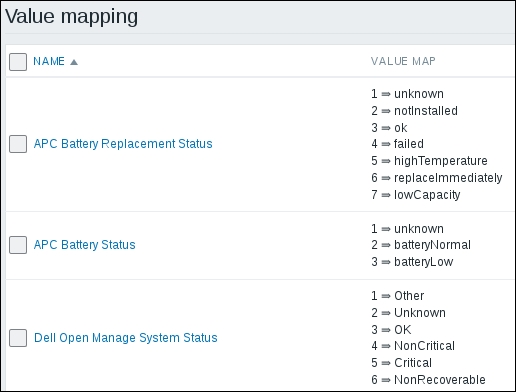
event_id = re.findall(r'eventid=(\d+)', event_url)[0]
ticket_url = rt_url + 'Ticket/Display.html?id=' + ticket_id.split('/')[1]
print(ticket_url)
zh = ZabbixAPI('http://localhost/zabbix')
zh.login(user='Admin', password='zabbix')
ack_message = 'Ticket created.\n' + ticket_url
zh.event.acknowledge(eventids=event_id, message=ack_message)

This preceding code is fairly straightforward. After extracting the eventid value and creating the URL for the ticket, we connect to the Zabbix API and edit the acknowledge field of the event, effectively closing the circle.

Now that the script is complete, remember to give ownership to the zabbix user and set the executable bit on it:

$ chown zabbix rt_mkticket.py
$ chmod +x rt_mkticket.py

The next time the action condition that you defined in your system returns true and the action operation is carried out, the script will be executed with the parameters we've seen before. A ticket will be created with a link back to the event, and the event itself will be acknowledged with a link to the ticket.

Here is an example event. The link in the acknowledgement field corresponds to the URL of the ticket:

Here is the corresponding ticket. The Refers to: field contains a clickable link to the event shown earlier, while the Custom Fields section reports the host, item, and trigger information, just as expected:

The script, in much the same way as those explained in Chapter 9, Extending Zabbix, is little more than a proof of concept, with as much focus on the readability and ease of explanation as on pure functionality. Make sure that you add as many condition checks and error-reporting functions as possible if you want to use it in a production environment.

Summary


We have finally reached the end of our journey to mastering the Zabbix monitoring system. In the course of the book, you learned how to plan and implement the general monitoring architecture; how to create flexible and effective items, triggers, and actions; and how to best visualize your data. You also learned how to implement custom agents by understanding the Zabbix protocol and how to write the code to manipulate every aspect of Zabbix through its API. In this chapter, we barely scratched the surface of what's possible once you start taking advantage of what you now know about Zabbix to integrate it better with your IT infrastructure. Many more integration possibilities exist, including getting and updating users and groups through an identity management system, getting inventory information through an asset management system, feeding inventory information to a CMDB database, and much more. Following the steps necessary to integrate Zabbix with a trouble ticket management system and integrate the Zabbix monitoring solution with external and different media, you learned how to prepare two systems such that they can share and exchange data and knowledge of how to use each system's API in a coordinated manner in order to get the systems to talk to each other. During our walkthrough, we also covered and analyzed all the critical security aspects in order to make you aware of the risk that a monitoring system can introduce and how you can mitigate them with a proper setup. At this point in the book, you're now able to implement and set up a segregated and secured monitoring system.

Our hope is that with the skills you just learned, you will be able to bring out the full potential of the Zabbix monitoring system and make it a central asset of your IT infrastructure. In doing so, your time and effort will be repaid many times over.

Index

A

B

C

D

E

F

G

H

I

J

K

L

M

N

O

P

Q

R

S

T

U

V

W

X

Y

Z