Zabbix Network Monitoring Essentials


By Andrea Dalle Vacche, Stefano Kewan Lee

Your one-stop solution to efficient network monitoring with Zabbix

Start Reading
Features

  • Effectively monitor a number of network devices based on network security and segments
  • Adapt your monitoring solution to an array of evolving network scenarios using Zabbix discovery features
  • A fast-paced guide to Zabbix network monitoring with a strategic focus on the collection and organization of data

Learning

  • Deploy an effective distributed monitoring solution to your network scenarios
  • Effectively monitor a large number of network devices and your most critical network services
  • Build on Zabbix discovery features to adapt the monitoring solution to evolving networking scenarios
  • Identify critical metrics for your monitored devices and services
  • Automate trigger configuration and critical networking operations with the Zabbix API
  • Create compelling graphs and maps
  • Organize maps with a practical approach and create adaptive templates
  • Create a proactive alarm for the network services
  • Use historical monitoring data to create calculated and aggregated items
  • Use automatic discovery for network hosts and devices

About

This book will help you to implement a powerful network monitoring solution based on Zabbix. Beginning with the installation of Zabbix, you will be guided through the complex task of designing, configuring, and deploying an enterprise class solution to efficiently monitor the networking infrastructures. Focusing on DNS and proxies, IT admins will learn how to effectively monitor a large network using Zabbix.

Starting with a quick walk-through of the basics, this book will prove to be an invaluable tutorial if you intend to deploy a robust and secure monitoring system for your networking environment with 24/7 automated reporting and logging. With extensive coverage of network topology with maps and graphs, this book will enable you to set up an effective monitoring solution for your network infrastructure. The book's fast-paced, easy-to-follow approach ensures that you'll learn everything quickly and efficiently.

About the Author


Andrea Dalle Vacche

Andrea Dalle Vacche is a highly skilled IT professional with over 15 years of industry experience.

He graduated from Univeristà degli Studi di Ferrara with an information technology certification. This laid the technology foundation that Andrea has built on ever since. He has acquired various other industry-respected accreditations from big players in the IT industry, which include Cisco, Oracle, ITIL, and of course, Zabbix. He also has a Red Hat Certified Engineer certification. Throughout his career, he has worked on many large-scale environments, often in roles that have been very complex, on a consultant basis. This has further enhanced his growing skillset, adding to his practical knowledge base and concreting his appetite for theoretical technical studying.

Andrea's love for Zabbix came from the time he spent in the Oracle world as a database administrator/developer. His time was mainly spent on reducing "ownership costs" with specialization in monitoring and automation. This is where he came across Zabbix and the technical and administrative flexibility that it offered. With this as a launch pad, Andrea was inspired to develop Orabbix, the first piece of open source software to monitor Oracle that is completely integrated with Zabbix. He has published a number of articles on Zabbix-related software, such as DBforBIX. His projects are publicly available on his website at http://www.smartmarmot.com.

Currently, Andrea is working as a senior architect for a leading global investment bank in a very diverse and challenging environment. His involvement is very wide ranging, and he deals with many critical aspects of the Unix/Linux platforms and pays due diligence to the many different types of third-party software that are strategically aligned to the bank's technical roadmap.

Andrea also plays a critical role within the extended management team for the security awareness of the bank, dealing with disciplines such as security, secrecy, standardization, auditing, regulator requirements, and security-oriented solutions.

In addition to this book, he has also authored the following books:

  • Mastering Zabbix, Packt Publishing
  • Zabbix Network Monitoring Essentials, Packt Publishing

Stefano Kewan Lee

Stefano Kewan Lee is an IT consultant with more than 12 years of experience in system integration, security, and administration. He is a certified Zabbix specialist in large environments holds a Linux administration certification from the LPI and a GIAC GCFW certification from SANS Institute. When he's not busy breaking websites, he lives in the countryside with his two cats and two dogs and practices martial arts. In addition to this title, Stefano Kewan Lee is a coauthor of Mastering Zabbix, Packt Publishing.


Chapter 1. Installing a Distributed Zabbix Setup

Most likely, if you are reading this book, you have already used and installed Zabbix as a network monitoring solution. Now, in this chapter, we will see how to install Zabbix in a distributed setup, eventually moving on to a large use of proxies. The chapter will take you through all the possible scenarios and explain the main differences between the active and passive proxy setup. Usually, the first Zabbix installation is done as a part of the concept to see whether the platform is good enough for you. Here, the common error is to start using this setup on a large production environment. After reading this chapter, you will be ready to install and set up a large environment ready infrastructure.

In this chapter, we will explain how to prepare and set up a Zabbix installation, which is ready to be grown within your infrastructure, and ready for a large to a very large environment. This book is mainly focused on Zabbix for network monitoring. This chapter will quickly take you through the installation process, emphasizing on all the most important points you need to consider. In the next chapter, we will spend more time describing a better approach to monitor your network devices and how to retrieve all the critical metrics from them. After reading this chapter, you will become aware of the communication between server and proxies being able to mix the active and passive setup in order to improve your infrastructure. You can extend the strong central Zabbix core setup with many lightweight and effective Zabbix proxies acting as a satellite inside your network to improve your monitoring system.


Zabbix architectures


Zabbix was born as a distributed network monitoring tool with a central web interface where you can manage almost everything. Nowadays, with Zabbix 2.4, the number of possible architectures has been reduced to a single server setup and a Zabbix-proxies distributed setup.

Note

From Zabbix 2.4, the node-setup was discontinued. More information is available at https://www.zabbix.com/documentation/2.4/manual/introduction/whatsnew240#node-based_distributed_monitoring_removed.

Now, the simplest architecture (which is ready to handle large environments successfully) that you can implement composes of three servers:

  • Web server

  • RDBMS server

  • Zabbix server

To prepare this simple setup for a large environment setting, it's better to use a dedicated server for each one of these components.

This is the simplest setup that can be easily extended and is ready to support a large environment.

The proposed architecture is shown in the following diagram:

This kind of setup can be extended by adding many Zabbix proxies resulting in a proxy-based setup. The proxy-based setup is implemented with one Zabbix server and several proxies: one proxy per branch, data center or, in our case, for each remote network segment you need to monitor.

This configuration is easy to maintain and offers the advantage to have a centralized monitoring solution. This kind of configuration is the right balance between large environment monitoring and complexity.

The Zabbix proxy, like a server, is used to collect data from any number of hosts or devices, acquiring all the metrics requested and acting as a proxy. This means that it can retain this data for an arbitrary period of time, relying on a dedicated database to do so. The proxy doesn't have a frontend and is managed directly from the central server.

Note

The proxy limits itself to data collection without trigger evaluations or actions; all the data is stored in its database. For this reason, it's better to use an efficient robust RDBMS that can prevent data loss in case of a crash.

All these characteristics make the Zabbix proxy a lightweight tool to deploy and offload some checks from the central server. Our objective is to control and streamline the flow of monitored data across networks, and the Zabbix proxy gives us the possibility to split and segregate items and data on the different networks. The most important feature is that the acquired metrics are stored in its database. Therefore, in case of a network loss, you will not lose them.


Understanding Zabbix data flow


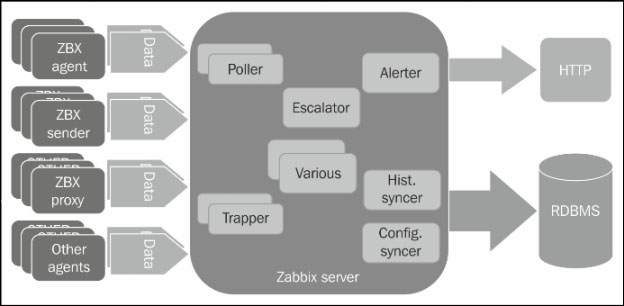
The standard Zabbix data flow is composed of several actors that send data to our Zabbix server. Of all the sources that can send data to our Zabbix server, we can identify three main data sources:

  • Zabbix agent

  • Zabbix sender

  • Other agents (external scripts or components built in house)

The other agents represented in the next diagram can be of two main types:

  • Custom and/or third-party agents

  • Zabbix proxy

As the diagram displays the data that gets acquired from many different sources in the form of items. At the end of the diagram, you see the GUI, which practically represents the users connected and the database that is the place where all the values are stored.

In the next section, we will dive deep into the Zabbix proxies' data flow.


Understanding the Zabbix proxies' data flow


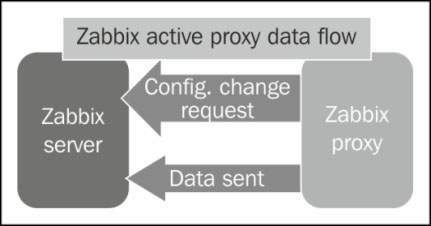
Zabbix proxies can operate in two different modes, active and passive. The default setup is the active proxy. In this setup, the proxy initiates all connections to the Zabbix server, the one used to retrieve configuration information on monitored objects, and the connection to send measurements back to the server. Here, you can change and tweak the frequency of these two activities by setting the following variables in the proxy configuration file: /etc/zabbix/zabbix_proxy.conf:

ConfigFrequency=3600
DataSenderFrequency=1

Values are expressed in seconds. On the Zabbix server-side, you need to carefully set the value of StartTrappers=.

This value needs to be greater than the number of all active proxies and nodes you deployed. The trapper processes, indeed, manage all the incoming information from the proxies.

Note

Please note that the server will fork extra processes as required, if needed, but it is strongly advisable to prefork all the processes that are needed during the startup. This will reduce the overhead during the normal operation.

On the proxy side, another parameter to consider is:

HeartbeatFrequency

This parameter sets a sort of keep alive, which after the defined number of seconds, will contact the server although it doesn't have any data to send. The proxy availability can be easily checked with the following item:

zabbix[proxy, "proxy unique name", lastaccess]

Here the proxy unique name, of course, is the identifier you assigned to the proxy during deployment. The item will return the number of seconds as the last time that the proxy was contacted, a value you can then use with the appropriate triggering functions.

Tip

It's really important to have a trigger associated to this item, so you can be warned in case of connection loss. Looking at the trend of this trigger, you can learn about an eventual reaping time set on the firewall. Let's look at a practical example: if you notice that after 5 minutes your connections are dropped, set the heartbeat frequency to 120 seconds and check for the last access time above 300 seconds.

In the following diagram, you can see the communication flow between the Zabbix server and the proxy:

As you can see from the diagram, the server will wait to receive requests from the proxy and nothing more.

Note

The active proxy is the most efficient way to offload duties from the server. Indeed, the server will just sit here waiting to be asked about changes in configuration, or to receive new monitoring data.

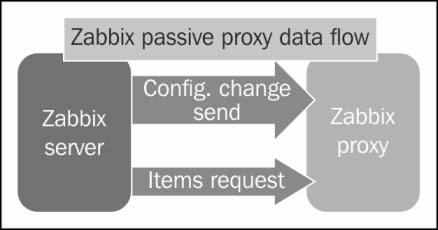
On the other side, proxies are usually deployed to monitor secure network segments with strict outgoing traffic policies, and are usually installed on DMZs. In these kind of scenarios, normally, it is very difficult to obtain permission for the proxy to initiate the communication with the server. Unfortunately, it's not just due to policies. DMZs are isolated as much as possible from internal networks, as they need to be as secure as they can. Generally, it's often easier and more accepted from a security point of view to initiate a connection from the internal network to a DMZ. In this kind of scenario, the passive proxy is very helpful. The passive proxy is almost a mirrored image of the active proxy setup, as you can see in the following diagram:

With this configuration, the Zabbix server will contact the proxy periodically to deliver the configuration changes and to request the item values the proxy is holding.

This is the proxy configuration to enable the proxy you need to set:

ProxyMode=1

This parameter specifies the passive proxy, you don't need to do anything else. Now, on the server side, you need to set the following parameters:

  • StartProxyPollers=

    This will set the number of processes dedicated to the passive proxies

    Note

    The StartProxyPollers parameter should match the number of passive proxies you have deployed.

  • ProxyConfigFrequency=

    This value expresses the frequency with which the server sends the configuration to its proxy

  • ProxyDataFrequency=

    This is the interval parameter that expresses the number of seconds between two consecutive requests to get the acquired metrics from the proxy

The item used to check a passive proxy's availability is as follows:

zabbix[proxy, "proxy unique name", lastaccess]

This is exactly the same as the active one.

The passive proxy enables us to gather monitoring data from otherwise closed and locked down networks with a slightly increased overhead.

Note

You can mix as many active and passive proxies as you want in your environment. This enables you to expand your monitoring solution to reach each part of the network and to handle a large number of monitored objects. This approach keeps the architecture simple and easy to manage with a strong central core and many simple, lightweight satellites.

If you would like to keep track of all the remaining items that the proxy needs to send, you can set up the proxy to run this query against its database:

SELECT ((SELECT MAX(proxy_history.id) FROM proxy_history)-nextid) FROM ids WHERE field_name='history_lastid'

Tip

Downloading the example code

You can download the example code files from your account at http://www.packtpub.com for all the Packt Publishing books you have purchased. If you purchased this book elsewhere, you can visit http://www.packtpub.com/support and register to have the files e-mailed directly to you.

This query will return the number of items that the proxy still needs to send to the Zabbix server. Considering that you are using MySQL as a database, you need to add the following user parameter in the proxy agent configuration file:

UserParameter=zabbix.proxy.items.sync.remaining, mysql -u <your dbname here> -p '<your password here>' -e 'SELECT ((SELECT MAX(proxy_history.id) FROM proxy_history)-nextid) FROM ids WHERE field_name=history_lastid' 2>&1

Now, all you need to do is set an item on the Zabbix server side and you can see how your proxy is freeing its queue.


Installing Zabbix


Zabbix, like all the other software, can be installed in two ways:

  1. Download the latest source code and compile it.

  2. Install it from packages.

Actually, there is another way to have a Zabbix server up and running: using the virtual appliance. The Zabbix server appliance will not be considered in this book as Zabbix itself defines this virtual appliance as not ready for productive environments. This virtual appliance is not a production ready setup for many reasons:

  • It is a monolith where everything is installed on the same server.

  • There is no separation from the database layer and the presentation layer. This means that each one of these components can affect the performance of the other.

  • There is a clear warning on the website that warns us with this statement: The Appliance is not intended for serious production use at this time.

On the other hand, the installation from packages gives us some benefits:

  • The packages make it easy to upgrade and update

  • Dependencies are automatically sorted out

The source code compilation also gives us some benefits:

  • We can compile only the needed features

  • We can build the agent statically and deploy on different Linux flavors

  • Complete control on update

It's quite usual to have different versions of Linux, Unix, and Microsoft Windows on a large environment. This kind of scenario is quite diffused on a heterogeneous infrastructure, and if we use the Zabbix's agent distribution package on each Linux server, we will have different versions of the agent for sure, and different locations for the configuration files.

The more the things are standardized across our server, the easier it will become to maintain and upgrade the infrastructure. The --enable-static option gives us a way to standardize the agent across different Linux versions and release, which is a strong benefit. The agent, statically compiled, can be easily deployed everywhere and, for sure, we will have the same location (and we can use the same configuration file apart from the node name) for the agent and his/her configuration file. The only thing that might vary is the start/stop script and how to register it on the right init runlevel, but at least the deployment will be standardized.

The same kind of concept can be applied to the commercial Unix, bearing in mind to compile it on the target environment so that the same agent can be deployed on different Unix releases of the same vendor.

Installing from packages

The first thing to do to install Zabbix from repo is to add the yum repository to our list. This can be done with the following command:

$ rpm -Uvh http://repo.zabbix.com/zabbix/2.4/rhel/6/x86_64/zabbix-release-2.4-1.el6.noarch.rpm
Retrieving http://repo.zabbix.com/zabbix/2.4/rhel/6/x86_64/zabbix-release-2.4-1.el6.noarch.rpm
warning: /var/tmp/rpm-tmp.dsDB6k: Header V4 DSA/SHA1 Signature, key ID 79ea5ed4: NOKEY
Preparing…         ########################################### [100%]
1:zabbix-release   ########################################### [100%]

Once this is done, we can take advantage of all the benefits introduced by the package manager and have the dependencies automatically resolved by yum.

To install the Zabbix server, you simply need to run:

$ yum install zabbix-server-mysql zabbix-agent zabbix-javagateway

Now, you have your server ready to start. We can't start it now as we need to set up the database, which will be done in the next heading, anyway, what you can do is set up the start/stop runlevel for our zabbix_server and zabbix_agent daemons:

$ chkconfig --level 345 zabbix-server on
$ chkconfig --level 345 zabbix-agent on

Please double check if the previous command ran successfully with the following:

$ chkconfig --list | grep zabbix
zabbix-agent    0:off   1:off   2:off   3:on     4:on   5:on   6:off
zabbix-server   0:off   1:off   2:off   3:on   4:on   5:on   6:off

Setting up a Zabbix agent

Now, as usually happens in a large server farm, it is possible that you have many different variants of Linux. Here, if you can't find the package for your distribution, you can even think to compile the agent from scratch. The following are the steps for the same:

  1. Download the source code from the Zabbix website.

  2. Unpack the software.

  3. Satisfy all the software dependencies, installing all the related -devel packages.

  4. Run the following command: $ ./configure --enable-agent.

    Tip

    Here, you can statically link the produced binary with the --enable-static option. With this, the binary produced will not require any external library. This is really useful to distribute the agent across different versions of Linux.

Compile everything with $ make.

Now, before you run $ make install, you can decide to create your own package to distribute with CheckInstall.

Creating a Zabbix agent package with CheckInstall

The advice is to not run make install, but use CheckInstall to produce the required package for your Linux OS from http://asic-linux.com.mx/~izto/checkinstall/.

Note

We can also use a prebuilt CheckInstall; the current release is checkinstall-1.6.2-20.2.i686.rpm on Red Hat / CentOS. The package will also need the rpm-build package:

rpm-build yum install

Also, we need to create the necessary directories:

mkdir -p ~/rpmbuild/{BUILD,RPMS,SOURCES,SPECS,SRPMS}

This software enables you to create a package for many different versions of the package manager, namely, RPM, deb, and tgz.

Note

CheckInstall will produce packages for Debian, Slackware, and Red Hat, helping us to prepare the Zabbix's agent package (statically linked) and distribute it around our server.

Now, we need to switch to the root account using $ sudo su – . Also, use the checkinstall followed by these options:

$ checkinstall --nodoc --install=yes -y

If you don't face any issue, you should get the following message:

******************************************************************
 Done. The new package has been saved to
 /root/rpmbuild/RPMS/i386/zabbix-2.4.0-1.i386.rpm
 You can install it in your system anytime using:
      rpm -i zabbix-2*.4.0-1.i386.rpm
******************************************************************

Remember that the server binaries will be installed in <prefix>/sbin, utilities will be in <prefix>/bin, and the main pages under the <prefix>/share location.

Tip

To specify a different location for Zabbix binaries, we need to use --prefix on the configure options (for example, --prefix=/opt/zabbix).

Server configuration

For the server configuration, we only have one file to check and edit:

/etc/zabbix/zabbix_server.conf

All the configuration files are contained in the following directory:

/etc/zabbix/

All you need to change for the initial setup is the /etc/zabbix/zabbix_server.conf configuration file and write the username/password and database name here.

Note

Please take care to protect the access to the configuration file with chmod 400 /etc/zabbix/zabbix_server.conf.

The default external scripts location is:

/usr/lib/zabbix/externalscripts

Also, the alert script directory is:

/usr/lib/zabbix/alertscripts

This can be changed by editing the zabbix_server.conf file.

The configuration on the agent side is quite easy; basically, we need to write the IP address of our Zabbix server.


Installing a database


The database we will use on this book, as already explained, is MySQL.

Now, considering that you have a Red Hat server, the procedure to install MySQL from the RPM repository is quite easy:

$ yum install mysql mysql-server

Now, you need to set up the MySQL service to start automatically when the system boots:

$ chkconfig --levels 235 mysqld on
$ /etc/init.d/mysqld start

Tip

Remember to set a password for the MySQL root user

To set a password for the root, you can run these two commands:

/usr/bin/mysqladmin -u root password 'new-password'
/usr/bin/mysqladmin -u root -h hostname-of-your.zabbix.db password 'new-password'

Alternatively, you can run:

/usr/bin/mysql_secure_installation

This will also help you to remove the test databases and anonymous user data that was created by default. This is strongly recommended for production servers.

Now, it's time to create the Zabbix database. For this, we can use the following commands:

$ mysql -u root -p
$ mysql> CREATE DATABASE zabbix CHARACTER SET UTF8;
Query OK, 1 row affected (0.00 sec)
$ mysql> GRANT ALL PRIVILEGES on zabbix.* to 'zabbixuser'@'localhost' IDENTIFIED BY 'zabbixpassword';
Query OK, 0 rows affected (0.00 sec)
$ mysql> FLUSH PRIVILEGES;
$ mysql> quit

Next, we need to restore the default Zabbix MySQL database files:

$ mysql -u zabbixuser -pzabbixpassword zabbix< /usr/share/doc/zabbix-server-mysql-2.4.0/create/schema.sql
$ mysql -u zabbixuser -pzabbixpassword zabbix < /usr/share/doc/zabbix-server-mysql-2.4.0/create/images.sql
$ mysql -u zabbixuser -pzabbixpassword zabbix < /usr/share/doc/zabbix-server-mysql-2.4.0/create/data.sql

Now, our database is ready. Before we begin to play with the database, it's important to do some consideration about database size and heavy tasks against it.

Considering the database size

Zabbix uses two main groups of tables to store its data:

  • History

  • Trends

Now, the space consumed by these tables is influenced by:

  • Items: This is the number of items you're going to acquire

  • Refresh rate: This is the mean average refresh rate of our items

  • Space to store values: This depends on RDBMS

The space used to store data can vary due to the database, but we can resume the space used by these tables in the following table:

Type of measure

Retention in days

Space required

History

30

10.8 G

Events

1825 (5 years)

15.7 GB

Trends

1825 (5 years)

26.7 GB

Total

NA

53.2 GB

This calculation is, of course, done considering the environment after 5 years of retention. Anyway, we need to have an environment ready to survive this period of time and retain the same shape that it had when it was installed. We can easily change the history and trends retention policy per item. This means that we can create a template with items that have a different history retention by default. Normally, the history is set to 30 days, but for some kind of measure (such as in web scenarios) or other particular measures, we need to keep all the values for more than a week. This permits us to change this value on each item.

MySQL partitioning

Now that we are aware of how big our database will be, it's easy to imagine that housekeeping will be a heavy task and the time, CPU, and resource consumed by this one will grow together with the database size.

Housekeeping is in charge to remove the outdated metrics from the database and the information deleted by a user, and as we've seen the history, trends, and events tables are, after some time, huge tables. This explains why the process is so heavy to manage.

The only way we can improve performances once we have reached this volume of data is by using partitioning and disabling the housekeeper altogether.

Partitioning the history and trend tables will provide us with many major benefits:

  • All history data in a table for a particular defined window time are self-contained in its own partition. This allows you to easily delete old data without impacting the database performance.

  • When you use MySQL with InnoDB, and if you delete data contained in a table, the space is not released. The space freed is marked as free, but the disk space consumed will not change. When you use partition, and if you drop a partition, the space is immediately freed.

  • Query performance can be improved dramatically in some situations, in particular, when there is heavy access to the table's rows in a single partition.

  • When a query updates a huge amount of data or needs access to a large percentage of the partition, the sequential scan is often more efficient than the index usage with a random access or scattered reads against this index.

Unfortunately, Zabbix is not able to manage the partitions. So, we need to disable housekeeping, and use an external process to accomplish housekeeping.

What we need to have is a stored procedure that does all the work for us.

The following is the stored procedure:

DELIMITER $$
CREATE PROCEDURE `partition_maintenance`(SCHEMA_NAME VARCHAR(32), TABLE_NAME VARCHAR(32), KEEP_DATA_DAYS INT, HOURLY_INTERVAL INT, CREATE_NEXT_INTERVALS INT)
BEGIN
  DECLARE OLDER_THAN_PARTITION_DATE VARCHAR(16);
  DECLARE PARTITION_NAME VARCHAR(16);
  DECLARE LESS_THAN_TIMESTAMP INT;
  DECLARE CUR_TIME INT;

Until here, we have declared the variable we need after. Now, on the next line, we will call the stored procedure responsible to check whether a partition is already present and if not, we will create them:

        CALL partition_verify(SCHEMA_NAME, TABLE_NAME, HOURLY_INTERVAL);
        SET CUR_TIME = UNIX_TIMESTAMP(DATE_FORMAT(NOW(), '%Y-%m-%d 00:00:00'));
        IF DATE(NOW()) = '2014-04-01' THEN
          SET CUR_TIME = UNIX_TIMESTAMP(DATE_FORMAT(DATE_ADD(NOW(), INTERVAL 1 DAY), '%Y-%m-%d 00:00:00'));
        END IF;
        SET @__interval = 1;
        create_loop: LOOP
          IF @__interval > CREATE_NEXT_INTERVALS THEN
            LEAVE create_loop;
          END IF;
        SET LESS_THAN_TIMESTAMP = CUR_TIME + (HOURLY_INTERVAL * @__interval * 3600);
        SET PARTITION_NAME = FROM_UNIXTIME(CUR_TIME + HOURLY_INTERVAL * (@__interval - 1) * 3600, 'p%Y%m%d%H00');

Now that we have calculated all the parameters needed by the create_partition procedure, we can run it. This stored procedure will create the new partition on the defined schema:

                CALL partition_create(SCHEMA_NAME, TABLE_NAME, PARTITION_NAME, LESS_THAN_TIMESTAMP);
                SET @__interval=@__interval+1;
        END LOOP;
        SET OLDER_THAN_PARTITION_DATE=DATE_FORMAT(DATE_SUB(NOW(), INTERVAL KEEP_DATA_DAYS DAY), '%Y%m%d0000');

The section that follows is responsible to remove the older partitions, using the OLDER_TAN_PARTITION_DATE procedure, which we have calculated on the lines before:

        CALL partition_drop(SCHEMA_NAME, TABLE_NAME, OLDER_THAN_PARTITION_DATE); 
END$$
DELIMITER ;

This stored procedure will be the core of our housekeeping. It will be called with the following syntax:

CALL partition_maintenance('<zabbix_db_name>', '<table_name>', <days_to_keep_data>, <hourly_interval>, <num_future_intervals_to_create>)

The procedure works based on 1 hour intervals. Next, if you want to partition on a daily basis, the interval will be 24 hours. Instead, if you want 1 hour partitioning, the interval will be 1.

You need to specify the number of intervals that you want created in advance. For example, if you want 2 weeks interval of future partitions, use 14. If your interval is 1 (for hourly partitioning), then the number of intervals to create is 336 (24*14).

This stored procedure uses some other stores procedures:

  • partition_create: This creates the partition for the specified table

  • partition_verify: This checks whether the partition is enabled on a table, if not, then create a single partition

  • partition_drop: This drops partitions older than a timestamp

For all the details about these stored procedures, see Appendix A, Partitioning the Zabbix Database.

Once you've created all the required stored procedures, you need to change two indexes to enable them in order to be ready for a partitioned table:

mysql> Alter table history_text drop primary key, add index (id), drop index history_text_2, add index history_text_2 (itemid, id);
Query OK, 0 rows affected (0.49 sec)
Records: 0  Duplicates: 0  Warnings: 0

mysql> Alter table history_log drop primary key, add index (id), drop index history_log_2, add index history_log_2 (itemid, id);
Query OK, 0 rows affected (2.71 sec)
Records: 0  Duplicates: 0  Warnings: 0

Once this is done, you need to schedule the partition_maintenance_all stored procedure with a cron job. For more details about the partition_maintenance_all procedure, please check the instructions contained in Appendix A, Partitioning the Zabbix Database. The cron job needs to execute the following command:

mysql -h <zabbix_db_host> -u<zabbixuser> -p<zabbixpassword> zabbixdatabase -e "CALL partition_maintenance_all('zabbix');" 

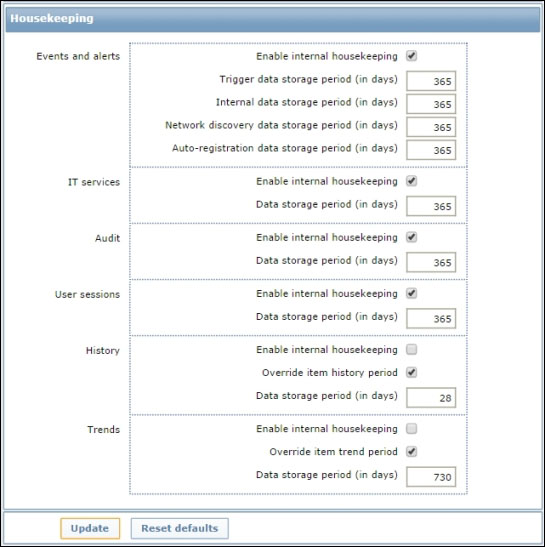
Once this has been set, you need to bear in mind to disable the housekeeping for history and trends. Verify that the Override item <trend/history> period Zabbix configuration is checked for both history and trends. Here, you need to set the Data storage period (in days) box for history and trends to the value you've defined in your procedure, our example in Appendix A, Partitioning the Zabbix Database is of 28 and 730.


Installing a Zabbix proxy


Installation of the Zabbix proxy from packages is a quite simple task. Once you've added the Zabbix repository, you only need to run the following command:

$ yum install zabbix-proxy-mysql

This will install the required packages:

Installation:
 zabbix-proxy-mysql  x86_64  2.4.0-1.el6  zabbix  390 k
Installing for dependencies:
zabbix-proxy  x86_64  2.4.0-1.el6  zabbix  21 k

The Zabbix proxy installation is quite similar to the server one. Once you've installed the server, you need to install MySQL, create the database, and import the DB schema:

$ mysql -u root -p
$ mysql> CREATE DATABASE zabbix CHARACTER SET UTF8;
Query OK, 1 row affected (0.00 sec)
$ mysql> GRANT ALL PRIVILEGES on zabbix.* to 'zabbixuser'@'localhost' IDENTIFIED BY 'zabbixpassword';
Query OK, 0 rows affected (0.00 sec)
$ mysql> FLUSH PRIVILEGES;
$ mysql> quit

Next, we need to restore the default Zabbix MySQL database files:

$ mysql -u zabbixuser -pzabbixpassword zabbix < /usr/share/doc/zabbix-proxy-mysql-2.4.0/create/schema.sql

Now, we need to start the database, configure the proxy, and start the service. In this example, we have considered to use a Zabbix proxy that relies on a MySQL with InnoDB database. This proxy can be performed in two different ways:

  • Lightweight (and then use SQLite3)

  • Robust and solid (and then use MySQL)

Here, we have chosen the second option. In a large network environment where the proxy, in case of issue, needs to preserve all the metrics acquired until the server acquires the metrics, it's better to reduce, at the minimum, the risk of data loss. Also, if you consider this scenario in a large network environment, you most likely will have thousands of subnetworks connected to the Zabbix server with all the possible network devices in-between. Well, exactly, this is necessary to use a database that can prevent any data corruptions.


Installing the WebGUI interface


The WebGUI interface will be done once more using the RPMs.

To install the web interface, you need to run the following command:

$ yum install zabbix-web-mysql

Yum will take care to resolve all the dependencies. Once you're done, the process of this component is quite easy: we need to open a web browser, point at the following URL: http://your-web-server/zabbix, and follow the instructions.

On the standard Red Hat system, you simply need to change these parameters on your /etc/php.ini file:

php_value max_execution_time 300
php_value memory_limit 128M
php_value post_max_size 16M
php_value upload_max_filesize 2M
php_value max_input_time 300

Also, set your time zone on the same file (for example, php_value date.timezone Europe/Rome).

Now, it's time to start up Apache, but before this, we need to check whether we have SELinux enabled and on which mode? To check your SELinux status, you can run:

# sestatus
SELinux status:                 enabled
SELinuxfs mount:                /selinux
Current mode:                   permissive
Mode from config file:          permissive
Policy version:                 24
Policy from config file:        targeted

Now, you need to check whether you have the httpd daemon enabled to use the network with the following command:

# getsebool httpd_can_network_connect
httpd_can_network_connect --> off

Most likely, you will have the same kind of result, then all we need to do is enable the httpd_can_network_connect option using the next command with –P to preserve the value after a reboot:

# setsebool –P httpd_can_network_connect on
# getsebool httpd_can_network_connect
httpd_can_network_connect --> on 

Now, all that we still have to do is enable the httpd daemon and start our httpd server:

# service httpd start
Starting httpd:                              [  OK  ]

Next, enable the httpd server as a service:

# chkconfig httpd on

We can check the change done with the next command:

# chkconfig --list httpd
httpd       0:off   1:off   2:on    3:on    4:on    5:on    6:off

Once you've done this, you only need to follow the wizard, and in a few clicks, you will have your web interface ready to start up.

Tip

If you know that the load against the web server will be high, due to a high number of accounts that will access it, probably, it's better to consider using Nginx.

Now, you can finally start your Zabbix server and the first entry in the /var/log/zabbix/zabbix_server.log file will look something like the following code:

37909:20140925:091128.868 Starting Zabbix Server. Zabbix 2.4.0 (revision 48953).
37909:20140925:091128.868 ****** Enabled features ******
 37909:20140925:091128.868 SNMP monitoring:           YES
 37909:20140925:091128.868 IPMI monitoring:           YES
 37909:20140925:091128.868 WEB monitoring:            YES
 37909:20140925:091128.868 VMware monitoring:         YES
 37909:20140925:091128.868 Jabber notifications:      YES
 37909:20140925:091128.868 Ez Texting notifications:  YES
 37909:20140925:091128.868 ODBC:                      YES
 37909:20140925:091128.868 SSH2 support:              YES
 37909:20140925:091128.868 IPv6 support:              YES
 37909:20140925:091128.868 ****************************** 37909:20140925:091128.868 using configuration file: /etc/zabbix/zabbix_server.conf******************************

Next, you can start to implement and acquire all the items critical for your network.


Summary


In this chapter, we covered a large number of components. We started with defining what a large environment is. We also saw how the network setup can be designed and how it can evolve within your infrastructure. We saw the heaviest task on the server side (housekeeping) and how to avoid performance degradation due to this. We discussed MySQL partitioning in-depth. We also briefly discussed the differences between active and passive proxies; you will now be able to decide how to set them up and which one to choose once you know your network topology. Also, we saw how to acquire some critical metrics to monitor the Zabbix proxy connection and the amount of items that it still needs to send us.

As you can see, we covered a lot of arguments in just one chapter; we did this because we would like to use more space in the upcoming chapters. In the next chapter, we will explore the different appliances and protocols at layer 2 and layer 3 of the ISO/OSI stack. Also, you will see how to best extrapolate meaningful monitoring data from the collected measure for the protocol layers 2 and 3.


Chapter 2. Active Monitoring of Your Devices

Now that you have a working Zabbix setup, it's time to take a look at your network and figure out the components that you want to monitor, the kind of data you want to collect, and the conditions under which you want to be notified about problems and state changes.

It would be impossible for any book on this topic to fully cover all the different kinds of network appliances and topologies and all the different monitoring scenarios that a network administrator might need as every environment has its own specific quirks that a good monitoring solution has to account for. This chapter will offer you a few examples of the different monitoring possibilities Zabbix can achieve by relying on different methods and protocols. You'll see how to query your network from the data link layer up to routing and network flow using ICMP, SNMP, and log parsing facilities to collect your measurements.

You'll learn how to extract meaningful information from the data you gathered using aggregated and calculated items and how to configure complex triggers that will alert you about real network issues while minimizing uninteresting or nonrelevant data.

By the end of the chapter, you'll have a good overview of Zabbix's network monitoring possibilities, and you'll be ready to adapt what you learned for your specific requirements. But let's first have a quick overview of how Zabbix organizes monitoring data with hosts, templates, items, and triggers.


Understanding Zabbix hosts


One of Zabbix's great strengths is its flexibility when it comes to organizing monitoring data. Even without considering its powerful templating and discovery features, which will be covered in Chapter 4, Discovering Your Network, there is a lot that you can do with standard hosts, items, and triggers. Here are a few tips on how you can use them effectively.

Hosts and host groups

Zabbix hosts usually represent a single, specific box or appliance in your network. They can also be a part of one or more host groups.

Host groups are very useful as they make it easy to navigate Zabbix's interface, separating hosts into categories and allowing you to organize and manage a huge amount of appliances without having to deal with impossibly long lists of hostnames. The same host can be part of different host groups, and this can be very useful as you might want, for example, to have a group for all your routers, a group for all your switches, and a group for every subnet you manage. So, a single router will be part of the routers group and all the subnet groups it has an interface on, while a switch will be part of the switches group and of the subnet it's part of, and so on.

While this is certainly a good way to organize your hosts, both to visualize and to manage your monitoring data, there are a couple of not-too-obvious pitfalls you should be aware of if you decide to put the same host in multiple groups:

  • Calculated items show aggregate monitoring data based on host group membership. If you configure an aggregated item that uses more than one calculated item from different host groups, you can end up using the same host's data more than once, introducing a significant error in your calculations.

  • Actions are usually filtered based on host groups. This means that the same trigger event could fire up more than one action if the host is part of more than one host group, leading to potentially duplicate messages and alerts.

  • User access permissions are host-group-based. This means that some users could be able to see more hosts and monitoring data than they actually need to if a host ends up in a host group they have access to.

This is by no means an attempt to discourage the practice of assigning multiple host groups to the same host. Just be aware of the ramifications of such a practice and don't forget to take into consideration the added complexity when you configure your items, actions, and access permissions.

Host interfaces

Each host is composed of a collection of items that represent the raw monitoring data, and triggers, which represent Zabbix's monitoring intelligence based on the data gathered. It's also composed of a series of interfaces that tell the Zabbix server or proxy how to contact the host to collect the aforesaid monitoring data. Most network appliances have more than one interface, so you would want to make sure that all hosts that represent routers, firewalls, proxies, gateways, and whatnot, are listing all those appliances' interfaces and their addresses. The advantages are obvious:

  • You'll be able to quickly review what addresses are configured on a specific host while looking at monitoring data

  • You'll be able to differentiate your checks by querying different addresses or ports of the same host based on your needs

  • Your maps and topologies will be more consistent with what's actually deployed

Adding interfaces to a host is fairly straightforward. All you need to do is navigate to Configuration | Hosts and then select the host you want to edit. The interfaces section is in the main configuration tab, as shown in the following screenshot:

As you can see in the above example, there are three agent interfaces that show all the networks the router is connected to and just one SNMP interface. Agent interfaces are used not only for Zabbix agent items, but also for simple and external checks. On the other hand, you'll use SNMP interfaces to send SNMP queries to your host. The preceding example assumes that you'll only use SNMP on the router's interface that is connected to a management network (192.168.1.0 in this example), while you'll also use ICMP, TCP, and external checks on its two production interfaces. Of course, you are free to configure different IP addresses for Agent and SNMP interfaces depending on what protocols and checks you plan to activate on which interfaces.

Host inventory

Having inventory data directly available in your monitoring solution has a lot of obvious advantages when it comes to attaching useful information to your alerts and alarms. Unfortunately, the more hosts you have to manage, the more essential it is to have up-to-date inventory information, and the harder it is to maintain the aforesaid information in a reliable and timely manner. Manually updating a host's inventory data can quickly become an impossible task when you have tens or hundreds of hosts to manage, and it's not always possible to write automated scripts that will do the job for you. Fortunately, Zabbix offers an automatic inventory feature that can at least partially fill in inventory data based on actual monitoring data. To activate this feature, first you'll need to select Automatic in the Host inventory tab of a host configuration page and then move to the items that you'll use to populate the inventory data.

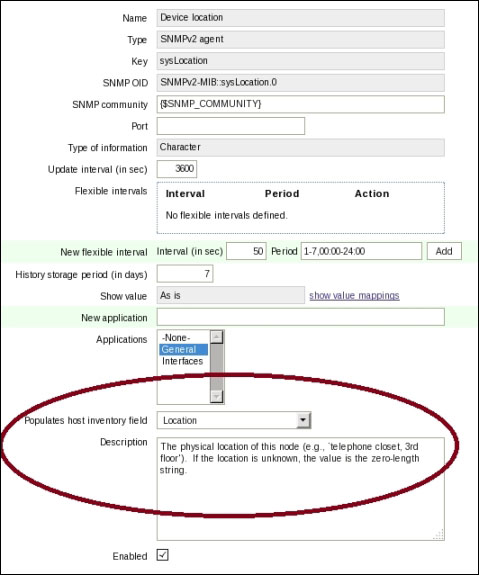
When configuring an item, you should assign its data to a specific inventory field so that the aforesaid field's value will be set and automatically updated based on the item's measurements, as shown in the following screenshot:

As you can see in the preceding example, a host's location inventory value will be populated based on the corresponding SNMP query. This means that if you change a device's location information, that change will be reflected in Zabbix as soon as the item's value is polled on the device. Depending on the data available on the device, you'll be able to populate only a few inventory fields or most of them, while falling back on manual updates of the fields that fall outside of your device's reporting possibilities.

Speaking of items, let's now focus on the different monitoring possibilities that Zabbix items offer and how to apply them to your environment.


Going beyond Zabbix agents


There are certainly many advantages in using Zabbix's own agents and protocol when it comes to monitoring Windows and Unix operating systems or the applications that run on them. However, when it comes to network monitoring, the vast majority of monitored objects are network appliances of various kinds, where it's often impossible to install and run a dedicated agent of any type. This by no means implies that you'll be unable to fully leverage Zabbix's power to monitor your network. Whether it's a simple ICMP echo request, an SNMP query, an SNMP trap, netflow logging, or a custom script, there are many possibilities to extract meaningful data from your network. This section will show you how to set up these different methods of gathering data, and give you a few examples on how to use them.

Simple checks

Let's start with the simplest case. At first glance, simple checks don't look that interesting: excluding all the VMware Hypervisor checks that are included in this category, simple checks are reduced to a couple of generic TCP/IP connection checks and three ICMP echo checks, as follows:

Check name

Description

Icmpping

This returns 1 if the host responds to an ICMP ping; 0 otherwise

Icmppingloss

This returns the percentage of lost ICMP ping packets

Icmppingsec

This returns the ICMP response time in seconds

Net.tcp.service

This returns 1 if the host accepts connections on a specified TCP port; 0 otherwise

Net.tcp.service.perf

This returns the number of seconds spent to obtain a connection on a specified TCP port

Generally speaking, these checks prove more useful as the distance between the monitoring probe and the monitored host increases, both in terms of physical distance (a geographical link to another city for example) and in terms of hops a packet has to go through. This means that if you are interested in your network's performance, it would make sense to assign hosts with simple checks to Zabbix proxies that are not in the same subnet, but are situated where they will mimic as closely as possible your actual network traffic. Net.tcp.service is particularly useful from this point of view, not just to check the status of the availability of specific services when you cannot use Zabbix agents, but also to check general host availability across restrictive firewalls that block ICMP traffic.

Tip

In order to reduce network traffic and to make more efficient ICMP checks, Zabbix uses fping instead of the regular ping when executing icmpping, icmppingloss, and icmppingsec item checks.

Make sure you have fping installed on your Zabbix server and also on all the Zabbix proxies that might need it. If you don't have it, a simple yum install fping will usually be enough for the Zabbix daemons to find it and use it.

While both net.tcp.service and net.tcp.service.perf do support some well-known protocols, such as SSH, FTP, HTTP, and so on, these two items' most useful option is probably the one that allows you to perform a simple TCP handshake connection and check whether a specific IP is reachable on a specific port. These kind of checks are useful because, just like ICMP pings, they will mostly involve the network stack, reducing application overhead to a minimum, thus giving you data that more closely matches your actual network performance. On the other hand, unlike ICMP pings, they will allow you to check for TCP port availability for a given host. Obvious use cases include making lightweight service checks that will not impact very busy hosts or appliances too much, and making sure that a given firewall is allowing traffic through.

A slightly less obvious use case is using one or more net.tcp.service items to make sure that some services are not running on a given interface. Take for example, the case of a border router or firewall. Unless you have some very special and specific needs, you'll typically want to make sure that no admin consoles are available on the external interfaces. You might have double-checked the appliance's initial configuration, but a system update, a careless admin, or a security bug might change the aforesaid configuration and open your appliance's admin interfaces to a far wider audience than intended. A security breach like this one could pass unobserved for a long time unless you configure a few simple TCP/IP checks on your appliance's external interfaces and then set up some triggers that will report a problem if those checks report an open and responsive port.

Let's take the example of the router with two production interfaces and a management interface shown in the section about host interfaces. If the router's HTTPS admin console is available on TCP port 8000, you'll want to configure a simple check item for every interface:

Item name

Item key

management_https_console

net.tcp.service[https,192.168.1.254,8000]

zoneA_https_console

net.tcp.service[https,10.10.1.254,8000]

zoneB_https_console

net.tcp.service[https,172.16.7.254,8000]

All these checks will return 1 if the service is available, and 0 if the service is not available. What changes is how you implement the triggers on these items. For the management item, you'll have a problem if the service is not available, while for the other two, you'll have a problem if the service is indeed available, as shown in the following table:

Trigger name

Trigger expression

Management console down

{it-1759-r1:net.tcp.service[http,192.168.1.254,8000].last()}=0

Console available from zone A

{it-1759-r1:net.tcp.service[http,10.10.1.254,8000].last()}=1

Console available from zone B

{it-1759-r1:net.tcp.service[http,172.16.7.254,8000].last()}=1

This way, you'll always be able to make sure that your device's configuration when it comes to open or closed ports will always match your expected setup and be notified when it diverges from the standard you set.

To summarize, simple checks are great for all cases where you don't need complex monitoring data from your network as they are quite fast and lightweight. For the same reason, they could be the preferred solution if you have to monitor availability for hundreds to thousands of hosts as they will impart a relatively low overhead on your overall network traffic.

When you do need more structure and more detail in your monitoring data, it's time to move to the bread and butter of all network monitoring solutions: SNMP.

Keeping SNMP simple

The Simple Network Monitoring Protocol (SNMP) is an excellent, general purpose protocol that has become widely used beyond its original purpose. When it comes to network monitoring though, it's also often the only protocol supported by many appliances, so it's often a forced, albeit natural and sensible, choice to integrate it into your monitoring scenarios. As a network administrator, you probably already know all there is to know about SNMP and how it works, so let's focus on how it's integrated into Zabbix and what you can do with it.

First of all, we'll need to talk about SNMP gets and SNMP traps in two different discussions as they are implemented and used in different ways by Zabbix. The reason for this separation is in the very nature of SNMP gets as opposed to SNMP traps. An SNMP get represents a single, discrete piece of information that represents the current status of a metric, and it's not tied to any specific event. Whether it's a counter with the total number of bytes that passed through an interface, a Boolean value that will tell if a link is up or down, or a string with an appliance's location or contact information, an SNMP value will be available at any moment, and it will be possible to poll it with an arbitrary frequency.

This maps nicely to Zabbix items. Just like SNMP get values, they also represent single, discrete values that can be polled with arbitrary frequency. This makes it really straightforward to use regular SNMP queries to populate Zabbix items since the only things you have to worry about are the SNMP OID, the data type, and the community string or authentication information. We'll see a few examples in the next paragraph.

An SNMP trap represents a specific event that happens at a specific point in time. It might represent a link state change, a reboot event, or a user login. In any case, you cannot query the state of an SNMP trap; you just have to wait to receive one, and it will not represent a single, discrete value but a change from one value to another. They resemble, in many ways, Zabbix events instead of raw data. This complicates things a little since Zabbix events are the result of evaluating triggers against collected data, while SNMP traps can only enter Zabbix as item values, that is, as collected data. So we'll need to resolve this apparent mismatch in order to fully leverage the information contained in SNMP traps. We'll see how in a short while, but first let's look at a few details concerning regular SNMP queries executed from Zabbix.

Getting SNMP data into Zabbix

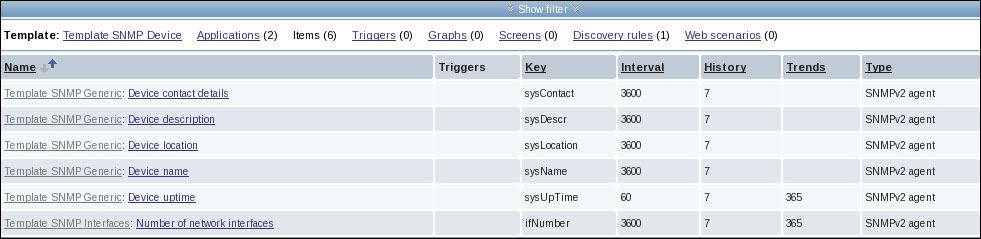
A Zabbix server usually comes with good SNMP support out of the box. Not only does it support the querying protocol natively, but it also comes equipped with a number of SNMP templates that can get you started in the right direction. This means that for most devices you only have to link the Template SNMP Device template, and you'll immediately be able to get some basic information about it, as shown in the following screenshot:

We've already seen how the Device location item can be used to populate a host's inventory location record, but there are a couple of other useful bits of information in the above picture.

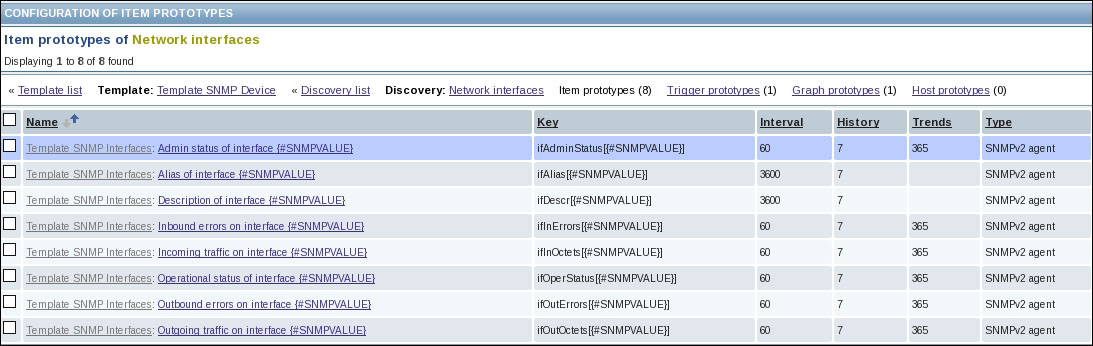
First of all, there's a low-level discovery rule to explore. We'll delve more deeply into discovery rules in Chapter 4, Discovering Your Network, but for now, we'll just see that it's about dynamically creating network interface items:

For every interface, eight items will be created, including the interface name, operational status, incoming and outgoing traffic, and so on. This means that the same template will be useful for the basic monitoring of network appliances with any number of network interfaces.

The second thing to notice, looking at both images, is the update interval, and history and trend retention periods for the items. Zabbix tries to set some sensible defaults, but you'll probably need to update some of those values based on the number of monitored hosts you have in your environment, your storage space availability, and the network load of your monitoring traffic.

Note

Another parameter that is related to Zabbix's performance is the initial (and minimum) number of pollers that the server keeps active at any given time. If you find that your polling queue is getting longer, you might want to increase the number of pollers in zabbix_server.conf. The available default options are:

  • # StartPollers=5

  • # StartIPMIPollers=0

  • # StartPollersUnreachable=1

  • # StartTrappers=5

  • # StartPingers=1

  • # StartDiscoverers=1

  • # StartHTTPPollers=1

Work your way up slowly, or you'll just end up with unnecessary processes being created when Zabbix is started.

If you have hundreds of hosts to monitor, and for every host, you collect tens of single measurements every minute, you would reach a point where your Zabbix server's network load or CPU load will start to impact on the server's performance, leading to delays in item polling or dropped connections. If you cannot just upgrade to more powerful hardware, you might have to tweak the polling interval of your templates so that they strike a good balance between granularity of detail and performance.

A device's name, contact details, description, location, and such like, will rarely change once the device has been deployed, so it would be a waste to poll for those values every hour (3,600 seconds). By changing the interval to 6 hours or even a day, you'll automatically reduce your network traffic related to essentially fixed information by a factor of 6, up to 24.

Raising the polling interval for some of the interface counters can have an even more dramatic impact on your system and network load. While you'll probably want to check the admin and operational status of an interface as often as possible—otherwise you run the risk of not getting notified about possible problems in a timely manner—on the other hand, you'll probably be able to live with polling incoming and outgoing traffic and errors every five minutes (300 seconds) instead of every minute. Your graphs will still be very detailed, but your network will be much less flooded with SNMP requests. Keep in mind that changes like these might not seem much when referred to a single host, but as the number of your monitored objects grow, you can very quickly run up to hundreds or even thousands of new monitoring values per second coming into your Zabbix server.

The same can be said when it comes to retention periods and storage space. In this case, keep in mind that trends store about three values per hour (min, max and average) over the time range specified, while history stores all values collected in the specified time range. This means that based on your polling interval, it's usually cheaper to extend a trend retention value than a history one. This is, of course, valid only for numerical values as string ones can't really have trends, just history.

One last thing to notice in the above images is that the monitoring protocol for all items is set to SNMPv2. Just like SNMPv1, SNMPv2 doesn't offer real security for the monitoring data that crosses the network between an appliance and the monitoring server: all traffic is sent and received in the clear, and the SNMP community is just a string, easily parsable from intercepted traffic. While it's certainly true that a few network appliances don't support SNMPv3 because either they are too old or they are too simple, It's also true that the new version of the protocol has been around for quite a while now and a number of appliances do support it. The main advantages of SNMPv3 are its authentication and encryption capabilities. These can help make sure that all monitoring traffic is not bogus or corrupted, and that it's kept confidential from prying eyes. This is particularly important if you need to monitor some hosts over a network link you have no real control over, such as a WAN connection through a third-party provider. It would always be nice to use SNMPv3 across your network, but in cases like these, you are strongly encouraged to do so as there's a real possibility that your traffic can be indeed intercepted and tapped into.

Let's take the example of a Cisco router, and let's see how to configure SNMPv3 on it before moving on to the Zabbix side.

First of all, let's create a monitoring group. This is used to define access to the device's MIBs. On the Cisco router, open a console session and go into configuration mode. Then issue the following command:

R1(config)#snmp-server group MonitoringGroup v3 priv

The v3 keyword specifies that we want to use SNMPv3, while the priv keyword specifies that we want to use both authentication and encryption. It's possible to pass more options to the preceding command in order to define an access list if you want to limit access to specific MiBs, but we'll keep things simple here and let our Zabbix probe access all MIBs.

Now that we have a group, we can create a user, as follows:

R1(config)#snmp-server user zabbix MonitoringGroup v3 auth sha zbxpass priv aes 128 zbxpriv

As you can see, we assigned the Zabbix user to the previously created group and defined the authentication and encryption passphrases. Take note of all these elements as you'll need to specify all of them on Zabbix's side and they will need to match what you used here. To summarize, here is what you'll input later when configuring an SNMPv3 Zabbix item:

Field

Value

User

zabbix

Authentication protocol

sha

Authentication passphrase

zbxpass

Privacy protocol

aes

Privacy passphrase

zbxpriv

Note

Please don't use the passphrases shown here. These are intentionally weak, and we used them for illustration purposes only.

This is all there is to it. Later, we'll add some information about telling the appliance where to send SNMP traps, but for now you're ready to get SNMP values from your appliance, so let's focus on that for a while.

Finding the right OIDs to monitor

While Zabbix's default SNMP templates will help you get started with basic monitoring, you'll soon find the need to poll your devices for more information. To do that, you'll need to know the OID of the metric you want to monitor as well as the data type it will yield. A first option is to consult your vendor's documentation on the device and find out which MIBs and OIDs are exposed by the SNMP agent. Another, more interactive, option is to find them using the snmpwalk utility and directly asking your device for them.

Note

If you don't already have snmpwalk (and the other SNMP utilities for Linux) installed, you can quickly do so with a simple command:

#yum install net-snmp-utils

OIDs are sent and received by SNMP agents and servers as dotted sequences of numbers. Just like IP addresses, this is convenient for machine-to-machine communication, but hard to read for humans. In order to make the most from the exploration of your device using snmpwalk, make sure you have all the MIBs you need installed. MIBs essentially map OIDs to readable and understandable descriptions of themselves. In other words, they take output like this one:

.1.3.6.1.2.1.2.2.1.1.1 = INTEGER: 1
.1.3.6.1.2.1.2.2.1.1.2 = INTEGER: 2
.1.3.6.1.2.1.2.2.1.1.3 = INTEGER: 3
.1.3.6.1.2.1.2.2.1.1.5 = INTEGER: 5
.1.3.6.1.2.1.2.2.1.2.1 = STRING: lo
.1.3.6.1.2.1.2.2.1.2.2 = STRING: eth1
.1.3.6.1.2.1.2.2.1.2.3 = STRING: tap0
.1.3.6.1.2.1.2.2.1.2.5 = STRING: br0
.1.3.6.1.2.1.2.2.1.3.1 = INTEGER: softwareLoopback(24)
.1.3.6.1.2.1.2.2.1.3.2 = INTEGER: ethernetCsmacd(6)
.1.3.6.1.2.1.2.2.1.3.3 = INTEGER: ethernetCsmacd(6)
.1.3.6.1.2.1.2.2.1.3.5 = INTEGER: ethernetCsmacd(6)
.1.3.6.1.2.1.2.2.1.4.1 = INTEGER: 16436
.1.3.6.1.2.1.2.2.1.4.2 = INTEGER: 1500
.1.3.6.1.2.1.2.2.1.4.3 = INTEGER: 1500
.1.3.6.1.2.1.2.2.1.4.5 = INTEGER: 1500
.1.3.6.1.2.1.2.2.1.5.1 = Gauge32: 10000000
.1.3.6.1.2.1.2.2.1.5.2 = Gauge32: 1000000000
.1.3.6.1.2.1.2.2.1.5.3 = Gauge32: 10000000
.1.3.6.1.2.1.2.2.1.5.5 = Gauge32: 0
.1.3.6.1.2.1.2.2.1.6.1 = STRING:
.1.3.6.1.2.1.2.2.1.6.2 = STRING: 0:c:29:24:15:50
.1.3.6.1.2.1.2.2.1.6.3 = STRING: 2:10:f7:72:77:50
.1.3.6.1.2.1.2.2.1.6.5 = STRING: 0:c:29:24:15:50
.1.3.6.1.2.1.2.2.1.7.1 = INTEGER: up(1)
.1.3.6.1.2.1.2.2.1.7.2 = INTEGER: up(1)
.1.3.6.1.2.1.2.2.1.7.3 = INTEGER: up(1)
.1.3.6.1.2.1.2.2.1.7.5 = INTEGER: up(1)
.1.3.6.1.2.1.2.2.1.8.1 = INTEGER: up(1)
.1.3.6.1.2.1.2.2.1.8.2 = INTEGER: up(1)
.1.3.6.1.2.1.2.2.1.8.3 = INTEGER: up(1)
.1.3.6.1.2.1.2.2.1.8.5 = INTEGER: up(1)

Then, they turn it into a much more readable form:

IF-MIB::ifIndex.1 = INTEGER: 1
IF-MIB::ifIndex.2 = INTEGER: 2
IF-MIB::ifIndex.3 = INTEGER: 3
IF-MIB::ifIndex.5 = INTEGER: 5
IF-MIB::ifDescr.1 = STRING: lo
IF-MIB::ifDescr.2 = STRING: eth1
IF-MIB::ifDescr.3 = STRING: tap0
IF-MIB::ifDescr.5 = STRING: br0
IF-MIB::ifType.1 = INTEGER: softwareLoopback(24)
IF-MIB::ifType.2 = INTEGER: ethernetCsmacd(6)
IF-MIB::ifType.3 = INTEGER: ethernetCsmacd(6)
IF-MIB::ifType.5 = INTEGER: ethernetCsmacd(6)
IF-MIB::ifMtu.1 = INTEGER: 16436
IF-MIB::ifMtu.2 = INTEGER: 1500
IF-MIB::ifMtu.3 = INTEGER: 1500
IF-MIB::ifMtu.5 = INTEGER: 1500
IF-MIB::ifSpeed.1 = Gauge32: 10000000
IF-MIB::ifSpeed.2 = Gauge32: 1000000000
IF-MIB::ifSpeed.3 = Gauge32: 10000000
IF-MIB::ifSpeed.5 = Gauge32: 0
IF-MIB::ifPhysAddress.1 = STRING:
IF-MIB::ifPhysAddress.2 = STRING: 0:c:29:24:15:50
IF-MIB::ifPhysAddress.3 = STRING: 2:10:f7:72:77:50
IF-MIB::ifPhysAddress.5 = STRING: 0:c:29:24:15:50
IF-MIB::ifAdminStatus.1 = INTEGER: up(1)
IF-MIB::ifAdminStatus.2 = INTEGER: up(1)
IF-MIB::ifAdminStatus.3 = INTEGER: up(1)
IF-MIB::ifAdminStatus.5 = INTEGER: up(1)
IF-MIB::ifOperStatus.1 = INTEGER: up(1)
IF-MIB::ifOperStatus.2 = INTEGER: up(1)
IF-MIB::ifOperStatus.3 = INTEGER: up(1)
IF-MIB::ifOperStatus.5 = INTEGER: up(1)

If you have the right MIBs, you won't have to guess the meaning of each OID from its value as most of the time, it will be clear enough from its name. To add a new MIB to your SNMP tools, you have to obtain it from the vendor of your device and then install it on your system. Vendors usually make their MIBs freely available, so you shouldn't have any problems finding them.

Here are some of the major vendors of MIB sources, compiled at the time of writing:

Note

A very useful resource is OIDView's free MIB database that you can find here:

http://www.oidview.com/mibs/detail.html

At the time of writing this, the database had more than 7,000 MIBs, so chances are you'll be able to find a MIB for the most obscure network device you might have to monitor.

MIBs are plain text files, so if you have a compressed archive, you will need to unpack it before you can install its contents. Once you have the plain text MIBS, it's a simple matter of copying them into /usr/share/snmp/mibs and then using the -m option to the SNMP commands to specify which MIB you want to load in addition to the default ones.

Should your MIBs collection become too big and you wanted to organize them in different directories, then you'll need to tell your tools where to find them. You have two options: either specify from the command line the directories you want your command to search for MIBs, or put this information in a configuration file so that your commands always know the MIBs' location. The options are discussed as follows:

  • The first option is useful if you're just trying out a new MIB and seeing whether that's the one you need. Every Net-SNMP-based command will take a -m option that you can use to specify a specific MIB to load from the mibs directory. Here's a command for example:

    $snmpwalk -m +CISCO-STUN-MIB -v 3  -u zabbix -a SHA -A zbxpassword -l AuthPriv -x AES -X privpassword 10.10.1.9
    

    This command will use SNMPv3 to contact the SNMP agent at 10.10.1.9 with the specified credentials and will load the CISCO-STUN-MIB that it will find in the /usr/share/snmp/mibs directory, in addition to those already loaded as default.

  • The second option is more permanent and involves editing (or creating, if it's not already there) the /etc/snmp/snmp.conf file. Just add a line with the list of directories to search for mibs and another line that specifies which MIBs the commands should actually load (in this case, we'll load all of them), as follows:

    mibdirs /usr/share/snmp/mibs:/usr/share/snmp/mibs/cisco:/usr/share/snmp/mibs/juniper:/mnt/remote/shared_mibs/
    mibs +ALL

As you can see, even if you keep your subdirectories in /usr/share/snmp/mibs, you'll have to specify each one you want automatically included. Once you have your MIBs installed and loaded, you'll be ready to fully explore your devices' SNMP agents. To perform a complete snmpwalk on a device can take quite a lot of time and produce a lot of output depending on how many OIDs it exposes. A router can have thousands of them, so it's advisable to redirect the command's output to a file so that you are able to reference it and explore it at any time you want without having to perform a complete walk on the device itself, as follows:

$snmpwalk -v 3  -u zabbix -a SHA -A zbxpassword -l AuthPriv -x AES -X privpassword 10.10.1.9 > router-R1-snmp_baseline.txt

Another advantage of having the MIBs you need is that it'll be easier to create new SNMP items in Zabbix as you'll be able to specify the string version of an OID and not only its numerical value. Zabbix relies on the Net-SNMP library, so it will also reference any MIBs installed in your system's default directories.

So let's see how you can use the output of snmpwalk to create new Zabbix items.

Mapping SNMP OIDs to Zabbix items

An SNMP value is composed of three different parts: the OID, the data type, and the value itself. When you use snmpwalk or snmpget to get values from an SNMP agent, the output looks like this:

SNMPv2-MIB::sysObjectID.0 = OID: CISCO-PRODUCTS-MIB::cisco3640
DISMAN-EVENT-MIB::sysUpTimeInstance = Timeticks: (83414) 0:13:54.14
SNMPv2-MIB::sysContact.0 = STRING:
SNMPv2-MIB::sysName.0 = STRING: R1
SNMPv2-MIB::sysLocation.0 = STRING: Upper floor room 13
SNMPv2-MIB::sysServices.0 = INTEGER: 78
SNMPv2-MIB::sysORLastChange.0 = Timeticks: (0) 0:00:00.00
...
IF-MIB::ifPhysAddress.24 = STRING: c4:1:22:4:f2:f
IF-MIB::ifPhysAddress.26 = STRING:
IF-MIB::ifPhysAddress.27 = STRING: c4:1:1e:c8:0:0
IF-MIB::ifAdminStatus.1 = INTEGER: up(1)
IF-MIB::ifAdminStatus.2 = INTEGER: down(2)

And so on.

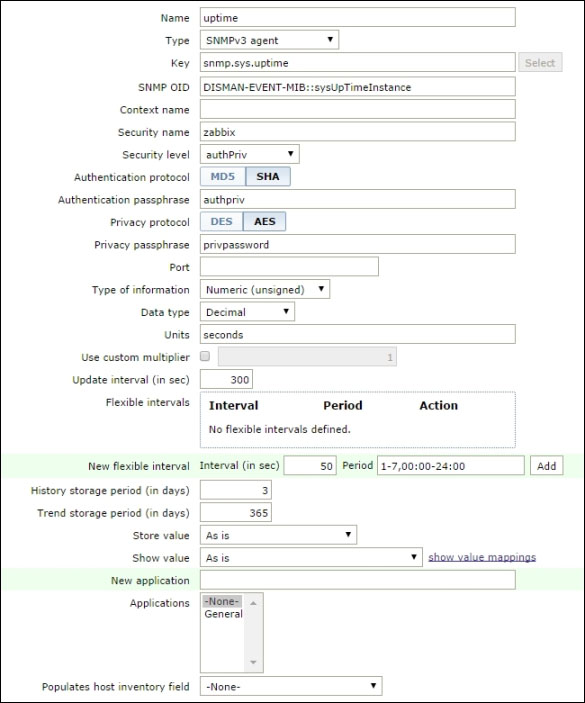
The first part, the one before the = sign is, naturally, the OID. This will go into the SNMP OID field in the Zabbix item creation page and is the unique identifier for the metric you are interested in. Some OIDs represent a single and unique metric for the device, so they are easy to identify and address. In the above excerpt, one such OID is DISMAN-EVENT-MIB::sysUpTimeInstance. If you are interested in monitoring that OID, you'd only have to fill out the item creation form with the OID itself and then define an item name, a data type, and a retention policy, and you are ready to start monitoring it. In the case of an uptime value, time-ticks are expressed in seconds, so you'll choose a numeric decimal data type. We'll see in the next section how to choose Zabbix item data types and how to store values based on SNMP data types. You'll also want to store the value as is and optionally specify a unit of measure. This is because an uptime is already a relative value as it expresses the time elapsed since a device's latest boot. There would be no point in calculating a further delta when getting this measurement. Finally, you'll define a polling interval and choose a retention policy. In the following example, the polling interval is shown to be 5 minutes (300 seconds), the history retention policy as 3 days, and the trend storage period as one year. These should be sensible values as you don't normally need to store the detailed history of a value that either resets to zero, or, by definition, grows linearly by one tick every second.

The following screenshot encapsulates what has been discussed in this paragraph:

Remember that the item's key value still has to be unique at the host/template level as it will be referenced to by all other Zabbix components, from calculated items to triggers, maps, screens, and so on. Don't forget to put the right credentials for SNMPv3 if you are using this version of the protocol.

Many of the more interesting OIDs, though, are a bit more complex: multiple OIDs can be related to one another by means of the same index. Let's look at another snmpwalk output excerpt:

IF-MIB::ifNumber.0 = INTEGER: 26
IF-MIB::ifIndex.1 = INTEGER: 1
IF-MIB::ifIndex.2 = INTEGER: 2
IF-MIB::ifIndex.3 = INTEGER: 3

IF-MIB::ifDescr.1 = STRING: FastEthernet0/0
IF-MIB::ifDescr.2 = STRING: Serial0/0
IF-MIB::ifDescr.3 = STRING: FastEthernet0/1

IF-MIB::ifType.1 = INTEGER: ethernetCsmacd(6)
IF-MIB::ifType.2 = INTEGER: propPointToPointSerial(22)
IF-MIB::ifType.3 = INTEGER: ethernetCsmacd(6)

IF-MIB::ifMtu.1 = INTEGER: 1500
IF-MIB::ifMtu.2 = INTEGER: 1500
IF-MIB::ifMtu.3 = INTEGER: 1500

IF-MIB::ifSpeed.1 = Gauge32: 10000000
IF-MIB::ifSpeed.2 = Gauge32: 1544000
IF-MIB::ifSpeed.3 = Gauge32: 10000000

IF-MIB::ifPhysAddress.1 = STRING: c4:1:1e:c8:0:0
IF-MIB::ifPhysAddress.2 = STRING:
IF-MIB::ifPhysAddress.3 = STRING: c4:1:1e:c8:0:1

IF-MIB::ifAdminStatus.1 = INTEGER: up(1)
IF-MIB::ifAdminStatus.2 = INTEGER: down(2)
IF-MIB::ifAdminStatus.3 = INTEGER: down(2)

IF-MIB::ifOperStatus.1 = INTEGER: up(1)
IF-MIB::ifOperStatus.2 = INTEGER: down(2)
IF-MIB::ifOperStatus.3 = INTEGER: down(2)

IF-MIB::ifLastChange.1 = Timeticks: (1738) 0:00:17.38
IF-MIB::ifLastChange.2 = Timeticks: (1696) 0:00:16.96
IF-MIB::ifLastChange.3 = Timeticks: (1559) 0:00:15.59

IF-MIB::ifInOctets.1 = Counter32: 305255
IF-MIB::ifInOctets.2 = Counter32: 0
IF-MIB::ifInOctets.3 = Counter32: 0

IF-MIB::ifInDiscards.1 = Counter32: 0
IF-MIB::ifInDiscards.2 = Counter32: 0
IF-MIB::ifInDiscards.3 = Counter32: 0

IF-MIB::ifInErrors.1 = Counter32: 0
IF-MIB::ifInErrors.2 = Counter32: 0
IF-MIB::ifInErrors.3 = Counter32: 0

IF-MIB::ifOutOctets.1 = Counter32: 347968
IF-MIB::ifOutOctets.2 = Counter32: 0
IF-MIB::ifOutOctets.3 = Counter32: 0

As you can see, for every network interface, there are several OIDs, each one detailing a specific aspect of the interface: its name, its type, whether it's up or down, the amount of traffic coming in or going out, and so on. The different OIDs are related through their last number, the actual index of the OID. Looking at the preceding excerpt, we know that the device has 26 interfaces, of which we are showing some values for just the first three. By correlating the index numbers, we also know that interface 1 is called FastEthernet0/0, its MAC address is c4:1:1e:c8:0:0, the interface is up and has been up for just 17 seconds, and some traffic already went through it.

Now, one way to monitor several of these metrics for the same interface is to manually correlate these values when creating the items, putting the complete OID in the SNMP OID field, and making sure that both the item key and its name reflect the right interface. This process is not only prone to errors during the setup phase, but it could also introduce some inconsistencies down the road. There is no guarantee, in fact, that the index will remain consistent across hardware or software upgrades or even across configurations when it comes to more volatile states like the number of VLANs or routing tables instead of network interfaces. Fortunately Zabbix provides a feature, called dynamic indexes, that allows you to actually correlate different OIDs in the same SNMP OID field so that you can define an index based on the index exposed by another OID.

This means that if you want to know the admin status of FastEthernet0/0, you don't need to find the index associated with FastEthernet0/0 (in this case it would be 1) and then add that index to IF-MIB::ifAdminStatus of the base OID, hoping that it won't ever change in the future. You can instead use the following code:

IF-MIB::ifAdminStatus["index", "IF-MIB::ifDescr", "FastEthernet0/0"]

Upon using the preceding code in the SNMP OID field of your item, the item will dynamically find the index of the IF-MIB::ifDescr OID where the value is FastEthernet0/0 and append it to IF-MIB::ifAdminStatus in order to get the right status for the right interface.

If you organize your items this way, you'll always be sure that related items actually show the right related values for the component you are interested in and not those of another one because things changed on the device's side without your knowledge. Moreover, we'll build on this technique to develop low-level discovery of a device as we'll see in Chapter 4, Discovering Your Network.

You can use the same technique to get other interesting information out of a device. Consider, for example, the following excerpt:

ENTITY-MIB::entPhysicalVendorType.1 = OID: CISCO-ENTITY-VENDORTYPE-OID-MIB::cevChassis3640
ENTITY-MIB::entPhysicalVendorType.2 = OID: CISCO-ENTITY-VENDORTYPE-OID-MIB::cevContainerSlot
ENTITY-MIB::entPhysicalVendorType.3 = OID: CISCO-ENTITY-VENDORTYPE-OID-MIB::cevCpu37452fe

ENTITY-MIB::entPhysicalClass.1 = INTEGER: chassis(3)
ENTITY-MIB::entPhysicalClass.2 = INTEGER: container(5)
ENTITY-MIB::entPhysicalClass.3 = INTEGER: module(9)

ENTITY-MIB::entPhysicalName.1 = STRING: 3745 chassis
ENTITY-MIB::entPhysicalName.2 = STRING: 3640 Chassis Slot 0
ENTITY-MIB::entPhysicalName.3 = STRING: c3745 Motherboard with Fast Ethernet on Slot 0

ENTITY-MIB::entPhysicalHardwareRev.1 = STRING: 2.0
ENTITY-MIB::entPhysicalHardwareRev.2 = STRING:
ENTITY-MIB::entPhysicalHardwareRev.3 = STRING: 2.0

ENTITY-MIB::entPhysicalSerialNum.1 = STRING: FTX0945W0MY
ENTITY-MIB::entPhysicalSerialNum.2 = STRING:
ENTITY-MIB::entPhysicalSerialNum.3 = STRING: XXXXXXXXXXX

It should be immediately clear to you that you can find the chassis's serial number by creating an item with:

ENTITY-MIB::entPhysicalSerialNum["index", "ENTITY-MIB::entPhysicalName", "3745 chassis"]

Then you can specify, in the same item, that it should populate the Serial Number field of the host's inventory. This is how you can have a more automatic, dynamic population of inventory fields.

The possibilities are endless as we've only just scratched the surface of what any given device can expose as SNMP metrics. Before you go and find your favorite OIDs to monitor though, let's have a closer look at the preceding examples, and let's discuss data types.

Getting data types right

We have already seen how an OID's value has a specific data type that is usually clearly stated with the default snmpwalk command. In the preceding examples, you can clearly see the data type just after the = sign, before the actual value. There are a number of SNMP data types—some still current and some deprecated. You can find the official list and documentation in RFC2578 (http://tools.ietf.org/html/rfc2578), but let's have a look at the most important ones from the perspective of a Zabbix user:

SNMP type

Description

Suggested Zabbix item type and options

INTEGER

This can have negative values and is usually used for enumerations

  • Numeric unsigned, decimal

  • Store value as is

  • Show with value mappings

STRING

This is a regular character string and can contain new lines

  • Text

  • Store value as is

OID

This is an SNMP object identifier

  • Character

  • Store value as is

IpAddress

IPv4 only

  • Character

  • Store value as is

Counter32

This includes only non-negative and nondecreasing values

  • Numeric unsigned, decimal

  • Store value as delta (speed per second)

Gauge32

This includes only non-negative values, which can decrease

  • Numeric unsigned, decimal

  • Store value as is

Counter64

This includes non-negative and nondecreasing 64-bit values

  • Numeric unsigned, decimal

  • Store value as delta (speed per second)

TimeTicks

This includes non-negative, nondecreasing values

  • Numeric unsigned, decimal

  • Store value as is

First of all, remember that the above suggestions are just that—suggestions. You should always evaluate how to store your data on a case-by-case basis, but you'll probably find that in many cases those are indeed the most useful settings.

Moving on to the actual data types, remember that the command line SNMP tools by default parse the values and show some already interpreted information. This is especially true for Timeticks values and for INTEGER values when these are used as enumerations. In other words, you see the following from the command line:

VRRP-MIB::vrrpNotificationCntl.0 = INTEGER: disabled(2)

However, what is actually passed as a request is the bare OID:

1.3.6.1.2.1.68.1.2.0

The SNMP agent will respond with just the value, which, in this case, is the value 2.

This means that in the case of enumerations, Zabbix will just receive and store a number and not the string disabled(2) as seen from the command line. If you want to display monitoring values that are a bit clearer, you can apply value mappings to your numeric items. Value maps contain the mapping between numeric values and arbitrary string representations for a human-friendly representation. You can specify which one you need in the item configuration form, as follows:

Zabbix comes with a few predefined value mappings. You can create your own mappings by following the show value mappings link and, provided you have admin roles on Zabbix, you'll be taken to a page where you can configure all value mappings that will be used by Zabbix. From there, click on Create value map in the upper-right corner of the page, and you'll be able to create a new mapping. Not all INTEGER values are enumerations, but those that are used as such will be clearly recognizable from your command-line tools as they will be defined as INTEGER values but will show a string label along with the actual value, just as in the preceding example.

On the other hand, when they are not used as enumerations, they can represent different things depending on the context. As seen in the previous paragraph, they can represent the number of indexes available for a given OID. They can also represent application or protocol-specific values, such as default MTU, default TTL, route metrics, and so on.

The main difference between gauges, counters, and integers is that integers can assume negative values, while gauges and counters cannot. In addition to that, counters can only increase or wrap around and start again from the bottom of their value range once they reach the upper limits of it. From the perspective of Zabbix, this marks the difference in how you'll want to store their values.

Gauges are usually employed when a value can vary within a given range, such as the speed of an interface, the amount of free memory, or any limits and timeouts you might find for notifications, the number of instances, and so on. In all of these cases, the value can increase or decrease in time, so you'll want to store them as they are because once put on a graph, they'll draw a meaningful curve.

Counters, on the other hand, can only increase by definition. They are typically used to show how many packets were processed by an interface, how many were dropped, how many errors were encountered, and so on. If you store counter values as they are, you'll find in your graphs some ever-ascending curves that won't tell you very much for your monitoring or capacity planning purposes. This is why you'll usually want to track a counter's amount of change in time, more than its actual value. To do that, Zabbix offers two different ways to store deltas or differences between successive values.

The delta (simple change) storage method does exactly what it says: it simply computes the difference between the currently received value and the previously received one, and stores the result. It doesn't take into consideration the elapsed time between the two measurements, nor the fact that the result can even have a negative value if the counter overflows. The fact is that most of the time, you'll be very interested in evaluating how much time has passed between two different measurements and in treating correctly any negative values that can appear as a result.

The delta (speed per second) will divide the difference between the currently received value and the previously received one by the difference between the current timestamp and the previous one, as follows:

(value – prev_value)/(time - prev_time)

This will ensure that the scale of the change will always be constant, as opposed to the scale of the simple change delta, which will vary every time you modify the update interval of the item, giving you inconsistent results. Moreover, the speed-per-second delta will ignore any negative values and just wait for the next measurement, so you won't find any false dips in your graph due to overflowing.

Finally, while SNMP uses specific data types for IP addresses and SNMP OIDs, there are no such types in Zabbix, so you'll need to map them to some kind of string item. The suggested type here is character as both values won't be bigger than 255 characters and won't contain any newlines.

String values, on the other hand, can be quite long as the SNMP specification allows for 65,535-character-long texts; however, text that long would be of little practical value. Even if they are usually much shorter, string values can often contain newlines and be longer than 255 characters.

Consider, for example, the following SysDescr OID for this device:

NMPv2-MIB::sysDescr.0 = STRING: Cisco IOS Software, 3700 Software (C3745-ADVENTERPRISEK9_SNA-M), Version 12.4(15)T14, RELEASE SOFTWARE (fc2)^M
Technical Support: http://www.cisco.com/techsupport^M
Copyright (c) 1986-2010 by Cisco Systems, Inc.^M
Compiled Tue 17-Aug-10 12:56 by prod_rel_tea

As you can see, the string spans multiple lines, and it's definitely longer than 255 characters. This is why the suggested type for string values is text as it allows text of arbitrary length and structure. On the other hand, if you're sure that a specific OID value will always be much shorter and simpler, you can certainly use the character data type for your corresponding Zabbix item.

Now, you are truly ready to get the most out of your devices' SNMP agents as you are now able to find the OID you want to monitor and map them perfectly to Zabbix items, down to how to store the values, their data types, with what frequency, and with any value mapping that might be necessary.

It's now time to explore the other aspect of SNMP: traps.

SNMP traps

SNMP traps are a bit of an oddball when compared to all the other Zabbix item types. Unlike other items, SNMP traps do not report a simple measurement, but an event of some type. In other words, they are the result of some kind of check or computation made by the SNMP agent and sent over to the monitoring server as a status report. An SNMP trap can be issued every time a host is rebooted, an interface is down, a disk is damaged, or a UPS has lost power and is keeping servers up using its battery.

This kind of information contrasts with Zabbix's basic assumption that an item is a simple metric not directly related to a specific event. On the other hand, there's no other way to be aware of certain situations if not through an SNMP trap either because there are no related metrics (consider, for example, the event the server is being shut down) or because the appliance's only way to convey its status is through a bunch of SNMP objects and traps.

So traps are of relatively limited use to Zabbix as you can't do much more than build a simple trigger out of every trap and then notify about the event (not much point in graphing a trap or building calculated items on it). Nevertheless, they might prove essential for a complete monitoring solution.

To manage SNMP traps effectively, Zabbix needs a couple of helper tools: the snmptrapd daemon to actually handle connections from the SNMP agents and some kind of script to correctly format every trap and pass it to the Zabbix server for further processing.

Snmptrapd

If you have compiled SNMP support into the Zabbix server, you should already have the complete SNMP suite installed, which contains the SNMP daemon and the SNMP trap daemon along with the utilities we have used in the previous section.

Just as the Zabbix server has a bunch of daemon processes that listen on TCP port 10051 for incoming connections (from agents, proxies, and nodes), snmptrapd is the daemon process that listens on UDP port 162 for incoming traps coming from remote SNMP agents.

Once installed, snmptrapd reads its configuration options from an snmptrapd.conf file that can be usually found in the /etc/snmp/ directory. The bare minimum configuration for snmptrapd requires the definition of a user and a privacy level for SNMP v3, as follows:

createUser zbxuser SHA auth AES priv
authUser log,execute,net zbxuser

Tip

The above configuration will enable snmptrapd to receive SNMPv3 INFORM packets. These are just like regular SNMP traps, with two differences: the first one is that while an agent won't expect a response after sending a trap, INFORM packets are acknowledged, so snmptrapd will send a response for every trap received. But the most important difference is that with INFORM packets, the authoritative EngineID will be that of the receiving party and not the sending party as with regular traps. This means that you'll have to specify your server's EngineID to every device that will send SNMPv3 INFORM packets. Since you'll have to configure them to send packets to the server anyway, this won't mean too much work. Many agents automatically discover a peer's EngineID before sending an INFORM, but if you need to set it yourself, you can discover your server's EngineID using snmpget and asking for the snmpEngineID.0 OID.

If you want to use regular SNMP traps, you'll have to insert a new createUser line for every agent that will send traps to the server, with each one specifying the correct EngineID of the agent sending traps.

With this minimal configuration, snmptrapd will limit itself to log the trap to syslog. While it could be possible to extract this information and send it to Zabbix, it's easier to tell snmptrapd how it should handle traps. While the daemon has no processing capabilities of its own, it can execute any command or application either using the trapHandle directive, or leveraging its embedded Perl functionality. The latter is more efficient as the daemon won't have to fork a new process and wait for its execution to finish, so it's the recommended one if you plan to receive a significant number of traps. Just add the following line to snmptrapd.conf:

perl do "/usr/local/bin/zabbix_trap_receiver.pl";

Tip

You can get the zabbix_trap_receiver script from the Zabbix sources. It's located in misc/snmptrap/zabbix_trap_receiver.pl.

Be sure to check that you also have the Net-SNMP Perl module installed. If you need it, a simple yum install net-snmp-perl command should take care of everything.

Once restarted, the snmptrapd daemon will execute the Perl script you specified to process every trap received, translating it into a format that can be easily parsed by the Zabbix server. In the following section, we'll see how an SNMP trap is translated and used by Zabbix.

Transforming a trap into a Zabbix item

The Perl script included in the Zabbix distribution works as a translator from an SNMP trap format to a Zabbix item measurement. For every trap received, it will format it according to the rules defined in the script and will output the result in a log file. By default, the log file is called /tmp/zabbix_traps.tmp. You need to make sure that the same file is read by Zabbix by setting the following parameters in /etc/zabbix/zabbix_server.conf:

### Option: StartSNMPTrapper
#       If 1, SNMP trapper process is started.
#
# Mandatory: no
# Range: 0-1
# Default:
StartSNMPTrapper=1

### Option: SNMPTrapperFile
#       Temporary file used for passing data from SNMP trap daemon to the server.
#       Must be the same as in zabbix_trap_receiver.pl or SNMPTT configuration file.
SNMPTrapperFile=/tmp/zabbix_traps.tmp

The log file will have a format similar to the following example:

03:47:10 2014/12/09 ZBXTRAP 127.0.0.1
PDU INFO:
  notificationtype               TRAP
  version                        0
  receivedfrom                   UDP: [127.0.0.1]:34373->[127.0.0.1]
  errorstatus                    0
  messageid                      0
  community                      public
  transactionid                  3
  errorindex                     0
  requestid                      0
VARBINDS:
  DISMAN-EVENT-MIB::sysUpTimeInstance type=67 value=Timeticks: (55) 0:00:00.55
  SNMPv2-MIB::snmpTrapOID.0      type=6  value=OID: IF-MIB::linkDown.0.33
  IF-MIB::linkDown               type=4  value=Hex-STRING: E2 80 9C 54 45 53 54 4D 45 4E 4F 57 E2 80 9D
  SNMP-COMMUNITY-MIB::snmpTrapCommunity.0 type=4  value=STRING: "public"
  SNMPv2-MIB::snmpTrapEnterprise.0 type=6  value=OID: IF-MIB::linkDown

The ZBXTRAP followed by the IP address will mark the start of a new log stanza. The rest of the log will contain all details about the trap, so you'll be able to act on any of those.

The Zabbix server will in turn monitor the aforesaid log file and process every new line as an SNMP trap item, basically matching the content of the log to any trap item defined for the relevant host.

As you've already seen, the first part of the log line is used by the Zabbix trap receiver to match a trap with its corresponding host. The rest is matched to the aforesaid host's SNMP trap item's regexp definitions and its content added to every matching item's history of values. This means that if you wish to have a linkDown trap item for a given host, you'll need to configure an SNMP trap item with an snmptrap["linkDown"] key, as follows:

You might need to make sure that the log time format you specify in the item's configuration will match the one used by the Perl script. You'll also have to check that the host's interface will match the one logged by snmptrapd because it's the one piece of data Zabbix will use to match traps to hosts.

From now on, you'll be able to see the contents of the trap in the item's data history.

Moving on from SNMP, there are still other data sources that you can rely on to get monitoring data into Zabbix; for the purposes of this book, the most interesting ones are log files. Compared to SNMP, they can be tricky to work with, but they do have their uses, so let's explore them for a while.

Getting netflow from the devices to the monitoring server

Netflow is a protocol originally developed by Cisco to collect and monitor statistics of network traffic on a device. After the initial release, many vendors started providing their own implementation of the protocol. In 2008 IETF standardized netflow and published Internet Protocol Flow Information eXport (IPFIX) based on netflow v9 with some extensions. However, netflow somehow remains the existing name of the protocol in fact but not necessarily by legal right, so that's the one we'll use here.

A netflow record contains information about a single network flow. A flow is a sequence of packets that share some common properties:

  • IP protocol

  • Source IP address

  • Source port (for TCP and UDP)

  • Destination IP address

  • Destination port (for TCP and UDP)

  • Input interface

  • Type of service

For each flow, a record exposes many different values, which change with netflow versions and implementations. Here are the most common ones:

  • Input interface of the device

  • Output interface of the device

  • Flow start time

  • Flow end time

  • Number of bytes in the flow

  • Number of packets in the flow

  • Source IP address

  • Source IP port

  • Source IP mask

  • Destination IP address

  • Destination IP port

  • Destination IP mask

  • ICMP type and code

  • TCP flags

  • IP address of the immediate next-hop

It should be immediately clear to you that this type of information can be extremely useful to a network administrator as it allows you to build a picture of all the traffic traversing your network. It can also be used to identify anomalous traffic and traffic to and from IP addresses or ports that should not be there, or as forensic evidence after an incident. Moreover, it can be used as a source for capacity-planning analysis to identify bottlenecks in your network, periods of peak use, and top talkers among your servers and devices.

Finally, as we were explaining previously, it's a good candidate for a Zabbix log item as flow data is useful even if it is not directly related to the host that generated it (even if it's still useful to track that piece of information whenever possible).

So, let's see how to get netflow data into Zabbix.

First of all, you'll have to configure your device to send flow data to a server. In the case of a Cisco device, here are the configuration commands that you need to issue (remember to substitute all references to the example Zabbix server with the real ones that apply to your environment):

R1(config)#ip flow-export destination 192.168.234.131 9995
R1(config)#ip flow-export version 9
R1(config)#interface f0/0
R1(config-if)#ip flow ingress
R1(config-if)#ip flow egress
R1(config-if)#exit

In the first line, we specify the IP address of our Zabbix server and the UDP port the device should send netflow information to.

The second line sets the netflow version.

In the third line, we go into interface f0/0 mode. Please note that you'll have to explicitly enable netflow for every interface you are interested in. This is usually not a problem because if you configure netflow on the right interfaces of your routers, you'll see most, if not all of your traffic anyway; you won't need to enable netflow on every interface of every network device you have.

The fourth line enables netflow monitoring for incoming traffic on interface f0/0, while the fifth line enables netflow monitoring for outgoing traffic on the same interface. If you want to enable netflow on other interfaces, you'll need to repeat lines 3 to 5 for every interface you are interested in.

Repeat the whole process for all the routers you want to get flow information from, and once you are done, you are ready to turn to your Zabbix server.

Receiving netflow data on your server

To actually receive and process netflow packets on a server, you need a daemon that will listen on a specified UDP port, and that will understand the netflow protocol. On Linux, such daemons and associated tools are contained in the nfdump package.

Nfdump is a collection of tools that will enable you to capture netflow data, store it on disk, filter it, and analyze it. The most important components are:

  • nfcapd: This is the daemon component that listens for incoming netflow data and stores it on disk in binary format

  • nfdump: This is similar to tcpdump; it reads and filters nfcapd files, and outputs readable data

So the basic dataflow will be similar to this one:

  1. A router sends netflow data to the server.

  2. On the server, nfcapd captures the data and stores it in binary files.

  3. A scheduled nfdump process will read the binary files and populate a human readable log with netflow information.

  4. A Zabbix agent will read the log and send data to the Zabbix server according to the item's configuration.

We have already taken care of point 1, so let's see how to install and configure the nfdump package, before looking into the Zabbix side.

Unfortunately, there are no readymade rpm packets for nfdump, so we'll need to find the source code, compile it, and install it. This is usually a straightforward process. First of all, let's install some required dependencies for nfdump:

# yum install rrdtool rrdtool-devel rrdtool-doc perl-rrdtool

Then, we'll need to download the latest sources. At the moment of writing this, the latest available version is 1.6.12. You can download the package from http://sourceforge.net/projects/nfdump/ and then transfer it to your server. Once you have tar.gz ready, unpack it:

$ tar xvzf nfdump-1.6.12.tar.gz

Then move into the nfdump-1.6.12 directory and run the usual configure, make, and make install sequence. If you want to install nfdump in the main directories instead of the /usr/local tree, just pass the –prefix option to the configure script. In the following example, that's what we'll use:

$ cd nfdump-1.6.12
$ ./configure –prefix=/usr --sysconfdir=/etc
$ make
$ su root
# make install

Once installed, you can add a dedicated user for nfcapd so that it doesn't have to run as root and set a working directory for it:

# useradd -s /sbin/nologin netflow
# mkdir -p /var/nfdump/nfcapd
# mkdir -p /var/nfdump/logs
# chown -R netflow /var/nfdump

When you run nfcapd, it will create its binary files under /var/nfdump/nfcapd. Nfcapd files are rotated, by default, once every five minutes and can be separated into one dump collection (current and rotated files) per sending host or a single collection for all sending hosts. They can also be expired after a set amount of time. You are now ready to wait for netflow data and transform it into a log file. To do that, you'll need to pass the right option to nfcapd. Since there are quite a few options to pass, let's build the command line little by little. Please don't run the intermediate commands, but only the final one; nfcapd will complain about missing options and refuse to run.

First of all, we'll pass some options that will instruct nfcapd to go into daemon mode (-D), to compress output (-z), to run as user netflow (-u), and to listen on port 9995 (-p):

# nfcapd -D -z -u netflow -p 9995

Then, we'll need to add some options about data sources. The accepted current method is to use the -n switch. We'll also instruct nfcapd to create additional subdirectories to store the cap files to better organize them (-S):

# nfcapd -D -z -u netflow -p 9995 -n R1,192.168.11.9,/var/nfdump/nfcapd -n R2,10.10.1.254,/var/nfdump/nfcapd -S2

As you can see, you'll have to specify a different -n option for every source you configure. If you have many netflow sources, it might be better to run different instances of nfcapd on different UDP ports so as to share the load between different processes. In that case, just remember to configure your devices accordingly so that they send their traffic to the correct UDP port. The -S2 option will create additional year/month/day/hour directories under /var/nfdump/nfcapd to store current and rotated files.

Nfcapd files are rotated every five minutes, and if your network has a lot of traffic, your nfcapd directory can become huge. You could schedule a separate job to clean them up, but with the -e option, nfcapd will be able to also take care of that. Just set the expiration parameter with nfexpire and nfcapd will pick them up:

# nfexpire -u /var/nfdump/nfcapd -s 15G -t 90d
# nfcapd -D -z -u netflow -p 9995 -n R1,192.168.11.9,/var/nfdump/nfcapd -n R2,10.10.1.254,/var/nfdump/nfcapd -S2 -e

In the above example, we set the size limit of the directory to 15 gigabytes, and the cap (maximum) file age to 90 days. Files will be deleted by nfcapd whenever one of these limits is reached. The last line in the preceding command now contains all the parameters we need for basic netflow dumping. If you run it (don't forget the nfexpire command too) or put it into a startup script, nfcapd will listen on the specified network port for incoming netflow data and write it to the directories you specified.

Once you have some data in, you can read it with nfdump and output a human-readable set of records:

$ nfdump -r /var/nfdump/nfcapd/2014/10/29/02/nfcapd.201410290250 -o extended
Date flow start         Duration Proto    Src IP Addr:Port         Dst IP Addr:Port   Flags Tos  Packets    Bytes      pps      bps    Bpp Flows
2014-10-29 02:51:53.160   63.545 TCP   10.13.27.151:80    ->   123.43.98.124:6523  .AP.SF   0       128     8412        0      550     56     1
2014-10-29 02:53:13.370   23.135 TCP    64.76.73.121:25  ->  10.138.41.151:7643    .AP.SF   0       51 2450        0      551     56     1
...
Time window: Oct 29 2014 02:50:00 - Oct 29 2014 02:54:56

This is getting closer to our objective. If you run nfdump and redirect its output to a file instead of the screen, there you have the log file we've been talking about in the last several pages. To do that, you are probably thinking of setting up a cron job that will find the latest nfcapd files that weren't already parsed by nfdump, make nfdump read them while specifying a time window so that your log file won't contain duplicated data, and add the aforesaid output to a log file that will be monitored by Zabbix. This can be a nontrivial exercise when you consider that nfcapd will continually produce new files and will put them in new directories all the time. Moreover, you'll need to keep some kind of execution state with the timestamp of the last time nfdump was run in order to avoid the aforesaid duplicates.

It turns out that you'll be able to avoid all this work, thanks to a nice option for nfcapd, the -x option. So let's rewrite the nfcapd command one last time:

# nfcapd -D -z -u netflow -p 9995 -n R1,192.168.11.9,/var/nfdump/nfcapd -n R2,10.10.1.254,/var/nfdump/nfcapd -S2 -e -x 'nfdump -q -o extended -r %d/%f >> /var/nfdump/logs/zabbix_netflow.log'

The -x command executes an arbitrary command every time a dump file is rotated. You can reference the dump file and the base directory with the %d/%f macros. This means that nfdump will always be executed on new data and only once per dump file. Suddenly, you won't need to schedule any complicated cron job to generate the final, human-readable netflow log file. We also added a -q option to suppress the header and statistics printing to keep the log file clean.

Note

You might still want to configure some log rotation for the /var/nfdump/logs/zabbix_netflow.log file. If you let it grow unchecked, it will fill up your disk space in due time!

It's finally time to make Zabbix aware of the netflow log file.

Monitoring a log file with Zabbix

As already explained, log file monitoring needs a Zabbix agent. For illustration purposes, we will assume that you have installed nfdump on the same box as the Zabbix server, and that the log file is thus locally available. It goes without saying that you could also install nfdump, along with a Zabbix agent, on a separated, possibly dedicated machine. It won't make any difference from Zabbix's perspective.

Basic item creation is fairly straightforward, just point the item key to the correct file path and you're good to go. Please note, in the following example, the timestamp parsing field:

This is all you need for basic log file monitoring. For further explorations, the log key accepts different options, among which the most interesting are those related to regular expression filtering and output so that you can also create additional items that will only extract the exact information you need (for instance, bytes per second of a flow) and use it as raw data, just as you would use any other Zabbix item. Zabbix's own official documentation is excellent in this respect, so you are encouraged to find out more at https://www.zabbix.com/documentation/2.4/manual/config/items/itemtypes/log_items.

On the nfdump side, there are many more options and features available to nfdump, we've really only scratched the surface to keep things simple. We don't have the space to fully explore it here, but if you're willing to spend some time exploring the tool, you'll find that nfdump is not only capable of powerful traffic filtering, just as tcpdump is, but it can also create statistics and aggregated data on virtually every aspect of a flow, from network ports to packet sizes, and so on. Combine this with Zabbix's powerful external script items, and you can easily see that you can slice and dice your data; however, if you want, bring it into Zabbix for further processing, graphing, and alarming. Really, the sky is the limit when you learn to combine these tools together.


Summary


In this chapter, you have learned the different possibilities Zabbix offers to the enterprising network administrator.

You should now be able to choose, design, and implement all the monitoring items you need, based on the methods illustrated in the preceding paragraphs: simple checks that are more useful and powerful than the name implies; the all-powerful SNMP protocol, both as get values and as traps; log files in general; and the infinitely useful netflow protocol

The next chapter will build on the information exposed in this chapter and will focus more on server monitoring and how to extract information from DNS servers, web servers, proxies, and other appliances. These are important, if often overlooked, components of a network even from the perspective of a network administrator, and you'll find many useful tips on how to monitor them.


Chapter 3. Monitoring Your Network Services

In every environment, especially in a large one, there are many network critical services that are directly tied on the network infrastructure. Many of them can be monitored by the system administrators, but the core critical services for the whole network are better if they are monitored directly by the network administrator.

Between those critical services, we can find the following:

  • DNS

  • DHCP

  • NTP

  • Apache proxy / reverse proxies

  • Proxy cache Squid

As it is easy to understand, even if those services are provided from some dedicated server and not network devices, the metrics that you are acquiring from them are fundamental. Those metrics, indeed, play a critical role when you would like to set up a proactive alarm.

An example of a service that can cause a lot of confusion in your network can be the DNS, the DHCP, or even the NTP. In an ideal environment, all those services need to be responsive, and even the response time is crucial; if each one of those components becomes unresponsive, they will act as the weakest link of your infrastructure, causing a lot of problems that will be quickly propagated to the whole network. A simple NTP server can introduce confusion in the logs of your systems or even cause an issue in your connections. Working on a practical example, try to imagine that you have all your accounts stored in an LDAP. Well, if the LDAP takes too much time to resolve the UID/GID of your account, you can have issues propagated to all your systems. An unresponsive LDAP can cause filesystem issues and even NAS issues, and if all your accounts are stored there, even an ls can literally take ages, with a big impact on the whole infrastructure. Here, we are not considering the DNS, where a dysfunction can be even worse.

Also, those services need to be taken under surveillance as, if they become unresponsive, quite soon they will accumulate requests to serve, and if the environment is not ready, they will be flooded by their own queries in a queue, with a global impact on our infrastructure.

In this chapter, we will go through all the main services that a network admin should monitor to avoid these kinds of issues. Then, the reader will learn and understand the importance of an effective proactive alarm to avoid a quick escalation of issues across the network.


Monitoring the DNS


The first network component we will analyze and see how to monitor is the DNS.

The most popular DNS server is BIND, which is also one of the oldest packages produced. Here, in the next example, we assume you have BIND 9.6 or later.

Starting with version 9.6, there is a brand new feature that is not even mentioned in the main page (of Red Hat Linux at least). This feature is a built-in web server that provides statistics about BIND in a very simple way thought HTTP. To enable this feature, it is enough to add those lines to your BIND9 configuration file, /etc/named.conf:

statistics-channels {
  inet 127.0.0.1 port 8053 allow { 127.0.0.1; };
};

The line we have just added is a good example as the statistics' access is controlled and restricted to the localhost.

Tip

BIND, by default, will use the standard 80 HTTP port if you don't specify the port. Also please take care to limit the access to the statistic channel; to do so, you can use this clause:

allow {  address_match_list  }

If you don't specify the allow clause, BIND will accept connections from any address. This needs to be avoided.

Once this is done, all you have to do is restart your service with:

$ service named restart
Stopping named:                    [  OK  ]
Starting named:                    [  OK  ]

Now, you can even use curl to call your web server and have delivered to you all the statistics:

# curl http://127.0.0.1:8053
<?xml version="1.0" encoding="UTF-8"?>
<?xml-stylesheet type="text/xsl" href="/bind9.xsl"?>
<isc version="1.0">
  <bind>
    <statistics version="2.2">
      <views>
        <view>
          <name>_default</name>
          <zones>
….
        <summary>
          <TotalUse>5965501</TotalUse>
          <InUse>1502936</InUse>
          <BlockSize>4718592</BlockSize>
          <ContextSize>3595936</ContextSize>
          <Lost>0</Lost>
        </summary>
      </memory>
    </statistics>
  </bind>
</isc>

Now, we have two ways to retrieve the statistics:

  • Configure BIND to write the statistics in the stat file (old method)

  • Configure BIND to use the built-in HTTP web service

The first and old method can be used for servers that are not under a heavy load; the new method using the statistics-channels is on the other hand lightweight and very easy to manage. Nowadays this one is the preferred method to use.

Note

Starting from BIND 9.10, the statistics can be delivered in either the XML or the JSON format. The previous version of BIND offered only statistics on XML v2 or V3. Starting with BIND 9.10, the XML statistics are available only in V3 format. Anyway, the JSON format is significantly faster than XML and even lightweight to provide.

Now, to filter the output obtained by curl, there is an interesting utility that unfortunately is not a standard RPM distributed by Red Hat. The tool we are going to use on those examples is xml2.

This xml2 is an XML processing tool that can be used to parse and read the XML envelopes and rewrite them as a flat format. The flat format is really useful to be manipulated with shell scripts. Then, first of all, you need to download this utility (the source code is available at http://download.ofb.net/gale/xml2-0.5.tar.gz). Here's the output summary:

# wget http://download.ofb.net/gale/xml2-0.5.tar.gz
--2014-11-01 10:43:44--  http://download.ofb.net/gale/xml2-0.5.tar.gz
Resolving download.ofb.net... 64.13.131.34
Connecting to download.ofb.net|64.13.131.34|:80... connected.
HTTP request sent, awaiting response... 200 OK
Length: 86318 (84K) [application/x-gzip]
Saving to: "xml2-0.5.tar.gz"

100%[===================================>] 86,318       155K/s   in 0.5s

2014-11-01 10:43:45 (155 KB/s) - "xml2-0.5.tar.gz" saved [86318/86318]

Perform the following steps to obtain the results set out in the preceding paragraph:

  1. Explode the package, as follows:

    # tar -zxvf xml2-0.5.tar.gz
    xml2-0.5/
    xml2-0.5/configure.ac
    xml2-0.5/aclocal.m4
    
    xml2-0.5/csv2.c
    xml2-0.5/xml2.c
    
  2. Step into the directory, as follows:

    # cd xml2-0.5
    
  3. Run the usual ./configure followed by make and make install, as follows:

    # ./configure && make 
    

    Then, as root, you can now run the following command:

    #make install
    

    Once all this has been completed, you are ready to run the utility.

    To make you better understand what this tool exactly does, you can run the following command:

    # curl http://localhost:8053/ 2>/dev/null | xml2 | grep -A1 queries
    /isc/bind/statistics/server/queries-in/rdtype/name=A
    /isc/bind/statistics/server/queries-in/rdtype/counter=11230
    /isc/bind/statistics/server/queries-in/rdtype
    /isc/bind/statistics/server/queries-in/rdtype/name=AAAA
    /isc/bind/statistics/server/queries-in/rdtype/counter=1112
    

    Now, the output is finally very easy to manipulate with a standard utility like sed or awk.

  4. Then, the next step to enquire from the locally installed agent is to add these two lines:

    UserParameter=bind.queries.in[*],curl http://localhost:8053/ 2>/dev/null | /usr/local/bin/xml2 | grep -A1 "/isc/bind/statistics/server/queries-in/rdtype/name=$1$" | tail -1 | cut -d= -f2
    UserParameter=bind.queries.out[*],curl http://localhost:8053/ 2>/dev/null | /usr/local/bin/xml2 | grep -A1 "/isc/bind/statistics/views/view/rdtype/name=$1$" | tail -1 | cut -d= -f2

Using the preceding command as an example, you can run the standard queries, such as A, AAAA, CNAME, ANY, MX, NS, PTR, SOA, and TXT records in/out.

Now, on the Zabbix server side, you need to configure all your items just as the one shown in the screenshot following the upcoming list, taking care to create the same kind of item for A as well:

  • AAAA

  • CNAME

  • ANY

  • MX

  • NS

  • PTR

  • SOA

  • TXT

Once you've added all your items in a graph, the final result will be just like the one shown in the next screenshot. Now, you're acquiring all the queries done for the most important DNS fields.

DNS – response time

Now, we are monitoring all queries done against all the main DNS records, but actually we need to check how our DNS is working and then how much time is required to have the response back.

On the Zabbix how-to, there is an example to do what's available here: https://www.zabbix.com/wiki/doku.php?id=howto/monitor/services/monitor_dns_and_ntp_services_on_your_network.

The problem with this example is that the script and code proposed simply returns a 0 or 1 depending on the DNS response or DNS timeout.

Well, that example is not good enough for us; we are looking for numbers like response time, and over those numbers we can implement a trigger. The trigger needs to go on fire when the time needed by DNS to give us back a response is higher than a value that we can consider acceptable. In a complex network, you can have a DNS query where you can tolerate a slow response (the entire development network segment, for instance, is not as critical as the production segment). Then, the solutions we propose here give us the response time. We can build our trigger over the response time unlike the other way, which is a lot less flexible.

We can see the script step by step; first of all, we need to acquire the response time. This can be done using dig, as follows:

#dig mydomain.com

Note

NOTE

dig is part of the bind-utils package. If you don't have it installed in your system, you need to run as root the following command:

yum install bind-utils

Anyway, dig uses the local resolver, and then if you run the same query again, you'll see that the time spent to acquire the DNS record is 0 minutes. This is clearly a false value! To avoid any cached response and to measure the real time, we need to use the +trace option. When tracing is enabled, dig makes iterative queries to resolve the name; practically, dig will follow referrals from the root servers, showing the answer from each server that was used to resolve the lookup.

Here, we need to have the total time spent for the query and not the time consumed by every server. To do that, we can use the following syntax:

$(time dig @127.0.0.1 mydomain.com +trace)
real    0m1.376s
user    0m0.010s
sys     0m0.012s

Now that we have understood the logic, here is the full script we will use:

# cat test_dns.sh
#!/bin/sh
if test -z "$1" ; then
    echo "You need to supply a DNS entry to check. Quitting"
    exit 01;
fi
DOMAIN=$1
MYTIME=$((time dig $DOMAIN +trace) 2>&1| grep real | awk -F'[m,s]' '{print $2}')
if [ $? -eq 0 ]; then
  echo $MYTIME
else
  echo 0
fi

This script requires a $1 parameter, which is the domain to check. Now, we need to enable this script on the agent's side with UserParameter on the agent configuration file, thus adding:

UserParameter=dns.responsetime[*],test_dns.sh $1

The script we just created needs to placed in a valid runtime agent's path, or we need to use the fully qualified path in UserParameter, as follows:

UserParameter=dns.responsetime[*],/full/path/of/test_dns.sh $1

Note

This method is really useful as you can deploy the script on different network segments, like for instance, the application server zone, and have a real value of the time needed to resolve a DNS host from that network segment.

As the last step, create the relative item on the Zabbix server side, where you will pass the DNS name to check, as shown in the following screenshot:

Please bear in mind that this script, if executed continuously, can hammer your DNS exactly because it avoids using the cache of the local resolver and even one of the intermediate segments.

Then, as we have explained, we need to schedule our script with a reasonable period that can be for an instance of 1 minute. Please consider your network segments from which you're running this check, for both the quantity of scripts that are running and frequency.

Note

Here, you can create a trigger based on the zone, bearing in mind that you're monitoring the DNS response time directly from the hosts that require those DNS entries resolved. Here, it is important to tune your trigger based on the response time you consider acceptable from the point of view of the zone.

When you're creating your trigger, it is important to consider that this plugin provides you with the real DNS response time, which is the worst-case scenario. Here, we avoid using any caching systems, which is not the real case but a pessimistic one. That said, if you notice some spikes of high response time, those can be ignored as those spikes can't impact your system. Considering that, the trigger needs to be tuned to spot the response time that is still there for two or three item cycles (or even more—this depends on the frequency at which you run the check) and avoid considering single spikes.

DNSSEC – monitoring the zone rollover

Here, we don't have enough pages to explain all the features added by DNSSEC or a complete setup guide of it. Anyway, it is important to know that the best way to avoid issues like a DNS cache poisoning attack is to use DNSSEC. DNSSEC does a deep usage of cryptographic keys and digital signatures to ensure that lookup data is correct and connections are legitimate. Then, in a secure environment, you're supposed to use mainly DNSSEC, and then it is important to monitor the critical DNSSEC parameters; those items can be resumed, as follows:

  • The zonefile's validity

  • The zones' rollover status

  • The DNS response time

Currently, there are two plugins available to implement checks against the DNSSEC zone rollover:

  • Rollstate

  • Zonestate

The first one checks the zone managed by the daemon rollerd; the second one checks the validity of DNS zones.

One of the requirements to properly set up this plugin is that you need to be aware of the frequency of your rollover actions to tune the Zabbix item; please be aware that a little latency is normal here. Anyway, as long as you don't rollover zones every few minutes (TTL is set to a few minutes), this lag will not be an issue.

Now, before you can run the plugin, you need to have installed a few required Perl modules:

# perl -MCPAN -e shell
cpan>  install Net::DNS
cpan>  install Net::DNS::SEC

We are supposing that you already have cpan installed; if you don't have it installed in your system, please install it with the following line of code:

# yum install cpan

Now, once you have installed the required module, you need to install the openssl-devel package with the following command:

# yum install openssl-devel.x86_64

Now, you can finally uncompress the software with the following code:

# tar -zxvf ./dnssec-tools-2.1.tar.gz
# cd ./dnssec-tools-2.1
# ./configure && make && make install

Now in /dnssec-tools-2.1/apps/zabbix/, we have all the needed software. Here are the pieces of software available in /dnssec-tools-2.1/apps/zabbix/:

# ls -l
total 40
-rwxrwxr-x. 1 1274 1274  768 Jan  2  2013 backup-zabbix
-rw-rw-r--. 1 1274 1274 1706 Jan  2  2013 item.fields
-rw-rw-r--. 1 1274 1274 2878 Jan  2  2013 README
-rwxrwxr-x. 1 1274 1274 6763 Feb 15  2013 rollstate
-rwxrwxr-x. 1 1274 1274 7720 Feb 15  2013 uemstats
-rw-rw-r--. 1 1274 1274 1329 Oct 19  2011 zabbix_agentd.conf
-rwxrwxr-x. 1 1274 1274 6314 Feb 15  2013 zonestate

Finally, we can try our new plugins, as follows:

# ./rollstate mydomain.com
ZSK phase 3
# ./zonestate mydomain.com
zone file valid

Now, it's time to enable our new plugins; to do this, we need to define a couple of new entries of UserParameter on the agent side's /etc/zabbix/zabbix_agentd.conf:

UserParameter=dnssec-tools.rollover.status[*],rollstate $1
UserParameter=dnssec-tools.rollover.statusnum[*],rollstate –numeric $1

Even here, you need to place the rollstate plugin in a directory contained in the path or use the fully qualified path for our plugin. Also, once you have added UserParameter, you need to restart the agent with:

# service zabbix-agent restart
Shutting down Zabbix agent:                             [  OK  ]
Starting Zabbix agent:                                  [  OK  ]

The rollstate plugin provides two different outputs with the –numeric option specified. It provides positive numbers for the ZSK phases and negative numbers for the KSK phases. This enables us to produce a graph that represents all the phases of DNSSEC.

Once you have created the Zabbix agent item on your template and your script is running, the output will be like the next screenshot.

In the example and the relative graph, we have a highly frequent rollover. In a real-life scenario, the time required to go through all the different statuses will be longer.

The details of the DNSSEC rollover in text mode, useful to keep track of all the status changes, will be contained in a text item. An example of the latest data is shown in the next screenshot:

As you can see, you will have a historical status of all the steps crossed during the rollover, and you will have a clear track of the steps performed.

Note

This item will be precious if your process gets stuck on a step, especially if this happens periodically.

In the next screenshot, you can see the zonestatus plugin at work:

Now, the only thing you still have to do is create a trigger based on the information we're acquiring. Here, it is important to bear in mind that a little lag is normal during the zone transfer process; this lag needs to be considered when you set up the trigger.


Apache monitoring


Most of the reverse proxies are nowadays implemented using Apache. Apache, other than being a web server, is quite useful as a reverse proxy as it includes some powerful modules:

  • mod_proxy

  • mod_proxy_http

  • mod_proxy_ftp

Other than as a reverse proxy, it can be used as a load balancer thanks to:

  • mod_proxy_balancer

Now, unfortunately, there isn't a valid method to acquire the metrics strictly related to the module used, but anyway, we can acquire quite a few metrics from Apache itself.

The first thing you have to do before you can acquire the statistics is enable them. To do this, you need to put the following lines in your Apache configuration file:

<Location /server-status>
  SetHandler server-status
  Allow from 127.0.0.1 
  Order deny,allow
  Deny from all
</Location>

Also, you can optionally add the following line to your global Apache configuration file:

 ExtendedStatus On

Here, we are configuring the module with the ExtendedStatus On option. With this setting, Apache keeps track of extended status information for each request. This collection can slow down the server, and if you notice performance issues, it can be disabled with the ExtendedStatus Off keyword.

Tip

Please keep restricted, as much as you can, the access to the /server-status location. In our case, it is allowed only from 127.0.0.1. This means that you need to collect the statistics from the agent installed locally on your Apache host. It is important to know that if mod_status is compiled into the server, then its handler is available in all configuration files, including per-directory files, like htaccess. This can have security-related ramifications for your site.

Now, all you have to do is restart your Apache and check whether you can retrieve the statistics running the following command:

[root@localhost ~]# curl http://127.0.0.1/server-status
<!DOCTYPE HTML PUBLIC "-//W3C//DTD HTML 3.2 Final//EN">
<html><head>
<title>Apache Status</title>
</head><body>
<h1>Apache Server Status for 127.0.0.1</h1>

<dl><dt>Server Version: Apache/2.2.15 (Unix) DAV/2 PHP/5.3.3</dt>
<dt>Server Built: Jul 23 2014 14:17:29
</dt></dl><hr /><dl>
<dt>Current Time: Monday, 03-Nov-2014 19:48:11 PST</dt>
<dt>Restart Time: Monday, 03-Nov-2014 19:48:00 PST</dt>
<dt>Parent Server Generation: 0</dt>
<dt>Server uptime:  11 seconds</dt>
<dt>Total accesses: 9 - Total Traffic: 0 kB</dt>

This Apache module's output is really full of useful information; looking at the output in detail, you can see that it provides the information shown in the following screenshot:

Here, you have a view that is split into four main sections, which are as follows:

  • The Apache version data, module started, and server build details

  • The Apache server status that provides you the uptime, CPU, number of access, number of request/sec, and some more information about its status

  • The Apache scoreboard

  • A section with all the details of the connection served

Here, retrieving the statistics is not as easy as you would imagine. The first and second sections are quite verbose, and it is easy to extract the required information from them once you've obtained the web page. The third section is a little more complex as it is the Apache scoreboard. The scoreboard is a representation of Apache's workers and their relative status. The workers are Apache's request-handler status. The keys used on the scoreboard are the following:

Scoreboard Key:"_" Waiting for Connection, "S" Starting up, "R" Reading Request,"W" Sending Reply, "K" Keepalive (read), "D" DNS Lookup,"C" Closing connection, "L" Logging, "G" Gracefully finishing,"I" Idle cleanup of worker, "." Open slot with no current process

Then, to retrieve and analyze the status, we need to use a slightly different URL: http://localhost/server-status?auto.

We can try the output produced by this URL using curl, as follows:

# curl  http://127.0.0.1/server-status?auto
Total Accesses: 1334
Total kBytes: 2163
CPULoad: 5.20713
Uptime: 2776
ReqPerSec: .480548
BytesPerSec: 797.879
BytesPerReq: 1660.35
BusyWorkers: 1
IdleWorkers: 10
Scoreboard: _______W___.....................................................................................................................................................................................................................................................  

Now, it's easy to retrieve the CPULoad value, for instance:

# curl  -s http://127.0.0.1/server-status?auto |  awk '/^CPULoad:/ {print $2}'
5.15882

With the same method, we can acquire all the metrics, for example, the number of IdleWorkers will be:

# curl  -s http://127.0.0.1/server-status?auto |  awk '/^IdleWorkers:/ {print $2}'
10

Parsing the scoreboard is a little different as we need to count the number of _ if we are looking at all the workers that are waiting for a connection instead of counting all the occurrences of W to check all the workers that are sending replies. To address this requirement, you can use the following command:

# curl  -s http://127.0.0.1/server-status?auto |  awk '/^Scoreboard:/ {print $2}'  | awk 'BEGIN { FS = "_" }; { print NF-1 }'        
10

The first awk command identifies the Scoreboard: section, the second awk command counts all the occurrences of _ in the line, defining a field separator, and then counting all the matched fields.

Currently, there are three prebuilt plugins to do this:

  • zapache: This is a shell script called via UserParameter

  • ZabbixApacheUpdater: This is a Python software that needs to be scheduled on crontab

  • query_apachestats.py: This is a Python software triggered by UserParameter

In this section, we will analyze zapache as it uses the same method described to acquire metrics from mod_status of Apache. The script is available for download at https://github.com/lorf/zapache.

All you have to do is download zapache from that location, copy zapache under /home/zabbix/bin/ with the relative template, and then configure UserParameter in the agent configuration file /etc/zabbix/zabbix_agentd.conf, as shown here:

UserParameter=zapache[*],/home/zabbix/bin/zapache $1

Now, on the GUI, you have to create your template or import the one distributed with zapache. Then, navigate to Configuration | Template | Import and select the zapache-template.xml template if you want the item as Zabbix agent or the zapache-template-active.xml template if you prefer the items managed as Zabbix agent (active).

If you take a look at the zapache source code, you will notice that it can run as Zabbix agent's mode or as an external script, which means that you can use it to acquire the Apache statistics locally on the same server or remotely.

Here is the code section that manages this kind of behavior:

if [[ $# ==  1 ]];then
  #Agent Mode
  STATUS_URL="http://127.0.0.1/server-status?auto"
  CASE_VALUE="$1"
elif [[ $# == 2 ]];then
  #External Script Mode
  STATUS_URL="$1"
  case "$STATUS_URL" in
    http://*|https://*) ;;
    *) STATUS_URL="http://$STATUS_URL/server-status?auto";;
  esac
  CASE_VALUE="$2"

As you can see, you can run the script with only one parameter, which represents the metric you would like to acquire, or two parameters, specifying even the remote IP address of your Apache reverse proxy or web server. Here, in order to keep things easy, we avoid mod_status from being accessed externally using a UserParameter. Anyway, it is better to be aware that you can even centralize statistic acquisition thanks to this code section.

The final result of our setup and Apache's metric acquisition is shown in the next screenshot:

Now, it is time to discuss triggers related to this Apache monitoring. First of all, you need to create a trigger based on the last value of zapache ping, as follows:

{Template App Apache Web Server zapache:zapache[ping].last(0)}=0

Of course, if the zapache ping fails, returning 0, you have an issue. Some other parameters that are critical for server status and on which you can create triggers are:

  • WaitingForConnection: This indicates that the number of processes are waiting for a connection

  • ReqPerSec: This indicates the number of requests per second

  • CPULoad: This indicates the amount of CPU consumed by Apache

Those values are strictly dependent on the server you're using, the number of clients you are serving, and most importantly, what exactly and how you are serving the request. About what and how you are serving the request, you can have some very complex rewriting and reverse rules that can make a group of URLs more complex to manage. Here, the best thing to do is try to find out your Apache's limit using some tools that are able to produce a lot of concurrent connections and then workload, for instance, you can try Siege.

Note

More information about Siege is available here: http://www.joedog.org/siege-home/.

Once you've tested and found the maximum number of clients you can serve per URL and you've seen the web server limits, you can create and tune your custom triggers.


NTP monitoring


The system clock is something you should keep monitoring because if, for some reason, your system suffers a system clock drift, this can become a big issue.

Performing a practical example of heavy drift on the system clock will cause issues. The DNSSEC zone replication, your FTP service, the IMAP service, and many other services will be affected, making your server unstable and unusable.

To keep your system clock in sync with the remote NTP, you can use and install the NTP daemon that will take care of the system clock.

To install NTP, you can use yum as usual:

# yum install ntp
... output removed here ...
Installed:
  ntp.x86_64 0:4.2.6p5-1.el6
Complete!

Once you've installed the NTP, you need to find the server that is closer to you using the website http://www.pool.ntp.org/en/.

From this website, you need to choose the server that is better for you and then change the /etc/ntp.conf configuration file.

Also, it is a good practice to add the log file directive at the end of the ntp.conf configuration file, as follows:

# echo "logfile /var/log/ntp.log" >> /etc/ntp.conf

Then start or restart the service, as follows:

# service ntpd stop
Shutting down ntpd:                  [  OK  ]
# service ntpd start    
Starting ntpd:                       [  OK  ]

Now, you need to consider that you can have one central server used as a primary ntpd server for your network and propagate the system time from there; in this case, you need to change the /etc/ntp.conf configuration file a bit:

# Hosts on local network are less restricted.
restrict 192.168.1.0 mask 255.255.255.0 nomodify notrap

Now finally, you can attach all the hosts of your network to this ntpd server and then monitor this NTP and the client's time.

Tip

If you are protecting a server with a firewall, you need to enable the UDP on port 123 on both directions. If you're using iptables to enable the client and the server communication, you need to add the following rules to the OUTPUT and INPUT chains:

iptables -A INPUT -p udp --dport 123 -j ACCEPT
iptables -A OUTPUT -p udp --sport 123 -j ACCEPT

Now, to retrieve metrics, we need to query ntpd. For this operation, we can use ntpq, which will show all the statistics. From a monitoring perspective, we're looking for the offset, jitter, and delay.

In the next example, we see the complete output of ntpq, as follows:

# ntpq -pn 127.0.0.1
Remote     refid     st t when poll reach   delay offset  jitter
==================================================================
+91.247.253.152  191.241.139.137  3 u 9 64 1 35.276 29.492   9.791
+217.147.208.1   194.242.34.149   2 u 8 64 1 19.617 30.912  11.497
*192.33.214.47   129.194.21.195   2 u 7 64 1 25.581 32.157  11.007
+195.141.190.190 212.161.179.138  2 u 6 64 1 20.739 31.143  10.983

Please note that this server is suffering a big drift and the trigger is already on fire.

To acquire the metric then, we can use a command like this one:

# ntpq -pn 127.0.0.1 | /usr/bin/awk 'BEGIN { offset=0 } $1 ~/\*/ { offset=$9 } END { print offset }'
32.157

This command retrieves the offset between the system clock and the NTP server.

Note

We are using the –p and –n options together; with the –n option, we are avoiding the name resolution, and then the DNS query. This is done in order to keep the item as lightweight as we can.

Now, we can quickly set up NTP monitoring using UserParameter on the agent side with:

UserParameter= ntp.jitter, ntpq -pn 127.0.0.1 | /usr/bin/awk 'BEGIN { offset=0 } $1 ~/\*/ { offset=$9 } END { print offset }'

This will set UserParameter to retrieve the jitter value; anyway, we can even do something a little more complex and then produce a script like the following:

#!/bin/bash
VERSION="1.0"
function usage()
{
        echo "ntpcheck version: $VERSION"
        echo "usage:"
        echo "  $0 jitter           - Check ntp jitter delay"
        echo "  $0 offset           - Check ntp offset"
        echo "  $0 delay            - Check ntp delay"
}
########
# Main #
########
if [[ $# !=  1 ]];then
        #No Parameter
        usage
        exit 0
fi
case "$1" in
'jitter')
        value="'ntpq -pn 127.0.0.1 | /usr/bin/awk 'BEGIN { jitter=0 } $1 ~/\*/ { jitter=$10 } END { print jitter }''"
        rval=$?;;
'offset')
        value="'ntpq -pn 127.0.0.1 | /usr/bin/awk 'BEGIN { offset=0 } $1 ~/\*/ { offset=$9 } END { print offset }''"
        rval=$?;;
'delay')
        value="'ntpq -pn 127.0.0.1 | /usr/bin/awk 'BEGIN { delay=0 } $1 ~/\*/ { delay=$8 } END { print delay }''"
        rval=$?;;
*)
        usage
        exit 1;;
esac

if [ "$rval" -eq 0 -a -z "$value" ]; then
        rval=1
fi

if [ "$rval" -ne 0 ]; then
        echo "ZBX_NOTSUPPORTED"
fi

echo $value

Then, on the agent side, we can deploy this script called ntpcheck.sh in the /home/zabbix/bin directory:

# ls -la /home/zabbix/bin/ntpcheck.sh
-rwxr-xr-x 1 zabbix zabbix 781 Nov 9 03:23 /home/zabbix/bin/ntpcheck.sh

Once this is done, all we have to do is create UserParameter, as follows:

UserParameter=ntp[*],/home/zabbix/bin/ntpcheck.sh $1

Then, restart the agent:

# service zabbix-agent restart
Shutting down Zabbix agent:                             [  OK  ]
Starting Zabbix agent:                                  [  OK  ]

Test our new items:

# zabbix_get -s 127.0.0.1 -k ntp[jitter]
2.273
# zabbix_get -s 127.0.0.1 -k ntp[offset]
-6.696
# zabbix_get -s 127.0.0.1 -k ntp[delay]
18.956

And in the end, create our three new items on the Zabbix GUI, as shown in the following screenshot:

NTP – what are we monitoring?

Now, even if those item names appear as something easy to understand, it is better to know what we are monitoring. First of all, we need to clarify that we're acquiring values for the current time source, hence we are taking the values in the line that begins with a * from the ntpq output. For convenience, the ntpq output is reported here:

# ntpq -pn 127.0.0.1
Remote     refid     st t when poll reach   delay offset  jitter
==================================================================
+91.247.253.152  191.241.139.137  3 u 9 64 1 35.276 29.492   9.791
+217.147.208.1   194.242.34.149   2 u 8 64 1 19.617 30.912  11.497
*192.33.214.47   129.194.21.195   2 u 7 64 1 25.581 32.157  11.007
+195.141.190.190 212.161.179.138  2 u 6 64 1 20.739 31.143  10.983

As you can see, the lines of this output are not ordered, and they begin with + and * (in this example). We are interested in the one that begins with *. The reason is that the line that begins with * represents the preferred and current time source.

We can even have a prefix like the following:

  • +: This sign indicates that the peer is a good, preferred remote peer or server

  • (space), x, -, #, and .: These indicate that this peer is not being used for synchronization

Now, we have clarified the reason why we are running this awk command:

# ntpq -pn 127.0.0.1 | /usr/bin/awk 'BEGIN { delay=0 } $1 ~/\*/ { delay=$8 } END { print delay }'

Now, to have some more details about what we're acquiring, we can define them as:

  • Delay: This is the current estimated delay. It is the transit time between remote peers or servers in milliseconds.

  • Offset: This is the current estimated offset. It is the time difference between remote peers in milliseconds.

  • Jitter: This is the current estimated dispersion, or better, the variation in delay between these peers in milliseconds.

    Note

    If you're monitoring a server that is running in a virtual environment, you need to be aware that practically all the virtualization software suffers from system clock drift. Then check the vendor-specific best practice to reduce the NTP drift.

Now it's time to change the script a little as we can check the NTP health status by adding the following case statement:

case "$1" in
…
'health')
        primary="'ntpq -pn 127.0.01 | grep ^\* |grep -v grep | wc -l'"
        rval=$?
        if [ "${primary}" -eq "1" ] ; then
                value="1"
        else
                value="0"
        fi
        ;;
…
esac

Now, we can check whether we have at least one primary preferred source defined to get the NTP sync in a good shape. We need to then add a new item and a related trigger that will go on fire if the value returned is 0. Other than this trigger, we can even have a trigger that will go on fire if the clock drift is bigger than 50 milliseconds for instance, or even less.

In the next screenshot, you see the interaction between the Jitter, Offset, and Delay on a Linux virtual server (that suffer from big system clock drifts):


Squid monitoring


Squid is the most diffused caching proxy for the Web. Squid supports HTTP, HTTPS, FTP, and many more protocols. This proxy software reduces a lot of the bandwidth required to serve its clients and improves the response time, implementing a very good caching system. For all those reasons, it is quite evident why you should have Squid to monitor inside your network.

There are two primary ways to acquire data and metrics from Squid:

  • Using SNMP

  • Using squidclient

If you're curious about the SNMP setup on the Squid server, you can have a look at the official documentation, in particular the section available at http://wiki.squid-cache.org/Features/Snmp.

We should avoid enabling SNMP on our Squid as it has been affected in the past by many overflows and issues. The last security issue, at the time of writing this, caused by SNMP enabled on Squid, is available at http://www.squid-cache.org/Advisories/SQUID-2014_3.txt, and as you can see, it is a really recent issue.

Fortunately, the client is really powerful and this permits us to implement a good monitoring solution without enabling SNMP.

Type the following command:

# squidclient mgr:info

In response to the preceding command, Squid will print out the entire statistic domain acquired until now:

HTTP/1.0 200 OK
Server: squid/3.1.10
Mime-Version: 1.0
Date: Sun, 09 Nov 2014 17:23:25 GMT
Content-Type: text/plain
Expires: Sun, 09 Nov 2014 17:23:25 GMT
Last-Modified: Sun, 09 Nov 2014 17:23:25 GMT
X-Cache: MISS from localhost.localdomain
X-Cache-Lookup: MISS from localhost.localdomain:3128
Via: 1.0 localhost.localdomain (squid/3.1.10)
Connection: close
...

Then, as you can understand, it will be quite easy to retrieve some important items from this kind of output. Trying out an example, if you would like to acquire the CPU Usage, you can simply run:

# squidclient mgr:info|grep 'CPU Usage:'
        CPU Usage:      0.01%

Of course, this kind of output needs to be a little shaped to be usable for our work, the next command will be a UserParameter ready command:

# squidclient mgr:info|grep 'CPU Usage:'|cut -d':' -f2|tr -d '%'|tr -d ' \t'
0.01

Now, we have two ways of doing this:

  • We create a long list of UserParameter on the agent side

  • We create just a one-user UserParameter and call it using a parameter

The second way is the preferred approach as if you need to add an item to acquire, you don't need to restart the agent. Here due to space constraints, we will not comment all the script; for the complete script, please refer to Appendix B, Collecting Squid Metrics.

You need to create UserParameter:

UserParameter=squid[*],/home/zabbix/bin/squidcheck.sh $1 

Now, you need to restart the agent, and you can check whether you're able to acquire the metrics with the following command:

# zabbix_get -s 127.0.0.1 -k squid[icp_sent]
12

If you can retrieve the metrics, the configuration is fine.

Now, on the server side, you need to create your items, as shown in the following screenshot:

Now that we are finally acquiring all the metrics, it is important to define at least two triggers:

  • One tied to the number of Squid processes running that should never be 0

  • One tied to the number of available file descriptors; if this number is less than 100, we need to have a trigger on fire

This is shown in the following screenshot and is the minimum number of triggers you should have:

To close the Squid monitoring, we can tell that you are now able to acquire at least 22 items using the script available on GitHub at https://github.com/smartmarmot/zabbix_network_monitoring/tree/master/Chapter3; you can now set many other triggers depending on your setup, server capacity, number of clients to serve, and the mean of the number of pages required by your client network.

Among the most important parameters to monitor, we have:

  • The byte hit ratio over 5 and 60 minutes

  • The request disk hit ratio over 5 and 60 minutes

  • Request failure ratio

All the hit ratios need to be as close to 100 percent as possible. Every value of caching under 70 percent should make a trigger go on fire, and even the request failure ratio, if it is higher than 30, should trigger an alarm as it is telling us that our system is not responding properly.


Summary


In this chapter, we covered a large number of components. We started our discussion from the most used and even very critical network service: DNS. Going ahead on the same way, we discussed DNSSEC; then, we moved on to Apache, the most used and effective reverse proxy; walked through NTP; and closed the chapter with Squid, the most installed and used proxy service. For all the systems and services analyzed, you're now able to acquire the most critical metrics, and you know how to create effective triggers.

Triggers here are covering the most critical role and hence your experience within your network is the truly added value. You, with the knowledge acquired from this chapter and your environment experience, will be the key to creating effective and proactive triggers. This chapter has covered all the critical services you can find in a network, and now you can easily provide a heavy added value, creating proactive checks and installing an effective, tailor-made monitoring solution. In the next chapter, you will learn how to automate the discovering of your network's elements and how to apply a template to the discovered item. Also, you have to adapt your monitoring system within your environments, and this kind of task is the typical boring and time-consuming task that a network admin doesn't like to do. The chapter will provide you with all the necessary information to use the host discovery and the low-level discovery in an effective way. You will be guided through the difficult way to automate the item discovery: this will heavily reduce the time needed to start up your monitoring solution but will impact and reduce the time needed to maintain your growing and dynamically moving setup.


Chapter 4. Discovering Your Network

In the previous chapters, we've seen how to get different metrics from quite a few different sources, using different methods. What we haven't covered yet, is how to easily get all this data into Zabbix when you have a great number of monitored objects.

Manually creating hosts, items, and triggers is an excellent exercise to get the hang of how things work in Zabbix, but it can quickly become a repetitive, boring, error-prone activity. In other words, they are the kinds of tasks computers were made for in the first place.

What if your monitoring solution could just find the hosts and devices you want to monitor, add them as Zabbix hosts, apply a template, and start monitoring them? And what if it didn't just limit itself to finding hosts to monitor, but it also found out whether your switch has 24 or 48 ports, how many disks your web server has attached, and what ports are open on a certain host? After some initial configuration, you would not have to bother with adding or removing things to monitor. It would certainly be great, but the problem with automated discovery is that it often has to come to terms with the reality of a real-world network, which is often full of exceptions and special rules. In such cases, you could find yourself spending a lot of time trying to adapt your monitoring system to your environment in order to catch up with an automated discovery that might be just a little too automatic.

Luckily, Zabbix can support many different discovery strategies, mix them up with regular host and item creation, and generally provide a good balance between the need to have a fully automated system and the need do have a monitoring solution that matches as closely as possible the environment it has to monitor, with all its exceptions and special cases that are impossible to capture with just a discovery strategy.

This chapter will be divided into two main parts that mirror the two main levels of discovery that Zabbix supports: network discovery and low-level discovery. The former is used to find out which hosts are in your network, and the latter is used to find out what facilities and components are featured in a given host.

Let's start with finding out how network discovery works and how to make the most out of it.


Finding hosts the Zabbix way


Zabbix's discovery facilities consist of a set of rules that periodically scan the network, looking for new hosts, or disappearing ones, according to predetermined conditions.

The three methods Zabbix can use to check for new or disappeared hosts, given an IP range, are:

  • The availability of a Zabbix agent

  • The availability of an SNMP agent

  • The response to simple external checks (FTP, SSH, and so on)

These checks can also be combined, as illustrated in the following example:

As you can see, when enabled, this rule will check every hour, in the IP range 192.168.1.1-254, for any server that:

  • Returns an SNMPv3 value for the SNMPv2-MIB::sysDescr.0 OID

  • Is listening to and accepting connections via SSH

  • Has an HTTPS server listening on port 8000

Be aware that a discovery event will be generated if any one of these conditions is met. So, if a discovery rule has three checks defined and a host in the network responds to all three checks, three events will be generated, one per service.

As usual with all things Zabbix, a discovery rule will not do anything by itself, except generate a discovery event. It will then be the job of Zabbix's actions facility to detect the aforesaid event and decide whether and how to act on it.

Discovery event actions are very similar to regular trigger event actions, so you'll probably be already able to make the most out of them. The main thing to remember is that with Zabbix, you cannot act directly on an event to create or disable a host: you need to either copy the event data by hand somewhere and then proceed with all the manual operations needed based on that data, or you need to properly configure some actions to do that work for you. In other words, without a properly configured action, a discovery rule will not add by itself any discovered host to the list of monitored ones.

Every action has a global scope: it's not tied to any particular trigger, host, or host group by default. This means that when you create an action, you'll need to provide some action conditions in order to make it valid only for certain events and not others. To access the discovery actions section in the web UI, head to Configuration | Actions and then select Discovery from the Event source drop-down menu, just under the Create action button.

When you create an action, you'll start with giving it a name and defining a default message in the action definition section. You'll then move to the action conditions section to provide filtering intelligence, before finishing with the action operations section to provide the action's core functionality. Action definitions are pretty simple as you'll just need to provide a unique name for the action and a default message, if you need one. So, let's move straight to the interesting sections of action configuration: conditions and operations.

Defining action conditions

The action conditions section lets you define conditions based on the event's reported host IP address, service status and reported value, discovery rules, and a few others:

The Received value condition is of particular interest, as it allows you to do things like differentiating between operating systems, application versions, and any other information you could get from a Zabbix or SNMP agent query. This will be invaluable when defining action operations, as you'll see in the next paragraph. A received value depends on the discovery rule and on the output of the discovery event that triggers the action. For example, if a discovery rule is set to look for hosts responding to an SNMP Get for the SNMPv2-MIB::sysDescr.0 OID, and that rule finds a router that has C3745 as the value of that OID, then the discovery event will pass C3745 to the action as the received value.

Single conditions can be combined together with logical operators. There's not much flexibility in how you can combine them though.

You can either have all AND, all OR, or a combination of the two where conditions of different types are combined with AND, while conditions of the same type are combined with OR.

Choosing action operations

Discovery actions are somewhat simpler than trigger actions as there are no steps or escalations involved. This doesn't mean that you don't have quite a few options to choose from:

Please note that even if you defined a default message, it won't be sent until you specify the recipients in this section using the Send message operation. On the other hand, if adding (or removing) a host is a quite self-explanatory action, when it comes to adding to a host group or linking to a template, it becomes clear that a good set of actions with specific received value conditions and template-linking operations can give a high level of automation to your Zabbix installation.

Note

This high level of automation is probably more useful in rapidly changing environments that still display a good level of predictability, for example, the kind of hosts you can find, such as fast-growing grids or clusters. In these kinds of environments, you can have new hosts appearing on a daily basis, and maybe old hosts disappear at almost the same rate, but the kind of host is more or less always the same. This is the ideal premise for a small set of well-configured discovery rules and actions, so you don't have to constantly and manually add or remove the same types of hosts. On the other hand, if your environment is quite stable or you have a very high host type variability, you might want to look more closely at which, and how many hosts, you are monitoring as any error can be much more critical in such environments.

Also, limiting discovery actions to sending messages about discovered hosts can prove quite useful in such chaotic environments or where you don't control directly your systems' inventory and deployment. In such cases, getting simple alerts about new hosts, or disappearing ones, can help the monitoring team keep Zabbix updated despite any communication failure between IT departments, accidental or otherwise.

Moreover, you are not stuck with e-mails and SMSes for notifications or logging. In an Action operation form, you can only choose recipients as Zabbix users and groups. If the users don't have any media defined, or they don't have the right media for the action operation, they won't receive any message. Adding media to users is done through the Administration tab of the Zabbix frontend, where you can also specify a time window for a specific media to be used (so that you won't get discovery messages as an SMS in the middle of the night for example). Speaking of users and media types, you can also define custom ones, through the Media types section of the Administration tab in Zabbix's frontend. New media types will be available both in the Media section of the user configuration and as targets for message sending in the Action operations form.

An interesting use for new media types is to define custom scripts that can go beyond simple email or SMS sending.

A custom media script has to reside on the Zabbix server, in the directory indicated by the AlertScriptsPath variable, in the zabbix_server.conf configuration file. When called upon, it will be executed with three parameters passed by the server and taken from the action configuration in the context of the event that was generated:

  • $1: This is the recipient of the message

  • $2: This is the subject of the message

  • $3: This is the main message body

The recipient's address will be the one defined for the new media type in the corresponding media property for the user specified in the action operation step. The subject and the message body will also be passed according to the action operation step, as shown in the preceding list. This is all that Zabbix needs to know about the script.

The fact is, a custom script can actually do many different things with the message: logging to a local or remote directory, creating an XML document and interacting with a log manager web services API, printing on a custom display—just as with every custom solution, the sky's the limit with custom media types.

Here is a simple, practical example of such a custom media type. Let's say that your IT department has implemented a self-provisioning service for virtual machines so that developers and system admins can create their own VMs and use them for a limited amount of time before they are destroyed and the resources recycled. This laboratory of sorts has been put in a separate network, but users still have to gain access to it, and they are also administrators of those VMs, so there's very little control over what gets installed, configured, or uninstalled on those machines. In other words, while you could provision the VMs with a preinstalled Zabbix agent, you can't really rely on the fact that your users, whether inadvertently or for specific reasons, would not disable it, or would not install services that should really not be there, like a DHCP server for example. So, you decide to keep an eye on those machines directly from the Zabbix server (or a suitable proxy) and implement a simple discovery rule that will generate a discovery event for every host that responds to an ICMP echo request and nothing more, as follows:

Based on that rule, you'll want to configure an action that, for every host in that subnet, will perform a port scan and report the results via mail to you.

To do that, you'll first need to have a custom media type and the corresponding script. So, you head to Administration | Media types and click on Create media type. Once there, you assign a suitable name, select Script as a type and provide Zabbix with the name of the script to execute. Here, you just need to define the script name, as shown in the following screenshot. You'll find out later in the chapter in what directory the actual script should be placed:

Just adding a media type is not enough though, you'll have to enable it for the user you intend to send those reports to. Just head to Administration | Users and select the user you want to add the new media type to. Quite predictably, the tab you want is called Media. Add the media you just created and remember to also add a way to tell the script where it should send the results. Since you are interested in receiving an e-mail address after all, that's what we'll tell Zabbix, as follows:

The Send to parameter will be the first argument passed to port_scan.sh, followed by the subject and the body of the message to send. So, before actually deploying the script, let's define the subject and the body of the message. To do that, you'll need to create an action for the discovery event, as follows:

For the purposes of the script, all you really need is the IP address of the host you are going to scan, but it certainly wouldn't hurt to add some more information in the final message.

The next step is to define some conditions for the action. Remember that actions are global, so the first condition you want to set is the IP range on which this action will be performed, otherwise you'd run the risk of performing a port scan on every discovered host in your network.

You might also want to limit the action as a consequence for the discovery rule you created, independent of any other rules you might have on the same network.

Finally, you should make a decision about the discovery status. If you want a periodic update of what ports are open on a discovered host, you'll also need to define a condition for the host to be Up: in other words, for the host to be reported as live for at least two consecutive checks.

For as long as the host stays up, a port scan will be executed and reported according to the discovery interval of the rule you defined earlier. If you just want a port scan for a new host or for a host that has been reported as down for a while, you'll just need to fire the action on the condition that the host is Discovered; that is, it is now being reported up, while it was down before. What is certain is that you'll want to avoid any action if the host is down or unavailable.

The following screenshot encapsulates the discussion in this paragraph:

The last step is to define the action operation that is sending the message via the port_scan custom media type to the user you want, as follows:

Once done with this, you are finally ready to create the port_scan.sh script. So, head to the AlertScriptsPath directory as configured in your zabbix_server.conf (it's usually defined as /usr/lib/zabbix/alertscripts) and create the following script there:

#!/bin/bash

RECIPIENT=$1
IPADDRESS=$2
MESSAGE=$3

SCAN="nmap -AT5 -sT"

RESULT=$($SCAN $IPADDRESS)

(echo "Scan results for IP $IPADDRESS";
echo "$RESULT";
echo "";
echo "$MESSAGE") | mailx -s "Scan results for $IPADDRESS" $RECIPIENT

Note

Don't forget to set the correct ownership and permissions for the script once you are done:

# chown zabbix port_scan.sh
# chmod 755 port_scan.sh

As you can see, the program that will perform the actual port scan is Nmap, so make sure you have it installed. In case you don't have it installed, a simple yum install nmap will take care of that. The options passed to Nmap are just the basics: -sT performs a simple connect() scan. It's not the fanciest one, but it's the only one available to non-root users, and the script will be executed by Zabbix as the zabbix user. –A turns on traceroute, OS, and service detection so that the output is as complete as possible. Finally, -T5 forces Nmap to execute the port scan in as little time as possible. Once the script has the results of the port scan, it will just construct the message and send it to the recipient defined in the action.

This is, of course, a very basic script, but it will get the job done, and you'll soon receive a port scan report for every new VM created in your self-provisioning lab. To keep things simple and clear, we did not include any consistency checking or error reporting in case of problems, so that's certainly a way you can improve on this example. You could also try to send the results to a log file (or a log directory) instead of a mail address, or even to a database, so that other automation components can pick up the reports and make them available via other media such as web pages. What you'll probably want to avoid is to directly change the host's configuration, or Zabbix's own one, through this script.

Even if no one will prevent you from doing so, it's probably best if you avoid using all this power to execute complex scripts that might change your network configuration, such as enabling interfaces, adding rules to a firewall, and such like. While this is perfectly possible using a custom media script, this should be the domain of remote commands. These will take center stage in the next paragraph.

Remote commands

There are quite a few options available to you when it comes to executing remote commands as an action operation.

You can define a list of IPMI commands to be run on the target host or a series of SSH commands that connect to a box and perform various operations there. A remote command could even be a simple wrapper for a remote script deployed on a Zabbix agent, or a custom script that will be run either on an agent or on the Zabbix server itself.

The truth is, sometimes, remote commands can be just a little too powerful. You can start and stop services, deploy or provision software, make configuration changes, open or close firewall ports, and everything else you can possibly imagine, as long as you can write a script for it. While this can sound fascinating and promising, we have found over the years that these solutions tend to be fragile and unpredictable. One of the reasons is that Zabbix doesn't warn you if a remote command fails. More importantly, environments tend to change faster than these automation tools so that you can quickly find yourself dealing with the unintended consequences of a remote command running where it should not run, or not running when it should run.

The more of these you add, the more it will be hard to keep track of them, and the more one can be lured into a false sense of security, counting on the fact that remote commands are taking care of things, while, in fact, they may be contributing to the chaos instead of taming it.

That said, it's certainly undeniable that remote commands can be useful. Let's see an example that is both helpful for your Zabbix configuration and also fairly safe.

In Chapter 2, Active Monitoring of Your Devices, we've seen how it's possible to use some of the measurements, as reported by a host's items, to populate the same host's inventory fields. This is a great solution for the fields that can be filled this way, but what about the other ones? Things like POC details, maintenance dates, installer name, installed software, and such like can't always be extrapolated from monitoring metrics as they may simply not be available on the monitored host itself.

They usually are available, though, on asset inventory systems that IT departments use to keep track of available resources.

In the following example, you'll create an action operation that will execute a remote command on the Zabbix server, fetch some inventory information from an asset database, and fill up or update the host's inventory details.

Before proceeding with the command, let's make an assumption and some preparations.

There are many asset inventory systems available, some proprietary and some open source. All of them have different database schemas and different ways to expose their data. Moreover, an inventory database structure depends as much on the actual environment it's put into, and the processes that govern the aforesaid environment, as it is on its internal specifications. So, we decided to use a dummy asset management tool that will return, given an IP address, a simple JSON object containing all the inventory data you need for the task at hand. The assumption is that you'll be able to put the example into your context and figure out how to extract the same information from your own inventory management system, and that you will also know what authentication scheme you will rely on if you need to make just one request or multiple related requests, and so on.

Secondly, for practical reasons we are going to use Python as the language of the command script, so you'll want to make sure that it's installed and available on your Zabbix server. If it's not there, you can install it, and the related utilities, quite easily using yum:

# yum install python
# yum install python-setuptools
# easy_install pip

Finally, we are going to interact with Zabbix's configuration not through direct queries to its database, but through its API. In order to do that, we'll use a very useful Python library, called pyzabbix. You can find it at https://github.com/lukecyca/pyzabbix, but since you installed pip, it will be extremely easy to make it available to your Python installation. Just run the following command:

# pip install pyzabbix

The Python package manager will download and install it for you.

Now we are ready to configure the discovery action and write the actual command script.

You can choose to reuse an existing discovery rule, such as the simple ICMP rule you used in the previous paragraph, you can create a new one specific to a single network to scan, a single TCP port that has to be available, or the presence of a Zabbix agent. We won't go into any more details here, as you've already learned how to configure one earlier in the chapter. Similarly, we can safely skip any detail about the action conditions as they might also be entirely similar to those shown earlier. What changes is, of course, the action operation. The following screenshot will give you a better idea of what we have been talking about in this paragraph:

The important elements here are the fact that the script should be executed on the Zabbix server, the fact that we specified the full path for the script, and the fact that we are using the {DISCOVERY.IPADDRESS} macro as the argument.

Once the action is configured, you are ready to prepare the actual script. Let's see how it would look:

#!/usr/bin/python
import sys
import json
from pyzabbix import ZabbixAPI
import dummy_inventory_api

ipaddr = sys.argv[1]

hostinfo_json = dummy_inventory_api.getinfo(ipaddr)
# hostinfo_json will contain a JSON string similar to this one:
# { "hostip"    : "172.16.11.11",
#   "hostname"  : "HostA",
#   "inventory" : { 
#          "asset_tag"     : "12345678",
#          "install_date"  : "31-11-2014",
#          "installer_name": "SKL"
#          }
# }

hostinv = json.loads(hostinfo_json)['inventory']

zbx = ZabbixAPI(http://127.0.0.1/zabbix/)
zbx.login("admin", "zabbix")
hostinfo = zbx.host.get(output=['hostid'], filter={'ip': ipaddr})
hid = hostinfo[0]['hostid]
zbx_inventory = {
                   'date_hw_install': hostinv['install_date'],
                   'installer_name' : hostinv['installer_name'],
                   'asset_tag'      : '12345678' 
                  # add other fields you may be interested in…
                }
zbx.host.update(hostid=hid, inventory=zbx_inventory)
sys.exit()

As you can see, the script is fairly straightforward and simplistic, but it can be used as a starting point for your own inventory-updating scripts. The main thing that you need to take care of is to figure out how to get your inventory data from your asset database. You might need to connect to a REST API, or get an XML document via a web service, or even perform some queries via ODBC. What matters is that you end up with a Python dictionary or list containing all that you need to update the relevant host in Zabbix.

The second part of the script first of all shows you how to connect to the Zabbix API using the ZabbixAPI constructor. It then proceeds with the login method, where you'll need to provide the credentials you configured earlier.

All get methods accept a filter parameter that you can use to retrieve a single object or a list of objects that satisfy certain conditions. In this case, we used it to get the hostid of the host that is associated with a specific IP address.

Pay attention to the next line as the value returned by all get methods is always a list, even if it contains only one element. That's why we need to reference the first element of hostinfo, element 0, before referencing the inventory dictionary key.

We only showed three inventory fields here, but there are many more available in Zabbix, so it may be a good idea to build a dictionary with all Zabbix inventory fields as keys and the retrieved values as values.

Now that we have the hostid and the inventory information at our disposal, we can proceed with the actual inventory update. The update method is fairly straightforward: you specify the hostid of the host you want to update and the new values for the fields that you need to update.

And that's it, with a script like this configured as a remote command for a discovery action, you can keep your Zabbix inventory data in sync with whatever asset management system you may have.

As you might have realized, host discovery can be quite a complex matter because of the sheer number of variables you need to take care of, and because it's not always easy, in a real-world network, to identify a clear logic for host creation, template assignment, and other monitoring parameters, based on discovery data.

Low-level discovery, by contrast, is much more simple, given its power to dynamically create specific items as a host's available resources are discovered. So, let's use the remaining pages of this chapter to explore a few aspects of this extremely useful feature.


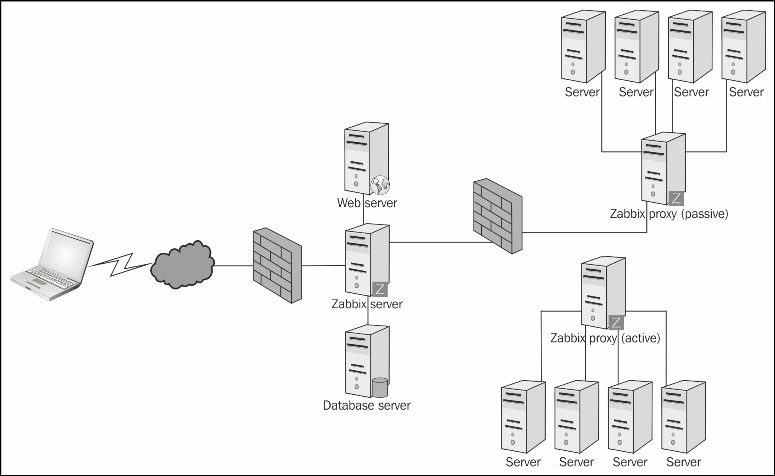
Low-level discovery


An extremely useful and important feature of Zabbix templates is their ability to support special kinds of items called low-level discovery rules. Once applied to actual hosts, these rules will query the host for whatever kind of resources they are configured to look for: filesystems, network interfaces, SNMP OIDs, and more. For every resource found, the server will dynamically create items, triggers, and graphs according to special entity prototypes connected to the discovery rules.

The great advantage of low-level discovery rules is that they take care of the more variable parts of a monitored host, such as the type and number of network interfaces, in a dynamic and general way. This means that, instead of manually creating specific items and triggers of every host's network interfaces or filesystems, or creating huge templates with any possible kind of item for a particular operating system and keeping most of these items disabled, you can have a reasonable number of general templates that will adapt themselves to the specifics of any given host by creating on the fly any entity required, based on discovered resources and previously configured prototypes.

Out of the box, Zabbix supports four discovery rules:

  • Network interfaces

  • Filesystems' types

  • SNMP OIDs

  • CPUs and CPU cores (as of version 2.4)

As discovery rules are effectively special kinds of items, you can create your own rules, provided you understand their peculiarity compared to regular items.

You need to create and manage low-level discovery rules in the Discovery rules section of a template configuration and not in the usual Items section, even if the discovery rules end up creating some kind of items. The main difference between discovered and regular items is that, whereas a regular item usually returns a single value, a discovery item always returns a list, expressed in JSON, of macro value pairs. This list represents all the resources found by the discovery items, together with a means to reference them.

The following table shows Zabbix's supported discovery items and their return values, together with a generalization that should give you an idea of how to create your own rules:

Discovery item key

Item type

Return values

vfs.fs.discovery

Zabbix agent

{"data": [
{"{#FSNAME}":<path>",  "{#FSTYPE}":"<fstype>"},
…
] }

net.if.discovery

Zabbix agent

{"data":[
{"{#IFNAME}":"<name>"},
…
]}

snmp.discovery

SNMP (v1, v2, or v3) agent

{"data":[
{"{#SNMPINDEX}":"<idx>", "{#SNMPVALUE}":"<value>},
…
]}

system.cpu.discovery

Zabbix agent

{"data":[
{""{#CPU.NUMBER}":"<idx>", "{#CPU.STATUS}":"<value>},
{"{#CPU.NUMBER}":"<idx>", "{#CPU.STATUS}":"<value>},
…
]}

custom.discovery

Any

{"data":[
{"{#CUSTOM1}":"<value>","{#CUSTOM2}":"<value>"},
…
]}

Tip

Just as with all SNMP items, the item key is not really important as long as it is unique. It's the SNMP OID value that you ask an agent for that makes the difference: you can create different SNMP discovery rules that look for different kinds of resources by changing the item key and looking for different OID values. The custom discovery example is even more abstract as it will depend on the actual item type.

As you can see, a discovery item always returns a list of values, but the actual contents of the list change, depending on what resources you are looking for. In the case of a filesystem, the returned list will contain values like {#FSNAME}:"/usr", {#FSTYPE}:"btrfs", and so on for every discovered filesystem. On the other hand, a network discovery rule will return a list of the names of the discovered network interfaces. This is the case for the default SNMP network interfaces template. Let's see in detail how it works.

The template has a discovery rule called network interfaces. It looks just like a regular item as it has a name, a type, an update interval, and a key. It's an SNMP type, so it also has an SNMP OID, IF-MIB::ifDescr. This is a discovery rule, so instead of a single value, it will return a list of all the OIDs that are part of the IF-MIB::ifDescr subtree for that particular device. This means that it will return the OID and its value for all the network interfaces present on the device. Every time the discovery rule is executed on a host (based on the update interval, just like any other item), it will return a list of all interfaces that are available at that particular moment. If the device had four network interfaces, it could return something similar to this:

{"data" : [
            { "{#SNMPINDEX}" : "1",
              "{#SNMPVALUE}" : "FastEthernet0/0"},
            { "{#SNMPINDEX}" : "2",
              "{#SNMPVALUE}" : "FastEthernet0/1"},
            { "{#SNMPINDEX}" : "3",
              "{#SNMPVALUE}" : "FastEthernet1/0"},
            { "{#SNMPINDEX}" : "4",
              "{#SNMPVALUE}" : "FastEthernet1/1"},
           ]}

The discovery rule will then proceed to apply the list to the item and trigger prototypes it has configured, as follows:

Taking the Incoming traffic on interface {#SNMPVALUE} item prototype as an example, you can see how it all comes together:

The {#SNMPVALUE} macro is used in the item's key and, therefore, in the item's name as well (look at the $1 macro that references the first argument of the item's key).

On the other hand, the {#SNMPINDEX} macro will be used by Zabbix to actually get the incoming traffic value for that specific interface as it should be clear by now if you observe the value in the SNMP OID field.

When configuring a template's discovery rules, you don't need to care about the actual values returned in their lists, nor the lists' length. The only thing you have to know is the name of the macros that you can reference in your prototypes. These are to be referenced in the second half of the low-level discovery mechanism, object prototypes. You create them as regular template entities, making sure you use the discovery item macros where needed, and Zabbix will take care of the rest for you, creating for each item prototype as many items as there are elements in the list returned by the discovery rule, for each trigger prototype as many triggers as there are elements in the list returned, and so on.

So, when you apply the template to a host, it will create items, triggers, and graphs based on the resources discovered by the discovery items and configured according to the discovery prototypes.

Custom discovery rules, from this point of view, work exactly in the same way as custom items, whether you decide to use agent-side scripts (thereby using a custom zabbix.agent item key), external scripts, database queries, or anything else. The only things you have to make sure of is that your custom items return keys/values that follow the JSON syntax, as shown in the preceding table, and that you reference your custom macros in the entities prototypes that you will create.

Let's see an example of a custom discovery rule using again Nmap and its output to dynamically create some items for a host, representing the open port it has, and the kind of services that are listening. Why would you want to use Nmap and a port scan? The device you need to monitor maybe doesn't support the Zabbix agent, so if you just ask for the output of netstat, you might not be able to install the agent for administrative reasons, or you might have to make sure that the services are also available from another network, so checking them from afar, instead of directly on the host, will enable you to also verify your firewall rules, killing two birds with one stone.

Either way, we'll create an external check item per open TCP port, configured as a character-type item. Each item will contain the name of the service that was found listening, if any, as reported by Nmap's service discovery facilities.

Start by creating the discovery rule as an external check that will call a port-mapping script, as follows:

As you can see, the script will receive the host's IP as the only argument, and it will run once an hour for every host that has this discovery rule configured and is active.

The script itself is very simple and is based on NMAP's XML output coupled with the nifty xml2 tool you already used in Chapter 3, Monitoring Your Network Services, as follows:

#!/bin/bash
IPADDR=$1
#store ports as array
PORTS=( $(nmap -sV -oX - ${IPADDR} | xml2 | grep portid | cut -d'=' -f2) )
#count elements of the array and use as counter for later processing
COUNTER=${#PORTS[@]}

#open JSON
echo '{"data":['
#loop through ports and print key/value
for PORT in "${PORTS[@]}"; do
 COUNTER=$(( COUNTER - 1))
 if [ $COUNTER -ne 0 ]; then
  echo "{\"{#PORTID}\" : \"${PORT}\"}",
 else
  #it's the last element. To have valid JSON We don't add a trailing comma
  echo "{\"{#PORTID}\" : \"${PORT}\"}"
 fi
done

#close JSON
echo ]}
#exit with clean exit code
exit 0

The line starting with nmap is the heart of the script. The –oX option enables XML output, which is more stable and easy to manage compared to the normal one. The dash after –oX specifies stdout as the output instead of a regular file, so we can pipe the result to xml2 and then take only the lines that contain portid, that is, the open port numbers for that host.

As a result, the script just outputs a simple JSON object. Here's an example of what the discovery rule will get, as shown from the command line:

./port_map.sh '127.0.0.1'

{"data":[
{"{#PORTID}" : "22"},
{"{#PORTID}" : "25"},
{"{#PORTID}" : "80"},
{"{#PORTID}" : "631"},
{"{#PORTID}" : "3306"}
]}

It's now time to define the item and trigger prototypes, based on the open port that you found. We'll show here an example of an item prototype that will return the name and version of the daemon listening on the port, as returned, once again, by Nmap:

The external check will call a script that is even simpler than the previous one, as follows:

#!/bin/bash
IPADDR=$1
PORT=$2
nmap -sV -oX - -p ${PORT} ${IPADDR} | xml2 | grep 'port/service/@\(product\|version\|extrainfo\)'

Compared to the previous Nmap command, we added a –sV option to make NMAP run a series of probes in order to find out what service is running behind that open port and a –p option to specify a single port to scan.

The output was kept simple on purpose to show you an example of xml2's output. You can, of course, slice it and dice it to suit your own needs:

./port_service.sh 127.0.0.1 80
/nmaprun/host/ports/port/service/@product=Apache httpd
/nmaprun/host/ports/port/service/@version=2.2.15
/nmaprun/host/ports/port/service/@extrainfo=(CentOS)

Note

The amount of information Nmap will be able to get from a network service depends very much on how much and on what kind of data the service is configured to expose. This might depend on built-in parameters or security considerations on the part of the service owner. Compared to the previous example, your mileage can vary.

This is what will appear as the value of the item once the discovery rule is activated.


Summary


In this chapter, you learned how to use Zabbix's discovery facilities to automate its configuration as much as possible. It should also be clear to you why it's important to minimize the difference between what is configured in Zabbix and what is actually out there on the wire. Keeping track of everything that can appear or disappear on a busy network can be a fulltime job and one that is better suited to automated monitoring facilities like this one. You now have all the skills needed to actually do it, and you are ready to apply them in your real-world environment.

In the next chapter, we'll wrap things up by showing you how to leverage Zabbix's presentation power to create and manage graphs, dynamic maps, and screens.


Chapter 5. Visualizing Your Topology with Maps and Graphs

As you probably already know, Zabbix's approach to monitoring is based on separating data gathered from trigger logic and event logging. On the one hand, this means that you are able to reference any measurement, present and past, in your triggers, making them all the more powerful. On the other hand, it also means that you have direct access to all your measurement history for all your items.

While sorting through all of your historical data to look for a specific value can certainly be useful, the real advantage here is to leverage Zabbix's graphing and mapping functionalities to aggregate and visualize data in meaningful ways.

In this chapter, you'll see how to create complex graphs from your items' numerical values, how to automatically draw maps that reflect the current status of your network, and how to bring it all together using screens as a tool to customize monitoring data presentation.


Creating custom graphs


Basic graphical data representation comes for free for any item that has a numeric data type. You just need to go to Monitoring | Latest Data, select the host you are interested in, find the relevant item, and click on Graph in the last column on the right-hand side. You'll get a line graph with a time slider that you can use to change the timeframe of the graph itself; widen it to cover a longer amount of time, or shorten it to focus on a specific point in time.

Since Zabbix 2.4, you can also compare different items on the fly with ad hoc graphs. These are a direct extension of simple graphs: from Monitoring | Latest Data, you just need to mark the checkbox on the left-hand side of every item that you want to graph and select Display stacked graph or Display graph from the drop-down menu at the bottom of the page, as follows:

The result is pretty much the one you expect. You also don't have to worry too much about choosing between a normal graph and a stacked graph as you'll be able to switch between the two from the graph itself, as follows:

These quick, ad hoc graphs can really cover most of your visualization needs, especially for values that you don't consult that often or if you need to compare items that you normally don't have to, as part of a new analysis or to investigate a new class of problems.

On the other hand, if you need to compare the same types of items over and over, and for different hosts, you'll need a way to save your selections so that you are able to access your aggregated graphs without having to specify every time what items need to be graphed. You can achieve all this with custom graphs.

Note

If you like to visualize your percentile data with pie charts, you'll also need to create custom graphs as they're currently the only way to create pie charts in Zabbix.

Custom graphs can be created as part of a host, or better yet as part of a template, or a low-level discovery rule, so that any host inheriting the template or discovery rule will automatically also inherit the custom graph.

To create one, you need to go to Configuration | Templates, choose the template you want to put your graph into, select Graphs, and click on Create graph. This will bring you to the graph creation form. For convenience, the following example will show you some items already added to the item list and some other options already selected instead of an empty form, but you'll easily be able to add your own items by following the add link at the bottom of the item list, as follows:

As you can see, there are a few options worth noting. First of all, you can select the graph type between Normal, Stacked, Pie, and Exploded (that is, a pie chart with all slices separated instead of close together). Next, if you select the Show triggers checkbox, the graph will include a horizontal line for every trigger that has any of the items present in the graph's item list in its expression. You don't have to specify the trigger or find them manually; Zabbix will take care of finding all relevant triggers and show them on the graph.

You can also specify the range of y axis values either as fixed values or calculated based on the data you have. You'll normally want to set them as calculated as this option will usually show the clearest and best-looking graphs, but sometimes, you might want to set them to a fixed value to have a better understanding of how the values change, especially if they fluctuate a lot between very big and very small values, and the item expresses a percentile range.

Moving to the item list, you can order the items by dragging and dropping the blue arrows on the left-hand side of the item's name and change their color by either specifying an RGB value or choosing from a color palette.

The draw style can be quite useful if you want a specific item to stand out from the rest. There are quite a few styles available for a normal graph, while this option is not available for stacked and pie charts.

The Function drop-down menu enables you to choose how the item should be graphed for every tick in the x axis: you can choose between the minimum value, the maximum one, and the average. Keep in mind that the x-axis tick density will change dynamically with the time scale of the graph (you can select different timeframes while looking at a graph; you don't have to specify them in advance): for timeframes up to an hour, it will show every sample collected, depending on the items' sample frequency; for larger timeframes, you'll have x-axis ticks proportional to the timeframe selected, which is a few minutes if the global timeframe is a few hours, to days or weeks if you select months' or years' worth of monitoring data. For every tick, Zabbix will use the function you selected here to plot the item value either by selecting the maximum, the minimum, or the average value for that time tick.

Finally, you can choose whether the y axis for an item will be shown on the left-hand side or the right-hand side. One of the reasons to separate different items on different y-axis sides is that maybe you are plotting on the same graph items that have absolute values together with items that express a percentile value. In this case, it makes sense to show the absolute scale on one side and the percentile one on the other side of the graph.

Another reason might be that you are plotting together items that will show, on average, very big or very small values, and you can predict ahead of time the ones that will gravitate towards the bottom of the scale, and the ones that will make the scale go up with big values. In that case, you might want to separate the two; otherwise, the items with big values will make the others look very flat and not very informative on the chart. This is the case illustrated in the preceding graph: we predicted that the total number of queries would be much bigger (by definition) compared to all the others, so we moved its y axis to the right-hand side. Here's the result of the graph we created:

What we haven't shown here, but you can easily imagine, is that as with almost everything in Zabbix, you are not limited to graphing items from the same host: you can just as easily graph the same item from different hosts, or even different items from different hosts. You might be interested, for example, in tracking network traffic from a bunch of different routers and looking at how this traffic changes in time, which machines are the busiest and when, which ones are not as busy as you expected compared to the overall traffic you have, and so on. To do that, you can easily create a graph following the guidelines above, only selecting the relevant network interfaces inbound and outbound items from the different appliances and putting them all on the same item list.

You can use Zabbix's custom graph creation facilities to explore your data in very meaningful ways that can be hard to achieve otherwise: don't be fooled by the fact that it's all mainly time-based (you can't put custom values on the x axis). You'll soon find that the ability to correlate different items from different sources is a very powerful tool for both troubleshooting and capacity planning.

Another powerful tool is Zabbix's mapping facility. We'll explore a few interesting aspects of map creation and maintenance in the following section.


Maps – a quick setup for a large topology


Creating complex maps is the kind of job that can take a lot of time. While doing a practical example, if you would like to design a map of 20-30 elements, it is easy to spend up to 2 hours even if you already know the job.

To manually produce a map, you need to:

  • Add all the items on the map

  • Move the items around until you see a nice-looking disposition

Every time you need to add in a map one host, you need to repeat many times the same steps as aforementioned, which will become a boring and complex task. Currently, there are many open-feature requests that can facilitate this kind of task; unfortunately, they have been open for a long time, even years.

The issues you can face are:

For all those issues, we need to find a different way to automate this long and slow process. Clearly, this is the kind of task that needs to be automated as much as possible.

Maps – automating the DOT creation

What is missing here is something that can process our information and produce as output something usable by Zabbix. To automate this task, there is one library that can help us—NetworkX—which is available at http://networkx.github.io/.

NetworkX is a Python software library tailor-made for the creation, manipulation, and study of dynamic network structures.

In this example, we assume that you're using Cisco Prime, which is a vendor-specific tool to export a discovered topology.

Anyway, this concept is still valid as here we are going to use an export file obtained, which is in CSV. This kind of CSV can be obtained as an export from many other vendors' software and can be easily produced from any third-party software.

The file that we are going to parse is in the following form:

IP address, System name, SysObjectID, Found by modules, Neighbors, Status

As you can see, it contains the IP address of the device discovered, the system name, the OID of the system, the module that found the device, a list of all the neighbors that are connected to it, and it ends with the status.

The following is an example of the line that we are expecting to see:

10.12.50.1,main.example.com,.1.3.6.1.4.1.9.1.896,System,"10.12.2.1, 10.12.2.2, 10.12.3.1, 10.12.4.1, 10.12.5.1",Reachable

We are mostly interested in the following fields:

  • IP address

  • System name

  • SysObjectID

  • Neighbors

Then, what we can do is write some Python lines that can read this file, identify all the required information, and write in the output a DOT file.

Here, I am going to spend a few words about the DOT notation, performing an example in order to clarify how this notation is done.

First of all, I would like to explain why we are going to have a Graphviz DOT file.

The Graphviz DOT file is really easy to read, maintain, and update, and nevertheless, it can be stored in a CVS or SVN.

Something that is really important to have is a file that can be quickly used to spot all the differences between versions and is easy to maintain. Also, we are considering using it as it is a standard language and a good starting point, on which we can transform all our acquired data from all the different versions of export.

Indeed, some other vendor-specific software can export the same data but in a different form, so it is important to normalize all our data in a common language.

This common language file will be the file to use to populate our Zabbix map.

This section, as you probably already have understood, will be a large usage of the Graphviz's packages.

The easiest way to install and maintain Graphviz on Red Hat Enterprise Linux is to use the dedicated yum repository. To set up yum, first of all, you need to download the graphviz-rhel.repo file and save it (as root) in /etc/yum.repos.d/, as follows:

# cd /etc/yum.repos.d
# wget http://www.graphviz.org/graphviz-rhel.repo
--2014-11-27 02:52:17--  http://www.graphviz.org/graphviz-rhel.repo
Resolving www.graphviz.org... 204.178.9.49
Connecting to www.graphviz.org|204.178.9.49|:80... connected.
HTTP request sent, awaiting response... 200 OK
Length: 1138 (1.1K) [text/plain]
Saving to: "graphviz-rhel.repo"

100%[======================================>] 1,138       --.-K/s   in 0s

2014-11-27 02:52:17 (134 MB/s) - "graphviz-rhel.repo" saved [1138/1138]

# ls -la graphviz-rhel.repo
-rw-r--r--. 1 root root 1138 Feb 16  2012 graphviz-rhel.repo

Then, you can finally list all the Graphviz packages as root:

yum list available 'graphviz*'

Install them, as follows:

yum install 'graphviz*'

Now that we've clarified the reason why we're doing those steps, it is important to walk through the DOT language. The DOT language is a language made to represent objects connected between each other.

While performing a practical example, if we want to define two connected nodes with the Graphviz DOT language, we can do as follows:

graph {
A -- B
}

This is a very easy-to-understand language; we are now representing two nodes connected to each other.

To see the graphical result, we can use a simple Python program xdot.py available for download here:

https://github.com/jrfonseca/xdot.py

All you have to do is download the program, write a file with the Graphviz DOT content that we showed previously, and then run the program, as follows:

xdot.py example.dot

The result is the DOT expressed topology visualized, as follows:

Using the same grammar, we can define three nodes connected, as follows:

graph {
A -- B -- C
}

Using the same xdot.py used previously, the result is the following:

Writing a couple of lines more, we can even avoid using long names using the following grammar:

graph {
  //We can create aliases to avoid to use very long names on the dependency definition
  Andrea [hostname="andrea.dalle.vacche.example.com"]
  Stefano [hostname="stefano.kewan.lee.example.com"]
  router [label="Our network router" zbximage="router"]
  //now it's time to define connections between the nodes

  //This notation allows for multiple edges from "router" in one go
  router -- { Andrea Stefano }
}

And the result is shown here:

For a detailed documentation of this grammar, please refer to the official documentation available at http://www.graphviz.org/content/dot-language.

Until now, we've covered all that is needed to know for our small application.

Now, we can come back to our CSV file we extracted from Cisco Prime.

Here is the CSV of a very simple network, but it can be applied on very complex network topologies, as well:

[root@localhost graphs]# cat my_export.csv
IP Address,System Name,SysObjectID,Found By Modules,Neighbors,Status
10.12.20.1,main.example.com,.1.3.6.1.4.1.9.1.896,System,"10.12.2.1, 10.12.2.2, 10.12.3.1, 10.12.4.1, 10.12.5.1",Reachable
10.12.2.1,cluster1.example.com,.1.3.6.1.4.1.9.1.634,System,"10.12.2.2, 192.168.99.1",Reachable
10.12.1.1,london.example.com,.1.3.6.1.4.1.9.1.503,System,"",Reachable
10.12.2.2,cluster2.example.com,.1.3.6.1.4.1.9.1.634,System,"10.12.2.1, 192.168.99.1",Reachable
10.12.3.1,switch1.example.com,.1.3.6.1.4.1.9.1.503,System,"192.168.99.1",Reachable
10.12.4.1,4.example.com,.1.3.6.1.4.1.9.1.502,System,"192.168.99.1,  10.12.4.42, 10.12.4.47, 10.12.4.48, 10.12.4.49",Reachable
10.12.4.45,4d.example.com,.1.3.6.1.4.1.9.1.503,System,"10.12.4.1",Reachable
10.12.4.46,4e.example.com,.1.3.6.1.4.1.9.1.502,System,"10.12.4.1",Reachable
10.12.4.47,4f.example.com,.1.3.6.1.4.1.9.1.503,System,"10.12.4.1",Reachable
10.12.4.48,4g.example.com,.1.3.6.1.4.1.9.1.503,System,"10.12.4.1",Reachable
10.12.5.1,5.example.com,.1.3.6.1.4.1.9.1.502,System,"192.168.99.1, 10.12.5.45, 10.12.5.43, 10.12.5.44, 10.12.5.46, 10.12.5.47, 10.12.5.48,  10.12.6.1",Reachable
10.12.5.44,5c.example.com,.1.3.6.1.4.1.9.1.503,System,"10.12.5.1",Reachable
10.12.5.45,5d.example.com,.1.3.6.1.4.1.9.1.503,System,"10.12.5.1",Reachable
10.12.5.46,5e.example.com,.1.3.6.1.4.1.9.1.502,System,"10.12.5.1",Reachable
10.12.5.47,5f.example.com,.1.3.6.1.4.1.9.1.503,System,"10.12.5.1",Reachable
10.12.5.48,5g.example.com,.1.3.6.1.4.1.9.1.503,System,"10.12.5.1",Reachable
10.12.5.155,5i.example.com,.1.3.6.1.4.1.9.1.634,System,"10.12.5.1",Reachable
10.12.6.1,6.example.com,.1.3.6.1.4.1.9.1.502,System," 10.12.6.45, 10.12.6.46, 10.12.6.47, , 10.12.5.1",Reachable
10.12.6.45,6d.example.com,.1.3.6.1.4.1.9.1.503,System,"10.12.6.1",Reachable
10.12.6.46,6e.example.com,.1.3.6.1.4.1.9.1.502,System,"10.12.6.1",Reachable
10.12.6.47,6f.example.com,.1.3.6.1.4.1.9.1.503,System,"10.12.6.1",Reachable

From this file, we see that all the relations between neighbors are already contained in the CSV, and that we only need to convert them into DOT notation using the node notation.

Here, we can start coding a few Python lines to produce our desired output:

#First of all we need to import csv and Networkx
import csv
import networkx as nx
#Then we need to define who is our zabbix server and some other detail to properly produce the DOT file
zabbix_service_ipaddr = "192.168.1.100"
main_loop_ipaddr = "10.12.20.1"
main_vlan_ipaddr = "149.148.56.1"

# Now we can finally create our graph
G=nx.Graph()
# we can open our CSV file
csv_reader = csv.DictReader( open( 'my_export.csv' ), \
    delimiter=",", \
    fieldnames=( "ipaddress", "hostname", "oid", "dontcare", "neighbors" ))
# Skip the header
csv_reader.next()

for row in csv_reader:
    neighbor_list = row["neighbors"].split( "," )

    for neighbor in neighbor_list:
        # Remove spaces
        neighbor = neighbor.lstrip()

  # Add neighbors,and here we've decided to ignore isolated nodes
        if neighbor != "":
            G.add_edge( row["ipaddress"], neighbor )

            # Add additional information to nodes or edges here
            G.node[row["ipaddress"]]["hostname"] = row["hostname"]
# Cisco Prime doesn't export all IP addresses of a device
# but only the first for each network, Here we merge hosts with
# multiple IP addresses
mapping = {main_vlan_ipaddr: main_loop_ipaddr}
G = nx.relabel_nodes( G, mapping )

# Remove cluster connection not needed in our map
G.remove_edge( "10.12.2.1", "10.12.2.2" )

# Adding connection between Zabbix server and main switch
G.add_edge( zabbix_service_ipaddr, main_loop_ipaddr )
main_neigh_list = G.neighbors( main_loop_ipaddr )
# finally write out our file
nx.draw_graphviz( G )
nx.write_dot( G, "/tmp/total.dot" )

Now, if you run this small software against the CSV file we have shown before you see our DOT file generated on /tmp/total.dot. Now, it is interesting to see how our DOT file is represented on XDot. Here, in the next diagram, we see the representation of our DOT file:

Now, all that we have to do is produce the map starting from the DOT file we just generated.

Drafting Zabbix maps from DOT

Having arrived at this point, we have our Graphviz DOT file that is waiting to be used. As you can see from the previous image, thanks to Graphviz, we already have a ready-to-go image to use. Then, all we need to do is:

  1. Read out the DOT file.

  2. Generate the topology using Graphviz.

  3. Acquire all the coordinates from our topology generated.

  4. Use pyzabbix to connect to our Zabbix server.

  5. Generate our topology in a fully automated way.

It's now time to write some lines of Python; the following example is similar to something presented by Volker Fröhlich. Anyway, the code here has been changed and fixed (it did not work well with Zabbix 2.4).

As the first thing, we need to import the ZabbixApi and networkX libraries:

import networkx as nx
from pyzabbix import ZabbixAPI

Then, we can define the Graphviz DOT file to use as a source; a good example is the one we just generated:

dot_file="/tmp/total.dot"

In the next few lines, we define our username, password, map dimension, and relative map name:

username="Admin"
password="zabbix"
width = 800
height = 600
mapname = "my_network"

What follows is a static map to define the element type:

ELEMENT_TYPE_HOST = 0
ELEMENT_TYPE_MAP = 1
ELEMENT_TYPE_TRIGGER = 2
ELEMENT_TYPE_HOSTGROUP = 3
ELEMENT_TYPE_IMAGE = 4
ADVANCED_LABELS = 1
LABEL_TYPE_LABEL = 0

Then, we can define the icons to use and the relative color code:

icons = {
  "router": 23,
  "cloud": 26,
  "desktop": 27,
  "laptop": 28,
  "server": 29,
  "sat": 30,
  "tux": 31,
  "default": 40,
}
colors = {
  "purple": "FF00FF",
  "green": "00FF00",
  "default": "00FF00",
}

Now, we define some functions that we can reuse. The first one is to manage the login, and the second one is to define a host lookup, as follows:

def api_connect():
  zapi = ZabbixAPI("http://127.0.0.1/zabbix/")
  zapi.login(username, password)
  return zapi

def host_lookup(hostname):
  hostid = zapi.host.get({"filter": {"host": hostname}})
  if hostid:
    return str(hostid[0]['hostid'])

The next thing to do, is read our DOT file and start converting it into a graph:

G=nx.read_dot(dot_file)

Then, we can finally open our graph, as follows:

pos = nx.graphviz_layout(G)

Note

Here, you can select your preferred algorithm. Graphviz supports many different kinds of layout, and then you can change the look and feel of your map as you prefer. For more information about Graphviz, please check the official documentation available at http://www.graphviz.org/.

Then, as the graph is already generated, the next thing to do is find the maximum coordinates of the layout. This will enable us to scale better our predefined map output size.

positionlist=list(pos.values())
maxpos=map(max, zip(*positionlist))
for host, coordinates in pos.iteritems():
   pos[host] = [int(coordinates[0]*width/maxpos[0]*0.95-coordinates[0]*0.1), int((height-coordinates[1]*height/maxpos[1])*0.95+coordinates[1]*0.1)]
nx.set_node_attributes(G,'coordinates',pos)

Note

Graphviz and Zabbix use two different data origins: Graphviz starts from the bottom-left corner, and Zabbix works starting from the top-left corner.

Then, we need to retrieve the selementids as they are required for links and even for the node data coordinates, as follows:

selementids = dict(enumerate(G.nodes_iter(), start=1))
selementids = dict((v,k) for k,v in selementids.iteritems())
nx.set_node_attributes(G,'selementid',selementids)

Now, we define the map on Zabbix, the name, and the relative map size:

map_params = {
  "name": mapname,
  "label_type": 0,
  "width": width,
  "height": height
}
element_params=[]
link_params=[]

Finally, we can connect to our Zabbix server:

zapi = api_connect()

Then, prepare all the node information and the coordinates and then set the icon to use, as follows:

for node, data in G.nodes_iter(data=True):
  # Generic part
  map_element = {}
  map_element.update({
    "selementid": data['selementid'],
    "x": data['coordinates'][0],
    "y": data['coordinates'][1],
    "use_iconmap": 0,
  })

Check whether we have the hostname, as follows:

    if "hostname" in data:
      map_element.update({
        "elementtype": ELEMENT_TYPE_HOST,
        "elementid": host_lookup(data['hostname'].strip('"')),
        "iconid_off": icons['server'],
      })
    else:
      map_element.update({
        "elementtype": ELEMENT_TYPE_IMAGE,
        "elementid": 0,
      })

We set labels for images, as follows:

    if "label" in data:
      map_element.update({
        "label": data['label'].strip('"')
      })
    if "zbximage" in data:
      map_element.update({
        "iconid_off": icons[data['zbximage'].strip('"')],
      })
    elif "hostname" not in data and "zbximage" not in data:
      map_element.update({
        "iconid_off": icons['default'],
      })

    element_params.append(map_element)

Now, we need to scan all the edges to create the element links based on the element we identified, as follows:

nodenum = nx.get_node_attributes(G,'selementid')
for nodea, nodeb, data in G.edges_iter(data=True):
  link = {}
  link.update({
    "selementid1": nodenum[nodea],
    "selementid2": nerodenum[nodeb],
  })

  if "color" in data:
    color =  colors[data['color'].strip('"')]
      link.update({
        "color": color
      })
  else:
    link.update({
      "color": colors['default']
    })

  if "label" in data:
    label =  data['label'].strip('"')
    link.update({
      "label": label,
    })

    link_params.append(link)

# Join the prepared information
map_params["selements"] = element_params
map_params["links"] = link_params

Now, we have populated all map_params, and now we need to call Zabbix's API with this data:

map=zapi.map.create(map_params)

The program is now complete, and we can let it run! In a real-world case, the time spent to design a topology of more than 2,500 hosts is only 2–3 seconds!

We can test the software here, proposed against the DOT file we generated before:

[root@localhost]# time ./Generate_MyMap.py
real    0m0.005s
user    0m0.002s
sys     0m0.003s

As you can see, our software is really quick… but let's check what has been generated. In the next screenshot, you can see the map that is generated automatically in 0.005 seconds:


Putting everything together with screens


Unlike any other Zabbix feature we described in this chapter, screens don't actually give you new or improved information about your monitored data. Pretty much anything that you can decide to put on a screen can be found somewhere else in Zabbix.

From maps and graphs, to trigger status and item data, all of this and more can be easily found by exploring the Monitoring tab of the web frontend.

But the point of gathering existing data on a Zabbix screen is precisely that you bring together related data, or different views of the same data so that you don't have to look for it around the frontend, and so that you can have a good overview of the status of your systems and see at a glance whether there are any problems within your infrastructure.
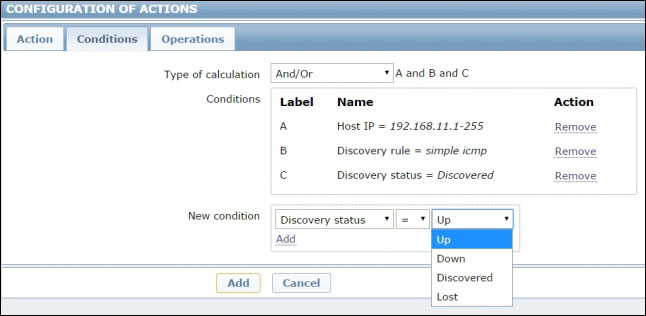
When you create a screen (Configuration | Screens | Create screen), you give it a name and a starting number of rows and columns. Don't worry too much about how many rows and columns you assign to a screen as you will be able to change them during screen configuration.

Once you have the screen created, you can go ahead and configure it by selecting its name in Configuration | Screens.

A screen is basically a table with rows and columns that identifies cells. Every cell can contain different types of data:

Cell type

Description

Action log

This shows a log of the latest actions executed by Zabbix. You can configure how many actions you want to see in the cell.

Clock

This shows an analog clock with the current time.

Data overview

This shows the latest item data for a specific group of hosts.

Graph

This shows an existing custom graph.

Graph prototype

This shows a custom graph created from a low-level discovery rule prototype.

History of events

This shows a log of the latest events (these don't necessarily lead to actions). You can configure how many events you want to see in the cell.

Host group issues

This shows the current issues for a specific host group.

Host issues

This shows the current issues for a specific host.

Host's info

This shows a summary of host availability for a specific group, such as the one you find in Monitoring | Overview.

Map

This shows an existing map.

Plain text

This shows the plain text history of a specific item together with the timestamp for each measurement. You can configure how many entries you want to see in the cell.

Screen

This shows an existing screen. Yes, you can embed a screen into another screen if you want.

Server info

This shows a summary of the monitoring status for the Zabbix server, such as DB connectivity, number of hosts, items and triggers, new values per second, and so on.

Simple graph

This shows the graph for a single item, such as the ones you can see in Latest data without creating a custom graph.

Simple graph prototype

This is like a simple graph, but is for items created automatically from a low-level discovery rule prototype.

System status

This shows a summary of the current issues, divided into host groups and severity.

Trigger information

This shows a summary of triggers currently in a problem state, divided by severity. You have to specify a host group.

Trigger overview

This shows every trigger status for every host in a specific host group (and optionally, application).

URL

This shows the content of an arbitrary web page, given its URL.

Every cell is also independent from the others: you can bring together data belonging to the same host as well as belonging to different hosts and hosts' groups, depending on how you want to organize your screen.

Finally, for every cell, you can specify how many rows and columns it should span, and for graphic cell types (maps, graphs, and so on), you can also define how much space they should take by specifying the width and height in pixels.

All this flexibility is certainly powerful but can be a bit overwhelming, so here are some general guidelines that you can refer to when you create your own screens.

A very useful type of screen brings together data from a single host so that you can see at a glance its overall performance. You'll typically want to see some graphs in a screen like this, such as network and CPU performance, disk usage, and any application-specific graph or item summary you might need, such as database performance graphs, application server statistics, and so on.

In the following example, we've kept things simple due to space constraints, but you can see how even four graphs can prove useful when put together this way:

An interesting feature of screen cells is that you can make the content dynamic by flagging the aptly named checkbox. Dynamic cells will refer the same type of content to different hosts depending on the context.

This means that you can create a screen at the template level, flag all cells as dynamic, and just like that, every host inheriting the template will also inherit a personalized screen, with all graphs and tables referencing the aforesaid host. This way, you won't have to manually create a specific screen for every host.

In another type of screen, you might want to focus on group triggers and issues. In this kind of screen, a typical cell's contents will be some maps, with hosts and links that change color based on trigger status, some trigger information and trigger overview cells, and possibly a log of the latest events and actions.

Finally, you might want to create specific screens that bring together historical data from different items, such as application-specific log files, output from external commands, such as Nmap, Windows update status for a host, and so on. As usual, the sky's the limit here.
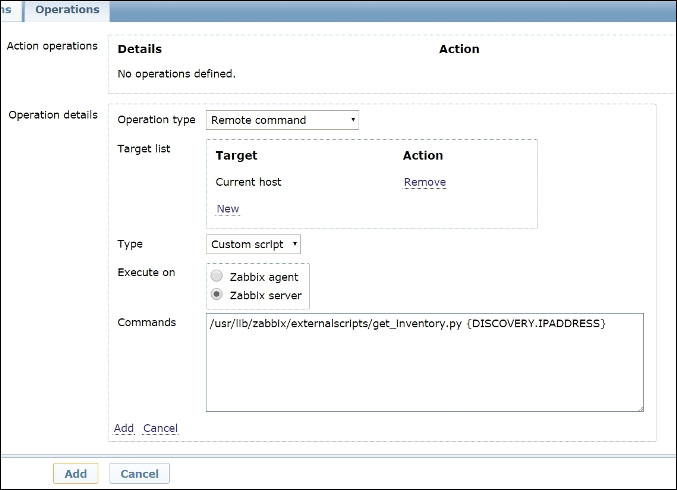
Tip

Keep in mind that the preceding screen types are merely examples that barely scratch the surface of what's possible with Zabbix's screen. You are by no means limited to these types; on the contrary, you are encouraged to mix and match the different cells to suit your own needs. Don't let us stop you from creating awesome screens!

Once you have created a few screens, the next logical step is to find a way to bring them together in an organized way. Slide shows serve this purpose in an interesting and useful way. You can create a slide show by going to Configuration | Slide shows and clicking on Create slide show. The creation form is pretty self-explanatory:

Much like adding items to a custom graph, by clicking on the Add link at the bottom of the Slides list, you can add existing screens to the slide show, and you can reorder them by dragging and dropping the blue arrows near the screen name in the list. The result will be, quite predictably, a slide show of all the screens you have put in the list. It will run over and over cycling through all the elements. Each slide will have the focus for the number of seconds equal to the default delay if you don't specify anything in the slide's Delay field.

Slide shows are very useful when shown on a big screen in a datacenter, but you need to be careful when creating screens that you know will end up in a slide show. Slides don't scroll vertically, so if a screen is bigger than the browser window used to show the slides, you'll never be able to see some of the data. A possible workaround is to create screens that will take up the whole window size, but nothing more. This way, you'll be sure that all relevant data will always show up on the slide show that you play on that big screen you put on the wall for monitoring purposes.
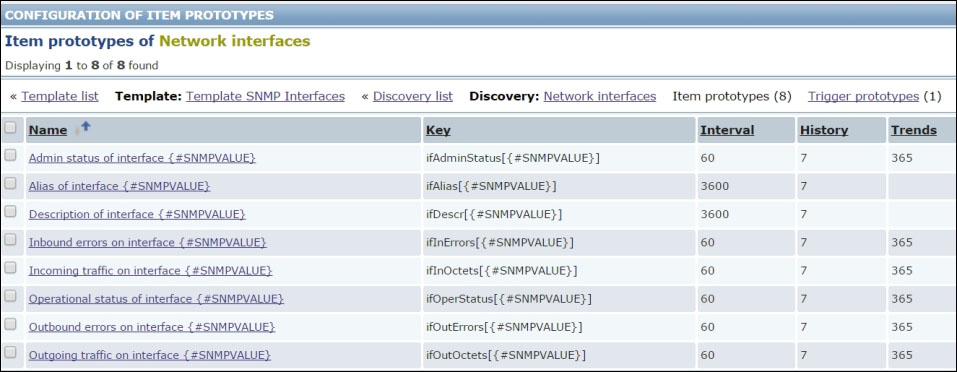
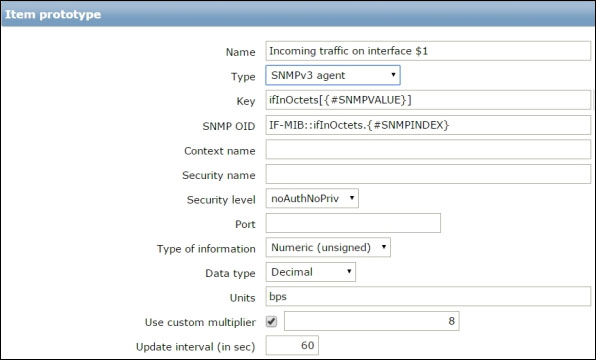
Another workaround is to make sure that for each screen bigger than the window size, you put all important data at the top of the screen. This way, some of the screen's data will show up on the slides, while you'll still be able to access all of it when accessing the screen on its own and not as part of the slideshow.


Summary


In this chapter, you explored Zabbix's visualization features and learned how to use them to get the most out of your monitoring data. Sometimes, the value of a measurement doesn't lie in the events and actions that it can trigger, but in its correlation with other measurements, both in time (graphs) and instantly (maps). This is especially true with network monitoring, where the ability to predict the future needs of a network, and adapt to them, is just as important as acting on contingent issues.

We have reached the end of our brief journey through Zabbix's configuration and use. Now, you should be able to correctly size a Zabbix installation based on you environment; find the best and most appropriate tools and protocols to monitor your data; automate device discovery and monitoring as much as possible (and when not to automate it); and move beyond actions and triggers and visualize all your data in meaningful ways.

With all these skills under your belt, we are confident that you'll be able to adapt a powerful and flexible tool like Zabbix to your own network and not be confined to default templates that may, or may not, reflect your actual monitoring needs.

Monitoring a computer network is often also a discovery journey, where you can gain unexpected wisdom from apparently dry and uninspiring data, such as SNMP values and server logs. With this short book, we hope we have shown you how Zabbix can be an excellent means to gain such wisdom if you are willing to play with it for a while and put to good use all its powerful features.


Appendix A. Partitioning the Zabbix Database


MySQL partitioning


Here are all the stored procedures you need to create to properly handle database partitioning with MySQL.

You need to create all of them in your Zabbix database.

Note that all the procedures described here are also available at https://github.com/smartmarmot/zabbix_network_monitoring/tree/master/Chapter1.

The partition_maintenance procedure

This is the most important procedure, which will manage all the other stored procedures involved in the creation/drop and verification of partitions, as follows:

DELIMITER $$
CREATE PROCEDURE `partition_maintenance`(SCHEMA_NAME VARCHAR(32), TABLE_NAME VARCHAR(32), KEEP_DATA_DAYS INT, HOURLY_INTERVAL INT, CREATE_NEXT_INTERVALS INT)
BEGIN
        DECLARE OLDER_THAN_PARTITION_DATE VARCHAR(16);
        DECLARE PARTITION_NAME VARCHAR(16);
        DECLARE LESS_THAN_TIMESTAMP INT;
        DECLARE CUR_TIME INT;
 
        CALL partition_verify(SCHEMA_NAME, TABLE_NAME, HOURLY_INTERVAL);
        SET CUR_TIME = UNIX_TIMESTAMP(DATE_FORMAT(NOW(), '%Y-%m-%d 00:00:00'));
        IF DATE(NOW()) = '2014-04-01' THEN
                SET CUR_TIME = UNIX_TIMESTAMP(DATE_FORMAT(DATE_ADD(NOW(), INTERVAL 1 DAY), '%Y-%m-%d 00:00:00'));
        END IF;
        SET @__interval = 1;
        create_loop: LOOP
                IF @__interval > CREATE_NEXT_INTERVALS THEN
                        LEAVE create_loop;
                END IF;
 
                SET LESS_THAN_TIMESTAMP = CUR_TIME + (HOURLY_INTERVAL * @__interval * 3600);
                SET PARTITION_NAME = FROM_UNIXTIME(CUR_TIME + HOURLY_INTERVAL * (@__interval - 1) * 3600, 'p%Y%m%d%H00');
                CALL partition_create(SCHEMA_NAME, TABLE_NAME, PARTITION_NAME, LESS_THAN_TIMESTAMP);
                SET @__interval=@__interval+1;
        END LOOP;
 
        SET OLDER_THAN_PARTITION_DATE=DATE_FORMAT(DATE_SUB(NOW(), INTERVAL KEEP_DATA_DAYS DAY), '%Y%m%d0000');
        CALL partition_drop(SCHEMA_NAME, TABLE_NAME, OLDER_THAN_PARTITION_DATE);
 
END$$
DELIMITER ;

This stored procedure will be the core of our housekeeping. It will be called with the following syntax:

CALL partition_maintenance('<zabbix_db_name>', '<table_name>', <days_to_keep_data>, <hourly_interval>, <num_future_intervals_to_create>)

The partition_create procedure

This procedure is responsible for creating new partitions across your schema. What follows here is the procedure itself:

DELIMITER $$
CREATE PROCEDURE `partition_create`(SCHEMANAME VARCHAR(64), TABLENAME VARCHAR(64), PARTITIONNAME VARCHAR(64), CLOCK INT)
BEGIN
        /*
           SCHEMANAME = The DB schema in which to make changes
           TABLENAME = The table with partitions to potentially delete
           PARTITIONNAME = The name of the partition to create
        */
        /*
           Verify that the partition does not already exist
        */
 
        DECLARE RETROWS INT;
        SELECT COUNT(1) INTO RETROWS
        FROM information_schema.partitions
        WHERE table_schema = SCHEMANAME AND TABLE_NAME = TABLENAME AND partition_name = PARTITIONNAME;
 
        IF RETROWS = 0 THEN
                /*
                   1. Print a message indicating that a partition was created.
                   2. Create the SQL to create the partition.
                   3. Execute the SQL from #2.
                */
                SELECT CONCAT( "partition_create(", SCHEMANAME, ",", TABLENAME, ",", PARTITIONNAME, ",", CLOCK, ")" ) AS msg;
                SET @SQL = CONCAT( 'ALTER TABLE ', SCHEMANAME, '.', TABLENAME, ' ADD PARTITION (PARTITION ', PARTITIONNAME, ' VALUES LESS THAN (', CLOCK, '));' );
                PREPARE STMT FROM @SQL;
                EXECUTE STMT;
                DEALLOCATE PREPARE STMT;
        END IF;
END$$
DELIMITER ;

The partition_verify procedure

This partition is responsible for verifying whether a partition is already present, and if it isn't, partition_verify will create them, as follows:

DELIMITER $$
CREATE PROCEDURE `partition_verify`(SCHEMANAME VARCHAR(64), TABLENAME VARCHAR(64), HOURLYINTERVAL INT(11))
BEGIN
        DECLARE PARTITION_NAME VARCHAR(16);
        DECLARE RETROWS INT(11);
        DECLARE FUTURE_TIMESTAMP TIMESTAMP;
 
        /*
         * Check if any partitions exist for the given SCHEMANAME.TABLENAME.
         */
        SELECT COUNT(1) INTO RETROWS
        FROM information_schema.partitions
        WHERE table_schema = SCHEMANAME AND TABLE_NAME = TABLENAME AND partition_name IS NULL;
 
        /*
         * If partitions do not exist, go ahead and partition the table
         */
        IF RETROWS = 1 THEN
                /*
                 * Take the current date at 00:00:00 and add HOURLYINTERVAL to it.  This is the timestamp below which we will store values.
                 * We begin partitioning based on the beginning of a day.  This is because we don't want to generate a random partition
                 * that won't necessarily fall in line with the desired partition naming (ie: if the hour interval is 24 hours, we could
                 * end up creating a partition now named "p201403270600" when all other partitions will be like "p201403280000").
                 */
                SET FUTURE_TIMESTAMP = TIMESTAMPADD(HOUR, HOURLYINTERVAL, CONCAT(CURDATE(), " ", '00:00:00'));
                SET PARTITION_NAME = DATE_FORMAT(CURDATE(), 'p%Y%m%d%H00');
 
                -- Create the partitioning query
                SET @__PARTITION_SQL = CONCAT("ALTER TABLE ", SCHEMANAME, ".", TABLENAME, " PARTITION BY RANGE(`clock`)");
                SET @__PARTITION_SQL = CONCAT(@__PARTITION_SQL, "(PARTITION ", PARTITION_NAME, " VALUES LESS THAN (", UNIX_TIMESTAMP(FUTURE_TIMESTAMP), "));");
 
                -- Run the partitioning query
                PREPARE STMT FROM @__PARTITION_SQL;
                EXECUTE STMT;
                DEALLOCATE PREPARE STMT;
        END IF;
END$$
DELIMITER ;

The partition_drop procedure

This stored procedure is responsible for dropping the partitions older than a given period, as follows:

DELIMITER $$
CREATE PROCEDURE `partition_drop`(SCHEMANAME VARCHAR(64), TABLENAME VARCHAR(64), DELETE_BELOW_PARTITION_DATE BIGINT)
BEGIN
        /*
           SCHEMANAME = The DB schema in which to make changes
           TABLENAME = The table with partitions to potentially delete
           DELETE_BELOW_PARTITION_DATE = Delete any partitions with names that are dates older than this one (yyyy-mm-dd)
        */
        DECLARE done INT DEFAULT FALSE;
        DECLARE drop_part_name VARCHAR(16);
 
        /*
           Get a list of all the partitions that are older than the date
           in DELETE_BELOW_PARTITION_DATE.  All partitions are prefixed with
           a "p", so use SUBSTRING TO get rid of that character.
        */
        DECLARE myCursor CURSOR FOR
                SELECT partition_name
                FROM information_schema.partitions
                WHERE table_schema = SCHEMANAME AND TABLE_NAME = TABLENAME AND CAST(SUBSTRING(partition_name FROM 2) AS UNSIGNED) < DELETE_BELOW_PARTITION_DATE;
        DECLARE CONTINUE HANDLER FOR NOT FOUND SET done = TRUE;
 
        /*
           Create the basics for when we need to drop the partition.  Also, create
           @drop_partitions to hold a comma-delimited list of all partitions that
           should be deleted.
        */
        SET @alter_header = CONCAT("ALTER TABLE ", SCHEMANAME, ".", TABLENAME, " DROP PARTITION ");
        SET @drop_partitions = "";
 
        /*
           Start looping through all the partitions that are too old.
        */
        OPEN myCursor;
        read_loop: LOOP
                FETCH myCursor INTO drop_part_name;
                IF done THEN
                        LEAVE read_loop;
                END IF;
                SET @drop_partitions = IF(@drop_partitions = "", drop_part_name, CONCAT(@drop_partitions, ",", drop_part_name));
        END LOOP;
        IF @drop_partitions != "" THEN
                /*
                   1. Build the SQL to drop all the necessary partitions.
                   2. Run the SQL to drop the partitions.
                   3. Print out the table partitions that were deleted.
                */
                SET @full_sql = CONCAT(@alter_header, @drop_partitions, ";");
                PREPARE STMT FROM @full_sql;
                EXECUTE STMT;
                DEALLOCATE PREPARE STMT;
 
                SELECT CONCAT(SCHEMANAME, ".", TABLENAME) AS `table`, @drop_partitions AS `partitions_deleted`;
        ELSE
                /*
                   No partitions are being deleted, so print out "N/A" (Not applicable) to indicate
                   that no changes were made.
                */
                SELECT CONCAT(SCHEMANAME, ".", TABLENAME) AS `table`, "N/A" AS `partitions_deleted`;
        END IF;
END$$
DELIMITER;

The partition_maintenance_all procedure

This procedure calls the partition_maintenance procedure for each history/trend table. Please note that for all the history tables, we are applying the same intervals, which are 730 days of trend data and 28 days of history data. Here's how this procedure works:

DELIMITER $$
CREATE PROCEDURE `partition_maintenance_all`(SCHEMA_NAME VARCHAR(32))
BEGIN
                CALL partition_maintenance(SCHEMA_NAME, 'history', 28, 24, 14);
                CALL partition_maintenance(SCHEMA_NAME, 'history_log', 28, 24, 14);
                CALL partition_maintenance(SCHEMA_NAME, 'history_str', 28, 24, 14);
                CALL partition_maintenance(SCHEMA_NAME, 'history_text', 28, 24, 14);
                CALL partition_maintenance(SCHEMA_NAME, 'history_uint', 28, 24, 14);
                CALL partition_maintenance(SCHEMA_NAME, 'trends', 730, 24, 14);
                CALL partition_maintenance(SCHEMA_NAME, 'trends_uint', 730, 24, 14);
END$$
DELIMITER;


Housekeeping configuration


As per our example, the housekeeping needs to be configured, as shown in the following screenshot, with a history data storage period of 730 days and a trend data storage period of 28 days. Here, you can change those values bearing in mind that you also need to change the parameter passed to the stored procedures.

To change the housekeeping setting in the web interface, you simply need to go to Administration | General | Housekeeping (from the drop-down list), and here is the configuration:


Appendix B. Collecting Squid Metrics


Squid metric script


Here, you can find the script we discussed in Chapter 3, Monitoring Your Network Services, and create the script in the usual location, that is, at /home/zabbix/bin/squidcheck.sh.

Create the script with the following content:

cat squidcheck.sh
#!/bin/bash
VERSION="1.0"

function usage()
{
  echo "squidcheck  version: $VERSION"
  echo "usage:"
  echo "  $0 http_requests              - Number of HTTP requests received"
  echo "  $0 clients                    - Number of clients accessing cache"
  echo "  $0 icp_received               - Number of ICP messages received"
  echo "  $0 icp_sent                   - Number of ICP messages sent"
  echo "  $0 icp_queued                 - Number of queued ICP replies"
  echo "  $0 htcp_received              - Number of HTCP messages received"
  echo "  $0 htcp_sent                  - Number of HTCP messages sent"
  echo "  $0 req_fail_ratio             - Request failure ratio"
  echo "  $0 avg_http_req_per_min       - Average HTTP requests per minute since start"
  echo "  $0 avg_icp_msg_per_min        - Average ICP messages per minute since start"
  echo "  $0 request_hit_ratio          - Request Hit Ratios"
  echo "  $0 byte_hit_ratio_5           - Byte Hit Ratio 5 mins"
  echo "  $0 byte_hit_ratio_60          - Byte Hit Ratio 60 mins"
  echo "  $0 request_mem_hit_ratio_5    - Request Memory Hit Ratios 5 mins"
  echo "  $0 request_mem_hit_ratio_60   - Request Memory Hit Ratios 60 mins"
  echo "  $0 request_disk_hit_ratio_5   - Request Disk Hit Ratios 5 mins"
  echo "  $0 request_disk_hit_ratio_60  - Request Disk Hit Ratios 60 mins"
  echo "  $0 servicetime_httpreq        - HTTP Requests (All)"
  echo "  $0 process_mem                - Process Data Segment Size via sbrk"
  echo "  $0 cpu_usage                  - CPU Usage"
  echo "  $0 cache_size_disk            - Storage Swap size"
  echo "  $0 cache_size_mem             - Storage Mem size"
  echo "  $0 mean_obj_size              - Mean Object Size"
  echo "  $0 filedescr_max              - Maximum number of file descriptors"
  echo "  $0 filedescr_avail            - Available number of file descriptors"
}

########
# Main #
########

if [[ $# !=  1 ]];then
        #No Parameter
        usage
        exit 0
fi
case $1 in
"http_requests")
    value="`squidclient mgr:info|grep 'Number of HTTP requests received:'|cut -d':' -f2| tr -d ' \t'`"
        rval=$?;;
"clients")
    value="`squidclient mgr:info|grep 'Number of clients accessing cache:'|cut -d':' -f2| tr -d ' \t'`"
        rval=$?;;
"icp_received")
        value="`squidclient mgr:info|grep 'Number of ICP messages received:'|cut -d':' -f2| tr -d ' \t'`"
        rval=$?;;
"icp_sent")
        value="`squidclient mgr:info|grep 'Number of ICP messages sent:'|cut -d':' -f2| tr -d ' \t'`"
        rval=$?;;
"icp_queued")
        value="`squidclient mgr:info|grep 'Number of queued ICP replies:'|cut -d':' -f2| tr -d ' \t'`"
        rval=$?;;
"htcp_received")
        value="`squidclient mgr:info|grep 'Number of HTCP messages received:'|cut -d':' -f2| tr -d ' \t'`"
        rval=$?;;
"htcp_sent")
        value="`squidclient mgr:info|grep 'Number of HTCP messages sent:'|cut -d':' -f2| tr -d ' \t'`"
        rval=$?;;
"req_fail_ratio")
        value="`squidclient mgr:info|grep 'Request failure ratio:'|cut -d':' -f2| tr -d ' \t'`"
        rval=$?;;
"avg_http_req_per_min")
        value="`squidclient mgr:info|grep 'Average HTTP requests per minute since start:'|cut -d':' -f2| tr -d ' \t'`"
        rval=$?;;
"avg_icp_msg_per_min")
        value="`squidclient mgr:info|grep 'Average ICP messages per minute since start:'|cut -d':' -f2| tr -d ' \t'`"
        rval=$?;;
"request_hit_ratio")
        value="`squidclient mgr:info|grep 'Request Hit Ratios:'|cut -d':' -f3|cut -d',' -f1|tr -d ' %'`"
        rval=$?;;
"byte_hit_ratio_5")
        value="`squidclient mgr:info|grep 'Hits as % of bytes sent:'|  awk -F'[:,% ]' '{print $10}'| tr -d ' \t'`"
        rval=$?;;
"byte_hit_ratio_60")
        value="`squidclient mgr:info|grep 'Hits as % of bytes sent:'|  awk -F'[:,% ]' '{print $15}'| tr -d ' \t'`"
        rval=$?;;
"request_mem_hit_ratio_5")
        value="`squidclient mgr:info|grep 'Hits as % of all requests:' |  awk -F'[:,% ]' '{print $10}'| tr -d ' \t'`"
        rval=$?;;
"request_mem_hit_ratio_60")
        value="`squidclient mgr:info|grep 'Hits as % of all requests:' |  awk -F'[:,% ]' '{print $15}'| tr -d ' \t'`"
        rval=$?;;
"request_disk_hit_ratio_5")
        value="`squidclient mgr:info|grep 'Disk hits as % of hit requests:'|awk -F'[:,% ]' '{print $11}'| tr -d ' \t'`"
        rval=$?;;
"request_disk_hit_ratio_60")
        value="`squidclient mgr:info|grep 'Disk hits as % of hit requests:'|awk -F'[:,% ]' '{print $16}'| tr -d ' \t'`"
        rval=$?;;
"servicetime_httpreq")
        value="`squidclient mgr:info|grep 'HTTP Requests (All):'|cut -d':' -f2|tr -s ' '|awk '{print $1}'`"
        rval=$?;;
"process_mem")
        value="`squidclient mgr:info|grep 'Process Data Segment Size via sbrk'|cut -d':' -f2|awk '{print $1}'`"
        rval=$?;;
"cpu_usage")
        value="`squidclient mgr:info|grep 'CPU Usage:'|cut -d':' -f2|tr -d '%'|tr -d ' \t'`"
        rval=$?;;
"cache_size_disk")
        value="`squidclient mgr:info|grep 'Storage Swap size:'|cut -d':' -f2|awk '{print $1}'`"
        rval=$?;;
"cache_size_mem")
        value="`squidclient mgr:info|grep 'Storage Mem size:'|cut -d':' -f2|awk '{print $1}'`"
        rval=$?;;
"mean_obj_size")
        value="`squidclient mgr:info|grep 'Mean Object Size:'|cut -d':' -f2|awk '{print $1}'`"
        rval=$?;;
"filedescr_max")
        value="`squidclient mgr:info|grep 'Maximum number of file descriptors:'|cut -d':' -f2|awk '{print $1}'`"
        rval=$?;;
"filedescr_avail")
        value="`squidclient mgr:info|grep 'Available number of file descriptors:'|cut -d':' -f2|awk '{print $1}'`"
        rval=$?;;
*)
        usage
        exit 1;;
esac

if [ "$rval" -eq 0 -a -z "$value" ]; then
        rval=1
fi

if [ "$rval" -ne 0 ]; then
        echo "ZBX_NOTSUPPORTED"
fi

echo $value


Index

A

C

D

G

H

I

L

M

N

O

P

Q

R

S

T

V

W

X

Z