
Puppet Cookbook - Third Edition


By Thomas Uphill, John Arundel

Jump-start your Puppet deployment using engaging and practical recipes

Start Reading
Features

  • Quickly grasp recipes that work with centralized and decentralized deployments
  • Explore language differences and enhancements anticipated in Puppet version 4
  • Gain expert understanding of Puppet’s latest and most advanced features
  • Step-by-step detailed recipes that help you take control of your servers and desktops

Learning

  • Install and set up Puppet for the first time
  • Discover the latest, most advanced, and experimental features of Puppet
  • Bootstrap your Puppet installation
  • Master techniques to deal with centralized and decentralized Puppet deployments
  • Use exported resources and forge modules
  • Create efficient manifests to streamline your deployments
  • Automate Puppet master deployment using Git hooks, r10k, and PuppetDB
  • Make Puppet reliable, performant, and scalable

About

Puppet is a configuration management system that automates all your IT configurations, giving you control of what you do to each node, when you do it, and how you do it.

Puppet Cookbook Third Edition takes the reader from a basic knowledge of Puppet to a complete and expert understanding of Puppet’s latest and most advanced features. Updated with the latest advancements and best practices, it gives you a clear view on how to "connect the dots" and expands your knowledge to successfully use and extend Puppet.

This book delves into various aspects of writing good Puppet code, which includes using Puppet community style, checking your manifests with puppet-lint, and learning community best practices, with an emphasis on real-world implementation.


Read an Extract from the book

Generating manifests with the Puppet resource command

If you have a server that is already configured as it needs to be, or nearly so, you can capture that configuration as a Puppet manifest. The Puppet resource command generates Puppet manifests from the existing configuration of a system. For example, you can have puppet resource generate a manifest that creates all the users found on the system. This is very useful to take a snapshot of a working system and get its configuration quickly into Puppet.

How to do it...

Here are some examples of using puppet resource to get data from a running system:

  1. To generate the manifest for a particular user, run the following command:
    [root@cookbook ~]# puppet resource user thomas
                    user { 'thomas':
                      ensure           => 'present',
                      comment          => 'thomas Admin User',
                      gid              => '1001',
                      groups           => ['bin', 'wheel'],
                      home             => '/home/thomas',
                      password         => '!!',
                      password_max_age => '99999',
                      password_min_age => '0',
                      shell            => '/bin/bash',
                      uid              => '1001',
                          }
  2. For a particular service, run the following command:
    [root@cookbook ~]# puppet resource service sshd
                    service { 'sshd':
                      ensure => 'running',
                      enable => 'true',
                    }
  3. For a package, run the following command:
    [root@cookbook ~]# puppet resource package kernel
                    package { 'kernel':
                      ensure => '2.6.32-431.23.3.el6',
                    }

There's more...

You can use puppet resource to examine each of the resource types available in Puppet. In the preceding examples, we generated a manifest for a specific instance of the resource type, but you can also use puppet resource to dump all instances of the resource:

[root@cookbook ~]# puppet resource service
                service { 'abrt-ccpp':
                  ensure => 'running',
                  enable => 'true',
                }
                service { 'abrt-oops':
                  ensure => 'running',
                  enable => 'true',
                }
                service { 'abrtd':
                  ensure => 'running',
                  enable => 'true',
                }
                service { 'acpid':
                  ensure => 'running',
                  enable => 'true',
                }
                service { 'atd':
                  ensure => 'running',
                  enable => 'true',
                }
                service { 'auditd':
                  ensure => 'running',
                  enable => 'true',
                }

This will output the state of each service on the system; this is because each service is an enumerable resource. When you try the same command with a resource that is not enumerable, you get an error message:

[root@cookbook ~]# puppet resource file
                Error: Could not run: Listing all file instances is not supported.  Please specify a file or directory, e.g. puppet resource file /etc

Asking Puppet to describe each file on the system will not work; that's something best left to an audit tool such as tripwire (a system designed to look for changes on every file on the system, http://www.tripwire.com)

 
Contents

About the Author


Thomas Uphill

Thomas Uphill (https://www.linkedin.com/in/thomasuphill) is a long-time user of Puppet. He has presented Puppet tutorials at LOPSA-East, Cascada, and PuppetConf. He has also been a system administrator for over 20 years, working primarily with RedHat systems; he is currently a RedHat Certified Architect (RHCA). When not running the Puppet User Group of Seattle (PUGS), he volunteers for the LOPSA board and his local LOPSA chapter, SASAG. He blogs at http://ramblings.narrabilis.com.

John Arundel

John Arundel is a devops consultant, which means he helps people build world-class web operations teams and software, and has fun doing it. He was formerly a senior operations engineer at global telco Verizon, designing resilient, high-performance infrastructures for corporations such as Ford, McDonald's, and Bank of America. He now works independently, helping to bring enterprise-grade performance and reliability to clients with slightly smaller pockets, but very big ideas.

He likes writing books, especially about Puppet (The Puppet Cookbook is available from the same publisher). It seems that at least some people enjoy reading them, or maybe they just like the pictures. He also provides training and coaching on Puppet and devops, which it turns out is far harder than simply doing the work himself.

Off the clock, he is a medal-winning competitive rifle and pistol shooter, and a decidedly uncompetitive piano player. He lives in a small cottage in Cornwall and believes, like Cicero, that if you have a garden and a library, then you have everything you need.

You can follow him on Twitter at @bitfield.


Chapter 1. Puppet Language and Style


"Computer language design is just like a stroll in the park. Jurassic Park, that is."

 
 --Larry Wall

In this chapter, we will cover the following recipes:

  • Adding a resource to a node

  • Using Facter to describe a node

  • Installing a package before starting a service

  • Installing, configuring, and starting a service

  • Using community Puppet style

  • Creating a manifest

  • Checking your manifests with Puppet-lint

  • Using modules

  • Using standard naming conventions

  • Using inline templates

  • Iterating over multiple items

  • Writing powerful conditional statements

  • Using regular expressions in if statements

  • Using selectors and case statements

  • Using the in operator

  • Using regular expression substitutions

  • Using the future parser


Introduction


In this chapter, we'll start with the basics of Puppet syntax and show you how some of the syntactic sugar in Puppet is used. We'll then move on to how Puppet deals with dependencies and how to make Puppet do the work for you.

We'll look at how to organize and structure your code into modules following community conventions, so that other people will find it easy to read and maintain your code. I'll also show you some powerful features of Puppet language, which will let you write concise, yet expressive manifests.


Adding a resource to a node


This recipe will introduce the language and show you the basics of writing Puppet code. A beginner may wish to reference Puppet 3: Beginner's Guide, John Arundel, Packt Publishing in addition to this section. Puppet code files are called manifests; manifests declare resources. A resource in Puppet may be a type, class, or node. A type is something like a file or package or anything that has a type declared in the language. The current list of standard types is available on puppetlabs website at https://docs.puppetlabs.com/references/latest/type.html. I find myself referencing this site very often. You may define your own types, either using a mechanism, similar to a subroutine, named defined types, or you can extend the language using a custom type. Types are the heart of the language; they describe the things that make up a node (node is the word Puppet uses for client computers/devices). Puppet uses resources to describe the state of a node; for example, we will declare the following package resource for a node using a site manifest (site.pp).

How to do it...

Create a site.pp file and place the following code in it:

  node default {
    package { 'httpd':
      ensure => 'installed'
    }
  }

Tip

Downloading the example code

You can download the example code files for all Packt books you have purchased from your account at http://www.packtpub.com. If you purchased this book elsewhere, you can visit http://www.packtpub.com/support and register to have the files e-mailed directly to you.

How it works...

This manifest will ensure that any node, on which this manifest is applied, will install a package called 'httpd'. The default keyword is a wildcard to Puppet; it applies anything within the node default definition to any node. When Puppet applies the manifest to a node, it uses a Resource Abstraction Layer (RAL) to translate the package type into the package management system of the target node. What this means is that we can use the same manifest to install the httpd package on any system for which Puppet has a Provider for the package type. Providers are the pieces of code that do the real work of applying a manifest. When the previous code is applied to a node running on a YUM-based distribution, the YUM provider will be used to install the httpd RPM packages. When the same code is applied to a node running on an APT-based distribution, the APT provider will be used to install the httpd DEB package (which may not exist, most debian-based systems call this package apache2; we'll deal with this sort of naming problem later).


Using Facter to describe a node


Facter is a separate utility upon which Puppet depends. It is the system used by Puppet to gather information about the target system (node); facter calls the nuggets of information facts. You may run facter from the command line to obtain real-time information from the system.

How to do it...

  1. Use facter to find the current uptime of the system, the uptime fact:

    t@cookbook ~$ facter uptime
    0:12 hours
  2. Compare this with the output of the Linux uptime command:

    t@cookbook ~$ uptime
     01:18:52 up 12 min,  1 user,  load average: 0.00, 0.00, 0.00

How it works...

When facter is installed (as a dependency for puppet), several fact definitions are installed by default. You can reference each of these facts by name from the command line.

There's more...

Running facter without any arguments causes facter to print all the facts known about the system. We will see in later chapters that facter can be extended with your own custom facts. All facts are available for you to use as variables; variables are discussed in the next section.

Variables

Variables in Puppet are marked with a dollar sign ($) character. When using variables within a manifest, it is preferred to enclose the variable within braces "${myvariable}" instead of "$myvariable". All of the facts from facter can be referenced as top scope variables (we will discuss scope in the next section). For example, the fully qualified domain name (FQDN) of the node may be referenced by "${::fqdn}". Variables can only contain alphabetic characters, numerals, and the underscore character (_). As a matter of style, variables should start with an alphabetic character. Never use dashes in variable names.

Scope

In the variable example explained in the There's more… section, the fully qualified domain name was referred to as ${::fqdn} rather than ${fqdn}; the double colons are how Puppet differentiates scope. The highest level scope, top scope or global, is referred to by two colons (::) at the beginning of a variable identifier. To reduce namespace collisions, always use fully scoped variable identifiers in your manifests. For a Unix user, think of top scope variables as the / (root) level. You can refer to variables using the double colon syntax similar to how you would refer to a directory by its full path. For the developer, you can think of top scope variables as global variables; however, unlike global variables, you must always refer to them with the double colon notation to guarantee that a local variable isn't obscuring the top scope variable.


Installing a package before starting a service


To show how ordering works, we'll create a manifest that installs httpd and then ensures the httpd package service is running.

How to do it...

  1. We start by creating a manifest that defines the service:

      service {'httpd':
        ensure  => running,
        require => Package['httpd'],
      }
  2. The service definition references a package resource named httpd; we now need to define that resource:

      package {'httpd':
        ensure => 'installed',
      }

How it works...

In this example, the package will be installed before the service is started. Using require within the definition of the httpd service ensures that the package is installed first, regardless of the order within the manifest file.

Capitalization

Capitalization is important in Puppet. In our previous example, we created a package named httpd. If we wanted to refer to this package later, we would capitalize its type (package) as follows:

Package['httpd']

To refer to a class, for example, the something::somewhere class, which has already been included/defined in your manifest, you can reference it with the full path as follows:

Class['something::somewhere']

When you have a defined type, for example the following defined type:

example::thing {'one':} 

The preceding resource may be referenced later as follows:

Example::Thing['one']

Knowing how to reference previously defined resources is necessary for the next section on metaparameters and ordering.

Learning metaparameters and ordering

All the manifests that will be used to define a node are compiled into a catalog. A catalog is the code that will be applied to configure a node. It is important to remember that manifests are not applied to nodes sequentially. There is no inherent order to the application of manifests. With this in mind, in the previous httpd example, what if we wanted to ensure that the httpd process started after the httpd package was installed?

We couldn't rely on the httpd service coming after the httpd package in the manifests. What we have to do is use metaparameters to tell Puppet the order in which we want resources applied to the node. Metaparameters are parameters that can be applied to any resource and are not specific to any one resource type. They are used for catalog compilation and as hints to Puppet but not to define anything about the resource to which they are attached. When dealing with ordering, there are four metaparameters used:

  • before

  • require

  • notify

  • subscribe

The before and require metaparameters specify a direct ordering; notify implies before and subscribe implies require. The notify metaparameter is only applicable to services; what notify does is tell a service to restart after the notifying resource has been applied to the node (this is most often a package or file resource). In the case of files, once the file is created on the node, a notify parameter will restart any services mentioned. The subscribe metaparameter has the same effect but is defined on the service; the service will subscribe to the file.

Trifecta

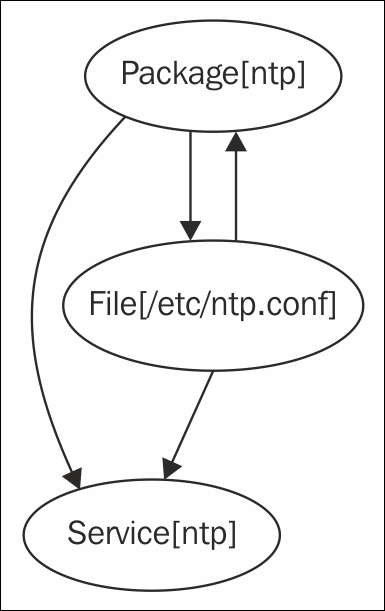
The relationship between package and service previously mentioned is an important and powerful paradigm of Puppet. Adding one more resource-type file into the fold, creates what puppeteers refer to as the trifecta. Almost all system administration tasks revolve around these three resource types. As a system administrator, you install a package, configure the package with files, and then start the service.

Diagram of Trifecta (Files require package for directory, service requires files and package)

Idempotency

A key concept of Puppet is that the state of the system when a catalog is applied to a node cannot affect the outcome of Puppet run. In other words, at the end of Puppet run (if the run was successful), the system will be in a known state and any further application of the catalog will result in a system that is in the same state. This property of Puppet is known as idempotency. Idempotency is the property that no matter how many times you do something, it remains in the same state as the first time you did it. For instance, if you had a light switch and you gave the instruction to turn it on, the light would turn on. If you gave the instruction again, the light would remain on.


Installing, configuring, and starting a service


There are many examples of this pattern online. In our simple example, we will create an Apache configuration file under /etc/httpd/conf.d/cookbook.conf. The /etc/httpd/conf.d directory will not exist until the httpd package is installed. After this file is created, we would want httpd to restart to notice the change; we can achieve this with a notify parameter.

How to do it...

We will need the same definitions as our last example; we need the package and service installed. We now need two more things. We need the configuration file and index page (index.html) created. For this, we follow these steps:

  1. As in the previous example, we ensure the service is running and specify that the service requires the httpd package:

      service {'httpd':
        ensure => running,
        require => Package['httpd'],
      }
  2. We then define the package as follows:

      package {'httpd':
        ensure => installed,
      }
  3. Now, we create the /etc/httpd/conf.d/cookbook.conf configuration file; the /etc/httpd/conf.d directory will not exist until the httpd package is installed. The require metaparameter tells Puppet that this file requires the httpd package to be installed before it is created:

      file {'/etc/httpd/conf.d/cookbook.conf':
        content => "<VirtualHost *:80>\nServernamecookbook\nDocumentRoot/var/www/cookbook\n</VirtualHost>\n",
        require => Package['httpd'],
        notify => Service['httpd'],
      }
  4. We then go on to create an index.html file for our virtual host in /var/www/cookbook. This directory won't exist yet, so we need to create this as well, using the following code:

      file {'/var/www/cookbook':
        ensure => directory,
      }
      file {'/var/www/cookbook/index.html':
        content => "<html><h1>Hello World!</h1></html>\n",
        require => File['/var/www/cookbook'],
      }

How it works…

The require attribute to the file resources tell Puppet that we need the /var/www/cookbook directory created before we can create the index.html file. The important concept to remember is that we cannot assume anything about the target system (node). We need to define everything on which the target depends. Anytime you create a file in a manifest, you have to ensure that the directory containing that file exists. Anytime you specify that a service should be running, you have to ensure that the package providing that service is installed.

In this example, using metaparameters, we can be confident that no matter what state the node is in before running Puppet, after Puppet runs, the following will be true:

  • httpd will be running

  • The VirtualHost configuration file will exist

  • httpd will restart and be aware of the VirtualHost file

  • The DocumentRoot directory will exist

  • An index.html file will exist in the DocumentRoot directory


Using community Puppet style


If other people need to read or maintain your manifests, or if you want to share code with the community, it's a good idea to follow the existing style conventions as closely as possible. These govern such aspects of your code as layout, spacing, quoting, alignment, and variable references, and the official puppetlabs recommendations on style are available at http://docs.puppetlabs.com/guides/style_guide.html.

How to do it…

In this section, I'll show you a few of the more important examples and how to make sure that your code is style compliant.

Indentation

Indent your manifests using two spaces (not tabs), as follows:

service {'httpd':
  ensure  => running,
}

Quoting

Always quote your resource names, as follows:

package { 'exim4':

We cannot do this as follows though:

package { exim4:

Use single quotes for all strings, except when:

  • The string contains variable references such as "${::fqdn}"

  • The string contains character escape sequences such as "\n"

Consider the following code:

file { '/etc/motd':
  content => "Welcome to ${::fqdn}\n"
}

Puppet doesn't process variable references or escape sequences unless they're inside double quotes.

Always quote parameter values that are not reserved words in Puppet. For example, the following values are not reserved words:

name => 'Nucky Thompson',
mode => '0700',
owner => 'deploy',

However, these values are reserved words and therefore not quoted:

ensure => installed,
enable => true,
ensure => running,

False

There is only one thing in Puppet that is false, that is, the word false without any quotes. The string "false" evaluates to true and the string "true" also evaluates to true. Actually, everything besides the literal false evaluates to true (when treated as a Boolean):

if "false" {
  notify { 'True': }
}
if 'false' {
  notify { 'Also true': }
}
if false {
  notify { 'Not true': }
}

When this code is run through puppet apply, the first two notifies are triggered. The final notify is not triggered; it is the only one that evaluates to false.

Variables

Always include curly braces ({}) around variable names when referring to them in strings, for example, as follows:

source => "puppet:///modules/webserver/${brand}.conf",

Otherwise, Puppet's parser has to guess which characters should be a part of the variable name and which belong to the surrounding string. Curly braces make it explicit.

Parameters

Always end lines that declare parameters with a comma, even if it is the last parameter:

service { 'memcached':
  ensure => running,
  enable => true,
}

This is allowed by Puppet, and makes it easier if you want to add parameters later, or reorder the existing parameters.

When declaring a resource with a single parameter, make the declaration all on one line and with no trailing comma, as shown in the following snippet:

package { 'puppet': ensure => installed }

Where there is more than one parameter, give each parameter its own line:

package { 'rake':
  ensure   => installed,
  provider => gem,
  require  => Package['rubygems'],
}

To make the code easier to read, line up the parameter arrows in line with the longest parameter, as follows:

file { "/var/www/${app}/shared/config/rvmrc":
  owner   => 'deploy',
  group   => 'deploy',
  content => template('rails/rvmrc.erb'),
  require => File["/var/www/${app}/shared/config"],
}

The arrows should be aligned per resource, but not across the whole file, otherwise it can make it difficult for you to cut and paste code from one file to another.

Symlinks

When declaring file resources which are symlinks, use ensure => link and set the target attribute, as follows:

file { '/etc/php5/cli/php.ini':
  ensure => link,
  target => '/etc/php.ini',
}


Creating a manifest


If you already have some Puppet code (known as a Puppet manifest), you can skip this section and go on to the next. If not, we'll see how to create and apply a simple manifest.

How to do it...

To create and apply a simple manifest, follow these steps:

  1. First, install Puppet locally on your machine or create a virtual machine and install Puppet on that machine. For YUM-based systems, use https://yum.puppetlabs.com/ and for APT-based systems, use https://apt.puppetlabs.com/. You may also use gem to install Puppet. For our examples, we'll install Puppet using gem on a Debian Wheezy system (hostname: cookbook). To use gem, we need the rubygems package as follows:

    t@cookbook:~$ sudo apt-get install rubygems
    Reading package lists... Done
    Building dependency tree        
    Reading state information... Done
    The following NEW packages will be installed:
      rubygems
    0 upgraded, 1 newly installed, 0 to remove and 0 not upgraded.
    Need to get 0 B/597 kB of archives.
    After this operation, 3,844 kB of additional disk space will be used.
    Selecting previously unselected package rubygems.
    (Reading database ... 30390 files and directories currently installed.)
    Unpacking rubygems (from .../rubygems_1.8.24-1_all.deb) ...
    Processing triggers for man-db ...
    Setting up rubygems (1.8.24-1) ...
    
  2. Now, use gem to install Puppet:

    t@cookbook $ sudo gem install puppet
    Successfully installed hiera-1.3.4
    Fetching: facter-2.3.0.gem (100%)
    Successfully installed facter-2.3.0
    Fetching: puppet-3.7.3.gem (100%)
    Successfully installed puppet-3.7.3
    Installing ri documentation for hiera-1.3.4
    Installing ri documentation for facter-2.3.0
    Installing ri documentation for puppet-3.7.3
    Done installing documentation for hiera, facter, puppet after 239 seconds
    
  3. Three gems are installed. Now, with Puppet installed, we can create a directory to contain our Puppet code:

    t@cookbook:~$ mkdir -p .puppet/manifests
    t@cookbook:~$ cd .puppet/manifests
    t@cookbook:~/.puppet/manifests$
    
  4. Within your manifests directory, create the site.pp file with the following content:

      node default {
        file { '/tmp/hello':
          content => "Hello, world!\n",
        }
      }
  5. Test your manifest with the puppet apply command. This will tell Puppet to read the manifest, compare it to the state of the machine, and make any necessary changes to that state:

    t@cookbook:~/.puppet/manifests$ puppet apply site.pp
    Notice: Compiled catalog for cookbook in environment production in 0.14 seconds
    Notice: /Stage[main]/Main/Node[default]/File[/tmp/hello]/ensure: defined content as '{md5}746308829575e17c3331bbcb00c0898b'
    Notice: Finished catalog run in 0.04 seconds
    
  6. To see if Puppet did what we expected (create the /tmp/hello file with the Hello, world! content), run the following command:

    t@cookbook:~/puppet/manifests$ cat /tmp/hello
    Hello, world!
     t@cookbook:~/puppet/manifests$
    

Note

Note that creating the file in /tmp did not require special permissions. We did not run Puppet via sudo. Puppet need not be run through sudo; there are cases where running via an unprivileged user can be useful.

There's more…

When several people are working on a code base, it's easy for style inconsistencies to creep in. Fortunately, there's a tool available which can automatically check your code for compliance with the style guide: puppet-lint. We'll see how to use this in the next section.


Checking your manifests with Puppet-lint


The puppetlabs official style guide outlines a number of style conventions for Puppet code, some of which we've touched on in the preceding section. For example, according to the style guide, manifests:

  • Must use two-space soft tabs

  • Must not use literal tab characters

  • Must not contain trailing white space

  • Should not exceed an 80 character line width

  • Should align parameter arrows (=>) within blocks

Following the style guide will make sure that your Puppet code is easy to read and maintain, and if you're planning to release your code to the public, style compliance is essential.

The puppet-lint tool will automatically check your code against the style guide. The next section explains how to use it.

Getting ready

Here's what you need to do to install Puppet-lint:

  1. We'll install Puppet-lint using the gem provider because the gem version is much more up to date than the APT or RPM packages available. Create a puppet-lint.pp manifest as shown in the following code snippet:

      package {'puppet-lint':
        ensure => 'installed',
        provider => 'gem',
      }
  2. Run puppet apply on the puppet-lint.pp manifest, as shown in the following command:

    t@cookbook ~$ puppet apply puppet-lint.pp Notice: Compiled catalog for node1.example.com in environment production in 0.42 seconds
    Notice: /Stage[main]/Main/Package[puppet-lint]/ensure: created
    Notice: Finished catalog run in 2.96 seconds
    t@cookbook ~$ gem list puppet-lint *** LOCAL GEMS *** puppet-lint (1.0.1)
    

How to do it...

Follow these steps to use Puppet-lint:

  1. Choose a Puppet manifest file that you want to check with Puppet-lint, and run the following command:

    t@cookbook ~$ puppet-lint puppet-lint.pp 
    WARNING: indentation of => is not properly aligned on line 2
    ERROR: trailing whitespace found on line 4
    
  2. As you can see, Puppet-lint found a number of problems with the manifest file. Correct the errors, save the file, and rerun Puppet-lint to check that all is well. If successful, you'll see no output:

    t@cookbook ~$ puppet-lint puppet-lint.pp 
    t@cookbook ~$
    

There's more...

You can find out more about Puppet-lint at https://github.com/rodjek/puppet-lint.

Should you follow Puppet style guide and, by extension, keep your code lint-clean? It's up to you, but here are a couple of things to think about:

  • It makes sense to use some style conventions, especially when you're working collaboratively on code. Unless you and your colleagues can agree on standards for whitespace, tabs, quoting, alignment, and so on, your code will be messy and difficult to read or maintain.

  • If you're choosing a set of style conventions to follow, the logical choice would be that issued by puppetlabs and adopted by the community for use in public modules.

Having said that, it's possible to tell Puppet-lint to ignore certain checks if you've chosen not to adopt them in your codebase. For example, if you don't want Puppet-lint to warn you about code lines exceeding 80 characters, you can run Puppet-lint with the following option:

t@cookbook ~$ puppet-lint --no-80chars-check

Run puppet-lint --help to see the complete list of check configuration commands.

See also

  • The Automatic syntax checking with Git hooks recipe in Chapter 2, Puppet Infrastructure

  • The Testing your Puppet manifests with rspec-puppet recipe in Chapter 9, External Tools and the Puppet Ecosystem


Using modules


One of the most important things you can do to make your Puppet manifests clearer and more maintainable is to organize them into modules.

Modules are self-contained bundles of Puppet code that include all the files necessary to implement a thing. Modules may contain flat files, templates, Puppet manifests, custom fact declarations, augeas lenses, and custom Puppet types and providers.

Separating things into modules makes it easier to reuse and share code; it's also the most logical way to organize your manifests. In this example, we'll create a module to manage memcached, a memory caching system commonly used with web applications.

How to do it…

Following are the steps to create an example module:

  1. We will use Puppet's module subcommand to create the directory structure for our new module:

    t@cookbook:~$ mkdir -p .puppet/modules
    t@cookbook:~$ cd .puppet/modules
    t@cookbook:~/.puppet/modules$ puppet module generate thomas-memcached
    We need to create a metadata.json file for this module.  Please answer the following questions; if the question is not applicable to this module, feel free to leave it blank. Puppet uses Semantic Versioning (semver.org) to version modules.What version is this module?  [0.1.0]
    --> Who wrote this module?  [thomas]
    --> What license does this module code fall under?  [Apache 2.0]
    --> How would you describe this module in a single sentence?
    --> A module to install memcached Where is this module's source code repository?
    --> Where can others go to learn more about this module?
    --> Where can others go to file issues about this module?
    --> 
    ----------------------------------------
    {
      "name": "thomas-memcached",
      "version": "0.1.0",
      "author": "thomas",
      "summary": "A module to install memcached",
      "license": "Apache 2.0",
      "source": "",
      "issues_url": null,
      "project_page": null,
      "dependencies": [
        {
          "version_range": ">= 1.0.0",
          "name": "puppetlabs-stdlib"
        }
      ]
    }
    ----------------------------------------
    About to generate this metadata; continue? [n/Y]
    --> y
    Notice: Generating module at /home/thomas/.puppet/modules/thomas-memcached...
    Notice: Populating ERB templates...
    Finished; module generated in thomas-memcached.
    thomas-memcached/manifests
    thomas-memcached/manifests/init.pp
    thomas-memcached/spec
    thomas-memcached/spec/classes
    thomas-memcached/spec/classes/init_spec.rb
    thomas-memcached/spec/spec_helper.rb
    thomas-memcached/README.md
    thomas-memcached/metadata.json
    thomas-memcached/Rakefile
    thomas-memcached/tests
    thomas-memcached/tests/init.pp
    

    This command creates the module directory and creates some empty files as starting points. To use the module, we'll create a symlink to the module name (memcached).

    t@cookbook:~/.puppet/modules$ ln –s thomas-memcached memcached
    
  2. Now, edit memcached/manifests/init.pp and change the class definition at the end of the file to the following. Note that puppet module generate created many lines of comments; in a production module you would want to edit those default comments:

    class memcached {
      package { 'memcached':
        ensure => installed,
      }
    
      file { '/etc/memcached.conf':
        source  => 'puppet:///modules/memcached/memcached.conf',
        owner   => 'root',
        group   => 'root',
        mode    => '0644',
        require => Package['memcached'],
      }
      service { 'memcached':
        ensure  => running,
        enable  => true,
        require => [Package['memcached'],
                    File['/etc/memcached.conf']],
      }
    }
  3. Create the modules/thomas-memcached/files directory and then create a file named memcached.conf with the following contents:

    -m 64
    -p 11211
    -u nobody
    -l 127.0.0.1
  4. Change your site.pp file to the following:

    node default {
      include memcached
    }
  5. We would like this module to install memcached. We'll need to run Puppet with root privileges, and we'll use sudo for that. We'll need Puppet to be able to find the module in our home directory; we can specify this on the command line when we run Puppet as shown in the following code snippet:

    t@cookbook:~$ sudo puppet apply --modulepath=/home/thomas/.puppet/modules /home/thomas/.puppet/manifests/site.pp
    Notice: Compiled catalog for cookbook.example.com in environment production in 0.33 seconds
    Notice: /Stage[main]/Memcached/File[/etc/memcached.conf]/content: content changed '{md5}a977521922a151c959ac953712840803' to '{md5}9429eff3e3354c0be232a020bcf78f75'
    Notice: Finished catalog run in 0.11 seconds
  6. Check whether the new service is running:

    t@cookbook:~$ sudo service memcached status
    [ ok ] memcached is running.

How it works…

When we created the module using Puppet's module generate command, we used the name thomas-memcached. The name before the hyphen is your username or your username on Puppet forge (an online repository of modules). Since we want Puppet to be able to find the module by the name memcached, we make a symbolic link between thomas-memcached and memcached.

Modules have a specific directory structure. Not all of these directories need to be present, but if they are, this is how they should be organized:

modules/
  └MODULE_NAME/  never use a dash (-) in a module name
     └examples/ example usage of the module
     └files/ flat files used by the module
     └lib/
        └facter/ define new facts for facter
        └puppet/
           └parser/
              └functions/ define a new puppet function, like sort() 
           └provider/ define a provider for a new or existing type
           └util/ define helper functions (in ruby)
           └type/ define a new type in puppet
     └manifests/
        └init.pp  class MODULE_NAME { }
     └spec/ rSpec tests
     └templates/ erb template files used by the module

All manifest files (those containing Puppet code) live in the manifests directory. In our example, the memcached class is defined in the manifests/init.pp file, which will be imported automatically.

Inside the memcached class, we refer to the memcached.conf file:

file { '/etc/memcached.conf':
  source => 'puppet:///modules/memcached/memcached.conf',
}

The preceding source parameter tells Puppet to look for the file in:

MODULEPATH/ (/home/thomas/.puppet/modules)

└memcached/

└files/

└memcached.conf

There's more…

Learn to love modules because they'll make your Puppet life a lot easier. They're not complicated, however, practice and experience will help you judge when things should be grouped into modules, and how best to arrange your module structure. Modules can hold more than manifests and files as we'll see in the next two sections.

Templates

If you need to use a template as a part of the module, place it in the module's templates directory and refer to it as follows:

file { '/etc/memcached.conf':
  content => template('memcached/memcached.conf.erb'),
}

Puppet will look for the file in:

MODULEPATH/memcached/templates/memcached.conf.erb

Facts, functions, types, and providers

Modules can also contain custom facts, custom functions, custom types, and providers.

For more information about these, refer to Chapter 9, External Tools and the Puppet Ecosystem.

Third-party modules

You can download modules provided by other people and use them in your own manifests just like the modules you create. For more on this, see Using Public Modules recipe in Chapter 7, Managing Applications.

Module organization

For more details on how to organize your modules, see puppetlabs website:

http://docs.puppetlabs.com/puppet/3/reference/modules_fundamentals.html

See also

  • The Creating custom facts recipe in Chapter 9, External Tools and the Puppet Ecosystem

  • The Using public modules recipe in Chapter 7, Managing Applications

  • The Creating your own resource types recipe in Chapter 9, External Tools and the Puppet Ecosystem

  • The Creating your own providers recipe in Chapter 9, External Tools and the Puppet Ecosystem


Using standard naming conventions


Choosing appropriate and informative names for your modules and classes will be a big help when it comes to maintaining your code. This is even truer if other people need to read and work on your manifests.

How to do it…

Here are some tips on how to name things in your manifests:

  1. Name modules after the software or service they manage, for example, apache or haproxy.

  2. Name classes within modules (subclasses) after the function or service they provide to the module, for example, apache::vhosts or rails::dependencies.

  3. If a class within a module disables the service provided by that module, name it disabled. For example, a class that disables Apache should be named apache::disabled.

  4. Create a roles and profiles hierarchy of modules. Each node should have a single role consisting of one or more profiles. Each profile module should configure a single service.

  5. The module that manages users should be named user.

  6. Within the user module, declare your virtual users within the class user::virtual (for more on virtual users and other resources, see the Using virtual resources recipe in Chapter 5, Users and Virtual Resources).

  7. Within the user module, subclasses for particular groups of users should be named after the group, for example, user::sysadmins or user::contractors.

  8. When using Puppet to deploy the config files for different services, name the file after the service, but with a suffix indicating what kind of file it is, for example:

    • Apache init script: apache.init

    • Logrotate config snippet for Rails: rails.logrotate

    • Nginx vhost file for mywizzoapp: mywizzoapp.vhost.nginx

    • MySQL config for standalone server: standalone.mysql

  9. If you need to deploy a different version of a file depending on the operating system release, for example, you can use a naming convention like the following:

    memcached.lucid.conf
    memcached.precise.conf
  10. You can have Puppet automatically select the appropriate version as follows:

    source = > "puppet:///modules/memcached
      /memcached.${::lsbdistrelease}.conf",
  11. If you need to manage, for example, different Ruby versions, name the class after the version it is responsible for, for example, ruby192 or ruby186.

There's more…

Puppet community maintains a set of best practice guidelines for your Puppet infrastructure, which includes some hints on naming conventions:

http://docs.puppetlabs.com/guides/best_practices.html

Some people prefer to include multiple classes on a node by using a comma-separated list, rather than separate include statements, for example:

  node 'server014' inherits 'server' {
    include mail::server, repo::gem, repo::apt, zabbix
  }

This is a matter of style, but I prefer to use separate include statements, one on a line, because it makes it easier to copy and move around class inclusions between nodes without having to tidy up the commas and indentation every time.

I mentioned inheritance in a couple of the preceding examples; if you're not sure what this is, don't worry, I'll explain this in detail in the next chapter.


Using inline templates


Templates are a powerful way of using Embedded Ruby (ERB) to help build config files dynamically. You can also use ERB syntax directly without having to use a separate file by calling the inline_template function. ERB allows you to use conditional logic, iterate over arrays, and include variables.

How to do it…

Here's an example of how to use inline_template:

Pass your Ruby code to inline_template within Puppet manifest, as follows:

cron { 'chkrootkit':
  command => '/usr/sbin/chkrootkit >
    /var/log/chkrootkit.log 2>&1',
  hour    => inline_template('<%= @hostname.sum % 24 %>'),
  minute  => '00',
}

How it works…

Anything inside the string passed to inline_template is executed as if it were an ERB template. That is, anything inside the <%= and %> delimiters will be executed as Ruby code, and the rest will be treated as a string.

In this example, we use inline_template to compute a different hour for this cron resource (a scheduled job) for each machine, so that the same job does not run at the same time on all machines. For more on this technique, see the Distributing cron jobs efficiently recipe in Chapter 6, Managing Resources and Files.

There's more...

In ERB code, whether inside a template file or an inline_template string, you can access your Puppet variables directly by name using an @ prefix, if they are in the current scope or the top scope (facts):

<%= @fqdn %>

To reference variables in another scope, use scope.lookupvar, as follows:

<%= "The value of something from otherclass is " + scope.lookupvar('otherclass::something') %>

You should use inline templates sparingly. If you really need to use some complicated logic in your manifest, consider using a custom function instead (see the Creating custom functions recipe in Chapter 9, External Tools and the Puppet Ecosystem).

See also

  • The Using ERB templates recipe in Chapter 4, Working with Files and Packages

  • The Using array iteration in templates recipe in Chapter 4, Working with Files and Packages


Iterating over multiple items


Arrays are a powerful feature in Puppet; wherever you want to perform the same operation on a list of things, an array may be able to help. You can create an array just by putting its content in square brackets:

$lunch = [ 'franks', 'beans', 'mustard' ]

How to do it…

Here's a common example of how arrays are used:

  1. Add the following code to your manifest:

    $packages = [ 'ruby1.8-dev',
      'ruby1.8',
      'ri1.8',
      'rdoc1.8',
      'irb1.8',
      'libreadline-ruby1.8',
      'libruby1.8',
      'libopenssl-ruby' ]
    
    package { $packages: ensure => installed }
  2. Run Puppet and note that each package should now be installed.

How it works…

Where Puppet encounters an array as the name of a resource, it creates a resource for each element in the array. In the example, a new package resource is created for each of the packages in the $packages array, with the same parameters (ensure => installed). This is a very compact way to instantiate many similar resources.

There's more…

Although arrays will take you a long way with Puppet, it's also useful to know about an even more flexible data structure: the hash.

Using hashes

A hash is like an array, but each of the elements can be stored and looked up by name (referred to as the key), for example (hash.pp):

$interface = {
  'name' => 'eth0',
  'ip'   => '192.168.0.1',
  'mac'  => '52:54:00:4a:60:07' 
}
notify { "(${interface['ip']}) at ${interface['mac']} on ${interface['name']}": }

When we run Puppet on this, we see the following notify in the output:

t@cookbook:~/.puppet/manifests$ puppet apply hash.pp
Notice: (192.168.0.1) at 52:54:00:4a:60:07 on etho

Hash values can be anything that you can assign to variables, strings, function calls, expressions, and even other hashes or arrays. Hashes are useful to store a bunch of information about a particular thing because by accessing each element of the hash using a key, we can quickly find the information for which we are looking.

Creating arrays with the split function

You can declare literal arrays using square brackets, as follows:

define lunchprint() {
  notify { "Lunch included ${name}":}": }
}

$lunch = ['egg', 'beans', 'chips']
lunchprint { $lunch: }

Now, when we run Puppet on the preceding code, we see the following notice messages in the output:

t@mylaptop ~ $ puppet apply lunchprint.pp 
...
Notice: Lunch included chips
Notice: Lunch included beans
Notice: Lunch included egg

However, Puppet can also create arrays for you from strings, using the split function, as follows:

$menu = 'egg beans chips'
$items = split($menu, ' ')
lunchprint { $items: }

Running puppet apply against this new manifest, we see the same messages in the output:

t@mylaptop ~ $ puppet apply lunchprint2.pp 
...
Notice: Lunch included chips
Notice: Lunch included beans
Notice: Lunch included egg.

Note that split takes two arguments: the first argument is the string to be split. The second argument is the character to split on; in this example, a single space. As Puppet works its way through the string, when it encounters a space, it will interpret it as the end of one item and the beginning of the next. So, given the string 'egg beans chips', this will be split into three items.

The character to split on can be any character or string:

$menu = 'egg and beans and chips'
$items = split($menu, ' and ')

The character can also be a regular expression, for example, a set of alternatives separated by a | (pipe) character:

$lunch = 'egg:beans,chips'
$items = split($lunch, ':|,')


Writing powerful conditional statements


Puppet's if statement allows you to change the manifest behavior based on the value of a variable or an expression. With it, you can apply different resources or parameter values depending on certain facts about the node, for example, the operating system, or the memory size.

You can also set variables within the manifest, which can change the behavior of included classes. For example, nodes in data center A might need to use different DNS servers than nodes in data center B, or you might need to include one set of classes for an Ubuntu system, and a different set for other systems.

How to do it…

Here's an example of a useful conditional statement. Add the following code to your manifest:

  if $::timezone == 'UTC' {
    notify { 'Universal Time Coordinated':}
  } else {
    notify { "$::timezone is not UTC": }
  }

How it works…

Puppet treats whatever follows an if keyword as an expression and evaluates it. If the expression evaluates to true, Puppet will execute the code within the curly braces.

Optionally, you can add an else branch, which will be executed if the expression evaluates to false.

There's more…

Here are some more tips on using if statements.

Elseif branches

You can add further tests using the elseif keyword, as follows:

if $::timezone == 'UTC' {
  notify { 'Universal Time Coordinated': }
} elseif $::timezone == 'GMT' {
  notify { 'Greenwich Mean Time': }
} else {
  notify { "$::timezone is not UTC": }
}

Comparisons

You can check whether two values are equal using the == syntax, as in our example:

if $::timezone == 'UTC' {
  
}

Alternatively, you can check whether they are not equal using !=:

if $::timezone != 'UTC' {
  …
}

You can also compare numeric values using < and >:

if $::uptime_days > 365 {
  notify { 'Time to upgrade your kernel!': }
}

To test whether a value is greater (or less) than or equal to another value, use <= or >=:

if $::mtu_eth0 <= 1500 {
  notify {"Not Jumbo Frames": }
}

Combining expressions

You can put together the kind of simple expressions described previously into more complex logical expressions, using and, or, and not:

if ($::uptime_days > 365) and ($::kernel == 'Linux') {
  …
}

if ($role == 'webserver') and ( ($datacenter == 'A') or ($datacenter == 'B') ) {
  …
}

See also

  • The Using the in operator recipe in this chapter

  • The Using selectors and case statements recipe in this chapter


Using regular expressions in if statements


Another kind of expression you can test in if statements and other conditionals is the regular expression. A regular expression is a powerful way to compare strings using pattern matching.

How to do it…

This is one example of using a regular expression in a conditional statement. Add the following to your manifest:

if $::architecture =~ /64/ {
  notify { '64Bit OS Installed': }
} else {
  notify { 'Upgrade to 64Bit': }
  fail('Not 64 Bit')
}

How it works…

Puppet treats the text supplied between the forward slashes as a regular expression, specifying the text to be matched. If the match succeeds, the if expression will be true and so the code between the first set of curly braces will be executed. In this example, we used a regular expression because different distributions have different ideas on what to call 64bit; some use amd64, while others use x86_64. The only thing we can count on is the presence of the number 64 within the fact. Some facts that have version numbers in them are treated as strings to Puppet. For instance, $::facterversion. On my test system, this is 2.0.1, but when I try to compare that with 2, Puppet fails to make the comparison:

Error: comparison of String with 2 failed at /home/thomas/.puppet/manifests/version.pp:1 on node cookbook.example.com

If you wanted instead to do something if the text does not match, use !~ rather than =~:

if $::kernel !~ /Linux/ {
  notify { 'Not Linux, could be Windows, MacOS X, AIX, or ?': }
}

There's more…

Regular expressions are very powerful, but can be difficult to understand and debug. If you find yourself using a regular expression so complex that you can't see at a glance what it does, think about simplifying your design to make it easier. However, one particularly useful feature of regular expressions is the ability to capture patterns.

Capturing patterns

You can not only match text using a regular expression, but also capture the matched text and store it in a variable:

$input = 'Puppet is better than manual configuration'
if $input =~ /(.*) is better than (.*)/ {
  notify { "You said '${0}'. Looks like you're comparing ${1}
    to ${2}!": }
}

The preceding code produces this output:

You said 'Puppet is better than manual configuration'. Looks like you're comparing Puppet to manual configuration!

The variable $0 stores the whole matched text (assuming the overall match succeeded). If you put brackets around any part of the regular expression, it creates a group, and any matched groups will also be stored in variables. The first matched group will be $1, the second $2, and so on, as shown in the preceding example.

Regular expression syntax

Puppet's regular expression syntax is the same as Ruby's, so resources that explain Ruby's regular expression syntax will also help you with Puppet. You can find a good introduction to Ruby's regular expression syntax at this website:

http://www.tutorialspoint.com/ruby/ruby_regular_expressions.htm.

See also

  • Refer to the Using regular expression substitutions recipe in this chapter


Using selectors and case statements


Although you could write any conditional statement using if, Puppet provides a couple of extra forms to help you express conditionals more easily: the selector and the case statement.

How to do it…

Here are some examples of selector and case statements:

  1. Add the following code to your manifest:

    $systemtype = $::operatingsystem ? {
      'Ubuntu' => 'debianlike',
      'Debian' => 'debianlike',
      'RedHat' => 'redhatlike',
      'Fedora' => 'redhatlike',
      'CentOS' => 'redhatlike',
      default  => 'unknown',
    }
    
    notify { "You have a ${systemtype} system": }
  2. Add the following code to your manifest:

    class debianlike {
      notify { 'Special manifest for Debian-like systems': }
    }
    
    class redhatlike {
      notify { 'Special manifest for RedHat-like systems': }
    }
    
    case $::operatingsystem {
      'Ubuntu',
      'Debian': {
        include debianlike
      }
      'RedHat',
      'Fedora',
      'CentOS',
      'Springdale': {
        include redhatlike
      }
      default: {
        notify { "I don't know what kind of system you have!":
        }
      }
    }

How it works…

Our example demonstrates both the selector and the case statement, so let's see in detail how each of them works.

Selector

In the first example, we used a selector (the ? operator) to choose a value for the $systemtype variable depending on the value of $::operatingsystem. This is similar to the ternary operator in C or Ruby, but instead of choosing between two possible values, you can have as many values as you like.

Puppet will compare the value of $::operatingsystem to each of the possible values we have supplied in Ubuntu, Debian, and so on. These values could be regular expressions (for example, for a partial string match, or to use wildcards), but in our case, we have just used literal strings.

As soon as it finds a match, the selector expression returns whatever value is associated with the matching string. If the value of $::operatingsystem is Fedora, for example, the selector expression will return the redhatlike string and this will be assigned to the variable $systemtype.

Case statement

Unlike selectors, the case statement does not return a value. case statements come in handy when you want to execute different code depending on the value of some expression. In our second example, we used the case statement to include either the debianlike or redhatlike class, depending on the value of $::operatingsystem.

Again, Puppet compares the value of $::operatingsystem to a list of potential matches. These could be regular expressions or strings, or as in our example, comma-separated lists of strings. When it finds a match, the associated code between curly braces is executed. So, if the value of $::operatingsystem is Ubuntu, then the code including debianlike will be executed.

There's more…

Once you've got a grip of the basic use of selectors and case statements, you may find the following tips useful.

Regular expressions

As with if statements, you can use regular expressions with selectors and case statements, and you can also capture the values of the matched groups and refer to them using $1, $2, and so on:

case $::lsbdistdescription {
  /Ubuntu (.+)/: {
    notify { "You have Ubuntu version ${1}": }
  }
  /CentOS (.+)/: {
    notify { "You have CentOS version ${1}": }
  }
  default: {}
}

Defaults

Both selectors and case statements let you specify a default value, which is chosen if none of the other options match (the style guide suggests you always have a default clause defined):

$lunch = 'Filet mignon.'
$lunchtype =  $lunch ? {
  /fries/ => 'unhealthy',
  /salad/ => 'healthy',
  default => 'unknown',
}

notify { "Your lunch was ${lunchtype}": }

The output is as follows:

t@mylaptop ~ $ puppet apply lunchtype.pp
Notice: Your lunch was unknown
Notice: /Stage[main]/Main/Notify[Your lunch was unknown]/message: defined 'message' as 'Your lunch was unknown'

When the default action shouldn't normally occur, use the fail() function to halt the Puppet run.


Using the in operator


The in operator tests whether one string contains another string. Here's an example:

if 'spring' in 'springfield'

The preceding expression is true if the spring string is a substring of springfield, which it is. The in operator can also test for membership of arrays as follows:

if $crewmember in ['Frank', 'Dave', 'HAL' ]

When in is used with a hash, it tests whether the string is a key of the hash:

$ifaces = { 'lo'   => '127.0.0.1', 
            'eth0' => '192.168.0.1' }
if 'eth0' in $ifaces {
  notify { "eth0 has address ${ifaces['eth0']}": }
}

How to do it…

The following steps will show you how to use the in operator:

  1. Add the following code to your manifest:

    if $::operatingsystem in [ 'Ubuntu', 'Debian' ] {
      notify { 'Debian-type operating system detected': }
    } elseif $::operatingsystem in [ 'RedHat', 'Fedora', 'SuSE', 'CentOS' ] {
      notify { 'RedHat-type operating system detected': }
    } else {
      notify { 'Some other operating system detected': }
    }
  2. Run Puppet:

    t@cookbook:~/.puppet/manifests$ puppet apply in.pp
    Notice: Compiled catalog for cookbook.example.com in environment production in 0.03 seconds
    Notice: Debian-type operating system detected
    Notice: /Stage[main]/Main/Notify[Debian-type operating system detected]/message: defined 'message' as 'Debian-type operating system detected'
    Notice: Finished catalog run in 0.02 seconds
    

There's more…

The value of an in expression is Boolean (true or false) so you can assign it to a variable:

$debianlike = $::operatingsystem in [ 'Debian', 'Ubuntu' ]

if $debianlike {
  notify { 'You are in a maze of twisty little packages, all alike': }
}


Using regular expression substitutions


Puppet's regsubst function provides an easy way to manipulate text, search and replace expressions within strings, or extract patterns from strings. We often need to do this with data obtained from a fact, for example, or from external programs.

In this example, we'll see how to use regsubst to extract the first three octets of an IPv4 address (the network part, assuming it's a /24 class C address).

How to do it…

Follow these steps to build the example:

  1. Add the following code to your manifest:

    $class_c = regsubst($::ipaddress, '(.*)\..*', '\1.0')
    notify { "The network part of ${::ipaddress} is ${class_c}": }
  2. Run Puppet:

    t@cookbook:~/.puppet/manifests$ puppet apply ipaddress.pp 
    Notice: Compiled catalog for cookbook.example.com in environment production in 0.02 seconds
    Notice: The network part of 192.168.122.148 is
      192.168.122.0
    Notice: /Stage[main]/Main/Notify[The network part of 192.168.122.148 is
      192.168.122.0]/message: defined 'message' as 'The network part of 192.168.122.148 is
      192.168.122.0'
    Notice: Finished catalog run in 0.03 seconds
    

How it works…

The regsubst function takes at least three parameters: source, pattern, and replacement. In our example, we specified the source string as $::ipaddress, which, on this machine, is as follows:

192.168.122.148

We specify the pattern function as follows:

(.*)\..*

We specify the replacement function as follows:

\1.0

The pattern captures all of the string up to the last period (\.) in the \1 variable. We then match on .*, which matches everything to the end of the string, so when we replace the string at the end with \1.0, we end up with only the network portion of the IP address, which evaluates to the following:

192.168.122.0

We could have got the same result in other ways, of course, including the following:

$class_c = regsubst($::ipaddress, '\.\d+$', '.0')

Here, we only match the last octet and replace it with .0, which achieves the same result without capturing.

There's more…

The pattern function can be any regular expression, using the same (Ruby) syntax as regular expressions in if statements.

See also

  • The Importing dynamic information recipe in Chapter 3, Writing Better Manifests

  • The Getting information about the environment recipe in Chapter 3, Writing Better Manifests

  • The Using regular expressions in if statements recipe in this chapter


Using the future parser


Puppet language is evolving at the moment; many features that are expected to be included in the next major release (4) are available if you enable the future parser.

Getting ready

  • Ensure that the rgen gem is installed.

  • Set parser = future in the [main] section of your puppet.conf(/etc/puppet/puppet.conf for open source Puppet as root,/etc/puppetlabs/puppet/puppet.conf for Puppet Enterprise, and~/.puppet/puppet.conf for a non-root user running puppet).

  • To temporarily test with the future parser, use --parser=future on the command line.

How to do it...

Many of the experimental features deal with how code is evaluated, for example, in an earlier example we compared the value of the $::facterversion fact with a number, but the value is treated as a string so the code fails to compile. Using the future parser, the value is converted and no error is reported as shown in the following command line output:

t@cookbook:~/.puppet/manifests$ puppet apply --parser=future version.pp 
Notice: Compiled catalog for cookbook.example.com in environment production in 0.36 seconds
Notice: Finished catalog run in 0.03 seconds

Appending to and concatenating arrays

You can concatenate arrays with the + operator or append them with the << operator. In the following example, we use the ternary operator to assign a specific package name to the $apache variable. We then append that value to an array using the << operator:

$apache = $::osfamily ? {
  'Debian' => 'apache2',
  'RedHat' => 'httpd'
} 
$packages = ['memcached'] << $apache
package {$packages: ensure => installed}

If we have two arrays, we can use the + operator to concatenate the two arrays. In this example, we define an array of system administrators ($sysadmins) and another array of application owners ($appowners). We can then concatenate the array and use it as an argument to our allowed users:

$sysadmins = [ 'thomas','john','josko' ]
$appowners = [ 'mike', 'patty', 'erin' ]
$users = $sysadmins + $appowners
notice ($users)

When we apply this manifest, we see that the two arrays have been joined as shown in the following command line output:

t@cookbook:~/.puppet/manifests$ puppet apply --parser=future concat.pp Notice: [thomas, john, josko, mike, patty, erin]
Notice: Compiled catalog for cookbook.example.com in environment production in 0.36 seconds
Notice: Finished catalog run in 0.03 seconds
Merging Hashes

If we have two hashes, we can merge them using the same + operator we used for arrays. Consider our $interfaces hash from a previous example; we can add another interface to the hash:

$iface = {
  'name' => 'eth0',
  'ip'   => '192.168.0.1',
  'mac'  => '52:54:00:4a:60:07' 
}  + {'route' => '192.168.0.254'}
notice ($iface)

When we apply this manifest, we see that the route attribute has been merged into the hash (your results may differ, the order in which the hash prints is unpredictable), as follows:

t@cookbook:~/.puppet/manifests$ puppet apply --parser=future hash2.pp
Notice: {route => 192.168.0.254, name => eth0, ip => 192.168.0.1, mac => 52:54:00:4a:60:07}
Notice: Compiled catalog for cookbook.example.com in environment production in 0.36 seconds
Notice: Finished catalog run in 0.03 seconds

Lambda functions

Lambda functions are iterators applied to arrays or hashes. You iterate through the array or hash and apply an iterator function such as each, map, filter, reduce, or slice to each element of the array or key of the hash. Some of the lambda functions return a calculated array or value; others such as each only return the input array or hash.

Lambda functions such as map and reduce use temporary variables that are thrown away after the lambda has finished. Use of lambda functions is something best shown by example. In the next few sections, we will show an example usage of each of the lambda functions.

Reduce

Reduce is used to reduce the array to a single value. This can be used to calculate the maximum or minimum of the array, or in this case, the sum of the elements of the array:

$count = [1,2,3,4,5]
$sum = reduce($count) | $total, $i | { $total + $i }
notice("Sum is $sum")

This preceding code will compute the sum of the $count array and store it in the $sum variable, as follows:

t@cookbook:~/.puppet/manifests$ puppet apply --parser future lambda.pp
Notice: Sum is 15
Notice: Compiled catalog for cookbook.example.com in environment production in 0.36 seconds
Notice: Finished catalog run in 0.03 seconds
Filter

Filter is used to filter the array or hash based upon a test within the lambda function. For instance to filter our $count array as follows:

$filter = filter ($count) | $i | { $i > 3 } notice("Filtered array is $filter")

When we apply this manifest, we see that only elements 4 and 5 are in the result:

Notice: Filtered array is [4, 5]
Map

Map is used to apply a function to each element of the array. For instance, if we wanted (for some unknown reason) to compute the square of all the elements of the array, we would use map as follows:

$map = map ($count) | $i | { $i * $i } notice("Square of array is $map")

The result of applying this manifest is a new array with every element of the original array squared (multiplied by itself), as shown in the following command line output:

Notice: Square of array is [1, 4, 9, 16, 25]
Slice

Slice is useful when you have related values stored in the same array in a sequential order. For instance, if we had the destination and port information for a firewall in an array, we could split them up into pairs and perform operations on those pairs:

$firewall_rules = ['192.168.0.1','80','192.168.0.10','443']
slice ($firewall_rules,2) |$ip, $port| { notice("Allow $ip on $port") }

When applied, this manifest will produce the following notices:

Notice: Allow 192.168.0.1 on 80
Notice: Allow 192.168.0.10 on 443

To make this a useful example, create a new firewall resource within the block of the slice instead of notice:

slice ($firewall_rules,2) |$ip, $port| { firewall {"$port from $ip": dport  => $port, source => "$ip", action => 'accept', }
}
Each

Each is used to iterate over the elements of the array but lacks the ability to capture the results like the other functions. Each is the simplest case where you simply wish to do something with each element of the array, as shown in the following code snippet:

each ($count) |$c| { notice($c) }

As expected, this executes the notice for each element of the $count array, as follows:

Notice: 1
Notice: 2
Notice: 3
Notice: 4
Notice: 5
Other features

There are other new features of Puppet language available when using the future parser. Some increase readability or compactness of code. For more information, refer to the documentation on puppetlabs website at http://docs.puppetlabs.com/puppet/latest/reference/experiments_future.html.


Chapter 2. Puppet Infrastructure


"Computers in the future may have as few as 1,000 vacuum tubes and weigh only 1.5 tons."

 
 --Popular Mechanics, 1949

In this chapter, we will cover:

  • Installing Puppet

  • Managing your manifests with Git

  • Creating a decentralized Puppet architecture

  • Writing a papply script

  • Running Puppet from cron

  • Bootstrapping Puppet with bash

  • Creating a centralized Puppet infrastructure

  • Creating certificates with multiple DNS names

  • Running Puppet from passenger

  • Setting up the environment

  • Configuring PuppetDB

  • Configuring Hiera

  • Setting-node specific data with Hiera

  • Storing secret data with hiera-gpg

  • Using MessagePack serialization

  • Automatic syntax checking with Git hooks

  • Pushing code around with Git

  • Managing environments with Git


Introduction


In this chapter, we will cover how to deploy Puppet in a centralized and decentralized manner. With each approach, we'll see a combination of best practices, my personal experience, and community solutions.

We'll configure and use both PuppetDB and Hiera. PuppetDB is used with exported resources, which we will cover in Chapter 5, Users and Virtual Resources. Hiera is used to separate variable data from Puppet code.

Finally, I'll introduce Git and see how to use Git to organize our code and our infrastructure.

Because Linux distributions, such as Ubuntu, Red Hat, and CentOS, differ in the specific details of package names, configuration file paths, and many other things, I have decided that for reasons of space and clarity the best approach for this book is to pick one distribution (Debian 7 named as Wheezy) and stick to that. However, Puppet runs on most popular operating systems, so you should have very little trouble adapting the recipes to your own favorite OS and distribution.

At the time of writing, Puppet 3.7.2 is the latest stable version available, this is the version of Puppet used in the book. The syntax of Puppet commands changes often, so be aware that while older versions of Puppet are still perfectly usable, they may not support all of the features and syntax described in this book. As we saw in Chapter 1, Puppet Language and Style, the future parser showcases features of the language scheduled to become default in Version 4 of Puppet.


Installing Puppet


In Chapter 1, Puppet Language and Style, we installed Puppet as a rubygem using the gem install. When deploying to several nodes, this may not be the best approach. Using the package manager of your chosen distribution is the best way to keep your Puppet versions similar on all of the nodes in your deployment. Puppet labs maintain repositories for APT-based and YUM-based distributions.

Getting ready

If your Linux distribution uses APT for package management, go to http://apt.puppetlabs.com/ and download the appropriate Puppet labs release package for your distribution. For our wheezy cookbook node, we will use http://apt.puppetlabs.com/puppetlabs-release-wheezy.deb.

If you are using a Linux distribution that uses YUM for package management, go to http://yum.puppetlabs.com/ and download the appropriate Puppet labs release package for your distribution.

How to do it...

  1. Once you have found the appropriate Puppet labs release package for your distribution, the steps to install Puppet are the same for either APT or YUM:

    • Install Puppet labs release package

    • Install Puppet package

  2. Once you have installed Puppet, verify the version of Puppet as shown in the following example:

    t@ckbk:~ puppet --version 3.7.2
    

Now that we have a method to install Puppet on our nodes, we need to turn our attention to keeping our Puppet manifests organized. In the next section, we will see how to use Git to keep our code organized and consistent.


Managing your manifests with Git


It's a great idea to put your Puppet manifests in a version control system such as Git or Subversion (Git is the de facto standard for Puppet). This gives you several advantages:

  • You can undo changes and revert to any previous version of your manifest

  • You can experiment with new features using a branch

  • If several people need to make changes to the manifests, they can make them independently, in their own working copies, and then merge their changes later

  • You can use the git log feature to see what was changed, and when (and by whom)

Getting ready

In this section, we'll import your existing manifest files into Git. If you have created a Puppet directory in a previous section use that, otherwise, use your existing manifest directory.

In this example, we'll create a new Git repository on a server accessible from all our nodes. There are several steps we need to take to have our code held in a Git repository:

  1. Install Git on a central server.

  2. Create a user to run Git and own the repository.

  3. Create a repository to hold the code.

  4. Create SSH keys to allow key-based access to the repository.

  5. Install Git on a node and download the latest version from our Git repository.

How to do it...

Follow these steps:

  1. First, install Git on your Git server (git.example.com in our example). The easiest way to do this is using Puppet. Create the following manifest, call it git.pp:

      package {'git':
        ensure => installed }
  2. Apply this manifest using puppet apply git.pp, this will install Git.

  3. Next, create a Git user that the nodes will use to log in and retrieve the latest code. Again, we'll do this with puppet. We'll also create a directory to hold our repository (/home/git/repos) as shown in the following code snippet:

    group { 'git': gid => 1111, }
    user {'git': uid => 1111, gid => 1111, comment => 'Git User', home => '/home/git', require => Group['git'], }
    file {'/home/git': ensure => 'directory', owner => 1111, group => 1111, require => User['git'], }
    file {'/home/git/repos': ensure => 'directory', owner => 1111, group => 1111, require => File['/home/git'] }
  4. After applying that manifest, log in as the Git user and create an empty Git repository using the following command:

    # sudo -iu git git@git $ cd repos git@git $ git init --bare puppet.git Initialized empty Git repository in /home/git/repos/puppet.git/
    
  5. Set a password for the Git user, we'll need to log in remotely after the next step:

    [root@git ~]# passwd git
    Changing password for user git.
    New password: 
    Retype new password: 
    passwd: all authentication tokens updated successfully.
    
  6. Now back on your local machine, create an ssh key for our nodes to use to update the repository:

    t@mylaptop ~ $ cd .ssh
    t@mylaptop ~/.ssh $ ssh-keygen -b 4096 -f git_rsa
    Generating public/private rsa key pair.
    Enter passphrase (empty for no passphrase): 
    Enter same passphrase again: 
    Your identification has been saved in git_rsa.
    Your public key has been saved in git_rsa.pub.
    The key fingerprint is:
    87:35:0e:4e:d2:96:5f:e4:ce:64:4a:d5:76:c8:2b:e4 thomas@mylaptop
  7. Now copy the newly created public key to the authorized_keys file. This will allow us to connect to the Git server using this new key:

    t@mylaptop ~/.ssh $ ssh-copy-id -i git_rsa git@git.example.com
    git@git.example.com's password: 
    Number of key(s) added: 1
  8. Now try logging into the machine, with: "ssh 'git@git.example.com'" and check to make sure that only the key(s) you wanted were added.

  9. Next, configure ssh to use your key when accessing the Git server and add the following to your ~/.ssh/config file:

    Host git git.example.com
      User git
      IdentityFile /home/thomas/.ssh/git_rsa
    
  10. Clone the repo onto your machine into a directory named Puppet (substitute your server name if you didn't use git.example.com):

    t@mylaptop ~$ git clone git@git.example.com:repos/puppet.git
    Cloning into 'puppet'...
    warning: You appear to have cloned an empty repository.
    Checking connectivity... done.

    We've created a Git repository; before we commit any changes to the repository, it's a good idea to set your name and e-mail in Git. Your name and e-mail will be appended to each commit you make.

  11. When you are working in a large team, knowing who made a change is very important; for this, use the following code snippet:

    t@mylaptop puppet$ git config --global user.email"thomas@narrabilis.com"
    t@mylaptop puppet$ git config --global user.name "ThomasUphill"
    
  12. You can verify your Git settings using the following snippet:

    t@mylaptop ~$ git config --global --list
    user.name=Thomas Uphill
    user.email=thomas@narrabilis.com
    core.editor=vim
    merge.tool=vimdiff
    color.ui=true
    push.default=simple
    
  13. Now that we have Git configured properly, change directory to your repository directory and create a new site manifest as shown in the following snippet:

    t@mylaptop ~$ cd puppet
    t@mylaptop puppet$ mkdir manifests
    t@mylaptop puppet$ vim manifests/site.pp
    node default {
      include base
    }
    
  14. This site manifest will install our base class on every node; we will create the base class using the Puppet module as we did in Chapter 1, Puppet Language and Style:

    t@mylaptop puppet$ mkdir modules
    t@mylaptop puppet$ cd modules
    t@mylaptop modules$ puppet module generate thomas-base
    Notice: Generating module at /home/tuphill/puppet/modules/thomas-base
    thomas-base
    thomas-base/Modulefile
    thomas-base/README
    thomas-base/manifests
    thomas-base/manifests/init.pp
    thomas-base/spec
    thomas-base/spec/spec_helper.rb
    thomas-base/tests
    thomas-base/tests/init.pp
    t@mylaptop modules$ ln -s thomas-base base
    
  15. As a last step, we create a symbolic link between the thomas-base directory and base. Now to make sure our module does something useful, add the following to the body of the base class defined in thomas-base/manifests/init.pp:

    class base {
      file {'/etc/motd':
        content => "${::fqdn}\nManaged by puppet ${::puppetversion}\n"
      }
    }
    
  16. Now add the new base module and site manifest to Git using git add and git commit as follows:

    t@mylaptop modules$ cd ..
    t@mylaptop puppet$ git add modules manifests
    t@mylaptop puppet$ git status
    On branch master
    Initial commit
    Changes to be committed:
      (use "git rm --cached <file>..." to unstage)
    new file:   manifests/site.pp
    new file:   modules/base
    new file:   modules/thomas-base/Modulefile
    new file:   modules/thomas-base/README
    new file:   modules/thomas-base/manifests/init.pp
    new file:   modules/thomas-base/spec/spec_helper.rb
    new file:   modules/thomas-base/tests/init.pp
    t@mylaptop puppet$ git commit -m "Initial commit with simple base module"
    [master (root-commit) 3e1f837] Initial commit with simple base module
     7 files changed, 102 insertions(+)
     create mode 100644 manifests/site.pp
     create mode 120000 modules/base
     create mode 100644 modules/thomas-base/Modulefile
     create mode 100644 modules/thomas-base/README
     create mode 100644 modules/thomas-base/manifests/init.pp
     create mode 100644 modules/thomas-base/spec/spec_helper.rb
     create mode 100644 modules/thomas-base/tests/init.pp
    
  17. At this point your changes to the Git repository have been committed locally; you now need to push those changes back to git.example.com so that other nodes can retrieve the updated files:

    t@mylaptop puppet$ git push origin master
    Counting objects: 15, done.
    Delta compression using up to 4 threads.
    Compressing objects: 100% (9/9), done.
    Writing objects: 100% (15/15), 2.15 KiB | 0 bytes/s, done.
    Total 15 (delta 0), reused 0 (delta 0)
    To git@git.example.com:repos/puppet.git
     * [new branch]      master -> master
    

How it works...

Git tracks changes to files, and stores a complete history of all changes. The history of the repo is made up of commits. A commit represents the state of the repo at a particular point in time, which you create with the git commit command and annotate with a message.

You've now added your Puppet manifest files to the repo and created your first commit. This updates the history of the repo, but only in your local working copy. To synchronize the changes with the git.example.com copy, the git push command pushes all changes made since the last sync.

There's more...

Now that you have a central Git repository for your Puppet manifests, you can check out multiple copies of it in different places and work on them before committing your changes. For example, if you're working in a team, each member can have their own local copy of the repo and synchronize changes with the others via the central server. You may also choose to use GitHub as your central Git repository server. GitHub offers free Git repository hosting for public repositories, and you can pay for GitHub's premium service if you don't want your Puppet code to be publicly available.

In the next section, we will use our Git repository for both centralized and decentralized Puppet configurations.


Creating a decentralized Puppet architecture


Puppet is a configuration management tool. You can use Puppet to configure and prevent configuration drift in a large number of client computers. If all your client computers are easily reached via a central location, you may choose to have a central Puppet server control all the client computers. In the centralized model, the Puppet server is known as the Puppet master. We will cover how to configure a central Puppet master in a few sections.

If your client computers are widely distributed or you cannot guarantee communication between the client computers and a central location, then a decentralized architecture may be a good fit for your deployment. In the next few sections, we will see how to configure a decentralized Puppet architecture.

As we have seen, we can run the puppet apply command directly on a manifest file to have Puppet apply it. The problem with this arrangement is that we need to have the manifests transferred to the client computers.

We can use the Git repository we created in the previous section to transfer our manifests to each new node we create.

Getting ready

Create a new test node, call this new node whatever you wish, I'll use testnode for mine. Install Puppet on the machine as we have previously done.

How to do it...

Create a bootstrap.pp manifest that will perform the following configuration steps on our new node:

  1. Install Git:

    package {'git':
      ensure => 'installed'
    }
  2. Install the ssh key to access git.example.com in the Puppet user's home directory (/var/lib/puppet/.ssh/id_rsa):

    File {
      owner => 'puppet',
      group => 'puppet',
    }
    file {'/var/lib/puppet/.ssh':
      ensure => 'directory',
    }
    file {'/var/lib/puppet/.ssh/id_rsa':
      content => "
    -----BEGIN RSA PRIVATE KEY-----
    …
    NIjTXmZUlOKefh4MBilqUU3KQG8GBHjzYl2TkFVGLNYGNA0U8VG8SUJq
    -----END RSA PRIVATE KEY-----
    ",
      mode    => 0600,
      require => File['/var/lib/puppet/.ssh']
    }
  3. Download the ssh host key from git.example.com (/var/lib/puppet/.ssh/known_hosts):

    exec {'download git.example.com host key': 
      command => 'sudo -u puppet ssh-keyscan git.example.com >> /var/lib/puppet/.ssh/known_hosts',
      path    => '/usr/bin:/usr/sbin:/bin:/sbin',
      unless  => 'grep git.example.com /var/lib/puppet/.ssh/known_hosts',
      require => File['/var/lib/puppet/.ssh'],
    }
  4. Create a directory to contain the Git repository (/etc/puppet/cookbook):

    file {'/etc/puppet/cookbook':
      ensure => 'directory',
    }
  5. Clone the Puppet repository onto the new machine:

    exec {'create cookbook':
      command => 'sudo -u puppet git clone git@git.example.com:repos/puppet.git /etc/puppet/cookbook',
      path    => '/usr/bin:/usr/sbin:/bin:/sbin',
      require => [Package['git'],File['/var/lib/puppet/.ssh/id_rsa'],Exec['download git.example.com host key']],
      unless  => 'test -f /etc/puppet/cookbook/.git/config',
    }
  6. Now when we run Puppet apply on the new machine, the ssh key will be installed for the Puppet user. The Puppet user will then clone the Git repository into /etc/puppet/cookbook:

    root@testnode /tmp# puppet apply bootstrap.pp 
    Notice: Compiled catalog for testnode.example.com in environment production in 0.40 seconds
    Notice: /Stage[main]/Main/File[/etc/puppet/cookbook]/ensure: created
    Notice: /Stage[main]/Main/File[/var/lib/puppet/.ssh]/ensure: created
    Notice: /Stage[main]/Main/Exec[download git.example.com host key]/returns: executed successfully
    Notice: /Stage[main]/Main/File[/var/lib/puppet/.ssh/id_rsa]/ensure: defined content as '{md5}da61ce6ccc79bc6937bd98c798bc9fd3'
    Notice: /Stage[main]/Main/Exec[create cookbook]/returns: executed successfully
    Notice: Finished catalog run in 0.82 seconds
    

    Note

    You may have to disable the tty requirement of sudo. Comment out the line Defaults requiretty at /etc/sudoers if you have this line.

    Alternatively, you can set user => Puppet within the 'create cookbook' exec type. Beware that using the user attribute will cause any error messages from the command to be lost.

  7. Now that your Puppet code is available on the new node, you can apply it using puppet apply, specifying that /etc/puppet/cookbook/modules will contain the modules:

    root@testnode ~# puppet apply --modulepath=/etc/puppet/cookbook/modules /etc/puppet/cookbook/manifests/site.pp 
    Notice: Compiled catalog for testnode.example.com in environment production in 0.12 seconds
    Notice: /Stage[main]/Base/File[/etc/motd]/content: content changed '{md5}86d28ff83a8d49d349ba56b5c64b79ee' to '{md5}4c4c3ab7591d940318279d78b9c51d4f'
    Notice: Finished catalog run in 0.11 seconds
    root@testnode /tmp# cat /etc/motd
    testnode.example.com
    Managed by puppet 3.6.2
    

How it works...

First, our bootstrap.pp manifest ensures that Git is installed. The manifest then goes on to ensure that the ssh key for the Git user on git.example.com is installed into the Puppet user's home directory (/var/lib/puppet by default). The manifest then ensures that the host key for git.example.com is trusted by the Puppet user. With ssh configured, the bootstrap ensures that /etc/puppet/cookbook exists and is a directory.

We then use an exec to have Git clone the repository into /etc/puppet/cookbook. With all the code in place, we then call puppet apply a final time to deploy the code from the repository. In a production setting, you would distribute the bootstrap.pp manifest to all your nodes, possibly via an internal web server, using a method similar to curl http://puppet/bootstrap.pp >bootstrap.pp && puppet apply bootstrap.pp


Writing a papply script


We'd like to make it as quick and easy as possible to apply Puppet on a machine; for this we'll write a little script that wraps the puppet apply command with the parameters it needs. We'll deploy the script where it's needed with Puppet itself.

How to do it...

Follow these steps:

  1. In your Puppet repo, create the directories needed for a Puppet module:

    t@mylaptop ~$ cd puppet/modules
    t@mylaptop modules$ mkdir -p puppet/{manifests,files}
    
  2. Create the modules/puppet/files/papply.sh file with the following contents:

    #!/bin/sh sudo puppet apply /etc/puppet/cookbook/manifests/site.pp \--modulepath=/etc/puppet/cookbook/modules $*
  3. Create the modules/puppet/manifests/init.pp file with the following contents:

    class puppet {
      file { '/usr/local/bin/papply':
        source => 'puppet:///modules/puppet/papply.sh',
        mode   => '0755',
      }
    }
  4. Modify your manifests/site.pp file as follows:

    node default {
      include base
      include puppet
    }
  5. Add the Puppet module to the Git repository and commit the change as follows:

    t@mylaptop puppet$ git add manifests/site.pp modules/puppet
    t@mylaptop puppet$ git status
    On branch master
    Your branch is up-to-date with 'origin/master'.
    Changes to be committed:
      (use "git reset HEAD <file>..." to unstage)
    modified:   manifests/site.pp
    new file:   modules/puppet/files/papply.sh
    new file:   modules/puppet/manifests/init.pp
    t@mylaptop puppet$ git commit -m "adding puppet module to include papply"
    [master 7c2e3d5] adding puppet module to include papply
     3 files changed, 11 insertions(+)
     create mode 100644 modules/puppet/files/papply.sh
     create mode 100644 modules/puppet/manifests/init.pp
    
  6. Now remember to push the changes to the Git repository on git.example.com:

    t@mylaptop puppet$ git push origin master Counting objects: 14, done. Delta compression using up to 4 threads. Compressing objects: 100% (7/7), done. Writing objects: 100% (10/10), 894 bytes | 0 bytes/s, done. Total 10 (delta 0), reused 0 (delta 0) To git@git.example.com:repos/puppet.git 23e887c..7c2e3d5  master -> master
    
  7. Pull the latest version of the Git repository to your new node (testnode for me) as shown in the following command line:

    root@testnode ~# sudo -iu puppet
    puppet@testnode ~$ cd /etc/puppet/cookbook/puppet@testnode /etc/puppet/cookbook$ git pull origin master remote: Counting objects: 14, done. remote: Compressing objects: 100% (7/7), done. remote: Total 10 (delta 0), reused 0 (delta 0) Unpacking objects: 100% (10/10), done. From git.example.com:repos/puppet * branch            master     -> FETCH_HEAD Updating 23e887c..7c2e3d5 Fast-forward manifests/site.pp                |    1 + modules/puppet/files/papply.sh   |    4 ++++ modules/puppet/manifests/init.pp |    6 ++++++ 3 files changed, 11 insertions(+), 0 deletions(-) create mode 100644 modules/puppet/files/papply.sh create mode 100644 modules/puppet/manifests/init.pp
    
  8. Apply the manifest manually once to install the papply script:

    root@testnode ~# puppet apply /etc/puppet/cookbook/manifests/site.pp --modulepath /etc/puppet/cookbook/modules
    Notice: Compiled catalog for testnode.example.com in environment production in 0.13 seconds
    Notice: /Stage[main]/Puppet/File[/usr/local/bin/papply]/ensure: defined content as '{md5}d5c2cdd359306dd6e6441e6fb96e5ef7'
    Notice: Finished catalog run in 0.13 seconds
    
  9. Finally, test the script:

    root@testnode ~# papply
    Notice: Compiled catalog for testnode.example.com in environment production in 0.13 seconds
    Notice: Finished catalog run in 0.09 seconds
    

Now, whenever you need to run Puppet, you can simply run papply. In future, when we apply Puppet changes, I'll ask you to run papply instead of the full puppet apply command.

How it works...

As you've seen, to run Puppet on a machine and apply a specified manifest file, we use the puppet apply command:

puppet apply manifests/site.pp

When you're using modules (such as the Puppet module we just created), you also need to tell Puppet where to search for modules, using the modulepath argument:

puppet apply manifests/nodes.pp \--modulepath=/home/ubuntu/puppet/modules

In order to run Puppet with the root privileges it needs, we have to put sudo before everything:

sudo puppet apply manifests/nodes.pp \--modulepath=/home/ubuntu/puppet/modules

Finally, any additional arguments passed to papply will be passed through to Puppet itself, by adding the $* parameter:

sudo puppet apply manifests/nodes.pp \--modulepath=/home/ubuntu/puppet/modules $*

That's a lot of typing, so putting this in a script makes sense. We've added a Puppet file resource that will deploy the script to /usr/local/bin and make it executable:

file { '/usr/local/bin/papply': source => 'puppet:///modules/puppet/papply.sh', mode   => '0755',}

Finally, we include the Puppet module in our default node declaration:

node default {
  include base
  include puppet
}

You can do the same for any other nodes managed by Puppet.


Running Puppet from cron


You can do a lot with the setup you already have: work on your Puppet manifests as a team, communicate changes via a central Git repository, and manually apply them on a machine using the papply script.

However, you still have to log into each machine to update the Git repo and rerun Puppet. It would be helpful to have each machine update itself and apply any changes automatically. Then all you need to do is to push a change to the repo, and it will go out to all your machines within a certain time.

The simplest way to do this is with a cron job that pulls updates from the repo at regular intervals and then runs Puppet if anything has changed.

Getting ready

You'll need the Git repo we set up in the Managing your manifests with Git and Creating a decentralized Puppet architecture recipes, and the papply script from the Writing a papply script recipe. You'll need to apply the bootstrap.pp manifest we created to install ssh keys to download the latest repository.

How to do it...

Follow these steps:

  1. Copy the bootstrap.pp script to any node you wish to enroll. The bootstrap.pp manifest includes the private key used to access the Git repository, it should be protected in a production environment.

  2. Create the modules/puppet/files/pull-updates.sh file with the following contents:

    #!/bin/sh
    cd /etc/puppet/cookbook
    sudo –u puppet git pull && /usr/local/bin/papply
  3. Modify the modules/puppet/manifests/init.pp file and add the following snippet after the papply file definition:

    file { '/usr/local/bin/pull-updates':
      source => 'puppet:///modules/puppet/pull-updates.sh',
      mode   => '0755',
    }
    cron { 'run-puppet':
      ensure  => 'present',
      user    => 'puppet',
      command => '/usr/local/bin/pull-updates',
      minute  => '*/10',
      hour    => '*',
    }
  4. Commit the changes as before and push to the Git server as shown in the following command line:

    t@mylaptop puppet$ git add modules/puppet
    t@mylaptop puppet$ git commit -m "adding pull-updates"
    [master 7e9bac3] adding pull-updates
     2 files changed, 14 insertions(+)
     create mode 100644 modules/puppet/files/pull-updates.sh
    t@mylaptop puppet$ git push
    Counting objects: 14, done.
    Delta compression using up to 4 threads.
    Compressing objects: 100% (7/7), done.
    Writing objects: 100% (8/8), 839 bytes | 0 bytes/s, done.
    Total 8 (delta 0), reused 0 (delta 0)
    To git@git.example.com:repos/puppet.git
       7c2e3d5..7e9bac3  master -> master
    
  5. Issue a Git pull on the test node:

    root@testnode ~# cd /etc/puppet/cookbook/
    root@testnode /etc/puppet/cookbook# sudo –u puppet git pull
    remote: Counting objects: 14, done.
    remote: Compressing objects: 100% (7/7), done.
    remote: Total 8 (delta 0), reused 0 (delta 0)
    Unpacking objects: 100% (8/8), done.
    From git.example.com:repos/puppet
       23e887c..7e9bac3  master     -> origin/master
    Updating 7c2e3d5..7e9bac3
    Fast-forward
     modules/puppet/files/pull-updates.sh |    3 +++
     modules/puppet/manifests/init.pp     |   11 +++++++++++
     2 files changed, 14 insertions(+), 0 deletions(-)
     create mode 100644 modules/puppet/files/pull-updates.sh
    
  6. Run Puppet on the test node:

    root@testnode /etc/puppet/cookbook# papply
    Notice: Compiled catalog for testnode.example.com in environment production in 0.17 seconds
    Notice: /Stage[main]/Puppet/Cron[run-puppet]/ensure: created
    Notice: /Stage[main]/Puppet/File[/usr/local/bin/pull-updates]/ensure: defined content as '{md5}04c023feb5d566a417b519ea51586398'
    Notice: Finished catalog run in 0.16 seconds
    
  7. Check that the pull-updates script works properly:

    root@testnode /etc/puppet/cookbook# pull-updates
    Already up-to-date.
    Notice: Compiled catalog for testnode.example.com in environment production in 0.15 seconds
    Notice: Finished catalog run in 0.14 seconds
    
  8. Verify the cron job was created successfully:

    root@testnode /etc/puppet/cookbook# crontab -l -u puppet
    # HEADER: This file was autogenerated at Tue Sep 09 02:31:00 -0400 2014 by puppet.
    # HEADER: While it can still be managed manually, it is definitely not recommended.
    # HEADER: Note particularly that the comments starting with 'Puppet Name' should
    # HEADER: not be deleted, as doing so could cause duplicate cron jobs.
    # Puppet Name: run-puppet
    */10 * * * * /usr/local/bin/pull-updates
    

How it works...

When we created the bootstrap.pp manifest, we made sure that the Puppet user can checkout the Git repository using an ssh key. This enables the Puppet user to run the Git pull in the cookbook directory unattended. We've also added the pull-updates script, which does this and runs Puppet if any changes are pulled:

#!/bin/sh
cd /etc/puppet/cookbook
sudo –u puppet git pull && papply

We deploy this script to the node with Puppet:

file { '/usr/local/bin/pull-updates':
  source => 'puppet:///modules/puppet/pull-updates.sh',
  mode   => '0755',
}

Finally, we've created a cron job that runs pull-updates at regular intervals (every 10 minutes, but feel free to change this if you need to):

cron { 'run-puppet':
  ensure  => 'present',
  command => '/usr/local/bin/pull-updates',
  minute  => '*/10',
  hour    => '*',
}

There's more...

Congratulations, you now have a fully-automated Puppet infrastructure! Once you have applied the bootstrap.pp manifest, run Puppet on the repository; the machine will be set up to pull any new changes and apply them automatically.

So, for example, if you wanted to add a new user account to all your machines, all you have to do is add the account in your working copy of the manifest, and commit and push the changes to the central Git repository. Within 10 minutes, it will automatically be applied to every machine that's running Puppet.


Bootstrapping Puppet with bash


Previous versions of this book used Rakefiles to bootstrap Puppet. The problem with using Rake to configure a node is that you are running the commands from your laptop; you assume you already have ssh access to the machine. Most bootstrap processes work by issuing an easy to remember command from a node once it has been provisioned. In this section, we'll show how to use bash to bootstrap Puppet with a web server and a bootstrap script.

Getting ready

Install httpd on a centrally accessible server and create a password protected area to store the bootstrap script. In my example, I'll use the Git server I set up previously, git.example.com. Start by creating a directory in the root of your web server:

# cd /var/www/html
# mkdir bootstrap

Now perform the following steps:

  1. Add the following location definition to your apache configuration:

    <Location /bootstrap>
    AuthType basic
    AuthName "Bootstrap"
    AuthBasicProvider file
    AuthUserFile /var/www/puppet.passwd
    Require valid-user
    </Location>
  2. Reload your web server to ensure the location configuration is operating. Verify with curl that you cannot download from the bootstrap directory without authentication:

    [root@bootstrap-test tmp]# curl http://git.example.com/bootstrap/
    <!DOCTYPE HTML PUBLIC "-//IETF//DTD HTML 2.0//EN">
    <html><head>
    <title>401 Authorization Required</title>
    </head><body>
    <h1>Authorization Required</h1>
    
  3. Create the password file you referenced in the apache configuration (/var/www/puppet.passwd):

    root@git# cd /var/www
    root@git# htpasswd –cb puppet.passwd bootstrap cookbook
    Adding password for user bootstrap
    
    
  4. Verify that the username and password permit access to the bootstrap directory as follows:

    [root@node1 tmp]# curl --user bootstrap:cookbook http://git.example.com/bootstrap/
    <!DOCTYPE HTML PUBLIC "-//W3C//DTD HTML 3.2 Final//EN">
    <html>
     <head>
      <title>Index of /bootstrap</title>
    

How to do it...

Now that you have a safe location to store the bootstrap script, create a bootstrap script for each OS you support in the bootstrap directory. In this example, I'll show you how to do this for a Red Hat Enterprise Linux 6-based distribution.

Tip

Although the bootstrap location requires a password, there is no encryption since we haven't configured SSL on our server. Without encryption, the location is not very safe.

Create a script named el6.sh in the bootstrap directory with the following contents:

#!/bin/bash

# bootstrap for EL6 distributions
SERVER=git.example.com
LOCATION=/bootstrap
BOOTSTRAP=bootstrap.pp
USER=bootstrap
PASS=cookbook

# install puppet
curl http://yum.puppetlabs.com/RPM-GPG-KEY-puppetlabs >/etc/pki/rpm-gpg/RPM-GPG-KEY-puppetlabs
rpm --import /etc/pki/rpm-gpg/RPM-GPG-KEY-puppetlabs
yum -y install http://yum.puppetlabs.com/puppetlabs-release-el-6.noarch.rpm
yum -y install puppet
# download bootstrap
curl --user $USER:$PASS http://$SERVER/$LOCATION/$BOOTSTRAP >/tmp/$BOOTSTRAP
# apply bootstrap
cd /tmp
puppet apply /tmp/$BOOTSTRAP
# apply puppet
puppet apply --modulepath /etc/puppet/cookbook/modules /etc/puppet/cookbook/manifests/site.pp

How it works...

The apache configuration only permits access to the bootstrap directory with a username and password combination. We supply these with the --user argument to curl, thereby getting access to the file. We use a pipe (|) to redirect the output of curl into bash. This causes bash to execute the script. We write our bash script like we would any other bash script. The bash script downloads our bootstrap.pp manifest and applies it. Finally, we apply the Puppet manifest from the Git repository and the machine is configured as a member of our decentralized infrastructure.

There's more...

To support another operating system, we only need to create a new bash script. All Linux distributions will support bash scripting, Mac OS X does as well. Since we placed much of our logic into the bootstrap.pp manifest, the bootstrap script is quite minimal and easy to port to new operating systems.


Creating a centralized Puppet infrastructure


A configuration management tool such as Puppet is best used when you have many machines to manage. If all the machines can reach a central location, using a centralized Puppet infrastructure might be a good solution. Unfortunately, Puppet doesn't scale well with a large number of nodes. If your deployment has less than 800 servers, a single Puppet master should be able to handle the load, assuming your catalogs are not complex (take less than 10 seconds to compile each catalog). If you have a larger number of nodes, I suggest a load balancing configuration described in Mastering Puppet, Thomas Uphill, Packt Publishing.

A Puppet master is a Puppet server that acts as an X509 certificate authority for Puppet and distributes catalogs (compiled manifests) to client nodes. Puppet ships with a built-in web server called WEBrick, which can handle a very small number of nodes. In this section, we will see how to use that built-in server to control a very small (less than 10) number of nodes.

Getting ready

The Puppet master process is started by running puppet master; most Linux distributions have start and stop scripts for the Puppet master in a separate package. To get started, we'll create a new debian server named puppet.example.com.

How to do it...

  1. Install Puppet on the new server and then use Puppet to install the Puppet master package:

    # puppet resource package puppetmaster ensure='installed' Notice: /Package[puppetmaster]/ensure: created package { 'puppetmaster': ensure => '3.7.0-1puppetlabs1', }
    
  2. Now start the Puppet master service and ensure it will start at boot:

    # puppet resource service puppetmaster ensure=true enable=true service { 'puppetmaster': ensure => 'running', enable => 'true', }
    

How it works...

The Puppet master package includes the start and stop scripts for the Puppet master service. We use Puppet to install the package and start the service. Once the service is started, we can point another node at the Puppet master (you might need to disable the host-based firewall on your machine).

  1. From another node, run puppet agent to start a puppet agent, which will contact the server and request a new certificate:

    t@ckbk:~$ sudo puppet agent -t
    Info: Creating a new SSL key for cookbook.example.com
    Info: Caching certificate for ca
    Info: Creating a new SSL certificate request for cookbook.example.com
    Info: Certificate Request fingerprint (SHA256): 06:C6:2B:C4:97:5D:16:F2:73:82:C4:A9:A7:B1:D0:95:AC:69:7B:27:13:A9:1A:4C:98:20:21:C2:50:48:66:A2
    Info: Caching certificate for ca
    Exiting; no certificate found and waitforcert is disabled
    
  2. Now on the Puppet server, sign the new key:

    root@puppet:~# puppet cert list
    pu  "cookbook.example.com" (SHA256) 06:C6:2B:C4:97:5D:16:F2:73:82:C4:A9:A7:B1:D0:95:AC:69:7B:27:13:A9:1A:4C:98:20:21:C2:50:48:66:A2
    root@puppet:~# puppet cert sign cookbook.example.com
    Notice: Signed certificate request for cookbook.example.com
    Notice: Removing file Puppet::SSL::CertificateRequestcookbook.example.com at'/var/lib/puppet/ssl/ca/requests/cookbook.example.com.pem'
    
  3. Return to the cookbook node and run Puppet again:

    t@ckbk:~$ sudo puppet agent –vt
    Info: Caching certificate for cookbook.example.com
    Info: Caching certificate_revocation_list for ca
    Info: Caching certificate for cookbook.example.comInfo: Retrieving pluginfacts Info: Retrieving plugin Info: Caching catalog for cookbook Info: Applying configuration version '1410401823' Notice: Finished catalog run in 0.04 seconds
    

There's more...

When we ran puppet agent, Puppet looked for a host named puppet.example.com (since our test node is in the example.com domain); if it couldn't find that host, it would then look for a host named Puppet. We can specify the server to contact with the --server option to puppet agent. When we installed the Puppet master package and started the Puppet master service, Puppet created default SSL certificates based on our hostname. In the next section, we'll see how to create an SSL certificate that has multiple DNS names for our Puppet server.


Creating certificates with multiple DNS names


By default, Puppet will create an SSL certificate for your Puppet master that contains the fully qualified domain name of the server only. Depending on how your network is configured, it can be useful for the server to be known by other names. In this recipe, we'll make a new certificate for our Puppet master that has multiple DNS names.

Getting ready

Install the Puppet master package if you haven't already done so. You will then need to start the Puppet master service at least once to create a certificate authority (CA).

How to do it...

The steps are as follows:

  1. Stop the running Puppet master process with the following command:

    # service puppetmaster stop
    [ ok ] Stopping puppet master.
    
  2. Delete (clean) the current server certificate:

    # puppet cert clean puppet
    Notice: Revoked certificate with serial 6
    Notice: Removing file Puppet::SSL::Certificate puppet at '/var/lib/puppet/ssl/ca/signed/puppet.pem'
    Notice: Removing file Puppet::SSL::Certificate puppet at '/var/lib/puppet/ssl/certs/puppet.pem'
    Notice: Removing file Puppet::SSL::Key puppet at '/var/lib/puppet/ssl/private_keys/puppet.pem'
    
  3. Create a new Puppet certificate using Puppet certificate generate with the --dns-alt-names option:

    root@puppet:~# puppet certificate generate puppet --dns-alt-names puppet.example.com,puppet.example.org,puppet.example.net --ca-location local
    Notice: puppet has a waiting certificate request
    true
    
  4. Sign the new certificate:

    root@puppet:~# puppet cert --allow-dns-alt-names sign puppet
    Notice: Signed certificate request for puppet
    Notice: Removing file Puppet::SSL::CertificateRequest puppet at '/var/lib/puppet/ssl/ca/requests/puppet.pem'
    
  5. Restart the Puppet master process:

    root@puppet:~# service puppetmaster restart
    [ ok ] Restarting puppet master.
    

How it works...

When your puppet agents connect to the Puppet server, they look for a host called Puppet, they then look for a host called Puppet.[your domain]. If your clients are in different domains, then you need your Puppet master to reply to all the names correctly. By removing the existing certificate and generating a new one, you can have your Puppet master reply to multiple DNS names.


Running Puppet from passenger


The WEBrick server we configured in the previous section is not capable of handling a large number of nodes. To deal with a large number of nodes, a scalable web server is required. Puppet is a ruby process, so we need a way to run a ruby process within a web server. Passenger is the solution to this problem. It allows us to run the Puppet master process within a web server (apache by default). Many distributions ship with a puppetmaster-passenger package that configures this for you. In this section, we'll use the package to configure Puppet to run within passenger.

Getting ready

Install the puppetmaster-passenger package:

# puppet resource package puppetmaster-passenger ensure=installed
Notice: /Package[puppetmaster-passenger]/ensure: ensure changed 'purged'
 to 'present'
package { 'puppetmaster-passenger':
  ensure => '3.7.0-1puppetlabs1',
}

Note

Using puppet resource to install packages ensures the same command will work on multiple distributions (provided the package names are the same).

How to do it...

The steps are as follows:

  1. Ensure the Puppet master site is enabled in your apache configuration. Depending on your distribution this may be at /etc/httpd/conf.d or /etc/apache2/sites-enabled. The configuration file should be created for you and contain the following information:

    PassengerHighPerformance on
    PassengerMaxPoolSize 12
    PassengerPoolIdleTime 1500
    # PassengerMaxRequests 1000
    PassengerStatThrottleRate 120
    RackAutoDetect Off
    RailsAutoDetect Off
    Listen 8140
    
  2. These lines are tuning settings for passenger. The file then instructs apache to listen on port 8140, the Puppet master port. Next a VirtualHost definition is created that loads the Puppet CA certificates and the Puppet master's certificate:

    <VirtualHost *:8140>
            SSLEngine on
            SSLProtocol             ALL -SSLv2 -SSLv3
            SSLCertificateFile      /var/lib/puppet/ssl/certs/puppet.pem
            SSLCertificateKeyFile   /var/lib/puppet/ssl/private_keys/puppet.pem
            SSLCertificateChainFile /var/lib/puppet/ssl/certs/ca.pem
            SSLCACertificateFile    /var/lib/puppet/ssl/certs/ca.pem
            SSLCARevocationFile     /var/lib/puppet/ssl/ca/ca_crl.pem
            SSLVerifyClient optional
            SSLVerifyDepth  1
            SSLOptions +StdEnvVars +ExportCertData
    

    Tip

    You may have more or less lines of SSL configuration here depending on your version of the puppetmaster-passenger package.

  3. Next, a few important headers are set so that the passenger process has access to the SSL information sent by the client node:

    RequestHeader unset X-Forwarded-For
    RequestHeader set X-SSL-Subject %{SSL_CLIENT_S_DN}e
    RequestHeader set X-Client-DN %{SSL_CLIENT_S_DN}e
    RequestHeader set X-Client-Verify %{SSL_CLIENT_VERIFY}e
    
  4. Finally, the location of the passenger configuration file config.ru is given with the DocumentRoot location as follows:

           DocumentRoot /usr/share/puppet/rack/puppetmasterd/public/
            RackBaseURI /
    
  5. The config.ru file should exist at /usr/share/puppet/rack/puppetmasterd/ and should have the following content:

    $0 = "master"
    ARGV << "--rack"
    ARGV << "--confdir" << "/etc/puppet"
    ARGV << "--vardir"  << "/var/lib/puppet"
    require 'puppet/util/command_line'
    run Puppet::Util::CommandLine.new.execute
    
  6. With the passenger apache configuration file in place and the config.ru file correctly configured, start the apache server and verify that apache is listening on the Puppet master port (if you configured the standalone Puppet master previously, you must stop that process now using service puppetmaster stop):

    root@puppet:~ # service apache2 start
    [ ok ] Starting web server: apache2
    root@puppet:~ # lsof -i :8140
    COMMAND  PID     USER   FD   TYPE DEVICE SIZE/OFF NODE NAME
    apache2 9048     root    8u  IPv6  16842      0t0  TCP *:8140 (LISTEN)
    apache2 9069 www-data    8u  IPv6  16842      0t0  TCP *:8140 (LISTEN)
    apache2 9070 www-data    8u  IPv6  16842      0t0  TCP *:8140 (LISTEN)
    

How it works...

The passenger configuration file uses the existing Puppet master certificates to listen on port 8140 and handles all the SSL communication between the server and the client. Once the certificate information has been dealt with, the connection is handed off to a ruby process started from passenger using the command line arguments from the config.ru file.

In this case, the $0 variable is set to master and the arguments variable is set to --rack --confdir /etc/puppet --vardir /var/lib/puppet; this is equivalent to running the following from the command line:

puppet master --rack --confdir /etc/puppet --vardir /var/lib/puppet

There's more...

You can add additional configuration parameters to the config.ru file to further alter how Puppet runs when it's running through passenger. For instance, to enable debugging on the passenger Puppet master, add the following line to config.ru before the run Puppet::Util::CommandLine.new.execute line:

ARGV << "--debug"


Setting up the environment


Environments in Puppet are directories holding different versions of your Puppet manifests. Environments prior to Version 3.6 of Puppet were not a default configuration for Puppet. In newer versions of Puppet, environments are configured by default.

Whenever a node connects to a Puppet master, it informs the Puppet master of its environment. By default, all nodes report to the production environment. This causes the Puppet master to look in the production environment for manifests. You may specify an alternate environment with the --environment setting when running puppet agent or by setting environment = newenvironment in /etc/puppet/puppet.conf in the [agent] section.

Getting ready

Set the environmentpath function of your installation by adding a line to the [main] section of /etc/puppet/puppet.conf as follows:

[main]
...
environmentpath=/etc/puppet/environments

How to do it...

The steps are as follows:

  1. Create a production directory at /etc/puppet/environments that contains both a modules and manifests directory. Then create a site.pp which creates a file in /tmp as follows:

    root@puppet:~# cd /etc/puppet/environments/
    root@puppet:/etc/puppet/environments# mkdir -p production/{manifests,modules}
    root@puppet:/etc/puppet/environments# vim production/manifests/site.pp
    node default {
      file {'/tmp/production':
        content => "Hello World!\nThis is production\n",
      }
    }
    
  2. Run puppet agent on the master to connect to it and verify that the production code was delivered:

    root@puppet:~# puppet agent -vt
    Info: Retrieving pluginfacts
    Info: Retrieving plugin
    Info: Caching catalog for puppet
    Info: Applying configuration version '1410415538'
    Notice: /Stage[main]/Main/Node[default]/File[/tmp/production]/ensure: defined content as '{md5}f7ad9261670b9da33a67a5126933044c'
    Notice: Finished catalog run in 0.04 seconds
    # cat /tmp/production
    Hello World!
    This is production
    
  3. Configure another environment devel. Create a new manifest in the devel environment:

    root@puppet:/etc/puppet/environments# mkdir -p devel/{manifests,modules}
    root@puppet:/etc/puppet/environments# vim devel/manifests/site.pp
    node default {
      file {'/tmp/devel':
        content => "Good-bye! Development\n",
      }
    }
    
  4. Apply the new environment by running the --environment devel puppet agent using the following command:

    root@puppet:/etc/puppet/environments# puppet agent -vt --environment devel
    Info: Retrieving pluginfacts
    Info: Retrieving plugin
    Info: Caching catalog for puppet
    Info: Applying configuration version '1410415890'
    Notice: /Stage[main]/Main/Node[default]/File[/tmp/devel]/ensure: defined content as '{md5}b6313bb89bc1b7d97eae5aa94588eb68'
    Notice: Finished catalog run in 0.04 seconds
    root@puppet:/etc/puppet/environments# cat /tmp/devel
    Good-bye! Development
    

Tip

You may need to restart apache2 to enable your new environment, this depends on your version of Puppet and the environment_timeout parameter of puppet.conf.

There's more...

Each environment can have its own modulepath if you create an environment.conf file within the environment directory. More information on environments can be found on the Puppet labs website at https://docs.puppetlabs.com/puppet/latest/reference/environments.html.


Configuring PuppetDB


PuppetDB is a database for Puppet that is used to store information about nodes connected to a Puppet master. PuppetDB is also a storage area for exported resources. Exported resources are resources that are defined on nodes but applied to other nodes. The simplest way to install PuppetDB is to use the PuppetDB module from Puppet labs. From this point on, we'll assume you are using the puppet.example.com machine and have a passenger-based configuration of Puppet.

Getting ready

Install the PuppetDB module in the production environment you created in the previous recipe. If you didn't create directory environments, don't worry, using puppet module install will install the module to the correct location for your installation with the following command:

root@puppet:~# puppet module install puppetlabs-puppetdb
Notice: Preparing to install into /etc/puppet/environments/production/modules ...
Notice: Downloading from https://forgeapi.puppetlabs.com ...
Notice: Installing -- do not interrupt ...
/etc/puppet/environments/production/modules
└─┬ puppetlabs-puppetdb (v3.0.1)
  ├── puppetlabs-firewall (v1.1.3)
  ├── puppetlabs-inifile (v1.1.3)
  └─┬ puppetlabs-postgresql (v3.4.2)
    ├─┬ puppetlabs-apt (v1.6.0)
    │ └── puppetlabs-stdlib (v4.3.2)
    └── puppetlabs-concat (v1.1.0)

How to do it...

Now that our Puppet master has the PuppetDB module installed, we need to apply the PuppetDB module to our Puppet master, we can do this in the site manifest. Add the following to your (production) site.pp:

node puppet {
  class { 'puppetdb': }
  class { 'puppetdb::master::config': 
    puppet_service_name => 'apache2',
  }
}

Run puppet agent to apply the puppetdb class and the puppetdb::master::config class:

root@puppet:~# puppet agent -t
Info: Caching catalog for puppet
Info: Applying configuration version '1410416952'
...
Info: Class[Puppetdb::Server::Jetty_ini]: Scheduling refresh of Service[puppetdb]
Notice: Finished catalog run in 160.78 seconds

How it works...

The PuppetDB module is a great example of how a complex configuration task can be puppetized. Simply by adding the puppetdb class to our Puppet master node, Puppet installed and configured postgresql and puppetdb.

When we called the puppetdb::master::config class, we set the puppet_service_name variable to apache2, this is because we are running Puppet through passenger. Without this line our agent would try to start the puppetmaster process instead of apache2.

The agent then set up the configuration files for PuppetDB and configured Puppet to use PuppetDB. If you look at /etc/puppet/puppet.conf, you'll see the following two new lines:

storeconfigs = true
storeconfigs_backend = puppetdb

There's more...

Now that PuppetDB is configured and we've had a successful agent run, PuppetDB will have data we can query:

root@puppet:~# puppet node status puppet
puppet
Currently active
Last catalog: 2014-09-11T06:45:25.267Z
Last facts: 2014-09-11T06:45:22.351Z


Configuring Hiera


Hiera is an information repository for Puppet. Using Hiera you can have a hierarchical categorization of data about your nodes that is maintained outside of your manifests. This is very useful for sharing code and dealing with exceptions that will creep into any Puppet deployment.

Getting ready

Hiera should have already been installed as a dependency on your Puppet master. If it has not already, install it using Puppet:

root@puppet:~# puppet resource package hiera ensure=installed
package { 'hiera':
  ensure => '1.3.4-1puppetlabs1',
}

How to do it...

  1. Hiera is configured from a yaml file, /etc/puppet/hiera.yaml. Create the file and add the following as a minimal configuration:

    ---
    :hierarchy:
      - common
    :backends:
      - yaml
    :yaml:
      :datadir: '/etc/puppet/hieradata'
    
  2. Create the common.yaml file referenced in the hierarchy:

    root@puppet:/etc/puppet# mkdir hieradata
    root@puppet:/etc/puppet# vim hieradata/common.yaml
    ---
    message: 'Default Message'
    
  3. Edit the site.pp file and add a notify resource based on the Hiera value:

    node default {
      $message = hiera('message','unknown')
      notify {"Message is $message":}
    }
    
  4. Apply the manifest to a test node:

    t@ckbk:~$ sudo puppet agent -t
    Info: Retrieving pluginfacts
    Info: Retrieving plugin
    ...
    Info: Caching catalog for cookbook-test
    Info: Applying configuration version '1410504848'
    Notice: Message is Default Message
    Notice: /Stage[main]/Main/Node[default]/Notify[Message is Default Message]/message: defined 'message' as 'Message is Default Message'
    Notice: Finished catalog run in 0.06 seconds
    

How it works...

Hiera uses a hierarchy to search through a set of yaml files to find the appropriate values. We defined this hierarchy in hiera.yaml with the single entry for common.yaml. We used the hiera function in site.pp to lookup the value for message and store that value in the variable $message. The values used for the definition of the hierarchy can be any facter facts defined about the system. A common hierarchy is shown as:

:hierarchy:
  - hosts/%{hostname}
  - os/%{operatingsystem}
  - network/%{network_eth0}
  - common

There's more...

Hiera can be used for automatic parameter lookup with parameterized classes. For example, if you have a class named cookbook::example with a parameter named publisher, you can include the following in a Hiera yaml file to automatically set this parameter:

cookbook::example::publisher: 'PacktPub'

Another often used fact is environment you may reference the environment of the client node using %{environment} as shown in the following hierarchy:

:hierarchy:
hosts/%{hostname}
os/%{operatingsystem}
environment/%{environment}
common

Tip

A good rule of thumb is to limit the hierarchy to 8 levels or less. Keep in mind that each time a parameter is searched with Hiera, all the levels are searched until a match is found.

The default Hiera function returns the first match to the search key, you can also use hiera_array and hiera_hash to search and return all values stored in Hiera.

Hiera can also be searched from the command line as shown in the following command line (note that currently the command line Hiera utility uses /etc/hiera.yaml as its configuration file whereas the Puppet master uses /etc/puppet/hiera.yaml):

root@puppet:/etc/puppet# rm /etc/hiera.yaml 
root@puppet:/etc/puppet# ln -s /etc/puppet/hiera.yaml /etc/
root@puppet:/etc/puppet# hiera message
Default Message

Note

For more information, consult the Puppet labs website at https://docs.puppetlabs.com/hiera/1/.


Setting node-specific data with Hiera


In our hierarchy defined in hiera.yaml, we created an entry based on the hostname fact; in this section, we'll create yaml files in the hosts subdirectory of Hiera data with information specific to a particular host.

Getting ready

Install and configure Hiera as in the last section and use the hierarchy defined in the previous recipe that includes a hosts/%{hostname} entry.

How to do it...

The following are the steps:

  1. Create a file at /etc/puppet/hieradata/hosts that is the hostname of your test node. For example if your host is named cookbook-test, then the file would be named cookbook-test.yaml.

  2. Insert a specific message in this file:

    message: 'This is the test node for the cookbook'
  3. Run Puppet on two different test nodes to note the difference:

    t@ckbk:~$ sudo puppet agent -t
    Info: Caching catalog for cookbook-test
    Notice: Message is This is the test node for the cookbook
    [root@hiera-test ~]# puppet agent -t
    Info: Caching catalog for hiera-test.example.com
    Notice: Message is Default Message
    

How it works...

Hiera searches the hierarchy for files that match the values returned by facter. In this case, the cookbook-test.yaml file is found by substituting the hostname of the node into the search path /etc/puppet/hieradata/hosts/%{hostname}.yaml.

Using Hiera, it is possible to greatly reduce the complexity of your Puppet code. We will use yaml files for separate values, where previously you had large case statements or nested if statements.


Storing secret data with hiera-gpg


If you're using Hiera to store your configuration data, there's a gem available called hiera-gpg that adds an encryption backend to Hiera to allow you to protect values stored in Hiera.

Getting ready

To set up hiera-gpg, follow these steps:

  1. Install the ruby-dev package; it will be required to build the hiera-gpg gem as follows:

    root@puppet:~# puppet resource package ruby-dev ensure=installed
    Notice: /Package[ruby-dev]/ensure: ensure changed 'purged' to 'present'
    package { 'ruby-dev':
      ensure => '1:1.9.3',
    }
    
  2. Install the hiera-gpg gem using the gem provider:

    root@puppet:~# puppet resource package hiera-gpg ensure=installed provider=gem
    Notice: /Package[hiera-gpg]/ensure: created
    package { 'hiera-gpg':
      ensure => ['1.1.0'],
    }
    
  3. Modify your hiera.yaml file as follows:

        :hierarchy:
            - secret
            - common
        :backends:
            - yaml
            - gpg
        :yaml:
            :datadir: '/etc/puppet/hieradata'
        :gpg:
            :datadir: '/etc/puppet/secret'

How to do it...

In this example, we'll create a piece of encrypted data and retrieve it using hiera-gpg as follows:

  1. Create the secret.yaml file at /etc/puppet/secret with the following contents:

    top_secret: 'Val Kilmer'
    
  2. If you don't already have a GnuPG encryption key, follow the steps in the Using GnuPG to encrypt secrets recipe in Chapter 4, Working with Files and Packages.

  3. Encrypt the secret.yaml file to this key using the following command (replace the puppet@puppet.example.com with the e-mail address you specified when creating the key). This will create the secret.gpg file:

    root@puppet:/etc/puppet/secret# gpg -e -o secret.gpg -r puppet@puppet.example.com secret.yaml 
    root@puppet:/etc/puppet/secret# file secret.gpg
    secret.gpg: GPG encrypted data
    
  4. Remove the plaintext secret.yaml file:

    root@puppet:/etc/puppet/secret# rm secret.yaml
    
  5. Modify your default node in the site.pp file as follows:

    node default {
      $message = hiera('top_secret','Deja Vu')
      notify { "Message is $message": }
    }
    
  6. Now run Puppet on a node:

    [root@hiera-test ~]# puppet agent -t
    Info: Caching catalog for hiera-test.example.com
    Info: Applying configuration version '1410508276'
    Notice: Message is Deja Vu
    Notice: /Stage[main]/Main/Node[default]/Notify[Message is Deja Vu]/message: defined 'message' as 'Message is Deja Vu'
    Notice: Finished catalog run in 0.08 seconds
    

How it works...

When you install hiera-gpg, it adds to Hiera, the ability to decrypt .gpg files. So you can put any secret data into a .yaml file that you then encrypt to the appropriate key with GnuPG. Only machines that have the right secret key will be able to access this data.

For example, you might encrypt the MySQL root password using hiera-gpg and install the corresponding key only on your database servers. Although other machines may also have a copy of the secret.gpg file, it's not readable to them unless they have the decryption key.

There's more...

You might also like to know about hiera-eyaml, another secret-data backend for Hiera that supports encryption of individual values within a Hiera data file. This could be handy if you need to mix encrypted and unencrypted facts within a single file. Find out more about hiera-eyaml at https://github.com/TomPoulton/hiera-eyaml.

See also

  • The Using GnuPG to encrypt secrets recipe in Chapter 4, Working with Files and Packages.


Using MessagePack serialization


Running Puppet in a centralized architecture creates a lot of traffic between nodes. The bulk of this traffic is JSON and yaml data. An experimental feature of the latest releases of Puppet allow for the serialization of this data using MessagePack (msgpack).

Getting ready

Install the msgpack gem onto your Puppet master and your nodes. Use Puppet to do the work for you with Puppet resource. You may need to install the ruby-dev or ruby-devel package on your nodes/server at this point:

t@ckbk:~$ sudo puppet resource package msgpack ensure=installedprovider=gem
Notice: /Package[msgpack]/ensure: created
package { 'msgpack':
  ensure => ['0.5.8'],
}

How to do it...

Set the preferred_serialization_format to msgpack in the [agent] section of your nodes puppet.conf file:

[agent]
preferred_serialization_format=msgpack

How it works...

The master will be sent this option when the node begins communicating with the master. Any classes that support serialization with msgpack will be transmitted with msgpack.Serialization of the data between nodes and the master will in theory increase the speed at which nodes communicate by optimizing the data that is travelling between them. This feature is still experimental.


Automatic syntax checking with Git hooks


It would be nice if we knew there was a syntax error in the manifest before we even committed it. You can have Puppet check the manifest using the puppet parser validate command:

t@ckbk:~$ puppet parser validate bootstrap.pp
Error: Could not parse for environment production: Syntax error at
 'File'; expected '}' at /home/thomas/bootstrap.pp:3

This is especially useful because a mistake anywhere in the manifest will stop Puppet from running on any node, even on nodes that don't use that particular part of the manifest. So checking in a bad manifest can cause Puppet to stop applying updates to production for some time, until the problem is discovered, and this could potentially have serious consequences. The best way to avoid this is to automate the syntax check, by using a precommit hook in your version control repo.

How to do it...

Follow these steps:

  1. In your Puppet repo, create a new hooks directory:

    t@mylaptop:~/puppet$ mkdir hooks
    
  2. Create the file hooks/check_syntax.sh with the following contents (based on a script by Puppet Labs):

    #!/bin/sh
    
    syntax_errors=0
    error_msg=$(mktemp /tmp/error_msg.XXXXXX)
    
    if git rev-parse --quiet --verify HEAD > /dev/null
    then
        against=HEAD
    else
        # Initial commit: diff against an empty tree object
        against=4b825dc642cb6eb9a060e54bf8d69288fbee4904
    fi
    
    # Get list of new/modified manifest and template files
      to check (in git index)
    for indexfile in 'git diff-index --diff-filter=AM --
      name-only --cached $against | egrep '\.(pp|erb)''
    do
        # Don't check empty files
        if [ 'git cat-file -s :0:$indexfile' -gt 0 ]
        then
            case $indexfile in
                *.pp )
                    # Check puppet manifest syntax
                    git cat-file blob :0:$indexfile | 
                      puppet parser validate > $error_msg ;;
                *.erb )
                    # Check ERB template syntax
                    git cat-file blob :0:$indexfile | 
                      erb -x -T - | ruby -c 2> $error_msg >
                        /dev/null ;;
            esac
            if [ "$?" -ne 0 ]
            then
                echo -n "$indexfile: "
                cat $error_msg
                syntax_errors='expr $syntax_errors + 1'
            fi
        fi
    done
    
    rm -f $error_msg
    
    if [ "$syntax_errors" -ne 0 ]
    then
        echo "Error: $syntax_errors syntax errors found,
          aborting commit."
        exit 1
    fi
  3. Set execute permission for the hook script with the following command:

    t@mylaptop:~/puppet$ chmod a+x hooks/check_syntax.sh
    
  4. Now either symlink or copy the script to the precommit hook in your hooks directory. If your Git repo is checked out in ~/puppet, then create the symlink at ~/puppet/hooks/pre-commit as follows:

    t@mylaptop:~/puppet$ ln -s ~/puppet/hooks/check_syntax.sh.git/hooks/pre-commit
    

How it works...

The check_syntax.sh script will prevent you from committing any files with syntax errors when it is used as the pre-commit hook for Git:

t@mylaptop:~/puppet$ git commit -m "test commit"
Error: Could not parse for environment production: Syntax error at
  '}' at line 3
Error: Try 'puppet help parser validate' for usage
manifests/nodes.pp: Error: 1 syntax errors found, aborting commit.

If you add the hooks directory to your Git repo, anyone who has a checkout can copy the script into their local hooks directory to get this syntax checking behavior.


Pushing code around with Git


As we have already seen in the decentralized model, Git can be used to transfer files between machines using a combination of ssh and ssh keys. It can also be useful to have a Git hook do the same on each successful commit to the repository.

There exists a hook called post-commit that can be run after a successful commit to the repository. In this recipe, we'll create a hook that updates the code on our Puppet master with code from our Git repository on the Git server.

Getting ready

Follow these steps to get started:

  1. Create an ssh key that can access your Puppet user on your Puppet master and install this key into the Git user's account on git.example.com:

    [git@git ~]$ ssh-keygen -f ~/.ssh/puppet_rsa
    Generating public/private rsa key pair.
    Your identification has been saved in /home/git/.ssh/puppet_rsa.
    Your public key has been saved in /home/git/.ssh/puppet_rsa.pub.
    Copy the public key into the authorized_keys file of the puppet user on your puppetmaster
    puppet@puppet:~/.ssh$ cat puppet_rsa.pub >>authorized_keys
    
  2. Modify the Puppet account to allow the Git user to log in as follows:

    root@puppet:~# chsh puppet -s /bin/bash
    

How to do it...

Perform the following steps:

  1. Now that the Git user can log in to the Puppet master as the Puppet user, modify the Git user's ssh configuration to use the newly created ssh key by default:

    [git@git ~]$ vim .ssh/config
    Host puppet.example.com
      IdentityFile ~/.ssh/puppet_rsa
    
  2. Add the Puppet master as a remote location for the Puppet repository on the Git server with the following command:

    [git@git puppet.git]$ git remote add puppetmaster puppet@puppet.example.com:/etc/puppet/environments/puppet.git
    
  3. On the Puppet master, move the production directory out of the way and check out your Puppet repository:

    root@puppet:~# chown -R puppet:puppet /etc/puppet/environments
    root@puppet:~# sudo -iu puppet
    puppet@puppet:~$ cd /etc/puppet/environments/
    puppet@puppet:/etc/puppet/environments$ mv production production.orig
    puppet@puppet:/etc/puppet/environments$ git clone git@git.example.com:repos/puppet.git
    Cloning into 'puppet.git'...
    remote: Counting objects: 63, done.
    remote: Compressing objects: 100% (52/52), done.
    remote: Total 63 (delta 10), reused 0 (delta 0)
    Receiving objects: 100% (63/63), 9.51 KiB, done.
    Resolving deltas: 100% (10/10), done.
    
  4. Now we have a local bare repository on the Puppet server that we can push to, to remotely clone this into the production directory:

    puppet@puppet:/etc/puppet/environments$ git clone puppet.git production
    Cloning into 'production'...
    done.
    
  5. Now perform a Git push from the Git server to the Puppet master:

    [git@git ~]$ cd repos/puppet.git/
    [git@git puppet.git]$ git push puppetmaster
    Everything up-to-date
    
  6. Create a post-commit file in the hooks directory of the repository on the Git server with the following contents:

    [git@git puppet.git]$ vim hooks/post-commit
    #!/bin/sh
    git push puppetmaster
    ssh puppet@puppet.example.com "cd /etc/puppet/environments/production && git pull"
    [git@git puppet.git]$ chmod 755 hooks/post-commit
    
  7. Commit a change to the repository from your laptop and verify that the change is propagated to the Puppet master as follows:

    t@mylaptop puppet$ vim README
    t@mylaptop puppet$ git add README
    t@mylaptop puppet$ git commit -m "Adding README"
    [master 8148902] Adding README
     1 file changed, 4 deletions(-)
    t@mylaptop puppet$ git push
    X11 forwarding request failed on channel 0
    Counting objects: 5, done.
    Delta compression using up to 4 threads.
    Compressing objects: 100% (3/3), done.
    Writing objects: 100% (3/3), 371 bytes | 0 bytes/s, done.
    Total 3 (delta 1), reused 0 (delta 0)
    remote: To puppet@puppet.example.com:/etc/puppet/environments/puppet.git
    remote:    377ed44..8148902  master -> master
    remote: From /etc/puppet/environments/puppet
    remote:    377ed44..8148902  master     -> origin/master
    remote: Updating 377ed44..8148902
    remote: Fast-forward
    remote:  README |    4 ----
    remote:  1 file changed, 4 deletions(-)
    To git@git.example.com:repos/puppet.git
       377ed44..8148902  master -> master
    

How it works...

We created a bare repository on the Puppet master that we then use as a remote for the repository on git.example.com (remote repositories must be bare). We then clone that bare repository into the production directory. We add the bare repository on puppet.example.com as a remote to the bare repository on git.example.com. We then create a post-receive hook in the repository on git.example.com.

The hook issues a Git push to the Puppet master bare repository. We then update the production directory from the updated bare repository on the Puppet master. In the next section, we'll modify the hook to use branches.


Managing Environments with Git


Branches are a way of keeping several different tracks of development within a single source repository. Puppet environments are a lot like Git branches. You can have the same code with slight variations between branches, just as you can have different modules for different environments. In this section, we'll show how to use Git branches to define environments on the Puppet master.

Getting ready

In the previous section, we created a production directory that was based on the master branch; we'll remove that directory now:

puppet@puppet:/etc/puppet/environments$ mv production production.master

How to do it...

Modify the post-receive hook to accept a branch variable. The hook will use this variable to create a directory on the Puppet master as follows:

#!/bin/sh

read oldrev newrev refname
branch=${refname#*\/*\/}

git push puppetmaster $branch
ssh puppet@puppet.example.com "if [ ! -d 
/etc/puppet/environments/$branch ]; then git clone
 /etc/puppet/environments/puppet.git
 /etc/puppet/environments/$branch; fi; cd
 /etc/puppet/environments/$branch; git checkout $branch; git pull"

Modify your README file again and push to the repository on git.example.com:

t@mylaptop puppet$ git add README
t@mylaptop puppet$ git commit -m "Adding README"
[master 539d9f8] Adding README
 1 file changed, 1 insertion(+)
t@mylaptop puppet$ git push
Counting objects: 5, done.
Delta compression using up to 4 threads.
Compressing objects: 100% (3/3), done.
Writing objects: 100% (3/3), 374 bytes | 0 bytes/s, done.
Total 3 (delta 1), reused 0 (delta 0)
remote: To puppet@puppet.example.com:/etc/puppet/environments/puppet.git
remote:    0d6b49f..539d9f8  master -> master
remote: Cloning into '/etc/puppet/environments/master'...
remote: done.
remote: Already on 'master'
remote: Already up-to-date.
To git@git.example.com:repos/puppet.git
   0d6b49f..539d9f8  master -> master

How it works...

The hook now reads in the refname and parses out the branch that is being updated. We use that branch variable to clone the repository into a new directory and check out the branch.

There's more...

Now when we want to create a new environment, we can create a new branch in the Git repository. The branch will create a directory on the Puppet master. Each branch of the Git repository represents an environment on the Puppet master:

  1. Create the production branch as shown in the following command line:

    t@mylaptop puppet$ git branch production
    t@mylaptop puppet$ git checkout production
    Switched to branch 'production'
    
  2. Update the production branch and push to the Git server as follows:

    t@mylaptop puppet$ vim README
    t@mylaptop puppet$ git add README
    t@mylaptop puppet$ git commit -m "Production Branch"
    t@mylaptop puppet$ git push origin production
    Counting objects: 7, done.
    Delta compression using up to 4 threads.
    Compressing objects: 100% (3/3), done.
    Writing objects: 100% (3/3), 372 bytes | 0 bytes/s, done.
    Total 3 (delta 1), reused 0 (delta 0)
    remote: To puppet@puppet.example.com:/etc/puppet/environments/puppet.git
    remote:    11db6e5..832f6a9  production -> production
    remote: Cloning into '/etc/puppet/environments/production'...
    remote: done.
    remote: Switched to a new branch 'production'
    remote: Branch production set up to track remote branch production from origin.
    remote: Already up-to-date.
    To git@git.example.com:repos/puppet.git
       11db6e5..832f6a9  production -> production
    

Now whenever we create a new branch, a corresponding directory is created in our environment's directory. A one-to-one mapping is established between environments and branches.


Chapter 3. Writing Better Manifests


"Measuring programming progress by lines of code is like measuring aircraft building progress by weight."

 
 --Bill Gates

In this chapter, we will cover:

  • Using arrays of resources

  • Using resource defaults

  • Using defined types

  • Using tags

  • Using run stages

  • Using roles and profiles

  • Passing parameters to classes

  • Passing parameters from Hiera

  • Writing reusable, cross-platform manifests

  • Getting information about the environment

  • Importing dynamic information

  • Passing arguments to shell commands


Introduction


Your Puppet manifests are the living documentation for your entire infrastructure. Keeping them tidy and well organized is a great way to make it easier to maintain and understand. Puppet gives you a number of tools to do this, as follows:

  • Arrays

  • Defaults

  • Defined types

  • Dependencies

  • Class parameters

We'll see how to use all of these and more. As you read through the chapter, try out the examples and look through your own manifests to see where these features might help you simplify and improve your Puppet code.


Using arrays of resources


Anything that you can do to a resource, you can do to an array of resources. Use this idea to refactor your manifests to make them shorter and clearer.

How to do it…

Here are the steps to refactor using arrays of resources:

  1. Identify a class in your manifest where you have several instances of the same kind of resource, for example, packages:

      package { 'sudo' : ensure => installed }
      package { 'unzip' : ensure => installed }
      package { 'locate' : ensure => installed }
      package { 'lsof' : ensure => installed }
      package { 'cron' : ensure => installed }
      package { 'rubygems' : ensure => installed }
  2. Group them together and replace them with a single package resource using an array:

      package
      {
        [ 'cron',
        'locate',
        'lsof',
        'rubygems',
        'sudo',
        'unzip' ]:
        ensure => installed,
      }

How it works…

Most of Puppet's resource types can accept an array instead of a single name, and will create one instance for each of the elements in the array. All the parameters you provide for the resource (for example, ensure => installed) will be assigned to each of the new resource instances. This shorthand will only work when all the resources have the same attributes.

See also

  • The Iterating over multiple items recipe in Chapter 1, Puppet Language and Style


Using resource defaults


A Puppet module is a group of related resources, usually grouped to configure a specific service. Within a module, you may define multiple resources; resource defaults allow you to specify the default attribute values for a resource. In this example, we'll show you how to specify a resource default for the File type.

How to do it...

To show you how to use resource defaults, we'll create an apache module. Within this module we will specify that the default owner and group are the apache user as follows:

  1. Create an apache module and create a resource default for the File type:

      class apache {
        File {
          owner => 'apache',
          group => 'apache',
          mode => 0644,
        }
      }
  2. Create html files within the /var/www/html directory:

      file {'/var/www/html/index.html':
        content => "<html><body><h1><a
          href='cookbook.html'>Cookbook!
          </a></h1></body></html>\n",
      }
      file {'/var/www/html/cookbook.html':
        content =>
          "<html><body><h2>PacktPub</h2></body></html>\n",
      }
    
  3. Add this class to your default node definition, or use puppet apply to apply the module to your node. I will use the method we configured in the previous chapter, pushing our code to the Git repository and using a Git hook to have the code deployed to the Puppet master as follows:

    t@mylaptop ~/puppet $ git pull origin production
    From git.example.com:repos/puppet
     * branch            production -> FETCH_HEAD
    Already up-to-date.
    t@mylaptop ~/puppet $ cd modules
    t@mylaptop ~/puppet/modules $ mkdir -p apache/manifests
    t@mylaptop ~/puppet/modules $ vim apache/manifests/init.pp
    t@mylaptop ~/puppet/modules $ cd ..
    t@mylaptop ~/puppet $ vim manifests/site.pp 
    t@mylaptop ~/puppet $ git status
    On branch production
    Changes not staged for commit:
    modified:   manifests/site.pp
    Untracked files:
    modules/apache/
    t@mylaptop ~/puppet $ git add manifests/site.pp modules/apache
    t@mylaptop ~/puppet $ git commit -m 'adding apache module'
    [production d639a86] adding apache module
     2 files changed, 14 insertions(+)
     create mode 100644 modules/apache/manifests/init.pp
    t@mylaptop ~/puppet $ git push origin production
    Counting objects: 13, done.
    Delta compression using up to 4 threads.
    Compressing objects: 100% (6/6), done.
    Writing objects: 100% (8/8), 885 bytes | 0 bytes/s, done.
    Total 8 (delta 0), reused 0 (delta 0)
    remote: To puppet@puppet.example.com:/etc/puppet/environments/puppet.git
    remote:    832f6a9..d639a86  production -> production
    remote: Already on 'production'
    remote: From /etc/puppet/environments/puppet
    remote:    832f6a9..d639a86  production -> origin/production
    remote: Updating 832f6a9..d639a86
    remote: Fast-forward
    remote:  manifests/site.pp                |    1 +
    remote:  modules/apache/manifests/init.pp |   13 +++++++++++++
    remote:  2 files changed, 14 insertions(+)
    remote:  create mode 100644 modules/apache/manifests/init.pp
    To git@git.example.com:repos/puppet.git
       832f6a9..d639a86  production -> production
    
  4. Apply the module to a node or run Puppet:

    Notice: /Stage[main]/Apache/File[/var/www/html/cookbook.html]/ensure: defined content as '{md5}493473fb5bde778ca93d034900348c5d'
    Notice: /Stage[main]/Apache/File[/var/www/html/index.html]/ensure: defined content as '{md5}184f22c181c5632b86ebf9a0370685b3'
    Notice: Finished catalog run in 2.00 seconds
    [root@hiera-test ~]# ls -l /var/www/html
    total 8
    -rw-r--r--. 1 apache apache 44 Sep 15 12:00 cookbook.html
    -rw-r--r--. 1 apache apache 73 Sep 15 12:00 index.html
    

How it works...

The resource default we defined specifies the owner, group, and mode for all file resources within this class (also known as within this scope). Unless you specifically override a resource default, the value for an attribute will be taken from the default.

There's more...

You can specify resource defaults for any resource type. You can also specify resource defaults in site.pp. I find it useful to specify the default action for Package and Service resources as follows:

  Package { ensure => 'installed' }
  Service {
    hasrestart => true,
    enable     => true,
    ensure     => true,
  }

With these defaults, whenever you specify a package, the package will be installed. Whenever you specify a service, the service will be started and enabled to run at boot. These are the usual reasons you specify packages and services, most of the time these defaults will do what you prefer and your code will be cleaner. When you need to disable a service, simply override the defaults.


Using defined types


In the previous example, we saw how to reduce redundant code by grouping identical resources into arrays. However, this technique is limited to resources where all the parameters are the same. When you have a set of resources that have some parameters in common, you need to use a defined type to group them together.

How to do it…

The following steps will show you how to create a definition:

  1. Add the following code to your manifest:

      define tmpfile() {
        file { "/tmp/${name}": content => "Hello, world\n",
        }
      }
      tmpfile { ['a', 'b', 'c']: }
  2. Run Puppet:

    [root@hiera-test ~]# vim tmp.pp
    [root@hiera-test ~]# puppet apply tmp.pp 
    Notice: Compiled catalog for hiera-test.example.com in environment production in 0.11 seconds
    Notice: /Stage[main]/Main/Tmpfile[a]/File[/tmp/a]/ensure: defined content as '{md5}a7966bf58e23583c9a5a4059383ff850'
    Notice: /Stage[main]/Main/Tmpfile[b]/File[/tmp/b]/ensure: defined content as '{md5}a7966bf58e23583c9a5a4059383ff850'
    Notice: /Stage[main]/Main/Tmpfile[c]/File[/tmp/c]/ensure: defined content as '{md5}a7966bf58e23583c9a5a4059383ff850'
    Notice: Finished catalog run in 0.09 seconds
    [root@hiera-test ~]# cat /tmp/{a,b,c}
    Hello, world
    Hello, world
    Hello, world
    

How it works…

You can think of a defined type (introduced with the define keyword) as a cookie-cutter. It describes a pattern that Puppet can use to create lots of similar resources. Any time you declare a tmpfile instance in your manifest, Puppet will insert all the resources contained in the tmpfile definition.

In our example, the definition of tmpfile contains a single file resource whose content is Hello, world\n and whose path is /tmp/${name}. If you declared an instance of tmpfile with the name foo:

tmpfile { 'foo': }

Puppet will create a file with the path /tmp/foo. In other words, ${name} in the definition will be replaced by the name of any actual instance that Puppet is asked to create. It's almost as though we created a new kind of resource: tmpfile, which has one parameter—its name.

Just like with regular resources, we don't have to pass just one title; as in the preceding example, we can provide an array of titles and Puppet will create as many resources as required.

Tip

A word on name, the namevar: Every resource you create must have a unique name, the namevar. This is different than the title, which is how puppet refers to the resource internally (although they are often the same).

There's more…

In the example, we created a definition where the only parameter that varies between instances is the name parameter. But we can add whatever parameters we want, so long as we declare them in the definition in parentheses after the name parameter, as follows:

  define tmpfile($greeting) {
    file { "/tmp/${name}": content => $greeting,
    }
  }

Next, pass values to them when we declare an instance of the resource:

  tmpfile{ 'foo':
    greeting => "Good Morning\n",
  }

You can declare multiple parameters as a comma-separated list:

  define webapp($domain,$path,$platform) {
    ...
  }
  webapp { 'mywizzoapp':
    domain   => 'mywizzoapp.com',
    path     => '/var/www/apps/mywizzoapp',
    platform => 'Rails',
  }

You can also declare default values for any parameters that aren't supplied, thus making them optional:

  define tmpfile($greeting,$mode='0644') {
    ...
  }

This is a powerful technique for abstracting out everything that's common to certain resources, and keeping it in one place so that you don't repeat yourself. In the preceding example, there might be many individual resources contained within webapp: packages, config files, source code checkouts, virtual hosts, and so on. But all of them are the same for every instance of webapp except the parameters we provide. These might be referenced in a template, for example, to set the domain for a virtual host.

See also

  • The Passing parameters to classes recipe, in this chapter


Using tags


Sometimes one Puppet class needs to know about another or at least to know whether or not it's present. For example, a class that manages the firewall may need to know whether or not the node is a web server.

Puppet's tagged function will tell you whether a named class or resource is present in the catalog for this node. You can also apply arbitrary tags to a node or class and check for the presence of these tags. Tags are another metaparameter, similar to require and notify we introduced in Chapter 1, Puppet Language and Style. Metaparameters are used in the compilation of the Puppet catalog but are not an attribute of the resource to which they are attached.

How to do it...

To help you find out if you're running on a particular node or class of nodes all nodes are automatically tagged with the node name and the names of any classes they include. Here's an example that shows you how to use tagged to get this information:

  1. Add the following code to your site.pp file (replacing cookbook with your machine's hostname):

      node 'cookbook' {
        if tagged('cookbook') {
          notify { 'tagged cookbook': }
        }
      }
  2. Run Puppet:

    root@cookbook:~# puppet agent -vt
    Info: Caching catalog for cookbook
    Info: Applying configuration version '1410848350'
    Notice: tagged cookbook
    Notice: Finished catalog run in 1.00 seconds
    

    Nodes are also automatically tagged with the names of all the classes they include in addition to several other automatic tags. You can use tagged to find out what classes are included on the node.

    You're not just limited to checking the tags automatically applied by Puppet. You can also add your own. To set an arbitrary tag on a node, use the tag function, as in the following example:

  3. Modify your site.pp file as follows:

      node 'cookbook' {
        tag('tagging')
        class {'tag_test': }
      }
  4. Add a tag_test module with the following init.pp (or be lazy and add the following definition to your site.pp):

      class tag_test {
        if tagged('tagging') {
          notify { 'containing node/class was tagged.': }
        }
      }
  5. Run Puppet:

    root@cookbook:~# puppet agent -vt
    Info: Caching catalog for cookbook
    Info: Applying configuration version '1410851300'
    Notice: containing node/class was tagged.
    Notice: Finished catalog run in 0.22 seconds
    
  6. You can also use tags to determine which parts of the manifest to apply. If you use the --tags option on the Puppet command line, Puppet will apply only those classes or resources tagged with the specific tags you include. For example, we can define our cookbook class with two classes:

      node cookbook {
        class {'first_class': }
        class {'second_class': }
      }
      class first_class {
        notify { 'First Class': }
      }
      class second_class {
        notify {'Second Class': }
      }
  7. Now when we run puppet agent on the cookbook node, we see both notifies:

    root@cookbook:~# puppet agent -t
    Notice: Second Class
    Notice: First Class
    Notice: Finished catalog run in 0.22 seconds
    
  8. Now apply the first_class and add --tags function to the command line:

    root@cookbook:~# puppet agent -t --tags first_class
    Notice: First Class
    Notice: Finished catalog run in 0.07 seconds
    

There's more…

You can use tags to create a collection of resources, and then make the collection a dependency for some other resource. For example, say some service depends on a config file that is built from a number of file snippets, as in the following example:

  class firewall::service {
    service { 'firewall': ... 
    }
    File <| tag == 'firewall-snippet' |> ~> Service['firewall'] 
  }
  class myapp { 
    file { '/etc/firewall.d/myapp.conf': tag => 'firewall-snippet', ... 
    } 
  }

Here, we've specified that the firewall service should be notified if any file resource tagged firewall-snippet is updated. All we need to do to add a firewall config snippet for any particular application or service is to tag it firewall-snippet, and Puppet will do the rest.

Although we could add a notify => Service["firewall"] function to each snippet resource if our definition of the firewall service were ever to change, we would have to hunt down and update all the snippets accordingly. The tag lets us encapsulate the logic in one place, making future maintenance and refactoring much easier.

Note

What's <| tag == 'firewall-snippet' |> syntax? This is called a resource collector, and it's a way of specifying a group of resources by searching for some piece of data about them; in this case, the value of a tag. You can find out more about resource collectors and the <| |> operator (sometimes known as the spaceship operator) on the Puppet Labs website: http://docs.puppetlabs.com/puppet/3/reference/lang_collectors.html.


Using run stages


A common requirement is to apply a certain group of resources before other groups (for example, installing a package repository or a custom Ruby version), or after others (for example, deploying an application once its dependencies are installed). Puppet's run stages feature allows you to do this.

By default, all resources in your manifest are applied in a single stage named main. If you need a resource to be applied before all others, you can assign it to a new run stage that is specified to come before main. Similarly, you could define a run stage that comes after main. In fact, you can define as many run stages as you need and tell Puppet which order they should be applied in.

In this example, we'll use stages to ensure one class is applied first and another last.

How to do it…

Here are the steps to create an example of using run stages:

  1. Create the file modules/admin/manifests/stages.pp with the following contents:

      class admin::stages {
        stage { 'first': before => Stage['main'] }
        stage { 'last': require => Stage['main'] }
        class me_first {
          notify { 'This will be done first': }
        }
        class me_last {
          notify { 'This will be done last': }
        }
        class { 'me_first':
          stage => 'first',
        }
        class { 'me_last':
          stage => 'last',
        }
      }
  2. Modify your site.pp file as follows:

      node 'cookbook' {
        class {'first_class': }
        class {'second_class': }
        include admin::stages
      }
  3. Run Puppet:

    root@cookbook:~# puppet agent -t
    Info: Applying configuration version '1411019225'
    Notice: This will be done first
    Notice: Second Class
    Notice: First Class
    Notice: This will be done last
    Notice: Finished catalog run in 0.43 seconds
    

How it works…

Let's examine this code in detail to see what's happening. First, we declare the run stages first and last, as follows:

  stage { 'first': before => Stage['main'] }
  stage { 'last': require => Stage['main'] }

For the first stage, we've specified that it should come before main. That is, every resource marked as being in the first stage will be applied before any resource in the main stage (the default stage).

The last stage requires the main stage, so no resource in the last stage can be applied until after every resource in the main stage.

We then declare some classes that we'll later assign to these run stages:

  class me_first {
    notify { 'This will be done first': }
  }
  class me_last {
    notify { 'This will be done last': }
  }

We can now put it all together and include these classes on the node, specifying the run stages for each as we do so:

  class { 'me_first': stage => 'first',
  }
  class { 'me_last': stage => 'last',
  }

Note that in the class declarations for me_first and me_last, we didn't have to specify that they take a stage parameter. The stage parameter is another metaparameter, which means it can be applied to any class or resource without having to be explicitly declared. When we ran puppet agent on our Puppet node, the notify from the me_first class was applied before the notifies from first_class and second_class. The notify from me_last was applied after the main stage, so it comes after the two notifies from first_class and second_class. If you run puppet agent multiple times, you will see that the notifies from first_class and second_class may not always appear in the same order but the me_first class will always come first and the me_last class will always come last.

There's more…

You can define as many run stages as you like, and set up any ordering for them. This can greatly simplify a complicated manifest that would otherwise require lots of explicit dependencies between resources. Beware of accidentally introducing dependency cycles, though; when you assign something to a run stage you're automatically making it dependent on everything in prior stages.

You may like to define your stages in the site.pp file instead, so that at the top level of the manifest, it's easy to see what stages are available.

Gary Larizza has written a helpful introduction to using run stages, with some real-world examples, on his website:

http://garylarizza.com/blog/2011/03/11/using-run-stages-with-puppet/

A caveat: many people don't like to use run stages, feeling that Puppet already provides sufficient resource ordering control, and that using run stages indiscriminately can make your code very hard to follow. The use of run stages should be kept to a minimum wherever possible. There are a few key examples where the use of stages creates less complexity. The most notable is when a resource modifies the system used to install packages on the system. It helps to have a package management stage that comes before the main stage. When packages are defined in the main (default) stage, your manifests can count on the updated package management configuration information being present. For instance, for a Yum-based system, you would create a yumrepos stage that comes before main. You can specify this dependency using chaining arrows as shown in the following code snippet:

  stage {'yumrepos': }
  Stage['yumrepos'] -> Stage['main']

We can then create a class that creates a Yum repository (yumrepo) resource and assign it to the yumrepos stage as follows:

  class {'yums': stage => 'yumrepos',
  }
  class yums {
    notify {'always before the rest': }
    yumrepo {'testrepo': baseurl => 'file:///var/yum', ensure  => 'present',
    }
  }

For Apt-based systems, the same example would be a stage where Apt sources are defined. The key with stages is to keep their definitions in your site.pp file where they are highly visible and to only use them sparingly where you can guarantee that you will not introduce dependency cycles.

See also

  • The Using tags recipe, in this chapter

  • The Drawing dependency graphs recipe in Chapter 10, Monitoring, Reporting, and Troubleshooting


Using roles and profiles


Well organized Puppet manifests are easy to read; the purpose of a module should be evident in its name. The purpose of a node should be defined in a single class. This single class should include all classes that are required to perform that purpose. Craig Dunn wrote a post about such a classification system, which he dubbed "roles and profiles" (http://www.craigdunn.org/2012/05/239/). In this model, roles are the single purpose of a node, a node may only have one role, a role may contain more than one profile, and a profile contains all the resources related to a single service. In this example, we will create a web server role that uses several profiles.

How to do it…

We'll create two modules to store our roles and profiles. Roles will contain one or more profiles. Each role or profile will be defined as a subclass, such as profile::base

  1. Decide on a naming strategy for your roles and profiles. In our example, we will create two modules, roles and profiles that will contain our roles and profiles respectively:

    $ puppet module generate thomas-profiles
    $ ln -s thomas-profiles profiles
    $ puppet module generate thomas-roles
    $ ln -s thomas-roles roles
    
  2. Begin defining the constituent parts of our webserver role as profiles. To keep this example simple, we will create two profiles. First, a base profile to include our basic server configuration classes. Second, an apache class to install and configure the apache web server (httpd) as follows:

    $ vim profiles/manifests/base.pp
    class profiles::base {
      include base
    }
    $ vim profiles/manifests/apache.pp
    class profiles::apache {
      $apache = $::osfamily ? {
        'RedHat' => 'httpd',
        'Debian' => 'apache2',
        }
      service { "$apache":
        enable => true,
        ensure => true,
      }
      package { "$apache":
        ensure => 'installed',
      }
    }
    
  3. Define a roles::webserver class for our webserver role as follows:

    $ vim roles/manifests/webserver.pp
    class roles::webserver {
      include profiles::apache
      include profiles::base
    }
    
  4. Apply the roles::webserver class to a node. In a centralized installation, you would use either an External Node Classifier (ENC) to apply the class to the node, or you would use Hiera to define the role:

      node 'webtest' {
        include roles::webserver
      }

How it works…

Breaking down the parts of the web server configuration into different profiles allows us to apply those parts independently. We created a base profile that we can expand to include all the resources we would like applied to all nodes. Our roles::webserver class simply includes the base and apache classes.

There's more…

As we'll see in the next section, we can pass parameters to classes to alter how they work. In our roles::webserver class, we can use the class instantiation syntax instead of include, and override it with parameters in the classes. For instance, to pass a parameter to the base class, we would use:

  class {'profiles::base':
    parameter => 'newvalue'
  }

where we previously used:

include profiles::base

Tip

In previous versions of this book, node and class inheritance were used to achieve a similar goal, code reuse. Node inheritance is deprecated in Puppet Version 3.7 and higher. Node and class inheritance should be avoided. Using roles and profiles achieves the same level of readability and is much easier to follow.


Passing parameters to classes


Sometimes it's very useful to parameterize some aspect of a class. For example, you might need to manage different versions of a gem package, and rather than making separate classes for each that differ only in the version number, you can pass in the version number as a parameter.

How to do it…

In this example, we'll create a definition that accepts parameters:

  1. Declare the parameter as a part of the class definition:

      class eventmachine($version) {
        package { 'eventmachine': provider => gem, ensure   => $version,
        }
      }
  2. Use the following syntax to include the class on a node:

      class { 'eventmachine':
        version => '1.0.3',
      }

How it works…

The class definition class eventmachine($version) { is just like a normal class definition except it specifies that the class takes one parameter: $version. Inside the class, we've defined a package resource:

  package { 'eventmachine':
    provider => gem,
    ensure   => $version,
  }

This is a gem package, and we're requesting to install version $version.

Include the class on a node, instead of the usual include syntax:

include eventmachine

On doing so, there will be a class statement:

  class { 'eventmachine':
    version => '1.0.3',
  }

This has the same effect but also sets a value for the parameter as version.

There's more…

You can specify multiple parameters for a class as:

  class mysql($package, $socket, $port) {

Then supply them in the same way:

  class { 'mysql':
    package => 'percona-server-server-5.5',
    socket  => '/var/run/mysqld/mysqld.sock',
    port    => '3306',
  }

Specifying default values

You can also give default values for some of your parameters. When you include the class without setting a parameter, the default value will be used. For instance, if we created a mysql class with three parameters, we could provide default values for any or all of the parameters as shown in the code snippet:

class mysql($package, $socket, $port='3306') {

or all:

  class mysql(
    package = percona-server-server-5.5",
    socket  = '/var/run/mysqld/mysqld.sock',
    port    = '3306') {

Defaults allow you to use a default value and override that default where you need it.

Unlike a definition, only one instance of a parameterized class can exist on a node. So where you need to have several different instances of the resource, use define instead.


Passing parameters from Hiera


Like the parameter defaults we introduced in the previous chapter, Hiera may be used to provide default values to classes. This feature requires Puppet Version 3 and higher.

Getting ready

Install and configure hiera as we did in Chapter 2, Puppet Infrastructure. Create a global or common yaml file; this will serve as the default for all values.

How to do it...

  1. Create a class with parameters and no default values:

    t@mylaptop ~/puppet $ mkdir -p modules/mysql/manifests t@mylaptop ~/puppet $ vim modules/mysql/manifests/init.pp
    class mysql ( $port, $socket, $package ) {
      notify {"Port: $port Socket: $socket Package: $package": }
    }
    
  2. Update your common .yaml file in Hiera with the default values for the mysql class:

    ---
    mysql::port: 3306
    mysql::package: 'mysql-server'
    mysql::socket: '/var/lib/mysql/mysql.sock'
    

    Apply the class to a node, you can add the mysql class to your default node for now.

    node default {
      class {'mysql': }
    }
    
  3. Run puppet agent and verify the output:

    [root@hiera-test ~]# puppet agent -t
    Info: Caching catalog for hiera-test.example.com
    Info: Applying configuration version '1411182251'
    Notice: Port: 3306 Socket: /var/lib/mysql/mysql.sock Package: mysql-server
    Notice: /Stage[main]/Mysql/Notify[Port: 3306 Socket: /var/lib/mysql/mysql.sock Package: mysql-server]/message: defined 'message' as 'Port: 3306 Socket: /var/lib/mysql/mysql.sock Package: mysql-server'
    Notice: Finished catalog run in 1.75 seconds
    

How it works...

When we instantiate the mysql class in our manifest, we provided no values for any of the attributes. Puppet knows to look for a value in Hiera that matches class_name::parameter_name: or ::class_name::parameter_name:.

When Puppet finds a value, it uses it as the parameter for the class. If Puppet fails to find a value in Hiera and no default is defined, a catalog failure will result in the following command line:

Error: Could not retrieve catalog from remote server: Error 400 on SERVER: Must pass package to Class[Mysql] at /etc/puppet/environments/production/manifests/site.pp:6 on node hiera-test.example.com

This error indicates that Puppet would like a value for the parameter package.

There's more...

You can define a Hiera hierarchy and supply different values for parameters based on facts. You could, for instance, have %{::osfamily} in your hierarchy and have different yaml files based on the osfamily parameter (RedHat, Suse, and Debian).


Writing reusable, cross-platform manifests


Every system administrator dreams of a unified, homogeneous infrastructure of identical machines all running the same version of the same OS. As in other areas of life, however, the reality is often messy and doesn't conform to the plan.

You are probably responsible for a bunch of assorted servers of varying age and architecture running different kernels from different OS distributions, often scattered across different data centers and ISPs.

This situation should strike terror into the hearts of the sysadmins of the SSH in a for loop persuasion, because executing the same commands on every server can have different, unpredictable, and even dangerous results.

We should certainly strive to bring older servers up to date and get working as far as possible on a single reference platform to make administration simpler, cheaper, and more reliable. But until we get there, Puppet makes coping with heterogeneous environments slightly easier.

How to do it…

Here are some examples of how to make your manifests more portable:

  1. Where you need to apply the same manifest to servers with different OS distributions, the main differences will probably be the names of packages and services, and the location of config files. Try to capture all these differences into a single class by using selectors to set global variables:

      $ssh_service = $::operatingsystem? { /Ubuntu|Debian/ => 'ssh', default         => 'sshd',
      }

    You needn't worry about the differences in any other part of the manifest; when you refer to something, use the variable with confidence that it will point to the right thing in each environment:

      service { $ssh_service: ensure => running,
      }
  2. Often we need to cope with mixed architectures; this can affect the paths to shared libraries, and also may require different versions of packages. Again, try to encapsulate all the required settings in a single architecture class that sets global variables:

      $libdir = $::architecture ? {
        /amd64|x86_64/   => '/usr/lib64', default => '/usr/lib',
      }

    Then you can use these wherever an architecture-dependent value is required in your manifests or even in templates:

    ; php.ini
    [PHP]
    ; Directory in which the loadable extensions (modules) reside.
    extension_dir = <%= @libdir %>/php/modules

How it works...

The advantage of this approach (which could be called top-down) is that you only need to make your choices once. The alternative, bottom-up approach would be to have a selector or case statement everywhere a setting is used:

  service { $::operatingsystem? {
    /Ubuntu|Debian/ => 'ssh', default         => 'sshd' }: ensure => running,
  }

This not only results in lots of duplication, but makes the code harder to read. And when a new operating system is added to the mix, you'll need to make changes throughout the whole manifest, instead of just in one place.

There's more…

If you are writing a module for public distribution (for example, on Puppet Forge), making your module as cross-platform as possible will make it more valuable to the community. As far as you can, test it on many different distributions, platforms, and architectures, and add the appropriate variables so that it works everywhere.

If you use a public module and adapt it to your own environment, consider updating the public version with your changes if you think they might be helpful to other people.

Even if you are not thinking of publishing a module, bear in mind that it may be in production use for a long time and may have to adapt to many changes in the environment. If it's designed to cope with this from the start, it'll make life easier for you or whoever ends up maintaining your code.


"Always code as if the guy who ends up maintaining your code will be a violent psychopath who knows where you live."

 
 --Dave Carhart

See also

  • The Using public modules recipe in Chapter 7, Managing Applications

  • The Configuring Hiera recipe in Chapter 2, Puppet Infrastructure


Getting information about the environment


Often in a Puppet manifest, you need to know some local information about the machine you're on. Facter is the tool that accompanies Puppet to provide a standard way of getting information (facts) from the environment about things such as these:

  • Operating system

  • Memory size

  • Architecture

  • Processor count

To see a complete list of the facts available on your system, run:

$ sudo facter
architecture => amd64
augeasversion => 0.10.0
domain => compute-1.internal
ec2_ami_id => ami-137bcf7a
ec2_ami_launch_index => 0

Note

While it can be handy to get this information from the command line, the real power of Facter lies in being able to access these facts in your Puppet manifests.

Some modules define their own facts; to see any facts that have been defined locally, add the -p (pluginsync) option to facter as follows:

$ sudo facter -p

How to do it…

Here's an example of using Facter facts in a manifest:

  1. Reference a Facter fact in your manifest like any other variable. Facts are global variables in Puppet, so they should be prefixed with a double colon (::), as in the following code snippet:

    notify { "This is $::operatingsystem version $::operatingsystemrelease, on $::architecture architecture, kernel version $::kernelversion": }
  2. When Puppet runs, it will fill in the appropriate values for the current node:

    [root@hiera-test ~]# puppet agent -t
    ...
    Info: Applying configuration version '1411275985'Notice: This is RedHat version 6.5, on x86_64 architecture, kernel version 2.6.32
    ...
    Notice: Finished catalog run in 0.40 seconds
    

How it works…

Facter provides a standard way for manifests to get information about the nodes to which they are applied. When you refer to a fact in a manifest, Puppet will query Facter to get the current value and insert it into the manifest. Facter facts are top scope variables.

Tip

Always refer to facts with leading double colons to ensure that you are using the fact and not a local variable:

$::hostname NOT $hostname

There's more…

You can also use facts in ERB templates. For example, you might want to insert the node's hostname into a file, or change a configuration setting for an application based on the memory size of the node. When you use fact names in templates, remember that they don't need a dollar sign because this is Ruby, not Puppet:

$KLogPath <%= case @kernelversion when '2.6.31' then
'/var/run/rsyslog/kmsg' else '/proc/kmsg' end %>

When referring to facts, use the @ syntax. Variables that are defined at the same scope as the function call to template can also be referenced with the @ syntax. Out of scope variables should use the scope function. For example, to reference the mysql::port variable we defined earlier in the mysql modules, use the following:

MySQL Port = <%= scope['::mysql::port'] %>

Applying this template results in the following file:

[root@hiera-test ~]# puppet agent -t
...
Info: Caching catalog for hiera-test.example.com
Notice: /Stage[main]/Erb/File[/tmp/template-test]/ensure: defined content as '{md5}96edacaf9747093f73084252c7ca7e67'
Notice: Finished catalog run in 0.41 seconds [root@hiera-test ~]# cat /tmp/template-test
MySQL Port = 3306

See also

  • The Creating custom facts recipe in Chapter 9, External Tools and the Puppet Ecosystem


Importing dynamic information


Even though some system administrators like to wall themselves off from the rest of the office using piles of old printers, we all need to exchange information with other departments from time to time. For example, you may want to insert data into your Puppet manifests that is derived from some outside source. The generate function is ideal for this. Functions are executed on the machine compiling the catalog (the master for centralized deployments); an example like that shown here will only work in a masterless configuration.

Getting ready

Follow these steps to prepare to run the example:

  1. Create the script /usr/local/bin/message.rb with the following contents:

    #!/usr/bin/env ruby
    puts "This runs on the master if you are centralized"
    
  2. Make the script executable:

    $ sudo chmod a+x /usr/local/bin/message.rb
    

How to do it…

This example calls the external script we created previously and gets its output:

  1. Create a message.pp manifest containing the following:

    $message = generate('/usr/local/bin/message.rb')
    notify { $message: }
    
  2. Run Puppet:

    $ puppet apply message.pp 
    ...
    Notice: /Stage[main]/Main/Notify[This runs on the master if you are centralized
    ]/message: defined 'message' as 'This runs on the master if you are centralized
    

How it works…

The generate function runs the specified script or program and returns the result, in this case, a cheerful message from Ruby.

This isn't terribly useful as it stands but you get the idea. Anything a script can do, print, fetch, or calculate, for example, the results of a database query, can be brought into your manifest using generate. You can also, of course, run standard UNIX utilities such as cat and grep.

There's more…

If you need to pass arguments to the executable called by generate, add them as extra arguments to the function call:

$message = generate('/bin/cat', '/etc/motd')

Puppet will try to protect you from malicious shell calls by restricting the characters you can use in a call to generate, so shell pipes and redirection aren't allowed, for example. The simplest and safest thing to do is to put all your logic into a script and then call that script.

See also

  • The Creating custom facts recipe in Chapter 9, External Tools and the Puppet Ecosystem

  • The Configuring Hiera recipe in Chapter 2, Puppet Infrastructure


Passing arguments to shell commands


If you want to insert values into a command line (to be run by an exec resource, for example), they often need to be quoted, especially if they contain spaces. The shellquote function will take any number of arguments, including arrays, and quote each of the arguments and return them all as a space-separated string that you can pass to commands.

In this example, we would like to set up an exec resource that will rename a file; but both the source and the target name contain spaces, so they need to be correctly quoted in the command line.

How to do it…

Here's an example of using the shellquote function:

  1. Create a shellquote.pp manifest with the following command:

    $source = 'Hello Jerry'
    $target = 'Hello... Newman'
    $argstring = shellquote($source, $target)
    $command = "/bin/mv ${argstring}"
    notify { $command: }
    
  2. Run Puppet:

    $ puppet apply shellquote.pp 
    ...
    Notice: /bin/mv "Hello Jerry" "Hello... Newman"
    Notice: /Stage[main]/Main/Notify[/bin/mv "Hello Jerry" "Hello... Newman"]/message: defined 'message' as '/bin/mv "Hello Jerry" "Hello... Newman"'
    

How it works…

First we define the $source and $target variables, which are the two filenames we want to use in the command line:

$source = 'Hello Jerry'
$target = 'Hello... Newman'

Then we call shellquote to concatenate these variables into a quoted, space-separated string as follows:

$argstring = shellquote($source, $target)

Then we put together the final command line:

$command = "/bin/mv ${argstring}"

The result will be:

/bin/mv "Hello Jerry" "Hello... Newman"

This command line can now be run with an exec resource. What would happen if we didn't use shellquote?

$source = 'Hello Jerry'
$target = 'Hello... Newman'
$command = "/bin/mv ${source} ${target}"
notify { $command: }

Notice: /bin/mv Hello Jerry Hello... Newman

This won't work because mv expects space-separated arguments, so it will interpret this as a request to move three files Hello, Jerry, and Hello... into a directory named Newman, which probably isn't what we want.


Chapter 4. Working with Files and Packages


"A writer has the duty to be good, not lousy; true, not false; lively, not dull; accurate, not full of error."

 
 --E.B. White

In this chapter, we will cover the following recipes:

  • Making quick edits to config files

  • Editing INI style files with puppetlabs-inifile

  • Using Augeas to reliably edit config files

  • Building config files using snippets

  • Using ERB templates

  • Using array iteration in templates

  • Using EPP templates

  • Using GnuPG to encrypt secrets

  • Installing packages from a third-party repository

  • Comparing package versions


Introduction


In this chapter, we'll see how to make small edits to files, how to make larger changes in a structured way using the Augeas tool, how to construct files from concatenated snippets, and how to generate files from templates. We'll also learn how to install packages from additional repositories, and how to manage those repositories. In addition, we'll see how to store and decrypt secret data with Puppet.


Making quick edits to config files


When you need to have Puppet change a particular setting in a config file, it's common to simply deploy the whole file with Puppet. This isn't always possible, though; especially if it's a file that several different parts of your Puppet manifest may need to modify.

What would be useful is a simple recipe to add a line to a config file if it's not already present, for example, adding a module name to /etc/modules to tell the kernel to load that module at boot. There are several ways to do this, the simplest is to use the file_line type provided by the puppetlabs-stdlib module. In this example, we install the stdlib module and use this type to append a line to a text file.

Getting ready

Install the puppetlabs-stdlib module using puppet:

t@mylaptop ~ $ puppet module install puppetlabs-stdlib
Notice: Preparing to install into /home/thomas/.puppet/modules ...
Notice: Downloading from https://forgeapi.puppetlabs.com ...
Notice: Installing -- do not interrupt ...
/home/thomas/.puppet/modules
└── puppetlabs-stdlib (v4.5.1)

This installs the module from the forge into my user's puppet directory; to install into the system directory, run the command as root or use sudo. For the purpose of this example, we'll continue working as our own user.

How to do it...

Using the file_line resource type, we can ensure that a line exists or is absent in a config file. Using file_line we can quickly make edits to files without controlling the entire file.

  1. Create a manifest named oneline.pp that will use file_line on a file in /tmp:

      file {'/tmp/cookbook':
        ensure => 'file',
      }
      file_line {'cookbook-hello':
        path    => '/tmp/cookbook',
        line    => 'Hello World!',
        require => File['/tmp/cookbook'],
      }
  2. Run puppet apply on the oneline.pp manifest:

    t@mylaptop ~/.puppet/manifests $ puppet apply oneline.pp 
    Notice: Compiled catalog for mylaptop in environment production in 0.39 seconds
    Notice: /Stage[main]/Main/File[/tmp/cookbook]/ensure: created
    Notice: /Stage[main]/Main/File_line[cookbook-hello]/ensure: created
    Notice: Finished catalog run in 0.02 seconds
    
  3. Now verify that /tmp/cookbook contains the line we defined:

    t@mylaptop ~/.puppet/manifests $ cat /tmp/cookbook
    Hello World!
    

How it works…

We installed the puppetlabs-stdlib module into the default module path for Puppet, so when we ran puppet apply, Puppet knew where to find the file_line type definition. Puppet then created the /tmp/cookbook file if it didn't exist. The line Hello World! was not found in the file, so Puppet added the line to the file.

There's more…

We can define more instances of file_line and add more lines to the file; we can have multiple resources modifying a single file.

Modify the oneline.pp file and add another file_line resource:

  file {'/tmp/cookbook':
    ensure => 'file',
  }
  file_line {'cookbook-hello':
    path    => '/tmp/cookbook',
    line    => 'Hello World!',
    require => File['/tmp/cookbook'],
  }
  file_line {'cookbook-goodbye':
    path    => '/tmp/cookbook',
    line    => 'So long, and thanks for all the fish.',
    require => File['/tmp/cookbook'],
  }

Now apply the manifest again and verify whether the new line is appended to the file:

t@mylaptop ~/.puppet/manifests $ puppet apply oneline.pp 
Notice: Compiled catalog for mylaptop in environment production in 0.36 seconds
Notice: /Stage[main]/Main/File_line[cookbook-goodbye]/ensure: created
Notice: Finished catalog run in 0.02 seconds
t@mylaptop ~/.puppet/manifests $ cat /tmp/cookbook 
Hello World!
So long, and thanks for all the fish.

The file_line type also supports pattern matching and line removal as we'll show you in the following example:

  file {'/tmp/cookbook':
    ensure => 'file',
  }
  file_line {'cookbook-remove':
    ensure  => 'absent',
    path    => '/tmp/cookbook',
    line    => 'Hello World!',
    require => File['/tmp/cookbook'],
  }
  file_line {'cookbook-match':
    path    => '/tmp/cookbook',
    line    => 'Oh freddled gruntbuggly, thanks for all the fish.',
    match   => 'fish.$',
    require => File['/tmp/cookbook'],
  }

Verify the contents of /tmp/cookbook before your Puppet run:

t@mylaptop ~/.puppet/manifests $ cat /tmp/cookbook 
Hello World!
So long, and thanks for all the fish.

Apply the updated manifest:

t@mylaptop ~/.puppet/manifests $ puppet apply oneline.pp 
Notice: Compiled catalog for mylaptop in environment production in 0.30 seconds
Notice: /Stage[main]/Main/File_line[cookbook-match]/ensure: created
Notice: /Stage[main]/Main/File_line[cookbook-remove]/ensure: removed
Notice: Finished catalog run in 0.02 seconds

Verify that the line has been removed and the goodbye line has been replaced:

t@mylaptop ~/.puppet/manifests $ cat /tmp/cookbook 
Oh freddled gruntbuggly, thanks for all the fish.

Editing files with file_line works well if the file is unstructured. Structured files may have similar lines in different sections that have different meanings. In the next section, we'll show you how to deal with one particular type of structured file, a file using INI syntax.


Editing INI style files with puppetlabs-inifile


INI files are used throughout many systems, Puppet uses INI syntax for the puppet.conf file. The puppetlabs-inifile module creates two types, ini_setting and ini_subsetting, which can be used to edit INI style files.

Getting ready

Install the module from the forge as follows:

t@mylaptop ~ $ puppet module install puppetlabs-inifile
Notice: Preparing to install into /home/tuphill/.puppet/modules ...
Notice: Downloading from https://forgeapi.puppetlabs.com ...
Notice: Installing -- do not interrupt ...
/home/tuphill/.puppet/modules
└── puppetlabs-inifile (v1.1.3)

How to do it...

In this example, we will create a /tmp/server.conf file and ensure that the server_true setting is set in that file:

  1. Create an initest.pp manifest with the following contents:

      ini_setting {'server_true':
        path    => '/tmp/server.conf',
        section => 'main',
        setting => 'server',
        value   => 'true',
      }
  2. Apply the manifest:

    t@mylaptop ~/.puppet/manifests $ puppet apply initest.pp 
    Notice: Compiled catalog for burnaby in environment production in 0.14 seconds
    Notice: /Stage[main]/Main/Ini_setting[server_true]/ensure: created
    Notice: Finished catalog run in 0.02 seconds
    
  3. Verify the contents of the /tmp/server.conf file:

    t@mylaptop ~/.puppet/manifests $ cat /tmp/server.conf 
    
    [main]
    server = true
    

How it works...

The inifile module defines two types, ini_setting and ini_subsetting. Our manifest defines an ini_setting resource that creates a server = true setting within the main section of the ini file. In our case, the file didn't exist, so Puppet created the file, then created the main section, and finally added the setting to the main section.

There's more...

Using ini_subsetting, you can have several resources added to a setting. For instance, our server.conf file has a server's line, we could have each node append its own hostname to a server's line. Add the following to the end of the initest.pp file:

  ini_subsetting {'server_name':
    path    => '/tmp/server.conf',
    section => 'main',
    setting => 'server_host',
    subsetting => "$hostname",
  }

Apply the manifest:

t@mylaptop ~/.puppet/manifests $ puppet apply initest.pp 
Notice: Compiled catalog for mylaptop in environment production in 0.34 seconds
Notice: /Stage[main]/Main/Ini_subsetting[server_name]/ensure: created
Notice: Finished catalog run in 0.02 seconds
t@mylaptop ~/.puppet/manifests $ cat /tmp/server.conf 
[main]
server = true
server_host = mylaptop

Now temporarily change your hostname and rerun Puppet:

t@mylaptop ~/.puppet/manifests $ sudo hostname inihost
t@mylaptop ~/.puppet/manifests $ puppet apply initest.pp 
Notice: Compiled catalog for inihost in environment production in 0.43 seconds
Notice: /Stage[main]/Main/Ini_subsetting[server_name]/ensure: created
Notice: Finished catalog run in 0.02 seconds
t@mylaptop ~/.puppet/manifests $ cat /tmp/server.conf 
[main]
server = true
server_host = mylaptop inihost

Tip

When working with INI syntax files, using the inifile module is an excellent choice.

If your configuration files are not in INI syntax, another tool, Augeas, can be used. In the following section, we will use augeas to modify files.


Using Augeas to reliably edit config files


Sometimes it seems like every application has its own subtly different config file format, and writing regular expressions to parse and modify all of them can be a tiresome business.

Thankfully, Augeas is here to help. Augeas is a system that aims to simplify working with different config file formats by presenting them all as a simple tree of values. Puppet's Augeas support allows you to create augeas resources that can make the required config changes intelligently and automatically.

How to do it…

Follow these steps to create an example augeas resource:

  1. Modify your base module as follows:

      class base {
        augeas { 'enable-ip-forwarding':
          incl    => '/etc/sysctl.conf',
          lens    => 'Sysctl.lns',
          changes => ['set net.ipv4.ip_forward 1'],
        }
      }
  2. Run Puppet:

    [root@cookbook ~]# puppet agent -t
    Info: Applying configuration version '1412130479'
    Notice: Augeas[enable-ip-forwarding](provider=augeas): 
    --- /etc/sysctl.conf	2014-09-04 03:41:09.000000000 -0400
    +++ /etc/sysctl.conf.augnew	2014-09-30 22:28:03.503000039 -0400
    @@ -4,7 +4,7 @@
     # sysctl.conf(5) for more details.
     
     # Controls IP packet forwarding
    -net.ipv4.ip_forward = 0
    +net.ipv4.ip_forward = 1
     
     # Controls source route verification
     net.ipv4.conf.default.rp_filter = 1
    Notice: /Stage[main]/Base/Augeas[enable-ip-forwarding]/returns: executed successfully
    Notice: Finished catalog run in 2.27 seconds
    
  3. Check whether the setting has been correctly applied:

    [root@cookbook ~]# sysctl -p |grep ip_forward
    net.ipv4.ip_forward = 1
    

How it works…

We declare an augeas resource named enable-ip-forwarding:

augeas { 'enable-ip-forwarding':

We specify that we want to make changes in the file /etc/sysctl.conf:

incl => '/etc/sysctl.conf',

Next we specify the lens to use on this file. Augeas uses files called lenses to translate a configuration file into an object representation. Augeas ships with several lenses, they are located in /usr/share/augeas/lenses by default. When specifying the lens in an augeas resource, the name of the lens is capitalized and has the .lns suffix. In this case, we will specify the Sysctl lens as follows:

lens => 'Sysctl.lns',

The changes parameter specifies the changes we want to make. Its value is an array, because we can supply several changes at once. In this example, there is only change, so the value is an array of one element:

changes => ['set net.ipv4.ip_forward 1'],

In general, Augeas changes take the following form:

set <parameter> <value>

In this case, the setting will be translated into a line like this in /etc/sysctl.conf:

net.ipv4.ip_forward=1

There's more…

I've chosen /etc/sysctl.conf as the example because it can contain a wide variety of kernel settings and you may want to change these settings for all sorts of different purposes and in different Puppet classes. You might want to enable IP forwarding, as in the example, for a router class but you might also want to tune the value of net.core.somaxconn for a load-balancer class.

This means that simply puppetizing the /etc/sysctl.conf file and distributing it as a text file won't work because you might have several different and conflicting versions depending on the setting you want to modify. Augeas is the right solution here because you can define augeas resources in different places, which modify the same file and they won't conflict.

For more information about using Puppet and Augeas, see the page on the Puppet Labs website http://projects.puppetlabs.com/projects/1/wiki/Puppet_Augeas.

Another project that uses Augeas is Augeasproviders. Augeasproviders uses Augeas to define several types. One of these types is sysctl, using this type you can make sysctl changes without knowing how to write the changes in Augeas. More information is available on the forge at https://forge.puppetlabs.com/domcleal/augeasproviders.

Learning how to use Augeas can be a little confusing at first. Augeas provides a command line tool, augtool, which can be used to get acquainted with making changes in Augeas.


Building config files using snippets


Sometimes you can't deploy a whole config file in one piece, yet making line by line edits isn't enough. Often, you need to build a config file from various bits of configuration managed by different classes. You may run into a situation where local information needs to be imported into the file as well. In this example, we'll build a config file using a local file as well as snippets defined in our manifests.

Getting ready

Although it's possible to create our own system to build files from pieces, we'll use the puppetlabs supported concat module. We will start by installing the concat module, in a previous example we installed the module to our local machine. In this example, we'll modify the Puppet server configuration and download the module to the Puppet server.

In your Git repository create an environment.conf file with the following contents:

modulepath = public:modules
manifest = manifests/site.pp

Create the public directory and download the module into that directory as follows:

t@mylaptop ~/puppet $ mkdir public && cd public
t@mylaptop ~/puppet/public $ puppet module install puppetlabs-concat --modulepath=.
Notice: Preparing to install into /home/thomas/puppet/public ...
Notice: Downloading from https://forgeapi.puppetlabs.com ...
Notice: Installing -- do not interrupt ...
/home/thomas/puppet/public
└─┬ puppetlabs-concat (v1.1.1)
  └── puppetlabs-stdlib (v4.3.2)

Now add the new modules to our Git repository:

t@mylaptop ~/puppet/public $ git add .
t@mylaptop ~/puppet/public $ git commit -m "adding concat"
[production 50c6fca] adding concat
 407 files changed, 20089 insertions(+)

Then push to our Git server:

t@mylaptop ~/puppet/public $ git push origin production

How to do it...

Now that we have the concat module available on our server, we can create a concat container resource in our base module:

  concat {'hosts.allow':
    path => '/etc/hosts.allow',
    mode => 0644
  }

Create a concat::fragment module for the header of the new file:

  concat::fragment {'hosts.allow header':
    target  => 'hosts.allow',
    content => "# File managed by puppet\n",
    order   => '01'
  }

Create a concat::fragment that includes a local file:

  concat::fragment {'hosts.allow local':
    target => 'hosts.allow',
    source => '/etc/hosts.allow.local',
    order  => '10',
  }

Create a concat::fragment module that will go at the end of the file:

  concat::fragment {'hosts.allow tftp':
    target  => 'hosts.allow',
    content => "in.ftpd: .example.com\n",
    order   => '50',
  }

On the node, create /etc/hosts.allow.local with the following contents:

  in.tftpd: .example.com

Run Puppet to have the file created:

[root@cookbook ~]# puppet agent -t
Info: Caching catalog for cookbook.example.com
Info: Applying configuration version '1412138600'
Notice: /Stage[main]/Base/Concat[hosts.allow]/File[hosts.allow]/ensure: defined content as '{md5}b151c8bbc32c505f1c4a98b487f7d249'
Notice: Finished catalog run in 0.29 seconds

Verify the contents of the new file as:

[root@cookbook ~]# cat /etc/hosts.allow
# File managed by puppet
in.tftpd: .example.com
in.ftpd: .example.com

How it works...

The concat resource defines a container that will hold all the subsequent concat::fragment resources. Each concat::fragment resource references the concat resource as the target. Each concat::fragment also includes an order attribute. The order attribute is used to specify the order in which the fragments are added to the final file. Our /etc/hosts.allow file is built with the header line, the contents of the local file, and finally the in.tftpd line we defined.


Using ERB templates


While you can deploy config files easily with Puppet as simple text files, templates are much more powerful. A template file can do calculations, execute Ruby code, or reference the values of variables from your Puppet manifests. Anywhere you might deploy a text file using Puppet, you can use a template instead.

In the simplest case, a template can just be a static text file. More usefully, you can insert variables into it using the ERB (embedded Ruby) syntax. For example:

  <%= @name %>, this is a very large drink.

If the template is used in a context where the variable $name contains Zaphod Beeblebrox, the template will evaluate to:

  Zaphod Beeblebrox, this is a very large drink.

This simple technique is very useful to generate lots of files that only differ in the values of one or two variables, for example, virtual hosts, and for inserting values into a script such as database names and passwords.

How to do it…

In this example, we'll use an ERB template to insert a password into a backup script:

  1. Create the file modules/admin/templates/backup-mysql.sh.erb with the following contents:

    #!/bin/sh
    /usr/bin/mysqldump -uroot \ -p<%= @mysql_password %> \ --all-databases | \ /bin/gzip > /backup/mysql/all-databases.sql.gz
  2. Modify your site.pp file as follows:

    node 'cookbook' {
      $mysql_password = 'secret'
      file { '/usr/local/bin/backup-mysql':
        content => template('admin/backup-mysql.sh.erb'),
        mode    => '0755',
      }
    }
  3. Run Puppet:

    [root@cookbook ~]# puppet agent -t
    Info: Caching catalog for cookbook.example.com
    Info: Applying configuration version '1412140971'
    Notice: /Stage[main]/Main/Node[cookbook]/File[/usr/local/bin/backup-mysql]/ensure: defined content as '{md5}c12af56559ef36529975d568ff52dca5'
    Notice: Finished catalog run in 0.31 seconds
    
  4. Check whether Puppet has correctly inserted the password into the template:

    [root@cookbook ~]# cat /usr/local/bin/backup-mysql 
    #!/bin/sh
    /usr/bin/mysqldump -uroot \
      -psecret \
      --all-databases | \
      /bin/gzip > /backup/mysql/all-databases.sql.gz
    

How it works…

Wherever a variable is referenced in the template, for example <%= @mysql_password %>, Puppet will replace it with the corresponding value, secret.

There's more…

In the example, we only used one variable in the template, but you can have as many as you like. These can also be facts:

ServerName <%= @fqdn %>

Or Ruby expressions:

MAILTO=<%= @emails.join(',') %>

Or any Ruby code you want:

ServerAdmin <%= @sitedomain == 'coldcomfort.com' ? 'seth@coldcomfort.com' : 'flora@poste.com' %>

See also


Using array iteration in templates


In the previous example, we saw that you can use Ruby to interpolate different values in templates depending on the result of an expression. But you're not limited to getting one value at a time. You can put lots of them in a Puppet array and then have the template generate some content for each element of the array using a loop.

How to do it…

Follow these steps to build an example of iterating over arrays:

  1. Modify your site.pp file as follows:

      node 'cookbook' {
        $ipaddresses = ['192.168.0.1', '158.43.128.1', '10.0.75.207' ]
        file { '/tmp/addresslist.txt':
          content => template('base/addresslist.erb')
        }
      }
  2. Create the file modules/base/templates/addresslist.erb with the following contents:

    <% @ipaddresses.each do |ip| -%>
    IP address <%= ip %> is present
    <% end -%>
  3. Run Puppet:

    [root@cookbook ~]# puppet agent -t
    Info: Caching catalog for cookbook.example.com
    Info: Applying configuration version '1412141917'
    Notice: /Stage[main]/Main/Node[cookbook]/File[/tmp/addresslist.txt]/ensure: defined content as '{md5}073851229d7b2843830024afb2b3902d'
    Notice: Finished catalog run in 0.30 seconds
    
  4. Check the contents of the generated file:

    [root@cookbook ~]# cat /tmp/addresslist.txt 
      IP address 192.168.0.1 is present.
      IP address 158.43.128.1 is present.
      IP address 10.0.75.207 is present.
    

How it works…

In the first line of the template, we reference the array ipaddresses, and call its each method:

<% @ipaddresses.each do |ip| -%>

In Ruby, this creates a loop that will execute once for each element of the array. Each time round the loop, the variable ip will be set to the value of the current element.

In our example, the ipaddresses array contains three elements, so the following line will be executed three times, once for each element:

IP address <%= ip %> is present.

This will result in three output lines:

IP address 192.168.0.1 is present.
IP address 158.43.128.1 is present.
IP address 10.0.75.207 is present.

The final line ends the loop:

<% end -%>

Note

Note that the first and last lines end with -%> instead of just %> as we saw before. The effect of the - is to suppress the new line that would otherwise be generated on each pass through the loop, giving us unwanted blank lines in the file.

There's more…

Templates can also iterate over hashes, or arrays of hashes:

$interfaces = [ {name => 'eth0', ip => '192.168.0.1'},
  {name => 'eth1', ip => '158.43.128.1'},
  {name => 'eth2', ip => '10.0.75.207'} ]

<% @interfaces.each do |interface| -%>
Interface <%= interface['name'] %> has the address <%= interface['ip'] %>.
<% end -%>

Interface eth0 has the address 192.168.0.1.
Interface eth1 has the address 158.43.128.1.
Interface eth2 has the address 10.0.75.207.

See also

  • The Using ERB templates recipe in this chapter


Using EPP templates


EPP templates are a new feature in Puppet 3.5 and newer versions. EPP templates use a syntax similar to ERB templates but are not compiled through Ruby. Two new functions are defined to call EPP templates, epp, and inline_epp. These functions are the EPP equivalents of the ERB functions template and inline_template, respectively. The main difference with EPP templates is that variables are referenced using the Puppet notation, $variable instead of @variable.

How to do it...

  1. Create an EPP template in ~/puppet/epp-test.epp with the following content:

    This is <%= $message %>.
  2. Create an epp.pp manifest, which uses the epp and inline_epp functions:

    $message = "the message"
    file {'/tmp/epp-test':
      content => epp('/home/thomas/puppet/epp-test.epp')
    }
    notify {inline_epp('Also prints <%= $message %>'):}
  3. Apply the manifest making sure to use the future parser (the future parser is required for the epp and inline_epp functions to be defined):

    t@mylaptop ~/puppet $ puppet apply epp.pp --parser=future
    Notice: Compiled catalog for mylaptop in environment production in 1.03 seconds
    Notice: /Stage[main]/Main/File[/tmp/epp-test]/ensure: defined content as '{md5}999ccc2507d79d50fae0775d69b63b8c'
    Notice: Also prints the message
    
  4. Verify that the template worked as intended:

    t@mylaptop ~/puppet $ cat /tmp/epp-test 
    This is the message.
    

How it works...

Using the future parser, the epp and inline_epp functions are defined. The main difference between EPP templates and ERB templates is that variables are referenced in the same way they are within Puppet manifests.

There's more...

Both epp and inline_epp allow for variables to be overridden within the function call. A second parameter to the function call can be used to specify values for variables used within the scope of the function call. For example, we can override the value of $message with the following code:

file {'/tmp/epp-test':
  content => epp('/home/tuphill/puppet/epp-test.epp',
    { 'message' => "override $message"} )
}
notify {inline_epp('Also prints <%= $message %>',
  { 'message' => "inline override $message"}):}

Now when we run Puppet and verify the output we see that the value of $message has been overridden:

t@mylaptop ~/puppet $ puppet apply epp.pp --parser=future
Notice: Compiled catalog for mylaptop.pan.costco.com in environment production in 0.85 seconds
Notice: Also prints inline override the message
Notice: Finished catalog run in 0.05 seconds
t@mylaptop ~/puppet $ cat /tmp/epp-test 
This is override the message.


Using GnuPG to encrypt secrets


We often need Puppet to have access to secret information, such as passwords or crypto keys, for it to configure systems properly. But how do you avoid putting such secrets directly into your Puppet code, where they're visible to anyone who has read access to your repository?

It's a common requirement for third-party developers and contractors to be able to make changes via Puppet, but they definitely shouldn't see any confidential information. Similarly, if you're using a distributed Puppet setup like that described in Chapter 2, Puppet Infrastructure, every machine has a copy of the whole repo, including secrets for other machines that it doesn't need and shouldn't have. How can we prevent this?

One answer is to encrypt the secrets using the GnuPG tool, so that any secret information in the Puppet repo is undecipherable (for all practical purposes) without the appropriate key. Then we distribute the key securely to the people or machines that need it.

Getting ready

First you'll need an encryption key, so follow these steps to generate one. If you already have a GnuPG key that you'd like to use, go on to the next section. To complete this section, you will need to install the gpg command:

  1. Use puppet resource to install gpg:

    # puppet resource package gnupg ensure=installed
    

    Tip

    You may need to use gnupg2 as the package name, depending on your target OS.

  2. Run the following command. Answer the prompts as shown, except to substitute your name and e-mail address for mine. When prompted for a passphrase, just hit Enter:

    t@mylaptop ~/puppet $ gpg --gen-key
    gpg (GnuPG) 1.4.18; Copyright (C) 2014 Free Software Foundation, Inc.
    This is free software: you are free to change and redistribute it.
    There is NO WARRANTY, to the extent permitted by law.
    Please select what kind of key you want:
       (1) RSA and RSA (default)
       (2) DSA and Elgamal
       (3) DSA (sign only)
       (4) RSA (sign only)
    Your selection? 1
    RSA keys may be between 1024 and 4096 bits long.
    What keysize do you want? (2048) 2048
    Requested keysize is 2048 bits
    Please specify how long the key should be valid.
             0 = key does not expire
          <n>  = key expires in n days
          <n>w = key expires in n weeks
          <n>m = key expires in n months
          <n>y = key expires in n years
    Key is valid for? (0) 0
    Key does not expire at all
    Is this correct? (y/N) y
    You need a user ID to identify your key; the software constructs the user ID
    from the Real Name, Comment and Email Address in this form:
        "Heinrich Heine (Der Dichter) <heinrichh@duesseldorf.de>"
    
    Real name: Thomas Uphill
    Email address: thomas@narrabilis.com
    Comment: <enter>
    You selected this USER-ID:
        "Thomas Uphill <thomas@narrabilis.com>"
    
    Change (N)ame, (C)omment, (E)mail or (O)kay/(Q)uit? o
    You need a Passphrase to protect your secret key.
    

    Hit enter twice here to have an empty passphrase

    You don't want a passphrase - this is probably a *bad* idea!
    I will do it anyway.  You can change your passphrase at any time,
    using this program with the option "--edit-key".
    
    gpg: key F1C1EE49 marked as ultimately trusted
    public and secret key created and signed.
    
    gpg: checking the trustdb
    gpg: 3 marginal(s) needed, 1 complete(s) needed, PGP trust model
    gpg: depth: 0  valid:   1  signed:   0  trust: 0-, 0q, 0n, 0m, 0f, 1u
    pub   2048R/F1C1EE49 2014-10-01
          Key fingerprint = 461A CB4C 397F 06A7 FB82  3BAD 63CF 50D8 F1C1 EE49
    uid                  Thomas Uphill <thomas@narrabilis.com>
    sub   2048R/E2440023 2014-10-01
    
  3. You may see a message like this if your system is not configured with a source of randomness:

    We need to generate a lot of random bytes. It is a good idea to perform
    some other action (type on the keyboard, move the mouse, utilize the
    disks) during the prime generation; this gives the random number
    generator a better chance to gain enough entropy.
    
  4. In this case, install and start a random number generator daemon such as haveged or rng-tools. Copy the gpg key you just created into the puppet user's account on your Puppet master:

    t@mylaptop ~ $ scp -r .gnupg puppet@puppet.example.com:
    gpg.conf                                      100% 7680     7.5KB/s   00:00    
    random_seed                                   100%  600     0.6KB/s   00:00    
    pubring.gpg                                   100% 1196     1.2KB/s   00:00    
    secring.gpg                                   100% 2498     2.4KB/s   00:00    
    trustdb.gpg                                   100% 1280     1.3KB/s   00:00
    

How to do it...

With your encryption key installed on the puppet user's keyring (the key generation process described in the previous section will do this for you), you're ready to set up Puppet to decrypt secrets.

  1. Create the following directory:

    t@cookbook:~/puppet$ mkdir -p modules/admin/lib/puppet/parser/functions
    
  2. Create the file modules/admin/lib/puppet/parser/functions/secret.rb with the following contents:

    module Puppet::Parser::Functions
      newfunction(:secret, :type => :rvalue) do |args|
        'gpg --no-tty -d #{args[0]}'
      end
    end
  3. Create the file secret_message with the following contents:

    For a moment, nothing happened.
    Then, after a second or so, nothing continued to happen.
  4. Encrypt this file with the following command (use the e-mail address you supplied when creating the GnuPG key):

    t@mylaptop ~/puppet $ gpg -e -r thomas@narrabilis.com secret_message
    
  5. Move the resulting encrypted file into your Puppet repo:

    t@mylaptop:~/puppet$ mv secret_message.gpg modules/admin/files/
    
  6. Remove the original (plaintext) file:

    t@mylaptop:~/puppet$ rm secret_message
    
  7. Modify your site.pp file as follows:

    node 'cookbook' {
      $message = secret('/etc/puppet/environments/production/ modules/admin/files/secret_message.gpg')
      notify { "The secret message is: ${message}": }
    }
  8. Run Puppet:

    [root@cookbook ~]# puppet agent -t
    Info: Caching catalog for cookbook.example.com
    Info: Applying configuration version '1412145910'
    Notice: The secret message is: For a moment, nothing happened. 
    Then, after a second or so, nothing continued to happen.
    Notice: Finished catalog run in 0.27 seconds
    

How it works...

First, we've created a custom function to allow Puppet to decrypt the secret files using GnuPG:

module Puppet::Parser::Functions
  newfunction(:secret, :type => :rvalue) do |args|
    'gpg --no-tty -d #{args[0]}'
  end
end

The preceding code creates a function named secret that takes a file path as an argument and returns the decrypted text. It doesn't manage encryption keys so you need to ensure that the puppet user has the necessary key installed. You can check this with the following command:

puppet@puppet:~ $ gpg --list-secret-keys
/var/lib/puppet/.gnupg/secring.gpg
----------------------------------
sec   2048R/F1C1EE49 2014-10-01
uid                  Thomas Uphill <thomas@narrabilis.com>
ssb   2048R/E2440023 2014-10-01

Having set up the secret function and the required key, we now encrypt a message to this key:

tuphill@mylaptop ~/puppet $ gpg -e -r thomas@narrabilis.com secret_message

This creates an encrypted file that can only be read by someone with access to the secret key (or Puppet running on a machine that has the secret key).

We then call the secret function to decrypt this file and get the contents:

$message = secret(' /etc/puppet/environments/production/modules/admin/files/secret_message.gpg')

There's more...

You should use the secret function, or something like it, to protect any confidential data in your Puppet repo: passwords, AWS credentials, license keys, even other secret keys such as SSL host keys.

You may decide to use a single key, which you push to machines as they're built, perhaps as part of a bootstrap process like that described in the Bootstrapping Puppet with Bash recipe in Chapter 2, Puppet Infrastructure. For even greater security, you might like to create a new key for each machine, or group of machines, and encrypt a given secret only for the machines that need it.

For example, your web servers might need a certain secret that you don't want to be accessible on any other machine. You could create a key for web servers, and encrypt the data only for this key.

If you want to use encrypted data with Hiera, there is a GnuPG backend for Hiera available at http://www.craigdunn.org/2011/10/secret-variables-in-puppet-with-hiera-and-gpg/.

See also

  • The Configuring Hiera recipe in Chapter 2, Puppet Infrastructure

  • The Storing secret data with hiera-gpg recipe in Chapter 2, Puppet Infrastructure


Installing packages from a third-party repository


Most often you will want to install packages from the main distribution repo, so a simple package resource will do:

package { 'exim4': ensure => installed }

Sometimes, you need a package that is only found in a third-party repository (an Ubuntu PPA, for example), or it might be that you need a more recent version of a package than that provided by the distribution, which is available from a third party.

On a manually-administered machine, you would normally do this by adding the repo source configuration to /etc/apt/sources.list.d (and, if necessary, a gpg key for the repo) before installing the package. We can automate this process easily with Puppet.

How to do it…

In this example, we'll use the popular Percona APT repo (Percona is a MySQL consulting firm who maintain and release their own specialized version of MySQL, more information is available at http://www.percona.com/software/repositories):

  1. Create the file modules/admin/manifests/percona_repo.pp with the following contents:

    # Install Percona APT repo
    class admin::percona_repo {
      exec { 'add-percona-apt-key':
        unless  => '/usr/bin/apt-key list |grep percona',
        command => '/usr/bin/gpg --keyserver hkp://keys.gnupg.net --recv-keys 1C4CBDCDCD2EFD2A && /usr/bin/gpg -a --export CD2EFD2A | apt-key add -',
        notify  => Exec['percona-apt-update'],
      }
    
      exec { 'percona-apt-update':
        command     => '/usr/bin/apt-get update',
        require     => [File['/etc/apt/sources.list.d/percona.list'],
    File['/etc/apt/preferences.d/00percona.pref']],
        refreshonly => true,
      }
    
      file { '/etc/apt/sources.list.d/percona.list':
        content => 'deb http://repo.percona.com/apt wheezy main',
        notify  => Exec['percona-apt-update'],
      }
    
      file { '/etc/apt/preferences.d/00percona.pref':
        content => "Package: *\nPin: release o=Percona
        Development Team\nPin-Priority: 1001",
        notify  => Exec['percona-apt-update'],
      }
    }
  2. Modify your site.pp file as follows:

    node 'cookbook' {
      include admin::percona_repo
    
      package { 'percona-server-server-5.5':
        ensure  => installed,
        require => Class['admin::percona_repo'],
      }
    }
  3. Run Puppet:

    root@cookbook-deb:~# puppet agent -t
    Info: Caching catalog for cookbook-deb
    Notice: /Stage[main]/Admin::Percona_repo/Exec[add-percona-apt-key]/returns: executed successfully
    Info: /Stage[main]/Admin::Percona_repo/Exec[add-percona-apt-key]: Scheduling refresh of Exec[percona-apt-update]
    Notice: /Stage[main]/Admin::Percona_repo/File[/etc/apt/sources.list.d/percona.list]/ensure: defined content as '{md5}b8d479374497255804ffbf0a7bcdf6c2'
    Info: /Stage[main]/Admin::Percona_repo/File[/etc/apt/sources.list.d/percona.list]: Scheduling refresh of Exec[percona-apt-update]
    Notice: /Stage[main]/Admin::Percona_repo/File[/etc/apt/preferences.d/00percona.pref]/ensure: defined content as '{md5}1d8ca6c1e752308a9bd3018713e2d1ad'
    Info: /Stage[main]/Admin::Percona_repo/File[/etc/apt/preferences.d/00percona.pref]: Scheduling refresh of Exec[percona-apt-update]
    Notice: /Stage[main]/Admin::Percona_repo/Exec[percona-apt-update]: Triggered 'refresh' from 3 events
    

How it works…

In order to install any Percona package, we first need to have the repository configuration installed on the machine. This is why the percona-server-server-5.5 package (Percona's version of the standard MySQL server) requires the admin::percona_repo class:

package { 'percona-server-server-5.5':
  ensure  => installed,
  require => Class['admin::percona_repo'],
}

So, what does the admin::percona_repo class do? It:

  • Installs the Percona APT key with which the packages are signed

  • Configures the Percona repo URL as a file in /etc/apt/sources.list.d

  • Runs apt-get update to retrieve the repo metadata

  • Adds an APT pin configuration in /etc/apt/preferences.d

First of all, we install the APT key:

exec { 'add-percona-apt-key':
  unless  => '/usr/bin/apt-key list |grep percona',
  command => '/usr/bin/gpg --keyserver  hkp://keys.gnupg.net --recv-keys 1C4CBDCDCD2EFD2A && /usr/bin/gpg -a --export CD2EFD2A | apt-key add -',
  notify  => Exec['percona-apt-update'],
}

The unless parameter checks the output of apt-key list to make sure that the Percona key is not already installed, in which case we need not do anything. Assuming it isn't, the command runs:

/usr/bin/gpg --keyserver  hkp://keys.gnupg.net --recv-keys 1C4CBDCDCD2EFD2A && /usr/bin/gpg -a --export CD2EFD2A | apt-key add -

This command retrieves the key from the GnuPG keyserver, exports it in the ASCII format, and pipes this into the apt-key add command, which adds it to the system keyring. You can use a similar pattern for most third-party repos that require an APT signing key.

Having installed the key, we add the repo configuration:

file { '/etc/apt/sources.list.d/percona.list':
  content => 'deb http://repo.percona.com/apt wheezy main',
  notify  => Exec['percona-apt-update'],
}

Then run apt-get update to update the system's APT cache with the metadata from the new repo:

exec { 'percona-apt-update':
  command     => '/usr/bin/apt-get update',
  require     => [File['/etc/apt/sources.list.d/percona.list'], File['/etc/apt/preferences.d/00percona.pref']],
  refreshonly => true,
}

Finally, we configure the APT pin priority for the repo:

file { '/etc/apt/preferences.d/00percona.pref':
  content => "Package: *\nPin: release o=Percona Development Team\nPin-Priority: 1001",
  notify  => Exec['percona-apt-update'],
}

This ensures that packages installed from the Percona repo will never be superseded by packages from somewhere else (the main Ubuntu distro, for example). Otherwise, you could end up with broken dependencies and be unable to install the Percona packages automatically.

There's more...

The APT package framework is specific to the Debian and Ubuntu systems. There is a forge module for managing apt repos, https://forge.puppetlabs.com/puppetlabs/apt. If you're on a Red Hat or CentOS-based system, you can use the yumrepo resources to manage RPM repositories directly:

http://docs.puppetlabs.com/references/latest/type.html#yumrepo


Comparing package versions


Package version numbers are odd things. They look like decimal numbers, but they're not: a version number is often in the form of 2.6.4, for example. If you need to compare one version number with another, you can't do a straightforward string comparison: 2.6.4 would be interpreted as greater than 2.6.12. And a numeric comparison won't work because they're not valid numbers.

Puppet's versioncmp function comes to the rescue. If you pass two things that look like version numbers, it will compare them and return a value indicating which is greater:

versioncmp( A, B )

returns:

  • 0 if A and B are equal

  • Greater than 1 if A is higher than B

  • Less than 0 if A is less than B

How to do it…

Here's an example using the versioncmp function:

  1. Modify your site.pp file as follows:

    node 'cookbook' {
      $app_version = '1.2.2'
      $min_version = '1.2.10'
    	
      if versioncmp($app_version, $min_version) >= 0 {
        notify { 'Version OK': }
      } else {
        notify { 'Upgrade needed': }
      }
    }
  2. Run Puppet:

    [root@cookbook ~]# puppet agent -t
    Info: Caching catalog for cookbook.example.com
    Notice: Upgrade needed
    
  3. Now change the value of $app_version:

    $app_version = '1.2.14'
  4. Run Puppet again:

    [root@cookbook ~]# puppet agent -t
    Info: Caching catalog for cookbook.example.com
    Notice: Version OK
    

How it works…

We've specified that the minimum acceptable version ($min_version) is 1.2.10. So, in the first example, we want to compare it with $app_version of 1.2.2. A simple alphabetic comparison of these two strings (in Ruby, for example) would give the wrong result, but versioncmp correctly determines that 1.2.2 is less than 1.2.10 and alerts us that we need to upgrade.

In the second example, $app_version is now 1.2.14, which versioncmp correctly recognizes as greater than $min_version and so we get the message Version OK.


Chapter 5. Users and Virtual Resources

"Nothing is a problem, until it's a problem."

In this chapter, we will cover the following recipes:

  • Using virtual resources

  • Managing users with virtual resources

  • Managing users' SSH access

  • Managing users' customization files

  • Using exported resources


Introduction


Users can be a real pain. I don't mean the people, though doubtless that's sometimes true. But keeping UNIX user accounts and file permissions in sync across a network of machines, some of them running different operating systems, can be very challenging without some kind of centralized configuration management.

Each new developer who joins the organization needs an account on every machine, along with sudo privileges and group memberships, and needs their SSH key authorized for a bunch of different accounts. The system administrator who has to take care of this manually will be at the job all day, while the system administrator who uses Puppet will be done in minutes, and head out for an early lunch.

In this chapter, we'll look at some handy patterns and techniques to manage users and their associated resources. Users are also one of the most common applications for virtual resources, so we'll find out all about those. In the final section, we'll introduce exported resources, which are related to virtual resources.


Using virtual resources


Virtual resources in Puppet might seem complicated and confusing but, in fact, they're very simple. They're exactly like regular resources, but they don't actually take effect until they're realized (in the sense of "made real"); whereas a regular resource can only be declared once per node (so two classes can't declare the same resource, for example). A virtual resource can be realized as many times as you like.

This comes in handy when you need to move applications and services between machines. If two applications that use the same resource end up sharing a machine, they would cause a conflict unless you make the resource virtual.

To clarify this, let's look at a typical situation where virtual resources might come in handy.

You are responsible for two popular web applications: WordPress and Drupal. Both are web apps running on Apache, so they both require the Apache package to be installed. The definition for WordPress might look something like the following:

class wordpress {
  package {'httpd':
    ensure => 'installed',
  }
  service {'httpd':
    ensure => 'running',
    enable => true,
  }
}

The definition for Drupal might look like this:

class drupal {
  package {'httpd':
    ensure => 'installed',
  }
  service {'httpd':
    ensure => 'running',
    enable => true,
  }
}

All is well until you need to consolidate both apps onto a single server:

node 'bigbox' {
  include wordpress
  include drupal
}

Now Puppet will complain because you tried to define two resources with the same name: httpd.

You could remove the duplicate Apache package definition from one of the classes, but then nodes without the class including Apache would fail. You can get around this problem by putting the Apache package in its own class and then using include apache everywhere it's needed; Puppet doesn't mind you including the same class multiple times. In reality, putting Apache in its own class solves most problems but, in general, this method has the disadvantage that every potentially conflicting resource must have its own class.

Virtual resources can be used to solve this problem. A virtual resource is just like a normal resource, except that it starts with an @ character:

@package { 'httpd': ensure => installed }

You can think of it as being like a placeholder resource; you want to define it but you aren't sure you are going to use it yet. Puppet will read and remember virtual resource definitions, but won't actually create the resource until you realize the resource.

To create the resource, use the realize function:

realize(Package['httpd'])

You can call realize as many times as you want on the resource and it won't result in a conflict. So virtual resources are the way to go when several different classes all require the same resource, and they may need to coexist on the same node.

How to do it...

Here's how to build the example using virtual resources:

  1. Create the virtual module with the following contents:

    class virtual {
      @package {'httpd': ensure => installed }
      @service {'httpd': 
        ensure  => running,
        enable  => true,
        require => Package['httpd']
      }
    }
  2. Create the Drupal module with the following contents:

    class drupal {
      include virtual
      realize(Package['httpd'])
      realize(Service['httpd'])
    }
    
  3. Create the WordPress module with the following contents:

    class wordpress {
      include virtual
      realize(Package['httpd'])
      realize(Service['httpd'])
    }
  4. Modify your site.pp file as follows:

    node 'bigbox' {
      include drupal
      include wordpress
    }
  5. Run Puppet:

    bigbox# puppet agent -t
    Info: Caching catalog for bigbox.example.com
    Info: Applying configuration version '1413179615'
    Notice: /Stage[main]/Virtual/Package[httpd]/ensure: created
    Notice: /Stage[main]/Virtual/Service[httpd]/ensure: ensure changed 'stopped' to 'running'
    Info: /Stage[main]/Virtual/Service[httpd]: Unscheduling refresh on Service[httpd]
    Notice: Finished catalog run in 6.67 seconds
    

How it works...

You define the package and service as virtual resources in one place: the virtual class. All nodes can include this class and you can put all your virtual services and packages in it. None of the packages will actually be installed on a node or services started until you call realize:

class virtual {
  @package { 'httpd': ensure => installed }
}

Every class that needs the Apache package can call realize on this virtual resource:

class drupal {
  include virtual
  realize(Package['httpd'])
}

Puppet knows, because you made the resource virtual, that you intended to have multiple references to the same package, and didn't just accidentally create two resources with the same name. So it does the right thing.

There's more...

To realize virtual resources, you can also use the collection spaceship syntax:

Package <| title = 'httpd' |>

The advantage of this syntax is that you're not restricted to the resource name; you could also use a tag, for example:

Package <| tag = 'web' |>

Alternatively, you can just specify all instances of the resource type, by leaving the query section blank:

Package <| |>


Managing users with virtual resources


Users are a great example of a resource that may need to be realized by multiple classes. Consider the following situation. To simplify administration of a large number of machines, you defined classes for two kinds of users: developers and sysadmins. All machines need to include sysadmins, but only some machines need developers:

node 'server' { 
  include user::sysadmins 
}

node 'webserver' {
  include user::sysadmins 
  include user::developers 
}

However, some users may be members of both groups. If each group simply declares its members as regular user resources, this will lead to a conflict when a node includes both developers and sysadmins, as in the webserver example.

To avoid this conflict, a common pattern is to make all users virtual resources, defined in a single class user::virtual that every machine includes, and then realizing the users where they are needed. This way, there will be no conflict if a user is a member of multiple groups.

How to do it...

Follow these steps to create a user::virtual class:

  1. Create the file modules/user/manifests/virtual.pp with the following contents:

    class user::virtual {
      @user { 'thomas':  ensure => present }
      @user { 'theresa': ensure => present }
      @user { 'josko':   ensure => present }
      @user { 'nate':    ensure => present }
    }
  2. Create the file modules/user/manifests/developers.pp with the following contents:

    class user::developers {
      realize(User['theresa'])
      realize(User['nate'])
    }
  3. Create the file modules/user/manifests/sysadmins.pp with the following contents:

    class user::sysadmins {
      realize(User['thomas'])
      realize(User['theresa'])
      realize(User['josko'])
    }
  4. Modify your nodes.pp file as follows:

    node 'cookbook' {
      include user::virtual
      include user::sysadmins
      include user::developers
    }
  5. Run Puppet:

    cookbook# puppet agent -t
    Info: Caching catalog for cookbook.example.com
    Info: Applying configuration version '1413180590'
    Notice: /Stage[main]/User::Virtual/User[theresa]/ensure: created
    Notice: /Stage[main]/User::Virtual/User[nate]/ensure: created
    Notice: /Stage[main]/User::Virtual/User[thomas]/ensure: created
    Notice: /Stage[main]/User::Virtual/User[josko]/ensure: created
    Notice: Finished catalog run in 0.47 seconds
    

How it works...

When we include the user::virtual class, all the users are declared as virtual resources (because we included the @ symbol):

  @user { 'thomas':  ensure => present }
  @user { 'theresa': ensure => present }
  @user { 'josko':   ensure => present }
  @user { 'nate':    ensure => present }

That is to say, the resources exist in Puppet's catalog; they can be referred to by and linked with other resources, and they are in every respect identical to regular resources, except that Puppet doesn't actually create the corresponding users on the machine.

In order for that to happen, we need to call realize on the virtual resources. When we include the user::sysadmins class, we get the following code:

  realize(User['thomas'])
  realize(User['theresa'])
  realize(User['josko'])

Calling realize on a virtual resource tells Puppet, "I'd like to use that resource now". This is what it does, as we can see from the run output:

Notice: /Stage[main]/User::Virtual/User[theresa]/ensure: created

However, Theresa is in both the developers and sysadmins classes! Won't that mean we end up calling realize twice on the same resource?

realize(User['theresa'])
...
realize(User['theresa'])

Yes, it does, and that's fine. You're explicitly allowed to realize resources multiple times, and there will be no conflict. So long as some class, somewhere, calls realize on Theresa's account, it will be created. Unrealized resources are simply discarded during catalog compilation.

There's more...

When you use this pattern to manage your own users, every node should include the user::virtual class, as a part of your basic housekeeping configuration. This class will declare all users (as virtual) in your organization or site. This should also include any users who exist only to run applications or services (such as Apache, www-data, or deploy, for example). Then, you can realize them as needed on individual nodes or in specific classes.

For production use, you'll probably also want to specify a UID and GID for each user or group, so that these numeric identifiers are synchronized across your network. You can do this using the uid and gid parameters for the user resource.

Note

If you don't specify a user's UID, for example, you'll just get whatever is the next ID number available on a given machine, so the same user on different machines will have a different UID. This can lead to permission problems when using shared storage, or moving files between machines.

A common pattern when defining users as virtual resources is to assign tags to the users based on their assigned roles within your organization. You can then use the collector syntax instead of realize to collect users with specific tags applied.

For example, see the following code snippet:

@user { 'thomas':  ensure => present, tag => 'sysadmin' }
@user { 'theresa': ensure => present, tag => 'sysadmin' }
@user { 'josko':   ensure => present, tag => 'dev' }
User <| tag == 'sysadmin' |>

In the previous example, only users thomas and theresa would be included.

See also

  • The Using virtual resources recipe in this chapter

  • The Managing users' customization files recipe in this chapter


Managing users' SSH access


A sensible approach to access control for servers is to use named user accounts with passphrase-protected SSH keys, rather than having users share an account with a widely known password. Puppet makes this easy to manage thanks to the built-in ssh_authorized_key type.

To combine this with virtual users, as described in the previous section, you can create a define, which includes both the user and ssh_authorized_key resources. This will also come in handy when adding customization files and other resources to each user.

How to do it...

Follow these steps to extend your virtual users' class to include SSH access:

  1. Create a new module ssh_user to contain our ssh_user definition. Create the modules/ssh_user/manifests/init.pp file as follows:

    define ssh_user($key,$keytype) {
      user { $name:
        ensure     => present,
      }
    
      file { "/home/${name}":
        ensure => directory,
        mode   => '0700',
        owner  => $name,
        require => User["$name"]
      }
      file { "/home/${name}/.ssh":
        ensure => directory,
        mode   => '0700',
        owner  => "$name",
        require => File["/home/${name}"],
      }
    
      ssh_authorized_key { "${name}_key":
        key     => $key,
        type    => "$keytype",
        user    => $name,
        require => File["/home/${name}/.ssh"],
      }
    }
  2. Modify your modules/user/manifests/virtual.pp file, comment out the previous definition for user thomas, and replace it with the following:

    @ssh_user { 'thomas':
      key     => 'AAAAB3NzaC1yc2E...XaWM5sX0z',
      keytype => 'ssh-rsa'
    }
  3. Modify your modules/user/manifests/sysadmins.pp file as follows:

    class user::sysadmins {
        realize(Ssh_user['thomas'])
    }
  4. Modify your site.pp file as follows:

    node 'cookbook' {
      include user::virtual
      include user::sysadmins
    }
  5. Run Puppet:

    cookbook# puppet agent -t
    Info: Caching catalog for cookbook.example.com
    Info: Applying configuration version '1413254461'
    Notice: /Stage[main]/User::Virtual/Ssh_user[thomas]/File[/home/thomas/.ssh]/ensure: created
    Notice: /Stage[main]/User::Virtual/Ssh_user[thomas]/Ssh_authorized_key[thomas_key]/ensure: created
    Notice: Finished catalog run in 0.11 seconds
    

How it works...

For each user in our user::virtual class, we need to create:

  • The user account itself

  • The user's home directory and .ssh directory

  • The user's .ssh/authorized_keys file

We could declare separate resources to implement all of these for each user, but it's much easier to create a definition instead, which wraps them into a single resource. By creating a new module for our definition, we can refer to ssh_user from anywhere (in any scope):

define ssh_user ($key, $keytype) { 
  user { $name:
    ensure     => present,
  }

After we create the user, we can then create the home directory; we need the user first so that when we assign ownership, we can use the username, owner => $name:

  file { "/home/${name}":
    ensure => directory,
    mode => '0700',
    owner => $name,
    require => User["$name"]
  }

Tip

Puppet can create the users' home directory using the managehome attribute to the user resource. Relying on this mechanism is problematic in practice, as it does not account for users that were created outside of Puppet without home directories.

Next, we need to ensure that the .ssh directory exists within the home directory of the user. We require the home directory, File["/home/${name}"], since that needs to exist before we create this subdirectory. This implies that the user already exists because the home directory required the user:

  file { "/home/${name}/.ssh":
    ensure => directory,
    mode   => '0700',
    owner  => $name ,
    require => File["/home/${name}"],
  }

Finally, we create the ssh_authorized_key resource, again requiring the containing folder (File["/home/${name}/.ssh"]). We use the $key and $keytype variables to assign the key and type parameters to the ssh_authorized_key type as follows:

  ssh_authorized_key { "${name}_key":
    key     => $key,
    type    => "$keytype",
    user    => $name,
    require => File["/home/${name}/.ssh"],
  }
}

We passed the $key and $keytype variables when we defined the ssh_user resource for thomas:

@ssh_user { 'thomas':
  key => 'AAAAB3NzaC1yc2E...XaWM5sX0z',
  keytype => 'ssh-rsa'
}

Tip

The value for key, in the preceding code snippet, is the ssh key's public key value; it is usually stored in an id_rsa.pub file.

Now, with everything defined, we just need to call realize on thomas for all these resources to take effect:

realize(Ssh_user['thomas'])

Notice that this time the virtual resource we're realizing is not simply the user resource, as before, but the ssh_user defined type we created, which includes the user and the related resources needed to set up the SSH access:

Notice: /Stage[main]/User::Virtual/Ssh_user[thomas]/User[thomas]/ensure: created
Notice: /Stage[main]/User::Virtual/Ssh_user[thomas]/File[/home/thomas]/ensure: created
Notice: /Stage[main]/User::Virtual/Ssh_user[thomas]/File[/home/thomas/.ssh]/ensure: created
Notice: /Stage[main]/User::Virtual/Ssh_user[thomas]/Ssh_authorized_key[thomas_key]/ensure: created

There's more...

Of course, you can add whatever resources you like to the ssh_user definition to have Puppet automatically create them for new users. We'll see an example of this in the next recipe, Managing users' customization files.


Managing users' customization files


Users tend to customize their shell environments, terminal colors, aliases, and so forth. This is usually achieved by a number of dotfiles in their home directory, for example, .bash_profile or .vimrc.

You can use Puppet to synchronize and update each user's dotfiles across a number of machines by extending the virtual user setup we developed throughout this chapter. We'll start a new module, admin_user and use the file types, recurse attribute to copy files into each user's home directory.

How to do it...

Here's what you need to do:

  1. Create the admin_user defined type (define admin_user) in the modules/admin_user/manifests/init.pp file as follows:

    define admin_user ($key, $keytype, $dotfiles = false) { 
      $username = $name
      user { $username:
        ensure     => present,
      }
      file { "/home/${username}/.ssh":
        ensure  => directory,
        mode    => '0700',
        owner   => $username,
        group   => $username,
        require => File["/home/${username}"],
      }
      ssh_authorized_key { "${username}_key":
        key     => $key,
        type    => "$keytype",
        user    => $username,
        require => File["/home/${username}/.ssh"],
      }
      # dotfiles
      if $dotfiles == false {
        # just create the directory
        file { "/home/${username}":
          ensure  => 'directory',
          mode    => '0700',
          owner   => $username,
          group   => $username,
          require => User["$username"]
        }
      } else {
        # copy in all the files in the subdirectory
        file { "/home/${username}":
          recurse => true,
          mode    => '0700',
          owner   => $username,
          group   => $username,
          source  => "puppet:///modules/admin_user/${username}",
          require => User["$username"]
        }
      }
    }
  2. Modify the file modules/user/manifests/sysadmins.pp as follows:

    class user::sysadmins {
      realize(Admin_user['thomas'])
    }
  3. Alter the definition of thomas in modules/user/manifests/virtual.pp as follows:

    @ssh_user { 'thomas':
      key => 'AAAAB3NzaC1yc2E...XaWM5sX0z',
      keytype => 'ssh-rsa',
      dotfiles => true
    }
  4. Create a subdirectory in the admin_user module for the file of user thomas:

    $ mkdir -p modules/admin_user/files/thomas
    
  5. Create dotfiles for the user thomas in the directory you just created:

    $ echo "alias vi=vim" > modules/admin_user/files/thomas/.bashrc
    $ echo "set tabstop=2" > modules/admin_user/files/thomas/.vimrc
    
  6. Make sure your site.pp file reads as follows:

    node 'cookbook' {
      include user::virtual
      include user::sysadmins
    }
  7. Run Puppet:

    cookbook# puppet agent -t
    Info: Caching catalog for cookbook.example.com
    Info: Applying configuration version '1413266235'
    Notice: /Stage[main]/User::Virtual/Admin_user[thomas]/User[thomas]/ensure: created
    Notice: /Stage[main]/User::Virtual/Admin_user[thomas]/File[/home/thomas]/ensure: created
    Notice: /Stage[main]/User::Virtual/Admin_user[thomas]/File[/home/thomas/.vimrc]/ensure: defined content as '{md5}cb2af2d35b18b5ac2539057bd429d3ae'
    Notice: /Stage[main]/User::Virtual/Admin_user[thomas]/File[/home/thomas/.bashrc]/ensure: defined content as '{md5}033c3484e4b276e0641becc3aa268a3a'
    Notice: /Stage[main]/User::Virtual/Admin_user[thomas]/File[/home/thomas/.ssh]/ensure: created
    Notice: /Stage[main]/User::Virtual/Admin_user[thomas]/Ssh_authorized_key[thomas_key]/ensure: created
    Notice: Finished catalog run in 0.36 seconds
    

How it works...

We created a new admin_user definition, which defines the home directory recursively if $dotfiles is not false (the default value):

  if $dotfiles == 'false' {
    # just create the directory
    file { "/home/${username}":
      ensure  => 'directory',
      mode    => '0700',
      owner   => $username,
      group   => $username,
      require => User["$username"]
    }
  } else {
    # copy in all the files in the subdirectory
    file { "/home/${username}":
      recurse => true,
      mode    => '0700',
      owner   => $username,
      group   => $username,
      source  => "puppet:///modules/admin_user/${username}",
      require => User["$username"]
    }
  }

We created a directory to hold the user's dotfiles within the admin_user module; all the files within that directory will be copied into the user's home directory, as shown in the puppet run output in the following command line:

Notice: /Stage[main]/User::Virtual/Admin_user[thomas]/File[/home/thomas/.vimrc]/ensure: defined content as '{md5}cb2af2d35b18b5ac2539057bd429d3ae'
Notice: /Stage[main]/User::Virtual/Admin_user[thomas]/File[/home/thomas/.bashrc]/ensure: defined content as '{md5}033c3484e4b276e0641becc3aa268a3a'

Using the recurse option allows us to add as many dotfiles as we wish for each user without having to modify the definition of the user.

There's more...

We could specify that the source attribute of the home directory is a directory where users can place their own dotfiles. This way, each user could modify their own dotfiles and have them transferred to all the nodes in the network without our involvement.

See also

  • The Managing users with virtual resources recipe in this chapter


Using exported resources


All our recipes up to this point have dealt with a single machine. It is possible with Puppet to have resources from one node affect another node. This interaction is managed with exported resources. Exported resources are just like any resource you might define for a node but instead of applying to the node on which they were created, they are exported for use by all nodes in the environment. Exported resources can be thought of as virtual resources that go one step further and exist beyond the node on which they were defined.

There are two actions with exported resources. When an exported resource is created, it is said to be defined. When all the exported resources are harvested, they are said to be collected. Defining exported resources is similar to virtual resources; the resource in question has two @ symbols prepended. For example, to define a file resource as external, use @@file. Collecting resources is done with the space ship operator, <<| |>>; this is thought to look like a spaceship. To collect the exported file resource (@@file), you would use File <<| |>>.

There are many examples that use exported resources; the most common one involves SSH host keys. Using exported resources, it is possible to have every machine that is running Puppet share their SSH host keys with the other connected nodes. The idea here is that each machine exports its own host key and then collects all the keys from the other machines. In our example, we will create two classes; first, a class that exports the SSH host key from every node. We will include this class in our base class. The second class will be a collector class, which collects the SSH host keys. We will apply this class to our Jumpboxes or SSH login servers.

Note

Jumpboxes are machines that have special firewall rules to allow them to log in to different locations.

Getting ready

To use exported resources, you will need to enable storeconfigs on your Puppet masters. It is possible to use exported resources with a masterless (decentralized) deployment; however, we will assume you are using a centralized model for this example. In Chapter 2, Puppet Infrastructure, we configured puppetdb using the puppetdb module from the forge. It is possible to use other backends if you desire; however, all of these except puppetdb are deprecated. More information is available at the following link: http://projects.puppetlabs.com/projects/puppet/wiki/Using_Stored_Configuration.

Ensure your Puppet masters are configured to use puppetdb as a storeconfigs container.

How to do it...

We'll create an ssh_host class to export the ssh keys of a host and ensure that it is included in our base class.

  1. Create the first class, base::ssh_host, which we will include in our base class:

    class base::ssh_host {
      @@sshkey{"$::fqdn":
        ensure       => 'present',
        host_aliases => ["$::hostname","$::ipaddress"],
        key          => $::sshdsakey,
        type         => 'dsa',
      }
    }
  2. Remember to include this class from inside the base class definition:

    class base {
      ...
      include ssh_host
    }
  3. Create a definition for jumpbox, either in a class or within the node definition for jumpbox:

    node 'jumpbox' {
      Sshkey <<| |>>
    }
  4. Now run Puppet on a few nodes to create the exported resources. In my case, I ran Puppet on my Puppet server and my second example node (node2). Finally, run Puppet on jumpbox to verify that the SSH host keys for our other nodes are collected:

    [root@jumpbox ~]# puppet agent -t 
    Info: Caching catalog for jumpbox.example.com
    Info: Applying configuration version '1413176635'
    Notice: /Stage[main]/Main/Node[jumpbox]/Sshkey[node2.example.com]/ensure: created
    Notice: /Stage[main]/Main/Node[jumpbox]/Sshkey[puppet]/ensure: created
    Notice: Finished catalog run in 0.08 seconds
    

How it works...

We created an sshkey resource for the node using the facter facts fqdn, hostname, ipaddress, and sshdsakey. We use the fqdn as the title for our exported resource because each exported resource must have a unique name. We can assume the fqdn of a node will be unique within our organization (although sometimes they may not be; Puppet can be good at finding out such things when you least expect it). We then go on to define aliases by which our node may be known. We use the hostname variable for one alias and the main IP address of the machine as the other. If you had other naming conventions for your nodes, you could include other aliases here. We assume that hosts are using DSA keys, so we use the sshdsakey variable in our definition. In a large installation, you would wrap this definition in tests to ensure the DSA keys existed. You would also use the RSA keys if they existed as well.

With the sshkey resource defined and exported, we then created a jumpbox node definition. In this definition, we used the spaceship syntax Sshkey <<| |>> to collect all defined exported sshkey resources.

There's more...

When defining the exported resources, you can add tag attributes to the resource to create subsets of exported resources. For example, if you had a development and production area of your network, you could create different groups of sshkey resources for each area as shown in the following code snippet:

@@sshkey{"$::fqdn":
    host_aliases => ["$::hostname","$::ipaddress"],
    key          => $::sshdsakey,
    type         => 'dsa',
    tag          => "$::environment",
  }

You could then modify jumpbox to only collect resources for production, for example, as follows:

Sshkey <<| tag == 'production' |>>

Two important things to remember when working with exported resources: first, every resource must have a unique name across your installation. Using the fqdn domain name within the title is usually enough to keep your definitions unique. Second, any resource can be made virtual. Even defined types that you created may be exported. Exported resources can be used to achieve some fairly complex configurations that automatically adjust when machines change.

Note

One word of caution when working with an extremely large number of nodes (more than 5,000) is that exported resources can take a long time to collect and apply, particularly if each exported resource creates a file.


Chapter 6. Managing Resources and Files


"The art of simplicity is a puzzle of complexity".

 
 --Douglas Horton

In this chapter, we will cover the following recipes:

  • Distributing cron jobs efficiently

  • Scheduling when resources are applied

  • Using host resources

  • Using exported host resources

  • Using multiple file sources

  • Distributing and merging directory trees

  • Cleaning up old files

  • Auditing resources

  • Temporarily disabling resources


Introduction


In the previous chapter, we introduced virtual and exported resources. Virtual and exported resources are ways to manage the way in which resources are applied to a node. In this chapter, we will deal with when and how to apply resources. In some cases, you may only wish to apply a resource off hours, while in others, you may wish to only audit the resource but change nothing. In other cases, you may wish to apply completely different resources based on which node is using the code. As we will see, Puppet has the flexibility to deal with all these scenarios.


Distributing cron jobs efficiently


When you have many servers executing the same cron job, it's usually a good idea not to run them all at the same time. If all the jobs access a common server (for example, when running backups), it may put too much load on that server, and even if they don't, all the servers will be busy at the same time, which may affect their capacity to provide other services.

As usual, Puppet can help; this time, using the inline_template function to calculate a unique time for each job.

How to do it...

Here's how to have Puppet schedule the same job at a different time for each machine:

  1. Modify your site.pp file as follows:

    node 'cookbook' {
      cron { 'run-backup':
        ensure  => present,
        command => '/usr/local/bin/backup',
        hour    => inline_template('<%= @hostname.sum % 24 %>'),
        minute  => '00',
      }
    }
  2. Run Puppet:

    [root@cookbook ~]# puppet agent -t
    Info: Caching catalog for cookbook.example.com
    Info: Applying configuration version '1413730771'
    Notice: /Stage[main]/Main/Node[cookbook]/Cron[run-backup]/ensure: created
    Notice: Finished catalog run in 0.11 seconds
    
  3. Run crontab to see how the job has been configured:

    [root@cookbook ~]# crontab -l
    # HEADER: This file was autogenerated at Sun Oct 19 10:59:32 -0400 2014 by puppet.
    # HEADER: While it can still be managed manually, it is definitely not recommended.
    # HEADER: Note particularly that the comments starting with 'Puppet Name' should
    # HEADER: not be deleted, as doing so could cause duplicate cron jobs.
    # Puppet Name: run-backup
    0 15 * * * /usr/local/bin/backup
    

How it works...

We want to distribute the hour of the cron job runs across all our nodes. We choose something that is unique across all the machines and convert it to a number. This way, the value will be distributed across the nodes and will not change per node.

We can do the conversion using Ruby's sum method, which computes a numerical value from a string that is unique to the machine (in this case, the machine's hostname). The sum function will generate a large integer (in the case of the string cookbook, the sum is 855), and we want values for hour between 0 and 23, so we use Ruby's % (modulo) operator to restrict the result to this range. We should get a reasonably good (though not statistically uniform) distribution of values, depending on your hostnames. Another option here is to use the fqdn_rand() function, which works in much the same way as our example.

If all your machines have the same name (it does happen), don't expect this trick to work! In this case, you can use some other string that is unique to the machine, such as ipaddress or fqdn.

There's more...

If you have several cron jobs per machine and you want to run them a certain number of hours apart, add this number to the hostname.sum resource before taking the modulus. Let's say we want to run the dump_database job at some arbitrary time and the run_backup job an hour later, this can be done using the following code snippet:

cron { 'dump-database':
  ensure  => present,
  command => '/usr/local/bin/dump_database',
  hour    => inline_template('<%= @hostname.sum % 24 %>'),
  minute  => '00',
}

cron { 'run-backup':
  ensure  => present,
  command => '/usr/local/bin/backup',
  hour    => inline_template('<%= ( @hostname.sum + 1) % 24 %>'),
  minute  => '00',
}

The two jobs will end up with different hour values for each machine Puppet runs on, but run_backup will always be one hour after dump_database.

Most cron implementations have directories for hourly, daily, weekly, and monthly tasks. The directories /etc/cron.hourly, /etc/cron.daily, /etc/cron.weekly, and /etc/cron.monthly exist on both our Debian and Enterprise Linux machines. These directories hold executables, which will be run on the referenced schedule (hourly, daily, weekly, or monthly). I find it better to describe all the jobs in these folders and push the jobs as file resources. An admin on the box searching for your script will be able to find it with grep in these directories. To use the same trick here, we would push a cron task into /etc/cron.hourly and then verify that the hour is the correct hour for the task to run. To create the cron jobs using the cron directories, follow these steps:

  1. First, create a cron class in modules/cron/init.pp:

    class cron {
      file { '/etc/cron.hourly/run-backup':
        content => template('cron/run-backup'),
        mode    => 0755,
      }
    }
  2. Include the cron class in your cookbook node in site.pp:

    node cookbook {
      include cron
    }
  3. Create a template to hold the cron task:

    #!/bin/bash
    
    runhour=<%= @hostname.sum%24 %>
    hour=$(date +%H)
    if [ "$runhour" -ne "$hour" ]; then
      exit 0
    fi
    
    echo run-backup
  4. Then, run Puppet:

    [root@cookbook ~]# puppet agent -t
    Info: Caching catalog for cookbook.example.com
    Info: Applying configuration version '1413732254'
    Notice: /Stage[main]/Cron/File[/etc/cron.hourly/run-backup]/ensure: defined content as '{md5}5e50a7b586ce774df23301ee72904dda'
    Notice: Finished catalog run in 0.11 seconds
    
  5. Verify that the script has the same value we calculated before, 15:

    #!/bin/bash
    
    runhour=15
    hour=$(date +%H)
    if [ "$runhour" -ne "$hour" ]; then
      exit 0
    fi
    
    echo run-backup

Now, this job will run every hour but only when the hour, returned by $(date +%H), is equal to 15 will the rest of the script run. Creating your cron jobs as file resources in a large organization makes it easier for your fellow administrators to find them. When you have a very large number of machines, it can be advantageous to add another random wait at the beginning of your job. You would need to modify the line before echo run-backup and add the following:

MAXWAIT=600
sleep $((RANDOM%MAXWAIT))

This will sleep a maximum of 600 seconds but will sleep a different amount each time it runs (assuming your random number generator is working). This sort of random wait is useful when you have thousands of machines, all running the same task and you need to stagger the runs as much as possible.

See also

  • The Running Puppet from cron recipe in Chapter 2, Puppet Infrastructure


Scheduling when resources are applied


So far, we looked at what Puppet can do, and the order that it does things in, but not when it does them. One way to control this is to use the schedule metaparameter. When you need to limit the number of times a resource is applied within a specified period, schedule can help. For example:

exec { "/usr/bin/apt-get update":
    schedule => daily,
}

The most important thing to understand about schedule is that it can only stop a resource being applied. It doesn't guarantee that the resource will be applied with a certain frequency. For example, the exec resource shown in the preceding code snippet has schedule => daily, but this just represents an upper limit on the number of times the exec resource can run per day. It won't be applied more than once a day. If you don't run Puppet at all, the resource won't be applied at all. Using the hourly schedule, for instance, is meaningless on a machine configured to run the agent every 4 hours (via the runinterval configuration setting).

That being said, schedule is best used to restrict resources from running when they shouldn't, or don't need to; for example, you might want to make sure that apt-get update isn't run more than once an hour. There are some built-in schedules available for you to use:

  • hourly

  • daily

  • weekly

  • monthly

  • never

However, you can modify these and create your own custom schedules, using the schedule resource. We'll see how to do this in the following example. Let's say we want to make sure that an exec resource representing a maintenance job won't run during office hours, when it might interfere with production.

How to do it...

In this example, we'll create a custom schedule resource and assign this to the resource:

  1. Modify your site.pp file as follows:

    schedule { 'outside-office-hours':
      period => daily,
      range  => ['17:00-23:59','00:00-09:00'],
      repeat => 1,
    }
    node 'cookbook' {
      notify { 'Doing some maintenance':
        schedule => 'outside-office-hours',
      }
    }
  2. Run Puppet. What you'll see will depend on the time of the day. If it's currently outside the office hours period you defined, Puppet will apply the resource as follows:

    [root@cookbook ~]# date
    Fri Jan  2 23:59:01 PST 2015
    [root@cookbook ~]# puppet agent -t
    Info: Caching catalog for cookbook.example.com
    Info: Applying configuration version '1413734477'
    Notice: Doing some maintenance
    Notice: /Stage[main]/Main/Node[cookbook]/Notify[Doing some maintenance]/message: defined 'message' as 'Doing some maintenance'
    Notice: Finished catalog run in 0.07 seconds
    
  3. If the time is within the office hours period, Puppet will do nothing:

    [root@cookbook ~]# date
    Fri Jan  2 09:59:01 PST 2015
    [root@cookbook ~]# puppet agent -t
    Info: Caching catalog for cookbook.example.com
    Info: Applying configuration version '1413734289'
    Notice: Finished catalog run in 0.09 seconds
    

How it works...

A schedule consists of three bits of information:

  • The period (hourly, daily, weekly, or monthly)

  • The range (defaults to the whole period, but can be a smaller part of it)

  • The repeat count (how often the resource is allowed to be applied within the range; the default is 1 or once per period)

Our custom schedule named outside-office-hours supplies these three parameters:

schedule { 'outside-office-hours':
  period => daily,
  range  => ['17:00-23:59','00:00-09:00'],
  repeat => 1,
}

The period is daily, and range is defined as an array of two time intervals:

17:00-23:59
00:00-09:00

The schedule named outside-office-hours is now available for us to use with any resource, just as though it were built into Puppet such as the daily or hourly schedules. In our example, we assign this schedule to the exec resource using the schedule metaparameter:

notify { 'Doing some maintenance':
  schedule => 'outside-office-hours',
}

Without this schedule parameter, the resource would be applied every time Puppet runs. With it, Puppet will check the following parameters to decide whether or not to apply the resource:

  • Whether the time is in the permitted range

  • Whether the resource has already been run the maximum permitted number of times in this period

For example, let's consider what happens if Puppet runs at 4 p.m., 5 p.m., and 6 p.m. on a given day:

  • 4 p.m.: It's outside the permitted time range, so Puppet will do nothing

  • 5 p.m.: It's inside the permitted time range, and the resource hasn't been run yet in this period, so Puppet will apply the resource

  • 6 p.m.: It's inside the permitted time range, but the resource has already been run the maximum number of times in this period, so Puppet will do nothing

And so on until the next day.

There's more...

The repeat parameter governs how many times the resource will be applied given the other constraints of the schedule. For example, to apply a resource no more than six times an hour, use a schedule as follows:

period => hourly,
repeat => 6,

Remember that this won't guarantee that the job is run six times an hour. It just sets an upper limit; no matter how often Puppet runs or anything else happens, the job won't be run if it has already run six times this hour. If Puppet only runs once a day, the job will just be run once. So schedule is best used to make sure things don't happen at certain times (or don't exceed a given frequency).


Using host resources


It's not always practical or convenient to use DNS to map your machine names to IP addresses, especially in cloud infrastructures, where those addresses may change all the time. However, if you use entries in the /etc/hosts file instead, you then have the problem of how to distribute these entries to all machines and keep them up to date.

Here's a better way to do it; Puppet's host resource type controls a single /etc/hosts entry, and you can use this to map a hostname to an IP address easily across your whole network. For example, if all your machines need to know the address of the main database server, you can manage it with a host resource.

How to do it...

Follow these steps to create an example host resource:

  1. Modify your site.pp file as follows:

    node 'cookbook' {
      host { 'packtpub.com':
        ensure => present,
        ip     => '83.166.169.231',
      }
    }
  2. Run Puppet:

    [root@cookbook ~]# puppet agent -t
    Info: Caching catalog for cookbook.example.com
    Info: Applying configuration version '1413781153'
    Notice: /Stage[main]/Main/Node[cookbook]/Host[packtpub.com]/ensure: created
    Info: Computing checksum on file /etc/hosts
    Notice: Finished catalog run in 0.12 seconds
    

How it works...

Puppet will check the target file (usually /etc/hosts) to see whether the host entry already exists, and if not, add it. If an entry for that hostname already exists with a different address, Puppet will change the address to match the manifest.

There's more...

Organizing your host resources into classes can be helpful. For example, you could put the host resources for all your DB servers into one class called admin::dbhosts, which is included by all web servers.

Where machines may need to be defined in multiple classes (for example, a database server might also be a repository server), virtual resources can solve this problem. For example, you could define all your hosts as virtual in a single class:

class admin::allhosts {
  @host { 'db1.packtpub.com':
    tag => 'database'
    ...
  }
}

You could then realize the hosts you need in the various classes:

class admin::dbhosts {
  Host <| tag=='database' |>
}

class admin::webhosts {
  Host <| tag=='web' |>
}


Using exported host resources


In the previous example, we used the spaceship syntax to collect virtual host resources for hosts of type database or type web. You can use the same trick with exported resources. The advantage to using exported resources is that as you add more database servers, the collector syntax will automatically pull in the newly created exported host entries for those servers. This makes your /etc/hosts entries more dynamic.

Getting ready

We will be using exported resources. If you haven't already done so, set up puppetdb and enable storeconfigs to use puppetdb as outlined in Chapter 2, Puppet Infrastructure.

How to do it...

In this example, we will configure database servers and clients to communicate with each other. We'll make use of exported resources to do the configuration.

  1. Create a new database module, db:

    t@mylaptop ~/puppet/modules $ mkdir -p db/manifests
    
  2. Create a new class for your database servers, db::server:

    class db::server {
      @@host {"$::fqdn":
        host_aliases => $::hostname,
        ip           => $::ipaddress,
        tag          => 'db::server',
      }
      # rest of db class
    }
  3. Create a new class for your database clients:

    class db::client {
      Host <<| tag == 'db::server' |>>
    }
  4. Apply the database server module to some nodes, in site.pp, for example:

    node 'dbserver1.example.com' {
      class {'db::server': }
    }
    node 'dbserver2.example.com' {
      class {'db::server': }
    }
  5. Run Puppet on the nodes with the database server module to create the exported resources.

  6. Apply the database client module to cookbook:

    node 'cookbook' {
      class {'db::client': }
    }
  7. Run Puppet:

    [root@cookbook ~]# puppet agent -t
    Info: Caching catalog for cookbook.example.com
    Info: Applying configuration version '1413782501'
    Notice: /Stage[main]/Db::Client/Host[dbserver2.example.com]/ensure: created
    Info: Computing checksum on file /etc/hosts
    Notice: /Stage[main]/Db::Client/Host[dbserver1.example.com]/ensure: created
    Notice: Finished catalog run in 0.10 seconds
    
  8. Verify the host entries in /etc/hosts:

    [root@cookbook ~]# cat /etc/hosts
    # HEADER: This file was autogenerated at Mon Oct 20 01:21:42 -0400 2014
    # HEADER: by puppet.  While it can still be managed manually, it
    # HEADER: is definitely not recommended.
    127.0.0.1	localhost  localhost.localdomain localhost4 localhost4.localdomain4 
    ::1  localhost  localhost.localdomain localhost6 localhost6.localdomain6
    83.166.169.231  packtpub.com
    192.168.122.150  dbserver2.example.com  dbserver2
    192.168.122.151  dbserver1.example.com  dbserver1
    

How it works...

In the db::server class, we create an exported host resource:

@@host {"$::fqdn":
  host_aliases => $::hostname,
  ip           => $::ipaddress,
  tag          => 'db::server',
}

This resource uses the fully qualified domain name ($::fqdn) of the node on which it is applied. We also use the short hostname ($::hostname) as an alias of the node. Aliases are printed after fqdn in /etc/hosts. We use the node's $::ipaddress fact as the IP address for the host entry. Finally, we add a tag to the resource so that we can collect based on that tag later.

The important thing to remember here is that if the ip address should change for the host, the exported resource will be updated, and nodes that collect the exported resource will update their host records accordingly.

We created a collector in db::client, which only collects exported host resources that have been tagged with 'db::server':

Host <<| tag == 'db::server' |>>

We applied the db::server class for a couple of nodes, dbserver1 and dbserver2, which we then collected on cookbook by applying the db::client class. The host entries were placed in /etc/hosts (the default file). We can see that the host entry contains both the fqdn and the short hostname for dbserver1 and dbserver2.

There's more...

Using exported resources in this manner is very useful. Another similar system would be to create an NFS server class, which creates exported resources for the mount points that it exports (via NFS). You can then use tags to have clients collect the appropriate mount points from the server. In the previous example, we made use of a tag to aid in our collection of exported resources. It is worth noting that there are several tags automatically added to resources when they are created, one of which is the scope where the resource was created.


Using multiple file sources


A neat feature of Puppet's file resource is that you can specify multiple values for the source parameter. Puppet will search them in order. If the first source isn't found, it moves on to the next, and so on. You can use this to specify a default substitute if the particular file isn't present, or even a series of increasingly generic substitutes.

How to do it...

This example demonstrates using multiple file sources:

  1. Create a new greeting module as follows:

    class greeting {
      file { '/tmp/greeting':
        source => [ 'puppet:///modules/greeting/hello.txt',
                    'puppet:///modules/greeting/universal.txt'],
      }
    }
  2. Create the file modules/greeting/files/hello.txt with the following contents:

    Hello, world.
  3. Create the file modules/greeting/files/universal.txt with the following contents:

    Bah-weep-Graaaaagnah wheep ni ni bong
  4. Add the class to a node:

    node cookbook {
      class {'greeting': }
    }
  5. Run Puppet:

    [root@cookbook ~]# puppet agent -t
    Info: Caching catalog for cookbook.example.com
    Info: Applying configuration version '1413784347'
    Notice: /Stage[main]/Greeting/File[/tmp/greeting]/ensure: defined content as '{md5}54098b367d2e87b078671fad4afb9dbb'
    Notice: Finished catalog run in 0.43 seconds
    
  6. Check the contents of the /tmp/greeting file:

    [root@cookbook ~]# cat /tmp/greeting 
    Hello, world.
    
  7. Now remove the hello.txt file from your Puppet repository and rerun the agent:

    [root@cookbook ~]# puppet agent -t
    Info: Caching catalog for cookbook.example.com
    Info: Applying configuration version '1413784939'
    Notice: /Stage[main]/Greeting/File[/tmp/greeting]/content: 
    --- /tmp/greeting	2014-10-20 01:52:28.117999991 -0400
    +++ /tmp/puppet-file20141020-4960-1o9g344-0	2014-10-20 02:02:20.695999979 -0400
    @@ -1 +1 @@
    -Hello, world.
    +Bah-weep-Graaaaagnah wheep ni ni bong
    
    Info: Computing checksum on file /tmp/greeting
    Info: /Stage[main]/Greeting/File[/tmp/greeting]: Filebucketed /tmp/greeting to puppet with sum 54098b367d2e87b078671fad4afb9dbb
    Notice: /Stage[main]/Greeting/File[/tmp/greeting]/content: content changed '{md5}54098b367d2e87b078671fad4afb9dbb' to '{md5}933c7f04d501b45456e830de299b5521'
    Notice: Finished catalog run in 0.77 seconds
    

How it works...

On the first Puppet run, puppet searches for the available file sources in the order given:

source => [
  'puppet:///modules/greeting/hello.txt',
  'puppet:///modules/greeting/universal.txt'
],

The file hello.txt is first in the list, and is present, so Puppet uses that as the source for /tmp/greeting:

Hello, world.

On the second Puppet run, hello.txt is missing, so Puppet goes on to look for the next file, universal.txt. This is present, so it becomes the source for /tmp/greeting:

Bah-weep-Graaaaagnah wheep ni ni bong

There's more...

You can use this trick anywhere you have a file resource. A common example is a service that is deployed on all nodes, such as rsyslog. The rsyslog configuration is the same on every host except for the rsyslog server. Create an rsyslog class with a file resource for the rsyslog configuration file:

class rsyslog {
  file { '/etc/rsyslog.conf':
    source => [
      "puppet:///modules/rsyslog/rsyslog.conf.${::hostname}",
      'puppet:///modules/rsyslog/rsyslog.conf' ],
  }

Then, you put the default configuration in rsyslog.conf. For your rsyslog server, logger, create an rsyslog.conf.logger file. On the machine logger, rsyslog.conf.logger will be used before rsyslog.conf because it is listed first in the array of sources.

See also

  • The Passing parameters to classes recipe in Chapter 3, Writing Better Manifests


Distributing and merging directory trees


As we saw in the previous chapter, the file resource has a recurse parameter, which allows Puppet to transfer entire directory trees. We used this parameter to copy an admin user's dotfiles into their home directory. In this section, we'll show how to use recurse and another parameter sourceselect to extend our previous example.

How to do it...

Modify our admin user example as follows:

  1. Remove the $dotfiles parameter, remove the condition based on $dotfiles. Add a second source to the home directory file resource:

    define admin_user ($key, $keytype) { 
      $username = $name
      user { $username:
        ensure     => present,
      }
      file { "/home/${username}/.ssh":
        ensure  => directory,
        mode    => '0700',
        owner   => $username,
        group   => $username,
        require => File["/home/${username}"],
      }
      ssh_authorized_key { "${username}_key":
        key     => $key,
        type    => "$keytype",
        user    => $username,
        require => File["/home/${username}/.ssh"],
      }
      # copy in all the files in the subdirectory
      file { "/home/${username}":
        recurse => true,
        mode    => '0700',
        owner   => $username,
        group   => $username,
        source  => [
          "puppet:///modules/admin_user/${username}",
          'puppet:///modules/admin_user/base' ],
        sourceselect => 'all',
        require      => User["$username"],
      }
    }
    
  2. Create a base directory and copy all the system default files from /etc/skel:

    t@mylaptop ~/puppet/modules/admin_user/files $ cp -a /etc/skel base
    
  3. Create a new admin_user resource, one that will not have a directory defined:

    node 'cookbook' {
      admin_user {'steven':
        key     => 'AAAAB3N...',
        keytype => 'dsa',
      }
    }
  4. Run Puppet:

    [root@cookbook ~]# puppet agent -t
    Info: Caching catalog for cookbook.example.com
    Info: Applying configuration version '1413787159'
    Notice: /Stage[main]/Main/Node[cookbook]/Admin_user[steven]/User[steven]/ensure: created
    Notice: /Stage[main]/Main/Node[cookbook]/Admin_user[steven]/File[/home/steven]/ensure: created
    Notice: /Stage[main]/Main/Node[cookbook]/Admin_user[steven]/File[/home/steven/.bash_logout]/ensure: defined content as '{md5}6a5bc1cc5f80a48b540bc09d082b5855'
    Notice: /Stage[main]/Main/Node[cookbook]/Admin_user[steven]/File[/home/steven/.emacs]/ensure: defined content as '{md5}de7ee35f4058681a834a99b5d1b048b3'
    Notice: /Stage[main]/Main/Node[cookbook]/Admin_user[steven]/File[/home/steven/.bashrc]/ensure: defined content as '{md5}2f8222b4f275c4f18e69c34f66d2631b'
    Notice: /Stage[main]/Main/Node[cookbook]/Admin_user[steven]/File[/home/steven/.bash_profile]/ensure: defined content as '{md5}f939eb71a81a9da364410b799e817202'
    Notice: /Stage[main]/Main/Node[cookbook]/Admin_user[steven]/File[/home/steven/.ssh]/ensure: created
    Notice: /Stage[main]/Main/Node[cookbook]/Admin_user[steven]/Ssh_authorized_key[steven_key]/ensure: created
    Notice: Finished catalog run in 1.11 seconds
    

How it works...

If a file resource has the recurse parameter set on it, and it is a directory, Puppet will deploy not only the directory itself, but all its contents (including subdirectories and their contents). As we saw in the previous example, when a file has more than one source, the first source file found is used to satisfy the request. This applies to directories as well.

There's more...

By specifying the parameter sourceselect as 'all', the contents of all the source directories will be combined. For example, add thomas admin_user back into your node definition in site.pp for cookbook:

admin_user {'thomas':
    key     => 'ABBA...',
    keytype => 'rsa',
  }

Now run Puppet again on cookbook:

[root@cookbook thomas]# puppet agent -t
Info: Caching catalog for cookbook.example.com
Info: Applying configuration version '1413787770'
Notice: /Stage[main]/Main/Node[cookbook]/Admin_user[thomas]/File[/home/thomas/.bash_profile]/content: content changed '{md5}3e8337f44f84b298a8a99869ae8ca76a' to '{md5}f939eb71a81a9da364410b799e817202'
Notice: /Stage[main]/Main/Node[cookbook]/Admin_user[thomas]/File[/home/thomas/.bash_profile]/group: group changed 'root' to 'thomas'
Notice: /Stage[main]/Main/Node[cookbook]/Admin_user[thomas]/File[/home/thomas/.bash_profile]/mode: mode changed '0644' to '0700'
Notice: /File[/home/thomas/.bash_profile]/seluser: seluser changed 'system_u' to 'unconfined_u'
Notice: /Stage[main]/Main/Node[cookbook]/Admin_user[thomas]/File[/home/thomas/.bash_logout]/ensure: defined content as '{md5}6a5bc1cc5f80a48b540bc09d082b5855'
Notice: /Stage[main]/Main/Node[cookbook]/Admin_user[thomas]/File[/home/thomas/.bashrc]/content: content changed '{md5}db2a20b2b9cdf36cca1ca4672622ddd2' to '{md5}033c3484e4b276e0641becc3aa268a3a'
Notice: /Stage[main]/Main/Node[cookbook]/Admin_user[thomas]/File[/home/thomas/.bashrc]/group: group changed 'root' to 'thomas'
Notice: /Stage[main]/Main/Node[cookbook]/Admin_user[thomas]/File[/home/thomas/.bashrc]/mode: mode changed '0644' to '0700'
Notice: /File[/home/thomas/.bashrc]/seluser: seluser changed 'system_u' to 'unconfined_u'
Notice: /Stage[main]/Main/Node[cookbook]/Admin_user[thomas]/File[/home/thomas/.emacs]/ensure: defined content as '{md5}de7ee35f4058681a834a99b5d1b048b3'
Notice: Finished catalog run in 0.86 seconds

Because we previously applied the thomas admin_user to cookbook, the user existed. The two files defined in the thomas directory on the Puppet server were already in the home directory, so only the additional files, .bash_logout, .bash_profile, and .emacs were created. Using these two parameters together, you can have default files that can be overridden easily.

Sometimes you want to deploy files to an existing directory but remove any files which aren't managed by Puppet. A good example would be if you are using mcollective in your environment. The directory holding client credentials should only have certificates that come from Puppet.

The purge parameter will do this for you. Define the directory as a resource in Puppet:

file { '/etc/mcollective/ssl/clients':
  purge   => true,
  recurse => true,
}

The combination of recurse and purge will remove all files and subdirectories in /etc/mcollective/ssl/clients that are not deployed by Puppet. You can then deploy your own files to that location by placing them in the appropriate directory on the Puppet server.

If there are subdirectories that contain files you don't want to purge, just define the subdirectory as a Puppet resource, and it will be left alone:

file { '/etc/mcollective/ssl/clients':
  purge => true,
  recurse => true,
}
file { '/etc/mcollective/ssl/clients/local':
  ensure => directory,
}

Note

Be aware that, at least in current implementations of Puppet, recursive file copies can be quite slow and place a heavy memory load on the server. If the data doesn't change very often, it might be better to deploy and unpack a tar file instead. This can be done with a file resource for the tar file and an exec, which requires the file resource and unpacks the archive. Recursive directories are less of a problem when filled with small files. Puppet is not a very efficient file server, so creating large tar files and distributing them with Puppet is not a good idea either. If you need to copy large files around, using the Operating Systems packager is a better solution.


Cleaning up old files


Puppet's tidy resource will help you clean up old or out-of-date files, reducing disk usage. For example, if you have Puppet reporting enabled as described in the section on generating reports, you might want to regularly delete old report files.

How to do it...

Let's get started.

  1. Modify your site.pp file as follows:

    node 'cookbook' {
      tidy { '/var/lib/puppet/reports':
        age     => '1w',
        recurse => true,
      }
    }
  2. Run Puppet:

    [root@cookbook clients]# puppet agent -t
    Info: Caching catalog for cookbook.example.com
    Notice: /Stage[main]/Main/Node[cookbook]/File[/var/lib/puppet/reports/cookbook.example.com/201409090637.yaml]/ensure: removed
    Notice: /Stage[main]/Main/Node[cookbook]/File[/var/lib/puppet/reports/cookbook.example.com/201409100556.yaml]/ensure: removed
    Notice: /Stage[main]/Main/Node[cookbook]/File[/var/lib/puppet/reports/cookbook.example.com/201409090631.yaml]/ensure: removed
    Notice: /Stage[main]/Main/Node[cookbook]/File[/var/lib/puppet/reports/cookbook.example.com/201408210557.yaml]/ensure: removed
    Notice: /Stage[main]/Main/Node[cookbook]/File[/var/lib/puppet/reports/cookbook.example.com/201409080557.yaml]/ensure: removed
    Notice: /Stage[main]/Main/Node[cookbook]/File[/var/lib/puppet/reports/cookbook.example.com/201409100558.yaml]/ensure: removed
    Notice: /Stage[main]/Main/Node[cookbook]/File[/var/lib/puppet/reports/cookbook.example.com/201408210546.yaml]/ensure: removed
    Notice: /Stage[main]/Main/Node[cookbook]/File[/var/lib/puppet/reports/cookbook.example.com/201408210539.yaml]/ensure: removed
    Notice: Finished catalog run in 0.80 seconds
    

How it works...

Puppet searches the specified path for any files matching the age parameter; in this case, 2w (two weeks). It also searches subdirectories (recurse => true).

Any files matching your criteria will be deleted.

There's more...

You can specify file ages in seconds, minutes, hours, days, or weeks by using a single character to specify the time unit, as follows:

  • 60s

  • 180m

  • 24h

  • 30d

  • 4w

You can specify that files greater than a given size should be removed, as follows:

size => '100m',

This removes files of 100 megabytes and over. For kilobytes, use k, and for bytes, use b.

Note

Note that if you specify both age and size parameters, they are treated as independent criteria. For example, if you specify the following, Puppet will remove all files that are either at least one day old, or at least 512 KB in size:

age => "1d",

size => "512k",


Auditing resources


Dry run mode, using the --noop switch, is a simple way to audit any changes to a machine under Puppet's control. However, Puppet also has a dedicated audit feature, which can report changes to resources or specific attributes.

How to do it...

Here's an example showing Puppet's auditing capabilities:

  1. Modify your site.pp file as follows:

    node 'cookbook' {
      file { '/etc/passwd':
        audit => [ owner, mode ],
      }
    }
  2. Run Puppet:

    [root@cookbook clients]# puppet agent -t
    Info: Caching catalog for cookbook.example.com
    Info: Applying configuration version '1413789080'
    Notice: /Stage[main]/Main/Node[cookbook]/File[/etc/passwd]/owner: audit change: newly-recorded value 0
    Notice: /Stage[main]/Main/Node[cookbook]/File[/etc/passwd]/mode: audit change: newly-recorded value 644
    Notice: Finished catalog run in 0.55 seconds
    

How it works...

The audit metaparameter tells Puppet that you want to record and monitor certain things about the resource. The value can be a list of the parameters that you want to audit.

In this case, when Puppet runs, it will now record the owner and mode of the /etc/passwd file. In future runs, Puppet will spot whether either of these has changed. For example, if you run:

[root@cookbook ~]# chmod 666 /etc/passwd

Puppet will pick up this change and log it on the next run:

Notice: /Stage[main]/Main/Node[cookbook]/File[/etc/passwd]/mode: audit change: previously recorded value 0644 has been changed to 0666

There's more...

This feature is very useful to audit large networks for any changes to machines, either malicious or accidental. It's also very handy to keep an eye on things that aren't managed by Puppet, for example, application code on production servers. You can read more about Puppet's auditing capability here:

http://puppetlabs.com/blog/all-about-auditing-with-puppet/

If you just want to audit everything about a resource, use all:

file { '/etc/passwd':
  audit => all,
}

See also

  • The Noop - the don't change anything option recipe in Chapter 10, Monitoring, Reporting, and Troubleshooting


Temporarily disabling resources


Sometimes you want to disable a resource for the time being so that it doesn't interfere with other work. For example, you might want to tweak a configuration file on the server until you have the exact settings you want, before checking it into Puppet. You don't want Puppet to overwrite it with an old version in the meantime, so you can set the noop metaparameter on the resource:

noop => true,

How to do it...

This example shows you how to use the noop metaparameter:

  1. Modify your site.pp file as follows:

    node 'cookbook' {
      file { '/etc/resolv.conf':
        content => "nameserver 127.0.0.1\n",
        noop    => true,
      }
    }
  2. Run Puppet:

    [root@cookbook ~]# puppet agent -t
    Info: Caching catalog for cookbook.example.com
    Info: Applying configuration version '1413789438'
    Notice: /Stage[main]/Main/Node[cookbook]/File[/etc/resolv.conf]/content: 
    --- /etc/resolv.conf  2014-10-20 00:27:43.095999975 -0400
    +++ /tmp/puppet-file20141020-8439-1lhuy1y-0	2014-10-20 03:17:18.969999979 -0400
    @@ -1,3 +1 @@  
    -; generated by /sbin/dhclient-script
    -search example.com
    -nameserver 192.168.122.1
    +nameserver 127.0.0.1
    
    Notice: /Stage[main]/Main/Node[cookbook]/File[/etc/resolv.conf]/content: current_value {md5}4c0d192511df253826d302bc830a371b, should be {md5}949343428bded6a653a85910f6bdb48e (noop)
    Notice: Node[cookbook]: Would have triggered 'refresh' from 1 events
    Notice: Class[Main]: Would have triggered 'refresh' from 1 events
    Notice: Stage[main]: Would have triggered 'refresh' from 1 events
    Notice: Finished catalog run in 0.50 seconds
    

How it works...

The noop metaparameter is set to true, so for this particular resource, it's as if you had to run Puppet with the --noop flag. Puppet noted that the resource would have been applied, but otherwise did nothing.

The nice thing with running the agent in test mode (-t) is that Puppet output a diff of what it would have done if the noop was not present (you can tell puppet to show the diff's without using -t with --show_diff; -t implies many different settings):

--- /etc/resolv.conf  2014-10-20 00:27:43.095999975 -0400
+++ /tmp/puppet-file20141020-8439-1lhuy1y-0	2014-10-20 03:17:18.969999979 -0400
@@ -1,3 +1 @@
-; generated by /sbin/dhclient-script
-search example.com
-nameserver 192.168.122.1
+nameserver 127.0.0.1

This can be very useful when debugging a template; you can work on your changes and then see what they would look like on the node without actually applying them. Using the diff, you can see whether your updated template produces the correct output.


Chapter 7. Managing Applications


Everyone knows that debugging is twice as hard as writing a program in the first place. So if you're as clever as you can be when you write it, how will you ever debug it?

 
 --Brian W. Kernighan.

In this chapter, we will cover the following recipes:

  • Using public modules

  • Managing Apache servers

  • Creating Apache virtual hosts

  • Creating nginx virtual hosts

  • Managing MySQL

  • Creating databases and users


Introduction


Without applications, a server is just a very expensive space heater. In this chapter, I'll present some recipes to manage some specific software with Puppet: MySQL, Apache, nginx, and Ruby. I hope the recipes will be useful to you in themselves. However, the patterns and techniques they use are applicable to almost any software, so you can adapt them to your own purposes without much difficulty. One thing that is common about these applications, they are common. Most Puppet installations will have to deal with a web server, Apache or nginx. Most, if not all, will have databases and some of those will have MySQL. When everyone has to deal with a problem, community solutions are generally better tested and more thorough than homegrown solutions. We'll use modules from the Puppet Forge in this chapter to manage these applications.

When you are writing your own Apache or nginx modules from scratch, you'll have to pay attention to the nuances of the distributions you support. Some distributions call the apache package httpd, while others use apache2; the same can be said for MySQL. In addition, Debian-based distributions use an enabled folder method to enable custom sites in Apache, which are virtual sites, whereas RPM based distributions do not. For more information on virtual sites, visit http://httpd.apache.org/docs/2.2/vhosts/.


Using public modules


When you write a Puppet module to manage some software or service, you don't have to start from scratch. Community-contributed modules are available at the Puppet Forge site for many popular applications. Sometimes, a community module will be exactly what you need and you can download and start using it straight away. In most cases, you will need to make some modifications to suit your particular needs and environment.

Like all community efforts, there are some excellent and some less than excellent modules on the Forge. You should read the README section of the module and decide whether the module is going to work in your installation. At the least, ensure that your distribution is supported. Puppetlabs has introduced a set of modules that are supported, that is, if you are an enterprise customer, they will support your use of the module in your installation. Additionally, most Forge modules deal with multiple operating systems, distributions, and a great number of use cases. In many cases, not using a forge module is like reinventing the wheel. One caveat though is that Forge modules may be more complex than your local modules. You should read the code and get a sense of what the module is doing. Knowing how the module works will help you debug it later.

How to do it...

In this example, we'll use the puppet module command to find and install the useful stdlib module, which contains many utility functions to help you develop Puppet code. It is one of the aforementioned supported modules by puppetlabs. I'll download the module into my user's home directory and manually install it in the Git repository. To install puppetlabs stdlib module, follow these steps:

  1. Run the following command:

    t@mylaptop ~ $ puppet module search puppetlabs-stdlib
    Notice: Searching https://forgeapi.puppetlabs.com ...
    NAME               DESCRIPTION                         AUTHOR        KEYWORDS        
    puppetlabs-stdlib  Puppet Module Standard Library      @puppetlabs   stdlib stages  
    
  2. We verified that we have the right module, so we'll install it with module install now:

    t@mylaptop ~ $ puppet module install puppetlabs-stdlib
    Notice: Preparing to install into /home/thomas/.puppet/modules ...
    Notice: Downloading from https://forgeapi.puppetlabs.com ...
    Notice: Installing -- do not interrupt ...
    /home/thomas/.puppet/modules
    └── puppetlabs-stdlib (v4.3.2)
    
  3. The module is now ready to use in your manifests; most good modules come with a README file to show you how to do this.

How it works...

You can search for modules that match the package or software you're interested in with the puppet module search command. To install a specific module, use puppet module install. You can add the -i option to tell Puppet where to find your module directory.

You can browse the forge to see what's available at http://forge.puppetlabs.com/.

More information on supported modules is available at https://forge.puppetlabs.com/supported.

The current list of supported modules is available at https://forge.puppetlabs.com/modules?endorsements=supported.

There's more...

Modules on the Forge include a metadata.json file, which describes the module and which operating systems the module supports. This file also includes a list of modules that are required by the module.

Note

This file was previously named Modulefile and not in JSON format; the old Modulefile format was deprecated in Version 3.6.

As we will see in our next section, when installing a module from the Forge, the required dependencies will automatically be installed as well.

Not all publically available modules are on Puppet Forge. Some other great places to look at on GitHub are:

Though not a collection of modules as such, the Puppet Cookbook website has many useful and illuminating code examples, patterns, and tips, maintained by the admirable Dean Wilson:

http://www.puppetcookbook.com/


Managing Apache servers


Apache is the world's favorite web server, so it's highly likely that part of your Puppetly duties will include installing and managing Apache.

How to do it...

We'll install and use the puppetlabs-apache module to install and start Apache. This time, when we run puppet module install, we'll use the -i option to tell Puppet to install the module in our Git repository's module's directory.

  1. Install the module using puppet modules install:

    t@mylaptop ~/puppet $ puppet module install -i modules puppetlabs-apache
    Notice: Preparing to install into /home/thomas/puppet/modules ...
    Notice: Downloading from https://forgeapi.puppetlabs.com ...
    Notice: Installing -- do not interrupt ...
    /home/thomas/puppet/modules
    └─┬ puppetlabs-apache (v1.1.1)
      ├── puppetlabs-concat (v1.1.1)
      └── puppetlabs-stdlib (v4.3.2)
    
  2. Add the modules to your Git repository and push them out:

    t@mylaptop ~/puppet $ git add modules/apache modules/concat modules/stdlib
    t@mylaptop ~/puppet $ git commit -m "adding puppetlabs-apache module"
    [production 395b079] adding puppetlabs-apache module
     647 files changed, 35017 insertions(+), 13 deletions(-)
     rename modules/{apache => apache.cookbook}/manifests/init.pp (100%)
     create mode 100644 modules/apache/CHANGELOG.md
     create mode 100644 modules/apache/CONTRIBUTING.md
    ...
    t@mylaptop ~/puppet $ git push origin production
    Counting objects: 277, done.
    Delta compression using up to 4 threads.
    Compressing objects: 100% (248/248), done.
    Writing objects: 100% (266/266), 136.25 KiB | 0 bytes/s, done.
    Total 266 (delta 48), reused 0 (delta 0)
    remote: To puppet@puppet.example.com:/etc/puppet/environments/puppet.git
    remote:    9faaa16..395b079  production -> production
    
  3. Create a web server node definition in site.pp:

    node webserver {
      class {'apache': }
    }
    
  4. Run Puppet to apply the default Apache module configuration:

    [root@webserver ~]# puppet agent -t
    Info: Caching certificate for webserver.example.com
    Notice: /File[/var/lib/puppet/lib/puppet/provider/a2mod]/ensure: created
    ...
    Info: Caching catalog for webserver.example.com
    ...
    Info: Class[Apache::Service]: Scheduling refresh of Service[httpd]
    Notice: /Stage[main]/Apache::Service/Service[httpd]: Triggered 'refresh' from 51 events
    Notice: Finished catalog run in 11.73 seconds
    
  5. Verify that you can reach webserver.example.com:

    [root@webserver ~]# curl http://webserver.example.com
    <!DOCTYPE HTML PUBLIC "-//W3C//DTD HTML 3.2 Final//EN">
    <html>
     <head>
      <title>Index of /</title>
     </head>
     <body>
    <h1>Index of /</h1>
    <table><tr><th><img src="/icons/blank.gif" alt="[ICO]"></th><th><a href="?C=N;O=D">Name</a></th><th><a href="?C=M;O=A">Last modified</a></th><th><a href="?C=S;O=A">Size</a></th><th><a href="?C=D;O=A">Description</a></th></tr><tr><th colspan="5"><hr></th></tr>
    <tr><th colspan="5"><hr></th></tr>
    </table>
    </body></html>
    

How it works...

Installing the puppetlabs-Apache module from the Forge causes both puppetlabs-concat and puppetlabs-stdlib to be installed into our modules directory. The concat module is used to stitch snippets of files together in a specific order. It is used by the Apache module to create the main Apache configuration files.

We then defined a web server node and applied the Apache class to that node. We used all the default values and let the Apache module configure our server to be an Apache web server.

The Apache module then went and rewrote all our Apache configurations. By default, the module purges all the configuration files from the Apache directory (/etc/apache2 or /etc/httpd depending on the distribution). The module can configure many different distributions and handle the nuances of each distribution. As a user of the module, you don't need to know how your distribution deals with the Apache module configuration.

After purging and rewriting the configuration files, the module ensures that the apache2 service is running (httpd on Enterprise Linux (EL)).

We then tested the webserver using curl. There was nothing returned but an empty index page. This is the expected behavior. Normally, when we install Apache on a server, there are some files that display a default page (welcome.conf on EL-based systems), since the module purged those configurations, we only see an empty page.

In a production environment, you would modify the defaults applied by the Apache module; the suggested configuration from the README is as follows:

class { 'apache':
  default_mods        => false,
  default_confd_files => false,
}


Creating Apache virtual hosts


Apache virtual hosts are created with the apache module with the defined type apache::vhost. We will create a new vhost on our Apache webserver called navajo, one of the apache tribes.

How to do it...

Follow these steps to create Apache virtual hosts:

  1. Create a navajo apache::vhost definition as follows:

    apache::vhost { 'navajo.example.com':
        port          => '80',
        docroot => '/var/www/navajo',
      }
  2. Create an index file for the new vhost:

    file {'/var/www/navajo/index.html':
        content => "<html>\nnavajo.example.com\nhttp://en.wikipedia.org/wiki/Navajo_people\n</html>\n",
        mode    => '0644',
        require => Apache::Vhost['navajo.example.com']
      }
  3. Run Puppet to create the new vhost:

    [root@webserver ~]# puppet agent -t
    Info: Caching catalog for webserver.example.com
    Info: Applying configuration version '1414475598'
    Notice: /Stage[main]/Main/Node[webserver]/Apache::Vhost[navajo.example.com]/File[/var/www/navajo]/ensure: created
    Notice: /Stage[main]/Main/Node[webserver]/Apache::Vhost[navajo.example.com]/File[25-navajo.example.com.conf]/ensure: created
    Info: /Stage[main]/Main/Node[webserver]/Apache::Vhost[navajo.example.com]/File[25-navajo.example.com.conf]: Scheduling refresh of Service[httpd]
    Notice: /Stage[main]/Main/Node[webserver]/File[/var/www/navajo/index.html]/ensure: defined content as '{md5}5212fe215f4c0223fb86102a34319cc6'
    Notice: /Stage[main]/Apache::Service/Service[httpd]: Triggered 'refresh' from 1 events
    Notice: Finished catalog run in 2.73 seconds
    
  4. Verify that you can reach the new virtual host:

    [root@webserver ~]# curl http://navajo.example.com
    <html>
    navajo.example.com
    http://en.wikipedia.org/wiki/Navajo_people
    </html>
    

How it works...

The apache::vhost defined type creates a virtual host configuration file for Apache, 25-navajo.example.com.conf. The file is created with a template; 25 at the beginning of the filename is the "priority level" of this virtual host. When Apache first starts, it reads through its configuration directory and starts executing files in an alphabetical order. Files that begin with numbers are read before files that start with letters. In this way, the Apache module ensures that the virtual hosts are read in a specific order, which can be specified when you define the virtual host. The contents of this file are as follows:

# ************************************
# Vhost template in module puppetlabs-apache
# Managed by Puppet
# ************************************

<VirtualHost *:80>
  ServerName navajo.example.com

  ## Vhost docroot
  DocumentRoot "/var/www/navajo"


  ## Directories, there should at least be a declaration for /var/www/navajo


  <Directory "/var/www/navajo">
    Options Indexes FollowSymLinks MultiViews
    AllowOverride None
    Order allow,deny
    Allow from all
  </Directory>

  ## Load additional static includes


  ## Logging
  ErrorLog "/var/log/httpd/navajo.example.com_error.log"
  ServerSignature Off
  CustomLog "/var/log/httpd/navajo.example.com_access.log" combined


</VirtualHost>

As you can see, the default file has created log files, set up directory access permissions and options, in addition to specifying the listen port and DocumentRoot.

The vhost definition creates the DocumentRoot directory, specified as 'root' to the apache::virtual definition. The directory is created before the virtual host configuration file; after that file has been created, a notify trigger is sent to the Apache process to restart.

Our manifest included a file that required the Apache::Vhost['navajo.example.com'] resource; our file was then created after the directory and the virtual host configuration file.

When we run curl on the new website (if you haven't created a hostname alias in DNS, you will have to create one in your local /etc/hosts file for navajo.example.com, or specify the host as curl -H 'Host: navajo.example.com' <ipaddress of navajo.example.com>), we see the contents of the index file we created:

file {'/var/www/navajo/index.html':
    content => "<html>\nnavajo.example.com\nhttp://en.wikipedia.org/wiki/Navajo_people\n</html>\n",
    mode    => '0644',
    require => Apache::Vhost['navajo.example.com']
  }	
[root@webserver ~]# curl http://navajo.example.com
<html>
navajo.example.com
http://en.wikipedia.org/wiki/Navajo_people
<\html>

There's more...

Both the defined type and the template take into account a multitude of possible configuration scenarios for virtual hosts. It is highly unlikely that you will find a setting that is not covered by this module. You should look at the definition for apache::virtual and the sheer number of possible arguments.

The module also takes care of several settings for you. For instance, if we change the listen port on our navajo virtual host from 80 to 8080, the module will make the following changes in /etc/httpd/conf.d/ports.conf:

Listen 80
+Listen 8080
 NameVirtualHost *:80
+NameVirtualHost *:8080

And in our virtual host file:

-<VirtualHost *:80>
+<VirtualHost *:8080>

So that we can now curl on port 8080 and see the same results:

[root@webserver ~]# curl http://navajo.example.com:8080
<html>
navajo.example.com
http://en.wikipedia.org/wiki/Navajo_people
</html>

And when we try on port 80:

[root@webserver ~]# curl http://navajo.example.com	
<!DOCTYPE HTML PUBLIC "-//W3C//DTD HTML 3.2 Final//EN">
<html>
 <head>
  <title>Index of /</title>
 </head>
 <body>
<h1>Index of /</h1>
<table><tr><th><img src="/icons/blank.gif" alt="[ICO]"></th><th><a href="?C=N;O=D">Name</a></th><th><a href="?C=M;O=A">Last modified</a></th><th><a href="?C=S;O=A">Size</a></th><th><a href="?C=D;O=A">Description</a></th></tr><tr><th colspan="5"><hr></th></tr>
<tr><th colspan="5"><hr></th></tr>
</table>
</body>
</html>

As we can see, the virtual host is no longer listening on port 80 and we receive the default empty directory listing we saw in our earlier example.


Creating nginx virtual hosts


Nginx is a fast, lightweight web server that is preferred over Apache in many contexts, especially where high performance is important. Nginx is configured slightly differently than Apache; like Apache though, there is a Forge module that can be used to configure nginx for us. Unlike Apache, however, the module that is suggested for use is not supplied by puppetlabs but by James Fryman. This module uses some interesting tricks to configure itself. Previous versions of this module used R.I. Pienaar's module_data package. This package is used to configure hieradata within a module. It's used to supply default values to the nginx module. I wouldn't recommend starting out with this module at this point, but it is a good example of where module configuration may be headed in the future. Giving modules the ability to modify hieradata may prove useful.

How to do it...

In this example, we'll use a Forge module to configure nginx. We'll download the module and use it to configure virtualhosts.

  1. Download the jfryman-nginx module from the Forge:

    t@mylaptop ~ $ cd ~/puppet
    t@mylaptop ~/puppet $ puppet module install -i modules jfryman-nginx
    Notice: Preparing to install into /home/thomas/puppet/modules ...
    Notice: Downloading from https://forgeapi.puppetlabs.com ...
    Notice: Installing -- do not interrupt ...
    /home/thomas/puppet/modules
    └─┬ jfryman-nginx (v0.2.1)
      ├── puppetlabs-apt (v1.7.0)
      ├── puppetlabs-concat (v1.1.1)
      └── puppetlabs-stdlib (v4.3.2)
    
  2. Replace the definition for webserver with an nginx configuration:

    node webserver {
      class {'nginx':}
      nginx::resource::vhost { 'mescalero.example.com':
          www_root => '/var/www/mescalero',
      }
      file {'/var/www/mescalero':
        ensure  => 'directory''directory',
        mode    => '0755',
        require => Nginx::Resource::Vhost['mescalero.example.com'],
      }
      file {'/var/www/mescalero/index.html':
        content => "<html>\nmescalero.example.com\nhttp://en.wikipedia.org/wiki/Mescalero\n</html>\n",
        mode    => 0644,
        require => File['/var/www/mescalero'],
      }
    }
  3. If apache is still running on your webserver, stop it:

    [root@webserver ~]# puppet resource service httpd ensure=false
    Notice: /Service[httpd]/ensure: ensure changed 'running' to 'stopped'
    service { 'httpd':
      ensure => 'stopped',
    }
    Run puppet agent on your webserver node:
    [root@webserver ~]# puppet agent -t
    Info: Caching catalog for webserver.example.com
    Info: Applying configuration version '1414561483'
    Notice: /Stage[main]/Main/Node[webserver]/Nginx::Resource::Vhost[mescalero.example.com]/Concat[/etc/nginx/sites-available/mescalero.example.com.conf]/File[/etc/nginx/sites-available/mescalero.example.com.conf]/ensure: defined content as '{md5}35bb59bfcd0cf5a549d152aaec284357'
    Info: /Stage[main]/Main/Node[webserver]/Nginx::Resource::Vhost[mescalero.example.com]/Concat[/etc/nginx/sites-available/mescalero.example.com.conf]/File[/etc/nginx/sites-available/mescalero.example.com.conf]: Scheduling refresh of Class[Nginx::Service]
    Info: Concat[/etc/nginx/sites-available/mescalero.example.com.conf]: Scheduling refresh of Class[Nginx::Service]
    Notice: /Stage[main]/Main/Node[webserver]/Nginx::Resource::Vhost[mescalero.example.com]/File[mescalero.example.com.conf symlink]/ensure: created
    Info: /Stage[main]/Main/Node[webserver]/Nginx::Resource::Vhost[mescalero.example.com]/File[mescalero.example.com.conf symlink]: Scheduling refresh of Service[nginx]
    Notice: /Stage[main]/Main/Node[webserver]/File[/var/www/mescalero]/ensure: created
    Notice: /Stage[main]/Main/Node[webserver]/File[/var/www/mescalero/index.html]/ensure: defined content as '{md5}2bd618c7dc3a3addc9e27c2f3cfde294'
    Notice: /Stage[main]/Nginx::Config/File[/etc/nginx/conf.d/proxy.conf]/ensure: defined content as '{md5}1919fd65635d49653273e14028888617'
    Info: Computing checksum on file /etc/nginx/conf.d/example_ssl.conf
    Info: /Stage[main]/Nginx::Config/File[/etc/nginx/conf.d/example_ssl.conf]: Filebucketed /etc/nginx/conf.d/example_ssl.conf to puppet with sum 84724f296c7056157d531d6b1215b507
    Notice: /Stage[main]/Nginx::Config/File[/etc/nginx/conf.d/example_ssl.conf]/ensure: removed
    Info: Computing checksum on file /etc/nginx/conf.d/default.conf
    Info: /Stage[main]/Nginx::Config/File[/etc/nginx/conf.d/default.conf]: Filebucketed /etc/nginx/conf.d/default.conf to puppet with sum 4dce452bf8dbb01f278ec0ea9ba6cf40
    Notice: /Stage[main]/Nginx::Config/File[/etc/nginx/conf.d/default.conf]/ensure: removed
    Info: Class[Nginx::Config]: Scheduling refresh of Class[Nginx::Service]
    Info: Class[Nginx::Service]: Scheduling refresh of Service[nginx]
    Notice: /Stage[main]/Nginx::Service/Service[nginx]: Triggered 'refresh' from 2 events
    Notice: Finished catalog run in 28.98 seconds
    
  4. Verify that you can reach the new virtualhost:

    [root@webserver ~]# curl mescalero.example.com
    <html>
    mescalero.example.com
    http://en.wikipedia.org/wiki/Mescalero
    </html>
    

How it works...

Installing the jfryman-nginx module causes the concat, stdlib, and APT modules to be installed. We run Puppet on our master to have the plugins created by these modules added to our running master. The stdlib and concat have facter and Puppet plugins that need to be installed for the nginx module to work properly.

With the plugins synchronized, we can then run puppet agent on our web server. As a precaution, we stop Apache if it was previously started (we can't have nginx and Apache both listening on port 80). After puppet agent runs, we verified that nginx was running and the virtual host was configured.

There's more...

This nginx module is under active development. There are several interesting solutions employed with the module. Previous releases used the ripienaar-module_data module, which allows a module to include default values for its various attributes, via a hiera plugin. Although still in an early stage of development, this system is already usable and represents one of the cutting-edge modules on the Forge.

In the next section, we'll use a supported module to configure and manage MySQL installations.


Managing MySQL


MySQL is a very widely used database server, and it's fairly certain you'll need to install and configure a MySQL server at some point. The puppetlabs-mysql module can simplify your MySQL deployments.

How to do it...

Follow these steps to create the example:

  1. Install the puppetlabs-mysql module:

    t@mylaptop ~/puppet $ puppet module install -i modules puppetlabs-mysql
    Notice: Preparing to install into /home/thomas/puppet/modules ...
    Notice: Downloading from https://forgeapi.puppetlabs.com ...
    Notice: Installing -- do not interrupt ...
    /home/thomas/puppet/modules
    └─┬ puppetlabs-mysql (v2.3.1)
      └── puppetlabs-stdlib (v4.3.2)
    
  2. Create a new node definition for your MySQL server:

    node dbserver {
      class { '::mysql::server':
        root_password    => 'PacktPub',
        override_options => { 
          'mysqld' => { 'max_connections' => '1024' } 
        }
      }
    }
  3. Run Puppet to install the database server and apply the new root password:

    [root@dbserver ~]# puppet agent -t
    Info: Caching catalog for dbserver.example.com
    Info: Applying configuration version '1414566216'
    Notice: /Stage[main]/Mysql::Server::Install/Package[mysql-server]/ensure: created
    Notice: /Stage[main]/Mysql::Server::Service/Service[mysqld]/ensure: ensure changed 'stopped' to 'running'
    Info: /Stage[main]/Mysql::Server::Service/Service[mysqld]: Unscheduling refresh on Service[mysqld]
    Notice: /Stage[main]/Mysql::Server::Root_password/Mysql_user[root@localhost]/password_hash: defined 'password_hash' as '*6ABB0D4A7D1381BAEE4D078354557D495ACFC059'
    Notice: /Stage[main]/Mysql::Server::Root_password/File[/root/.my.cnf]/ensure: defined content as '{md5}87bc129b137c9d613e9f31c80ea5426c'
    Notice: Finished catalog run in 35.50 seconds
    
  4. Verify that you can connect to the database:

    [root@dbserver ~]# mysql
    Welcome to the MySQL monitor.  Commands end with ; or \g.
    Your MySQL connection id is 11
    Server version: 5.1.73 Source distribution
    
    Copyright (c) 2000, 2013, Oracle and/or its affiliates. All rights reserved.
    
    Oracle is a registered trademark of Oracle Corporation and/or its
    affiliates. Other names may be trademarks of their respective
    owners.
    
    Type 'help;' or '\h' for help. Type '\c' to clear the current input statement.
    
    mysql>
    

How it works...

The MySQL module installs the MySQL server and ensures that the server is running. It then configures the root password for MySQL. The module does a lot of other things for you as well. It creates a .my.cnf file with the root user password. When we run the mysql client, the .my.cnf file sets all the defaults, so we do not need to supply any arguments.

There's more...

In the next section, we'll show how to create databases and users.


Creating databases and users


Managing a database means more than ensuring that the service is running; a database server is nothing without databases. Databases need users and privileges. Privileges are handled with GRANT statements. We will use the puppetlabs-mysql package to create a database and a user with access to that database. We'll create a MySQL user Drupal and a database called Drupal. We'll create a table named nodes and place data into that table.

How to do it...

Follow these steps to create databases and users:

  1. Create a database definition within your dbserver class:

    mysql::db { 'drupal':
        host    => 'localhost',
        user    => 'drupal',
        password    => 'Cookbook',
        sql     => '/root/drupal.sql',
        require => File['/root/drupal.sql']
      }
    
      file { '/root/drupal.sql':
        ensure => present,
        source => 'puppet:///modules/mysql/drupal.sql',
      }
  2. Allow the Drupal user to modify the nodes table:

    mysql_grant { 'drupal@localhost/drupal.nodes':
        ensure     => 'present',
        options    => ['GRANT'],
        privileges => ['ALL'],
        table      => 'drupal.nodes'nodes',
        user       => 'drupal@localhost',
      }
  3. Create the drupal.sql file with the following contents:

    CREATE TABLE users (id INT PRIMARY KEY AUTO_INCREMENT, title VARCHAR(255), body TEXT);
    INSERT INTO users (id, title, body) VALUES (1,'First Node','Contents of first Node');
    INSERT INTO users (id, title, body) VALUES (2,'Second Node','Contents of second Node');
  4. Run Puppet to have user, database, and GRANT created:

    [root@dbserver ~]# puppet agent -t
    Info: Caching catalog for dbserver.example.com
    Info: Applying configuration version '1414648818'
    Notice: /Stage[main]/Main/Node[dbserver]/File[/root/drupal.sql]/ensure: defined content as '{md5}780f3946cfc0f373c6d4146394650f6b'
    Notice: /Stage[main]/Main/Node[dbserver]/Mysql_grant[drupal@localhost/drupal.nodes]/ensure: created
    Notice: /Stage[main]/Main/Node[dbserver]/Mysql::Db[drupal]/Mysql_user[drupal@localhost]/ensure: created
    Notice: /Stage[main]/Main/Node[dbserver]/Mysql::Db[drupal]/Mysql_database[drupal]/ensure: created
    Info: /Stage[main]/Main/Node[dbserver]/Mysql::Db[drupal]/Mysql_database[drupal]: Scheduling refresh of Exec[drupal-import]
    Notice: /Stage[main]/Main/Node[dbserver]/Mysql::Db[drupal]/Mysql_grant[drupal@localhost/drupal.*]/ensure: created
    Notice: /Stage[main]/Main/Node[dbserver]/Mysql::Db[drupal]/Exec[drupal-import]: Triggered 'refresh' from 1 events
    Notice: Finished catalog run in 10.06 seconds
    
  5. Verify that the database and table have been created:

    [root@dbserver ~]# mysql drupal
    Reading table information for completion of table and column names
    You can turn off this feature to get a quicker startup with -A
    
    Welcome to the MySQL monitor.  Commands end with ; or \g.
    Your MySQL connection id is 34
    Server version: 5.1.73 Source distribution
    
    Copyright (c) 2000, 2013, Oracle and/or its affiliates. All rights reserved.
    
    Oracle is a registered trademark of Oracle Corporation and/or its
    affiliates. Other names may be trademarks of their respective
    owners.
    
    Type 'help;' or '\h' for help. Type '\c' to clear the current input statement.
    
    mysql> show tables;
    +------------------+
    | Tables_in_drupal |
    +------------------+
    | users            |
    +------------------+
    1 row in set (0.00 sec)
    
  6. Now, verify that our default data has been loaded into the table:

    mysql> select * from users;
    +----+-------------+-------------------------+
    | id | title       | body                    |
    +----+-------------+-------------------------+
    |  1 | First Node  | Contents of first Node  |
    |  2 | Second Node | Contents of second Node |
    +----+-------------+-------------------------+
    2 rows in set (0.00 sec)
    

How it works...

We start with the definition of the new drupal database:

  mysql::db { 'drupal':
    host    => 'localhost',
    user    => 'drupal',
    password    => 'Cookbook',
    sql     => '/root/drupal.sql',
    require => File['/root/drupal.sql']
  }

We specify that we'll connect from localhost (we could connect to the database from another server) using the drupal user. We give the password for the user and specify a SQL file that will be applied to the database after the database has been created. We require that this file already exist and define the file next:

file { '/root/drupal.sql':
    ensure => present,
    source => 'puppet:///modules/mysql/drupal.sql',
  }

We then ensure that the user has the appropriate privileges with a mysql_grant statement:

  mysql_grant { 'drupal@localhost/drupal.nodes':
    ensure     => 'present',
    options    => ['GRANT'],
    privileges => ['ALL'],
    table      => 'drupal.nodes',
    user       => 'drupal@localhost',
  }

There's more...

Using the puppetlabs-MySQL and puppetlabs-Apache module, we can create an entire functioning web server. The puppetlabs-Apache module will install Apache, and we can include the PHP module and MySQL module as well. We can then use the puppetlabs-Mysql module to install the MySQL server, and then create the required drupal databases and seed the database with the data.

Deploying a new drupal installation would be as simple as including a class on a node.


Chapter 8. Internode Coordination


"Rest is not idleness, and to lie sometimes on the grass under trees on a summer's day, listening to the murmur of the water, or watching the clouds float across the sky, is by no means a waste of time."

 
 --John Lubbock

In this chapter, we will cover the following recipes:

  • Managing firewalls with iptables

  • Building high-availability services using Heartbeat

  • Managing NFS servers and file shares

  • Using HAProxy to load-balance multiple web servers

  • Managing Docker with Puppet


Introduction


As powerful as Puppet is to manage the configuration of a single server, it's even more useful when coordinating many machines. In this chapter, we'll explore ways to use Puppet to help you create high-availability clusters, share files across your network, set up automated firewalls, and use load-balancing to get more out of the machines you have. We'll use exported resources as the communication between nodes.


Managing firewalls with iptables


In this chapter, we will begin to configure services that require communication between hosts over the network. Most Linux distributions will default to running a host-based firewall, iptables. If you want your hosts to communicate with each other, you have two options: turn off iptables or configure iptables to allow the communication.

I prefer to leave iptables turned on and configure access. Keeping iptables is just another layer on your defense across the network. iptables isn't a magic bullet that will make your system secure, but it will block access to services you didn't intend to expose to the network.

Configuring iptables properly is a complicated task, which requires deep knowledge of networking. The example presented here is a simplification. If you are unfamiliar with iptables, I suggest you research iptables before continuing. More information can be found at http://wiki.centos.org/HowTos/Network/IPTables or https://help.ubuntu.com/community/IptablesHowTo.

Getting ready

In the following examples, we'll be using the Puppet Labs Firewall module to configure iptables. Prepare by installing the module into your Git repository with puppet module install:

t@mylaptop ~ $ puppet module install -i ~/puppet/modules puppetlabs-firewall
Notice: Preparing to install into /home/thomas/puppet/modules ...
Notice: Downloading from https://forgeapi.puppetlabs.com ...
/home/thomas/puppet/modules
└── puppetlabs-firewall (v1.2.0)

How to do it...

To configure the firewall module, we need to create a set of rules, which will be applied before all other rules. As a simple example, we'll create the following rules:

  • Allow all traffic on the loopback (lo) interface

  • Allow all ICMP traffic

  • Allow all traffic that is part of an established connection (ESTABLISHED, RELATED)

  • Allow all TCP traffic to port 22 (ssh)

We will create a myfw (my firewall) class to configure the firewall module. We will then apply the myfw class to a node to have iptables configured on that node:

  1. Create a class to contain these rules and call it myfw::pre:

    class myfw::pre {
      Firewall {
        require => undef,
      }
      firewall { '0000 Allow all traffic on loopback':
        proto => 'all',
        iniface => 'lo',
        action => 'accept',
      }
      firewall { '0001 Allow all ICMP':
        proto => 'icmp',
        action => 'accept',
      }
      firewall { '0002 Allow all established traffic':
        proto => 'all',
        state => ['RELATED', 'ESTABLISHED'],
        action => 'accept',
      }
      firewall { '0022 Allow all TCP on port 22 (ssh)':
        proto => 'tcp',
        port => '22',
        action => 'accept',
      }
    }
  2. When traffic doesn't match any of the previous rules, we want a final rule that will drop the traffic. Create the class myfw::post to contain the default drop rule:

    class myfw::post {
      firewall { '9999 Drop all other traffic':
        proto  => 'all',
        action => 'drop',
        before => undef,
      } 
    }
  3. Create a myfw class, which will include myfw::pre and myfw::post to configure the firewall:

    class myfw {
      include firewall
      # our rulesets
      include myfw::post
      include myfw::pre
    
      # clear all the rules
      resources { "firewall":
        purge => true
      }
    
      # resource defaults
      Firewall {
        before => Class['myfw::post'],
        require => Class['myfw::pre'],
      }
    }
  4. Attach the myfw class to a node definition; I'll do this to my cookbook node:

    node cookbook {
      include myfw
    }
  5. Run Puppet on cookbook to see whether the firewall rules have been applied:

    [root@cookbook ~]# puppet agent -t	
    Info: Retrieving pluginfacts
    Info: Retrieving plugin
    Info: Loading facts
    Info: Caching catalog for cookbook.example.com
    Info: Applying configuration version '1415512948'
    Notice: /Stage[main]/Myfw::Pre/Firewall[000 Allow all traffic on loopback]/ensure: created
    Notice: /File[/etc/sysconfig/iptables]/seluser: seluser changed 'unconfined_u' to 'system_u'
    Notice: /Stage[main]/Myfw::Pre/Firewall[0001 Allow all ICMP]/ensure: created
    Notice: /Stage[main]/Myfw::Pre/Firewall[0022 Allow all TCP on port 22 (ssh)]/ensure: created
    Notice: /Stage[main]/Myfw::Pre/Firewall[0002 Allow all established traffic]/ensure: created
    Notice: /Stage[main]/Myfw::Post/Firewall[9999 Drop all other traffic]/ensure: created
    Notice: /Stage[main]/Myfw/Firewall[9003 49bcd611c61bdd18b235cea46ef04fae]/ensure: removed
    Notice: Finished catalog run in 15.65 seconds
    
  6. Verify the new rules with iptables-save:

    # Generated by iptables-save v1.4.7 on Sun Nov  9 01:18:30 2014
    *filter
    :INPUT ACCEPT [0:0]
    :FORWARD ACCEPT [0:0]
    :OUTPUT ACCEPT [74:35767]
    -A INPUT -i lo -m comment --comment "0000 Allow all traffic on loopback" -j ACCEPT 
    -A INPUT -p icmp -m comment --comment "0001 Allow all ICMP" -j ACCEPT 
    -A INPUT -m comment --comment "0002 Allow all established traffic" -m state --state RELATED,ESTABLISHED -j ACCEPT 
    -A INPUT -p tcp -m multiport --ports 22 -m comment --comment "022 Allow all TCP on port 22 (ssh)" -j ACCEPT 
    -A INPUT -m comment --comment "9999 Drop all other traffic" -j DROP 
    COMMIT
    # Completed on Sun Nov  9 01:18:30 2014
    

How it works...

This is a great example of how to use metaparameters to achieve a complex ordering with little effort. Our myfw module achieves the following configuration:

All the rules in the myfw::pre class are guaranteed to come before any other firewall rules we define. The rules in myfw::post are guaranteed to come after any other firewall rules. So, we have the rules in myfw::pre first, then any other rules, followed by the rules in myfw::post.

Our definition for the myfw class sets up this dependency with resource defaults:

  # resource defaults
  Firewall {
    before => Class['myfw::post'],
    require => Class['myfw::pre'],
  }

These defaults first tell Puppet that any firewall resource should be executed before anything in the myfw::post class. Second, they tell Puppet that any firewall resource should require that the resources in myfw::pre already be executed.

When we defined the myfw::pre class, we removed the require statement in a resource default for Firewall resources. This ensures that the resources within the myfw::pre-class don't require themselves before executing (Puppet will complain that we created a cyclic dependency otherwise):

Firewall {
    require => undef,
  }

We use the same trick in our myfw::post definition. In this case, we only have a single rule in the post class, so we simply remove the before requirement:

firewall { '9999 Drop all other traffic':
    proto  => 'all',
    action => 'drop',
    before => undef,
  }

Finally, we include a rule to purge all the existing iptables rules on the system. We do this to ensure we have a consistent set of rules; only rules defined in Puppet will persist:

# clear all the rules
resources { "firewall":
  purge => true
}

There's more...

As we hinted, we can now define firewall resources in our manifests and have them applied to the iptables configuration after the initialization rules (myfw::pre) but before the final drop (myfw::post). For example, to allow http traffic on our cookbook machine, modify the node definition as follows:

  include myfw
  firewall {'0080 Allow HTTP':
    proto  => 'tcp',
    action => 'accept',
    port  => 80,
  }

Run Puppet on cookbook:

[root@cookbook ~]# puppet agent -t
Info: Retrieving pluginfacts
Info: Retrieving plugin
Info: Loading facts
Info: Caching catalog for cookbook.example.com
Info: Applying configuration version '1415515392'
Notice: /File[/etc/sysconfig/iptables]/seluser: seluser changed 'unconfined_u' to 'system_u'
Notice: /Stage[main]/Main/Node[cookbook]/Firewall[0080 Allow HTTP]/ensure: created
Notice: Finished catalog run in 2.74 seconds

Verify that the new rule has been added after the last myfw::pre rule (port 22, ssh):

[root@cookbook ~]# iptables-save
# Generated by iptables-save v1.4.7 on Sun Nov  9 01:46:38 2014
*filter
:INPUT ACCEPT [0:0]
:FORWARD ACCEPT [0:0]
:OUTPUT ACCEPT [41:26340]
-A INPUT -i lo -m comment --comment "0000 Allow all traffic on loopback" -j ACCEPT 
-A INPUT -p icmp -m comment --comment "0001 Allow all ICMP" -j ACCEPT 
-A INPUT -m comment --comment "0002 Allow all established traffic" -m state --state RELATED,ESTABLISHED -j ACCEPT 
-A INPUT -p tcp -m multiport --ports 22 -m comment --comment "0022 Allow all TCP on port 22 (ssh)" -j ACCEPT 
-A INPUT -p tcp -m multiport --ports 80 -m comment --comment "0080 Allow HTTP" -j ACCEPT 
-A INPUT -m comment --comment "9999 Drop all other traffic" -j DROP 
COMMIT
# Completed on Sun Nov  9 01:46:38 2014

Tip

The Puppet Labs Firewall module has a built-in notion of order, all our firewall resource titles begin with a number. This is a requirement. The module attempts to order resources based on the title. You should keep this in mind when naming your firewall resources.

In the next section, we'll use our firewall module to ensure that two nodes can communicate as required.


Building high-availability services using Heartbeat


High-availability services are those that can survive the failure of an individual machine or network connection. The primary technique for high availability is redundancy, otherwise known as throwing hardware at the problem. Although the eventual failure of an individual server is certain, the simultaneous failure of two servers is unlikely enough that this provides a good level of redundancy for most applications.

One of the simplest ways to build a redundant pair of servers is to have them share an IP address using Heartbeat. Heartbeat is a daemon that runs on both machines and exchanges regular messages—heartbeats—between the two. One server is the primary one, and normally has the resource; in this case, an IP address (known as a virtual IP, or VIP). If the secondary server fails to detect a heartbeat from the primary server, it can take over the address, ensuring continuity of service. In real-world scenarios, you may want more machines involved in the VIP, but for this example, two machines works well enough.

In this recipe, we'll set up two machines in this configuration using Puppet, and I'll explain how to use it to provide a high-availability service.

Getting ready

You'll need two machines, of course, and an extra IP address to use as the VIP. You can usually request this from your ISP, if necessary. In this example, I'll be using machines named cookbook and cookbook2, with cookbook being the primary. We'll add the hosts to the heartbeat configuration.

How to do it…

Follow these steps to build the example:

  1. Create the file modules/heartbeat/manifests/init.pp with the following contents:

    # Manage Heartbeat
    class heartbeat {
      package { 'heartbeat':
        ensure => installed,
      }
    
      service { 'heartbeat':
        ensure  => running,
        enable  => true,
        require => Package['heartbeat'],
      }
    
      file { '/etc/ha.d/authkeys':
        content => "auth 1\n1 sha1 TopSecret",
        mode    => '0600',
        require => Package['heartbeat'],
        notify  => Service['heartbeat'],
      }
      include myfw
      firewall {'0694 Allow UDP ha-cluster':
        proto  => 'udp',
        port   => 694,
        action => 'accept',
      }
    }
  2. Create the file modules/heartbeat/manifests/vip.pp with the following contents:

    # Manage a specific VIP with Heartbeat
    class 
      heartbeat::vip($node1,$node2,$ip1,$ip2,$vip,$interface='eth0:1') {
      include heartbeat
    
      file { '/etc/ha.d/haresources':
        content => "${node1} IPaddr::${vip}/${interface}\n",
        require => Package['heartbeat'],
        notify  => Service['heartbeat'],
      }
    
      file { '/etc/ha.d/ha.cf':
        content => template('heartbeat/vip.ha.cf.erb'),
        require => Package['heartbeat'],
        notify  => Service['heartbeat'],
      }
    }
  3. Create the file modules/heartbeat/templates/vip.ha.cf.erb with the following contents:

    use_logd yes
    udpport 694
    autojoin none
    ucast eth0 <%= @ip1 %>
    ucast eth0 <%= @ip2 %>
    keepalive 1
    deadtime 10
    warntime 5
    auto_failback off
    node <%= @node1 %>
    node <%= @node2 %>
  4. Modify your site.pp file as follows. Replace the ip1 and ip2 addresses with the primary IP addresses of your two nodes, vip with the virtual IP address you'll be using, and node1 and node2 with the hostnames of the two nodes. (Heartbeat uses the fully-qualified domain name of a node to determine whether it's a member of the cluster, so the values for node1 and node2 should match what's given by facter fqdn on each machine.):

    node cookbook,cookbook2 {
      class { 'heartbeat::vip':
        ip1   => '192.168.122.132',
        ip2   => '192.168.122.133',
        node1 => 'cookbook.example.com',
        node2 => 'cookbook2.example.com',
        vip   => '192.168.122.200/24',
      }
    }
  5. Run Puppet on each of the two servers:

    [root@cookbook2 ~]# puppet agent -t
    Info: Retrieving pluginfacts
    Info: Retrieving plugin
    Info: Loading facts
    Info: Caching catalog for cookbook2.example.com
    Info: Applying configuration version '1415517914'
    Notice: /Stage[main]/Heartbeat/Package[heartbeat]/ensure: created
    Notice: /Stage[main]/Myfw::Pre/Firewall[0000 Allow all traffic on loopback]/ensure: created
    Notice: /Stage[main]/Myfw::Pre/Firewall[0001 Allow all ICMP]/ensure: created
    Notice: /File[/etc/sysconfig/iptables]/seluser: seluser changed 'unconfined_u' to 'system_u'
    Notice: /Stage[main]/Myfw::Pre/Firewall[0022 Allow all TCP on port 22 (ssh)]/ensure: created
    Notice: /Stage[main]/Heartbeat::Vip/File[/etc/ha.d/haresources]/ensure: defined content as '{md5}fb9f5d9d2b26e3bddf681676d8b2129c'
    Info: /Stage[main]/Heartbeat::Vip/File[/etc/ha.d/haresources]: Scheduling refresh of Service[heartbeat]
    Notice: /Stage[main]/Heartbeat::Vip/File[/etc/ha.d/ha.cf]/ensure: defined content as '{md5}84da22f7ac1a3629f69dcf29ccfd8592'
    Info: /Stage[main]/Heartbeat::Vip/File[/etc/ha.d/ha.cf]: Scheduling refresh of Service[heartbeat]
    Notice: /Stage[main]/Heartbeat/Service[heartbeat]/ensure: ensure changed 'stopped' to 'running'
    Info: /Stage[main]/Heartbeat/Service[heartbeat]: Unscheduling refresh on Service[heartbeat]
    Notice: /Stage[main]/Myfw::Pre/Firewall[0002 Allow all established traffic]/ensure: created
    Notice: /Stage[main]/Myfw::Post/Firewall[9999 Drop all other traffic]/ensure: created
    Notice: /Stage[main]/Heartbeat/Firewall[0694 Allow UDP ha-cluster]/ensure: created
    Notice: Finished catalog run in 12.64 seconds
    
  6. Verify that the VIP is running on one of the nodes (it should be on cookbook at this point; note that you will need to use the ip command, ifconfig will not show the address):

    [root@cookbook ~]# ip addr show dev eth0
    2: eth0: <BROADCAST,MULTICAST,UP,LOWER_UP> mtu 1500 qdisc pfifo_fast state UP qlen 1000
        link/ether 52:54:00:c9:d5:63 brd ff:ff:ff:ff:ff:ff
        inet 192.168.122.132/24 brd 192.168.122.255 scope global eth0
        inet 192.168.122.200/24 brd 192.168.122.255 scope global secondary eth0:1
        inet6 fe80::5054:ff:fec9:d563/64 scope link 
           valid_lft forever preferred_lft forever
    
  7. As we can see, cookbook has the eth0:1 interface active. If you stop heartbeat on cookbook, cookbook2 will create eth0:1 and take over:

    [root@cookbook2 ~]# ip a show dev eth0
    2: eth0: <BROADCAST,MULTICAST,UP,LOWER_UP> mtu 1500 qdisc pfifo_fast state UP qlen 1000
        link/ether 52:54:00:ee:9c:fa brd ff:ff:ff:ff:ff:ff
        inet 192.168.122.133/24 brd 192.168.122.255 scope global eth0
        inet 192.168.122.200/24 brd 192.168.122.255 scope global secondary eth0:1
        inet6 fe80::5054:ff:feee:9cfa/64 scope link 
           valid_lft forever preferred_lft forever
    

How it works…

We need to install Heartbeat first of all, using the heartbeat class:

# Manage Heartbeat
class heartbeat {
  package { 'heartbeat':
    ensure => installed,
  }
  ...
}

Next, we use the heartbeat::vip class to manage a specific virtual IP:

# Manage a specific VIP with Heartbeat
class 
  heartbeat::vip($node1,$node2,$ip1,$ip2,$vip,$interface='eth0:1') {
  include heartbeat

As you can see, the class includes an interface parameter; by default, the VIP will be configured on eth0:1, but if you need to use a different interface, you can pass it in using this parameter.

Each pair of servers that we configure with a virtual IP will use the heartbeat::vip class with the same parameters. These will be used to build the haresources file:

file { '/etc/ha.d/haresources':
  content => "${node1} IPaddr::${vip}/${interface}\n",
  notify  => Service['heartbeat'],
  require => Package['heartbeat'],
}

This tells Heartbeat about the resource it should manage (that's a Heartbeat resource, such as an IP address or a service, not a Puppet resource). The resulting haresources file might look as follows:

cookbook.example.com IPaddr::192.168.122.200/24/eth0:1

The file is interpreted by Heartbeat as follows:

  • cookbook.example.com: This is the name of the primary node, which should be the default owner of the resource

  • IPaddr: This is the type of resource to manage; in this case, an IP address

  • 192.168.122.200/24: This is the value for the IP address

  • eth0:1: This is the virtual interface to configure with the managed IP address

For more information on how heartbeat is configured, please visit the high-availability site at http://linux-ha.org/wiki/Heartbeat.

We will also build the ha.cf file that tells Heartbeat how to communicate between cluster nodes:

file { '/etc/ha.d/ha.cf':
  content => template('heartbeat/vip.ha.cf.erb'),
  notify  => Service['heartbeat'],
  require => Package['heartbeat'],
}

To do this, we use the template file:

use_logd yes
udpport 694
autojoin none
ucast eth0 <%= @ip1 %>
ucast eth0 <%= @ip2 %>
keepalive 1
deadtime 10
warntime 5
auto_failback off
node <%= @node1 %>
node <%= @node2 %>

The interesting values here are the IP addresses of the two nodes (ip1 and ip2), and the names of the two nodes (node1 and node2).

Finally, we create an instance of heartbeat::vip on both machines and pass it an identical set of parameters as follows:

class { 'heartbeat::vip':
  ip1   => '192.168.122.132',
  ip2   => '192.168.122.133',
  node1 => 'cookbook.example.com',
  node2 => 'cookbook2.example.com',
  vip   => '192.168.122.200/24',
}

There's more...

With Heartbeat set up as described in the example, the virtual IP address will be configured on cookbook by default. If something happens to interfere with this (for example, if you halt or reboot cookbook, or stop the heartbeat service, or the machine loses network connectivity), cookbook2 will immediately take over the virtual IP.

The auto_failback setting in ha.cf governs what happens next. If auto_failback is set to on, when cookbook becomes available once more, it will automatically take over the IP address. Without auto_failback, the IP will stay where it is until you manually fail it again (by stopping heartbeart on cookbook2, for example).

One common use for a Heartbeat-managed virtual IP is to provide a highly available website or service. To do this, you need to set the DNS name for the service (for example, cat-pictures.com) to point to the virtual IP. Requests for the service will be routed to whichever of the two servers currently has the virtual IP. If this server should go down, requests will go to the other, with no visible interruption in service to users.

Heartbeat works great for the previous example but is not in widespread use in this form. Heartbeat only works in two node clusters; for n-node clusters, the newer pacemaker project should be used. More information on Heartbeat, pacemaker, corosync, and other clustering packages can be found at http://www.linux-ha.org/wiki/Main_Page.

Managing cluster configuration is one area where exported resources are useful. Each node in a cluster would export information about itself, which could then be collected by the other members of the cluster. Using the puppetlabs-concat module, you can build up a configuration file using exported concat fragments from all the nodes in the cluster.

Remember to look at the Forge before starting your own module. If nothing else, you'll get some ideas that you can use in your own module. Corosync can be managed with the Puppet labs module at https://forge.puppetlabs.com/puppetlabs/corosync.


Managing NFS servers and file shares


NFS (Network File System) is a protocol to mount a shared directory from a remote server. For example, a pool of web servers might all mount the same NFS share to serve static assets such as images and stylesheets. Although NFS is generally slower and less secure than local storage or a clustered filesystem, the ease with which it can be used makes it a common choice in the datacenter. We'll use our myfw module from before to ensure the local firewall permits nfs communication. We'll also use the Puppet labs-concat module to edit the list of exported filesystems on our nfs server.

How to do it...

In this example, we'll configure an nfs server to share (export) some filesystem via NFS.

  1. Create an nfs module with the following nfs::exports class, which defines a concat resource:

    class nfs::exports {
      exec {'nfs::exportfs':
        command     => 'exportfs -a',
        refreshonly => true,
        path        => '/usr/bin:/bin:/sbin:/usr/sbin',
      }
      concat {'/etc/exports':
        notify => Exec['nfs::exportfs'],
      }
    }
  2. Create the nfs::export defined type, we'll use this definition for any nfs exports we create:

    define nfs::export (
      $where = $title,
      $who = '*',
      $options = 'async,ro',
      $mount_options = 'defaults',
      $tag     = 'nfs'
    ) {
      # make sure the directory exists
      # export the entry locally, then export a resource to be picked up later.
      file {"$where":
        ensure => 'directory',
      }
      include nfs::exports
      concat::fragment { "nfs::export::$where":
        content => "${where} ${who}(${options})\n",
        target  => '/etc/exports'
      }
      @@mount { "nfs::export::${where}::${::ipaddress}":
        name    => "$where",
        ensure  => 'mounted',
        fstype  => 'nfs',
        options => "$mount_options",
        device  => "${::ipaddress}:${where}",
        tag     => "$tag",
      }
    }
  3. Now create the nfs::server class, which will include the OS-specific configuration for the server:

    class nfs::server {
      # ensure nfs server is running
      # firewall should allow nfs communication
      include nfs::exports
      case $::osfamily {
        'RedHat': { include nfs::server::redhat }
        'Debian': { include nfs::server::debian }
      }
      include myfw
      firewall {'2049 NFS TCP communication':
        proto  => 'tcp',
        port   => '2049',
        action => 'accept',
      }
      firewall {'2049 UDP NFS communication':
        proto  => 'udp',
        port   => '2049',
        action => 'accept',
      }
      firewall {'0111 TCP PORTMAP':
        proto  => 'tcp',
        port   => '111',
        action => 'accept',
      }
      firewall {'0111 UDP PORTMAP':
        proto  => 'udp',
        port   => '111',
        action => 'accept',
      }
      firewall {'4000 TCP STAT':
        proto  => 'tcp',
        port   => '4000-4010',
        action => 'accept',
      }
      firewall {'4000 UDP STAT':
        proto  => 'udp',
        port   => '4000-4010',
        action => 'accept',
      }
    }
  4. Next, create the nfs::server::redhat class:

    class nfs::server::redhat {
      package {'nfs-utils':
        ensure => 'installed',
      }
      service {'nfs':
        ensure => 'running',
        enable => true
      }
      file {'/etc/sysconfig/nfs':
        source => 'puppet:///modules/nfs/nfs',
        mode   => 0644,
        notify => Service['nfs'],
      }
    }
  5. Create the /etc/sysconfig/nfs support file for RedHat systems in the files directory of our nfs repo (modules/nfs/files/nfs):

    STATD_PORT=4000
    STATD_OUTGOING_PORT=4001
    RQUOTAD_PORT=4002
    LOCKD_TCPPORT=4003
    LOCKD_UDPPORT=4003
    MOUNTD_PORT=4004
  6. Now create the support class for Debian systems, nfs::server::debian:

    class nfs::server::debian {
      # install the package
      package {'nfs':
        name   => 'nfs-kernel-server',
        ensure => 'installed',
      }
      # config
      file {'/etc/default/nfs-common':
        source => 'puppet:///modules/nfs/nfs-common',
        mode   => 0644,
        notify => Service['nfs-common']
      }
      # services
      service {'nfs-common':
        ensure => 'running',
        enable => true,
      }
      service {'nfs':
        name   => 'nfs-kernel-server',
        ensure => 'running',
        enable => true,
        require => Package['nfs-kernel-server']
      }
    }
  7. Create the nfs-common configuration for Debian (which will be placed in modules/nfs/files/nfs-common):

    STATDOPTS="--port 4000 --outgoing-port 4001"
  8. Apply the nfs::server class to a node and then create an export on that node:

    node debian {
      include nfs::server
      nfs::export {'/srv/home': 
        tag => "srv_home" }
    }
  9. Create a collector for the exported resource created by the nfs::server class in the preceding code snippet:

    node cookbook {
      Mount <<| tag == "srv_home" |>> {
        name   => '/mnt',
      }
    }
  10. Finally, run Puppet on the node Debian to create the exported resource. Then, run Puppet on the cookbook node to mount that resource:

    root@debian:~# puppet agent -t
    Info: Caching catalog for debian.example.com
    Info: Applying configuration version '1415602532'
    Notice: Finished catalog run in 0.78 seconds
    [root@cookbook ~]# puppet agent -t
    Info: Caching catalog for cookbook.example.com
    Info: Applying configuration version '1415603580'
    Notice: /Stage[main]/Main/Node[cookbook]/Mount[nfs::export::/srv/home::192.168.122.148]/ensure: ensure changed 'ghost' to 'mounted'
    Info: Computing checksum on file /etc/fstab
    Info: /Stage[main]/Main/Node[cookbook]/Mount[nfs::export::/srv/home::192.168.122.148]: Scheduling refresh of Mount[nfs::export::/srv/home::192.168.122.148]
    Info: Mount[nfs::export::/srv/home::192.168.122.148](provider=parsed): Remounting
    Notice: /Stage[main]/Main/Node[cookbook]/Mount[nfs::export::/srv/home::192.168.122.148]: Triggered 'refresh' from 1 events
    Info: /Stage[main]/Main/Node[cookbook]/Mount[nfs::export::/srv/home::192.168.122.148]: Scheduling refresh of Mount[nfs::export::/srv/home::192.168.122.148]
    Notice: Finished catalog run in 0.34 seconds
    
  11. Verify the mount with mount:

    [root@cookbook ~]# mount -t nfs
    192.168.122.148:/srv/home on /mnt type nfs (rw)
    

How it works…

The nfs::exports class defines an exec, which runs 'exportfs -a', to export all filesystems defined in /etc/exports. Next, we define a concat resource to contain concat::fragments, which we will define next in our nfs::export class. Concat resources specify the file that the fragments are to be placed into; /etc/exports in this case. Our concat resource has a notify for the previous exec. This has the effect that whenever /etc/exports is updated, we run 'exportfs -a' again to export the new entries:

class nfs::exports {
  exec {'nfs::exportfs':
    command     => 'exportfs -a',
    refreshonly => true,
    path        => '/usr/bin:/bin:/sbin:/usr/sbin',
  }
  concat {'/etc/exports':
    notify => Exec['nfs::exportfs'],
  }
}

We then created an nfs::export defined type, which does all the work. The defined type adds an entry to /etc/exports via a concat::fragment resource:

define nfs::export (
  $where = $title,
  $who = '*',
  $options = 'async,ro',
  $mount_options = 'defaults',
  $tag     = 'nfs'
) {
  # make sure the directory exists
  # export the entry locally, then export a resource to be picked up later.
  file {"$where":
    ensure => 'directory',
  }
  include nfs::exports
  concat::fragment { "nfs::export::$where":
    content => "${where} ${who}(${options})\n",
    target  => '/etc/exports'
  }

In the definition, we use the attribute $where to define what filesystem we are exporting. We use $who to specify who can mount the filesystem. The attribute $options contains the exporting options such as rw (read-write), ro (read-only). Next, we have the options that will be placed in /etc/fstab on the client machine, the mount options, stored in $mount_options. The nfs::exports class is included here so that concat::fragment has a concat target defined.

Next, the exported mount resource is created; this is done on the server, so the ${::ipaddress} variable holds the IP address of the server. We use this to define the device for the mount. The device is the IP address of the server, a colon, and then the filesystem being exported. In this example, it is '192.168.122.148:/srv/home':

@@mount { "nfs::export::${where}::${::ipaddress}":
    name    => "$where",
    ensure  => 'mounted',
    fstype  => 'nfs',
    options => "$mount_options",
    device  => "${::ipaddress}:${where}",
    tag     => "$tag",
  }

We reuse our myfw module and include it in the nfs::server class. This class illustrates one of the things to consider when writing your modules. Not all Linux distributions are created equal. Debian and RedHat deal with NFS server configuration quite differently. The nfs::server module deals with this by including OS-specific subclasses:

class nfs::server {
  # ensure nfs server is running
  # firewall should allow nfs communication
  include nfs::exports
  case $::osfamily {
    'RedHat': { include nfs::server::redhat }
    'Debian': { include nfs::server::debian }
  }
  include myfw
  firewall {'2049 NFS TCP communication':
    proto  => 'tcp',
    port   => '2049',
    action => 'accept',
  }
  firewall {'2049 UDP NFS communication':
    proto  => 'udp',
    port   => '2049',
    action => 'accept',
  }
  firewall {'0111 TCP PORTMAP':
    proto  => 'tcp',
    port   => '111',
    action => 'accept',
  }
  firewall {'0111 UDP PORTMAP':
    proto  => 'udp',
    port   => '111',
    action => 'accept',
  }
  firewall {'4000 TCP STAT':
    proto  => 'tcp',
    port   => '4000-4010',
    action => 'accept',
  }
  firewall {'4000 UDP STAT':
    proto  => 'udp',
    port   => '4000-4010',
    action => 'accept',
  }
}

The nfs::server module opens several firewall ports for NFS communication. NFS traffic is always carried over port 2049 but ancillary systems, such as locking, quota, and file status daemons, use ephemeral ports chosen by the portmapper, by default. The portmapper itself uses port 111. So our module needs to allow 2049, 111, and a few other ports. We attempt to configure the ancillary services to use ports 4000 through 4010.

In the nfs::server::redhat class, we modify /etc/sysconfig/nfs to use the ports specified. Also, we install the nfs-utils package and start the nfs service:

class nfs::server::redhat {
  package {'nfs-utils':
    ensure => 'installed',
  }
  service {'nfs':
    ensure => 'running',
    enable => true
  }
  file {'/etc/sysconfig/nfs':
    source => 'puppet:///modules/nfs/nfs',
    mode   => 0644,
    notify => Service['nfs'],
  }
}

We do the same for Debian-based systems in the nfs::server::debian class. The packages and services have different names but overall the process is similar:

class nfs::server::debian {
  # install the package
  package {'nfs':
    name   => 'nfs-kernel-server',
    ensure => 'installed',
  }
  # config
  file {'/etc/default/nfs-common':
    source => 'puppet:///modules/nfs/nfs-common',
    mode   => 0644,
    notify => Service['nfs-common']
  }
  # services
  service {'nfs-common':
    ensure => 'running',
    enable => true,
  }
  service {'nfs':
    name   => 'nfs-kernel-server',
    ensure => 'running',
    enable => true,
  }
}

With everything in place, we include the server class to configure the NFS server and then define an export:

  include nfs::server
  nfs::export {'/srv/home': 
    tag => "srv_home" }

What's important here is that we defined the tag attribute, which will be used in the exported resource we collect in the following code snippet:

Mount <<| tag == "srv_home" |>> {
  name   => '/mnt',
}

We use the spaceship syntax (<<| |>>) to collect all the exported mount resources that have the tag we defined earlier (srv_home). We then use a syntax called "override on collect" to modify the name attribute of the mount to specify where to mount the filesystem.

Using this design pattern with exported resources, we can change the server exporting the filesystem and have any nodes that mount the resource updated automatically. We can have many different nodes collecting the exported mount resource.


Using HAProxy to load-balance multiple web servers


Load balancers are used to spread a load among a number of servers. Hardware load balancers are still somewhat expensive, whereas software balancers can achieve most of the benefits of a hardware solution.

HAProxy is the software load balancer of choice for most people: fast, powerful, and highly configurable.

How to do it…

In this recipe, I'll show you how to build an HAProxy server to load-balance web requests across web servers. We'll use exported resources to build the haproxy configuration file just like we did for the NFS example.

  1. Create the file modules/haproxy/manifests/master.pp with the following contents:

    class haproxy::master ($app = 'myapp') {
      # The HAProxy master server
      # will collect haproxy::slave resources and add to its balancer
      package { 'haproxy': ensure => installed }
      service { 'haproxy':
        ensure  => running,
        enable  => true,
        require => Package['haproxy'],
      }
    
      include haproxy::config
    
      concat::fragment { 'haproxy.cfg header':
        target  => 'haproxy.cfg',
        source  => 'puppet:///modules/haproxy/haproxy.cfg',
        order   => '001',
        require => Package['haproxy'],
        notify  => Service['haproxy'],
      }
    
      # pull in the exported entries
      Concat::Fragment <<| tag == "$app" |>> {
        target => 'haproxy.cfg',
        notify => Service['haproxy'],
      }
    }
  2. Create the file modules/haproxy/files/haproxy.cfg with the following contents:

    global
            daemon
            user haproxy
            group haproxy
            pidfile /var/run/haproxy.pid
    
    defaults
            log     global
            stats   enable
            mode    http
            option  httplog
            option  dontlognull
            option  dontlog-normal
            retries 3
            option  redispatch
            timeout connect 4000
            timeout client 60000
            timeout server 30000
    
    listen  stats :8080
            mode http
            stats uri /
            stats auth haproxy:topsecret
    
    listen  myapp 0.0.0.0:80
            balance leastconn
  3. Modify your manifests/nodes.pp file as follows:

    node 'cookbook' {
      include haproxy
    }
  4. Create the slave server configuration in the haproxy::slave class:

    class haproxy::slave ($app = "myapp", $localport = 8000) {
      # haproxy slave, export haproxy.cfg fragment
      # configure simple web server on different port
      @@concat::fragment { "haproxy.cfg $::fqdn":
        content => "\t\tserver ${::hostname} ${::ipaddress}:${localport}   check maxconn 100\n",
        order   => '0010',
        tag     => "$app",
      }
      include myfw
      firewall {"${localport} Allow HTTP to haproxy::slave":
        proto  => 'tcp',
        port   => $localport,
        action => 'accept',
      }
    
      class {'apache': }
      apache::vhost { 'haproxy.example.com':
        port          => '8000',
        docroot => '/var/www/haproxy',
      }
      file {'/var/www/haproxy':
        ensure  => 'directory',
        mode    => 0755,
        require => Class['apache'],
      }
      file {'/var/www/haproxy/index.html':
        mode    => '0644',
        content => "<html><body><h1>${::fqdn} haproxy::slave\n</body></html>\n",
        require => File['/var/www/haproxy'],
      }
    }
  5. Create the concat container resource in the haproxy::config class as follows:

    class haproxy::config {
      concat {'haproxy.cfg':
        path  => '/etc/haproxy/haproxy.cfg',
        order => 'numeric',
        mode  => '0644',
      }
    }
  6. Modify site.pp to define the master and slave nodes:

    node master {
      class {'haproxy::master':
        app => 'cookbook'
      }
    }
    node slave1,slave2 {
      class {'haproxy::slave':
        app => 'cookbook'
      }
    }
  7. Run Puppet on each of the slave servers:

    root@slave1:~# puppet agent -t
    Info: Caching catalog for slave1
    Info: Applying configuration version '1415646194'
    Notice: /Stage[main]/Haproxy::Slave/Apache::Vhost[haproxy.example.com]/File[25-haproxy.example.com.conf]/ensure: created
    Info: /Stage[main]/Haproxy::Slave/Apache::Vhost[haproxy.example.com]/File[25-haproxy.example.com.conf]: Scheduling refresh of Service[httpd]
    Notice: /Stage[main]/Haproxy::Slave/Apache::Vhost[haproxy.example.com]/File[25-haproxy.example.com.conf symlink]/ensure: created
    Info: /Stage[main]/Haproxy::Slave/Apache::Vhost[haproxy.example.com]/File[25-haproxy.example.com.conf symlink]: Scheduling refresh of Service[httpd]
    Notice: /Stage[main]/Apache::Service/Service[httpd]/ensure: ensure changed 'stopped' to 'running'
    Info: /Stage[main]/Apache::Service/Service[httpd]: Unscheduling refresh on Service[httpd]
    Notice: Finished catalog run in 1.71 seconds
    
  8. Run Puppet on the master node to configure and run haproxy:

    [root@master ~]# puppet agent -t
    Info: Caching catalog for master.example.com
    Info: Applying configuration version '1415647075'
    Notice: /Stage[main]/Haproxy::Master/Package[haproxy]/ensure: created
    Notice: /Stage[main]/Myfw::Pre/Firewall[0000 Allow all traffic on loopback]/ensure: created
    Notice: /Stage[main]/Myfw::Pre/Firewall[0001 Allow all ICMP]/ensure: created
    Notice: /Stage[main]/Haproxy::Master/Firewall[8080 haproxy statistics]/ensure: created
    Notice: /File[/etc/sysconfig/iptables]/seluser: seluser changed 'unconfined_u' to 'system_u'
    Notice: /Stage[main]/Myfw::Pre/Firewall[0022 Allow all TCP on port 22 (ssh)]/ensure: created
    Notice: /Stage[main]/Haproxy::Master/Firewall[0080 http haproxy]/ensure: created
    Notice: /Stage[main]/Myfw::Pre/Firewall[0002 Allow all established traffic]/ensure: created
    Notice: /Stage[main]/Myfw::Post/Firewall[9999 Drop all other traffic]/ensure: created
    Notice: /Stage[main]/Haproxy::Config/Concat[haproxy.cfg]/File[haproxy.cfg]/content: 
    ...
    +listen  myapp 0.0.0.0:80
    +        balance leastconn
    +    server slave1 192.168.122.148:8000   check maxconn 100
    +    server slave2 192.168.122.133:8000   check maxconn 100
    
    Info: Computing checksum on file /etc/haproxy/haproxy.cfg
    Info: /Stage[main]/Haproxy::Config/Concat[haproxy.cfg]/File[haproxy.cfg]: Filebucketed /etc/haproxy/haproxy.cfg to puppet with sum 1f337186b0e1ba5ee82760cb437fb810
    Notice: /Stage[main]/Haproxy::Config/Concat[haproxy.cfg]/File[haproxy.cfg]/content: content changed '{md5}1f337186b0e1ba5ee82760cb437fb810' to '{md5}b070f076e1e691e053d6853f7d966394'
    Notice: /Stage[main]/Haproxy::Master/Service[haproxy]/ensure: ensure changed 'stopped' to 'running'
    Info: /Stage[main]/Haproxy::Master/Service[haproxy]: Unscheduling refresh on Service[haproxy]
    Notice: Finished catalog run in 33.48 seconds
    
  9. Check the HAProxy stats interface on master port 8080 in your web browser (http://master.example.com:8080) to make sure everything is okay (The username and password are in haproxy.cfg, haproxy, and topsecret). Try going to the proxied service as well. Notice that the page changes on each reload as the service is redirected from slave1 to slave2 (http://master.example.com).

How it works…

We built a complex configuration from various components of the previous sections. This type of deployment becomes easier the more you do it. At a top level, we configured the master to collect exported resources from slaves. The slaves exported their configuration information to allow haproxy to use them in the load balancer. As slaves are added to the system, they can export their resources and be added to the balancer automatically.

We used our myfw module to configure the firewall on the slaves and the master to allow communication.

We used the Forge Apache module to configure the listening web server on the slaves. We were able to generate a fully functioning website with five lines of code (10 more to place index.html on the website).

There are several things going on here. We have the firewall configuration and the Apache configuration in addition to the haproxy configuration. We'll focus on how the exported resources and the haproxy configuration fit together.

In the haproxy::config class, we created the concat container for the haproxy configuration:

class haproxy::config {
  concat {'haproxy.cfg':
    path  => '/etc/haproxy/haproxy.cfg',
    order => 'numeric',
    mode  => 0644,
  }
}

We reference this in haproxy::slave:

class haproxy::slave ($app = "myapp", $localport = 8000) {
  # haproxy slave, export haproxy.cfg fragment
  # configure simple web server on different port
  @@concat::fragment { "haproxy.cfg $::fqdn":
    content => "\t\tserver ${::hostname} ${::ipaddress}:${localport}   check maxconn 100\n",
    order   => '0010',
    tag     => "$app",
  }

We are doing a little trick here with concat; we don't define the target in the exported resource. If we did, the slaves would try and create a /etc/haproxy/haproxy.cfg file, but the slaves do not have haproxy installed so we would get catalog failures. What we do is modify the resource when we collect it in haproxy::master:

# pull in the exported entries
  Concat::Fragment <<| tag == "$app" |>> {
    target => 'haproxy.cfg',
    notify => Service['haproxy'],
  }

In addition to adding the target when we collect the resource, we also add a notify so that the haproxy service is restarted when we add a new host to the configuration. Another important point here is that we set the order attribute of the slave configurations to 0010, when we define the header for the haproxy.cfg file; we use an order value of 0001 to ensure that the header is placed at the beginning of the file:

concat::fragment { 'haproxy.cfg header':
    target  => 'haproxy.cfg',
    source  => 'puppet:///modules/haproxy/haproxy.cfg',
    order   => '001',
    require => Package['haproxy'],
    notify  => Service['haproxy'],
  }

The rest of the haproxy::master class is concerned with configuring the firewall as we did in previous examples.

There's more...

HAProxy has a vast range of configuration parameters, which you can explore; see the HAProxy website at http://haproxy.1wt.eu/#docs.

Although it's most often used as a web server, HAProxy can proxy a lot more than just HTTP. It can handle any kind of TCP traffic, so you can use it to balance the load of MySQL servers, SMTP, video servers, or anything you like.

You can use the design we showed to attack many problems of coordination of services between multiple servers. This type of interaction is very common; you can apply it to many configurations for load balancing or distributed systems. You can use the same workflow described previously to have nodes export firewall resources (@@firewall) to permit their own access.


Managing Docker with Puppet


Docker is a platform for rapid deployment of containers. Containers are like a lightweight virtual machine that might only run a single process. The containers in Docker are called docks and are configured with files called Dockerfiles. Puppet can be used to configure a node to not only run Docker but also configure and start several docks. You can then use Puppet to ensure that your docks are running and are consistently configured.

Getting ready

Download and install the Puppet Docker module from the Forge (https://forge.puppetlabs.com/garethr/docker):

t@mylaptop ~ $ cd puppet
t@mylaptop ~/puppet $ puppet module install -i modules garethr-docker
Notice: Preparing to install into /home/thomas/puppet/modules ...
Notice: Downloading from https://forgeapi.puppetlabs.com ...
Notice: Installing -- do not interrupt ...
/home/thomas/puppet/modules
└─┬ garethr-docker (v3.3.0)
  ├── puppetlabs-apt (v1.7.0)
  ├── puppetlabs-stdlib (v4.3.2)
  └── stahnma-epel (v1.0.2)

Add these modules to your Puppet repository. The stahnma-epel module is required for Enterprise Linux-based distributions; it contains the Extra Packages for Enterprise Linux YUM repository.

How to do it...

Perform the following steps to manage Docker with Puppet:

  1. To install Docker on a node, we just need to include the docker class. We'll do more than install Docker; we'll also download an image and start an application on our test node. In this example, we'll create a new machine called shipyard. Add the following node definition to site.pp:

       node shipyard {
      class {'docker': }
      docker::image {'phusion/baseimage': }
      docker::run {'cookbook':
        image   => 'phusion/baseimage',
        expose  => '8080',
        ports   => '8080',
        command => 'nc -k -l 8080',
      }
    }
    
  2. Run Puppet on your shipyard node to install Docker. This will also download the phusion/baseimage docker image:

    [root@shipyard ~]# puppet agent -t
    Info: Retrieving pluginfacts
    Info: Retrieving plugin
    Info: Loading facts
    Info: Caching catalog for shipyard
    Info: Applying configuration version '1421049252'
    Notice: /Stage[main]/Epel/File[/etc/pki/rpm-gpg/RPM-GPG-KEY-EPEL-6]/ensure: defined content as '{md5}d865e6b948a74cb03bc3401c0b01b785'
    Notice: /Stage[main]/Epel/Epel::Rpm_gpg_key[EPEL-6]/Exec[import-EPEL-6]/returns: executed successfully
    ...
    Notice: /Stage[main]/Docker::Install/Package[docker]/ensure: created
    ...
    Notice: /Stage[main]/Main/Node[shipyard]/Docker::Run[cookbook]/File[/etc/init.d/docker-cookbook]/ensure: created
    Info: /Stage[main]/Main/Node[shipyard]/Docker::Run[cookbook]/File[/etc/init.d/docker-cookbook]: Scheduling refresh of Service[docker-cookbook]
    Notice: /Stage[main]/Main/Node[shipyard]/Docker::Run[cookbook]/Service[docker-cookbook]: Triggered 'refresh' from 1 events
    
  3. Verify that your container is running on shipyard using docker ps:

    [root@shipyard ~]# docker ps
    CONTAINER ID        IMAGE                      COMMAND             CREATED              STATUS              PORTS                     NAMES
    f6f5b799a598        phusion/baseimage:0.9.15   "/bin/nc -l 8080"   About a minute ago   Up About a minute   0.0.0.0:49157->8080/tcp   suspicious_hawking  
    
  4. Verify that the dock is running netcat on port 8080 by connecting to the port listed previously (49157):

    [root@shipyard ~]# nc -v localhost 49157
    Connection to localhost 49157 port [tcp/*] succeeded!
    

How it works...

We began by installing the docker module from the Forge. This module installs the docker-io package on our node, along with any required dependencies.

We then defined a docker::image resource. This instructs Puppet to ensure that the named image is downloaded and available to docker. On our first run, Puppet will make docker download the image. We used phusion/baseimage as our example because it is quite small, well-known, and includes the netcat daemon we used in the example. More information on baseimage can be found at http://phusion.github.io/baseimage-docker/.

We then went on to define a docker::run resource. This example isn't terribly useful; it simply starts netcat in listen mode on port 8080. We need to expose that port to our machine, so we define the expose attribute of our docker::run resource. There are many other options available for the docker::run resource. Refer to the source code for more details.

We then used docker ps to list the running docks on our shipyard machine. We parsed out the listening port on our local machine and verified that netcat was listening.

There's more...

Docker is a great tool for rapid deployment and development. You can spin as many docks as you need on even the most modest hardware. One great use for docker is having docks act as test nodes for your modules. You can create a docker image, which includes Puppet, and then have Puppet run within the dock. For more information on docker, visit http://www.docker.com/.


Chapter 9. External Tools and the Puppet Ecosystem


"By all means leave the road when you wish. That is precisely the use of a road: to reach individually chosen points of departure."

 
 --Robert Bringhurst, The Elements of Typographic Style

In this chapter, we will cover the following recipes:

  • Creating custom facts

  • Adding external facts

  • Setting facts as environment variables

  • Generating manifests with the Puppet resource command

  • Generating manifests with other tools

  • Using an external node classifier

  • Creating your own resource types

  • Creating your own providers

  • Creating custom functions

  • Testing your Puppet manifests with rspec-puppet

  • Using librarian-puppet

  • Using r10k


Introduction


Puppet is a useful tool by itself, but you can get much greater benefits by using Puppet in combination with other tools and frameworks. We'll look at some ways of getting data into Puppet, including custom Facter facts, external facts, and tools to generate Puppet manifests automatically from the existing configuration.

You'll also learn how to extend Puppet by creating your own custom functions, resource types, and providers; how to use an external node classifier script to integrate Puppet with other parts of your infrastructure; and how to test your code with rspec-puppet.


Creating custom facts


While Facter's built-in facts are useful, it's actually quite easy to add your own facts. For example, if you have machines in different data centers or hosting providers, you could add a custom fact for this so that Puppet can determine whether any local settings need to be applied (for example, local DNS servers or network routes).

How to do it...

Here's an example of a simple custom fact:

  1. Create the directory modules/facts/lib/facter and then create the file modules/facts/lib/facter/hello.rb with the following contents:

    Facter.add(:hello) do
      setcode do
        "Hello, world"
      end
    end
  2. Modify your site.pp file as follows:

    node 'cookbook' {
      notify { $::hello: }
    }
  3. Run Puppet:

    [root@cookbook ~]# puppet agent -t
    Notice: /File[/var/lib/puppet/lib/facter/hello.rb]/ensure: defined content as '{md5}f66d5e290459388c5ffb3694dd22388b'
    Info: Loading facts
    Info: Caching catalog for cookbook.example.com
    Info: Applying configuration version '1416205745'
    Notice: Hello, world
    Notice: /Stage[main]/Main/Node[cookbook]/Notify[Hello, world]/message: defined 'message' as 'Hello, world'
    Notice: Finished catalog run in 0.53 seconds
    

How it works...

Facter facts are defined in Ruby files that are distributed with facter. Puppet can add additional facts to facter by creating files within the lib/facter subdirectory of a module. These files are then transferred to client nodes as we saw earlier with the puppetlabs-stdlib module. To have the command-line facter use these puppet facts, append the -p option to facter as shown in the following command line:

[root@cookbook ~]# facter hello

[root@cookbook ~]# facter -p hello
Hello, world

Tip

If you are using an older version of Puppet (older than 3.0), you will need to enable pluginsync in your puppet.conf file as shown in the following command line:

[main]
pluginsync = true

Facts can contain any Ruby code, and the last value evaluated inside the setcode do ... end block will be the value returned by the fact. For example, you could make a more useful fact that returns the number of users currently logged in to the system:

Facter.add(:users) do
  setcode do
    %x{/usr/bin/who |wc -l}.chomp
  end
end

To reference the fact in your manifests, just use its name like a built-in fact:

notify { "${::users} users logged in": }
Notice:  2 users logged in

You can add custom facts to any Puppet module. When creating facts that will be used by multiple modules, it may make sense to place them in a facts module. In most cases, the custom fact is related to a specific module and should be placed in that module.

There's more...

The name of the Ruby file that holds the fact definition is irrelevant. You can name this file whatever you wish; the name of the fact comes from the Facter.add() function call. You may also call this function several times within a single Ruby file to define multiple facts as necessary. For instance, you could grep the /proc/meminfo file and return several facts based on memory information as shown in the meminfo.rb file in the following code snippet:

File.open('/proc/meminfo') do |f|
  f.each_line { |line|
  if (line[/^Active:/])
    Facter.add(:memory_active) do
      setcode do line.split(':')[1].to_i
      end
    end
  end
  if (line[/^Inactive:/])
    Facter.add(:memory_inactive) do
      setcode do line.split(':')[1].to_i
      end
    end
  end
  }
end

After synchronizing this file to a node, the memory_active and memory_inactive facts would be available as follows:

[root@cookbook ~]# facter -p |grep memory_
memory_active => 63780
memory_inactive => 58188

You can extend the use of facts to build a completely nodeless Puppet configuration; in other words, Puppet can decide what resources to apply to a machine, based solely on the results of facts. Jordan Sissel has written about this approach at http://www.semicomplete.com/blog/geekery/puppet-nodeless-configuration.html.

You can find out more about custom facts, including how to make sure that OS-specific facts work only on the relevant systems, and how to weigh facts so that they're evaluated in a specific order at the puppetlabs website:

http://docs.puppetlabs.com/guides/custom_facts.html

See also

  • The Importing dynamic information recipe in Chapter 3, Writing Better Manifests

  • The Configuring Hiera recipe in Chapter 2, Puppet Infrastructure


Adding external facts


The Creating custom facts recipe describes how to add extra facts written in Ruby. You can also create facts from simple text files or scripts with external facts instead.

External facts live in the /etc/facter/facts.d directory and have a simple key=value format like this:

message="Hello, world"

Getting ready

Here's what you need to do to prepare your system to add external facts:

  1. You'll need Facter Version 1.7 or higher to use external facts, so look up the value of facterversion or use facter -v:

    [root@cookbook ~]# facter facterversion
    2.3.0
    [root@cookbook ~]# facter -v
    2.3.0
    
  2. You'll also need to create the external facts directory, using the following command:

    [root@cookbook ~]# mkdir -p /etc/facter/facts.d
    

How to do it...

In this example, we'll create a simple external fact that returns a message, as shown in the Creating custom facts recipe:

  1. Create the file /etc/facter/facts.d/local.txt with the following contents:

    model=ED-209
  2. Run the following command:

    [root@cookbook ~]# facter model
    ED-209
    

    Well, that was easy! You can add more facts to the same file, or other files, of course, as follows:

    model=ED-209
    builder=OCP
    directives=4

    However, what if you need to compute a fact in some way, for example, the number of logged-in users? You can create executable facts to do this.

  3. Create the file /etc/facter/facts.d/users.sh with the following contents:

    #!/bin/sh
    echo users=`who |wc -l`
    
  4. Make this file executable with the following command:

    [root@cookbook ~]# chmod a+x /etc/facter/facts.d/users.sh
    
  5. Now check the users value with the following command:

    [root@cookbook ~]# facter users
    2
    

How it works...

In this example, we'll create an external fact by creating files on the node. We'll also show how to override a previously defined fact.

  1. Current versions of Facter will look into /etc/facter/facts.d for files of type .txt, .json, or .yaml. If facter finds a text file, it will parse the file for key=value pairs and add the key as a new fact:

    [root@cookbook ~]# facter model
    ED-209
    
  2. If the file is a YAML or JSON file, then facter will parse the file for key=value pairs in the respective format. For YAML, for instance:

    ---
    registry: NCC-68814
    class: Andromeda
    shipname: USS Prokofiev
  3. The resulting output will be as follows:

    [root@cookbook ~]# facter registry class shipname
    class => Andromeda
    registry => NCC-68814
    shipname => USS Prokofiev
    
  4. In the case of executable files, Facter will assume that their output is a list of key=value pairs. It will execute all the files in the facts.d directory and add their output to the internal fact hash.

    Tip

    In Windows, batch files or PowerShell scripts may be used in the same way that executable scripts are used in Linux.

  5. In the users example, Facter will execute the users.sh script, which results in the following output:

    users=2
    
  6. It will then search this output for users and return the matching value:

    [root@cookbook ~]# facter users
    2
    
  7. If there are multiple matches for the key you specified, Facter determines which fact to return based on a weight property. In my version of facter, the weight of external facts is 10,000 (defined in facter/util/directory_loader.rb as EXTERNAL_FACT_WEIGHT). This high value is to ensure that the facts you define can override the supplied facts. For example:

    [root@cookbook ~]# facter architecture
    x86_64
    [root@cookbook ~]# echo "architecture=ppc64">>/etc/facter/facts.d/myfacts.txt
    [root@cookbook ~]# facter architecture
    ppc64
    

There's more...

Since all external facts have a weight of 10,000, the order in which they are parsed within the /etc/facter/facts.d directory sets their precedence (with the last one encountered having the highest precedence). To create a fact that will be favored over another, you'll need to have it created in a file that comes last alphabetically:

[root@cookbook ~]# facter architecture
ppc64
[root@cookbook ~]# echo "architecture=r10000" >>/etc/facter/facts.d/z-architecture.txt
[root@cookbook ~]# facter architecture
r10000

Debugging external facts

If you're having trouble getting Facter to recognize your external facts, run Facter in debug mode to see what's happening:

ubuntu@cookbook:~/puppet$ facter -d robin
Fact file /etc/facter/facts.d/myfacts.json was parsed but returned an empty data set

The X JSON file was parsed but returned an empty data set error, which means Facter didn't find any key=value pairs in the file or (in the case of an executable fact) in its output.

Note

Note that if you have external facts present, Facter parses or runs all the facts in the /etc/facter/facts.d directory every time you query Facter. If some of these scripts take a long time to run, that can significantly slow down anything that uses Facter (run Facter with the --iming switch to troubleshoot this). Unless a particular fact needs to be recomputed every time it's queried, consider replacing it with a cron job that computes it every so often and writes the result to a text file in the Facter directory.

Using external facts in Puppet

Any external facts you create will be available to both Facter and Puppet. To reference external facts in your Puppet manifests, just use the fact name in the same way you would for a built-in or custom fact:

notify { "There are $::users people logged in right now.": }

Unless you are specifically attempting to override a defined fact, you should avoid using the name of a predefined fact.

See also

  • The Importing dynamic information recipe in Chapter 3, Writing Better Manifests

  • The Configuring Hiera recipe in Chapter 2, Puppet Infrastructure

  • The Creating custom facts recipe in this chapter


Setting facts as environment variables


Another handy way to get information into Puppet and Facter is to pass it using environment variables. Any environment variable whose name starts with FACTER_ will be interpreted as a fact. For example, ask facter the value of hello using the following command:

[root@cookbook ~]# facter -p hello
Hello, world

Now override the value with an environment variable and ask again:

[root@cookbook ~]# FACTER_hello='Howdy!' facter -p hello
Howdy!

It works just as well with Puppet, so let's run through an example.

How to do it...

In this example we'll set a fact using an environment variable:

  1. Keep the node definition for cookbook the same as our last example:

    node cookbook {
      notify {"$::hello": }
    }
  2. Run the following command:

    [root@cookbook ~]# FACTER_hello="Hallo Welt" puppet agent -t
    Info: Caching catalog for cookbook.example.com
    Info: Applying configuration version '1416212026'
    Notice: Hallo Welt
    Notice: /Stage[main]/Main/Node[cookbook]/Notify[Hallo Welt]/message: defined 'message' as 'Hallo Welt'
    Notice: Finished catalog run in 0.27 seconds


Generating manifests with the Puppet resource command


If you have a server that is already configured as it needs to be, or nearly so, you can capture that configuration as a Puppet manifest. The Puppet resource command generates Puppet manifests from the existing configuration of a system. For example, you can have puppet resource generate a manifest that creates all the users found on the system. This is very useful to take a snapshot of a working system and get its configuration quickly into Puppet.

How to do it...

Here are some examples of using puppet resource to get data from a running system:

  1. To generate the manifest for a particular user, run the following command:

    [root@cookbook ~]# puppet resource user thomas
    user { 'thomas':
      ensure           => 'present',
      comment          => 'thomas Admin User',
      gid              => '1001',
      groups           => ['bin', 'wheel'],
      home             => '/home/thomas',
      password         => '!!',
      password_max_age => '99999',
      password_min_age => '0',
      shell            => '/bin/bash',
      uid              => '1001',
    }
    
  2. For a particular service, run the following command:

    [root@cookbook ~]# puppet resource service sshd
    service { 'sshd':
      ensure => 'running',
      enable => 'true',
    }
    
  3. For a package, run the following command:

    [root@cookbook ~]# puppet resource package kernel
    package { 'kernel':
      ensure => '2.6.32-431.23.3.el6',
    }
    

There's more...

You can use puppet resource to examine each of the resource types available in Puppet. In the preceding examples, we generated a manifest for a specific instance of the resource type, but you can also use puppet resource to dump all instances of the resource:

[root@cookbook ~]# puppet resource service
service { 'abrt-ccpp':
  ensure => 'running',
  enable => 'true',
}
service { 'abrt-oops':
  ensure => 'running',
  enable => 'true',
}
service { 'abrtd':
  ensure => 'running',
  enable => 'true',
}
service { 'acpid':
  ensure => 'running',
  enable => 'true',
}
service { 'atd':
  ensure => 'running',
  enable => 'true',
}
service { 'auditd':
  ensure => 'running',
  enable => 'true',
}

This will output the state of each service on the system; this is because each service is an enumerable resource. When you try the same command with a resource that is not enumerable, you get an error message:

[root@cookbook ~]# puppet resource file
Error: Could not run: Listing all file instances is not supported.  Please specify a file or directory, e.g. puppet resource file /etc

Asking Puppet to describe each file on the system will not work; that's something best left to an audit tool such as tripwire (a system designed to look for changes on every file on the system, http://www.tripwire.com).


Generating manifests with other tools


If you want to quickly capture the complete configuration of a running system as a Puppet manifest, there are a couple of tools available to help. In this example, we'll look at Blueprint, which is designed to examine a machine and dump its state as Puppet code.

Getting ready

Here's what you need to do to prepare your system to use Blueprint.

Run the following command to install Blueprint; we'll use puppet resource here to change the state of the python-pip package:

[root@cookbook ~]# puppet resource package python-pip ensure=installed
Notice: /Package[python-pip]/ensure: created
package { 'python-pip':
  ensure => '1.3.1-4.el6',
}
[root@cookbook ~]# pip install blueprint
Downloading/unpacking blueprint
  Downloading blueprint-3.4.2.tar.gz (59kB): 59kB downloaded
  Running setup.py egg_info for package blueprint
Installing collected packages: blueprint
  Running setup.py install for blueprint
    changing mode of build/scripts-2.6/blueprint from 644 to 755
...
Successfully installed blueprint
Cleaning up...

Tip

You may need to install Git on your cookbook node if it is not already installed.

How to do it...

These steps will show you how to run Blueprint:

  1. Run the following commands:

    [root@cookbook ~]# mkdir blueprint && cd blueprint
    [root@cookbook blueprint]# blueprint create -P blueprint_test
    # [blueprint] searching for APT packages to exclude
    # [blueprint] searching for Yum packages to exclude
    # [blueprint] caching excluded Yum packages
    # [blueprint] parsing blueprintignore(5) rules
    # [blueprint] searching for npm packages
    # [blueprint] searching for configuration files
    # [blueprint] searching for APT packages
    # [blueprint] searching for PEAR/PECL packages
    # [blueprint] searching for Python packages
    # [blueprint] searching for Ruby gems
    # [blueprint] searching for software built from source
    # [blueprint] searching for Yum packages
    # [blueprint] searching for service dependencies
    blueprint_test/manifests/init.pp
    
  2. Read the blueprint_test/manifests/init.pp file to see the generated code:

    #
    # Automatically generated by blueprint(7).  Edit at your own risk.
    #
    class blueprint_test {
      Exec {
        path => '/usr/lib64/qt-3.3/bin:/usr/local/sbin:/usr/local/bin:/sbin:/bin:/usr/sbin:/usr/bin:/root/bin',
      }
      Class['sources'] -> Class['files'] -> Class['packages']
        class files {
          file {
            '/etc':
              ensure => directory;
            '/etc/aliases.db':
    content => template('blueprint_test/etc/aliases.db'),
              ensure  => file,
    group   => root,
              mode    => 0644,
              owner   => root;
    '/etc/audit':
              ensure => directory;
    '/etc/audit/audit.rules':
              content => template('blueprint_test/etc/audit/audit.rules'),
              ensure  => file,
              group   => root,
              mode    => 0640,
              owner   => root;
            '/etc/blkid':
              ensure => directory;
    '/etc/cron.hourly':
              ensure => directory;
    '/etc/cron.hourly/run-backup':
              content => template('blueprint_test/etc/cron.hourly/run-backup'),
              ensure  => file,
              group   => root,
              mode    => 0755,
    owner   => root;
    '/etc/crypttab':
              content => template('blueprint_test/etc/crypttab'),
              ensure  => file,
              group   => root,
              mode    => 0644,
              owner   => root;

There's more...

Blueprint just takes a snapshot of the system as it stands; it makes no intelligent decisions, and Blueprint captures all the files on the system and all the packages. It will generate a configuration much larger than you may actually require. For instance, when configuring a server, you may specify that you want the Apache package installed. The dependencies for the Apache package will be installed automatically and you need to specify them. When generating the configuration with a tool such as Blueprint, you will capture all those dependencies and lock the versions that are installed on your system currently. Looking at our generated Blueprint code, we can see that this is the case:

class yum {
  package {
    'GeoIP':
      ensure => '1.5.1-5.el6.x86_64';
    'PyXML':
      ensure => '0.8.4-19.el6.x86_64';
    'SDL':
      ensure => '1.2.14-3.el6.x86_64';
    'apr':
      ensure => '1.3.9-5.el6_2.x86_64';
    'apr-util':
      ensure => '1.3.9-3.el6_0.1.x86_64';

If you were creating this manifest yourself, you would likely specify ensure => installed instead of a specific version.

Packages install default versions of files. Blueprint has no notion of this and will add all the files to the manifest, even those that have not changed. By default, Blueprint will indiscriminately capture all the files in /etc as file resources.

Blueprint and similar tools have a very small use case generally, but may help you to get familiar with the Puppet syntax and give you some ideas on how to specify your own manifests. I would not recommend blindly using this tool to create a system, however.

There's no shortcut to good configuration management, those who hope to save time and effort by cutting and pasting someone else's code as a whole (as with public modules) are likely to find that it saves neither.


Using an external node classifier


When Puppet runs on a node, it needs to know which classes should be applied to that node. For example, if it is a web server node, it might need to include an apache class. The normal way to map nodes to classes is in the Puppet manifest itself, for example, in your site.pp file:

node 'web1' {
  include apache
}

Alternatively, you can use an External Node Classifier (ENC) to do this job. An ENC is any executable program that can accept the fully-qualified domain name (FQDN) as the first command-line argument ($1). The script is expected to return a list of classes, parameters, and an optional environment to apply to the node. The output is expected to be in the standard YAML format. When using an ENC, you should keep in mind that the classes applied through the standard site.pp manifest are merged with those provided by the ENC.

Note

Parameters returned by the ENC are available as top-scope variables to the node.

An ENC could be a simple shell script, for example, or a wrapper around a more complicated program or API that can decide how to map nodes to classes. The ENC provided by Puppet enterprise and The Foreman (http://theforeman.org/) are both simple scripts, which connect to the web API of their respective systems.

In this example, we'll build the most simple of ENCs, a shell script that simply prints a list of classes to include. We'll start by including an enc class, which defines notify that will print a top-scope variable $enc.

Getting ready

We'll start by creating our enc class to include with the enc script:

  1. Run the following command:

    t@mylaptop ~/puppet $ mkdir -p modules/enc/manifests
    
  2. Create the file modules/enc/manifests/init.pp with the following contents:

    class enc {
      notify {"We defined this from $enc": }
    }

How to do it...

Here's how to build a simple external node classifier. We'll perform all these steps on our Puppet master server. If you are running masterless, then do these steps on a node:

  1. Create the file /etc/puppet/cookbook.sh with the following contents:

    #!/bin/bash
    cat <<EOF
    ---
    classes:
    enc:
    parameters:
      enc: $0
    EOF
  2. Run the following command:

    root@puppet:/etc/puppet# chmod a+x cookbook.sh 
    
  3. Modify your /etc/puppet/puppet.conf file as follows:

    [main]
      node_terminus = exec
      external_nodes = /etc/puppet/cookbook.sh
  4. Restart Apache (restart the master) to make the change effective.

  5. Ensure your site.pp file has the following empty definition for the default node:

    node default {}
  6. Run Puppet:

    [root@cookbook ~]# puppet agent -t
    Info: Caching catalog for cookbook.example.com
    Info: Applying configuration version '1416376937'
    Notice: We defined this from /etc/puppet/cookbook.sh
    Notice: /Stage[main]/Enc/Notify[We defined this from /etc/puppet/cookbook.sh]/message: defined 'message' as 'We defined this from /etc/puppet/cookbook.sh'
    Notice: Finished catalog run in 0.17 seconds
    

How it works...

When an ENC is set in puppet.conf, Puppet will call the specified program with the node's fqdn (technically, the certname variable) as the first command-line argument. In our example script, this argument is ignored, and it just outputs a fixed list of classes (actually, just one class).

Obviously this script is not terribly useful; a more sophisticated script might check a database to find the class list, or look up the node in a hash, or an external text file or database (often an organization's configuration management database, CMDB). Hopefully, this example is enough to get you started with writing your own external node classifier. Remember that you can write your script in any language you prefer.

There's more...

An ENC can supply a whole list of classes to be included in the node, in the following (YAML) format:

---
classes:
  CLASS1:
  CLASS2:
  CLASS3:

For classes that take parameters, you can use this format:

---
classes:
  mysql:
    package: percona-server-server-5.5
    socket:  /var/run/mysqld/mysqld.sock
    port:    3306

You can also produce top-scope variables using an ENC with this format:

---
parameters:
  message: 'Anyone home MyFly?'

Variables that you set in this way will be available in your manifest using the normal syntax for a top-scope variable, for example $::message.

See also


Creating your own resource types


As you know, Puppet has a bunch of useful built-in resource types: packages, files, users, and so on. Usually, you can do everything you need to do by using either combinations of these built-in resources, or define, which you can use more or less in the same way as a resource (see Chapter 3, Writing Better Manifests for information on definitions).

In the early days of Puppet, creating your own resource type was more common as the list of core resources was shorter than it is today. Before you consider creating your own resource type, I suggest searching the Forge for alternative solutions. Even if you can find a project that only partially solves your problem, you will be better served by extending and helping out that project, rather than trying to create your own. However, if you need to create your own resource type, Puppet makes it quite easy. The native types are written in Ruby, and you will need a basic familiarity with Ruby in order to create your own.

Let's refresh our memory on the distinction between types and providers. A type describes a resource and the parameters it can have (for example, the package type). A provider tells Puppet how to implement a resource type for a particular platform or situation (for example, the apt/dpkg providers implement the package type for Debian-like systems).

A single type (package) can have many providers (APT, YUM, Fink, and so on). If you don't specify a provider when declaring a resource, Puppet will choose the most appropriate one given the environment.

We'll use Ruby in this section; if you are not familiar with Ruby try visiting http://www.ruby-doc.org/docs/Tutorial/ or http://www.codecademy.com/tracks/ruby/.

How to do it...

In this section, we'll see how to create a custom type that we can use to manage Git repositories, and in the next section, we'll write a provider to implement this type.

Create the file modules/cookbook/lib/puppet/type/gitrepo.rb with the following contents:

Puppet::Type.newtype(:gitrepo) do
  ensurable

  newparam(:source) do
    isnamevar
  end

  newparam(:path)
end

How it works...

Custom types can live in any module, in a lib/puppet/type subdirectory and in a file named for the type (in our example, that's modules/cookbook/lib/puppet/type/gitrepo.rb).

The first line of gitrepo.rb tells Puppet to register a new type named gitrepo:

Puppet::Type.newtype(:gitrepo) do

The ensurable line automatically gives the type an ensure property, such as Puppet's built-in resources:

ensurable

We'll now give the type some parameters. For the moment, all we need is a source parameter for the Git source URL, and a path parameter to tell Puppet where the repo should be created in the filesystem:

newparam(:source) do
  isnamevar
end

The isnamevar declaration tells Puppet that the source parameter is the type's namevar. So when you declare an instance of this resource, whatever name you give, it will be the value of source, for example:

gitrepo { 'git://github.com/puppetlabs/puppet.git':
  path => '/home/ubuntu/dev/puppet',
}

Finally, we tell Puppet that the type accepts the path parameter:

newparam(:path)

There's more...

When deciding whether or not you should create a custom type, you should ask a few questions about the resource you are trying to describe such as:

  • Is the resource enumerable? Can you easily obtain a list of all the instances of the resource on the system?

  • Is the resource atomic? Can you ensure that only one copy of the resource exists on the system (this is particularly important when you want to use ensure=>absent on the resource)?

  • Is there any other resource that describes this resource? In such a case, a defined type based on the existing resource would, in most cases, be a simpler solution.

Documentation

Our example is deliberately simple, but when you move on to developing real custom types for your production environment, you should add documentation strings to describe what the type and its parameters do, for example:

Puppet::Type.newtype(:gitrepo) do
  @doc = "Manages Git repos"

  ensurable

  newparam(:source) do
    desc "Git source URL for the repo"
    isnamevar
  end

  newparam(:path) do
    desc "Path where the repo should be created"
  end
end

Validation

You can use parameter validation to generate useful error messages when someone tries to pass bad values to the resource. For example, you could validate that the directory where the repo is to be created actually exists:

newparam(:path) do
  validate do |value|
    basepath = File.dirname(value)
    unless File.directory?(basepath)
      raise ArgumentError , "The path %s doesn't exist" % basepath
    end
  end
end

You can also specify the list of allowed values that the parameter can take:

newparam(:breakfast) do
  newvalues(:bacon, :eggs, :sausages)
end


Creating your own providers


In the previous section, we created a new custom type called gitrepo and told Puppet that it takes two parameters, source and path. However, so far, we haven't told Puppet how to actually check out the repo; in other words, how to create a specific instance of this type. That's where the provider comes in.

We saw that a type will often have several possible providers. In our example, there is only one sensible way to instantiate a Git repo, so we'll only supply one provider: git. If you were to generalize this type—to just repo, say—it's not hard to imagine creating several different providers depending on the type of repo, for example, git, svn, cvs, and so on.

How to do it...

We'll add the git provider, and create an instance of a gitrepo resource to check that it all works. You'll need Git installed for this to work, but if you're using the Git-based manifest management setup described in Chapter 2, Puppet Infrastructure, we can safely assume that Git is available.

  1. Create the file modules/cookbook/lib/puppet/provider/gitrepo/git.rb with the following contents:

    require 'fileutils'
    
    Puppet::Type.type(:gitrepo).provide(:git) do
      commands :git => "git"
    
      def create
        git "clone", resource[:source], resource[:path]
      end
    
      def exists?
        File.directory? resource[:path]
      end
    end
  2. Modify your site.pp file as follows:

    node 'cookbook' {
      gitrepo { 'https://github.com/puppetlabs/puppetlabs-git':
        ensure => present,
        path   => '/tmp/puppet',
      }
    }
  3. Run Puppet:

    [root@cookbook ~]# puppet agent -t
    Notice: /File[/var/lib/puppet/lib/puppet/type/gitrepo.rb]/ensure: defined content as '{md5}6471793fe2b4372d40289ad4b614fe0b'
    Notice: /File[/var/lib/puppet/lib/puppet/provider/gitrepo]/ensure: created
    Notice: /File[/var/lib/puppet/lib/puppet/provider/gitrepo/git.rb]/ensure: defined content as '{md5}f860388234d3d0bdb3b3ec98bbf5115b'
    Info: Caching catalog for cookbook.example.com
    Info: Applying configuration version '1416378876'
    Notice: /Stage[main]/Main/Node[cookbook]/Gitrepo[https://github.com/puppetlabs/puppetlabs-git]/ensure: created
    Notice: Finished catalog run in 2.59 seconds
    

How it works...

Custom providers can live in any module, in a lib/puppet/provider/TYPE_NAME subdirectory in a file named after the provider. (The provider is the actual program that is run on the system; in our example, the program is Git and the provider is in modules/cookbook/lib/puppet/provider/gitrepo/git.rb. Note that the name of the module is irrelevant.)

After an ntitial require line in git.rb, we tell Puppet to register a new provider for the gitrepo type with the following line:

Puppet::Type.type(:gitrepo).provide(:git) do

When you declare an instance of the gitrepo type in your manifest, Puppet will first of all check whether the instance already exists, by calling the exists? method on the provider. So we need to supply this method, complete with code to check whether an instance of the gitrepo type already exists:

def exists?
  File.directory? resource[:path]
end

This is not the most sophisticated implementation; it simply returns true if a directory exists matching the path parameter of the instance. A better implementation of exists? might check, for example, whether there is a .git subdirectory and that it contains valid Git metadata. But this will do for now.

If exists? returns true, then Puppet will take no further action because the specified resource exists (as far as Puppet knows). If it returns false, Puppet assumes the resource doesn't yet exist, and will try to create it by calling the provider's create method.

Accordingly, we supply some code for the create method that calls the git clone command to create the repo:

def create
  git "clone", resource[:source], resource[:path]
end

The method has access to the instance's parameters, which we need to know where to check out the repo from, and which directory to create it in. We get this by looking at resource[:source] and resource[:path].

There's more...

You can see that custom types and providers in Puppet are very powerful. In fact, they can do anything—at least, anything that Ruby can do. If you are managing some parts of your infrastructure with complicated define statements and exec resources, you may want to consider replacing these with a custom type. However, as stated previously, it's worth looking around to see if someone else has already done this before implementing your own.

Our example was very simple, and there is much more to learn about writing your own types. If you're going to distribute your code for others to use, or even if you aren't, it's a good idea to include tests with it. puppetlabs has a useful page on the interface between custom types and providers:

http://docs.puppetlabs.com/guides/custom_types.html

on implementing providers:

http://docs.puppetlabs.com/guides/provider_development.html

and a complete worked example of developing a custom type and provider, a little more advanced than that presented in this book:

http://docs.puppetlabs.com/guides/complete_resource_example.html


Creating custom functions


If you've read the recipe Using GnuPG to encrypt secrets in Chapter 4, Working with Files and Packages, then you've already seen an example of a custom function (in that example, we created a secret function, which shelled out to GnuPG). Let's look at custom functions in a little more detail now and build an example.

How to do it...

If you've read the recipe Distributing cron jobs efficiently in Chapter 6, Managing Resources and Files, you might remember that we used the inline_template function to set a random time for cron jobs to run, based on the hostname of the node. In this example, we'll take that idea and turn it into a custom function called random_minute:

  1. Create the file modules/cookbook/lib/puppet/parser/functions/random_minute.rb with the following contents:

    module Puppet::Parser::Functions
      newfunction(:random_minute, :type => :rvalue) do |args|
        lookupvar('hostname').sum % 60
      end
    end
  2. Modify your site.pp file as follows:

    node 'cookbook' {
      cron { 'randomised cron job':
        command => '/bin/echo Hello, world >>/tmp/hello.txt',
        hour    => '*',
        minute  => random_minute(),
      }
    }
  3. Run Puppet:

    [root@cookbook ~]# puppet agent -t
    Info: Retrieving pluginfacts
    Info: Retrieving plugin
    Notice: /File[/var/lib/puppet/lib/puppet/parser/functions/random_minute.rb]/ensure: defined content as '{md5}e6ff40165e74677e5837027bb5610744'
    Info: Loading facts
    Info: Caching catalog for cookbook.example.com
    Info: Applying configuration version '1416379652'
    Notice: /Stage[main]/Main/Node[cookbook]/Cron[custom fuction example job]/ensure: created
    Notice: Finished catalog run in 0.41 seconds
    
  4. Check crontab with the following command:

    [root@cookbook ~]# crontab -l
    # HEADER: This file was autogenerated at Wed Nov 19 01:48:11 -0500 2014 by puppet.
    # HEADER: While it can still be managed manually, it is definitely not recommended.
    # HEADER: Note particularly that the comments starting with 'Puppet Name' should
    # HEADER: not be deleted, as doing so could cause duplicate cron jobs.
    # Puppet Name: run-backup
    0 15 * * * /usr/local/bin/backup
    # Puppet Name: custom fuction example job
    15 * * * * /bin/echo Hallo, welt >>/tmp/hallo.txt
    

How it works...

Custom functions can live in any module, in the lib/puppet/parser/functions subdirectory in a file named after the function (in our example, random_minute.rb).

The function code goes inside a module ... end block like this:

module Puppet::Parser::Functions
  ...
end

We then call newfunction to declare our new function, passing the name (:random_minute) and the type of function (:rvalue):

newfunction(:random_minute, :type => :rvalue) do |args|

The :rvalue bit simply means that this function returns a value.

Finally, the function code itself is as follows:

    lookupvar('hostname').sum % 60

The lookupvar function lets you access facts and variables by name; in this case, hostname to get the name of the node we're running on. We use the Ruby sum method to get the numeric sum of the characters in this string, and then perform integer division modulo 60 to make sure the result is in the range 0..59.

There's more...

You can, of course, do a lot more with custom functions. In fact, anything you can do in Ruby, you can do in a custom function. You also have access to all the facts and variables that are in scope at the point in the Puppet manifest where the function is called, by calling lookupvar as shown in the example. You can also work on arguments, for example, a general purpose hashing function that takes two arguments: the size of the hash table and optionally the thing to hash. Create modules/cookbook/lib/puppet/parser/functions/hashtable.rb with the following contents:

module Puppet::Parser::Functions
  newfunction(:hashtable, :type => :rvalue) do |args|
    if args.length == 2
      hashtable=lookupvar(args[1]).sum
    else
      hashtable=lookupvar('hostname').sum
    end

    if args.length > 0
      size = args[0].to_i
    else
      size = 60
    end
    unless size == 0
      hashtable % size
    else
      0
    end
  end
end

Now we'll create a test for our hashtable function and alter site.pp as follows:

node cookbook {
  $hours = hashtable(24)
  $minutes = hashtable()
  $days = hashtable(30)
  $days_fqdn = hashtable(30,'fqdn')
  $days_ipaddress = hashtable(30,'ipaddress')
  notify {"\n hours=${hours}\n minutes=${minutes}\n days=${days}\n days_fqdn=${days_fqdn}\n days_ipaddress=${days_ipaddress}\n":}
}

Now, run Puppet and observe the values that are returned:

Notice:  hours=15
 minutes=15
 days=15
 days_fqdn=4
 days_ipaddress=2

Our simple definition quickly grew when we added the ability to add arguments. As with all programming, care should be taken when working with arguments to ensure that you do not have any error conditions. In the preceding code, we specifically looked for the situation where the size variable was 0, to avoid a divide by zero error.

To find out more about what you can do with custom functions, see the puppetlabs website:

http://docs.puppetlabs.com/guides/custom_functions.html


Testing your puppet manifests with rspec-puppet


It would be great if we could verify that our Puppet manifests satisfy certain expectations without even having to run Puppet. The rspec-puppet tool is a nifty tool to do this. Based on RSpec, a testing framework for Ruby programs, rspec-puppet lets you write test cases for your Puppet manifests that are especially useful to catch regressions (bugs introduced when fixing another bug), and refactoring problems (bugs introduced when reorganizing your code).

Getting ready

Here's what you'll need to do to install rspec-puppet.

Run the following commands:

t@mylaptop~ $ sudo puppet resource package rspec-puppet ensure=installed provider=gem
Notice: /Package[rspec-puppet]/ensure: created
package { 'rspec-puppet':
  ensure => ['1.0.1'],
}
t@mylaptop ~ $ sudo puppet resource package puppetlabs_spec_helper ensure=installed provider=gem
Notice: /Package[puppetlabs_spec_helper]/ensure: created
package { 'puppetlabs_spec_helper':
  ensure => ['0.8.2'],
}

How to do it...

Let's create an example class, thing, and write some tests for it.

  1. Define the thing class:

    class thing {
      service {'thing':
        ensure  => 'running',
        enable  => true,
        require => Package['thing'],
      }
      package {'thing':
        ensure => 'installed'
      }
      file {'/etc/thing.conf':
        content => 'fubar\n',
        mode    => 0644,
        require => Package['thing'],
        notify  => Service['thing'],
      }
    }
  2. Run the following commands:

    t@mylaptop ~/puppet]$cd modules/thing
    t@mylaptop~/puppet/modules/thing $ rspec-puppet-init
     + spec/
     + spec/classes/
     + spec/defines/
     + spec/functions/
     + spec/hosts/
     + spec/fixtures/
     + spec/fixtures/manifests/
     + spec/fixtures/modules/
     + spec/fixtures/modules/heartbeat/
     + spec/fixtures/manifests/site.pp
     + spec/fixtures/modules/heartbeat/manifests
     + spec/fixtures/modules/heartbeat/templates
     + spec/spec_helper.rb
     + Rakefile
    
  3. Create the file spec/classes/thing_spec.rb with the following contents:

    require 'spec_helper'
    
    describe 'thing' do
      it { should create_class('thing') }
      it { should contain_package('thing') }
      it { should contain_service('thing').with(
        'ensure' => 'running'
      ) }
      it { should contain_file('/etc/things.conf') }
    end
  4. Run the following commands:

    t@mylaptop ~/.puppet/modules/thing $ rspec
    ...F
    
    Failures:
    
      1) thing should contain File[/etc/things.conf]
         Failure/Error: it { should contain_file('/etc/things.conf') }
           expected that the catalogue would contain File[/etc/things.conf]
         # ./spec/classes/thing_spec.rb:9:in `block (2 levels) in <top (required)>'
    
    Finished in 1.66 seconds
    4 examples, 1 failure
    
    Failed examples:
    
    rspec ./spec/classes/thing_spec.rb:9 # thing should contain File[/etc/things.conf]
    

How it works...

The rspec-puppet-init command creates a framework of directories for you to put your specs (test programs) in. At the moment, we're just interested in the spec/classes directory. This is where you'll put your class specs, one per class, named after the class it tests, for example, thing_spec.rb.

The spec code itself begins with the following statement, which sets up the RSpec environment to run the specs:

require 'spec_helper'

Then, a describe block follows:

describe 'thing' do
  ..
end

The describe identifies the class we're going to test (thing) and wraps the list of assertions about the class inside a do .. end block.

Assertions are our stated expectations of the thing class. For example, the first assertion is the following:

  it { should create_class('thing') }

The create_class assertion is used to ensure that the named class is actually created. The next line:

  it { should contain_package('thing') }

The contain_package assertion means what it says: the class should contain a package resource named thing.

Next, we test for the existence of the thing service:

it { should contain_service('thing').with(
  'ensure' => 'running'
) }

The preceding code actually contains two assertions. First, that the class contains a thing service:

contain_service('thing')

Second, that the service has an ensure attribute with the value running:

with(
  'ensure' => 'running'
)

You can specify any attributes and values you want using the with method, as a comma-separated list. For example, the following code asserts several attributes of a file resource:

it { should contain_file('/tmp/hello.txt').with(
  'content' => "Hello, world\n",
  'owner'   => 'ubuntu',
  'group'   => 'ubuntu',
  'mode'    => '0644'
) }

In our thing example, we need to only test that the file thing.conf is present, using the following code:

it { should contain_file('/etc/thing.conf') }

When you run the rake spec command, rspec-puppet will compile the relevant Puppet classes, run all the specs it finds, and display the results:

...F
Failures:
  1) thing should contain File[/etc/things.conf]
     Failure/Error: it { should contain_file('/etc/things.conf') }
       expected that the catalogue would contain File[/etc/things.conf]
     # ./spec/classes/thing_spec.rb:9:in `block (2 levels) in <top (required)>'
Finished in 1.66 seconds
4 examples, 1 failure

As you can see, we defined the file in our test as /etc/things.conf but the file in the manifests is /etc/thing.conf, so the test fails. Edit thing_spec.rb and change /etc/things.conf to /etc/thing.conf:

  it { should contain_file('/etc/thing.conf') }

Now run rspec again:

t@mylaptop ~/.puppet/modules/thing $ rspec
....
Finished in 1.6 seconds
4 examples, 0 failures

There's more...

There are many conditions you can verify with rspec. Any resource type can be verified with contain_<resource type>(title). In addition to verifying your classes will apply correctly, you can also test functions and definitions by using the appropriate subdirectories within the spec directory (classes, defines, or functions).

You can find more information about rspec-puppet, including complete documentation for the assertions available and a tutorial, at http://rspec-puppet.com/.

When you want to start testing how your code applies to nodes, you'll need to look at another tool, beaker. Beaker works with various virtualization platforms to create temporary virtual machines to which Puppet code is applied. The results are then used for acceptance testing of the Puppet code. This method of testing and developing at the same time is known as Test-driven development (TDD). More information about beaker is available on the GitHub site at https://github.com/puppetlabs/beaker.

See also

  • The Checking your manifests with puppet-lint recipe in Chapter 1, Puppet Language and Style


Using librarian-puppet


When you begin to include modules from the forge in your Puppet infrastructure, keeping track of which versions you installed and ensuring consistency between all your testing areas can become a bit of a problem. Luckily, the tools we will discuss in the next two sections can bring order to your system. We will first begin with librarian-puppet, which uses a special configuration file named Puppetfile to specify the source location of your various modules.

Getting ready

We'll install librarian-puppet to work through the example.

Install librarian-puppet on your Puppet master, using Puppet of course:

root@puppet:~# puppet resource package librarian-puppet ensure=installed provider=gem
Notice: /Package[librarian-puppet]/ensure: created
package { 'librarian-puppet':
  ensure => ['2.0.0'],
}

Tip

If you are working in a masterless environment, install librarian-puppet on the machine from which you will be managing your code. Your gem install may fail if the Ruby development packages are not available on your master; install the ruby-dev package to fix this issue (use Puppet to do it).

How to do it...

We'll use librarian-puppet to download and install a module in this example:

  1. Create a working directory for yourself; librarian-puppet will overwrite your modules directory by default, so we'll work in a temporary location for now:

    root@puppet:~# mkdir librarian
    root@puppet:~# cd librarian
    
  2. Create a new Puppetfile with the following contents:

    #!/usr/bin/env ruby
    #^syntax detection
    
    forge "https://forgeapi.puppetlabs.com"
    
    # A module from the Puppet Forge
    mod 'puppetlabs-stdlib'

    Note

    Alternatively, you can use librarian-puppet init to create an example Puppetfile and edit it to match our example:

    root@puppet:~/librarian# librarian-puppet init
          create  Puppetfile
    
  3. Now, run librarian-puppet to download and install the puppetlabs-stdlib module in the modules directory:

    root@puppet:~/librarian# librarian-puppet install
    root@puppet:~/librarian # ls
    modules  Puppetfile  Puppetfile.lock
    root@puppet:~/librarian # ls modules
    stdlib
    

How it works...

The first line of the Puppetfile makes the Puppetfile appear to be a Ruby source file. These are completely optional but coerces editors into treating the file as though it was written in Ruby (which it is):

#!/usr/bin/env ruby

We next define where the Puppet Forge is located; you may specify an internal Forge here if you have a local mirror:

forge "https://forgeapi.puppetlabs.com"

Now, we added a line to include the puppetlabs-stdlib module:

mod 'puppetlabs-stdlib'

With the Puppetfile in place, we ran librarian-puppet and it downloaded the module from the URL given in the Forge line. As the module was downloaded, librarian-puppet created a Puppetfile.lock file, which includes the location used as source and the version number for the downloaded module:

FORGE
  remote: https://forgeapi.puppetlabs.com
  specs:
    puppetlabs-stdlib (4.4.0)

DEPENDENCIES
  puppetlabs-stdlib (>= 0)

There's more...

The Puppetfile allows you to pull in modules from sources other than the forge. You may use a local Git url or even a GitHub url to download modules that are not on the Forge. More information on librarian-puppet can be found on the GitHub website at https://github.com/rodjek/librarian-puppet.

Note that librarian-puppet will create the modules directory and remove any modules you placed in there by default. Most installations using librarian-puppet opt to place their local modules in a /local subdirectory (/dist or /companyname are also used).

In the next section, we'll talk about r10k, which goes one step further than librarian and manages your entire environment directory.


Using r10k


The Puppetfile is a very good format to describe which modules you wish to include in your environment. Building upon the Puppetfile is another tool, r10k. r10k is a total environment management tool. You can use r10k to clone a local Git repository into your environmentpath and then place the modules specified in your Puppetfile into that directory. The local Git repository is known as the master repository; it is where r10k expects to find your Puppetfile. r10k also understands Puppet environments and will clone Git branches into subdirectories of your environmentpath, simplifying the deployment of multiple environments. What makes r10k particularly useful is its use of a local cache directory to speed up deployments. Using a configuration file, r10k.yaml, you can specify where to store this cache and also where your master repository is held.

Getting ready

We'll install r10k on our controlling machine (usually the master). This is where we will control all the modules downloaded and installed.

  1. Install r10k on your puppet master, or on whichever machine you wish to manage your environmentpath directory:

    root@puppet:~# puppet resource package r10k ensure=installed provider=gem
    Notice: /Package[r10k]/ensure: created
    package { 'r10k':
      ensure => ['1.3.5'],
    }
    
  2. Make a new copy of your Git repository (optional, do this on your Git server):

    [git@git repos]$ git clone --bare puppet.git puppet-r10k.git
    Initialized empty Git repository in /home/git/repos/puppet-r10k.git/
    
  3. Check out the new Git repository (on your local machine) and move the existing modules directory to a new location. We'll use /local in this example:

    t@mylaptop ~ $ git clone git@git.example.com:repos/puppet-r10k.git
    Cloning into 'puppet-r10k'...
    remote: Counting objects: 2660, done.
    remote: Compressing objects: 100% (2136/2136), done.
    remote: Total 2660 (delta 913), reused 1049 (delta 238)
    Receiving objects: 100% (2660/2660), 738.20 KiB | 0 bytes/s, done.
    Resolving deltas: 100% (913/913), done.
    Checking connectivity... done.
    t@mylaptop ~ $ cd puppet-r10k/
    t@mylaptop ~/puppet-r10k $ git checkout production
    Branch production set up to track remote branch production from origin.
    Switched to a new branch 'production'
    t@mylaptop ~/puppet-r10k $ git mv modules local
    t@mylaptop ~/puppet-r10k $ git commit -m "moving modules in preparation for r10k"
    [master c96d0dc] moving modules in preparation for r10k
     9 files changed, 0 insertions(+), 0 deletions(-)
     rename {modules => local}/base (100%)
     rename {modules => local}/puppet/files/papply.sh (100%)
     rename {modules => local}/puppet/files/pull-updates.sh (100%)
     rename {modules => local}/puppet/manifests/init.pp (100%)
    

How to do it...

We'll create a Puppetfile to control r10k and install modules on our master.

  1. Create a Puppetfile into the new Git repository with the following contents:

    forge "http://forge.puppetlabs.com"
    mod 'puppetlabs/puppetdb', '3.0.0'
    mod 'puppetlabs/stdlib', '3.2.0'
    mod 'puppetlabs/concat'
    mod 'puppetlabs/firewall'
  2. Add the Puppetfile to your new repository:

    t@mylaptop ~/puppet-r10k $ git add Puppetfile
    t@mylaptop ~/puppet-r10k $ git commit -m "adding Puppetfile"
    [production d42481f] adding Puppetfile
     1 file changed, 7 insertions(+)
     create mode 100644 Puppetfile
    t@mylaptop ~/puppet-r10k $ git push
    Counting objects: 7, done.
    Delta compression using up to 4 threads.
    Compressing objects: 100% (5/5), done.
    Writing objects: 100% (5/5), 589 bytes | 0 bytes/s, done.
    Total 5 (delta 2), reused 0 (delta 0)
    To git@git.example.com:repos/puppet-r10k.git
       cf8dfb9..d42481f  production -> production
    
  3. Back to your master, create /etc/r10k.yaml with the following contents:

    ---
    :cachedir: '/var/cache/r10k'
    :sources:
     :plops:
      remote: 'git@git.example.com:repos/puppet-r10k.git'
      basedir: '/etc/puppet/environments'
    
  4. Run r10k to have the /etc/puppet/environments directory populated (hint: create a backup of your /etc/puppet/environments directory first):

    root@puppet:~# r10k deploy environment -p
    
  5. Verify that your /etc/puppet/environments directory has a production subdirectory. Within that directory, the /local directory will exist and the modules directory will have all the modules listed in the Puppetfile:

    root@puppet:/etc/puppet/environments# tree -L 2
    .
    ├── master
    │   ├── manifests
    │   ├── modules
    │   └── README
    └── production
        ├── environment.conf
        ├── local
        ├── manifests
        ├── modules
        ├── Puppetfile
        └── README
    

How it works...

We started by creating a copy of our Git repository; this was only done to preserve the earlier work and is not required. The important thing to remember with r10k and librarian-puppet is that they both assume they are in control of the /modules subdirectory. We need to move our modules out of the way and create a new location for the modules.

In the r10k.yaml file, we specified the location of our new repository. When we ran r10k, it first downloaded this repository into its local cache. Once the Git repository is downloaded locally, r10k will go through each branch and look for a Puppetfile within the branch. For each branch/Puppetfile combination, the modules specified within are downloaded first to the local cache directory (cachedir) and then into the basedir, which was given in r10k.yaml.

There's more...

You can automate the deployment of your environments using r10k. The command we used to run r10k and populate our environments directory can be easily placed inside a Git hook to automatically update your environment. There is also a marionette collective (mcollective) plugin (https://github.com/acidprime/r10k), which can be used to have r10k run on an arbitrary set of servers.

Using either of these tools will help keep your site consistent, even if you are not taking advantage of the various modules available on the Forge.


Chapter 10. Monitoring, Reporting, and Troubleshooting


"Show me a completely smooth operation and I'll show you someone who's covering mistakes. Real boats rock."

 
 --Frank Herbert, Chapterhouse: Dune

In this chapter, we will cover the following recipes:

  • Noop: the don't change anything option

  • Logging command output

  • Logging debug messages

  • Generating reports

  • Producing automatic HTML documentation

  • Drawing dependency graphs

  • Understanding Puppet errors

  • Inspecting configuration settings


Introduction


We've all had the experience of sitting in an exciting presentation about some new technology and rushing home to play with it. Of course, once you start experimenting with it, you immediately run into problems. What's going wrong? Why doesn't it work? How can I see what's happening under the hood? This chapter will help you answer some of these questions, and give you the tools to solve common Puppet problems.

We'll also see how to generate useful reports on your Puppet infrastructure and how Puppet can help you monitor and troubleshoot your network as a whole.


Noop – the don't change anything option


Sometimes your Puppet manifest doesn't do exactly what you expected, or perhaps someone else has checked in changes you didn't know about. Either way, it's good to know exactly what Puppet is going to do before it does it.

When you are retrofitting Puppet into an existing infrastructure you might not know whether Puppet is going to update a config file or restart a production service. Any such change could result in unplanned downtime. Also, sometimes manual configuration changes are made on a server that Puppet would overwrite.

To avoid these problems, you can use Puppet's noop mode, which means no operation or do nothing. When run with the noop option, Puppet only reports what it would do but doesn't actually do anything. One caveat here is that even during a noop run, pluginsync still runs and any lib directories in modules will be synced to nodes. This will update external fact definitions and possibly Puppet's types and providers.

How to do it...

You may run noop mode when running puppet agent or puppet apply by appending the --noop switch to the command. You may also create a noop=true line in your puppet.conf file within the [agent] or [main] sections.

  1. Create a noop.pp manifest that creates a file as follows:

    file {'/tmp/noop':
      content => 'nothing',
      mode    => 0644,
    }
  2. Now run puppet agent with the noop switch:

    t@mylaptop ~/puppet/manifests $ puppet apply noop.pp --noop
    Notice: Compiled catalog for mylaptop in environment production in 0.41 seconds
    Notice: /Stage[main]/Main/File[/tmp/noop]/ensure: current_value absent, should be file (noop)
    Notice: Class[Main]: Would have triggered 'refresh' from 1 events
    Notice: Stage[main]: Would have triggered 'refresh' from 1 events
    Notice: Finished catalog run in 0.02 seconds
    
  3. Now run without the noop option to see that the file is created:

    t@mylaptop ~/puppet/manifests $ puppet apply noop.pp
    Notice: Compiled catalog for mylaptop in environment production in 0.37 seconds
    Notice: /Stage[main]/Main/File[/tmp/noop]/ensure: defined content as '{md5}3e47b75000b0924b6c9ba5759a7cf15d'
    

How it works...

In the noop mode, Puppet does everything it would normally, with the exception of actually making any changes to the machine (the exec resources, for example, won't run). It tells you what it would have done, and you can compare this with what you expected to happen. If there are any differences, double-check the manifest or the current state of the machine.

Note

Note that when we ran with --noop, Puppet warned us that it would have created the /tmp/noop file. This may or may not be what we want, but it's useful to know in advance. If you are making changes to the code applied to your production servers, it's useful to run puppet agent with the --noop option to ensure that your changes will not affect the production services.

There's more...

You can also use noop mode as a simple auditing tool. It will tell you whether any changes have been made to the machine since Puppet last applied its manifest. Some organizations require all config changes to be made with Puppet, which is one way of implementing a change control process. Unauthorized changes to the resources managed by Puppet can be detected using Puppet in noop mode and you can then decide whether to merge the changes back into the Puppet manifest or undo them.

You can also use the --debug switch when running puppet agent to see the details of every change Puppet makes during an agent run. This can be helpful when trying to figure out how Puppet is applying certain exec resources or to see in what order things are happening.

If you are running a master, you can compile the catalog for a node on the master with the --trace option in addition to --debug. If the catalog is failing to compile, this method will also fail to compile the catalog (if you have an old definition for the cookbook node that is failing, try commenting it out before running this test). This produces a lot of debugging output. For example, to compile the catalog for our cookbook host on our master and place the results into /tmp/cookbook.log:

root@puppet: ~#puppet master --compile cookbook.example.com --debug --trace --logdest /tmp/cookbook.log
Debug: Executing '/etc/puppet/cookbook.sh cookbook.example.com'
Debug: Using cached facts for cookbook.example.com
Info: Caching node for cookbook.example.com
Debug: importing '/etc/puppet/environments/production/modules/enc/manifests/init.pp' in environment production
Debug: Automatically imported enc from enc into production
Notice: Compiled catalog for cookbook.example.com in environment production in 0.09 seconds
Info: Caching catalog for cookbook.example.com
Debug: Configuring PuppetDB terminuses with config file /etc/puppet/puppetdb.conf
Debug: Using cached certificate for ca
Debug: Using cached certificate for puppet
Debug: Using cached certificate_revocation_list for ca
Info: 'replace catalog' command for cookbook.example.com submitted to PuppetDB with UUIDe2a655ca-bd81-4428-b70a-a3a76c5f15d1
{
  "metadata": {
    "api_version": 1
  },
  "data": {
    "edges": [
      {
        "target": "Class[main]",
        "source": "Stage[main]"
...

Note

After compiling the catalog, Puppet will print out the catalog to the command line. The log file (/tmp/cookbook.log) will have a lot of information on how the catalog was compiled.

See also

  • The Auditing resources recipe in Chapter 6, Managing Resources and Files

  • The Automatic syntax checking with Git hooks recipe in Chapter 2, Puppet Infrastructure

  • The Generating reports recipe in this chapter

  • The Testing your Puppet manifests with rspec-puppet recipe in Chapter 9, External Tools and the Puppet Ecosystem


Logging command output


When you use the exec resources to run commands on the node, Puppet will give you an error message such as the following if a command returns a non-zero exit status:

Notice: /Stage[main]/Main/Exec[/bin/cat /tmp/missing]/returns: /bin/cat: /tmp/missing: No such file or directory
Error: /bin/cat /tmp/missing returned 1 instead of one of [0]
Error: /Stage[main]/Main/Exec[/bin/cat /tmp/missing]/returns: change from notrun to 0 failed: /bin/cat /tmp/missing returned 1 instead of one of [0]

As you can see, Puppet not only reports that the command failed, but shows its output:

/bin/cat: /tmp/missing: No such file or directory

This is useful to figure out why the command didn't work, but sometimes the command actually succeeds (in that it returns a zero exit status) but still doesn't do what we wanted. In that case, how can you see the command output? You can use the logoutput attribute.

How to do it...

Follow these steps in order to log command output:

  1. Define an exec resource with the logoutput parameter as shown in the following code snippet:

    exec { 'exec with output':
      command   => '/bin/cat /etc/hostname',
    logoutput => true,
    }
  2. Run Puppet:

    t@mylaptop ~/puppet/manifests $ puppet apply exec.pp
    Notice: Compiled catalog for mylaptop in environment production in 0.46 seconds
    Notice: /Stage[main]/Main/Exec[exec with outout]/returns: mylaptop
    Notice: /Stage[main]/Main/Exec[exec with outout]/returns: executed successfully
    Notice: Finished catalog run in 0.06 seconds
    
  3. As you can see, even though the command succeeds, Puppet prints the output:

    mylaptop
    

How it works...

The logoutput attribute has three possible settings:

  • false: This never prints the command output

  • on_failure: This only prints the output if the command fails (the default setting)

  • true: This always prints the output, whether the command succeeds or fails

There's more...

You can set the default value of logoutput to always display command output for all exec resources by defining the following in your site.pp file:

Exec {
logoutput => true,

Note

Resource defaults: What's this Exec syntax? It looks like an exec resource, but it's not. When you use Exec with a capital E, you're setting the resource default for exec. You may set the resource default for any resource by capitalizing the first letter of the resource type. Anywhere that Puppet see's that resource within the current scope or a nested subscope, it will apply the defaults you define.

If you never want to see the command output, whether it succeeds or fails, use:

logoutput => false,

More information is available at https://docs.puppetlabs.com/references/latest/type.html#exec.


Logging debug messages


It can be very helpful when debugging problems if you can print out information at a certain point in the manifest. This is a good way to tell, for example, if a variable isn't defined or has an unexpected value. Sometimes it's useful just to know that a particular piece of code has been run. Puppet's notify resource lets you print out such messages.

How to do it...

Define a notify resource in your manifest at the point you want to investigate:

notify { 'Got this far!': }

How it works...

When this resource is applied, Puppet will print out the message:

notice: Got this far!

There's more...

In addition to simple messages, we can output variables within our notify statements. Additionally, we can treat the notify calls the same as other resources, having them require or be required by other resources.

Printing out variable values

You can refer to variables in the message:

notify { "operatingsystem is ${::operatingsystem}": }

Puppet will interpolate the values in the printout:

Notice: operatingsystem is Fedora

The double colon (::) before the fact name tells Puppet that this is a variable in top scope (accessible to all classes) and not local to the class. For more about how Puppet handles variable scope, see the Puppet Labs article:

http://docs.puppetlabs.com/guides/scope_and_puppet.html

Resource ordering

Puppet compiles your manifests into a catalog; the order in which resources are executed on the client (node) may not be the same as the order of the resources within your source files. When you are using a notify resource for debugging, you should use resource chaining to ensure that the notify resource is executed before or after your failing resource.

For example, if the exec failing exec is failing, you can chain a notify resource to run directly before the failed exec resource as shown here:

notify{"failed exec on ${hostname}": }->
exec {'failing exec':
  command   => "/bin/grep ${hostname} /etc/hosts",
logoutput => true,
}

If you don't chain the resource or use a metaparameter such as before or require, there is no guarantee your notify statement will be executed near the other resources you are interested in debugging. More information on resource ordering can be found at https://docs.puppetlabs.com/puppet/latest/reference/lang_relationships.html.

For example, to have your notify resource run after 'failing exec' in the preceding code snippet, use:

notify { 'Resource X has been applied':
  require => Exec['failing exec'],
}

Note, however, that in this case the notify resource will fail to execute since the exec failed. When a resource fails, all the resources that depended on that resource are skipped:

notify {'failed exec failed': 
  require => Exec['failing exec']
}

When we run Puppet, we see that the notify resource is skipped:

t@mylaptop ~/puppet/manifests $ puppet apply fail.pp
...
Error: /bin/grepmylaptop /etc/hosts returned 1 instead of one of [0]
Error: /Stage[main]/Main/Exec[failing exec]/returns: change from notrun to 0 failed: /bin/grepmylaptop /etc/hosts returned 1 instead of one of [0]
Notice: /Stage[main]/Main/Notify[failed exec failed]: Dependency Exec[failing exec] has failures: true
Warning: /Stage[main]/Main/Notify[failed exec failed]: Skipping because of failed dependencies
Notice: Finished catalog run in 0.06 seconds


Generating reports


If you're managing a lot of machines, Puppet's reporting facility can give you some valuable information on what's actually happening out there.

How to do it...

To enable reports, just add this to a client's puppet.conf: within the [main] or [agent] sections:

report = true

Tip

In recent versions (greater than 3.0) of Puppet, report = true is the default setting.

How it works...

With reporting enabled, Puppet will generate a report file, containing data such as:

  • Date and time of the run

  • Total time for the run

  • Log messages output during the run

  • List of all the resources in the client's manifest

  • Whether Puppet changed any resources, and how many

  • Whether the run succeeded or failed

By default, these reports are stored on the node at /var/lib/puppet/reports in a directory named after the hostname, but you can specify a different destination using the reportdir option. You can create your own scripts to process these reports (which are in the standard YAML format). When we run puppet agent on cookbook.example.com, the following file is created on the master:

/var/lib/puppet/reports/cookbook.example.com/201411230717.yaml

There's more...

If you have more than one master server, you can have all your reports sent to the same server by specifying report_server in the [agent] section of puppet.conf.

If you just want one report, or you don't want to enable reporting all the time, you can add the --report switch to the command line when you run Puppet agent manually:

[root@cookbook ~]# puppet agent -t --report
Notice: Finished catalog run in 0.34 seconds

You won't see any additional output, but a report file will be generated in the report directory.

You can also see some overall statistics about a Puppet run by supplying the --summarize switch:

[root@cookbook ~]# puppet agent -t --report --summarize
Notice: Finished catalog run in 0.35 seconds
Changes:
            Total: 2
Events:
            Total: 2
          Success: 2
Resources:
            Total: 10
          Changed: 2
      Out of sync: 2
Time:
Filebucket: 0.00
         Schedule: 0.00
           Notify: 0.00
Config retrieval: 0.94
            Total: 0.95
         Last run: 1416727357
Version:
Config: 1416727291
           Puppet: 3.7.3

Other report types

Puppet can generate different types of reports with the reports option in the [main] or [master] section of puppet.conf on your Puppet master servers. There are several built-in report types listed at https://docs.puppetlabs.com/references/latest/report.html. In addition to the built-in report types, there are some community developed reports that are quite useful. The Foreman (http://theforeman.org), for example, provides a Foreman report type that you can enable to forward your node reports to the Foreman.

See also

  • The Auditing resources recipe in Chapter 6, Managing Resources and Files


Producing automatic HTML documentation


As your manifests get bigger and more complex, it can be helpful to create HTML documentation for your nodes and classes using Puppet's automatic documentation tool, puppet doc.

How to do it...

Follow these steps to generate HTML documentation for your manifest:

  1. Run the following command:

    t@mylaptop ~/puppet $ puppet doc --all --outputdir=/tmp/puppet --mode rdoc --modulepath=modules/
    
  2. This will generate a set of HTML files at /tmp/puppet. Open the top-level index.html file with your web browser (file:///tmp/puppet/index.html), and you'll see something like the following screenshot:

  3. Click the classes link on the left and select the Apache module, something similar to the following will be displayed:

How it works...

The puppet doc command creates a structured HTML documentation tree similar to that produced by RDoc, the popular Ruby documentation generator. This makes it easier to understand how different parts of the manifest relate to one another.

There's more...

The puppet doc command will generate basic documentation of your manifests as they stand, but you can include more useful information by adding comments to your manifest files, using the standard RDoc syntax. When we created our base class using puppet module generate, these comments were created for us:

# == Class: base
#
# Full description of class base here.
#
# === Parameters
#
# Document parameters here.
#
# [*sample_parameter*]
#   Explanation of what this parameter affects and what it defaults to.
#   e.g. "Specify one or more upstream ntp servers as an array."
#
# === Variables
#
# Here you should define a list of variables that this module would require.
#
# [*sample_variable*]
#   Explanation of how this variable affects the funtion of this class and if
#   it has a default. e.g. "The parameter enc_ntp_servers must be set by the
#   External Node Classifier as a comma separated list of hostnames." (Note,
#   global variables should be avoided in favor of class parameters as
#   of Puppet 2.6.)
#
# === Examples
#
#  class { base:
#    servers => [ 'pool.ntp.org', 'ntp.local.company.com' ],
#  }
#
# === Authors
#
# Author Name <author@domain.com>
#
# === Copyright
#
# Copyright 2014 Your name here, unless otherwise noted.
#
class base {

After generating the HTML documentation, we can see the result for the base module as shown in the following screenshot:


Drawing dependency graphs


Dependencies can get complicated quickly, and it's easy to end up with a circular dependency (where A depends on B, which depends on A) that will cause Puppet to complain and stop working. Fortunately, Puppet's --graph option makes it easy to generate a diagram of your resources and the dependencies between them, which can be a big help in fixing such problems.

Getting ready

Install the graphviz package to view the diagram files:

t@mylaptop ~ $ sudo puppet resource package graphviz ensure=installed
Notice: /Package[graphviz]/ensure: created
package { 'graphviz':
  ensure => '2.34.0-9.fc20',
}

How to do it...

Follow these steps to generate a dependency graph for your manifest:

  1. Create the directories for a new trifecta module:

    ubuntu@cookbook:~/puppet$ mkdir modules/trifecta
    ubuntu@cookbook:~/puppet$ mkdir modules/trifecta/manifests
    ubuntu@cookbook:~/puppet$ mkdir modules/trifecta/files
    
  2. Create the file modules/trifecta/manifests/init.pp with the following code containing a deliberate circular dependency (can you spot it?):

    class trifecta {
      package { 'ntp':
        ensure  => installed,
        require => File['/etc/ntp.conf'],
      }
    
      service { 'ntp':
        ensure  => running,
        require => Package['ntp'],
      }
    
      file { '/etc/ntp.conf':
        source  => 'puppet:///modules/trifecta/ntp.conf',
        notify  => Service['ntp'],
        require => Package['ntp'],
      }
    }
  3. Create a simple ntp.conf file:

    t@mylaptop~/puppet $ cd modules/trifecta/files
    t@mylaptop~/puppet/modules/trifecta/files $ echo "server 127.0.0.1" >ntp.conf
    
  4. Since we'll be working locally on this problem, create a trifecta.pp manifest that includes the broken trifecta class:

    include trifecta
  5. Run Puppet:

    t@mylaptop ~/puppet/manifests $ puppet apply trifecta.pp
    Notice: Compiled catalog for mylaptop in environment production in 1.32 seconds
    Error: Could not apply complete catalog: Found 1 dependency cycle:
    (File[/etc/ntp.conf] => Package[ntp] => File[/etc/ntp.conf])
    Try the '--graph' option and opening the resulting '.dot' file in OmniGraffle or GraphViz
    
  6. Run Puppet with the --graph option as suggested:

    t@mylaptop ~/puppet/manifests $ puppet apply trifecta.pp --graph
    Notice: Compiled catalog for mylaptop in environment production in 1.26 seconds
    Error: Could not apply complete catalog: Found 1 dependency cycle:
    (File[/etc/ntp.conf] => Package[ntp] => File[/etc/ntp.conf])
    Cycle graph written to /home/tuphill/.puppet/var/state/graphs/cycles.dot.
    Notice: Finished catalog run in 0.03 seconds
    
  7. Check whether the graph files have been created:

    t@mylaptop ~/puppet/manifests $ cd ~/.puppet/var/state/graphs
    t@mylaptop ~/.puppet/var/state/graphs $ ls -l
    total 16
    -rw-rw-r--. 1 thomasthomas  121 Nov 23 23:11 cycles.dot
    -rw-rw-r--. 1 thomasthomas 2885 Nov 23 23:11 expanded_relationships.dot
    -rw-rw-r--. 1 thomasthomas 1557 Nov 23 23:11 relationships.dot
    -rw-rw-r--. 1 thomasthomas 1680 Nov 23 23:11 resources.dot
    
  8. Create a graphic using the dot command as follows:

    ubuntu@cookbook:~/puppet$ dot -Tpng -o relationships.png /var/lib/puppet/state/graphs/relationships.dot
    
  9. The graphic will look something like the this:

How it works...

When you run puppet agent --graph (or enable the graph option in puppet.conf), Puppet will generate three graphs in the DOT format (a graphics language):

  • resources.dot: This shows the hierarchical structure of your classes and resources, but without dependencies

  • relationships.dot: This shows the dependencies between resources as arrows, as shown in the preceding image

  • expanded_relationships.dot: This is a more detailed version of the relationships graph

The dot tool (part of the graphviz package) will convert these to an image format such as PNG for viewing.

In the relationships graph, each resource in your manifest is shown as a balloon (known as a vertex), with arrowed lines connecting them to indicate the dependencies. You can see that in our example, the dependencies between File['/etc/ntp.conf'] and Package['ntp'] are bidirectional. When Puppet tries to decide where to begin applying these resources, it can start at File['/etc/ntp.conf'] and look for what depends on File['/etc/ntp.conf'] and end up at Package['ntp']. When Puppet looks for the dependencies

of Package['ntp'], it will end up back at File['/etc/ntp.conf'], forming a circular path. This type of problem is known as a circular dependency problem; Puppet can't decide where to start because the two resources depend on each other.

To fix the circular dependency problem, all you need to do is remove one of the dependency lines and break the circle. The following code fixes the problem:

class trifecta {
  package { 'ntp':
    ensure  => installed,
  }

  service { 'ntp':
    ensure  => running,
    require => Package['ntp'],
  }

  file { '/etc/ntp.conf':
    source  => 'puppet:///modules/trifecta/ntp.conf',
    notify  => Service['ntp'],
    require => Package['ntp'],
  }
}

Now when we run puppet apply or agent with the --graph option, the resulting graph does not have any circular paths (cycles):

In this graph it is easy to see that Package[ntp] is the first resource to be applied, then File[/etc/ntp.conf], and finally Service[ntp].

Tip

A graph such as that shown previously is known as a Directed Acyclic Graph (DAG). Reducing the resources to a DAG ensures that Puppet can calculate the shortest path of all the vertices (resources) in linear time. For more information on DAGs, look at http://en.wikipedia.org/wiki/Directed_acyclic_graph.

There's more...

Resource and relationship graphs can be useful even when you don't have a bug to find. If you have a very complex network of classes and resources, for example, studying the resources graph can help you see where to simplify things. Similarly, when dependencies become too complicated to understand from reading the manifest, the graphs can be a useful form of documentation. For instance, a graph will make it readily apparent which resources have the most dependencies and which resources are required by the most other resources. Resources that are required by a large number of other resources will have numerous arrows pointing at them.

See also

  • The Using run stages recipe in Chapter 3, Writing Better Manifests


Understanding Puppet errors


Puppet's error messages can sometimes be a little confusing. Updated and increasingly helpful error messages are one reason to upgrade your Puppet installation if you are running any version prior to Version 3.

Here are some of the most common errors you might encounter, and what to do about them.

How to do it...

Often the first step is simply to search the Web for the error message text and see what explanations you can find for the error, along with any helpful advice about fixing it. Here are some of the most common puzzling errors, with possible explanations:

Could not retrieve file metadata for XXX: getaddrinfo: Name or service not known

Where XXX is a file resource, you may have accidentally typed puppet://modules... in a file source instead of puppet:///modules... (note the triple slash):

Could not evaluate: Could not retrieve information from environment production source(s) XXX

The source file may not be present or may not be in the right location in the Puppet repo:

Error: Could not set 'file' on ensure: No such file or directory XXX

The file path may specify a parent directory (or directories) that doesn't exist. You can use separate file resources in Puppet to create these:

change from absent to file failed: Could not set 'file on ensure: No such file or directory

This is often caused by Puppet trying to write a file to a directory that doesn't exist. Check that the directory either exists already or is defined in Puppet, and that the file resource requires the directory (so that the directory is always created first):

undefined method 'closed?' for nil:NilClass

This unhelpful error message is roughly translated as something went wrong. It tends to be a catch-all error caused by many different problems, but you may be able to determine what is wrong from the name of the resource, the class, or the module. One trick is to add the --debug switch, to get more useful information:

[root@cookbook ~]# puppet agent -t --debug

If you check your Git history to see what was touched in the most recent change, this may be another way to identify what's upsetting Puppet:

Could not parse for environment --- "--- production": Syntax error at end of file at line 1

This can be caused by mistyping command line options, for example, if you type puppet -verbose instead of puppet --verbose. This kind of error can be hard to see:

Duplicate definition: X is already defined in [file] at line Y; cannot redefine at [file] line Y

This one has caused me a bit of puzzlement in the past. Puppet's complaining about a duplicate definition, and normally if you have two resources with the same name, Puppet will helpfully tell you where they are both defined. But in this case, it's indicating the same file and line number for both. How can one resource be a duplicate of itself?

The answer is, if it's a defined type (a resource created with the define keyword). If you create two instances of a defined type you'll also have two instances of all the resources contained within the definition, and they need to have distinct names. For example:

define check_process() {
  exec { 'is-process-running?':
    command => "/bin/ps ax |/bin/grep ${name} >/tmp/pslist.${name}.txt",
  }
}

check_process { 'exim': }
check_process { 'nagios': }

When we run Puppet, the same error is printed twice:

t@mylaptop ~$ puppet apply duplicate.pp
Error: Duplicate declaration: Exec[is-process-running?] is already declared in file duplicate.pp:4; cannot redeclare at duplicate.pp:4 on node cookbook.example.com

Because the exec resource is named is-process-running?, if you try to create more than one instance of the definition, Puppet will refuse because the result would be two exec resources with the same name. The solution is to include the name of the instance (or some other unique value) in the title of each resource:

exec { "is-process-${name}-running?":
  command => "/bin/ps ax |/bin/grep ${name} >/tmp/pslist.${name}.txt",
}

Every resource must have a unique name, and a good way to ensure this with a definition is to interpolate the ${name} variable in its title. Note that we switched from using single to double quotes in the resource title:

"is-process-${name}-running?"

The double quotes are required when you want Puppet to interpolate the value of a variable into a string.

See also

  • The Generating reports recipe in this chapter

  • The Noop: the don't change anything option recipe in this chapter

  • The Logging debug messages recipe in this chapter


Inspecting configuration settings


You probably know that Puppet's configuration settings are stored in puppet.conf, but there are many parameters, and those that aren't listed in puppet.conf will take a default value. How can you see the value of any configuration parameter, regardless of whether or not it's explicitly set in puppet.conf? The answer is to use the puppet config print command.

How to do it...

Run the following command. This will produce a lot of output (it may be helpful to pipe it through less if you'd like to browse the available configuration settings):

[root@cookbook ~]# puppet config print |head -25
report_serialization_format = pson
hostcsr = /var/lib/puppet/ssl/csr_cookbook.example.com.pem
filetimeout = 15
masterhttplog = /var/log/puppet/masterhttp.log
pluginsignore = .svn CVS .git
ldapclassattrs = puppetclass
certdir = /var/lib/puppet/ssl/certs
ignoreschedules = false
disable_per_environment_manifest = false
archive_files = false
hiera_config = /etc/puppet/hiera.yaml
req_bits = 4096
clientyamldir = /var/lib/puppet/client_yaml
evaltrace = false
module_working_dir = /var/lib/puppet/puppet-module
tags = 
cacrl = /var/lib/puppet/ssl/ca/ca_crl.pem
manifest = /etc/puppet/manifests/site.pp
inventory_port = 8140
ignoreimport = false
dbuser = puppet
postrun_command = 
document_all = false
splaylimit = 1800
certificate_expire_warning = 5184000

How it works...

Running puppet config print will output every configuration parameter and its current value (and there are lots of them).

To see the value for a specific parameter, add it as an argument to puppet config print command:

[root@cookbook ~]# puppet config print modulepath
/etc/puppet/modules:/usr/share/puppet/modules

See also

  • The Generating reports recipe in this chapter


Index

A

B

C

D

E

F

G

H

I

J

L

M

N

O

P

Q

R

S

T

U

V

W

Y